C++: Split a PDF File into Multiple PDFs
When dealing with large PDF files, splitting them into multiple separate files is a useful operation to streamline your work. By doing this, you can get the specific parts you need, or get smaller PDF files that are easy to upload to a website, send via email, etc. In this article, you will learn how to split a PDF into multiple files in C++ using Spire.PDF for C++.
Install Spire.PDF for C++
There are two ways to integrate Spire.PDF for C++ into your application. One way is to install it through NuGet, and the other way is to download the package from our website and copy the libraries into your program. Installation via NuGet is simpler and more recommended. You can find more details by visiting the following link.
Integrate Spire.PDF for C++ in a C++ Application
Split a PDF File into Multiple Single-Page PDFs in C++
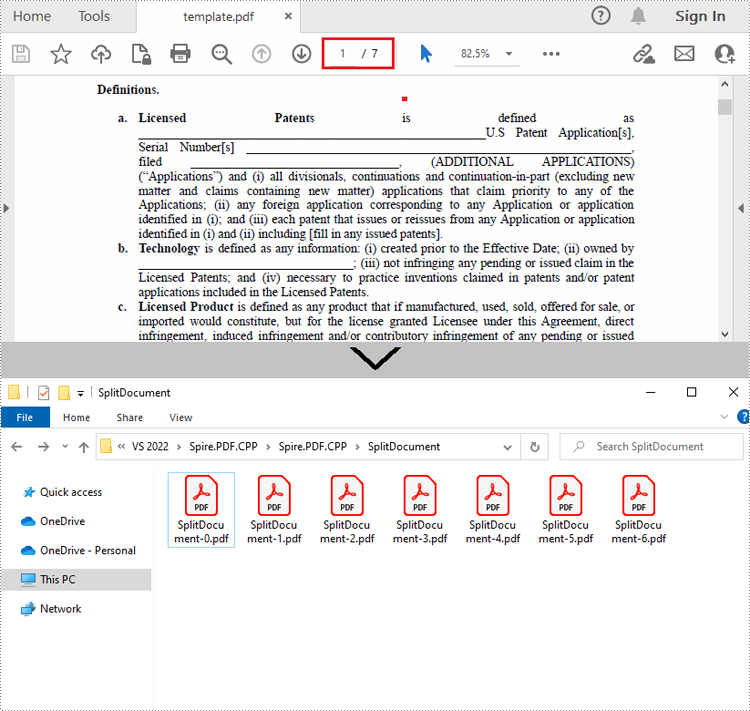
Spire.PDF for C++ offers the PdfDocument->Split() method to divide a multipage PDF document into multiple single-page files. The following are the detailed steps.
- Create a PdfDcoument instance.
- Load a sample PDF document using PdfDocument->LoadFromFile() method.
- Split the document into one-page PDFs using PdfDocument->Split() method.
- C++
#include "Spire.Pdf.o.h";

using namespace Spire::Pdf;


int main()
{
	//Specify the input and output files
	std::wstring inputFile = L"Data\\template.pdf";
	std::wstring outputFile = L"SplitDocument/";
	std::wstring pattern = outputFile + L"SplitDocument-{0}.pdf";

	//Create a PdfDocument instance
	intrusive_ptr<PdfDocument> pdf = new PdfDocument();

	//Load a sample PDF file
	pdf->LoadFromFile(inputFile.c_str());

	//Split the PDF to one-page PDFs
	pdf->Split(pattern.c_str());
	pdf->Close();

}
Split a PDF File by Page Ranges in C++
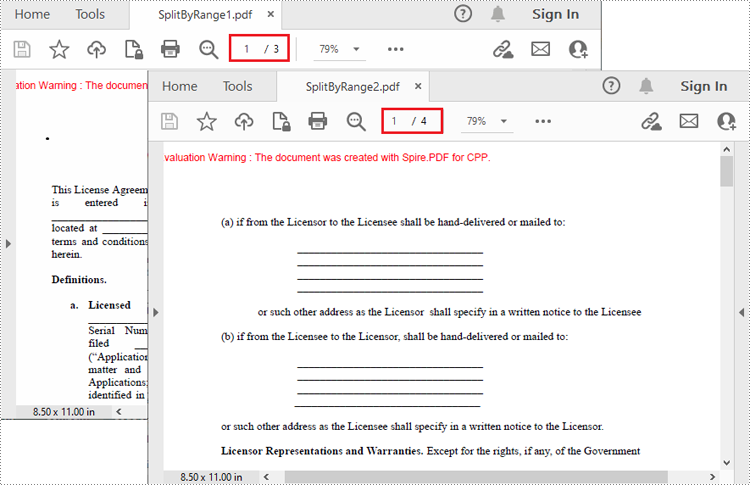
There's no straightforward way to split PDF documents by page ranges. To do so, you can create two or more new PDF documents and then use the PdfPageBase->CreateTemplate()->Draw() method to draw the contents of the specified pages in the input PDF file onto the pages of the new PDFs. The following are the detailed steps.
- Create a PdfDocument instance and load a sample PDF file.
- Create a new PDF document, and then Initialize a new instance of PdfPageBase class.
- Iterate through the first several pages in the sample PDF file.
- Create a new page with specified size and margins in the new PDF document
- Get the specified page in the sample PDF using PdfDocument->GetPages()->GetItem() method, and then draw the contents of the specified page onto the new page using PdfPageBase->CreateTemplate()->Draw() method.
- Save the first new PDF document using PdfDocument->SaveToFile() method.
- Create another new PDF document and then draw the remaining pages of the sample PDF file into it.
- Save the second new PDF document.
- C++
#include "Spire.Pdf.o.h";

using namespace Spire::Pdf;

int main()
{
	//Create a PdfDocument instance and load a sample PDF file
	intrusive_ptr<PdfDocument> oldPdf = new PdfDocument();
	oldPdf->LoadFromFile(L"Data\\template.pdf");

	//Create a new PDF document
	intrusive_ptr<PdfDocument> newPdf1 = new PdfDocument();

	//Initialize a new instance of PdfPageBase class
	intrusive_ptr<PdfPageBase> page;

	//Draw the first three pages of the sample file into the new PDF document
	for (int i = 0; i < 3; i++)
	{
		//Create a new page with specified size and margin in the new PDF document
		intrusive_ptr<PdfMargins> tempVar = new PdfMargins(0);
		page = newPdf1->GetPages()->Add(oldPdf->GetPages()->GetItem(i)->GetSize(), tempVar);

		//Draw the contents of a specified page in the sample file onto the new page
		oldPdf->GetPages()->GetItem(i)->CreateTemplate()->Draw(page, new PointF(0, 0));
	}

	//Save the first PDF document
	newPdf1->SaveToFile(L"SplitByRange1.pdf");
	newPdf1->Close();

	//Create another new PDF document
	intrusive_ptr<PdfDocument> newPdf2 = new PdfDocument();

	//Draw the rest pages of the sample file into the new PDF document
	for (int i = 3; i < oldPdf->GetPages()->GetCount(); i++)
	{
		//Create a new page with specified size and margin in the new PDF document
		intrusive_ptr<PdfMargins> tempVar = new PdfMargins(0);
		page = newPdf2->GetPages()->Add(oldPdf->GetPages()->GetItem(i)->GetSize(), tempVar);

		// Draw the contents of a specified page in the sample file onto the new page
		oldPdf->GetPages()->GetItem(i)->CreateTemplate()->Draw(page, new PointF(0, 0));
	}

	//Save the second PDF document
	newPdf2->SaveToFile(L"SplitByRange2.pdf");
	newPdf2->Close();
}
Apply for a Temporary License
If you'd like to remove the evaluation message from the generated documents, or to get rid of the function limitations, please request a 30-day trial license for yourself.
C++: Create a PDF Document from Scratch
PDF documents generated through code are consistent in terms of formatting, layout, and content, ensuring a professional look. Automating the creation of PDF documents reduces the time and effort required to produce them manually. Nowadays, most invoices, receipts and other financial documents are generated programmatically. In this article, you will learn how to create PDF documents from scratch in C++ using Spire.PDF for C++.
Install Spire.PDF for C++
There are two ways to integrate Spire.PDF for C++ into your application. One way is to install it through NuGet, and the other way is to download the package from our website and copy the libraries into your program. Installation via NuGet is simpler and more recommended. You can find more details by visiting the following link.
Integrate Spire.PDF for C++ in a C++ Application
Background Knowledge
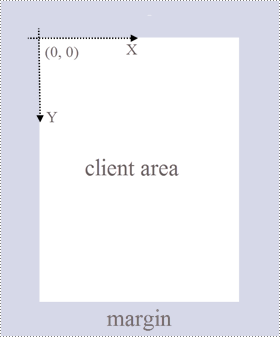
A page in Spire.PDF for C++ (represented by PdfPageBase class) consists of client area and margins all around. The content area is for users to write various contents, and the margins are usually blank edges.
As shown in the figure below, the origin of the coordinate system on the page is located at the top left corner of the client area, with the x-axis extending horizontally to the right and the y-axis extending vertically down. All elements added to the client area must be based on the specified coordinates.
In addition, the following table lists the important classes and methods, which can help you easily understand the code snippet provided in the following section.
| Member | Description |
| PdfDocument class | Represents a PDF document model. |
| PdfPageBase class | Represents a page in a PDF document. |
| PdfSolidBrush class | Represents a brush that fills any object with a solid color. |
| PdfTrueTypeFont class | Represents a true type font. |
| PdfStringFormat class | Represents text format information, such as alignment, characters spacing and indent. |
| PdfTextWidget class | Represents the text area with the ability to span several pages. |
| PdfTextLayout class | Represents the text layout information. |
| PdfDocument->GetPages()->Add() method | Adds a page to a PDF document. |
| PdfPageBase->GetCanvas()->DrawString() method | Draws string on a page at the specified location with specified font and brush objects. |
| PdfLayoutWidget->Draw() method | Draws widget on a page at the specified location. |
| PdfDocument->Save() method | Saves the document to a PDF file. |
Create a PDF Document from Scratch in C++
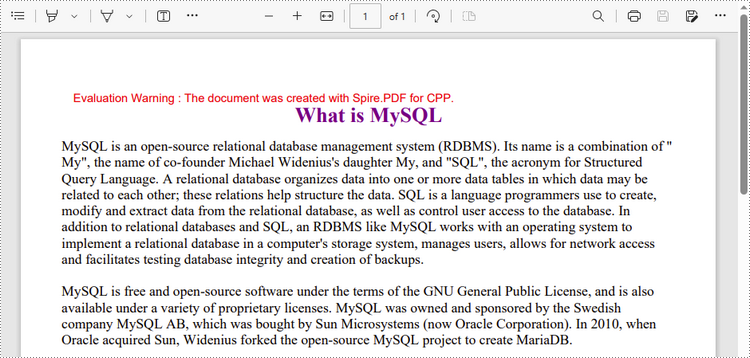
Despite the fact that Spire.PDF for C++ enables users to add various elements to PDF documents, this article demonstrates how to create a simple PDF document with only plain text. The following are the detailed steps.
- Create a PdfDocument object.
- Add a page using PdfDocument->GetPages()->Add() method.
- Create brush and font objects.
- Draw string on the page at a specified coordinate using PdfPageBase->GetCanvas()->DrawString() method.
- Create a PdfTextWidget object to hold a chunk of text.
- Convert the text widget to an object of PdfLayoutWidget class and draw it on the page using PdfLayoutWidget->Draw() method
- Save the document to a PDF file using PdfDocument->Save() method.
- C++
#include "Spire.Pdf.o.h";

using namespace Spire::Pdf;
using namespace std;

wstring readFileIntoWstring(const string& path) {

    ifstream input_file(path);
    if (!input_file.is_open()) {
        cerr << "Could not open the file - '"
            << path << "'" << endl;
        exit(EXIT_FAILURE);
    }
    string s1 = string((std::istreambuf_iterator<char>(input_file)), std::istreambuf_iterator<char>());
    wstring ws(s1.begin(), s1.end());
    return ws;
}

int main() {

    //Create a PdfDocument object
    intrusive_ptr<PdfDocument> doc = new PdfDocument();

    //Add a page
    intrusive_ptr<PdfPageBase> page = doc->GetPages()->Add(PdfPageSize::A4(), new PdfMargins(35));

    //Specify title text
    wstring titleText = L"What is MySQL";

    //Create solid brushes
    intrusive_ptr<PdfSolidBrush> titleBrush = new PdfSolidBrush(new PdfRGBColor(Color::GetPurple()));
    intrusive_ptr<PdfSolidBrush> paraBrush = new PdfSolidBrush(new PdfRGBColor(Color::GetBlack()));

    //Create true type fonts
    intrusive_ptr<PdfTrueTypeFont> titleFont = new PdfTrueTypeFont(L"Times New Roman", 18, PdfFontStyle::Bold, true);
    intrusive_ptr<PdfTrueTypeFont> paraFont = new PdfTrueTypeFont(L"Times New Roman", 12, PdfFontStyle::Regular, true);

    //Set the text alignment via PdfStringFormat class
    intrusive_ptr<PdfStringFormat> format = new PdfStringFormat();
    format->SetAlignment(PdfTextAlignment::Center);

    //Draw title on the page
    page->GetCanvas()->DrawString(titleText.c_str(), titleFont, titleBrush, page->GetClientSize()->GetWidth() / 2, 20, format);

    //Get paragraph text from a .txt file
    wstring paraText = readFileIntoWstring("C:\\Users\\Administrator\\Desktop\\content.txt");

    //Create a PdfTextWidget object to hold the paragraph content
    intrusive_ptr<PdfTextWidget> widget = new PdfTextWidget(paraText.c_str(), paraFont, paraBrush);

    //Create a rectangle where the paragraph content will be placed
    intrusive_ptr<RectangleF> rect = new RectangleF(0, 50, (float)page->GetClientSize()->GetWidth(), (float)page->GetClientSize()->GetHeight());

    //Set the PdfLayoutType to Paginate to make the content paginated automatically
    intrusive_ptr<PdfTextLayout> layout = new PdfTextLayout();
    layout->SetLayout(PdfLayoutType::Paginate);

    //Draw paragraph text on the page
    Object::Convert<PdfLayoutWidget>(widget)->Draw(page, rect, layout);

    //Save to file
    doc->SaveToFile(L"output/CreatePdfDocument.pdf");
    doc->Dispose();
}
Apply for a Temporary License
If you'd like to remove the evaluation message from the generated documents, or to get rid of the function limitations, please request a 30-day trial license for yourself.
C++: Apply or Remove Data Validation in Excel
Data validation in Excel controls what types of information can be entered into a cell. Using it, you can restrict only specific data types such as numbers or dates to be in a cell, or limit numbers to a certain range and text to a certain length. In addition, it also allows you to present a list of predefined values in a drop-down menu for users to choose from. In this article, you will learn how to apply or remove data validation in Excel in C++ using Spire.XLS for C++.
Install Spire.XLS for C++
There are two ways to integrate Spire.XLS for C++ into your application. One way is to install it through NuGet, and the other way is to download the package from our website and copy the libraries into your program. Installation via NuGet is simpler and more recommended. You can find more details by visiting the following link.
Integrate Spire.XLS for C++ in a C++ Application
Apply Data Validation to Excel Cells in C++
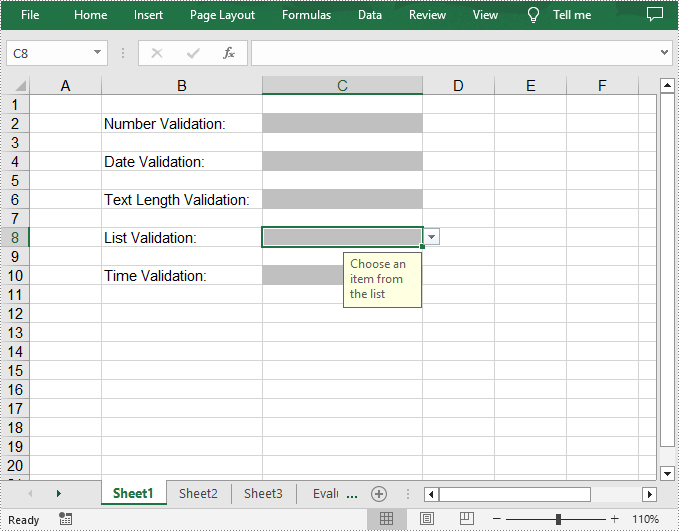
Spire.XLS for C++ allows you to create validation rules for numbers, dates, text values, lists, etc. The following are the steps to apply different data validation types to specified cells in Excel.
- Create a Workbook object.
- Get a specified worksheet using Workbook->GetWorksheets()->Get() method.
- Get a specific cell using Worksheet->GetRange() method.
- Set the data type allowed in the cell using CellRange->GetDataValidation()->SetAllowType() method. You can select different data type such as Decimal, Time, Date, TextLength and Integer.
- Set the comparison operator using CellRange->GetDataValidation()->SetCompareOperator() method. The comparison operators include Between, NotBetween, Less, Greater, and Equal.
- Set one or two formulas for the data validation using CellRange->GetDataValidation()->SetFormula1() and CellRange->GetDataValidation()->SetFormula2() methods.
- Set the input prompt using CellRange->GetDataValidation()->SetInputMessage() method.
- Set the error message using CellRange->GetDataValidation()->SetErrorMessage() method.
- Set to show the error alert and set its alert style when invalid data is entered.
- Save the result document using Workbook->SaveToFile() method.
- C++
#include "Spire.Xls.o.h";

using namespace Spire::Xls;

int main() {

	//Specify the output file
	std::wstring outputFile = L"DataValidation.xlsx";

	//Create a Workbook object
	intrusive_ptr<Workbook> workbook = new Workbook();

	//Get the first worksheet
	intrusive_ptr<Worksheet> sheet = dynamic_pointer_cast<Worksheet>(workbook->GetWorksheets()->Get(0));

	//Insert text in specified cells
	dynamic_pointer_cast<CellRange>(sheet->GetRange(L"B2"))->SetText(L"Number Validation: ");
	dynamic_pointer_cast<CellRange>(sheet->GetRange(L"B4"))->SetText(L"Date Validation: ");
	dynamic_pointer_cast<CellRange>(sheet->GetRange(L"B6"))->SetText(L"Text Length Validation: ");
	dynamic_pointer_cast<CellRange>(sheet->GetRange(L"B8"))->SetText(L"List Validation: ");
	dynamic_pointer_cast<CellRange>(sheet->GetRange(L"B10"))->SetText(L"Time Validation: ");

	//Add a number validation to C2
	intrusive_ptr<CellRange> rangeNumber = dynamic_pointer_cast<CellRange>(sheet->GetRange(L"C2"));
	rangeNumber->GetDataValidation()->SetAllowType(CellDataType::Decimal);
	rangeNumber->GetDataValidation()->SetCompareOperator(ValidationComparisonOperator::Between);
	rangeNumber->GetDataValidation()->SetFormula1(L"3");
	rangeNumber->GetDataValidation()->SetFormula2(L"6");
	rangeNumber->GetDataValidation()->SetInputMessage(L"Enter a number between 1 and 10");
	rangeNumber->GetDataValidation()->SetErrorMessage(L"Please input correct number!");
	rangeNumber->GetDataValidation()->SetShowError(true);
	rangeNumber->GetDataValidation()->SetAlertStyle(AlertStyleType::Warning);
	rangeNumber->GetStyle()->SetKnownColor(ExcelColors::Gray25Percent);

	//Add a date validation to C4
	intrusive_ptr<CellRange> rangeDate = dynamic_pointer_cast<CellRange>(sheet->GetRange(L"C4"));
	rangeDate->GetDataValidation()->SetAllowType(CellDataType::Date);
	rangeDate->GetDataValidation()->SetCompareOperator(ValidationComparisonOperator::Between);
	rangeDate->GetDataValidation()->SetFormula1(L"1/1/2021");
	rangeDate->GetDataValidation()->SetFormula2(L"12/31/2021");
	rangeDate->GetDataValidation()->SetInputMessage(L"Enter a date between 1/1/2021 and 12/31/2021");
	rangeDate->GetStyle()->SetKnownColor(ExcelColors::Gray25Percent);

	//Add a text length validation to C6
	intrusive_ptr<CellRange> rangeTextLength = dynamic_pointer_cast<CellRange>(sheet->GetRange(L"C6"));
	rangeTextLength->GetDataValidation()->SetAllowType(CellDataType::TextLength);
	rangeTextLength->GetDataValidation()->SetCompareOperator(ValidationComparisonOperator::LessOrEqual);
	rangeTextLength->GetDataValidation()->SetFormula1(L"5");
	rangeTextLength->GetDataValidation()->SetErrorMessage(L"Enter a Valid String!");
	rangeTextLength->GetDataValidation()->SetShowError(true);
	rangeTextLength->GetDataValidation()->SetAlertStyle(AlertStyleType::Stop);
	rangeTextLength->GetStyle()->SetKnownColor(ExcelColors::Gray25Percent);

	//Apply a list validation to C8
	intrusive_ptr<CellRange> rangeList = dynamic_pointer_cast<CellRange>(sheet->GetRange(L"C8"));
	std::vector<LPCWSTR_S> files = { L"United States", L"Canada", L"United Kingdom" };
	rangeList->GetDataValidation()->SetValues(files);
	rangeList->GetDataValidation()->SetIsSuppressDropDownArrow(false);
	rangeList->GetDataValidation()->SetInputMessage(L"Choose an item from the list");
	rangeList->GetStyle()->SetKnownColor(ExcelColors::Gray25Percent);

	//Apply a time validation to C10
	intrusive_ptr<CellRange> rangeTime = dynamic_pointer_cast<CellRange>(sheet->GetRange(L"C10"));
	rangeTime->GetDataValidation()->SetAllowType(CellDataType::Time);
	rangeTime->GetDataValidation()->SetCompareOperator(ValidationComparisonOperator::Between);
	rangeTime->GetDataValidation()->SetFormula1(L"9:00");
	rangeTime->GetDataValidation()->SetFormula2(L"12:00");
	rangeTime->GetDataValidation()->SetInputMessage(L"Enter a time between 9:00 and 12:00");
	rangeTime->GetStyle()->SetKnownColor(ExcelColors::Gray25Percent);

	//Auto fit width of column 2
	sheet->AutoFitColumn(2);

	//Set the width of column 3
	sheet->GetColumns()->GetItem(2)->SetColumnWidth(20);

	//Save the result document
	workbook->SaveToFile(outputFile.c_str(), ExcelVersion::Version2016);
	workbook->Dispose();
}
Remove Data Validation from Excel Cells in C++
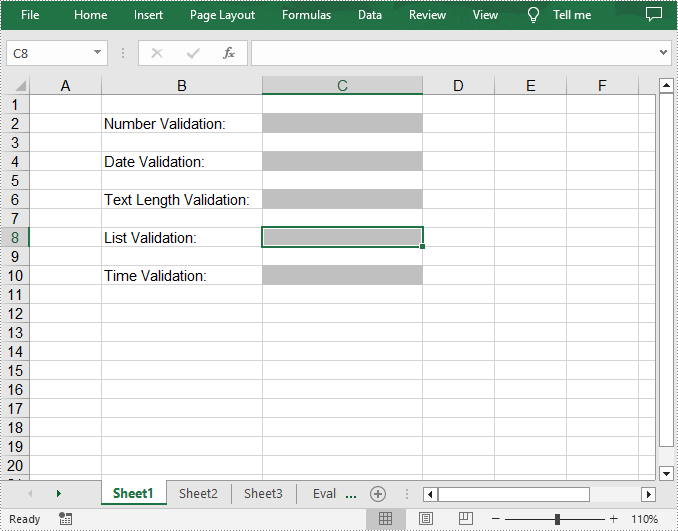
To remove data validation applied to the cells, Spire.XLS for C++ provides the Worksheet->GetDVTable()->Remove() method. The following are the detailed steps.
- Create a Workbook object.
- Load a sample Excel document containing data validation using Workbook->LoadFromFile() method.
- Get a specified worksheet using Workbook->GetWorksheets()->Get() method.
- Create an array of rectangles, which is used to locate the cells where the validation will be removed.
- Remove the data validation from the selected cells using Worksheet->GetDVTable()->Remove() method.
- Save the result document using Workbook->SaveToFile() method.
- C++
#include "Spire.Xls.o.h";

using namespace Spire::Xls;

int main() {

	//Specify the input and output files
	std::wstring inputFile = L"DataValidation.xlsx";
	std::wstring outputFile = L"RemoveDataValidation.xlsx";

	//Create a Workbook object
	intrusive_ptr<Workbook> workbook = new Workbook();

	//Load a sample Excel document from disk
	workbook->LoadFromFile(inputFile.c_str());

	//Get the first worksheet
	intrusive_ptr<Worksheet> sheet = dynamic_pointer_cast<Worksheet>(workbook->GetWorksheets()->Get(0));

	//Create an array of rectangles, which is used to locate the ranges in worksheet
	std::vector<intrusive_ptr<Spire::Xls::Rectangle>> rectangles(1);

	//Assign value to the first element of the array. A rectangle specifies a cell range
	rectangles[0] = Spire::Xls::Rectangle::FromLTRB(0, 0, 2, 9);

	//Remove validations in the ranges represented by rectangles
	sheet->GetDVTable()->Remove(rectangles);

	//Save the result document
	workbook->SaveToFile(outputFile.c_str(), ExcelVersion::Version2016);
	workbook->Dispose();
}
Apply for a Temporary License
If you'd like to remove the evaluation message from the generated documents, or to get rid of the function limitations, please request a 30-day trial license for yourself.
C++: Create Lists in a Word Document
If you want to make your paragraphs easier to navigate and read, rearranging them into alphabetical, numerical, or even bullet order will allow your readers to quickly find what they are looking for and search through the list in an instant. In this article, you will learn how to create numbered lists, bulleted lists, and multilevel lists in a Word document in C++ using Spire.Doc for C++.
- Create a Numbered List in Word in C++
- Create a Bulleted List in Word in C++
- Create a Multilevel Numbered List in Word in C++
- Create a Multilevel Mixed-Type List in Word in C++
Install Spire.Doc for C++
There are two ways to integrate Spire.Doc for C++ into your application. One way is to install it through NuGet, and the other way is to download the package from our website and copy the libraries into your program. Installation via NuGet is simpler and more recommended. You can find more details by visiting the following link.
Integrate Spire.Doc for C++ in a C++ Application
Create a Numbered List in Word in C++
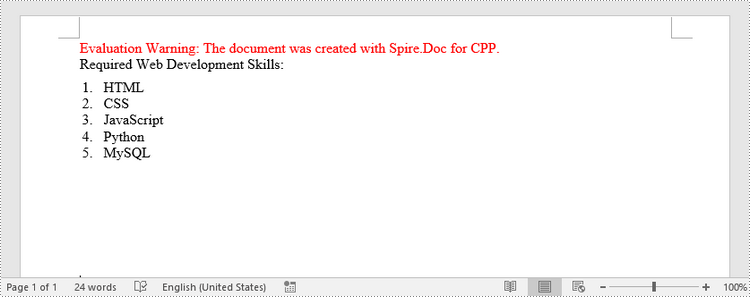
Spire.Doc for C++ offers the ListStyle class that you can use to create a numbered list style or a bulleted style. Then, the list style can be applied to a paragraph using Paragraph->GetListFormat()->ApplyStyle() method. The steps to create a numbered list are as follows.
- Create a Document object.
- Add a section using Document->AddSection() method.
- Create an instance of ListStyle class, specifying the list type to Numbered.
- Get a specific level of the list using ListStyle->GetListRef()->GetLevels()->GetItem(index) method, and set the numbering type using ListLevel->SetPatternType() method.
- Add the list style to the document using Document->GetStyles()->Add() method.
- Add several paragraphs to the document using Section->AddParagraph() method.
- Apply the list style to a specific paragraph using Paragraph->GetListFormat()->ApplyStyle() method.
- Specify the list level using Paragraph->GetListFormat()->SetListLevelNumber() method.
- Save the document to a Word file using Document->SaveToFile() method.
- C++
#include "Spire.Doc.o.h";
using namespace Spire::Doc;
using namespace std;
int main() {

    //Create a Document object
    intrusive_ptr<Document> document = new Document();

    //Add a section
    intrusive_ptr<Section> section = document->AddSection();

    //Create a numbered list style
    intrusive_ptr<ListStyle> listStyle = document->GetStyles()->Add(ListType::Numbered, L"numberList");
    listStyle->GetListRef()->GetLevels()->GetItem(0)->SetPatternType(ListPatternType::DecimalEnclosedFullstop);
    listStyle->GetListRef()->GetLevels()->GetItem(0)->SetTextPosition(20);
    document->GetStyles()->Add(listStyle);

    //Add a paragraph
    intrusive_ptr<Paragraph> paragraph = section->AddParagraph();
    paragraph->AppendText(L"Required Web Development Skills:");
    paragraph->GetFormat()->SetAfterSpacing(5);

    //Add a paragraph and apply the numbered list style to it
    paragraph = section->AddParagraph();
    paragraph->AppendText(L"HTML");
    paragraph->GetListFormat()->ApplyStyle(listStyle);
    paragraph->GetListFormat()->SetListLevelNumber(0);

    //Add another four paragraphs and apply the numbered list style to them
    paragraph = section->AddParagraph();
    paragraph->AppendText(L"CSS");
    paragraph->GetListFormat()->ApplyStyle(listStyle);
    paragraph->GetListFormat()->SetListLevelNumber(0);

    paragraph = section->AddParagraph();
    paragraph->AppendText(L"C++Script");
    paragraph->GetListFormat()->ApplyStyle(listStyle);
    paragraph->GetListFormat()->SetListLevelNumber(0);

    paragraph = section->AddParagraph();
    paragraph->AppendText(L"Python");
    paragraph->GetListFormat()->ApplyStyle(listStyle);
    paragraph->GetListFormat()->SetListLevelNumber(0);

    paragraph = section->AddParagraph();
    paragraph->AppendText(L"MySQL");
    paragraph->GetListFormat()->ApplyStyle(listStyle);
    paragraph->GetListFormat()->SetListLevelNumber(0);

    //Save the document to file
    document->SaveToFile(L"output/NumberedList.docx", FileFormat::Docx2019);
    document->Dispose();
}
Create a Bulleted List in Word in C++
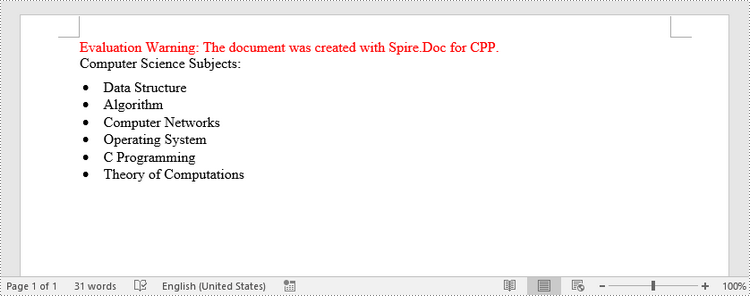
The process of creating a bulleted list is similar to that of creating a numbered list. The difference is that when creating a list style, you must specify the list type as Bulleted and set a bullet symbol for it. The following are the detailed steps.
- Create a Document object.
- Add a section using Document->AddSection() method.
- Create an instance of ListStyle class, specifying the list type to Bulleted.
- Get a specific level of the list using ListStyle->GetListRef()->GetLevels()->GetItem(index) method, and set the bullet symbol using ListLevel->SetBulletCharacter() method.
- Add the list style to the document using Document->GetStyles()->Add() method.
- Add several paragraphs to the document using Section->AddParagraph() method.
- Apply the list style to a specific paragraph using Paragraph->GetListFormat()->ApplyStyle() method.
- Specify the list level using Paragraph->GetListFormat()->SetListLevelNumber() method.
- Save the document to a Word file using Document->SaveToFile() method.
- C++
#include "Spire.Doc.o.h";
using namespace Spire::Doc;
using namespace std;
int main() {

    //Create a Document object
    intrusive_ptr<Document> document = new Document();

    //Add a section
    intrusive_ptr<Section> section = document->AddSection();

    //Create a bulleted list style
    intrusive_ptr<ListStyle> listStyle = document->GetStyles()->Add(ListType::Bulleted, L"bulletedList");
    listStyle->GetListRef()->GetLevels()->GetItem(0)->SetBulletCharacter(L"\u00B7");
    listStyle->GetListRef()->GetLevels()->GetItem(0)->GetCharacterFormat()->SetFontName(L"Symbol");
    listStyle->GetListRef()->GetLevels()->GetItem(0)->SetTextPosition(20);
    document->GetStyles()->Add(listStyle);

    //Add a paragraph
    intrusive_ptr<Paragraph> paragraph = section->AddParagraph();
    paragraph->AppendText(L"Computer Science Subjects:");
    paragraph->GetFormat()->SetAfterSpacing(5);

    //Add a paragraph and apply the bulleted list style to it
    paragraph = section->AddParagraph();
    paragraph->AppendText(L"Data Structure");
    paragraph->GetListFormat()->ApplyStyle(L"bulletedList");
    paragraph->GetListFormat()->SetListLevelNumber(0);

    //Add another five paragraphs and apply the bulleted list style to them
    paragraph = section->AddParagraph();
    paragraph->AppendText(L"Algorithm");
    paragraph->GetListFormat()->ApplyStyle(L"bulletedList");
    paragraph->GetListFormat()->SetListLevelNumber(0);

    paragraph = section->AddParagraph();
    paragraph->AppendText(L"Computer Networks");
    paragraph->GetListFormat()->ApplyStyle(L"bulletedList");
    paragraph->GetListFormat()->SetListLevelNumber(0);

    paragraph = section->AddParagraph();
    paragraph->AppendText(L"Operating System");
    paragraph->GetListFormat()->ApplyStyle(L"bulletedList");
    paragraph->GetListFormat()->SetListLevelNumber(0);

    paragraph = section->AddParagraph();
    paragraph->AppendText(L"C Programming");
    paragraph->GetListFormat()->ApplyStyle(L"bulletedList");
    paragraph->GetListFormat()->SetListLevelNumber(0);

    paragraph = section->AddParagraph();
    paragraph->AppendText(L"Theory of Computations");
    paragraph->GetListFormat()->ApplyStyle(L"bulletedList");
    paragraph->GetListFormat()->SetListLevelNumber(0);

    //Save the document to file
    document->SaveToFile(L"output/BulletedList.docx", FileFormat::Docx2019);
    document->Dispose();
}
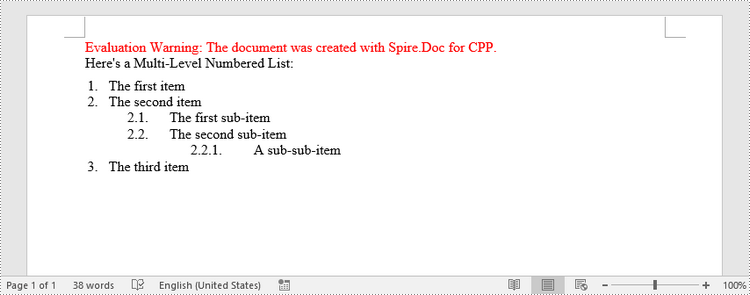
Create a Multilevel Numbered List in Word in C++
A multilevel list consists of at least two different levels. Each level of a nested list can be accessed using ListStyle ->GetListRef()->GetLevels()->GetItem(index) method. Through ListLevel object, you can set the numbering type and prefix for a certain level. The following are the steps to create a multilevel numbered list in Word.
- Create a Document object.
- Add a section using Document->AddSection() method.
- Create an instance of ListStyle class, specifying the list type to Numbered.
- Get a specific level of the list using ListStyle ->GetListRef()->GetLevels()->GetItem(index) method, and set the numbering type and prefix.
- Add the list style to the document using Document->GetStyles()->Add() method.
- Add several paragraphs to the document using Section->AddParagraph() method.
- Apply the list style to a specific paragraph using Paragraph->GetListFormat()->ApplyStyle() method.
- Specify the list level using Paragraph->GetListFormat()->SetListLevelNumber() method.
- Save the document to a Word file using Document->SaveToFile() method.
- C++
#include "Spire.Doc.o.h";
using namespace Spire::Doc;
using namespace std;
int main() {

    //Create a Document object
    intrusive_ptr<Document> document = new Document();

    //Add a section
    intrusive_ptr<Section> section = document->AddSection();

    //Create a numbered list style, specifying number prefix and pattern type of each level
    intrusive_ptr<ListStyle> listStyle = document->GetStyles()->Add(ListType::Numbered, L"nestedStyle");
    listStyle->GetListRef()->GetLevels()->GetItem(0)->SetPatternType(ListPatternType::Arabic);
    listStyle->GetListRef()->GetLevels()->GetItem(0)->SetTextPosition(20);
    listStyle->GetListRef()->GetLevels()->GetItem(1)->SetNumberPrefix(L"%1.");
    listStyle->GetListRef()->GetLevels()->GetItem(1)->SetPatternType(ListPatternType::Arabic);
    listStyle->GetListRef()->GetLevels()->GetItem(2)->SetNumberPrefix(L"%1.%2.");
    listStyle->GetListRef()->GetLevels()->GetItem(2)->SetPatternType(ListPatternType::Arabic);
    document->GetStyles()->Add(listStyle);

    //Add a paragraph
    intrusive_ptr<Paragraph> paragraph = section->AddParagraph();
    paragraph->AppendText(L"Here's a Multi-Level Numbered List:");
    paragraph->GetFormat()->SetAfterSpacing(5);

    //Add a paragraph and apply the numbered list style to it
    paragraph = section->AddParagraph();
    paragraph->AppendText(L"The first item");
    paragraph->GetListFormat()->ApplyStyle(L"nestedStyle");
    paragraph->GetListFormat()->SetListLevelNumber(0);

    //Add another five paragraphs and apply the numbered list stype to them
    paragraph = section->AddParagraph();
    paragraph->AppendText(L"The second item");
    paragraph->GetListFormat()->ApplyStyle(L"nestedStyle");
    paragraph->GetListFormat()->SetListLevelNumber(0);

    paragraph = section->AddParagraph();
    paragraph->AppendText(L"The first sub-item");
    paragraph->GetListFormat()->ApplyStyle(L"nestedStyle");
    paragraph->GetListFormat()->SetListLevelNumber(1);

    paragraph = section->AddParagraph();
    paragraph->AppendText(L"The second sub-item");
    paragraph->GetListFormat()->ContinueListNumbering();
    paragraph->GetListFormat()->ApplyStyle(L"nestedStyle");

    paragraph = section->AddParagraph();
    paragraph->AppendText(L"A sub-sub-item");
    paragraph->GetListFormat()->ApplyStyle(L"nestedStyle");
    paragraph->GetListFormat()->SetListLevelNumber(2);

    paragraph = section->AddParagraph();
    paragraph->AppendText(L"The third item");
    paragraph->GetListFormat()->ApplyStyle(L"nestedStyle");
    paragraph->GetListFormat()->SetListLevelNumber(0);

    //Save the document to file
    document->SaveToFile(L"output/MultilevelNumberedList.docx", FileFormat::Docx2019);
    document->Dispose();
}
Create a Multilevel Mixed-Type List in Word in C++
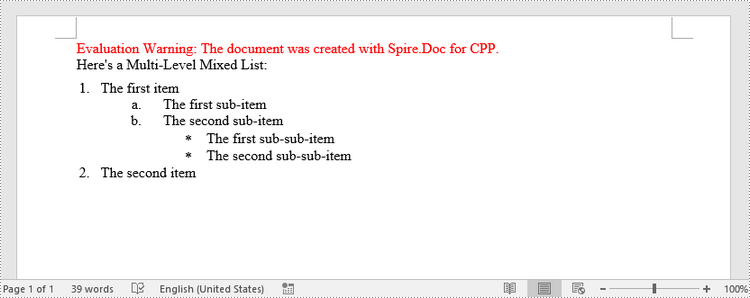
A multilevel list can be a combination of numbered lists and bulleted lists. To create a mixed-type list, you just need to create a numbered list style and a bulleted list style and apply them to different paragraphs. The detailed steps are as follows.
- Create a Document object.
- Add a section using Document->AddSection() method.
- Create a numbered list style and a bulleted list style.
- Add several paragraphs to the document using Section->AddParagraph() method.
- Apply different list style to different paragraphs using Paragraph->GetListFormat()->ApplyStyle() method.
- Save the document to a Word file using Document->SaveToFile() method.
- C++
#include "Spire.Doc.o.h";
using namespace Spire::Doc;
using namespace std;
int main() {
    //Create a Document object
    intrusive_ptr<Document> document = new Document();

    //Add a section
    intrusive_ptr<Section> section = document->AddSection();

    //Create a numbered list style
    intrusive_ptr<ListStyle> numberedListStyle = document->GetStyles()->Add(ListType::Numbered, L"numberedStyle");
    numberedListStyle->GetListRef()->GetLevels()->GetItem(0)->SetPatternType(ListPatternType::Arabic);
    numberedListStyle->GetListRef()->GetLevels()->GetItem(0)->SetTextPosition(20);
    numberedListStyle->GetListRef()->GetLevels()->GetItem(1)->SetPatternType(ListPatternType::LowLetter);
    document->GetStyles()->Add(numberedListStyle);

    //Create a bulleted list style
    intrusive_ptr<ListStyle> bulletedListStyle = document->GetStyles()->Add(ListType::Numbered, L"bulletedStyle");
    bulletedListStyle->GetListRef()->GetLevels()->GetItem(2)->SetBulletCharacter(L"\u002A");
    bulletedListStyle->GetListRef()->GetLevels()->GetItem(2)->GetCharacterFormat()->SetFontName(L"Symbol");
    document->GetStyles()->Add(bulletedListStyle);

    //Add a paragraph
    intrusive_ptr<Paragraph> paragraph = section->AddParagraph();
    paragraph->AppendText(L"Here's a Multi-Level Mixed List:");
    paragraph->GetFormat()->SetAfterSpacing(5);

    //Add a paragraph and apply the numbered list style to it
    paragraph = section->AddParagraph();
    paragraph->AppendText(L"The first item");
    paragraph->GetListFormat()->ApplyStyle(L"numberedStyle");
    paragraph->GetListFormat()->SetListLevelNumber(0);

    //Add another five paragraphs and apply different list stype to them
    paragraph = section->AddParagraph();
    paragraph->AppendText(L"The first sub-item");
    paragraph->GetListFormat()->ApplyStyle(L"numberedStyle");
    paragraph->GetListFormat()->SetListLevelNumber(1);

    paragraph = section->AddParagraph();
    paragraph->AppendText(L"The second sub-item");
    paragraph->GetListFormat()->SetListLevelNumber(1);
    paragraph->GetListFormat()->ApplyStyle(L"numberedStyle");

    paragraph = section->AddParagraph();
    paragraph->AppendText(L"The first sub-sub-item");
    paragraph->GetListFormat()->ApplyStyle(L"bulletedStyle");
    paragraph->GetListFormat()->SetListLevelNumber(2);

    paragraph = section->AddParagraph();
    paragraph->AppendText(L"The second sub-sub-item");
    paragraph->GetListFormat()->ApplyStyle(L"bulletedStyle");
    paragraph->GetListFormat()->SetListLevelNumber(2);

    paragraph = section->AddParagraph();
    paragraph->AppendText(L"The second item");
    paragraph->GetListFormat()->ApplyStyle(L"numberedStyle");
    paragraph->GetListFormat()->SetListLevelNumber(0);

    //Save the document to file
    document->SaveToFile(L"output/MultilevelMixedList.docx", FileFormat::Docx);
    document->Dispose();
}
Apply for a Temporary License
If you'd like to remove the evaluation message from the generated documents, or to get rid of the function limitations, please request a 30-day trial license for yourself.
C++: Insert, Replace or Delete Images in PDF
Inserting images into a document is a great way to enhance its visual appearance and make it more understandable for readers. For example, if you are creating a product guide for a piece of furniture that has complex assembly steps, including images of each step can help users understand how to assemble the product quickly. In this article, you will learn how to insert images into PDF documents along with how to replace and delete images in PDF documents in C++ using Spire.PDF for C++.
- Insert an Image into a PDF Document
- Replace an Image with Another Image in a PDF Document
- Delete an Image from a PDF Document
Install Spire.PDF for C++
There are two ways to integrate Spire.PDF for C++ into your application. One way is to install it through NuGet, and the other way is to download the package from our website and copy the libraries into your program. Installation via NuGet is simpler and more recommended. You can find more details by visiting the following link.
Integrate Spire.PDF for C++ in a C++ Application
Insert an Image into a PDF Document in C++
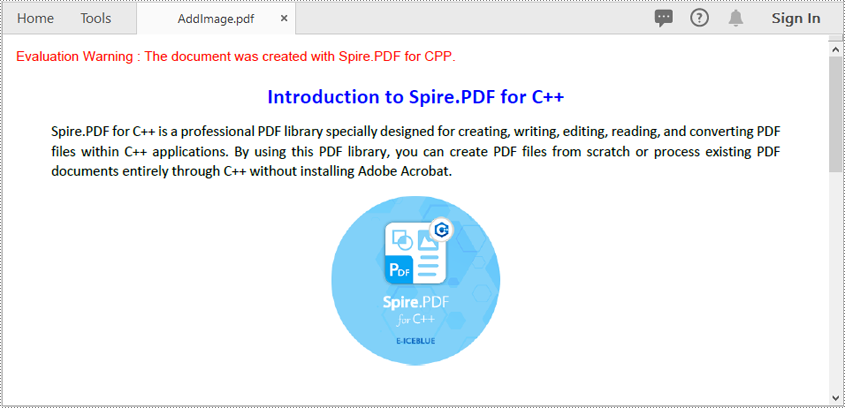
Spire.PDF for C++ offers the PdfPageBase->GetCanvas()->DrawImage(intrusive_ptr<PdfImage> image, float x, float y, float width, float height) method to add an image to a specific page in a PDF document. The detailed steps are as follows:
- Initialize an instance of the PdfDocument class.
- Load a PDF document using the PdfDocument->LoadFromFile(LPCWSTR_S filename) method.
- Get a specific page of the PDF document using the PdfDocument->GetPages()->GetItem(int index) method.
- Initialize an instance of the PdfImage class.
- Load an image using the PdfImage->FromFile(LPCWSTR_S filename) method.
- Draw the image to a specific location on the page using the PdfPageBase->GetCanvas()->DrawImage(intrusive_ptr<PdfImage> image, float x, float y, float width, float height) method.
- Save the result document using the PdfDocument->SaveToFile(LPCWSTR_S filename) method.
- C++
#include "Spire.Pdf.o.h"

using namespace Spire::Pdf;

int main()
{
    //Initialize an instance of the PdfDocument class
    intrusive_ptr<PdfDocument> pdf = new PdfDocument();
    //Load a PDF file
    pdf->LoadFromFile(L"Input.pdf");

    //Get the first page of the PDF file
    intrusive_ptr<PdfPageBase> page = pdf->GetPages()->GetItem(0);

    //Initialize an instance of the PdfImage class
    intrusive_ptr<PdfImage> image = new PdfImage();
    //Load an image
    image = image->FromFile(L"PDF-CPP.png");
    float width = image->GetWidth() * 0.5;
    float height = image->GetHeight() * 0.5;
    float x = (page->GetCanvas()->GetClientSize()->GetWidth() - width) / 2;

    //Draw the image to a specific location on the page
    page->GetCanvas()->DrawImage(image, x, 120, width, height);

    //Save the result file
    pdf->SaveToFile(L"AddImage.pdf");
    pdf->Close();
}
Replace an Image with Another Image in a PDF Document in C++
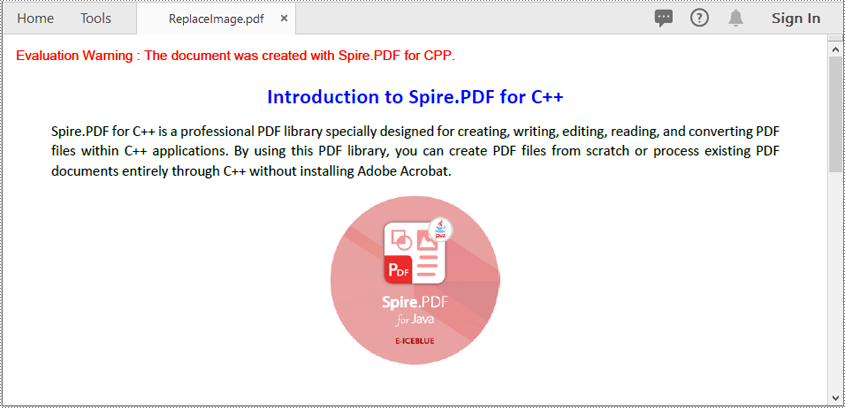
You can use the PdfImageHelper->ReplaceImage(intrusive_ptr<Utilities_PdfImageInfo> imageInfo,intrusive_ptr<PdfImage>image) method to replace an existing image on a PDF page with another image. The detailed steps are as follows:
- Initialize an instance of the PdfDocument class.
- Load a PDF document using the PdfDocument->LoadFromFile(LPCWSTR_S filename) method.
- Get a specific page of the PDF document using the PdfDocument->GetPages()->GetItem(int index) method.
- Create an instance of the PdfImageHelper class.
- Get images of the page using the PdfImageHelper->GetImagesInfo(intrusive_ptr<PdfPageBase> page) method.
- Initialize an instance of the PdfImage class.
- Load an image using the PdfImage->FromFile(LPCWSTR_S filename) method.
- Replace a specific image on the page with the loaded image using the PdfImageHelper->ReplaceImage(intrusive_ptr<Utilities_PdfImageInfo> imageInfo,intrusive_ptr<PdfImage>image) method.
- Save the result document using the PdfDocument->SaveToFile(LPCWSTR_S filename) method.
- C++
#include "Spire.Pdf.o.h"

using namespace Spire::Pdf;

int main()
{
	//Initialize an instance of the PdfDocument class
	intrusive_ptr<PdfDocument> pdf = new PdfDocument();

	//Load a PDF file
	pdf->LoadFromFile(L"AddImage.pdf");

	//Get the first page of the PDF file
	intrusive_ptr<PdfPageBase> page = pdf->GetPages()->GetItem(0);

	//Create a PdfImageHelper object
	intrusive_ptr<PdfImageHelper>  imagehelper = new PdfImageHelper();

	//Get image information from the page
	std::vector<intrusive_ptr<Utilities_PdfImageInfo> >  imageInfo = imagehelper->GetImagesInfo(page);

	//Initialize an instance of the PdfImage class
	intrusive_ptr<PdfImage>  image = new PdfImage();

	//Load an image
	image = image->FromFile(L"PDF-java.png");

	//Replace the first image on the first page
	imagehelper->ReplaceImage(imageInfo[0], image);

	//Save the result file
	pdf->SaveToFile(L"ReplaceImage.pdf");
	pdf->Close();
}
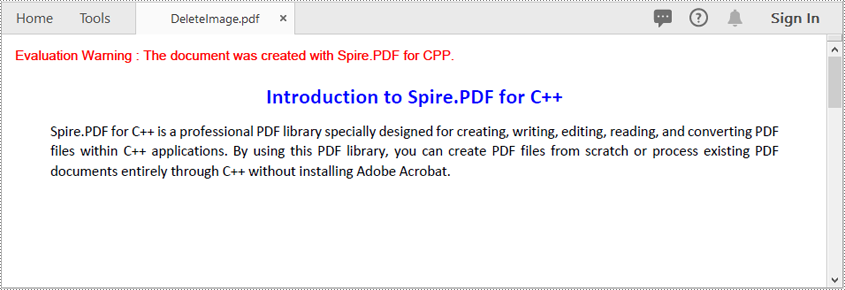
Delete an Image from a PDF Document in C++
You can use the PdfImageHelper->DeleteImage(intrusive_ptr<Utilities_PdfImageInfo> imageInfo) method to delete a specific image from a PDF page. The detailed steps are as follows:
- Initialize an instance of the PdfDocument class.
- Load a PDF document using the PdfDocument->LoadFromFile(LPCWSTR_S filename) method.
- Get a specific page of the PDF document using the PdfDocument->GetPages()->GetItem(int index) method.
- Create an instance of the PdfImageHelper class.
- Get images of the page using the PdfImageHelper->GetImagesInfo(intrusive_ptr<PdfPageBase> page) method.
- Delete a specific image on the page using the PdfImageHelper->DeleteImage(intrusive_ptr<Utilities_PdfImageInfo> imageInfo) method.
- Save the result document using the PdfDocument->SaveToFile(LPCWSTR_S filename) method.
- C++
#include "Spire.Pdf.o.h"

using namespace Spire::Pdf;

int main()
{
	//Initialize an instance of the PdfDocument class
	intrusive_ptr<PdfDocument> pdf = new PdfDocument();

	//Load a PDF file
	pdf->LoadFromFile(L"AddImage.pdf");

	//Get the first page of the PDF file
	intrusive_ptr<PdfPageBase> page = pdf->GetPages()->GetItem(0);

	//Create a PdfImageHelper object
	intrusive_ptr<PdfImageHelper> imagehelper = new PdfImageHelper();

	//Get image information from the page
	std::vector<intrusive_ptr<Utilities_PdfImageInfo>> imageInfo = imagehelper->GetImagesInfo(page);

	//Delete the first image on the first page
	imagehelper->DeleteImage(imageInfo[0]);

	//Save the result file
	pdf->SaveToFile(L"DeleteImage.pdf");
	pdf->Close();
}
Apply for a Temporary License
If you'd like to remove the evaluation message from the generated documents, or to get rid of the function limitations, please request a 30-day trial license for yourself.
Java: Insert Lists in a Word Document
A list is an effective way to organize information and present it clearly and logically. The elements in the list stand out from other parts of the text, encouraging readers to pay attention to them. Depending on your requirements, you can add numbered lists, bulleted lists or multi-level lists to your Word documents. This article demonstrates how to create these types of lists in a Word document in Java using Spire.Doc for Java.
- Insert a Numbered List in Word in Java
- Insert a Bulleted List in Word in Java
- Insert a Multi-Level Numbered List in Word in Java
- Insert a Multi-Level Mixed-Type List in Word in Java
Install Spire.Doc for Java
First, you're required to add the Spire.Doc.jar file as a dependency in your Java program. The JAR file can be downloaded from this link. If you use Maven, you can easily import the JAR file in your application by adding the following code to your project's pom.xml file.
<repositories>
    <repository>
        <id>com.e-iceblue</id>
        <name>e-iceblue</name>
        <url>https://repo.e-iceblue.com/nexus/content/groups/public/</url>
    </repository>
</repositories>
<dependencies>
    <dependency>
        <groupId>e-iceblue</groupId>
        <artifactId>spire.doc</artifactId>
        <version>14.8.4</version>
    </dependency>
</dependencies>
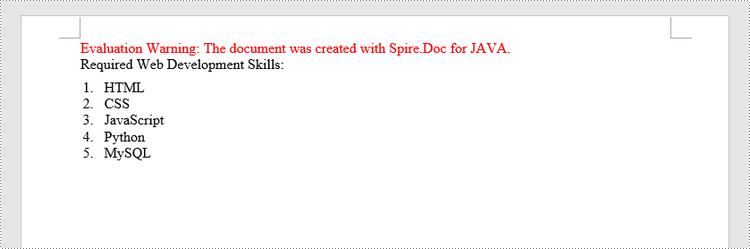
Insert a Numbered List in Word in Java
Spire.Doc for Java offers the ListStyle class that you can use to create a numbered list style or a bulleted style. Then, the list style can be applied to a paragraph using Paragraph.getListFormat().applyStyle() method. The steps to create a numbered list are as follows.
- Create a Document object.
- Add a section using Document.addSection() method.
- Create an instance of ListStyle class, specifying the list type to Numbered.
- Get a specific level of the list using ListStyle.getLevels().get(index) method, and set the numbering type using ListLevel.setPatternType() method.
- Add the list style to the document using Document.getListStyles().add() method.
- Add several paragraphs to the document using Section.addParagraph() method.
- Apply the list style to a specific paragraph using Paragraph.getListFormat().applyStyle() method.
- Specify the list level using Paragraph.getListFormat().setListLevelNumber() method.
- Save the document to a Word file using Document.saveToFile() method.
- Java
import com.spire.doc.*;
import com.spire.doc.documents.*;
import com.spire.doc.collections.ListLevelCollection;

public class InsertNumberedList {
    public static void main(String[] args) {
        //Create a Document object
        Document document = new Document();

        //Add a section
        Section section = document.addSection();

        //Create a numbered list style
        ListStyle listStyle =document.getStyles().add(ListType.Numbered, "numberList");
        ListLevelCollection levels = listStyle.getListRef().getLevels();
        levels.get(0).setPatternType(ListPatternType.Decimal_Half_Width);
        levels.get(0).setTextPosition(20);

        //Add a paragraph
        Paragraph paragraph = section.addParagraph();
        paragraph.appendText("Required Web Development Skills:");
        paragraph.getFormat().setAfterSpacing(5);

        //Add a paragraph and apply the numbered list style to it
        paragraph = section.addParagraph();
        paragraph.appendText("HTML");
        paragraph.getListFormat().applyStyle("numberedList");
        paragraph.getListFormat().setListLevelNumber(0);

        //Add another four paragraphs and apply the numbered list style to them
        paragraph = section.addParagraph();
        paragraph.appendText("CSS");
        paragraph.getListFormat().applyStyle("numberedList");
        paragraph.getListFormat().setListLevelNumber(0);

        paragraph = section.addParagraph();
        paragraph.appendText("JavaScript");
        paragraph.getListFormat().applyStyle("numberedList");
        paragraph.getListFormat().setListLevelNumber(0);

        paragraph = section.addParagraph();
        paragraph.appendText("Python");
        paragraph.getListFormat().applyStyle("numberedList");
        paragraph.getListFormat().setListLevelNumber(0);

        paragraph = section.addParagraph();
        paragraph.appendText("MySQL");
        paragraph.getListFormat().applyStyle("numberedList");
        paragraph.getListFormat().setListLevelNumber(0);

        //Save the document to file
        document.saveToFile("output/NumberedList.docx", FileFormat.Docx);
    }
}
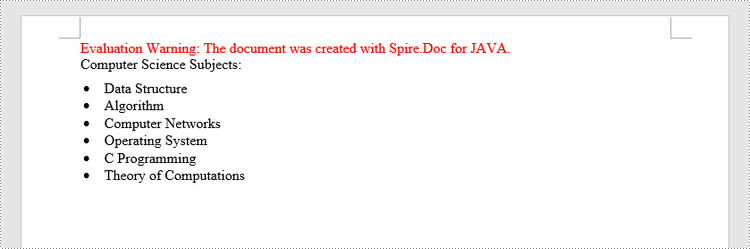
Insert a Bulleted List in Word in Java
The process of creating a bulleted list is similar to that of creating a numbered list. The difference is that when creating a list style, you must specify the list type as Bulleted and set a bullet symbol for it. The following are the detailed steps.
- Create a Document object.
- Add a section using Document.addSection() method.
- Create an instance of ListStyle class, specifying the list type to Bulleted.
- Get a specific level of the list using ListStyle.getLevels().get(index) method, and set the bullet symbol using ListLevel.setBulletCharacter() method.
- Add the list style to the document using Document.getListStyles().add() method.
- Add several paragraphs to the document using Section.addParagraph() method.
- Apply the list style to a specific paragraph using Paragraph.getListFormat().applyStyle() method.
- Specify the list level using Paragraph.getListFormat().setListLevelNumber() method.
- Save the document to a Word file using Document.saveToFile() method.
- Java
import com.spire.doc.*;
import com.spire.doc.documents.*;
import com.spire.doc.collections.ListLevelCollection;

public class InsertBulletedList {
    public static void main(String[] args) {
        //Create a Document object
        Document document = new Document();

        //Add a section
        Section section = document.addSection();

        //Create a bulleted list style
        ListStyle numberList =document.getStyles().add(ListType.Bulleted, "bulletedList");
        ListLevelCollection Levels = numberList.getListRef().getLevels();
        Levels.get(0).setBulletCharacter("\u00B7");
        Levels.get(0).getCharacterFormat().setFontName("Symbol");
        Levels.get(0).setTextPosition(20);

        //Add a paragraph
        Paragraph paragraph = section.addParagraph();
        paragraph.appendText("Computer Science Subjects:");
        paragraph.getFormat().setAfterSpacing(5);

        //Add a paragraph and apply the bulleted list style to it
        paragraph = section.addParagraph();
        paragraph.appendText("Data Structure");
        paragraph.getListFormat().applyStyle("bulletedList");
        paragraph.getListFormat().setListLevelNumber(0);

        //Add another five paragraphs and apply the bulleted list style to them
        paragraph = section.addParagraph();
        paragraph.appendText("Algorithm");
        paragraph.getListFormat().applyStyle("bulletedList");
        paragraph.getListFormat().setListLevelNumber(0);

        paragraph = section.addParagraph();
        paragraph.appendText("Computer Networks");
        paragraph.getListFormat().applyStyle("bulletedList");
        paragraph.getListFormat().setListLevelNumber(0);

        paragraph = section.addParagraph();
        paragraph.appendText("Operating System");
        paragraph.getListFormat().applyStyle("bulletedList");
        paragraph.getListFormat().setListLevelNumber(0);

        paragraph = section.addParagraph();
        paragraph.appendText("C Programming");
        paragraph.getListFormat().applyStyle("bulletedList");
        paragraph.getListFormat().setListLevelNumber(0);

        paragraph = section.addParagraph();
        paragraph.appendText("Theory of Computations");
        paragraph.getListFormat().applyStyle("bulletedList");
        paragraph.getListFormat().setListLevelNumber(0);

        //Save the document to file
        document.saveToFile("output/BulletedList.docx", FileFormat.Docx);
    }
}
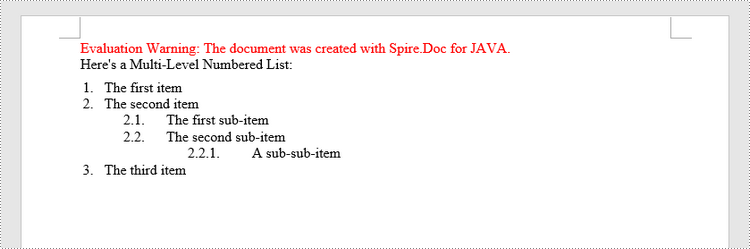
Insert a Multi-Level Numbered List in Word in Java
A multi-level list consists of at least two different levels. Each level of a nested list can be accessed using ListStyle.getLevels().get(index) method. Through ListLevel object, you can set the numbering type and prefix for a certain level. The following are the steps to create a multi-level numbered list in Word.
- Create a Document object.
- Add a section using Document.addSection() method.
- Create an instance of ListStyle class, specifying the list type to Numbered.
- Get a specific level of the list using ListStyle.getLevels().get(index) method, and set the numbering type and prefix.
- Add the list style to the document using Document.getListStyles().add() method.
- Add several paragraphs to the document using Section.addParagraph() method.
- Apply the list style to a specific paragraph using Paragraph.getListFormat().applyStyle() method.
- Specify the list level using Paragraph.getListFormat().setListLevelNumber() method.
- Save the document to a Word file using Document.saveToFile() method.
- Java
import com.spire.doc.*;
import com.spire.doc.documents.*;
import com.spire.doc.collections.ListLevelCollection;

public class InsertMultilevelNumberedList  {
    public static void main(String[] args) {
        //Create a Document object
        Document document = new Document();

        //Add a section
        Section section = document.addSection();

        //Create a numbered list style, specifying number prefix and pattern type of each level
        ListStyle listStyle =document.getStyles().add(ListType.Numbered, "nestedStyle");
        ListLevelCollection levels = listStyle.getListRef().getLevels();
        levels.get(0).setPatternType(ListPatternType.Arabic);
        levels.get(0).setTextPosition(20);
        levels.get(1).setNumberPrefix("\u0000.");
        levels.get(1).setPatternType(ListPatternType.Arabic);
        levels.get(2).setNumberPrefix("\u0000.\u0001.");
        levels.get(2).setPatternType(ListPatternType.Arabic);

        //Add a paragraph
        Paragraph paragraph = section.addParagraph();
        paragraph.appendText("Here's a Multi-Level Numbered List:");
        paragraph.getFormat().setAfterSpacing(5f);

        //Add a paragraph and apply the numbered list style to it
        paragraph = section.addParagraph();
        paragraph.appendText("The first item");
        paragraph.getListFormat().applyStyle("nestedStyle");
        paragraph.getListFormat().setListLevelNumber(0);

        //Add another five paragraphs and apply the numbered list stype to them
        paragraph = section.addParagraph();
        paragraph.appendText("The second item");
        paragraph.getListFormat().applyStyle("nestedStyle");
        paragraph.getListFormat().setListLevelNumber(0);

        paragraph = section.addParagraph();
        paragraph.appendText("The first sub-item");
        paragraph.getListFormat().applyStyle("nestedStyle");
        paragraph.getListFormat().setListLevelNumber(1);

        paragraph = section.addParagraph();
        paragraph.appendText("The second sub-item");
        paragraph.getListFormat().continueListNumbering();
        paragraph.getListFormat().applyStyle("nestedStyle");

        paragraph = section.addParagraph();
        paragraph.appendText("A sub-sub-item");
        paragraph.getListFormat().applyStyle("nestedStyle");
        paragraph.getListFormat().setListLevelNumber(2);

        paragraph = section.addParagraph();
        paragraph.appendText("The third item");
        paragraph.getListFormat().applyStyle("nestedStyle");
        paragraph.getListFormat().setListLevelNumber(0);

        //Save the document to file
        document.saveToFile("output/MultilevelNumberedList.docx", FileFormat.Docx);
    }
}
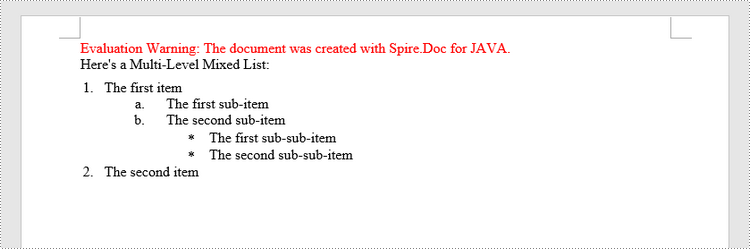
Insert a Multi-Level Mixed-Type List in Word in Java
In some cases, you may want to mix number and symbol in a multi-level list. To create a mixed-type list, you just need to create a numbered list style and a bulleted list style and apply them to different paragraphs. The detailed steps are as follows.
- Create a Document object.
- Add a section using Document.addSection() method.
- Create a numbered list style and a bulleted list style.
- Add several paragraphs to the document using Section.addParagraph() method.
- Apply different list style to different paragraphs using Paragraph.getListFormat().applyStyle() method.
- Save the document to a Word file using Document.saveToFile() method.
- Java
import com.spire.doc.*;
import com.spire.doc.documents.*;
import com.spire.doc.collections.ListLevelCollection;

public class InsertMultilevelMixedTypeList  {
    public static void main(String[] args) {
        //Create a Document object
        Document document = new Document();

        //Add a section
        Section section = document.addSection();

        //Create a numbered list style
        ListStyle numberedListStyle =document.getStyles().add(ListType.Numbered, "numberedStyle");
        ListLevelCollection levels = numberedListStyle.getListRef().getLevels();
        levels.get(0).setPatternType(ListPatternType.Arabic);
        levels.get(0).setTextPosition(20);
        levels.get(1).setPatternType(ListPatternType.Low_Letter);

        //Create a bulleted list style
        ListStyle bulletedListStyle = document.getStyles().add(ListType.Bulleted,"bulletedStyle");
        ListLevelCollection levels_bulletedListStyle = bulletedListStyle.getListRef().getLevels();
        levels_bulletedListStyle.get(2).setBulletCharacter("\u002A");
        levels_bulletedListStyle.get(2).getCharacterFormat().setFontName("Symbol");

        //Add a paragraph
        Paragraph paragraph = section.addParagraph();
        paragraph.appendText("Here's a Multi-Level Mixed List:");
        paragraph.getFormat().setAfterSpacing(5f);

        //Add a paragraph and apply the numbered list style to it
        paragraph = section.addParagraph();
        paragraph.appendText("The first item");
        paragraph.getListFormat().applyStyle("numberedStyle");
        paragraph.getListFormat().setListLevelNumber(0);

        //Add another five paragraphs and apply different list stype to them
        paragraph = section.addParagraph();
        paragraph.appendText("The first sub-item");
        paragraph.getListFormat().applyStyle("numberedStyle");
        paragraph.getListFormat().setListLevelNumber(1);

        paragraph = section.addParagraph();
        paragraph.appendText("The second sub-item");
        paragraph.getListFormat().setListLevelNumber(1);
        paragraph.getListFormat().applyStyle("numberedStyle");

        paragraph = section.addParagraph();
        paragraph.appendText("The first sub-sub-item");
        paragraph.getListFormat().applyStyle("bulletedStyle");
        paragraph.getListFormat().setListLevelNumber(2);

        paragraph = section.addParagraph();
        paragraph.appendText("The second sub-sub-item");
        paragraph.getListFormat().applyStyle("bulletedStyle");
        paragraph.getListFormat().setListLevelNumber(2);

        paragraph = section.addParagraph();
        paragraph.appendText("The second item");
        paragraph.getListFormat().applyStyle("numberedStyle");
        paragraph.getListFormat().setListLevelNumber(0);

        //Save the document to file
        document.saveToFile("output/MultilevelMixedList.docx", FileFormat.Docx);
    }
}
Apply for a Temporary License
If you'd like to remove the evaluation message from the generated documents, or to get rid of the function limitations, please request a 30-day trial license for yourself.
C++: Copy Worksheets in Excel
Copying worksheets is very useful when you need to create similar worksheets or want to make changes to worksheets without affecting the original. This feature can save you a significant amount of time and effort, as it allows you to quickly reuse information such as data, formulas, formatting, and layouts from existing worksheets without having to create new worksheets from scratch. This article will explain how to copy worksheets in Excel in C++ using Spire.XLS for C++.
- Copy a Worksheet in the Same Workbook
- Copy a Worksheet to Another Workbook
- Copy Visible Worksheets to a New Workbook
Install Spire.XLS for C++
There are two ways to integrate Spire.XLS for C++ into your application. One way is to install it through NuGet, and the other way is to download the package from our website and copy the libraries into your program. Installation via NuGet is simpler and more recommended. You can find more details by visiting the following link.
Integrate Spire.XLS for C++ in a C++ Application
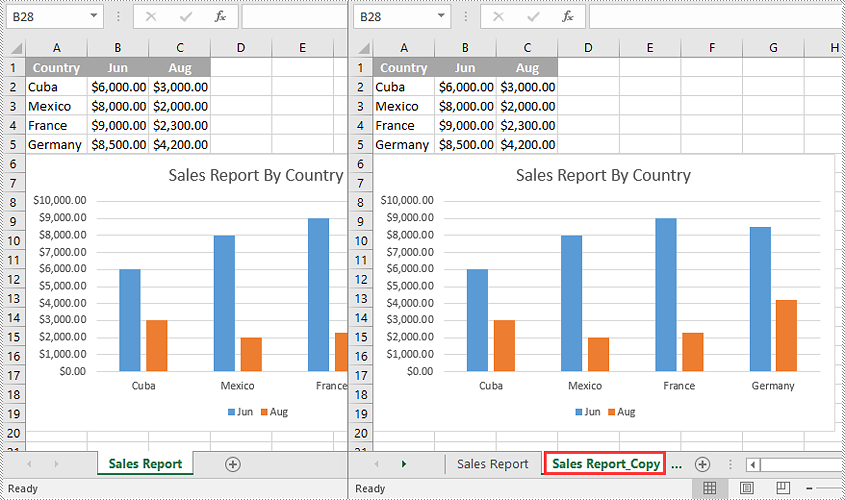
Copy a Worksheet in the Same Workbook in C++
You can copy a worksheet within the same workbook by adding a new worksheet to the workbook and then copying the worksheet to the new worksheet.
The following steps demonstrate how to copy a worksheet within the same workbook:
- Initialize an instance of the Workbook class.
- Load an Excel workbook using the Workbook->LoadFromFile(LPCWSTR_S name) method.
- Get a specific worksheet using the Workbook->GetWorksheets()->Get(int index) method.
- Add a new worksheet to the workbook using the Workbook->GetWorksheets()->Add(LPCWSTR_S name) method.
- Copy the specific worksheet to the new worksheet using the Worksheet->CopyFrom(Worksheet* worksheet) method.
- Save the result workbook to another file using the Workbook->SaveToFile(LPCWSTR_S fileName, ExcelVersion version) method.
- C++
#include "Spire.Xls.o.h"

using namespace Spire::Xls;
using namespace std;

int main()
{
	//Initialize an instance of the Workbook class
	intrusive_ptr<Workbook> workbook = new Workbook();

	//Load an Excel workbook
	workbook->LoadFromFile(L"Input.xlsx");

	//Get the first worksheet
	intrusive_ptr<Worksheet> sourceSheet = dynamic_pointer_cast<Worksheet>(workbook->GetWorksheets()->Get(0));

	//Get the name of the first worksheet
	wstring sheetName = sourceSheet->GetName();

	//Add a new worksheet with a specific name to the workbook
	intrusive_ptr<Worksheet> destSheet = workbook->GetWorksheets()->Add((sheetName + L"_Copy").c_str());

	//Copy the first worksheet to the new worksheet
	destSheet->CopyFrom(sourceSheet);

	//Save the result workbook to another file
	workbook->SaveToFile(L"CopyInSameWorkbook.xlsx", ExcelVersion::Version2016);
	workbook->Dispose();
}
Copy a Worksheet to Another Workbook in C++
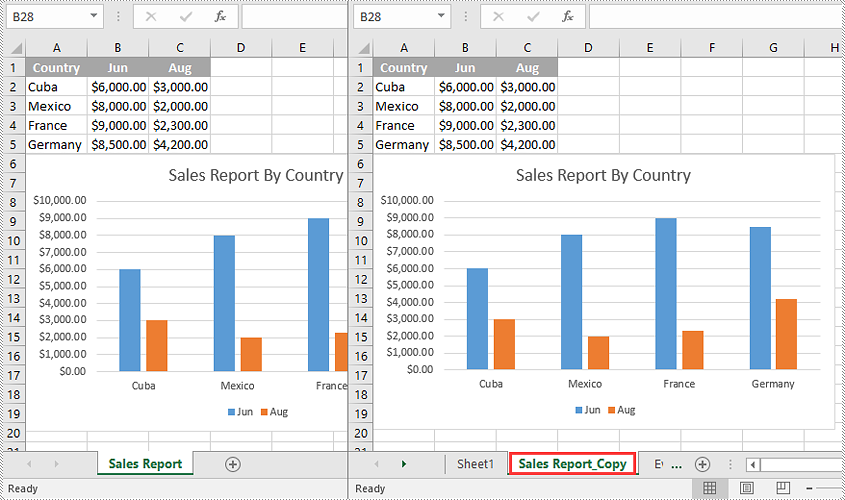
To copy a worksheet from one workbook to another, you need to add a new worksheet to the destination workbook and then copy the worksheet from the source workbook to the new worksheet of the destination workbook. It’s worth noting that if you want to keep the source formatting of the source worksheet, you need to copy the theme of the source workbook to the destination workbook.
The following steps demonstrate how to copy a worksheet from one workbook to another and keep its source formatting:
- Initialize an instance of the Workbook class.
- Load the source workbook using the Workbook->LoadFromFile(LPCWSTR_S name) method.
- Get a specific worksheet using the Workbook->GetWorksheets()->Get(int index) method.
- Initialize an instance of the Workbook class.
- Load the destination workbook using the Workbook->LoadFromFile(LPCWSTR_S name) method.
- Add a new worksheet to the destination workbook using the Workbook->GetWorksheets()->Add(LPCWSTR_S name) method.
- Copy the specific worksheet of the source workbook to the new worksheet of the destination workbook using the Worksheet->CopyFrom(Worksheet* worksheet) method.
- Copy the theme from the source workbook to the destination workbook using the Workbook->CopyTheme (Workbook* srcWorkbook) method.
- Save the result workbook to another file using the Workbook->SaveToFile(LPCWSTR_S fileName, ExcelVersion version) method.
- C++
#include "Spire.Xls.o.h"

using namespace Spire::Xls;
using namespace std;

int main()
{
    //Initialize an instance of the Workbook class
    intrusive_ptr<Workbook> sourceWorkbook = new Workbook();
    //Load the source Excel workbook
    sourceWorkbook->LoadFromFile(L"Input.xlsx");

    //Get the first worksheet of the source workbook
    intrusive_ptr<Worksheet> sourceSheet = dynamic_pointer_cast<Worksheet>(sourceWorkbook->GetWorksheets()->Get(0));
    //Get the name of the first worksheet
    wstring sheetName = sourceSheet->GetName();

    //Initialize an instance of the Workbook class
    intrusive_ptr<Workbook> destWorkbook = new Workbook();
    //Load the destination Excel workbook
    destWorkbook->LoadFromFile(L"Sample.xlsx");

    //Add a new worksheet with a specific name to the destination workbook
    intrusive_ptr<Worksheet> destSheet = destWorkbook->GetWorksheets()->Add((sheetName + L"_Copy").c_str());

    //Copy the first worksheet of the source workbook to the new worksheet of the destination workbook
    destSheet->CopyFrom(sourceSheet);

    //Copy the theme from the source workbook to the destination workbook
    destWorkbook->CopyTheme(sourceWorkbook);

    //Save the destination workbook to another file
    destWorkbook->SaveToFile(L"CopyToAnotherWorkbook.xlsx", ExcelVersion::Version2016);
    sourceWorkbook->Dispose();
    destWorkbook->Dispose();
}
Copy Visible Worksheets to a New Workbook in C++
If you only want to share visible worksheets rather than the entire workbook with others, you can copy the visible worksheets to a new workbook.
The following steps demonstrate how to copy visible worksheets from a workbook to a new workbook:
- Initialize an instance of the Workbook class.
- Load the source workbook using the Workbook->LoadFromFile(LPCWSTR_S name) method.
- Initialize an instance of the Workbook class to create a new workbook, then clear the default worksheets in the new workbook using the Workbook->GetWorksheets()->Clear() method.
- Iterate through all the worksheets in the source workbook.
- Check if the current worksheet is visible using the XlsWorksheetBase->GetVisibility() method.
- If the result is true, add a new worksheet to the new workbook using the Workbook->GetWorksheets()->Add(LPCWSTR_S name) method.
- Copy the worksheet from the source workbook to the new worksheet of the new workbook using the Worksheet->CopyFrom(Worksheet* worksheet) method.
- Copy the theme from the source workbook to the new workbook using the Workbook->CopyTheme (Workbook* srcWorkbook) method.
- Save the new workbook to another file using the Workbook->SaveToFile(LPCWSTR_S fileName, ExcelVersion version) method.
- C++
#include "Spire.Xls.o.h"

using namespace Spire::Xls;
using namespace std;

int main()
{
    //Initialize an instance of the Workbook class
    intrusive_ptr<Workbook> sourceWorkbook = new Workbook();
    //Load the source Excel workbook
    sourceWorkbook->LoadFromFile(L"Input.xlsx");

    //Initialize an instance of the Workbook class to create a new workbook
    intrusive_ptr<Workbook> newWorkbook = new Workbook();
    //Clear the default worksheets in the new workbook
    newWorkbook->GetWorksheets()->Clear();

    //Iterate through all the worksheets in the source workbook
    for (int i = 0; i < sourceWorkbook->GetWorksheets()->GetCount(); i++)
    {
        intrusive_ptr<Worksheet> sourceSheet = dynamic_pointer_cast<Worksheet>(sourceWorkbook->GetWorksheets()->Get(i));
        //Check if the current worksheet is visible
        if (sourceSheet->GetVisibility() == WorksheetVisibility::Visible)
        {
            //Get the name of the worksheet
            wstring sheetName = sourceSheet->GetName();
            //Add a new worksheet with a specific name to the new workbook
            intrusive_ptr<Worksheet> destSheet = newWorkbook->GetWorksheets()->Add((sheetName + L"_Copy").c_str());
            //Copy the worksheet from the source workbook to the new worksheet of the new workbook
            destSheet->CopyFrom(sourceSheet);
        }
    }

    //Copy the theme from the source workbook to the new workbook
    newWorkbook->CopyTheme(sourceWorkbook);

    //Save the new workbook to another file
    newWorkbook->SaveToFile(L"CopyVisibleSheetsToNewWorkbook.xlsx", ExcelVersion::Version2016);
    sourceWorkbook->Dispose();
    newWorkbook->Dispose();
}
Apply for a Temporary License
If you'd like to remove the evaluation message from the generated documents, or to get rid of the function limitations, please request a 30-day trial license for yourself.
C#/VB.NET: Insert Lists in a Word Document
Lists are used in Word documents to outline, arrange, and emphasize text, making it easy for users to scan and understand a series of items. There are three different types of lists in Word, namely numbered lists, bulleted lists and multi-level lists. Numbered lists are used for items that have a sequence or priority, such as a series of instructions. Bulleted lists are used for items that have no particular priority, such as a list of functions or facts. Multi-level lists are used where there is a sequence and you want each paragraph numbered separately.
In this article, you will learn how to insert these types of lists into a Word document in C# and VB.NET using Spire.Doc for .NET.
- Insert a Numbered List in Word
- Insert a Bulleted List in Word
- Insert a Multi-Level Numbered List in Word
- Insert a Multi-Level Mixed-Type List in Word
Install Spire.Doc for .NET
To begin with, you need to add the DLL files included in the Spire.Doc for.NET package as references in your .NET project. The DLL files can be either downloaded from this link or installed via NuGet.
PM> Install-Package Spire.Doc
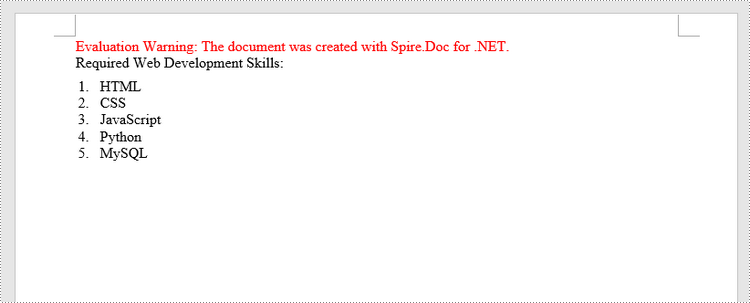
Insert a Numbered List in Word in C#, VB.NET
Spire.Doc for .NET offers the ListStyle class that you can use to create a numbered list style or a bulleted style. Then, the list style can be applied to a paragraph using Paragraph.ListFormat.ApplyStyle() method. The steps to create a numbered list are as follows.
- Create a Document object.
- Add a section using Document.AddSection() method.
- Create an instance of ListStyle class, specifying the list type to Numbered.
- Get a specific level of the list through ListStyle.Levels[index] property, and set the numbering type through ListLevel.PatternType property.
- Add the list style to the document using Document.ListStyles.Add() method.
- Add several paragraphs to the document using Section.AddParagraph() method.
- Apply the list style to a specific paragraph using Paragraph.ListFormat.ApplyStyle() method.
- Specify the list level through Paragraph.ListFormat.ListLevelNumber property.
- Save the document to a Word file using Document.SaveToFile() method.
- C#
- VB.NET
using Spire.Doc;
using Spire.Doc.Documents;

namespace CreateOrderedList
{
    class Program
    {
        static void Main(string[] args)
        {
            //Create a Document object
            Document document = new Document();

            //Add a section
            Section section = document.AddSection();

            //Create a numbered list style
            ListStyle listStyle = document.Styles.Add(ListType.Numbered, "numberedList");
            listStyle.Name = "numberedList";
            listStyle.ListRef.Levels[0].PatternType = ListPatternType.DecimalEnclosedParen;
            listStyle.ListRef.Levels[0].TextPosition = 20;

            //Add a paragraph
            Paragraph paragraph = section.AddParagraph();
            paragraph.AppendText("Required Web Development Skills:");
            paragraph.Format.AfterSpacing = 5f;

            //Add a paragraph and apply the numbered list style to it
            paragraph = section.AddParagraph();
            paragraph.AppendText("HTML");
            paragraph.ListFormat.ApplyStyle("numberedList");
            paragraph.ListFormat.ListLevelNumber = 0;

            //Add another four paragraphs and apply the numbered list style to them
            paragraph = section.AddParagraph();
            paragraph.AppendText("CSS");
            paragraph.ListFormat.ApplyStyle("numberedList");
            paragraph.ListFormat.ListLevelNumber = 0;

            paragraph = section.AddParagraph();
            paragraph.AppendText("JavaScript");
            paragraph.ListFormat.ApplyStyle("numberedList");
            paragraph.ListFormat.ListLevelNumber = 0;

            paragraph = section.AddParagraph();
            paragraph.AppendText("Python");
            paragraph.ListFormat.ApplyStyle("numberedList");
            paragraph.ListFormat.ListLevelNumber = 0;

            paragraph = section.AddParagraph();
            paragraph.AppendText("MySQL");
            paragraph.ListFormat.ApplyStyle("numberedList");
            paragraph.ListFormat.ListLevelNumber = 0;

            //Save the document to file
            document.SaveToFile("NumberedList.docx", FileFormat.Docx);
        }
    }
}
Insert a Bulleted List in Word in C#, VB.NET
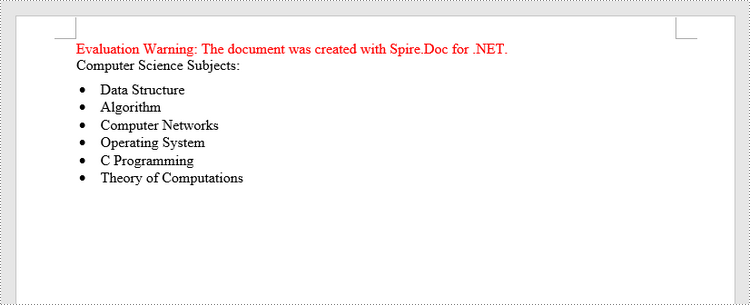
The process of creating a bulleted list is similar to that of creating a numbered list. The difference is that when creating a list style, you must specify the list type as Bulleted and set a bullet symbol for it. The following are the detailed steps.
- Create a Document object.
- Add a section using Document.AddSection() method.
- Create an instance of ListStyle class, specifying the list type to Bulleted.
- Get a specific level of the list through ListStyle.Levels[index] property, and set the bullet symbol through ListLevel.BulletCharacter property.
- Add the list style to the document using Document.ListStyles.Add() method.
- Add several paragraphs to the document using Section.AddParagraph() method.
- Apply the list style to a specific paragraph using Paragraph.ListFormat.ApplyStyle() method.
- Specify the list level through Paragraph.ListFormat.ListLevelNumber property.
- Save the document to a Word file using Document.SaveToFile() method.
- C#
- VB.NET
using Spire.Doc;
using Spire.Doc.Documents;

namespace CreateUnorderedList
{
    class Program
    {
        static void Main(string[] args)
        {
            //Create a Document object
            Document document = new Document();

            //Add a section
            Section section = document.AddSection();

            //Create a bulleted list style
            ListStyle listStyle = document.Styles.Add( ListType.Bulleted, "bulletedList");
            listStyle.Name = "bulletedList";
            listStyle.ListRef.Levels[0].BulletCharacter = "\x00B7";
            listStyle.ListRef.Levels[0].CharacterFormat.FontName = "Symbol";
            listStyle.ListRef.Levels[0].TextPosition = 20;

            //Add a paragraph
            Paragraph paragraph = section.AddParagraph();
            paragraph.AppendText("Computer Science Subjects:");
            paragraph.Format.AfterSpacing = 5f;

            //Add a paragraph and apply the bulleted list style to it
            paragraph = section.AddParagraph();
            paragraph.AppendText("Data Structure");
            paragraph.ListFormat.ApplyStyle("bulletedList");
            paragraph.ListFormat.ListLevelNumber = 0;

            //Add another five paragraphs and apply the bulleted list style to them
            paragraph = section.AddParagraph();
            paragraph.AppendText("Algorithm");
            paragraph.ListFormat.ApplyStyle("bulletedList");
            paragraph.ListFormat.ListLevelNumber = 0;

            paragraph = section.AddParagraph();
            paragraph.AppendText("Computer Networks");
            paragraph.ListFormat.ApplyStyle("bulletedList");
            paragraph.ListFormat.ListLevelNumber = 0;

            paragraph = section.AddParagraph();
            paragraph.AppendText("Operating System");
            paragraph.ListFormat.ApplyStyle("bulletedList");
            paragraph.ListFormat.ListLevelNumber = 0;

            paragraph = section.AddParagraph();
            paragraph.AppendText("C Programming");
            paragraph.ListFormat.ApplyStyle("bulletedList");
            paragraph.ListFormat.ListLevelNumber = 0;

            paragraph = section.AddParagraph();
            paragraph.AppendText("Theory of Computations");
            paragraph.ListFormat.ApplyStyle("bulletedList");
            paragraph.ListFormat.ListLevelNumber = 0;

            //Save the document to file
            document.SaveToFile("BulletedList.docx", FileFormat.Docx);
        }
    }
}
Insert a Multi-Level Numbered List in Word in C#, VB.NET
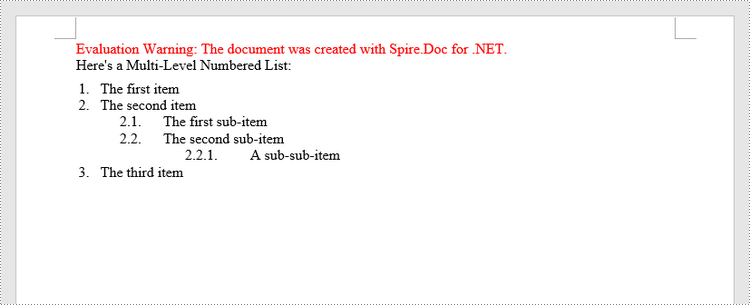
A multi-level list consists of at least two different levels. Each level of a nested list is represented by the ListStyle.Levels[index] property, through which you can set the numbering type and prefix for a certain level. The following are the steps to create a multi-level numbered list in Word.
- Create a Document object.
- Add a section using Document.AddSection() method.
- Create an instance of ListStyle class, specifying the list type to Numbered.
- Get a specific level of the list through ListStyle.Levels[index] property, and set the numbering type and prefix.
- Add the list style to the document using Document.ListStyles.Add() method.
- Add several paragraphs to the document using Section.AddParagraph() method.
- Apply the list style to a specific paragraph using Paragraph.ListFormat.ApplyStyle() method.
- Specify the list level through Paragraph.ListFormat.ListLevelNumber property.
- Save the document to a Word file using Document.SaveToFile() method.
- C#
- VB.NET
using Spire.Doc;
using Spire.Doc.Documents;

namespace CreateMultiLevelList
{
    class Program
    {
        static void Main(string[] args)
        {
            //Create a Document object
            Document document = new Document();

            //Add a section
            Section section = document.AddSection();

            //Create a numbered list style, specifying number prefix and pattern type of each level
            ListStyle listStyle = document.Styles.Add(ListType.Numbered, "levelstyle");
            listStyle.Name = "levelstyle";
            listStyle.ListRef.Levels[0].PatternType = ListPatternType.Arabic;
            listStyle.ListRef.Levels[0].TextPosition = 20;
            listStyle.ListRef.Levels[1].NumberPrefix = "\x0000.";
            listStyle.ListRef.Levels[1].PatternType = ListPatternType.Arabic;
            listStyle.ListRef.Levels[2].NumberPrefix = "\x0000.\x0001.";
            listStyle.ListRef.Levels[2].PatternType = ListPatternType.Arabic;

            //Add a paragraph
            Paragraph paragraph = section.AddParagraph();
            paragraph.AppendText("Here's a Multi-Level Numbered List:");
            paragraph.Format.AfterSpacing = 5f;

            //Add a paragraph and apply the numbered list style to it
            paragraph = section.AddParagraph();
            paragraph.AppendText("The first item");
            paragraph.ListFormat.ApplyStyle("levelstyle");
            paragraph.ListFormat.ListLevelNumber = 0;

            //Add another five paragraphs and apply the numbered list stype to them
            paragraph = section.AddParagraph();
            paragraph.AppendText("The second item");
            paragraph.ListFormat.ApplyStyle("levelstyle");
            paragraph.ListFormat.ListLevelNumber = 0;

            paragraph = section.AddParagraph();
            paragraph.AppendText("The first sub-item");
            paragraph.ListFormat.ApplyStyle("levelstyle");
            paragraph.ListFormat.ListLevelNumber = 1;

            paragraph = section.AddParagraph();
            paragraph.AppendText("The second sub-item");
            paragraph.ListFormat.ContinueListNumbering();
            paragraph.ListFormat.ApplyStyle("levelstyle");

            paragraph = section.AddParagraph();
            paragraph.AppendText("A sub-sub-item");
            paragraph.ListFormat.ApplyStyle("levelstyle");
            paragraph.ListFormat.ListLevelNumber = 2;

            paragraph = section.AddParagraph();
            paragraph.AppendText("The third item");
            paragraph.ListFormat.ApplyStyle("levelstyle");
            paragraph.ListFormat.ListLevelNumber = 0;

            //Save the document to file
            document.SaveToFile("MultilevelNumberedList.docx", FileFormat.Docx);
        }
    }
}
Insert a Multi-Level Mixed-Type List in Word in C#, VB.NET
In some cases, you may want to mix number and symbol bullet points in a multi-level list. To create a mixed-type list, you just need to create a numbered list style and a bulleted list style and apply them to different paragraphs. The detailed steps are as follows.
- Create a Document object.
- Add a section using Document.AddSection() method.
- Create a numbered list style and a bulleted list style.
- Add several paragraphs to the document using Section.AddParagraph() method.
- Apply different list style to different paragraphs using Paragraph.ListFormat.ApplyStyle() method.
- Save the document to a Word file using Document.SaveToFile() method.
- C#
- VB.NET
using Spire.Doc;
using Spire.Doc.Documents;

namespace CreateMultilevelMixedList
{
    class Program
    {
        static void Main(string[] args)
        {
            //Create a Document object
            Document document = new Document();

            //Add a section
            Section section = document.AddSection();

            //Create a numbered list style
            ListStyle numberedListStyle = document.Styles.Add(ListType.Numbered, "numberedStyle");
            numberedListStyle.ListRef.Levels[0].PatternType = ListPatternType.Arabic;
            numberedListStyle.ListRef.Levels[0].TextPosition = 20;
            numberedListStyle.ListRef.Levels[1].PatternType = ListPatternType.LowLetter;

            //Create a bulleted list style
            ListStyle bulletedListStyle = document.Styles.Add(ListType.Bulleted, "bulltedStyle");
            bulletedListStyle.Name = "bulltedStyle";
            bulletedListStyle.ListRef.Levels[2].BulletCharacter = "\x002A";
            bulletedListStyle.ListRef.Levels[2].CharacterFormat.FontName = "Symbol";

            //Add a paragraph
            Paragraph paragraph = section.AddParagraph();
            paragraph.AppendText("Here's a Multi-Level Mixed List:");
            paragraph.Format.AfterSpacing = 5f;

            //Add a paragraph and apply the numbered list style to it
            paragraph = section.AddParagraph();
            paragraph.AppendText("The first item");
            paragraph.ListFormat.ApplyStyle("numberedStyle");
            paragraph.ListFormat.ListLevelNumber = 0;

            //Add another five paragraphs and apply different list stype to them
            paragraph = section.AddParagraph();
            paragraph.AppendText("The first sub-item");
            paragraph.ListFormat.ApplyStyle("numberedStyle");
            paragraph.ListFormat.ListLevelNumber = 1;

            paragraph = section.AddParagraph();
            paragraph.AppendText("The second sub-item");
            paragraph.ListFormat.ListLevelNumber = 1;
            paragraph.ListFormat.ApplyStyle("numberedStyle");

            paragraph = section.AddParagraph();
            paragraph.AppendText("The first sub-sub-item");
            paragraph.ListFormat.ApplyStyle("bulltedStyle");
            paragraph.ListFormat.ListLevelNumber = 2;

            paragraph = section.AddParagraph();
            paragraph.AppendText("The second sub-sub-item");
            paragraph.ListFormat.ApplyStyle("bulltedStyle");
            paragraph.ListFormat.ListLevelNumber = 2;

            paragraph = section.AddParagraph();
            paragraph.AppendText("The second item");
            paragraph.ListFormat.ApplyStyle("numberedStyle");
            paragraph.ListFormat.ListLevelNumber = 0;

            //Save the document to file
            document.SaveToFile("MultilevelMixedList.docx", FileFormat.Docx);
        }
    }
}
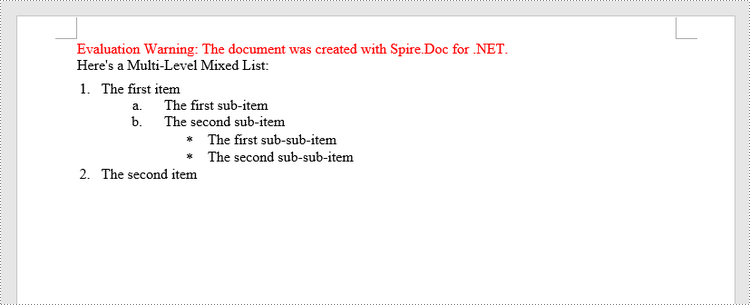
Apply for a Temporary License
If you'd like to remove the evaluation message from the generated documents, or to get rid of the function limitations, please request a 30-day trial license for yourself.
C++: Convert Excel to Images
Excel is a popular spreadsheet software widely used for data analysis, financial management, budgeting, etc. However, when you need to embed Excel files into other files or share them with others, Excel format may have compatibility issues, and in such a case converting Excel to image is an alternative option. In this article, you will learn how to convert an Excel worksheet or a specific cell range to an image in C++ using Spire.XLS for C++.
- Convert an Entire Excel Worksheet to an Image in C++
- Convert a Specific Cell Range to an Image in C++
- Convert a Worksheet to an Image Without White Spaces in C++
Install Spire.XLS for C++
There are two ways to integrate Spire.XLS for C++ into your application. One way is to install it through NuGet, and the other way is to download the package from our website and copy the libraries into your program. Installation via NuGet is simpler and more recommended. You can find more details by visiting the following link.
Integrate Spire.XLS for C++ in a C++ Application
Convert an Entire Excel Worksheet to an Image in C++
Spire.XLS for C++ offers the Worksheet->ToImage() method to convert a specific worksheet to an image. The following are the detailed steps.
- Create a Workbook object.
- Load a sample Excel document using Workbook->LoadFromFile() method.
- Get a specified worksheet using Workbook->GetWorksheets()->Get() method.
- Convert the worksheet to an image using Worksheet->ToImage() method.
- C++
#include "Spire.Xls.o.h"

using namespace Spire::Xls;
using namespace std;

int main()
{
	//Specify the input and output file paths
	wstring inputFile = L"Data\\Planner.xlsx";
	wstring outputFile = L"Output\\SheetToImage";

	//Create a Workbook object
	intrusive_ptr<Workbook> workbook = new Workbook();

	//Load an Excel document from disk
	workbook->LoadFromFile(inputFile.c_str());

	//Get the first worksheet
	intrusive_ptr<Worksheet> sheet = dynamic_pointer_cast<Worksheet>(workbook->GetWorksheets()->Get(0));

	//Save the image as a PNG file
	wstring fileName = outputFile + L".png";

	//Convert the worksheet to an image
	sheet->ToImage(sheet->GetFirstRow(), sheet->GetFirstColumn(), sheet->GetLastRow(), sheet->GetLastColumn())->Save(fileName.c_str());

	workbook->Dispose();

}
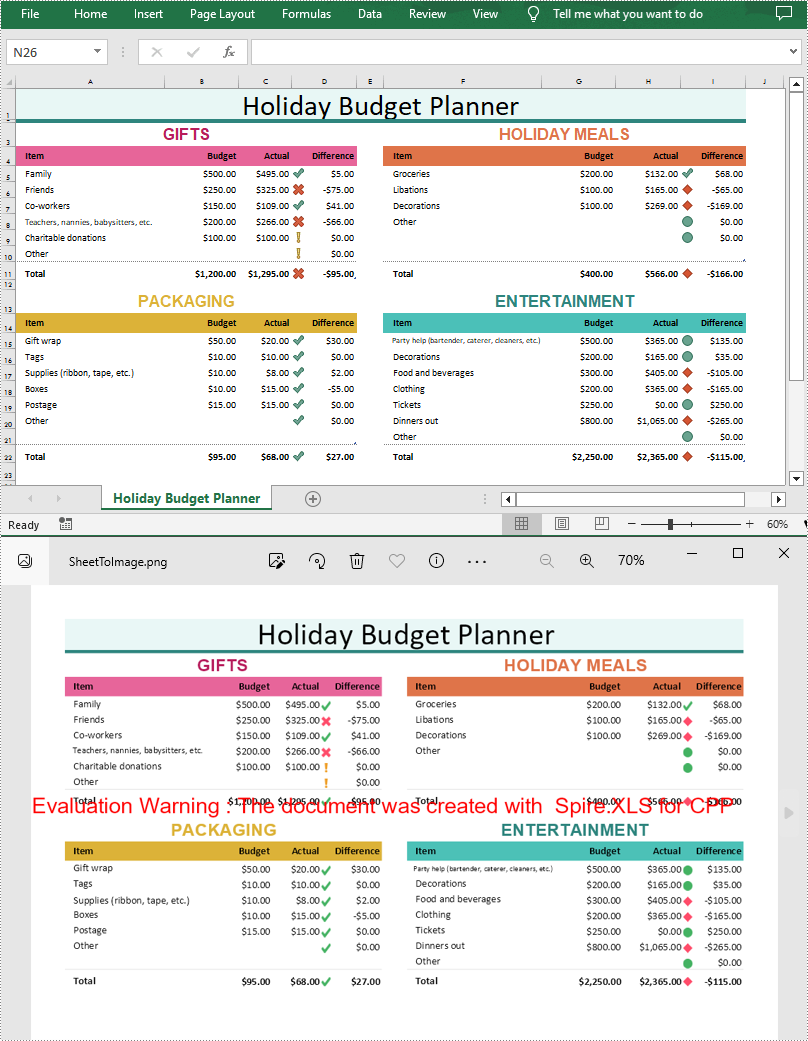
Convert a Specific Cell Range to an Image in C++
Spire.XLS for C++ also allows you to use the Worksheet->ToImage(int firstRow, int firstColumn, int lastRow, int lastColumn) method to convert a specified cell range to an image. The following are the steps convert several cell ranges to different image formats.
- Create a Workbook object.
- Load a sample Excel document using Workbook->LoadFromFile() method.
- Get a specified worksheet using Workbook->GetWorksheets()->Get() method.
- Specify a cell range and save it to a specified image format using Worksheet->ToImage()->Save(LPCWSTR_S filename) method.
- C++
#include "Spire.Xls.o.h"

using namespace Spire::Xls;
using namespace std;

int main()
{
	//Specify input file path and name
	wstring inputFile = L"Data\\Planner.xlsx";

	//Create a Workbook object
	intrusive_ptr<Workbook> workbook = new Workbook();

	//Load an Excel document from disk
	workbook->LoadFromFile(inputFile.c_str());

	//Get the first worksheet
	intrusive_ptr<Worksheet> sheet = dynamic_pointer_cast<Worksheet>(workbook->GetWorksheets()->Get(0));

	//Specify cell ranges and save them to certain image formats
	sheet->ToImage(3, 1, 11, 4)->Save(L"ToImage\\SpecificCellsToImage.png");
	sheet->ToImage(3, 6, 11, 9)->Save(L"ToImage\\SpecificCellsToImage.jpg");
	sheet->ToImage(13, 6, 22, 9)->Save(L"ToImage\\SpecificCellsToImage.bmp");
	workbook->Dispose();
}
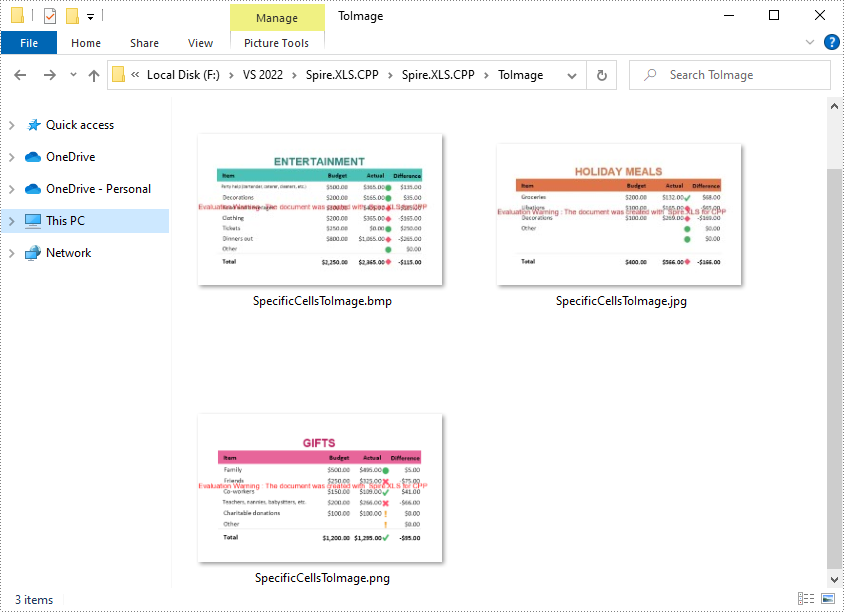
Convert a Worksheet to an Image Without White Spaces in C++
When converting a worksheet directly to an image, there are white spaces around the converted image. If you want to remove these white spaces, you can set the left, right, top and bottom margins of the worksheet to zero while conversion. The following are the detailed steps.
- Create a Workbook object.
- Load a sample Excel document using Workbook->LoadFromFile() method.
- Get a specified worksheet using Workbook->GetWorksheets()->Get() method.
- Return a page setup object using Worksheet->GetPageSetup() method, and then set the left, right, top and bottom margins of the worksheet using the methods of PageSetup class.
- Save the worksheet as an image using Worksheet->ToImage()->Save() method.
- C++
#include "Spire.Xls.o.h"

using namespace Spire::Xls;
using namespace std;

int main()
{
	//Specify output file path and name
	wstring inputFile = L"Data\\Planner.xlsx";
	wstring outputFile = L"Output\\ToImageWithoutWhiteSpace.png";

	//Create a Workbook object
	intrusive_ptr<Workbook> workbook = new Workbook();

	//Load an Excel document from disk
	workbook->LoadFromFile(inputFile.c_str());

	//Get the first worksheet
	intrusive_ptr<Worksheet> sheet = dynamic_pointer_cast<Worksheet>(workbook->GetWorksheets()->Get(0));

	//Set the margin as 0 to remove the white space around the image
	sheet->GetPageSetup()->SetLeftMargin(0);
	sheet->GetPageSetup()->SetBottomMargin(0);
	sheet->GetPageSetup()->SetTopMargin(0);
	sheet->GetPageSetup()->SetRightMargin(0);

	//Save the worksheet as an image
	intrusive_ptr<Stream> image = sheet->ToImage(sheet->GetFirstRow(), sheet->GetFirstColumn(), sheet->GetLastRow(), sheet->GetLastColumn());
	image->Save(outputFile.c_str());
	workbook->Dispose();
}
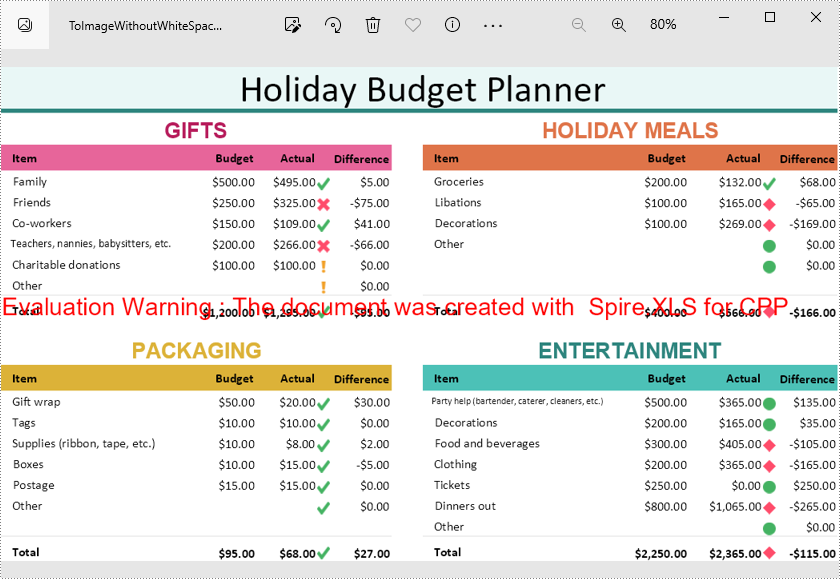
Apply for a Temporary License
If you'd like to remove the evaluation message from the generated documents, or to get rid of the function limitations, please request a 30-day trial license for yourself.
C++: Find and Highlight Text in Word
In a large document, it is inevitable to use the find function when you want to quickly locate specific key information. At the same time, highlighting them with a bright color is also an effective way to make them stand out to grab the reader's attention. In this article, you will learn how to programmatically find and highlight text in a Word document using Spire.Doc for C++.
- Find and Highlight All Instances of a Specified Text in Word
- Find and Highlight the First Instance of a Specified Text in Word
Install Spire.Doc for C++
There are two ways to integrate Spire.Doc for C++ into your application. One way is to install it through NuGet, and the other way is to download the package from our website and copy the libraries into your program. Installation via NuGet is simpler and more recommended. You can find more details by visiting the following link.
Integrate Spire.Doc for C++ in a C++ Application
Find and Highlight All Instances of a Specified Text in Word in C++
Spire.Doc for C++ offers the Document->FindAllString(LPCWSTR_S matchString, bool caseSensitive, bool wholeWord) method to find all instances of a specified text string, and then you can iterate through these instances to highlight them with a bright color. The following are the detailed steps.
- Create a Document instance.
- Load a Word document using Document->LoadFromFile() method.
- Find all matching text in the document using Document->FindAllString() method.
- Loop through all matching text in the document.
- Get the text range of a specific matching text using TextSelection->GetAsOneRange() method, and then set its highlight color using TextRange->GetCharacterFormat()->SetHighlightColor() method.
- Save the result document using Document->SaveToFile() method.
- C++
#include "Spire.Doc.o.h"

using namespace Spire::Doc;

int main() {
 //Specify the input and output file paths
 std::wstring inputFile = L"Data\\input1.docx";
 std::wstring outputFile = L"Output\\FindAndHighlightAll.docx";

 //Create a Document instance
 intrusive_ptr<Document> document = new Document();

 //Load a Word document from disk
 document->LoadFromFile(inputFile.c_str());

 //Find all matching text in the document
 std::vector<intrusive_ptr<TextSelection>> textSelections = document->FindAllString(L"Transcendentalism", false, true);

 //Loop through all matching text and set highlight color for them
 for (auto selection : textSelections)
 {
  selection->GetAsOneRange()->GetCharacterFormat()->SetHighlightColor(Color::GetYellow());
 }

 //Save the result document
 document->SaveToFile(outputFile.c_str(), FileFormat::Docx);
 document->Close();
}
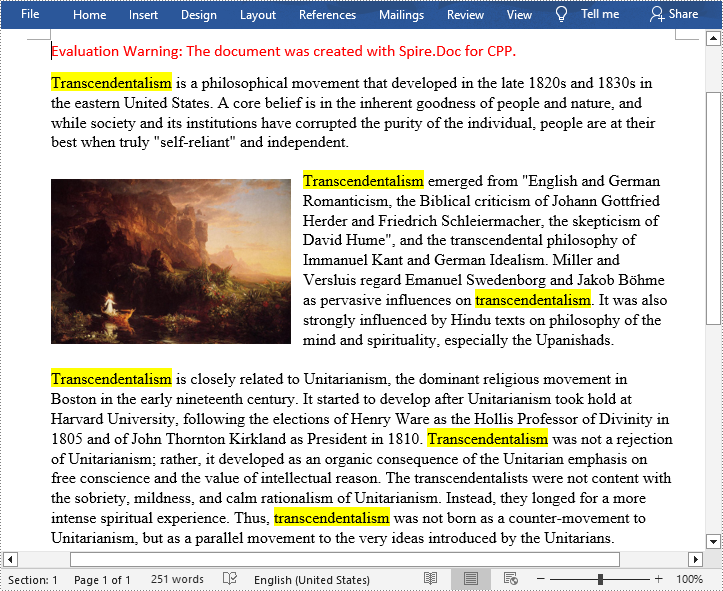
Find and Highlight the First Instance of a Specified Text in Word in C++
You can also use the Document->FindString(LPCWSTR_S matchString, bool caseSensitive, bool wholeWord) method to find only the first instance of a specified text string and then set highlight color for it. The following are the detailed steps.
- Create a Document instance.
- Load a Word document using Document->LoadFromFile() method.
- Find the first matching text using Document->FindString() method.
- Get the text range of the first matching text using TextSelection->GetAsOneRange() method, and then set its highlight color using TextRange->GetCharacterFormat()->SetHighlightColor() method.
- Save the result document using Document->SaveToFile() method.
- C++
#include "Spire.Doc.o.h"

using namespace Spire::Doc;
int main() {
 //Specify the input and output file paths
 std::wstring inputFile = L"Data\\input1.docx";
 std::wstring outputFile = L"Output\\FindAndHighlight.docx";

 //Create a Document instance
 intrusive_ptr<Document> document = new Document();

 //Load a Word document from disk
 document->LoadFromFile(inputFile.c_str());

 //Find the first matching text
 intrusive_ptr<TextSelection> textSelection = document->FindString(L"Transcendentalism", false, true);

 //Set highlight color for the text
 textSelection->GetAsOneRange()->GetCharacterFormat()->SetHighlightColor(Color::GetYellow());

 //Save the result document
 document->SaveToFile(outputFile.c_str(), FileFormat::Docx);
 document->Close();
}
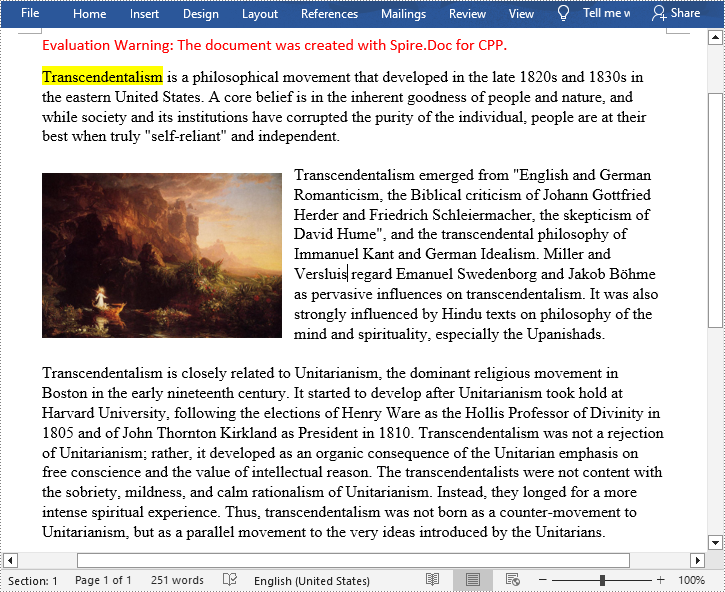
Apply for a Temporary License
If you'd like to remove the evaluation message from the generated documents, or to get rid of the function limitations, please request a 30-day trial license for yourself.