Traduza um arquivo Excel sem quebrar fórmulas ou formatação
Índice
Uma pasta de trabalho do Excel é mais do que uma coleção de textos. Ela também pode conter fórmulas, números e formatação que tornam os dados utilizáveis. Uma tradução bem-sucedida altera as palavras de que os leitores precisam, mantendo essas outras partes intactas.
A abordagem correta depende de quanto texto você tem e de onde ele aparece. Este guia apresenta três opções: uma fórmula no Google Sheets para colunas de texto, o ChatGPT para traduzir uma pasta de trabalho por meio de um prompt e o Spire.Agent.Office para desenvolvedores que criam um fluxo de trabalho repetível em C#.
Navegação rápida:
- Método 1. Traduzir colunas de texto no Google Sheets
- Método 2. Traduzir a pasta de trabalho com o ChatGPT
- Método 3. Automatizar a tradução em C# com o Spire.Agent.Office
Método 1. Traduzir colunas de texto no Google Sheets
Se o texto estiver organizado em colunas, o Google Sheets permite traduzi-lo junto com os dados originais usando GOOGLETRANSLATE. Você pode revisar cada resultado antes de colocá-lo de volta na pasta de trabalho.
Etapa 1. Faça upload de uma cópia do arquivo do Excel para o Google Drive e abra-o no Google Sheets. Se necessário, salve-o como um arquivo do Google Sheets para usar a função; mantenha o arquivo original do Excel para comparação.
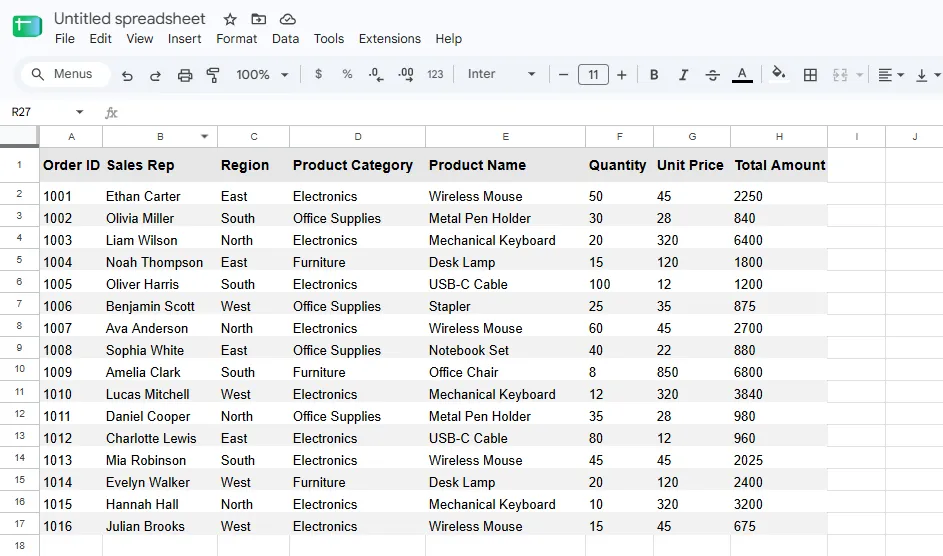
Etapa 2. Suponha que os nomes dos produtos estejam na coluna E. Insira uma coluna auxiliar ao lado dela e digite =GOOGLETRANSLATE(E1,"en","fr") na célula adjacente. Aqui, en significa inglês e fr significa francês.
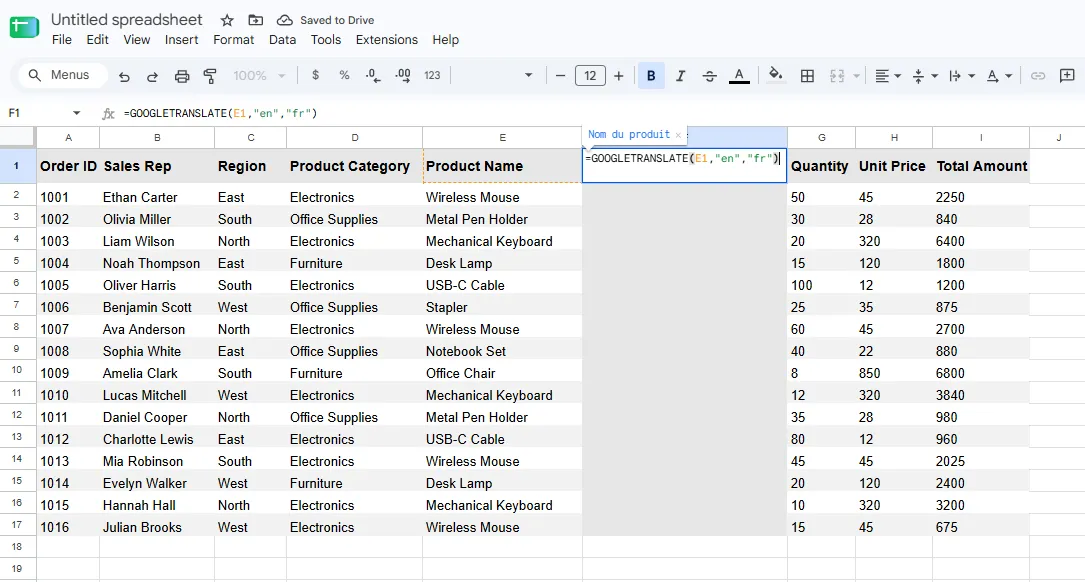
Etapa 3. Arraste a alça de preenchimento ou copie a fórmula para as linhas restantes. Cada tradução fará referência à célula de origem correspondente.
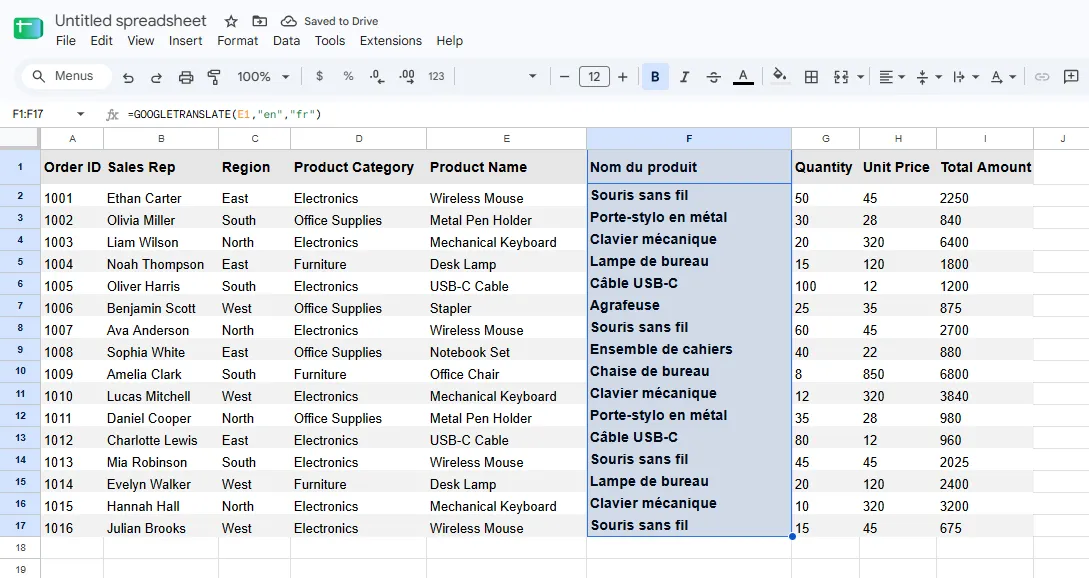
Etapa 4. Revise as traduções e, em seguida, copie os resultados e cole-os nas células originais correspondentes usando Colar especial → Somente valores. Isso substitui o texto sem colar fórmulas de tradução. Exclua a coluna auxiliar depois disso.
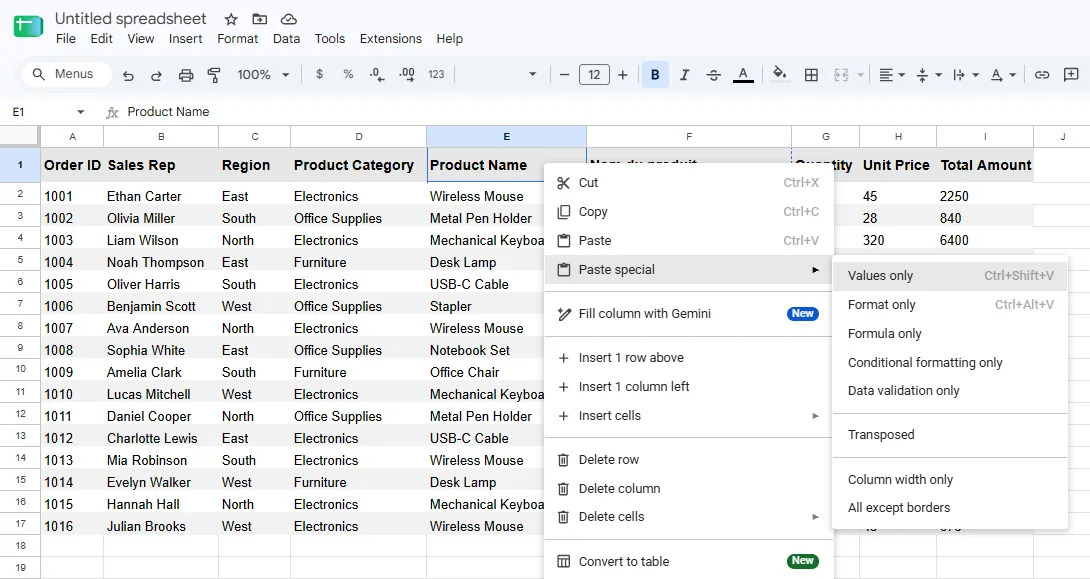
Etapa 5. Repita o processo para outras colunas de texto, como regiões e categorias, e traduza os cabeçalhos individualmente. Baixe o resultado como um arquivo .xlsx e abra-o no Excel para verificar as fórmulas e o layout.
O Microsoft 365 oferece uma função semelhante, =TRANSLATE(E1,"en","fr"), caso você prefira permanecer no Excel. O fluxo de trabalho com coluna auxiliar e colagem de valores é essencialmente o mesmo.
Essa abordagem é simples para algumas colunas de texto regulares. Ela se torna repetitiva quando o texto está espalhado por várias planilhas, e a exportação a partir do Sheets exige uma verificação extra de compatibilidade no Excel.
Método 2. Traduzir a pasta de trabalho com o ChatGPT
Quando o texto aparece em vários lugares, o ChatGPT pode trabalhar a partir do arquivo .xlsx enviado e retornar uma cópia traduzida. O ponto principal é especificar qual conteúdo deve mudar e quais elementos da pasta de trabalho devem permanecer intactos.
Etapa 1. Faça upload de uma cópia da pasta de trabalho .xlsx para o ChatGPT.

Etapa 2. Forneça um prompt que especifique o idioma de destino, o texto a ser traduzido e o que deve permanecer inalterado. Por exemplo:
Traduza para o francês o texto em inglês desta pasta de trabalho do Excel. Traduza os cabeçalhos das colunas, os nomes das regiões, as categorias de produtos e os nomes dos produtos em suas células originais. Mantenha inalterados os nomes dos representantes de vendas, os IDs de pedido, os números, os preços e todas as fórmulas. Preserve a estrutura da planilha e a formatação das células. Retorne um arquivo
.xlsxeditável.
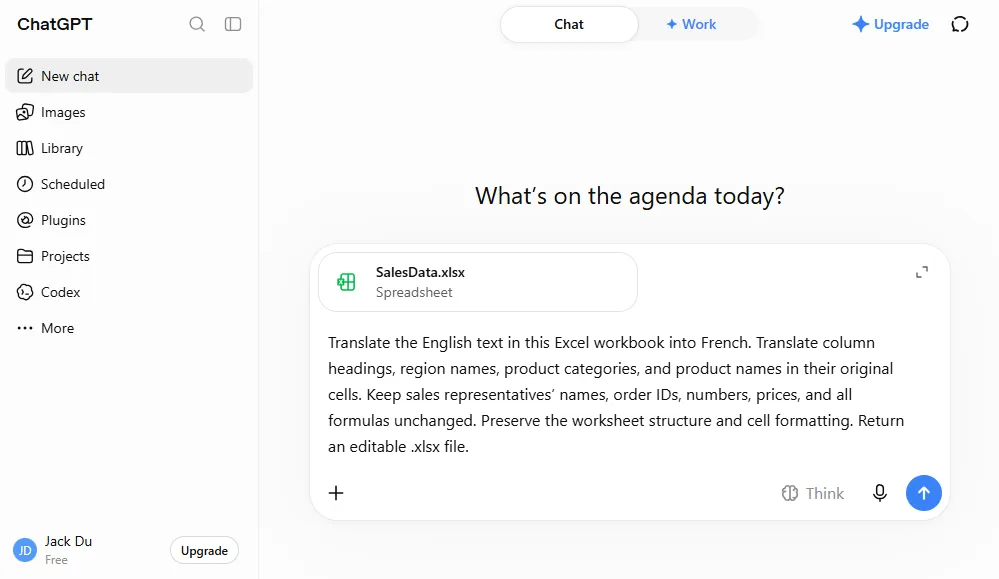
Etapa 3. Baixe a pasta de trabalho traduzida, abra-a no Excel e compare as traduções, as fórmulas e a formatação com o original.
Por exemplo, em uma pasta de trabalho de vendas contendo 16 células com fórmulas, a cópia traduzida manteve as fórmulas e os estilos de célula originais, ao mesmo tempo que traduziu cabeçalhos, regiões, categorias e nomes de produtos. O resultado mostra o que esse fluxo de trabalho pode realizar em um arquivo simples. Recursos mais complexos, como macros, tabelas dinâmicas, gráficos ou formatação condicional, devem ser verificados separadamente.
O ChatGPT é prático quando você quer um arquivo atualizado sem criar colunas auxiliares nem escrever código. Como em qualquer tradução, revise o texto e verifique a pasta de trabalho resultante antes de compartilhá-la.
Método 3. Automatizar a tradução em C# com o Spire.Agent.Office
Se a tradução de Excel faz parte de um aplicativo ou de um processo recorrente, um desenvolvedor pode automatizar a mesma tarefa em C#. O Spire.Agent.Office aceita um Workbook do Excel e uma instrução em linguagem natural e, em seguida, salva o arquivo processado como um novo .xlsx. Seu exemplo publicado de tradução de documentos também aborda Word e PowerPoint; aqui é mostrado apenas o fluxo de trabalho do Excel.
Etapa 1. Instale o pacote.
dotnet add package Spire.Agent.Office
Etapa 2. Carregue o arquivo do Excel, especifique as regras de tradução e execute a instrução.
using System;
using Spire.Agent.Office.AI;
using Spire.Agent.Office.Extensions;
using Spire.Xls;

string inputPath = @"C:\Documents\input.xlsx";
string outputPath = @"C:\Documents\translated-fr.xlsx";
string spireToken = "your spireToken";

string instruction = """
Translate the English text in this Excel workbook into French.
Translate column headings, region names, product categories, and product names.
Keep people's names, order IDs, URLs, and technical identifiers unchanged.
Do not change any formulas, numbers, dates, quantities, or prices.
Preserve the original worksheets, cell positions, merged cells, and formatting,
including fonts, fills, borders, alignment, and number formats.
Do not add worksheets, notes, or explanations to the workbook.
""";

AIOptions options = new AIOptions { SpireToken = spireToken };

using Workbook workbook = new Workbook();
workbook.LoadFromFile(inputPath);

AIDocumentProcessor processor = workbook.AI(options);
AIResult result = processor.ExecuteInstruction(
    workbook, instruction, outputPath);

if (!result.Success)
    throw new InvalidOperationException(result.ErrorMessage);

Console.WriteLine({BODY_CONTENT}quot;Translated workbook saved to: {outputPath}");
Etapa 3. Compare o texto das fórmulas e as posições das células com fórmulas entre a entrada e a saída. Verifique os nomes das planilhas, os intervalos mesclados, os formatos de número e os estilos de célula importantes. Abra o arquivo no Excel para detectar textos que não cabem mais em suas células. A instrução define o resultado pretendido; essas verificações confirmam o que foi salvo.
Essa distinção é importante quando as fórmulas usam texto como condição. Por exemplo, =COUNTIF(C2:C17,"East") pode permanecer textualmente idêntica, mas retornar um resultado diferente depois que East se torna Est. Decida se esses rótulos de origem devem permanecer em inglês ou se as fórmulas dependentes devem ser deliberadamente atualizadas e testadas. Para pastas de trabalho críticas para o negócio, trate isso como uma decisão de modelo de dados, e não como um detalhe de tradução.
Esse método é adequado para desenvolvedores que processam várias pastas de trabalho ou que adicionam tradução a um aplicativo. Ele exige configuração, credenciais e validação adequadas aos arquivos que estão sendo processados.
Resumo: Qual método você deve escolher?
| Método | Facilidade de uso | Melhor uso | Como as traduções são retornadas | Principal verificação |
|---|---|---|---|---|
| Fórmula do Google Sheets | Fácil para uma coluna; manual para muitas áreas | Algumas colunas de texto regulares | Copiar os resultados e colar os valores nas células originais | Alinhamento das células e compatibilidade de exportação do Excel |
| ChatGPT | Mais fácil de começar | Texto espalhado por uma pasta de trabalho | Baixar um arquivo .xlsx atualizado |
Traduções, fórmulas e formatação |
| SDK de Agente de IA em C# | Requer configuração de desenvolvimento | Fluxos de trabalho repetíveis ou em lote | Salvar uma nova pasta de trabalho a partir do C# | Comparações automatizadas e revisão visual |
Para uma planilha pequena e organizada, uma fórmula de tradução oferece controle direto. O ChatGPT é uma escolha prática quando você quer o arquivo inteiro atualizado com menos trabalho manual. O fluxo de trabalho em C# faz mais sentido quando a tradução precisa ser executada repetidamente ou dentro de um aplicativo. Qualquer que seja o caminho escolhido, mantenha o original e inspecione tanto o texto traduzido quanto o comportamento da pasta de trabalho.
Perguntas frequentes
Posso traduzir uma pasta de trabalho inteira do Excel com GOOGLETRANSLATE?
Não com uma única fórmula. O GOOGLETRANSLATE traduz o texto fornecido a ele, geralmente uma referência de célula. Você pode preencher uma fórmula por toda uma coluna, mas ainda precisa lidar com outras colunas, cabeçalhos e planilhas, e depois devolver as traduções revisadas às células corretas. Para texto espalhado, o fluxo de trabalho com ChatGPT ou C# pode exigir menos trabalho manual.
Traduzir o texto das células manterá todas as fórmulas funcionando?
Deixar as expressões das fórmulas inalteradas é necessário, mas pode não ser suficiente. Uma fórmula como =COUNTIF(C2:C17,"East") depende de um rótulo específico em inglês; traduzir os valores da coluna C para Est altera seu resultado. Verifique tanto o texto da fórmula quanto os resultados calculados, especialmente para pesquisas, contagens condicionais e referências a rótulos de texto.
Colar o texto traduzido como valores preserva a formatação original?
Colar somente valores em células existentes normalmente mantém a formatação dessas células. Ainda assim, verifique se frases traduzidas mais longas ficam cortadas ou transbordam visualmente para as células adjacentes. Quando uma pasta de trabalho do Excel foi editada no Google Sheets, inspecione também o arquivo .xlsx exportado no Excel.
O ChatGPT ou um Agente de IA podem garantir que recursos complexos do Excel permaneçam intactos?
Não. Uma pasta de trabalho com macros, tabelas dinâmicas, gráficos, links externos ou formatação complexa precisa de suas próprias verificações de antes e depois. Mantenha o arquivo original e teste os cálculos importantes antes de usar a versão traduzida.
Veja também
수식과 서식을 깨뜨리지 않고 Excel 파일을 번역하는 방법
Excel 통합 문서는 단순한 텍스트 모음이 아닙니다. 수식, 숫자, 서식도 포함되어 데이터를 사용할 수 있게 합니다. 성공적인 번역은 독자에게 필요한 단어를 바꾸면서 다른 부분은 그대로 유지합니다.
올바른 접근 방식은 텍스트의 양과 위치에 따라 달라집니다. 이 가이드에서는 세 가지 옵션을 살펴봅니다: 텍스트 열을 위한 Google Sheets의 수식, 프롬프트를 통해 통합 문서를 번역하는 ChatGPT, 반복 가능한 C# 워크플로를 구축하는 개발자를 위한 Spire.Agent.Office입니다.
빠른 탐색:
방법 1. Google Sheets에서 텍스트 열 번역
텍스트가 열로 정리되어 있다면, Google Sheets에서 GOOGLETRANSLATE를 사용하여 원본 데이터와 나란히 번역할 수 있습니다. 각 결과를 검토한 후 통합 문서에 다시 넣을 수 있습니다.
1단계. Excel 파일 사본을 Google Drive에 업로드하고 Google Sheets에서 엽니다. 필요한 경우 함수를 사용하려면 Google Sheets 파일로 저장하세요. 비교를 위해 원본 Excel 파일은 보관하세요.
2단계. 제품 이름이 E열에 있다고 가정합니다. 옆에 도우미 열을 삽입하고 인접한 셀에 =GOOGLETRANSLATE(E1,"en","fr")를 입력합니다. 여기서 en은 영어, fr은 프랑스어를 의미합니다.
3단계. 채우기 핸들을 끌거나 수식을 나머지 행에 복사합니다. 각 번역은 해당 원본 셀을 참조합니다.
4단계. 번역을 검토한 다음 결과를 복사하여 선택하여 붙여넣기 → 값만을 사용해 해당 원본 셀에 붙여넣습니다. 이렇게 하면 번역 수식을 붙여넣지 않고 텍스트를 대체합니다. 이후 도우미 열을 삭제합니다.
5단계. 지역 및 카테고리와 같은 다른 텍스트 열에 대해 반복하고, 제목은 개별적으로 번역합니다. 결과를 .xlsx 파일로 다운로드하고 Excel에서 열어 수식과 레이아웃을 확인합니다.
Microsoft 365는 Excel에 그대로 머물고 싶다면 유사한 함수 =TRANSLATE(E1,"en","fr")를 제공합니다. 도우미 열 및 값 붙여넣기 워크플로는 기본적으로 동일합니다.
이 접근 방식은 몇 개의 일반 텍스트 열에는 간단합니다. 텍스트가 여러 시트에 흩어져 있으면 반복 작업이 되며, Sheets에서 내보내려면 Excel에서 추가 호환성 확인이 필요합니다.
방법 2. ChatGPT로 통합 문서 번역
텍스트가 여러 위치에 나타나는 경우, ChatGPT는 업로드된 .xlsx 파일에서 작업하고 번역된 사본을 반환할 수 있습니다. 핵심은 변경해야 할 콘텐츠와 그대로 유지해야 할 통합 문서 요소를 지정하는 것입니다.
1단계. .xlsx 통합 문서 사본을 ChatGPT에 업로드합니다.
2단계. 대상 언어, 번역할 텍스트, 변경하지 않아야 할 항목을 지정하는 프롬프트를 제공합니다. 예를 들어:
이 Excel 통합 문서의 영어 텍스트를 프랑스어로 번역하세요. 열 제목, 지역 이름, 제품 카테고리, 제품 이름을 원래 셀에서 번역하세요. 영업 담당자 이름, 주문 ID, 숫자, 가격, 모든 수식은 변경하지 마세요. 워크시트 구조와 셀 서식을 유지하세요. 편집 가능한
.xlsx파일을 반환하세요.
3단계. 번역된 통합 문서를 다운로드하고 Excel에서 열어 번역, 수식, 서식을 원본과 비교합니다.
예를 들어, 16개의 수식 셀이 포함된 판매 통합 문서에서 번역된 사본은 제목, 지역, 카테고리, 제품 이름을 번역하면서 원래 수식과 셀 스타일을 유지했습니다. 이 결과는 이 워크플로가 단순한 파일에서 무엇을 달성할 수 있는지 보여줍니다. 매크로, 피벗 테이블, 차트, 조건부 서식과 같은 더 복잡한 기능은 별도로 확인해야 합니다.
ChatGPT는 도우미 열을 만들거나 코드를 작성하지 않고 업데이트된 파일을 원할 때 편리합니다. 모든 번역과 마찬가지로 문구를 검토하고 공유하기 전에 결과 통합 문서를 확인하세요.
방법 3. Spire.Agent.Office를 사용하여 C#에서 번역 자동화
Excel 번역이 애플리케이션이나 반복 프로세스의 일부라면 개발자는 C#에서 동일한 작업을 자동화할 수 있습니다. Spire.Agent.Office는 Excel Workbook과 자연어 지침을 받은 다음 처리된 파일을 새 .xlsx로 저장합니다. 게시된 문서 번역 예제는 Word와 PowerPoint도 다루며, 여기서는 Excel 워크플로만 보여줍니다.
1단계. 패키지를 설치합니다.
dotnet add package Spire.Agent.Office
2단계. Excel 파일을 로드하고 번역 규칙을 지정한 다음 지침을 실행합니다.
using System;
using Spire.Agent.Office.AI;
using Spire.Agent.Office.Extensions;
using Spire.Xls;

string inputPath = @"C:\Documents\input.xlsx";
string outputPath = @"C:\Documents\translated-fr.xlsx";
string spireToken = "your spireToken";

string instruction = """
Translate the English text in this Excel workbook into French.
Translate column headings, region names, product categories, and product names.
Keep people's names, order IDs, URLs, and technical identifiers unchanged.
Do not change any formulas, numbers, dates, quantities, or prices.
Preserve the original worksheets, cell positions, merged cells, and formatting,
including fonts, fills, borders, alignment, and number formats.
Do not add worksheets, notes, or explanations to the workbook.
""";

AIOptions options = new AIOptions { SpireToken = spireToken };

using Workbook workbook = new Workbook();
workbook.LoadFromFile(inputPath);

AIDocumentProcessor processor = workbook.AI(options);
AIResult result = processor.ExecuteInstruction(
    workbook, instruction, outputPath);

if (!result.Success)
    throw new InvalidOperationException(result.ErrorMessage);

Console.WriteLine({BODY_CONTENT}quot;Translated workbook saved to: {outputPath}");
3단계. 입력과 출력 간의 수식 텍스트와 수식 셀 위치를 비교합니다. 워크시트 이름, 병합된 범위, 숫자 형식, 중요한 셀 스타일을 확인합니다. Excel에서 파일을 열어 셀에 더 이상 맞지 않는 텍스트를 확인합니다. 지침은 의도한 결과를 정의하며, 이러한 확인은 저장된 내용을 검증합니다.
수식이 텍스트를 조건으로 사용할 때 이 구분이 중요합니다. 예를 들어, =COUNTIF(C2:C17,"East")는 텍스트상 동일하게 유지될 수 있지만 East가 Est가 된 후 다른 결과를 반환할 수 있습니다. 해당 원본 레이블을 영어로 유지할지, 아니면 종속 수식을 의도적으로 업데이트하고 테스트할지 결정하세요. 비즈니스에 중요한 통합 문서의 경우 이를 번역 세부 사항이 아니라 데이터 모델 결정으로 취급하세요.
이 방법은 여러 통합 문서를 처리하거나 애플리케이션에 번역을 추가하는 개발자에게 적합합니다. 처리되는 파일에 맞는 설정, 자격 증명, 검증이 필요합니다.
요약: 어떤 방법을 선택해야 할까요?
| 방법 | 사용 용이성 | 최적의 용도 | 번역 결과가 반환되는 방식 | 주요 확인 사항 |
|---|---|---|---|---|
| Google Sheets 수식 | 한 열에는 쉬움, 여러 영역에는 수동 작업 필요 | 몇 개의 일반 텍스트 열 | 결과를 복사하고 값을 원본 셀에 붙여넣기 | 셀 정렬 및 Excel 내보내기 호환성 |
| ChatGPT | 시작하기 가장 쉬움 | 통합 문서 전체에 흩어진 텍스트 | 업데이트된 .xlsx 파일 다운로드 |
번역, 수식, 서식 |
| C# AI 에이전트 SDK | 개발 설정 필요 | 반복 가능 또는 일괄 워크플로 | C#에서 새 통합 문서 저장 | 자동 비교 및 시각적 검토 |
작고 정돈된 시트의 경우 번역 수식이 직접적인 제어를 제공합니다. 전체 파일을 더 적은 수동 작업으로 업데이트하려면 ChatGPT가 실용적인 선택입니다. 번역을 반복적으로 실행해야 하거나 애플리케이션 내에서 실행해야 하는 경우 C# 워크플로가 더 적합합니다. 어떤 경로를 선택하든 원본을 보관하고 번역된 텍스트와 통합 문서의 동작을 모두 검사하세요.
자주 묻는 질문
GOOGLETRANSLATE로 전체 Excel 통합 문서를 번역할 수 있나요?
단일 수식으로는 안 됩니다. GOOGLETRANSLATE는 전달된 텍스트, 일반적으로 셀 참조를 번역합니다. 수식을 열 아래로 채울 수 있지만 다른 열, 제목, 시트를 처리한 다음 검토한 번역을 올바른 셀에 반환해야 합니다. 흩어진 텍스트의 경우 ChatGPT 또는 C# 워크플로가 수동 작업을 덜 필요로 할 수 있습니다.
셀 텍스트를 번역하면 모든 수식이 계속 작동하나요?
수식 표현을 변경하지 않는 것은 필요하지만 충분하지 않을 수 있습니다. =COUNTIF(C2:C17,"East")와 같은 수식은 특정 영어 레이블에 의존합니다. C열의 값을 Est로 번역하면 결과가 변경됩니다. 특히 조회, 조건부 개수, 텍스트 레이블 참조에 대해 수식 텍스트와 계산된 결과를 모두 확인하세요.
번역된 텍스트를 값으로 붙여넣으면 원래 서식이 유지되나요?
값만 기존 셀에 붙여넣으면 일반적으로 해당 셀의 서식이 유지됩니다. 그래도 더 긴 번역 문구가 잘리거나 인접 셀로 시각적으로 넘치는지 확인하세요. Excel 통합 문서를 Google Sheets에서 편집한 경우 Excel에서 내보낸 .xlsx 파일도 검사하세요.
ChatGPT 또는 AI 에이전트가 복잡한 Excel 기능이 그대로 유지된다고 보장할 수 있나요?
아니요. 매크로, 피벗 테이블, 차트, 외부 링크 또는 복잡한 서식이 있는 통합 문서는 자체적인 전후 확인이 필요합니다. 원본 파일을 보관하고 번역된 버전을 사용하기 전에 중요한 계산을 테스트하세요.
참고 항목
Tradurre un file Excel senza alterare formule o formattazione
Una cartella di lavoro Excel è più di una semplice raccolta di testo. Può contenere anche formule, numeri e formattazione che rendono i dati utilizzabili. Una traduzione efficace modifica le parole necessarie ai lettori mantenendo intatte le altre parti.
L'approccio giusto dipende da quanto testo hai e da dove appare. Questa guida illustra tre opzioni: una formula in Google Sheets per le colonne di testo, ChatGPT per tradurre una cartella di lavoro tramite un prompt e Spire.Agent.Office per gli sviluppatori che creano un flusso di lavoro C# ripetibile.
Navigazione rapida:
- Metodo 1. Tradurre colonne di testo in Google Sheets
- Metodo 2. Tradurre la cartella di lavoro con ChatGPT
- Metodo 3. Automatizzare la traduzione in C# con Spire.Agent.Office
Metodo 1. Tradurre colonne di testo in Google Sheets
Se il testo è organizzato in colonne, Google Sheets ti consente di tradurlo accanto ai dati originali con GOOGLETRANSLATE. Puoi rivedere ogni risultato prima di reinserirlo nella cartella di lavoro.
Passaggio 1. Carica una copia del file Excel su Google Drive e aprila in Google Sheets. Se necessario, salvala come file di Google Sheets per usare la funzione; conserva il file Excel originale per il confronto.
Passaggio 2. Supponiamo che i nomi dei prodotti siano nella colonna E. Inserisci una colonna di appoggio accanto e digita =GOOGLETRANSLATE(E1,"en","fr") nella cella adiacente. Qui en indica l'inglese e fr il francese.
Passaggio 3. Trascina il quadratino di riempimento o copia la formula nelle righe rimanenti. Ogni traduzione farà riferimento alla cella di origine corrispondente.
Passaggio 4. Rivedi le traduzioni, poi copia i risultati e incollali nelle celle originali corrispondenti usando Incolla speciale → Solo valori. In questo modo si sostituisce il testo senza incollare le formule di traduzione. Elimina la colonna di appoggio in seguito.
Passaggio 5. Ripeti per altre colonne di testo, come regioni e categorie, e traduci le intestazioni singolarmente. Scarica il risultato come file .xlsx e aprilo in Excel per controllare le formule e il layout.
Microsoft 365 offre una funzione simile, =TRANSLATE(E1,"en","fr"), se preferisci rimanere in Excel. Il flusso di lavoro con colonna di appoggio e incolla valori è essenzialmente lo stesso.
Questo approccio è semplice per alcune colonne di testo regolari. Diventa ripetitivo quando il testo è sparso su più fogli, e l'esportazione da Sheets richiede un ulteriore controllo di compatibilità in Excel.
Metodo 2. Tradurre la cartella di lavoro con ChatGPT
Quando il testo compare in più punti, ChatGPT può lavorare dal file .xlsx caricato e restituire una copia tradotta. La chiave è specificare quali contenuti devono cambiare e quali elementi della cartella di lavoro devono rimanere intatti.
Passaggio 1. Carica una copia della cartella di lavoro .xlsx su ChatGPT.
Passaggio 2. Fornisci un prompt che specifichi la lingua di destinazione, il testo da tradurre e ciò che deve rimanere invariato. Ad esempio:
Traduci in francese il testo inglese in questa cartella di lavoro Excel. Traduci le intestazioni di colonna, i nomi delle regioni, le categorie di prodotti e i nomi dei prodotti nelle loro celle originali. Mantieni invariati i nomi dei rappresentanti di vendita, gli ID ordine, i numeri, i prezzi e tutte le formule. Conserva la struttura del foglio di lavoro e la formattazione delle celle. Restituisci un file
.xlsxmodificabile.
Passaggio 3. Scarica la cartella di lavoro tradotta, aprila in Excel e confronta traduzioni, formule e formattazione con l'originale.
Ad esempio, in una cartella di lavoro delle vendite contenente 16 celle con formule, la copia tradotta ha mantenuto le formule e gli stili di cella originali traducendo intestazioni, regioni, categorie e nomi dei prodotti. Il risultato mostra ciò che questo flusso di lavoro può ottenere per un file semplice. Le funzionalità più complesse, come macro, tabelle pivot, grafici o formattazione condizionale, devono essere controllate separatamente.
ChatGPT è comodo quando vuoi un file aggiornato senza creare colonne di appoggio o scrivere codice. Come per qualsiasi traduzione, rivedi la formulazione e verifica la cartella di lavoro risultante prima di condividerla.
Metodo 3. Automatizzare la traduzione in C# con Spire.Agent.Office
Se la traduzione di Excel fa parte di un'applicazione o di un processo ricorrente, uno sviluppatore può automatizzare la stessa attività in C#. Spire.Agent.Office accetta un Workbook Excel e un'istruzione in linguaggio naturale, quindi salva il file elaborato come nuovo .xlsx. Il suo esempio pubblicato di traduzione di documenti copre anche Word e PowerPoint; qui viene mostrato solo il flusso di lavoro Excel.
Passaggio 1. Installa il pacchetto.
dotnet add package Spire.Agent.Office
Passaggio 2. Carica il file Excel, specifica le regole di traduzione ed esegui l'istruzione.
using System;
using Spire.Agent.Office.AI;
using Spire.Agent.Office.Extensions;
using Spire.Xls;

string inputPath = @"C:\Documents\input.xlsx";
string outputPath = @"C:\Documents\translated-fr.xlsx";
string spireToken = "your spireToken";

string instruction = """
Translate the English text in this Excel workbook into French.
Translate column headings, region names, product categories, and product names.
Keep people's names, order IDs, URLs, and technical identifiers unchanged.
Do not change any formulas, numbers, dates, quantities, or prices.
Preserve the original worksheets, cell positions, merged cells, and formatting,
including fonts, fills, borders, alignment, and number formats.
Do not add worksheets, notes, or explanations to the workbook.
""";

AIOptions options = new AIOptions { SpireToken = spireToken };

using Workbook workbook = new Workbook();
workbook.LoadFromFile(inputPath);

AIDocumentProcessor processor = workbook.AI(options);
AIResult result = processor.ExecuteInstruction(
    workbook, instruction, outputPath);

if (!result.Success)
    throw new InvalidOperationException(result.ErrorMessage);

Console.WriteLine({BODY_CONTENT}quot;Translated workbook saved to: {outputPath}");
Passaggio 3. Confronta il testo delle formule e le posizioni delle celle con formule tra input e output. Controlla i nomi dei fogli di lavoro, gli intervalli uniti, i formati numerici e gli stili di cella importanti. Apri il file in Excel per individuare il testo che non entra più nelle celle. L'istruzione definisce il risultato previsto; questi controlli confermano ciò che è stato salvato.
La distinzione è importante quando le formule usano il testo come condizione. Ad esempio, =COUNTIF(C2:C17,"East") può rimanere testualmente identico ma restituire un risultato diverso dopo che East diventa Est. Decidi se quelle etichette di origine devono rimanere in inglese o se le formule dipendenti devono essere aggiornate e testate di proposito. Per cartelle di lavoro critiche per l'azienda, trattala come una decisione sul modello dati piuttosto che come un dettaglio di traduzione.
Questo metodo è adatto agli sviluppatori che elaborano più cartelle di lavoro o aggiungono la traduzione a un'applicazione. Richiede configurazione, credenziali e convalida adeguate ai file elaborati.
Riepilogo: quale metodo scegliere?
| Metodo | Facilità d'uso | Uso migliore | Come vengono restituite le traduzioni | Controllo principale |
|---|---|---|---|---|
| Formula di Google Sheets | Facile per una colonna; manuale per molte aree | Alcune colonne di testo regolari | Copia i risultati e incolla i valori nelle celle originali | Allineamento delle celle e compatibilità con l'esportazione in Excel |
| ChatGPT | Il più facile per iniziare | Testo distribuito in una cartella di lavoro | Scarica un file .xlsx aggiornato |
Traduzioni, formule e formattazione |
| SDK AI Agent per C# | Richiede configurazione di sviluppo | Flussi di lavoro ripetibili o in batch | Salva una nuova cartella di lavoro da C# | Confronti automatizzati e revisione visiva |
Per un foglio piccolo e ordinato, una formula di traduzione offre un controllo diretto. ChatGPT è una scelta pratica quando vuoi aggiornare l'intero file con meno lavoro manuale. Il flusso di lavoro C# ha più senso quando la traduzione deve essere eseguita ripetutamente o all'interno di un'applicazione. Qualunque strada scegli, conserva l'originale e controlla sia il testo tradotto sia il comportamento della cartella di lavoro.
FAQ
Posso tradurre un'intera cartella di lavoro Excel con GOOGLETRANSLATE?
Non con una singola formula. GOOGLETRANSLATE traduce il testo fornito, di solito un riferimento di cella. Puoi copiare una formula verso il basso in una colonna, ma devi comunque gestire altre colonne, intestazioni e fogli, quindi restituire le traduzioni riviste alle celle giuste. Per il testo sparso, il flusso di lavoro ChatGPT o C# può richiedere meno lavoro manuale.
Tradurre il testo delle celle manterrà funzionanti tutte le formule?
Lasciare invariate le espressioni delle formule è necessario, ma potrebbe non essere sufficiente. Una formula come =COUNTIF(C2:C17,"East") dipende da un'etichetta inglese specifica; tradurre i valori nella colonna C in Est ne cambia il risultato. Controlla sia il testo della formula sia i risultati calcolati, specialmente per ricerche, conteggi condizionali e riferimenti a etichette di testo.
Incollare il testo tradotto come valori preserva la formattazione originale?
Incollare solo valori nelle celle esistenti normalmente mantiene la formattazione di quelle celle. Tuttavia, controlla se le frasi tradotte più lunghe vengono tagliate o si sovrappongono visivamente alle celle adiacenti. Quando una cartella di lavoro Excel è stata modificata in Google Sheets, ispeziona anche il file .xlsx esportato in Excel.
ChatGPT o un AI Agent possono garantire che le funzionalità complesse di Excel rimangano intatte?
No. Una cartella di lavoro con macro, tabelle pivot, grafici, collegamenti esterni o formattazione intricata richiede controlli prima e dopo specifici. Conserva il file originale e testa i calcoli importanti prima di usare la versione tradotta.
Vedi anche
Traduire un fichier Excel sans casser les formules ni la mise en forme
Un classeur Excel est bien plus qu'un simple ensemble de textes. Il peut également contenir des formules, des nombres et une mise en forme qui rendent les données exploitables. Une traduction réussie modifie les mots dont les lecteurs ont besoin tout en préservant ces autres éléments intacts.
La bonne approche dépend de la quantité de texte dont vous disposez et de l'endroit où il apparaît. Ce guide présente trois options : une formule dans Google Sheets pour les colonnes de texte, ChatGPT pour traduire un classeur au moyen d'une consigne, et Spire.Agent.Office pour les développeurs qui mettent en place un flux de travail C# reproductible.
Navigation rapide :
- Méthode 1. Traduire des colonnes de texte dans Google Sheets
- Méthode 2. Traduire le classeur avec ChatGPT
- Méthode 3. Automatiser la traduction en C# avec Spire.Agent.Office
Méthode 1. Traduire des colonnes de texte dans Google Sheets
Si le texte est organisé en colonnes, Google Sheets vous permet de le traduire en parallèle des données d'origine grâce à GOOGLETRANSLATE. Vous pouvez vérifier chaque résultat avant de le réinsérer dans le classeur.
Étape 1. Importez une copie du fichier Excel dans Google Drive et ouvrez-la dans Google Sheets. Si nécessaire, enregistrez-la au format Google Sheets pour utiliser la fonction ; conservez le fichier Excel d'origine pour comparaison.
Étape 2. Supposons que les noms de produits se trouvent dans la colonne E. Insérez une colonne auxiliaire à côté et saisissez =GOOGLETRANSLATE(E1,"en","fr") dans la cellule adjacente. Ici, en désigne l'anglais et fr le français.
Étape 3. Faites glisser la poignée de recopie ou copiez la formule dans les lignes restantes. Chaque traduction fera référence à la cellule source correspondante.
Étape 4. Vérifiez les traductions, puis copiez les résultats et collez-les dans les cellules d'origine correspondantes à l'aide de Collage spécial → Valeurs uniquement. Cela remplace le texte sans coller les formules de traduction. Supprimez ensuite la colonne auxiliaire.
Étape 5. Répétez l'opération pour les autres colonnes de texte, comme les régions et les catégories, et traduisez les en-têtes un par un. Téléchargez le résultat au format .xlsx et ouvrez-le dans Excel pour vérifier les formules et la mise en page.
Microsoft 365 propose une fonction similaire, =TRANSLATE(E1,"en","fr"), si vous préférez rester dans Excel. Le flux de travail avec colonne auxiliaire et collage des valeurs est essentiellement identique.
Cette approche est simple pour quelques colonnes de texte régulières. Elle devient répétitive lorsque le texte est dispersé sur plusieurs feuilles, et l'export depuis Sheets exige une vérification de compatibilité supplémentaire dans Excel.
Méthode 2. Traduire le classeur avec ChatGPT
Lorsque le texte apparaît à plusieurs endroits, ChatGPT peut travailler à partir du fichier .xlsx téléversé et renvoyer une copie traduite. L'essentiel est de préciser quel contenu doit être modifié et quels éléments du classeur doivent rester intacts.
Étape 1. Téléversez une copie du classeur .xlsx dans ChatGPT.
Étape 2. Fournissez une consigne qui précise la langue cible, le texte à traduire et ce qui doit rester inchangé. Par exemple :
Traduisez en français le texte anglais de ce classeur Excel. Traduisez les en-têtes de colonnes, les noms de régions, les catégories de produits et les noms de produits dans leurs cellules d'origine. Conservez inchangés les noms des commerciaux, les identifiants de commande, les nombres, les prix et toutes les formules. Préservez la structure des feuilles de calcul et la mise en forme des cellules. Renvoyez un fichier
.xlsxmodifiable.
Étape 3. Téléchargez le classeur traduit, ouvrez-le dans Excel et comparez les traductions, les formules et la mise en forme avec l'original.
Par exemple, dans un classeur de ventes contenant 16 cellules de formule, la copie traduite a conservé les formules et les styles de cellule d'origine tout en traduisant les en-têtes, les régions, les catégories et les noms de produits. Le résultat montre ce que ce flux de travail peut accomplir pour un fichier simple. Les fonctionnalités plus complexes, comme les macros, les tableaux croisés dynamiques, les graphiques ou la mise en forme conditionnelle, doivent être vérifiées séparément.
ChatGPT est pratique lorsque vous souhaitez obtenir un fichier mis à jour sans créer de colonnes auxiliaires ni écrire de code. Comme pour toute traduction, relisez la formulation et vérifiez le classeur obtenu avant de le partager.
Méthode 3. Automatiser la traduction en C# avec Spire.Agent.Office
Si la traduction Excel fait partie d'une application ou d'un processus récurrent, un développeur peut automatiser cette même tâche en C#. Spire.Agent.Office accepte un Workbook Excel et une instruction en langage naturel, puis enregistre le fichier traité dans un nouveau .xlsx. Son exemple de traduction de documents publié couvre également Word et PowerPoint ; seul le flux de travail Excel est présenté ici.
Étape 1. Installez le package.
dotnet add package Spire.Agent.Office
Étape 2. Chargez le fichier Excel, spécifiez les règles de traduction et exécutez l'instruction.
using System;
using Spire.Agent.Office.AI;
using Spire.Agent.Office.Extensions;
using Spire.Xls;

string inputPath = @"C:\Documents\input.xlsx";
string outputPath = @"C:\Documents\translated-fr.xlsx";
string spireToken = "your spireToken";

string instruction = """
Translate the English text in this Excel workbook into French.
Translate column headings, region names, product categories, and product names.
Keep people's names, order IDs, URLs, and technical identifiers unchanged.
Do not change any formulas, numbers, dates, quantities, or prices.
Preserve the original worksheets, cell positions, merged cells, and formatting,
including fonts, fills, borders, alignment, and number formats.
Do not add worksheets, notes, or explanations to the workbook.
""";

AIOptions options = new AIOptions { SpireToken = spireToken };

using Workbook workbook = new Workbook();
workbook.LoadFromFile(inputPath);

AIDocumentProcessor processor = workbook.AI(options);
AIResult result = processor.ExecuteInstruction(
    workbook, instruction, outputPath);

if (!result.Success)
    throw new InvalidOperationException(result.ErrorMessage);

Console.WriteLine({BODY_CONTENT}quot;Translated workbook saved to: {outputPath}");
Étape 3. Comparez le texte des formules et la position des cellules de formule entre l'entrée et la sortie. Vérifiez les noms des feuilles de calcul, les plages fusionnées, les formats de nombre et les styles de cellule importants. Ouvrez le fichier dans Excel pour repérer le texte qui ne tient plus dans ses cellules. La consigne définit le résultat attendu ; ces vérifications confirment ce qui a été enregistré.
Cette distinction est importante lorsque les formules utilisent du texte comme condition. Par exemple, =COUNTIF(C2:C17,"East") peut rester textuellement identique mais renvoyer un résultat différent une fois que East devient Est. Décidez si ces libellés sources doivent rester en anglais ou si les formules dépendantes doivent être délibérément mises à jour et testées. Pour les classeurs critiques pour l'activité, considérez cela comme une décision de modèle de données plutôt que comme un détail de traduction.
Cette méthode convient aux développeurs qui traitent plusieurs classeurs ou qui ajoutent la traduction à une application. Elle nécessite une configuration, des identifiants et une validation adaptés aux fichiers traités.
Résumé : quelle méthode choisir ?
| Méthode | Facilité d'utilisation | Meilleur usage | Mode de restitution des traductions | Vérification principale |
|---|---|---|---|---|
| Formule Google Sheets | Facile pour une colonne ; manuelle pour de nombreuses zones | Quelques colonnes de texte régulières | Copier les résultats et coller les valeurs dans les cellules d'origine | Alignement des cellules et compatibilité d'export vers Excel |
| ChatGPT | Le plus simple pour démarrer | Texte réparti dans tout un classeur | Télécharger un fichier .xlsx mis à jour |
Traductions, formules et mise en forme |
| SDK d'agent IA en C# | Nécessite une configuration de développement | Flux de travail répétables ou par lots | Enregistrer un nouveau classeur depuis C# | Comparaisons automatisées et vérification visuelle |
Pour une petite feuille bien organisée, une formule de traduction vous offre un contrôle direct. ChatGPT est un choix pratique lorsque vous souhaitez mettre à jour tout le fichier avec moins de travail manuel. Le flux de travail C# se justifie davantage lorsque la traduction doit s'exécuter de façon répétée ou au sein d'une application. Quelle que soit la voie choisie, conservez l'original et inspectez à la fois le texte traduit et le comportement du classeur.
FAQ
Puis-je traduire un classeur Excel entier avec GOOGLETRANSLATE ?
Pas avec une seule formule. GOOGLETRANSLATE traduit le texte qui lui est fourni, généralement une référence de cellule. Vous pouvez recopier une formule vers le bas d'une colonne, mais vous devez tout de même traiter les autres colonnes, les en-têtes et les feuilles, puis replacer les traductions vérifiées dans les bonnes cellules. Pour du texte dispersé, le flux de travail ChatGPT ou C# peut demander moins de travail manuel.
La traduction du texte des cellules permettra-t-elle à toutes les formules de continuer à fonctionner ?
Laisser les expressions de formule inchangées est nécessaire, mais cela peut ne pas suffire. Une formule telle que =COUNTIF(C2:C17,"East") dépend d'un libellé anglais précis ; traduire les valeurs de la colonne C en Est modifie son résultat. Vérifiez à la fois le texte des formules et les résultats calculés, en particulier pour les recherches, les comptages conditionnels et les références à des libellés textuels.
Le collage du texte traduit sous forme de valeurs préserve-t-il la mise en forme d'origine ?
Le collage des valeurs uniquement dans des cellules existantes conserve normalement la mise en forme de ces cellules. Vérifiez toutefois si les phrases traduites plus longues sont tronquées ou débordent visuellement sur les cellules adjacentes. Lorsqu'un classeur Excel a été modifié dans Google Sheets, inspectez également le fichier .xlsx exporté dans Excel.
ChatGPT ou un agent IA peut-il garantir que les fonctionnalités Excel complexes restent intactes ?
Non. Un classeur comportant des macros, des tableaux croisés dynamiques, des graphiques, des liens externes ou une mise en forme complexe nécessite ses propres vérifications avant/après. Conservez le fichier d'origine et testez les calculs importants avant d'utiliser la version traduite.
Voir aussi
- Caviardage de documents assisté par IA en C# : préserver la mise en forme
- Mise en forme, synthèse et indexation Word assistées par IA en C#
- Traducteur de documents IA : traduire des fichiers Word, Excel et PowerPoint en C#
- Audit Excel assisté par IA en C# : détecter les erreurs et les anomalies de données
Traducir un archivo de Excel sin romper fórmulas ni formato
Tabla de contenido
Un libro de Excel es más que una colección de texto. También puede contener fórmulas, números y formato que hacen que los datos sean utilizables. Una traducción exitosa cambia las palabras que los lectores necesitan mientras mantiene intactas esas otras partes.
El enfoque correcto depende de cuánto texto tengas y dónde aparezca. Esta guía repasa tres opciones: una fórmula en Google Sheets para columnas de texto, ChatGPT para traducir un libro mediante un prompt, y Spire.Agent.Office para desarrolladores que crean un flujo de trabajo repetible en C#.
Navegación rápida:
- Método 1. Traducir columnas de texto en Google Sheets
- Método 2. Traducir el libro con ChatGPT
- Método 3. Automatizar la traducción en C# con Spire.Agent.Office
Método 1. Traducir columnas de texto en Google Sheets
Si el texto está organizado en columnas, Google Sheets te permite traducirlo junto con los datos originales con GOOGLETRANSLATE. Puedes revisar cada resultado antes de volver a colocarlo en el libro.
Paso 1. Sube una copia del archivo de Excel a Google Drive y ábrela en Google Sheets. Si es necesario, guárdala como un archivo de Google Sheets para usar la función; conserva el archivo de Excel original para comparar.
Paso 2. Supón que los nombres de los productos están en la columna E. Inserta una columna auxiliar junto a ella e introduce =GOOGLETRANSLATE(E1,"en","fr") en la celda adyacente. Aquí en significa inglés y fr significa francés.
Paso 3. Arrastra el controlador de relleno o copia la fórmula a las filas restantes. Cada traducción hará referencia a la celda de origen correspondiente.
Paso 4. Revisa las traducciones, luego copia los resultados y pégalos en las celdas originales correspondientes usando Pegado especial → Solo valores. Esto reemplaza el texto sin pegar fórmulas de traducción. Elimina la columna auxiliar después.
Paso 5. Repite para otras columnas de texto, como regiones y categorías, y traduce los encabezados individualmente. Descarga el resultado como un archivo .xlsx y ábrelo en Excel para comprobar las fórmulas y el diseño.
Microsoft 365 ofrece una función similar, =TRANSLATE(E1,"en","fr"), si prefieres permanecer en Excel. El flujo de trabajo con columna auxiliar y pegado de valores es esencialmente el mismo.
Este enfoque es sencillo para unas pocas columnas de texto regulares. Se vuelve repetitivo cuando el texto está disperso en varias hojas, y exportar desde Sheets requiere una comprobación adicional de compatibilidad en Excel.
Método 2. Traducir el libro con ChatGPT
Cuando el texto aparece en varios lugares, ChatGPT puede trabajar desde el archivo .xlsx subido y devolver una copia traducida. La clave es especificar qué contenido debe cambiar y qué elementos del libro deben permanecer intactos.
Paso 1. Sube una copia del libro .xlsx a ChatGPT.
Paso 2. Proporciona un prompt que especifique el idioma de destino, el texto que se va a traducir y lo que debe permanecer sin cambios. Por ejemplo:
Traduce el texto en inglés de este libro de Excel al francés. Traduce los encabezados de columna, los nombres de región, las categorías de productos y los nombres de productos en sus celdas originales. Mantén sin cambios los nombres de los representantes de ventas, los ID de pedido, los números, los precios y todas las fórmulas. Conserva la estructura de la hoja de cálculo y el formato de las celdas. Devuelve un archivo
.xlsxeditable.
Paso 3. Descarga el libro traducido, ábrelo en Excel y compara las traducciones, las fórmulas y el formato con el original.
Por ejemplo, en un libro de ventas que contiene 16 celdas con fórmulas, la copia traducida conservó las fórmulas y los estilos de celda originales mientras traducía encabezados, regiones, categorías y nombres de productos. El resultado muestra lo que este flujo de trabajo puede lograr para un archivo sencillo. Las características más complejas, como macros, tablas dinámicas, gráficos o formato condicional, deben comprobarse por separado.
ChatGPT es conveniente cuando quieres un archivo actualizado sin crear columnas auxiliares ni escribir código. Como con cualquier traducción, revisa la redacción y verifica el libro resultante antes de compartirlo.
Método 3. Automatizar la traducción en C# con Spire.Agent.Office
Si la traducción de Excel es parte de una aplicación o de un proceso recurrente, un desarrollador puede automatizar la misma tarea en C#. Spire.Agent.Office acepta un Workbook de Excel y una instrucción en lenguaje natural, y luego guarda el archivo procesado como un nuevo .xlsx. Su ejemplo de traducción de documentos publicado también abarca Word y PowerPoint; aquí solo se muestra el flujo de trabajo de Excel.
Paso 1. Instala el paquete.
dotnet add package Spire.Agent.Office
Paso 2. Carga el archivo de Excel, especifica las reglas de traducción y ejecuta la instrucción.
using System;
using Spire.Agent.Office.AI;
using Spire.Agent.Office.Extensions;
using Spire.Xls;

string inputPath = @"C:\Documents\input.xlsx";
string outputPath = @"C:\Documents\translated-fr.xlsx";
string spireToken = "your spireToken";

string instruction = """
Translate the English text in this Excel workbook into French.
Translate column headings, region names, product categories, and product names.
Keep people's names, order IDs, URLs, and technical identifiers unchanged.
Do not change any formulas, numbers, dates, quantities, or prices.
Preserve the original worksheets, cell positions, merged cells, and formatting,
including fonts, fills, borders, alignment, and number formats.
Do not add worksheets, notes, or explanations to the workbook.
""";

AIOptions options = new AIOptions { SpireToken = spireToken };

using Workbook workbook = new Workbook();
workbook.LoadFromFile(inputPath);

AIDocumentProcessor processor = workbook.AI(options);
AIResult result = processor.ExecuteInstruction(
    workbook, instruction, outputPath);

if (!result.Success)
    throw new InvalidOperationException(result.ErrorMessage);

Console.WriteLine({BODY_CONTENT}quot;Translated workbook saved to: {outputPath}");
Paso 3. Compara el texto de las fórmulas y las posiciones de las celdas con fórmulas entre la entrada y la salida. Comprueba los nombres de las hojas de cálculo, los rangos combinados, los formatos de número y los estilos de celda importantes. Abre el archivo en Excel para detectar texto que ya no se ajusta a sus celdas. La instrucción define el resultado previsto; estas comprobaciones confirman lo que se guardó.
La distinción importa cuando las fórmulas usan texto como condición. Por ejemplo, =COUNTIF(C2:C17,"East") puede permanecer textualmente idéntica pero devolver un resultado diferente después de que East se convierta en Est. Decide si esas etiquetas de origen deben permanecer en inglés o si las fórmulas dependientes deben actualizarse y probarse deliberadamente. Para libros críticos para el negocio, trata esto como una decisión de modelo de datos en lugar de un detalle de traducción.
Este método es adecuado para desarrolladores que procesan varios libros o añaden traducción a una aplicación. Requiere configuración, credenciales y validación adaptadas a los archivos que se procesan.
Resumen: ¿Qué método deberías elegir?
| Método | Facilidad de uso | Mejor uso | Cómo se devuelven las traducciones | Comprobación principal |
|---|---|---|---|---|
| Fórmula de Google Sheets | Fácil para una columna; manual para muchas áreas | Unas pocas columnas de texto regulares | Copiar resultados y pegar valores en las celdas originales | Alineación de celdas y compatibilidad de exportación a Excel |
| ChatGPT | Lo más fácil para empezar | Texto distribuido por un libro | Descargar un archivo .xlsx actualizado |
Traducciones, fórmulas y formato |
| SDK de agente de IA para C# | Requiere configuración de desarrollo | Flujos de trabajo repetibles o por lotes | Guardar un nuevo libro desde C# | Comparaciones automatizadas y revisión visual |
Para una hoja pequeña y ordenada, una fórmula de traducción te da control directo. ChatGPT es una opción práctica cuando quieres actualizar todo el archivo con menos trabajo manual. El flujo de trabajo de C# tiene más sentido cuando la traducción debe ejecutarse repetidamente o dentro de una aplicación. Elijas la ruta que elijas, conserva el original e inspecciona tanto el texto traducido como el comportamiento del libro.
Preguntas frecuentes
¿Puedo traducir un libro de Excel completo con GOOGLETRANSLATE?
No con una sola fórmula. GOOGLETRANSLATE traduce el texto que se le proporciona, normalmente una referencia de celda. Puedes rellenar una fórmula hacia abajo en una columna, pero aún necesitas gestionar otras columnas, encabezados y hojas, y luego devolver las traducciones revisadas a las celdas correctas. Para texto disperso, el flujo de trabajo de ChatGPT o C# puede requerir menos trabajo manual.
¿Traducir el texto de las celdas dejará funcionando todas las fórmulas?
Dejar las expresiones de las fórmulas sin cambios es necesario, pero puede no ser suficiente. Una fórmula como =COUNTIF(C2:C17,"East") depende de una etiqueta específica en inglés; traducir los valores de la columna C a Est cambia su resultado. Comprueba tanto el texto de la fórmula como los resultados calculados, especialmente para búsquedas, recuentos condicionales y referencias a etiquetas de texto.
¿Pegar el texto traducido como valores conserva el formato original?
Pegar solo valores en celdas existentes normalmente mantiene el formato de esas celdas. Aun así, comprueba si las frases traducidas más largas se recortan o se desbordan visualmente hacia celdas adyacentes. Cuando un libro de Excel se ha editado en Google Sheets, inspecciona también el archivo .xlsx exportado en Excel.
¿Puede ChatGPT o un agente de IA garantizar que las características complejas de Excel permanezcan intactas?
No. Un libro con macros, tablas dinámicas, gráficos, vínculos externos o formato complejo necesita sus propias comprobaciones antes y después. Conserva el archivo original y prueba los cálculos importantes antes de usar la versión traducida.
Véase también
Eine Excel-Datei übersetzen, ohne Formeln oder Formatierung zu zerstören
Inhaltsverzeichnis
Eine Excel-Arbeitsmappe ist mehr als eine Sammlung von Text. Sie kann auch Formeln, Zahlen und Formatierungen enthalten, die die Daten nutzbar machen. Eine erfolgreiche Übersetzung ändert die Wörter, die Leser benötigen, während diese anderen Teile intakt bleiben.
Der richtige Ansatz hängt davon ab, wie viel Text Sie haben und wo er erscheint. Diese Anleitung zeigt drei Optionen: eine Formel in Google Sheets für Textspalten, ChatGPT zum Übersetzen einer Arbeitsmappe per Prompt und Spire.Agent.Office für Entwickler, die einen wiederholbaren C#-Workflow erstellen.
Schnellnavigation:
- Methode 1. Textspalten in Google Sheets übersetzen
- Methode 2. Arbeitsmappe mit ChatGPT übersetzen
- Methode 3. Übersetzung in C# mit Spire.Agent.Office automatisieren
Methode 1. Textspalten in Google Sheets übersetzen
Wenn der Text in Spalten angeordnet ist, können Sie ihn mit Google Sheets mithilfe von GOOGLETRANSLATE zusammen mit den Originaldaten übersetzen. Sie können jedes Ergebnis prüfen, bevor Sie es in die Arbeitsmappe zurückschreiben.
Schritt 1. Laden Sie eine Kopie der Excel-Datei in Google Drive hoch und öffnen Sie sie in Google Sheets. Speichern Sie sie bei Bedarf als Google-Sheets-Datei, um die Funktion zu verwenden; behalten Sie die ursprüngliche Excel-Datei zum Vergleich.
Schritt 2. Angenommen, die Produktnamen befinden sich in Spalte E. Fügen Sie daneben eine Hilfsspalte ein und geben Sie =GOOGLETRANSLATE(E1,"en","fr") in die benachbarte Zelle ein. Hier steht en für Englisch und fr für Französisch.
Schritt 3. Ziehen Sie den Füllpunkt oder kopieren Sie die Formel in die übrigen Zeilen. Jede Übersetzung bezieht sich auf die entsprechende Quellzelle.
Schritt 4. Prüfen Sie die Übersetzungen, kopieren Sie dann die Ergebnisse und fügen Sie sie mit Inhalte einfügen → Nur Werte in die entsprechenden Originalzellen ein. Dadurch wird der Text ersetzt, ohne Übersetzungsformeln einzufügen. Löschen Sie die Hilfsspalte anschließend.
Schritt 5. Wiederholen Sie dies für andere Textspalten, z. B. Regionen und Kategorien, und übersetzen Sie Überschriften einzeln. Laden Sie das Ergebnis als .xlsx-Datei herunter und öffnen Sie sie in Excel, um Formeln und Layout zu prüfen.
Microsoft 365 bietet eine ähnliche Funktion, =TRANSLATE(E1,"en","fr"), wenn Sie lieber in Excel bleiben möchten. Der Workflow mit Hilfsspalte und Einfügen von Werten ist im Wesentlichen derselbe.
Dieser Ansatz ist für einige reguläre Textspalten unkompliziert. Er wird repetitiv, wenn Text über mehrere Tabellenblätter verteilt ist, und der Export aus Sheets erfordert eine zusätzliche Kompatibilitätsprüfung in Excel.
Methode 2. Arbeitsmappe mit ChatGPT übersetzen
Wenn Text an mehreren Stellen vorkommt, kann ChatGPT mit der hochgeladenen .xlsx-Datei arbeiten und eine übersetzte Kopie zurückgeben. Entscheidend ist, anzugeben, welche Inhalte geändert werden sollen und welche Arbeitsmappenelemente unverändert bleiben müssen.
Schritt 1. Laden Sie eine Kopie der .xlsx-Arbeitsmappe zu ChatGPT hoch.
Schritt 2. Geben Sie einen Prompt an, der die Zielsprache, den zu übersetzenden Text und die unverändert bleibenden Teile festlegt. Zum Beispiel:
Übersetzen Sie den englischen Text in dieser Excel-Arbeitsmappe ins Französische. Übersetzen Sie Spaltenüberschriften, Regionsnamen, Produktkategorien und Produktnamen in ihren ursprünglichen Zellen. Lassen Sie Namen von Vertriebsmitarbeitern, Bestell-IDs, Zahlen, Preise und alle Formeln unverändert. Behalten Sie die Arbeitsblattstruktur und Zellformatierung bei. Geben Sie eine bearbeitbare
.xlsx-Datei zurück.
Schritt 3. Laden Sie die übersetzte Arbeitsmappe herunter, öffnen Sie sie in Excel und vergleichen Sie Übersetzungen, Formeln und Formatierung mit dem Original.
Beispielsweise behielt in einer Verkaufsarbeitsmappe mit 16 Formelzellen die übersetzte Kopie die ursprünglichen Formeln und Zellformate bei, während Überschriften, Regionen, Kategorien und Produktnamen übersetzt wurden. Das Ergebnis zeigt, was dieser Workflow für eine unkomplizierte Datei leisten kann. Komplexere Funktionen wie Makros, Pivot-Tabellen, Diagramme oder bedingte Formatierung sollten separat geprüft werden.
ChatGPT ist praktisch, wenn Sie eine aktualisierte Datei wünschen, ohne Hilfsspalten zu erstellen oder Code zu schreiben. Wie bei jeder Übersetzung sollten Sie die Formulierungen prüfen und die resultierende Arbeitsmappe überprüfen, bevor Sie sie weitergeben.
Methode 3. Übersetzung in C# mit Spire.Agent.Office automatisieren
Wenn die Excel-Übersetzung Teil einer Anwendung oder eines wiederkehrenden Prozesses ist, kann ein Entwickler dieselbe Aufgabe in C# automatisieren. Spire.Agent.Office akzeptiert eine Excel-Workbook und eine Anweisung in natürlicher Sprache und speichert die verarbeitete Datei dann als neue .xlsx. Das veröffentlichte Beispiel zur Dokumentübersetzung deckt auch Word und PowerPoint ab; hier wird nur der Excel-Workflow gezeigt.
Schritt 1. Installieren Sie das Paket.
dotnet add package Spire.Agent.Office
Schritt 2. Laden Sie die Excel-Datei, geben Sie die Übersetzungsregeln an und führen Sie die Anweisung aus.
using System;
using Spire.Agent.Office.AI;
using Spire.Agent.Office.Extensions;
using Spire.Xls;

string inputPath = @"C:\Documents\input.xlsx";
string outputPath = @"C:\Documents\translated-fr.xlsx";
string spireToken = "your spireToken";

string instruction = """
Translate the English text in this Excel workbook into French.
Translate column headings, region names, product categories, and product names.
Keep people's names, order IDs, URLs, and technical identifiers unchanged.
Do not change any formulas, numbers, dates, quantities, or prices.
Preserve the original worksheets, cell positions, merged cells, and formatting,
including fonts, fills, borders, alignment, and number formats.
Do not add worksheets, notes, or explanations to the workbook.
""";

AIOptions options = new AIOptions { SpireToken = spireToken };

using Workbook workbook = new Workbook();
workbook.LoadFromFile(inputPath);

AIDocumentProcessor processor = workbook.AI(options);
AIResult result = processor.ExecuteInstruction(
    workbook, instruction, outputPath);

if (!result.Success)
    throw new InvalidOperationException(result.ErrorMessage);

Console.WriteLine({BODY_CONTENT}quot;Translated workbook saved to: {outputPath}");
Schritt 3. Vergleichen Sie Formeltext und Positionen der Formelzellen zwischen Eingabe und Ausgabe. Prüfen Sie Arbeitsblattnamen, verbundene Bereiche, Zahlenformate und wichtige Zellstile. Öffnen Sie die Datei in Excel, um Text zu erkennen, der nicht mehr in seine Zellen passt. Die Anweisung definiert das beabsichtigte Ergebnis; diese Prüfungen bestätigen, was gespeichert wurde.
Die Unterscheidung ist wichtig, wenn Formeln Text als Bedingung verwenden. Beispielsweise kann =COUNTIF(C2:C17,"East") textuell identisch bleiben, aber ein anderes Ergebnis liefern, nachdem East zu Est geworden ist. Entscheiden Sie, ob diese Quellbeschriftungen auf Englisch bleiben sollen oder ob abhängige Formeln bewusst aktualisiert und getestet werden sollen. Bei geschäftskritischen Arbeitsmappen sollten Sie dies als Entscheidung zum Datenmodell und nicht als Übersetzungsdetail behandeln.
Diese Methode eignet sich für Entwickler, die mehrere Arbeitsmappen verarbeiten oder Übersetzung zu einer Anwendung hinzufügen. Sie erfordert Einrichtung, Anmeldeinformationen und Validierung, die zu den verarbeiteten Dateien passen.
Zusammenfassung: Welche Methode sollten Sie wählen?
| Methode | Benutzerfreundlichkeit | Am besten geeignet für | Wie Übersetzungen zurückgegeben werden | Hauptprüfung |
|---|---|---|---|---|
| Google-Sheets-Formel | Einfach für eine Spalte; manuell für viele Bereiche | Einige reguläre Textspalten | Ergebnisse kopieren und Werte in Originalzellen einfügen | Zellausrichtung und Excel-Export-Kompatibilität |
| ChatGPT | Am einfachsten zu beginnen | Text, der über eine Arbeitsmappe verteilt ist | Aktualisierte .xlsx-Datei herunterladen |
Übersetzungen, Formeln und Formatierung |
| C#-KI-Agent-SDK | Erfordert Entwicklungseinrichtung | Wiederholbare oder Batch-Workflows | Neue Arbeitsmappe aus C# speichern | Automatisierte Vergleiche und visuelle Prüfung |
Für eine kleine, übersichtliche Tabelle bietet Ihnen eine Übersetzungsformel direkte Kontrolle. ChatGPT ist eine praktische Wahl, wenn Sie die gesamte Datei mit weniger manueller Arbeit aktualisieren möchten. Der C#-Workflow ist sinnvoller, wenn die Übersetzung wiederholt oder innerhalb einer Anwendung ausgeführt werden muss. Welchen Weg Sie auch wählen, behalten Sie das Original und prüfen Sie sowohl den übersetzten Text als auch das Verhalten der Arbeitsmappe.
FAQs
Kann ich eine gesamte Excel-Arbeitsmappe mit GOOGLETRANSLATE übersetzen?
Nicht mit einer einzigen Formel. GOOGLETRANSLATE übersetzt den ihm übergebenen Text, normalerweise einen Zellbezug. Sie können eine Formel in einer Spalte nach unten ausfüllen, müssen aber weiterhin andere Spalten, Überschriften und Tabellenblätter behandeln und dann die geprüften Übersetzungen in die richtigen Zellen zurückschreiben. Bei verstreutem Text kann der ChatGPT- oder C#-Workflow weniger manuelle Arbeit erfordern.
Bleibt jede Formel funktionsfähig, wenn Zelltext übersetzt wird?
Das Unverändertlassen von Formelausdrücken ist notwendig, aber möglicherweise nicht ausreichend. Eine Formel wie =COUNTIF(C2:C17,"East") hängt von einer bestimmten englischen Bezeichnung ab; das Übersetzen der Werte in Spalte C zu Est ändert ihr Ergebnis. Prüfen Sie sowohl den Formeltext als auch die berechneten Ergebnisse, insbesondere bei Suchvorgängen, bedingten Zählungen und Verweisen auf Textbezeichnungen.
Bleibt die ursprüngliche Formatierung erhalten, wenn übersetzter Text als Werte eingefügt wird?
Das Einfügen von nur Werten in vorhandene Zellen behält normalerweise die Formatierung dieser Zellen bei. Prüfen Sie dennoch, ob längere übersetzte Phrasen abgeschnitten werden oder optisch in benachbarte Zellen hineinragen. Wenn eine Excel-Arbeitsmappe in Google Sheets bearbeitet wurde, untersuchen Sie außerdem die exportierte .xlsx-Datei in Excel.
Können ChatGPT oder ein KI-Agent garantieren, dass komplexe Excel-Funktionen intakt bleiben?
Nein. Eine Arbeitsmappe mit Makros, Pivot-Tabellen, Diagrammen, externen Links oder komplexer Formatierung benötigt eigene Vorher-Nachher-Prüfungen. Behalten Sie die Originaldatei und testen Sie wichtige Berechnungen, bevor Sie die übersetzte Version verwenden.
Siehe auch
Как перевести файл Excel, не нарушив формулы и форматирование
Книга Excel — это больше, чем набор текста. Она также может содержать формулы, числа и форматирование, которые делают данные пригодными для использования. Успешный перевод изменяет слова, необходимые читателям, сохраняя при этом остальные части нетронутыми.
Правильный подход зависит от того, сколько у вас текста и где он находится. В этом руководстве рассматриваются три варианта: формула в Google Sheets для текстовых столбцов, ChatGPT для перевода книги с помощью запроса и Spire.Agent.Office для разработчиков, создающих повторяемый рабочий процесс на C#.
Быстрая навигация:
- Метод 1. Перевод текстовых столбцов в Google Sheets
- Метод 2. Перевод книги с помощью ChatGPT
- Метод 3. Автоматизация перевода в C# с помощью Spire.Agent.Office
Метод 1. Перевод текстовых столбцов в Google Sheets
Если текст расположен в столбцах, Google Sheets позволяет переводить его рядом с исходными данными с помощью GOOGLETRANSLATE. Вы можете просмотреть каждый результат, прежде чем возвращать его в книгу.
Шаг 1. Загрузите копию файла Excel на Google Диск и откройте её в Google Sheets. При необходимости сохраните её как файл Google Sheets, чтобы использовать функцию; сохраните исходный файл Excel для сравнения.
Шаг 2. Предположим, названия продуктов находятся в столбце E. Вставьте вспомогательный столбец рядом с ним и введите =GOOGLETRANSLATE(E1,"en","fr") в соседнюю ячейку. Здесь en означает английский, а fr — французский.
Шаг 3. Перетащите маркер заполнения или скопируйте формулу в остальные строки. Каждый перевод будет ссылаться на соответствующую исходную ячейку.
Шаг 4. Просмотрите переводы, затем скопируйте результаты и вставьте их в соответствующие исходные ячейки с помощью Специальная вставка → Только значения. Это заменяет текст без вставки формул перевода. После этого удалите вспомогательный столбец.
Шаг 5. Повторите для других текстовых столбцов, например регионов и категорий, и переведите заголовки по отдельности. Скачайте результат как файл .xlsx и откройте его в Excel, чтобы проверить формулы и макет.
Microsoft 365 предлагает аналогичную функцию, =TRANSLATE(E1,"en","fr"), если вы предпочитаете оставаться в Excel. Рабочий процесс со вспомогательным столбцом и вставкой значений по сути тот же.
Этот подход прост для нескольких обычных текстовых столбцов. Он становится повторяющимся, когда текст разбросан по нескольким листам, а экспорт из Sheets требует дополнительной проверки совместимости в Excel.
Метод 2. Перевод книги с помощью ChatGPT
Когда текст появляется в нескольких местах, ChatGPT может работать с загруженным файлом .xlsx и вернуть переведённую копию. Ключ в том, чтобы указать, какое содержимое нужно изменить и какие элементы книги должны остаться нетронутыми.
Шаг 1. Загрузите копию книги .xlsx в ChatGPT.
Шаг 2. Предоставьте запрос, в котором указаны целевой язык, текст для перевода и то, что должно остаться без изменений. Например:
Переведите английский текст в этой книге Excel на французский. Переведите заголовки столбцов, названия регионов, категории продуктов и названия продуктов в их исходных ячейках. Оставьте без изменений имена торговых представителей, идентификаторы заказов, числа, цены и все формулы. Сохраните структуру листа и форматирование ячеек. Верните редактируемый файл
.xlsx.
Шаг 3. Скачайте переведённую книгу, откройте её в Excel и сравните переводы, формулы и форматирование с оригиналом.
Например, в книге продаж, содержащей 16 ячеек с формулами, переведённая копия сохранила исходные формулы и стили ячеек, переведя при этом заголовки, регионы, категории и названия продуктов. Результат показывает, чего этот рабочий процесс может достичь для простого файла. Более сложные функции, такие как макросы, сводные таблицы, диаграммы или условное форматирование, следует проверять отдельно.
ChatGPT удобен, когда вы хотите получить обновлённый файл без создания вспомогательных столбцов или написания кода. Как и при любом переводе, проверьте формулировки и убедитесь в правильности полученной книги перед тем, как делиться ею.
Метод 3. Автоматизация перевода в C# с помощью Spire.Agent.Office
Если перевод Excel является частью приложения или повторяющегося процесса, разработчик может автоматизировать ту же задачу на C#. Spire.Agent.Office принимает Excel Workbook и инструкцию на естественном языке, а затем сохраняет обработанный файл как новый .xlsx. Его опубликованный пример перевода документов также охватывает Word и PowerPoint; здесь показан только рабочий процесс для Excel.
Шаг 1. Установите пакет.
dotnet add package Spire.Agent.Office
Шаг 2. Загрузите файл Excel, укажите правила перевода и выполните инструкцию.
using System;
using Spire.Agent.Office.AI;
using Spire.Agent.Office.Extensions;
using Spire.Xls;

string inputPath = @"C:\Documents\input.xlsx";
string outputPath = @"C:\Documents\translated-fr.xlsx";
string spireToken = "your spireToken";

string instruction = """
Translate the English text in this Excel workbook into French.
Translate column headings, region names, product categories, and product names.
Keep people's names, order IDs, URLs, and technical identifiers unchanged.
Do not change any formulas, numbers, dates, quantities, or prices.
Preserve the original worksheets, cell positions, merged cells, and formatting,
including fonts, fills, borders, alignment, and number formats.
Do not add worksheets, notes, or explanations to the workbook.
""";

AIOptions options = new AIOptions { SpireToken = spireToken };

using Workbook workbook = new Workbook();
workbook.LoadFromFile(inputPath);

AIDocumentProcessor processor = workbook.AI(options);
AIResult result = processor.ExecuteInstruction(
    workbook, instruction, outputPath);

if (!result.Success)
    throw new InvalidOperationException(result.ErrorMessage);

Console.WriteLine({BODY_CONTENT}quot;Translated workbook saved to: {outputPath}");
Шаг 3. Сравните текст формул и позиции ячеек с формулами между входными и выходными данными. Проверьте имена листов, объединённые диапазоны, числовые форматы и важные стили ячеек. Откройте файл в Excel, чтобы обнаружить текст, который больше не помещается в ячейки. Инструкция определяет предполагаемый результат; эти проверки подтверждают, что было сохранено.
Это различие важно, когда формулы используют текст в качестве условия. Например, =COUNTIF(C2:C17,"East") может остаться текстово идентичной, но вернуть другой результат после того, как East станет Est. Решите, должны ли эти исходные метки остаться на английском или зависимые формулы следует намеренно обновить и протестировать. Для критически важных для бизнеса книг рассматривайте это как решение о модели данных, а не как деталь перевода.
Этот метод подходит разработчикам, обрабатывающим несколько книг или добавляющим перевод в приложение. Он требует настройки, учётных данных и проверки, соответствующих обрабатываемым файлам.
Итог: какой метод выбрать?
| Метод | Простота использования | Лучшее применение | Как возвращаются переводы | Основная проверка |
|---|---|---|---|---|
| Формула Google Sheets | Легко для одного столбца; вручную для многих областей | Несколько обычных текстовых столбцов | Скопировать результаты и вставить значения в исходные ячейки | Выравнивание ячеек и совместимость экспорта в Excel |
| ChatGPT | Проще всего начать | Текст, распределённый по книге | Скачать обновлённый файл .xlsx |
Переводы, формулы и форматирование |
| SDK AI-агента на C# | Требуется настройка разработки | Повторяемые или пакетные рабочие процессы | Сохранить новую книгу из C# | Автоматические сравнения и визуальная проверка |
Для небольшого упорядоченного листа формула перевода даёт вам прямой контроль. ChatGPT — практичный выбор, когда вы хотите обновить весь файл с меньшими ручными усилиями. Рабочий процесс на C# имеет больше смысла, когда перевод должен выполняться повторно или внутри приложения. Какой бы путь вы ни выбрали, сохраните оригинал и проверьте как переведённый текст, так и поведение книги.
Часто задаваемые вопросы
Можно ли перевести всю книгу Excel с помощью GOOGLETRANSLATE?
Нет, одной формулой. GOOGLETRANSLATE переводит текст, переданный ей, обычно это ссылка на ячейку. Вы можете заполнить формулу вниз по столбцу, но всё равно придётся обработать другие столбцы, заголовки и листы, а затем вернуть проверенные переводы в нужные ячейки. Для разрозненного текста рабочий процесс с ChatGPT или C# может потребовать меньше ручной работы.
Останется ли каждая формула рабочей после перевода текста в ячейках?
Оставить выражения формул без изменений необходимо, но этого может быть недостаточно. Такая формула, как =COUNTIF(C2:C17,"East"), зависит от конкретной английской метки; перевод значений в столбце C на Est изменяет её результат. Проверяйте как текст формулы, так и вычисленные результаты, особенно для функций поиска, условного подсчёта и ссылок на текстовые метки.
Сохраняет ли вставка переведённого текста как значений исходное форматирование?
Вставка только значений в существующие ячейки обычно сохраняет форматирование этих ячеек. Тем не менее проверьте, не обрезаются ли более длинные переведённые фразы и не выходят ли они визуально в соседние ячейки. Если книга Excel редактировалась в Google Sheets, также проверьте экспортированный файл .xlsx в Excel.
Может ли ChatGPT или AI-агент гарантировать, что сложные функции Excel останутся нетронутыми?
Нет. Книга с макросами, сводными таблицами, диаграммами, внешними ссылками или сложным форматированием требует собственных проверок до и после. Сохраните исходный файл и протестируйте важные вычисления перед использованием переведённой версии.
См. также
Translate an Excel File Without Breaking Formulas or Formatting
An Excel workbook is more than a collection of text. It may also contain formulas, numbers, and formatting that make the data usable. A successful translation changes the words readers need while keeping those other parts intact.
The right approach depends on how much text you have and where it appears. This guide walks through three options: a formula in Google Sheets for text columns, ChatGPT for translating a workbook through a prompt, and Spire.Agent.Office for developers building a repeatable C# workflow.
Quick Navigation:
- Method 1. Translate Text Columns in Google Sheets
- Method 2. Translate the Workbook with ChatGPT
- Method 3. Automate Translation in C# with Spire.Agent.Office
Method 1. Translate Text Columns in Google Sheets
If the text is arranged in columns, Google Sheets lets you translate it alongside the original data with GOOGLETRANSLATE. You can review each result before putting it back into the workbook.
Step 1. Upload a copy of the Excel file to Google Drive and open it in Google Sheets. If necessary, save it as a Google Sheets file to use the function; keep the original Excel file for comparison.
Step 2. Suppose the product names are in column E. Insert a helper column beside it and enter =GOOGLETRANSLATE(E1,"en","fr") in the adjacent cell. Here en means English and fr means French.
Step 3. Drag the fill handle or copy the formula to the remaining rows. Each translation will refer to the corresponding source cell.
Step 4. Review the translations, then copy the results and paste them into the corresponding original cells using Paste special → Values only. This replaces the text without pasting translation formulas. Delete the helper column afterward.
Step 5. Repeat for other text columns, such as regions and categories, and translate headings individually. Download the result as an .xlsx file and open it in Excel to check the formulas and layout.
Microsoft 365 offers a similar function, =TRANSLATE(E1,"en","fr"), if you prefer to stay in Excel. The helper-column and paste-values workflow is essentially the same.
This approach is straightforward for a few regular text columns. It becomes repetitive when text is scattered across multiple sheets, and exporting from Sheets calls for an extra compatibility check in Excel.
Method 2. Translate the Workbook with ChatGPT
When text appears in several places, ChatGPT can work from the uploaded .xlsx file and return a translated copy. The key is to specify which content should change and which workbook elements must remain untouched.
Step 1. Upload a copy of the .xlsx workbook to ChatGPT.
Step 2. Provide a prompt that specifies the target language, the text to translate, and what must remain unchanged. For example:
Translate the English text in this Excel workbook into French. Translate column headings, region names, product categories, and product names in their original cells. Keep sales representatives’ names, order IDs, numbers, prices, and all formulas unchanged. Preserve the worksheet structure and cell formatting. Return an editable
.xlsxfile.
Step 3. Download the translated workbook, open it in Excel, and compare the translations, formulas, and formatting with the original.
For example, in a sales workbook containing 16 formula cells, the translated copy retained the original formulas and cell styles while translating headings, regions, categories, and product names. The result shows what this workflow can accomplish for a straightforward file. More complex features, such as macros, pivot tables, charts, or conditional formatting, should be checked separately.
ChatGPT is convenient when you want an updated file without creating helper columns or writing code. As with any translation, review the wording and verify the resulting workbook before sharing it.
Method 3. Automate Translation in C# with Spire.Agent.Office
If Excel translation is part of an application or a recurring process, a developer can automate the same task in C#. Spire.Agent.Office accepts an Excel Workbook and a natural-language instruction, then saves the processed file as a new .xlsx. Its published document translation example also covers Word and PowerPoint; only the Excel workflow is shown here.
Step 1. Install the package.
dotnet add package Spire.Agent.Office
Step 2. Load the Excel file, specify the translation rules, and execute the instruction.
using System;
using Spire.Agent.Office.AI;
using Spire.Agent.Office.Extensions;
using Spire.Xls;

string inputPath = @"C:\Documents\input.xlsx";
string outputPath = @"C:\Documents\translated-fr.xlsx";
string spireToken = "your spireToken";

string instruction = """
Translate the English text in this Excel workbook into French.
Translate column headings, region names, product categories, and product names.
Keep people's names, order IDs, URLs, and technical identifiers unchanged.
Do not change any formulas, numbers, dates, quantities, or prices.
Preserve the original worksheets, cell positions, merged cells, and formatting,
including fonts, fills, borders, alignment, and number formats.
Do not add worksheets, notes, or explanations to the workbook.
""";

AIOptions options = new AIOptions { SpireToken = spireToken };

using Workbook workbook = new Workbook();
workbook.LoadFromFile(inputPath);

AIDocumentProcessor processor = workbook.AI(options);
AIResult result = processor.ExecuteInstruction(
    workbook, instruction, outputPath);

if (!result.Success)
    throw new InvalidOperationException(result.ErrorMessage);

Console.WriteLine({BODY_CONTENT}quot;Translated workbook saved to: {outputPath}");
Step 3. Compare formula text and formula-cell positions between the input and output. Check worksheet names, merged ranges, number formats, and important cell styles. Open the file in Excel to catch text that no longer fits its cells. The instruction defines the intended result; these checks confirm what was saved.
The distinction matters when formulas use text as a condition. For example, =COUNTIF(C2:C17,"East") can remain textually identical but return a different result after East becomes Est. Decide whether those source labels should stay in English or whether dependent formulas should be deliberately updated and tested. For business-critical workbooks, treat this as a data-model decision rather than a translation detail.
This method suits developers processing multiple workbooks or adding translation to an application. It requires setup, credentials, and validation suited to the files being processed.
Summary: Which Method Should You Choose?
| Method | Ease of use | Best use | How translations are returned | Main check |
|---|---|---|---|---|
| Google Sheets formula | Easy for one column; manual for many areas | A few regular text columns | Copy results and paste values into original cells | Cell alignment and Excel export compatibility |
| ChatGPT | Easiest to start | Text spread across a workbook | Download an updated .xlsx file |
Translations, formulas, and formatting |
| C# AI Agent SDK | Requires development setup | Repeatable or batch workflows | Save a new workbook from C# | Automated comparisons and visual review |
For a small, orderly sheet, a translation formula gives you direct control. ChatGPT is a practical choice when you want the whole file updated with less manual work. The C# workflow makes more sense when translation must run repeatedly or within an application. Whichever route you choose, keep the original and inspect both the translated text and the workbook's behavior.
FAQs
Can I translate an entire Excel workbook with GOOGLETRANSLATE?
Not with a single formula. GOOGLETRANSLATE translates the text supplied to it, usually a cell reference. You can fill a formula down a column, but you still need to handle other columns, headings, and sheets, then return the reviewed translations to the right cells. For scattered text, the ChatGPT or C# workflow may require less manual work.
Will translating cell text leave every formula working?
Leaving formula expressions unchanged is necessary, but it may not be sufficient. A formula such as =COUNTIF(C2:C17,"East") depends on a specific English label; translating the values in column C to Est changes its result. Check both the formula text and the calculated results, especially for lookups, conditional counts, and references to text labels.
Does pasting translated text as values preserve the original formatting?
Pasting values only into existing cells normally keeps those cells' formatting. Still, check whether longer translated phrases are clipped or spill visually into adjacent cells. When an Excel workbook has been edited in Google Sheets, also inspect the exported .xlsx file in Excel.
Can ChatGPT or an AI Agent guarantee that complex Excel features remain intact?
No. A workbook with macros, pivot tables, charts, external links, or intricate formatting needs its own before-and-after checks. Keep the original file and test important calculations before using the translated version.
See Also
Auditoria de Excel com IA em C#: Detectar Erros e Anomalias de Dados
Índice
- O que é uma auditoria de Excel com IA?
- Configurar o projeto C#
- Preparar a pasta de trabalho do Excel para auditoria
- Criar um agente de IA para auditar pastas de trabalho do Excel
- Destacar os problemas detectados e gerar um relatório de auditoria
- Boas práticas para auditoria de Excel com IA
- Conclusão
- Perguntas frequentes
As pastas de trabalho do Excel podem conter valores ausentes, registros duplicados, números incomuns e fórmulas inconsistentes que são difíceis de detectar manualmente, especialmente ao trabalhar com grandes conjuntos de dados.
Com um agente de IA, esses problemas podem ser identificados por meio de instruções de auditoria em linguagem natural, em vez de depender inteiramente de regras de validação codificadas. Este artigo mostra como usar o Spire.Agent.Office em C# para auditar uma pasta de trabalho do Excel, identificar possíveis problemas de dados e fórmulas, destacar células suspeitas e gerar um relatório de auditoria estruturado.
1. O que é uma auditoria de Excel com IA?
Uma auditoria tradicional do Excel geralmente depende de regras de validação predefinidas, fórmulas ou código personalizado. Por exemplo, um programa pode verificar se uma célula obrigatória está vazia, se um valor excede um limite fixo ou se existem IDs duplicados em uma coluna.
Uma auditoria de Excel com IA acrescenta análise contextual a esse processo. Em vez de definir todas as condições possíveis no código, você pode descrever os requisitos de auditoria em linguagem natural e deixar que o agente de IA examine a pasta de trabalho em busca de padrões e inconsistências.
Por exemplo, pode-se instruir um agente de IA a procurar:
- Dados ausentes ou incompletos
- Registros duplicados ou suspeitos
- Valores numéricos incomuns ou discrepantes
- Padrões de dados inconsistentes
- Fórmulas ausentes
- Fórmulas que diferem inesperadamente das linhas próximas
- Resultados de cálculo ou referências de células suspeitos
Isso é particularmente útil para problemas difíceis de expressar como regras fixas simples. Um valor pode estar dentro de um intervalo numérico aceitável, mas ainda parecer incomum em comparação com os registros ao redor, enquanto uma fórmula pode produzir um resultado válido, mas usar um padrão diferente das células vizinhas.
Os resultados de auditoria gerados por IA geralmente devem ser tratados como possíveis problemas, e não como erros definitivos. Os resultados podem então ser destacados na pasta de trabalho e resumidos em um relatório de auditoria para revisão posterior.
2. Configurar o projeto C#
Crie um novo aplicativo de console C# e adicione o pacote Spire.Agent.Office necessário ao projeto.
O exemplo usa os seguintes namespaces:
using Spire.Agent.Office.AI;
using Spire.Agent.Office.Extensions;
using Spire.Xls;
O acesso à funcionalidade de IA requer um token Spire válido. Você pode solicitar um token de teste temporário pela página de licença temporária do Spire.
A configuração básica é:
AIOptions options = new AIOptions();
options.SpireToken = "YOUR_SPIRE_TOKEN";
Os exemplos abaixo usam uma pasta de trabalho do Excel chamada:
SalesData.xlsx
A pasta de trabalho pode conter uma ou várias planilhas com registros de vendas, fórmulas, datas, quantidades, preços, descontos ou outros dados de negócios.
3. Preparar a pasta de trabalho do Excel para auditoria
O primeiro passo é carregar a pasta de trabalho com Workbook.
Workbook workbook = new Workbook();
workbook.LoadFromFile("SalesData.xlsx");
Como a pasta de trabalho é passada diretamente para o processador de documentos habilitado para IA, não é necessário converter manualmente cada planilha, valor de célula ou fórmula em texto simples.
O agente pode trabalhar com a planilha como um documento Office estruturado e inspecionar informações como:
- Conteúdo das planilhas
- Valores das células
- Fórmulas
- Linhas e colunas
- Padrões de dados
- Relações entre células próximas
Por exemplo, uma planilha de vendas pode conter dados semelhantes aos seguintes:
| ID do Pedido | Data | Produto | Quantidade | Preço Unitário | Desconto | Total |
|---|---|---|---|---|---|---|
| ORD-1001 | 2026-08-01 | Laptop | 2 | 850 | 0.10 | 1530 |
| ORD-1002 | 2026-08-02 | Monitor | 5 | 260 | 0.05 | 1235 |
| ORD-1003 | 2026-08-03 | Keyboard | 10 | 45 | 0.10 | 405 |
| ORD-1004 | 2026-08-04 | Laptop | 3 | 850 | 0.80 | 510 |
A última linha pode merecer atenção, pois um desconto de 80% é significativamente diferente dos registros ao redor.
Outros possíveis problemas podem incluir IDs de pedido duplicados, datas ausentes, quantidades incomuns ou uma fórmula que difere das fórmulas usadas nas linhas vizinhas.
4. Criar um agente de IA para auditar pastas de trabalho do Excel
A parte principal do fluxo de trabalho é definir a tarefa de auditoria.
Em vez de escrever manualmente condições C# separadas para cada possível erro, os requisitos podem ser descritos por meio de uma instrução em linguagem natural.
Definir regras e instruções de auditoria
Por exemplo:
string instruction = @"
Audit this Excel workbook for potential data quality and formula issues.

Check for:
- Missing or incomplete values
- Duplicate records
- Unusual or suspicious numeric values
- Inconsistent data patterns
- Missing formulas
- Formulas that differ unexpectedly from nearby rows
- Suspicious cell references or calculation results

Do not modify valid source data.

For every detected issue, record:
- Worksheet name
- Cell or range
- Issue type
- Explanation

Highlight problematic cells and create a new worksheet named
'Audit Report' containing the audit results.
";
A instrução define tanto o que o agente deve inspecionar quanto como os resultados devem ser apresentados .
Isso é útil porque a auditoria de planilhas muitas vezes depende do contexto. Um valor de 80 pode ser completamente normal em uma coluna, mas altamente incomum em outra. O agente pode avaliar o valor juntamente com os registros próximos e o significado dos dados.
Analisar padrões de dados e fórmulas
Depois de carregar a pasta de trabalho e configurar as opções de IA, crie um processador de documentos de IA a partir da pasta de trabalho:
AIDocumentProcessor processor = workbook.AI(options);
Em seguida, envie a instrução de auditoria ao agente:
processor.ExecuteInstruction(
    workbook,
    instruction,
    "AuditedSalesData.xlsx",
    Array.Empty<string>()
);
O código principal completo é, portanto, bem curto:
using Spire.Agent.Office.AI;
using Spire.Agent.Office.Extensions;
using Spire.Xls;

string inputPath = "SalesData.xlsx";
string outputPath = "AuditedSalesData.xlsx";
string spireToken = "YOUR_SPIRE_TOKEN";

Workbook workbook = new Workbook();
workbook.LoadFromFile(inputPath);

AIOptions options = new AIOptions();
options.SpireToken = spireToken;

string instruction = @"
Audit this Excel workbook for potential data quality and formula issues.

Check for missing values, duplicate records, unusual numeric values,
inconsistent data patterns, missing formulas, formulas that differ
unexpectedly from nearby rows, and suspicious calculation results.

Do not modify valid source data.

Highlight cells containing potential issues and create a worksheet named
'Audit Report' with the following columns:

Worksheet | Cell | Issue | Explanation
";

AIDocumentProcessor processor = workbook.AI(options);

processor.ExecuteInstruction(
    workbook,
    instruction,
    outputPath,
    Array.Empty<string>()
);
Em comparação com um programa convencional de validação do Excel, a maior parte da lógica de auditoria é expressa por meio da instrução, em vez de uma longa série de instruções if.
Retornar resultados de auditoria estruturados
É importante informar ao agente como os resultados da auditoria devem ser organizados.
Por exemplo:
Worksheet | Cell | Issue | Explanation
Um relatório de auditoria gerado pode ser semelhante a este:
| Planilha | Célula | Problema | Explicação |
|---|---|---|---|
| Sales | F5 | Valor Incomum | O desconto de 80% é significativamente maior do que os registros ao redor. |
| Sales | A12 | Registro Duplicado | O ID do pedido também aparece em outra linha. |
| Sales | B18 | Valor Ausente | A data do pedido está vazia. |
| Sales | G24 | Inconsistência de Fórmula | A fórmula difere do padrão de fórmula usado nas linhas adjacentes. |
Resultados estruturados facilitam a revisão da auditoria e também podem ser usados para processamento automatizado posterior.
5. Destacar os problemas detectados e gerar um relatório de auditoria
Simplesmente retornar uma descrição textual dos problemas da planilha é útil, mas uma auditoria se torna muito mais fácil de revisar quando os resultados são gravados de volta na própria pasta de trabalho.
A instrução pode pedir que o agente execute duas ações:
string outputInstruction = @"
Highlight every cell that contains a potential issue.

Create an 'Audit Report' worksheet and list every issue using these columns:

Worksheet | Cell | Issue | Explanation

Do not change cells that do not contain an identified issue.
";
Isso produz dois níveis de saída: resultados destacados na planilha original e um relatório centralizado contendo explicações detalhadas.
Revisar os problemas destacados na planilha original
Na planilha original, o agente destaca as células que contêm possíveis problemas. Resultados do mesmo tipo usam a mesma cor de destaque, facilitando a distinção entre valores ausentes, registros duplicados, números incomuns, dados inconsistentes e problemas relacionados a fórmulas.
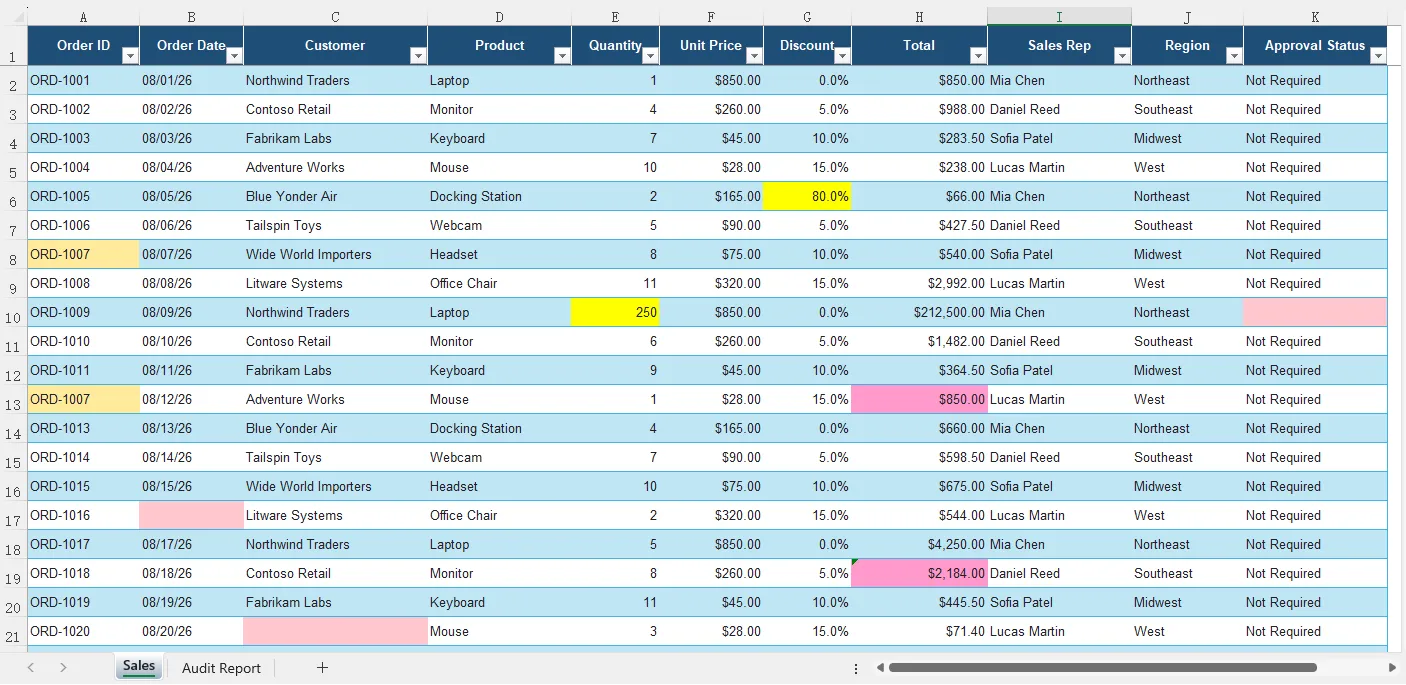
Figura 1. Possíveis problemas destacados na planilha original. A mesma cor é usada para resultados do mesmo tipo.
Neste exemplo, o agente identificou vários tipos de problemas, incluindo o desconto excepcionalmente alto em G6, a quantidade discrepante em E10, a data do pedido ausente em B17, o preço unitário negativo em F23 e problemas relacionados a fórmulas na coluna Total.
Ao gravar os resultados de volta em seus locais originais, o agente permite que os usuários avaliem valores suspeitos em contexto, em vez de procurá-los manualmente.
Revisar o relatório de auditoria detalhado
Além de destacar os dados de origem, o agente cria uma planilha Audit Report que lista a célula afetada, o tipo de problema e a explicação para cada resultado.
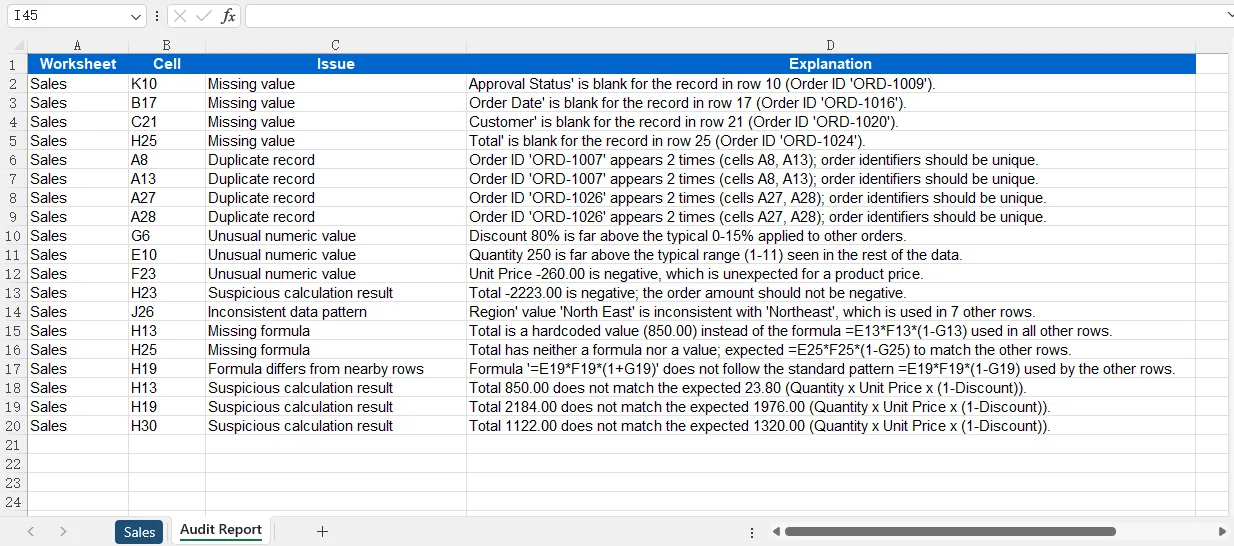
Figura 2. O relatório de auditoria gerado fornece a localização, o tipo e a explicação de cada problema detectado.
O relatório inclui resultados como valores ausentes, IDs de pedido duplicados, valores numéricos incomuns, padrões de dados inconsistentes, fórmulas ausentes e resultados de cálculo suspeitos.
Por exemplo, o agente detectou que:
A8eA13contêm o mesmo ID de pedido.G6contém um desconto de 80%, que é significativamente maior do que os outros descontos.H13contém um valor fixo em vez do padrão de fórmula usado nas linhas próximas.H19usa adição em vez de subtração ao aplicar o desconto.H30produz um total que não corresponde ao cálculo esperado.
Uma única célula pode aparecer mais de uma vez no relatório quando envolve várias dimensões de auditoria. Por exemplo, H25 pode ser reportada tanto como valor ausente quanto como fórmula ausente.
Os resultados gerados por IA devem ser tratados como possíveis problemas, e não como erros definitivos. Alguns valores incomuns podem representar exceções legítimas de negócios. A planilha destacada e o relatório de auditoria, portanto, fornecem um ponto de partida estruturado para revisão humana, em vez de alterar automaticamente os dados subjacentes.
6. Boas práticas para auditoria de Excel com IA
A auditoria baseada em IA funciona especialmente bem quando usada em conjunto com requisitos de auditoria claros.
Primeiro, forneça contexto suficiente na instrução. Em vez de pedir ao agente para simplesmente "encontrar erros", especifique os tipos de problemas que importam, como registros duplicados, valores anormais, fórmulas ausentes ou cálculos inconsistentes.
Segundo, diferencie regras determinísticas de análise contextual. Condições como "A quantidade nunca deve ser negativa" podem ser verificadas de forma confiável com regras convencionais. A IA é mais útil para situações como identificar um valor que parece inconsistente com os registros ao redor ou reconhecer um padrão de fórmula inesperado.
Terceiro, evite pedir ao agente para corrigir automaticamente todos os problemas detectados. Um valor suspeito não é necessariamente um valor incorreto. Destacar a célula e explicar o motivo dá aos usuários a oportunidade de verificar o resultado antes de fazer alterações.
Para pastas de trabalho grandes, a auditoria também pode ser restrita a planilhas específicas ou categorias de problemas. Isso torna a tarefa mais focada e pode reduzir processamento desnecessário.
Por fim, torne a saída estruturada. Incluir a planilha, a localização da célula, o tipo de problema e a explicação torna os resultados gerados por IA mais fáceis de verificar e integrar em fluxos de trabalho posteriores.
7. Conclusão
A auditoria de planilhas muitas vezes envolve mais do que verificar se as células estão vazias ou se as fórmulas retornam erros. Muitos problemas só se tornam visíveis quando valores, fórmulas e padrões dos dados ao redor são considerados em conjunto.
Com um AI Agent SDK, esses requisitos de auditoria podem ser descritos em linguagem natural, em vez de serem implementados inteiramente por meio de regras de validação codificadas.
Usando o Spire.Agent.Office em C#, o fluxo de trabalho pode permanecer relativamente simples: carregar a pasta de trabalho do Excel, definir os requisitos de auditoria, executar a instrução e gerar uma nova pasta de trabalho contendo os problemas destacados e um relatório de auditoria estruturado.
Essa abordagem é particularmente útil para detectar possíveis anomalias, fórmulas inconsistentes, registros duplicados, informações ausentes e outros problemas de planilha que podem exigir análise contextual.
8. Perguntas frequentes
A IA pode detectar fórmulas incorretas no Excel?
A IA pode identificar fórmulas que parecem inconsistentes com as fórmulas próximas, contêm referências suspeitas ou produzem resultados que não correspondem aos padrões de dados esperados. No entanto, se uma fórmula está logicamente correta pode depender das regras de negócios por trás da pasta de trabalho, portanto os problemas detectados ainda devem ser revisados.
As regras de auditoria podem ser personalizadas?
Sim. Os requisitos de auditoria são definidos principalmente pela instrução enviada ao agente. Você pode adicionar regras para colunas, planilhas, intervalos de valores, fórmulas ou condições de negócios específicos.
Por exemplo:
"Flag discounts above 50% and orders with a missing customer ID."
A IA pode detectar registros duplicados no Excel?
Sim. O agente pode ser instruído a identificar IDs duplicados, linhas repetidas ou registros potencialmente duplicados com base em vários campos.
Para uma detecção de duplicatas mais determinística, a lógica convencional do Excel ou de C# também pode ser combinada com a auditoria de IA.
A IA pode corrigir automaticamente os erros detectados?
O agente pode ser instruído a modificar o conteúdo da pasta de trabalho, mas normalmente não é recomendado corrigir automaticamente todas as anomalias detectadas. Alguns valores incomuns podem ser exceções de negócios válidas.
Um fluxo de trabalho mais seguro é destacar células suspeitas, explicar por que foram sinalizadas e permitir que os usuários revisem os resultados antes de aplicar correções.
A mesma abordagem pode ser usada para diferentes tipos de arquivos do Excel?
Sim. O mesmo fluxo de trabalho pode ser adaptado para relatórios de vendas, planilhas financeiras, registros de inventário, relatórios operacionais, dados de pesquisas e outras pastas de trabalho estruturadas do Excel. Na maioria dos casos, apenas a instrução de auditoria precisa ser ajustada para os dados e regras de negócios específicos.
Veja também
C#에서 AI 기반 Excel 감사: 오류 및 데이터 이상 탐지
Excel 통합 문서에는 누락된 값, 중복 레코드, 비정상적인 숫자, 일관되지 않은 수식이 포함될 수 있으며, 특히 대규모 데이터 세트로 작업할 때 수동으로 감지하기 어렵습니다.
AI 에이전트를 사용하면 하드코딩된 유효성 검사 규칙에 전적으로 의존하는 대신 자연어 감사 지침을 통해 이러한 문제를 식별할 수 있습니다. 이 문서에서는 C#에서 Spire.Agent.Office를 사용하여 Excel 통합 문서를 감사하고, 잠재적인 데이터 및 수식 문제를 식별하고, 의심스러운 셀을 강조 표시하고, 구조화된 감사 보고서를 생성하는 방법을 보여줍니다.
1. AI 기반 Excel 감사란 무엇인가?
기존의 Excel 감사는 일반적으로 미리 정의된 유효성 검사 규칙, 수식 또는 사용자 지정 코드에 의존합니다. 예를 들어, 프로그램은 필수 셀이 비어 있는지, 값이 고정 임계값을 초과하는지 또는 열에 중복 ID가 있는지 확인할 수 있습니다.
AI 기반 Excel 감사는 이 프로세스에 상황별 분석을 추가합니다. 코드에서 가능한 모든 조건을 정의하는 대신 자연어로 감사 요구 사항을 설명하고 AI 에이전트가 통합 문서에서 패턴과 불일치를 조사하도록 할 수 있습니다.
예를 들어, AI 에이전트에게 다음을 찾도록 지시할 수 있습니다:
- 누락되거나 불완전한 데이터
- 중복되거나 의심스러운 레코드
- 비정상적인 숫자 값 또는 이상치
- 일관되지 않은 데이터 패턴
- 누락된 수식
- 주변 행과 예기치 않게 다른 수식
- 의심스러운 계산 결과 또는 셀 참조
이것은 단순한 고정 규칙으로 표현하기 어려운 문제에 특히 유용합니다. 값이 허용 가능한 숫자 범위 내에 있지만 주변 레코드와 비교할 때 여전히 비정상적으로 보일 수 있으며, 수식이 유효한 결과를 생성하지만 인접 셀과 다른 패턴을 사용할 수 있습니다.
AI가 생성한 감사 결과는 일반적으로 확정적인 오류보다는 잠재적 문제로 취급해야 합니다. 그런 다음 결과를 통합 문서에서 강조 표시하고 추가 검토를 위해 감사 보고서에 요약할 수 있습니다.
2. C# 프로젝트 설정
새 C# 콘솔 애플리케이션을 만들고 필요한 Spire.Agent.Office 패키지를 프로젝트에 추가합니다.
예제에서는 다음 네임스페이스를 사용합니다:
using Spire.Agent.Office.AI;
using Spire.Agent.Office.Extensions;
using Spire.Xls;
AI 기능에 액세스하려면 유효한 Spire 토큰이 필요합니다. Spire 임시 라이선스 페이지를 통해 임시 테스트 토큰을 신청할 수 있습니다.
기본 구성은 다음과 같습니다:
AIOptions options = new AIOptions();
options.SpireToken = "YOUR_SPIRE_TOKEN";
아래 예제에서는 다음 이름의 Excel 통합 문서를 사용합니다:
SalesData.xlsx
통합 문서에는 판매 레코드, 수식, 날짜, 수량, 가격, 할인 또는 기타 비즈니스 데이터가 있는 하나 이상의 워크시트가 포함될 수 있습니다.
3. 감사를 위해 Excel 통합 문서 준비
첫 번째 단계는 Workbook으로 통합 문서를 로드하는 것입니다.
Workbook workbook = new Workbook();
workbook.LoadFromFile("SalesData.xlsx");
통합 문서가 AI 지원 문서 프로세서에 직접 전달되므로 모든 워크시트, 셀 값 또는 수식을 수동으로 일반 텍스트로 변환할 필요가 없습니다.
에이전트는 스프레드시트를 구조화된 Office 문서로 작업하고 다음과 같은 정보를 검사할 수 있습니다:
- 워크시트 내용
- 셀 값
- 수식
- 행과 열
- 데이터 패턴
- 인접 셀 간의 관계
예를 들어, 판매 워크시트에는 다음과 유사한 데이터가 포함될 수 있습니다:
| 주문 ID | 날짜 | 제품 | 수량 | 단가 | 할인 | 합계 |
|---|---|---|---|---|---|---|
| ORD-1001 | 2026-08-01 | 노트북 | 2 | 850 | 0.10 | 1530 |
| ORD-1002 | 2026-08-02 | 모니터 | 5 | 260 | 0.05 | 1235 |
| ORD-1003 | 2026-08-03 | 키보드 | 10 | 45 | 0.10 | 405 |
| ORD-1004 | 2026-08-04 | 노트북 | 3 | 850 | 0.80 | 510 |
마지막 행은 80% 할인이 주변 레코드와 크게 다르기 때문에 주의가 필요할 수 있습니다.
다른 잠재적 문제로는 중복 주문 ID, 누락된 날짜, 비정상적인 수량 또는 인접 행에 사용된 수식과 다른 수식 등이 있을 수 있습니다.
4. Excel 통합 문서를 감사하는 AI 에이전트 빌드
워크플로의 주요 부분은 감사 작업을 정의하는 것입니다.
가능한 모든 오류에 대해 별도의 C# 조건을 수동으로 작성하는 대신 자연어 지침을 통해 요구 사항을 설명할 수 있습니다.
감사 규칙 및 지침 정의
예를 들어:
string instruction = @"
Audit this Excel workbook for potential data quality and formula issues.

Check for:
- Missing or incomplete values
- Duplicate records
- Unusual or suspicious numeric values
- Inconsistent data patterns
- Missing formulas
- Formulas that differ unexpectedly from nearby rows
- Suspicious cell references or calculation results

Do not modify valid source data.

For every detected issue, record:
- Worksheet name
- Cell or range
- Issue type
- Explanation

Highlight problematic cells and create a new worksheet named
'Audit Report' containing the audit results.
";
이 지침은 에이전트가 검사해야 할 대상과 결과가 표시되어야 하는 방식을 모두 정의합니다.
스프레드시트 감사는 종종 상황에 따라 달라지므로 유용합니다. 80이라는 값은 한 열에서는 완전히 정상일 수 있지만 다른 열에서는 매우 비정상적일 수 있습니다. 에이전트는 주변 레코드 및 데이터의 의미와 함께 값을 평가할 수 있습니다.
데이터 및 수식 패턴 분석
통합 문서를 로드하고 AI 옵션을 구성한 후 통합 문서에서 AI 문서 프로세서를 만듭니다:
AIDocumentProcessor processor = workbook.AI(options);
그런 다음 감사 지침을 에이전트에 보냅니다:
processor.ExecuteInstruction(
    workbook,
    instruction,
    "AuditedSalesData.xlsx",
    Array.Empty<string>()
);
따라서 전체 핵심 코드는 매우 짧습니다:
using Spire.Agent.Office.AI;
using Spire.Agent.Office.Extensions;
using Spire.Xls;

string inputPath = "SalesData.xlsx";
string outputPath = "AuditedSalesData.xlsx";
string spireToken = "YOUR_SPIRE_TOKEN";

Workbook workbook = new Workbook();
workbook.LoadFromFile(inputPath);

AIOptions options = new AIOptions();
options.SpireToken = spireToken;

string instruction = @"
Audit this Excel workbook for potential data quality and formula issues.

Check for missing values, duplicate records, unusual numeric values,
inconsistent data patterns, missing formulas, formulas that differ
unexpectedly from nearby rows, and suspicious calculation results.

Do not modify valid source data.

Highlight cells containing potential issues and create a worksheet named
'Audit Report' with the following columns:

Worksheet | Cell | Issue | Explanation
";

AIDocumentProcessor processor = workbook.AI(options);

processor.ExecuteInstruction(
    workbook,
    instruction,
    outputPath,
    Array.Empty<string>()
);
기존의 Excel 유효성 검사 프로그램과 비교할 때, 대부분의 감사 로직은 일련의 긴 if 문이 아니라 지침을 통해 표현됩니다.
구조화된 감사 결과 반환
감사 결과가 구성되어야 하는 방식을 에이전트에 알려주는 것이 중요합니다.
예를 들어:
Worksheet | Cell | Issue | Explanation
생성된 감사 보고서는 다음과 같이 보일 수 있습니다:
| 워크시트 | 셀 | 문제 | 설명 |
|---|---|---|---|
| Sales | F5 | 비정상 값 | 80% 할인은 주변 레코드보다 상당히 높습니다. |
| Sales | A12 | 중복 레코드 | 주문 ID가 다른 행에도 나타납니다. |
| Sales | B18 | 누락된 값 | 주문 날짜가 비어 있습니다. |
| Sales | G24 | 수식 불일치 | 수식이 인접 행에 사용된 수식 패턴과 다릅니다. |
구조화된 결과는 감사를 더 쉽게 검토할 수 있게 하며 이후 자동 처리에도 사용할 수 있습니다.
5. 감지된 문제 강조 표시 및 감사 보고서 생성
스프레드시트 문제에 대한 텍스트 설명을 반환하는 것만으로도 유용하지만, 발견 사항이 통합 문서 자체에 다시 기록되면 감사를 훨씬 쉽게 검토할 수 있습니다.
지침은 에이전트에게 두 가지 작업을 수행하도록 요청할 수 있습니다:
string outputInstruction = @"
Highlight every cell that contains a potential issue.

Create an 'Audit Report' worksheet and list every issue using these columns:

Worksheet | Cell | Issue | Explanation

Do not change cells that do not contain an identified issue.
";
이렇게 하면 두 가지 수준의 출력이 생성됩니다: 원본 워크시트의 강조 표시된 발견 사항과 상세 설명이 포함된 중앙 집중식 보고서입니다.
원본 워크시트에서 강조 표시된 문제 검토
원본 워크시트에서 에이전트는 잠재적 문제가 포함된 셀을 강조 표시합니다. 동일한 유형의 발견 사항은 동일한 강조 색상을 사용하므로 누락된 값, 중복 레코드, 비정상적인 숫자, 일관되지 않은 데이터 및 수식 관련 문제를 더 쉽게 구분할 수 있습니다.
그림 1. 원본 워크시트에서 강조 표시된 잠재적 문제. 동일한 유형의 발견 사항에는 동일한 색상이 사용됩니다.
이 예에서 에이전트는 G6의 비정상적으로 높은 할인, E10의 수량 이상치, B17의 누락된 주문 날짜, F23의 음수 단가 및 합계 열의 수식 관련 문제를 포함하여 여러 유형의 문제를 식별했습니다.
발견 사항을 원래 위치에 다시 기록함으로써 에이전트는 사용자가 의심스러운 값을 수동으로 검색하는 대신 상황에 맞게 검토할 수 있도록 합니다.
상세 감사 보고서 검토
원본 데이터를 강조 표시하는 것 외에도 에이전트는 모든 발견 사항에 대해 영향을 받는 셀, 문제 유형 및 설명을 나열하는 Audit Report 워크시트를 만듭니다.
그림 2. 생성된 Audit Report는 감지된 각 문제의 위치, 유형 및 설명을 제공합니다.
보고서에는 누락된 값, 중복 주문 ID, 비정상적인 숫자 값, 일관되지 않은 데이터 패턴, 누락된 수식 및 의심스러운 계산 결과와 같은 발견 사항이 포함됩니다.
예를 들어, 에이전트는 다음을 감지했습니다:
A8과A13에 동일한 주문 ID가 있습니다.G6에는 다른 할인보다 상당히 높은 80% 할인이 있습니다.H13에는 인접 행에 사용된 수식 패턴 대신 하드코딩된 값이 있습니다.H19는 할인을 적용할 때 빼기 대신 더하기를 사용합니다.H30은 예상 계산과 일치하지 않는 합계를 생성합니다.
단일 셀이 여러 감사 차원과 관련된 경우 보고서에 두 번 이상 나타날 수 있습니다. 예를 들어, H25는 누락된 값과 누락된 수식 모두로 보고될 수 있습니다.
AI가 생성한 발견 사항은 확정적인 오류보다는 잠재적 문제로 취급해야 합니다. 일부 비정상적인 값은 정당한 비즈니스 예외를 나타낼 수 있습니다. 따라서 강조 표시된 워크시트와 감사 보고서는 기본 데이터를 자동으로 변경하는 대신 사람이 검토할 수 있는 구조화된 시작점을 제공합니다.
6. AI 기반 Excel 감사를 위한 모범 사례
AI 기반 감사는 명확한 감사 요구 사항과 함께 사용할 때 특히 효과적입니다.
첫째, 지침에 충분한 컨텍스트를 제공하세요. 에이전트에게 단순히 "오류 찾기"를 요청하는 대신 중복 레코드, 비정상 값, 누락된 수식 또는 일관되지 않은 계산과 같이 중요한 문제 유형을 지정하세요.
둘째, 결정적 규칙과 상황별 분석을 구분하세요. "수량은 절대 음수가 아니어야 합니다"와 같은 조건은 기존 규칙으로 안정적으로 확인할 수 있습니다. AI는 주변 레코드와 일치하지 않는 것처럼 보이는 값을 식별하거나 예기치 않은 수식 패턴을 인식하는 상황에 더 유용합니다.
셋째, 에이전트에게 감지된 모든 문제를 자동으로 수정하도록 요청하지 마세요. 의심스러운 값이 반드시 잘못된 값은 아닙니다. 셀을 강조 표시하고 이유를 설명하면 사용자가 변경하기 전에 발견 사항을 확인할 기회를 얻을 수 있습니다.
대규모 통합 문서의 경우 감사를 특정 워크시트나 문제 범주로 좁힐 수도 있습니다. 이렇게 하면 작업이 더 집중되고 불필요한 처리를 줄일 수 있습니다.
마지막으로 출력을 구조화하세요. 워크시트, 셀 위치, 문제 유형 및 설명을 포함하면 AI가 생성한 발견 사항을 더 쉽게 확인하고 후속 워크플로에 통합할 수 있습니다.
7. 결론
스프레드시트 감사는 종종 셀이 비어 있는지 또는 수식이 오류를 반환하는지 확인하는 것 이상을 포함합니다. 많은 문제는 값, 수식 및 주변 데이터 패턴을 함께 고려할 때만 보입니다.
AI 에이전트 SDK를 사용하면 이러한 감사 요구 사항을 전적으로 하드코딩된 유효성 검사 규칙을 통해 구현하는 대신 자연어로 설명할 수 있습니다.
C#에서 Spire.Agent.Office를 사용하면 워크플로를 비교적 간단하게 유지할 수 있습니다: Excel 통합 문서를 로드하고, 감사 요구 사항을 정의하고, 지침을 실행하고, 강조 표시된 문제와 구조화된 감사 보고서가 포함된 새 통합 문서를 생성합니다.
이 접근 방식은 잠재적 이상 징후, 일관되지 않은 수식, 중복 레코드, 누락된 정보 및 상황별 분석이 필요할 수 있는 기타 스프레드시트 문제를 감지하는 데 특히 유용합니다.
8. 자주 묻는 질문
AI가 Excel에서 잘못된 수식을 감지할 수 있나요?
AI는 인접 수식과 일치하지 않는 것처럼 보이거나, 의심스러운 참조를 포함하거나, 예상 데이터 패턴과 일치하지 않는 결과를 생성하는 수식을 식별할 수 있습니다. 그러나 수식이 논리적으로 올바른지 여부는 통합 문서 뒤의 비즈니스 규칙에 따라 달라질 수 있으므로 감지된 문제는 여전히 검토해야 합니다.
감사 규칙을 사용자 지정할 수 있나요?
예. 감사 요구 사항은 주로 에이전트에 전송되는 지침을 통해 정의됩니다. 특정 열, 워크시트, 값 범위, 수식 또는 비즈니스 조건에 대한 규칙을 추가할 수 있습니다.
예를 들어:
"Flag discounts above 50% and orders with a missing customer ID."
AI가 중복 Excel 레코드를 감지할 수 있나요?
예. 에이전트에게 중복 ID, 반복 행 또는 여러 필드를 기반으로 중복 가능성이 있는 레코드를 식별하도록 지시할 수 있습니다.
더 결정적인 중복 감지를 위해 기존 Excel 또는 C# 로직을 AI 감사와 결합할 수도 있습니다.
AI가 감지된 오류를 자동으로 수정할 수 있나요?
에이전트에게 통합 문서 내용을 수정하도록 지시할 수 있지만 감지된 모든 이상 징후를 자동으로 수정하는 것은 일반적으로 권장되지 않습니다. 일부 비정상적인 값은 유효한 비즈니스 예외일 수 있습니다.
더 안전한 워크플로는 의심스러운 셀을 강조 표시하고, 플래그가 지정된 이유를 설명하고, 수정을 적용하기 전에 사용자가 발견 사항을 검토하도록 하는 것입니다.
동일한 접근 방식을 다양한 유형의 Excel 파일에 사용할 수 있나요?
예. 동일한 워크플로를 판매 보고서, 재무 스프레드시트, 재고 기록, 운영 보고서, 설문 데이터 및 기타 구조화된 Excel 통합 문서에 적용할 수 있습니다. 대부분의 경우 특정 데이터와 비즈니스 규칙에 맞게 감사 지침만 조정하면 됩니다.