How to Batch Print PDF Files in the Correct Order (5 Methods)
Table of Contents
- Before You Start: Rename PDFs for Consistent Sorting
- Method 1: Batch Print PDFs from File Explorer
- Method 2: Merge PDFs into a Single File Before Printing
- Method 3: Batch Print PDFs with Adobe Acrobat Pro
- Method 4: Print Multiple PDFs Using PowerShell
- Method 5: Batch Print PDF Files in Order Using C#
- Comparison of the 5 Methods
- Troubleshooting Common PDF Printing Issues
- Conclusion
- FAQs
When you batch print PDF files such as shipping invoices, legal contracts or multi-chapter reports, keeping PDFs printed in the correct order can be challenging. Windows and mainstream PDF utilities arrange print queues by filename or modified date; mismatched file naming will mess up your printing sequence.
File naming issues usually cause this disorder, yet solutions vary by workflow: weekly manual printing or app-integrated auto execution, single-file custom page ranges or plain ordered batch print PDF files commands.
This tutorial lists five solutions, ranging from Windows File Explorer’s native operation to full C# coding automation, for different technical proficiency and scenarios. Each method builds on a shared foundation, so start with the "Before You Start" section before diving into any specific approach.
Quick Navigation:
- Before You Start: Rename PDFs for Consistent Sorting
- Method 1: Batch Print PDFs from File Explorer
- Method 2: Merge PDFs into a Single File Before Printing
- Method 3: Batch Print PDFs with Adobe Acrobat Pro
- Method 4: Print Multiple PDFs Using PowerShell
- Method 5: Batch Print PDF Files in Order Using C#
Before You Start: Rename PDFs for Consistent Sorting
Regardless of which method you use below, file naming is the foundation of print order control. Every tool — File Explorer, Adobe Acrobat, PowerShell, and even C# — retrieves files in the order the OS returns them, which is alphabetical by filename.
The fix is simple: use zero-padded numeric prefixes.
| Bad naming | Good naming |
|---|---|
| invoice.pdf | 01_invoice.pdf |
| receipt.pdf | 02_receipt.pdf |
| summary.pdf | 03_summary.pdf |
Without the leading zero, 10_file.pdf sorts before 2_file.pdf. With zero-padding (01, 02, 10), the order is always correct.
To rename files on Windows, the most straightforward approach is to do it manually in File Explorer: right-click a file → Rename , add the numeric prefix, and repeat for each file. This keeps you in full control of the sequence.
Once your files are named correctly, every method below will respect that order automatically.
Method 1: Batch Print PDFs from File Explorer
If you just need to print a handful of PDFs without installing anything, Windows File Explorer can handle it natively. This method works by sending each file to the print queue in the order they appear in the folder view — which is why correct file naming (covered above) is essential. It takes less than a minute to set up and requires no additional software, making it the best starting point for anyone who prints PDF batches only occasionally.
Steps:
- Open File Explorer and navigate to the folder containing your PDFs.
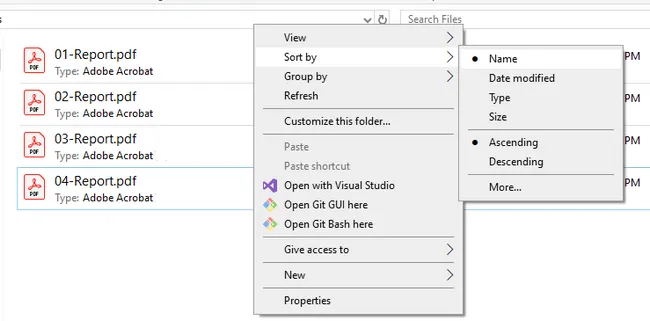
- Right-click anywhere in an empty area of the folder, select Sort by, and choose Name to sort files alphabetically. Verify the order matches your intended print sequence before proceeding.
- Select all the PDF files you want to print: press
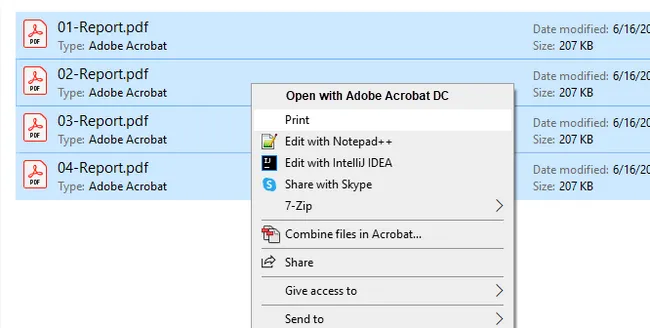
Ctrl + Ato select all, or holdCtrland click to select specific files. - Right-click the selection and choose Print .
- A print dialog will appear. Select your printer, choose paper size and number of copies, then click Print .
Limitation: File Explorer sends each PDF to the print queue as a separate job. If the printer is busy or the queue processes jobs out of order, pages may still interleave. For large batches, Method 2 or 3 is more reliable.
Method 2: Merge PDFs into a Single File Before Printing
When File Explorer's multi-job queue feels unreliable — especially for large batches where jobs can arrive at the printer faster than it processes them — merging all your PDFs into a single file first is the most foolproof solution. Instead of sending dozens of separate print jobs, you send one. The page order is locked in during the merge step, so there's no risk of the print queue reordering anything. This method works with any PDF viewer and any printer, and requires only a free tool to do the merging.
Steps:
- Open an online PDF merger tool such as PDF24 (free) .
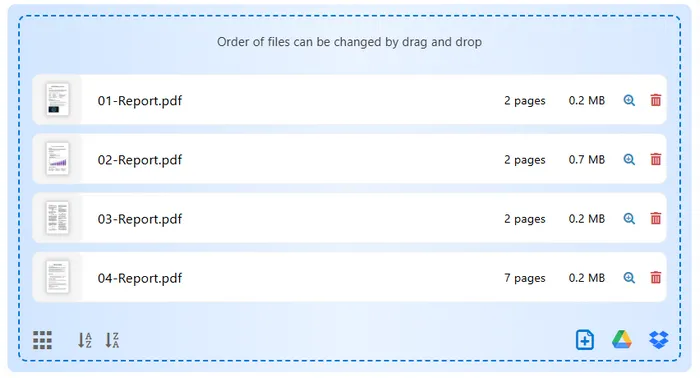
- Add your PDF files to the merge tool. Drag them in the exact order you want them printed — the file list order becomes the page order.
- Click Merge and save the combined PDF.
- Open the merged PDF in any PDF viewer (Edge, Chrome, or Adobe Reader).
- Press
Ctrl + P, select your printer, and print.
Best for: Print jobs where exact page sequence is critical, such as booklets, reports, or multi-chapter documents.
Method 3: Batch Print PDFs with Adobe Acrobat Pro
If you already have Adobe Acrobat Pro in your workflow, it offers the most control of any GUI-based batch printing option. Unlike File Explorer, Acrobat lets you manually reorder files in the print queue, configure different settings per file (page range, duplex, color mode), and save those configurations as reusable Actions. This makes it particularly useful for office environments where print jobs follow consistent but complex rules — for example, always printing the first document single-sided and the rest double-sided.
Steps:
- Open Adobe Acrobat Pro and click Tools in the top navigation bar.
- Scroll down and select Action Wizard to open the Actions panel.
- Click New Action . In the Create New Action dialog, set Files to be processed to a specific folder (point it to the folder containing your PDFs).
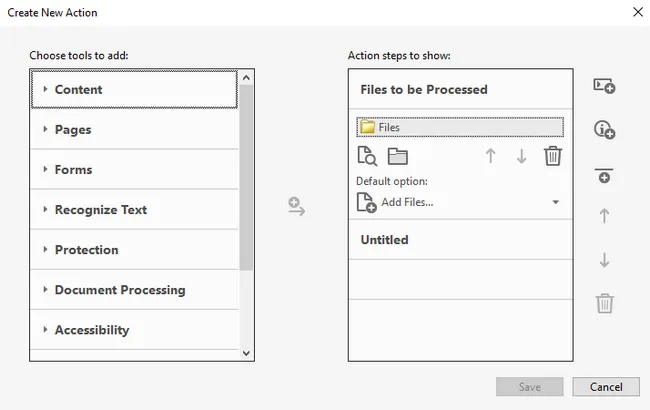
- In the Choose tools to add pane on the left, expand More Tools and double-click Print to add it as an action step.
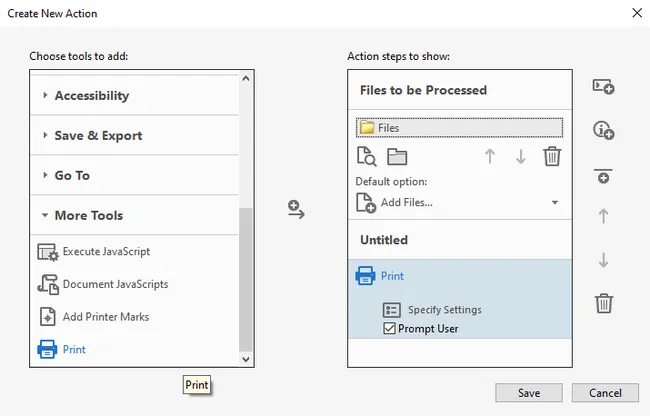
- Click Specify Settings on the Print step to configure your printer, page range, duplex, and copies. Uncheck Prompt User if you want it to run without interruption.
- Click Save , give the action a name like "Batch Print". You can then find the Batch Print action from the Actions List panel.
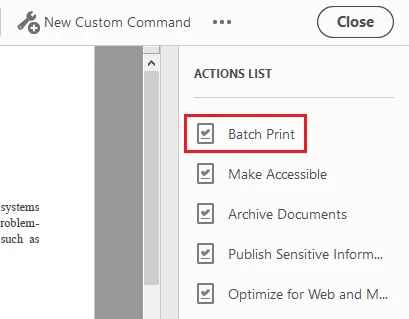
- Click "Batch Print" and then click the Start button to run it.
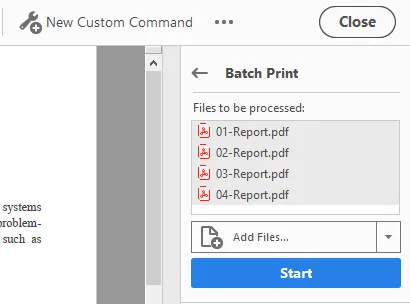
- Acrobat will process and print all PDFs in the folder in filename order.
Note: Adobe Acrobat Pro is a paid subscription. This method is most valuable when you need to reuse the same print configuration repeatedly — once the Action is saved, future batch print jobs take a single click.
Method 4: Print Multiple PDFs Using PowerShell
PowerShell is built into every modern Windows installation and requires no extra software. For users who are comfortable with a terminal, it offers a significant upgrade over File Explorer: you can schedule the script as a Windows Task, log print results, add conditional logic, and control the delay between jobs programmatically. This makes it well-suited for recurring print tasks — for example, automatically printing a folder of daily reports each morning.
Steps:
-
Open PowerShell as Administrator (search "PowerShell" in Start Menu, right-click → Run as administrator).
-
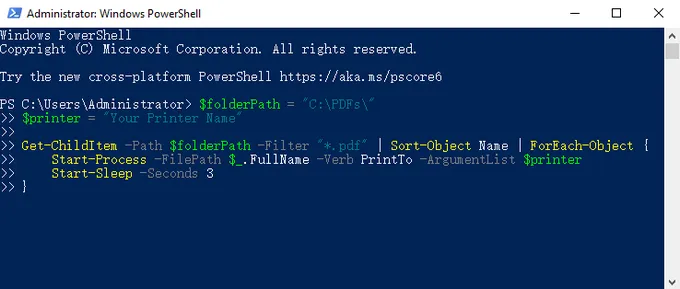
Paste the following script, replacing the folder path and printer name:
$folderPath = "C:\PDFs\"
$printer = "Your Printer Name"

Get-ChildItem -Path $folderPath -Filter "*.pdf" | Sort-Object Name | ForEach-Object {
    Start-Process -FilePath $_.FullName -Verb PrintTo -ArgumentList $printer
    Start-Sleep -Seconds 3
}
-
Press
Enterto run. The script retrieves all PDFs sorted by filename, then sends each one to the specified printer.
Key points:
Sort-Object Nameensures alphabetical order — this is why correct file naming matters.Start-Sleep -Seconds 3adds a short delay between jobs to prevent the printer queue from receiving jobs faster than it can process them. Increase this value for large files.- To find your exact printer name, run
Get-Printer | Select Namein PowerShell.
Method 5: Batch Print PDF Files in Order Using C#
For developers building .NET applications that need to trigger PDF printing programmatically — whether that's an order management system, a document archival tool, or an ERP module — Spire.PDF for .NET provides a clean, dependency-light API.
Unlike shell-based approaches, Spire.PDF doesn't rely on the system's default PDF viewer to handle printing; it renders and prints the document directly, which means it works reliably in server environments and background services where no GUI is available. The code below is a complete, runnable example that prints all PDFs in a folder in alphabetical order.
Install Spire.PDF via NuGet:
Install-Package Spire.PDF
Complete working example:
using Spire.Pdf;
using System.IO;

namespace BatchPrintPdf
{
    class Program
    {
        static void Main(string[] args)
        {
            // Specify the folder containing PDF files
            string folderPath = @"C:\PDFs\";

            // Get all PDF files in the folder, sorted by filename
            string[] files = Directory.GetFiles(folderPath, "*.pdf");

            // Loop through each PDF file
            foreach (string file in files)
            {
                // Load the PDF document
                PdfDocument doc = new PdfDocument();
                doc.LoadFromFile(file);

                // Specify printer name
                doc.PrintSettings.PrinterName = "Your Printer Name";

		// Enable silent printing
		doc.PrintSettings.PrintController = new StandardPrintController();

                // Print the PDF
                doc.Print();

                // Dispose resources
                doc.Dispose();
            }
        }
    }
}
How it works:
Directory.GetFiles()returns files sorted alphabetically by default — consistent with the naming convention established earlier.PrintSettings.PrinterNamelets you target any installed printer by name. Remove this line to use the system default printer.doc.Dispose()releases file handles after each print job, preventing memory leaks in long-running batches.- Spire.PDF also exposes
PrintSettings.Copies,PrintSettings.SelectPageRange(), and duplex settings if you need more control per file. For more details, check out: How to Print PDF Documents in C# (Without Adobe)
This approach integrates naturally into document management systems, ERP backends, or any .NET application that needs to trigger print jobs programmatically. Beyond batch printing, Spire.PDF supports a wide range of document operations you can incorporate into the same workflow — such as adding watermarks before printing or merging multiple PDFs in order with page numbers.
Comparison of the 5 Methods
| Method | Skill Level | Silent / No Pop-ups | Requires PDF Viewer | Best For |
|---|---|---|---|---|
| File Explorer | Beginner | No | Yes | Quick one-off jobs |
| Merge First | Beginner | No | No | Guaranteed page order |
| Adobe Acrobat Pro | Intermediate | After initial setup | Yes (Adobe itself) | Per-file print control |
| PowerShell | Intermediate | Depends on PDF viewer | Yes | Scheduled/recurring tasks |
| C# (Spire.PDF) | Developer | Yes | No | App integration |
Troubleshooting Common PDF Printing Issues
Files print in the wrong order even after renaming
Double-check that the sort type in File Explorer is set to Name , not Date Modified or Size . In PowerShell, confirm Sort-Object Name is in your script.
Print jobs overlap or pages interleave
The printer queue is receiving jobs faster than it can process them. In PowerShell, increase the Start-Sleep delay. In C#, consider adding Thread.Sleep(2000) between print calls. Alternatively, use Method 2 (merge first) to eliminate this problem entirely.
PDF opens but won't print silently (PowerShell/C#)
Ensure the default PDF handler supports silent printing. Adobe Reader's command-line /t flag can help, or use Spire.PDF (Method 5) which handles printing directly without opening a viewer.
"Printer not found" error in code
Run Get-Printer | Select Name in PowerShell to get the exact printer name string. Copy it verbatim — including spaces and capitalization — into your script or C# code.
Conclusion
Batch printing PDFs in the correct order isn't a single problem with a single solution — it depends on how often you print, how many files are involved, and whether printing is a manual task or part of a larger automated system.
For a one-off job, File Explorer gets it done in under a minute. If queue reliability is a concern, merging first eliminates the problem entirely. For recurring tasks, a PowerShell script runs on a schedule without any manual intervention. And for developers embedding print functionality into a .NET application, Spire.PDF's PdfDocument API gives you precise, programmatic control — no dependency on a system PDF viewer, no GUI required.
Whichever method you choose, the foundation is the same: get your file naming right before anything else. A consistent zero-padded naming scheme costs you two minutes of setup and saves every method downstream from ever producing output in the wrong order.
FAQs
Can I batch print PDFs without Adobe Acrobat?
Yes. File Explorer, PowerShell, Spire.PDF, and third-party tools like PDF24 all support batch printing without Adobe Acrobat. Adobe Acrobat Pro is only necessary if you need per-file print settings like custom page ranges.
Why does my printer print PDF files out of order?
The most common cause is inconsistent file naming. If files aren't named with numeric prefixes (e.g., 01_, 02_), the OS may sort them alphabetically by their full name, which doesn't match the intended sequence.
Can I batch print PDFs in order on a Mac?
The methods in this guide are Windows-focused, but Mac users can achieve the same result through Finder. Select all PDF files in a Finder window, right-click and choose Open With → Preview . Preview will load all files into a single sidebar — drag to reorder them, then go to File → Print to print the entire set in one job.
How many PDF files can I batch print at once using File Explorer?
Windows doesn't impose a hard limit, but in practice, selecting more than 15–20 files via File Explorer's right-click Print can cause issues — some files may be skipped or the print queue may stall. For larger batches, use the PowerShell or C# method instead, as both handle arbitrarily large file sets reliably.
See Also
How to Embed Fonts in Word Documents: 3 Effective Methods
Table of Contents
- Prerequisites and Important Considerations
- Method 1: Embed Fonts Using Microsoft Word's Built-In Feature
- Method 2: Convert Word Documents to PDF with Embedded Fonts
- Method 3: Embed Fonts in Word Documents Programmatically in C#
- How to Check Whether Fonts Are Embedded
- Troubleshooting Common Font Embedding Issues
- Conclusion
- FAQs
When you share a Word document with colleagues, clients, or printers, you expect it to look exactly the same on every device. However, if the recipient does not have the fonts used in the document installed, Word may automatically substitute them with different fonts, causing layout shifts, spacing issues, and inconsistent formatting.
Font embedding solves this problem by storing font information directly inside the document or output file. As a result, the document can preserve its original appearance even when opened on a computer that lacks the required fonts.
In this guide, you'll learn three practical ways to embed fonts in Word documents, including Word's built-in font embedding feature, PDF conversion, and a C# automation solution for developers.
Quick navigation:
- Method 1: Embed Fonts Using Microsoft Word's Built-In Feature
- Method 2: Convert Word Documents to PDF with Embedded Fonts
- Method 3: Embed Fonts in Word Documents Programmatically in C#
Prerequisites and Important Considerations
Before embedding fonts, it's helpful to understand a few limitations and requirements.
Supported Word Versions
Font embedding is supported in most modern versions of Microsoft Word, including Microsoft 365, Word 2021, Word 2019, and Word 2016. If you're using an older version, some options may be unavailable or behave differently.
Supported Font Types
Word primarily supports embedding TrueType (.ttf) and OpenType (.otf) fonts. Most modern fonts fall into one of these categories.
Font Licensing and Embedding Permissions
Not all fonts can be embedded. Font creators can define embedding permissions that determine whether a font may be included in a document. Some fonts allow full embedding, while others permit only previewing and printing. Restricted fonts cannot be embedded at all.
File Size Impact
Embedding fonts increases the size of a document because font data is stored within the file. The amount of growth depends on whether you embed the entire font or only the characters actually used in the document.
Method 1: Embed Fonts Using Microsoft Word's Built-In Feature
Microsoft Word includes a built-in option that allows you to embed fonts directly into a document. This is the simplest and most commonly used solution.
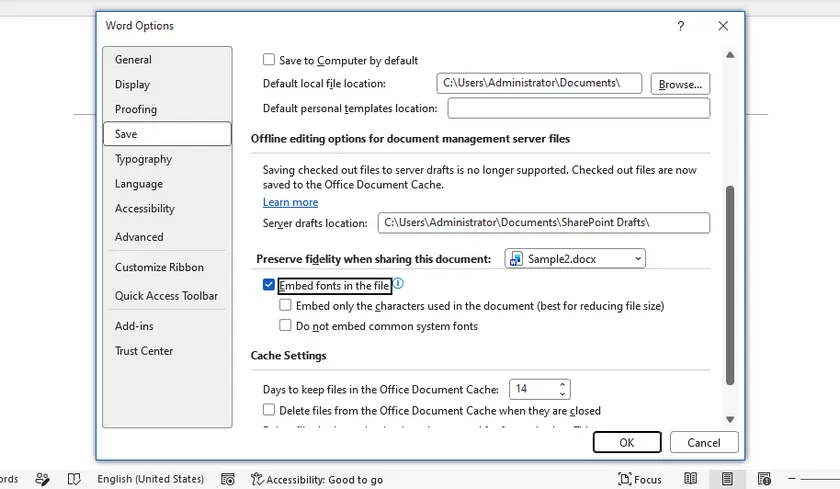
Enable Font Embedding in Word
To embed fonts:
- Open your Word document.
- Click File > Options.
- Select Save.
- Under Preserve fidelity when sharing this document, check Embed fonts in the file.
- Save the document.
After saving, Word stores font information inside the document whenever the selected fonts allow embedding.
Advanced Embedding Options
Word provides two additional options that help balance compatibility and file size:
- Embed only the characters used in the document – Embeds only the glyphs that appear in the document, reducing file size. However, if someone later adds new characters that were not included, the original font may be required.
- Do not embed common system fonts – Skips fonts that are commonly installed on most computers, further reducing file size while relying on the recipient's system to provide those fonts.
For documents intended for editing and long-term sharing, embedding all required font data is usually the safest choice. If file size is a concern, consider embedding only the used characters while keeping important custom fonts embedded.
Method 2: Convert Word Documents to PDF with Embedded Fonts
In many situations, the goal is not to edit the document but simply to ensure that it displays and prints correctly. In such cases, converting the Word document to PDF can be an effective alternative.
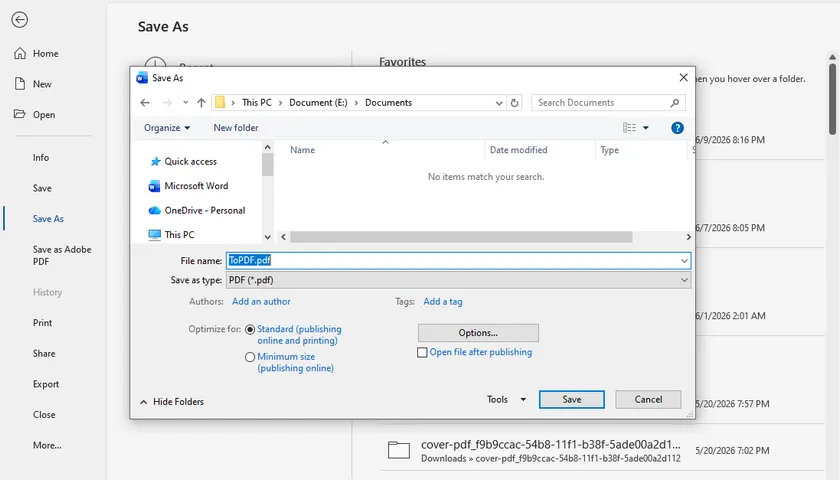
Save a Word Document as PDF
Microsoft Word can export documents directly to PDF.
- Open the document.
- Click File > Save As.
- Choose a destination folder.
- Select PDF as the file type.
- Save the file.
During PDF creation, Word typically embeds the fonts required to render the document correctly.
Verify Fonts Are Embedded
After generating the PDF, you can verify the embedded fonts using a PDF viewer.
In Adobe Acrobat Reader:
- Open the PDF.
- Select File > Properties.
- Open the Fonts tab.
Fonts marked as Embedded or Embedded Subset indicate that the font information is included in the PDF.
Advantages and Limitations
PDF files provide excellent consistency across operating systems and devices. They are ideal for document distribution, publishing, and printing.
However, PDF files are not intended for collaborative editing. If recipients need to modify the content extensively, embedding fonts directly in the Word document may be a better choice.
Method 3: Embed Fonts in Word Documents Programmatically in C#
If you generate Word documents automatically, manually configuring font settings in Word may not be practical. In such cases, programmatic font embedding provides a scalable solution.
Using Spire.Doc for .NET, you can embed custom fonts into Word documents by specifying local font files. The library supports both newly created documents and existing Word files, making it suitable for automated document workflows.
Why Use Programmatic Font Embedding?
Automated font embedding is useful for:
- Document generation systems
- Reporting applications
- Batch document processing
- Template-based workflows
- Documents that rely on custom branding fonts
Instead of requiring users to install fonts manually, the application can package the necessary font resources directly into the generated document.
Embed Fonts in a Word Document Using C#
using Spire.Doc;
using Spire.Doc.Documents;
using Spire.Doc.Fields;

namespace Embed_private_font_into_Word
{
    class Program
    {
        static void Main(string[] args)
        {
            Document document = new Document();
            Section section = document.AddSection();
            Paragraph p = section.AddParagraph();

            TextRange range = p.AppendText("Let life be beautiful like summer flowers\n"
                +"Life, thin and light-off time and time again\n"
                + "Frivolous tireless");
            range.CharacterFormat.FontName = "DeeDeeFlowers";
            range.CharacterFormat.FontSize = 20;

            document.EmbedFontsInFile = true;
            document.PrivateFontList.Add(new PrivateFontPath("DeeDeeFlowers", @"C:\Fonts\DeeDeeFlowers.ttf"));

            document.SaveToFile("result.docx", FileFormat.Docx);
        }
    }
}
In this example, a custom font is loaded from a local TTF file, applied to the document content, and embedded into the generated DOCX file. As a result, the document can display correctly even on systems where the font is not installed.
Benefits of Automated Font Embedding
Automated font embedding is especially valuable in document generation and processing workflows. In addition to embedding custom fonts, developers can programmatically modify document content, change fonts, apply formatting, and convert Word documents to PDF while maintaining a consistent appearance. Combining these operations into a single workflow reduces manual work and helps ensure reliable results across different devices and environments.
How to Check Whether Fonts Are Embedded
After embedding fonts, it is a good idea to verify the result.
For Word documents, reopen the file on another computer that does not have the original font installed. If the document displays correctly without font substitution, the embedding was successful.
For PDF files, use the Fonts section in the document properties to confirm that the fonts are listed as embedded.
Testing on a separate machine is often the most reliable way to validate the final output.
Troubleshooting Common Font Embedding Issues
Fonts Not Embedded Successfully
If the document displays correctly on your computer but uses different fonts on another device, the fonts may not have been embedded successfully. Ensure the file is saved in .docx format and that Embed fonts in the file is enabled before saving. To verify the result, open the document on a computer that does not have the original fonts installed.
Grayed-out Embed Fonts Option
This option may be unavailable when the document is opened in Compatibility Mode, set to read-only, or restricted by organizational policies. Try converting the file to the latest DOCX format and removing any editing restrictions. Updating Microsoft Word to the latest version may also restore the feature.
File Size Too Large After Embedding
Embedding fonts can noticeably increase file size, especially when multiple custom fonts are used. To reduce the impact, enable Embed only the characters used in the document and Do not embed common system fonts. Limiting the number of embedded font families can also help keep the document size manageable.
Specific Fonts Cannot Be Embedded
Some fonts include licensing restrictions that prevent embedding. If Word displays a warning or skips a font during saving, check the font's embedding permissions and consider using an embeddable alternative. If editing is not required, converting the document to PDF is often the simplest workaround.
Conclusion
Embedding fonts is one of the most effective ways to preserve the appearance of Word documents across different devices and environments. For everyday use, Word's built-in embedding feature is often sufficient. For document distribution, converting to PDF provides excellent compatibility. For automated workflows and large-scale document generation, C# font embedding offers the greatest flexibility and control.
By choosing the method that best fits your scenario, you can prevent font substitution issues and ensure that your documents always appear exactly as intended.
FAQs
Can all fonts be embedded in Word?
No. Font embedding depends on the permissions defined by the font vendor.
Does embedding fonts increase file size?
Yes. The document becomes larger because font data is stored inside the file.
What is the difference between full embedding and subset embedding?
Full embedding includes the entire font, while subset embedding includes only the characters used in the document.
Is PDF better than embedding fonts in Word?
PDF is generally better for sharing and printing, while embedded Word documents remain easier to edit.
Can I embed fonts automatically using C#?
Yes. Libraries such as Spire.Doc allow developers to embed fonts programmatically during document generation.
See Also
How to Print Multiple Word Documents at Once: 6 Ways
Table of Contents
- Method 1: Right-Click & Print from File Explorer
- Method 2: Drag and Drop Multiple Word Files via Print Queue Window
- Method 3: Merge Word Files First for a Unified Print Job
- Method 4: Use a Word Macro (VBA) to Print All Documents in a Folder
- Method 5: Silent Batch Printing with a PowerShell Script
- Method 6: Print Word Documents in C# Using Spire.Doc
- Quick Comparison: Which Batch Printing Method Suits You Best?
- Final Thoughts
- FAQs
Printing dozens of contracts, reports, or invoices one by one is a tedious time-waster. Whether you are preparing handouts for a meeting, producing legal documents, or simply organising your office paperwork, the ability to send a whole folder of Word files to the printer in one go can save you hours.
This article walks you through six practical methods to batch print .doc and .docx files—from effortless right-click tricks to a powerful developer‑oriented solution using Spire.Doc in C#. Pick the one that fits your workflow and start printing smarter today.
Overview of the methods covered:
- Method 1: Right-Click & Print from File Explorer
- Method 2: Drag and Drop Multiple Word Files via Print Queue Window
- Method 3: Merge Word Files First for a Unified Print Job
- Method 4: Use a Word Macro (VBA) to Print All Documents in a Folder
- Method 5: Silent Batch Printing with a PowerShell Script
- Method 6: Print Word Documents in C# Using Spire.Doc
Method 1: Right-Click & Print from File Explorer
The simplest method requires zero extra tools and works instantly on any Windows PC. It’s perfect for quickly printing a handful of documents without installing any software. Simply select your files and let Windows handle the rest.
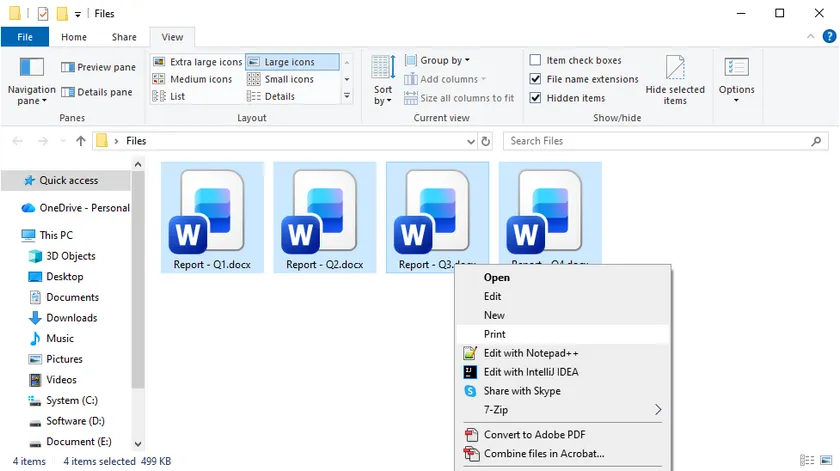
Steps:
- Open File Explorer and navigate to the folder containing your Word documents.
- Select the files you want to print: hold down the Ctrl key and click each one individually, or press Ctrl + A to select all.
- Right-click any highlighted file and choose Print from the context menu.
Windows will automatically open each document in Microsoft Word, send it to your default printer, and close Word when finished. Keep in mind that if your Word security settings display macro warnings or Protected View prompts, the process may pause until you manually confirm them. Still, for quick, occasional jobs this method is hard to beat.
Method 2: Drag and Drop Multiple Word Files via Print Queue Window
This native Windows drag-and-drop workflow enables batch printing of multiple Word documents—simply drag your files onto a dedicated printer desktop shortcut. This approach makes it easy to switch between different printers at will, making it ideal for office environments equipped with several printing devices.
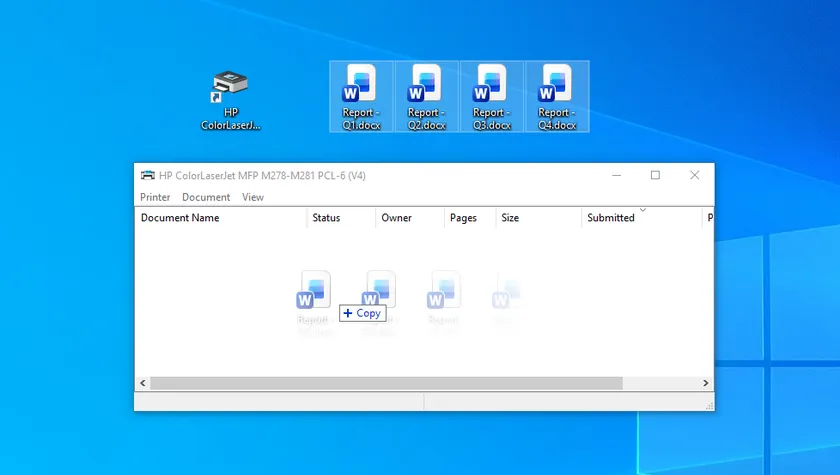
Steps:
- Press Win + R, type control printers, then press Enter to launch the Devices and Printers window.
- Double-click your target printer icon to bring up its print queue window.
- Select all target Word files, then drag and drop them directly into the blank area of the open print queue window.
Files will populate the print job list automatically. Windows will open, print, and close each document sequentially.
Pro tip: You can also create a desktop printer shortcut for quick access, though dragging into the print queue window delivers more reliable results for batch tasks.
Method 3: Merge Word Files First for a Unified Print Job
If you want all separate Word files printed as one continuous, ordered document, this merging workflow is your optimal solution. It works exceptionally well for handouts, formal reports and booklets that require consistent page sequencing. Merging files ahead of printing removes tedious manual page sorting after output.
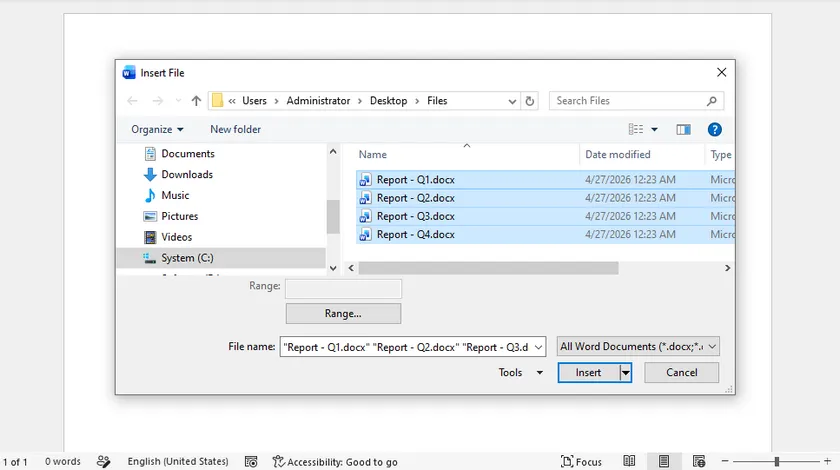
Steps:
- Launch Microsoft Word and create a blank new document.
- Navigate to Insert > Object > Text from File (alternate paths: Insert > File or expand the Object drop-down menu on certain Word editions).
- Highlight all DOCX files to be merged, then click Insert . Files will assemble following your selected order.
- Hit Ctrl + P to open the print panel. Select either your physical printer or Microsoft Print to PDF , then confirm printing.
You will receive one cohesive document with uninterrupted page flow. Though merging takes a small amount of extra time, it prevents misordered pages and eliminates manual collation—ideal for bound documents and printed handouts.
Method 4: Use a Word Macro (VBA) to Print All Documents in a Folder
If you frequently print batches of documents from the same folder, a simple VBA macro can fully automate the process. This method runs directly inside Microsoft Word, requires no extra software, and can be set up for one-click printing. It’s an ideal built-in automation tool for regular, repeated printing tasks.
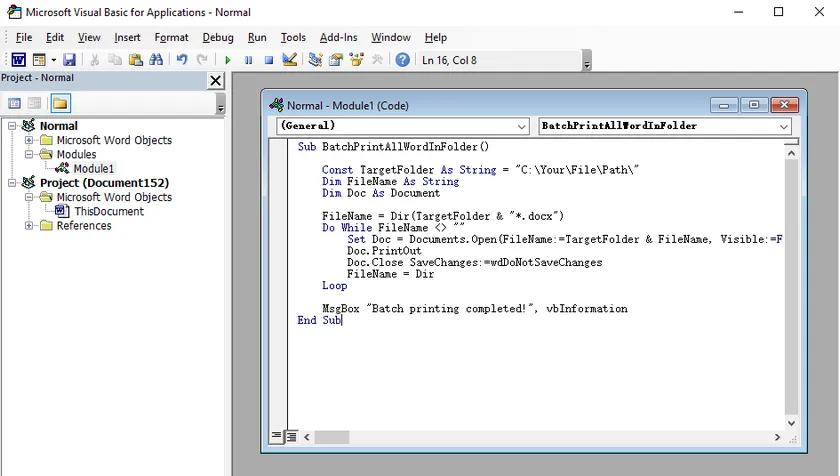
Steps:
- Open Microsoft Word and press Alt + F11 to open the VBA editor.
- Go to Insert > Module and paste the ready-to-use VBA code provided below.
- Replace the folder path in the code with your own directory.
- Press F5 to run the macro, or assign it to the Quick Access Toolbar for one-click printing.
VBA code:
Sub BatchPrintAllWordInFolder()

    Const TargetFolder As String = "C:\Your\File\Path\"
    Dim FileName As String
    Dim Doc As Document

    FileName = Dir(TargetFolder & "*.docx")
    Do While FileName <> ""
        Set Doc = Documents.Open(FileName:=TargetFolder & FileName, Visible:=False)
        Doc.PrintOut
        Doc.Close SaveChanges:=wdDoNotSaveChanges
        FileName = Dir
    Loop

    MsgBox "Batch printing completed!", vbInformation
End Sub
This method prints files silently in the background without opening windows. The only requirements are enabling macros and having Word installed — perfect for reliable personal or office desktop use.
Method 5: Silent Batch Printing with a PowerShell Script
PowerShell offers a fast, lightweight, and script-based way to print multiple Word documents in the background—no windows, no pop-ups, and no manual interaction. This method is ideal for users who want fully automated printing, and it can even be scheduled with Windows Task Scheduler for automatic, timed jobs.
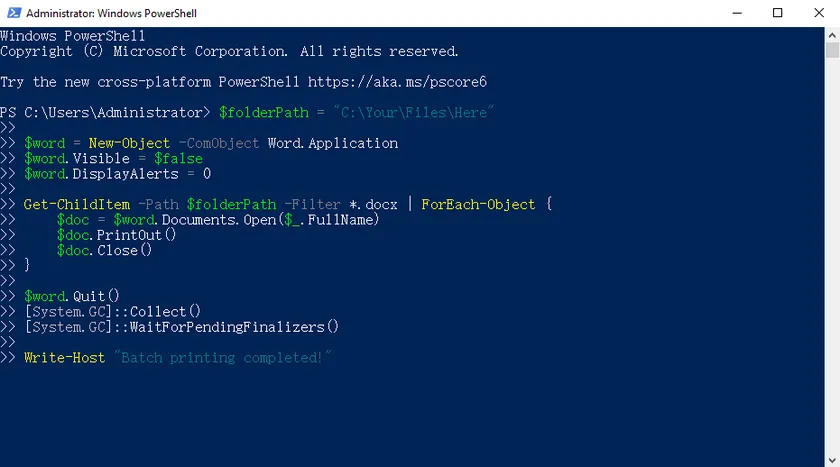
Steps:
- Open PowerShell from the Start Menu (no administrator rights required for basic printing).
- Copy and paste the simple batch-print script provided below.
- Change the
$folderPathvalue to your target document folder. - Run the script. Word will run silently in the background, print all your documents automatically, and close cleanly when finished.
PowerShell script:
$folderPath = "C:\Your\Files\Here"

$word = New-Object -ComObject Word.Application
$word.Visible = $false
$word.DisplayAlerts = 0

Get-ChildItem -Path $folderPath -Filter *.docx | ForEach-Object {
    $doc = $word.Documents.Open($_.FullName)
    $doc.PrintOut()
    $doc.Close()
}

$word.Quit()
[System.GC]::Collect()
[System.GC]::WaitForPendingFinalizers()

Write-Host "Batch printing completed!"
This method works without extra software, supports all Word formats, and delivers reliable, silent batch printing for both personal and office use.
Method 6: Print Word Documents in C# Using Spire.Doc
When you need a fully automated, high‑performance batch printing solution that runs on a server without Microsoft Office, Spire.Doc for .NET is the go‑to library. It gives you complete programmatic control over document printing, making it ideal for web applications, background services, or document management systems.
Why Use Spire.Doc for Batch Printing?
Spire.Doc is a standalone .NET library that reads, creates, and manipulates Word files without any dependency on Word itself. For batch printing, this means you can process thousands of documents reliably on a server, select a specific printer, set page ranges, and even handle print duplex—all through clean C# code.
Setting Up Spire.Doc in Your .NET Project
Install the package via NuGet Package Manager:
Install-Package Spire.Doc
Or use the .NET CLI: dotnet add package Spire.Doc. That’s it—no additional Office licences or installations.
C# Code Example: Print All Word Files from a Directory
Below is a complete console application that reads all .docx and .doc files from a folder and prints them silently with a standard print controller (no pop‑up dialog). The code also shows how to handle possible exceptions gracefully.
using Spire.Doc;
using System;
using System.Drawing.Printing;
using System.IO;

class BatchPrint
{
    static void Main(string[] args)
    {
        string folderPath = @"C:\DocumentsToPrint";
        string[] wordFiles = Directory.GetFiles(folderPath, "*.doc*");
        // Filter to .docx and .doc only
        string[] allowedExtensions = { ".docx", ".doc" };

        foreach (string filePath in wordFiles)
        {
            string ext = Path.GetExtension(filePath).ToLower();
            if (Array.Exists(allowedExtensions, e => e == ext))
            {
                try
                {
                    Console.WriteLine($"Printing: {Path.GetFileName(filePath)}");
                    Document doc = new Document();
                    doc.LoadFromFile(filePath);

                    PrintDocument printDoc = doc.PrintDocument;
                    // Suppress the print dialog for silent printing
                    printDoc.PrintController = new StandardPrintController();

                    // Optionally set printer name and copies
                    // printDoc.PrinterSettings.PrinterName = "My Specific Printer";
                    // printDoc.PrinterSettings.Copies = 2;

                    printDoc.Print();
                    doc.Close();
                }
                catch (Exception ex)
                {
                    Console.WriteLine($"Failed to print {filePath}: {ex.Message}");
                }
            }
        }
        Console.WriteLine("Batch print completed.");
    }
}
The logic is straightforward: get all files from the directory, check the extension, load each one into a Spire.Doc Document object, access its PrintDocument, set StandardPrintController to avoid the Windows print dialog, and call Print(). The loop ensures every valid Word document is printed sequentially.
The PrintDocument.PrinterSettings property opens the door to fine‑grained control. You can specify the exact printer with PrinterName, set the number of copies, choose a page range, or enable duplex printing. For more detailed introduction, refer to How to Print Word Documents in C#.
Quick Comparison: Which Batch Printing Method Suits You Best?
| Method | Requires Word? | Silent / No Pop-ups | Best For |
|---|---|---|---|
| Right‑click & Print | Yes | Possible interruptions | Occasional one‑off tasks |
| Drag to Printer Shortcut | Yes | Possible interruptions | Visual, quick daily use |
| Merge & Print to PDF | Yes | Yes (once merged) | Producing a single ordered printout |
| VBA Macro | Yes | Yes, if configured | Personal repetitive folders |
| PowerShell Script | Yes (COM) | Yes | Scheduled server‑side tasks |
| Spire.Doc with C# | No | Yes, fully silent | Server automation & integration |
Final Thoughts
Batch printing Word documents doesn’t have to be a chore. Start with the quick built‑in tricks, adopt a script when you need repeatability, and move to a dedicated library like Spire.Doc when your project demands a robust, Office‑free solution. Whichever route you take, the minutes you save will quickly add up to hours of reclaimed productivity. Now pick a method, load up your folder, and let the printer do the heavy lifting.
FAQs
Can I print Word documents without opening each one?
Yes. Methods 4, 5, and 6 all suppress the Word interface or work without it entirely. The PowerShell script and Spire.Doc both print silently in the background, while the VBA macro can hide the application window.
Does batch printing work with .doc and .docx files?
Absolutely. Every method described here handles both legacy .doc and modern .docx formats. When using Spire.Doc, the library seamlessly reads both formats without any conversion.
How do I select a specific printer when printing multiple files?
For the manual methods, set your desired printer as the default before starting. With the PowerShell script and the C# Spire.Doc example, you can programmatically set the printer name inside the code, giving you precise control without changing system defaults.
See Also
Format Excel Files in C#: Fonts, Colors, Borders, and More
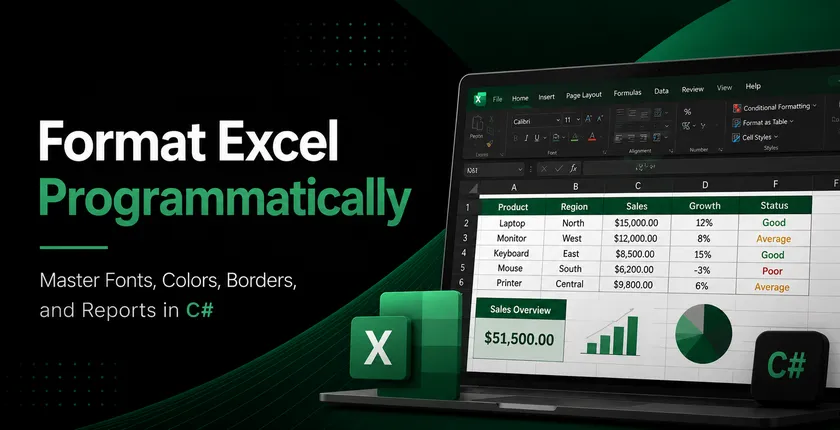
Formatting plays an important role in making Excel spreadsheets easier to read, analyze, and present. Whether you are generating reports, invoices, financial statements, or dashboards, raw data often needs proper styling before it can be shared with end users.
In C#, Excel formatting tasks may include changing fonts, applying colors, aligning content, formatting numbers and dates, adding borders, creating tables, and configuring page layouts. Performing these tasks manually can be time-consuming, especially when dealing with large volumes of spreadsheets.
Spire.XLS for .NET provides a comprehensive set of APIs for creating, editing, formatting, and converting Excel documents without requiring Microsoft Excel to be installed. In this article, you will learn how to apply various types of formatting to Excel files in C# using Spire.XLS for .NET.
Table of Contents:
- Prepare Your C# Project for Excel Formatting
- Part 1. Format Cell Appearance
- Part 2. Format Cell Values
- Part 3. Format Ranges and Layout
- Part 4. Apply Advanced Formatting
- Part 5. Format Excel Tables and Worksheets
- Part 6. Create a Professional Report Example
- Conclusion
- FAQs
Prepare Your C# Project for Excel Formatting
Spire.XLS for .NET is a powerful Excel library that enables developers to work with XLS, XLSX, XLSM, CSV, and other spreadsheet formats programmatically. Besides formatting operations, it also supports formula calculation, chart creation, pivot tables, worksheet management, printing, and file conversion.
To install Spire.XLS for .NET, run the following NuGet command:
Install-Package Spire.XLS
Before applying formatting, load an existing Excel workbook (or create a new one) and access the worksheet you want to modify. Once all formatting operations are complete, save the result to a new Excel file using the SaveToFile() method.
using Spire.Xls;
using System.Drawing;

// Create a workbook object
Workbook workbook = new Workbook();

// Load an existing Excel file
workbook.LoadFromFile("input.xlsx");

// Get a specific worksheet
Worksheet sheet = workbook.Worksheets[0];

// Apply formatting
...

// Save the result
workbook.SaveToFile("output.xlsx", ExcelVersion.Version2016);
Note: The following examples assume that the workbook has already been loaded and the worksheet object has been obtained.
Part 1. Format Cell Appearance
Cell appearance settings control how data looks inside a worksheet. Proper formatting can significantly improve readability and help users quickly identify important information.
Format Cell Fonts
Font formatting allows you to customize the visual style of cell content. Common options include font family, font size, bold, italic, underline, and font color. These settings are frequently used for report titles, section headers, and highlighted values.
CellStyle style = workbook.Styles.Add("FontStyle");

style.Font.FontName = "Calibri";
style.Font.Size = 14;
style.Font.IsBold = true;
style.Font.IsItalic = true;
style.Font.Underline = FontUnderlineType.Single;
style.Font.Color = Color.Blue;

sheet.Range["A1"].Text = "Formatted Text";
sheet.Range["A1"].Style = style;
Set Cell Background Colors
Background colors help distinguish different sections of a worksheet and draw attention to key cells. For example, you may use a colored header row or highlight summary data with a contrasting fill color.
sheet.Range["A2"].Text = "Background Color";
sheet.Range["A2"].Style.Color = Color.LightSkyBlue;
Align Cell Content
Excel provides horizontal alignment, vertical alignment, indentation, and text rotation options. Proper alignment improves the overall layout of a worksheet and makes tabular data easier to scan.
sheet.Range["B2"].Text = "Centered Text";
CellStyle style = sheet.Range["B2"].Style;

style.HorizontalAlignment = HorizontalAlignType.Center;
style.VerticalAlignment = VerticalAlignType.Center;
style.Rotation = 45;

sheet.SetRowHeight(2, 40);
sheet.SetColumnWidth(2, 20);
Add Cell Borders
Borders are useful for separating rows and columns and defining table structures. Depending on the scenario, you can apply borders to individual cells or entire ranges and customize their styles and colors.
CellRange range = sheet.Range["A4:D6"];
range.Text = "Border";

range.Style.Borders[BordersLineType.EdgeTop].LineStyle = LineStyleType.Thin;
range.Style.Borders[BordersLineType.EdgeBottom].LineStyle = LineStyleType.Thin;
range.Style.Borders[BordersLineType.EdgeLeft].LineStyle = LineStyleType.Thin;
range.Style.Borders[BordersLineType.EdgeRight].LineStyle = LineStyleType.Thin;
range.Style.Borders[BordersLineType.EdgeTop].Color = Color.Black;
Wrap Text
When cell content exceeds the available column width, wrapping text allows multiple lines to be displayed within the same cell, preventing important information from being truncated.
sheet.Range["A8"].Text = "This is a very long sentence that will automatically wrap within the cell.";

sheet.Range["A8"].Style.WrapText = true;

sheet.SetColumnWidth(1, 20);
sheet.SetRowHeight(8, 60);
Part 2. Format Cell Values
Value formatting changes how data is displayed without modifying the underlying values. This is particularly important for business and financial spreadsheets.
Format Numbers
Numeric formats can control decimal places, thousands separators, scientific notation, and other display rules. Choosing the right format improves accuracy and readability.
sheet.Range["A10"].NumberValue = 1234567.891;
sheet.Range["A10"].NumberFormat = "#,##0.00";
Format Currency
Currency formatting automatically displays monetary symbols and decimal precision according to your requirements. This is commonly used in invoices, budgets, and financial reports.
sheet.Range["A11"].NumberValue = 5999.95;
sheet.Range["A11"].NumberFormat = "$#,##0.00";
Format Dates
Date formatting allows the same date value to be displayed in different styles, such as short dates, long dates, or custom patterns. Consistent date formats make reports easier to interpret.
sheet.Range["A12"].DateTimeValue = DateTime.Now;
sheet.Range["A12"].NumberFormat = "yyyy-MM-dd";
Part 3. Format Ranges and Layout
Instead of formatting cells one by one, you can apply styles to larger worksheet areas to improve efficiency and maintain consistency.
Format Ranges
A range may contain multiple rows and columns. Applying formatting to a range ensures that all cells share the same appearance and reduces repetitive code.
CellRange range = sheet.Range["A14:D18"];

range.Style.Color = Color.LightYellow;
range.Style.Font.IsBold = true;
range.Style.HorizontalAlignment = HorizontalAlignType.Center;
Merge Cells
Merged cells are often used for report titles and section headers. After merging, the content can be centered and styled to create a more professional appearance.
sheet.Range["A20:D20"].Merge();

sheet.Range["A20"].Text = "Monthly Sales Report";
sheet.Range["A20"].Style.Font.Size = 18;
sheet.Range["A20"].Style.Font.IsBold = true;
sheet.Range["A20"].Style.HorizontalAlignment = HorizontalAlignType.Center;
Format Rows and Columns
Formatting entire rows or columns is useful when all cells in a specific area should follow the same style, such as a header row or a currency column.
sheet.Rows[21].Style.Font.IsBold = true;
sheet.Rows[21].Style.Color = Color.LightGray;

sheet.Columns[1].Style.NumberFormat = "$#,##0.00";
AutoFit Rows and Columns
AutoFit automatically adjusts row heights and column widths based on cell content. This helps prevent clipped text and improves the presentation of generated spreadsheets.
sheet.AllocatedRange.AutoFitColumns();
sheet.AllocatedRange.AutoFitRows();
Part 4. Apply Advanced Formatting
Conditional formatting enables Excel to apply styles automatically based on cell values. Instead of manually highlighting data, rules can be configured to identify trends, exceptions, or important values.
For example, you can highlight numbers above a threshold, display data bars, apply color scales, or use icon sets to visualize performance indicators. These features make large datasets easier to analyze and understand.
sheet.Range["A25"].NumberValue = 1200;
sheet.Range["A26"].NumberValue = 800;
sheet.Range["A27"].NumberValue = 1500;

XlsConditionalFormats formats = sheet.ConditionalFormats.Add();
formats.AddRange(sheet.Range["A25:A27"]);
IConditionalFormat format = formats.AddCondition();
format.FormatType = ConditionalFormatType.CellValue;
format.FirstFormula = "1000";
format.Operator = ComparisonOperatorType.Greater;
format.BackColor = Color.LightGreen;
Part 5. Format Excel Tables and Worksheets
Formatting can also be applied at the worksheet level to improve the overall structure and appearance of a workbook.
Format Excel Tables
Excel tables provide built-in styling options such as header formatting, alternating row colors, and predefined themes. Converting a data range into a table can instantly enhance readability and organization.
sheet.Range["A30"].Text = "Product";
sheet.Range["B30"].Text = "Sales";
sheet.Range["A31"].Text = "Laptop";
sheet.Range["B31"].NumberValue = 5000;
sheet.Range["A32"].Text = "Monitor";
sheet.Range["B32"].NumberValue = 2000;

IListObject table = sheet.ListObjects.Create("SalesTable", sheet.Range["A30:B32"]);
table.BuiltInTableStyle = TableBuiltInStyles.TableStyleMedium2;
Configure Page Layout
Page layout settings determine how worksheets appear when printed or exported. Common options include page orientation, margins, print areas, scaling, and repeating header rows.
Proper page setup ensures that reports look professional both on screen and on paper.
sheet.PageSetup.Orientation = PageOrientationType.Landscape;
sheet.PageSetup.LeftMargin = 0.5;
sheet.PageSetup.RightMargin = 0.5;
sheet.PageSetup.TopMargin = 0.75;
sheet.PageSetup.BottomMargin = 0.75;
sheet.PageSetup.FitToPagesWide = 1;
sheet.PageSetup.FitToPagesTall = 1;
Part 6. Create a Professional Report Example
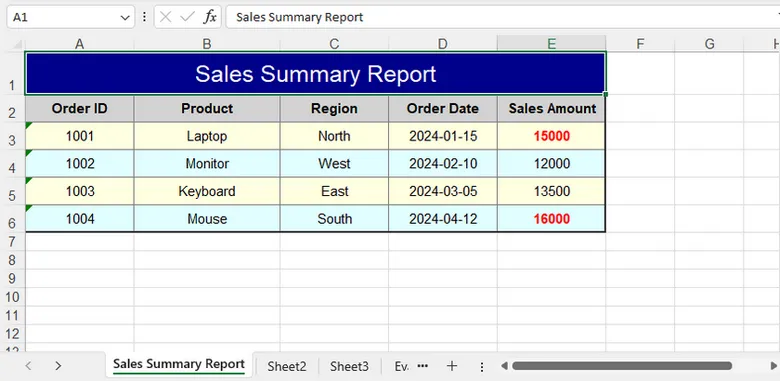
In real-world scenarios, multiple formatting techniques are often used together. A typical report may include a merged title, custom fonts, colored headers, borders, number formats, conditional formatting, and optimized page settings.
By combining these features, you can generate polished Excel documents that are ready for distribution without requiring manual editing.
using Spire.Xls;
using Spire.Xls.Core.Spreadsheet.Collections;
using Spire.Xls.Core;
using System.Drawing;

class Program
{
    static void Main()
    {
        // Create a new workbook
        Workbook workbook = new Workbook();
        Worksheet sheet = workbook.Worksheets[0];

        sheet.Name = "Sales Summary Report";

        // Title Row
        CellRange title = sheet.Range["A1:E1"];
        title.Merge();
        title.Text = "Sales Summary Report";

        title.Style.Font.FontName = "Arial";
        title.Style.Font.Size = 16;
        title.Style.Font.Color = Color.White;
        title.Style.Color = Color.DarkBlue;

        title.Style.HorizontalAlignment = HorizontalAlignType.Center;
        title.Style.VerticalAlignment = VerticalAlignType.Center;

        sheet.Rows[0].RowHeight = 30;

        // Headers
        string[] headers = { "Order ID", "Product", "Region", "Order Date", "Sales Amount" };

        for (int i = 0; i < headers.Length; i++)
        {
            CellRange cell = sheet.Range[2, i + 1];

            cell.Text = headers[i];
            cell.Style.Font.IsBold = true;
            cell.Style.Color = Color.LightGray;

            cell.Style.Borders[BordersLineType.EdgeBottom].LineStyle = LineStyleType.Medium;
            cell.Style.Borders[BordersLineType.EdgeBottom].Color = Color.DarkBlue;
        }

        // Data
        object[][] data =
        {
            new object[] { 1001, "Laptop", "North", "2024-01-15", 15000 },
            new object[] { 1002, "Monitor", "West", "2024-02-10", 12000 },
            new object[] { 1003, "Keyboard", "East", "2024-03-05", 13500 },
            new object[] { 1004, "Mouse", "South", "2024-04-12", 16000 }
        };

        for (int r = 0; r < data.Length; r++)
        {
            for (int c = 0; c < data[r].Length; c++)
            {
                CellRange cell = sheet.Range[r + 3, c + 1];
                var value = data[r][c];

                if (c == 3) // Order Date
                {
                    cell.DateTimeValue = DateTime.Parse(value.ToString());
                    cell.NumberFormat = "yyyy-MM-dd";
                }
                else if (c == 4) // Sales Amount
                {
                    cell.NumberValue = Convert.ToDouble(value);
                    cell.NumberFormat = "$#,##0.00";
                }
                else
                {
                    cell.Text = value.ToString();
                }

                // Alternate row colors
                cell.Style.Color = (r % 2 == 0)
                    ? Color.LightYellow
                    : Color.LightCyan;
            }
        }

        // Borders
        CellRange range = sheet.Range["A2:E6"];

        range.BorderAround(LineStyleType.Medium, Color.Black);
        range.BorderInside(LineStyleType.Thin, Color.Gray);

        // Auto Fit Columns
        for (int i = 1; i <= 5; i++)
        {
            sheet.AutoFitColumn(i);
        }

        // Conditional Formatting
        XlsConditionalFormats formats = sheet.ConditionalFormats.Add();
        formats.AddRange(sheet.Range["E3:E6"]);

        IConditionalFormat condition = formats.AddCondition();
        condition.FormatType = ConditionalFormatType.CellValue;
        condition.Operator = ComparisonOperatorType.Greater;
        condition.FirstFormula = "14000";

        condition.FontColor = Color.Red;
        condition.IsBold = true;

        // Align + Layout Formatting
        CellRange all = sheet.AllocatedRange;

        for (int r = 1; r < all.RowCount; r++)
        {
            all.Rows[r].HorizontalAlignment = HorizontalAlignType.Center;
           // all.Rows[r].VerticalAlignment = VerticalAlignType.Center;
            all.Rows[r].RowHeight = 20;
        }

        for (int c = 0; c < all.ColumnCount; c++)
        {
            all.Columns[c].ColumnWidth = (c == 1) ? 19 : 14;
        }

        // Save
        workbook.SaveToFile("SalesSummaryReport.xlsx", ExcelVersion.Version2016);
        workbook.Dispose();
    }
}
Output:
Conclusion
Formatting is an essential step in creating professional Excel documents. With Spire.XLS for .NET, you can efficiently customize cell appearance, control number and date formats, manage worksheet layouts, apply conditional formatting, and build visually appealing reports entirely in C#.
By using the techniques covered in this guide, you can automate Excel formatting tasks and generate polished spreadsheets suitable for business, reporting, and data analysis scenarios.
FAQs
Can I format Excel files without Microsoft Excel installed?
Yes. Spire.XLS for .NET works independently of Microsoft Excel and can create, edit, and format spreadsheets directly through code.
Does formatting change the actual cell values?
No. Most formatting operations only affect how data is displayed. The underlying values remain unchanged unless explicitly modified.
Can I apply the same style to multiple cells at once?
Yes. Styles can be applied to ranges, rows, columns, or entire worksheets, making it easy to maintain consistent formatting.
Does Spire.XLS support conditional formatting?
Yes. The library supports common conditional formatting features, including highlighting rules, data bars, color scales, and icon sets.
Which Excel formats are supported?
Spire.XLS supports XLS, XLSX, XLSM, CSV, and several other spreadsheet formats for both reading and writing.
How to Duplicate an Excel File (Beyond Ctrl+C & Ctrl+V)
Table of Contents
Everybody knows the classic Ctrl+C and Ctrl+V method to duplicate Excel files. It works, but it’s not always the smartest or fastest way to duplicate an Excel file efficiently. What if you want to create a backup without cluttering your folder with endless “filename - Copy” versions? What if you need to open a safe duplicate Excel file without risking changes to the original? Or what if you need to duplicate Excel files in bulk while automatically adding timestamps or custom names?
This blog post goes beyond basic shortcuts to explore practical manual tricks and powerful automation techniques for duplicating Excel files—methods that many everyday users and even experienced professionals never discover.
On this page:
1. Manual Ways to Duplicate an Excel File
1.1 Method 1: Save As - Create a Versioned Backup
Most users think "Save As" is only for saving changes, but it is actually the safest way to duplicate a file you currently have open. Instead of creating a messy copy in your folder, this method allows you to rename the file and choose its exact location during the save process.
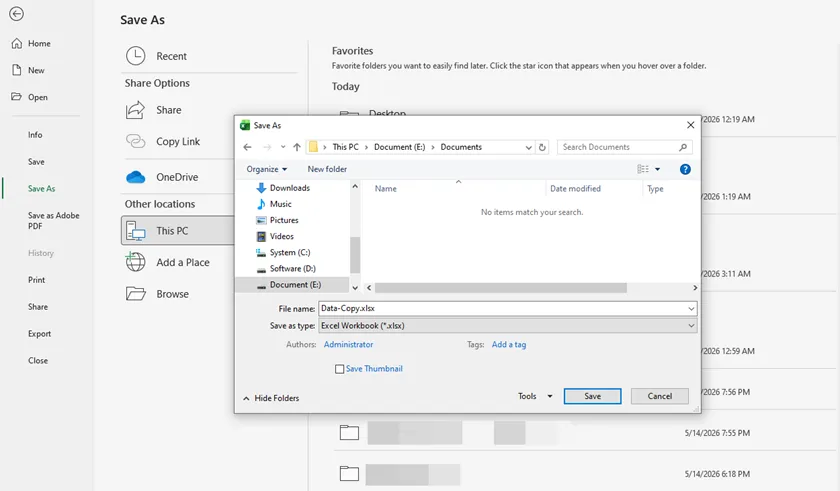
Steps:
- With the Excel file open, click File > Save As.
- Choose a location (OneDrive, This PC, or a specific folder).
- Enter a new name for the duplicate (e.g., "Q1_Report_Backup" instead of "Q1_Report").
- Click Save. The original file remains untouched, and you are now working on the new copy.
Best for: Use this method when you are about to make heavy edits to a critical report. It creates an archived version of the original state without ever leaving Excel.
Limitation: This only works when the file is already open. You cannot use "Save As" on a closed file from File Explorer.
1.2 Method 2: Drag-and-Drop – Duplicate One or Multiple Files
If you need to duplicate several Excel files at once, this is the fastest built-in method in Windows File Explorer or macOS Finder. Instead of opening menus or using copy-paste repeatedly, you can create multiple file duplicates in a single drag action using a modifier key.
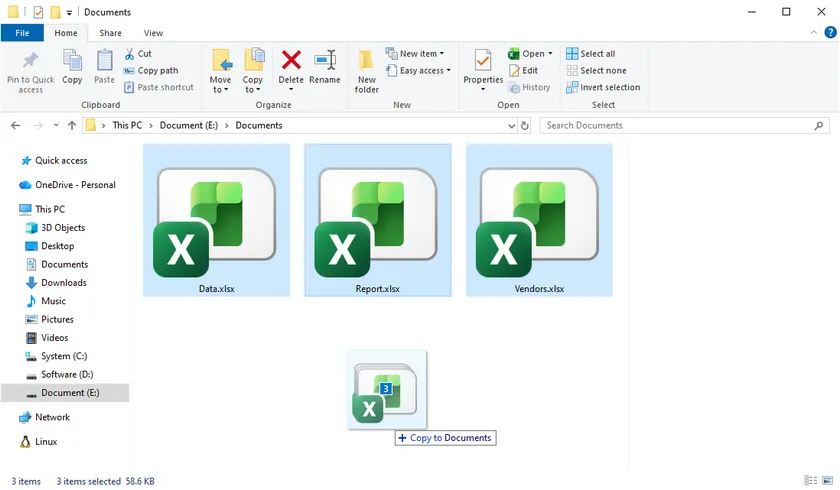
Steps (Windows):
- Open File Explorer and locate the Excel file(s) you want to duplicate.
- Select one file or multiple files (hold Ctrl to multi-select).
- Hold down the Ctrl key on your keyboard.
- While holding Ctrl, drag the selected file(s) to an empty space in the same folder.
- Release the mouse button first, then release Ctrl.
- Copies will appear instantly with names like “filename - Copy.xlsx”.
Steps (Mac):
- Open Finder and locate the Excel file(s).
- Select one or more files.
- Hold down the Option key.
- Drag the file(s) within the same folder.
- Release the mouse button first, then release Option.
- Duplicates will be created immediately.
Best for: Quickly duplicating multiple Excel files in bulk, such as creating backups for reports, datasets, or templates.
Limitation: This method does not allow renaming during the drag-and-drop process. All duplicates will use default names like “filename - Copy”, so you may need to rename them afterward if naming consistency is required.
1.3 Method 3: Open as Copy - Avoid Accidental Edits
Hidden inside Excel's Open dialog is a feature that prevents you from ever accidentally editing an original file. When you select "Open as Copy", Excel opens a temporary clone of your workbook. If you close without saving, the copy vanishes entirely—leaving the original untouched.
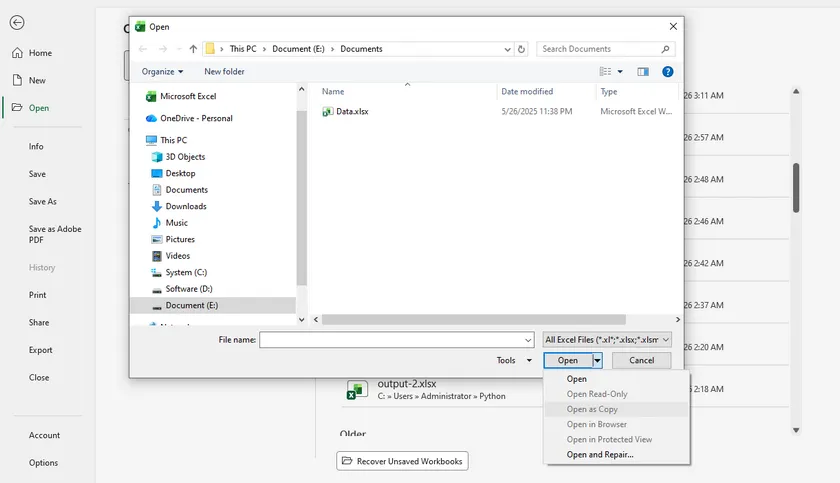
Steps:
- Open Microsoft Excel (not the file directly).
- Click File > Open > Browse.
- Navigate to the Excel file you want to duplicate.
- Click the file once to select it, then click the arrow next to the Open button (not the button itself).
- Select Open as Copy from the dropdown menu.
Excel will open a duplicate with the name "Copy of [original filename].xlsx". The original file remains closed and completely untouched.
Best for: This is perfect for reviewing a sensitive file, testing complex formulas, or sharing your screen during a meeting—because even if you make changes and accidentally hit Ctrl+S, you are saving to the temporary copy, not the original.
Limitation: If you intentionally want to keep the changes, you must use File > Save As to save the copy to a permanent location. Simply clicking "Save" will not overwrite the original, but the copy will disappear when you close Excel unless you save it elsewhere.
1.4 Quick Reference Table: Which Manual Method to Use When
| Situation | Best Method (Beyond Ctrl+V) |
|---|---|
| You have the file open and need a clean versioned backup | Save As |
| You want a copy in the same folder without using menus | Ctrl/Option + Drag |
| You want to duplicate multiple files at once (e.g., 10 backups in one motion) | Ctrl/Option + Drag (with multiple files selected) |
| You want to open a file for review without altering the original | Open as Copy |
2. Why Automate?
Manual tricks work well for one-off tasks. But if you find yourself duplicating 50 files every day — or if you wish you could automatically add a timestamp to each copy — automation is the answer. The following section is written for C# developers, but anyone curious about automating Excel copies is welcome to follow along.
3. Automation for Developers
3.1 Method 1: Pure File Copy Using .NET File.Copy
For developers, the .NET framework offers a native way to duplicate Excel files without any external library. This method treats the Excel file as raw binary data, making it incredibly fast for batch operations like nightly backups or archiving.
using System.IO;

File.Copy("source.xlsx", "destination.xlsx", overwrite: true);
Best for: Batch exact duplicates, automated archiving, integration into backend services.
Limitation: You cannot modify any content inside the file—no cell values, no timestamps, no formatting changes. It is a pure "shell" copy.
3.2 Method 2: Copy & Modify Using Spire.XLS
Spire.XLS for .NET is a professional library that allows you to "open" the file during duplication. This means you can copy the template and simultaneously write dynamic data, such as the current timestamp or a new customer name.
using Spire.Xls;

Workbook workbook = new Workbook();
workbook.LoadFromFile("Template.xlsx");

// Modify content during the copy process
Worksheet sheet = workbook.Worksheets[0];
sheet.Range["A1"].Text = DateTime.Now.ToString(); // Add date
sheet.Range["B2"].Text = "Customer Name";             // Update text
sheet.DeleteColumn(5);                                                  // Delete column

workbook.SaveToFile("ModifiedCopy.xlsx");
Best for: Template filling, adding metadata (date, author name), cleaning sensitive data during duplication.
Limitation: Slower than File.Copy because it parses the file's XML structure. Also requires installing the Spire.XLS NuGet package.
You May Also Like: C# Write to Excel Guide
3.3 Comparison at a Glance
| Aspect | File.Copy | Spire.XLS |
|---|---|---|
| Modify cell content? | No | Yes |
| Add timestamp? | No | Yes |
| External library needed? | No (built-in) | Yes (NuGet) |
| Speed | Very fast | Slower |
| Best for | Batch exact duplicates | Copy + intelligent modification |
3.4 Simple Decision Guide for Developers
- Just need many exact copies? → Use File.Copy
- Need to add date, name, or clean data while copying? → Use Spire.XLS
4. Conclusion
Duplicating an Excel file is more than just hitting Ctrl+C and Ctrl+V. For everyday users, mastering "Open as Copy" or the Ctrl + Drag trick saves time and prevents accidental data loss. For developers, the choice is technical: use .NET File.Copy for raw speed and bulk operations, or switch to Spire.XLS when your workflow requires adding data during the duplication process. Look beyond the basic shortcut and pick the method that actually fits your task.
5. FAQs
Q1: What is the difference between "Open as Copy" and simply double-clicking the file?
Double-clicking opens the original file directly. Any change you make saves to the original unless you manually do a "Save As". "Open as Copy" opens a temporary duplicate; if you close without hitting save, the original remains 100% unchanged.
Q2: Will my charts, pivot tables, and formulas break when I duplicate using these methods?
No. All manual methods (Save As, Drag, Open as Copy) preserve every element perfectly. For automation, File.Copy preserves everything because it is a bit-for-bit copy. Spire.XLS also preserves them as long as you use LoadFromFile and SaveToFile without manually removing elements.
Q3: Why would I use C# automation over manual methods?
Manual methods are great for 1-5 files. But if you need to generate 500 customized invoices from a template (adding a new date and invoice number to each copy), manual work is impossible. Automation handles the repetition and precision.
Q4: Is there a risk of corruption when duplicating an open Excel file?
Yes for manual methods – never copy or drag an Excel file while it is actively open and has unsaved changes. For automation, libraries like Spire.XLS can read open files safely, but File.Copy may throw an "access denied" error if the file is locked by another process. Always close the file first for best results.
See Also
Count Rows in Excel Files — With or Without Opening Them
Counting rows in Excel is a fundamental task in data analysis, reporting, and spreadsheet management. Whether managing sales records, customer databases, or imported datasets, knowing the exact number of rows helps validate data, monitor workbook growth, and automate workflows.
For small spreadsheets, counting rows manually is straightforward. However, processing multiple workbooks, handling password-protected files, or analyzing data without opening Excel requires different approaches. This guide explores both manual and programmatic methods for counting rows, along with advanced scenarios such as ignoring headers, counting only non-empty rows, and handling corrupted or secured files.
On this page:
- Part 1. Count Rows in an Open Excel Workbook
- Part 2. Count Rows Without Opening Excel Files
- Part 3. Advanced Row Counting Scenarios
- Best Method for Different Use Cases
- Conclusion
- FAQs
1. Part 1. Count Rows in an Open Excel Workbook
When you have a file open and ready, Excel gives you several fast ways to count rows. Each approach has its own strengths depending on the situation.
1.1 Using the Excel Status Bar
The Excel status bar provides the quickest way to count rows in a selected range. Simply select the data or a column, and the status bar at the bottom displays statistics such as Count, Average, and Sum. The Count value represents non-empty cells in the selection.
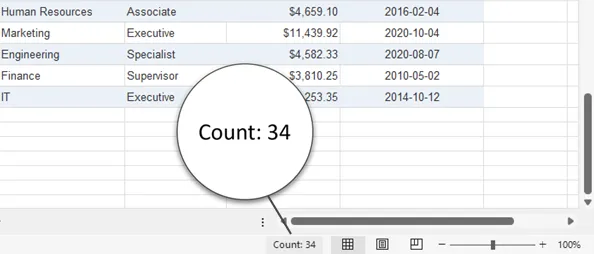
This method is ideal for fast checks when reviewing data manually. For instance, verifying the number of records in a customer list can be done instantly without formulas. However, it only counts selected cells, so datasets with blank rows or multiple regions may yield inaccurate results. Manual inspection remains necessary to ensure completeness.
1.2 Using the COUNTA Formula
The COUNTA function counts all non-empty cells in a range, including text, formulas, and logical values. For example, =COUNTA(A:A) counts all populated cells in column A. Specifying a narrower range like A2:A1000 provides more control.
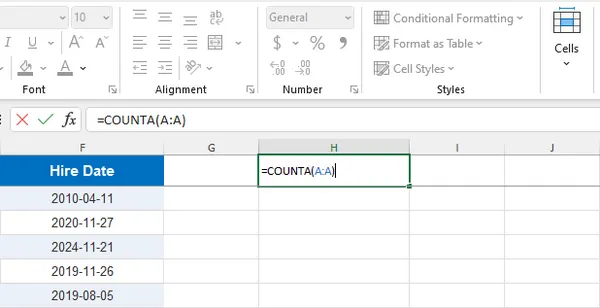
COUNTA is reliable for dynamic datasets because it updates automatically when data changes. It is particularly useful for dashboards, reports, and data validation tasks. Users should note that formulas returning empty strings are still counted, and hidden rows remain included. Choosing a column that always contains data, such as an ID column, improves accuracy.
1.3 Using Ctrl + Arrow Keys to Find the Last Row
Keyboard shortcuts provide a fast method to locate the last used row in a dataset. Selecting a cell and pressing Ctrl + Down Arrow jumps to the last non-empty row in that column. This approach is efficient for large continuous datasets, such as sales logs or transaction records.
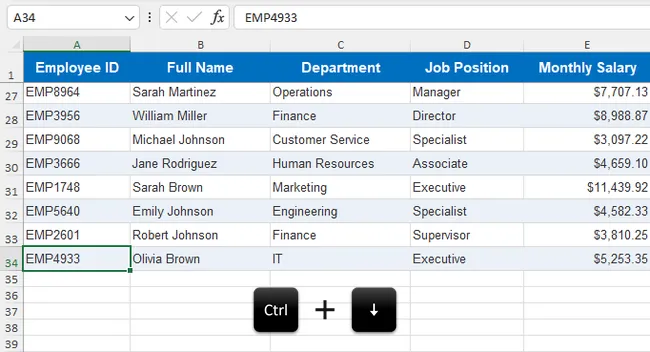
Combining shortcuts like Ctrl + Up Arrow or Ctrl + Right Arrow aids navigation in wide or tall worksheets. However, the method becomes less reliable if blank rows exist within the data, as Excel stops at the first empty row encountered. It is best used for quick estimates rather than precise counts in datasets with irregular spacing.
1.4 Counting Rows in an Excel Table
Excel Tables provide structured management of data, automatically maintaining row counts as the dataset changes. Creating a table (Ctrl + T) allows the use of structured references, such as =ROWS(Table1), to dynamically retrieve row numbers.
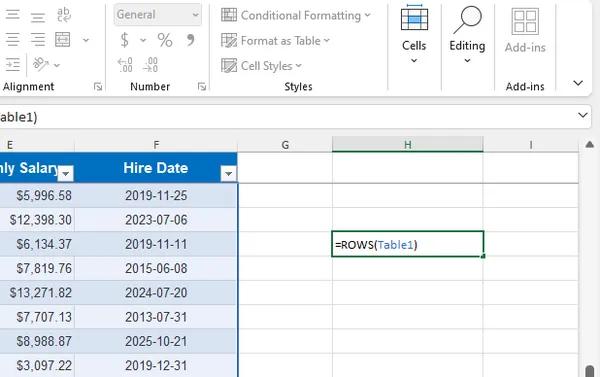
Tables are ideal for growing datasets, integrating seamlessly with PivotTables, charts, and Power Query. They enhance readability and formula reliability. The main limitation is that existing ranges must first be converted to tables, and users unfamiliar with structured references may require a short learning curve.
1.5 Pros and Limitations of Manual Methods
Manual counting methods are straightforward, require no coding, and provide immediate visual feedback. They are effective for small to medium-sized datasets and occasional checks.
However, they are less efficient for large-scale processing, batch operations, or automation, and may be prone to human error. Advanced methods are better suited when speed, scalability, or precision is required.
2. Part 2. Count Rows Without Opening Excel Files
For situations where you need speed, automation, or the ability to process many files at once, there are techniques that work directly on the file without launching Excel at all.
2.1 Reading Excel's Internal ZIP Structure
Modern .xlsx files are ZIP archives containing XML documents. Renaming a file to .zip allows inspection of its contents, with worksheet data typically stored in xl/worksheets/sheet1.xml. Parsing these XML files can provide row counts without launching Excel.
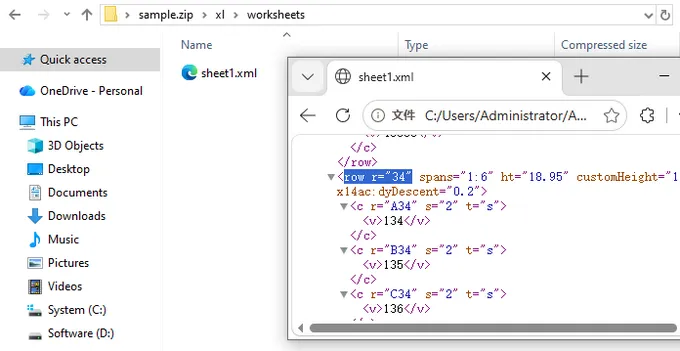
This method is lightweight and efficient but requires understanding of Excel’s internal structure. Complexities such as merged cells, shared strings, and hidden rows can make manual parsing challenging, making this approach more suitable for advanced users or automated scripts.
2.2 Using PowerShell Scripts
PowerShell can automate row counting in Windows environments. It either interacts with Excel through COM automation or processes workbook files directly. A typical workflow involves opening the workbook, selecting a worksheet, reading the used range, and returning the row count.
$excel = New-Object -ComObject Excel.Application
$excel.Visible = $false
$workbook = $excel.Workbooks.Open("C:\Path\To\Sample.xlsx")
$sheet = $workbook.Sheets.Item(1)
$rowCount = $sheet.UsedRange.Rows.Count
Write-Host "Row count: $rowCount"
$workbook.Close($false)
$excel.Quit()
PowerShell is convenient for IT administrators or automated workflows on servers. It supports batch processing and scheduled tasks, although COM-based automation may consume significant resources and compatibility may vary across Excel versions.
2.3 Using Spire.XLS for Python
Spire.XLS for Python is a robust library that reads and writes Excel files entirely in Python, with no dependency on Microsoft Excel itself. It can load workbooks without opening Excel and access worksheet information efficiently.
To get started, install the library:
pip install spire.xls
Then use the following code to count rows in a specific worksheet:
from spire.xls import Workbook

# Load an Excel file
workbook = Workbook()
workbook.LoadFromFile("Sample.xlsx")

# Get row count of a specific sheet
sheet = workbook.Worksheets[0]
row_count =len(sheet.AllocatedRange.Rows)
print(f"Total rows in the worksheet: {row_count}")
Python scripts are ideal for batch processing, automation, and integration with databases or APIs. They can handle multiple worksheets, password-protected files, blank rows, and headers. This approach is efficient, scalable, and reliable.
2.4 Pros and Limitations of Advanced Methods
Advanced methods are suitable for automation, large datasets, and enterprise workflows. They offer consistent, reproducible results and reduce manual effort.
However, they require programming skills, additional libraries, and maintenance. Non-technical users may find manual methods more approachable, while automation benefits teams managing extensive Excel data regularly.
3. Part 3. Advanced Row Counting Scenarios
Real-world spreadsheets are rarely simple. Here's how to handle the edge cases that come up most often.
3.1 Count Rows Across Multiple Worksheets
When a workbook has multiple sheets, you often need the total row count across all of them. The following script iterates over every worksheet and accumulates the totals:
from spire.xls import Workbook

workbook = Workbook()
workbook.LoadFromFile("Sample.xlsx")

total_rows =0
for sheet in workbook.Worksheets:
    rows = sheet.AllocatedRange.Rows
    total_rows +=len(rows)

print(f"Total rows across all worksheets: {total_rows}")
This is especially useful when data is split across monthly or regional sheets and you need a grand total for reporting purposes.
3.2 Count Non-Empty Rows Only
Raw row counts include any blank rows that fall within the used range. If your data has gaps — perhaps due to deletions or formatting — you'll want to filter those out:
from spire.xls import Workbook

workbook = Workbook()
workbook.LoadFromFile("Sample.xlsx")

sheet = workbook.Worksheets[0]
rows = sheet.AllocatedRange.Rows
total_rows = len(rows)

blank_rows = sum(1for row in rows if row.IsBlank)
non_empty_rows = total_rows - blank_rows
print(f"Non-empty rows: {non_empty_rows}")
The IsBlank property returns True for any row where every cell is empty. Subtracting the blank count from the total gives you a precise count of rows that actually contain data.
3.3 Ignore Headers While Counting
When you need a count that represents data records only, headers must be excluded. This script skips a configurable number of header rows before counting:
from spire.xls import Workbook

workbook = Workbook()
workbook.LoadFromFile("Sample.xlsx")

sheet = workbook.Worksheets[0]
rows = sheet.AllocatedRange.Rows
HEADER_ROWS = 1
blank_rows = 0

for i, row in enumerate(rows):
    # Skip header rows
    if i < HEADER_ROWS:
        continue
    if row.IsBlank:
        blank_rows += 1
data_rows = (
    len(rows)
    - HEADER_ROWS
    - blank_rows
)

print(f"Data rows (excluding headers): {data_rows}")
Adjust HEADER_ROWS to match your file — for example, set it to 2 if your sheet has a title row above the column headers.
3.4 Count Rows in Password-Protected Files
Password protection doesn't have to be a roadblock. Spire.XLS supports loading encrypted workbooks by passing the password as a second argument to LoadFromFile:
from spire.xls import Workbook

workbook = Workbook()
# Load encrypted workbook with password
workbook.LoadFromFile("Protected.xlsx", "123456")

sheet = workbook.Worksheets[0]
rows = sheet.AllocatedRange.Rows
print(f"Rows in protected worksheet: {len(rows)}")
This works seamlessly as long as you have the correct password. It's particularly useful in enterprise settings where sensitive files are routinely protected but still need to be processed programmatically.
3.5 Handle Corrupted Files
Batch processing scripts will inevitably encounter a file that is damaged or malformed. Wrapping the load operation in a try-except block prevents one bad file from crashing the entire run:
try:
    workbook.LoadFromFile(file)
except Exception as e:
    print(f"Failed to load {file}: {e}")
    continue
In practice, you'll want to log the failure and move on to the next file rather than silently ignoring the error. A more complete implementation might append the filename to a list of failed files for later review, giving you a clean audit trail without stopping the batch.
4. Best Method for Different Use Cases
| Use Case | Recommended Method |
|---|---|
| Quick inspection | Status Bar |
| Dynamic dataset | COUNTA |
| Fast navigation | Ctrl + Arrow Keys |
| Structured data | Excel Table |
| Batch processing | Python + Spire.XLS |
| Automation with Excel installed | PowerShell |
| Cross-platform; no Excel needed | Python + Spire.XLS |
Choosing the right method depends on file volume, automation needs, and technical expertise.
5. Conclusion
Counting rows in Excel ranges from simple manual methods to fully automated programming approaches. Manual methods are sufficient for small, interactive tasks, while Python or PowerShell scripts excel in batch processing and enterprise scenarios. Advanced techniques handle headers, blank rows, protected workbooks, and corrupted files, ensuring accurate results across complex workflows. Selecting the right method improves efficiency, reliability, and scalability in data management.
6. FAQs
Can Excel count rows automatically?
Yes. Functions like COUNTA and Excel Tables automatically update row counts when data changes.
What is Excel’s maximum row limit?
Modern Excel versions support up to 1,048,576 rows per worksheet.
Can I count rows without Microsoft Excel installed?
Yes. Libraries such as Spire.XLS can process Excel files independently.
Why does my row count look incorrect?
Blank rows, hidden rows, formulas, or merged cells may affect results.
Which method is best for automation?
Python-based solutions are generally the most flexible and scalable.
See Also
How to Add Watermark to PDF: 4 Effective Ways
Table of Contents
- When Should You Use PDF Watermarks?
- Method 1: Add Watermark to PDF Using Adobe Acrobat Pro
- Method 2: Add Watermark to PDF Online
- Method 3: Add Watermark to PDF Using LibreOffice Draw
- Method 4: Add Watermark to PDF Using Spire.PDF for Python
- Comparison of All Methods
- Conclusion
- FAQs About PDF Watermark
PDF watermarks are widely used for copyright protection, branding, document tracking, and confidentiality notices. Whether you want to add a simple “CONFIDENTIAL” label or place a company logo across every page, watermarking helps prevent unauthorized distribution and makes document ownership clear.
In this guide, you’ll learn several practical ways to add watermarks to PDF documents — from professional desktop tools to free online solutions and Python automation.
Quick Navigation:
- Method 1: Add Watermark to PDF Using Adobe Acrobat Pro
- Method 2: Add Watermark to PDF Online
- Method 3: Add Watermark to PDF Using LibreOffice Draw
- Method 4: Add Watermark to PDF Using Spire.PDF for Python
When Should You Use PDF Watermarks?
PDF watermarks are useful whenever you need to identify, protect, or brand a document. They help readers immediately understand the document’s status or ownership without changing the original content itself. Both businesses and individual users commonly use watermarks for security, copyright, and workflow management purposes.
Here are some common situations where PDF watermarks are helpful:
- Protect confidential files
- Prevent unauthorized distribution
- Mark draft versions
- Add company branding
- Identify document ownership
Depending on your workflow, you can add watermarks manually using desktop tools or automate the process using Python libraries for large-scale PDF processing.
Method 1: Add Watermark to PDF Using Adobe Acrobat Pro
Best For: Professional users who need precise control and high-quality output.
When it comes to editing PDFs, Adobe Acrobat Pro is still considered the industry standard. Its watermarking feature is highly stable and gives users detailed control over how watermarks appear across pages. You can add both text and image watermarks, adjust opacity, rotate them diagonally, and even apply them only to specific page ranges.
For businesses handling contracts, reports, or confidential documents, Acrobat offers one of the most reliable ways to watermark PDFs while preserving the original layout and formatting.
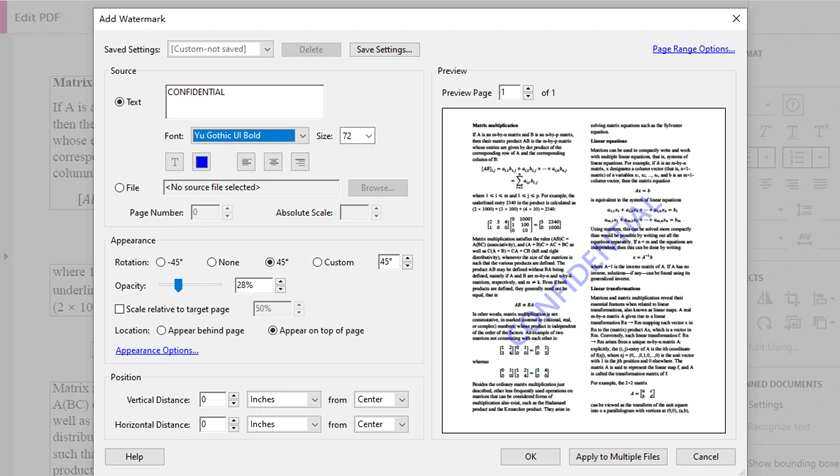
Step-by-Step: Add Watermark in Adobe Acrobat Pro
- Open your PDF in Adobe Acrobat Pro.
- Go to Tools → Edit PDF → Watermark → Add.
- Choose your watermark type:
- Text watermark, or
- Image watermark (File)
- Depending on your choice:
- If Text: enter text, then customize font, color, opacity, rotation
- If Image: select image, then adjust scale, opacity, position
- Preview the result.
- Click OK and save the document.
Pros
- Professional-quality results
- Excellent formatting preservation
- Powerful customization options
Cons
- Requires paid subscription
- Expensive for occasional users
Method 2: Add Watermark to PDF Online
Best For: Users who want a fast solution without installing software.
If you only need to watermark a PDF occasionally, online tools are often the fastest option. Most web-based PDF editors allow you to upload a file, insert a text or image watermark, and download the updated PDF within minutes. The entire process happens in the browser, making it convenient for users on different operating systems.
Online tools are especially useful for lightweight tasks such as adding a “Draft” label, placing a company logo, or marking internal documents before sharing them. However, because files must be uploaded to remote servers, they may not be ideal for confidential or highly sensitive PDFs.
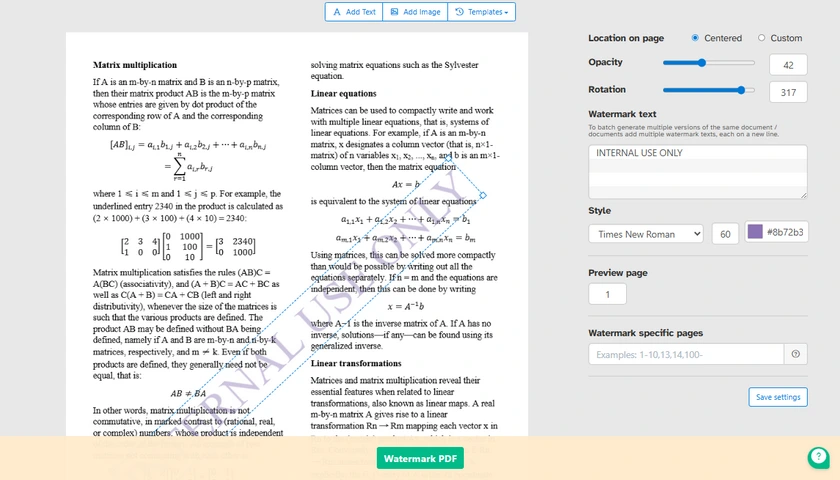
General Steps to Add Watermark to PDF Online
- Open an online PDF watermark tool.
- Upload your PDF file.
- Choose your watermark type:
- Text watermark, or
- Image watermark
- Depending on your choice:
- If Text: enter your watermark text
- If Image: upload your logo or image file
- Customize the watermark settings:
- Size
- Rotation
- Transparency
- Position
- Preview the result.
- Download the processed PDF.
Pros
- Very easy to use
- No installation required
- Works on Windows, macOS, Linux, and mobile devices
Cons
- Privacy concerns for sensitive files
- Upload size limitations
- Internet connection required
Method 3: Add Watermark to PDF Using LibreOffice Draw
Best For: Users looking for a completely free desktop solution.
For users who prefer offline tools but don't want to pay for premium PDF editors, LibreOffice Draw provides a practical alternative. Although it is not designed specifically for PDF watermarking, it can open PDF files directly and allows users to place text or images on top of existing pages.
This method works particularly well for simple watermarking tasks, especially when dealing with short documents. Since LibreOffice Draw is completely free and open source, it remains a popular choice among students, freelancers, and Linux users who need occasional PDF editing features.
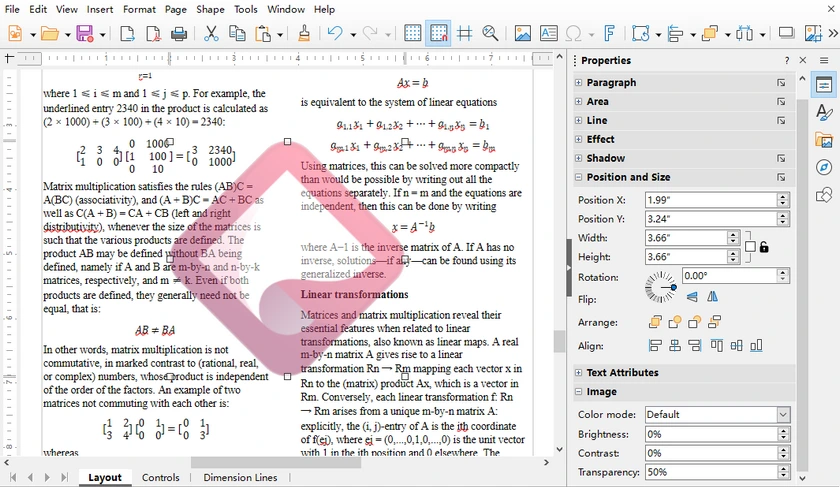
Steps to Watermark PDF Using LibreOffice
-
Launch LibreOffice Draw.
-
Go to File → Open, then select and open your target PDF file.
-
Add your watermark accordingly:
- For text watermark: Click Insert → Text Box, drag to draw a box and type your watermark content.
- For image watermark: Click Insert → Image to import your logo or picture.
-
Adjust transparency and other settings:
- Text Transparency: Double-click to highlight all text, right-click → Character, open the Font Effects tab, then drag the slider to adjust text transparency.
- Image Transparency: Single-click to select the inserted image, right-click → Area, directly drag the transparency slider to make the image semi-transparent.
- Customize font size, color, rotation angle and placement freely.
-
Copy and paste the edited watermark to cover all pages.
-
When done, navigate to File → Export As → Export as PDF to save your final PDF file.
Pros
- Completely free
- Open-source
- No subscription required
Cons
- Slower when handling large PDFs
- Less convenient for batch processing
Method 4: Add Watermark to PDF Using Spire.PDF for Python
Best For: Developers who need automated PDF watermarking with reliable formatting preservation.
The methods above work well for manual editing, but they become inefficient when you need to process large numbers of PDF files automatically. In development workflows, watermarking is often part of a larger automation pipeline — such as generating invoices, protecting internal reports, or branding exported documents.
This is where Spire.PDF for Python becomes useful. It allows developers to add both text and image watermarks programmatically while maintaining accurate PDF rendering. Compared with many lightweight PDF libraries, it offers better control over watermark appearance, including transparency, rotation, font styling, and positioning.
Install Spire.PDF for Python
Install the library using pip:
pip install spire.pdf
Add Text Watermark to PDF in Python
The following example adds a rotated semi-transparent text watermark to every page in a PDF document.
from spire.pdf import *
from spire.pdf.common import *
import math

# Create an object of PdfDocument class
doc = PdfDocument()

# Load a PDF document from the specified path
doc.LoadFromFile("Input.pdf")

# Create an object of PdfTrueTypeFont class for the watermark font
font = PdfTrueTypeFont("Times New Roman", 48.0, 0, True)

# Specify the watermark text
text = "DO NOT COPY"

# Measure the dimensions of the text to ensure proper positioning
text_width = font.MeasureString(text).Width
text_height = font.MeasureString(text).Height

# Loop through each page in the document
for i in range(doc.Pages.Count):

    # Get the current page
    page = doc.Pages.get_Item(i)

    # Save the current canvas state
    state = page.Canvas.Save()

    # Calculate the center coordinates of the page
    x = page.Canvas.Size.Width / 2
    y = page.Canvas.Size.Height / 2

    # Translate the coordinate system to the center
    page.Canvas.TranslateTransform(x, y)

    # Rotate the watermark
    page.Canvas.RotateTransform(-45.0)

    # Set transparency
    page.Canvas.SetTransparency(0.7)

    # Draw the watermark text
    page.Canvas.DrawString(
        text,
        font,
        PdfBrushes.get_Blue(),
        PointF(-text_width / 2, -text_height / 2)
    )

    # Restore the canvas state
    page.Canvas.Restore(state)

# Save the modified PDF
doc.SaveToFile("output/TextWatermark.pdf")

# Dispose resources
doc.Dispose()
Customization Options
This example demonstrates several commonly used watermark settings:
- Font customization
Change the font family, size, and style to match your document design.
- Rotation angle
The watermark is rotated -45° to create a diagonal appearance across the page.
- Transparency control
The SetTransparency() method allows the watermark to remain visible without blocking document content.
- Centered positioning
The code automatically places the watermark at the center of each page.
These settings can be adjusted easily depending on whether you want a subtle background watermark or a more prominent security label.
Add Image Watermark to PDF in Python
Besides text watermarks, you can also place logos, stamps, or branding images onto PDF pages.
# Load the watermark image from the specified path
image = PdfImage.FromFile("logo.png")

# Get the width and height of the loaded image for positioning
imageWidth = float(image.Width)
imageHeight = float(image.Height)

# Loop through each page in the document to apply the watermark
for i in range(doc.Pages.Count):

    # Get the current page
    page = doc.Pages.get_Item(i)

    # Set the transparency of the watermark to 50%
    page.Canvas.SetTransparency(0.5)

    # Get the dimensions of the current page
    pageWidth = page.ActualSize.Width
    pageHeight = page.ActualSize.Height

    # Calculate the x and y coordinates to center the image on the page
    x = (pageWidth - imageWidth) / 2
    y = (pageHeight - imageHeight) / 2

    # Draw the image at the calculated center position on the page
    page.Canvas.DrawImage(image, x, y, imageWidth, imageHeight)
What Can You Customize?
With image watermarks, you can easily customize:
- Transparency level
- Watermark size
- Position on the page
- Logo or branding image
- Watermark placement across multiple pages
In addition to adding watermarks, Spire.PDF for Python also provides a wide range of PDF processing capabilities. You can use it to create, edit, merge, split, and convert PDF documents programmatically. This makes it a versatile solution for building complete PDF automation workflows in Python applications.
Comparison of All Methods
| Method | Ease of Use | Cost | Best For | Automation |
|---|---|---|---|---|
| Adobe Acrobat Pro | Easy | Paid | Professional editing | No |
| Online Tools | Very Easy | Free/Freemium | Quick tasks | No |
| LibreOffice Draw | Medium | Free | Free desktop editing | No |
| Spire.PDF for Python | Medium | Free/Commercial | Developers & automation | Yes |
Conclusion
Adding watermarks to PDFs can range from a simple one-time task to a fully automated document-processing workflow. Tools like Adobe Acrobat and online editors are suitable for occasional manual editing, while LibreOffice Draw offers a capable free alternative for offline use.
For developers and businesses handling PDFs at scale, programmatic solutions provide much greater flexibility. Spire.PDF for Python makes it possible to add both text and image watermarks with precise control over transparency, rotation, fonts, and positioning, making it well suited for automated PDF generation and document protection workflows.
FAQs About PDF Watermark
Can I add a watermark to a PDF for free?
Absolutely. You can use free desktop software such as LibreOffice Draw or various free online PDF editors to insert text and image watermarks with no paid subscription required. Besides, the free edition of Spire.PDF also enables PDF watermark insertion, with a limit of up to 10 pages per document.
Can I add an image watermark instead of text?
Yes. Most PDF tools support both text and image watermarks, including logos, stamps, and branded graphics.
How do I add a watermark to all pages in a PDF?
Most PDF editors include an option to apply the watermark to every page automatically. In Python, this is usually done by looping through all pages.
Will adding a watermark reduce PDF quality?
Usually no. Text watermarks have minimal impact, while image watermarks may slightly increase file size depending on the image used.
Which method is best for batch watermarking PDFs?
Programmatic solutions are best for batch processing. Libraries like Spire.PDF for Python can automate watermarking across large numbers of PDF files.
See Also
Download PDF from URL Using Python: Complete Guide
Downloading PDF files from URLs programmatically is essential for developers building document processing systems, web scrapers, content aggregators, or automated report generators. Automating PDF download and processing improves workflow efficiency, allowing developers to extract information, archive documents, or perform analysis without manual intervention.
In this guide, we demonstrate how to download PDFs from URLs using Python with Spire.PDF, process them entirely in memory, handle network errors, manage large files, and troubleshoot common issues.
Quick Navigation:
- Why Use Spire.PDF for Python
- Install Required Libraries
- Download PDF from URL
- Processing PDFs Without Saving
- Handling Large PDFs
- Adding Retry Logic
- Common Issues and Troubleshooting
- Conclusion
- FAQs
1. Why Use Spire.PDF for Python
Spire.PDF for Python enables loading PDFs directly from memory, without needing a disk path. This makes in-memory processing fast and avoids unnecessary disk I/O.
Key capabilities include:
- Load PDFs from bytes or Stream objects
- Extract text, images, and metadata
- Modify PDFs and convert to other formats
- Efficiently handle large files in memory
These capabilities are particularly useful in web scraping pipelines, document archiving systems, automated report generation, and content extraction workflows, where performance and memory efficiency are important.
2. Install Required Libraries
Install Spire.PDF and requests via pip:
pip install spire.pdf requests
Import the necessary modules:
from spire.pdf import *
import requests
3. Download PDF from URL
Here’s a complete example showing how to download a PDF from a URL, process it in memory, and save it to disk. Each line includes explanations for clarity.
import requests
from spire.pdf import *

def download_pdf_from_url():

    # Specify the PDF URL
    url = "resource/sample.pdf"

    # Send HTTP GET request to download the PDF
    response = requests.get(url)
    # Raise an error if the request failed (4xx or 5xx)
    response.raise_for_status()

    # Create a Stream object from the downloaded bytes
    stream = Stream(response.content)

    # Load PDF from Stream
    document = PdfDocument(stream)

    # Save PDF to local file
    document.SaveToFile("Downloaded.pdf")
    document.Close()

    print("PDF downloaded and saved successfully!")

if __name__ == "__main__":
    download_pdf_from_url()
Output:
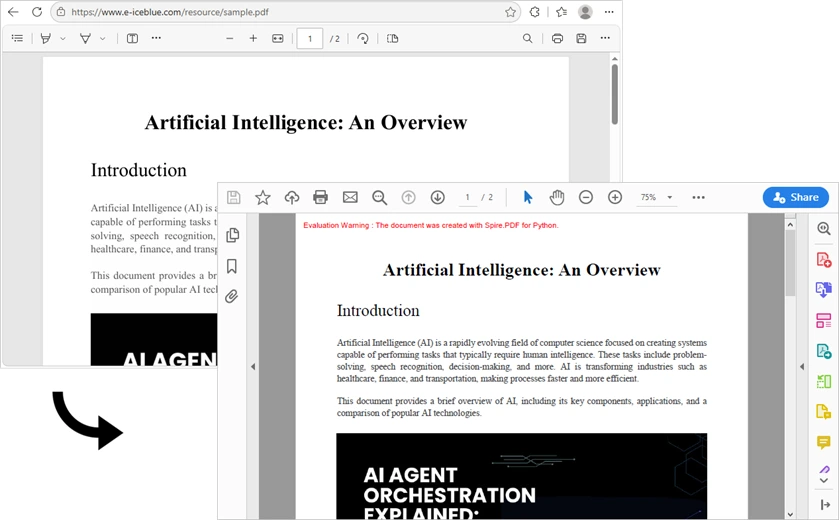
Explanation of key components:
requests.get(url)– Sends the HTTP GET request. The server responds with headers and the PDF binary.response.raise_for_status()– Checks for HTTP errors (e.g., 404, 500).response.content– Contains raw PDF bytes.Stream(response.content)– Wraps bytes in a readable, seekable in-memory stream.PdfDocument(stream)– Loads the PDF into memory for further operations.document.SaveToFile()– writes the PDF to disk.
This workflow loads PDF data into memory for instant saving, improving speed and avoiding unnecessary disk writes.
4. Processing PDFs Without Saving
You can extract metadata or text directly in memory without writing files:
def process_pdf_from_url():
    url = "resource/sample.pdf"
    response = requests.get(url)
    response.raise_for_status()

    # Load PDF in memory
    document = PdfDocument(Stream(response.content))

    # Retrieve document information
    print(f"Number of pages: {document.Pages.Count}")
    info = document.DocumentInformation
    print(f"Title: {info.Title}")
    print(f"Author: {info.Author}")

    # Extract text from the first page
    from spire.pdf import PdfTextExtractor
    extractor = PdfTextExtractor(document.Pages[0])
    text = extractor.ExtractText()
    print(f"First 100 characters: {text[:100]}")

    document.Close()

if __name__ == "__main__":
    process_pdf_from_url()
Why this is useful: You can analyze content, index text, or extract metadata without creating unnecessary files on disk. This is ideal for server-side scripts, cloud functions, or batch processing.
5. Handling Large PDFs
Downloading very large PDFs (e.g., 100MB+) can consume significant memory. Use streaming download and temporary files to reduce memory usage:
import tempfile
import os

def download_large_pdf(url: str, output_path: str):
    try:
        response = requests.get(url, stream=True, timeout=60)
        response.raise_for_status()

        # Write chunks to a temporary file
        with tempfile.NamedTemporaryFile(delete=False, suffix=".pdf") as tmp:
            for chunk in response.iter_content(chunk_size=8192):
                if chunk:
                    tmp.write(chunk)
            temp_path = tmp.name

        # Load PDF from temporary file
        document = PdfDocument()
        document.LoadFromFile(temp_path)
        document.SaveToFile(output_path)
        document.Close()

        # Clean up temporary file
        os.unlink(temp_path)
        print(f"Large PDF saved to: {output_path}")

    except Exception as e:
        print(f"Error: {e}")
Notes:
stream=Trueavoids loading the entire file into memory.- Temporary files allow processing PDFs that exceed available RAM.
6. Adding Retry Logic
Network requests may fail intermittently. Adding retries improves robustness:
import time

def download_with_retry(url: str, output_path: str, max_retries: int = 3):
    for attempt in range(max_retries):
        try:
            response = requests.get(url, timeout=30)
            response.raise_for_status()
            document = PdfDocument(Stream(response.content))
            document.SaveToFile(output_path)
            document.Close()
            print(f"Downloaded successfully: {output_path}")
            return True
        except requests.exceptions.RequestException as e:
            print(f"Attempt {attempt + 1} failed: {e}")
            if attempt < max_retries - 1:
                wait_time = 2 ** attempt
                print(f"Retrying in {wait_time} seconds...")
                time.sleep(wait_time)
    print("All retry attempts failed.")
    return False
Why use this: Exponential backoff prevents overwhelming servers and handles transient network failures gracefully.
7. Common Issues and Troubleshooting
PDF Not Found (404)
Problem: The URL does not point to a valid PDF, resulting in a 404 error.
Solution: Verify the URL and add a User-Agent header if needed:
import requests

url = "https://example.com/missing.pdf"
headers = {'User-Agent': 'Mozilla/5.0'}
response = requests.get(url, headers=headers)

if response.status_code == 404:
    print("PDF not found (404)")
Server Returns HTML Instead of PDF
Problem: The URL returns an HTML page instead of a PDF.
Solution: Check the Content-Type and parse HTML to locate the actual PDF:
import requests
from bs4 import BeautifulSoup

url = "https://example.com/download-page"
response = requests.get(url)
content_type = response.headers.get('Content-Type', '')

if 'application/pdf' not in content_type and 'text/html' in content_type:
    soup = BeautifulSoup(response.text, 'html.parser')
    for link in soup.find_all('a', href=True):
        if link['href'].endswith('.pdf'):
            print(f"Found PDF link: {link['href']}")
            # Download the actual PDF URL
Extracted Text Shows Garbled Characters
Problem: Text extraction returns unreadable characters, often due to encoding or scanned PDFs.
Solution: Ensure proper handling or use OCR for scanned PDFs:
from spire.pdf import PdfDocument, PdfTextExtractor

document = PdfDocument("example.pdf")
extractor = PdfTextExtractor(document.Pages[0])
text = extractor.ExtractText()
print(text[:200])
# If text is still garbled, the PDF may be image-based; consider OCR
PDF Loads But Has No Pages
Problem: document.Pages.Count returns 0 even though the file exists.
Solution: PDF may be corrupted or password-protected:
from spire.pdf import PdfDocument, Stream

with open("protected.pdf", "rb") as f:
    pdf_bytes = f.read()

# For password-protected PDF
document = PdfDocument(Stream(pdf_bytes), "password")
print(f"Pages: {document.Pages.Count}")
8. Conclusion
In this article, we demonstrated how to download PDF files from URLs in Python using Spire.PDF for Python. By leveraging the Stream class, developers can load PDF data directly from memory without unnecessary disk I/O, enabling efficient document processing pipelines.
We covered the complete workflow: downloading PDF data with the requests library, creating Stream objects from bytes, loading PdfDocument instances, handling network errors, managing large files, and troubleshooting common issues. The production-ready code examples provide a solid foundation for building robust PDF download and processing systems.
To fully experience the capabilities of Spire.PDF for Python without any evaluation limitations, you can request a free 30-day trial license.
9. FAQs
Q1. How do I download a PDF from a URL using Python?
Use the requests library to fetch the PDF data and Spire.PDF to load it from memory:
response = requests.get(url)
stream = Stream(response.content)
document = PdfDocument(stream)
Q2. How do I handle authentication-protected PDFs?
For basic authentication, use the auth parameter:
response = requests.get(url, auth=('username', 'password'))
For token-based authentication, add headers:
headers = {'Authorization': 'Bearer YOUR_TOKEN'}
response = requests.get(url, headers=headers)
Q3. What's the maximum PDF file size I can download?
The theoretical limit depends on your system's available memory. For files larger than 200MB, use the streaming approach with a temporary file instead of loading everything into memory.
Q4. Can I download multiple PDFs in parallel?
Yes. Use concurrent.futures or asyncio to download multiple PDFs simultaneously for better performance.
from concurrent.futures import ThreadPoolExecutor

urls = ["url1.pdf", "url2.pdf", "url3.pdf"]
with ThreadPoolExecutor(max_workers=5) as executor:
    executor.map(lambda u: download_pdf(u), urls)
Replace Text in PDF in Bulk: 3 Practical Methods
PDFs are widely used for reports, manuals, and documentation. Editing text in a PDF is not as straightforward as in Word, and manually replacing each occurrence of a word can be tedious. This guide will show you three practical ways to replace text in a single PDF efficiently, so you can fix typos, update terms, or correct errors across the entire document without editing each instance manually.
Quick Navigation:
- Method 1: Using Adobe Acrobat Pro
- Method 2: Using an Online Tool (PDF4me)
- Method 3: Using a .NET API (Programmatic Approach)
Why Replace Text in PDF?
Replacing text in a PDF is often necessary because PDFs are designed to preserve content and layout, making manual edits difficult. Common scenarios include:
- Correcting typos or errors – Even professionally prepared PDFs can contain mistakes that need to be fixed.
- Updating outdated information – Names, dates, company details, or product references may need to be revised without recreating the entire document.
- Standardizing terminology – For consistency across reports or manuals, specific terms may need to be updated throughout the document.
- Legal or compliance updates – Certain documents may require text changes to meet regulatory or contractual requirements.
- Improving readability – Replacing awkward phrasing, abbreviations, or technical terms can make documents clearer for readers.
By replacing text efficiently, you save time, maintain professional formatting, and avoid the hassle of recreating PDFs from scratch.
Method 1: Using Adobe Acrobat Pro
Adobe Acrobat Pro is one of the most robust and professional PDF editing tools available. It allows you to replace text throughout a document while preserving the original formatting, layout, and fonts. This is especially useful when you are dealing with complex PDFs that include tables, images, headers, or footers.
The software ensures that the replacement does not distort text alignment or page structure, which is a common issue with simpler tools. Adobe Acrobat Pro is ideal for office users or professionals who need a reliable desktop solution for precise text editing.
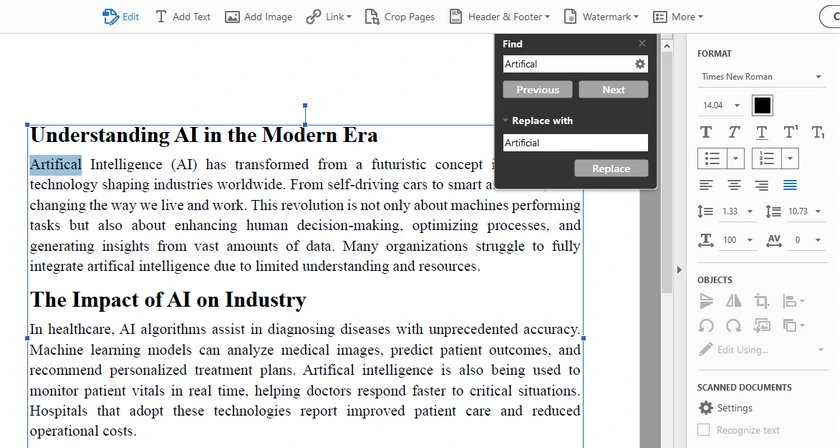
Step-by-Step Instruction
-
Open your PDF in Adobe Acrobat Pro.
-
Go to Edit → Find / Replace → Replace Text .
-
Enter the text you want to replace in the Find field.
-
Enter the new text in the Replace with field.
-
Configure the Case Sensitive option based on your needs.
- Enable it if you only want to replace text with the exact capitalization.
- Disable it if you want Acrobat to replace all capitalization variations automatically.
-
Click Replace until every occurrence in the document is replaced.
Note: Pay close attention to capitalization when replacing text. For example, "Artifical" and "artifical" may be treated differently depending on whether Case Sensitive matching is enabled. Incorrect settings may cause some occurrences to be skipped or unintentionally replaced.
Pros
- Preserves formatting, fonts, and layout.
- Simple and reliable for single documents.
Cons
- Paid software.
- Less suitable for fully automated workflows.
Method 2: Using an Online Tool (PDF4me)
Online tools such as PDF4me are convenient for users who need a quick solution without installing any software. They allow you to replace all occurrences of a word or phrase across a single PDF directly in your browser. This method is particularly useful when you are working on a computer where you cannot install software, or when you need a fast fix for small to medium-sized documents.
While online tools are generally easy to use, they may have limitations on file size or number of replacements per session, and you should be cautious about uploading sensitive documents.
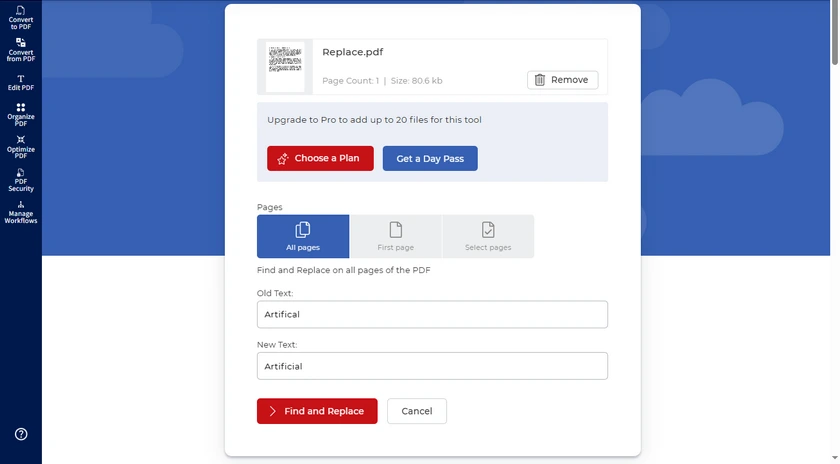
Step-by-Step Instruction
- Open PDF4me's Find and Replace Tool in your browser.
- Upload the PDF you want to edit.
- Enter the text to find and the replacement text.
- Click Find and Replace and download the updated PDF.
Pros
- No installation needed; works in any browser.
- Quick and user-friendly for occasional edits.
Cons
- May have file size or session limits.
- Less suitable for confidential documents.
Method 3: Using a .NET API (Programmatic Approach)
For developers or power users, Spire.PDF for .NET provides a programmatic solution for replacing text across an entire PDF. Unlike manual or online methods, this approach allows precise control over every replacement and ensures that all pages, fonts, and layouts are preserved. It is particularly beneficial if you need to replace multiple terms at once or integrate text replacement into an automated workflow.
Step-by-Step Instruction
- Open your development environment (Visual Studio, etc.).
- Install and reference Spire.PDF for .NET in your project.
- Use the following C# code to replace all occurrences of a word:
PM> Install-Package Spire.PDF
using Spire.Pdf;
using Spire.Pdf.Texts;

namespace ReplaceInEntireDocument
{
    class Program
    {
        static void Main(string[] args)
        {
            // Load a PDF file
            PdfDocument doc = new PdfDocument();
            doc.LoadFromFile("Input.pdf");

            // Create a PdfTextReplaceOptions object
            PdfTextReplaceOptions textReplaceOptions = new PdfTextReplaceOptions();

            // Specify the options for text replacement
            textReplaceOptions.ReplaceType = PdfTextReplaceOptions.ReplaceActionType.WholeWord | PdfTextReplaceOptions.ReplaceActionType.AutofitWidth;

            for (int i = 0; i < doc.Pages.Count; i++) {

                // Get a specific page
                PdfPageBase page = doc.Pages[i];

                // Create a PdfTextReplacer object based on the page
                PdfTextReplacer textReplacer = new PdfTextReplacer(page);

                // Set the replace options
                textReplacer.Options = textReplaceOptions;

                // Replace all occurrence of target text with new text
                textReplacer.ReplaceAllText("artifical", "artificial");
                textReplacer.ReplaceAllText("Artifical", "Artificial");
            }

            // Save the document to a different PDF file
            doc.SaveToFile("Replaced.pdf");

            // Dispose resources
            doc.Dispose();
        }
    }
}
Output:

Note: In Spire.PDF, text replacement is case-sensitive by default. This means "artifical" and "Artifical" are considered different strings.
That is why the example includes two replacement statements:
textReplacer.ReplaceAllText("artifical", "artificial");
textReplacer.ReplaceAllText("Artifical", "Artificial");
If your document contains multiple capitalization styles, make sure to replace each variation separately.
Advanced Features for Power Users
Spire.PDF offers several advanced find-and-replace capabilities that go beyond simple “replace all”:
- Replace text on a specific page – You can target just one page instead of all pages.
- Replace the first occurrence – Useful when only the first instance of a word needs updating.
- Find and replace using Regex – Allows complex pattern matching and replacement (e.g., dates, email addresses, or variable formats).
You can implement these features by adjusting the PdfTextReplacer or ReplaceAllText methods in your code. For example, you can loop through only the page you want, or use Regex in the search string to match patterns instead of exact words. For more use cases, refer to Replace Text in a PDF Document Using C#.
Pros
- Fully automated; flexible text replacement options.
- Preserves font, layout, and formatting.
- Can be integrated into desktop or server workflows for repeated tasks.
Cons
- Requires programming knowledge.
- Commercial license may be needed for full features.
In addition to replacing text, you can also replace images, fonts, and other document elements programmatically using Spire.PDF for .NET. This makes it a more comprehensive solution for PDF modification beyond simple text updates.
Conclusion
Replacing text in a PDF doesn’t have to be difficult. For most users, replacing all occurrences in a single PDF is sufficient and practical. Depending on your needs:
- Adobe Acrobat Pro – Best for professional, desktop editing with perfect formatting.
- PDF4me – Quick and easy online solution for occasional use.
- Spire.PDF for .NET – Ideal for developers needing automated, precise replacements.
By choosing the method that fits your workflow, you can fix typos, update terms, or correct errors efficiently without manually editing each instance.
FAQs
Q1: Can I replace text in a scanned PDF?
No. Scanned PDFs are essentially images. To replace text, you first need to perform OCR (Optical Character Recognition) to convert the images into editable text.
Q2: Will the formatting break after replacing text?
It depends on the method. Adobe Acrobat Pro and Spire.PDF preserve fonts, layout, and alignment. Online tools may slightly affect formatting, especially in complex PDFs.
Q3: Can I replace multiple different words at the same time?
Yes. In Spire.PDF, you can add multiple ReplaceAllText commands for different terms. In Adobe Acrobat, you need to repeat the Find & Replace for each term.
Q4: Do I need a paid license to replace text?
Adobe Acrobat Pro is paid, and Spire.PDF’s full features may require a commercial license. PDF4me offers free trials or limited replacements, but large edits may require a subscription.
Q5: Can I undo replacements if something goes wrong?
Always save a backup of your original PDF before replacing text. Adobe Acrobat Pro has an Undo feature, but online tools and programmatic methods require a backup to restore the original content.
See Also
How to Print Excel Sheet on One Page: 7 Effective Ways
Table of Contents
- Why Excel Sheets Don’t Fit on One Page
- Method 1: Use “Fit Sheet on One Page” Option
- Method 2: Adjust Page Scaling Manually
- Method 3: Change Page Orientation
- Method 4: Reduce Margins and Remove Extra Columns
- Method 5: Set a Custom Print Area
- Method 6: Change Paper Size
- Method 7: Print Excel Sheet on One Page Using C#
- Quick Comparison Table
- FAQs
- Conclusion
Excel spreadsheets often look perfect on screen but become difficult to print properly. Large tables may spill across multiple pages, columns get cut off, or the printed result becomes messy and hard to read.
Fortunately, Excel provides several built-in tools to help fit worksheets onto a single page when printing. Whether you're printing invoices, reports, schedules, dashboards, or financial statements, these methods can help create cleaner and more professional printouts.
In this guide, you'll learn 7 effective ways to print an Excel sheet on one page, ranging from beginner-friendly Excel settings to advanced C# automation using Spire.XLS.
Quick Navigation:
- Method 1: Use “Fit Sheet on One Page” Option
- Method 2: Adjust Page Scaling Manually
- Method 3: Change Page Orientation
- Method 4: Reduce Margins and Remove Extra Columns
- Method 5: Set a Custom Print Area
- Method 6: Change Paper Size
- Method 7: Print Excel Sheet on One Page Using C#
Why Excel Sheets Don’t Fit on One Page
Excel automatically separates worksheets into multiple printed pages based on page size, margins, scaling, and content dimensions. If a worksheet contains too many columns or rows, Excel may split the content into several pages during printing.
Common reasons include:
- Wide tables with many columns
- Large font sizes
- Excessive blank spaces
- Wide page margins
- Incorrect page orientation
- Unused cells extending the print range
As a result, reports can become difficult to read and waste paper unnecessarily. The following methods will help you optimize your worksheet layout and fit the content onto a single printed page.
Method 1: Use “Fit Sheet on One Page” Option
This is the easiest and most commonly used method. Excel includes a built-in scaling feature that automatically shrinks worksheet content to fit onto one printed page.
It works particularly well for invoices, schedules, reports, and medium-sized tables.
Steps
- Open your Excel worksheet.
- Click File > Print.
- Under Settings, click No Scaling.
- Select Fit Sheet on One Page.
- Preview the result in the Print Preview pane.
- Click Print to print the worksheet.
What Happens
Excel automatically scales the worksheet so all rows and columns fit within a single page during printing.
Pros
- Extremely easy to use
- No manual resizing required
- Built directly into Excel
Cons
- Text may become too small for very large worksheets
Method 2: Adjust Page Scaling Manually
Instead of forcing everything onto one page automatically, you can manually reduce the scaling percentage. This provides more control over readability and print appearance.
For example, reducing scaling to 85% or 90% may fit the content nicely while keeping text readable.
Steps
- Open your Excel worksheet and click File > Print.
- Under Settings, click No Scaling.
- Select Custom Scaling Options.
- In the scaling settings, reduce the scaling percentage until the worksheet fits better on the page.
- Check the layout in the Print Preview pane and continue adjusting if needed.
- Once the worksheet fits properly on one page, click Print.
Best For
- Financial reports
- Tables with slightly oversized columns
- Worksheets where readability matters
Tip: Avoid reducing scaling too aggressively. Tiny text can make printed documents difficult to read.
Method 3: Change Page Orientation
Many Excel worksheets are wider than they are tall. Switching from Portrait orientation to Landscape orientation provides more horizontal space and can instantly reduce page breaks.
This simple adjustment is especially effective for spreadsheets with many columns.
Steps
- Open your Excel worksheet and click File > Print.
- In the print settings window, click Page Setup.
- Under the Page tab, select Landscape orientation.
- Click OK to apply the setting.
- Review the layout in the Print Preview pane.
- If the worksheet fits properly on one page, click Print.
Why It Helps
Landscape mode increases printable width, allowing more columns to fit onto a single page.
Best For
- Wide data tables
- Dashboards
- Reports with many columns
Method 4: Reduce Margins and Remove Extra Columns
Large page margins and unused worksheet areas consume valuable printing space. Reducing margins and removing unnecessary content can significantly improve page fitting.
This method is often combined with scaling for better results.
Steps
- Open your Excel worksheet and remove unnecessary content, such as blank rows, empty columns, oversized fonts, excessive spacing, or data that does not need to be printed.
- Click File > Print.
- Under Settings, click Normal Margins.
- Select Narrow to reduce the page margins and create more printable space.
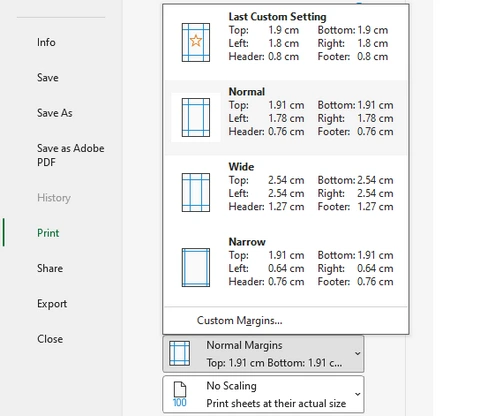
- If you need additional space, select Custom Margins and manually reduce the top, bottom, left, and right margins further.
- Review the result in the Print Preview pane.
- Once the worksheet fits properly on one page, click Print.
Why It Works
Smaller margins provide more printable area, while cleaning unused content prevents Excel from printing unnecessary pages.
Tip: Press Ctrl + End to see Excel’s last used cell. Sometimes hidden formatting extends far beyond your actual data.
Method 5: Set a Custom Print Area
Sometimes only part of the worksheet needs to be printed. By defining a custom print area, Excel ignores unnecessary cells and focuses only on the selected content.
This is one of the most effective ways to prevent blank pages and oversized print ranges.
Steps
- Select the cells or range you want to print.
- Go to the Page Layout tab.
- Click Print Area in the Page Setup group.
- Select Set Print Area.
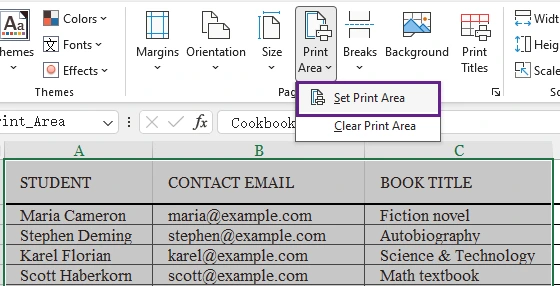
- Click File > Print to open the printing settings.
- Review the selected content in the Print Preview pane.
- If the layout looks correct, click Print.
Best For
- Reports
- Dashboards
- Summaries
- Invoice sections
Pros
- Prevents extra blank pages
- Faster printing
- Cleaner output
Method 6: Change Paper Size
Using a larger paper size provides additional printable space and reduces the need for excessive scaling. This method is commonly used in offices for large spreadsheets and detailed reports.
For example, switching from Letter to Legal paper can dramatically improve print layout.
Steps
- Open your Excel worksheet and click File > Print.
- Under Settings, click the current paper size (such as A4).
- Select a larger paper size, such as Legal , A3, or Tabloid.
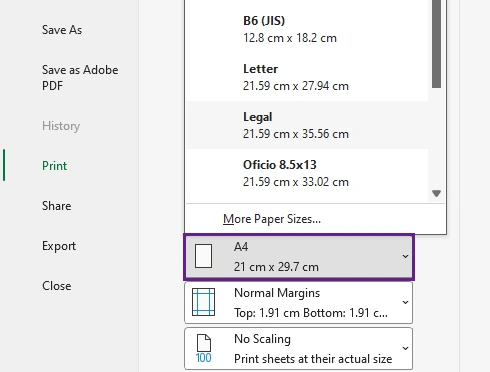
- Review the layout in the Print Preview pane.
- If the worksheet fits properly on the page, click Print .
Best For
- Large reports
- Financial spreadsheets
- Wide tables
Important Note
Make sure your printer supports the selected paper size.
Method 7: Print Excel Sheet on One Page Using C#
If you need to print Excel worksheets programmatically, C# automation provides a much more efficient solution than manual printing. This approach is ideal for enterprise systems, reporting platforms, scheduled tasks, and batch document processing.
Using Spire.XLS for .NET, you can automatically configure page settings and fit worksheets onto a single printed page.
The key setting is:
pageSetup.IsFitToPage = true;
This property automatically scales worksheet content to fit within one page during printing.
Install Spire.XLS
You can install Spire.XLS via NuGet:
Install-Package Spire.XLS
C# Example: Print Excel Sheet on One Page
using Spire.Xls;
using System.Drawing.Printing;

namespace PrintExcel
{
    class Program
    {
        static void Main(string[] args)
        {
            // Load an Excel document
            Workbook workbook = new Workbook();
            workbook.LoadFromFile("Sample.xlsx");

            // Loop through the worksheets
            for (int i = 0; i < workbook.Worksheets.Count; i++)
            {
                // Get a specific worksheet
                Worksheet worksheet = workbook.Worksheets[i];

                // Get the PageSetup object
                PageSetup pageSetup = worksheet.PageSetup;

                // Set page margins
                pageSetup.TopMargin = 0.3;
                pageSetup.BottomMargin = 0.3;
                pageSetup.LeftMargin = 0.3;
                pageSetup.RightMargin = 0.3;

                // Allow to print with gridlines
                pageSetup.IsPrintGridlines = true;

                // Fit worksheet on one page
                pageSetup.IsFitToPage = true;
            }

            // Get PrinterSettings
            PrinterSettings settings = workbook.PrintDocument.PrinterSettings;

            // Specify printer name
            settings.PrinterName = "Your Printer Name";

            // Specify page range to print
            settings.FromPage = 1;
            settings.ToPage = 3;

            // Execute printing
            workbook.PrintDocument.Print();
        }
    }
}
Advantages of This Method
- Fully automated Excel printing
- Supports batch processing
- Suitable for enterprise applications
- Eliminates manual Excel operations
- Easy to integrate into reporting systems
As a comprehensive Excel API for .NET, Spire.XLS for .NET allows developers to control worksheet printing entirely through code, including scaling, print areas, margins, orientation, headers, footers, and page breaks.
Beyond printing, it also supports Excel creation, editing, data import/export, formula calculation, chart processing, and conversion between Excel, PDF, CSV, HTML, and image formats. It is widely used for report generation, business automation, financial systems, and large-scale spreadsheet processing applications.
Quick Comparison Table
| Method | Difficulty | Best For | Automation |
|---|---|---|---|
| Fit Sheet on One Page | Easy | Quick printing | No |
| Manual Scaling | Easy | Better readability | No |
| Landscape Orientation | Easy | Wide worksheets | No |
| Reduce Margins | Easy | Minor layout fixes | No |
| Set Print Area | Easy | Partial worksheet printing | No |
| Change Paper Size | Easy | Large reports | No |
| C# with Spire.XLS | Advanced | Batch/automatic printing | Yes |
Conclusion
Printing Excel worksheets on a single page can greatly improve document readability and presentation quality. Excel offers several built-in features—including scaling, landscape orientation, print area configuration, and margin adjustment—to help optimize print layouts quickly.
For developers and enterprise users, programmatic printing with Spire.XLS provides a powerful automation solution. By enabling the IsFitToPage property, Excel worksheets can automatically fit onto one printed page, making batch printing and report generation much more efficient.
FAQs
Q1. Why is my Excel sheet still printing on multiple pages?
Your worksheet may contain hidden data, unused formatted cells, large margins, or too many columns. Check the print area and scaling settings.
Q2. Does fitting a sheet onto one page reduce print quality?
No. Excel only scales the content size. However, excessive shrinking may make text difficult to read.
Q3. Can I fit only columns onto one page?
Yes. Under Settings , click No Scaling , and choose Fit All Columns on One Page. This keeps rows flowing naturally while fitting all columns onto one page.
Q4. Is Landscape mode better for printing Excel sheets?
For wide spreadsheets, yes. Landscape orientation provides more horizontal printing space.
Q5. Can I automate Excel printing in backend applications?
Yes. Libraries such as Spire.XLS allow developers to print Excel files programmatically using C# without manually opening Excel.