Cómo agregar notas a PowerPoint: métodos manuales y automatizados
Tabla de Contenidos
Agregar notas a sus diapositivas de PowerPoint es una forma simple pero poderosa de mejorar sus presentaciones. Ya sea que se esté preparando para una charla en vivo, creando materiales de enseñanza o compartiendo diapositivas con colegas, las notas del orador lo ayudan a mantenerse organizado, recordar puntos clave y entregar su mensaje con confianza.
En este artículo, cubriremos dos formas prácticas de agregar notas a PowerPoint: manualmente usando PowerPoint de escritorio y programáticamente usando Python con Spire.Presentation.
¿Qué son las notas de PowerPoint?
Las notas del orador son texto adicional vinculado a cada diapositiva que solo el presentador puede ver durante una presentación. Le ayudan a:
- Recordar puntos clave sin saturar las diapositivas
- Proporcionar folletos con detalles adicionales
- Colaborar con compañeros de equipo agregando comentarios o instrucciones
Las notas complementan el contenido de la diapositiva en lugar de duplicarlo, manteniendo su presentación clara y atractiva.
Método 1: Agregar notas usando PowerPoint de escritorio
La forma más común de agregar notas es manualmente en PowerPoint de escritorio. Este método es intuitivo, amigable para principiantes y funciona tanto para usuarios de Windows como de Mac.
Guía paso a paso
-
Abra su presentación en PowerPoint de escritorio.
-
Cambie a la Vista Normal si aún no está habilitada. Puede hacerlo desde la pestaña Vista o los íconos de la parte inferior derecha.

-
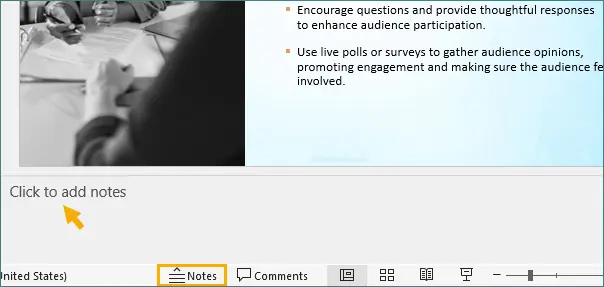
En la parte inferior de cada diapositiva, verá un panel de Notas. Si el panel está oculto, haga clic en Notas en la parte inferior de la ventana para revelarlo.
-
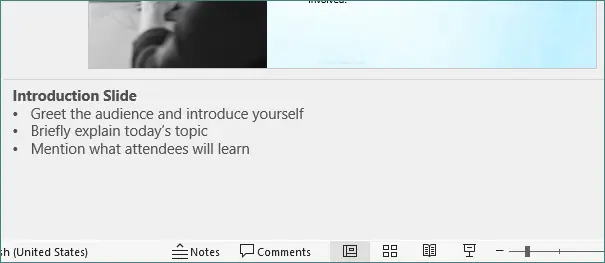
Haga clic dentro del panel de Notas y escriba sus notas del orador. Puede incluir viñetas, párrafos cortos o recordatorios.
-
Guarde su presentación una vez que termine de agregar notas.
Consejos y mejores prácticas
- Mantenga las notas concisas: evite escribir párrafos completos. Concéntrese en los puntos clave y las señales.
- Use viñetas: le ayuda a escanear las notas rápidamente durante una presentación.
- Alinear con el contenido de la diapositiva: asegúrese de que las notas correspondan a las imágenes de la diapositiva para una entrega más fluida.
- Formato: puede aplicar formato básico como negrita, cursiva o ajustes de tamaño de fuente para enfatizar puntos importantes.
Ventajas
- Funciona sin conexión, no se necesitan herramientas adicionales.
- Permite flexibilidad de formato completa para las notas.
- Amigable para principiantes y ampliamente compatible con todas las versiones de PowerPoint.
Consejo opcional
Durante las presentaciones, puede usar la Vista de moderador (Alt + F5) para ver estas notas en privado mientras su audiencia solo ve las diapositivas. Esta función es invaluable al presentar en entornos en vivo o reuniones en línea.
Método 2: Agregar notas programáticamente usando Python
Para desarrolladores, educadores o empresas que trabajan con múltiples presentaciones, agregar notas manualmente puede llevar mucho tiempo. Usar Python con Spire.Presentation le permite automatizar la adición de notas del orador a una o más diapositivas, ahorrando tiempo y manteniendo la coherencia.
¿Por qué automatizar las notas?
- Actualizaciones masivas: agregue o modifique rápidamente notas en muchas diapositivas o presentaciones.
- Coherencia: estandarice el formato, el estilo y las viñetas de las notas.
- Integración: funciona con otros flujos de trabajo de Python, como el procesamiento de datos o la generación automatizada de informes.
Guía paso a paso
A continuación se muestra un ejemplo de flujo de trabajo de Python usando Spire.Presentation:
from spire.presentation.common import *
from spire.presentation import *

# Create a Presentation object
ppt = Presentation()

# Load an existing PowerPoint presentation
ppt.LoadFromFile("input.pptx")

# Get the first slide
slide = ppt.Slides[0]

# Add a notes slide
notesSlide = slide.AddNotesSlide()

# Add paragraphs to the notes slide
paragraph = TextParagraph()
paragraph.Text = "Summary Slide:"
paragraph.FirstTextRange.IsBold = TriState.TTrue
notesSlide.NotesTextFrame.Paragraphs.Append(paragraph)

paragraph = TextParagraph()
paragraph.Text = "Recap the three main points"
notesSlide.NotesTextFrame.Paragraphs.Append(paragraph)

paragraph = TextParagraph()
paragraph.Text = "Reinforce the core message"
notesSlide.NotesTextFrame.Paragraphs.Append(paragraph)

paragraph = TextParagraph()
paragraph.Text = "Prepare for the conclusion"
notesSlide.NotesTextFrame.Paragraphs.Append(paragraph)

# Apply numbering style to specific paragraphs
for i in range(2, notesSlide.NotesTextFrame.Paragraphs.Count):
    notesSlide.NotesTextFrame.Paragraphs[i].BulletType = TextBulletType.Numbered
    notesSlide.NotesTextFrame.Paragraphs[i].BulletStyle = NumberedBulletStyle.BulletArabicPeriod

# Save the resulting presentation
ppt.SaveToFile("AddSpeakerNotes.pptx", FileFormat.Pptx2016)
ppt.Dispose()
Salida:

Explicación del código
- Cargar presentación: ppt.LoadFromFile("input.pptx") abre un archivo de PowerPoint existente.
- Acceder a la diapositiva: slide = ppt.Slides[0] recupera la primera diapositiva.
- Agregar diapositiva de notas: slide.AddNotesSlide() crea un área de notas dedicada para la diapositiva.
- Agregar párrafos: cada objeto TextParagraph se agrega a
NotesTextFrame. - Formato de viñetas: el estilo de viñeta numerada se aplica a todos los párrafos excepto al primero.
- Guardar archivo: ppt.SaveToFile() guarda la presentación actualizada con las nuevas notas.
Leer más: Agregar, leer o eliminar notas del orador en PowerPoint usando Python
Ventajas
- Automatiza tareas repetitivas, ahorrando tiempo en presentaciones grandes.
- Mantiene un formato coherente en todas las diapositivas.
- Se puede integrar en canalizaciones de datos, sistemas de generación de informes o scripts de procesamiento por lotes.
- Funciona tanto para presentaciones existentes como para archivos recién creados.
Casos de uso
- Instituciones educativas que preparan diapositivas de conferencias con notas estandarizadas.
- Empresas que generan informes recurrentes o materiales de capacitación.
- Desarrolladores que crean herramientas para la automatización de PowerPoint.
Para un uso más avanzado, como editar el contenido de las diapositivas, administrar diseños o trabajar con múltiples diapositivas, consulte la documentación de Spire.Presentation. Proporciona referencias de API detalladas y ejemplos para diferentes escenarios de automatización de PowerPoint.
Comparación de los dos métodos
| Característica | PowerPoint de escritorio | Python + Spire.Presentation |
|---|---|---|
| Facilidad de uso | Fácil | Medio |
| Flexibilidad de edición | Alta | Media |
| Automatización | × | √ |
| Usuarios ideales | Usuarios generales | Desarrolladores / Empresas |
| Escalabilidad | Baja | Alta |
Mejores prácticas para las notas del orador
Independientemente del método, las buenas notas comparten características comunes:
- Cortas y procesables: evite los párrafos largos.
- Use viñetas: facilita el escaneo.
- Resalte los puntos clave: ponga en negrita o subraye los elementos importantes.
- Coincidir con el contenido de la diapositiva: las notas deben complementar, no duplicar, las imágenes.
- Revise y ensaye: asegúrese de que sus notas ayuden, no obstaculicen, su entrega.
Conclusión
Agregar notas a PowerPoint es una forma sencilla de hacer que las presentaciones sean más efectivas y organizadas. Para la mayoría de los usuarios, PowerPoint de escritorio es la forma más fácil de agregar y administrar notas. Permite un formato completo, edición sin conexión y una integración perfecta con la Vista de moderador.
Para los desarrolladores o cualquier persona que maneje múltiples presentaciones, Python + Spire.Presentation proporciona una forma potente y automatizada de agregar notas mediante programación. Este método es especialmente útil para actualizaciones masivas, mantener la coherencia e integrarse con flujos de trabajo automatizados.
Al combinar imágenes de diapositivas claras con notas del orador bien pensadas, puede realizar presentaciones con confianza, mantener a su audiencia comprometida y asegurarse de que nunca se pierdan los puntos importantes.
Preguntas frecuentes
P1. ¿Puede la audiencia ver mis notas?
No. Las notas del orador solo son visibles para el presentador en la Vista de moderador.
P2. ¿Se pueden imprimir las notas con las diapositivas?
Sí. PowerPoint permite imprimir diapositivas con páginas de notas para folletos.
P3. ¿Aparecerán las notas agregadas con Python en la Vista de moderador?
Sí. Las notas agregadas mediante programación con Spire.Presentation aparecen exactamente como las notas agregadas manualmente en la Vista de moderador.
P4. ¿Puedo editar las notas más tarde después de la adición programática?
Sí. Después de generar la presentación con Python, puede abrirla en PowerPoint de escritorio o PowerPoint Online y realizar las modificaciones necesarias.
También le puede interesar
Notizen zu PowerPoint hinzufügen: Manuelle und automatisierte Methoden
Inhaltsverzeichnis
Das Hinzufügen von Notizen zu Ihren PowerPoint-Folien ist eine einfache, aber wirkungsvolle Methode, um Ihre Präsentationen zu verbessern. Egal, ob Sie sich auf einen Live-Vortrag vorbereiten, Lehrmaterialien erstellen oder Folien mit Kollegen teilen, Sprechernotizen helfen Ihnen, organisiert zu bleiben, sich an wichtige Punkte zu erinnern und Ihre Botschaft selbstbewusst zu vermitteln.
In diesem Artikel werden wir zwei praktische Möglichkeiten zum Hinzufügen von Notizen zu PowerPoint behandeln: manuell mit PowerPoint Desktop und programmgesteuert mit Python und Spire.Presentation.
Was sind PowerPoint-Notizen?
Sprechernotizen sind zusätzlicher Text, der mit jeder Folie verknüpft ist und den nur der Präsentator während einer Präsentation sehen kann. Sie helfen Ihnen:
- Sich an wichtige Punkte zu erinnern, ohne die Folien zu überladen
- Handouts mit zusätzlichen Details bereitzustellen
- Mit Teamkollegen zusammenzuarbeiten, indem Sie Kommentare oder Anweisungen hinzufügen
Notizen ergänzen den Folieninhalt, anstatt ihn zu duplizieren, und halten Ihre Präsentation klar und ansprechend.
Methode 1: Notizen mit PowerPoint Desktop hinzufügen
Die gebräuchlichste Methode zum Hinzufügen von Notizen ist manuell in PowerPoint Desktop. Diese Methode ist intuitiv, anfängerfreundlich und funktioniert sowohl für Windows- als auch für Mac-Benutzer.
Schritt-für-Schritt-Anleitung
-
Öffnen Sie Ihre Präsentation in PowerPoint Desktop.
-
Wechseln Sie zur Normalansicht, falls diese nicht bereits aktiviert ist. Sie können dies über die Registerkarte Ansicht oder die Symbole unten rechts tun.
-
Am unteren Rand jeder Folie sehen Sie einen Notizenbereich. Wenn der Bereich ausgeblendet ist, klicken Sie unten im Fenster auf Notizen, um ihn anzuzeigen.
-
Klicken Sie in den Notizenbereich und geben Sie Ihre Sprechernotizen ein. Sie können Aufzählungspunkte, kurze Absätze oder Erinnerungen einfügen.
-
Speichern Sie Ihre Präsentation, sobald Sie mit dem Hinzufügen von Notizen fertig sind.
Tipps und Best Practices
- Halten Sie Notizen kurz: Vermeiden Sie das Schreiben ganzer Absätze. Konzentrieren Sie sich auf wichtige Punkte und Stichwörter.
- Verwenden Sie Aufzählungspunkte: Hilft Ihnen, Notizen während einer Präsentation schnell zu überfliegen.
- Auf den Folieninhalt abstimmen: Stellen Sie sicher, dass die Notizen den visuellen Elementen der Folie entsprechen, um einen reibungsloseren Vortrag zu gewährleisten.
- Formatierung: Sie können grundlegende Formatierungen wie Fett, Kursiv oder Anpassungen der Schriftgröße anwenden, um wichtige Punkte hervorzuheben.
Vorteile
- Funktioniert offline, keine zusätzlichen Tools erforderlich.
- Ermöglicht volle Formatierungsflexibilität für Notizen.
- Anfängerfreundlich und von allen PowerPoint-Versionen umfassend unterstützt.
Optionaler Tipp
Während Präsentationen können Sie die Referentenansicht (Alt + F5) verwenden, um diese Notizen privat anzuzeigen, während Ihr Publikum nur die Folien sieht. Diese Funktion ist von unschätzbarem Wert bei Präsentationen in Live-Umgebungen oder Online-Meetings.
Methode 2: Notizen programmgesteuert mit Python hinzufügen
Für Entwickler, Pädagogen oder Unternehmen, die mit mehreren Präsentationen arbeiten, kann das manuelle Hinzufügen von Notizen zeitaufwändig sein. Die Verwendung von Python mit Spire.Presentation ermöglicht es Ihnen, das Hinzufügen von Sprechernotizen zu einer oder mehreren Folien zu automatisieren, was Zeit spart und die Konsistenz aufrechterhält.
Warum Notizen automatisieren?
- Massenaktualisierungen: Fügen Sie Notizen schnell über viele Folien oder Präsentationen hinweg hinzu oder ändern Sie sie.
- Konsistenz: Standardisieren Sie das Format, den Stil und die Aufzählungspunkte von Notizen.
- Integration: Funktioniert mit anderen Python-Workflows, wie z. B. der Datenverarbeitung oder der automatisierten Berichterstellung.
Schritt-für-Schritt-Anleitung
Unten finden Sie ein Beispiel für einen Python-Workflow mit Spire.Presentation:
from spire.presentation.common import *
from spire.presentation import *

# Create a Presentation object
ppt = Presentation()

# Load an existing PowerPoint presentation
ppt.LoadFromFile("input.pptx")

# Get the first slide
slide = ppt.Slides[0]

# Add a notes slide
notesSlide = slide.AddNotesSlide()

# Add paragraphs to the notes slide
paragraph = TextParagraph()
paragraph.Text = "Summary Slide:"
paragraph.FirstTextRange.IsBold = TriState.TTrue
notesSlide.NotesTextFrame.Paragraphs.Append(paragraph)

paragraph = TextParagraph()
paragraph.Text = "Recap the three main points"
notesSlide.NotesTextFrame.Paragraphs.Append(paragraph)

paragraph = TextParagraph()
paragraph.Text = "Reinforce the core message"
notesSlide.NotesTextFrame.Paragraphs.Append(paragraph)

paragraph = TextParagraph()
paragraph.Text = "Prepare for the conclusion"
notesSlide.NotesTextFrame.Paragraphs.Append(paragraph)

# Apply numbering style to specific paragraphs
for i in range(2, notesSlide.NotesTextFrame.Paragraphs.Count):
    notesSlide.NotesTextFrame.Paragraphs[i].BulletType = TextBulletType.Numbered
    notesSlide.NotesTextFrame.Paragraphs[i].BulletStyle = NumberedBulletStyle.BulletArabicPeriod

# Save the resulting presentation
ppt.SaveToFile("AddSpeakerNotes.pptx", FileFormat.Pptx2016)
ppt.Dispose()
Ausgabe:
Erläuterung des Codes
- Präsentation laden: ppt.LoadFromFile("input.pptx") öffnet eine vorhandene PowerPoint-Datei.
- Auf Folie zugreifen: slide = ppt.Slides[0] ruft die erste Folie ab.
- Notizenfolie hinzufügen: slide.AddNotesSlide() erstellt einen speziellen Notizenbereich für die Folie.
- Absätze hinzufügen: Jedes TextParagraph-Objekt wird dem
NotesTextFramehinzugefügt. - Aufzählungszeichen formatieren: Der nummerierte Aufzählungsstil wird auf alle Absätze außer dem ersten angewendet.
- Datei speichern: ppt.SaveToFile() speichert die aktualisierte Präsentation mit den neuen Notizen.
Weiterlesen: Sprechernotizen in PowerPoint mit Python hinzufügen, lesen oder löschen
Vorteile
- Automatisiert sich wiederholende Aufgaben und spart Zeit bei großen Präsentationen.
- Behält ein einheitliches Format über alle Folien bei.
- Kann in Datenpipelines, Berichterstellungssysteme oder Stapelverarbeitungsskripte integriert werden.
- Funktioniert sowohl für vorhandene Präsentationen als auch für neu erstellte Dateien.
Anwendungsfälle
- Bildungseinrichtungen, die Vorlesungsfolien mit standardisierten Notizen vorbereiten.
- Unternehmen, die wiederkehrende Berichte oder Schulungsmaterialien erstellen.
- Entwickler, die Tools für die PowerPoint-Automatisierung erstellen.
Für eine erweiterte Nutzung, wie z. B. das Bearbeiten von Folieninhalten, das Verwalten von Layouts oder das Arbeiten mit mehreren Folien, lesen Sie die Spire.Presentation-Dokumentation. Sie bietet detaillierte API-Referenzen und Beispiele für verschiedene Szenarien der PowerPoint-Automatisierung.
Vergleich der beiden Methoden
| Merkmal | PowerPoint Desktop | Python + Spire.Presentation |
|---|---|---|
| Benutzerfreundlichkeit | Einfach | Mittel |
| Bearbeitungsflexibilität | Hoch | Mittel |
| Automatisierung | × | √ |
| Ideale Benutzer | Allgemeine Benutzer | Entwickler / Unternehmen |
| Skalierbarkeit | Niedrig | Hoch |
Best Practices für Sprechernotizen
Unabhängig von der Methode haben gute Notizen gemeinsame Merkmale:
- Kurz und handlungsorientiert: Vermeiden Sie lange Absätze.
- Verwenden Sie Aufzählungspunkte: Erleichtert das Überfliegen.
- Wichtige Punkte hervorheben: Wichtige Elemente fett oder unterstrichen markieren.
- Auf den Folieninhalt abstimmen: Notizen sollten visuelle Elemente ergänzen, nicht duplizieren.
- Überprüfen und proben: Stellen Sie sicher, dass Ihre Notizen Ihren Vortrag unterstützen und nicht behindern.
Fazit
Das Hinzufügen von Notizen zu PowerPoint ist eine einfache Möglichkeit, Präsentationen effektiver und organisierter zu gestalten. Für die meisten Benutzer ist PowerPoint Desktop der einfachste Weg, Notizen hinzuzufügen und zu verwalten. Es ermöglicht volle Formatierung, Offline-Bearbeitung und eine nahtlose Integration mit der Referentenansicht.
Für Entwickler oder alle, die mit mehreren Präsentationen arbeiten, bietet Python + Spire.Presentation eine leistungsstarke, automatisierte Möglichkeit, Notizen programmgesteuert hinzuzufügen. Diese Methode ist besonders nützlich für Massenaktualisierungen, die Aufrechterhaltung der Konsistenz und die Integration in automatisierte Arbeitsabläufe.
Durch die Kombination von klaren visuellen Folien mit durchdachten Sprechernotizen können Sie Präsentationen selbstbewusst halten, Ihr Publikum fesseln und sicherstellen, dass wichtige Punkte nie übersehen werden.
Häufig gestellte Fragen
F1. Kann das Publikum meine Notizen sehen?
Nein. Sprechernotizen sind nur für den Präsentator in der Referentenansicht sichtbar.
F2. Können Notizen mit Folien gedruckt werden?
Ja. PowerPoint ermöglicht das Drucken von Folien mit Notizenseiten für Handouts.
F3. Werden mit Python hinzugefügte Notizen in der Referentenansicht angezeigt?
Ja. Notizen, die programmgesteuert mit Spire.Presentation hinzugefügt wurden, erscheinen in der Referentenansicht genau wie manuell hinzugefügte Notizen.
F4. Kann ich Notizen nach dem programmgesteuerten Hinzufügen später bearbeiten?
Ja. Nachdem Sie die Präsentation mit Python erstellt haben, können Sie sie in PowerPoint Desktop oder PowerPoint Online öffnen und bei Bedarf bearbeiten.
Das könnte Sie auch interessieren
Как добавить заметки в PowerPoint: ручные и автоматизированные методы
Содержание
Добавление заметок к слайдам PowerPoint — это простой, но мощный способ улучшить ваши презентации. Готовитесь ли вы к живому выступлению, создаете учебные материалы или делитесь слайдами с коллегами, заметки докладчика помогут вам оставаться организованным, помнить ключевые моменты и уверенно доносить свое сообщение.
В этой статье мы рассмотрим два практических способа добавления заметок в PowerPoint: вручную с помощью PowerPoint для настольных компьютеров и программно с помощью Python и Spire.Presentation.
Что такое заметки PowerPoint?
Заметки докладчика — это дополнительный текст, связанный с каждым слайдом, который видит только докладчик во время презентации. Они помогают вам:
- Запоминать ключевые моменты, не загромождая слайды
- Предоставлять раздаточные материалы с дополнительными деталями
- Сотрудничать с коллегами, добавляя комментарии или инструкции
Заметки дополняют содержание слайда, а не дублируют его, делая вашу презентацию ясной и увлекательной.
Способ 1: Добавление заметок с помощью PowerPoint для настольных компьютеров
Самый распространенный способ добавления заметок — вручную в PowerPoint для настольных компьютеров. Этот метод интуитивно понятен, удобен для начинающих и работает как для пользователей Windows, так и для Mac.
Пошаговое руководство
-
Откройте свою презентацию в PowerPoint для настольных компьютеров.
-
Переключитесь в Обычный режим, если он еще не включен. Это можно сделать на вкладке Вид или с помощью значков в правом нижнем углу.
-
В нижней части каждого слайда вы увидите панель заметок. Если панель скрыта, нажмите Заметки в нижней части окна, чтобы отобразить ее.
-
Щелкните внутри панели заметок и введите свои заметки докладчика. Вы можете включать маркированные списки, короткие абзацы или напоминания.
-
Сохраните презентацию после завершения добавления заметок.
Советы и лучшие практики
- Будьте краткими: Избегайте написания полных абзацев. Сосредоточьтесь на ключевых моментах и подсказках.
- Используйте маркированные списки: Помогает быстро просматривать заметки во время презентации.
- Согласуйте с содержанием слайда: Убедитесь, что заметки соответствуют визуальным элементам слайда для более плавной подачи.
- Форматирование: Вы можете применять базовое форматирование, такое как полужирный шрифт, курсив или изменение размера шрифта, чтобы выделить важные моменты.
Преимущества
- Работает офлайн, не требуются дополнительные инструменты.
- Обеспечивает полную гибкость форматирования для заметок.
- Удобен для начинающих и широко поддерживается во всех версиях PowerPoint.
Дополнительный совет
Во время презентаций вы можете использовать Режим докладчика (Alt + F5), чтобы просматривать эти заметки конфиденциально, в то время как ваша аудитория видит только слайды. Эта функция неоценима при проведении презентаций вживую или на онлайн-встречах.
Способ 2: Программное добавление заметок с помощью Python
Для разработчиков, преподавателей или предприятий, работающих с несколькими презентациями, добавление заметок вручную может занимать много времени. Использование Python с Spire.Presentation позволяет автоматизировать добавление заметок докладчика к одному или нескольким слайдам, экономя время и обеспечивая согласованность.
Зачем автоматизировать добавление заметок?
- Массовые обновления: Быстро добавляйте или изменяйте заметки на многих слайдах или в презентациях.
- Согласованность: Стандартизируйте формат, стиль и маркированные списки заметок.
- Интеграция: Работает с другими рабочими процессами Python, такими как обработка данных или автоматическое создание отчетов.
Пошаговое руководство
Ниже приведен пример рабочего процесса на Python с использованием Spire.Presentation:
from spire.presentation.common import *
from spire.presentation import *

# Create a Presentation object
ppt = Presentation()

# Load an existing PowerPoint presentation
ppt.LoadFromFile("input.pptx")

# Get the first slide
slide = ppt.Slides[0]

# Add a notes slide
notesSlide = slide.AddNotesSlide()

# Add paragraphs to the notes slide
paragraph = TextParagraph()
paragraph.Text = "Summary Slide:"
paragraph.FirstTextRange.IsBold = TriState.TTrue
notesSlide.NotesTextFrame.Paragraphs.Append(paragraph)

paragraph = TextParagraph()
paragraph.Text = "Recap the three main points"
notesSlide.NotesTextFrame.Paragraphs.Append(paragraph)

paragraph = TextParagraph()
paragraph.Text = "Reinforce the core message"
notesSlide.NotesTextFrame.Paragraphs.Append(paragraph)

paragraph = TextParagraph()
paragraph.Text = "Prepare for the conclusion"
notesSlide.NotesTextFrame.Paragraphs.Append(paragraph)

# Apply numbering style to specific paragraphs
for i in range(2, notesSlide.NotesTextFrame.Paragraphs.Count):
    notesSlide.NotesTextFrame.Paragraphs[i].BulletType = TextBulletType.Numbered
    notesSlide.NotesTextFrame.Paragraphs[i].BulletStyle = NumberedBulletStyle.BulletArabicPeriod

# Save the resulting presentation
ppt.SaveToFile("AddSpeakerNotes.pptx", FileFormat.Pptx2016)
ppt.Dispose()
Вывод:
Объяснение кода
- Загрузка презентации: ppt.LoadFromFile("input.pptx") открывает существующий файл PowerPoint.
- Доступ к слайду: slide = ppt.Slides[0] получает первый слайд.
- Добавить слайд с заметками: slide.AddNotesSlide() создает специальную область для заметок к слайду.
- Добавить абзацы: Каждый объект TextParagraph добавляется в
NotesTextFrame. - Форматировать маркеры: Стиль нумерованного списка применяется ко всем абзацам, кроме первого.
- Сохранить файл: ppt.SaveToFile() сохраняет обновленную презентацию с новыми заметками.
Читать далее: Добавление, чтение или удаление заметок докладчика в PowerPoint с помощью Python
Преимущества
- Автоматизирует повторяющиеся задачи, экономя время при работе с большими презентациями.
- Поддерживает единый формат на всех слайдах.
- Может быть интегрирован в конвейеры данных, системы генерации отчетов или сценарии пакетной обработки.
- Работает как с существующими презентациями, так и с вновь созданными файлами.
Сферы применения
- Образовательные учреждения, готовящие лекционные слайды со стандартизированными заметками.
- Компании, создающие периодические отчеты или учебные материалы.
- Разработчики, создающие инструменты для автоматизации PowerPoint.
Для более продвинутого использования, такого как редактирование содержимого слайдов, управление макетами или работа с несколькими слайдами, обратитесь к документации Spire.Presentation. Она предоставляет подробные справочники по API и примеры для различных сценариев автоматизации PowerPoint.
Сравнение двух методов
| Характеристика | PowerPoint для настольных ПК | Python + Spire.Presentation |
|---|---|---|
| Простота использования | Легко | Средне |
| Гибкость редактирования | Высокая | Средняя |
| Автоматизация | × | √ |
| Идеальные пользователи | Обычные пользователи | Разработчики / Предприятия |
| Масштабируемость | Низкая | Высокая |
Рекомендации по созданию заметок для докладчика
Независимо от метода, хорошие заметки имеют общие характеристики:
- Краткие и действенные: Избегайте длинных абзацев.
- Используйте маркированные списки: Облегчает быстрое сканирование.
- Выделяйте ключевые моменты: Выделяйте важные элементы полужирным шрифтом или подчеркиванием.
- Соответствие содержанию слайда: Заметки должны дополнять, а не дублировать визуальные элементы.
- Просматривайте и репетируйте: Убедитесь, что ваши заметки помогают, а не мешают вашему выступлению.
Заключение
Добавление заметок в PowerPoint — это простой способ сделать презентации более эффективными и организованными. Для большинства пользователей PowerPoint для настольных компьютеров — это самый простой способ добавлять и управлять заметками. Он обеспечивает полное форматирование, редактирование в автономном режиме и бесшовную интеграцию с режимом докладчика.
Для разработчиков или всех, кто работает с несколькими презентациями, Python + Spire.Presentation предоставляет мощный автоматизированный способ программного добавления заметок. Этот метод особенно полезен для массовых обновлений, поддержания согласованности и интеграции с автоматизированными рабочими процессами.
Сочетая четкие визуальные эффекты на слайдах с продуманными заметками докладчика, вы можете уверенно проводить презентации, поддерживать интерес аудитории и гарантировать, что важные моменты никогда не будут упущены.
Часто задаваемые вопросы
В1. Видит ли аудитория мои заметки?
Нет. Заметки докладчика видны только докладчику в режиме докладчика.
В2. Можно ли распечатать заметки вместе со слайдами?
Да. PowerPoint позволяет печатать слайды со страницами заметок для раздаточных материалов.
В3. Будут ли заметки, добавленные с помощью Python, отображаться в режиме докладчика?
Да. Заметки, добавленные программно с помощью Spire.Presentation, выглядят точно так же, как и заметки, добавленные вручную, в режиме докладчика.
В4. Могу ли я редактировать заметки позже после программного добавления?
Да. После создания презентации с помощью Python вы можете открыть ее в PowerPoint для настольных компьютеров или в PowerPoint Online и вносить необходимые изменения.
Вам также может быть интересно
Como compactar um PDF: as melhores ferramentas para diminuir o tamanho de PDFs
Índice
- Por que você deve compactar um arquivo PDF?
- Solução Rápida: Compactar Arquivos PDF Online
- Ferramentas Offline: Compactar PDF com Software de Desktop
- Automação em Lote: Compactar PDF Programaticamente com C#
- Dicas Profissionais para Compactar PDF Sem Perder Qualidade
- Perguntas Frequentes Sobre a Redução do Tamanho do PDF
No mundo digital de hoje, os PDFs são o padrão universal para compartilhar documentos. No entanto, arquivos PDF grandes podem ser um grande incômodo — eles entopem as caixas de entrada de e-mail, excedem os limites de upload e são lentos para transferir. Aprender como compactar um PDF é uma habilidade digital essencial, seja você um estudante, profissional ou usuário casual.
Este guia abrangente irá orientá-lo através dos métodos mais fáceis e eficazes para compactar arquivos PDF, incluindo o uso de ferramentas online gratuitas, software de desktop e programação em C#, além de dicas profissionais para manter a alta qualidade enquanto reduz o tamanho do arquivo PDF.
- Por que você deve compactar um arquivo PDF?
- Solução Rápida: Compactar Arquivos PDF Online
- Ferramentas Offline: Compactar PDF com Software de Desktop
- Automação em Lote: Compactar PDF Programaticamente com C#
- Dicas Profissionais para Compactar PDF Sem Perder Qualidade
- Perguntas Frequentes Sobre a Redução do Tamanho do PDF
Por que você deve compactar um arquivo PDF?
Reduzir o tamanho do PDF oferece vários benefícios principais:
- Anexos de E-mail Fáceis: Fique dentro dos limites comuns de 25 MB de e-mail.
- Uploads e Downloads Mais Rápidos: Ideal para portais, candidaturas de emprego ou armazenamento em nuvem.
- Economize Espaço de Armazenamento: Libere espaço em seu disco rígido e dispositivos móveis.
- Compartilhamento Profissional: Envie arquivos de forma rápida e eficiente para clientes ou colegas.
- Otimização de Sites: Arquivos menores carregam mais rápido nas páginas da web, melhorando a experiência do usuário e o SEO.
Solução Rápida: Compactar Arquivos PDF Online
Muitos compressores de PDF online permitem que você reduza o tamanho do PDF gratuitamente. Eles não exigem instalação de software e funcionam em qualquer dispositivo com um navegador.
Ferramentas Recomendadas:
- Smallpdf: Uma suíte completa e fácil de usar para tarefas de PDF.
- iLovePDF: Uma alternativa confiável com opções de processamento em lote.
- PDF2Go: Oferece controle preciso sobre o nível de compactação.
Passos para Diminuir o Tamanho do PDF:
- Acesse o site do compressor escolhido (por exemplo, a Ferramenta de Compressão de PDF Gratuita do SmallPDF).
- Clique em “ESCOLHER ARQUIVOS” ou arraste e solte seu arquivo na janela do navegador.
- Escolha seu nível de compactação (por exemplo, “Básico” para tamanho de arquivo médio, resolução padrão).
- Clique no botão “Compactar” ou “Reduzir PDF”.
- Baixe seu novo arquivo PDF menor para o seu dispositivo.
O resultado da compactação:
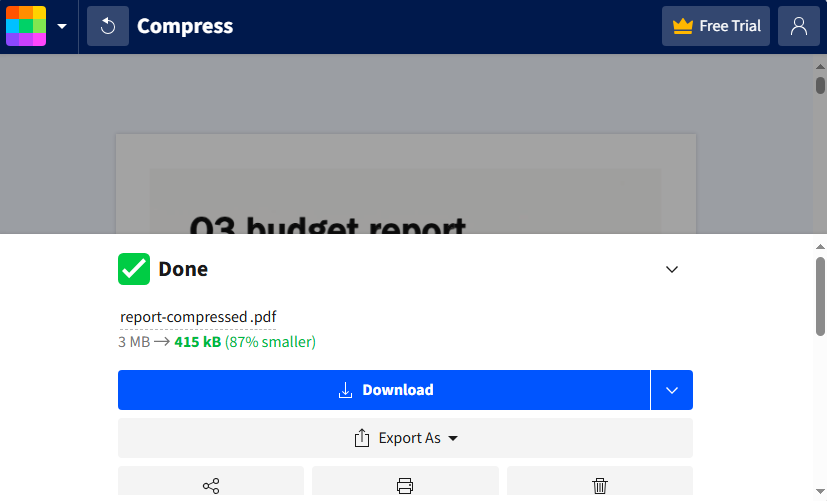
Dica Profissional: Para documentos confidenciais, verifique a política de privacidade da ferramenta. A maioria dos sites respeitáveis exclui seus arquivos de seus servidores após um curto período.
Ferramentas Offline: Compactar PDF com Software de Desktop
Se você precisa compactar PDFs offline (sem internet) ou lidar com grandes lotes regularmente, o software de desktop é melhor. Aqui estão os melhores compressores de PDF para reduzir o tamanho do arquivo PDF:
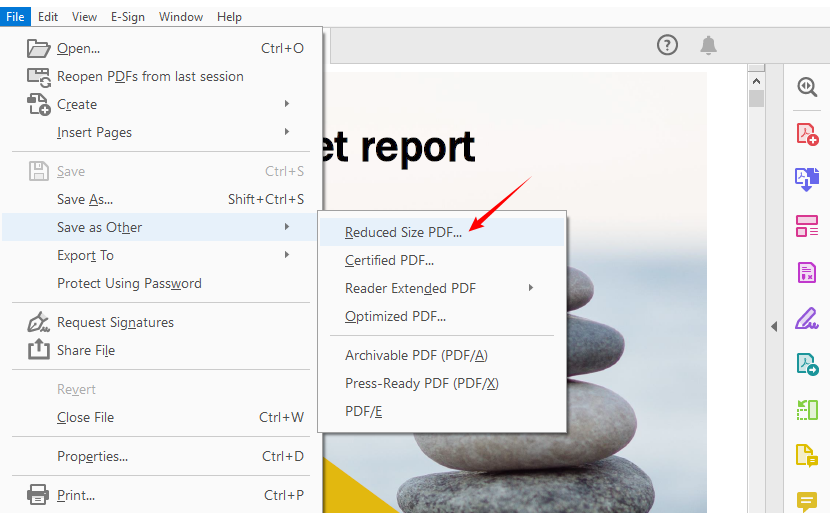
Adobe Acrobat Pro DC (Padrão da indústria)
A ferramenta nativa da Adobe oferece as configurações de otimização mais avançadas para tornar um PDF menor.
- Abra seu PDF no Acrobat Pro DC.
- Vá para “Arquivo” > “Salvar Como Outro” e escolha "Reduzir Tamanho do Arquivo”.
- Selecione um nível de compatibilidade e salve o arquivo PDF compactado.
Ferramenta de Desktop PDF24 Creator (Alternativa gratuita)
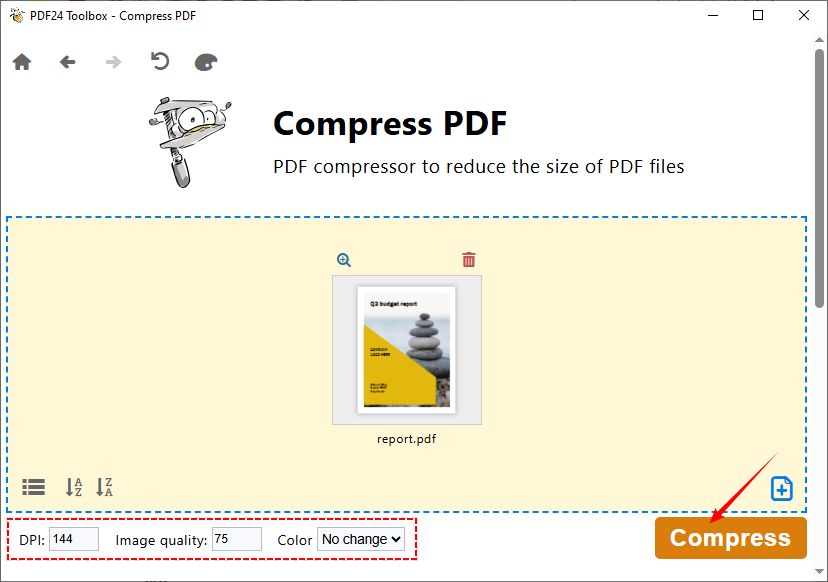
Uma ferramenta de desktop gratuita de primeira linha que funciona totalmente offline. Oferece mais de 40 ferramentas de PDF integradas e suporta compactação em lote.
- Abra a Caixa de Ferramentas do PDF24 e selecione a ferramenta Compactar PDF.
- Clique em “Escolher arquivos” ou solte seu arquivo PDF na janela.
- Defina as opções de “DPI”, “Qualidade da imagem” e “Cor”.
- Clique no botão “Compactar” e salve o arquivo.
LEIA TAMBÉM: Como Excluir Páginas de um PDF sem o Acrobat (Métodos Gratuitos)
Automação em Lote: Compactar PDF Programaticamente com C#
Para desenvolvedores que criam ferramentas de automação, sistemas de processamento em lote ou fluxos de trabalho de PDF personalizados, uma biblioteca como o Spire.PDF for .NET é uma excelente escolha. O Spire.PDF oferece vários métodos de compactação, e abordaremos os casos de uso mais comuns para reduzir o tamanho do PDF.
Código C# para Compactar Imagens em PDF
As imagens são a principal causa de arquivos PDF grandes. Este exemplo reduz o tamanho e a qualidade da imagem, mantendo a legibilidade.
using Spire.Pdf.Conversion.Compression;

namespace CompressImages
{
    class Program
    {
        static void Main(string[] args)
        {
            // Create a PdfCompressor object and load the PDF file
            PdfCompressor compressor = new PdfCompressor("Example.pdf");

            // Get the image compression options
            ImageCompressionOptions imageCompression = compressor.Options.ImageCompressionOptions;

            // Enable Image resizing
            imageCompression.ResizeImages = true;

            // Enable image compression
            imageCompression.CompressImage = true;

            // Set the image quality (available options: Low, Medium, High)
            imageCompression.ImageQuality = ImageQuality.Medium;


            // Compress the PDF file according to the compression options and save it to a new file
            compressor.CompressToFile("Compressed.pdf");
        }
    }
}
Neste código, a classe ImageCompressionOptions atua como um "painel de configurações" para como as imagens incorporadas em um PDF são otimizadas. Suas propriedades principais estão listadas abaixo:
- CompressImage: O interruptor principal para a compactação de imagens. Se definido como false, todas as outras configurações de compactação de imagem são completamente ignoradas.
- ResizeImages: Define se as dimensões da imagem devem ser reduzidas automaticamente.
- ImageQuality: Define o nível de qualidade das imagens compactadas (três opções):
- Baixa: Qualidade mínima, menor tamanho de arquivo (perda significativa de clareza da imagem).
- Média: Qualidade e tamanho de arquivo equilibrados (recomendado para a maioria dos cenários).
- Alta: Qualidade mais alta, compactação mínima (apenas uma ligeira redução no tamanho do arquivo).
Código C# para Otimizar Fontes em PDF
O gerenciamento de fontes pode impactar significativamente o tamanho do arquivo, especialmente em documentos com muito texto. Este exemplo compacta ou desincorpora fontes no PDF para reduzir o tamanho do arquivo sem perda de qualidade:
using Spire.Pdf.Conversion.Compression;

namespace OptimizeFonts
{
    internal class Program
    {
        static void Main(string[] args)
        {
            // Create a PdfCompressor object and load the PDF file
            PdfCompressor compressor = new PdfCompressor("Example.pdf");

            // Get the text compression options
            TextCompressionOptions textCompression = compressor.Options.TextCompressionOptions;

            // Compress the fonts
            textCompression.CompressFonts = true;

            // Unembed the fonts
            // textCompression.UnembedFonts = true;

            // Compress the PDF file according to the compression options and save it to a new file
            compressor.CompressToFile("CompressFonts.pdf");
        }
    }
}
A classe TextCompressionOptions controla a otimização para texto/fontes em um PDF (NÃO afeta imagens). Propriedades principais:
- CompressFonts: Interruptor principal para compactação de fontes. 100% seguro para reduzir os dados da fonte (o texto parece idêntico, o tamanho do arquivo é menor).
- UnembedFonts: Define se as fontes incorporadas devem ser removidas (Arriscado: o texto pode parecer corrompido/ilegível se o dispositivo que abre o PDF não tiver a fonte).
Dica Profissional: Para dados redundantes ou não utilizados em um PDF, use o Spire.PDF para removê-los antes da compactação (por exemplo, limpando metadados, removendo anexos incorporados).
Dicas Profissionais para Compactar PDF Sem Perder Qualidade
Compactar um PDF não significa sacrificar a qualidade. Siga estas dicas para obter o menor tamanho de arquivo possível, mantendo seu documento utilizável:
- Remova elementos desnecessários: Exclua páginas, imagens ou comentários redundantes antes de compactar.
- Otimize imagens: PDFs com imagens grandes costumam ser os maiores culpados. Redimensione as imagens para 72–150 DPI (suficiente para uso digital) antes de adicioná-las ao PDF.
- Evite incorporar fontes: Fontes incorporadas aumentam o tamanho do arquivo. Use fontes padrão (Arial, Times New Roman) que a maioria dos dispositivos já possui.
- Escolha o nível de compactação certo: Para PDFs somente de texto (por exemplo, currículos, relatórios), use “Alta Compactação” (pouca ou nenhuma perda de qualidade). Para PDFs com muitas imagens (por exemplo, brochuras, fotos), use “Equilibrado” para evitar desfoque.
- Teste antes de compartilhar: Sempre abra o PDF compactado para verificar a legibilidade (por exemplo, clareza do texto, nitidez da imagem) antes de enviar ou fazer upload.
Conclusão
Saber como compactar um PDF é uma habilidade crucial que otimiza seu fluxo de trabalho digital. Se você precisa de uma solução online rápida, do controle avançado de um software de desktop ou do poder da automação com C# e Spire.PDF, existe uma ferramenta perfeita para cada cenário.
Para a maioria dos usuários, os compressores online oferecem simplicidade, enquanto os desenvolvedores podem criar soluções robustas e integradas com bibliotecas programáveis. Avalie suas necessidades específicas de segurança, volume e qualidade para escolher o melhor método, e nunca mais deixe que arquivos volumosos o atrasem.
Perguntas Frequentes Sobre a Redução do Tamanho do PDF
P1. Compactar um PDF reduz a qualidade?
Sim, se não for feito com cuidado — especialmente para PDFs com muitas imagens. Use configurações de compactação sem perdas ou redução moderada da qualidade da imagem para equilibrar tamanho e clareza.
P2. É seguro usar compressores de PDF online?
A maioria dos sites respeitáveis criptografa as transferências e exclui os arquivos após o processamento. Evite fazer upload de documentos confidenciais para sites desconhecidos.
P3. Quanto posso reduzir o tamanho de um arquivo PDF?
Depende do conteúdo. PDFs baseados em texto podem encolher de 50 a 90%, enquanto arquivos com muitas imagens podem ser reduzidos de 20 a 50%.
P4. Posso compactar vários PDFs em lote de uma só vez?
Sim, muitas ferramentas suportam o processamento em lote. Aplicativos de desktop como o Adobe Acrobat Pro oferecem recursos robustos de lote. Para compactação em lote automatizada, use a biblioteca Spire.PDF for .NET.
Veja Também
PDF 압축 방법: PDF 용량을 줄이는 최고의 도구들
오늘날의 디지털 세상에서 PDF는 문서 공유의 보편적인 표준입니다. 그러나 큰 PDF 파일은 이메일 받은 편지함을 막고, 업로드 제한을 초과하며, 전송 속도가 느려지는 등 큰 번거로움이 될 수 있습니다. 학생, 전문가 또는 일반 사용자이든 PDF를 압축하는 방법을 배우는 것은 필수적인 디지털 기술입니다.
이 포괄적인 가이드는 무료 온라인 도구, 데스크톱 소프트웨어 및 C# 프로그래밍을 사용하는 것을 포함하여 PDF 파일을 압축하는 가장 쉽고 효과적인 방법을 안내하며, PDF 파일 크기를 줄이면서 품질을 높게 유지하는 전문가 팁을 제공합니다.
- PDF 파일을 압축해야 하는 이유는 무엇입니까?
- 빠른 해결책: 온라인에서 PDF 파일 압축
- 오프라인 도구: 데스크톱 소프트웨어로 PDF 압축
- 일괄 자동화: C#을 사용하여 프로그래밍 방식으로 PDF 압축
- 품질 저하 없이 PDF를 압축하는 전문가 팁
- PDF 크기 줄이기에 대한 자주 묻는 질문
PDF 파일을 압축해야 하는 이유는 무엇입니까?
PDF 크기를 줄이면 다음과 같은 몇 가지 주요 이점이 있습니다.
- 쉬운 이메일 첨부: 일반적인 25MB 이메일 제한을 준수하세요.
- 더 빠른 업로드 및 다운로드: 포털, 입사 지원 또는 클라우드 저장소에 이상적입니다.
- 저장 공간 절약: 하드 드라이브와 모바일 장치의 공간을 확보하세요.
- 전문적인 공유: 고객이나 동료에게 파일을 빠르고 효율적으로 보내세요.
- 웹사이트 최적화: 파일이 작을수록 웹 페이지에서 더 빨리 로드되어 사용자 경험과 SEO가 향상됩니다.
빠른 해결책: 온라인에서 PDF 파일 압축
많은 온라인 PDF 압축기를 사용하면 PDF 크기를 무료로 줄일 수 있습니다. 소프트웨어 설치가 필요 없으며 브라우저가 있는 모든 장치에서 작동합니다.
권장 도구:
- Smallpdf: PDF 작업을 위한 사용자 친화적인 올인원 제품군입니다.
- iLovePDF: 일괄 처리 옵션이 있는 신뢰할 수 있는 대안입니다.
- PDF2Go: 압축 수준을 정밀하게 제어할 수 있습니다.
PDF 크기를 줄이는 단계:
- 선택한 압축기 웹사이트(예: SmallPDF의 무료 PDF 압축 도구)로 이동합니다.
- “파일 선택”을 클릭하거나 파일을 브라우저 창으로 끌어다 놓습니다.
- 압축 수준(예: 중간 파일 크기, 표준 해상도의 경우 "기본")을 선택합니다.
- “압축” 또는 “PDF 축소” 버튼을 클릭합니다.
- 새로운 더 작은 PDF 파일을 장치에 다운로드합니다.
압축 결과:
전문가 팁: 민감한 문서의 경우 도구의 개인 정보 보호 정책을 확인하십시오. 대부분의 평판 좋은 사이트는 짧은 기간 후에 서버에서 파일을 삭제합니다.
오프라인 도구: 데스크톱 소프트웨어로 PDF 압축
오프라인(인터넷 없음)으로 PDF를 압축하거나 정기적으로 대규모 배치를 처리해야 하는 경우 데스크톱 소프트웨어가 더 좋습니다. 다음은 PDF 파일 크기를 줄이는 최고의 PDF 압축기입니다.
Adobe Acrobat Pro DC (업계 표준)
Adobe의 기본 도구는 PDF를 더 작게 만들기 위한 가장 고급 최적화 설정을 제공합니다.
- Acrobat Pro DC에서 PDF를 엽니다.
- “파일” > “다른 이름으로 저장”으로 이동하여 "파일 크기 줄이기”를 선택합니다.
- 호환성 수준을 선택하고 압축된 PDF 파일을 저장합니다.
PDF24 Creator 데스크톱 도구 (무료 대안)
최고 등급의 무료 데스크톱 도구는 완전히 오프라인으로 작동합니다. 40개 이상의 내장 PDF 도구를 제공하며 일괄 압축을 지원합니다.
- PDF24 도구 상자를 열고 압축 PDF 도구를 선택합니다.
- “파일 선택”을 클릭하거나 PDF 파일을 창으로 끌어다 놓습니다.
- “DPI”, “이미지 품질” 및 “색상” 옵션을 설정합니다.
- “압축” 버튼을 클릭하고 파일을 저장합니다.
또한 읽기: Acrobat 없이 PDF에서 페이지를 삭제하는 방법 (무료 방법)
일괄 자동화: C#을 사용하여 프로그래밍 방식으로 PDF 압축
자동화 도구, 일괄 처리 시스템 또는 사용자 지정 PDF 워크플로를 구축하는 개발자에게는 Spire.PDF for .NET과 같은 라이브러리가 탁월한 선택입니다. Spire.PDF는 여러 압축 방법을 제공하며 PDF 크기를 줄이기 위한 가장 일반적인 사용 사례를 다룰 것입니다.
PDF의 이미지를 압축하는 C# 코드
이미지는 큰 PDF 크기의 주요 원인입니다. 이 예제는 가독성을 유지하면서 이미지 크기와 품질을 줄입니다.
using Spire.Pdf.Conversion.Compression;

namespace CompressImages
{
    class Program
    {
        static void Main(string[] args)
        {
            // Create a PdfCompressor object and load the PDF file
            PdfCompressor compressor = new PdfCompressor("Example.pdf");

            // Get the image compression options
            ImageCompressionOptions imageCompression = compressor.Options.ImageCompressionOptions;

            // Enable Image resizing
            imageCompression.ResizeImages = true;

            // Enable image compression
            imageCompression.CompressImage = true;

            // Set the image quality (available options: Low, Medium, High)
            imageCompression.ImageQuality = ImageQuality.Medium;


            // Compress the PDF file according to the compression options and save it to a new file
            compressor.CompressToFile("Compressed.pdf");
        }
    }
}
이 코드에서 ImageCompressionOptions 클래스는 PDF에 포함된 이미지를 최적화하는 방법에 대한 "설정 패널" 역할을 합니다. 핵심 속성은 다음과 같습니다.
- CompressImage: 이미지 압축을 위한 마스터 스위치입니다. false로 설정하면 다른 모든 이미지 압축 설정이 완전히 무시됩니다.
- ResizeImages: 이미지 크기를 자동으로 줄일지 여부를 설정합니다.
- ImageQuality: 압축된 이미지의 품질 수준을 설정합니다(세 가지 옵션):
- 낮음: 최소 품질, 가장 작은 파일 크기(이미지 선명도 크게 손실).
- 중간: 균형 잡힌 품질 및 파일 크기(대부분의 시나리오에 권장).
- 높음: 최고 품질, 최소 압축(파일 크기 약간만 감소).
PDF에서 글꼴을 최적화하는 C# 코드
글꼴 관리는 특히 텍스트가 많은 문서에서 파일 크기에 상당한 영향을 미칠 수 있습니다. 이 예제는 품질 저하 없이 파일 크기를 줄이기 위해 PDF의 글꼴을 압축하거나 포함 해제합니다.
using Spire.Pdf.Conversion.Compression;

namespace OptimizeFonts
{
    internal class Program
    {
        static void Main(string[] args)
        {
            // Create a PdfCompressor object and load the PDF file
            PdfCompressor compressor = new PdfCompressor("Example.pdf");

            // Get the text compression options
            TextCompressionOptions textCompression = compressor.Options.TextCompressionOptions;

            // Compress the fonts
            textCompression.CompressFonts = true;

            // Unembed the fonts
            // textCompression.UnembedFonts = true;

            // Compress the PDF file according to the compression options and save it to a new file
            compressor.CompressToFile("CompressFonts.pdf");
        }
    }
}
TextCompressionOptions 클래스는 PDF의 텍스트/글꼴 최적화를 제어합니다(이미지에는 영향을 미치지 않음). 핵심 속성:
- CompressFonts: 글꼴 압축을 위한 마스터 스위치. 글꼴 데이터를 축소하는 데 100% 안전합니다(텍스트는 동일하게 보이고 파일 크기는 작아짐).
- UnembedFonts: 포함된 글꼴을 제거할지 여부를 설정합니다(위험: PDF를 여는 장치에 글꼴이 없으면 텍스트가 왜곡되거나 읽을 수 없게 보일 수 있음).
전문가 팁: PDF의 중복되거나 사용되지 않는 데이터의 경우 압축 전에 Spire.PDF를 사용하여 제거하십시오(예: 메타데이터 정리, 포함된 첨부 파일 제거).
품질 저하 없이 PDF를 압축하는 전문가 팁
PDF를 압축한다고 해서 품질이 희생되는 것은 아닙니다.다음 팁에 따라 문서를 사용 가능한 상태로 유지하면서 가능한 가장 작은 파일 크기를 얻으십시오.
- 불필요한 요소 제거: 압축하기 전에 중복된 페이지, 이미지 또는 주석을 삭제합니다.
- 이미지 최적화: 큰 이미지가 있는 PDF가 종종 가장 큰 원인입니다. PDF에 추가하기 전에 이미지 크기를 72–150 DPI(디지털 사용에 충분)로 조정합니다.
- 글꼴 포함 피하기: 포함된 글꼴은 파일 크기를 늘립니다. 대부분의 장치에 이미 있는 표준 글꼴(Arial, Times New Roman)을 사용하십시오.
- 올바른 압축 수준 선택: 텍스트 전용 PDF(예: 이력서, 보고서)의 경우 "높은 압축"(품질 손실 거의 없음)을 사용합니다. 이미지가 많은 PDF(예: 브로셔, 사진)의 경우 흐림을 방지하기 위해 "균형"을 사용합니다.
- 공유하기 전에 테스트: 보내거나 업로드하기 전에 항상 압축된 PDF를 열어 가독성(예: 텍스트 선명도, 이미지 선명도)을 확인하십시오.
결론
PDF를 압축하는 방법을 아는 것은 디지털 워크플로를 간소화하는 중요한 기술입니다. 빠른 온라인 수정, 데스크톱 소프트웨어의 고급 제어 또는 C# 및 Spire.PDF를 사용한 자동화의 강력한 기능이 필요하든 모든 시나리오에 완벽한 도구가 있습니다.
대부분의 사용자에게 온라인 압축기는 단순성을 제공하는 반면 개발자는 프로그래밍 가능한 라이브러리를 사용하여 강력하고 통합된 솔루션을 구축할 수 있습니다. 보안, 볼륨 및 품질에 대한 특정 요구 사항을 평가하여 최상의 방법을 선택하고 다시는 부피가 큰 파일로 인해 속도가 느려지지 않도록 하십시오.
PDF 크기 줄이기에 대한 자주 묻는 질문
Q1. PDF를 압축하면 품질이 저하됩니까?
예, 특히 이미지가 많은 PDF의 경우 신중하게 수행하지 않으면 그렇습니다. 무손실 압축 설정을 사용하거나 이미지 품질을 적당히 줄여 크기와 선명도의 균형을 맞추십시오.
Q2. 온라인 PDF 압축기를 사용해도 안전합니까?
대부분의 평판 좋은 사이트는 전송을 암호화하고 처리 후 파일을 삭제합니다. 알 수 없는 웹사이트에 민감한 문서를 업로드하지 마십시오.
Q3. PDF 파일 크기를 얼마나 줄일 수 있습니까?
콘텐츠에 따라 다릅니다. 텍스트 기반 PDF는 50–90%까지 축소될 수 있는 반면 이미지가 많은 파일은 20–50%까지 줄어들 수 있습니다.
Q4. 여러 PDF를 한 번에 일괄 압축할 수 있습니까?
예, 많은 도구가 일괄 처리를 지원합니다. Adobe Acrobat Pro와 같은 데스크톱 응용 프로그램은 강력한 일괄 처리 기능을 제공합니다. 자동화된 일괄 압축을 위해서는 Spire.PDF for .NET 라이브러리를 사용하십시오.
참고 항목
Come comprimere un PDF: i migliori strumenti per ridurre le dimensioni dei PDF
Indice
- Perché dovresti comprimere un file PDF?
- Soluzione rapida: Comprimi file PDF online
- Strumenti offline: Comprimi PDF con software desktop
- Automazione batch: Comprimi PDF programmaticamente con C#
- Suggerimenti professionali per comprimere PDF senza perdere qualità
- Domande frequenti sulla riduzione delle dimensioni dei PDF
Nel mondo digitale di oggi, i PDF sono lo standard universale per la condivisione di documenti. Tuttavia, i file PDF di grandi dimensioni possono essere un grosso problema: intasano le caselle di posta elettronica, superano i limiti di caricamento e sono lenti da trasferire. Imparare come comprimere un PDF è una competenza digitale essenziale, che tu sia uno studente, un professionista o un utente occasionale.
Questa guida completa ti illustrerà i metodi più semplici ed efficaci per comprimere i file PDF, compreso l'uso di strumenti online gratuiti, software desktop e programmazione in C#, oltre a suggerimenti professionali per mantenere alta la qualità riducendo le dimensioni del file PDF.
- Perché dovresti comprimere un file PDF?
- Soluzione rapida: Comprimi file PDF online
- Strumenti offline: Comprimi PDF con software desktop
- Automazione batch: Comprimi PDF programmaticamente con C#
- Suggerimenti professionali per comprimere PDF senza perdere qualità
- Domande frequenti sulla riduzione delle dimensioni dei PDF
Perché dovresti comprimere un file PDF?
La riduzione delle dimensioni del PDF offre diversi vantaggi chiave:
- Allegati email facili: rimani entro i comuni limiti di 25 MB per le email.
- Caricamenti e download più veloci: ideale per portali, candidature di lavoro o archiviazione cloud.
- Risparmia spazio di archiviazione: libera spazio sul tuo disco rigido e sui dispositivi mobili.
- Condivisione professionale: invia file in modo rapido ed efficiente a clienti o colleghi.
- Ottimizzazione del sito web: i file più piccoli si caricano più velocemente sulle pagine web, migliorando l'esperienza dell'utente e la SEO.
Soluzione rapida: Comprimi file PDF online
Molti compressori PDF online ti consentono di ridurre gratuitamente le dimensioni dei PDF. Non richiedono l'installazione di software e funzionano su qualsiasi dispositivo con un browser.
Strumenti consigliati:
- Smallpdf: una suite all-in-one di facile utilizzo per le attività relative ai PDF.
- iLovePDF: un'alternativa affidabile con opzioni di elaborazione batch.
- PDF2Go: offre un controllo preciso sul livello di compressione.
Passaggi per ridurre le dimensioni del PDF:
- Vai al sito web del compressore scelto (ad es. lo strumento di compressione PDF gratuito di SmallPDF).
- Fai clic su “SCEGLI FILE” o trascina e rilascia il tuo file nella finestra del browser.
- Scegli il tuo livello di compressione (ad es. "Base" per dimensioni di file medie, risoluzione standard).
- Fai clic sul pulsante “Comprimi” o "Riduci PDF".
- Scarica il tuo nuovo file PDF più piccolo sul tuo dispositivo.
Il risultato della compressione:
Suggerimento professionale: per i documenti sensibili, controlla l'informativa sulla privacy dello strumento. La maggior parte dei siti affidabili elimina i tuoi file dai propri server dopo un breve periodo.
Strumenti offline: Comprimi PDF con software desktop
Se devi comprimere PDF offline (senza Internet) o gestire regolarmente grandi lotti, il software desktop è migliore. Ecco i migliori compressori PDF per ridurre le dimensioni dei file PDF:
Adobe Acrobat Pro DC (standard del settore)
Lo strumento nativo di Adobe offre le impostazioni di ottimizzazione più avanzate per ridurre le dimensioni di un PDF.
- Apri il tuo PDF in Acrobat Pro DC.
- Vai su “File” > “Salva con nome” e scegli "Riduci dimensioni file”.
- Seleziona un livello di compatibilità e salva il file PDF compresso.
Strumento desktop PDF24 Creator (alternativa gratuita)
Uno strumento desktop gratuito di prim'ordine funziona interamente offline. Offre oltre 40 strumenti PDF integrati e supporta la compressione batch.
- Apri la casella degli strumenti di PDF24 e seleziona lo strumento Comprimi PDF.
- Fai clic su “Scegli file” o rilascia il tuo file PDF nella finestra.
- Imposta le opzioni “DPI”, “Qualità immagine” e “Colore”.
- Fai clic sul pulsante “Comprimi” e salva il file.
LEGGI ANCHE: Come eliminare pagine da PDF senza Acrobat (metodi gratuiti)
Automazione batch: Comprimi PDF programmaticamente con C#
Per gli sviluppatori che creano strumenti di automazione, sistemi di elaborazione batch o flussi di lavoro PDF personalizzati, una libreria come Spire.PDF for .NET è una scelta eccellente. Spire.PDF offre diversi metodi di compressione e tratteremo i casi d'uso più comuni per ridurre le dimensioni dei PDF.
Codice C# per comprimere le immagini in PDF
Le immagini sono la causa principale delle grandi dimensioni dei PDF. Questo esempio riduce le dimensioni e la qualità dell'immagine mantenendo la leggibilità.
using Spire.Pdf.Conversion.Compression;

namespace CompressImages
{
    class Program
    {
        static void Main(string[] args)
        {
            // Crea un oggetto PdfCompressor e carica il file PDF
            PdfCompressor compressor = new PdfCompressor("Example.pdf");

            // Ottieni le opzioni di compressione dell'immagine
            ImageCompressionOptions imageCompression = compressor.Options.ImageCompressionOptions;

            // Abilita il ridimensionamento dell'immagine
            imageCompression.ResizeImages = true;

            // Abilita la compressione dell'immagine
            imageCompression.CompressImage = true;

            // Imposta la qualità dell'immagine (opzioni disponibili: Bassa, Media, Alta)
            imageCompression.ImageQuality = ImageQuality.Medium;


            // Comprimi il file PDF in base alle opzioni di compressione e salvalo in un nuovo file
            compressor.CompressToFile("Compressed.pdf");
        }
    }
}
In questo codice, la classe ImageCompressionOptions funge da "pannello delle impostazioni" per l'ottimizzazione delle immagini incorporate in un PDF. Le sue proprietà principali sono elencate di seguito:
- CompressImage: l'interruttore principale per la compressione delle immagini. Se impostato su false, tutte le altre impostazioni di compressione delle immagini vengono completamente ignorate.
- ResizeImages: imposta se ridurre automaticamente le dimensioni dell'immagine.
- ImageQuality: imposta il livello di qualità delle immagini compresse (tre opzioni):
- Bassa: qualità minima, dimensioni del file più piccole (perdita significativa della nitidezza dell'immagine).
- Media: qualità e dimensioni del file bilanciate (consigliato per la maggior parte degli scenari).
- Alta: massima qualità, compressione minima (solo una leggera riduzione delle dimensioni del file).
Codice C# per ottimizzare i caratteri in PDF
La gestione dei caratteri può influire in modo significativo sulle dimensioni del file, in particolare nei documenti con molto testo. Questo esempio comprime o disincorpora i caratteri nel PDF per ridurre le dimensioni del file senza perdita di qualità:
using Spire.Pdf.Conversion.Compression;

namespace OptimizeFonts
{
    internal class Program
    {
        static void Main(string[] args)
        {
            // Crea un oggetto PdfCompressor e carica il file PDF
            PdfCompressor compressor = new PdfCompressor("Example.pdf");

            // Ottieni le opzioni di compressione del testo
            TextCompressionOptions textCompression = compressor.Options.TextCompressionOptions;

            // Comprimi i caratteri
            textCompression.CompressFonts = true;

            // Disincorpora i caratteri
            // textCompression.UnembedFonts = true;

            // Comprimi il file PDF in base alle opzioni di compressione e salvalo in un nuovo file
            compressor.CompressToFile("CompressFonts.pdf");
        }
    }
}
La classe TextCompressionOptions controlla l'ottimizzazione per testo/caratteri in un PDF (NON influisce sulle immagini). Proprietà principali:
- CompressFonts: interruttore principale per la compressione dei caratteri. Sicuro al 100% per ridurre i dati dei caratteri (il testo appare identico, le dimensioni del file sono più piccole).
- UnembedFonts: imposta se rimuovere i caratteri incorporati (Rischioso: il testo potrebbe apparire confuso/illeggibile se il dispositivo che apre il PDF non dispone del carattere).
Suggerimento professionale: per i dati ridondanti o non utilizzati in un PDF, utilizzare Spire.PDF per rimuoverli prima della compressione (ad es. pulizia dei metadati, rimozione degli allegati incorporati).
Suggerimenti professionali per comprimere PDF senza perdere qualità
Comprimere un PDF non significa sacrificare la qualità.Segui questi suggerimenti per ottenere le dimensioni del file più piccole possibili mantenendo il tuo documento utilizzabile:
- Rimuovi elementi non necessari: elimina pagine, immagini o commenti ridondanti prima della compressione.
- Ottimizza le immagini: i PDF con immagini di grandi dimensioni sono spesso i maggiori colpevoli. Ridimensiona le immagini a 72–150 DPI (sufficienti per l'uso digitale) prima di aggiungerle al PDF.
- Evita di incorporare i caratteri: i caratteri incorporati aumentano le dimensioni del file. Utilizza caratteri standard (Arial, Times New Roman) che la maggior parte dei dispositivi ha già.
- Scegli il giusto livello di compressione: per i PDF di solo testo (ad es. curriculum, report), utilizza "Compressione alta" (poca o nessuna perdita di qualità). Per i PDF con molte immagini (ad es. brochure, foto), utilizza "Bilanciata" per evitare sfocature.
- Testa prima di condividere: apri sempre il PDF compresso per verificarne la leggibilità (ad es. chiarezza del testo, nitidezza dell'immagine) prima di inviarlo o caricarlo.
Conclusione
Saper comprimere un PDF è una competenza cruciale che ottimizza il tuo flusso di lavoro digitale. Che tu abbia bisogno di una soluzione rapida online, del controllo avanzato del software desktop o della potenza dell'automazione con C# e Spire.PDF, c'è uno strumento perfetto per ogni scenario.
Per la maggior parte degli utenti, i compressori online offrono semplicità, mentre gli sviluppatori possono creare soluzioni robuste e integrate con librerie programmabili. Valuta le tue esigenze specifiche di sicurezza, volume e qualità per scegliere il metodo migliore e non lasciare che i file ingombranti ti rallentino di nuovo.
Domande frequenti sulla riduzione delle dimensioni dei PDF
D1. La compressione di un PDF riduce la qualità?
Sì, se non eseguita con attenzione, specialmente per i PDF con molte immagini. Utilizza impostazioni di compressione senza perdita o una moderata riduzione della qualità dell'immagine per bilanciare dimensioni e nitidezza.
D2. È sicuro utilizzare i compressori PDF online?
La maggior parte dei siti affidabili crittografa i trasferimenti ed elimina i file dopo l'elaborazione. Evita di caricare documenti sensibili su siti web sconosciuti.
D3. Di quanto posso ridurre le dimensioni di un file PDF?
Dipende dal contenuto. I PDF basati su testo possono ridursi del 50–90%, while image-heavy files may reduce by 20–50%.
D4. Posso comprimere più PDF in batch contemporaneamente?
Sì, molti strumenti supportano l'elaborazione batch. Le applicazioni desktop come Adobe Acrobat Pro offer robust batch capabilities. For automated batch compressing, use the Spire.PDF for .NET library.
Vedi anche
Comment compresser un PDF : les meilleurs outils pour réduire la taille des PDF
Table des matières
- Pourquoi devriez-vous compresser un fichier PDF ?
- Solution rapide : Compresser des fichiers PDF en ligne
- Outils hors ligne : Compresser des PDF avec un logiciel de bureau
- Automatisation par lots : Compresser des PDF par programmation avec C#
- Conseils de pro pour compresser un PDF sans perte de qualité
- FAQ sur la réduction de la taille des PDF
Dans le monde numérique d'aujourd'hui, les PDF sont la norme universelle pour le partage de documents. Cependant, les fichiers PDF volumineux peuvent être un véritable casse-tête : ils encombrent les boîtes de réception, dépassent les limites de téléchargement et sont lents à transférer. Apprendre à compresser un PDF est une compétence numérique essentielle, que vous soyez étudiant, professionnel ou simple utilisateur.
Ce guide complet vous présentera les méthodes les plus simples et les plus efficaces pour compresser des fichiers PDF, y compris l'utilisation d'outils en ligne gratuits, de logiciels de bureau et de la programmation en C#, ainsi que des conseils de pro pour maintenir une qualité élevée tout en réduisant la taille du fichier PDF.
- Pourquoi devriez-vous compresser un fichier PDF ?
- Solution rapide : Compresser des fichiers PDF en ligne
- Outils hors ligne : Compresser des PDF avec un logiciel de bureau
- Automatisation par lots : Compresser des PDF par programmation avec C#
- Conseils de pro pour compresser un PDF sans perte de qualité
- FAQ sur la réduction de la taille des PDF
Pourquoi devriez-vous compresser un fichier PDF ?
Réduire la taille d'un PDF offre plusieurs avantages clés :
- Pièces jointes faciles : Restez dans les limites courantes de 25 Mo pour les e-mails.
- Téléchargements plus rapides : Idéal pour les portails, les candidatures à un emploi ou le stockage en nuage.
- Économisez de l'espace de stockage : Libérez de l'espace sur votre disque dur et vos appareils mobiles.
- Partage professionnel : Envoyez des fichiers rapidement et efficacement à des clients ou des collègues.
- Optimisation du site Web : Les fichiers plus petits se chargent plus rapidement sur les pages Web, améliorant l'expérience utilisateur et le référencement.
Solution rapide : Compresser des fichiers PDF en ligne
De nombreux compresseurs de PDF en ligne vous permettent de réduire gratuitement la taille des PDF. Ils ne nécessitent aucune installation de logiciel et fonctionnent sur n'importe quel appareil doté d'un navigateur.
Outils recommandés :
- Smallpdf : Une suite tout-en-un conviviale pour les tâches PDF.
- iLovePDF : Une alternative fiable avec des options de traitement par lots.
- PDF2Go : Offre un contrôle précis sur le niveau de compression.
Étapes pour diminuer la taille du PDF :
- Allez sur le site Web du compresseur de votre choix (par exemple, l'outil de compression PDF gratuit de SmallPDF).
- Cliquez sur « CHOISIR DES FICHIERS » ou glissez-déposez votre fichier dans la fenêtre du navigateur.
- Choisissez votre niveau de compression (par exemple, « De base » pour une taille de fichier moyenne, résolution standard).
- Cliquez sur le bouton « Compresser » ou « Réduire le PDF ».
- Téléchargez votre nouveau fichier PDF, plus petit, sur votre appareil.
Le résultat de la compression :
Conseil de pro : Pour les documents sensibles, consultez la politique de confidentialité de l'outil. La plupart des sites réputés suppriment vos fichiers de leurs serveurs after une courte période.
Outils hors ligne : Compresser des PDF avec un logiciel de bureau
Si vous devez compresser des PDF hors ligne (sans Internet) ou traiter régulièrement de gros lots, un logiciel de bureau est préférable. Voici les meilleurs compresseurs de PDF pour réduire la taille des fichiers PDF :
Adobe Acrobat Pro DC (Norme de l'industrie)
L'outil natif d'Adobe offre les paramètres d'optimisation les plus avancés pour réduire la taille d'un PDF.
- Ouvrez votre PDF dans Acrobat Pro DC.
- Allez dans « Fichier » > « Enregistrer sous un autre format » et choisissez « Réduire la taille du fichier ».
- Sélectionnez un niveau de compatibilité et enregistrez le fichier PDF compressé.
Outil de bureau PDF24 Creator (Alternative gratuite)
Un outil de bureau gratuit de premier ordre qui fonctionne entièrement hors ligne. Il offre plus de 40 outils PDF intégrés et prend en charge la compression par lots.
- Ouvrez la boîte à outils PDF24 et sélectionnez l'outil Compresser PDF.
- Cliquez sur « Choisir des fichiers » ou déposez votre fichier PDF dans la fenêtre.
- Définissez les options « DPI », « Qualité de l'image » et « Couleur ».
- Cliquez sur le bouton « Compresser » et enregistrez le fichier.
LIRE AUSSI : Comment supprimer des pages d'un PDF sans Acrobat (Méthodes gratuites)
Automatisation par lots : Compresser des PDF par programmation avec C#
Pour les développeurs qui créent des outils d'automatisation, des systèmes de traitement par lots ou des flux de travail PDF personnalisés, une bibliothèque comme Spire.PDF for .NET est un excellent choix. Spire.PDF propose plusieurs méthodes de compression, et nous couvrirons les cas d'utilisation les plus courants pour réduire la taille des PDF.
Code C# pour compresser les images dans un PDF
Les images sont la principale cause de la grande taille des fichiers PDF. Cet exemple réduit la taille et la qualité de l'image tout en maintenant la lisibilité.
using Spire.Pdf.Conversion.Compression;

namespace CompressImages
{
    class Program
    {
        static void Main(string[] args)
        {
            // Create a PdfCompressor object and load the PDF file
            PdfCompressor compressor = new PdfCompressor("Example.pdf");

            // Get the image compression options
            ImageCompressionOptions imageCompression = compressor.Options.ImageCompressionOptions;

            // Enable Image resizing
            imageCompression.ResizeImages = true;

            // Enable image compression
            imageCompression.CompressImage = true;

            // Set the image quality (available options: Low, Medium, High)
            imageCompression.ImageQuality = ImageQuality.Medium;


            // Compress the PDF file according to the compression options and save it to a new file
            compressor.CompressToFile("Compressed.pdf");
        }
    }
}
Dans ce code, la classe ImageCompressionOptions agit comme un « panneau de configuration » pour la manière dont les images intégrées dans un PDF sont optimisées. Ses propriétés principales sont répertoriées ci-dessous :
- CompressImage : L'interrupteur principal pour la compression d'images. S'il est défini sur false, tous les autres paramètres de compression d'image sont complètement ignorés.
- ResizeImages : Définit s'il faut réduire automatiquement les dimensions de l'image.
- ImageQuality : Définit le niveau de qualité des images compressées (trois options) :
- Faible : Qualité minimale, taille de fichier la plus petite (perte de clarté d'image significative).
- Moyenne : Qualité et taille de fichier équilibrées (recommandé pour la plupart des scénarios).
- Élevée : Qualité la plus élevée, compression minimale (seulement une légère réduction de la taille du fichier).
Code C# pour optimiser les polices dans un PDF
La gestion des polices peut avoir un impact significatif sur la taille du fichier, en particulier dans les documents riches en texte. Cet exemple compresse ou désincorpore les polices dans le PDF pour réduire la taille du fichier sans perte de qualité :
using Spire.Pdf.Conversion.Compression;

namespace OptimizeFonts
{
    internal class Program
    {
        static void Main(string[] args)
        {
            // Create a PdfCompressor object and load the PDF file
            PdfCompressor compressor = new PdfCompressor("Example.pdf");

            // Get the text compression options
            TextCompressionOptions textCompression = compressor.Options.TextCompressionOptions;

            // Compress the fonts
            textCompression.CompressFonts = true;

            // Unembed the fonts
            // textCompression.UnembedFonts = true;

            // Compress the PDF file according to the compression options and save it to a new file
            compressor.CompressToFile("CompressFonts.pdf");
        }
    }
}
La classe TextCompressionOptions contrôle l'optimisation du texte/des polices dans un PDF (elle n'affecte PAS les images). Propriétés principales :
- CompressFonts : Interrupteur principal pour la compression des polices. 100 % sûr pour réduire les données de police (le texte est identique, la taille du fichier est plus petite).
- UnembedFonts : Définit s'il faut supprimer les polices incorporées (Risqué : le texte peut paraître brouillé/illisible si l'appareil ouvrant le PDF ne dispose pas de la police).
Conseil de pro : Pour les données redondantes ou inutilisées dans un PDF, utilisez Spire.PDF pour les supprimer avant la compression (par exemple, nettoyer les métadonnées, supprimer les pièces jointes intégrées).
Conseils de pro pour compresser un PDF sans perte de qualité
Compresser un PDF ne signifie pas sacrifier la qualité. Suivez ces conseils pour obtenir la plus petite taille de fichier possible tout en gardant votre document utilisable :
- Supprimez les éléments inutiles : Supprimez les pages, images ou commentaires redondants avant de compresser.
- Optimisez les images : Les PDF avec de grandes images sont souvent les plus gros coupables. Redimensionnez les images à 72–150 DPI (suffisant pour un usage numérique) avant de les ajouter au PDF.
- Évitez d'incorporer des polices : Les polices incorporées augmentent la taille du fichier. Utilisez des polices standard (Arial, Times New Roman) que la plupart des appareils possèdent déjà.
- Choisissez le bon niveau de compression : Pour les PDF contenant uniquement du texte (par exemple, CV, rapports), utilisez une « Compression élevée » (peu ou pas de perte de qualité). Pour les PDF riches en images (par exemple, brochures, photos), utilisez « Équilibré » pour éviter le flou.
- Testez avant de partager : Ouvrez toujours le PDF compressé pour vérifier la lisibilité (par exemple, la clarté du texte, la netteté de l'image) avant de l'envoyer ou de le télécharger.
Conclusion
Savoir comment compresser un PDF est une compétence cruciale qui rationalise votre flux de travail numérique. Que vous ayez besoin d'une solution en ligne rapide, du contrôle avancé d'un logiciel de bureau ou de la puissance de l'automatisation avec C# et Spire.PDF, il existe un outil parfait pour chaque scénario.
Pour la plupart des utilisateurs, les compresseurs en ligne offrent la simplicité, tandis que les développeurs peuvent créer des solutions robustes et intégrées avec des bibliothèques programmables. Évaluez vos besoins spécifiques en matière de sécurité, de volume et de qualité pour choisir la meilleure méthode, et ne laissez plus jamais des fichiers volumineux vous ralentir.
FAQ sur la réduction de la taille des PDF
Q1. La compression d'un PDF réduit-elle la qualité ?
Oui, si ce n'est pas fait avec soin, en particulier pour les PDF riches en images. Utilisez des paramètres de compression sans perte ou une réduction modérée de la qualité de l'image pour équilibrer la taille et la clarté.
Q2. Est-il sûr d'utiliser des compresseurs de PDF en ligne ?
La plupart des sites réputés chiffrent les transferts et suppriment les fichiers après traitement. Évitez de télécharger des documents sensibles sur des sites Web inconnus.
Q3. De combien puis-je réduire la taille d'un fichier PDF ?
Cela dépend du contenu. Les PDF à base de texte peuvent être réduits de 50 à 90 %, tandis que les fichiers riches en images peuvent être réduits de 20 à 50 %.
Q4. Puis-je compresser plusieurs PDF par lots en une seule fois ?
Oui, de nombreux outils prennent en charge le traitement par lots. Les applications de bureau comme Adobe Acrobat Pro offrent des capacités de traitement par lots robustes. Pour la compression par lots automatisée, utilisez la bibliothèque Spire.PDF for .NET.
Voir aussi
Cómo comprimir un PDF: las mejores herramientas para reducir el tamaño de los PDF
Tabla de Contenidos
- ¿Por Qué Deberías Comprimir un Archivo PDF?
- Solución Rápida: Comprimir Archivos PDF en Línea
- Herramientas sin Conexión: Comprimir PDF con Software de Escritorio
- Automatización por Lotes: Comprimir PDF Programáticamente con C#
- Consejos Profesionales para Comprimir PDF sin Perder Calidad
- Preguntas Frecuentes Sobre la Reducción del Tamaño de un PDF
En el mundo digital actual, los PDF son el estándar universal para compartir documentos. Sin embargo, los archivos PDF grandes pueden ser un gran problema: obstruyen las bandejas de entrada de los correos electrónicos, superan los límites de carga y su transferencia es lenta. Aprender a comprimir un PDF es una habilidad digital esencial, ya seas estudiante, profesional o usuario ocasional.
Esta guía completa te mostrará los métodos más fáciles y efectivos para comprimir archivos PDF, incluyendo el uso de herramientas en línea gratuitas, software de escritorio y programación en C#, además de consejos profesionales para mantener una alta calidad mientras se reduce el tamaño del archivo PDF.
- ¿Por Qué Deberías Comprimir un Archivo PDF?
- Solución Rápida: Comprimir Archivos PDF en Línea
- Herramientas sin Conexión: Comprimir PDF con Software de Escritorio
- Automatización por Lotes: Comprimir PDF Programáticamente con C#
- Consejos Profesionales para Comprimir PDF sin Perder Calidad
- Preguntas Frecuentes Sobre la Reducción del Tamaño de un PDF
¿Por Qué Deberías Comprimir un Archivo PDF?
Reducir el tamaño del PDF ofrece varios beneficios clave:
- Archivos Adjuntos de Correo Electrónico Fáciles: Mantente dentro de los límites comunes de 25 MB para correos electrónicos.
- Cargas y Descargas más Rápidas: Ideal para portales, solicitudes de empleo o almacenamiento en la nube.
- Ahorra Espacio de Almacenamiento: Libera espacio en tu disco duro y dispositivos móviles.
- Uso Compartido Profesional: Envía archivos de forma rápida y eficiente a clientes o colegas.
- Optimización de Sitios Web: Los archivos más pequeños se cargan más rápido en las páginas web, mejorando la experiencia del usuario y el SEO.
Solución Rápida: Comprimir Archivos PDF en Línea
Muchos compresores de PDF en línea te permiten reducir el tamaño del PDF de forma gratuita. No requieren instalación de software y funcionan en cualquier dispositivo con un navegador.
Herramientas Recomendadas:
- Smallpdf: Una suite todo en uno fácil de usar para tareas con PDF.
- iLovePDF: Una alternativa fiable con opciones de procesamiento por lotes.
- PDF2Go: Ofrece un control preciso sobre el nivel de compresión.
Pasos para Disminuir el Tamaño del PDF:
- Ve al sitio web del compresor que elijas (p. ej. la Herramienta Gratuita de Compresión de PDF de SmallPDF).
- Haz clic en “ELEGIR ARCHIVOS” o arrastra y suelta tu archivo en la ventana del navegador.
- Elige tu nivel de compresión (p. ej., “Básico” para un tamaño de archivo mediano y resolución estándar).
- Haz clic en el botón “Comprimir” o “Reducir PDF”.
- Descarga tu nuevo archivo PDF, más pequeño, en tu dispositivo.
El resultado de la compresión:
Consejo Profesional: Para documentos sensibles, revisa la política de privacidad de la herramienta. La mayoría de los sitios de confianza eliminan tus archivos de sus servidores después de un corto período.
Herramientas sin Conexión: Comprimir PDF con Software de Escritorio
Si necesitas comprimir PDFs sin conexión (sin internet) o manejar grandes lotes regularmente, el software de escritorio es mejor. Aquí están los mejores compresores de PDF para reducir el tamaño del archivo PDF:
Adobe Acrobat Pro DC (estándar de la industria)
La herramienta nativa de Adobe ofrece la configuración de optimización más avanzada para hacer un PDF más pequeño.
- Abre tu PDF en Acrobat Pro DC.
- Ve a “Archivo” > “Guardar como otro” y elige "Reducir tamaño de archivo”.
- Selecciona un nivel de compatibilidad y guarda el archivo PDF comprimido.
Herramienta de Escritorio PDF24 Creator (alternativa gratuita)
Una herramienta de escritorio gratuita de primer nivel que funciona completamente sin conexión. Ofrece más de 40 herramientas de PDF integradas y admite la compresión por lotes.
- Abre la Caja de Herramientas de PDF24 y selecciona la herramienta Comprimir PDF.
- Haz clic en “Elegir archivos” o suelta tu archivo PDF en la ventana.
- Establece las opciones de “DPI”, “Calidad de imagen” y “Color”.
- Haz clic en el botón “Comprimir” y guarda el archivo.
LEE TAMBIÉN: Cómo Eliminar Páginas de un PDF sin Acrobat (Métodos Gratuitos)
Automatización por Lotes: Comprimir PDF Programáticamente con C#
Para los desarrolladores que crean herramientas de automatización, sistemas de procesamiento por lotes o flujos de trabajo de PDF personalizados, una biblioteca como Spire.PDF for .NET es una excelente opción. Spire.PDF ofrece varios métodos de compresión, y cubriremos los casos de uso más comunes para reducir el tamaño del PDF.
Código C# para Comprimir Imágenes en PDF
Las imágenes son la causa principal de los grandes tamaños de los PDF. Este ejemplo reduce el tamaño y la calidad de la imagen manteniendo la legibilidad.
using Spire.Pdf.Conversion.Compression;

namespace CompressImages
{
    class Program
    {
        static void Main(string[] args)
        {
            // Crear un objeto PdfCompressor y cargar el archivo PDF
            PdfCompressor compressor = new PdfCompressor("Example.pdf");

            // Obtener las opciones de compresión de imagen
            ImageCompressionOptions imageCompression = compressor.Options.ImageCompressionOptions;

            // Habilitar el redimensionamiento de imágenes
            imageCompression.ResizeImages = true;

            // Habilitar la compresión de imágenes
            imageCompression.CompressImage = true;

            // Establecer la calidad de la imagen (opciones disponibles: Baja, Media, Alta)
            imageCompression.ImageQuality = ImageQuality.Medium;


            // Comprimir el archivo PDF según las opciones de compresión y guardarlo en un nuevo archivo
            compressor.CompressToFile("Compressed.pdf");
        }
    }
}
En este código, la clase ImageCompressionOptions actúa como un "panel de configuración" para cómo se optimizan las imágenes incrustadas en un PDF. Sus propiedades principales se enumeran a continuación:
- CompressImage: El interruptor principal para la compresión de imágenes. Si se establece en falso, todas las demás configuraciones de compresión de imágenes se ignoran por completo.
- ResizeImages: Establece si se deben reducir las dimensiones de la imagen automáticamente.
- ImageQuality: Establece el nivel de calidad de las imágenes comprimidas (tres opciones):
- Baja: Calidad mínima, tamaño de archivo más pequeño (pérdida significativa de la claridad de la imagen).
- Media: Calidad y tamaño de archivo equilibrados (recomendado para la mayoría de los escenarios).
- Alta: Máxima calidad, compresión mínima (solo una ligera reducción en el tamaño del archivo).
Código C# para Optimizar Fuentes en PDF
La gestión de fuentes puede afectar significativamente el tamaño del archivo, especialmente en documentos con mucho texto. Este ejemplo comprime o desincrusta fuentes en el PDF para reducir el tamaño del archivo sin pérdida de calidad:
using Spire.Pdf.Conversion.Compression;

namespace OptimizeFonts
{
    internal class Program
    {
        static void Main(string[] args)
        {
            // Crear un objeto PdfCompressor y cargar el archivo PDF
            PdfCompressor compressor = new PdfCompressor("Example.pdf");

            // Obtener las opciones de compresión de texto
            TextCompressionOptions textCompression = compressor.Options.TextCompressionOptions;

            // Comprimir las fuentes
            textCompression.CompressFonts = true;

            // Desincrustar las fuentes
            // textCompression.UnembedFonts = true;

            // Comprimir el archivo PDF según las opciones de compresión y guardarlo en un nuevo archivo
            compressor.CompressToFile("CompressFonts.pdf");
        }
    }
}
La clase TextCompressionOptions controla la optimización para texto/fuentes en un PDF (NO afecta a las imágenes). Propiedades principales:
- CompressFonts: Interruptor principal para la compresión de fuentes. 100% seguro para reducir los datos de las fuentes (el texto se ve idéntico, el tamaño del archivo es más pequeño).
- UnembedFonts: Establece si se deben eliminar las fuentes incrustadas (Arriesgado: el texto puede verse distorsionado/ilegible si el dispositivo que abre el PDF no tiene la fuente).
Consejo Profesional: Para los datos redundantes o no utilizados en un PDF, usa Spire.PDF para eliminarlos antes de la compresión (p. ej., limpiar metadatos, eliminar archivos adjuntos incrustados).
Consejos Profesionales para Comprimir PDF sin Perder Calidad
Comprimir un PDF no significa sacrificar la calidad. Sigue estos consejos para obtener el tamaño de archivo más pequeño posible manteniendo tu documento utilizable:
- Elimina elementos innecesarios: Borra páginas, imágenes o comentarios redundantes antes de comprimir.
- Optimiza las imágenes: Los PDF con imágenes grandes suelen ser los mayores culpables. Redimensiona las imágenes a 72–150 DPI (suficiente para uso digital) antes de añadirlas al PDF.
- Evita incrustar fuentes: Las fuentes incrustadas aumentan el tamaño del archivo. Usa fuentes estándar (Arial, Times New Roman) que la mayoría de los dispositivos ya tienen.
- Elige el nivel de compresión adecuado: Para PDF de solo texto (p. ej., currículums, informes), usa “Compresión Alta” (poca o ninguna pérdida de calidad). Para PDF con muchas imágenes (p. ej., folletos, fotos), usa “Equilibrado” para evitar que se vean borrosas.
- Prueba antes de compartir: Siempre abre el PDF comprimido para comprobar la legibilidad (p. ej., claridad del texto, nitidez de la imagen) antes de enviarlo o subirlo.
Conclusión
Saber cómo comprimir un PDF es una habilidad crucial que agiliza tu flujo de trabajo digital. Ya sea que necesites una solución rápida en línea, el control avanzado del software de escritorio o el poder de la automatización con C# y Spire.PDF, hay una herramienta perfecta para cada escenario.
Para la mayoría de los usuarios, los compresores en línea ofrecen simplicidad, mientras que los desarrolladores pueden crear soluciones robustas e integradas con bibliotecas programables. Evalúa tus necesidades específicas de seguridad, volumen y calidad para elegir el mejor método, y nunca dejes que los archivos voluminosos te vuelvan a ralentizar.
Preguntas Frecuentes Sobre la Reducción del Tamaño de un PDF
P1. ¿Comprimir un PDF reduce la calidad?
Sí, si no se hace con cuidado, especialmente en los PDF con muchas imágenes. Utiliza configuraciones de compresión sin pérdidas o una reducción moderada de la calidad de la imagen para equilibrar el tamaño y la claridad.
P2. ¿Es seguro usar compresores de PDF en línea?
La mayoría de los sitios de confianza cifran las transferencias y eliminan los archivos después del procesamiento. Evita subir documentos sensibles a sitios web desconocidos.
P3. ¿Cuánto puedo reducir el tamaño de un archivo PDF?
Depende del contenido. Los PDF basados en texto pueden reducirse entre un 50 y un 90 %, mientras que los archivos con muchas imágenes pueden reducirse entre un 20 y un 50 %.
P4. ¿Puedo comprimir varios PDF por lotes a la vez?
Sí, muchas herramientas admiten el procesamiento por lotes. Las aplicaciones de escritorio como Adobe Acrobat Pro ofrecen capacidades robustas para lotes. Para la compresión automatizada por lotes, utiliza la biblioteca Spire.PDF for .NET.
Ver También
PDF komprimieren: Die besten Tools, um PDFs kleiner zu machen
Inhaltsverzeichnis
- Warum sollten Sie eine PDF-Datei komprimieren?
- Schnelle Lösung: PDF-Dateien online komprimieren
- Offline-Tools: PDF mit Desktop-Software komprimieren
- Stapelautomatisierung: PDF programmgesteuert mit C# komprimieren
- Profi-Tipps zum Komprimieren von PDFs ohne Qualitätsverlust
- Häufig gestellte Fragen zur Reduzierung der PDF-Größe
In der heutigen digitalen Welt sind PDFs der universelle Standard für den Austausch von Dokumenten. Große PDF-Dateien können jedoch zu einem großen Ärgernis werden – sie verstopfen E-Mail-Postfächer, überschreiten Upload-Limits und sind langsam zu übertragen. Zu lernen, wie man eine PDF-Datei komprimiert, ist eine wesentliche digitale Fähigkeit, egal ob Sie Student, Berufstätiger oder Gelegenheitsnutzer sind.
Dieser umfassende Leitfaden führt Sie durch die einfachsten und effektivsten Methoden zum Komprimieren von PDF-Dateien, einschließlich der Verwendung kostenloser Online-Tools, Desktop-Software und C#-Programmierung, sowie Profi-Tipps, um die Qualität hoch zu halten und gleichzeitig die Dateigröße zu reduzieren.
- Warum sollten Sie eine PDF-Datei komprimieren?
- Schnelle Lösung: PDF-Dateien online komprimieren
- Offline-Tools: PDF mit Desktop-Software komprimieren
- Stapelautomatisierung: PDF programmgesteuert mit C# komprimieren
- Profi-Tipps zum Komprimieren von PDFs ohne Qualitätsverlust
- Häufig gestellte Fragen zur Reduzierung der PDF-Größe
Warum sollten Sie eine PDF-Datei komprimieren?
Die Reduzierung der PDF-Größe bietet mehrere wichtige Vorteile:
- Einfache E-Mail-Anhänge: Bleiben Sie innerhalb der üblichen 25-MB-E-Mail-Limits.
- Schnellere Uploads & Downloads: Ideal für Portale, Bewerbungen oder Cloud-Speicher.
- Speicherplatz sparen: Geben Sie Speicherplatz auf Ihrer Festplatte und Ihren mobilen Geräten frei.
- Professionelles Teilen: Senden Sie Dateien schnell und effizient an Kunden oder Kollegen.
- Website-Optimierung: Kleinere Dateien werden auf Webseiten schneller geladen, was die Benutzererfahrung und das SEO verbessert.
Schnelle Lösung: PDF-Dateien online komprimieren
Viele Online-PDF-Kompressoren ermöglichen es Ihnen, die PDF-Größe kostenlos zu reduzieren. Sie erfordern keine Softwareinstallation und funktionieren auf jedem Gerät mit einem Browser.
Empfohlene Tools:
- Smallpdf: Eine benutzerfreundliche All-in-One-Suite für PDF-Aufgaben.
- iLovePDF: Eine zuverlässige Alternative mit Stapelverarbeitungsoptionen.
- PDF2Go: Bietet eine präzise Kontrolle über den Komprimierungsgrad.
Schritte zur Verringerung der PDF-Größe:
- Gehen Sie zur Website des von Ihnen gewählten Kompressors (z. B. SmallPDFs kostenloses PDF-Komprimierungstool).
- Klicken Sie auf „DATEIEN AUSWÄHLEN“ oder ziehen Sie Ihre Datei per Drag-and-Drop in das Browserfenster.
- Wählen Sie Ihren Komprimierungsgrad (z. B. „Basis“ für mittlere Dateigröße, Standardauflösung).
- Klicken Sie auf die Schaltfläche „Komprimieren“ oder „PDF verkleinern“.
- Laden Sie Ihre neue, kleinere PDF-Datei auf Ihr Gerät herunter.
Das Komprimierungsergebnis:
Profi-Tipp: Bei sensiblen Dokumenten sollten Sie die Datenschutzrichtlinie des Tools überprüfen. Die meisten seriösen Websites löschen Ihre Dateien nach kurzer Zeit von ihren Servern.
Offline-Tools: PDF mit Desktop-Software komprimieren
Wenn Sie PDFs offline (ohne Internet) komprimieren oder regelmäßig große Stapel verarbeiten müssen, ist Desktop-Software besser geeignet. Hier sind die besten PDF-Kompressoren, um die PDF-Dateigröße zu verkleinern:
Adobe Acrobat Pro DC (Industriestandard)
Das native Tool von Adobe bietet die fortschrittlichsten Optimierungseinstellungen, um eine PDF-Datei zu verkleinern.
- Öffnen Sie Ihre PDF-Datei in Acrobat Pro DC.
- Gehen Sie zu „Datei” > „Speichern unter” und wählen Sie "Dateigröße reduzieren”.
- Wählen Sie eine Kompatibilitätsstufe und speichern Sie die komprimierte PDF-Datei.
PDF24 Creator Desktop Tool (Kostenlose Alternative)
Ein erstklassiges kostenloses Desktop-Tool, das vollständig offline funktioniert. Es bietet über 40 integrierte PDF-Tools und unterstützt die Stapelkomprimierung.
- Öffnen Sie die PDF24 Toolbox und wählen Sie das PDF komprimieren Werkzeug.
- Klicken Sie auf „Dateien auswählen” oder ziehen Sie Ihre PDF-Datei in das Fenster.
- Stellen Sie die Optionen „DPI”, „Bildqualität” und „Farbe” ein.
- Klicken Sie auf die Schaltfläche „Komprimieren” und speichern Sie die Datei.
LESEN SIE AUCH: So löschen Sie Seiten aus PDF ohne Acrobat (kostenlose Methoden)
Stapelautomatisierung: PDF programmgesteuert mit C# komprimieren
Für Entwickler, die Automatisierungstools, Stapelverarbeitungssysteme oder benutzerdefinierte PDF-Workflows erstellen, ist eine Bibliothek wie Spire.PDF for .NET eine ausgezeichnete Wahl. Spire.PDF bietet mehrere Komprimierungsmethoden, und wir werden die häufigsten Anwendungsfälle zur Reduzierung der PDF-Größe behandeln.
C#-Code zum Komprimieren von Bildern in PDF
Bilder sind die Hauptursache für große PDF-Dateien. Dieses Beispiel reduziert die Bildgröße und -qualität bei gleichbleibender Lesbarkeit.
using Spire.Pdf.Conversion.Compression;

namespace CompressImages
{
    class Program
    {
        static void Main(string[] args)
        {
            // Erstellen Sie ein PdfCompressor-Objekt und laden Sie die PDF-Datei
            PdfCompressor compressor = new PdfCompressor("Example.pdf");

            // Rufen Sie die Bildkomprimierungsoptionen ab
            ImageCompressionOptions imageCompression = compressor.Options.ImageCompressionOptions;

            // Aktivieren Sie die Bildgrößenänderung
            imageCompression.ResizeImages = true;

            // Aktivieren Sie die Bildkomprimierung
            imageCompression.CompressImage = true;

            // Legen Sie die Bildqualität fest (verfügbare Optionen: Niedrig, Mittel, Hoch)
            imageCompression.ImageQuality = ImageQuality.Medium;


            // Komprimieren Sie die PDF-Datei gemäß den Komprimierungsoptionen und speichern Sie sie in einer neuen Datei
            compressor.CompressToFile("Compressed.pdf");
        }
    }
}
In diesem Code fungiert die ImageCompressionOptions-Klasse als "Einstellungsfeld" dafür, wie eingebettete Bilder in einer PDF-Datei optimiert werden. Ihre Kerneigenschaften sind unten aufgeführt:
- CompressImage: Der Hauptschalter für die Bildkomprimierung. Wenn auf false gesetzt, werden alle anderen Bildkomprimierungseinstellungen vollständig ignoriert.
- ResizeImages: Legt fest, ob die Bildabmessungen automatisch verkleinert werden sollen.
- ImageQuality: Legt die Qualitätsstufe komprimierter Bilder fest (drei Optionen):
- Niedrig: Minimale Qualität, kleinste Dateigröße (deutlicher Verlust an Bildschärfe).
- Mittel: Ausgewogene Qualität und Dateigröße (empfohlen für die meisten Szenarien).
- Hoch: Höchste Qualität, minimale Komprimierung (nur geringfügige Reduzierung der Dateigröße).
C#-Code zur Optimierung von Schriftarten in PDF
Die Schriftverwaltung kann die Dateigröße erheblich beeinflussen, insbesondere bei textlastigen Dokumenten. Dieses Beispiel komprimiert oder entfernt eingebettete Schriftarten in der PDF-Datei, um die Dateigröße ohne Qualitätsverlust zu reduzieren:
using Spire.Pdf.Conversion.Compression;

namespace OptimizeFonts
{
    internal class Program
    {
        static void Main(string[] args)
        {
            // Erstellen Sie ein PdfCompressor-Objekt und laden Sie die PDF-Datei
            PdfCompressor compressor = new PdfCompressor("Example.pdf");

            // Rufen Sie die Textkomprimierungsoptionen ab
            TextCompressionOptions textCompression = compressor.Options.TextCompressionOptions;

            // Komprimieren Sie die Schriftarten
            textCompression.CompressFonts = true;

            // Entfernen Sie die Einbettung der Schriftarten
            // textCompression.UnembedFonts = true;

            // Komprimieren Sie die PDF-Datei gemäß den Komprimierungsoptionen und speichern Sie sie in einer neuen Datei
            compressor.CompressToFile("CompressFonts.pdf");
        }
    }
}
Die TextCompressionOptions-Klasse steuert die Optimierung für Text/Schriftarten in einer PDF-Datei (sie hat KEINEN Einfluss auf Bilder). Kerneigenschaften:
- CompressFonts: Hauptschalter für die Schriftkomprimierung. 100 % sicher, um Schriftartdaten zu verkleinern (Text sieht identisch aus, Dateigröße kleiner).
- UnembedFonts: Legt fest, ob eingebettete Schriftarten entfernt werden sollen (riskant: Text kann verstümmelt/unlesbar aussehen, wenn auf dem Gerät, das die PDF-Datei öffnet, die Schriftart fehlt).
Profi-Tipp: Für redundante oder ungenutzte Daten in einer PDF-Datei verwenden Sie Spire.PDF, um sie vor der Komprimierung zu entfernen (z. B. Metadaten bereinigen, eingebettete Anhänge entfernen).
Profi-Tipps zum Komprimieren von PDFs ohne Qualitätsverlust
Das Komprimieren einer PDF-Datei bedeutet nicht, dass Sie auf Qualität verzichten müssen.Befolgen Sie diese Tipps, um die kleinstmögliche Dateigröße zu erhalten und Ihr Dokument gleichzeitig nutzbar zu halten:
- Entfernen Sie unnötige Elemente: Löschen Sie redundante Seiten, Bilder oder Kommentare vor dem Komprimieren.
- Bilder optimieren: PDFs mit großen Bildern sind oft die größten Übeltäter. Ändern Sie die Größe der Bilder auf 72–150 DPI (ausreichend für die digitale Nutzung), bevor Sie sie der PDF-Datei hinzufügen.
- Vermeiden Sie das Einbetten von Schriftarten: Eingebettete Schriftarten erhöhen die Dateigröße. Verwenden Sie Standardschriftarten (Arial, Times New Roman), die die meisten Geräte bereits haben.
- Wählen Sie den richtigen Komprimierungsgrad: Für reine Text-PDFs (z. B. Lebensläufe, Berichte) verwenden Sie „Hohe Komprimierung“ (wenig bis kein Qualitätsverlust). Für bildlastige PDFs (z. B. Broschüren, Fotos) verwenden Sie „Ausgewogen“, um Unschärfe zu vermeiden.
- Vor dem Teilen testen: Öffnen Sie immer die komprimierte PDF-Datei, um die Lesbarkeit (z. B. Textklarheit, Bildschärfe) zu überprüfen, bevor Sie sie senden oder hochladen.
Fazit
Zu wissen, wie man eine PDF-Datei komprimiert, ist eine entscheidende Fähigkeit, die Ihren digitalen Arbeitsablauf optimiert. Ob Sie eine schnelle Online-Lösung, die erweiterte Steuerung von Desktop-Software oder die Leistungsfähigkeit der Automatisierung mit C# und Spire.PDF benötigen, es gibt für jedes Szenario das perfekte Werkzeug.
Für die meisten Benutzer bieten Online-Kompressoren Einfachheit, während Entwickler robuste, integrierte Lösungen mit programmierbaren Bibliotheken erstellen können. Bewerten Sie Ihre spezifischen Anforderungen an Sicherheit, Volumen und Qualität, um die beste Methode zu wählen, und lassen Sie sich nie wieder von sperrigen Dateien ausbremsen.
Häufig gestellte Fragen zur Reduzierung der PDF-Größe
F1. Verringert das Komprimieren einer PDF-Datei die Qualität?
Ja, wenn es nicht sorgfältig durchgeführt wird – insbesondere bei bildlastigen PDFs. Verwenden Sie verlustfreie Komprimierungseinstellungen oder eine moderate Reduzierung der Bildqualität, um Größe und Klarheit auszugleichen.
F2. Ist es sicher, Online-PDF-Kompressoren zu verwenden?
Die meisten seriösen Websites verschlüsseln Übertragungen und löschen Dateien nach der Verarbeitung. Vermeiden Sie das Hochladen sensibler Dokumente auf unbekannte Websites.
F3. Wie stark kann ich die Größe einer PDF-Datei reduzieren?
Das hängt vom Inhalt ab. Textbasierte PDFs können um 50–90 % verkleinert werden, während bildlastige Dateien um 20–50 % reduziert werden können.
F4. Kann ich mehrere PDFs auf einmal im Stapel komprimieren?
Ja, viele Tools unterstützen die Stapelverarbeitung. Desktop-Anwendungen wie Adobe Acrobat Pro bieten robuste Stapelfunktionen. Für die automatisierte Stapelkomprimierung verwenden Sie die Spire.PDF for .NET-Bibliothek.
Siehe auch
Как сжать PDF: лучшие инструменты для уменьшения размера PDF-файлов
Содержание
В современном цифровом мире PDF является универсальным стандартом для обмена документами. Однако большие PDF-файлы могут доставлять серьезные неудобства: они забивают почтовые ящики, превышают лимиты на загрузку и медленно передаются. Умение сжимать PDF — это важный цифровой навык, будь вы студент, профессионал или обычный пользователь.
Это подробное руководство познакомит вас с самыми простыми и эффективными методами сжатия PDF-файлов, включая использование бесплатных онлайн-инструментов, настольного программного обеспечения и программирования на C#, а также даст советы профессионалов, как сохранить высокое качество при уменьшении размера PDF-файла.
- Почему нужно сжимать PDF-файл?
- Быстрое решение: сжатие PDF-файлов онлайн
- Офлайн-инструменты: сжатие PDF с помощью настольного ПО
- Пакетная автоматизация: программное сжатие PDF с помощью C#
- Советы профессионалов по сжатию PDF без потери качества
- Часто задаваемые вопросы об уменьшении размера PDF
Почему нужно сжимать PDF-файл?
Уменьшение размера PDF дает несколько ключевых преимуществ:
- Простые вложения в электронную почту: оставайтесь в пределах обычных лимитов в 25 МБ.
- Более быстрая загрузка и скачивание: идеально подходит для порталов, заявлений о приеме на работу или облачных хранилищ.
- Экономия места на диске: освободите место на жестком диске и мобильных устройствах.
- Профессиональный обмен: быстрая и эффективная отправка файлов клиентам или коллегам.
- Оптимизация веб-сайта: файлы меньшего размера быстрее загружаются на веб-страницах, улучшая взаимодействие с пользователем и SEO.
Быстрое решение: сжатие PDF-файлов онлайн
Многие онлайн-компрессоры PDF позволяют бесплатно уменьшить размер PDF. Они не требуют установки программного обеспечения и работают на любом устройстве с браузером.
Рекомендуемые инструменты:
- Smallpdf: удобный универсальный набор для работы с PDF.
- iLovePDF: надежная альтернатива с возможностью пакетной обработки.
- PDF2Go: предлагает точный контроль над уровнем сжатия.
Шаги по уменьшению размера PDF:
- Перейдите на выбранный вами сайт-компрессор (например, бесплатный инструмент сжатия PDF от SmallPDF).
- Нажмите «ВЫБРАТЬ ФАЙЛЫ» или перетащите файл в окно браузера.
- Выберите уровень сжатия (например, «Базовый» для среднего размера файла и стандартного разрешения).
- Нажмите кнопку «Сжать» или «Уменьшить PDF».
- Загрузите новый, уменьшенный PDF-файл на свое устройство.
Результат сжатия:
Совет профессионала: для конфиденциальных документов ознакомьтесь с политикой конфиденциальности инструмента. Большинство авторитетных сайтов удаляют ваши файлы со своих серверов через короткий промежуток времени.
Офлайн-инструменты: сжатие PDF с помощью настольного ПО
Если вам нужно сжимать PDF-файлы в автономном режиме (без интернета) или регулярно обрабатывать большие партии, лучше использовать настольное программное обеспечение. Вот лучшие компрессоры PDF для уменьшения размера PDF-файла:
Adobe Acrobat Pro DC (отраслевой стандарт)
Собственный инструмент Adobe предлагает самые передовые настройки оптимизации для уменьшения размера PDF.
- Откройте PDF-файл в Acrobat Pro DC.
- Перейдите в меню «Файл» > «Сохранить как другой» и выберите «Уменьшить размер файла».
- Выберите уровень совместимости и сохраните сжатый PDF-файл.
Настольный инструмент PDF24 Creator (бесплатная альтернатива)
Первоклассный бесплатный настольный инструмент, работающий полностью в автономном режиме. Он предлагает более 40 встроенных инструментов для работы с PDF и поддерживает пакетное сжатие.
- Откройте PDF24 Toolbox и выберите инструмент Сжать PDF.
- Нажмите «Выбрать файлы» или перетащите PDF-файл в окно.
- Установите параметры «DPI», «Качество изображения» и «Цвет».
- Нажмите кнопку «Сжать» и сохраните файл.
ТАКЖЕ ЧИТАЙТЕ: Как удалить страницы из PDF без Acrobat (бесплатные методы)
Пакетная автоматизация: программное сжатие PDF с помощью C#
Для разработчиков, создающих инструменты автоматизации, системы пакетной обработки или пользовательские рабочие процессы с PDF, библиотека, такая как Spire.PDF for .NET, является отличным выбором. Spire.PDF предлагает несколько методов сжатия, и мы рассмотрим наиболее распространенные случаи использования для уменьшения размера PDF.
Код C# для сжатия изображений в PDF
Изображения являются основной причиной большого размера PDF. Этот пример уменьшает размер и качество изображений, сохраняя при этом читабельность.
using Spire.Pdf.Conversion.Compression;

namespace CompressImages
{
    class Program
    {
        static void Main(string[] args)
        {
            // Create a PdfCompressor object and load the PDF file
            PdfCompressor compressor = new PdfCompressor("Example.pdf");

            // Get the image compression options
            ImageCompressionOptions imageCompression = compressor.Options.ImageCompressionOptions;

            // Enable Image resizing
            imageCompression.ResizeImages = true;

            // Enable image compression
            imageCompression.CompressImage = true;

            // Set the image quality (available options: Low, Medium, High)
            imageCompression.ImageQuality = ImageQuality.Medium;


            // Compress the PDF file according to the compression options and save it to a new file
            compressor.CompressToFile("Compressed.pdf");
        }
    }
}
В этом коде класс ImageCompressionOptions действует как «панель настроек» для оптимизации встроенных изображений в PDF. Его основные свойства перечислены ниже:
- CompressImage: главный переключатель для сжатия изображений. Если установлено значение false, все остальные настройки сжатия изображений полностью игнорируются.
- ResizeImages: определяет, следует ли автоматически уменьшать размеры изображений.
- ImageQuality: устанавливает уровень качества сжатых изображений (три варианта):
- Низкое: минимальное качество, наименьший размер файла (значительная потеря четкости изображения).
- Среднее: сбалансированное качество и размер файла (рекомендуется для большинства сценариев).
- Высокое: высочайшее качество, минимальное сжатие (лишь незначительное уменьшение размера файла).
Код C# для оптимизации шрифтов в PDF
Управление шрифтами может значительно повлиять на размер файла, особенно в документах с большим количеством текста. Этот пример сжимает или отменяет встраивание шрифтов в PDF, чтобы уменьшить размер файла без потери качества:
using Spire.Pdf.Conversion.Compression;

namespace OptimizeFonts
{
    internal class Program
    {
        static void Main(string[] args)
        {
            // Create a PdfCompressor object and load the PDF file
            PdfCompressor compressor = new PdfCompressor("Example.pdf");

            // Get the text compression options
            TextCompressionOptions textCompression = compressor.Options.TextCompressionOptions;

            // Compress the fonts
            textCompression.CompressFonts = true;

            // Unembed the fonts
            // textCompression.UnembedFonts = true;

            // Compress the PDF file according to the compression options and save it to a new file
            compressor.CompressToFile("CompressFonts.pdf");
        }
    }
}
Класс TextCompressionOptions управляет оптимизацией текста/шрифтов в PDF (он НЕ влияет на изображения). Основные свойства:
- CompressFonts: главный переключатель для сжатия шрифтов. 100% безопасно для уменьшения данных шрифта (текст выглядит идентично, размер файла меньше).
- UnembedFonts: определяет, следует ли удалять встроенные шрифты (рискованно: текст может выглядеть искаженным/нечитаемым, если на устройстве, открывающем PDF, отсутствует шрифт).
Совет профессионала: для избыточных или неиспользуемых данных в PDF используйте Spire.PDF для их удаления перед сжатием (например, очистка метаданных, удаление встроенных вложений).
Советы профессионалов по сжатию PDF без потери качества
Сжатие PDF не означает жертвование качеством. Следуйте этим советам, чтобы получить минимально возможный размер файла, сохраняя при этом документ пригодным для использования:
- Удалите ненужные элементы: удалите лишние страницы, изображения или комментарии перед сжатием.
- Оптимизируйте изображения: PDF-файлы с большими изображениями часто являются самыми большими виновниками. Измените размер изображений до 72–150 DPI (достаточно для цифрового использования) перед добавлением их в PDF.
- Избегайте встраивания шрифтов: встроенные шрифты увеличивают размер файла. Используйте стандартные шрифты (Arial, Times New Roman), которые уже есть на большинстве устройств.
- Выберите правильный уровень сжатия: для PDF-файлов только с текстом (например, резюме, отчеты) используйте «Высокое сжатие» (незначительная или нулевая потеря качества). Для PDF-файлов с большим количеством изображений (например, брошюры, фотографии) используйте «Сбалансированное», чтобы избежать размытости.
- Проверьте перед отправкой: всегда открывайте сжатый PDF-файл, чтобы проверить читабельность (например, четкость текста, резкость изображения) перед отправкой или загрузкой.
Заключение
Знание того, как сжать PDF, является важным навыком, который оптимизирует ваш цифровой рабочий процесс. Независимо от того, нужно ли вам быстрое онлайн-решение, расширенный контроль настольного программного обеспечения или мощь автоматизации с помощью C# и Spire.PDF, для каждого сценария найдется идеальный инструмент.
Для большинства пользователей онлайн-компрессоры предлагают простоту, в то время как разработчики могут создавать надежные, интегрированные решения с помощью программируемых библиотек. Оцените свои конкретные потребности в безопасности, объеме и качестве, чтобы выбрать лучший метод, и никогда больше не позволяйте громоздким файлам замедлять вас.
Часто задаваемые вопросы об уменьшении размера PDF
В1. Снижает ли сжатие PDF качество?
Да, если делать это неосторожно, особенно для PDF-файлов с большим количеством изображений. Используйте настройки сжатия без потерь или умеренное снижение качества изображения, чтобы сбалансировать размер и четкость.
В2. Безопасно ли использовать онлайн-компрессоры PDF?
Большинство авторитетных сайтов шифруют передачу и удаляют файлы после обработки. Избегайте загрузки конфиденциальных документов на неизвестные веб-сайты.
В3. Насколько можно уменьшить размер PDF-файла?
Это зависит от содержимого. Текстовые PDF-файлы могут уменьшиться на 50–90%, в то время как файлы с большим количеством изображений могут уменьшиться на 20–50%.
В4. Можно ли сжимать несколько PDF-файлов одновременно?
Да, многие инструменты поддерживают пакетную обработку. Настольные приложения, такие как Adobe Acrobat Pro, предлагают надежные возможности пакетной обработки. Для автоматического пакетного сжатия используйте библиотеку Spire.PDF for .NET.