엑셀에서 텍스트 회전하기: 7가지 쉬운 방법
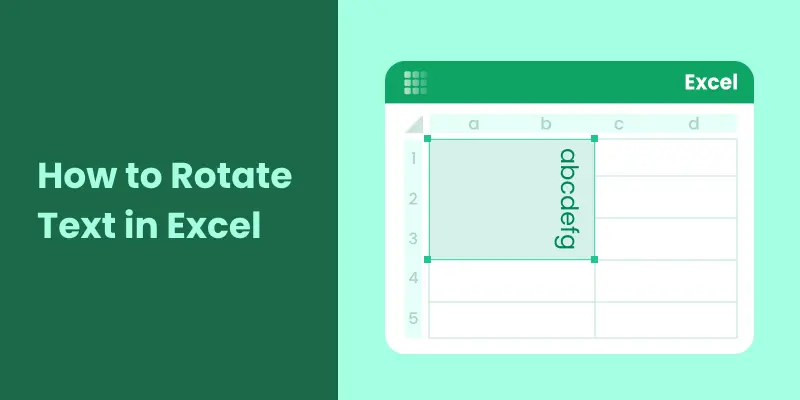
좁은 열이 많은 Excel 워크시트에서는 긴 머리글 텍스트로 인해 행이 높아지거나 표를 스캔하기 어려워지는 경우가 많습니다. 텍스트를 줄 바꿈하거나 축소하는 것만으로는 항상 문제가 해결되는 것은 아니며 가독성이 저하될 수도 있습니다. Excel에서 텍스트를 회전하면 레이블을 세로 또는 비스듬히 표시하여 공간을 절약하면서 레이아웃을 명확하고 전문적으로 유지할 수 있는 더 깔끔한 솔루션을 제공합니다.
이 가이드에서는 기본 제공 서식 도구부터 VBA 및 Python을 사용한 자동화된 솔루션까지 Excel에서 텍스트를 회전하는 7가지 실용적인 방법을 배우므로 모든 시나리오에 적합한 방법을 선택할 수 있습니다.
또한 읽기:
Excel에 워터마크를 추가하는 방법 (4가지 쉬운 방법)
Excel에서 텍스트를 회전하는 이유
Excel에서 텍스트를 회전하면 다음과 같은 이점이 있습니다.
- 시트를 확대하지 않고 좁은 열에 긴 머리글 맞추기
- 화면에 더 많은 행을 표시하여 전반적인 가독성 향상
- 더 깔끔하고 전문적인 모양으로 대시보드 및 보고서 구성
- 더 쉬운 분석을 위해 주요 레이블 또는 섹션 강조 표시
Excel에서 수동으로 텍스트를 회전하는 방법
Excel은 코드를 작성하지 않고도 셀의 텍스트를 회전할 수 있는 여러 가지 기본 제공 방법을 제공합니다. 이러한 방법은 빠른 서식 지정 작업, 작은 데이터 세트 또는 일회성 레이아웃 조정에 가장 적합합니다.
셀 서식 대화 상자를 사용하여 텍스트 회전
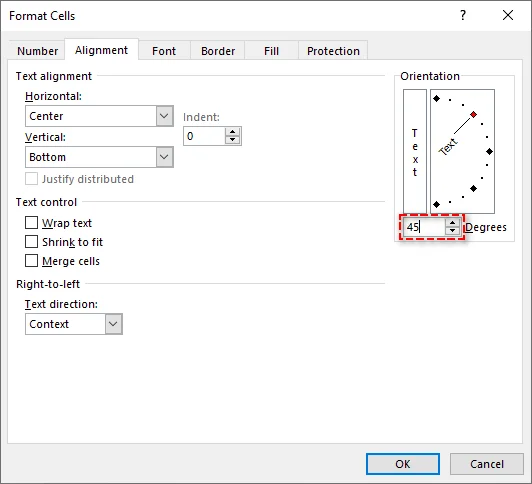
셀 서식 대화 상자는 Excel에서 텍스트를 회전하는 가장 유연한 옵션입니다. 정확한 각도를 설정할 수 있어 사용자 지정 레이아웃이나 비표준 머리글 방향에 특히 유용합니다.
단계:
-
회전하려는 텍스트가 포함된 셀을 클릭합니다.
-
선택한 셀을 마우스 오른쪽 버튼으로 클릭하고 상황에 맞는 메뉴에서 셀 서식…을 선택합니다.
-
셀 서식 대화 상자에서 맞춤 탭으로 전환합니다.
-
방향 섹션에서 회전 슬라이더를 드래그하거나 -90°에서 90° 사이의 값을 각도 상자에 입력합니다.
-
확인을 클릭하여 텍스트를 회전합니다.
리본(홈 탭)을 사용하여 텍스트 회전
리본은 미리 정의된 방향 스타일을 사용하여 텍스트를 회전하는 편리한 방법을 제공합니다. 이 방법은 사용자 지정 각도를 조정하지 않고 빠른 결과를 원하는 사용자에게 가장 적합합니다.
단계:
-
회전하려는 텍스트가 있는 셀을 강조 표시합니다.
-
Excel 리본에서 홈 탭으로 이동합니다.
-
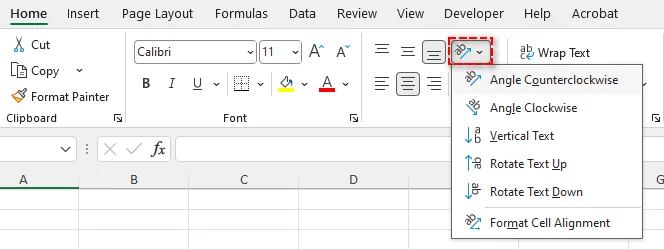
맞춤 그룹에서 방향 아이콘(기울어진 "ab" 기호로 표시됨)을 클릭합니다.
-
드롭다운 메뉴에서 텍스트 위로 회전, 텍스트 아래로 회전 또는 세로 텍스트와 같은 사전 설정 스타일을 선택합니다.
바로 가기 키를 사용하여 텍스트 회전
키보드 탐색을 선호하는 사용자를 위해 바로 가기는 Excel에서 텍스트를 더 빨리 회전할 수 있는 방법을 제공합니다. 이 방법은 추가 대화 상자를 열지 않고 머리글, 표 또는 대시보드를 빠르게 서식 지정하는 데 특히 유용합니다.
Excel에서 텍스트 회전을 위한 바로 가기 키:
- ALT > H > F > Q > L: 텍스트를 시계 방향으로 회전
- ALT > H > F > Q > O: 텍스트를 시계 반대 방향으로 회전
- ALT > H > F > Q > V: 텍스트를 세로로 회전
- ALT > H > F > Q > U: 텍스트를 위로 회전
- ALT > H > F > Q > D: 텍스트를 아래로 회전
단계:
- 회전하려는 셀 또는 범위를 선택합니다.
- 원하는 텍스트 회전을 적용하려면 위의 바로 가기 키 중 하나를 순서대로 누릅니다.
- 선택한 바로 가기에 따라 텍스트가 즉시 회전합니다.
텍스트 상자로 텍스트 회전
텍스트 상자를 사용하면 셀 서식과 독립적으로 텍스트를 회전할 수 있습니다. 이 방법은 텍스트를 자유롭게 배치하거나 차트 및 도형 위에 배치해야 할 때 유용합니다.
단계:
-
삽입 탭으로 이동하여 텍스트 상자를 클릭합니다.
-
워크시트에서 클릭하고 드래그하여 텍스트 상자를 만듭니다.
-
텍스트 상자 안에 원하는 텍스트를 입력합니다.
-
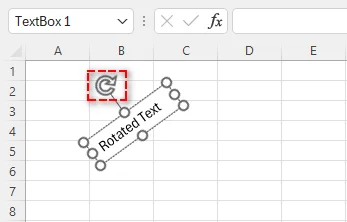
텍스트 상자를 선택한 다음 상단의 회전 핸들을 드래그하여 원하는 각도로 회전합니다.
WordArt로 텍스트 회전
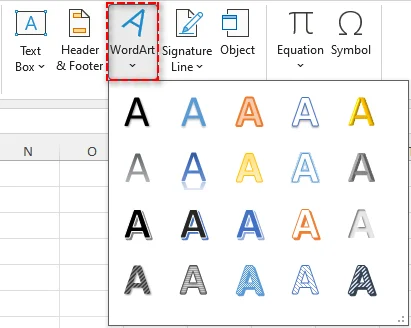
WordArt는 장식용으로 설계되었지만 윤곽선, 색상 또는 변형과 같은 시각 효과를 적용하면서 Excel에서 텍스트를 회전하는 데에도 사용할 수 있습니다.
단계:
-
삽입 > WordArt로 이동하여 스타일을 선택합니다.
-
자리 표시자 텍스트를 자신의 텍스트로 바꿉니다.
-
WordArt를 클릭하여 서식 옵션을 활성화합니다.
-
회전 핸들을 드래그하거나 도형 서식 탭을 사용하여 회전 값을 설정합니다.
WordArt는 제목, 섹션 레이블 또는 프레젠테이션 스타일의 Excel 파일에 가장 적합합니다.
Excel에서 자동으로 텍스트를 회전하는 방법
더 큰 데이터 세트나 반복적인 작업의 경우 VBA 또는 Python을 사용하여 텍스트 회전을 자동화하는 것이 수동 방법보다 훨씬 효율적입니다.
VBA로 텍스트 회전
VBA(Visual Basic for Applications)는 Excel 내에서 직접 텍스트 회전을 자동화하는 기본 제공 방법을 제공합니다. 이 방법은 사용자 작업, 워크시트 조건 또는 통합 문서 내의 미리 정의된 규칙에 따라 텍스트 회전을 동적으로 적용해야 할 때 이상적입니다.
VBA를 사용하여 Excel에서 텍스트를 회전하는 단계:
-
Alt + F11을 눌러 VBA 편집기를 엽니다.
-
편집기에서 삽입 > 모듈을 클릭하여 새 모듈을 만듭니다.
-
선택한 셀의 텍스트를 자동으로 회전하려면 다음 VBA 코드를 추가하십시오.
Sub RotateText()
    Dim rng As Range
    Set rng = Selection

    ' 선택한 모든 셀의 텍스트 회전
    rng.Orientation = 45
End Sub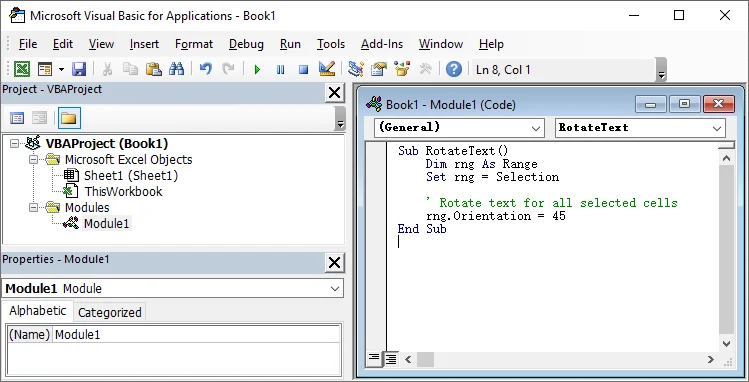
-
편집기를 닫고 Alt + F8을 누르고 RotateText를 선택한 다음 실행을 클릭합니다.
팁: 일단 생성되면 이 매크로는 언제든지 재사용할 수 있습니다. 특정 범위를 대상으로 하거나 더 빠른 액세스를 위해 리본 버튼에 할당하도록 수정할 수도 있습니다.
참조: Range.Orientation 속성 (Excel)
Python으로 텍스트 회전
Python 자동화는 여러 통합 문서를 처리하거나 데이터 처리 워크플로의 일부로 일관된 서식을 적용하는 등 대규모로 Excel 파일의 텍스트를 회전하는 데 적합합니다. 이 접근 방식은 Excel과의 수동 상호 작용 없이 실행되므로 Excel을 대화형으로 열지 않는 일괄 작업, 자동화된 스크립트 및 서버 측 환경에 이상적입니다.
Spire.XLS for Python과 같은 라이브러리를 사용하면 워크시트에서 프로그래밍 방식으로 텍스트를 회전하고 업데이트된 파일을 자동으로 저장할 수 있습니다.
Python을 사용하여 Excel에서 텍스트를 회전하는 단계:
-
PyPI에서 Spire.XLS for Python 라이브러리 설치:
pip install spire.xls -
지정된 셀의 텍스트를 자동으로 회전하는 Python 스크립트 작성:
from spire.xls import * # Excel 파일 로드 workbook = Workbook() workbook.LoadFromFile("example.xlsx") # 첫 번째 워크시트 액세스 sheet = workbook.Worksheets[0] # A1 셀의 텍스트 회전 sheet.Range["A1"].Style.Rotation = 45 # 업데이트된 통합 문서 저장 workbook.SaveToFile("example_rotated.xlsx", FileFormat.Version2016) workbook.Dispose() -
스크립트를 저장하고 실행합니다.
팁: 여러 시트나 통합 문서를 반복하여 일괄 작업으로 회전을 적용할 수 있습니다.
관련 기사: Python: Excel에서 텍스트 맞춤 및 방향 설정
Excel에서 텍스트 회전을 위한 모범 사례
Excel에서 텍스트를 회전하는 다양한 방법을 배운 후에는 서식을 명확하고 전문적으로 유지하기 위해 몇 가지 모범 사례를 따르는 것이 중요합니다.
- 회전은 드물게 사용: Excel에서 텍스트를 회전하면 내용에 맞게 조정하고 레이아웃을 개선하는 데 도움이 될 수 있지만 과도하게 사용하면 스프레드시트가 복잡해 보이고 읽기 어려워질 수 있습니다.
- 텍스트를 올바르게 정렬: 텍스트를 회전한 후 셀이나 표 내에서 올바르게 정렬되었는지 확인합니다. 깔끔한 모양을 유지하려면 행 높이, 열 너비 또는 텍스트 맞춤을 조정해야 할 수 있습니다.
- 가독성 우선 순위 지정: 텍스트를 회전할 때 내용의 방향을 고려하십시오. 세로 텍스트는 가로 텍스트보다 읽기 어려울 수 있으므로 주로 공간 절약이나 특수 레이아웃 요구에 사용하십시오.
결론
Excel에서 텍스트를 회전하면 Excel 워크시트에서 공간을 관리하고 명확성을 향상시키는 데 도움이 됩니다. 가끔 조정하는 경우 Excel의 기본 제공 회전 기능으로 충분합니다. 여러 파일에 걸쳐 서식을 반복적으로 적용해야 하는 경우 VBA 및 Python 자동화는 보다 효율적이고 확장 가능한 솔루션을 제공합니다. 올바른 접근 방식을 선택하는 것은 텍스트를 얼마나 자주 회전해야 하는지와 워크플로가 얼마나 복잡한지에 따라 다릅니다.
자주 묻는 질문
Q1: Excel에서 텍스트를 세로로 회전하려면 어떻게 해야 합니까?
A1: 셀 서식 대화 상자, 리본 방향 도구 또는 VBA/Python 자동화를 사용하여 Excel에서 텍스트를 세로로 회전할 수 있습니다.
Q2: 여러 Excel 시트의 텍스트를 자동으로 회전할 수 있습니까?
A2: 예. VBA 또는 Python을 사용하면 일괄 모드에서 여러 워크시트 또는 통합 문서에 회전을 적용할 수 있습니다.
Q3: Excel에서 텍스트 회전을 위한 VBA와 Python의 차이점은 무엇입니까?
A3: VBA는 Excel 내부에서 작동하며 통합 문서별 매크로에 이상적이며, Python은 Excel을 대화형으로 열지 않고도 여러 파일, 일괄 작업 및 서버 측 자동화를 처리합니다.
Q4: 다른 셀 서식에 영향을 주지 않고 Excel에서 텍스트를 회전할 수 있습니까?
A4: 예. 텍스트 상자나 WordArt를 사용하면 셀 서식과 독립적으로 회전할 수 있습니다.
참고 항목
Come ruotare il testo in Excel: 7 modi semplici
Nei fogli di lavoro di Excel con molte colonne strette, il testo lungo delle intestazioni spesso costringe le righe a diventare più alte o rende le tabelle più difficili da scansionare. Il semplice ritorno a capo o la riduzione del testo non sempre risolve il problema e può persino ridurre la leggibilità. La rotazione del testo in Excel offre una soluzione più pulita consentendo di visualizzare le etichette verticalmente o ad angolo, risparmiando spazio e mantenendo il layout chiaro e professionale.
In questa guida, imparerai 7 modi pratici per ruotare il testo in Excel, dagli strumenti di formattazione integrati alle soluzioni automatizzate che utilizzano VBA e Python, in modo da poter scegliere il metodo giusto per ogni scenario.
- Perché ruotare il testo in Excel?
- Come ruotare il testo in Excel manualmente
- Come ruotare il testo in Excel automaticamente
- Migliori pratiche per la rotazione del testo in Excel
Leggi anche:
Come ridurre testo o celle per adattarle al contenuto della cella
Come aggiungere filigrane a Excel (4 modi semplici)
Perché ruotare il testo in Excel?
La rotazione del testo in Excel ti aiuta a:
- Adattare intestazioni più lunghe in colonne strette senza ingrandire il foglio
- Rendere visibili più righe sullo schermo, migliorando la leggibilità generale
- Organizzare dashboard e report con un aspetto più pulito e professionale
- Evidenziare etichette o sezioni chiave per un'analisi più semplice
Come ruotare il testo in Excel manualmente
Excel offre diversi modi integrati per ruotare il testo nelle celle senza scrivere alcun codice. Questi metodi sono più adatti per attività di formattazione rapida, piccoli set di dati o aggiustamenti di layout una tantum.
Ruota testo utilizzando la finestra di dialogo Formato celle
La finestra di dialogo Formato celle è l'opzione più flessibile per ruotare il testo in Excel. Consente di impostare un angolo esatto, il che è particolarmente utile per layout personalizzati o orientamenti di intestazione non standard.
Passaggi:
-
Fai clic sulla cella contenente il testo che desideri ruotare.
-
Fai clic con il pulsante destro del mouse sulla cella selezionata e scegli Formato celle... dal menu di scelta rapida.
-
Nella finestra di dialogo Formato celle, passa alla scheda Allineamento.
-
Nella sezione Orientamento, trascina il cursore di rotazione o inserisci un valore compreso tra -90° e 90° nella casella Gradi.
-
Fai clic su OK per ruotare il testo.
Ruota testo utilizzando la barra multifunzione (scheda Home)
La barra multifunzione offre un modo comodo per ruotare il testo utilizzando stili di orientamento predefiniti. Questo metodo è ideale per gli utenti che desiderano risultati rapidi senza regolare angoli personalizzati.
Passaggi:
-
Evidenzia la cella con il testo che desideri ruotare.
-
Sulla barra multifunzione di Excel, vai alla scheda Home.
-
Nel gruppo Allineamento, fai clic sull'icona Orientamento (visualizzata come un simbolo "ab" inclinato).
-
Dal menu a discesa, seleziona uno stile preimpostato come Ruota testo in alto, Ruota testo in basso o Testo verticale.
Usa le scorciatoie da tastiera per ruotare il testo
Per gli utenti che preferiscono la navigazione da tastiera, le scorciatoie forniscono un modo più rapido per ruotare il testo in Excel. Questo metodo è particolarmente utile per formattare rapidamente intestazioni, tabelle o dashboard senza aprire finestre di dialogo aggiuntive.
Tasti di scelta rapida per ruotare il testo in Excel:
- ALT > H > F > Q > L: Ruota il testo in senso orario
- ALT > H > F > Q > O: Ruota il testo in senso antiorario
- ALT > H > F > Q > V: Ruota il testo verticalmente
- ALT > H > F > Q > U: Ruota il testo in alto
- ALT > H > F > Q > D: Ruota il testo in basso
Passaggi:
- Seleziona la cella o l'intervallo che desideri ruotare.
- Premi una delle scorciatoie da tastiera sopra in sequenza per applicare la rotazione del testo desiderata.
- Il testo ruota immediatamente in base alla scorciatoia selezionata.
Ruota testo con casella di testo
Le caselle di testo consentono di ruotare il testo indipendentemente dalla formattazione della cella. Questo metodo è utile quando il testo deve essere posizionato liberamente o posizionato sopra grafici e forme.
Passaggi:
-
Vai alla scheda Inserisci e fai clic su Casella di testo.
-
Fai clic e trascina sul foglio di lavoro per creare la casella di testo.
-
Digita il testo desiderato all'interno della casella di testo.
-
Seleziona la casella di testo, quindi trascina la maniglia di rotazione in alto per ruotarla a qualsiasi angolo.
Ruota testo con WordArt
WordArt è progettato per scopi decorativi, ma può anche essere utilizzato per ruotare il testo in Excel applicando effetti visivi come contorni, colori o trasformazioni.
Passaggi:
-
Vai su Inserisci > WordArt e scegli uno stile.
-
Sostituisci il testo segnaposto con il tuo.
-
Fai clic su WordArt per attivare le opzioni di formattazione.
-
Trascina la maniglia di rotazione o utilizza la scheda Formato forma per impostare i valori di rotazione.
WordArt funziona meglio per intestazioni, etichette di sezione o file Excel in stile presentazione.
Come ruotare il testo in Excel automaticamente
Per set di dati più grandi o attività ripetute, l'automazione della rotazione del testo tramite VBA o Python è molto più efficiente dei metodi manuali.
Ruota testo con VBA
VBA (Visual Basic for Applications) fornisce un modo integrato per automatizzare la rotazione del testo direttamente all'interno di Excel. Questo metodo è ideale quando la rotazione del testo deve essere applicata dinamicamente in base alle azioni dell'utente, alle condizioni del foglio di lavoro o a regole predefinite all'interno di una cartella di lavoro.
Passaggi per ruotare il testo in Excel utilizzando VBA:
-
Premi Alt + F11 per aprire l'editor VBA.
-
Nell'editor, fai clic su Inserisci > Modulo per creare un nuovo modulo.
-
Aggiungi il seguente codice VBA per ruotare automaticamente il testo nelle celle selezionate:
Sub RotateText() Dim rng As Range Set rng = Selection ' Ruota il testo per tutte le celle selezionate rng.Orientation = 45 End Sub -
Chiudi l'editor, premi Alt + F8, seleziona RotateText e fai clic su Esegui.
Suggerimento: Una volta creata, questa macro può essere riutilizzata in qualsiasi momento. Puoi anche modificarla per indirizzare un intervallo specifico o assegnarla a un pulsante della barra multifunzione per un accesso più rapido.
Riferimento: Proprietà Range.Orientation (Excel)
Ruota testo con Python
L'automazione Python è adatta per la rotazione di testo in file Excel su larga scala, ad esempio durante l'elaborazione di più cartelle di lavoro o l'applicazione di una formattazione coerente come parte di un flusso di lavoro di elaborazione dati. Questo approccio viene eseguito senza interazione manuale con Excel, rendendolo ideale per operazioni batch, script automatizzati e ambienti lato server in cui Excel non viene aperto in modo interattivo.
Utilizzando librerie come Spire.XLS per Python, è possibile ruotare il testo a livello di codice tra i fogli di lavoro e salvare automaticamente i file aggiornati.
Passaggi per ruotare il testo in Excel utilizzando Python:
-
Installa la libreria Spire.XLS per Python da PyPI:
pip install spire.xls -
Scrivi lo script Python per ruotare automaticamente il testo nella cella specificata:
from spire.xls import * # Carica file Excel workbook = Workbook() workbook.LoadFromFile("example.xlsx") # Accedi al primo foglio di lavoro sheet = workbook.Worksheets[0] # Ruota il testo nella cella A1 sheet.Range["A1"].Style.Rotation = 45 # Salva la cartella di lavoro aggiornata workbook.SaveToFile("example_rotated.xlsx", FileFormat.Version2016) workbook.Dispose() -
Salva ed esegui lo script.
Suggerimento: Puoi scorrere più fogli o cartelle di lavoro per applicare la rotazione in operazioni batch.
Articolo correlato: Python: imposta l'allineamento e l'orientamento del testo in Excel
Migliori pratiche per la rotazione del testo in Excel
Dopo aver appreso i diversi metodi per ruotare il testo in Excel, è importante seguire alcune best practice per garantire che la formattazione rimanga chiara e professionale.
- Usa la rotazione con parsimonia: la rotazione del testo in Excel può aiutare ad adattare il contenuto e migliorare il layout, ma un uso eccessivo può rendere il foglio di calcolo disordinato e più difficile da leggere.
- Allinea correttamente il testo: dopo aver ruotato il testo, assicurati che sia allineato correttamente all'interno della cella o della tabella. Potrebbe essere necessario regolare l'altezza della riga, la larghezza della colonna o l'allineamento del testo per mantenere un aspetto ordinato.
- Dai priorità alla leggibilità: considera l'orientamento del contenuto quando ruoti il testo. Il testo verticale può essere più difficile da leggere rispetto al testo orizzontale, quindi usalo principalmente per risparmiare spazio o per esigenze di layout speciali.
Conclusione
La rotazione del testo in Excel aiuta a gestire lo spazio e a migliorare la chiarezza nei fogli di lavoro di Excel. Per le regolazioni occasionali, le funzionalità di rotazione integrate di Excel sono generalmente sufficienti. Quando la formattazione deve essere applicata ripetutamente o su più file, l'automazione VBA e Python offre soluzioni più efficienti e scalabili. La scelta dell'approccio giusto dipende dalla frequenza con cui è necessario ruotare il testo e dalla complessità del flusso di lavoro.
Domande frequenti
D1: Come si ruota il testo verticalmente in Excel?
R1: È possibile utilizzare la finestra di dialogo Formato celle, lo strumento Orientamento della barra multifunzione o l'automazione VBA/Python per ruotare il testo verticalmente in Excel.
D2: Posso ruotare il testo automaticamente per più fogli di Excel?
R2: Sì. Utilizzando VBA o Python, è possibile applicare la rotazione su più fogli di lavoro o cartelle di lavoro in modalità batch.
D3: Qual è la differenza tra VBA e Python per la rotazione del testo in Excel?
R3: VBA funziona all'interno di Excel ed è ideale per macro specifiche della cartella di lavoro, mentre Python gestisce più file, operazioni batch e automazione lato server senza aprire Excel in modo interattivo.
D4: Posso ruotare il testo in Excel senza influire sulla formattazione di altre celle?
R4: Sì. L'utilizzo di caselle di testo o WordArt consente la rotazione indipendentemente dalla formattazione della cella.
Vedi anche
Comment faire pivoter du texte dans Excel : 7 méthodes faciles
Dans les feuilles de calcul Excel avec de nombreuses colonnes étroites, le texte d'en-tête long force souvent les lignes à devenir plus hautes ou rend les tableaux plus difficiles à parcourir. Le simple fait de renvoyer à la ligne ou de réduire le texte ne résout pas toujours le problème et peut même réduire la lisibilité. La rotation du texte dans Excel offre une solution plus propre en vous permettant d'afficher des étiquettes verticalement ou en biais, ce qui économise de l'espace tout en gardant votre mise en page claire et professionnelle.
Dans ce guide, vous apprendrez 7 façons pratiques de faire pivoter le texte dans Excel, des outils de formatage intégrés aux solutions automatisées utilisant VBA et Python, afin que vous puissiez choisir la bonne méthode pour chaque scénario.
- Pourquoi faire pivoter le texte dans Excel ?
- Comment faire pivoter le texte dans Excel manuellement
- Comment faire pivoter le texte dans Excel automatiquement
- Meilleures pratiques pour la rotation du texte dans Excel
Lisez aussi :
Comment réduire le texte ou les cellules pour s'adapter au contenu de la cellule
Comment ajouter des filigranes à Excel (4 façons simples)
Pourquoi faire pivoter le texte dans Excel ?
La rotation du texte dans Excel vous aide à :
- Insérer des en-têtes plus longs dans des colonnes étroites sans agrandir la feuille
- Rendre plus de lignes visibles à l'écran, améliorant la lisibilité globale
- Organiser les tableaux de bord et les rapports avec un aspect plus propre et plus professionnel
- Mettre en évidence les étiquettes ou sections clés pour une analyse plus facile
Comment faire pivoter le texte dans Excel manuellement
Excel offre plusieurs moyens intégrés de faire pivoter le texte dans les cellules sans écrire de code. Ces méthodes sont les mieux adaptées pour les tâches de formatage rapides, les petits ensembles de données ou les ajustements de mise en page ponctuels.
Faire pivoter le texte à l'aide de la boîte de dialogue Format de cellule
La boîte de dialogue Format de cellule est l'option la plus flexible pour faire pivoter le texte dans Excel. Elle vous permet de définir un angle exact, ce qui est particulièrement utile pour les mises en page personnalisées ou les orientations d'en-tête non standard.
Étapes :
-
Cliquez sur la cellule contenant le texte que vous souhaitez faire pivoter.
-
Faites un clic droit sur la cellule sélectionnée et choisissez Format de cellule… dans le menu contextuel.
-
Dans la boîte de dialogue Format de cellule, passez à l'onglet Alignement.
-
Dans la section Orientation, faites glisser le curseur de rotation ou entrez une valeur entre -90° et 90° dans la zone Degrés.
-
Cliquez sur OK pour faire pivoter le texte.
Faire pivoter le texte à l'aide du ruban (onglet Accueil)
Le ruban offre un moyen pratique de faire pivoter le texte à l'aide de styles d'orientation prédéfinis. Cette méthode est idéale pour les utilisateurs qui souhaitent des résultats rapides sans ajuster les angles personnalisés.
Étapes :
-
Mettez en surbrillance la cellule contenant le texte que vous souhaitez faire pivoter.
-
Sur le ruban Excel, allez dans l'onglet Accueil.
-
Dans le groupe Alignement, cliquez sur l'icône Orientation (affichée comme un symbole "ab" incliné).
-
Dans le menu déroulant, sélectionnez un style prédéfini tel que Rotation du texte vers le haut, Rotation du texte vers le bas ou Texte vertical.
Utiliser les raccourcis clavier pour faire pivoter le texte
Pour les utilisateurs qui préfèrent la navigation au clavier, les raccourcis offrent un moyen plus rapide de faire pivoter le texte dans Excel. Cette méthode est particulièrement utile pour formater rapidement des en-têtes, des tableaux ou des tableaux de bord sans ouvrir de boîtes de dialogue supplémentaires.
Touches de raccourci pour faire pivoter le texte dans Excel :
- ALT > H > F > Q > L : Faire pivoter le texte dans le sens des aiguilles d'une montre
- ALT > H > F > Q > O : Faire pivoter le texte dans le sens inverse des aiguilles d'une montre
- ALT > H > F > Q > V : Faire pivoter le texte verticalement
- ALT > H > F > Q > U : Faire pivoter le texte vers le haut
- ALT > H > F > Q > D : Faire pivoter le texte vers le bas
Étapes :
- Sélectionnez la cellule ou la plage que vous souhaitez faire pivoter.
- Appuyez sur l'un des raccourcis clavier ci-dessus en séquence pour appliquer la rotation de texte souhaitée.
- Le texte pivote immédiatement en fonction du raccourci sélectionné.
Faire pivoter le texte avec une zone de texte
Les zones de texte vous permettent de faire pivoter le texte indépendamment du formatage des cellules. Cette méthode est utile lorsque le texte doit être positionné librement ou placé au-dessus de graphiques et de formes.
Étapes :
-
Allez dans l'onglet Insertion et cliquez sur Zone de texte.
-
Cliquez et faites glisser sur la feuille de calcul pour créer la zone de texte.
-
Tapez le texte souhaité à l'intérieur de la zone de texte.
-
Sélectionnez la zone de texte, puis faites glisser la poignée de rotation en haut pour la faire pivoter à n'importe quel angle.
Faire pivoter le texte avec WordArt
WordArt est conçu à des fins décoratives, mais il peut également être utilisé pour faire pivoter du texte dans Excel tout en appliquant des effets visuels tels que des contours, des couleurs ou des transformations.
Étapes :
-
Allez dans Insertion > WordArt et choisissez un style.
-
Remplacez le texte de l'espace réservé par le vôtre.
-
Cliquez sur le WordArt pour activer les options de formatage.
-
Faites glisser la poignée de rotation ou utilisez l'onglet Format de la forme pour définir les valeurs de rotation.
WordArt fonctionne mieux pour les en-têtes, les étiquettes de section ou les fichiers Excel de style présentation.
Comment faire pivoter le texte dans Excel automatiquement
Pour les ensembles de données plus volumineux ou les tâches répétées, l'automatisation de la rotation du texte à l'aide de VBA ou de Python est beaucoup plus efficace que les méthodes manuelles.
Faire pivoter le texte avec VBA
VBA (Visual Basic pour Applications) fournit un moyen intégré d'automatiser la rotation du texte directement dans Excel. Cette méthode est idéale lorsque la rotation du texte doit être appliquée de manière dynamique en fonction des actions de l'utilisateur, des conditions de la feuille de calcul ou de règles prédéfinies dans un classeur.
Étapes pour faire pivoter le texte dans Excel à l'aide de VBA :
-
Appuyez sur Alt + F11 pour ouvrir l'éditeur VBA.
-
Dans l'éditeur, cliquez sur Insertion > Module pour créer un nouveau module.
-
Ajoutez le code VBA suivant pour faire pivoter automatiquement le texte dans les cellules sélectionnées :
Sub RotateText() Dim rng As Range Set rng = Selection ' Faire pivoter le texte pour toutes les cellules sélectionnées rng.Orientation = 45 End Sub -
Fermez l'éditeur, appuyez sur Alt + F8, sélectionnez RotateText et cliquez sur Exécuter.
Conseil : Une fois créée, cette macro peut être réutilisée à tout moment. Vous pouvez également la modifier pour cibler une plage spécifique ou l'attribuer à un bouton du ruban pour un accès plus rapide.
Référence : Propriété Range.Orientation (Excel)
Faire pivoter le texte avec Python
L'automatisation Python est bien adaptée à la rotation de texte dans les fichiers Excel à grande échelle, par exemple lors du traitement de plusieurs classeurs ou de l'application d'un formatage cohérent dans le cadre d'un flux de travail de traitement de données. Cette approche s'exécute sans interaction manuelle avec Excel, ce qui la rend idéale pour les opérations par lots, les scripts automatisés et les environnements côté serveur où Excel n'est pas ouvert de manière interactive.
À l'aide de bibliothèques comme Spire.XLS pour Python, vous pouvez faire pivoter le texte par programme sur plusieurs feuilles de calcul et enregistrer automatiquement les fichiers mis à jour.
Étapes pour faire pivoter le texte dans Excel à l'aide de Python :
-
Installez la bibliothèque Spire.XLS pour Python depuis PyPI :
pip install spire.xls -
Écrivez le script Python pour faire pivoter automatiquement le texte dans la cellule spécifiée :
from spire.xls import * # Charger le fichier Excel workbook = Workbook() workbook.LoadFromFile("example.xlsx") # Accéder à la première feuille de calcul sheet = workbook.Worksheets[0] # Faire pivoter le texte dans la cellule A1 sheet.Range["A1"].Style.Rotation = 45 # Enregistrer le classeur mis à jour workbook.SaveToFile("example_rotated.xlsx", FileFormat.Version2016) workbook.Dispose() -
Enregistrez et exécutez le script.
Conseil : Vous pouvez parcourir plusieurs feuilles ou classeurs pour appliquer la rotation dans des opérations par lots.
Article connexe : Python : Définir l'alignement et l'orientation du texte dans Excel
Meilleures pratiques pour la rotation du texte dans Excel
Après avoir appris les différentes méthodes pour faire pivoter le texte dans Excel, il est important de suivre quelques bonnes pratiques pour vous assurer que votre formatage reste clair et professionnel.
- Utilisez la rotation avec parcimonie : La rotation du texte dans Excel peut aider à ajuster le contenu et à améliorer la mise en page, mais une utilisation excessive peut rendre votre feuille de calcul encombrée et plus difficile à lire.
- Alignez correctement le texte : Après avoir fait pivoter le texte, assurez-vous qu'il est correctement aligné dans la cellule ou le tableau. Vous devrez peut-être ajuster la hauteur des lignes, la largeur des colonnes ou l'alignement du texte pour conserver une apparence soignée.
- Donnez la priorité à la lisibilité : Tenez compte de l'orientation du contenu lors de la rotation du texte. Le texte vertical peut être plus difficile à lire que le texte horizontal, utilisez-le donc principalement pour économiser de l'espace ou pour des besoins de mise en page spéciaux.
Conclusion
La rotation du texte dans Excel aide à gérer l'espace et à améliorer la clarté dans les feuilles de calcul Excel. Pour les ajustements occasionnels, les fonctionnalités de rotation intégrées d'Excel sont généralement suffisantes. Lorsque le formatage doit être appliqué à plusieurs reprises ou sur plusieurs fichiers, l'automatisation VBA et Python offre des solutions plus efficaces et évolutives. Le choix de la bonne approche dépend de la fréquence à laquelle vous devez faire pivoter le texte et de la complexité de votre flux de travail.
FAQ
Q1 : Comment faire pivoter le texte verticalement dans Excel ?
R1 : Vous pouvez utiliser la boîte de dialogue Format de cellule, l'outil Orientation du ruban ou l'automatisation VBA/Python pour faire pivoter le texte verticalement dans Excel.
Q2 : Puis-je faire pivoter le texte automatiquement pour plusieurs feuilles Excel ?
R2 : Oui. En utilisant VBA ou Python, vous pouvez appliquer la rotation sur plusieurs feuilles de calcul ou classeurs en mode batch.
Q3 : Quelle est la différence entre VBA et Python pour la rotation de texte dans Excel ?
R3 : VBA fonctionne à l'intérieur d'Excel et est idéal pour les macros spécifiques au classeur, tandis que Python gère plusieurs fichiers, les opérations par lots et l'automatisation côté serveur sans ouvrir Excel de manière interactive.
Q4 : Puis-je faire pivoter du texte dans Excel sans affecter le formatage des autres cellules ?
R4 : Oui. L'utilisation de zones de texte ou de WordArt permet une rotation indépendante du formatage des cellules.
Voir aussi
Cómo rotar texto en Excel: 7 formas fáciles
Tabla de Contenidos
En hojas de cálculo de Excel con muchas columnas estrechas, el texto largo de los encabezados a menudo obliga a que las filas se hagan más altas o dificulta la lectura de las tablas. Simplemente ajustar o reducir el texto no siempre resuelve el problema, e incluso puede reducir la legibilidad. Girar texto en Excel ofrece una solución más limpia al permitirle mostrar etiquetas verticalmente o en ángulo, ahorrando espacio mientras mantiene su diseño claro y profesional.
En esta guía, aprenderá 7 formas prácticas de girar texto en Excel, desde herramientas de formato integradas hasta soluciones automatizadas con VBA y Python, para que pueda elegir el método adecuado para cualquier escenario.
- ¿Por qué girar texto en Excel?
- Cómo girar texto en Excel manualmente
- Cómo girar texto en Excel automáticamente
- Mejores prácticas para girar texto en Excel
Lea también:
Cómo reducir texto o celdas para ajustar al contenido de la celda
Cómo agregar marcas de agua a Excel (4 formas fáciles)
¿Por qué girar texto en Excel?
Girar texto en Excel le ayuda a:
- Ajustar encabezados más largos en columnas estrechas sin ampliar la hoja
- Hacer visibles más filas en la pantalla, mejorando la legibilidad general
- Organizar paneles e informes con un aspecto más limpio y profesional
- Resaltar etiquetas o secciones clave para un análisis más fácil
Cómo girar texto en Excel manualmente
Excel proporciona múltiples formas integradas de girar texto en las celdas sin escribir ningún código. Estos métodos son más adecuados para tareas de formato rápidas, conjuntos de datos pequeños o ajustes de diseño únicos.
Girar texto usando el cuadro de diálogo Formato de celdas
El cuadro de diálogo Formato de celdas es la opción más flexible para girar texto en Excel. Le permite establecer un ángulo exacto, lo que es especialmente útil para diseños personalizados u orientaciones de encabezado no estándar.
Pasos:
-
Haga clic en la celda que contiene el texto que desea girar.
-
Haga clic derecho en la celda seleccionada y elija Formato de celdas… en el menú contextual.
-
En el cuadro de diálogo Formato de celdas, cambie a la pestaña Alineación.
-
En la sección Orientación, arrastre el control deslizante de rotación o ingrese un valor entre -90° y 90° en el cuadro Grados.
-
Haga clic en Aceptar para girar el texto.
Girar texto usando la cinta de opciones (pestaña Inicio)
La cinta de opciones proporciona una forma conveniente de girar texto utilizando estilos de orientación predefinidos. Este método es ideal para usuarios que desean resultados rápidos sin ajustar ángulos personalizados.
Pasos:
-
Resalte la celda con el texto que desea girar.
-
En la cinta de opciones de Excel, vaya a la pestaña Inicio.
-
En el grupo Alineación, haga clic en el icono de Orientación (que se muestra como un símbolo "ab" inclinado).
-
En el menú desplegable, seleccione un estilo preestablecido como Girar texto hacia arriba, Girar texto hacia abajo, o Texto vertical.
Usar atajos de teclado para girar texto
Para los usuarios que prefieren la navegación con el teclado, los atajos proporcionan una forma más rápida de girar texto en Excel. Este método es especialmente útil para formatear rápidamente encabezados, tablas o paneles sin abrir diálogos adicionales.
Teclas de atajo para girar texto en Excel:
- ALT > H > F > Q > L: Girar texto en el sentido de las agujas del reloj
- ALT > H > F > Q > O: Girar texto en sentido contrario a las agujas del reloj
- ALT > H > F > Q > V: Girar texto verticalmente
- ALT > H > F > Q > U: Girar texto hacia arriba
- ALT > H > F > Q > D: Girar texto hacia abajo
Pasos:
- Seleccione la celda o el rango que desea girar.
- Presione una de las combinaciones de teclas anteriores en secuencia para aplicar la rotación de texto deseada.
- El texto gira inmediatamente según el atajo seleccionado.
Girar texto con cuadro de texto
Los cuadros de texto le permiten girar texto independientemente del formato de la celda. Este método es útil cuando el texto necesita posicionarse libremente o colocarse encima de gráficos y formas.
Pasos:
-
Vaya a la pestaña Insertar y haga clic en Cuadro de texto.
-
Haga clic y arrastre en la hoja de trabajo para crear el cuadro de texto.
-
Escriba el texto deseado dentro del cuadro de texto.
-
Seleccione el cuadro de texto, luego arrastre el controlador de rotación en la parte superior para girarlo a cualquier ángulo.
Girar texto con WordArt
WordArt está diseñado con fines decorativos, pero también se puede usar para girar texto en Excel mientras se aplican efectos visuales como contornos, colores o transformaciones.
Pasos:
-
Vaya a Insertar > WordArt y elija un estilo.
-
Reemplace el texto de marcador de posición con el suyo.
-
Haga clic en el WordArt para activar las opciones de formato.
-
Arrastre el controlador de rotación o use la pestaña Formato de forma para establecer los valores de rotación.
WordArt funciona mejor para encabezados, etiquetas de sección o archivos de Excel de estilo de presentación.
Cómo girar texto en Excel automáticamente
Para conjuntos de datos más grandes o tareas repetidas, automatizar la rotación de texto con VBA o Python es mucho más eficiente que los métodos manuales.
Girar texto con VBA
VBA (Visual Basic para Aplicaciones) proporciona una forma integrada de automatizar la rotación de texto directamente en Excel. Este método es ideal cuando la rotación de texto debe aplicarse dinámicamente en función de las acciones del usuario, las condiciones de la hoja de trabajo o las reglas predefinidas dentro de un libro de trabajo.
Pasos para girar texto en Excel usando VBA:
-
Presione Alt + F11 para abrir el editor de VBA.
-
En el editor, haga clic en Insertar > Módulo para crear un nuevo módulo.
-
Agregue el siguiente código VBA para girar automáticamente el texto en las celdas seleccionadas:
Sub RotateText() Dim rng As Range Set rng = Selection ' Girar texto para todas las celdas seleccionadas rng.Orientation = 45 End Sub -
Cierre el editor, presione Alt + F8, seleccione RotateText, y haga clic en Ejecutar.
Consejo: Una vez creada, esta macro se puede reutilizar en cualquier momento. También puede modificarla para apuntar a un rango específico o asignarla a un botón de la cinta de opciones para un acceso más rápido.
Referencia: Propiedad Range.Orientation (Excel)
Girar texto con Python
La automatización con Python es muy adecuada para girar texto en archivos de Excel a gran escala, como al procesar múltiples libros de trabajo o aplicar un formato coherente como parte de un flujo de trabajo de procesamiento de datos. Este enfoque se ejecuta sin interacción manual con Excel, lo que lo hace ideal para operaciones por lotes, scripts automatizados y entornos de servidor donde Excel no se abre de forma interactiva.
Usando bibliotecas como Spire.XLS para Python, puede girar texto mediante programación en todas las hojas de trabajo y guardar los archivos actualizados automáticamente.
Pasos para girar texto en Excel usando Python:
-
Instale la biblioteca Spire.XLS para Python desde PyPI:
pip install spire.xls -
Escriba el script de Python para girar automáticamente el texto en la celda especificada:
from spire.xls import * # Cargar archivo de Excel workbook = Workbook() workbook.LoadFromFile("example.xlsx") # Acceder a la primera hoja de trabajo sheet = workbook.Worksheets[0] # Girar texto en la celda A1 sheet.Range["A1"].Style.Rotation = 45 # Guardar el libro de trabajo actualizado workbook.SaveToFile("example_rotated.xlsx", FileFormat.Version2016) workbook.Dispose() -
Guarde y ejecute el script.
Consejo: Puede recorrer varias hojas o libros de trabajo para aplicar la rotación en operaciones por lotes.
Artículo relacionado: Python: Establecer la alineación y orientación del texto en Excel
Mejores prácticas para girar texto en Excel
Después de aprender los diferentes métodos para girar texto en Excel, es importante seguir algunas de las mejores prácticas para garantizar que su formato siga siendo claro y profesional.
- Use la rotación con moderación: Girar texto en Excel puede ayudar a ajustar el contenido y mejorar el diseño, pero usarlo en exceso puede hacer que su hoja de cálculo se vea desordenada y más difícil de leer.
- Alinee el texto correctamente: Después de girar el texto, asegúrese de que esté correctamente alineado dentro de la celda o tabla. Es posible que deba ajustar la altura de la fila, el ancho de la columna o la alineación del texto para mantener una apariencia ordenada.
- Priorice la legibilidad: Considere la orientación del contenido al girar el texto. El texto vertical puede ser más difícil de leer que el texto horizontal, así que úselo principalmente para ahorrar espacio o para necesidades de diseño especiales.
Conclusión
Girar texto en Excel ayuda a administrar el espacio y mejorar la claridad en las hojas de cálculo de Excel. Para ajustes ocasionales, las funciones de rotación integradas de Excel suelen ser suficientes. Cuando es necesario aplicar el formato repetidamente o en varios archivos, la automatización con VBA y Python ofrece soluciones más eficientes y escalables. La elección del enfoque correcto depende de la frecuencia con la que necesite girar el texto y de la complejidad de su flujo de trabajo.
Preguntas frecuentes
P1: ¿Cómo giro el texto verticalmente en Excel?
R1: Puede usar el cuadro de diálogo Formato de celdas, la herramienta de orientación de la cinta de opciones o la automatización con VBA/Python para girar el texto verticalmente en Excel.
P2: ¿Puedo girar texto automáticamente en varias hojas de Excel?
R2: Sí. Con VBA o Python, puede aplicar la rotación en varias hojas de trabajo o libros de trabajo en modo por lotes.
P3: ¿Cuál es la diferencia entre VBA y Python para la rotación de texto en Excel?
R3: VBA funciona dentro de Excel y es ideal para macros específicas de un libro de trabajo, mientras que Python maneja múltiples archivos, operaciones por lotes y automatización del lado del servidor sin abrir Excel de forma interactiva.
P4: ¿Puedo girar texto en Excel sin afectar el formato de otras celdas?
R4: Sí. El uso de cuadros de texto o WordArt permite la rotación independientemente del formato de la celda.
Ver también
Text in Excel drehen: 7 einfache Möglichkeiten
In Excel-Arbeitsblättern mit vielen schmalen Spalten zwingt langer Kopfzeilentext oft dazu, dass Zeilen höher werden oder Tabellen schwerer zu überblicken sind. Einfaches Umbrechen oder Verkleinern von Text löst das Problem nicht immer – und kann sogar die Lesbarkeit verringern. Das Drehen von Text in Excel bietet eine sauberere Lösung, indem Sie Beschriftungen vertikal oder in einem Winkel anzeigen können, was Platz spart und Ihr Layout klar und professionell hält.
In dieser Anleitung lernen Sie 7 praktische Möglichkeiten kennen, Text in Excel zu drehen, von integrierten Formatierungswerkzeugen bis hin zu automatisierten Lösungen mit VBA und Python, damit Sie für jedes Szenario die richtige Methode wählen können.
- Warum Text in Excel drehen?
- Wie man Text in Excel manuell dreht
- Wie man Text in Excel automatisch dreht
- Beste Praktiken zum Drehen von Text in Excel
Lesen Sie auch:
Wie man Text oder Zellen an den Zellinhalt anpasst
Wie man Wasserzeichen in Excel hinzufügt (4 einfache Wege)
Warum Text in Excel drehen?
Das Drehen von Text in Excel hilft Ihnen:
- Längere Kopfzeilen in schmale Spalten einzupassen, ohne das Blatt zu vergrößern
- Mehr Zeilen auf dem Bildschirm sichtbar zu machen und die allgemeine Lesbarkeit zu verbessern
- Dashboards und Berichte mit einem saubereren, professionelleren Aussehen zu organisieren
- Wichtige Beschriftungen oder Abschnitte zur einfacheren Analyse hervorzuheben
Wie man Text in Excel manuell dreht
Excel bietet mehrere integrierte Möglichkeiten, Text in Zellen zu drehen, ohne Code zu schreiben. Diese Methoden eignen sich am besten für schnelle Formatierungsaufgaben, kleine Datensätze oder einmalige Layout-Anpassungen.
Text über das Dialogfeld 'Zellen formatieren' drehen
Das Dialogfeld 'Zellen formatieren' ist die flexibelste Option, um Text in Excel zu drehen. Es ermöglicht Ihnen, einen exakten Winkel einzustellen, was besonders nützlich für benutzerdefinierte Layouts oder nicht standardmäßige Kopfzeilenausrichtungen ist.
Schritte:
-
Klicken Sie auf die Zelle, die den zu drehenden Text enthält.
-
Klicken Sie mit der rechten Maustaste auf die ausgewählte Zelle und wählen Sie Zellen formatieren… aus dem Kontextmenü.
-
Wechseln Sie im Dialogfeld Zellen formatieren zur Registerkarte Ausrichtung.
-
Ziehen Sie im Abschnitt Ausrichtung den Drehregler oder geben Sie einen Wert zwischen -90° und 90° in das Feld 'Grad' ein.
-
Klicken Sie auf OK, um den Text zu drehen.
Text über das Menüband (Registerkarte 'Start') drehen
Das Menüband bietet eine bequeme Möglichkeit, Text mit vordefinierten Ausrichtungsstilen zu drehen. Diese Methode ist am besten für Benutzer geeignet, die schnelle Ergebnisse ohne Anpassung benutzerdefinierter Winkel wünschen.
Schritte:
-
Markieren Sie die Zelle mit dem Text, den Sie drehen möchten.
-
Gehen Sie im Excel-Menüband zur Registerkarte Start.
-
Klicken Sie in der Gruppe Ausrichtung auf das Symbol Ausrichtung (dargestellt als schräges „ab“-Symbol).
-
Wählen Sie aus dem Dropdown-Menü einen voreingestellten Stil wie Text nach oben drehen, Text nach unten drehen oder Vertikaler Text.
Tastenkombinationen zum Drehen von Text verwenden
Für Benutzer, die die Tastaturnavigation bevorzugen, bieten Tastenkombinationen eine schnellere Möglichkeit, Text in Excel zu drehen. Diese Methode ist besonders nützlich, um Kopfzeilen, Tabellen oder Dashboards schnell zu formatieren, ohne zusätzliche Dialogfelder zu öffnen.
Tastenkombinationen zum Drehen von Text in Excel:
- ALT > H > F > Q > L: Text im Uhrzeigersinn drehen
- ALT > H > F > Q > O: Text gegen den Uhrzeigersinn drehen
- ALT > H > F > Q > V: Text vertikal drehen
- ALT > H > F > Q > U: Text nach oben drehen
- ALT > H > F > Q > D: Text nach unten drehen
Schritte:
- Wählen Sie die Zelle oder den Bereich aus, den Sie drehen möchten.
- Drücken Sie nacheinander eine der obigen Tastenkombinationen, um die gewünschte Textdrehung anzuwenden.
- Der Text wird sofort entsprechend der ausgewählten Tastenkombination gedreht.
Text mit einem Textfeld drehen
Textfelder ermöglichen es Ihnen, Text unabhängig von der Zellformatierung zu drehen. Diese Methode ist nützlich, wenn Text frei positioniert oder über Diagrammen und Formen platziert werden muss.
Schritte:
-
Gehen Sie zur Registerkarte Einfügen und klicken Sie auf Textfeld.
-
Klicken und ziehen Sie auf dem Arbeitsblatt, um das Textfeld zu erstellen.
-
Geben Sie den gewünschten Text in das Textfeld ein.
-
Wählen Sie das Textfeld aus und ziehen Sie dann den Drehpunkt oben, um es in einen beliebigen Winkel zu drehen.
Text mit WordArt drehen
WordArt ist für dekorative Zwecke konzipiert, kann aber auch verwendet werden, um Text in Excel zu drehen und dabei visuelle Effekte wie Umrisse, Farben oder Transformationen anzuwenden.
Schritte:
-
Gehen Sie zu Einfügen > WordArt und wählen Sie einen Stil.
-
Ersetzen Sie den Platzhaltertext durch Ihren eigenen.
-
Klicken Sie auf das WordArt, um die Formatierungsoptionen zu aktivieren.
-
Ziehen Sie den Drehpunkt oder verwenden Sie die Registerkarte Formformat, um die Rotationswerte festzulegen.
WordArt eignet sich am besten für Überschriften, Abschnittsbeschriftungen oder Excel-Dateien im Präsentationsstil.
Wie man Text in Excel automatisch dreht
Bei größeren Datensätzen oder wiederholten Aufgaben ist die Automatisierung der Textdrehung mit VBA oder Python weitaus effizienter als manuelle Methoden.
Text mit VBA drehen
VBA (Visual Basic for Applications) bietet eine integrierte Möglichkeit, die Textdrehung direkt in Excel zu automatisieren. Diese Methode ist ideal, wenn die Textdrehung dynamisch basierend auf Benutzeraktionen, Arbeitsblattbedingungen oder vordefinierten Regeln in einer Arbeitsmappe angewendet werden muss.
Schritte zum Drehen von Text in Excel mit VBA:
-
Drücken Sie Alt + F11, um den VBA-Editor zu öffnen.
-
Klicken Sie im Editor auf Einfügen > Modul, um ein neues Modul zu erstellen.
-
Fügen Sie den folgenden VBA-Code hinzu, um Text in ausgewählten Zellen automatisch zu drehen:
Sub RotateText() Dim rng As Range Set rng = Selection ' Text für alle ausgewählten Zellen drehen rng.Orientation = 45 End Sub -
Schließen Sie den Editor, drücken Sie Alt + F8, wählen Sie RotateText aus und klicken Sie auf Ausführen.
Tipp: Einmal erstellt, kann dieses Makro jederzeit wiederverwendet werden. Sie können es auch ändern, um einen bestimmten Bereich anzusprechen, oder es einer Schaltfläche im Menüband für einen schnelleren Zugriff zuweisen.
Referenz: Range.Orientation-Eigenschaft (Excel)
Text mit Python drehen
Die Python-Automatisierung eignet sich gut zum Drehen von Text in Excel-Dateien im großen Maßstab, z. B. bei der Verarbeitung mehrerer Arbeitsmappen oder der Anwendung einer konsistenten Formatierung als Teil eines Datenverarbeitungsworkflows. Dieser Ansatz läuft ohne manuelle Interaktion mit Excel ab und ist daher ideal für Stapelverarbeitungen, automatisierte Skripte und serverseitige Umgebungen, in denen Excel nicht interaktiv geöffnet wird.
Mit Bibliotheken wie Spire.XLS for Python können Sie Text programmgesteuert über Arbeitsblätter hinweg drehen und die aktualisierten Dateien automatisch speichern.
Schritte zum Drehen von Text in Excel mit Python:
-
Installieren Sie die Spire.XLS for Python-Bibliothek von PyPI:
pip install spire.xls -
Schreiben Sie das Python-Skript, um Text in der angegebenen Zelle automatisch zu drehen:
from spire.xls import * # Excel-Datei laden workbook = Workbook() workbook.LoadFromFile("example.xlsx") # Auf das erste Arbeitsblatt zugreifen sheet = workbook.Worksheets[0] # Text in Zelle A1 drehen sheet.Range["A1"].Style.Rotation = 45 # Die aktualisierte Arbeitsmappe speichern workbook.SaveToFile("example_rotated.xlsx", FileFormat.Version2016) workbook.Dispose() -
Speichern und führen Sie das Skript aus.
Tipp: Sie können durch mehrere Blätter oder Arbeitsmappen loopen, um die Drehung in Stapelverarbeitungen anzuwenden.
Verwandter Artikel: Python: Textausrichtung und -orientierung in Excel festlegen
Beste Praktiken zum Drehen von Text in Excel
Nachdem Sie die verschiedenen Methoden zum Drehen von Text in Excel kennengelernt haben, ist es wichtig, einige bewährte Praktiken zu befolgen, um sicherzustellen, dass Ihre Formatierung klar und professionell bleibt.
- Drehung sparsam verwenden: Das Drehen von Text in Excel kann helfen, Inhalte anzupassen und das Layout zu verbessern, aber eine übermäßige Verwendung kann Ihre Tabelle unübersichtlich und schwerer lesbar machen.
- Text richtig ausrichten: Stellen Sie nach dem Drehen des Textes sicher, dass er innerhalb der Zelle oder Tabelle korrekt ausgerichtet ist. Möglicherweise müssen Sie die Zeilenhöhe, Spaltenbreite oder Textausrichtung anpassen, um ein sauberes Erscheinungsbild zu erhalten.
- Lesbarkeit priorisieren: Berücksichtigen Sie die Ausrichtung des Inhalts beim Drehen von Text. Vertikaler Text kann schwieriger zu lesen sein als horizontaler Text, verwenden Sie ihn also hauptsächlich aus Platzgründen oder für spezielle Layout-Anforderungen.
Fazit
Das Drehen von Text in Excel hilft, Platz zu sparen und die Übersichtlichkeit in Excel-Arbeitsblättern zu verbessern. Für gelegentliche Anpassungen sind die integrierten Drehfunktionen von Excel in der Regel ausreichend. Wenn Formatierungen wiederholt oder über mehrere Dateien hinweg angewendet werden müssen, bieten die Automatisierung mit VBA und Python effizientere und skalierbarere Lösungen. Die Wahl des richtigen Ansatzes hängt davon ab, wie oft Sie Text drehen müssen und wie komplex Ihr Arbeitsablauf ist.
FAQs
F1: Wie drehe ich Text in Excel vertikal?
A1: Sie können das Dialogfeld 'Zellen formatieren', das Ausrichtungswerkzeug im Menüband oder die Automatisierung mit VBA/Python verwenden, um Text in Excel vertikal zu drehen.
F2: Kann ich Text automatisch für mehrere Excel-Blätter drehen?
A2: Ja. Mit VBA oder Python können Sie die Drehung im Stapelmodus auf mehrere Arbeitsblätter oder Arbeitsmappen anwenden.
F3: Was ist der Unterschied zwischen VBA und Python für die Textdrehung in Excel?
A3: VBA funktioniert innerhalb von Excel und ist ideal für arbeitsmappenspezifische Makros, während Python mehrere Dateien, Stapelverarbeitungen und serverseitige Automatisierung ohne interaktives Öffnen von Excel handhabt.
F4: Kann ich Text in Excel drehen, ohne andere Zellformatierungen zu beeinflussen?
A4: Ja. Die Verwendung von Textfeldern oder WordArt ermöglicht eine von der Zellformatierung unabhängige Drehung.
Siehe auch
Как повернуть текст в Excel: 7 простых способов
В листах Excel с множеством узких столбцов длинный текст заголовков часто заставляет строки становиться выше или затрудняет просмотр таблиц. Простое перенос или сжатие текста не всегда решает проблему и может даже снизить читабельность. Поворот текста в Excel предлагает более чистое решение, позволяя отображать метки вертикально или под углом, экономя место и сохраняя ваш макет четким и профессиональным.
В этом руководстве вы узнаете 7 практических способов поворота текста в Excel, от встроенных инструментов форматирования до автоматизированных решений с использованием VBA и Python, чтобы вы могли выбрать правильный метод для любого сценария.
- Зачем поворачивать текст в Excel?
- Как повернуть текст в Excel вручную
- Как повернуть текст в Excel автоматически
- Лучшие практики по повороту текста в Excel
Также читайте:
Как сжать текст или ячейки по содержимому
Как добавить водяные знаки в Excel (4 простых способа)
Зачем поворачивать текст в Excel?
Поворот текста в Excel помогает вам:
- Вмещать длинные заголовки в узкие столбцы без увеличения листа
- Делать больше строк видимыми на экране, улучшая общую читабельность
- Организовывать панели мониторинга и отчеты с более чистым и профессиональным видом
- Выделять ключевые метки или разделы для облегчения анализа
Как повернуть текст в Excel вручную
Excel предоставляет несколько встроенных способов поворота текста в ячейках без написания кода. Эти методы лучше всего подходят для быстрых задач форматирования, небольших наборов данных или одноразовых корректировок макета.
Поворот текста с помощью диалогового окна "Формат ячеек"
Диалоговое окно "Формат ячеек" является наиболее гибким вариантом для поворота текста в Excel. Оно позволяет установить точный угол, что особенно полезно для пользовательских макетов или нестандартных ориентаций заголовков.
Шаги:
-
Щелкните ячейку, содержащую текст, который вы хотите повернуть.
-
Щелкните правой кнопкой мыши по выделенной ячейке и выберите Формат ячеек… из контекстного меню.
-
В диалоговом окне Формат ячеек перейдите на вкладку Выравнивание.
-
В разделе Ориентация перетащите ползунок поворота или введите значение от -90° до 90° в поле "Градусы".
-
Нажмите OK, чтобы повернуть текст.
Поворот текста с помощью ленты (вкладка "Главная")
Лента предоставляет удобный способ поворота текста с использованием предопределенных стилей ориентации. Этот метод лучше всего подходит для пользователей, которые хотят получить быстрые результаты без настройки пользовательских углов.
Шаги:
-
Выделите ячейку с текстом, который вы хотите повернуть.
-
На ленте Excel перейдите на вкладку Главная.
-
В группе Выравнивание щелкните значок Ориентация (отображается как наклонный символ "ab").
-
В выпадающем меню выберите предустановленный стиль, такой как Повернуть текст вверх, Повернуть текст вниз или Вертикальный текст.
Использование сочетаний клавиш для поворота текста
Для пользователей, предпочитающих навигацию с помощью клавиатуры, сочетания клавиш предоставляют более быстрый способ поворота текста в Excel. Этот метод особенно полезен для быстрого форматирования заголовков, таблиц или панелей мониторинга без открытия дополнительных диалоговых окон.
Сочетания клавиш для поворота текста в Excel:
- ALT > H > F > Q > L: Повернуть текст по часовой стрелке
- ALT > H > F > Q > O: Повернуть текст против часовой стрелки
- ALT > H > F > Q > V: Повернуть текст вертикально
- ALT > H > F > Q > U: Повернуть текст вверх
- ALT > H > F > Q > D: Повернуть текст вниз
Шаги:
- Выберите ячейку или диапазон, который вы хотите повернуть.
- Нажмите одно из указанных выше сочетаний клавиш последовательно, чтобы применить желаемый поворот текста.
- Текст немедленно поворачивается в соответствии с выбранным сочетанием клавиш.
Поворот текста с помощью текстового поля
Текстовые поля позволяют поворачивать текст независимо от форматирования ячеек. Этот метод полезен, когда текст нужно расположить свободно или разместить поверх диаграмм и фигур.
Шаги:
-
Перейдите на вкладку Вставка и нажмите Текстовое поле.
-
Щелкните и перетащите на листе, чтобы создать текстовое поле.
-
Введите желаемый текст в текстовое поле.
-
Выберите текстовое поле, затем перетащите маркер поворота вверху, чтобы повернуть его на любой угол.
Поворот текста с помощью WordArt
WordArt предназначен для декоративных целей, но его также можно использовать для поворота текста в Excel с применением визуальных эффектов, таких как контуры, цвета или преобразования.
Шаги:
-
Перейдите в Вставка > WordArt и выберите стиль.
-
Замените текст-заполнитель своим собственным.
-
Щелкните по WordArt, чтобы активировать параметры форматирования.
-
Перетащите маркер поворота или используйте вкладку Формат фигуры для установки значений поворота.
WordArt лучше всего подходит для заголовков, меток разделов или файлов Excel в стиле презентации.
Как повернуть текст в Excel автоматически
Для больших наборов данных или повторяющихся задач автоматизация поворота текста с использованием VBA или Python гораздо эффективнее, чем ручные методы.
Поворот текста с помощью VBA
VBA (Visual Basic for Applications) предоставляет встроенный способ автоматизации поворота текста непосредственно в Excel. Этот метод идеален, когда поворот текста необходимо применять динамически в зависимости от действий пользователя, условий на листе или предопределенных правил внутри книги.
Шаги для поворота текста в Excel с помощью VBA:
-
Нажмите Alt + F11, чтобы открыть редактор VBA.
-
В редакторе нажмите Вставка > Модуль, чтобы создать новый модуль.
-
Добавьте следующий код VBA для автоматического поворота текста в выделенных ячейках:
Sub RotateText() Dim rng As Range Set rng = Selection ' Повернуть текст для всех выделенных ячеек rng.Orientation = 45 End Sub -
Закройте редактор, нажмите Alt + F8, выберите RotateText и нажмите Выполнить.
Совет: После создания этот макрос можно использовать в любое время. Вы также можете изменить его, чтобы он применялся к определенному диапазону, или назначить его на кнопку на ленте для более быстрого доступа.
Справка: Свойство Range.Orientation (Excel)
Поворот текста с помощью Python
Автоматизация с помощью Python хорошо подходит для поворота текста в файлах Excel в больших масштабах, например, при обработке нескольких книг или применении последовательного форматирования в рамках рабочего процесса обработки данных. Этот подход выполняется без ручного взаимодействия с Excel, что делает его идеальным для пакетных операций, автоматизированных скриптов и серверных сред, где Excel не открывается интерактивно.
Используя библиотеки, такие как Spire.XLS for Python, вы можете программно поворачивать текст на разных листах и автоматически сохранять обновленные файлы.
Шаги для поворота текста в Excel с помощью Python:
-
Установите библиотеку Spire.XLS for Python из PyPI:
pip install spire.xls -
Напишите скрипт Python для автоматического поворота текста в указанной ячейке:
from spire.xls import * # Загрузить файл Excel workbook = Workbook() workbook.LoadFromFile("example.xlsx") # Доступ к первому листу sheet = workbook.Worksheets[0] # Повернуть текст в ячейке A1 sheet.Range["A1"].Style.Rotation = 45 # Сохранить обновленную книгу workbook.SaveToFile("example_rotated.xlsx", FileFormat.Version2016) workbook.Dispose() -
Сохраните и запустите скрипт.
Совет: Вы можете перебирать несколько листов или книг для применения поворота в пакетных операциях.
Связанная статья: Python: Установка выравнивания и ориентации текста в Excel
Лучшие практики по повороту текста в Excel
Изучив различные методы поворота текста в Excel, важно следовать нескольким лучшим практикам, чтобы ваше форматирование оставалось четким и профессиональным.
- Используйте поворот экономно: Поворот текста в Excel может помочь вместить содержимое и улучшить макет, но чрезмерное его использование может сделать вашу таблицу загроможденной и трудной для чтения.
- Выравнивайте текст правильно: После поворота текста убедитесь, что он правильно выровнен в ячейке или таблице. Возможно, потребуется настроить высоту строки, ширину столбца или выравнивание текста для поддержания аккуратного вида.
- Приоритет читабельности: Учитывайте ориентацию содержимого при повороте текста. Вертикальный текст может быть труднее читать, чем горизонтальный, поэтому используйте его в основном для экономии места или для особых нужд макета.
Заключение
Поворот текста в Excel помогает управлять пространством и улучшать четкость в листах Excel. Для периодических корректировок обычно достаточно встроенных функций поворота Excel. Когда форматирование необходимо применять многократно или на нескольких файлах, автоматизация с помощью VBA и Python предлагает более эффективные и масштабируемые решения. Выбор правильного подхода зависит от того, как часто вам нужно поворачивать текст и насколько сложен ваш рабочий процесс.
Часто задаваемые вопросы
В1: Как повернуть текст вертикально в Excel?
О1: Вы можете использовать диалоговое окно "Формат ячеек", инструмент "Ориентация" на ленте или автоматизацию с помощью VBA/Python для вертикального поворота текста в Excel.
В2: Могу ли я автоматически поворачивать текст для нескольких листов Excel?
О2: Да. Используя VBA или Python, вы можете применять поворот на нескольких листах или книгах в пакетном режиме.
В3: В чем разница между VBA и Python для поворота текста в Excel?
О3: VBA работает внутри Excel и идеально подходит для макросов, специфичных для книги, в то время как Python обрабатывает несколько файлов, пакетные операции и серверную автоматизацию без интерактивного открытия Excel.
В4: Могу ли я повернуть текст в Excel, не затрагивая другое форматирование ячеек?
О4: Да. Использование текстовых полей или WordArt позволяет выполнять поворот независимо от форматирования ячеек.
Смотрите также
How to Integrate Spire.OfficeJS into a React Application
As modern front-end technologies evolve, more web applications are bringing Office document viewing and editing directly into the browser to improve performance, security, and user experience. React, one of the most popular front-end frameworks, is widely used to build document-centric applications.
In this article, you'll learn how to integrate Spire.OfficeJS into a React project to handle Word, Excel, PowerPoint, and PDF files efficiently on the client side.
Page Content:
- What Is Spire.OfficeJS
- Create a React Project and Integrate Spire.OfficeJS
- Implement File Upload and Editor Pages
- Run the project
- Demo Download
- FAQs
What Is Spire.OfficeJS
Spire.OfficeJS is a pure front-end document component suite developed by E-ICEBLUE, enabling the creation, viewing, and editing of Word, Excel, and PowerPoint documents, with built-in support for PDF viewing. Developers can complete the entire document workflow in the browser, from opening and editing to exporting, without installing Microsoft Office or relying on backend services.
Designed for performance and easy integration, Spire.OfficeJS fits a wide range of document-driven applications, from online platforms to education systems and admin dashboards.
Spire.OfficeJS product package includes the following components:
- Spire.WordJS
- Spire.ExcelJS
- Spire.PresentationJS
- Spire.PDFJS
Core Features:
- Multi-format support: Preview, edit, and export Word, Excel, and PowerPoint documents, with PDF preview support.
- Online editing: Edit Office documents directly in the browser, including text, tables, images, and styles.
- High-performance, pure front-end execution: Powered by WebAssembly, delivering lightweight loading and efficient performance with no backend involvement.
- Flexible integration: Easily integrates with React, Vue, Angular, and can also be used conveniently with vanilla JavaScript.
Create a React Project and Integrate Spire.OfficeJS
Step 1. Install Node.js
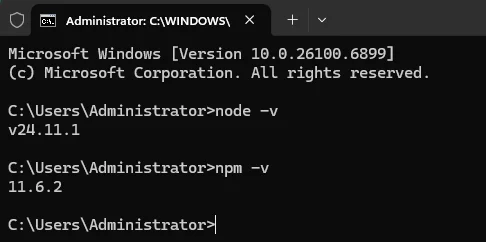
Download and install Node.js from the official website(https://nodejs.org/en/download/). After installation, open Command Prompt (cmd) and run the following command to verify the installed version:
node -v
npm -v
Step 2. Create a New React Project with Vite
Choose a project directory, open Command Prompt (cmd), and run the following command:
npm create vite@latest officejs-demo -- --template react
A new React project will be created and initialized.

Step 3. Install Dependencies Using npm
Open the "officejs-demo" project in VS Code, then run the following command to install "react-router-dom", which provides routing and navigation between pages:
npm install react-router-dom

Step 4. Integrate Spire.OfficeJS
Download the Spire.OfficeJS package. On Windows, double-click the run_genallfonts.bat file in the extracted package to run it. On Linux, use the command sh run_genallfonts.sh start to run the run_genallfonts.sh file in the extracted product package folder. After execution completes, a fontsweb folder will appear inside the web folder.
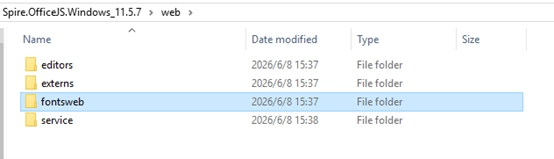
In your React project, create a new spire.officejs folder under the public directory, then copy the entire web folder (including fontsweb) into this directory. Ensure that the directory path matches the path referenced in Editor.jsx.
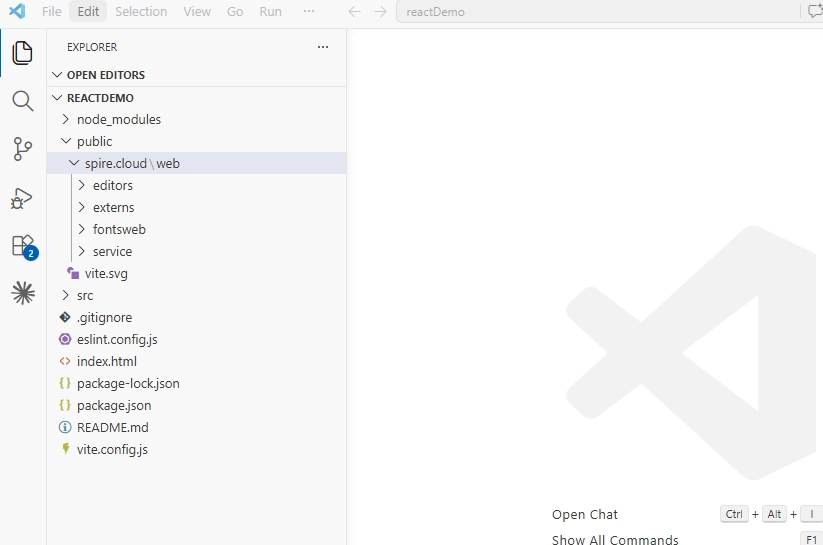
Implement File Upload and Editor Pages
1. App.jsx: Configure Routing and Global File State Management
Code:
import { createContext, useContext, useState } from 'react';
import { createBrowserRouter, RouterProvider } from 'react-router-dom';
import Home from './Home';
import Editor from './Editor';

//File state context
const FileContext = createContext();

export const useFileStore = () => useContext(FileContext);

function FileProvider({ children }) {
  const [file, setFile] = useState(null);
  const [fileUint8Data, setFileUint8Data] = useState(null);

  return (
    <FileContext.Provider value={{
      file,
      fileUint8Data,
      setFileData: setFile,
      setFileUint8Data
    }}>
      {children}
    </FileContext.Provider>
  );
}

const router = createBrowserRouter([
  { path: '/', element: <Home /> },
  { path: '/editor', element: <Editor /> },
]);

function App() {
  return (
    <FileProvider>
      <RouterProvider router={router} />
    </FileProvider>
  );
}

export default App;
2. Home.jsx: Set Up File Upload, File Handling, and Editor Navigation
Explanation:
- FileReader: To read local files from the user's device.
- Uint8Array: The binary data format required by OfficeJS WebAssembly for data input.
- useNavigate: A React Router hook for programmatic navigation between pages.
- Drag and Drop: Browser-based drag-and-drop support for file uploads.
Code:
import { useRef, useEffect } from "react"
import { useFileStore } from './App';
import { useNavigate } from 'react-router-dom';

function Home() {
    const { setFileData, setFileUint8Data } = useFileStore();
    const navigate = useNavigate();

    let dropArea = null;
    let fileInput = useRef();
    let file = null;
    let fileUint8Data = null;

    useEffect(() => {
        dropArea = document;

        //Prevent the default drag-and-drop behavior
        ['dragenter', 'dragover', 'dragleave', 'drop'].forEach(eventName => {
            dropArea.addEventListener(eventName, preventDefaults, false);
        });

        //Handle file drag-and-drop
        dropArea.addEventListener('drop', handleDrop, false);
    }, [])

    const preventDefaults = (e) => {
        e.preventDefault();
        e.stopPropagation();
    }

    const handleBtnClick = (e) => {
        e.preventDefault();
        fileInput.current.click();
    }

    const handleDrop = async (e) => {
        if (e.target && e.target.files)
            file = e.target.files[0]
        else if (e.dataTransfer && e.dataTransfer.files)
            file = e.dataTransfer.files[0];

        if (!file) return;

        fileUint8Data = await handleFile(file);
        setFileData(file);
        setFileUint8Data(fileUint8Data);
        openDocument();
    }

    const handleFile = (file) => {
        return new Promise((resolve, reject) => {
            const reader = new FileReader();
            reader.onload = () => {
                const arrayBuffer = reader.result;
                const uint8Array = new Uint8Array(arrayBuffer);
                resolve(uint8Array);
            };
            reader.onerror = (error) => reject(error);
            reader.readAsArrayBuffer(file);
        });
    }

    const openDocument = () => {
        navigate('/editor')
    }

    return (
        <div>
            <div>
                <h2>Upload Your File</h2>
                <div>
                    <p>Drag your file to the browser</p>
                     <p style={{ marginLeft: '20px' }}>or</p>
                    <button ref={fileInput} onClick={handleBtnClick}>Choose Your File</button>
                    <input
                        type="file"
                        id="fileInput"
                        ref={fileInput}
                        onChange={handleDrop}
                        style={{ display: 'none' }}
                    />
                </div>
            </div>
        </div>
    )
}

export default Home
3. Editor.jsx: Add and Integrate the OfficeJS Editor
Code:
import { useRef, useEffect } from "react"
import { useFileStore } from './App';
import { useNavigate } from 'react-router-dom';

function Editor() {
    const { file, fileUint8Data } = useFileStore();
    const navigate = useNavigate();

    const config = useRef({});
    let Editor = useRef(null);
    let Api = useRef(null);
    let originUrl = window.location.origin;

    useEffect(() => {
        if (!file) {
            navigate('/')
            return;
        }
        // Dynamically load Spire.OfficeJS
        loadScript();
    }, [])

    const loadScript = () => {
        var script = document.createElement('script');
        //Adjust according to your product package path
        script.setAttribute('src', '/spire.officejs/web/editors/spireapi/SpireCloudEditor.js');
        script.onload = () => initEditor()
        document.head.appendChild(script);
    }

    const initEditor = () => {
        let iframeId = 'iframeEditor';
        initConfig();
        Editor = new SpireCloudEditor.OpenApi(iframeId, config.value);
        window.Api = Api = Editor.GetOpenApi();
        OnWindowReSize();
    }

    const initConfig = () => {
        config.value = {
            "fileAttrs": {
                "fileInfo": {
                    "name": file.name,
                    "ext": getFileExtension(),
                    "primary": String(new Date().getTime()),
                    "creator": "User",
                    "createTime": new Date().toLocaleString()
                },
                "sourceUrl": originUrl + "/files/" + file.name,
                "createUrl": originUrl + "/open",
                "mergeFolderUrl": "",
                "fileChoiceUrl": "",
                "templates": {}
            },
            "user": {
                "id": "uid-1",
                "name": "User",
                "canSave": true,
            },
            "editorAttrs": {
                "editorMode": "edit",
                "editorWidth": "100%",
                "editorHeight": "100%",
                "editorType": "document",  // document/spreadsheet/presentation
                "platform": "desktop",
                "viewLanguage": "en",  // en/zh
                "isReadOnly": false,
                "canChat": true,
                "canComment": true,
                "canReview": true,
                "canDownload": true,
                "canEdit": true,
                "canForcesave": true,
                "embedded": {
                    "saveUrl": "",
                    "embedUrl": "",
                    "shareUrl": "",
                    "toolbarDocked": "top"
                },
                //Enable WebAssembly to improve performance
                "useWebAssemblyDoc": true,
                "useWebAssemblyExcel": true,
                "useWebAssemblyPpt": true,
                "spireDocJsLicense": "",
                "spireXlsJsLicense": "",
                "spirePresentationJsLicense": "",
                "spirePdfJsLicense": "",
                //Serverless mode: process files directly in memory without a backend
                "serverless": {
                    "useServerless": true,
                    "baseUrl": originUrl,
                    "fileData": fileUint8Data,  //The file's Uint8Array data
                },
                "events": {
                    "onSave": onFileSave
                },
                "plugins": {
                    "pluginsData": []
                }
            }
        };
    }

    const OnWindowReSize = () => {
        let wrapEl = document.getElementById("editor-container");
        if (wrapEl) {
            wrapEl.style.height = screen.availHeight + "px";
            window.scrollTo(0, -1);
            wrapEl.style.height = window.innerHeight + "px";
        }
    }

    const getFileExtension = () => {
        const filename = file.name.split(/[\\/]/).pop();
        return filename.substring(filename.lastIndexOf('.') + 1).toLowerCase() || '';
    }

    const onFileSave = (data) => {
        console.log('Saved data:', data)
        //Implement the save logic here
        //For example, send the file to a server or download it
    }

    return (
        <div id="editor-container">
            <div id="iframeEditor"></div>
        </div>
    )
}

export default Editor
4. main.jsx
Code:
import { StrictMode } from 'react'
import { createRoot } from 'react-dom/client'
import App from './App.jsx'

createRoot(document.getElementById('root')).render(
  //Note: React StrictMode causes the Spire  editor to render twice, so it's recommended to disable it
  <App />
)
5. vite.config.js - Customize the Development Server Port
Code:
import { defineConfig } from 'vite'
import react from '@vitejs/plugin-react'

export default defineConfig({
  server: {
    host: '0.0.0.0',
    port: 5174
  },
  plugins: [react()],
})
Run the Project
Run the command npm run dev to start the configured project, then open your browser and visit http://localhost:5174/.
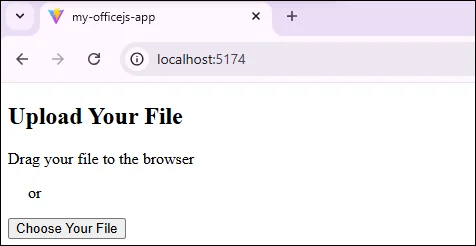
Upload a local document by dragging or clicking "Choose Your File" to open it for editing.
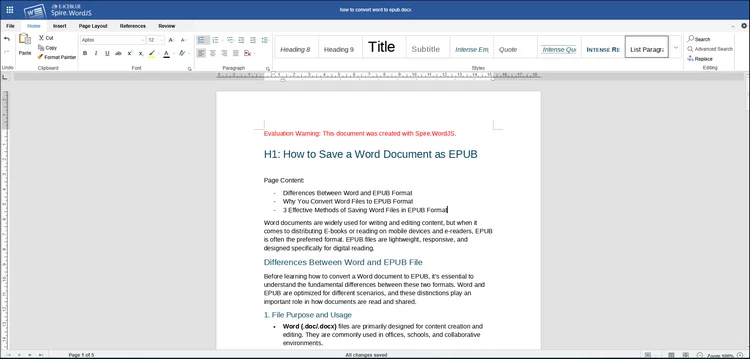
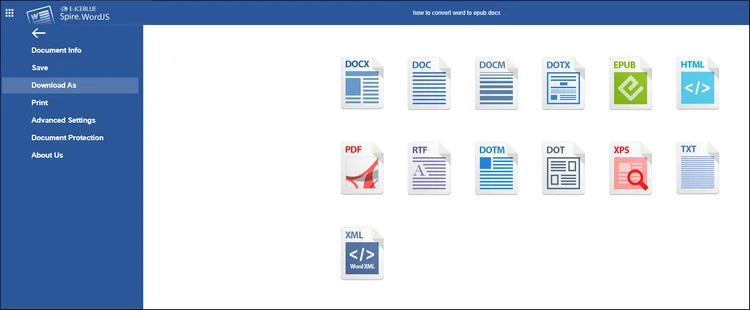
Go to "File > Download As" to download the document or convert it to other formats.
Demo Download
FAQs:
1. Project creation error due to incompatible npm or Node.js versions:
This usually occurs when Node.js is outdated. Update to the latest version of Node.js to resolve the issue.
2. Dependency installation failure:
- Clear the npm cache.
- Delete node_modules and package-lock.json, then reinstall dependencies.
- Ensure you are in the correct project directory and do not run installation commands outside the Vite project.
3. Spire.OfficeJS files cannot be loaded:
- Verify that the web folder has been copied to the correct directory.
- Make sure the development server can access resources under the public directory at runtime.
Apply for License
To remove the evaluation message from generated documents or lift feature limitations, contact us to obtain a 30-day temporary license.
Como dividir PPT: 3 métodos fáceis (manual, online e Python)
Índice
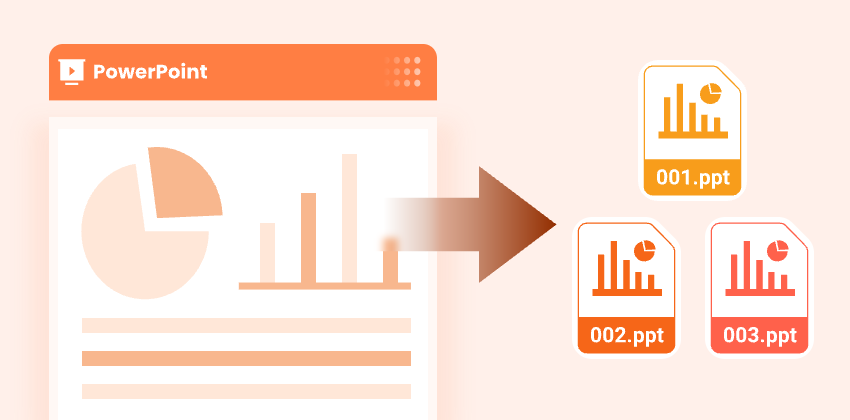
Apresentações grandes do PowerPoint podem ser difíceis de gerenciar, especialmente quando contêm muitos slides ou cobrem vários tópicos. Dividir PPT em arquivos menores e mais gerenciáveis facilita a edição, o compartilhamento e a colaboração.
Este guia aborda 3 maneiras eficazes de dividir uma apresentação do PowerPoint preservando a formatação, incluindo métodos manuais no PowerPoint, ferramentas online gratuitas e automação com Python. Seja você um profissional de negócios, educador ou desenvolvedor, encontrará uma solução prática que atenda às suas necessidades.
Visão geral do conteúdo
- Por que dividir PPT
- Método 1. Dividir PPT manualmente no PowerPoint
- Método 2. Dividir PPT online usando ferramentas gratuitas
- Método 3. Dividir PPT automaticamente com Python
- Melhores práticas para dividir PPT
- Conclusão
- Perguntas frequentes: dividindo apresentação do PowerPoint
Quer mesclar as apresentações divididas de volta em um único arquivo? Consulte nosso guia para mesclar apresentações do PowerPoint.
Por que dividir PPT
Dividir apresentações do PowerPoint oferece múltiplos benefícios:
- Compartilhe slides relevantes - Envie apenas os slides necessários sem sobrecarregar os destinatários com a apresentação inteira.
- Reutilize slides - Incorpore facilmente slides em novas apresentações sem duplicar conteúdo.
- Reduza o tamanho do arquivo - Divida arquivos PPT grandes em arquivos menores e mais gerenciáveis, adequados para e-mail ou armazenamento em nuvem.
- Melhore a colaboração em equipe - Permita que diferentes membros da equipe trabalhem em seções separadas simultaneamente, sem conflitos.
- Organize apresentações com vários tópicos - Separe os slides por tópico, projeto ou departamento para melhor organização e clareza.
Método 1. Dividir PPT manualmente no PowerPoint
O PowerPoint oferece métodos integrados para dividir manualmente uma apresentação em arquivos PPT separados, sem usar software adicional. Aqui está um guia passo a passo para ambos os métodos.
Opção 1: Usando o método de copiar e colar
Copiar e colar slides é a maneira mais simples de dividir uma apresentação do PowerPoint. Este método funciona melhor para divisões ocasionais ou apresentações menores, mas pode ser demorado para arquivos grandes.
Passos para dividir a apresentação do PowerPoint usando Copiar e Colar:
-
Abra a apresentação do PowerPoint que você deseja dividir.
-
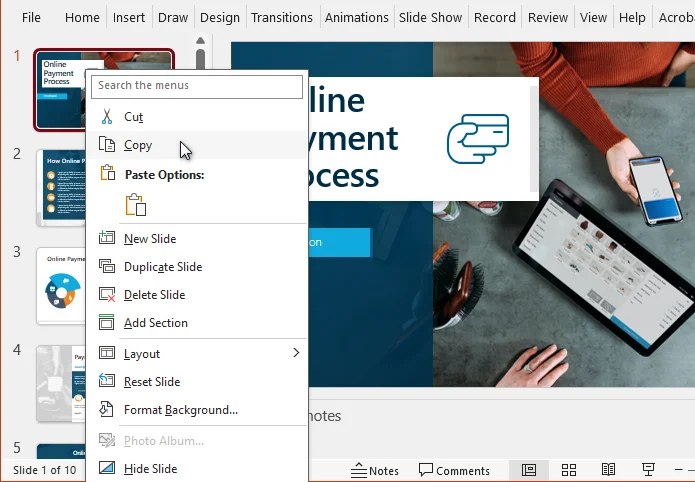
No painel de miniaturas de slides, segure Ctrl (ou Cmd no Mac) e selecione os slides a serem extraídos.
-
Clique com o botão direito em qualquer um dos slides selecionados e escolha Copiar.
-
Clique em Arquivo → Novo → Apresentação em branco para criar uma nova apresentação.
-
Clique com o botão direito no painel de miniaturas de slides na nova apresentação e escolha uma das Opções de Colagem:
- Usar tema de destino - Aplica o tema da nova apresentação.
- Manter formatação original - Mantém a formatação original.
-
Salve a nova apresentação no local desejado.
Opção 2: Usando o recurso Reutilizar Slides
Se você deseja dividir uma apresentação do PowerPoint de forma mais eficiente, o recurso Reutilizar Slides no PowerPoint é uma escolha melhor. Ele permite importar slides para uma nova apresentação, mantendo a formatação intacta, tudo sem abrir o arquivo original. Em comparação com copiar e colar, economiza mais tempo, especialmente ao trabalhar com apresentações grandes.
Passos para dividir PPT usando Reutilizar Slides:
-
Abra uma nova apresentação do PowerPoint.
-
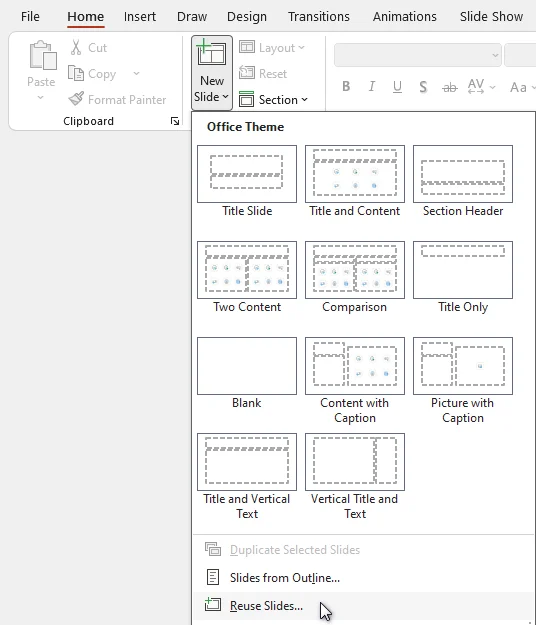
Navegue até Página Inicial > Novo Slide > Reutilizar Slides.
-
Clique em Procurar e selecione a apresentação original.
-
Escolha os slides a serem importados e marque Manter formatação original, se necessário.
-
Salve a nova apresentação com seus slides divididos.
Leia também: Extrair imagens do PowerPoint - 4 maneiras fáceis
Método 2. Dividir PPT online usando ferramentas gratuitas
Para usuários sem o Microsoft PowerPoint instalado, os divisores de PPT online gratuitos são uma alternativa fácil. Ferramentas como o Choladeck PPT Splitter permitem dividir apresentações sem a instalação de software.
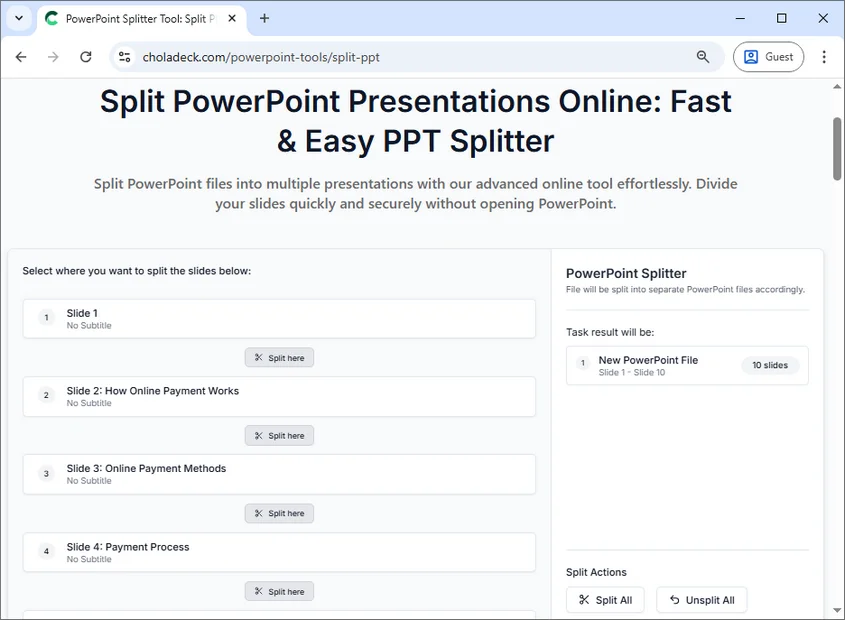
Passos para dividir PPT online:
- Visite o site do divisor de PPT online da Choladeck.
- Carregue sua apresentação arrastando-a para a área de upload ou navegando em seu dispositivo.
- Escolha como dividir a apresentação:
- Se for dividir em slides individuais, clique em Dividir Tudo.
- Se for dividir em grupos personalizados, clique no ícone Dividir aqui abaixo dos slides desejados.
- Clique em Dividir arquivos para processar a apresentação.
- Baixe os arquivos divididos.
Nota: Ferramentas online exigem o upload de arquivos. Algumas ferramentas também podem limitar o tamanho do arquivo. Evite usá-las para apresentações confidenciais ou muito grandes.
Método 3. Dividir PPT automaticamente com Python
Para desenvolvedores ou equipes que lidam com várias apresentações, a automação com Python oferece uma maneira rápida, repetível e confiável de dividir apresentações do PowerPoint. Bibliotecas como Spire.Presentation for Python permitem extrair e dividir slides programaticamente, mesmo quando o Microsoft PowerPoint não está instalado.
Passos para dividir PPT automaticamente usando Python:
-
Instale a biblioteca Spire.Presentation do PyPI:
pip install spire.presentation -
Crie um script Python para dividir seu PPT em vários arquivos.
from spire.presentation import * import os # Especifique o arquivo PowerPoint de entrada input_file = "original_presentation.pptx" # Especifique a pasta de saída para os slides divididos output_folder = "output/Presentations" # Crie a pasta de saída se ela não existir if not os.path.exists(output_folder): os.makedirs(output_folder) # Carregue a apresentação original do PowerPoint presentation = Presentation() presentation.LoadFromFile(input_file) # Percorra todos os slides da apresentação for i in range(presentation.Slides.Count): # Obtenha o slide atual slide = presentation.Slides[i] # Crie uma nova apresentação do PowerPoint new_ppt = Presentation() # Remova o slide padrão na nova apresentação new_ppt.Slides.RemoveAt(0) # Anexe o slide atual à nova apresentação new_ppt.Slides.AppendBySlide(slide) # Construa o caminho do arquivo de saída output_file = os.path.join(output_folder, f"slide-{i + 1}.pptx") # Salve a nova apresentação new_ppt.SaveToFile(output_file, FileFormat.Pptx2013) # Descarte a nova apresentação para liberar memória new_ppt.Dispose() # Descarte a apresentação original para liberar memória presentation.Dispose() -
Execute o script para gerar novas apresentações automaticamente.
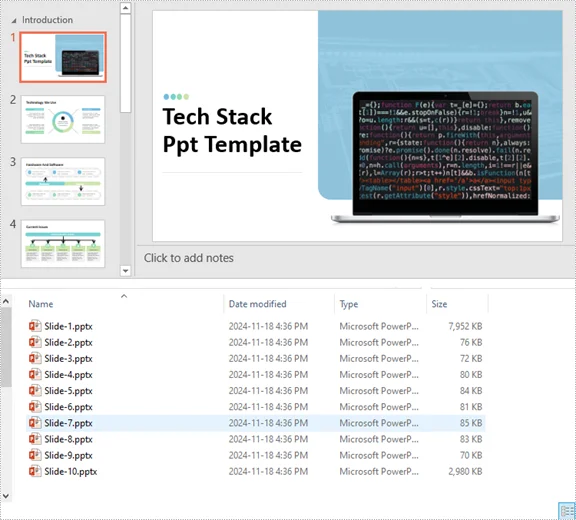
Benefícios:
- Ideal para processamento em lote de grandes apresentações do PowerPoint.
- Reduz o esforço manual e minimiza erros.
- Preserva a formatação original, transições e animações.
Dica: Este script Python pode ser personalizado para dividir slides por intervalos, seções, tópicos ou outros critérios.
Artigo relacionado: Python: Dividir apresentações do PowerPoint
Melhores práticas para dividir PPT
Independentemente do método que você escolher, seguir algumas práticas recomendadas pode ajudar a garantir que suas apresentações do PowerPoint divididas permaneçam bem organizadas e fáceis de usar.
- Faça backup dos arquivos originais - Sempre mantenha uma cópia da apresentação completa.
- Use nomes de arquivo claros - Inclua tópico, data ou versão para evitar confusão.
- Preserve os temas - Decida se deseja manter a formatação original ou aplicar um novo tema.
- Verifique as dependências dos slides - Verifique se as animações, transições e hiperlinks ainda funcionam após a divisão.
- Organize por seção ou tópico - Agrupe os slides logicamente para melhorar a legibilidade e o fluxo de trabalho.
Conclusão
Aprender a dividir PPT de forma eficiente ajuda a gerenciar apresentações com mais eficácia, compartilhar conteúdo seletivamente e reduzir o tamanho do arquivo.
Se você só precisa dividir uma apresentação ocasionalmente, os métodos manuais no PowerPoint geralmente são suficientes. Para tarefas rápidas sem o PowerPoint instalado, as ferramentas de divisão online gratuitas oferecem uma alternativa conveniente. Quando você precisa processar arquivos em lote ou dividir apresentações com frequência, a automação com Python oferece a solução mais eficiente e escalável.
Escolher o método certo com base no seu fluxo de trabalho, tamanho do arquivo e frequência de uso garante que suas apresentações do PowerPoint permaneçam organizadas, legíveis e prontas para colaboração ou apresentação.
Procurando por mais tutoriais de PowerPoint de alta qualidade? Confira nossos recursos gratuitos de PPT.
Perguntas frequentes: dividindo apresentação do PowerPoint
P1: Qual é a maneira mais fácil de dividir PPT?
R1: A maneira mais fácil para alguns slides é o Método de Cópia no PowerPoint. Para apresentações maiores, use Reutilizar Slides ou automação com Python.
P2: Posso dividir uma apresentação do PowerPoint sem perder animações ou transições?
R2: Sim. Use o recurso Reutilizar Slides no PowerPoint ou bibliotecas Python como Spire.Presentation, que preservam toda a formatação e animações.
P3: Existem ferramentas online gratuitas para dividir PPT?
R3: Sim. Ferramentas como o Choladeck PPT Splitter permitem dividir apresentações sem o PowerPoint.
P4: Como dividir uma apresentação grande do PowerPoint de forma eficiente?
R4: Para arquivos grandes, a automação com Python ou o método Reutilizar Slides é recomendado. Eles economizam tempo, mantêm a formatação e reduzem erros.
P5: Posso dividir PPT por tópico ou seção?
R5: Sim. Tanto os scripts Python quanto os divisores online geralmente permitem a divisão por intervalos de slides ou seções personalizadas.
Veja também
PPT 분할 방법: 3가지 쉬운 방법 (수동, 온라인 및 Python)
대용량 PowerPoint 프레젠테이션은 많은 슬라이드를 포함하거나 여러 주제를 다루는 경우 관리하기 어려울 수 있습니다. PPT를 분할하여 더 작고 관리하기 쉬운 파일로 만들면 편집, 공유 및 공동 작업이 더 쉬워집니다.
이 가이드에서는 PowerPoint의 수동 방법, 무료 온라인 도구 및 Python 자동화를 포함하여 서식을 유지하면서 PowerPoint 프레젠테이션을 분할하는 3가지 효과적인 방법을 다룹니다. 비즈니스 전문가, 교육자 또는 개발자이든 관계없이 필요에 맞는 실용적인 솔루션을 찾을 수 있습니다.
콘텐츠 개요
- PPT를 분할하는 이유
- 방법 1. PowerPoint에서 수동으로 PPT 분할
- 방법 2. 무료 온라인 도구를 사용하여 온라인으로 PPT 분할
- 방법 3. Python으로 PPT 자동 분할
- PPT 분할을 위한 모범 사례
- 결론
- 자주 묻는 질문: PowerPoint 프레젠테이션 분할
분할된 프레젠테이션을 다시 하나의 파일로 병합하고 싶으신가요? PowerPoint 프레젠테이션 병합 가이드를 참조하세요.
PPT를 분할하는 이유
PowerPoint 프레젠테이션을 분할하면 여러 가지 이점이 있습니다.
- 관련 슬라이드 공유 - 전체 프레젠테이션으로 수신자를 압도하지 않고 필요한 슬라이드만 보냅니다.
- 슬라이드 재사용 - 콘텐츠를 복제하지 않고 새 프레젠테이션에 슬라이드를 쉽게 통합합니다.
- 파일 크기 줄이기 - 대용량 PPT 파일을 이메일이나 클라우드 저장소에 적합한 더 작고 관리하기 쉬운 파일로 분할합니다.
- 팀 공동 작업 개선 - 여러 팀 구성원이 충돌 없이 별도의 섹션에서 동시에 작업할 수 있도록 합니다.
- 다중 주제 프레젠테이션 구성 - 더 나은 구성과 명확성을 위해 주제, 프로젝트 또는 부서별로 슬라이드를 분리합니다.
방법 1. PowerPoint에서 수동으로 PPT 분할
PowerPoint는 추가 소프트웨어를 사용하지 않고 프레젠테이션을 별도의 PPT 파일로 수동으로 분할하는 기본 제공 방법을 제공합니다. 다음은 두 가지 방법에 대한 단계별 가이드입니다.
옵션 1: 복사 및 붙여넣기 방법 사용
슬라이드를 복사하여 붙여넣는 것은 PowerPoint 프레젠테이션을 분할하는 가장 간단한 방법입니다. 이 방법은 가끔 분할하거나 작은 프레젠테이션에 가장 적합하지만 대용량 파일의 경우 시간이 많이 걸릴 수 있습니다.
복사 및 붙여넣기를 사용하여 PowerPoint 프레젠테이션을 분할하는 단계:
-
분할하려는 PowerPoint 프레젠테이션을 엽니다.
-
슬라이드 축소판 창에서 Ctrl(Mac의 경우 Cmd)을 누른 상태에서 추출할 슬라이드를 선택합니다.
-
선택한 슬라이드 중 하나를 마우스 오른쪽 버튼으로 클릭하고 복사를 선택합니다.
-
파일 → 새로 만들기 → 빈 프레젠테이션을 클릭하여 새 프레젠테이션을 만듭니다.
-
새 프레젠테이션의 슬라이드 축소판 창을 마우스 오른쪽 버튼으로 클릭한 다음 붙여넣기 옵션 중 하나를 선택합니다.
- 대상 테마 사용 - 새 프레젠테이션의 테마를 적용합니다.
- 원본 서식 유지 - 원본 서식을 유지합니다.
-
새 프레젠테이션을 원하는 위치에 저장합니다.
옵션 2: 슬라이드 재사용 기능 사용
PowerPoint 프레젠테이션을 보다 효율적으로 분할하려면 PowerPoint의 슬라이드 재사용 기능이 더 나은 선택입니다. 원본 파일을 열지 않고도 서식을 그대로 유지하면서 새 프레젠테이션으로 슬라이드를 가져올 수 있습니다. 복사하여 붙여넣는 것과 비교할 때 특히 대규모 프레젠테이션으로 작업할 때 더 많은 시간을 절약할 수 있습니다.
슬라이드 재사용을 사용하여 PPT를 분할하는 단계:
-
새 PowerPoint 프레젠테이션을 엽니다.
-
홈 > 새 슬라이드 > 슬라이드 재사용으로 이동합니다.
-
찾아보기를 클릭하고 원본 프레젠테이션을 선택합니다.
-
가져올 슬라이드를 선택하고 필요한 경우 원본 서식 유지를 선택합니다.
-
분할된 슬라이드로 새 프레젠테이션을 저장합니다.
또한 읽기: PowerPoint에서 이미지 추출 - 4가지 쉬운 방법
방법 2. 무료 온라인 도구를 사용하여 온라인으로 PPT 분할
Microsoft PowerPoint가 설치되지 않은 사용자의 경우 무료 온라인 PPT 분할기가 쉬운 대안입니다. Choladeck PPT Splitter와 같은 도구를 사용하면 소프트웨어 설치 없이 프레젠테이션을 분할할 수 있습니다.
온라인으로 PPT를 분할하는 단계:
- Choladeck 온라인 PPT 분할기 웹사이트를 방문하십시오.
- 프레젠테이션을 업로드 영역으로 끌어다 놓거나 장치를 탐색하여 업로드하십시오.
- 프레젠테이션을 분할하는 방법을 선택하십시오.
- 개별 슬라이드로 분할하는 경우 모두 분할을 클릭합니다.
- 사용자 지정 그룹으로 분할하는 경우 원하는 슬라이드 아래의 여기에서 분할 아이콘을 클릭합니다.
- 파일 분할을 클릭하여 프레젠테이션을 처리합니다.
- 분할된 파일을 다운로드합니다.
참고: 온라인 도구에는 파일 업로드가 필요합니다. 일부 도구는 파일 크기를 제한할 수도 있습니다. 민감하거나 매우 큰 프레젠테이션에는 사용하지 마십시오.
방법 3. Python으로 PPT 자동 분할
여러 프레젠테이션을 다루는 개발자나 팀의 경우 Python 자동화는 PowerPoint 프레젠테이션을 분할하는 빠르고 반복 가능하며 신뢰할 수 있는 방법을 제공합니다. Spire.Presentation for Python과 같은 라이브러리를 사용하면 Microsoft PowerPoint가 설치되어 있지 않은 경우에도 프로그래밍 방식으로 슬라이드를 추출하고 분할할 수 있습니다.
Python을 사용하여 자동으로 PPT를 분할하는 단계:
-
PyPI에서 Spire.Presentation 라이브러리를 설치합니다:
pip install spire.presentation -
PPT를 여러 파일로 분할하는 Python 스크립트를 만듭니다.
from spire.presentation import * import os # Specify the input PowerPoint file input_file = "original_presentation.pptx" # Specify the output folder for split slides output_folder = "output/Presentations" # Create the output folder if it doesn't exist if not os.path.exists(output_folder): os.makedirs(output_folder) # Load the original PowerPoint presentation presentation = Presentation() presentation.LoadFromFile(input_file) # Loop through all slides in the presentation for i in range(presentation.Slides.Count): # Get the current slide slide = presentation.Slides[i] # Create a new PowerPoint presentation new_ppt = Presentation() # Remove the default slide in the new presentation new_ppt.Slides.RemoveAt(0) # Append the current slide to the new presentation new_ppt.Slides.AppendBySlide(slide) # Construct the output file path output_file = os.path.join(output_folder, f"slide-{i + 1}.pptx") # Save the new presentation new_ppt.SaveToFile(output_file, FileFormat.Pptx2013) # Dispose the new presentation to release memory new_ppt.Dispose() # Dispose the original presentation to release memory presentation.Dispose() -
스크립트를 실행하여 새 프레젠테이션을 자동으로 생성합니다.
이점:
- 대용량 PowerPoint 프레젠테이션을 일괄 처리하는 데 이상적입니다.
- 수동 작업을 줄이고 오류를 최소화합니다.
- 원본 서식, 전환 및 애니메이션을 유지합니다.
팁: 이 Python 스크립트는 범위, 섹션, 주제 또는 기타 기준으로 슬라이드를 분할하도록 사용자 지정할 수 있습니다.
관련 기사: Python: PowerPoint 프레젠테이션 분할
PPT 분할을 위한 모범 사례
어떤 방법을 선택하든 몇 가지 모범 사례를 따르면 분할된 PowerPoint 프레젠테이션을 잘 정리하고 사용하기 쉽게 유지하는 데 도움이 될 수 있습니다.
- 원본 파일 백업 - 항상 전체 프레젠테이션의 복사본을 보관하십시오.
- 명확한 파일 이름 사용 - 혼동을 피하기 위해 주제, 날짜 또는 버전을 포함합니다.
- 테마 보존 - 원본 서식을 유지할지 아니면 새 테마를 적용할지 결정합니다.
- 슬라이드 종속성 확인 - 분할 후에도 애니메이션, 전환 및 하이퍼링크가 계속 작동하는지 확인합니다.
- 섹션 또는 주제별로 구성 - 가독성과 워크플로를 개선하기 위해 슬라이드를 논리적으로 그룹화합니다.
결론
PPT를 효율적으로 분할하는 방법을 배우면 프레젠테이션을 보다 효과적으로 관리하고, 콘텐츠를 선택적으로 공유하고, 파일 크기를 줄이는 데 도움이 됩니다.
가끔 프레젠테이션을 분할해야 하는 경우 PowerPoint의 수동 방법으로 충분합니다. PowerPoint가 설치되지 않은 빠른 작업의 경우 무료 온라인 분할 도구가 편리한 대안을 제공합니다. 파일을 일괄 처리하거나 프레젠테이션을 자주 분할해야 하는 경우 Python 자동화가 가장 효율적이고 확장 가능한 솔루션을 제공합니다.
워크플로, 파일 크기 및 사용 빈도에 따라 올바른 방법을 선택하면 PowerPoint 프레젠테이션이 체계적이고 읽기 쉬우며 공동 작업이나 프레젠테이션에 즉시 사용할 수 있도록 보장됩니다.
더 많은 고품질 PowerPoint 자습서를 찾고 계십니까? 무료 PPT 리소스를 확인하십시오.
자주 묻는 질문: PowerPoint 프레젠테이션 분할
Q1: PPT를 분할하는 가장 쉬운 방법은 무엇입니까?
A1: 몇 개의 슬라이드에 대한 가장 쉬운 방법은 PowerPoint의 복사 방법입니다. 더 큰 프레젠테이션의 경우 슬라이드 재사용 또는 Python 자동화를 사용하십시오.
Q2: 애니메이션이나 전환을 잃지 않고 PowerPoint 프레젠테이션을 분할할 수 있습니까?
A2: 예. PowerPoint의 슬라이드 재사용 기능이나 모든 서식과 애니메이션을 보존하는 Spire.Presentation과 같은 Python 라이브러리를 사용하십시오.
Q3: 무료 온라인 PPT 분할 도구가 있습니까?
A3: 예. Choladeck PPT Splitter와 같은 도구를 사용하면 PowerPoint 없이 프레젠테이션을 분할할 수 있습니다.
Q4: 대용량 PowerPoint 프레젠테이션을 효율적으로 분할하는 방법은 무엇입니까?
A4: 대용량 파일의 경우 Python 자동화 또는 슬라이드 재사용 방법을 권장합니다. 시간을 절약하고 서식을 유지하며 오류를 줄입니다.
Q5: 주제나 섹션별로 PPT를 분할할 수 있습니까?
A5: 예. Python 스크립트와 온라인 분할기는 종종 사용자 지정 슬라이드 범위나 섹션별로 분할할 수 있도록 허용합니다.
참고 항목
Come dividere un PPT: 3 metodi semplici (manuale, online e Python)
Indice
Le presentazioni PowerPoint di grandi dimensioni possono essere difficili da gestire, specialmente quando contengono molte diapositive o trattano più argomenti. Dividere i PPT in file più piccoli e gestibili rende più facile modificare, condividere e collaborare.
Questa guida illustra 3 modi efficaci per dividere una presentazione PowerPoint preservando la formattazione, inclusi metodi manuali in PowerPoint, strumenti online gratuiti e automazione con Python. Che tu sia un professionista, un educatore o uno sviluppatore, troverai una soluzione pratica adatta alle tue esigenze.
Panoramica dei Contenuti
- Perché Dividere i PPT
- Metodo 1. Dividere i PPT Manualmente in PowerPoint
- Metodo 2. Dividere i PPT Online con Strumenti Gratuiti
- Metodo 3. Dividere i PPT Automaticamente con Python
- Migliori Pratiche per Dividere i PPT
- Conclusione
- Domande Frequenti: Divisione della Presentazione PowerPoint
Vuoi unire di nuovo le presentazioni divise in un unico file? Consulta la nostra guida Unisci Presentazioni PowerPoint.
Perché Dividere i PPT
La divisione delle presentazioni PowerPoint offre molteplici vantaggi:
- Condividi Diapositive Rilevanti - Invia solo le diapositive necessarie senza sovraccaricare i destinatari con l'intera presentazione.
- Riutilizza Diapositive - Incorpora facilmente le diapositive in nuove presentazioni senza duplicare il contenuto.
- Riduci le Dimensioni del File - Dividi file PPT di grandi dimensioni in file più piccoli e gestibili, adatti per l'invio via email o l'archiviazione su cloud.
- Migliora la Collaborazione del Team - Consenti a diversi membri del team di lavorare su sezioni separate contemporaneamente senza conflitti.
- Organizza Presentazioni Multi-Argomento - Separa le diapositive per argomento, progetto o dipartimento per una migliore organizzazione e chiarezza.
Metodo 1. Dividere i PPT Manualmente in PowerPoint
PowerPoint fornisce metodi integrati per dividere manualmente una presentazione in file PPT separati senza utilizzare software aggiuntivo. Ecco una guida passo-passo per entrambi i metodi.
Opzione 1: Utilizzo del Metodo Copia e Incolla
Copiare e incollare le diapositive è il modo più semplice per dividere una presentazione PowerPoint. Questo metodo funziona meglio per divisioni occasionali o presentazioni più piccole, ma può richiedere molto tempo per file di grandi dimensioni.
Passaggi per Dividere una Presentazione PowerPoint Usando Copia e Incolla:
-
Apri la presentazione PowerPoint che desideri dividere.
-
Nel riquadro delle anteprime delle diapositive, tieni premuto Ctrl (o Cmd su Mac) e seleziona le diapositive da estrarre.
-
Fai clic con il pulsante destro del mouse su una delle diapositive selezionate e scegli Copia.
-
Fai clic su File → Nuovo → Presentazione vuota per creare una nuova presentazione.
-
Fai clic con il pulsante destro del mouse nel riquadro delle anteprime delle diapositive nella nuova presentazione, quindi scegli una delle Opzioni Incolla:
- Usa Tema di Destinazione - Applica il tema della nuova presentazione.
- Mantieni Formattazione Originale - Conserva la formattazione originale.
-
Salva la nuova presentazione nella posizione desiderata.
Opzione 2: Utilizzo della Funzione Riutilizza Diapositive
Se desideri dividere una presentazione PowerPoint in modo più efficiente, la funzione Riutilizza Diapositive di PowerPoint è una scelta migliore. Consente di importare diapositive in una nuova presentazione mantenendo intatta la formattazione, il tutto senza aprire il file originale. Rispetto al copia e incolla, consente di risparmiare più tempo, specialmente quando si lavora con presentazioni di grandi dimensioni.
Passaggi per Dividere PPT usando Riutilizza Diapositive:
-
Apri una nuova presentazione PowerPoint.
-
Vai a Home > Nuova diapositiva > Riutilizza diapositive.
-
Fai clic su Sfoglia e seleziona la presentazione originale.
-
Scegli le diapositive da importare e seleziona Mantieni formattazione originale se necessario.
-
Salva la nuova presentazione con le diapositive divise.
Leggi anche: Estrarre Immagini da PowerPoint - 4 Semplici Modi
Metodo 2. Dividere i PPT Online con Strumenti Gratuiti
Per gli utenti che non hanno installato Microsoft PowerPoint, gli splitter PPT online gratuiti sono un'alternativa semplice. Strumenti come Choladeck PPT Splitter ti consentono di dividere le presentazioni senza installare alcun software.
Passaggi per Dividere PPT Online:
- Visita il sito web dello splitter PPT online di Choladeck.
- Carica la tua presentazione trascinandola nell'area di caricamento o sfogliando il tuo dispositivo.
- Scegli come dividere la presentazione:
- Se vuoi dividere in diapositive singole, fai clic su Dividi Tutto.
- Se vuoi dividere in gruppi personalizzati, fai clic sull'icona Dividi qui sotto le diapositive desiderate.
- Fai clic su Dividi file per elaborare la presentazione.
- Scarica i file divisi.
Nota: gli strumenti online richiedono il caricamento di file. Alcuni strumenti potrebbero anche limitare le dimensioni dei file. Evita di usarli per presentazioni sensibili o molto grandi.
Metodo 3. Dividere i PPT Automaticamente con Python
Per sviluppatori o team che gestiscono più presentazioni, l'automazione con Python offre un modo rapido, ripetibile e affidabile per dividere le presentazioni PowerPoint. Librerie come Spire.Presentation for Python consentono di estrarre e dividere le diapositive programmaticamente, anche quando Microsoft PowerPoint non è installato.
Passaggi per Dividere PPT Automaticamente con Python:
-
Installa la libreria Spire.Presentation da PyPI:
pip install spire.presentation -
Crea uno script Python per dividere il tuo PPT in più file.
from spire.presentation import * import os # Specifica il file PowerPoint di input input_file = "original_presentation.pptx" # Specifica la cartella di output per le diapositive divise output_folder = "output/Presentations" # Crea la cartella di output se non esiste if not os.path.exists(output_folder): os.makedirs(output_folder) # Carica la presentazione PowerPoint originale presentation = Presentation() presentation.LoadFromFile(input_file) # Itera su tutte le diapositive della presentazione for i in range(presentation.Slides.Count): # Ottieni la diapositiva corrente slide = presentation.Slides[i] # Crea una nuova presentazione PowerPoint new_ppt = Presentation() # Rimuovi la diapositiva predefinita nella nuova presentazione new_ppt.Slides.RemoveAt(0) # Aggiungi la diapositiva corrente alla nuova presentazione new_ppt.Slides.AppendBySlide(slide) # Costruisci il percorso del file di output output_file = os.path.join(output_folder, f"slide-{i + 1}.pptx") # Salva la nuova presentazione new_ppt.SaveToFile(output_file, FileFormat.Pptx2013) # Rilascia la memoria della nuova presentazione new_ppt.Dispose() # Rilascia la memoria della presentazione originale presentation.Dispose() -
Esegui lo script per generare automaticamente nuove presentazioni.
Vantaggi:
- Ideale per l'elaborazione in batch di grandi presentazioni PowerPoint.
- Riduce lo sforzo manuale e minimizza gli errori.
- Conserva la formattazione originale, le transizioni e le animazioni.
Suggerimento: Questo script Python può essere personalizzato per dividere le diapositive per intervalli, sezioni, argomenti o altri criteri.
Articolo Correlato: Python: Dividere Presentazioni PowerPoint
Migliori Pratiche per Dividere i PPT
Indipendentemente dal metodo scelto, seguire alcune migliori pratiche può aiutare a garantire che le tue presentazioni PowerPoint divise rimangano ben organizzate e facili da usare.
- Esegui il Backup dei File Originali - Conserva sempre una copia della presentazione completa.
- Usa Nomi di File Chiari - Includi argomento, data o versione per evitare confusione.
- Conserva i Temi - Decidi se mantenere la formattazione originale o applicare un nuovo tema.
- Controlla le Dipendenze delle Diapositive - Verifica che animazioni, transizioni e collegamenti ipertestuali funzionino ancora dopo la divisione.
- Organizza per Sezione o Argomento - Raggruppa le diapositive in modo logico per migliorare la leggibilità e il flusso di lavoro.
Conclusione
Imparare a dividere i PPT in modo efficiente ti aiuta a gestire le presentazioni in modo più efficace, a condividere i contenuti in modo selettivo e a ridurre le dimensioni dei file.
Se hai solo bisogno di dividere una presentazione occasionalmente, i metodi manuali in PowerPoint sono solitamente sufficienti. Per attività rapide senza PowerPoint installato, gli strumenti di divisione online gratuiti offrono un'alternativa conveniente. Quando hai bisogno di elaborare file in batch o dividere presentazioni frequentemente, l'automazione con Python fornisce la soluzione più efficiente e scalabile.
Scegliere il metodo giusto in base al tuo flusso di lavoro, alle dimensioni del file e alla frequenza di utilizzo garantisce che le tue presentazioni PowerPoint rimangano organizzate, leggibili e pronte per la collaborazione o la presentazione.
Cerchi altri tutorial di alta qualità su PowerPoint? Dai un'occhiata alle nostre risorse PPT gratuite.
Domande Frequenti: Divisione della Presentazione PowerPoint
D1: Qual è il modo più semplice per dividere un PPT?
R1: Il modo più semplice per poche diapositive è il Metodo Copia in PowerPoint. Per presentazioni più grandi, usa Riutilizza Diapositive o l'automazione con Python.
D2: Posso dividere una presentazione PowerPoint senza perdere animazioni o transizioni?
R2: Sì. Usa la funzione Riutilizza Diapositive in PowerPoint o librerie Python come Spire.Presentation, che conservano tutta la formattazione e le animazioni.
D3: Esistono strumenti gratuiti online per dividere i PPT?
R3: Sì. Strumenti come Choladeck PPT Splitter ti consentono di dividere le presentazioni senza PowerPoint.
D4: Come dividere in modo efficiente una presentazione PowerPoint di grandi dimensioni?
R4: Per file di grandi dimensioni, si consiglia l'automazione con Python o il metodo Riutilizza Diapositive. Risparmiano tempo, mantengono la formattazione e riducono gli errori.
D5: Posso dividere un PPT per argomento o sezione?
R5: Sì. Sia gli script Python che gli splitter online consentono spesso di dividere per intervalli di diapositive o sezioni personalizzate.