Les 7 meilleurs outils gratuits pour faire pivoter des PDF en 2026 : comparatif et classement
Table des matières
- Comparaison : 7 outils
- Ce que nous avons examiné
- Correction rapide ponctuelle
- Rotation par IA
- Fichiers sensibles : rester local
- Rotation d'une seule page (Windows)
- Mac : Aperçu (Preview)
- Erreurs courantes
- Rotation par lots et développeurs
- Comment faire sur n'importe quel appareil
- FAQ
- Connexe : rotation par code
Vous avez scanné un document à l'envers ? Vous avez un PDF en mode paysage mélangé à des pages en mode portrait ? Votre téléphone a enregistré un reçu de côté ? La correction devrait prendre environ 10 secondes, mais choisir le mauvais outil peut vous faire perdre tout votre après-midi.
Nous avons comparé 7 outils gratuits de rotation PDF — outils en ligne, agent IA, votre navigateur, applications de bureau et une bibliothèque Python — afin que vous puissiez choisir le bon en moins d'une minute. Vous trouverez ci-dessous le tableau comparatif complet, suivi d'évaluations détaillées organisées selon ce que vous devez réellement faire.
Réponse rapide : Besoin d'une solution en 10 secondes ? → Outils en ligne gratuits. Vous ne voulez pas apprendre une interface ? → CloudXDocs Agent. Fichier confidentiel ? → Votre navigateur ou Adobe Reader. Rotation de plus de 100 fichiers ? → Spire.PDF pour Python.
Comparaison : 7 outils de rotation PDF en un coup d'œil
| # | Outil | Idéal pour | Page unique | Par lots | Local | Compte requis | Plateforme |
|---|---|---|---|---|---|---|---|
| 1 | Outils en ligne gratuits (PDF24, iLovePDF, Smallpdf) | Correction rapide | Oui | Oui | Non | Variable | Web |
| 2 | CloudXDocs Agent | Rotation assistée par IA | Oui | Oui | Non | Oui (gratuit) | Web |
| 3 | Edge / Chrome | Hors ligne sans installation | Non | Non | Oui | Non | Intégré |
| 4 | macOS Aperçu | Intégré Mac | Oui | Non | Oui | Non | Mac seulement |
| 5 | Adobe Acrobat Reader | Confiance entreprise | Non | Non | Oui | Non | Windows, Mac |
| 6 | PDF-XChange Editor | Contrôle page unique (Windows) | Oui | Oui | Oui | Non | Windows |
| 7 | Spire.PDF pour Python | Développeurs, lots | Oui | Oui | Oui | Non | Python |
Note : La plupart des outils ici effectuent la rotation en cliquant sur des boutons ou via une interface. Lorsque vous préférez décrire la rotation en langage naturel — ou l'appliquer à de nombreux fichiers — CloudXDocs Agent vous permet de taper l'instruction au lieu de naviguer dans un éditeur.
Ce que nous avons examiné
Tous les rotateurs PDF "gratuits" ne se valent pas. Voici ce qui différencie un bon outil d'un outil frustrant :
- Enregistre-t-il de façon permanente ? Dans de nombreuses visionneuses gratuites, y compris Chrome et Adobe Reader, la rotation peut n'affecter que l'affichage à moins d'enregistrer une nouvelle copie.
- Page unique ou toutes les pages ? La plupart des outils gratuits font pivoter tout le document. Si seule la page 3 est de côté, vous en avez besoin d'un qui gère les pages individuelles.
- Téléchargement ou local ? Les outils en ligne envoient votre fichier sur un serveur. Très bien pour un reçu, risqué pour un contrat.
- Limites gratuites. "Gratuit" peut signifier 2 tâches/jour, une limite de 100 Mo, ou vraiment illimité. Nous précisons chaque cas.
Pour une correction rapide ponctuelle
Vous avez 1 ou 2 PDF, ils ne sont pas sensibles et vous voulez en finir rapidement.
C'est là que les rotateurs PDF en ligne gratuits excellent. Pas d'installation, pas de compte (généralement), téléchargez et c'est parti. Trois options solides :
| PDF24 | iLovePDF | Smallpdf | |
|---|---|---|---|
| Limite gratuite | Utilisation illimitée | Tâches gratuites limitées | 2 tâches/jour |
| Rotation page unique | Oui | Oui | Oui |
| Rotation par lots | Oui | Oui | Oui |
| Taille max fichier | Aucune limite déclarée | 100 Mo (gratuit) | ~100 Mo (gratuit) |
| Compte requis | Non | Non | Non pour usage basique |
Comment ça fonctionne (même flux pour les trois) :
- Ouvrez l'outil dans votre navigateur.
- Téléchargez votre PDF.
- Cliquez sur Rotation — 90° dans le sens horaire ou anti-horaire — sur des pages individuelles ou toutes les pages à la fois.
- Téléchargez le fichier pivoté. C'est fait.
Le flux de travail général pour faire pivoter un PDF à l'aide d'un outil en ligne gratuit : télécharger, faire pivoter et télécharger.
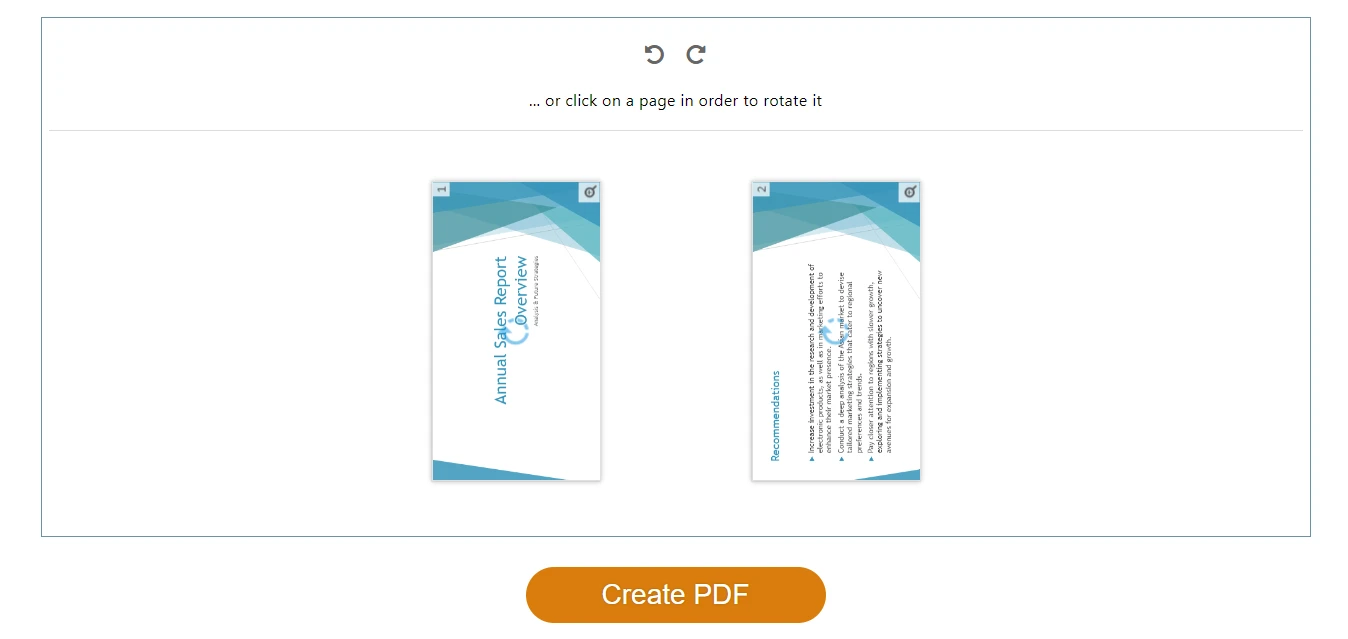
Notre choix : PDF24 si vous voulez une utilisation gratuite vraiment illimitée. iLovePDF si vous êtes sur mobile (leur application est meilleure). Smallpdf si vous n'avez besoin de faire pivoter qu'un seul fichier aujourd'hui et que vous appréciez l'interface la plus propre.
Pour une rotation par IA
Vous préférez décrire ce que vous voulez plutôt que de cliquer dans une interface.
CloudXDocs Agent adopte une approche différente des rotateurs PDF traditionnels : au lieu de cliquer dans une interface, vous décrivez ce que vous voulez en langage naturel et l'agent IA l'applique. Il gère les PDF textuels, scannés et riches en images.
Où la rotation par IA se révèle utile :
- Faire pivoter de nombreuses pages par description (ex. : "faire pivoter toutes les pages paysage en portrait").
- La rotation comme étape d'une tâche plus large (ex. : "faire pivoter la page 3, puis fusionner avec un autre PDF").
- Quand vous ne voulez pas apprendre l'interface d'un outil — tapez simplement ce dont vous avez besoin.
Comment ça fonctionne :
- Ouvrez CloudXDocs Agent et connectez-vous avec un compte gratuit.
- Téléchargez votre PDF (ou collez un lien).
- Tapez votre commande de rotation.
- Vérifiez l'aperçu et téléchargez.
Voici l'interface de CloudXDocs Agent avec une commande de rotation saisie et l'aperçu prêt à être téléchargé.
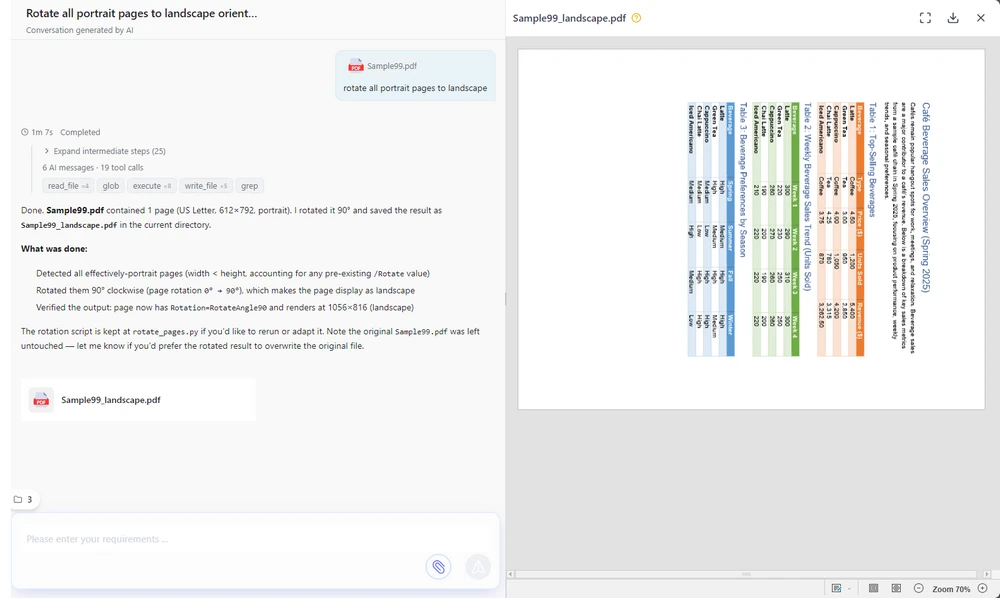
Gratuit : Un compte gratuit inclut 600 crédits, avec 50 de plus chaque jour où vous vous connectez. Une rotation PDF typique utilise environ 15 crédits, donc l'allocation gratuite couvre de nombreuses tâches quotidiennes.
Avantages : Rotation en langage naturel — pas d'interface à apprendre ; page unique ou par lots via description ; gère les tâches documentaires multi-étapes ; basé sur navigateur. Inconvénients : Basé sur le cloud (fichiers traités côté serveur — pour une confidentialité totale hors ligne, utilisez Edge/Chrome ou Adobe Reader) ; nécessite une connexion gratuite.
Pour les fichiers sensibles : restez local
Contrats, dossiers médicaux, relevés financiers — tout ce que vous ne téléchargeriez pas sur un site web aléatoire.
Les rotateurs PDF en ligne téléchargent votre fichier sur leur serveur. Pour un reçu, pas de problème. Pour un accord de confidentialité ou une déclaration d'impôts, vous voulez que le fichier reste sur votre machine. Deux bonnes options :
Votre navigateur (zéro installation, zéro compte)
Votre ordinateur possède déjà une visionneuse PDF avec rotation intégrée — l'option hors ligne la plus simple.
Microsoft Edge :
- Clic droit sur votre PDF → Ouvrir avec → Microsoft Edge.
- Cliquez sur le bouton Rotation (flèche circulaire) dans la barre d'outils.
- Cliquez sur Enregistrer sous pour sauvegarder le PDF pivoté.
Faire pivoter un PDF en utilisant la visionneuse intégrée de Microsoft Edge — aucune installation requise.
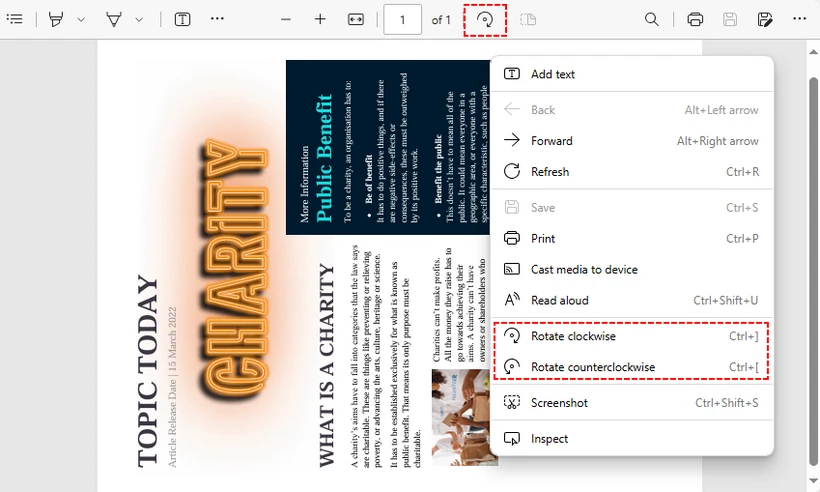
Chrome / Firefox : Ils ne font pivoter que l'affichage. Pour enregistrer de façon permanente : rotation → Ctrl + P → choisissez "Enregistrer au format PDF" comme imprimante → Imprimer.
Adobe Acrobat Reader (la référence entreprise)
Si votre entreprise possède déjà Adobe Reader sur chaque machine, la rotation est intégrée :
- Ouvrez votre PDF dans Adobe Acrobat Reader DC (gratuit).
- Affichage → Rotation de l'affichage → Sens horaire / Anti-horaire.
- Fichier → Imprimer → sélectionnez "Microsoft Print to PDF" → Imprimer pour enregistrer la version pivotée.
⚠️ Erreur courante : Chrome et Adobe Reader gratuit font pivoter l'affichage temporairement. Si vous fermez le fichier sans enregistrer, la rotation disparaît. L'astuce Imprimer → Enregistrer au format PDF est le moyen de le rendre permanent gratuitement.
Avantages : Les deux gardent les fichiers sur votre machine ; Adobe est préinstallé sur de nombreuses machines de travail. Inconvénients : Les deux font pivoter toutes les pages à la fois dans leurs versions gratuites ; l'étape "enregistrer de façon permanente" est une astuce, pas un enregistrement en un clic. Pour la rotation d'une seule page sur Windows, voir PDF-XChange Editor ci-dessous.
Pour la rotation d'une seule page sur Windows
Vous devez faire pivoter des pages spécifiques, pas tout le document.
PDF-XChange Editor (version gratuite) est l'un des rares outils de bureau gratuits qui permet de faire pivoter des pages individuelles ou une plage de pages personnalisée — une fonctionnalité qui manque à la plupart des rotateurs gratuits.
- Téléchargez et installez PDF-XChange Editor (sélectionnez la "Version gratuite" lors de l'installation).
- Ouvrez votre PDF → onglet Organiser → Rotation.
- Dans la boîte de dialogue : choisissez la direction, puis sélectionnez Page actuelle, Toutes les pages, ou une plage personnalisée (ex. :
1,3,5-8). - Cliquez sur OK → Fichier → Enregistrer sous.
Faire pivoter des pages PDF spécifiques à l'aide de PDF-XChange Editor gratuit — la boîte de dialogue Rotation des pages avec sélection de plage.
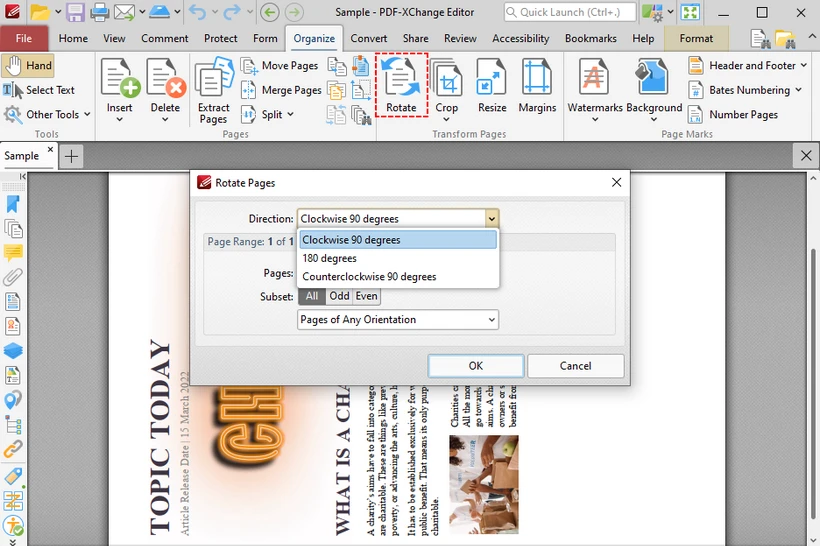
Avantages : Gratuit ; rotation spécifique à une page (rare dans les outils gratuits) ; totalement hors ligne ; enregistre de façon permanente. Inconvénients : Windows uniquement ; nécessite une installation.
Utilisateurs Mac : Aperçu est là pour vous
Si vous êtes sur macOS, vous n'avez besoin d'aucun des outils ci-dessus. Aperçu gère la rotation nativement et — contrairement à Chrome ou Adobe Reader gratuit — enregistre de façon permanente lorsque vous fermez le fichier.
- Double-cliquez sur le PDF (s'ouvre dans Aperçu par défaut).
- Présentation → Vignettes → sélectionnez la ou les pages à faire pivoter.
- Outils → Rotation à gauche ou Rotation à droite (
Cmd + L/Cmd + R). - Fermez le fichier — c'est fait. Aperçu enregistre automatiquement.
Attention : Comme Aperçu enregistre automatiquement, dupliquez d'abord le fichier (Fichier → Dupliquer) si vous souhaitez conserver l'orientation originale.
Avantages : Intégré à macOS ; hors ligne ; enregistre de façon permanente ; prend en charge la rotation d'une seule page. Inconvénients : Mac uniquement.
Erreurs courantes lors de la rotation de PDF
Trois choses qui piègent les gens :
1. "Je l'ai fait pivoter mais c'est revenu à la normale." Vous avez fait pivoter l'affichage, pas le fichier. Dans de nombreuses visionneuses PDF gratuites, la rotation ne modifie que l'affichage. Utilisez "Enregistrer sous" (Edge), Imprimer → Enregistrer au format PDF, ou un outil qui enregistre de façon permanente (CloudXDocs Agent, PDF24, Aperçu, PDF-XChange Editor).
2. "Je ne peux pas faire pivoter juste une page." La plupart des outils gratuits font pivoter toutes les pages à la fois. Pour la rotation d'une seule page, utilisez CloudXDocs Agent (tapez "faire pivoter la page 3"), iLovePDF (cliquez sur les vignettes individuelles), Aperçu macOS (sélectionnez les pages dans la barre latérale), PDF-XChange Editor (plage personnalisée), ou Spire.PDF (code).
3. "Le fichier pivoté est flou." La rotation elle-même ne réduit jamais la qualité — c'est un changement de métadonnées. Si votre résultat semble flou, vous avez probablement réimprimé via une imprimante PDF avec perte. Utilisez "Enregistrer sous" au lieu de "Imprimer" lorsque possible, ou téléchargez directement depuis l'outil en ligne.
Pour la rotation par lots et les développeurs
Vous devez faire pivoter 50, 500 ou 5 000 PDF. Les outils en ligne ne suffiront pas.
Spire.PDF pour Python est une bibliothèque gratuite qui fait pivoter les PDF par programmation — pas de téléchargement, pas de navigateur, pas de clics.
Installation :
pip install Spire.Pdf.Free
Faire pivoter une seule page :
from spire.pdf.common import *
from spire.pdf import *

# Créer un objet PdfDocument
pdf = PdfDocument()

# Charger un document PDF
pdf.LoadFromFile("Sample.pdf")

# Obtenir la première page
page = pdf.Pages.get_Item(0)

# Obtenir l'angle de rotation original
rotation = int(page.Rotation.value)

# Faire pivoter de 90 degrés dans le sens horaire
rotation += int(PdfPageRotateAngle.RotateAngle90.value)
page.Rotation = PdfPageRotateAngle(rotation)

# Enregistrer le résultat
pdf.SaveToFile("RotatePDFPage.pdf")
pdf.Close()
Pour faire pivoter toutes les pages par lots, bouclez sur chaque page :
for i in range(pdf.Pages.Count):
    page = pdf.Pages.get_Item(i)
    rotation = int(page.Rotation.value)
    rotation += int(PdfPageRotateAngle.RotateAngle90.value)
    page.Rotation = PdfPageRotateAngle(rotation)
Consultez le tutoriel de rotation Spire.PDF Python complet pour plus d'exemples, y compris la rotation de toutes les pages, de plages spécifiques et la combinaison de la rotation avec d'autres opérations PDF.
Vous pourriez également être intéressé par : Convertir PDF en HTML ou Extraire du texte d'un PDF après rotation.
Avantages : Rotation de pages spécifiques ou de toutes les pages ; par lots pour n'importe quel nombre de PDF avec une boucle ; pas de téléchargement (totalement local) ; gratuit pour un usage commercial. Inconvénients : Nécessite des connaissances de base en Python ; version gratuite limitée à 10 pages par PDF.
Comment faire pivoter un PDF sur n'importe quel appareil
Sur Windows
- Le plus rapide : Rotateurs PDF en ligne gratuits (PDF24, iLovePDF) — télécharger, pivoter, télécharger.
- Sans téléchargement : Visionneuse intégrée Edge — clic droit → Ouvrir avec Edge → Rotation → Enregistrer sous.
- Contrôle page unique : PDF-XChange Editor (installation gratuite).
- Entreprise : Adobe Acrobat Reader.
Sur Mac
- Intégré : Aperçu → Outils → Rotation. Enregistrement automatique. Aucune installation nécessaire.
- En ligne : Les mêmes outils web que Windows, ou CloudXDocs Agent pour une rotation assistée par IA.
Sur iPhone / Android
- Le plus simple : Téléchargez sur CloudXDocs Agent dans votre navigateur mobile et décrivez la rotation — pas d'installation d'application, et la gestion par IA bat les commandes tactiles imprécises.
- Alternative : Application mobile iLovePDF ou Smallpdf depuis le navigateur.
FAQ
Puis-je faire pivoter un PDF gratuitement ? Oui. Chaque outil de ce guide est gratuit : PDF24, iLovePDF, Smallpdf (en ligne) ; Edge/Chrome (intégré) ; Aperçu macOS ; Adobe Reader (hors ligne) ; PDF-XChange Editor (Windows) ; CloudXDocs Agent (IA, crédits gratuits) ; Spire.PDF (bibliothèque Python).
Puis-je faire pivoter un PDF sans Adobe ? Absolument. Les outils en ligne, les visionneuses de navigateur, Aperçu macOS, CloudXDocs Agent, PDF-XChange Editor et les scripts Python font tous pivoter les PDF sans aucun logiciel Adobe.
Comment faire pivoter un PDF de façon permanente ? Outils qui enregistrent de façon permanente : CloudXDocs Agent, PDF24, iLovePDF, Aperçu macOS, Edge ("Enregistrer sous"), PDF-XChange Editor. Chrome et Firefox nécessitent Imprimer → Enregistrer au format PDF. La version gratuite d'Adobe Reader ne fait pivoter que l'affichage — utilisez l'astuce de l'impression pour un fichier permanent.
Quelle est la meilleure façon de faire pivoter plusieurs pages PDF ? Pour quelques-unes : CloudXDocs Agent (décrire avec des mots) ou iLovePDF. Pour des centaines ou des milliers : Spire.PDF pour Python avec une boucle de traitement par lots.
La rotation d'un PDF réduira-t-elle sa qualité ? Non. La rotation est un changement uniquement au niveau des métadonnées — le texte, les images et la mise en forme restent exactement les mêmes.
Quel est le meilleur rotateur PDF gratuit en 2026 ? PDF24 pour une utilisation en ligne illimitée ; CloudXDocs Agent pour une rotation assistée par IA sans clic manuel ; Edge/Chrome pour la commodité sans installation ; Aperçu macOS pour les utilisateurs Mac.
Puis-je faire pivoter juste une page d'un PDF ? Oui. CloudXDocs Agent, iLovePDF, Aperçu macOS, PDF-XChange Editor et Spire.PDF prennent tous en charge la rotation d'une seule page. Adobe Reader et Edge/Chrome ne font pivoter que toutes les pages à la fois.
Connexe : rotation de PDF par code (développeurs)
Si vous construisez un flux de travail documentaire, le traitement PDF côté serveur est plus fiable que les outils en ligne pour les travaux répétitifs ou à haut volume :
- Traitement PDF par lots — faire pivoter des milliers de fichiers selon un calendrier.
- Rapports automatisés — corriger l'orientation des relevés générés automatiquement.
- Pipelines documentaires — faire pivoter comme une étape dans un flux plus large de conversion/fusion/extraction.
- Applications d'entreprise — intégrer la rotation dans votre propre produit ou service.
Spire.PDF prend en charge la rotation par programmation en C#, Java, Python, et plus encore. Consultez le guide de rotation Spire.PDF pour des exemples de code.
Voir aussi
Las 7 mejores herramientas gratuitas para rotar PDF en 2026: comparadas y clasificadas
Tabla de contenidos
- Comparativa: 7 herramientas
- Qué hemos analizado
- Solución rápida
- Rotación con IA
- Archivos confidenciales: mantener local
- Rotación de una sola página (Windows)
- Mac: Vista Previa
- Errores comunes
- Rotación por lotes y desarrolladores
- Cómo rotar en cualquier dispositivo
- Preguntas frecuentes
- Relacionado: rotar mediante código
Has escaneado un documento al revés. Tienes un PDF en horizontal mezclado con páginas en vertical. Tu teléfono guardó un recibo de lado. Solucionarlo debería llevarte 10 segundos, pero elegir la herramienta equivocada puede hacerte perder toda la tarde.
Hemos comparado 7 herramientas gratuitas para rotar PDF —rotadores online, un agente de IA, tu navegador, aplicaciones de escritorio y una biblioteca de Python— para que puedas elegir la correcta en menos de un minuto. A continuación, encontrarás la tabla comparativa completa, seguida de análisis detallados organizados según lo que realmente necesitas hacer.
Respuesta rápida: ¿Necesitas hacerlo en 10 segundos? → Herramientas online gratuitas. ¿No quieres aprender a usar una interfaz? → CloudXDocs Agent. ¿El archivo es confidencial? → Tu navegador o Adobe Reader. ¿Rotar más de 100 archivos? → Spire.PDF para Python.
Comparativa: 7 herramientas para rotar PDF de un vistazo
| # | Herramienta | Ideal para | Una página | Lotes | Local | Cuenta necesaria | Plataforma |
|---|---|---|---|---|---|---|---|
| 1 | Herramientas online gratuitas (PDF24, iLovePDF, Smallpdf) | Solución rápida | Sí | Sí | No | Varía | Web |
| 2 | CloudXDocs Agent | Rotación asistida por IA | Sí | Sí | No | Sí (gratis) | Web |
| 3 | Edge / Chrome | Sin instalación (offline) | No | No | Sí | No | Integrado |
| 4 | Vista Previa macOS | Integrado en Mac | Sí | No | Sí | No | Solo Mac |
| 5 | Adobe Acrobat Reader | Confianza empresarial | No | No | Sí | No | Windows, Mac |
| 6 | PDF-XChange Editor | Control de página (Windows) | Sí | Sí | Sí | No | Windows |
| 7 | Spire.PDF para Python | Desarrolladores, lotes | Sí | Sí | Sí | No | Python |
Nota: La mayoría de estas herramientas rotan haciendo clic en botones o usando una interfaz. Cuando prefieras describir la rotación en lenguaje natural —o aplicarla a muchos archivos—, CloudXDocs Agent te permite escribir la instrucción en lugar de navegar por un editor.
Qué hemos analizado
No todos los rotadores de PDF "gratuitos" son igual de gratuitos. Antes de empezar, esto es lo que diferencia a una buena herramienta de una frustrante:
- ¿Se guarda permanentemente? En muchos visores de PDF gratuitos, incluidos Chrome y Adobe Reader, la rotación puede afectar solo a la visualización a menos que guardes una nueva copia del PDF.
- ¿Una página o todas? La mayoría de las herramientas gratuitas rotan el documento completo. Si solo la página 3 está de lado, necesitas una que gestione páginas individuales.
- ¿Subida o local? Las herramientas online envían tu archivo a un servidor. Está bien para un recibo, pero es arriesgado para un contrato.
- Límites gratuitos. "Gratis" puede significar 2 tareas al día, un límite de 100 MB o ser realmente ilimitado. Indicamos cada caso.
Para una solución rápida
Tienes 1 o 2 archivos PDF, no son confidenciales y quieres terminar rápido.
Aquí es donde brillan los rotadores de PDF online gratuitos. Sin instalación, sin cuenta (normalmente), subes y listo. Tres opciones sólidas:
| PDF24 | iLovePDF | Smallpdf | |
|---|---|---|---|
| Límite gratuito | Uso ilimitado | Tareas gratuitas limitadas | 2 tareas/día |
| Rotar una página | Sí | Sí | Sí |
| Rotar por lotes | Sí | Sí | Sí |
| Tamaño máx. archivo | Sin límite declarado | 100 MB (gratis) | ~100 MB (gratis) |
| Cuenta necesaria | No | No | No para uso básico |
Cómo funciona (el proceso es igual para los tres):
- Abre la herramienta en tu navegador.
- Sube tu PDF.
- Haz clic en Rotar (90° en sentido horario o antihorario) en páginas individuales o en todas a la vez.
- Descarga el archivo rotado. Listo.
El flujo general para rotar un PDF usando una herramienta online gratuita: subir, rotar y descargar.
Nuestra elección: PDF24 si quieres un uso gratuito realmente ilimitado. iLovePDF si estás en el móvil (su aplicación es mejor). Smallpdf si solo necesitas rotar un archivo hoy y valoras la interfaz más limpia.
Para rotación con IA
Prefieres describir lo que quieres antes que hacer clic en una interfaz.
CloudXDocs Agent adopta un enfoque diferente a los rotadores tradicionales: en lugar de navegar por una interfaz, describes lo que quieres en lenguaje natural y el agente de IA lo aplica. Maneja PDFs de texto, escaneados y con muchas imágenes.
Donde la rotación por IA destaca:
- Rotar muchas páginas mediante descripción (ej. "rota todas las páginas en horizontal a vertical").
- La rotación como un paso en una tarea mayor (ej. "rota la página 3 y luego combínala con otro PDF").
- Cuando no quieres aprender a usar la interfaz de una herramienta: solo escribe lo que necesitas.
Cómo funciona:
- Abre CloudXDocs Agent e inicia sesión con una cuenta gratuita.
- Sube tu PDF (o pega un enlace).
- Escribe tu comando de rotación.
- Revisa la vista previa y descarga.
Aquí tienes la interfaz de CloudXDocs Agent con un comando de rotación escrito y la vista previa lista para descargar.
Uso gratuito: Una cuenta gratuita incluye 600 créditos, con 50 más cada día que inicies sesión. Una rotación de PDF típica consume unos 15 créditos, por lo que la asignación gratuita cubre muchas tareas cotidianas.
Pros: Rotación en lenguaje natural (sin interfaz que aprender); rotación de una página o por lotes mediante descripción; maneja tareas de documentos de varios pasos; basado en navegador. Contras: Basado en la nube (archivos procesados en el servidor; para privacidad total offline usa Edge/Chrome o Adobe Reader); requiere inicio de sesión gratuito.
Para archivos confidenciales: mantener local
Contratos, registros médicos, estados financieros: cualquier cosa que no subirías a un sitio web aleatorio.
Los rotadores de PDF online suben tu archivo a su servidor. Para un recibo, no pasa nada. Para un acuerdo de confidencialidad o una declaración de impuestos, quieres que el archivo permanezca en tu equipo. Dos buenas opciones:
Tu navegador (sin instalación, sin cuenta)
Tu ordenador ya tiene un visor de PDF con rotación integrada: la opción offline de menor fricción.
Microsoft Edge:
- Haz clic derecho en tu PDF → Abrir con → Microsoft Edge.
- Haz clic en el botón Rotar (flecha circular) en la barra de herramientas.
- Haz clic en Guardar como para guardar el PDF rotado.
Rotar un PDF usando el visor integrado de Microsoft Edge: no requiere instalación.
Chrome / Firefox: Estos rotan solo la vista. Para guardar permanentemente: rota → Ctrl + P → elige "Guardar como PDF" como impresora → Imprimir.
Adobe Acrobat Reader (el estándar empresarial)
Si tu empresa ya tiene Adobe Reader en todos los equipos, la rotación está integrada:
- Abre tu PDF en Adobe Acrobat Reader DC (gratuito).
- Ver → Rotar vista → Horario / Antihorario.
- Archivo → Imprimir → selecciona "Microsoft Print to PDF" → Imprimir para guardar la versión rotada.
⚠️ Error común: Tanto Chrome como la versión gratuita de Adobe Reader rotan la vista temporalmente. Si cierras el archivo sin guardar, la rotación desaparece. El truco de Imprimir → Guardar como PDF es cómo hacerlo permanente de forma gratuita.
Pros: Ambos mantienen los archivos en tu equipo; Adobe está preinstalado en muchos equipos de trabajo. Contras: Ambos rotan todas las páginas a la vez en sus versiones gratuitas; el paso de "guardar permanentemente" es un truco, no un guardado de un clic. Para rotación de una sola página en Windows, mira PDF-XChange Editor a continuación.
Para rotación de una sola página en Windows
Necesitas rotar páginas específicas, no todo el documento.
PDF-XChange Editor (versión gratuita) es una de las pocas herramientas de escritorio gratuitas que te permite rotar páginas individuales o un rango personalizado, una función que falta en la mayoría de los rotadores gratuitos.
- Descarga e instala PDF-XChange Editor (selecciona la "Versión Gratuita" durante la configuración).
- Abre tu PDF → pestaña Organizar → Rotar.
- En el cuadro de diálogo: elige la dirección, luego selecciona Página actual, Todas las páginas o un rango personalizado (ej.
1,3,5-8). - Haz clic en Aceptar → Archivo → Guardar como.
Rotar páginas específicas de un PDF usando el editor gratuito PDF-XChange: el cuadro de diálogo Rotar páginas con selección de rango.
Pros: Gratuito; rotación específica por página (poco común en herramientas gratuitas); totalmente offline; guarda permanentemente. Contras: Solo Windows; requiere instalación.
Usuarios de Mac: Vista Previa es suficiente
Si usas macOS, no necesitas nada de lo anterior. Vista Previa gestiona la rotación de forma nativa y, a diferencia de Chrome o Adobe Reader, guarda permanentemente al cerrar el archivo.
- Haz doble clic en el PDF (se abre en Vista Previa por defecto).
- Visualización → Miniaturas → selecciona la(s) página(s) a rotar.
- Herramientas → Rotar a la izquierda o Rotar a la derecha (
Cmd + L/Cmd + R). - Cierra el archivo: listo. Vista Previa guarda automáticamente.
Atención: Como Vista Previa guarda automáticamente, duplica el archivo primero (Archivo → Duplicar) si quieres mantener la orientación original.
Pros: Integrado en macOS; offline; guarda permanentemente; admite rotación de una sola página. Contras: Solo Mac.
Errores comunes al rotar PDFs
Tres cosas que suelen confundir a la gente:
1. "Lo roté pero volvió a la normalidad." Rotaste la vista, no el archivo. En muchos visores de PDF gratuitos, la rotación solo cambia la visualización. Usa "Guardar como" (Edge), Imprimir → Guardar como PDF, o una herramienta que guarde permanentemente (CloudXDocs Agent, PDF24, Vista Previa, PDF-XChange Editor).
2. "No puedo rotar solo una página." La mayoría de las herramientas gratuitas rotan todas las páginas a la vez. Para rotación de una página, usa CloudXDocs Agent (escribe "rota la página 3"), iLovePDF (haz clic en miniaturas individuales), Vista Previa de macOS (selecciona páginas en la barra lateral), PDF-XChange Editor (rango de página personalizado) o Spire.PDF (código).
3. "El archivo rotado se ve borroso." La rotación en sí nunca reduce la calidad: es un cambio de metadatos. Si el resultado se ve borroso, probablemente lo volviste a imprimir a través de una impresora PDF con pérdida de calidad. Usa "Guardar como" en lugar de "Imprimir" cuando sea posible, o descarga directamente desde la herramienta online.
Para rotación por lotes y desarrolladores
Necesitas rotar 50, 500 o 5,000 PDFs. Las herramientas online no son suficientes.
Spire.PDF para Python es una biblioteca gratuita que rota PDFs mediante programación: sin subidas, sin navegador, sin clics.
Instalación:
pip install Spire.Pdf.Free
Rotar una sola página:
from spire.pdf.common import *
from spire.pdf import *

# Crear un objeto PdfDocument
pdf = PdfDocument()

# Cargar un documento PDF
pdf.LoadFromFile("Sample.pdf")

# Obtener la primera página
page = pdf.Pages.get_Item(0)

# Obtener el ángulo de rotación original
rotation = int(page.Rotation.value)

# Rotar 90 grados en sentido horario
rotation += int(PdfPageRotateAngle.RotateAngle90.value)
page.Rotation = PdfPageRotateAngle(rotation)

# Guardar el resultado
pdf.SaveToFile("RotatePDFPage.pdf")
pdf.Close()
Para rotar todas las páginas en un lote, recorre cada página con un bucle:
for i in range(pdf.Pages.Count):
    page = pdf.Pages.get_Item(i)
    rotation = int(page.Rotation.value)
    rotation += int(PdfPageRotateAngle.RotateAngle90.value)
    page.Rotation = PdfPageRotateAngle(rotation)
Consulta el tutorial de rotación de Spire.PDF para Python para ver más ejemplos, incluyendo cómo rotar todas las páginas, rangos específicos y combinar la rotación con otras operaciones PDF.
También te puede interesar: Convertir PDF a HTML o Extraer texto de un PDF tras la rotación.
Pros: Rota páginas específicas o todas; procesa por lotes cualquier número de PDFs con un bucle; sin subidas (totalmente local); gratuito para uso comercial. Contras: Requiere conocimientos básicos de Python; versión gratuita limitada a 10 páginas por PDF.
Cómo rotar un PDF en cualquier dispositivo
En Windows
- Más rápido: Rotadores de PDF online gratuitos (PDF24, iLovePDF): subir, rotar, descargar.
- Sin subidas: Visor integrado de Edge: clic derecho → Abrir con Edge → Rotar → Guardar como.
- Control de página: PDF-XChange Editor (instalación gratuita).
- Empresarial: Adobe Acrobat Reader.
En Mac
- Integrado: Vista Previa → Herramientas → Rotar. Guarda automáticamente. No requiere instalación.
- Online: Las mismas herramientas web que en Windows, o CloudXDocs Agent para rotación asistida por IA.
En iPhone / Android
- Más fácil: Sube a CloudXDocs Agent en tu navegador móvil y describe la rotación: no requiere instalar apps y la IA supera a los controles táctiles incómodos.
- Alternativa: Aplicación móvil de iLovePDF o Smallpdf desde el navegador.
Preguntas frecuentes
¿Puedo rotar un PDF gratis? Sí. Todas las herramientas de esta guía son gratuitas: PDF24, iLovePDF, Smallpdf (online); Edge/Chrome (integrado); Vista Previa de macOS; Adobe Reader (offline); PDF-XChange Editor (Windows); CloudXDocs Agent (IA, créditos gratuitos); Spire.PDF (biblioteca Python).
¿Puedo rotar un PDF sin Adobe? Absolutamente. Herramientas online, visores de navegador, Vista Previa de macOS, CloudXDocs Agent, PDF-XChange Editor y scripts de Python rotan PDFs sin software de Adobe.
¿Cómo roto un PDF permanentemente? Herramientas que guardan permanentemente: CloudXDocs Agent, PDF24, iLovePDF, Vista Previa de macOS, Edge ("Guardar como"), PDF-XChange Editor. Chrome y Firefox necesitan Imprimir → Guardar como PDF. La versión gratuita de Adobe Reader solo rota la vista: usa el truco de Imprimir para obtener un archivo permanente.
¿Cuál es la mejor forma de rotar varias páginas de un PDF? Para unas pocas: CloudXDocs Agent (descripción en palabras) o iLovePDF. Para cientos o miles: Spire.PDF para Python con un bucle de procesamiento por lotes.
¿Rotar un PDF reducirá su calidad? No. La rotación es un cambio solo de metadatos: el texto, las imágenes y el formato permanecen exactamente iguales.
¿Qué rotador de PDF gratuito es el mejor en 2026? PDF24 para uso online ilimitado; CloudXDocs Agent para rotación asistida por IA sin clics manuales; Edge/Chrome para mayor comodidad sin instalación; Vista Previa de macOS para usuarios de Mac.
¿Puedo rotar solo una página de un PDF? Sí. CloudXDocs Agent, iLovePDF, Vista Previa de macOS, PDF-XChange Editor y Spire.PDF admiten la rotación de una sola página. Adobe Reader y Edge/Chrome solo rotan todas las páginas a la vez.
Relacionado: rotar PDFs mediante código (desarrolladores)
Si estás creando un flujo de trabajo documental, el procesamiento de PDF en el lado del servidor es más fiable que las herramientas online para trabajos repetitivos o de gran volumen:
- Procesamiento por lotes: rota miles de archivos de forma programada.
- Informes automatizados: corrige la orientación de estados de cuenta generados automáticamente.
- Flujos de trabajo: rota como un paso dentro de un proceso mayor de conversión, fusión o extracción.
- Aplicaciones empresariales: integra la rotación en tu propio producto o servicio.
Spire.PDF admite la rotación programática en C#, Java, Python y más. Consulta la guía de rotación de Spire.PDF para ver ejemplos de código.
Ver también
Die 7 besten kostenlosen PDF-Rotator-Tools im Jahr 2026: Vergleich und Ranking
Inhaltsverzeichnis
Ein Dokument kopfüber eingescannt? Ein PDF mit einer Mischung aus Quer- und Hochformat-Seiten? Ihr Smartphone hat einen Beleg seitwärts gespeichert? Die Korrektur sollte eigentlich nur 10 Sekunden dauern – doch die Wahl des falschen Tools kann Sie den ganzen Nachmittag kosten.
Wir haben 7 kostenlose PDF-Rotations-Tools verglichen – Online-Rotatoren, einen KI-Agenten, Ihren Browser, Desktop-Apps und eine Python-Bibliothek –, damit Sie in unter einer Minute die richtige Wahl treffen können. Unten finden Sie die vollständige Vergleichstabelle, gefolgt von detaillierten Bewertungen, sortiert danach, was Sie tatsächlich erledigen müssen.
Kurze Antwort: Muss es in 10 Sekunden erledigt sein? → Kostenlose Online-Tools. Sie möchten keine Benutzeroberfläche lernen? → CloudXDocs Agent. Die Datei ist vertraulich? → Ihr Browser oder Adobe Reader. Über 100 Dateien rotieren? → Spire.PDF für Python.
Vergleich: 7 PDF-Rotations-Tools auf einen Blick
| # | Tool | Am besten für | Einzelseite | Stapel | Lokal | Konto nötig | Plattform |
|---|---|---|---|---|---|---|---|
| 1 | Kostenlose Online-Tools (PDF24, iLovePDF, Smallpdf) | Schnellste Einzellösung | Ja | Ja | Nein | Variiert | Web |
| 2 | CloudXDocs Agent | KI-gestützte Rotation | Ja | Ja | Nein | Ja (kostenlos) | Web |
| 3 | Edge / Chrome | Offline ohne Installation | Nein | Nein | Ja | Nein | Integriert |
| 4 | macOS Vorschau | Mac-integriert | Ja | Nein | Ja | Nein | Nur Mac |
| 5 | Adobe Acrobat Reader | Unternehmensstandard | Nein | Nein | Ja | Nein | Windows, Mac |
| 6 | PDF-XChange Editor | Einzelseiten-Kontrolle (Windows) | Ja | Ja | Ja | Nein | Windows |
| 7 | Spire.PDF für Python | Entwickler, Stapel | Ja | Ja | Ja | Nein | Python |
Hinweis: Die meisten Tools hier rotieren durch Klicken auf Schaltflächen oder über eine Benutzeroberfläche. Wenn Sie die Rotation lieber in natürlicher Sprache beschreiben – oder auf viele Dateien anwenden möchten –, können Sie mit dem CloudXDocs Agent Anweisungen eingeben, anstatt sich durch einen Editor zu klicken.
Worauf wir geachtet haben
Nicht jeder "kostenlose" PDF-Rotator ist gleichermaßen kostenlos. Bevor Sie loslegen, hier das, was ein gutes Rotations-Tool von einem frustrierenden unterscheidet:
- Wird dauerhaft gespeichert? In vielen kostenlosen PDF-Viewern, einschließlich Chrome und kostenlosen Adobe Reader-Workflows, wirkt sich die Rotation möglicherweise nur auf die Ansicht aus, es sei denn, Sie speichern eine neue PDF-Kopie.
- Einzelseite oder alle Seiten? Die meisten kostenlosen Tools rotieren das gesamte Dokument. Wenn nur Seite 3 seitwärts steht, benötigen Sie eines, das einzelne Seiten verarbeiten kann.
- Upload oder lokal? Online-Tools senden Ihre Datei an einen Server. In Ordnung für einen Beleg, riskant für einen Vertrag.
- Kostenlose Limits. "Kostenlos" kann bedeuten: 2 Aufgaben/Tag, 100 MB Dateigröße oder wirklich unbegrenzt. Wir weisen bei jedem Tool darauf hin.
Für eine schnelle Einzellösung
Sie haben 1–2 PDFs, sie sind nicht vertraulich und Sie möchten die Sache schnell erledigen.
Hier glänzen kostenlose Online-PDF-Rotatoren. Keine Installation, kein Konto (meistens), hochladen und fertig. Drei solide Optionen:
| PDF24 | iLovePDF | Smallpdf | |
|---|---|---|---|
| Kostenloses Limit | Unbegrenzte Nutzung | Begrenzte kostenlose Aufgaben | 2 Aufgaben/Tag |
| Einzelseiten-Rotation | Ja | Ja | Ja |
| Stapel-Rotation | Ja | Ja | Ja |
| Max. Dateigröße | Kein Limit angegeben | 100 MB (kostenlos) | ~100 MB (kostenlos) |
| Konto erforderlich | Nein | Nein | Nein für Basisnutzung |
So funktioniert es (gleicher Ablauf für alle drei):
- Öffnen Sie das Tool in Ihrem Browser.
- Laden Sie Ihr PDF hoch.
- Klicken Sie auf Rotieren – 90° im oder gegen den Uhrzeigersinn – für einzelne Seiten oder alle Seiten gleichzeitig.
- Laden Sie die rotierte Datei herunter. Fertig.
Der allgemeine Arbeitsablauf beim Rotieren eines PDFs mit einem kostenlosen Online-Tool – hochladen, rotieren und herunterladen.
Unsere Empfehlung: PDF24, wenn Sie eine wirklich unbegrenzte kostenlose Nutzung wünschen. iLovePDF, wenn Sie mobil unterwegs sind (deren App ist besser). Smallpdf, wenn Sie heute nur eine Datei rotieren müssen und die sauberste Benutzeroberfläche schätzen.
Für KI-gestützte Rotation
Sie möchten lieber beschreiben, was Sie wollen, anstatt sich durch eine Benutzeroberfläche zu klicken.
CloudXDocs Agent verfolgt einen anderen Ansatz als herkömmliche PDF-Rotatoren: Anstatt durch eine Rotations-UI zu klicken, beschreiben Sie in natürlicher Sprache, was Sie möchten, und der KI-Agent führt es aus. Er verarbeitet textbasierte, gescannte und bildlastige PDFs.
Wo KI-Rotation besonders nützlich ist:
- Rotation vieler Seiten per Beschreibung (z. B. "rotiere alle Querformat-Seiten ins Hochformat").
- Rotation als ein Schritt in einer größeren Aufgabe (z. B. "rotiere Seite 3, dann mit einem anderen PDF zusammenfügen").
- Wenn Sie die Benutzeroberfläche eines Tools nicht lernen möchten – tippen Sie einfach, was Sie brauchen.
So funktioniert es:
- Öffnen Sie den CloudXDocs Agent und melden Sie sich mit einem kostenlosen Konto an.
- Laden Sie Ihr PDF hoch (oder fügen Sie einen Link ein).
- Geben Sie Ihren Rotationsbefehl ein.
- Überprüfen Sie die Vorschau und laden Sie sie herunter.
Hier ist die Benutzeroberfläche des CloudXDocs Agent mit einem eingegebenen Rotationsbefehl und der zum Download bereiten Vorschau.
Kostenlose Nutzung: Ein kostenloses Konto beinhaltet 600 Credits, mit 50 weiteren jeden Tag, an dem Sie sich einloggen. Eine typische PDF-Rotation verbraucht etwa 15 Credits, sodass das kostenlose Kontingent für viele alltägliche Aufgaben ausreicht.
Vorteile: Rotation in natürlicher Sprache – keine UI zu erlernen; Einzelseiten- oder Stapelverarbeitung per Beschreibung; bewältigt mehrstufige Dokumentenaufgaben; browserbasiert. Nachteile: Cloud-basiert (Dateien werden serverseitig verarbeitet – für vollständige Offline-Privatsphäre nutzen Sie Edge/Chrome oder Adobe Reader); erfordert einen kostenlosen Login.
Für vertrauliche Dateien: lokal bleiben
Verträge, medizinische Unterlagen, Finanzberichte – alles, was Sie nicht auf eine beliebige Website hochladen würden.
Online-PDF-Rotatoren laden Ihre Datei auf ihren Server hoch. Für einen seitwärts gedrehten Beleg kein Problem. Bei einer Geheimhaltungsvereinbarung oder Steuererklärung möchten Sie, dass die Datei auf Ihrem Computer bleibt. Zwei gute Optionen:
Ihr Browser (keine Installation, kein Konto)
Ihr Computer verfügt bereits über einen PDF-Viewer mit integrierter Rotationsfunktion – die absolut reibungsärmste Offline-Option.
Microsoft Edge:
- Rechtsklick auf Ihr PDF → Öffnen mit → Microsoft Edge.
- Klicken Sie auf die Schaltfläche Rotieren (kreisförmiger Pfeil) in der Symbolleiste.
- Klicken Sie auf Speichern unter, um das rotierte PDF zu speichern.
Rotieren eines PDFs mit dem integrierten PDF-Viewer von Microsoft Edge – keine Installation erforderlich.
Chrome / Firefox: Diese rotieren nur die Ansicht. Um dauerhaft zu speichern: rotieren → Strg + P → als Drucker "Als PDF speichern" wählen → Drucken.
Adobe Acrobat Reader (der Unternehmensstandard)
Wenn Ihr Unternehmen bereits Adobe Reader auf jedem Rechner hat, ist die Rotation integriert:
- Öffnen Sie Ihr PDF in Adobe Acrobat Reader DC (kostenlos).
- Ansicht → Ansicht drehen → Im Uhrzeigersinn / Gegen den Uhrzeigersinn.
- Datei → Drucken → wählen Sie "Microsoft Print to PDF" → Drucken, um die rotierte Version zu speichern.
⚠️ Häufiger Fehler: Sowohl Chrome als auch der kostenlose Adobe Reader rotieren nur die Ansicht vorübergehend. Wenn Sie die Datei schließen, ohne zu speichern, verschwindet die Rotation. Der Umweg über Drucken → Als PDF speichern ist der Weg, wie Sie es kostenlos dauerhaft machen.
Vorteile: Beide behalten die Dateien auf Ihrem Rechner; Adobe ist auf vielen Arbeitsrechnern vorinstalliert. Nachteile: Beide rotieren in ihren kostenlosen Versionen alle Seiten gleichzeitig; der Schritt zum "dauerhaften Speichern" ist ein Workaround, kein Ein-Klick-Speichern. Für Einzelseiten-Rotation unter Windows siehe PDF-XChange Editor unten.
Für Einzelseiten-Rotation unter Windows
Sie müssen bestimmte Seiten rotieren, nicht das gesamte Dokument.
PDF-XChange Editor (kostenlose Version) ist eines der wenigen kostenlosen Desktop-Tools, mit denen Sie einzelne Seiten oder einen benutzerdefinierten Seitenbereich rotieren können – eine Funktion, die den meisten kostenlosen Rotatoren fehlt.
- Laden Sie PDF-XChange Editor herunter und installieren Sie ihn (wählen Sie während der Einrichtung die "Free Version").
- Öffnen Sie Ihr PDF → Registerkarte Organisieren → Drehen.
- Im Dialog: Richtung wählen, dann Aktuelle Seite, Alle Seiten oder einen benutzerdefinierten Bereich (z. B.
1,3,5-8) auswählen. - Klicken Sie auf OK → Datei → Speichern unter.
Rotieren spezifischer PDF-Seiten mit dem kostenlosen PDF-XChange Editor – der Dialog "Seiten drehen" mit Auswahl des Seitenbereichs.
Vorteile: Kostenlos; seitenspezifische Rotation (selten bei kostenlosen Tools); vollständig offline; speichert dauerhaft. Nachteile: Nur Windows; erfordert Installation.
Mac-Benutzer: Die Vorschau (Preview) hilft
Wenn Sie macOS verwenden, benötigen Sie keines der oben genannten Tools. Die Vorschau (Preview) beherrscht die Rotation nativ und – im Gegensatz zu Chrome oder dem kostenlosen Adobe Reader – speichert sie dauerhaft, wenn Sie die Datei schließen.
- Doppelklicken Sie auf das PDF (öffnet standardmäßig in der Vorschau).
- Darstellung → Miniaturen → wählen Sie die Seite(n) zum Rotieren aus.
- Werkzeuge → Links drehen oder Rechts drehen (
Cmd + L/Cmd + R). - Schließen Sie die Datei – fertig. Die Vorschau speichert automatisch.
Hinweis: Da die Vorschau automatisch speichert, duplizieren Sie die Datei zuerst (Datei → Duplizieren), wenn Sie die ursprüngliche Ausrichtung beibehalten möchten.
Vorteile: In macOS integriert; offline; speichert dauerhaft; unterstützt Einzelseiten-Rotation. Nachteile: Nur Mac.
Häufige Fehler beim Rotieren von PDFs
Drei Dinge, die oft zu Problemen führen:
1. "Ich habe es rotiert, aber es ist wieder normal." Sie haben die Ansicht rotiert, nicht die Datei. In vielen kostenlosen PDF-Viewern, einschließlich Chrome, Firefox und kostenlosen Adobe Reader-Workflows, ändert die Rotation nur die Anzeige. Verwenden Sie "Speichern unter" (Edge), Drucken → Als PDF speichern oder ein Tool, das dauerhaft speichert (CloudXDocs Agent, PDF24, Vorschau, PDF-XChange Editor).
2. "Ich kann nicht nur eine Seite rotieren." Die meisten kostenlosen Tools rotieren alle Seiten gleichzeitig. Für Einzelseiten-Rotation verwenden Sie CloudXDocs Agent (tippen Sie "rotiere Seite 3"), iLovePDF (klicken Sie auf einzelne Miniaturen), macOS Vorschau (Seiten in der Seitenleiste auswählen), PDF-XChange Editor (benutzerdefinierter Seitenbereich) oder Spire.PDF (Code).
3. "Die rotierte Datei ist unscharf." Rotation an sich verringert niemals die Qualität – es ist eine Metadatenänderung. Wenn Ihr Ergebnis unscharf aussieht, haben Sie wahrscheinlich über einen verlustbehafteten PDF-Drucker neu gedruckt. Verwenden Sie nach Möglichkeit "Speichern unter" anstelle von "Drucken" oder laden Sie direkt vom Online-Tool herunter.
Für Stapelverarbeitung und Entwickler
Sie müssen 50, 500 oder 5.000 PDFs rotieren. Online-Tools reichen hier nicht aus.
Spire.PDF für Python ist eine kostenlose Bibliothek, die PDFs programmgesteuert rotiert – kein Upload, kein Browser, kein Klicken.
Installation:
pip install Spire.Pdf.Free
Eine einzelne Seite rotieren:
from spire.pdf.common import *
from spire.pdf import *

# Erstellen eines PdfDocument-Objekts
pdf = PdfDocument()

# Laden eines PDF-Dokuments
pdf.LoadFromFile("Sample.pdf")

# Die erste Seite abrufen
page = pdf.Pages.get_Item(0)

# Den ursprünglichen Rotationswinkel abrufen
rotation = int(page.Rotation.value)

# 90 Grad im Uhrzeigersinn rotieren
rotation += int(PdfPageRotateAngle.RotateAngle90.value)
page.Rotation = PdfPageRotateAngle(rotation)

# Das Ergebnis speichern
pdf.SaveToFile("RotatePDFPage.pdf")
pdf.Close()
Um alle Seiten in einem Stapel zu rotieren, durchlaufen Sie jede Seite mit einer Schleife:
for i in range(pdf.Pages.Count):
    page = pdf.Pages.get_Item(i)
    rotation = int(page.Rotation.value)
    rotation += int(PdfPageRotateAngle.RotateAngle90.value)
    page.Rotation = PdfPageRotateAngle(rotation)
Siehe das vollständige Spire.PDF Python-Rotations-Tutorial für weitere Beispiele, einschließlich des Rotierens aller Seiten, spezifischer Bereiche und der Kombination von Rotation mit anderen PDF-Operationen.
Vielleicht interessiert Sie auch: PDF in HTML konvertieren oder Text aus PDF extrahieren nach der Rotation.
Vorteile: Spezifische oder alle Seiten rotieren; Stapelverarbeitung beliebig vieler PDFs mit einer Schleife; kein Upload (vollständig lokal); kostenlos für die kommerzielle Nutzung. Nachteile: Erfordert grundlegende Python-Kenntnisse; kostenlose Version auf 10 Seiten pro PDF begrenzt.
So rotieren Sie ein PDF auf jedem Gerät
Unter Windows
- Am schnellsten: Kostenlose Online-PDF-Rotatoren (PDF24, iLovePDF) – hochladen, rotieren, herunterladen.
- Kein Upload: Edge integrierter Viewer – Rechtsklick → Öffnen mit Edge → Rotieren → Speichern unter.
- Einzelseiten-Kontrolle: PDF-XChange Editor (kostenlose Installation).
- Unternehmen: Adobe Acrobat Reader.
Auf dem Mac
- Integriert: Vorschau → Werkzeuge → Rotieren. Speichert automatisch. Keine Installation erforderlich.
- Online: Dieselben Web-Tools wie unter Windows oder CloudXDocs Agent für KI-gestützte Rotation.
Auf iPhone / Android
- Am einfachsten: Laden Sie das PDF in Ihrem mobilen Browser in den CloudXDocs Agent hoch und beschreiben Sie die Rotation – keine App-Installation erforderlich, und die KI-Handhabung ist besser als fummelige Touch-Steuerungen.
- Alternative: iLovePDF mobile App oder Smallpdf über den Browser.
FAQ
Kann ich ein PDF kostenlos rotieren? Ja. Jedes Tool in diesem Leitfaden ist kostenlos: PDF24, iLovePDF, Smallpdf (online); Edge/Chrome (integriert); macOS Vorschau; Adobe Reader (offline); PDF-XChange Editor (Windows); CloudXDocs Agent (KI, kostenlose Credits); Spire.PDF (Python-Bibliothek).
Kann ich ein PDF ohne Adobe rotieren? Absolut. Online-Tools, Browser-Viewer, macOS Vorschau, CloudXDocs Agent, PDF-XChange Editor und Python-Skripte rotieren PDFs alle ohne Adobe-Software.
Wie rotiere ich ein PDF dauerhaft? Tools, die dauerhaft speichern: CloudXDocs Agent, PDF24, iLovePDF, macOS Vorschau, Edge ("Speichern unter"), PDF-XChange Editor. Chrome und Firefox benötigen Drucken → Als PDF speichern. Die kostenlose Version von Adobe Reader rotiert nur die Ansicht – verwenden Sie den Druck-Workaround für eine dauerhafte Datei.
Was ist der beste Weg, mehrere PDF-Seiten zu rotieren? Für einige wenige: CloudXDocs Agent (in Worten beschreiben) oder iLovePDF. Für Hunderte oder Tausende: Spire.PDF für Python mit einer Schleife.
Wird die Qualität durch das Rotieren eines PDFs verringert? Nein. Rotation ist nur eine Änderung der Metadaten – Text, Bilder und Formatierung bleiben exakt gleich.
Welcher kostenlose PDF-Rotator ist 2026 am besten? PDF24 für unbegrenzte Online-Nutzung; CloudXDocs Agent für KI-gestützte Rotation ohne manuelles Klicken; Edge/Chrome für Komfort ohne Installation; macOS Vorschau für Mac-Benutzer.
Kann ich nur eine Seite eines PDFs rotieren? Ja. CloudXDocs Agent, iLovePDF, macOS Vorschau, PDF-XChange Editor und Spire.PDF unterstützen alle die Einzelseiten-Rotation. Adobe Reader und Edge/Chrome rotieren nur alle Seiten gleichzeitig.
Verwandt: PDFs im Code rotieren (Entwickler)
Wenn Sie einen Dokumenten-Workflow aufbauen, ist serverseitige PDF-Verarbeitung zuverlässiger als Online-Tools für repetitive oder hochvolumige Aufgaben:
- Stapel-PDF-Verarbeitung – tausende Dateien nach Zeitplan rotieren.
- Automatisierte Berichte – Ausrichtung automatisch generierter Abrechnungen korrigieren.
- Dokumenten-Pipelines – Rotation als einen Schritt in einem größeren Konvertierungs-/Zusammenführungs-/Extraktionsfluss.
- Unternehmensanwendungen – Rotation in Ihr eigenes Produkt oder Ihren Service einbetten.
Spire.PDF unterstützt programmgesteuerte Rotation in C#, Java, Python und mehr. Siehe den Spire.PDF-Rotationsleitfaden für Codebeispiele.
Siehe auch
7 лучших бесплатных инструментов для поворота PDF в 2026 году: сравнение и рейтинг
Оглавление
- Сравнение: 7 инструментов
- На что мы обращали внимание
- Быстрое разовое исправление
- AI-поворот
- Конфиденциальные файлы: локальная обработка
- Поворот одной страницы (Windows)
- Mac: Просмотр (Preview)
- Распространенные ошибки
- Пакетный поворот и разработка
- Как повернуть PDF на любом устройстве
- Часто задаваемые вопросы
- Поворот в коде
Отсканировали документ вверх ногами? Получили PDF, где альбомные страницы перемешаны с книжными? Телефон сохранил чек боком? Исправление должно занимать около 10 секунд, но выбор неподходящего инструмента может отнять у вас весь день.
Мы сравнили 7 бесплатных инструментов для поворота PDF — онлайн-сервисы, ИИ-агента, браузеры, десктопные приложения и библиотеку Python, — чтобы вы могли выбрать подходящий вариант меньше чем за минуту. Ниже представлена полная сравнительная таблица, за которой следуют подробные обзоры, организованные по вашим задачам.
Краткий ответ: Нужно сделать за 10 секунд? → Бесплатные онлайн-инструменты. Не хотите разбираться в интерфейсе? → CloudXDocs Agent. Файл конфиденциальный? → Ваш браузер или Adobe Reader. Нужно повернуть 100+ файлов? → Spire.PDF for Python.
Сравнение: 7 инструментов для поворота PDF
| # | Инструмент | Лучшее применение | Одна страница | Пакетно | Локально | Нужен аккаунт | Платформа |
|---|---|---|---|---|---|---|---|
| 1 | Бесплатные онлайн-инструменты (PDF24, iLovePDF, Smallpdf) | Быстрое разовое исправление | Да | Да | Нет | Разное | Web |
| 2 | CloudXDocs Agent | Поворот с помощью ИИ | Да | Да | Нет | Да (бесплатно) | Web |
| 3 | Edge / Chrome | Офлайн, без установки | Нет | Нет | Да | Нет | Встроено |
| 4 | macOS Preview | Встроено в Mac | Да | Нет | Да | Нет | Только Mac |
| 5 | Adobe Acrobat Reader | Корпоративный стандарт | Нет | Нет | Да | Нет | Windows, Mac |
| 6 | PDF-XChange Editor | Контроль страниц (Windows) | Да | Да | Да | Нет | Windows |
| 7 | Spire.PDF for Python | Разработчики, пакеты | Да | Да | Да | Нет | Python |
Примечание: Большинство инструментов здесь требуют нажатия кнопок. Если вы предпочитаете описать действие словами или применить его к множеству файлов, CloudXDocs Agent позволит вам просто ввести инструкцию.
На что мы обращали внимание
Не каждый «бесплатный» инструмент одинаково полезен. Вот что отличает хороший инструмент от неудобного:
- Сохраняется ли результат? Во многих бесплатных просмотрщиках (включая Chrome и Adobe Reader) поворот может быть только визуальным, пока вы не сохраните новую копию PDF.
- Одна страница или все? Большинство инструментов поворачивают весь документ. Если боком лежит только 3-я страница, вам нужен инструмент с поддержкой отдельных страниц.
- Загрузка или локально? Онлайн-инструменты отправляют файл на сервер. Это нормально для чека, но рискованно для контракта.
- Бесплатные лимиты. «Бесплатно» может означать 2 задачи в день, ограничение по размеру файла или полную свободу. Мы указываем на это для каждого случая.
Для быстрого разового исправления
У вас 1–2 PDF-файла, они не конфиденциальны, и вы хотите быстро закончить.
Здесь лучше всего подходят бесплатные онлайн-инструменты. Никакой установки, (обычно) никакого аккаунта, загрузили и готово. Три надежных варианта:
| PDF24 | iLovePDF | Smallpdf | |
|---|---|---|---|
| Бесплатный лимит | Без ограничений | Ограниченные задачи | 2 задачи/день |
| Поворот страницы | Да | Да | Да |
| Пакетный поворот | Да | Да | Да |
| Макс. размер файла | Не указан | 100 МБ (бесплатно) | ~100 МБ (бесплатно) |
| Нужен аккаунт | Нет | Нет | Нет (базово) |
Как это работает (одинаково для всех трех):
- Откройте инструмент в браузере.
- Загрузите PDF.
- Нажмите Повернуть — на 90° по часовой или против — для отдельных страниц или всех сразу.
- Скачайте готовый файл. Готово.
Общий процесс поворота PDF через онлайн-инструмент: загрузка, поворот, скачивание.
Наш выбор: PDF24, если вам нужно действительно безлимитное использование. iLovePDF, если вы на мобильном устройстве (их приложение лучше). Smallpdf, если нужно повернуть один файл и вам нравится чистый интерфейс.
Для поворота с помощью ИИ
Вы предпочитаете описать задачу словами, а не кликать по интерфейсу.
CloudXDocs Agent использует иной подход: вместо кнопок вы описываете желаемое действие на естественном языке, и ИИ-агент выполняет его. Работает с текстовыми, отсканированными и насыщенными изображениями PDF-файлами.
В чем преимущество ИИ:
- Поворот множества страниц по описанию (например, «поверни все альбомные страницы в книжные»).
- Поворот как часть сложной задачи (например, «поверни 3-ю страницу, а затем объедини с другим PDF»).
- Когда не хочется изучать интерфейс — просто напишите, что нужно.
Как это работает:
- Откройте CloudXDocs Agent и войдите в бесплатный аккаунт.
- Загрузите PDF (или вставьте ссылку).
- Введите команду для поворота.
- Просмотрите результат и скачайте.
Интерфейс CloudXDocs Agent с введенной командой и готовым к скачиванию превью.
Бесплатное использование: Бесплатный аккаунт включает 600 кредитов, плюс 50 каждый день при входе. Типичный поворот PDF стоит около 15 кредитов, так что этого хватит на множество повседневных задач.
Плюсы: Поворот через естественный язык — не нужно учить интерфейс; работа с отдельными страницами или пакетами; выполнение многошаговых задач; работает в браузере. Минусы: Облачный сервис (файлы обрабатываются на сервере — для полной приватности используйте Edge/Chrome или Adobe Reader); требуется регистрация.
Для конфиденциальных файлов: локальная обработка
Контракты, медицинские записи, финансовые отчеты — все, что вы не стали бы загружать на случайный сайт.
Онлайн-инструменты загружают файл на свой сервер. Для чека это не страшно, но для NDA или налоговой декларации лучше оставить файл на своем компьютере. Два хороших варианта:
Ваш браузер (без установки, без аккаунта)
В вашем компьютере уже есть просмотрщик PDF с функцией поворота — это самый простой офлайн-вариант.
Microsoft Edge:
- Нажмите правой кнопкой на PDF → Открыть с помощью → Microsoft Edge.
- Нажмите кнопку Повернуть (круговая стрелка) на панели инструментов.
- Нажмите Сохранить как, чтобы сохранить повернутый PDF.
Поворот PDF через встроенный просмотрщик Microsoft Edge — установка не требуется.
Chrome / Firefox: Они поворачивают только отображение. Чтобы сохранить изменения: поверните → Ctrl + P → выберите «Сохранить как PDF» в качестве принтера → Печать.
Adobe Acrobat Reader (корпоративный стандарт)
Если в вашей компании установлен Adobe Reader, поворот там встроен:
- Откройте PDF в Adobe Acrobat Reader DC (бесплатно).
- Вид → Поворот вида → По часовой / Против часовой.
- Файл → Печать → выберите «Microsoft Print to PDF» → Печать для сохранения повернутой версии.
⚠️ Распространенная ошибка: И Chrome, и бесплатный Adobe Reader поворачивают только вид. Если вы закроете файл без сохранения, поворот исчезнет. Обходной путь «Печать → Сохранить как PDF» — это способ сделать изменения постоянными бесплатно.
Плюсы: Оба варианта хранят файлы на вашем устройстве; Adobe часто уже установлен на рабочих ПК. Минусы: Оба поворачивают все страницы сразу в бесплатных версиях; «сохранение» — это обходной путь, а не кнопка. Для поворота одной страницы в Windows см. PDF-XChange Editor ниже.
Для поворота одной страницы в Windows
Вам нужно повернуть конкретные страницы, а не весь документ.
PDF-XChange Editor (бесплатная версия) — один из немногих бесплатных десктопных инструментов, позволяющих поворачивать отдельные страницы или диапазон страниц.
- Скачайте и установите PDF-XChange Editor (выберите «Free Version» при установке).
- Откройте PDF → вкладка Организация → Повернуть.
- В диалоговом окне: выберите направление, затем выберите Текущая страница, Все страницы или диапазон (например,
1,3,5-8). - Нажмите ОК → Файл → Сохранить как.
Поворот конкретных страниц PDF через PDF-XChange Editor — диалоговое окно выбора страниц.
Плюсы: Бесплатно; поворот конкретных страниц (редкость для бесплатных инструментов); полностью офлайн; постоянное сохранение. Минусы: Только Windows; требует установки.
Mac: Просмотр (Preview)
Если у вас macOS, вам не нужно ничего из вышеперечисленного. Просмотр (Preview) поддерживает поворот нативно и — в отличие от Chrome или Adobe Reader — сохраняет изменения автоматически при закрытии файла.
- Дважды кликните по PDF (откроется в Preview по умолчанию).
- Вид → Миниатюры → выберите страницу(ы) для поворота.
- Инструменты → Повернуть влево или Повернуть вправо (
Cmd + L/Cmd + R). - Закройте файл — готово. Preview сохранит изменения сам.
Важно: Поскольку Preview сохраняет изменения автоматически, сначала создайте копию файла (Файл → Дублировать), если хотите сохранить оригинальную ориентацию.
Плюсы: Встроено в macOS; офлайн; постоянное сохранение; поддержка поворота отдельных страниц. Минусы: Только Mac.
Распространенные ошибки при повороте PDF
Три вещи, на которых часто спотыкаются:
1. «Я повернул, но все вернулось обратно». Вы повернули вид, а не файл. Во многих просмотрщиках поворот меняет только отображение. Используйте «Сохранить как» (Edge), Печать → Сохранить как PDF или инструменты, сохраняющие изменения (CloudXDocs Agent, PDF24, Preview, PDF-XChange Editor).
2. «Я не могу повернуть только одну страницу». Большинство бесплатных инструментов поворачивают все сразу. Для одной страницы используйте CloudXDocs Agent (введите «поверни 3-ю страницу»), iLovePDF (клик по миниатюрам), macOS Preview (выбор страниц в боковой панели), PDF-XChange Editor (диапазон страниц) или Spire.PDF (код).
3. «Повернутый файл стал размытым». Сам поворот никогда не снижает качество — это изменение метаданных. Если результат размыт, скорее всего, вы перепечатали файл через некачественный PDF-принтер. Используйте «Сохранить как» вместо «Печать» или скачивайте файл напрямую из онлайн-инструмента.
Для пакетного поворота и разработчиков
Вам нужно повернуть 50, 500 или 5 000 PDF-файлов. Онлайн-инструменты здесь не помогут.
Spire.PDF for Python — это бесплатная библиотека, которая поворачивает PDF программно — без загрузок, браузеров и кликов.
Установка:
pip install Spire.Pdf.Free
Поворот одной страницы:
from spire.pdf.common import *
from spire.pdf import *

# Создаем объект PdfDocument
pdf = PdfDocument()

# Загружаем PDF
pdf.LoadFromFile("Sample.pdf")

# Получаем первую страницу
page = pdf.Pages.get_Item(0)

# Получаем текущий угол поворота
rotation = int(page.Rotation.value)

# Поворачиваем на 90 градусов по часовой
rotation += int(PdfPageRotateAngle.RotateAngle90.value)
page.Rotation = PdfPageRotateAngle(rotation)

# Сохраняем результат
pdf.SaveToFile("RotatePDFPage.pdf")
pdf.Close()
Чтобы повернуть все страницы в пакете, используйте цикл:
for i in range(pdf.Pages.Count):
    page = pdf.Pages.get_Item(i)
    rotation = int(page.Rotation.value)
    rotation += int(PdfPageRotateAngle.RotateAngle90.value)
    page.Rotation = PdfPageRotateAngle(rotation)
Полное руководство по повороту страниц в Spire.PDF для Python содержит больше примеров, включая работу с диапазонами и совмещение поворота с другими операциями.
Вам также может быть интересно: Конвертация PDF в HTML или Извлечение текста из PDF.
Плюсы: Поворот конкретных или всех страниц; пакетная обработка любого количества файлов; без загрузки (полностью локально); бесплатно для коммерческого использования. Минусы: Требует базовых знаний Python; бесплатная версия ограничена 10 страницами на PDF.
Как повернуть PDF на любом устройстве
В Windows
- Быстрее всего: Бесплатные онлайн-инструменты (PDF24, iLovePDF) — загрузил, повернул, скачал.
- Без загрузки: Встроенный просмотрщик Edge — правая кнопка → Открыть с помощью Edge → Повернуть → Сохранить как.
- Контроль страниц: PDF-XChange Editor (бесплатная установка).
- Корпоративный: Adobe Acrobat Reader.
На Mac
- Встроено: Просмотр (Preview) → Инструменты → Повернуть. Автосохранение. Установка не нужна.
- Онлайн: Те же веб-инструменты, что и в Windows, или CloudXDocs Agent для ИИ-помощи.
На iPhone / Android
- Проще всего: Загрузите в CloudXDocs Agent в мобильном браузере и опишите действие — не нужно устанавливать приложения, а ИИ справится лучше, чем мелкие кнопки.
- Альтернатива: Мобильное приложение iLovePDF или Smallpdf через браузер.
Часто задаваемые вопросы
Можно ли повернуть PDF бесплатно? Да. Все инструменты в этом руководстве бесплатны: PDF24, iLovePDF, Smallpdf (онлайн); Edge/Chrome (встроено); macOS Preview; Adobe Reader (офлайн); PDF-XChange Editor (Windows); CloudXDocs Agent (ИИ); Spire.PDF (библиотека Python).
Можно ли повернуть PDF без Adobe? Безусловно. Онлайн-инструменты, браузеры, macOS Preview, CloudXDocs Agent, PDF-XChange Editor и Python-скрипты делают это без какого-либо ПО от Adobe.
Как повернуть PDF навсегда? Инструменты, сохраняющие изменения: CloudXDocs Agent, PDF24, iLovePDF, macOS Preview, Edge («Сохранить как»), PDF-XChange Editor. В Chrome и Firefox используйте Печать → Сохранить как PDF. Бесплатная версия Adobe Reader поворачивает только вид — используйте обходной путь с печатью.
Как лучше всего повернуть несколько страниц? Для небольшого количества: CloudXDocs Agent (опишите словами) или iLovePDF. Для сотен или тысяч: Spire.PDF для Python с циклом.
Снизится ли качество PDF после поворота? Нет. Поворот — это изменение метаданных, текст и изображения остаются прежними.
Какой бесплатный инструмент лучший в 2026 году? PDF24 для безлимитного онлайн-использования; CloudXDocs Agent для ИИ-помощи без кликов; Edge/Chrome для удобства без установки; macOS Preview для пользователей Mac.
Можно ли повернуть только одну страницу? Да. CloudXDocs Agent, iLovePDF, macOS Preview, PDF-XChange Editor и Spire.PDF поддерживают это. Adobe Reader и Edge/Chrome поворачивают только весь документ целиком.
Поворот PDF в коде (для разработчиков)
Если вы создаете рабочий процесс обработки документов, серверная обработка надежнее онлайн-инструментов для повторяющихся задач:
- Пакетная обработка — поворот тысяч файлов по расписанию.
- Автоматические отчеты — исправление ориентации автоматически созданных выписок.
- Конвейеры документов — поворот как шаг в цепочке конвертации/объединения/извлечения.
- Корпоративные приложения — встраивание функции поворота в ваш продукт.
Spire.PDF поддерживает программный поворот в C#, Java, Python и других языках. См. руководство по повороту в Spire.PDF для примеров кода.
Смотрите также
How to Download a Webpage as a PDF: Beginner's Guide
Sometimes you come across a webpage you want to keep, but copying or saving it directly isn’t allowed. In such cases, saving the webpage as a PDF is a great solution. It lets you access the page offline anytime and even edit or highlight the content later. In this guide, you’ll explore three easy ways to download a webpage as a PDF — using built-in browser features, online tools, and code-based methods.
- Download Webpage as PDF with the Built-in Feature
- How to Download a Webpage as a PDF with Online Tools
- How to Download a Webpage as a PDF with Code
- The Conclusion
Download Webpage as PDF with the Built-in Feature
When you need to save a webpage as a PDF, most people’s first instinct is to use the browser’s built-in download feature. It’s the quickest and most convenient way to get the job done. However, the steps can vary slightly depending on your operating system. Let’s take a look at how to download a webpage as a PDF on the two most common platforms — Windows and macOS.
Download a Webpage as a PDF on Windows
- Press Ctrl + P to open the print dialog.
- In the Printer drop-down list, select Microsoft Print to PDF or Save as PDF (the name may differ depending on your browser).
- Click Print to continue.
- When the file dialog appears, choose a destination folder and click Save.
- If your Windows version doesn’t include Microsoft Print to PDF, you can still use Chrome’s built-in Save as PDF option to download the webpage as a PDF.
Download a Webpage as a PDF on macOS
- Press Command + P to open the print window.

- At the lower-left corner, click the PDF drop-down menu and select Save as PDF.
- In Chrome, you can also choose Open PDF in Preview to view it before saving.
- When prompted, select a location to save the file and confirm.
How to Download a Webpage as a PDF with Online Tools
Besides the built-in shortcut keys on your computer, you can also use online tools to save a webpage as a PDF. These tools are convenient because they don’t require installation, work on any device (computers, laptops, and mobile phones), and can quickly process different types of web content. The steps are simple — just search for “HTML to PDF” or “Download webpage as PDF” in your browser. In the example below, we’ll use iLovePDF, one of the most popular tools for this purpose.
- Go to the official iLovePDF website and find the HTML to PDF tool.
- Click the Add HTML button, then enter the URL of the webpage you want to save in the pop-up window. After confirming that everything is correct, click the red Add button at the bottom right.
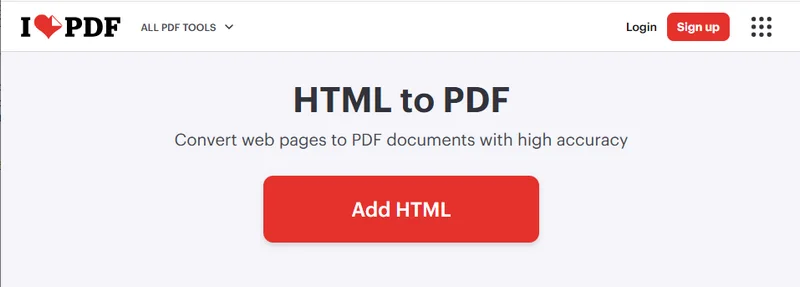
- Next, adjust the settings in the right-hand panel as needed, then click Convert to PDF. Once the conversion is complete, you can download the PDF file to your computer.
How to Download a Webpage as a PDF with Code
In addition to the two common methods mentioned above, you can also perform this task using code — a more flexible option designed for developers. This approach offers several advantages that the previous methods don’t, such as batch downloading, full offline operation, and better automation for large-scale tasks.
In this tutorial, we’ll use Spire.Doc for Python to demonstrate how to download a webpage as a PDF. As a professional Python library, it allows developers to handle everything from simple document format conversions to advanced tasks like content editing and encryption.
Steps to download an entire webpage as a PDF in Python:
-
Install Spire.Doc using the command
pip install spire.doc. You’ll also need to install requests, a library used for fetching webpage content. -
Import the required modules:
from spire.doc import *
from spire.doc.common import *
import requests
- Specify the webpage URL and fetch content from HTML:
# Get HTML content from the webpage
url = "/Tutorials/Python/Spire.Doc-for-Python/Program-Guide/Conversion/Python-Convert-HTML-to-PDF.html"
html = requests.get(url).text
- Write the HTML content into a Word document:
# Write HTML to a Word document
doc = Document()
section = doc.AddSection()
paragraph = section.AddParagraph()
paragraph.AppendHTML(html)
- Finally, save the document as a PDF file:
# Save the document as a PDF
doc.SaveToFile("E:/Administrator/Python1/webpage_to_pdf11.pdf", FileFormat.PDF)
Here's the complete code example:
from spire.doc import *
from spire.doc.common import *
import requests

#  HTML Get HTML from web
url = "/Tutorials/Python/Spire.Doc-for-Python/Program-Guide/Conversion/Python-Convert-HTML-to-PDF.html"
html = requests.get(url).text

# Write HTML to document
doc = Document()
section = doc.AddSection()
paragraph = section.AddParagraph()
paragraph.AppendHTML(html)

# Save the document to PDF file
doc.SaveToFile("E:/Administrator/Python1/webpage_to_pdf11.pdf", FileFormat.PDF)
doc.Close()
Below is a preview of the resulting PDF file: 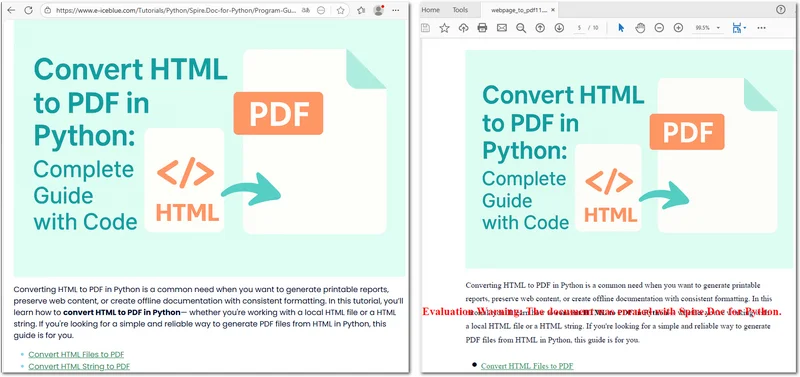
If you save a webpage in HTML format, Spire.Doc can also easily convert it to a PDF using the Document.SaveToFile() method.
The Conclusion
This article introduced three different ways to download a webpage as a PDF. Depending on your needs, you can choose the method that works best for you — whether it’s using built-in features, online tools, or the Spire.Doc Python library. If you want to explore more advanced PDF features, consider trying Spire.Doc’s 30-day free license to experience its full potential.
ALSO READ
Converter PowerPoint para HTML: Métodos simples para cada usuário
O PowerPoint é amplamente reconhecido como uma das ferramentas mais populares para criar apresentações visualmente atraentes. No entanto, quando você deseja compartilhar uma apresentação online — seja para sites, plataformas de aprendizado ou documentação interna — muitas vezes é melhor converter o PowerPoint para HTML, para que os slides possam ser visualizados diretamente em qualquer navegador, sem a necessidade do PowerPoint ou de plugins adicionais.
Existem várias maneiras de realizar a conversão de PPT para HTML ou PPTX para HTML. Você pode usar ferramentas online para resultados rápidos baseados no navegador, contar com o Microsoft Office (via Word) para um fluxo de trabalho offline totalmente da Microsoft, ou automatizar o processo com Python para conversões em grande escala ou repetíveis. Cada abordagem tem suas vantagens e limitações.
Neste artigo, exploraremos esses métodos passo a passo para que você possa escolher a melhor maneira de converter seus arquivos — seja para uma conversão rápida e única ou para um fluxo de trabalho escalável de PowerPoint para HTML.
Visão Geral dos Métodos:
- Método 1 – Converter PowerPoint para HTML Usando Ferramentas Online Gratuitas
- Método 2 – Converter PowerPoint para HTML Usando o Microsoft Office
- Método 3 – Automatizar a Conversão de PowerPoint para HTML com Python
Por que Converter PowerPoint para HTML?
Converter PowerPoint para HTML oferece várias vantagens tanto para indivíduos quanto para organizações:
-
Acessibilidade Universal
Arquivos HTML podem ser abertos em qualquer navegador moderno, em qualquer dispositivo — desktop, tablet ou smartphone — sem a necessidade do PowerPoint ou do Microsoft Office. -
Fácil Incorporação e Compartilhamento
Apresentações em HTML podem ser incorporadas em sites, blogs e portais de intranet, permitindo uma integração suave em ambientes online. -
Compatibilidade e Portabilidade
Compartilhar HTML elimina conflitos de versão e garante um layout consistente em todas as plataformas.
No entanto, nem todos os recursos do PowerPoint são traduzidos perfeitamente para HTML. Embora texto, imagens e layouts sejam geralmente preservados, animações complexas, vídeos incorporados e transições podem não aparecer exatamente como na apresentação original.
Ainda assim, para a maioria das apresentações estáticas ou semi-interativas, exportar o PowerPoint para HTML oferece um excelente equilíbrio entre fidelidade visual e acessibilidade na web.
Método 1 – Converter PowerPoint para HTML Usando Ferramentas Online Gratuitas (Nenhuma Instalação Necessária)
Se você não tem o PowerPoint instalado ou deseja uma solução rápida baseada no navegador, os conversores online de PowerPoint para HTML são uma escolha conveniente. Muitas plataformas gratuitas permitem que você envie seu arquivo .ppt ou .pptx e o converta para HTML automaticamente, sem instalar nenhum software.
Algumas opções populares e confiáveis incluem:
- CLOUDXDOCS
- Zamzar
- OnlineConvertFree
- Convertio
Aqui, usaremos o Conversor de PowerPoint para HTML da CLOUDXDOCS como exemplo.
Processo típico:
- Visite a página do Conversor de PowerPoint para HTML da CLOUDXDOCS.
- Envie seu arquivo do PowerPoint (.ppt ou .pptx).
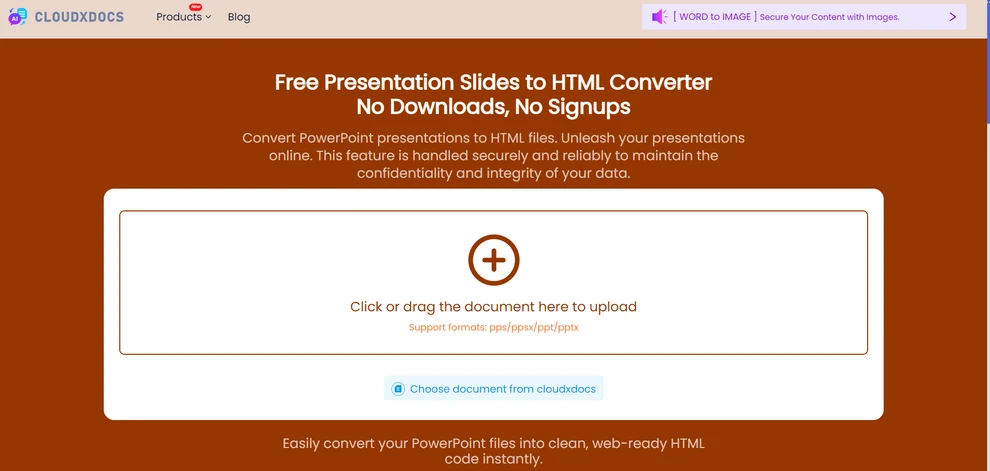
- Aguarde alguns segundos para a conversão ser concluída.
- Baixe o pacote HTML resultante para o seu computador ou processe-o conforme necessário.
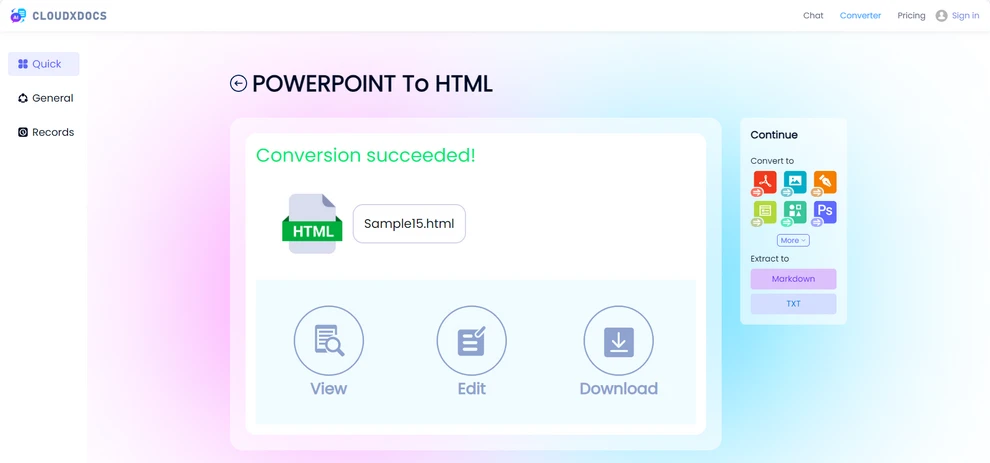
Abaixo está uma prévia do resultado da conversão.
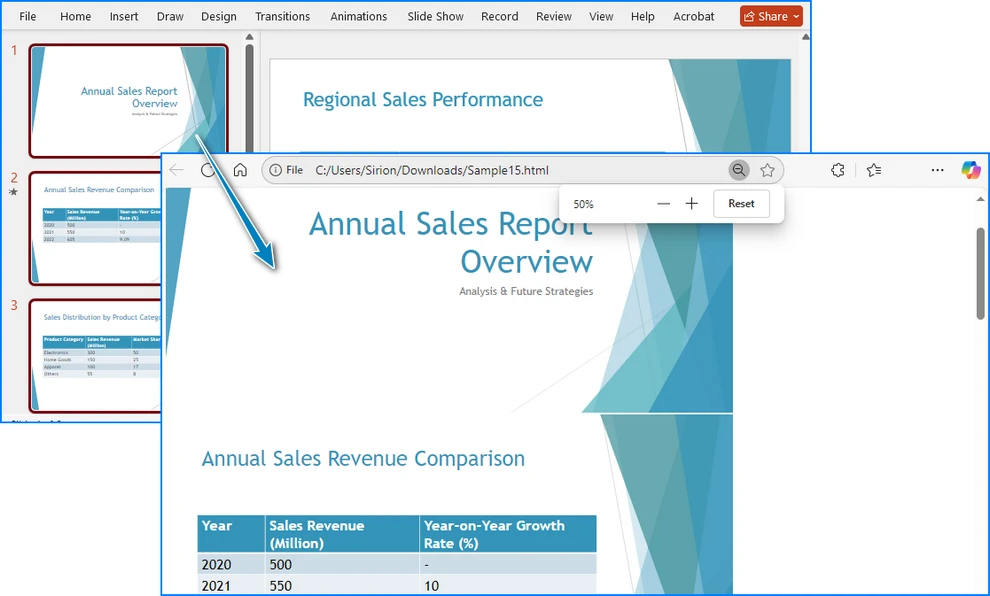
Vantagens:
- Nenhuma instalação de software necessária.
- Funciona em qualquer dispositivo com conexão à internet.
- Rápido e simples para conversões únicas.
Considerações:
- Algumas ferramentas online podem ter limites de tamanho de arquivo para usuários gratuitos.
- A velocidade de conversão e a precisão do layout podem variar dependendo da plataforma.
- Alguns usuários podem ter preocupações com a privacidade ao enviar arquivos para conversores online.
Conversores online como o CLOUDXDOCS são ideais para conversões rápidas e sem complicações de PPT para HTML ou PPTX para HTML.
Método 2 – Converter PowerPoint para HTML Usando o Microsoft Office
As versões modernas do Microsoft PowerPoint não incluem mais a antiga opção “Salvar como Página da Web (.htm; .html)” que existia no PowerPoint 2007 e anteriores.
Se você ainda prefere concluir a conversão de PowerPoint para HTML dentro do Microsoft Office, pode usar o PowerPoint junto com o Word para alcançar o mesmo resultado.
Este método é mais manual, mas útil para usuários que preferem permanecer no ecossistema do Office e não querem depender de ferramentas externas ou código.
Passos para converter PowerPoint para HTML usando o Microsoft Office:
- Abra sua apresentação do PowerPoint.
- Vá para Arquivo > Exportar, e escolha Criar Folhetos.
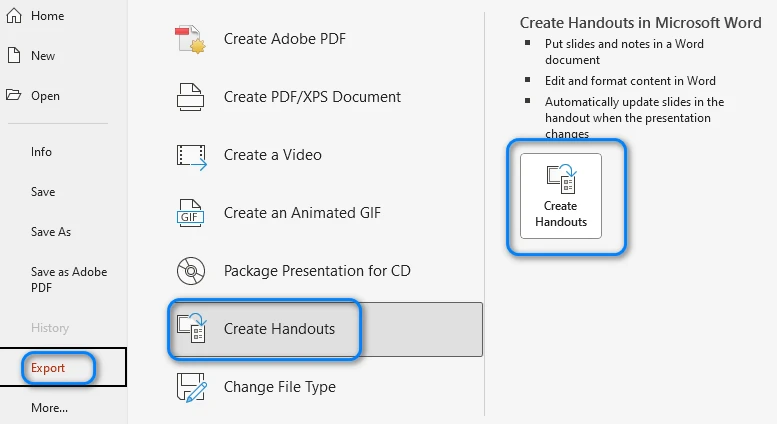
- Selecione um layout no menu pop-up e clique em OK. O PowerPoint exportará seus slides e os enviará para um novo documento do Word.
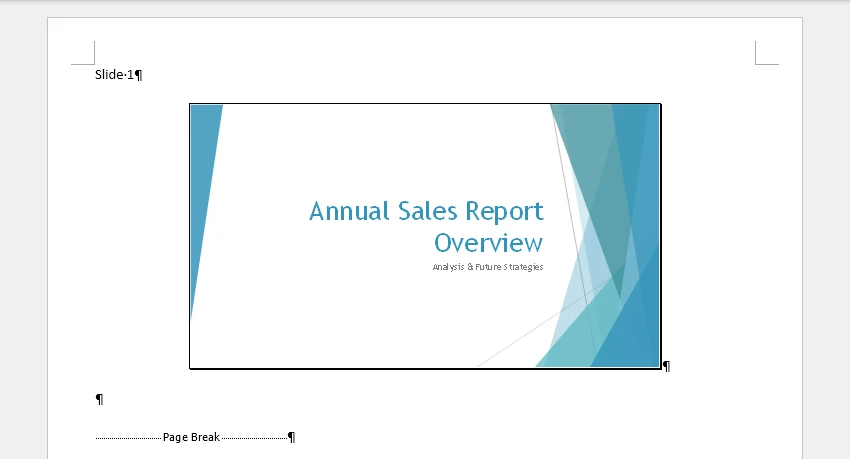
- No Word, vá para Arquivo > Salvar Como e escolha um local. Você também pode ajustar o tamanho da página, as margens ou remover conteúdo desnecessário para que o layout do slide se ajuste melhor às suas necessidades antes de salvar.
- Na lista suspensa “Salvar como tipo”, escolha *Página da Web (.htm; .html)* e clique em Salvar.
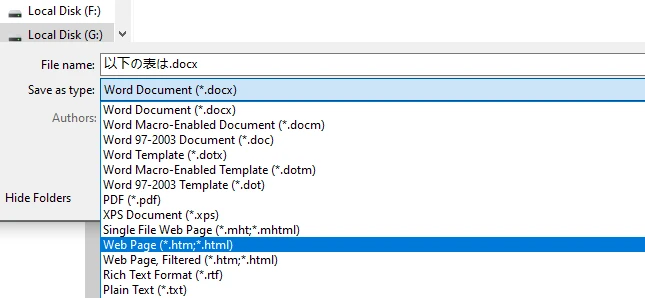
O Word gerará um arquivo HTML junto com uma pasta contendo recursos relacionados (imagens, estilos, etc.). Cada slide será exibido como uma imagem com texto ou notas opcionais, dependendo do layout escolhido. Abaixo está uma prévia do arquivo HTML gerado:
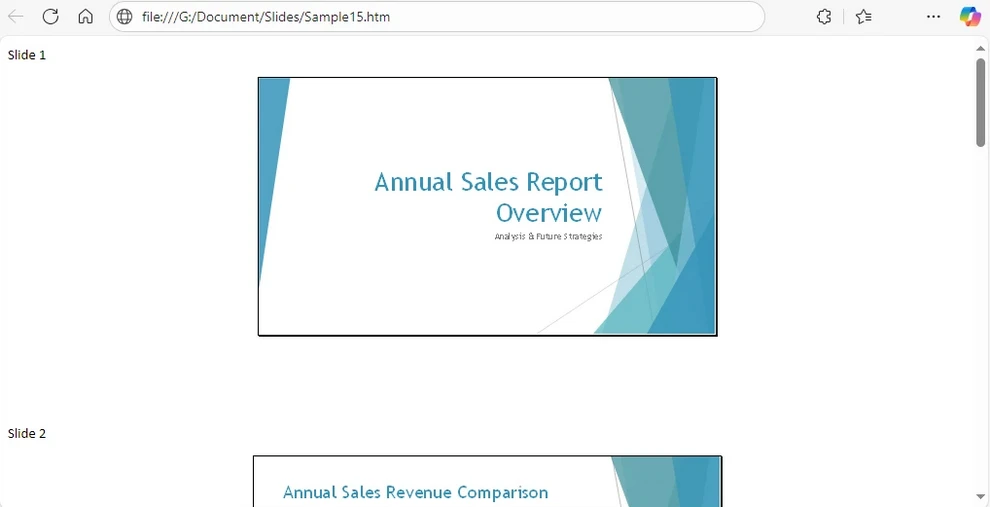
Se preferir, você também pode copiar manualmente seus slides do PowerPoint, colá-los no Word, ajustar a formatação conforme necessário e, em seguida, salvar o documento como HTML.
Vantagens:
- Solução 100% Microsoft Office — não são necessárias ferramentas externas.
- Preserva o conteúdo dos slides, notas e layout como imagens e texto.
- Permite ajustes manuais e formatação no Word antes de exportar.
Limitações:
- O processo é manual e demorado para apresentações grandes.
- A saída HTML pode incluir marcação desnecessária.
- Animações e transições não são preservadas.
Esta abordagem é adequada quando você deseja permanecer totalmente no pacote Office, mas para conversões em maior escala ou repetidas, os métodos automatizados são muito mais eficientes.
Para uma opção de exibição estática, os slides também podem ser convertidos em imagens e incorporados em HTML. Saiba mais em nosso guia sobre exportar slides do PowerPoint como imagens.
Método 3 – Converter PowerPoint para HTML Programaticamente (Automação com Python)
Para desenvolvedores ou equipes que exigem conversão automatizada ou em grande escala, usar Python oferece uma opção poderosa e flexível. Ao escrever um script curto, você pode converter em lote vários arquivos do PowerPoint em HTML sem trabalho manual.
Aqui está um exemplo usando o Spire.Presentation for Python, uma biblioteca que suporta a leitura, edição e exportação de arquivos do PowerPoint em vários formatos:
Instale a biblioteca usando pip:
pip install Spire.Presentation
Exemplo em Python - Converter PowerPoint para HTML:
from spire.presentation import Presentation, FileFormat

# Carregue o arquivo do PowerPoint
presentation = Presentation()
presentation.LoadFromFile("Sample.pptx")

# Salve como HTML
presentation.SaveToFile("output/PowerPointHTML.html", FileFormat.Html)
presentation.Dispose()
Como funciona: O código carrega um arquivo do PowerPoint usando a classe Presentation e, em seguida, o exporta para um arquivo HTML usando o método SaveToFile.
Você pode ver um exemplo da saída HTML resultante na captura de tela abaixo:
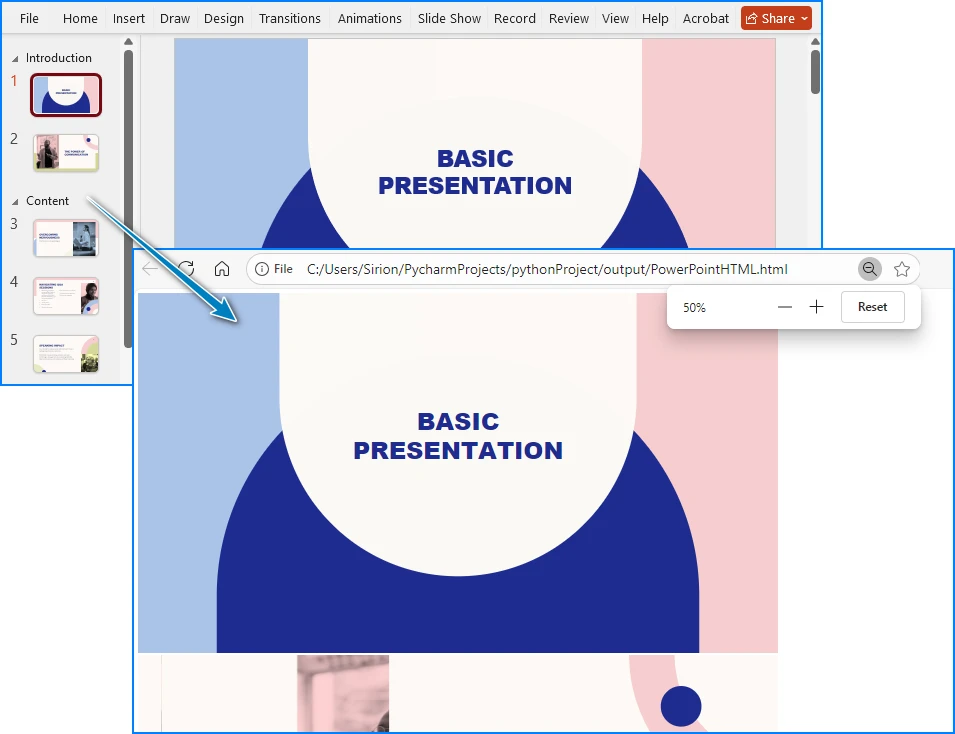
Vantagens:
- Totalmente automatizado — ideal para conversões em lote ou agendadas.
- Pode ser integrado a serviços da web ou sistemas de processamento de documentos.
- Mantém texto, imagens e a estrutura básica do slide.
Limitações:
- Requer conhecimento básico de Python.
- Animação e multimídia incorporada podem não ser exportadas.
Se você gerencia um pipeline de automação de documentos ou precisa converter regularmente apresentações do PowerPoint em HTML, a abordagem com Python oferece flexibilidade e escalabilidade incomparáveis.
Para mais detalhes sobre como usar Python para converter arquivos do PowerPoint para HTML, consulte nosso guia de conversão passo a passo em Python.
Dicas para Obter os Melhores Resultados
Não importa qual método você escolha, siga estas dicas de otimização para melhorar a qualidade e o desempenho da saída:
-
Otimize Imagens Comprima imagens grandes antes de exportar para reduzir o tamanho do arquivo e melhorar os tempos de carregamento.
-
Use Fontes Amigáveis para a Web Use fontes padrão (por exemplo, Arial, Verdana, Roboto) para garantir uma exibição consistente em todos os navegadores.
-
Mantenha os Caminhos dos Arquivos Intactos Mantenha a estrutura correta entre seu arquivo HTML e suas pastas de recursos (como /images ou /media).
-
Verifique a Compatibilidade do Navegador Teste seu HTML exportado em vários navegadores (Chrome, Edge, Firefox, Safari) para obter resultados consistentes.
-
Evite Animações Complexas Simplifique as transições ou remova efeitos pesados que podem não ser convertidos corretamente.
Seguir essas práticas recomendadas garante que suas apresentações em HTML permaneçam leves, visualmente consistentes e fáceis de compartilhar.
Conclusão
Converter arquivos PPT/PPTX do PowerPoint para HTML facilita a visualização e o compartilhamento em diferentes dispositivos e plataformas. Se você precisa de uma exportação rápida e única, uma solução offline ou um fluxo de trabalho que possa ser automatizado, existem abordagens que atendem a todas as necessidades.
Compreender seus objetivos e fluxo de trabalho ajudará você a escolher o método mais adequado e a tornar o processo de conversão suave e eficiente.
Perguntas Frequentes sobre a Conversão de PowerPoint para HTML
Aqui estão algumas das perguntas mais comuns que os usuários têm ao converter apresentações do PowerPoint para HTML.
P1: O PowerPoint ainda pode salvar diretamente como HTML?
Não nas versões recentes. A opção “Salvar como Página da Web” foi removida após o PowerPoint 2007. Você pode exportar slides para o Word e salvar o documento do Word como HTML, usar conversores online ou automatizar o processo com Python.
P2: Como transformo um PowerPoint em HTML ou em uma página da web?
Você pode usar ferramentas online, o Microsoft Office (via Word), software de conversão de terceiros ou scripts em Python. O método certo depende do seu fluxo de trabalho, do tamanho do arquivo e se você deseja controle manual ou automação.
P3: Qual é a melhor maneira de exibir um PPT em uma página HTML?
Uma vez convertido para HTML, seus slides podem ser incorporados diretamente em uma página da web. Para apresentações interativas, alguns conversores preservam os controles de navegação, enquanto as exportações estáticas exibem os slides como imagens com texto de acompanhamento.
P4: Qual é o melhor conversor de PowerPoint para HTML?
A melhor ferramenta depende das suas necessidades. As ferramentas online são rápidas e convenientes para conversões únicas, os métodos baseados no Office são totalmente offline e a automação com Python com Spire.Presentation é ideal para conversões em grande escala ou repetidas.
Veja Também:
Convertire PowerPoint in HTML: Metodi semplici per ogni utente
PowerPoint è ampiamente riconosciuto come uno degli strumenti più popolari per creare presentazioni visivamente accattivanti. Tuttavia, quando si desidera condividere una presentazione online, che sia per siti web, piattaforme di apprendimento o documentazione interna, è spesso meglio convertire PowerPoint in HTML, in modo che le diapositive possano essere visualizzate direttamente in qualsiasi browser senza bisogno di PowerPoint o di plugin aggiuntivi.
Esistono diversi modi per eseguire la conversione da PPT a HTML o da PPTX a HTML. È possibile utilizzare strumenti online per risultati rapidi basati su browser, affidarsi a Microsoft Office (tramite Word) per un flusso di lavoro offline interamente Microsoft, oppure automatizzare il processo con Python per conversioni su larga scala o ripetibili. Ogni approccio ha i suoi vantaggi e limiti.
In questo articolo, esploreremo questi metodi passo dopo passo in modo che tu possa scegliere il modo migliore per convertire i tuoi file, sia che tu abbia bisogno di una conversione rapida una tantum o di un flusso di lavoro scalabile da PowerPoint a HTML.
Panoramica dei metodi:
- Metodo 1 – Convertire PowerPoint in HTML utilizzando strumenti online gratuiti
- Metodo 2 – Convertire PowerPoint in HTML utilizzando Microsoft Office
- Metodo 3 – Automatizzare la conversione da PowerPoint a HTML con Python
Perché convertire PowerPoint in HTML?
La conversione di PowerPoint in HTML offre diversi vantaggi sia per i singoli che per le organizzazioni:
-
Accessibilità universale
I file HTML possono essere aperti in qualsiasi browser web moderno, su qualsiasi dispositivo (desktop, tablet o smartphone) senza richiedere PowerPoint o Microsoft Office. -
Facilità di incorporamento e condivisione
Le presentazioni HTML possono essere incorporate in siti web, blog e portali intranet, consentendo una fluida integrazione negli ambienti online. -
Compatibilità e portabilità
La condivisione di HTML elimina i conflitti di versione e garantisce un layout coerente su tutte le piattaforme.
Tuttavia, non tutte le funzionalità di PowerPoint si traducono perfettamente in HTML. Sebbene testo, immagini e layout vengano generalmente conservati, animazioni complesse, video incorporati e transizioni potrebbero non apparire esattamente come nella presentazione originale.
Tuttavia, per la maggior parte delle presentazioni statiche o semi-interattive, l'esportazione di PowerPoint in HTML offre un eccellente equilibrio tra fedeltà visiva e accessibilità web.
Metodo 1 – Convertire PowerPoint in HTML utilizzando strumenti online gratuiti (nessuna installazione richiesta)
Se non hai PowerPoint installato o desideri una soluzione rapida basata su browser, i convertitori online da PowerPoint a HTML sono una scelta conveniente. Molte piattaforme gratuite ti consentono di caricare il tuo file .ppt o .pptx e convertirlo automaticamente in HTML senza installare alcun software.
Alcune opzioni popolari e affidabili includono:
- CLOUDXDOCS
- Zamzar
- OnlineConvertFree
- Convertio
Qui, prenderemo come esempio il convertitore da PowerPoint a HTML di CLOUDXDOCS.
Processo tipico:
- Visita la pagina del convertitore da PowerPoint a HTML di CLOUDXDOCS.
- Carica il tuo file PowerPoint (.ppt o .pptx).
- Attendi qualche secondo per il completamento della conversione.
- Scarica il pacchetto HTML risultante sul tuo computer o esegui ulteriori elaborazioni secondo necessità.
Di seguito è riportata un'anteprima del risultato della conversione.
Vantaggi:
- Nessuna installazione di software richiesta.
- Funziona su qualsiasi dispositivo con una connessione Internet.
- Veloce e semplice per conversioni una tantum.
Considerazioni:
- Alcuni strumenti online potrebbero avere limiti sulla dimensione dei file per gli utenti gratuiti.
- La velocità di conversione e la precisione del layout possono variare a seconda della piattaforma.
- Alcuni utenti potrebbero avere preoccupazioni sulla privacy durante il caricamento di file su convertitori online.
I convertitori online come CLOUDXDOCS sono ideali per conversioni rapide e senza problemi da PPT a HTML o da PPTX a HTML.
Metodo 2 – Convertire PowerPoint in HTML utilizzando Microsoft Office
Le versioni moderne di Microsoft PowerPoint non includono più la vecchia opzione "Salva come pagina Web (.htm; .html)" che esisteva in PowerPoint 2007 e versioni precedenti.
Se preferisci comunque completare la conversione da PowerPoint a HTML all'interno di Microsoft Office, puoi utilizzare PowerPoint insieme a Word per ottenere lo stesso risultato.
Questo metodo è più manuale ma utile per gli utenti che preferiscono rimanere all'interno dell'ecosistema di Office e non vogliono fare affidamento su strumenti o codice esterni.
Passaggi per convertire PowerPoint in HTML utilizzando Microsoft Office:
- Apri la tua presentazione di PowerPoint.
- Vai su File > Esporta e scegli Crea stampati.
- Seleziona un layout nel menu a comparsa e fai clic su OK. PowerPoint esporterà le tue diapositive e le invierà a un nuovo documento di Word.
- In Word, vai su File > Salva con nome e scegli una posizione. Puoi anche regolare le dimensioni della pagina, i margini o rimuovere i contenuti non necessari per adattare meglio il layout della diapositiva alle tue esigenze prima di salvare.
- Nel menu a discesa "Salva come", scegli *Pagina Web (.htm; .html)* e fai clic su Salva.
Word genererà un file HTML insieme a una cartella contenente le risorse correlate (immagini, stili, ecc.). Ogni diapositiva verrà visualizzata come un'immagine con testo o note opzionali, a seconda del layout scelto. Di seguito è riportata un'anteprima del file HTML generato:
Se preferisci, puoi anche copiare manualmente le tue diapositive da PowerPoint, incollarle in Word, regolare la formattazione secondo necessità e quindi salvare il documento come HTML.
Vantaggi:
- Soluzione 100% Microsoft Office — non sono richiesti strumenti esterni.
- Conserva il contenuto delle diapositive, le note e il layout come immagini e testo.
- Consente regolazioni manuali e formattazione in Word prima dell'esportazione.
Limitazioni:
- Il processo è manuale e richiede molto tempo per presentazioni di grandi dimensioni.
- L'output HTML potrebbe includere markup non necessario.
- Animazioni e transizioni non vengono conservate.
Questo approccio è adatto quando si desidera rimanere completamente all'interno della suite di Office, ma per conversioni su larga scala o ripetute, i metodi automatizzati sono molto più efficienti.
Per un'opzione di visualizzazione statica, le diapositive possono anche essere convertite in immagini e incorporate in HTML. Scopri di più nella nostra guida su esportazione di diapositive di PowerPoint come immagini.
Metodo 3 – Convertire PowerPoint in HTML programmaticamente (automazione Python)
Per sviluppatori o team che richiedono una conversione automatizzata o su larga scala, l'uso di Python offre un'opzione potente e flessibile. Scrivendo un breve script, è possibile convertire in batch più file di PowerPoint in HTML senza lavoro manuale.
Ecco un esempio che utilizza Spire.Presentation for Python, una libreria che supporta la lettura, la modifica e l'esportazione di file PowerPoint in vari formati:
Installa la libreria usando pip:
pip install Spire.Presentation
Esempio Python - Convertire PowerPoint in HTML:
from spire.presentation import Presentation, FileFormat

# Load the PowerPoint file
presentation = Presentation()
presentation.LoadFromFile("Sample.pptx")

# Save as HTML
presentation.SaveToFile("output/PowerPointHTML.html", FileFormat.Html)
presentation.Dispose()
Come funziona: Il codice carica un file PowerPoint utilizzando la classe Presentation, quindi lo esporta in un file HTML utilizzando il metodo SaveToFile.
Puoi vedere un esempio dell'output HTML risultante nello screenshot qui sotto:
Vantaggi:
- Completamente automatizzato, ideale per conversioni batch o pianificate.
- Può essere integrato in servizi web o sistemi di elaborazione dei documenti.
- Mantiene testo, immagini e struttura di base delle diapositive.
Limitazioni:
- Richiede una conoscenza di base di Python.
- Animazioni e contenuti multimediali incorporati potrebbero non essere esportati.
Se gestisci una pipeline di automazione dei documenti o hai bisogno di convertire regolarmente presentazioni PowerPoint in HTML, l'approccio Python offre flessibilità e scalabilità senza pari.
Per maggiori dettagli sull'utilizzo di Python per convertire file PowerPoint in HTML, consulta la nostra guida passo passo alla conversione con Python.
Suggerimenti per ottenere i migliori risultati
Indipendentemente dal metodo scelto, segui questi suggerimenti di ottimizzazione per migliorare la qualità e le prestazioni dell'output:
-
Ottimizza le immagini Comprimi le immagini di grandi dimensioni prima dell'esportazione per ridurre le dimensioni del file e migliorare i tempi di caricamento.
-
Usa caratteri web-friendly Attieniti a caratteri standard (ad es. Arial, Verdana, Roboto) per garantire una visualizzazione coerente su tutti i browser.
-
Mantieni intatti i percorsi dei file Mantieni la struttura corretta tra il tuo file HTML e le sue cartelle di risorse (come /images o /media).
-
Verifica la compatibilità del browser Testa il tuo HTML esportato in più browser (Chrome, Edge, Firefox, Safari) per risultati coerenti.
-
Evita animazioni complesse Semplifica le transizioni o rimuovi gli effetti pesanti che potrebbero non essere convertiti correttamente.
Seguire queste best practice garantisce che le tue presentazioni HTML rimangano leggere, visivamente coerenti e facili da condividere.
Conclusione
La conversione di file PowerPoint PPT/PPTX in HTML li rende facili da visualizzare e condividere su diversi dispositivi e piattaforme. Che tu abbia bisogno di un'esportazione rapida una tantum, di una soluzione offline o di un flusso di lavoro che possa essere automatizzato, esistono approcci adatti a ogni esigenza.
Comprendere i tuoi obiettivi e il tuo flusso di lavoro ti aiuterà a scegliere il metodo più adatto e a rendere il processo di conversione fluido ed efficiente.
Domande frequenti sulla conversione da PowerPoint a HTML
Ecco alcune delle domande più comuni che gli utenti si pongono durante la conversione di presentazioni PowerPoint in HTML.
D1: PowerPoint può ancora salvare direttamente come HTML?
Non nelle versioni recenti. L'opzione "Salva come pagina Web" è stata rimossa dopo PowerPoint 2007. È possibile esportare le diapositive in Word e salvare il documento di Word come HTML, utilizzare convertitori online o automatizzare il processo con Python.
D2: Come trasformo un PowerPoint in HTML o in una pagina web?
Puoi utilizzare strumenti online, Microsoft Office (tramite Word), software di conversione di terze parti o script Python. Il metodo giusto dipende dal tuo flusso di lavoro, dalle dimensioni del file e dal fatto che tu voglia il controllo manuale o l'automazione.
D3: Qual è il modo migliore per visualizzare un PPT su una pagina HTML?
Una volta convertite in HTML, le diapositive possono essere incorporate direttamente in una pagina web. Per le presentazioni interattive, alcuni convertitori conservano i controlli di navigazione, mentre le esportazioni statiche visualizzano le diapositive come immagini con testo di accompagnamento.
D4: Qual è il miglior convertitore da PowerPoint a HTML?
Lo strumento migliore dipende dalle tue esigenze. Gli strumenti online sono veloci e convenienti per conversioni una tantum, i metodi basati su Office sono completamente offline e l'automazione Python con Spire.Presentation è ideale per conversioni su larga scala o ripetute.
Vedi anche:
PowerPoint를 HTML로 변환하기: 모든 사용자를 위한 간단한 방법
PowerPoint는 시각적으로 매력적인 프레젠테이션을 만드는 가장 인기 있는 도구 중 하나로 널리 알려져 있습니다. 그러나 웹사이트, 학습 플랫폼 또는 내부 문서를 위해 프레젠테이션을 온라인으로 공유하려는 경우 PowerPoint나 추가 플러그인 없이 모든 브라우저에서 슬라이드를 직접 볼 수 있도록 PowerPoint를 HTML로 변환하는 것이 더 좋습니다.
PPT를 HTML로 또는 PPTX를 HTML로 변환하는 방법에는 여러 가지가 있습니다. 빠른 브라우저 기반 결과를 위해 온라인 도구를 사용하거나, 모든 Microsoft 오프라인 워크플로를 위해 Microsoft Office(Word를 통해)에 의존하거나, 대규모 또는 반복 가능한 변환을 위해 Python으로 프로세스를 자동화할 수 있습니다. 각 접근 방식에는 장점과 한계가 있습니다.
이 기사에서는 빠른 일회성 변환이 필요하든 확장 가능한 PowerPoint-HTML 워크플로가 필요하든 파일을 변환하는 가장 좋은 방법을 선택할 수 있도록 이러한 방법을 단계별로 살펴보겠습니다.
방법 개요:
- 방법 1 – 무료 온라인 도구를 사용하여 PowerPoint를 HTML로 변환
- 방법 2 – Microsoft Office를 사용하여 PowerPoint를 HTML로 변환
- 방법 3 – Python으로 PowerPoint를 HTML로 변환 자동화
PowerPoint를 HTML로 변환하는 이유는 무엇입니까?
PowerPoint를 HTML로 변환하면 개인과 조직 모두에게 여러 가지 이점을 제공합니다.
-
보편적인 접근성
HTML 파일은 PowerPoint나 Microsoft Office 없이 데스크톱, 태블릿, 스마트폰 등 모든 장치의 최신 웹 브라우저에서 열 수 있습니다. -
쉬운 포함 및 공유
HTML 프레젠테이션은 웹사이트, 블로그 및 인트라넷 포털에 포함될 수 있어 온라인 환경에 원활하게 통합할 수 있습니다. -
호환성 및 이식성
HTML을 공유하면 버전 충돌이 제거되고 플랫폼 전반에 걸쳐 일관된 레이아웃이 보장됩니다.
그러나 모든 PowerPoint 기능이 HTML로 완벽하게 변환되는 것은 아닙니다. 텍스트, 이미지 및 레이아웃은 일반적으로 유지되지만 복잡한 애니메이션, 포함된 비디오 및 전환은 원본 프레젠테이션과 똑같이 나타나지 않을 수 있습니다.
그럼에도 불구하고 대부분의 정적 또는 반 대화형 프레젠테이션의 경우 PowerPoint를 HTML로 내보내면 시각적 충실도와 웹 접근성 간의 탁월한 균형을 제공합니다.
방법 1 – 무료 온라인 도구를 사용하여 PowerPoint를 HTML로 변환(설치 필요 없음)
PowerPoint가 설치되어 있지 않거나 빠른 브라우저 기반 솔루션을 원하는 경우 온라인 PowerPoint to HTML 변환기가 편리한 선택입니다. 많은 무료 플랫폼을 사용하면 소프트웨어를 설치하지 않고도 .ppt 또는 .pptx 파일을 업로드하고 자동으로 HTML로 변환할 수 있습니다.
인기 있고 신뢰할 수 있는 몇 가지 옵션은 다음과 같습니다.
- CLOUDXDOCS
- Zamzar
- OnlineConvertFree
- Convertio
여기서는 CLOUDXDOCS PowerPoint to HTML 변환기를 예로 들어 보겠습니다.
일반적인 프로세스:
- CLOUDXDOCS PowerPoint to HTML 변환기 페이지를 방문하십시오.
- PowerPoint(.ppt 또는 .pptx) 파일을 업로드합니다.
- 변환이 완료될 때까지 몇 초 정도 기다리십시오.
- 결과 HTML 패키지를 컴퓨터에 다운로드하거나 필요에 따라 추가 처리를 수행하십시오.
아래는 변환 결과 미리보기입니다.
장점:
- 소프트웨어 설치가 필요하지 않습니다.
- 인터넷에 연결된 모든 장치에서 작동합니다.
- 일회성 변환에 빠르고 간단합니다.
고려 사항:
- 일부 온라인 도구에는 무료 사용자를 위한 파일 크기 제한이 있을 수 있습니다.
- 변환 속도와 레이아웃 정확도는 플랫폼에 따라 다를 수 있습니다.
- 일부 사용자는 온라인 변환기에 파일을 업로드할 때 개인 정보 보호에 대한 우려를 가질 수 있습니다.
CLOUDXDOCS와 같은 온라인 변환기는 빠르고 번거롭지 않은 PPT to HTML 또는 PPTX to HTML 변환에 이상적입니다.
방법 2 – Microsoft Office를 사용하여 PowerPoint를 HTML로 변환
최신 버전의 Microsoft PowerPoint에는 더 이상 PowerPoint 2007 및 이전 버전에 있었던 이전 “웹 페이지로 저장(.htm; .html)” 옵션이 포함되어 있지 않습니다.
Microsoft Office 내에서 PowerPoint를 HTML로 변환하는 것을 선호하는 경우 PowerPoint를 Word와 함께 사용하여 동일한 결과를 얻을 수 있습니다.
이 방법은 더 수동적이지만 Office 생태계 내에 머물고 외부 도구나 코드에 의존하고 싶지 않은 사용자에게 유용합니다.
Microsoft Office를 사용하여 PowerPoint를 HTML로 변환하는 단계:
- PowerPoint 프레젠테이션을 엽니다.
- 파일 > 내보내기로 이동하여 유인물 만들기를 선택합니다.
- 팝업 메뉴에서 레이아웃을 선택하고 확인을 클릭합니다. PowerPoint는 슬라이드를 내보내고 새 Word 문서로 보냅니다.
- Word에서 파일 > 다른 이름으로 저장으로 이동하여 위치를 선택합니다. 저장하기 전에 페이지 크기, 여백을 조정하거나 불필요한 콘텐츠를 제거하여 슬라이드 레이아웃을 필요에 맞게 더 잘 맞출 수도 있습니다.
- “파일 형식” 드롭다운에서 *웹 페이지 (.htm; .html)*를 선택하고 저장을 클릭합니다.
Word는 관련 리소스(이미지, 스타일 등)가 포함된 폴더와 함께 HTML 파일을 생성합니다. 각 슬라이드는 선택한 레이아웃에 따라 선택적 텍스트나 메모가 있는 이미지로 표시됩니다. 다음은 생성된 HTML 파일의 미리보기입니다.
원하는 경우 PowerPoint에서 슬라이드를 수동으로 복사하여 Word에 붙여넣고, 필요에 따라 서식을 조정한 다음 문서를 HTML로 저장할 수도 있습니다.
장점:
- 100% Microsoft Office 솔루션 — 외부 도구가 필요하지 않습니다.
- 슬라이드 내용, 메모 및 레이아웃을 이미지와 텍스트로 보존합니다.
- 내보내기 전에 Word에서 수동 조정 및 서식을 허용합니다.
제한 사항:
- 이 프로세스는 대규모 프레젠테이션의 경우 수동적이고 시간이 많이 걸립니다.
- HTML 출력에 불필요한 마크업이 포함될 수 있습니다.
- 애니메이션과 전환은 보존되지 않습니다.
이 접근 방식은 Office 제품군 내에 완전히 머물고 싶을 때 적합하지만 대규모 또는 반복 변환의 경우 자동화된 방법이 훨씬 더 효율적입니다.
정적 표시 옵션의 경우 슬라이드를 이미지로 변환하여 HTML에 포함할 수도 있습니다. PowerPoint 슬라이드를 이미지로 내보내기에 대한 가이드에서 자세히 알아보십시오.
방법 3 – 프로그래밍 방식으로 PowerPoint를 HTML로 변환(Python 자동화)
자동화되거나 대규모 변환이 필요한 개발자나 팀의 경우 Python을 사용하면 강력하고 유연한 옵션을 제공합니다. 짧은 스크립트를 작성하여 수동 작업 없이 여러 PowerPoint 파일을 HTML로 일괄 변환할 수 있습니다.
다음은 다양한 형식의 PowerPoint 파일을 읽고, 편집하고, 내보내는 것을 지원하는 라이브러리인 Spire.Presentation for Python을 사용한 예입니다.
pip를 사용하여 라이브러리 설치:
pip install Spire.Presentation
Python 예제-PowerPoint를 HTML로 변환:
from spire.presentation import Presentation, FileFormat

# PowerPoint 파일 로드
presentation = Presentation()
presentation.LoadFromFile("Sample.pptx")

# HTML로 저장
presentation.SaveToFile("output/PowerPointHTML.html", FileFormat.Html)
presentation.Dispose()
작동 방식: 코드는 Presentation 클래스를 사용하여 PowerPoint 파일을 로드한 다음 SaveToFile 메서드를 사용하여 HTML 파일로 내보냅니다.
아래 스크린샷에서 결과 HTML 출력의 예를 볼 수 있습니다.
장점:
- 완전 자동화—일괄 또는 예약된 변환에 이상적입니다.
- 웹 서비스 또는 문서 처리 시스템에 통합할 수 있습니다.
- 텍스트, 이미지 및 기본 슬라이드 구조를 유지합니다.
제한 사항:
- 기본적인 Python 지식이 필요합니다.
- 애니메이션 및 포함된 멀티미디어는 내보내지지 않을 수 있습니다.
문서 자동화 파이프라인을 관리하거나 PowerPoint 프레젠테이션을 정기적으로 HTML로 변환해야 하는 경우 Python 접근 방식은 타의 추종을 불허하는 유연성과 확장성을 제공합니다.
Python을 사용하여 PowerPoint 파일을 HTML로 변환하는 방법에 대한 자세한 내용은 단계별 Python 변환 가이드를 참조하십시오.
최상의 결과를 얻기 위한 팁
어떤 방법을 선택하든 다음 최적화 팁을 따라 출력 품질과 성능을 향상시키십시오.
-
이미지 최적화 내보내기 전에 큰 이미지를 압축하여 파일 크기를 줄이고 로딩 시간을 개선하십시오.
-
웹 친화적인 글꼴 사용 브라우저에서 일관된 표시를 보장하려면 표준 글꼴(예: Arial, Verdana, Roboto)을 사용하십시오.
-
파일 경로를 그대로 유지 HTML 파일과 해당 리소스 폴더(예: /images 또는 /media) 간의 올바른 구조를 유지하십시오.
-
브라우저 호환성 확인 일관된 결과를 위해 내보낸 HTML을 여러 브라우저(Chrome, Edge, Firefox, Safari)에서 테스트하십시오.
-
복잡한 애니메이션 피하기 전환을 단순화하거나 제대로 변환되지 않을 수 있는 무거운 효과를 제거하십시오.
이러한 모범 사례를 따르면 HTML 프레젠테이션을 가볍고 시각적으로 일관되며 쉽게 공유할 수 있습니다.
결론
PowerPoint PPT/PPTX 파일을 HTML로 변환하면 여러 장치와 플랫폼에서 쉽게 보고 공유할 수 있습니다. 빠른 일회성 내보내기, 오프라인 솔루션 또는 자동화할 수 있는 워크플로가 필요한 경우 모든 요구에 맞는 접근 방식이 있습니다.
목표와 워크플로를 이해하면 가장 적합한 방법을 선택하고 변환 프로세스를 원활하고 효율적으로 만드는 데 도움이 됩니다.
PowerPoint to HTML 변환에 대해 자주 묻는 질문
다음은 사용자가 PowerPoint 프레젠테이션을 HTML로 변환할 때 가장 일반적으로 묻는 몇 가지 질문입니다.
Q1: PowerPoint는 여전히 HTML로 직접 저장할 수 있습니까?
최신 버전에서는 그렇지 않습니다. “웹 페이지로 저장” 옵션은 PowerPoint 2007 이후에 제거되었습니다. 슬라이드를 Word로 내보내고 Word 문서를 HTML로 저장하거나 온라인 변환기를 사용하거나 Python으로 프로세스를 자동화할 수 있습니다.
Q2: PowerPoint를 HTML이나 웹 페이지로 어떻게 바꾸나요?
온라인 도구, Microsoft Office(Word를 통해), 타사 변환기 소프트웨어 또는 Python 스크립팅을 사용할 수 있습니다. 올바른 방법은 워크플로, 파일 크기, 수동 제어 또는 자동화를 원하는지 여부에 따라 다릅니다.
Q3: HTML 페이지에 PPT를 표시하는 가장 좋은 방법은 무엇입니까?
HTML로 변환되면 슬라이드를 웹 페이지에 직접 포함할 수 있습니다. 대화형 프레젠테이션의 경우 일부 변환기는 탐색 컨트롤을 유지하는 반면 정적 내보내기는 슬라이드를 함께 제공되는 텍스트와 함께 이미지로 표시합니다.
Q4: 최고의 PowerPoint to HTML 변환기는 무엇입니까?
최고의 도구는 필요에 따라 다릅니다. 온라인 도구는 일회성 변환에 빠르고 편리하며, Office 기반 방법은 완전히 오프라인이며, Spire.Presentation을 사용한 Python 자동화는 대규모 또는 반복 변환에 이상적입니다.
참고 항목:
Convertir PowerPoint en HTML : Méthodes simples pour chaque utilisateur
PowerPoint est largement reconnu comme l'un des outils les plus populaires pour créer des présentations visuellement attrayantes. Cependant, lorsque vous souhaitez partager une présentation en ligne, que ce soit pour des sites web, des plateformes d'apprentissage ou de la documentation interne, il est souvent préférable de convertir PowerPoint en HTML, afin que les diapositives puissent être visualisées directement dans n'importe quel navigateur sans nécessiter PowerPoint ou des plugins supplémentaires.
Il existe plusieurs façons d'effectuer la conversion de PPT en HTML ou de PPTX en HTML. Vous pouvez utiliser des outils en ligne pour des résultats rapides basés sur le navigateur, vous fier à Microsoft Office (via Word) pour un flux de travail hors ligne entièrement Microsoft, ou automatiser le processus avec Python pour des conversions à grande échelle ou répétables. Chaque approche a ses avantages et ses limites.
Dans cet article, nous explorerons ces méthodes étape par étape afin que vous puissiez choisir la meilleure façon de convertir vos fichiers, que vous ayez besoin d'une conversion unique rapide ou d'un flux de travail PowerPoint-vers-HTML évolutif.
Aperçu des méthodes :
- Méthode 1 – Convertir PowerPoint en HTML en utilisant des outils en ligne gratuits
- Méthode 2 – Convertir PowerPoint en HTML en utilisant Microsoft Office
- Méthode 3 – Automatiser la conversion de PowerPoint en HTML avec Python
Pourquoi convertir PowerPoint en HTML ?
La conversion de PowerPoint en HTML offre plusieurs avantages tant pour les particuliers que pour les organisations :
-
Accessibilité universelle
Les fichiers HTML peuvent être ouverts dans n'importe quel navigateur web moderne, sur n'importe quel appareil — ordinateur de bureau, tablette ou smartphone — sans nécessiter PowerPoint ou Microsoft Office. -
Intégration et partage faciles
Les présentations HTML peuvent être intégrées dans des sites web, des blogs et des portails intranet, permettant une intégration fluide dans les environnements en ligne. -
Compatibilité et portabilité
Le partage de HTML élimine les conflits de version et assure une mise en page cohérente sur toutes les plateformes.
Cependant, toutes les fonctionnalités de PowerPoint ne se traduisent pas parfaitement en HTML. Bien que le texte, les images et les mises en page soient généralement préservés, les animations complexes, les vidéos intégrées et les transitions peuvent ne pas apparaître exactement comme dans la présentation originale.
Néanmoins, pour la plupart des présentations statiques ou semi-interactives, l'exportation de PowerPoint en HTML offre un excellent équilibre entre fidélité visuelle et accessibilité web.
Méthode 1 – Convertir PowerPoint en HTML en utilisant des outils en ligne gratuits (aucune installation requise)
Si vous n'avez pas PowerPoint d'installé ou si vous souhaitez une solution rapide basée sur un navigateur, les convertisseurs en ligne de PowerPoint en HTML sont un choix pratique. De nombreuses plateformes gratuites vous permettent de télécharger votre fichier .ppt ou .pptx et de le convertir automatiquement en HTML sans installer de logiciel.
Parmi les options populaires et fiables, on trouve :
- CLOUDXDOCS
- Zamzar
- OnlineConvertFree
- Convertio
Ici, nous prendrons comme exemple le convertisseur PowerPoint en HTML de CLOUDXDOCS.
Processus typique :
- Visitez la page du convertisseur PowerPoint en HTML de CLOUDXDOCS.
- Téléchargez votre fichier PowerPoint (.ppt ou .pptx).
- Attendez quelques secondes que la conversion se termine.
- Téléchargez le package HTML résultant sur votre ordinateur ou effectuez un traitement supplémentaire si nécessaire.
Voici un aperçu du résultat de la conversion.
Avantages :
- Aucune installation de logiciel requise.
- Fonctionne sur n'importe quel appareil avec une connexion Internet.
- Rapide et simple pour les conversions uniques.
Considérations :
- Certains outils en ligne peuvent avoir des limites de taille de fichier pour les utilisateurs gratuits.
- La vitesse de conversion et la précision de la mise en page peuvent varier en fonction de la plateforme.
- Certains utilisateurs peuvent avoir des préoccupations concernant la confidentialité lors du téléchargement de fichiers sur des convertisseurs en ligne.
Les convertisseurs en ligne comme CLOUDXDOCS sont idéaux pour des conversions rapides et sans tracas de PPT en HTML ou de PPTX en HTML.
Convertir PowerPoint a HTML: métodos sencillos para cada usuario
Tabla de Contenidos
PowerPoint es ampliamente reconocido como una de las herramientas más populares para crear presentaciones visualmente atractivas. Sin embargo, cuando deseas compartir una presentación en línea, ya sea para sitios web, plataformas de aprendizaje o documentación interna, a menudo es mejor convertir PowerPoint a HTML, para que las diapositivas se puedan ver directamente en cualquier navegador sin necesidad de PowerPoint o complementos adicionales.
Existen varias formas de realizar la conversión de PPT a HTML o PPTX a HTML. Puedes usar herramientas en línea para obtener resultados rápidos basados en el navegador, confiar en Microsoft Office (a través de Word) para un flujo de trabajo sin conexión totalmente de Microsoft, o automatizar el proceso con Python para conversiones a gran escala o repetibles. Cada enfoque tiene sus ventajas y limitaciones.
En este artículo, exploraremos estos métodos paso a paso para que puedas elegir la mejor manera de convertir tus archivos, ya sea que necesites una conversión rápida y única o un flujo de trabajo escalable de PowerPoint a HTML.
Resumen de Métodos:
- Método 1 – Convertir PowerPoint a HTML Usando Herramientas Gratuitas en Línea
- Método 2 – Convertir PowerPoint a HTML Usando Microsoft Office
- Método 3 – Automatizar la Conversión de PowerPoint a HTML con Python
¿Por Qué Convertir PowerPoint a HTML?
Convertir PowerPoint a HTML ofrece varias ventajas tanto para individuos como para organizaciones:
-
Accesibilidad Universal
Los archivos HTML se pueden abrir en cualquier navegador web moderno, en cualquier dispositivo (computadora de escritorio, tableta o teléfono inteligente) sin necesidad de PowerPoint o Microsoft Office. -
Fácil Inserción y Uso Compartido
Las presentaciones HTML se pueden incrustar en sitios web, blogs y portales de intranet, lo que permite una integración fluida en entornos en línea. -
Compatibilidad y Portabilidad
Compartir HTML elimina conflictos de versión y garantiza un diseño coherente en todas las plataformas.
Sin embargo, no todas las características de PowerPoint se traducen perfectamente a HTML. Aunque el texto, las imágenes y los diseños generalmente se conservan, las animaciones complejas, los videos incrustados y las transiciones pueden no aparecer exactamente como en la presentación original.
Aun así, para la mayoría de las presentaciones estáticas o semi-interactivas, exportar PowerPoint a HTML proporciona un excelente equilibrio entre fidelidad visual y accesibilidad web.
Método 1 – Convertir PowerPoint a HTML Usando Herramientas Gratuitas en Línea (No se necesita instalación)
Si no tienes PowerPoint instalado o deseas una solución rápida basada en el navegador, los convertidores de PowerPoint a HTML en línea son una opción conveniente. Muchas plataformas gratuitas te permiten cargar tu archivo .ppt o .pptx y convertirlo a HTML automáticamente sin instalar ningún software.
Algunas opciones populares y confiables incluyen:
- CLOUDXDOCS
- Zamzar
- OnlineConvertFree
- Convertio
Aquí, tomaremos como ejemplo el Convertidor de PowerPoint a HTML de CLOUDXDOCS.
Proceso típico:
- Visita la página del Convertidor de PowerPoint a HTML de CLOUDXDOCS.
- Sube tu archivo de PowerPoint (.ppt o .pptx).
- Espera unos segundos a que se complete la conversión.
- Descarga el paquete HTML resultante a tu computadora o realiza un procesamiento adicional según sea necesario.
A continuación se muestra una vista previa del resultado de la conversión.
Ventajas:
- No se requiere instalación de software.
- Funciona en cualquier dispositivo con conexión a internet.
- Rápido y sencillo para conversiones únicas.
Consideraciones:
- Algunas herramientas en línea pueden tener límites de tamaño de archivo para usuarios gratuitos.
- La velocidad de conversión y la precisión del diseño pueden variar según la plataforma.
- Algunos usuarios pueden tener preocupaciones de privacidad al cargar archivos en convertidores en línea.
Los convertidores en línea como CLOUDXDOCS son ideales para conversiones rápidas y sin complicaciones de PPT a HTML o PPTX a HTML.
Método 2 – Convertir PowerPoint a HTML Usando Microsoft Office
Las versiones modernas de Microsoft PowerPoint ya no incluyen la antigua opción “Guardar como página web (.htm; .html)” que existía en PowerPoint 2007 y versiones anteriores.
Si aún prefieres completar la conversión de PowerPoint a HTML dentro de Microsoft Office, puedes usar PowerPoint junto con Word para lograr el mismo resultado.
Este método es más manual pero útil para los usuarios que prefieren permanecer dentro del ecosistema de Office y no quieren depender de herramientas o código externos.
Pasos para convertir PowerPoint a HTML usando Microsoft Office:
- Abre tu presentación de PowerPoint.
- Ve a Archivo > Exportar y elige Crear Documentos.
- Selecciona un diseño en el menú emergente y haz clic en Aceptar. PowerPoint exportará tus diapositivas y las enviará a un nuevo documento de Word.
- En Word, ve a Archivo > Guardar como y elige una ubicación. También puedes ajustar el tamaño de la página, los márgenes o eliminar contenido innecesario para que el diseño de la diapositiva se ajuste mejor a tus necesidades antes de guardar.
- En el menú desplegable “Guardar como tipo”, elige *Página web (.htm; .html)* y haz clic en Guardar.
Word generará un archivo HTML junto con una carpeta que contiene recursos relacionados (imágenes, estilos, etc.). Cada diapositiva se mostrará como una imagen con texto o notas opcionales, según el diseño elegido. A continuación se muestra una vista previa del archivo HTML generado:
Si lo prefieres, también puedes copiar manualmente tus diapositivas de PowerPoint, pegarlas en Word, ajustar el formato según sea necesario y luego guardar el documento como HTML.
Ventajas:
- Solución 100% de Microsoft Office — no se requieren herramientas externas.
- Conserva el contenido de las diapositivas, las notas y el diseño como imágenes y texto.
- Permite ajustes manuales y formato en Word antes de exportar.
Limitaciones:
- El proceso es manual y requiere mucho tiempo para presentaciones grandes.
- La salida HTML puede incluir marcado innecesario.
- Las animaciones y transiciones no se conservan.
Este enfoque es adecuado cuando deseas permanecer completamente dentro de la suite de Office, pero para conversiones a mayor escala o repetidas, los métodos automatizados son mucho más eficientes.
Para una opción de visualización estática, las diapositivas también se pueden convertir a imágenes e incrustar en HTML. Obtén más información en nuestra guía sobre exportar diapositivas de PowerPoint como imágenes.
Método 3 – Convertir PowerPoint a HTML Programáticamente (Automatización con Python)
Para desarrolladores o equipos que requieren conversión automatizada o a gran escala, usar Python proporciona una opción potente y flexible. Al escribir un script corto, puedes convertir por lotes múltiples archivos de PowerPoint a HTML sin trabajo manual.
Aquí hay un ejemplo usando Spire.Presentation para Python, una biblioteca que admite la lectura, edición y exportación de archivos de PowerPoint en varios formatos:
Instala la biblioteca usando pip:
pip install Spire.Presentation
Ejemplo de Python-Convertir PowerPoint a HTML:
from spire.presentation import Presentation, FileFormat

# Load the PowerPoint file
presentation = Presentation()
presentation.LoadFromFile("Sample.pptx")

# Save as HTML
presentation.SaveToFile("output/PowerPointHTML.html", FileFormat.Html)
presentation.Dispose()
Cómo funciona: El código carga un archivo de PowerPoint usando la clase Presentation, luego lo exporta a un archivo HTML usando el método SaveToFile.
Puedes ver un ejemplo de la salida HTML resultante en la captura de pantalla a continuación:
Ventajas:
- Totalmente automatizado—ideal para conversiones por lotes o programadas.
- Se puede integrar en servicios web o sistemas de procesamiento de documentos.
- Mantiene el texto, las imágenes y la estructura básica de las diapositivas.
Limitaciones:
- Requiere conocimientos básicos de Python.
- La animación y los multimedia incrustados pueden no exportarse.
Si gestionas una canalización de automatización de documentos o necesitas convertir regularmente presentaciones de PowerPoint a HTML, el enfoque de Python ofrece una flexibilidad y escalabilidad inigualables.
Para obtener más detalles sobre el uso de Python para convertir archivos de PowerPoint a HTML, consulta nuestra guía de conversión paso a paso de Python.
Consejos para Obtener los Mejores Resultados
No importa qué método elijas, sigue estos consejos de optimización para mejorar la calidad y el rendimiento de la salida:
-
Optimizar Imágenes Comprime las imágenes grandes antes de exportar para reducir el tamaño del archivo y mejorar los tiempos de carga.
-
Usar Fuentes Aptas para la Web Utiliza fuentes estándar (por ejemplo, Arial, Verdana, Roboto) para garantizar una visualización coherente en todos los navegadores.
-
Mantener Intactas las Rutas de los Archivos Mantén la estructura correcta entre tu archivo HTML y sus carpetas de recursos (como /images o /media).
-
Verificar la Compatibilidad del Navegador Prueba tu HTML exportado en múltiples navegadores (Chrome, Edge, Firefox, Safari) para obtener resultados consistentes.
-
Evitar Animaciones Complejas Simplifica las transiciones o elimina los efectos pesados que pueden no convertirse correctamente.
Seguir estas mejores prácticas garantiza que tus presentaciones HTML sigan siendo ligeras, visualmente consistentes y fáciles de compartir.
Conclusión
Convertir archivos PPT/PPTX de PowerPoint a HTML facilita su visualización y uso compartido en diferentes dispositivos y plataformas. Ya sea que necesites una exportación rápida y única, una solución sin conexión o un flujo de trabajo que se pueda automatizar, existen enfoques que se adaptan a cada necesidad.
Comprender tus objetivos y flujo de trabajo te ayudará a elegir el método más adecuado y a hacer que el proceso de conversión sea fluido y eficiente.
Preguntas Frecuentes sobre la Conversión de PowerPoint a HTML
Aquí están algunas de las preguntas más comunes que los usuarios tienen al convertir presentaciones de PowerPoint a HTML.
P1: ¿Puede PowerPoint todavía guardar directamente como HTML?
No en las versiones recientes. La opción “Guardar como página web” se eliminó después de PowerPoint 2007. Puedes exportar diapositivas a Word y guardar el documento de Word como HTML, usar convertidores en línea o automatizar el proceso con Python.
P2: ¿Cómo convierto un PowerPoint en HTML o en una página web?
Puedes usar herramientas en línea, Microsoft Office (a través de Word), software de conversión de terceros o scripting de Python. El método correcto depende de tu flujo de trabajo, el tamaño del archivo y si deseas control manual o automatización.
P3: ¿Cuál es la mejor manera de mostrar un PPT en una página HTML?
Una vez convertido a HTML, tus diapositivas se pueden incrustar directamente en una página web. Para presentaciones interactivas, algunos convertidores conservan los controles de navegación, mientras que las exportaciones estáticas muestran las diapositivas como imágenes con texto de acompañamiento.
P4: ¿Cuál es el mejor convertidor de PowerPoint a HTML?
La mejor herramienta depende de tus necesidades. Las herramientas en línea son rápidas y convenientes para conversiones únicas, los métodos basados en Office son completamente sin conexión, y la automatización con Python con Spire.Presentation es ideal para conversiones a gran escala o repetidas.
Ver También: