How to Save an Excel Table as an Image: Complete Guide for Every User
Table of Contents
Microsoft Excel is one of the most powerful tools for managing data, creating reports, and presenting insights visually. However, when it comes to sharing your Excel tables — such as charts, financial summaries, or formatted data — you might want to save them as images. This allows you to insert them into presentations, websites, or emails without losing formatting or exposing formulas.
In this article, we'll explore how to save an Excel table as an image using Microsoft directly, online tools, and C# programming methods. Whether you're a casual user looking for a quick online conversion or a developer who needs to automate the process, you’ll find a reliable solution here.
Here is a brief list to help you choose the best methods. You can click to jump to the corresponding tutorials:
- Method 1. Copy and Paste to Send Excel Tables in Image Format with Microsoft: Best for quick, one-time sharing or when you only need to capture a small section of your Excel sheet.
- Method 2. Save Excel Table in Image Format with Online Converter: Best for casual users or non-developers who want a fast, installation-free way to convert Excel files to images directly in the browser.
- Method 3. (Advanced) Convert Excel Files to Image Format with C#: Best for developers and enterprises for bulk conversion and customization.
Method 1. Simply Copy and Paste to Send Excel Tables in Image Format
Let's start with the easiest and most straightforward way to send your Excel table as an image. No additional tools or complex steps are needed — just Excel's built-in copy and paste function.
Just follow the steps below:
Step 1. Open your Excel file with Microsoft and select the specific tables that you'd like to share with.
Step 2. Find the "Home" section from the Ribbon. You will see a drop-down menu for "Copy". Click the downward arrow and click "Copy as Picture…" to continue.
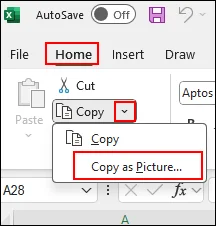
Step 3. Then, you can share the table in image format. Open the chat box that you'd like to share with and paste with Ctrl + V directly.
Method 2. Save Excel Table as Image Online with CloudxDocs
If you're looking for a quick and hassle-free way to turn your Excel spreadsheets into image format, trying to convert online is the best choice. With an online converter, you just need to upload the Excel file and download the converted image file. No extra steps are required.
To get a smoother conversion, a good online converter is the key point. CloudxDocs Online Excel to Image Converter is the perfect solution. This powerful web-based tool is designed for both professional and casual users. It ensures instant conversion from Excel files (XLS, XLSX) into high-quality images such as PNG or JPG. Whether you want to share tables in a presentation, embed data in a report, or simply preserve your spreadsheet layout exactly as it appears, CloudxDocs makes the process seamless, accurate, and secure.
Now, follow the steps below to convert your Excel files to JPG/PNG with CloudxDocs:
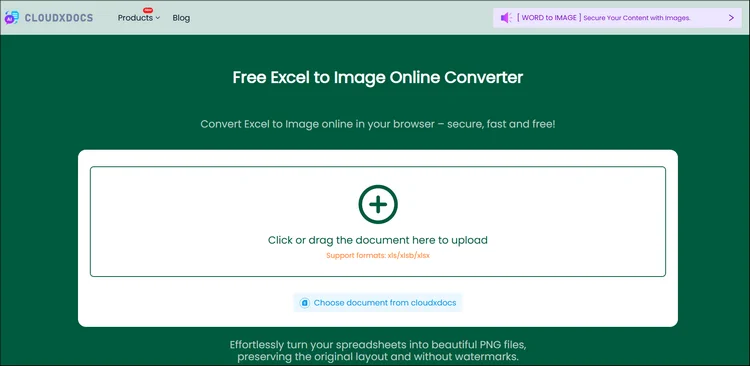
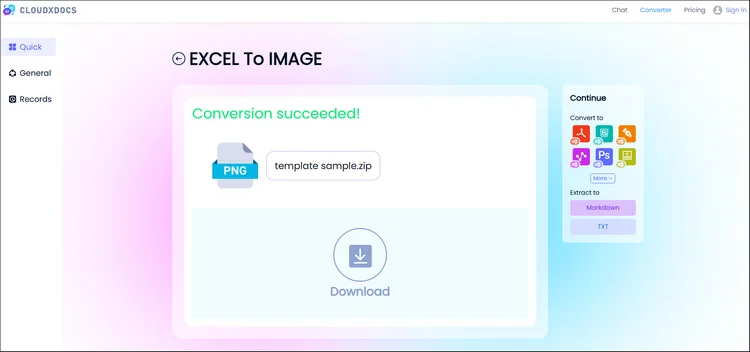
Step 1. Go to the official page of CloudxDocs Excel to Image Converter. You can upload your Excel files by clicking or dragging the file to the main interface.
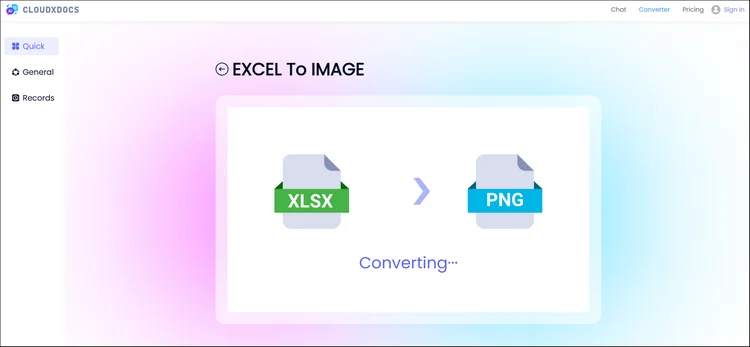
Step 2. After uploading, CloudxDocs will begin to analyze your Excel file and begin to convert it to image format immediately. The whole process won't take much time so just wait for seconds.
Step 3. CloudxDocs will provide a compressed file with all converted images. Click the "Download" button and unzip the file. Then, you will get all converted images from the original Excel file.
Method 3. (Advanced) Save Excel Table as an Image Programmatically in C#
For developers or organizations that need to automate the conversion process in bulk or integrate it into an application, there are also programmatic methods available. These approaches allow you to streamline large-scale Excel-to-image conversions, reduce manual work, and ensure consistent output quality across multiple files.
By embedding the conversion logic directly into your workflow or system, you can easily generate image-based tables for reporting, data visualization, or documentation.Code library like Spire.XLS for .NET offers a professional solution.
Brief Introduction About Spire.XLS for .NET
Spire.XLS for .NET is a powerful Excel manipulation library developed by E-ICEBLUE, allowing developers to create, edit, convert, and render Excel files without Microsoft Excel installed. One of its advanced capabilities is to export Excel worksheets or ranges directly as images, maintaining precise visual fidelity.

Unique features to help you choose Spire.XLS for .NET:
- Fast and secure Excel to Image conversion: Quickly convert specific Excel ranges or entire worksheets to high-quality images while keeping your data safe within a local environment.
- High-quality conversion for diverse formats: Maintain precise layout, color, and formatting when exporting to popular formats including PDF, TXT, HTML, etc.
- More customizable features: Allow developers to do more customized features like remove hyperlinks, insert and evaluate formulas, add charts, etc.
- Totally independent from Microsoft Office: Work seamlessly without Microsoft Office, making it ideal for deployment on any system or server.
C# Tutorial to Save Excel Files in Image Format with Spire.XLS for .NET
Step 1. Install the code library first.
You can add the code library to your computer through two options:
- Download from the official download webpage and add dependencies on your own.
- Download through NuGet with the code below:
PM> Install-Package Spire.XLS
Step 2. Copy and customize the code according to your needs.
Here we will provide the example code to help you convert Excel tables to JPG/PNG format smoothly. Don't forget to adjust customized things like file location:
using Spire.Xls;
namespace Xls2Image

{
    class Program
    {
        static void Main(string[] args)
        {
            //Create a Workbook instance
            Workbook workbook = new Workbook();

            //Load an Excel sample document
            workbook.LoadFromFile(@"sample.xlsx");

            //Get the first worksheet
            Worksheet sheet = workbook.Worksheets[0];

            //Save the worksheet as an image
            sheet.SaveToImage("XlsToImage.jpg");
        }
    }
}
Get more details in this tutorial: Convert Excel to Images with C#
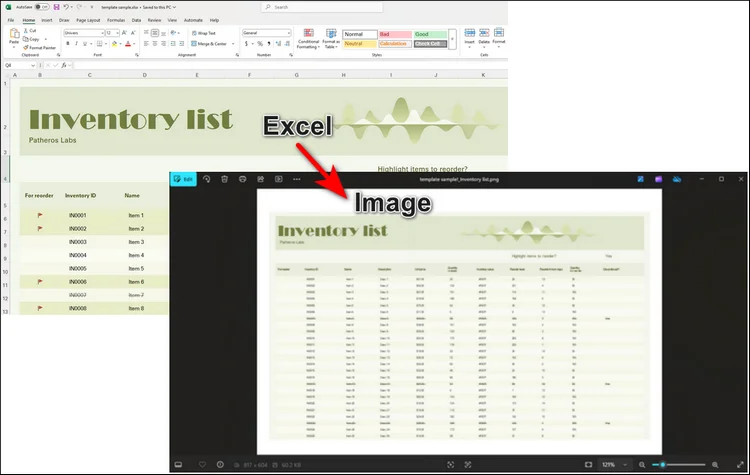
RESULT:
Tips for Getting the Best Results
Before you start converting your Excel files to images, a few simple adjustments can make a big difference in the final output. Paying attention to layout, formatting, and image settings helps ensure your converted files look clean and professional.
Here are some practical tips to help you get the best results every time.
- Before conversion, adjust column width and row height for a clean layout.
- Use consistent font sizes and colors to make your table visually appealing.
- When using code, specify exact cell ranges for precise control.
- For larger worksheets, consider exporting in parts to maintain clarity.
These small optimizations can make a big difference when presenting your Excel data visually.
Conclusion
Saving an Excel table as an image is one of the simplest yet most effective ways to share your data in a clean, visually consistent format. Whether you're sending a quick snapshot of a report, embedding charts into a presentation, or preparing data for publication, converting your Excel tables to images ensures that your layout, colors, and formatting remain perfectly preserved.
For a one-off share, Microsoft's built-in Copy as Picture is the fastest and simplest choice. If you want a quick, user-friendly online option, CloudxDocs Online Excel to Image Converter handles uploads in the browser and produces high-quality PNG/JPG files without installs. When you need automation, bulk processing, or enterprise-grade control, Spire.XLS for .NET lets developers embed reliable, offline Excel-to-image conversion directly into applications.
Start experimenting today and discover how easily you can turn your Excel tables into shareable, professional-quality images.
Read More:
Convertire facilmente PowerPoint in Word – Office, strumenti online e Python
Le presentazioni PowerPoint sono perfette per la narrazione visiva, ma a volte è necessaria una versione Word delle diapositive, per la documentazione, la modifica o la stampa di dispense. La conversione di PowerPoint (PPT/PPTX) in Word consente di riutilizzare le diapositive come testo modificabile, aggiungere annotazioni e integrarle in materiali scritti più ampi come report o manuali.
Questo tutorial ti guida attraverso tre modi pratici per convertire PowerPoint in Word, a seconda dei tuoi strumenti e del tuo flusso di lavoro:
- Utilizzando la funzionalità di esportazione integrata di PowerPoint — veloce e semplice, non è necessario alcun software aggiuntivo
- Utilizzando convertitori online gratuiti da PowerPoint a Word — accessibili da qualsiasi browser
- Utilizzando l'automazione Python — ideale per l'elaborazione batch e ambienti professionali
Diamo un'occhiata a come funziona ogni metodo e quale si adatta meglio alle tue esigenze.
Metodo 1: Convertire PowerPoint in Word utilizzando Microsoft Office
Se hai già installato Microsoft PowerPoint e Word, puoi convertire le presentazioni in Word direttamente senza strumenti aggiuntivi. Ci sono due approcci:
- "Crea Dispense" (utile per note delle diapositive stampabili ma non per diapositive modificabili)
- "Salva come PDF e apri in Word" (consigliato per documenti completamente modificabili)
Diamo un'occhiata a entrambi.
1.1 Convertire PowerPoint in Word utilizzando "Crea Dispense"
Questa funzionalità integrata di PowerPoint esporta le diapositive in Word per creare appunti o dispense.
Passaggi:
- Apri il tuo file PowerPoint.
- Vai a File → Esporta → Crea Dispense.
- Scegli un'opzione di layout (ad es. Note sotto le diapositive, Righe vuote, Solo struttura).
- Fai clic su OK per generare un file Word.
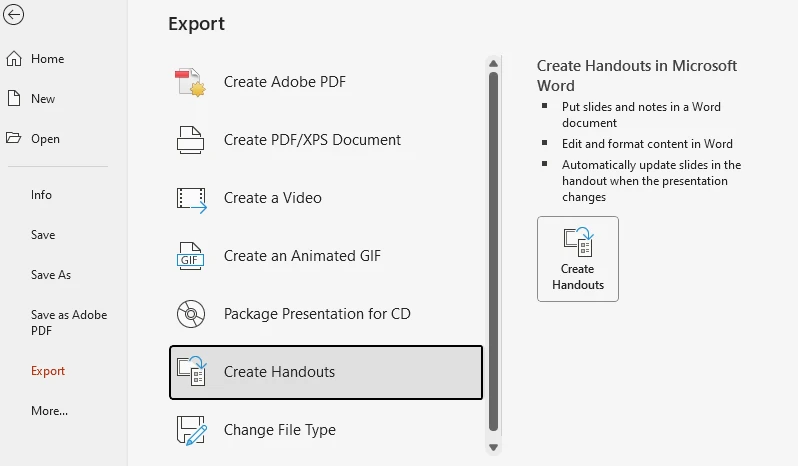
Tuttavia, le diapositive esportate appaiono in Word come immagini statiche, non come oggetti modificabili. Puoi modificare il testo intorno a loro — ad esempio, aggiungendo note, commenti o descrizioni — ma non il contenuto all'interno delle diapositive.
Quindi questo metodo è ottimo per stampare o distribuire riassunti, ma non è ideale per modificare il contenuto delle diapositive.
Se desideri esportare direttamente le diapositive come immagini statiche, puoi consultare come esportare le diapositive di PowerPoint come immagini per un approccio dedicato.
1.2 Convertire PowerPoint in Word modificabile tramite PDF
Per una conversione completamente modificabile, l'approccio più efficace è salvare prima la presentazione come PDF, quindi aprirla in Microsoft Word.
Passaggi:
-
In PowerPoint:
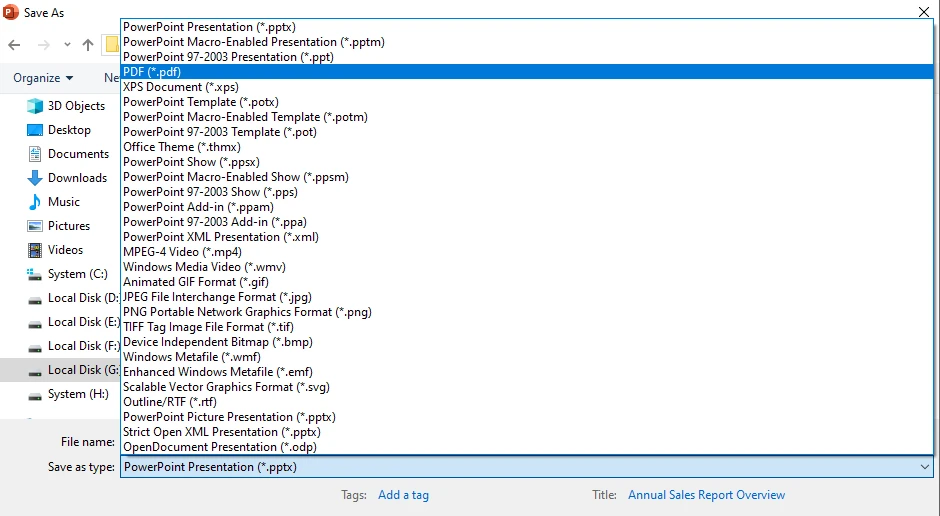
- Vai a File → Salva con nome → PDF.
- Scegli la posizione di output e fai clic su Salva.
-
In Word:
- Apri Microsoft Word.
- Fai clic su File → Apri e seleziona il PDF che hai appena creato.
- Fai clic su Sì nella finestra pop-up e Word convertirà automaticamente il PDF in un documento Word modificabile.
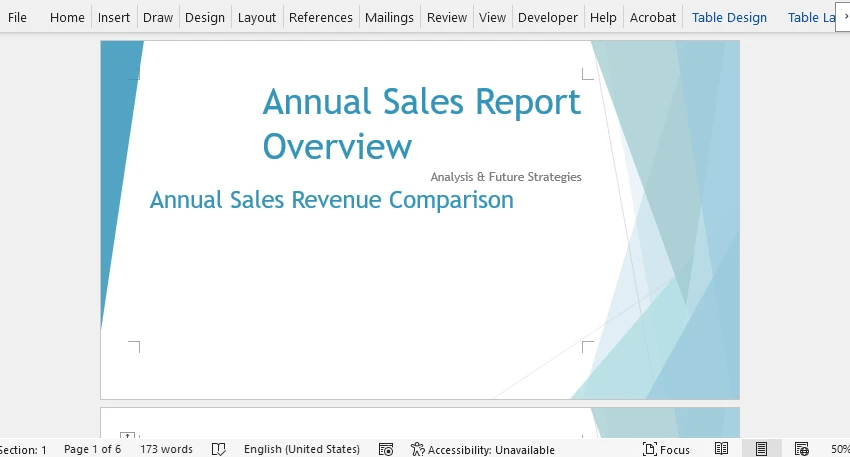
Ora puoi modificare il documento come desideri o salvarlo come file .docx.
Perché questo funziona meglio:
- PowerPoint esporta le diapositive in PDF con layout accurato e grafica vettoriale.
- Il motore di conversione PDF integrato di Word può ricostruire caselle di testo, immagini e formattazione in oggetti Word modificabili.
- Il documento risultante mantiene sia la fedeltà visiva che l'accessibilità del testo, consentendoti di modificare tutto direttamente.
Suggerimenti per risultati migliori:
- Utilizza un'esportazione PDF ad alta risoluzione per immagini pulite.
- Evita transizioni o effetti 3D eccessivamente complessi: appariranno come elementi visivi piatti.
- Dopo la conversione, ricontrolla gli stili dei caratteri e la spaziatura dei paragrafi.
Questo flusso di lavoro PowerPoint → PDF → Word offre il miglior equilibrio tra aspetto e modificabilità, ideale per la documentazione, la pubblicazione e l'archiviazione.
Metodo 2: Convertire PowerPoint in Word utilizzando strumenti online
Se non hai Office installato, i convertitori online da PowerPoint a Word possono aiutarti. Sono veloci, accessibili e indipendenti dalla piattaforma.
Perché scegliere un convertitore online
- Funziona direttamente nel tuo browser — non è necessaria alcuna installazione.
- Compatibile con tutti i sistemi (Windows, macOS, Linux, ChromeOS).
- Comodo per utenti occasionali o attività leggere.
Tuttavia, tieni presente:
- Molti strumenti hanno limiti di dimensione del file o di numero di pagine.
- Il caricamento di file riservati su server di terze parti comporta rischi per la privacy.
Strumenti gratuiti consigliati
| Strumento | Limite dimensione file | Formato di output | Registrazione | Supporto batch |
|---|---|---|---|---|
| FreeConvert | 1024MB | DOCX/DOC | Opzionale | Sì |
| Zamzar | 7MB | DOCX/DOC | Opzionale | Sì |
| Convertio | 100MB | DOCX/DOC | Opzionale | Sì |
Nota: leggi sempre l'informativa sulla privacy di ogni sito prima di caricare materiale sensibile.
Esempio: utilizzo di FreeConvert
- Visita Convertitore da PPT a Word di FreeConvert.
- Carica il tuo file PowerPoint e fai clic su Converti.
- Attendi il completamento della conversione.
- Scarica il documento Word convertito.
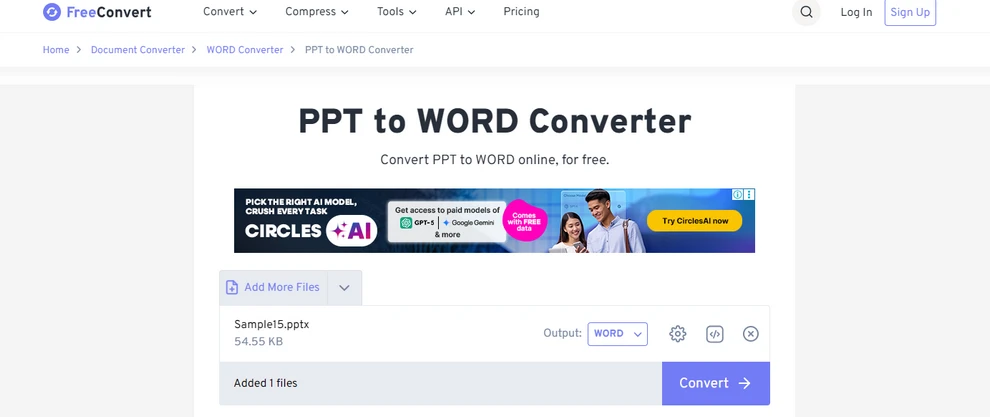
Vantaggi:
- Nessuna installazione di software
- Semplice interfaccia drag-and-drop
- Buona precisione di formattazione
Svantaggi:
- Conversioni gratuite limitate al giorno
- Potrebbe comprimere o riformattare leggermente le immagini
I convertitori online sono convenienti per attività una tantum veloci, ma per conversioni regolari o su larga scala, una soluzione desktop o automatizzata è più efficiente.
Per una gamma più ampia di conversioni di documenti online, puoi esplorare CLOUDXDOCS Free Online Document Converter, che supporta gratuitamente più tipi di file e formati.
Metodo 3: Automatizzare la conversione da PowerPoint a Word con Python
Per sviluppatori o team che devono gestire presentazioni in blocco, l'automazione offre la soluzione più veloce e affidabile. Con poche righe di codice Python, puoi convertire più presentazioni PowerPoint in documenti Word, il tutto elaborato localmente sulla tua macchina, senza limiti di dimensione del file o problemi di privacy.
Questo esempio utilizza **Free Spire.Office for Python**, una libreria all-in-one che consente di completare l'intera conversione con un unico toolkit.
Installa la libreria con pip:
pip install spire.office.free
Esempio: convertire PowerPoint in Word in Python
import os
from spire.presentation import Presentation, FileFormat
from spire.pdf import PdfDocument, FileFormat as PdfFileFormat

input_ppt = "G:/Documents/Sample14.pptx"
temp_pdf = "output/temp.pdf"
output_docx = "output/output.docx"

# Step 1: Convert PowerPoint to PDF
presentation = Presentation()
presentation.LoadFromFile(input_ppt)
presentation.SaveToFile(temp_pdf, FileFormat.PDF)

# Step 2: Convert PDF to Word
pdf = PdfDocument()
pdf.LoadFromFile(temp_pdf)
pdf.SaveToFile(output_docx, PdfFileFormat.DOCX)

# Step 3: Delete the temporary PDF file
if os.path.exists(temp_pdf):
    os.remove(temp_pdf)

print("PPTX è stato convertito con successo in Word!")
L'immagine seguente mostra il risultato della conversione di una presentazione PowerPoint in un documento Word utilizzando Python.
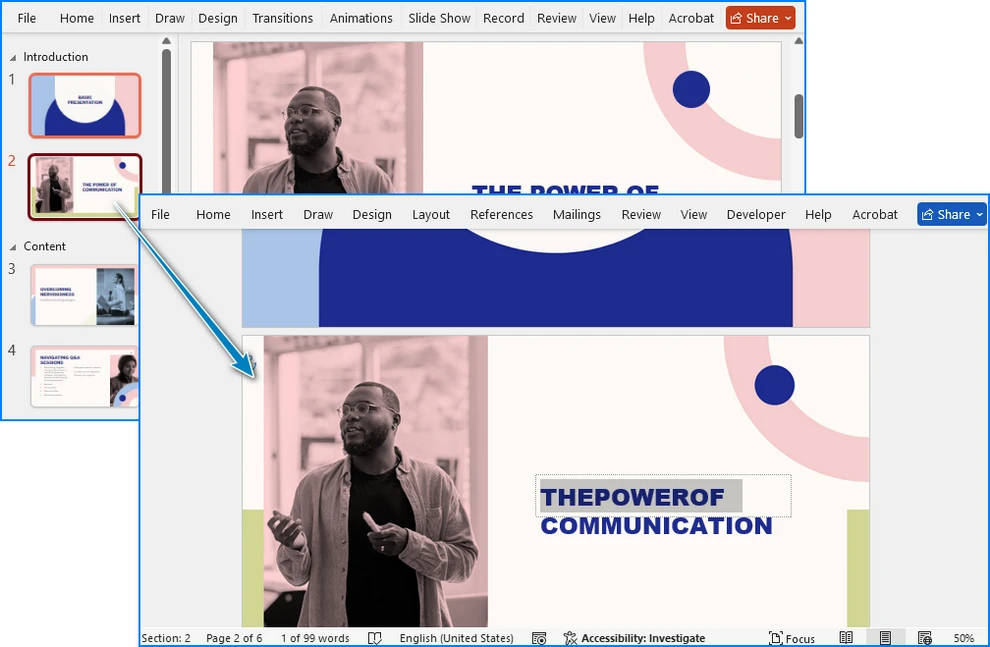
Spiegazione del codice
Questo script utilizza **Free Spire.Office for Python** per gestire entrambi i passaggi della conversione:
- Spire.Presentation carica il file PowerPoint e lo esporta come PDF di alta qualità.
- Spire.PDF converte il PDF in un documento Word completamente modificabile (.docx).
- Dopo la conversione, il file PDF temporaneo viene eliminato automaticamente per mantenere pulito il tuo spazio di lavoro.
Questo flusso di lavoro è veloce, affidabile e mantiene tutti i file in locale, garantendo una formattazione coerente, un layout accurato e un testo modificabile senza utilizzare alcun servizio online.
Esempio di conversione batch
Puoi estendere la stessa logica per convertire tutti i file PowerPoint in una cartella:
import os
from spire.presentation import Presentation, FileFormat
from spire.pdf import PdfDocument, FileFormat as PdfFileFormat

folder = "presentations"

for file in os.listdir(folder):
    if file.endswith(".pptx"):
        ppt_path = os.path.join(folder, file)
        temp_pdf = os.path.join(folder, file.replace(".pptx", ".pdf"))
        docx_path = os.path.join(folder, file.replace(".pptx", ".docx"))

        # Step 1: Convert PPTX to PDF
        presentation = Presentation()
        presentation.LoadFromFile(ppt_path)
        presentation.SaveToFile(temp_pdf, FileFormat.PDF)

        # Step 2: Convert PDF to Word
        pdf = PdfDocument()
        pdf.LoadFromFile(temp_pdf)
        pdf.SaveToFile(docx_path, PdfFileFormat.DOCX)

        # Step 3: Delete the temporary PDF file
        if os.path.exists(temp_pdf):
            os.remove(temp_pdf)

print("Tutti i file PowerPoint sono stati convertiti con successo in Word!")
Questo approccio è perfetto per **archivi aziendali, librerie di contenuti didattici o sistemi di reporting automatizzati**, consentendo di convertire decine o centinaia di presentazioni in modo rapido e sicuro, senza file temporanei residui.
Potrebbe piacerti anche: Come convertire PowerPoint in HTML
Confronto di tutti i metodi
Per aiutarti a scegliere il metodo più adatto per convertire PowerPoint in Word, ecco un confronto di tutti gli approcci disponibili.
| Metodo | Strumenti necessari | Ideale per | Pro | Contro |
|---|---|---|---|---|
| PowerPoint + Word (metodo PDF) | Microsoft Office | Documenti modificabili | Layout accurato, completamente modificabile | Passaggi manuali per file |
| Dispense di PowerPoint | PowerPoint | Dispense, appunti | Integrato, veloce | Diapositive non modificabili |
| Strumenti online | Browser | Uso occasionale | Facile, multipiattaforma | Rischio per la privacy, dimensioni limitate |
| Automazione Python | Python, SDK Spire | Conversioni batch | Completamente automatizzato, flessibile | Richiede configurazione |
Domande comuni sulla conversione di PowerPoint in Word
D1: Posso convertire PowerPoint in Word senza perdere la formattazione?
Sì. L'approccio PDF → Word preserva caselle di testo, layout e immagini con alta precisione.
D2: Perché non posso modificare le diapositive quando uso "Crea Dispense"?
Perché PowerPoint esporta le diapositive come immagini statiche. Puoi modificare le note o il testo circostante, ma non il contenuto della diapositiva stessa.
D3: C'è un modo per mantenere le animazioni in Word?
No, Word non supporta gli effetti di animazione: viene trasferito solo il contenuto statico.
D4: Come posso convertire più file PowerPoint automaticamente?
Utilizza il metodo di automazione Python mostrato sopra. Può elaborare tutti i file .pptx in una cartella a livello di codice.
D5: Quale metodo offre il risultato più professionale?
Gli **Strumenti online** e il **metodo di automazione Python** offrono generalmente il miglior equilibrio tra fedeltà del layout e modificabilità.
Conclusione
La conversione di PowerPoint in Word ti offre la flessibilità di modificare, annotare, stampare e riutilizzare facilmente il contenuto della tua presentazione.
- Utilizza la funzione dispense di PowerPoint per semplici note o schemi stampabili.
- Scegli il percorso da PDF a Word quando hai bisogno di contenuti completamente modificabili.
- Automatizza il processo con Python per conversioni su larga scala o ricorrenti.
Ogni metodo ha uno scopo diverso, che si tratti di preparare un report, stampare materiali di formazione o integrare la conversione in un flusso di lavoro automatizzato.
Con l'approccio giusto, puoi trasformare qualsiasi presentazione in un documento Word strutturato, modificabile e professionale in pochi minuti.
Vedi anche
Converta PowerPoint para Word facilmente – Office, ferramentas online e Python
As apresentações do PowerPoint são perfeitas para contar histórias visuais, mas às vezes você precisa de uma versão do Word de seus slides — para documentação, edição ou impressão de folhetos. Converter PowerPoint (PPT/PPTX) para Word permite que você reutilize seus slides como texto editável, adicione anotações e os integre em materiais escritos maiores, como relatórios ou manuais.
Este tutorial apresenta três maneiras práticas de converter PowerPoint para Word, dependendo de suas ferramentas e fluxo de trabalho:
- Usando o recurso de exportação integrado do PowerPoint — rápido e simples, sem necessidade de software extra
- Usando conversores online gratuitos de PowerPoint para Word — acessíveis de qualquer navegador
- Usando automação com Python — ideal para processamento em lote e ambientes profissionais
Vamos ver como cada método funciona e qual deles se adapta melhor às suas necessidades.
Método 1: Converter PowerPoint para Word Usando o Microsoft Office
Se você já tem o Microsoft PowerPoint e o Word instalados, pode converter apresentações para o Word diretamente, sem ferramentas extras. Existem duas abordagens:
- "Criar Folhetos" (útil para notas de slides imprimíveis, mas não para slides editáveis)
- "Salvar como PDF e abrir no Word" (recomendado para documentos totalmente editáveis)
Vamos analisar ambos.
1.1 Converter PowerPoint para Word Usando "Criar Folhetos"
Este recurso integrado do PowerPoint exporta slides para o Word para criar notas de aula ou folhetos.
Passos:
- Abra seu arquivo do PowerPoint.
- Vá para Arquivo → Exportar → Criar Folhetos.
- Escolha uma opção de layout (por exemplo, Notas abaixo dos slides, Linhas em branco, Somente tópicos).
- Clique em OK para gerar um arquivo do Word.
No entanto, os slides exportados aparecem no Word como imagens estáticas, não como objetos editáveis. Você pode editar o texto ao redor deles — por exemplo, adicionando notas, comentários ou descrições — mas não o conteúdo dentro dos slides.
Portanto, este método é ótimo para imprimir ou distribuir resumos, mas não é ideal para editar o conteúdo dos slides.
Se você deseja exportar diretamente os slides como imagens estáticas, pode conferir como exportar slides do PowerPoint como imagens para uma abordagem dedicada.
1.2 Converter PowerPoint para Word Editável via PDF
Para uma conversão totalmente editável, a abordagem mais eficaz é primeiro salvar sua apresentação como PDF e, em seguida, abri-la no Microsoft Word.
Passos:
-
No PowerPoint:
- Vá para Arquivo → Salvar como → PDF.
- Escolha o local de saída e clique em Salvar.
-
No Word:
- Abra o Microsoft Word.
- Clique em Arquivo → Abrir e selecione o PDF que você acabou de criar.
- Clique em Sim na janela pop-up, e o Word converterá automaticamente o PDF em um documento do Word editável.
Agora você pode editar o documento como desejar ou salvá-lo como um arquivo .docx.
Por que isso funciona melhor:
- O PowerPoint exporta os slides para PDF com layout preciso e gráficos vetoriais.
- O mecanismo de conversão de PDF integrado do Word pode reconstruir caixas de texto, imagens e formatação em objetos editáveis do Word.
- O documento resultante mantém tanto a fidelidade visual quanto a acessibilidade do texto, permitindo que você edite tudo diretamente.
Dicas para melhores resultados:
- Use uma exportação de PDF de alta resolução para imagens nítidas.
- Evite transições ou efeitos 3D excessivamente complexos — eles aparecerão como visuais planos.
- Após a conversão, verifique novamente os estilos de fonte e o espaçamento dos parágrafos.
Este fluxo de trabalho PowerPoint → PDF → Word oferece o melhor equilíbrio entre aparência e editabilidade — ideal para documentação, publicação e arquivamento.
Método 2: Converter PowerPoint para Word Usando Ferramentas Online
Se você não tem o Office instalado, os conversores online de PowerPoint para Word podem ajudar. Eles são rápidos, acessíveis e independentes de plataforma.
Por que escolher um conversor online
- Funciona diretamente no seu navegador — sem necessidade de instalação.
- Compatível com todos os sistemas (Windows, macOS, Linux, ChromeOS).
- Conveniente para usuários ocasionais ou tarefas leves.
No entanto, tenha em mente:
- Muitas ferramentas têm limites de tamanho de arquivo ou contagem de páginas.
- O upload de arquivos confidenciais para servidores de terceiros apresenta riscos de privacidade.
Ferramentas Gratuitas Recomendadas
| Ferramenta | Limite de Tamanho do Arquivo | Formato de Saída | Registro | Suporte a Lote |
|---|---|---|---|---|
| FreeConvert | 1024MB | DOCX/DOC | Opcional | Sim |
| Zamzar | 7MB | DOCX/DOC | Opcional | Sim |
| Convertio | 100MB | DOCX/DOC | Opcional | Sim |
Nota: Sempre leia a política de privacidade de cada site antes de enviar material sensível.
Exemplo: Usando o FreeConvert
- Visite o Conversor de PPT para Word do FreeConvert.
- Carregue seu arquivo do PowerPoint e clique em Converter.
- Aguarde a conclusão da conversão.
- Baixe o documento do Word convertido.
Vantagens:
- Nenhuma instalação de software
- Interface simples de arrastar e soltar
- Boa precisão de formatação
Desvantagens:
- Conversões gratuitas limitadas por dia
- Pode comprimir ou reformatar imagens ligeiramente
Os conversores online são convenientes para tarefas rápidas e únicas, mas para conversões regulares ou em grande escala, uma solução de desktop ou automatizada é mais eficiente.
Para uma gama mais ampla de conversões de documentos online, você pode explorar o Conversor de Documentos Online Gratuito CLOUDXDOCS, que suporta vários tipos e formatos de arquivo gratuitamente.
Método 3: Automatizar a Conversão de PowerPoint para Word com Python
Para desenvolvedores ou equipes que precisam lidar com apresentações em massa, a automação oferece a solução mais rápida e confiável. Com apenas algumas linhas de código Python, você pode converter várias apresentações do PowerPoint em documentos do Word — tudo processado localmente em sua máquina, sem limites de tamanho de arquivo ou preocupações com a privacidade.
Este exemplo usa o Free Spire.Office for Python, uma biblioteca tudo-em-um que torna possível concluir toda a conversão com um único kit de ferramentas.
Instale a biblioteca com o pip:
pip install spire.office.free
Exemplo: Converter PowerPoint para Word em Python
import os
from spire.presentation import Presentation, FileFormat
from spire.pdf import PdfDocument, FileFormat as PdfFileFormat

input_ppt = "G:/Documents/Sample14.pptx"
temp_pdf = "output/temp.pdf"
output_docx = "output/output.docx"

# Step 1: Convert PowerPoint to PDF
presentation = Presentation()
presentation.LoadFromFile(input_ppt)
presentation.SaveToFile(temp_pdf, FileFormat.PDF)

# Step 2: Convert PDF to Word
pdf = PdfDocument()
pdf.LoadFromFile(temp_pdf)
pdf.SaveToFile(output_docx, PdfFileFormat.DOCX)

# Step 3: Delete the temporary PDF file
if os.path.exists(temp_pdf):
    os.remove(temp_pdf)

print("O PPTX foi convertido com sucesso para o Word!")
A imagem abaixo mostra o resultado da conversão de uma apresentação do PowerPoint para um documento do Word usando Python.
Explicação do Código
Este script usa o Free Spire.Office for Python para lidar com ambas as etapas da conversão:
- O Spire.Presentation carrega o arquivo do PowerPoint e o exporta como um PDF de alta qualidade.
- O Spire.PDF converte o PDF em um documento do Word (.docx) totalmente editável.
- Após a conversão, o arquivo PDF temporário é excluído automaticamente para manter seu espaço de trabalho limpo.
Este fluxo de trabalho é rápido, confiável e mantém todos os arquivos locais — garantindo formatação consistente, layout preciso e texto editável sem usar nenhum serviço online.
Exemplo de Conversão em Lote
Você pode estender a mesma lógica para converter todos os arquivos do PowerPoint em uma pasta:
import os
from spire.presentation import Presentation, FileFormat
from spire.pdf import PdfDocument, FileFormat as PdfFileFormat

folder = "presentations"

for file in os.listdir(folder):
    if file.endswith(".pptx"):
        ppt_path = os.path.join(folder, file)
        temp_pdf = os.path.join(folder, file.replace(".pptx", ".pdf"))
        docx_path = os.path.join(folder, file.replace(".pptx", ".docx"))

        # Step 1: Convert PPTX to PDF
        presentation = Presentation()
        presentation.LoadFromFile(ppt_path)
        presentation.SaveToFile(temp_pdf, FileFormat.PDF)

        # Step 2: Convert PDF to Word
        pdf = PdfDocument()
        pdf.LoadFromFile(temp_pdf)
        pdf.SaveToFile(docx_path, PdfFileFormat.DOCX)

        # Step 3: Delete the temporary PDF file
        if os.path.exists(temp_pdf):
            os.remove(temp_pdf)

print("Todos os arquivos do PowerPoint foram convertidos com sucesso para o Word!")
Esta abordagem é perfeita para arquivos corporativos, bibliotecas de conteúdo educacional ou sistemas de relatórios automatizados, permitindo que dezenas ou centenas de apresentações sejam convertidas de forma rápida e segura, sem arquivos temporários restantes.
Você também pode gostar: Como Converter PowerPoint para HTML
Comparação de Todos os Métodos
Para ajudá-lo a escolher o método mais adequado para converter PowerPoint para Word, aqui está uma comparação de todas as abordagens disponíveis.
| Método | Ferramentas Necessárias | Melhor Para | Prós | Contras |
|---|---|---|---|---|
| PowerPoint + Word (método PDF) | Microsoft Office | Documentos editáveis | Layout preciso, totalmente editável | Passos manuais por arquivo |
| Folhetos do PowerPoint | PowerPoint | Folhetos, notas | Integrado, rápido | Slides não editáveis |
| Ferramentas Online | Navegador | Uso ocasional | Fácil, multiplataforma | Risco de privacidade, tamanho limitado |
| Automação com Python | Python, SDKs Spire | Conversões em lote | Totalmente automatizado, flexível | Requer configuração |
Perguntas Comuns sobre a Conversão de PowerPoint para Word
Q1: Posso converter PowerPoint para Word sem perder a formatação?
Sim. A abordagem PDF → Word preserva caixas de texto, layouts e imagens com alta precisão.
Q2: Por que não consigo editar slides ao usar "Criar Folhetos"?
Porque o PowerPoint exporta os slides como imagens estáticas. Você pode editar notas ou o texto ao redor, mas não o conteúdo do slide em si.
Q3: Existe uma maneira de manter as animações no Word?
Não, o Word não suporta efeitos de animação — apenas o conteúdo estático é transferido.
Q4: Como converto vários arquivos do PowerPoint automaticamente?
Use o método de automação com Python mostrado acima. Ele pode processar todos os arquivos .pptx em uma pasta programaticamente.
Q5: Qual método oferece o resultado com aparência mais profissional?
As Ferramentas Online e o método de automação com Python geralmente fornecem o melhor equilíbrio entre fidelidade de layout e editabilidade.
Conclusão
Converter PowerPoint para Word oferece a flexibilidade de editar, anotar, imprimir e reutilizar o conteúdo da sua apresentação facilmente.
- Use o recurso de folhetos do PowerPoint para anotações simples ou esboços para impressão.
- Escolha a rota PDF-para-Word quando precisar de conteúdo totalmente editável.
- Automatize o processo com Python para conversões em grande escala ou recorrentes.
Cada método serve a um propósito diferente — seja para preparar um relatório, imprimir materiais de treinamento ou integrar a conversão em um fluxo de trabalho automatizado.
Com a abordagem certa, você pode transformar qualquer apresentação em um documento do Word estruturado, editável e profissional em questão de minutos.
Veja Também
PowerPoint를 Word로 쉽게 변환하기 – Office, 온라인 도구 및 Python
PowerPoint 프레젠테이션은 시각적 스토리텔링에 적합하지만, 문서화, 편집 또는 유인물 인쇄를 위해 슬라이드의 Word 버전이 필요한 경우가 있습니다. PowerPoint(PPT/PPTX)를 Word로 변환하면 슬라이드를 편집 가능한 텍스트로 재사용하고, 주석을 추가하며, 보고서나 매뉴얼과 같은 더 큰 서면 자료에 통합할 수 있습니다.
이 튜토리얼에서는 도구 및 워크플로우에 따라 PowerPoint를 Word로 변환하는 세 가지 실용적인 방법을 안내합니다.
- PowerPoint의 내장 내보내기 기능 사용 — 추가 소프트웨어 없이 빠르고 간단합니다.
- 무료 온라인 PowerPoint-Word 변환기 사용 — 모든 브라우저에서 액세스할 수 있습니다.
- Python 자동화 사용 — 일괄 처리 및 전문적인 환경에 이상적입니다.
각 방법이 어떻게 작동하고 어떤 방법이 귀하의 요구에 가장 적합한지 살펴보겠습니다.
방법 1: Microsoft Office를 사용하여 PowerPoint를 Word로 변환
Microsoft PowerPoint와 Word가 이미 설치되어 있다면 추가 도구 없이 프레젠테이션을 Word로 직접 변환할 수 있습니다. 두 가지 접근 방식이 있습니다.
- "유인물 만들기" (인쇄 가능한 슬라이드 노트에는 유용하지만 편집 가능한 슬라이드에는 적합하지 않음)
- "PDF로 저장하고 Word에서 열기" (완전히 편집 가능한 문서에 권장됨)
두 가지 모두 살펴보겠습니다.
1.1 "유인물 만들기"를 사용하여 PowerPoint를 Word로 변환
이 내장된 PowerPoint 기능은 강의 노트나 유인물을 만들기 위해 슬라이드를 Word로 내보냅니다.
단계:
- PowerPoint 파일을 엽니다.
- 파일 → 내보내기 → 유인물 만들기로 이동합니다.
- 레이아웃 옵션(예: 슬라이드 아래 노트, 빈 줄, 개요만)을 선택합니다.
- 확인을 클릭하여 Word 파일을 생성합니다.
그러나 내보낸 슬라이드는 편집 가능한 개체가 아닌 정적 이미지로 Word에 나타납니다. 주변 텍스트(예: 노트, 댓글 또는 설명 추가)는 편집할 수 있지만 슬라이드 내부의 내용은 편집할 수 없습니다.
따라서 이 방법은 요약본을 인쇄하거나 배포하는 데는 좋지만 슬라이드 내용을 편집하는 데는 이상적이지 않습니다.
슬라이드를 정적 이미지로 직접 내보내려면 전용 접근 방식인 PowerPoint 슬라이드를 이미지로 내보내는 방법을 확인해 보세요.
1.2 PDF를 통해 PowerPoint를 편집 가능한 Word로 변환
완전히 편집 가능한 변환을 위한 가장 효과적인 접근 방식은 먼저 프레젠테이션을 PDF로 저장한 다음 Microsoft Word에서 여는 것입니다.
단계:
-
PowerPoint에서:
- 파일 → 다른 이름으로 저장 → PDF로 이동합니다.
- 출력 위치를 선택하고 저장을 클릭합니다.
-
Word에서:
- Microsoft Word를 엽니다.
- 파일 → 열기를 클릭하고 방금 만든 PDF를 선택합니다.
- 팝업 창에서 예를 클릭하면 Word가 자동으로 PDF를 편집 가능한 Word 문서로 변환합니다.
이제 원하는 대로 문서를 편집하거나 .docx 파일로 저장할 수 있습니다.
이 방법이 더 나은 이유:
- PowerPoint는 정확한 레이아웃과 벡터 그래픽으로 슬라이드를 PDF로 내보냅니다.
- Word의 내장 PDF 변환 엔진은 텍스트 상자, 이미지 및 서식을 편집 가능한 Word 개체로 재구성할 수 있습니다.
- 결과 문서는 시각적 충실도와 텍스트 접근성을 모두 유지하여 모든 것을 직접 편집할 수 있습니다.
더 나은 결과를 위한 팁:
- 선명한 이미지를 위해 고해상도 PDF 내보내기를 사용하세요.
- 지나치게 복잡한 전환이나 3D 효과는 피하세요. 평면적인 시각 자료로 나타납니다.
- 변환 후 글꼴 스타일과 단락 간격을 다시 확인하세요.
이 PowerPoint → PDF → Word 워크플로우는 모양과 편집 가능성 사이의 최상의 균형을 제공하여 문서화, 출판 및 보관에 이상적입니다.
방법 2: 온라인 도구를 사용하여 PowerPoint를 Word로 변환
Office가 설치되어 있지 않은 경우 온라인 PowerPoint-Word 변환기가 도움이 될 수 있습니다. 빠르고 접근성이 좋으며 플랫폼 독립적입니다.
온라인 변환기를 선택하는 이유
- 브라우저에서 직접 작동 — 설치가 필요 없습니다.
- 모든 시스템(Windows, macOS, Linux, ChromeOS)과 호환됩니다.
- 가끔 사용하는 사용자나 가벼운 작업에 편리합니다.
하지만 명심하세요:
- 많은 도구에는 파일 크기 또는 페이지 수 제한이 있습니다.
- 타사 서버에 기밀 파일을 업로드하면 개인 정보 보호 위험이 따릅니다.
추천 무료 도구
| 도구 | 파일 크기 제한 | 출력 형식 | 등록 | 일괄 지원 |
|---|---|---|---|---|
| FreeConvert | 1024MB | DOCX/DOC | 선택 사항 | 예 |
| Zamzar | 7MB | DOCX/DOC | 선택 사항 | 예 |
| Convertio | 100MB | DOCX/DOC | 선택 사항 | 예 |
참고: 민감한 자료를 업로드하기 전에 항상 각 사이트의 개인정보 보호정책을 읽어보세요.
예: FreeConvert 사용
- FreeConvert PPT to Word Converter를 방문하세요.
- PowerPoint 파일을 업로드하고 변환을 클릭하세요.
- 변환이 완료될 때까지 기다리세요.
- 변환된 Word 문서를 다운로드하세요.
장점:
- 소프트웨어 설치 필요 없음
- 간단한 드래그 앤 드롭 인터페이스
- 우수한 서식 정확도
단점:
- 하루 무료 변환 횟수 제한
- 이미지를 약간 압축하거나 다시 포맷할 수 있음
온라인 변환기는 빠른 일회성 작업에 편리하지만, 정기적이거나 대규모 변환의 경우 데스크톱 또는 자동화된 솔루션이 더 효율적입니다.
더 광범위한 온라인 문서 변환을 위해 여러 파일 유형과 형식을 무료로 지원하는 CLOUDXDOCS 무료 온라인 문서 변환기를 탐색할 수 있습니다.
방법 3: Python으로 PowerPoint를 Word로 변환 자동화
대량으로 프레젠테이션을 처리해야 하는 개발자나 팀에게 자동화는 가장 빠르고 안정적인 솔루션을 제공합니다. 단 몇 줄의 Python 코드로 여러 PowerPoint 프레젠테이션을 Word 문서로 변환할 수 있습니다. 이 모든 과정은 파일 크기 제한이나 개인 정보 보호 문제 없이 사용자 컴퓨터에서 로컬로 처리됩니다.
이 예제에서는 단일 툴킷으로 전체 변환을 완료할 수 있게 해주는 올인원 라이브러리인 Free Spire.Office for Python을 사용합니다.
pip로 라이브러리를 설치하세요:
pip install spire.office.free
예: Python에서 PowerPoint를 Word로 변환
import os
from spire.presentation import Presentation, FileFormat
from spire.pdf import PdfDocument, FileFormat as PdfFileFormat

input_ppt = "G:/Documents/Sample14.pptx"
temp_pdf = "output/temp.pdf"
output_docx = "output/output.docx"

# 1단계: PowerPoint를 PDF로 변환
presentation = Presentation()
presentation.LoadFromFile(input_ppt)
presentation.SaveToFile(temp_pdf, FileFormat.PDF)

# 2단계: PDF를 Word로 변환
pdf = PdfDocument()
pdf.LoadFromFile(temp_pdf)
pdf.SaveToFile(output_docx, PdfFileFormat.DOCX)

# 3단계: 임시 PDF 파일 삭제
if os.path.exists(temp_pdf):
    os.remove(temp_pdf)

print("PPTX가 Word로 성공적으로 변환되었습니다!")
아래 이미지는 Python을 사용하여 PowerPoint 프레젠테이션을 Word 문서로 변환한 결과를 보여줍니다.
코드 설명
이 스크립트는 Free Spire.Office for Python을 사용하여 변환의 두 단계를 모두 처리합니다.
- Spire.Presentation은 PowerPoint 파일을 로드하여 고품질 PDF로 내보냅니다.
- Spire.PDF는 PDF를 완전히 편집 가능한 Word 문서(.docx)로 변환합니다.
- 변환 후 임시 PDF 파일은 작업 공간을 깨끗하게 유지하기 위해 자동으로 삭제됩니다.
이 워크플로우는 빠르고 안정적이며 모든 파일을 로컬에 보관하여 온라인 서비스를 사용하지 않고도 일관된 서식, 정확한 레이アウト 및 편집 가능한 텍스트를 보장합니다.
일괄 변환 예제
동일한 논리를 확장하여 폴더의 모든 PowerPoint 파일을 변환할 수 있습니다.
import os
from spire.presentation import Presentation, FileFormat
from spire.pdf import PdfDocument, FileFormat as PdfFileFormat

folder = "presentations"

for file in os.listdir(folder):
    if file.endswith(".pptx"):
        ppt_path = os.path.join(folder, file)
        temp_pdf = os.path.join(folder, file.replace(".pptx", ".pdf"))
        docx_path = os.path.join(folder, file.replace(".pptx", ".docx"))

        # 1단계: PPTX를 PDF로 변환
        presentation = Presentation()
        presentation.LoadFromFile(ppt_path)
        presentation.SaveToFile(temp_pdf, FileFormat.PDF)

        # 2단계: PDF를 Word로 변환
        pdf = PdfDocument()
        pdf.LoadFromFile(temp_pdf)
        pdf.SaveToFile(docx_path, PdfFileFormat.DOCX)

        # 3단계: 임시 PDF 파일 삭제
        if os.path.exists(temp_pdf):
            os.remove(temp_pdf)

print("모든 PowerPoint 파일이 성공적으로 Word로 변환되었습니다!")
이 접근 방식은 기업 아카이브, 교육 콘텐츠 라이브러리 또는 자동화된 보고 시스템에 적합하며, 남은 임시 파일 없이 수십 또는 수백 개의 프레젠테이션을 빠르고 안전하게 변환할 수 있습니다.
관심 있을 만한 다른 글: PowerPoint를 HTML로 변환하는 방법
모든 방법 비교
PowerPoint를 Word로 변환하는 데 가장 적합한 방법을 선택하는 데 도움이 되도록 사용 가능한 모든 접근 방식을 비교해 보겠습니다.
| 방법 | 필요한 도구 | 최적 대상 | 장점 | 단점 |
|---|---|---|---|---|
| PowerPoint + Word (PDF 방식) | Microsoft Office | 편집 가능한 문서 | 정확한 레이아웃, 완전 편집 가능 | 파일당 수동 단계 |
| PowerPoint 유인물 | PowerPoint | 유인물, 노트 | 내장 기능, 빠름 | 슬라이드 편집 불가 |
| 온라인 도구 | 브라우저 | 가끔 사용 | 쉬움, 크로스 플랫폼 | 개인 정보 보호 위험, 크기 제한 |
| Python 자동화 | Python, Spire SDK | 일괄 변환 | 완전 자동화, 유연함 | 설치 필요 |
PowerPoint를 Word로 변환하는 것에 대한 일반적인 질문
Q1: 서식을 잃지 않고 PowerPoint를 Word로 변환할 수 있나요?
예. PDF → Word 접근 방식은 텍스트 상자, 레이아웃 및 이미지를 높은 정확도로 보존합니다.
Q2: "유인물 만들기"를 사용할 때 슬라이드를 편집할 수 없는 이유는 무엇인가요?
PowerPoint가 슬라이드를 정적 이미지로 내보내기 때문입니다. 노트나 주변 텍스트는 편집할 수 있지만 슬라이드 내용 자체는 편집할 수 없습니다.
Q3: Word에서 애니메이션을 유지할 방법이 있나요?
아니요, Word는 애니메이션 효과를 지원하지 않습니다. 정적 콘텐츠만 전송됩니다.
Q4: 여러 PowerPoint 파일을 자동으로 변환하려면 어떻게 해야 하나요?
위에 표시된 Python 자동화 방법을 사용하세요. 폴더의 모든 .pptx 파일을 프로그래밍 방식으로 처리할 수 있습니다.
Q5: 어떤 방법이 가장 전문적으로 보이는 결과를 제공하나요?
온라인 도구와 Python 자동화 방법은 일반적으로 레이아웃 충실도와 편집 가능성 사이에서 최상의 균형을 제공합니다.
결론
PowerPoint를 Word로 변환하면 프레젠테이션 콘텐츠를 쉽게 편집, 주석 달기, 인쇄 및 용도 변경할 수 있는 유연성을 얻을 수 있습니다.
- 간단한 노트나 인쇄 가능한 개요에는 PowerPoint의 유in물 기능을 사용하세요.
- 완전히 편집 가능한 콘텐츠가 필요할 때는 PDF-Word 경로를 선택하세요.
- 대규모 또는 반복적인 변환을 위해 Python으로 프로세스를 자동화하세요.
각 방법은 보고서 준비, 교육 자료 인쇄 또는 자동화된 워크플로우에 변환 통합 등 다양한 목적을 수행합니다.
올바른 접근 방식을 사용하면 모든 프레젠테이션을 몇 분 안에 구조화되고 편집 가능하며 전문적인 Word 문서로 바꿀 수 있습니다.
관련 항목
Convertir facilement PowerPoint en Word – Office, outils en ligne et Python
Les présentations PowerPoint sont parfaites pour la narration visuelle, mais vous avez parfois besoin d'une version Word de vos diapositives — pour la documentation, l'édition ou l'impression de documents. La conversion de PowerPoint (PPT/PPTX) en Word vous permet de réutiliser vos diapositives sous forme de texte modifiable, d'ajouter des annotations et de les intégrer dans des documents écrits plus volumineux tels que des rapports ou des manuels.
Ce tutoriel vous présente trois façons pratiques de convertir PowerPoint en Word, en fonction de vos outils et de votre flux de travail :
- Utilisation de la fonctionnalité d'exportation intégrée de PowerPoint — rapide et simple, aucun logiciel supplémentaire n'est requis
- Utilisation de convertisseurs PowerPoint vers Word en ligne gratuits — accessibles depuis n'importe quel navigateur
- Utilisation de l'automatisation Python — idéale pour le traitement par lots et les environnements professionnels
Voyons comment chaque méthode fonctionne et laquelle répond le mieux à vos besoins.
Méthode 1 : Convertir PowerPoint en Word à l'aide de Microsoft Office
Si vous avez déjà installé Microsoft PowerPoint et Word, vous pouvez convertir des présentations en Word directement sans outils supplémentaires. Il existe deux approches :
- « Créer des documents » (utile pour les notes de diapositives imprimables mais pas pour les diapositives modifiables)
- « Enregistrer en tant que PDF et ouvrir dans Word » (recommandé pour les documents entièrement modifiables)
Examinons les deux.
1.1 Convertir PowerPoint en Word en utilisant « Créer des documents »
Cette fonctionnalité intégrée de PowerPoint exporte les diapositives dans Word pour créer des notes de cours ou des documents.
Étapes :
- Ouvrez votre fichier PowerPoint.
- Allez dans Fichier → Exporter → Créer des documents.
- Choisissez une option de mise en page (par exemple, Notes sous les diapositives, Lignes vierges, Plan uniquement).
- Cliquez sur OK pour générer un fichier Word.
Cependant, les diapositives exportées apparaissent dans Word sous forme d'images statiques, et non d'objets modifiables. Vous pouvez modifier le texte qui les entoure — par exemple, en ajoutant des notes, des commentaires ou des descriptions — mais pas le contenu à l'intérieur des diapositives.
Cette méthode est donc idéale pour imprimer ou distribuer des résumés, mais pas pour modifier le contenu des diapositives.
Si vous souhaitez exporter directement les diapositives sous forme d'images statiques, vous pouvez consulter comment exporter des diapositives PowerPoint en tant qu'images pour une approche dédiée.
1.2 Convertir PowerPoint en Word modifiable via PDF
Pour une conversion entièrement modifiable, l'approche la plus efficace consiste à d'abord enregistrer votre présentation au format PDF, puis à l'ouvrir dans Microsoft Word.
Étapes :
-
Dans PowerPoint :
- Allez dans Fichier → Enregistrer sous → PDF.
- Choisissez l'emplacement de sortie et cliquez sur Enregistrer.
-
Dans Word :
- Ouvrez Microsoft Word.
- Cliquez sur Fichier → Ouvrir, et sélectionnez le PDF que vous venez de créer.
- Cliquez sur Oui dans la fenêtre contextuelle, et Word convertira automatiquement le PDF en un document Word modifiable.
Vous pouvez maintenant modifier le document comme vous le souhaitez ou l'enregistrer en tant que fichier .docx.
Pourquoi cela fonctionne mieux :
- PowerPoint exporte les diapositives au format PDF avec une mise en page précise et des graphiques vectoriels.
- Le moteur de conversion PDF intégré de Word peut reconstruire les zones de texte, les images et la mise en forme en objets Word modifiables.
- Le document résultant conserve à la fois la fidélité visuelle et l'accessibilité du texte, vous permettant de tout modifier directement.
Conseils pour de meilleurs résultats :
- Utilisez une exportation PDF haute résolution pour des images nettes.
- Évitez les transitions ou les effets 3D trop complexes — ils apparaîtront comme des visuels plats.
- Après la conversion, revérifiez les styles de police et l'espacement des paragraphes.
Ce flux de travail PowerPoint → PDF → Word offre le meilleur équilibre entre l'apparence et la modifiabilité — idéal pour la documentation, la publication et l'archivage.
Méthode 2 : Convertir PowerPoint en Word à l'aide d'outils en ligne
Si vous n'avez pas Office installé, les convertisseurs PowerPoint vers Word en ligne peuvent vous aider. Ils sont rapides, accessibles et indépendants de la plate-forme.
Pourquoi choisir un convertisseur en ligne
- Fonctionne directement dans votre navigateur — aucune installation n'est requise.
- Compatible avec tous les systèmes (Windows, macOS, Linux, ChromeOS).
- Pratique pour les utilisateurs occasionnels ou les tâches légères.
Cependant, gardez à l'esprit :
- De nombreux outils ont des limites de taille de fichier ou de nombre de pages.
- Le téléchargement de fichiers confidentiels sur des serveurs tiers pose des risques de confidentialité.
Outils gratuits recommandés
| Outil | Limite de taille de fichier | Format de sortie | Inscription | Support par lots |
|---|---|---|---|---|
| FreeConvert | 1024MB | DOCX/DOC | Optionnel | Oui |
| Zamzar | 7MB | DOCX/DOC | Optionnel | Oui |
| Convertio | 100MB | DOCX/DOC | Optionnel | Oui |
Remarque : Lisez toujours la politique de confidentialité de chaque site avant de télécharger du matériel sensible.
Exemple : Utilisation de FreeConvert
- Visitez FreeConvert PPT to Word Converter.
- Téléchargez votre fichier PowerPoint et cliquez sur Convertir.
- Attendez la fin de la conversion.
- Téléchargez le document Word converti.
Avantages :
- Aucune installation de logiciel
- Interface simple par glisser-déposer
- Bonne précision de mise en forme
Inconvénients :
- Conversions gratuites limitées par jour
- Peut compresser ou reformater légèrement les images
Les convertisseurs en ligne sont pratiques pour les tâches ponctuelles rapides, mais pour les conversions régulières ou à grande échelle, une solution de bureau ou automatisée est plus efficace.
Pour une plus large gamme de conversions de documents en ligne, vous pouvez explorer CLOUDXDOCS Free Online Document Converter, qui prend en charge gratuitement plusieurs types et formats de fichiers.
Méthode 3 : Automatiser la conversion de PowerPoint en Word avec Python
Pour les développeurs ou les équipes qui ont besoin de gérer des présentations en masse, l'automatisation offre la solution la plus rapide et la plus fiable. Avec seulement quelques lignes de code Python, vous pouvez convertir plusieurs présentations PowerPoint en documents Word — le tout traité localement sur votre machine, sans limite de taille de fichier ni problème de confidentialité.
Cet exemple utilise Free Spire.Office for Python, une bibliothèque tout-en-un qui permet de réaliser l'intégralité de la conversion avec un seul toolkit.
Installez la bibliothèque avec pip :
pip install spire.office.free
Exemple : Convertir PowerPoint en Word en Python
import os
from spire.presentation import Presentation, FileFormat
from spire.pdf import PdfDocument, FileFormat as PdfFileFormat

input_ppt = "G:/Documents/Sample14.pptx"
temp_pdf = "output/temp.pdf"
output_docx = "output/output.docx"

# Étape 1 : Convertir PowerPoint en PDF
presentation = Presentation()
presentation.LoadFromFile(input_ppt)
presentation.SaveToFile(temp_pdf, FileFormat.PDF)

# Étape 2 : Convertir le PDF en Word
pdf = PdfDocument()
pdf.LoadFromFile(temp_pdf)
pdf.SaveToFile(output_docx, PdfFileFormat.DOCX)

# Étape 3 : Supprimer le fichier PDF temporaire
if os.path.exists(temp_pdf):
    os.remove(temp_pdf)

print("Le PPTX a été converti avec succès en Word !")
L'image ci-dessous montre le résultat de la conversion d'une présentation PowerPoint en document Word à l'aide de Python.
Explication du code
Ce script utilise Free Spire.Office for Python pour gérer les deux étapes de la conversion :
- Spire.Presentation charge le fichier PowerPoint et l'exporte en tant que PDF de haute qualité.
- Spire.PDF convertit le PDF en un document Word entièrement modifiable (.docx).
- Après la conversion, le fichier PDF temporaire est supprimé automatiquement pour garder votre espace de travail propre.
Ce flux de travail est rapide, fiable et conserve tous les fichiers en local — garantissant une mise en forme cohérente, une mise en page précise et un texte modifiable sans utiliser de services en ligne.
Exemple de conversion par lots
Vous pouvez étendre la même logique pour convertir tous les fichiers PowerPoint dans un dossier :
import os
from spire.presentation import Presentation, FileFormat
from spire.pdf import PdfDocument, FileFormat as PdfFileFormat

folder = "presentations"

for file in os.listdir(folder):
    if file.endswith(".pptx"):
        ppt_path = os.path.join(folder, file)
        temp_pdf = os.path.join(folder, file.replace(".pptx", ".pdf"))
        docx_path = os.path.join(folder, file.replace(".pptx", ".docx"))

        # Étape 1 : Convertir PPTX en PDF
        presentation = Presentation()
        presentation.LoadFromFile(ppt_path)
        presentation.SaveToFile(temp_pdf, FileFormat.PDF)

        # Étape 2 : Convertir le PDF en Word
        pdf = PdfDocument()
        pdf.LoadFromFile(temp_pdf)
        pdf.SaveToFile(docx_path, PdfFileFormat.DOCX)

        # Étape 3 : Supprimer le fichier PDF temporaire
        if os.path.exists(temp_pdf):
            os.remove(temp_pdf)

print("Tous les fichiers PowerPoint ont été convertis avec succès en Word !")
Cette approche est parfaite pour les archives d'entreprise, les bibliothèques de contenu éducatif ou les systèmes de reporting automatisés, permettant de convertir des dizaines ou des centaines de présentations rapidement et en toute sécurité, sans laisser de fichiers temporaires.
Vous aimerez peut-être aussi : Comment convertir PowerPoint en HTML
Comparaison de toutes les méthodes
Pour vous aider à choisir la méthode la plus appropriée pour convertir PowerPoint en Word, voici une comparaison de toutes les approches disponibles.
| Méthode | Outils nécessaires | Idéal pour | Avantages | Inconvénients |
|---|---|---|---|---|
| PowerPoint + Word (méthode PDF) | Microsoft Office | Documents modifiables | Mise en page précise, entièrement modifiable | Étapes manuelles par fichier |
| Documents PowerPoint | PowerPoint | Documents, notes | Intégré, rapide | Diapositives non modifiables |
| Outils en ligne | Navigateur | Utilisation occasionnelle | Facile, multiplateforme | Risque de confidentialité, taille limitée |
| Automatisation Python | Python, SDK Spire | Conversions par lots | Entièrement automatisé, flexible | Nécessite une configuration |
Questions fréquentes sur la conversion de PowerPoint en Word
Q1 : Puis-je convertir PowerPoint en Word sans perdre la mise en forme ?
Oui. L'approche PDF → Word préserve les zones de texte, les mises en page et les images avec une grande précision.
Q2 : Pourquoi ne puis-je pas modifier les diapositives lorsque j'utilise « Créer des documents » ?
Parce que PowerPoint exporte les diapositives sous forme d'images statiques. Vous pouvez modifier les notes ou le texte environnant, mais pas le contenu de la diapositive elle-même.
Q3 : Existe-t-il un moyen de conserver les animations dans Word ?
Non, Word ne prend pas en charge les effets d'animation — seul le contenu statique est transféré.
Q4 : Comment puis-je convertir plusieurs fichiers PowerPoint automatiquement ?
Utilisez la méthode d'automatisation Python présentée ci-dessus. Elle peut traiter tous les fichiers .pptx d'un dossier par programme.
Q5 : Quelle méthode donne le résultat le plus professionnel ?
Les Outils en ligne et la méthode d'automatisation Python offrent généralement le meilleur équilibre entre la fidélité de la mise en page et la modifiabilité.
Conclusion
La conversion de PowerPoint en Word vous donne la flexibilité de modifier, annoter, imprimer et réutiliser facilement le contenu de votre présentation.
- Utilisez la fonctionnalité de documents de PowerPoint pour des notes simples ou des plans imprimables.
- Choisissez la voie PDF vers Word lorsque vous avez besoin d'un contenu entièrement modifiable.
- Automatisez le processus avec Python pour les conversions à grande échelle ou récurrentes.
Chaque méthode a un objectif différent — que vous prépariez un rapport, imprimiez des supports de formation ou intégriez la conversion dans un flux de travail automatisé.
Avec la bonne approche, vous pouvez transformer n'importe quelle présentation en un document Word structuré, modifiable et professionnel en quelques minutes.
Voir aussi
Convertir PowerPoint a Word fácilmente – Office, herramientas en línea y Python
Tabla de Contenidos
Las presentaciones de PowerPoint son perfectas para la narración visual, pero a veces necesitas una versión de tus diapositivas en Word, para documentación, edición o impresión de folletos. Convertir PowerPoint (PPT/PPTX) a Word te permite reutilizar tus diapositivas como texto editable, agregar anotaciones e integrarlas en materiales escritos más grandes, como informes o manuales.
Este tutorial te guía a través de tres formas prácticas de convertir PowerPoint a Word, dependiendo de tus herramientas y flujo de trabajo:
- Usando la función de exportación integrada de PowerPoint — rápido y simple, no se necesita software adicional
- Usando conversores gratuitos en línea de PowerPoint a Word — accesibles desde cualquier navegador
- Usando automatización con Python — ideal para el procesamiento por lotes y entornos profesionales
Veamos cómo funciona cada método y cuál se adapta mejor a tus necesidades.
Método 1: Convertir PowerPoint a Word Usando Microsoft Office
Si ya tienes Microsoft PowerPoint y Word instalados, puedes convertir presentaciones a Word directamente sin herramientas adicionales. Hay dos enfoques:
- "Crear Documentos para Imprimir" (útil para notas de diapositivas imprimibles pero no para diapositivas editables)
- "Guardar como PDF y abrir en Word" (recomendado para documentos totalmente editables)
Veamos ambos.
1.1 Convertir PowerPoint a Word Usando "Crear Documentos para Imprimir"
Esta función integrada de PowerPoint exporta diapositivas a Word para crear notas de clase o documentos para imprimir.
Pasos:
- Abre tu archivo de PowerPoint.
- Ve a Archivo → Exportar → Crear Documentos para Imprimir.
- Elige una opción de diseño (p. ej., Notas debajo de las diapositivas, Líneas en blanco, Solo esquema).
- Haz clic en Aceptar para generar un archivo de Word.
Sin embargo, las diapositivas exportadas aparecen en Word como imágenes estáticas, no como objetos editables. Puedes editar el texto a su alrededor — por ejemplo, agregando notas, comentarios o descripciones — pero no el contenido dentro de las diapositivas.
Así que este método es excelente para imprimir o distribuir resúmenes, pero no es ideal para editar el contenido de las diapositivas.
Si deseas exportar directamente las diapositivas como imágenes estáticas, puedes consultar cómo exportar diapositivas de PowerPoint como imágenes para un enfoque dedicado.
1.2 Convertir PowerPoint a Word Editable a través de PDF
Para una conversión totalmente editable, el enfoque más efectivo es primero guardar tu presentación como PDF y luego abrirla en Microsoft Word.
Pasos:
-
En PowerPoint:
- Ve a Archivo → Guardar como → PDF.
- Elige la ubicación de salida y haz clic en Guardar.
-
En Word:
- Abre Microsoft Word.
- Haz clic en Archivo → Abrir, y selecciona el PDF que acabas de crear.
- Haz clic en Sí en la ventana emergente, y Word convertirá automáticamente el PDF en un documento de Word editable.
Ahora puedes editar el documento como desees o guardarlo como un archivo .docx.
Por Qué Esto Funciona Mejor:
- PowerPoint exporta las diapositivas a PDF con diseño preciso y gráficos vectoriales.
- El motor de conversión de PDF integrado de Word puede reconstruir cuadros de texto, imágenes y formato en objetos de Word editables.
- El documento resultante mantiene tanto la fidelidad visual como la accesibilidad del texto, lo que te permite editar todo directamente.
Consejos para Mejores Resultados:
- Usa una exportación a PDF de alta resolución para obtener imágenes nítidas.
- Evita transiciones o efectos 3D demasiado complejos — aparecerán como imágenes planas.
- Después de la conversión, vuelve a verificar los estilos de fuente y el espaciado de los párrafos.
Este flujo de trabajo PowerPoint → PDF → Word proporciona el mejor equilibrio entre apariencia y capacidad de edición — ideal para documentación, publicación y archivo.
Método 2: Convertir PowerPoint a Word Usando Herramientas en Línea
Si no tienes Office instalado, los conversores en línea de PowerPoint a Word pueden ayudar. Son rápidos, accesibles e independientes de la plataforma.
Por Qué Elegir un Conversor en Línea
- Funciona directamente en tu navegador — no se necesita instalación.
- Compatible con todos los sistemas (Windows, macOS, Linux, ChromeOS).
- Conveniente para usuarios ocasionales o tareas ligeras.
Sin embargo, ten en cuenta:
- Muchas herramientas tienen límites de tamaño de archivo o número de páginas.
- Subir archivos confidenciales a servidores de terceros plantea riesgos de privacidad.
Herramientas Gratuitas Recomendadas
| Herramienta | Límite de Tamaño de Archivo | Formato de Salida | Registro | Soporte por Lotes |
|---|---|---|---|---|
| FreeConvert | 1024MB | DOCX/DOC | Opcional | Sí |
| Zamzar | 7MB | DOCX/DOC | Opcional | Sí |
| Convertio | 100MB | DOCX/DOC | Opcional | Sí |
Nota: Lee siempre la política de privacidad de cada sitio antes de subir material sensible.
Ejemplo: Usando FreeConvert
- Visita FreeConvert PPT to Word Converter.
- Sube tu archivo de PowerPoint y haz clic en Convertir.
- Espera a que se complete la conversión.
- Descarga el documento de Word convertido.
Ventajas:
- Sin instalación de software
- Interfaz simple de arrastrar y soltar
- Buena precisión de formato
Desventajas:
- Conversiones gratuitas limitadas por día
- Puede comprimir o reformatear ligeramente las imágenes
Los conversores en línea son convenientes para tareas rápidas y únicas, pero para conversiones regulares o a gran escala, una solución de escritorio o automatizada es más eficiente.
Para una gama más amplia de conversiones de documentos en línea, puedes explorar CLOUDXDOCS Free Online Document Converter, que admite múltiples tipos de archivos y formatos de forma gratuita.
Método 3: Automatizar la Conversión de PowerPoint a Word con Python
Para desarrolladores o equipos que necesitan manejar presentaciones en masa, la automatización ofrece la solución más rápida y confiable. Con solo unas pocas líneas de código Python, puedes convertir múltiples presentaciones de PowerPoint en documentos de Word — todo procesado localmente en tu máquina, sin límites de tamaño de archivo ni preocupaciones de privacidad.
Este ejemplo utiliza Free Spire.Office for Python, una biblioteca todo en uno que permite completar toda la conversión con un único kit de herramientas.
Instala la biblioteca con pip:
pip install spire.office.free
Ejemplo: Convertir PowerPoint a Word en Python
import os
from spire.presentation import Presentation, FileFormat
from spire.pdf import PdfDocument, FileFormat as PdfFileFormat

input_ppt = "G:/Documents/Sample14.pptx"
temp_pdf = "output/temp.pdf"
output_docx = "output/output.docx"

# Step 1: Convert PowerPoint to PDF
presentation = Presentation()
presentation.LoadFromFile(input_ppt)
presentation.SaveToFile(temp_pdf, FileFormat.PDF)

# Step 2: Convert PDF to Word
pdf = PdfDocument()
pdf.LoadFromFile(temp_pdf)
pdf.SaveToFile(output_docx, PdfFileFormat.DOCX)

# Step 3: Delete the temporary PDF file
if os.path.exists(temp_pdf):
    os.remove(temp_pdf)

print("¡PPTX se ha convertido exitosamente a Word!")
La imagen a continuación muestra el resultado de convertir una presentación de PowerPoint a un documento de Word usando Python.
Explicación del Código
Este script utiliza Free Spire.Office for Python para manejar ambos pasos de la conversión:
- Spire.Presentation carga el archivo de PowerPoint y lo exporta como un PDF de alta calidad.
- Spire.PDF convierte el PDF en un documento de Word (.docx) totalmente editable.
- Después de la conversión, el archivo PDF temporal se elimina automáticamente para mantener tu espacio de trabajo limpio.
Este flujo de trabajo es rápido, confiable y mantiene todos los archivos locales — asegurando un formato consistente, un diseño preciso y texto editable sin usar ningún servicio en línea.
Ejemplo de Conversión por Lotes
Puedes extender la misma lógica para convertir todos los archivos de PowerPoint en una carpeta:
import os
from spire.presentation import Presentation, FileFormat
from spire.pdf import PdfDocument, FileFormat as PdfFileFormat

folder = "presentations"

for file in os.listdir(folder):
    if file.endswith(".pptx"):
        ppt_path = os.path.join(folder, file)
        temp_pdf = os.path.join(folder, file.replace(".pptx", ".pdf"))
        docx_path = os.path.join(folder, file.replace(".pptx", ".docx"))

        # Step 1: Convert PPTX to PDF
        presentation = Presentation()
        presentation.LoadFromFile(ppt_path)
        presentation.SaveToFile(temp_pdf, FileFormat.PDF)

        # Step 2: Convert PDF to Word
        pdf = PdfDocument()
        pdf.LoadFromFile(temp_pdf)
        pdf.SaveToFile(docx_path, PdfFileFormat.DOCX)

        # Step 3: Delete the temporary PDF file
        if os.path.exists(temp_pdf):
            os.remove(temp_pdf)

print("¡Todos los archivos de PowerPoint se han convertido exitosamente a Word!")
Este enfoque es perfecto para archivos corporativos, bibliotecas de contenido educativo o sistemas de informes automatizados, permitiendo que docenas o cientos de presentaciones se conviertan de manera rápida y segura, sin dejar archivos temporales.
También te puede interesar: Cómo Convertir PowerPoint a HTML
Comparación de Todos los Métodos
Para ayudarte a elegir el método más adecuado para convertir PowerPoint a Word, aquí tienes una comparación de todos los enfoques disponibles.
| Método | Herramientas Necesarias | Ideal Para | Pros | Contras |
|---|---|---|---|---|
| PowerPoint + Word (método PDF) | Microsoft Office | Documentos editables | Diseño preciso, totalmente editable | Pasos manuales por archivo |
| Documentos para Imprimir de PowerPoint | PowerPoint | Documentos para imprimir, notas | Integrado, rápido | Diapositivas no editables |
| Herramientas en Línea | Navegador | Uso ocasional | Fácil, multiplataforma | Riesgo de privacidad, tamaño limitado |
| Automatización con Python | Python, Spire SDKs | Conversiones por lotes | Totalmente automatizado, flexible | Requiere configuración |
Preguntas Comunes sobre la Conversión de PowerPoint a Word
P1: ¿Puedo convertir PowerPoint a Word sin perder el formato?
Sí. El enfoque PDF → Word preserva los cuadros de texto, diseños e imágenes con alta precisión.
P2: ¿Por qué no puedo editar las diapositivas al usar "Crear Documentos para Imprimir"?
Porque PowerPoint exporta las diapositivas como imágenes estáticas. Puedes editar notas o el texto circundante, pero no el contenido de la diapositiva en sí.
P3: ¿Hay alguna manera de mantener las animaciones en Word?
No, Word no admite efectos de animación — solo se transfiere el contenido estático.
P4: ¿Cómo convierto múltiples archivos de PowerPoint automáticamente?
Usa el método de automatización con Python que se muestra arriba. Puede procesar todos los archivos .pptx en una carpeta de forma programática.
P5: ¿Qué método ofrece el resultado de aspecto más profesional?
Las Herramientas en Línea y el método de automatización con Python generalmente proporcionan el mejor equilibrio entre la fidelidad del diseño y la capacidad de edición.
Conclusión
Convertir PowerPoint a Word te da la flexibilidad de editar, anotar, imprimir y reutilizar el contenido de tu presentación fácilmente.
- Usa la función de documentos para imprimir de PowerPoint para notas simples o esquemas imprimibles.
- Elige la ruta de PDF a Word cuando necesites contenido totalmente editable.
- Automatiza el proceso con Python para conversiones a gran escala o recurrentes.
Cada método sirve para un propósito diferente — ya sea que estés preparando un informe, imprimiendo materiales de capacitación o integrando la conversión en un flujo de trabajo automatizado.
Con el enfoque correcto, puedes convertir cualquier presentación en un documento de Word estructurado, editable y profesional en cuestión de minutos.
Ver También
PowerPoint einfach in Word umwandeln – Office, Online-Tools & Python
PowerPoint-Präsentationen eignen sich perfekt für visuelles Storytelling, aber manchmal benötigen Sie eine Word-Version Ihrer Folien – zur Dokumentation, Bearbeitung oder zum Drucken von Handouts. Das Konvertieren von PowerPoint (PPT/PPTX) in Word ermöglicht es Ihnen, Ihre Folien als bearbeitbaren Text wiederzuverwenden, Anmerkungen hinzuzufügen und sie in größere schriftliche Materialien wie Berichte oder Handbücher zu integrieren.
Dieses Tutorial führt Sie durch drei praktische Möglichkeiten, PowerPoint in Word zu konvertieren, abhängig von Ihren Tools und Ihrem Arbeitsablauf:
- Verwendung der integrierten Exportfunktion von PowerPoint – schnell und einfach, keine zusätzliche Software erforderlich
- Verwendung von kostenlosen Online-Konvertern von PowerPoint zu Word – von jedem Browser aus zugänglich
- Verwendung von Python-Automatisierung – ideal für die Stapelverarbeitung und professionelle Umgebungen
Schauen wir uns an, wie jede Methode funktioniert und welche am besten zu Ihren Bedürfnissen passt.
Methode 1: PowerPoint mit Microsoft Office in Word konvertieren
Wenn Sie bereits Microsoft PowerPoint und Word installiert haben, können Sie Präsentationen direkt ohne zusätzliche Tools in Word konvertieren. Es gibt zwei Ansätze:
- "Handzettel erstellen" (nützlich für druckbare Foliennotizen, aber nicht für bearbeitbare Folien)
- "Als PDF speichern und in Word öffnen" (empfohlen für vollständig bearbeitbare Dokumente)
Schauen wir uns beide an.
1.1 PowerPoint mit „Handzettel erstellen“ in Word konvertieren
Diese integrierte PowerPoint-Funktion exportiert Folien nach Word zum Erstellen von Vorlesungsnotizen oder Handouts.
Schritte:
- Öffnen Sie Ihre PowerPoint-Datei.
- Gehen Sie zu Datei → Exportieren → Handzettel erstellen.
- Wählen Sie eine Layoutoption (z. B. Notizen unter den Folien, Leere Zeilen, Nur Gliederung).
- Klicken Sie auf OK, um eine Word-Datei zu erstellen.
Die exportierten Folien erscheinen in Word jedoch als statische Bilder, nicht als bearbeitbare Objekte. Sie können Text um sie herum bearbeiten – zum Beispiel Notizen, Kommentare oder Beschreibungen hinzufügen – aber nicht den Inhalt innerhalb der Folien.
Diese Methode eignet sich also hervorragend zum Drucken oder Verteilen von Zusammenfassungen, ist aber nicht ideal für die Bearbeitung von Folieninhalten.
Wenn Sie die Folien direkt als statische Bilder exportieren möchten, können Sie sich wie man PowerPoint-Folien als Bilder exportiert für einen dedizierten Ansatz ansehen.
1.2 PowerPoint über PDF in bearbeitbares Word konvertieren
Für eine vollständig bearbeitbare Konvertierung ist der effektivste Ansatz, Ihre Präsentation zuerst als PDF zu speichern und sie dann in Microsoft Word zu öffnen.
Schritte:
-
In PowerPoint:
- Gehen Sie zu Datei → Speichern unter → PDF.
- Wählen Sie den Speicherort und klicken Sie auf Speichern.
-
In Word:
- Öffnen Sie Microsoft Word.
- Klicken Sie auf Datei → Öffnen und wählen Sie die gerade erstellte PDF-Datei aus.
- Klicken Sie im Popup-Fenster auf Ja, und Word konvertiert die PDF-Datei automatisch in ein bearbeitbares Word-Dokument.
Sie können das Dokument nun nach Belieben bearbeiten oder als .docx-Datei speichern.
Warum das besser funktioniert:
- PowerPoint exportiert die Folien als PDF mit präzisem Layout und Vektorgrafiken.
- Die integrierte PDF-Konvertierungs-Engine von Word kann Textfelder, Bilder und Formatierungen in bearbeitbare Word-Objekte rekonstruieren.
- Das resultierende Dokument behält sowohl die visuelle Wiedergabetreue als auch die Zugänglichkeit des Textes bei, sodass Sie alles direkt bearbeiten können.
Tipps für bessere Ergebnisse:
- Verwenden Sie einen hochauflösenden PDF-Export für saubere Bilder.
- Vermeiden Sie übermäßig komplexe Übergänge oder 3D-Effekte – sie werden als flache Grafiken angezeigt.
- Überprüfen Sie nach der Konvertierung die Schriftarten und den Absatzabstand.
Dieser PowerPoint → PDF → Word-Workflow bietet die beste Balance zwischen Erscheinungsbild und Bearbeitbarkeit – ideal für Dokumentation, Veröffentlichung und Archivierung.
Methode 2: PowerPoint mit Online-Tools in Word konvertieren
Wenn Sie Office nicht installiert haben, können Online-Konverter von PowerPoint zu Word helfen. Sie sind schnell, zugänglich und plattformunabhängig.
Warum einen Online-Konverter wählen
- Funktioniert direkt in Ihrem Browser – keine Installation erforderlich.
- Kompatibel mit allen Systemen (Windows, macOS, Linux, ChromeOS).
- Praktisch für gelegentliche Benutzer oder leichte Aufgaben.
Beachten Sie jedoch:
- Viele Tools haben Beschränkungen bei der Dateigröße oder Seitenzahl.
- Das Hochladen vertraulicher Dateien auf Server von Drittanbietern birgt Datenschutzrisiken.
Empfohlene kostenlose Tools
| Tool | Dateigrößenlimit | Ausgabeformat | Registrierung | Stapelverarbeitung |
|---|---|---|---|---|
| FreeConvert | 1024MB | DOCX/DOC | Optional | Ja |
| Zamzar | 7MB | DOCX/DOC | Optional | Ja |
| Convertio | 100MB | DOCX/DOC | Optional | Ja |
Hinweis: Lesen Sie immer die Datenschutzrichtlinie jeder Website, bevor Sie sensibles Material hochladen.
Beispiel: Verwendung von FreeConvert
- Besuchen Sie den FreeConvert PPT zu Word Konverter.
- Laden Sie Ihre PowerPoint-Datei hoch und klicken Sie auf Konvertieren.
- Warten Sie, bis die Konvertierung abgeschlossen ist.
- Laden Sie das konvertierte Word-Dokument herunter.
Vorteile:
- Keine Softwareinstallation
- Einfache Drag-and-Drop-Oberfläche
- Gute Formatierungsgenauigkeit
Nachteile:
- Begrenzte kostenlose Konvertierungen pro Tag
- Kann Bilder leicht komprimieren oder neu formatieren
Online-Konverter sind praktisch für schnelle einmalige Aufgaben, aber für regelmäßige oder umfangreiche Konvertierungen ist eine Desktop- oder automatisierte Lösung effizienter.
Für eine breitere Palette von Online-Dokumentkonvertierungen können Sie den CLOUDXDOCS Free Online Document Converter erkunden, der mehrere Dateitypen und -formate kostenlos unterstützt.
Methode 3: Automatisieren der Konvertierung von PowerPoint in Word mit Python
Für Entwickler oder Teams, die Präsentationen in großen Mengen verarbeiten müssen, bietet die Automatisierung die schnellste und zuverlässigste Lösung. Mit nur wenigen Zeilen Python-Code können Sie mehrere PowerPoint-Präsentationen in Word-Dokumente konvertieren – alles lokal auf Ihrem Computer verarbeitet, mit keine Dateigrößenbeschränkungen oder Datenschutzbedenken.
Dieses Beispiel verwendet Free Spire.Office for Python, eine All-in-One-Bibliothek, die es ermöglicht, die gesamte Konvertierung mit einem einzigen Toolkit abzuschließen.
Installieren Sie die Bibliothek mit pip:
pip install spire.office.free
Beispiel: PowerPoint in Word mit Python konvertieren
import os
from spire.presentation import Presentation, FileFormat
from spire.pdf import PdfDocument, FileFormat as PdfFileFormat

input_ppt = "G:/Documents/Sample14.pptx"
temp_pdf = "output/temp.pdf"
output_docx = "output/output.docx"

# Schritt 1: PowerPoint in PDF konvertieren
presentation = Presentation()
presentation.LoadFromFile(input_ppt)
presentation.SaveToFile(temp_pdf, FileFormat.PDF)

# Schritt 2: PDF in Word konvertieren
pdf = PdfDocument()
pdf.LoadFromFile(temp_pdf)
pdf.SaveToFile(output_docx, PdfFileFormat.DOCX)

# Schritt 3: Die temporäre PDF-Datei löschen
if os.path.exists(temp_pdf):
    os.remove(temp_pdf)

print("PPTX wurde erfolgreich in Word konvertiert!")
Das folgende Bild zeigt das Ergebnis der Konvertierung einer PowerPoint-Präsentation in ein Word-Dokument mit Python.
Code-Erklärung
Dieses Skript verwendet Free Spire.Office for Python, um beide Schritte der Konvertierung durchzuführen:
- Spire.Presentation lädt die PowerPoint-Datei und exportiert sie als hochwertige PDF.
- Spire.PDF konvertiert die PDF-Datei in ein vollständig bearbeitbares Word-Dokument (.docx).
- Nach der Konvertierung wird die temporäre PDF-Datei automatisch gelöscht, um Ihren Arbeitsbereich sauber zu halten.
Dieser Workflow ist schnell, zuverlässig und hält alle Dateien lokal – was eine konsistente Formatierung, ein genaues Layout und bearbeitbaren Text ohne die Nutzung von Online-Diensten gewährleistet.
Beispiel für Stapelkonvertierung
Sie können dieselbe Logik erweitern, um alle PowerPoint-Dateien in einem Ordner zu konvertieren:
import os
from spire.presentation import Presentation, FileFormat
from spire.pdf import PdfDocument, FileFormat as PdfFileFormat

folder = "presentations"

for file in os.listdir(folder):
    if file.endswith(".pptx"):
        ppt_path = os.path.join(folder, file)
        temp_pdf = os.path.join(folder, file.replace(".pptx", ".pdf"))
        docx_path = os.path.join(folder, file.replace(".pptx", ".docx"))

        # Schritt 1: PPTX in PDF konvertieren
        presentation = Presentation()
        presentation.LoadFromFile(ppt_path)
        presentation.SaveToFile(temp_pdf, FileFormat.PDF)

        # Schritt 2: PDF in Word konvertieren
        pdf = PdfDocument()
        pdf.LoadFromFile(temp_pdf)
        pdf.SaveToFile(docx_path, PdfFileFormat.DOCX)

        # Schritt 3: Die temporäre PDF-Datei löschen
        if os.path.exists(temp_pdf):
            os.remove(temp_pdf)

print("Alle PowerPoint-Dateien wurden erfolgreich in Word konvertiert!")
Dieser Ansatz ist perfekt für Unternehmensarchive, Bibliotheken mit Bildungsinhalten oder automatisierte Berichtssysteme und ermöglicht die schnelle und sichere Konvertierung von Dutzenden oder Hunderten von Präsentationen ohne verbleibende temporäre Dateien.
Das könnte Ihnen auch gefallen: So konvertieren Sie PowerPoint in HTML
Vergleich aller Methoden
Um Ihnen bei der Auswahl der am besten geeigneten Methode zur Konvertierung von PowerPoint in Word zu helfen, finden Sie hier einen Vergleich aller verfügbaren Ansätze.
| Methode | Benötigte Tools | Am besten für | Vorteile | Nachteile |
|---|---|---|---|---|
| PowerPoint + Word (PDF-Methode) | Microsoft Office | Bearbeitbare Dokumente | Genaues Layout, vollständig bearbeitbar | Manuelle Schritte pro Datei |
| PowerPoint-Handzettel | PowerPoint | Handzettel, Notizen | Integriert, schnell | Folien nicht bearbeitbar |
| Online-Tools | Browser | Gelegentliche Nutzung | Einfach, plattformübergreifend | Datenschutzrisiko, begrenzte Größe |
| Python-Automatisierung | Python, Spire SDKs | Stapelkonvertierungen | Vollautomatisch, flexibel | Erfordert Einrichtung |
Häufig gestellte Fragen zur Konvertierung von PowerPoint in Word
F1: Kann ich PowerPoint in Word konvertieren, ohne die Formatierung zu verlieren?
Ja. Der PDF → Word-Ansatz bewahrt Textfelder, Layouts und Bilder mit hoher Genauigkeit.
F2: Warum kann ich Folien bei Verwendung von „Handzettel erstellen“ nicht bearbeiten?
Weil PowerPoint Folien als statische Bilder exportiert. Sie können Notizen oder umgebenden Text bearbeiten, aber nicht den Folieninhalt selbst.
F3: Gibt es eine Möglichkeit, Animationen in Word beizubehalten?
Nein, Word unterstützt keine Animationseffekte – es werden nur statische Inhalte übertragen.
F4: Wie konvertiere ich mehrere PowerPoint-Dateien automatisch?
Verwenden Sie die Python-Automatisierungsmethode oben gezeigt. Sie kann alle .pptx-Dateien in einem Ordner programmgesteuert verarbeiten.
F5: Welche Methode liefert das professionellste Ergebnis?
Die Online-Tools und die Python-Automatisierungsmethode bieten im Allgemeinen die beste Balance zwischen Layouttreue und Bearbeitbarkeit.
Fazit
Die Konvertierung von PowerPoint in Word gibt Ihnen die Flexibilität, Ihre Präsentationsinhalte einfach zu bearbeiten, mit Anmerkungen zu versehen, zu drucken und wiederzuverwenden.
- Verwenden Sie die Handzettelfunktion von PowerPoint für einfache Notizen oder druckbare Gliederungen.
- Wählen Sie den PDF-zu-Word-Weg, wenn Sie vollständig bearbeitbare Inhalte benötigen.
- Automatisieren Sie den Prozess mit Python für umfangreiche oder wiederkehrende Konvertierungen.
Jede Methode dient einem anderen Zweck – ob Sie einen Bericht vorbereiten, Schulungsmaterialien drucken oder die Konvertierung in einen automatisierten Arbeitsablauf integrieren.
Mit dem richtigen Ansatz können Sie jede Präsentation innerhalb von Minuten in ein strukturiertes, bearbeitbares und professionelles Word-Dokument umwandeln.
Siehe auch
Легко конвертируйте PowerPoint в Word – Office, онлайн-инструменты и Python
Презентации PowerPoint идеально подходят для визуального повествования, но иногда вам нужна версия ваших слайдов в формате Word — для документации, редактирования или печати раздаточных материалов. Преобразование PowerPoint (PPT/PPTX) в Word позволяет повторно использовать ваши слайды в виде редактируемого текста, добавлять аннотации и интегрировать их в более крупные письменные материалы, такие как отчеты или руководства.
В этом руководстве рассматриваются три практических способа преобразования PowerPoint в Word в зависимости от ваших инструментов и рабочего процесса:
- Использование встроенной функции экспорта PowerPoint — быстро и просто, не требуется дополнительное программное обеспечение
- Использование бесплатных онлайн-конвертеров PowerPoint в Word — доступно из любого браузера
- Использование автоматизации с помощью Python — идеально для пакетной обработки и профессиональной среды
Давайте рассмотрим, как работает каждый метод и какой из них лучше всего соответствует вашим потребностям.
Метод 1: Преобразование PowerPoint в Word с помощью Microsoft Office
Если у вас уже установлены Microsoft PowerPoint и Word, вы можете преобразовывать презентации в Word напрямую без дополнительных инструментов. Существует два подхода:
- «Создать раздаточные материалы» (полезно для печати заметок к слайдам, но не для редактируемых слайдов)
- «Сохранить как PDF и открыть в Word» (рекомендуется для полностью редактируемых документов)
Давайте рассмотрим оба варианта.
1.1 Преобразование PowerPoint в Word с помощью «Создать раздаточные материалы»
Эта встроенная функция PowerPoint экспортирует слайды в Word для создания конспектов лекций или раздаточных материалов.
Шаги:
- Откройте файл PowerPoint.
- Перейдите в Файл → Экспорт → Создать раздаточные материалы.
- Выберите вариант макета (например, Заметки под слайдами, Пустые строки, Только структура).
- Нажмите OK, чтобы создать файл Word.
Однако экспортированные слайды отображаются в Word как статические изображения, а не как редактируемые объекты. Вы можете редактировать текст вокруг них — например, добавлять заметки, комментарии или описания — но не содержимое самих слайдов.
Таким образом, этот метод отлично подходит для печати или распространения кратких содержаний, но не идеален для редактирования содержимого слайдов.
Если вы хотите напрямую экспортировать слайды как статические изображения, вы можете ознакомиться со статьей как экспортировать слайды PowerPoint как изображения для специального подхода.
1.2 Преобразование PowerPoint в редактируемый Word через PDF
Для полностью редактируемого преобразования наиболее эффективным подходом является сначала сохранить презентацию в формате PDF, а затем открыть ее в Microsoft Word.
Шаги:
-
В PowerPoint:
- Перейдите в Файл → Сохранить как → PDF.
- Выберите место сохранения и нажмите Сохранить.
-
В Word:
- Откройте Microsoft Word.
- Нажмите Файл → Открыть и выберите только что созданный PDF-файл.
- Нажмите Да во всплывающем окне, и Word автоматически преобразует PDF в редактируемый документ Word.
Теперь вы можете редактировать документ по своему усмотрению или сохранить его как файл .docx.
Почему это работает лучше:
- PowerPoint экспортирует слайды в PDF с точным макетом и векторной графикой.
- Встроенный механизм преобразования PDF в Word может восстанавливать текстовые поля, изображения и форматирование в редактируемые объекты Word.
- Полученный документ сохраняет как визуальную точность, так и доступность текста, позволяя редактировать все напрямую.
Советы для лучших результатов:
- Используйте экспорт в PDF с высоким разрешением для получения четких изображений.
- Избегайте слишком сложных переходов или 3D-эффектов — они будут отображаться как плоские изображения.
- После преобразования проверьте стили шрифтов и межстрочные интервалы.
Этот рабочий процесс PowerPoint → PDF → Word обеспечивает наилучший баланс между внешним видом и возможностью редактирования — идеально для документации, публикации и архивирования.
Метод 2: Преобразование PowerPoint в Word с помощью онлайн-инструментов
Если у вас не установлен Office, вам могут помочь онлайн-конвертеры PowerPoint в Word. Они быстрые, доступные и не зависят от платформы.
Почему стоит выбрать онлайн-конвертер
- Работает прямо в браузере — установка не требуется.
- Совместим со всеми системами (Windows, macOS, Linux, ChromeOS).
- Удобно для нерегулярных пользователей или легких задач.
Однако имейте в виду:
- Многие инструменты имеют ограничения по размеру файла или количеству страниц.
- Загрузка конфиденциальных файлов на сторонние серверы сопряжена с рисками для конфиденциальности.
Рекомендуемые бесплатные инструменты
| Инструмент | Ограничение размера файла | Выходной формат | Регистрация | Пакетная поддержка |
|---|---|---|---|---|
| FreeConvert | 1024MB | DOCX/DOC | Необязательно | Да |
| Zamzar | 7MB | DOCX/DOC | Необязательно | Да |
| Convertio | 100MB | DOCX/DOC | Необязательно | Да |
Примечание: Всегда читайте политику конфиденциальности каждого сайта перед загрузкой конфиденциальных материалов.
Пример: Использование FreeConvert
- Посетите Конвертер PPT в Word от FreeConvert.
- Загрузите свой файл PowerPoint и нажмите «Конвертировать».
- Дождитесь завершения преобразования.
- Загрузите преобразованный документ Word.
Преимущества:
- Не требуется установка программного обеспечения
- Простой интерфейс с перетаскиванием
- Хорошая точность форматирования
Недостатки:
- Ограниченное количество бесплатных преобразований в день
- Может незначительно сжимать или переформатировать изображения
Онлайн-конвертеры удобны для быстрых разовых задач, но для регулярных или крупномасштабных преобразований более эффективным является настольное или автоматизированное решение.
Для более широкого спектра онлайн-преобразований документов вы можете изучить Бесплатный онлайн-конвертер документов CLOUDXDOCS, который поддерживает множество типов и форматов файлов бесплатно.
Метод 3: Автоматизация преобразования PowerPoint в Word с помощью Python
Для разработчиков или команд, которым необходимо обрабатывать презентации в больших объемах, автоматизация предлагает самое быстрое и надежное решение. Всего несколькими строками кода на Python вы можете преобразовать несколько презентаций PowerPoint в документы Word — все обрабатывается локально на вашем компьютере, без ограничений по размеру файла или проблем с конфиденциальностью.
В этом примере используется Free Spire.Office for Python, универсальная библиотека, которая позволяет выполнить все преобразование с помощью одного набора инструментов.
Установите библиотеку с помощью pip:
pip install spire.office.free
Пример: Преобразование PowerPoint в Word на Python
import os
from spire.presentation import Presentation, FileFormat
from spire.pdf import PdfDocument, FileFormat as PdfFileFormat

input_ppt = "G:/Documents/Sample14.pptx"
temp_pdf = "output/temp.pdf"
output_docx = "output/output.docx"

# Шаг 1: Преобразование PowerPoint в PDF
presentation = Presentation()
presentation.LoadFromFile(input_ppt)
presentation.SaveToFile(temp_pdf, FileFormat.PDF)

# Шаг 2: Преобразование PDF в Word
pdf = PdfDocument()
pdf.LoadFromFile(temp_pdf)
pdf.SaveToFile(output_docx, PdfFileFormat.DOCX)

# Шаг 3: Удаление временного PDF-файла
if os.path.exists(temp_pdf):
    os.remove(temp_pdf)

print("PPTX успешно преобразован в Word!")
На изображении ниже показан результат преобразования презентации PowerPoint в документ Word с помощью Python.
Объяснение кода
Этот скрипт использует Free Spire.Office for Python для выполнения обоих шагов преобразования:
- Spire.Presentation загружает файл PowerPoint и экспортирует его в высококачественный PDF.
- Spire.PDF преобразует PDF в полностью редактируемый документ Word (.docx).
- После преобразования временный PDF-файл автоматически удаляется, чтобы ваше рабочее пространство оставалось чистым.
Этот рабочий процесс быстрый, надежный и сохраняет все файлы локально, обеспечивая последовательное форматирование, точный макет и редактируемый текст без использования каких-либо онлайн-сервисов.
Пример пакетного преобразования
Вы можете расширить ту же логику для преобразования всех файлов PowerPoint в папке:
import os
from spire.presentation import Presentation, FileFormat
from spire.pdf import PdfDocument, FileFormat as PdfFileFormat

folder = "presentations"

for file in os.listdir(folder):
    if file.endswith(".pptx"):
        ppt_path = os.path.join(folder, file)
        temp_pdf = os.path.join(folder, file.replace(".pptx", ".pdf"))
        docx_path = os.path.join(folder, file.replace(".pptx", ".docx"))

        # Шаг 1: Преобразование PPTX в PDF
        presentation = Presentation()
        presentation.LoadFromFile(ppt_path)
        presentation.SaveToFile(temp_pdf, FileFormat.PDF)

        # Шаг 2: Преобразование PDF в Word
        pdf = PdfDocument()
        pdf.LoadFromFile(temp_pdf)
        pdf.SaveToFile(docx_path, PdfFileFormat.DOCX)

        # Шаг 3: Удаление временного PDF-файла
        if os.path.exists(temp_pdf):
            os.remove(temp_pdf)

print("Все файлы PowerPoint были успешно преобразованы в Word!")
Этот подход идеально подходит для корпоративных архивов, библиотек образовательного контента или автоматизированных систем отчетности, позволяя быстро и безопасно преобразовывать десятки или сотни презентаций без оставшихся временных файлов.
Вам также может понравиться: Как преобразовать PowerPoint в HTML
Сравнение всех методов
Чтобы помочь вам выбрать наиболее подходящий метод преобразования PowerPoint в Word, вот сравнение всех доступных подходов.
| Метод | Необходимые инструменты | Лучше всего для | Плюсы | Минусы |
|---|---|---|---|---|
| PowerPoint + Word (метод PDF) | Microsoft Office | Редактируемые документы | Точный макет, полностью редактируемый | Ручные шаги для каждого файла |
| Раздаточные материалы PowerPoint | PowerPoint | Раздаточные материалы, заметки | Встроенный, быстрый | Слайды не редактируются |
| Онлайн-инструменты | Браузер | Нерегулярное использование | Простой, кроссплатформенный | Риск конфиденциальности, ограниченный размер |
| Автоматизация с помощью Python | Python, Spire SDKs | Пакетные преобразования | Полностью автоматизированный, гибкий | Требуется настройка |
Часто задаваемые вопросы о преобразовании PowerPoint в Word
В1: Могу ли я преобразовать PowerPoint в Word без потери форматирования?
Да. Подход PDF → Word сохраняет текстовые поля, макеты и изображения с высокой точностью.
В2: Почему я не могу редактировать слайды при использовании «Создать раздаточные материалы»?
Потому что PowerPoint экспортирует слайды как статические изображения. Вы можете редактировать заметки или окружающий текст, но не само содержимое слайда.
В3: Есть ли способ сохранить анимацию в Word?
Нет, Word не поддерживает эффекты анимации — передается только статическое содержимое.
В4: Как мне автоматически преобразовать несколько файлов PowerPoint?
Используйте метод автоматизации с помощью Python, показанный выше. Он может программно обрабатывать все файлы .pptx в папке.
В5: Какой метод дает наиболее профессионально выглядящий результат?
Онлайн-инструменты и метод автоматизации с помощью Python обычно обеспечивают наилучший баланс между точностью макета и возможностью редактирования.
Заключение
Преобразование PowerPoint в Word дает вам гибкость для редактирования, аннотирования, печати и повторного использования содержимого вашей презентации.
- Используйте функцию раздаточных материалов PowerPoint для простых заметок или печатных конспектов.
- Выберите путь PDF-в-Word, когда вам нужен полностью редактируемый контент.
- Автоматизируйте процесс с помощью Python для крупномасштабных или повторяющихся преобразований.
Каждый метод служит своей цели — будь то подготовка отчета, печать учебных материалов или интеграция преобразования в автоматизированный рабочий процесс.
С правильным подходом вы можете превратить любую презентацию в структурированный, редактируемый и профессиональный документ Word за считанные минуты.
Смотрите также
Rimuovere una tabella in Excel (Converti in intervallo, Cancella formattazione, VBA e Python)
Indice
- Comprendere cosa succede quando si rimuove una tabella in Excel
- Come rimuovere una tabella in Excel convertendola in un intervallo
- Come rimuovere la formattazione della tabella in Excel
- Come rimuovere completamente una tabella in Excel
- Come rimuovere più tabelle in Excel contemporaneamente utilizzando VBA
- Come rimuovere tabelle in Excel utilizzando l'automazione Python
- Suggerimenti professionali per la rimozione di una tabella in Excel
- Conclusione
- Domande frequenti: Rimuovere una tabella in Excel

La rimozione di una tabella in Excel è un'operazione semplice ma essenziale per semplificare i dati. Sebbene le tabelle siano utili per organizzare e gestire le informazioni, ci sono momenti in cui potresti volerle rimuovere, sia per snellire la formattazione, esportare dati grezzi o smettere di usare funzionalità strutturate.
In questa guida, esploreremo vari metodi per rimuovere una tabella in Excel, inclusa la conversione in un intervallo, la cancellazione della formattazione e l'eliminazione completa. Inoltre, dimostreremo come automatizzare il processo utilizzando VBA e Python, aiutandoti a risparmiare tempo quando lavori con più tabelle.
Panoramica dei contenuti
- Comprendere cosa succede quando si rimuove una tabella in Excel
- Come rimuovere una tabella in Excel convertendola in un intervallo
- Come rimuovere la formattazione della tabella in Excel
- Come rimuovere completamente una tabella in Excel
- Come rimuovere più tabelle in Excel contemporaneamente utilizzando VBA
- Come rimuovere tabelle in Excel utilizzando l'automazione Python
- Suggerimenti professionali per la rimozione di una tabella in Excel
- Conclusione
- Domande frequenti: Rimuovere una tabella in Excel
Comprendere cosa succede quando si rimuove una tabella in Excel
La rimozione di una tabella in Excel può avere risultati diversi a seconda del metodo scelto:
- Converti in intervallo: Mantiene tutti i dati e qualsiasi formattazione applicata alla tabella come formattazione statica delle celle, ma rimuove le funzionalità della tabella come filtri e riferimenti strutturati.
- Cancella formattazione tabella: Mantiene i dati ma rimuove tutti i colori, i bordi e gli stili della tabella.
- Elimina intera tabella: Rimuove permanentemente sia la tabella che i suoi dati.
Esploriamo queste opzioni in dettaglio e vediamo come influenzano i tuoi dati di Excel.
Come rimuovere una tabella in Excel convertendola in un intervallo?
Il metodo più semplice e affidabile per rimuovere una tabella in Excel è convertirla in un intervallo regolare, che mantiene intatti i dati e la formattazione. Puoi scegliere tra due opzioni principali per questa conversione: utilizzando la barra multifunzione di Excel o il menu contestuale.
Opzione 1. Utilizzando la barra multifunzione di Excel
Segui i passaggi seguenti per convertire una tabella in un intervallo tramite la barra multifunzione di Excel:
-
Seleziona una cella qualsiasi all'interno della tabella: Fai clic su una cella qualsiasi (come "A1") all'interno della tabella che desideri rimuovere. Non è necessario selezionare l'intera tabella.
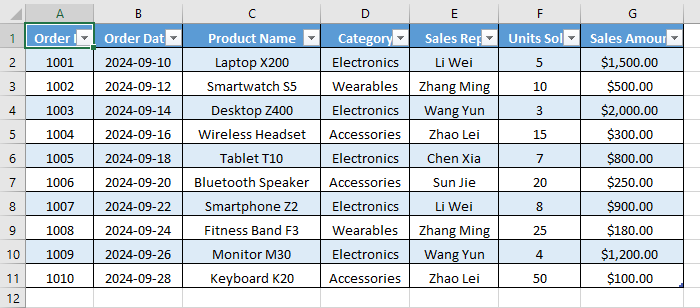
-
Vai alla scheda Progettazione: Non appena selezioni una cella della tabella, la scheda contestuale Progettazione apparirà sulla barra multifunzione di Excel, sotto Strumenti tabella. Fai clic su di essa.
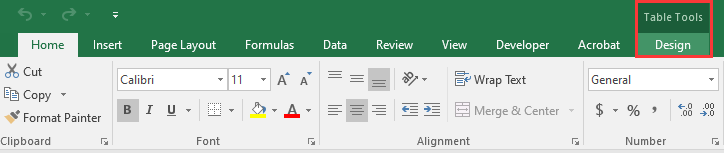
-
Fai clic su "Converti in intervallo": Nel gruppo Strumenti all'estrema sinistra, troverai il pulsante "Converti in intervallo". Fai clic su di esso.

-
Conferma l'azione: Excel mostrerà una finestra di dialogo che chiede: "Convertire la tabella in un intervallo normale?" Fai clic su Sì.
Dopo la conversione, la struttura della tabella viene rimossa e i filtri non sono più disponibili. Tuttavia, qualsiasi formattazione della tabella (come righe alternate e stili di intestazione) rimane, ma l'intervallo diventa statico anziché dinamico.
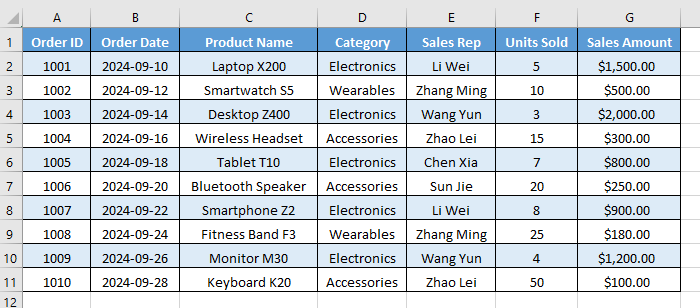
Opzione 2. Utilizzando il menu contestuale
Per coloro che preferiscono i menu contestuali, l'utilizzo del menu contestuale è altrettanto efficace e un po' più veloce:
-
Seleziona una cella qualsiasi all'interno della tabella: Proprio come nel primo metodo, fai clic in un punto qualsiasi all'interno dei dati della tabella.
-
Fai clic con il pulsante destro del mouse per aprire il menu contestuale: Fai clic con il pulsante destro del mouse sulla cella selezionata.
-
Naviga nel menu: Nel menu contestuale, passa il mouse sopra (o fai clic su) Tabella.
-
Seleziona "Converti in intervallo": Dal sottomenu che appare, seleziona Converti in intervallo.
-
Conferma l'azione: Fai clic su Sì nella finestra di dialogo di conferma.
Questo metodo produce lo stesso risultato dell'utilizzo della barra multifunzione ma offre un approccio più rapido e basato sul mouse.
Come rimuovere la formattazione della tabella in Excel?
In alcuni casi, potresti voler rimuovere la formattazione della tabella in Excel, inclusi elementi come filtri, colori e bordi. Segui i passaggi seguenti per cancellare la formattazione e riportare i dati a un layout più semplice:
-
Converti la tabella in un intervallo: Innanzitutto, converti la tabella in un intervallo normale utilizzando la barra multifunzione di Excel o il menu contestuale descritto sopra.
-
Cancella la formattazione della tabella
Ora che i dati sono un semplice intervallo, puoi rimuovere la formattazione residua.-
Seleziona l'intero intervallo di dati: Fai clic e trascina per selezionare tutte le celle che facevano parte della tabella originale, inclusa l'intestazione.
-
Vai alla scheda Home: Sulla barra multifunzione di Excel, vai alla scheda Home.
-
Cancella i formati:
-
Nel gruppo Modifica, fai clic sul pulsante Cancella (sembra una gomma rosa).

-
Dal menu a discesa, seleziona Cancella formati.
-
-
Ora, tutta la formattazione specifica della tabella viene rimossa, ma i dati rimangono intatti. Le celle tornano al carattere, al colore e ai bordi predefiniti di Excel, offrendoti un blocco di dati pulito e non formattato, pronto per una nuova formattazione o analisi.
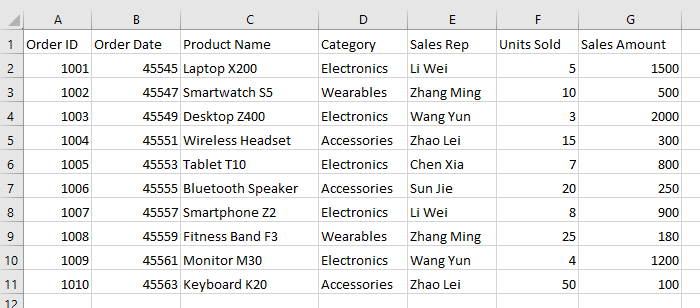
Come rimuovere completamente una tabella in Excel
Se devi rimuovere sia la tabella che tutti i dati che contiene, questo metodo ti aiuterà. Assicurati di essere certo di non aver più bisogno delle informazioni prima di procedere. Per eliminare completamente una tabella, segui questi passaggi:
-
Seleziona l'intera tabella: Fai clic in un punto qualsiasi all'interno della tabella e premi Ctrl + A (Windows) o Cmd + A (Mac) per selezionare l'intera tabella, inclusa l'intestazione e le righe totali.
-
Cancella tutti i dati e la formattazione: Vai alla scheda Home e trova il gruppo Modifica. Fai clic su Cancella, quindi seleziona Cancella tutto dal menu a discesa.
Questa azione rimuove permanentemente tutti i dati, la formattazione e la struttura della tabella. Le celle verranno cancellate, senza lasciare traccia della tabella originale.
Come rimuovere più tabelle in Excel contemporaneamente utilizzando VBA
Se il tuo file Excel contiene più tabelle, rimuoverle manualmente una per una può richiedere molto tempo. Puoi utilizzare VBA (Visual Basic for Applications) per automatizzare il processo.
Ecco come rimuovere tutte le tabelle in un file Excel mantenendo i dati utilizzando uno script VBA:
-
Premi Alt + F11 per aprire l'editor VBA.
-
Fai clic su Inserisci → Modulo.
-
Copia e incolla il seguente codice VBA:
Sub ConvertAllTablesToRanges() Dim ws As Worksheet Dim tbl As ListObject For Each ws In ActiveWorkbook.Worksheets For Each tbl In ws.ListObjects tbl.Unlist ' Converti tabella in intervallo Next tbl Next ws End Sub -
Premi F5 per eseguire la macro.
Questa macro scorre ogni foglio di lavoro nel file Excel, trova tutti i ListObjects (tabelle) e li converte in intervalli normali, preservando i dati ma rimuovendo la funzionalità della tabella.
Per maggiori dettagli sul metodo Unlist utilizzato in questo script VBA, consulta la documentazione ufficiale di Microsoft: Metodo Excel ListObject.Unlist.
Come rimuovere tabelle in Excel utilizzando l'automazione Python?
Se lavori con Python per l'elaborazione dei dati, la creazione di report automatizzati o applicazioni backend, puoi rimuovere tabelle in Excel utilizzando una libreria come Spire.XLS for Python.
Spire.XLS for Python è una popolare libreria Excel che consente agli sviluppatori di creare, leggere e manipolare file Excel direttamente tramite codice senza richiedere Microsoft Excel. Oltre a rimuovere le tabelle, ti consente di leggere e scrivere valori e formule di celle, applicare o cancellare la formattazione, gestire fogli di lavoro, inserire grafici o immagini e persino convertire file Excel in PDF o altri formati.
Ecco come puoi rimuovere tabelle in Excel utilizzando Python con Spire.XLS for Python:
-
Installa Spire.XLS for Python: Esegui il seguente comando nel tuo terminale per installarlo direttamente tramite PyPI:
pip install Spire.XLS -
Rimuovi tabelle con codice Python: Una volta installata la libreria, aggiungi il seguente codice per rimuovere le tabelle nel tuo file Excel utilizzando Python:
from spire.xls import *

# Carica la cartella di lavoro
workbook = Workbook()
workbook.LoadFromFile("CreateTable.xlsx")

# Scansiona tutti i fogli di lavoro per indice
for ws_index in range(len(workbook.Worksheets)):
  sheet = workbook.Worksheets[ws_index]
  # Scansiona dall'ultima tabella alla prima per rimuovere in sicurezza per indice
  for tbl_index in range(len(sheet.ListObjects) - 1, -1, -1):
      sheet.ListObjects.RemoveAt(tbl_index)

# Salva la cartella di lavoro
workbook.SaveToFile("DeleteAllTables.xlsx", ExcelVersion.Version2016)
workbook.Dispose()
Questo codice rimuove tutte le tabelle nel file Excel, mantenendo i dati intatti e pronti per ulteriori elaborazioni.
Leggi la guida ufficiale completa: Aggiungere o rimuovere tabelle in Excel in Python.
Suggerimenti professionali per la rimozione di una tabella in Excel
Quando si rimuove una tabella in Excel, i seguenti suggerimenti possono aiutarti a evitare problemi comuni e a mantenere l'integrità dei dati:
- Esegui sempre il backup della cartella di lavoro prima di eseguire script VBA o di automazione.
- Controlla due volte le formule per riferimenti interrotti dopo la conversione.
- Riapplica i filtri manualmente se necessario dopo la conversione in un intervallo.
- Mantieni un formato coerente applicando stili di cella personalizzati dopo aver rimosso la formattazione della tabella.
- Usa intervalli denominati invece delle tabelle se hai solo bisogno di riferimenti fissi senza comportamento strutturato.
Conclusione
La rimozione di una tabella in Excel non deve essere complicata. Seguendo questa guida su come rimuovere una tabella in Excel, puoi mantenere in sicurezza i tuoi dati e la formattazione intatti. Che tu preferisca i passaggi manuali, l'automazione VBA o lo scripting Python con Spire.XLS, questi metodi rendono la rimozione della tabella rapida, affidabile e senza stress. Provali oggi per ripulire i tuoi fogli di calcolo e snellire il tuo flusso di lavoro!
Domande frequenti: Rimuovere una tabella in Excel
D1: Come convertire una tabella in un intervallo normale in Excel ma mantenere i dati?
R1: Seleziona una cella qualsiasi nella tabella → Fai clic con il pulsante destro del mouse su Tabella → Converti in intervallo o vai a Progettazione → Converti in intervallo → Fai clic su Sì. I tuoi dati rimangono, ma le funzionalità della tabella vengono rimosse.
D2: Come rimuovo solo la formattazione della tabella in Excel?
R2: Innanzitutto, converti la tabella in un intervallo normale. Quindi seleziona tutte le celle → vai a Home → fai clic su Cancella → Cancella formati.
D3: Posso rimuovere più tabelle in Excel contemporaneamente?
R3: Sì. Usa una macro VBA per convertire tutte le tabelle in intervalli.
D4: Posso rimuovere una tabella in Excel usando Python?
R4: Sì. Puoi utilizzare librerie come Spire.XLS for Python per rimuovere tabelle in Excel con Python.
Leggi anche
Remover uma tabela no Excel (Converter em intervalo, Limpar formatação, VBA e Python)
Índice
- Entendendo o Que Acontece Quando Você Remove uma Tabela no Excel
- Como Remover uma Tabela no Excel Convertendo-a para um Intervalo
- Como Remover a Formatação de Tabela no Excel
- Como Remover uma Tabela no Excel Completamente
- Como Remover Tabelas no Excel de uma Vez Usando VBA
- Como Remover Tabelas no Excel usando Automação com Python
- Dicas Profissionais para Remover uma Tabela no Excel
- Conclusão
- Perguntas Frequentes: Remover Tabela no Excel
Remover uma tabela no Excel é uma tarefa simples, mas essencial para simplificar seus dados. Embora as tabelas sejam úteis para organizar e gerenciar informações, há momentos em que você pode querer removê-las - seja para otimizar a formatação, exportar dados brutos ou parar de usar recursos estruturados.
Neste guia, exploraremos vários métodos para remover uma tabela no Excel, incluindo convertê-la para um intervalo, limpar sua formatação e excluí-la completamente. Além disso, demonstraremos como automatizar o processo usando VBA e Python, ajudando você a economizar tempo ao trabalhar com várias tabelas.
Visão Geral do Conteúdo
- Entendendo o Que Acontece Quando Você Remove uma Tabela no Excel
- Como Remover uma Tabela no Excel Convertendo-a para um Intervalo
- Como Remover a Formatação de Tabela no Excel
- Como Remover uma Tabela no Excel Completamente
- Como Remover Tabelas no Excel de uma Vez Usando VBA
- Como Remover Tabelas no Excel usando Automação com Python
- Dicas Profissionais para Remover uma Tabela no Excel
- Conclusão
- Perguntas Frequentes: Remover Tabela no Excel
Entendendo o Que Acontece Quando Você Remove uma Tabela no Excel
Remover uma tabela no Excel pode ter resultados diferentes dependendo do método que você escolher:
- Converter para Intervalo: Mantém todos os seus dados e qualquer formatação aplicada à tabela como formatação de célula estática, mas remove recursos da tabela como filtros e referências estruturadas.
- Limpar Formatação da Tabela: Mantém os dados, mas remove todas as cores, bordas e estilos da tabela.
- Excluir Tabela Inteira: Remove permanentemente tanto a tabela quanto seus dados.
Vamos explorar essas opções em detalhes e ver como elas afetam seus dados no Excel.
Como Remover uma Tabela no Excel Convertendo-a para um Intervalo?
O método mais simples e confiável para remover uma tabela no Excel é convertê-la para um intervalo regular, o que mantém seus dados e formatação intactos. Você pode escolher entre duas opções principais para essa conversão: usar a faixa de opções do Excel ou o menu de clique com o botão direito.
Opção 1. Usando a Faixa de Opções do Excel
Siga os passos abaixo para converter uma tabela em um intervalo através da faixa de opções do Excel:
-
Selecione Qualquer Célula Dentro da Sua Tabela: Clique em qualquer célula (como "A1") dentro da tabela que você deseja remover. Você não precisa selecionar a tabela inteira.
-
Navegue até a Aba Design: Assim que você selecionar uma célula da tabela, a aba contextual Design aparecerá na faixa de opções do Excel, em Ferramentas de Tabela. Clique nela.
-
Clique em "Converter em Intervalo": No grupo Ferramentas, na extrema esquerda, você encontrará o botão "Converter em Intervalo". Clique nele.
-
Confirme a Ação: O Excel exibirá uma caixa de diálogo perguntando: "Deseja converter a tabela em um intervalo normal?" Clique em Sim.
Após a conversão, a estrutura da tabela é removida e os filtros não estão mais disponíveis. No entanto, qualquer formatação da tabela (como linhas em tiras e estilos de cabeçalho) permanece, mas o intervalo se torna estático em vez de dinâmico.
Opção 2. Usando o Menu de Clique com o Botão Direito
Para aqueles que preferem menus de contexto, usar o menu de clique com o botão direito é igualmente eficaz e um pouco mais rápido:
-
Selecione Qualquer Célula Dentro da Tabela: Assim como no primeiro método, clique em qualquer lugar dentro dos dados da sua tabela.
-
Clique com o Botão Direito para Abrir o Menu de Contexto: Clique com o botão direito na célula selecionada.
-
Navegue no Menu: No menu de clique com o botão direito, passe o mouse sobre (ou clique em) Tabela.
-
Selecione "Converter em Intervalo": No submenu que aparece, selecione Converter em Intervalo.
-
Confirme a Ação: Clique em Sim na caixa de diálogo de confirmação.
Este método produz o mesmo resultado que usar a faixa de opções, mas oferece uma abordagem mais rápida e orientada pelo mouse.
Como Remover a Formatação de Tabela no Excel?
Em alguns casos, você pode querer remover a formatação da tabela no Excel, incluindo elementos como filtros, cores e bordas. Siga os passos abaixo para limpar a formatação e retornar seus dados a um layout mais simples:
-
Converta a Tabela para um Intervalo: Primeiro, converta a tabela para um intervalo normal usando a faixa de opções do Excel ou o menu de clique com o botão direito descrito acima.
-
Limpe a Formatação da Tabela
Agora que os dados são um intervalo simples, você pode remover a formatação restante.-
Selecione Todo o Intervalo de Dados: Clique e arraste para selecionar todas as células que faziam parte da tabela original, incluindo o cabeçalho.
-
Vá para a Aba Página Inicial: Na faixa de opções do Excel, navegue até a aba Página Inicial.
-
Limpe os Formatos:
-
No grupo Edição, clique no botão Limpar (parece uma borracha rosa).
-
No menu suspenso, selecione Limpar Formatos.
-
-
Agora, toda a formatação específica da tabela foi removida, mas seus dados permanecem intactos. As células revertem para a fonte, cor e bordas padrão do Excel, fornecendo um bloco de dados limpo e não formatado, pronto para nova formatação ou análise.
Como Remover uma Tabela no Excel Completamente
Se você precisa remover tanto a tabela quanto todos os dados que ela contém, este método ajudará. Certifique-se de que não precisa mais das informações antes de prosseguir. Para excluir completamente uma tabela, siga estes passos:
-
Selecione a Tabela Inteira: Clique em qualquer lugar dentro da tabela e pressione Ctrl + A (Windows) ou Cmd + A (Mac) para selecionar a tabela inteira, incluindo o cabeçalho e as linhas de totais.
-
Limpar Todos os Dados e Formatação: Vá para a aba Página Inicial e encontre o grupo Edição. Clique em Limpar, depois selecione Limpar Tudo no menu suspenso.
Esta ação remove permanentemente todos os dados, formatação e a estrutura da tabela. As células serão limpas, não deixando vestígios da tabela original.
Como Remover Tabelas no Excel de uma Vez Usando VBA
Se o seu arquivo Excel contém várias tabelas, remover cada uma manualmente pode ser demorado. Você pode usar o VBA (Visual Basic for Applications) para automatizar o processo.
Veja como remover todas as tabelas em um arquivo Excel, mantendo os dados, usando um Script VBA:
-
Pressione Alt + F11 para abrir o Editor do VBA.
-
Clique em Inserir → Módulo.
-
Copie e cole o seguinte código VBA:
Sub ConvertAllTablesToRanges() Dim ws As Worksheet Dim tbl As ListObject For Each ws In ActiveWorkbook.Worksheets For Each tbl In ws.ListObjects tbl.Unlist ' Converte tabela em intervalo Next tbl Next ws End Sub -
Pressione F5 para executar a macro.
Esta macro percorre cada planilha no arquivo Excel, encontra todos os ListObjects (tabelas) e os converte em intervalos normais - preservando os dados, mas removendo a funcionalidade da tabela.
Para mais detalhes sobre o método Unlist usado neste script VBA, consulte a documentação oficial da Microsoft: Método Excel ListObject.Unlist.
Como Remover Tabelas no Excel usando Automação com Python?
Se você está trabalhando com Python para processamento de dados, relatórios automatizados ou aplicativos de backend, pode remover tabelas no Excel usando uma biblioteca como o Spire.XLS for Python.
O Spire.XLS for Python é uma biblioteca popular para Excel que permite aos desenvolvedores criar, ler e manipular arquivos Excel diretamente através de código, sem a necessidade do Microsoft Excel. Além de remover tabelas, ele permite ler e escrever valores e fórmulas de células, aplicar ou limpar formatação, gerenciar planilhas, inserir gráficos ou imagens e até mesmo converter arquivos Excel para PDF ou outros formatos.
Veja como você pode remover tabelas no Excel usando Python com o Spire.XLS for Python:
-
Instale o Spire.XLS for Python: Execute o seguinte comando no seu terminal para instalá-lo diretamente via PyPI:
pip install Spire.XLS -
Remova Tabelas com Código Python: Uma vez que a biblioteca esteja instalada, adicione o seguinte código para remover tabelas no seu arquivo Excel usando Python:
from spire.xls import *

# Carregue a pasta de trabalho
workbook = Workbook()
workbook.LoadFromFile("CreateTable.xlsx")

# Percorra todas as planilhas pelo índice
for ws_index in range(len(workbook.Worksheets)):
  sheet = workbook.Worksheets[ws_index]
  # Percorra da última tabela para a primeira para remover com segurança pelo índice
  for tbl_index in range(len(sheet.ListObjects) - 1, -1, -1):
      sheet.ListObjects.RemoveAt(tbl_index)

# Salve a pasta de trabalho
workbook.SaveToFile("DeleteAllTables.xlsx", ExcelVersion.Version2016)
workbook.Dispose()
Este código remove todas as tabelas do arquivo Excel, mantendo seus dados intactos e prontos para processamento posterior.
Leia o guia oficial completo: Adicionar ou Remover Tabelas no Excel em Python.
Dicas Profissionais para Remover uma Tabela no Excel
Ao remover uma tabela no Excel, as dicas a seguir podem ajudá-lo a evitar problemas comuns e a manter a integridade dos dados:
- Sempre faça backup da sua pasta de trabalho antes de executar scripts de VBA ou automação.
- Verifique novamente as fórmulas em busca de referências quebradas após a conversão.
- Reaplique os filtros manualmente, se necessário, após converter para um intervalo.
- Mantenha um formato consistente aplicando estilos de célula personalizados após remover a formatação da tabela.
- Use intervalos nomeados em vez de tabelas se você precisar apenas de referências fixas sem comportamento estruturado.
Conclusão
Remover uma tabela no Excel não precisa ser complicado. Seguindo este guia sobre como remover uma tabela no Excel, você pode manter seus dados e formatação intactos com segurança. Quer você prefira passos manuais, automação com VBA ou scripts em Python com Spire.XLS, esses métodos tornam a remoção de tabelas rápida, confiável e sem estresse. Experimente-os hoje para limpar suas planilhas e otimizar seu fluxo de trabalho!
Perguntas Frequentes: Remover Tabela no Excel
P1: Como converter uma tabela para um intervalo normal no Excel, mas manter os dados?
R1: Selecione qualquer célula na tabela → Clique com o botão direito em Tabela → Converter em Intervalo ou vá para Design → Converter em Intervalo → Clique em Sim. Seus dados permanecem, mas os recursos da tabela são removidos.
P2: Como removo apenas a formatação da tabela no Excel?
R2: Primeiro, converta a tabela para um intervalo normal. Em seguida, selecione todas as células → vá para Página Inicial → clique em Limpar → Limpar Formatos.
P3: Posso remover várias tabelas no Excel de uma vez?
R3: Sim. Use uma macro VBA para converter todas as tabelas em intervalos.
P4: Posso remover uma tabela no Excel usando Python?
R4: Sim. Você pode utilizar bibliotecas como o Spire.XLS for Python para remover tabelas no Excel com Python.