C# DataTable to CSV: 3 Easy Methods with Examples
Table of Contents
- Why Export DataTable to CSV in C#
- Method 1: Manual C# DataTable to CSV Conversion Using StringBuilder
- Method 2: Large C# DataTable to CSV Export Using StreamWriter
- Method 3: Use Spire.XLS for .NET to Convert DataTable to CSV in C#
- Performance Comparison of DataTable to CSV Methods
- Which Method Should You Use?
- Handling Special Cases and Best Practices for DataTable to CSV
- Conclusion
- FAQs
Install with Pypi
Install-Package Spire.XLS
Related Links
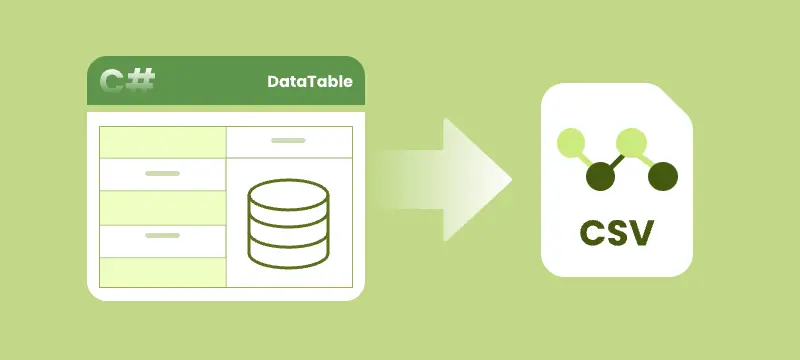
Exporting DataTable to CSV in C# is a common requirement for developers who need to save, share, or analyze tabular data efficiently. The DataTable object in .NET provides a structured way to store rows and columns in memory, but often you need to convert this data into a CSV file for Excel, reporting tools, or other systems.
This tutorial explains three easy methods to export DataTable to CSV in C#, complete with step-by-step instructions and practical code examples. Whether you are working with small datasets or large, production-level tables, these approaches will help you perform DataTable to CSV conversion in C# quickly and reliably.
Table of Contents
- Why Export DataTable to CSV in C#
- Method 1: Manual C# DataTable to CSV Conversion Using StringBuilder
- Method 2: Large C# DataTable to CSV Export Using StreamWriter
- Method 3: Use Spire.XLS for .NET to Convert DataTable to CSV in C#
- Performance Comparison of DataTable to CSV Methods
- Which Method Should You Use?
- Handling Special Cases and Best Practices for DataTable to CSV
- Conclusion
- FAQs
Why Export DataTable to CSV in C#
Exporting a DataTable to CSV in C# offers several key advantages:
- Universal Data Format – CSV is supported by Excel, Google Sheets, databases, and many applications.
- Readable and Simple – Unlike JSON or XML, CSV is human-readable and easy to edit manually.
- Seamless Integration – Many enterprise applications, CRMs, and reporting tools accept CSV files.
- Fast Performance – CSV generation is lightweight and efficient.
- Cross-Platform Compatibility – CSV files can be opened and processed on any system.
Method 1: Manual C# DataTable to CSV Conversion Using StringBuilder
Manually exporting a DataTable to CSV in C# using StringBuilder gives you full control over formatting and escaping rules, making it ideal for small to medium datasets.
Steps to Convert DataTable to CSV in C# Using StringBuilder
- Create or fetch a DataTable from your source (database, API, or manually).
- Initialize a StringBuilder to store CSV content.
- Append column headers by looping through DataTable.Columns.
- Loop through DataTable rows and append each cell’s value.
- Escape special characters like commas, quotes, or newlines.
- Write the final string to a CSV file using File.WriteAllText.
Example Code
using System;
using System.Data;
using System.IO;
using System.Text;

namespace DataTableToCSV
{
    internal class Program
    {
        static void Main(string[] args)
        {
            // -------------------------------
            // Step 1: Create a DataTable
            // -------------------------------
            DataTable table = new DataTable("Employees");

            // Define columns: ID, Name, Department, Salary, JoinDate, Email
            table.Columns.Add("ID", typeof(int));
            table.Columns.Add("Name", typeof(string));
            table.Columns.Add("Department", typeof(string));
            table.Columns.Add("Salary", typeof(decimal));
            table.Columns.Add("JoinDate", typeof(DateTime));
            table.Columns.Add("Email", typeof(string));

            // Add sample rows with richer data
            table.Rows.Add(1, "Alice Johnson", "HR", 60000, new DateTime(2019, 3, 15), "alice.johnson@example.com");
            table.Rows.Add(2, "Bob Smith", "IT", 75000, new DateTime(2018, 7, 22), "bob.smith@example.com");
            table.Rows.Add(3, "Charlie Brown", "Finance", 82000, new DateTime(2020, 1, 10), "charlie.brown@example.com");
            table.Rows.Add(4, "Diana Prince", "Marketing", 67000, new DateTime(2021, 5, 5), "diana.prince@example.com");
            table.Rows.Add(5, "Ethan Hunt", "Operations", 90000, new DateTime(2017, 9, 30), "ethan.hunt@example.com");
            table.Rows.Add(6, "Fiona Gallagher", "IT", 72000, new DateTime(2019, 11, 12), "fiona.gallagher@example.com");

            // -------------------------------
            // Step 2: Export DataTable to CSV
            // -------------------------------
            string csvPath = "employees.csv";
            DataTableToCsv(table, csvPath);

            Console.WriteLine($"CSV file successfully created: {csvPath}");
        }

        /// <summary>
        /// Converts a DataTable to a CSV file.
        /// </summary>
        /// <param name="dt">The DataTable to export</param>
        /// <param name="filePath">The path where CSV file will be saved</param>
        public static void DataTableToCsv(DataTable dt, string filePath)
        {
            // Use StringBuilder to efficiently build CSV content
            StringBuilder sb = new StringBuilder();

            // -------------------------------
            // Step 1: Add column headers
            // -------------------------------
            for (int i = 0; i < dt.Columns.Count; i++)
            {
                sb.Append(dt.Columns[i].ColumnName);
                if (i < dt.Columns.Count - 1) sb.Append(","); // Add comma except for last column
            }
            sb.AppendLine();

            // -------------------------------
            // Step 2: Add rows
            // -------------------------------
            foreach (DataRow row in dt.Rows)
            {
                for (int i = 0; i < dt.Columns.Count; i++)
                {
                    string value;

                    // Format DateTime columns as "yyyy-MM-dd"
                    if (dt.Columns[i].DataType == typeof(DateTime))
                    {
                        value = ((DateTime)row[i]).ToString("yyyy-MM-dd");
                    }
                    else
                    {
                        value = row[i].ToString();
                    }

                    // Escape special characters: commas, quotes, newlines
                    if (value.Contains(",") || value.Contains("\"") || value.Contains("\n"))
                    {
                        value = "\"" + value.Replace("\"", "\"\"") + "\"";
                    }

                    sb.Append(value);

                    if (i < dt.Columns.Count - 1) sb.Append(",");
                }
                sb.AppendLine();
            }

            // -------------------------------
            // Step 3: Write CSV file
            // -------------------------------
            File.WriteAllText(filePath, sb.ToString(), Encoding.UTF8);
        }
    }
}
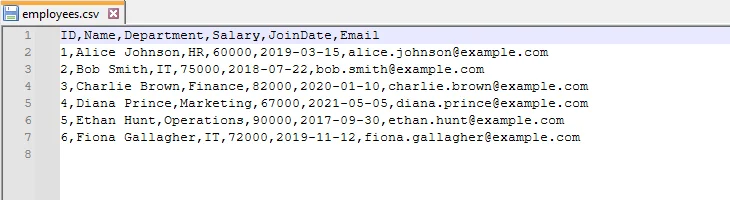
Output CSV
Method 2: Large C# DataTable to CSV Export Using StreamWriter
For large DataTables, using StringBuilder can be memory-intensive. StreamWriter allows you to write rows line by line, which is efficient for large datasets.
Steps for StreamWriter-Based C# DataTable CSV Export
- Create or retrieve your DataTable with the necessary data.
- Initialize a StreamWriter with the output CSV file path and desired encoding (like UTF-8).
- Write the header row using DataTable column names.
- Iterate through DataTable rows and write each line to the file.
- Escape values containing special characters (commas, quotes, newlines) to maintain CSV integrity.
- Close the StreamWriter to release system resources.
Example Code
using System;
using System.Data;
using System.IO;
using System.Text;

namespace DataTableToCSV
{
    internal class Program
    {
        static void Main(string[] args)
        {
            // -------------------------------
            // Step 1: Create a new DataTable for this example
            // -------------------------------
            DataTable table = new DataTable("Products");

            // Define columns: ProductID, ProductName, Category, Price, Stock, LaunchDate
            table.Columns.Add("ProductID", typeof(int));
            table.Columns.Add("ProductName", typeof(string));
            table.Columns.Add("Category", typeof(string));
            table.Columns.Add("Price", typeof(decimal));
            table.Columns.Add("Stock", typeof(int));
            table.Columns.Add("LaunchDate", typeof(DateTime));

            // Add sample rows with varied products
            table.Rows.Add(101, "Laptop Pro 15", "Electronics", 1500.99, 25, new DateTime(2023, 1, 10));
            table.Rows.Add(102, "Wireless Mouse", "Accessories", 29.95, 200, new DateTime(2022, 11, 5));
            table.Rows.Add(103, "Mechanical Keyboard", "Accessories", 79.99, 150, new DateTime(2022, 12, 1));
            table.Rows.Add(104, "4K Monitor", "Electronics", 399.50, 40, new DateTime(2023, 2, 20));
            table.Rows.Add(105, "USB-C Hub", "Accessories", 49.99, 300, new DateTime(2022, 9, 18));
            table.Rows.Add(106, "Gaming Chair", "Furniture", 259.99, 15, new DateTime(2023, 3, 5));

            // -------------------------------
            // Step 2: Export DataTable to CSV using StreamWriter
            // -------------------------------
            string csvPath = "products_stream.csv";
            DataTableToCsvStream(table, csvPath);

            Console.WriteLine($"CSV file successfully created: {csvPath}");
        }

        /// <summary>
        /// Export a DataTable to CSV using StreamWriter (efficient for large datasets)
        /// </summary>
        /// <param name="dt">The DataTable to export</param>
        /// <param name="filePath">The CSV file path to save</param>
        public static void DataTableToCsvStream(DataTable dt, string filePath)
        {
            // Use StreamWriter for memory-efficient writing (row by row)
            using (StreamWriter writer = new StreamWriter(filePath, false, Encoding.UTF8))
            {
                // -------------------------------
                // Step 1: Write column headers
                // -------------------------------
                for (int i = 0; i < dt.Columns.Count; i++)
                {
                    writer.Write(dt.Columns[i].ColumnName);
                    if (i < dt.Columns.Count - 1)
                        writer.Write(","); // Add comma except for last column
                }
                writer.WriteLine();

                // -------------------------------
                // Step 2: Write rows
                // -------------------------------
                foreach (DataRow row in dt.Rows)
                {
                    for (int i = 0; i < dt.Columns.Count; i++)
                    {
                        string value;

                        // Format DateTime as yyyy-MM-dd
                        if (dt.Columns[i].DataType == typeof(DateTime))
                        {
                            value = ((DateTime)row[i]).ToString("yyyy-MM-dd");
                        }
                        else
                        {
                            value = row[i].ToString();
                        }

                        // Escape special characters: commas, quotes, newlines
                        if (value.Contains(",") || value.Contains("\"") || value.Contains("\n"))
                        {
                            value = "\"" + value.Replace("\"", "\"\"") + "\"";
                        }

                        writer.Write(value);

                        if (i < dt.Columns.Count - 1)
                            writer.Write(",");
                    }
                    writer.WriteLine();
                }
                // StreamWriter is automatically closed at the end of the using block
            }
        }
    }
}
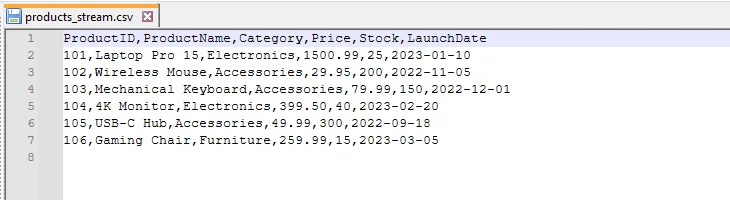
Output CSV
Method 3: Use Spire.XLS for .NET to Convert DataTable to CSV in C#
For production-ready applications, libraries like Spire.XLS for .NET provide a reliable and efficient way to handle C# DataTable to CSV export. The library automatically handles special characters, delimiters, and encoding, reducing manual coding effort and ensuring consistent, accurate output.
Get Started with Spire.XLS for .NET
To use Spire.XLS in your C# project, install it via NuGet:
- Open your project in Visual Studio.
- Go to Tools -> NuGet Package Manager -> Manage NuGet Packages for Solution…
- Search for “Spire.XLS” and click Install.
Alternatively, you can install it quickly using the Package Manager Console:
Install-Package Spire.XLS
Once installed, you can effortlessly export DataTables to CSV and perform further operations on the resulting files, such as converting CSV to Excel or importing CSV back into a DataTable, all efficiently within your .NET applications.
Steps for Spire.XLS-Based C# Datatable to CSV Export
- Prepare your DataTable with the data to export.
- Create a Workbook object using Spire.XLS.
- Insert the DataTable into a worksheet.
- Save the worksheet as CSV, specifying delimiter and encoding.
Example Code
using Spire.Xls;
using System;
using System.Data;
using System.Text;

namespace DataTableToCSV
{
    internal class Program
    {
        static void Main(string[] args)
        {
            // -------------------------------
            // Step 1: Create a new DataTable for books
            // -------------------------------
            DataTable dt = new DataTable("Books");

            // Define columns: BookID, Title, Author, Genre, Price, PublishDate
            dt.Columns.Add("BookID", typeof(int));
            dt.Columns.Add("Title", typeof(string));
            dt.Columns.Add("Author", typeof(string));
            dt.Columns.Add("Genre", typeof(string));
            dt.Columns.Add("Price", typeof(double));
            dt.Columns.Add("PublishDate", typeof(DateTime));

            // Add sample rows
            dt.Rows.Add(201, "The Great Gatsby", "F. Scott Fitzgerald", "Classic", 10.99, new DateTime(1925, 4, 10));
            dt.Rows.Add(202, "1984", "George Orwell", "Dystopian", 9.99, new DateTime(1949, 6, 8));
            dt.Rows.Add(203, "To Kill a Mockingbird", "Harper Lee", "Classic", 12.50, new DateTime(1960, 7, 11));
            dt.Rows.Add(204, "The Hobbit", "J.R.R. Tolkien", "Fantasy", 15.75, new DateTime(1937, 9, 21));
            dt.Rows.Add(205, "Clean Code", "Robert C. Martin", "Programming", 32.99, new DateTime(2008, 8, 1));
            dt.Rows.Add(206, "The Pragmatic Programmer", "Andrew Hunt", "Programming", 29.95, new DateTime(1999, 10, 20));

            // -------------------------------
            // Step 2: Create a Workbook and insert DataTable
            // -------------------------------
            Workbook workbook = new Workbook();
            Worksheet sheet = workbook.Worksheets[0];

            // Insert the DataTable into the worksheet starting from row 1, column 1
            // Include column headers
            sheet.InsertDataTable(dt, true, 1, 1);

            // -------------------------------
            // Step 3: Save the worksheet as CSV
            // -------------------------------
            // Parameters: file name, delimiter, encoding
            sheet.SaveToFile("books.csv", ",", Encoding.UTF8);

            // Release resources
            workbook.Dispose();
        }
    }
}
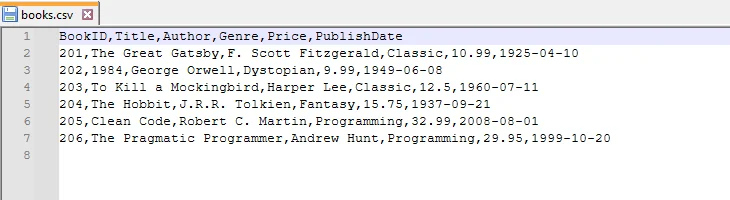
Output CSV
Benefits of Using Spire.XLS
- Automatic handling of special characters, delimiters, and encodings – no manual escaping needed.
- Supports both CSV import and export, making it flexible for different workflows.
- Simplifies production-level code – less boilerplate and fewer errors compared to manual methods.
- Scalable for large datasets – works efficiently even with thousands of rows.
Performance Comparison of DataTable to CSV Methods
To better understand the strengths and trade-offs of each approach, here’s a side-by-side comparison of StringBuilder, StreamWriter, and Spire.XLS when exporting a DataTable to CSV.
| Method | Best For | Performance | Memory Usage | Code Complexity | Notes |
|---|---|---|---|---|---|
| StringBuilder | Small datasets (<10k rows) | Medium | High | Moderate | Full control over output, but less efficient for large files |
| StreamWriter | Large datasets (10k+ rows) | High | Low | Moderate | Writes row-by-row, prevents memory overload |
| Spire.XLS | Production & enterprise | High | Optimized | Low | Handles escaping, encoding, and large datasets automatically |
Which Method Should You Use?
While the comparison table highlights the technical differences, choosing the right method depends on your specific scenario, such as dataset size, performance requirements, and production needs.
- Choose StringBuilder if you need complete control over CSV formatting and you’re working with small to medium datasets.
- Choose StreamWriter if you’re exporting large datasets and want a memory-efficient solution.
- Choose Spire.XLS if you need a production-ready, reliable, and low-maintenance approach, especially when handling special cases or integrating into enterprise workflows.
Handling Special Cases and Best Practices for DataTable to CSV
When exporting a DataTable to CSV in C#, it’s important to follow best practices and also be aware of some special cases that could affect your CSV output. Handling these properly ensures your files are clean, reliable, and easy to use.
- Handling Special Cases
- Null values – Replace DBNull with empty strings or placeholders so that missing data doesn’t break your CSV.
- Custom delimiters – If your data contains commas, consider using ; or tabs (\t) to avoid confusion.
- Special characters – Values with quotes, commas, or line breaks should be properly escaped to maintain CSV integrity.
- Encoding considerations – UTF-8 is recommended for most scenarios, but some systems may require UTF-16 or ANSI.
- Large datasets – For very large tables, consider splitting files or using memory-efficient methods like StreamWriter to avoid performance issues.
- Best Practices
- Stick with UTF-8 encoding for compatibility across platforms and tools.
- Test with special cases such as nulls, commas, quotes, and multiline values to prevent unexpected errors.
- Pick the right method – StringBuilder works fine for small tables, StreamWriter is better for large datasets, and Spire.XLS is ideal for production-ready solutions.
- Document your CSV structure clearly so others know how to interpret the data.
Conclusion
Mastering C# DataTable to CSV is an essential skill for developers working with tabular data. This guide covered three practical approaches: using StringBuilder for small datasets, employing StreamWriter for efficient and memory-friendly handling of large tables, and leveraging the Spire.XLS library for a reliable, production-ready solution that automatically manages complex scenarios.
By following these step-by-step examples, you can perform C# DataTable to CSV conversion confidently, ensuring your data is accurate, shareable, and ready for integration or further analysis.
FAQs
Q1: How can I convert a DataTable to CSV in C# efficiently?
A1: You can use three methods: manual conversion with StringBuilder for small datasets, StreamWriter for large datasets, or the Spire.XLS library for a production-ready solution. Each method ensures proper handling of commas, quotes, and newlines.
Q2: What is the best way to export large C# DataTables to CSV?
A2: For large datasets, StreamWriter is recommended because it writes rows line by line, reducing memory usage. Spire.XLS is another reliable option for production environments.
Q3: How do I handle special characters and null values when exporting DataTable to CSV in C#?
A3: Always escape commas, quotes, and line breaks. Replace null or DBNull values with empty strings or placeholders. Using Spire.XLS automatically handles most of these cases.
Q4: Can I customize delimiters and encoding when exporting a DataTable to CSV?
A4: Yes, you can specify delimiters like ,, ;, or \t and choose encoding such as UTF-8, UTF-16, or ANSI depending on system requirements.
Q5: Why should I use Spire.XLS instead of manual or StreamWriter methods?
A5: Spire.XLS simplifies CSV export by handling escaping, delimiters, and encoding automatically, reduces code complexity, and is ideal for medium to large datasets or production-level applications.
Q6: How do I ensure my exported CSV is compatible with Excel and other applications?
A6: Use UTF-8 encoding, escape special characters, and consistently format headers. Testing the output in Excel or other target applications helps avoid compatibility issues.
See Also
How to Convert CSV to JSON in Python: Flat, Nested & NDJSON

CSV (Comma-Separated Values) is a widely used format for tabular data. It’s lightweight, easy to generate, and common in reports, logs, exports, and data feeds. However, modern web applications, APIs, and NoSQL databases prefer JSON for its hierarchical structure, flexibility, and compatibility with JavaScript.
Converting CSV to JSON in Python is a practical skill for developers who need to:
- Prepare CSV data for APIs and web services
- Migrate CSV exports into NoSQL databases like MongoDB
- Transform flat CSV tables into nested JSON objects
- Enable data exchange between systems that require hierarchical formats
This step-by-step tutorial shows you how to convert CSV files to JSON in Python, including flat JSON, nested JSON, JSON with grouped data, and JSON Lines (NDJSON). By the end, you’ll be able to transform raw CSV datasets into well-structured JSON ready for APIs, applications, or data pipelines.
Table of Contents
- Why Convert CSV to JSON
- Python CSV to JSON Converter - Installation
- Convert CSV to Flat JSON in Python
- Convert CSV to Nested JSON in Python
- Convert CSV to JSON with Grouped Data in Python
- Convert CSV to JSON Lines (NDJSON) in Python
- Handle Large CSV Files to JSON Conversion
- Best Practices for CSV to JSON Conversion
- Conclusion
- FAQs
Why Convert CSV to JSON?
CSV files are lightweight and tabular, but they lack hierarchy. JSON allows structured, nested data ideal for APIs and applications. Converting CSV to JSON enables:
- API Integration: Most APIs prefer JSON over CSV
- Flexible Data Structures: JSON supports nested objects
- Web Development: JSON works natively with JavaScript
- Database Migration: NoSQL and cloud databases often require JSON
- Automation: Python scripts can process JSON efficiently
Python CSV to JSON Converter – Installation
To convert CSV files to JSON in Python, this tutorial uses Spire.XLS for Python to read CSV files and Python’s built-in json module to handle JSON conversion.
Why Spire.XLS?
It simplifies working with CSV files by allowing you to:
- Load CSV files into a workbook structure for easy access to rows and columns
- Extract and manipulate data efficiently, cell by cell
- Convert CSV to JSON in flat, nested, or NDJSON formats
- Export CSV to Excel, PDF, and other formats if needed
Install Spire.XLS
You can install the library directly from PyPI using pip:
pip install spire.xls
If you need detailed guidance on the installation, refer to this tutorial: How to Install Spire.XLS for Python on Windows.
Once installed, you’re ready to convert CSV data into different JSON formats.
Convert CSV to Flat JSON in Python
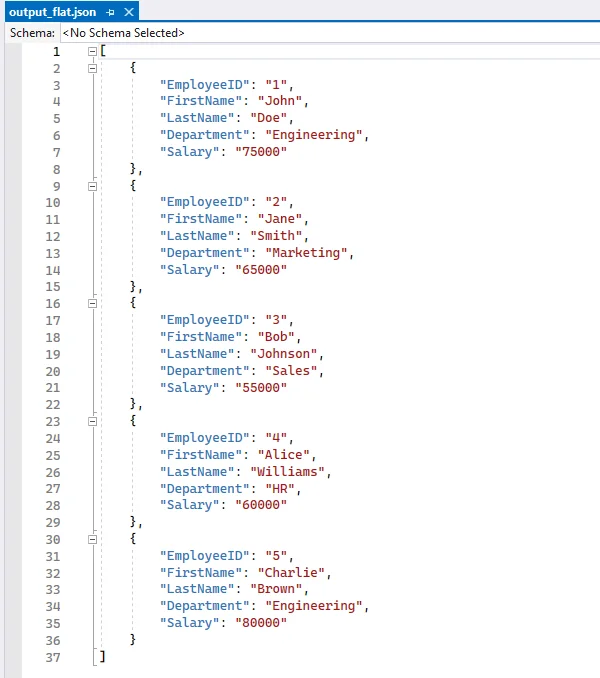
Converting a CSV file to flat JSON turns each row into a separate JSON object and uses the first row as keys, making the data organized and easy to work with.
Steps to Convert CSV to Flat JSON
- Load the CSV file into a workbook using Workbook.LoadFromFile.
- Select the worksheet.
- Extract headers from the first row.
- Iterate through each subsequent row to map values to headers.
- Append each row dictionary to a list.
- Write the list to a JSON file using json.dump.
Code Example
from spire.xls import *
import json

# Load the CSV file into a workbook object
workbook = Workbook()
workbook.LoadFromFile("employee.csv", ",")

# Select the desired worksheet
sheet = workbook.Worksheets[0]

# Extract headers from the first row
headers = [sheet.Range[1, j].Text for j in range(1, sheet.LastColumn + 1)]

# Map the subsequent CSV rows to JSON objects
data = []
for i in range(2, sheet.LastRow + 1):
    row = {headers[j-1]: sheet.Range[i, j].Text for j in range(1, sheet.LastColumn + 1)}
    data.append(row)

# Write JSON to file
with open("output_flat.json", "w", encoding="utf-8") as f:
    json.dump(data, f, indent=4, ensure_ascii=False)

# Clean up resources
workbook.Dispose()
Output JSON
Convert CSV to Nested JSON in Python
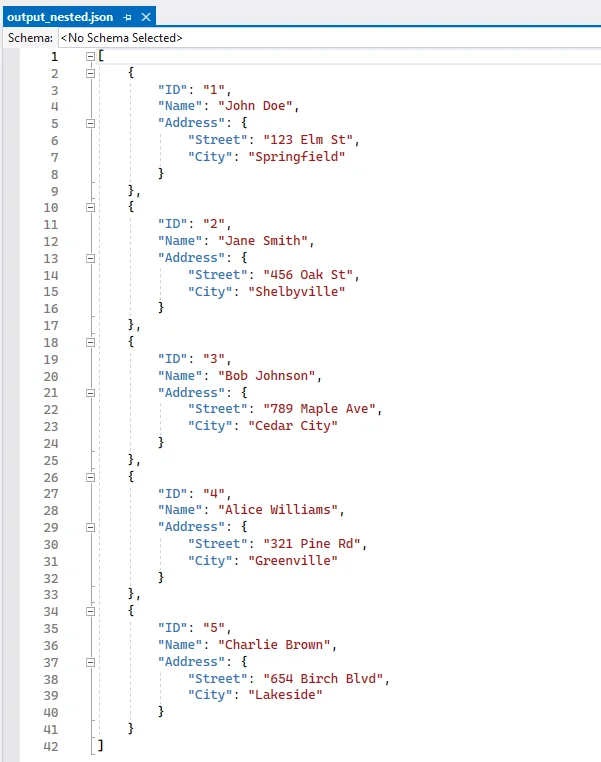
When a single CSV row contains related columns, you can combine these columns into nested JSON objects. For example, merging the Street and City columns into an Address object. Each CSV row produces one JSON object, which can include one or more nested dictionaries. This approach is ideal for scenarios requiring hierarchical data within a single record, such as API responses or application configurations.
Steps to Convert CSV to Nested JSON
- Load the CSV file and select the worksheet.
- Decide which columns should form a nested object (e.g., street and city).
- Iterate over rows and construct each JSON object with a sub-object for nested fields.
- Append each nested object to a list.
- Write the list to a JSON file with json.dump.
Code Example
from spire.xls import *
import json

# Create a Workbook instance and load the CSV file (using comma as the delimiter)
workbook = Workbook()
workbook.LoadFromFile("data.csv", ",")

# Get the first worksheet from the workbook
sheet = workbook.Worksheets[0]

# List to store the converted JSON data
data = []

# Loop through rows starting from the second row (assuming the first row contains headers)
for i in range(2, sheet.LastRow + 1):
    # Map each row into a JSON object, including a nested "Address" object
    row = {
        "ID": sheet.Range[i, 1].Text,         # Column 1: ID
        "Name": sheet.Range[i, 2].Text,       # Column 2: Name
        "Address": {                          # Nested object for address
            "Street": sheet.Range[i, 3].Text, # Column 3: Street
            "City": sheet.Range[i, 4].Text    # Column 4: City
        }
    }
    # Add the JSON object to the list
    data.append(row)

# Write the JSON data to a file with indentation for readability
with open("output_nested.json", "w", encoding="utf-8") as f:
    json.dump(data, f, indent=4, ensure_ascii=False)

# Release resources used by the workbook
workbook.Dispose()
Output Nested JSON
Convert CSV to JSON with Grouped Data
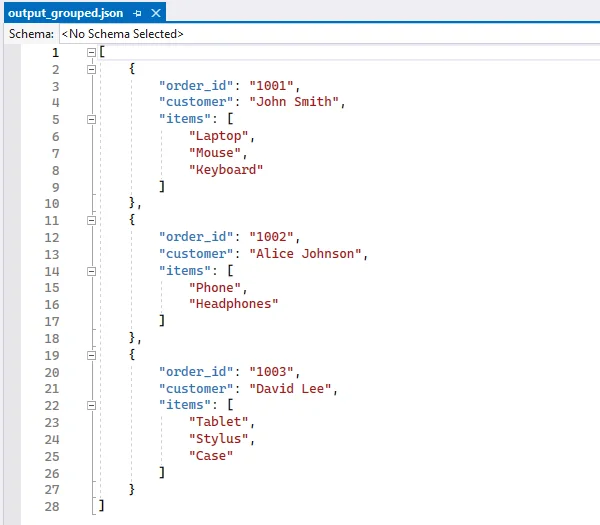
When multiple CSV rows belong to the same parent entity, you can group these rows under a single parent object. For example, an order with multiple items can store all items in an items array under one order object. Each parent object has a unique key (like order_id), and its child rows are aggregated into an array. This method is useful for e-commerce orders, data pipelines, or any scenario requiring grouped hierarchical data across multiple rows.
Steps to Convert CSV to JSON with Grouped Data
- Use defaultdict to group rows by a parent key (order_id).
- Iterate rows and append child items to the parent object.
- Convert the grouped dictionary to a list of objects.
- Write the JSON file.
Code Example
from collections import defaultdict
from spire.xls import *
import json

# Create a Workbook instance and load the CSV file (comma-separated)
workbook = Workbook()
workbook.LoadFromFile("orders.csv", ",")

# Get the first worksheet from the workbook
sheet = workbook.Worksheets[0]

# Use defaultdict to store grouped data
# Each order_id maps to a dictionary with customer name and a list of items
data = defaultdict(lambda: {"customer": "", "items": []})

# Loop through rows starting from the second row (skip header row)
for i in range(2, sheet.LastRow + 1):
    order_id = sheet.Range[i, 1].Text      # Column 1: Order ID
    customer = sheet.Range[i, 2].Text      # Column 2: Customer
    item = sheet.Range[i, 3].Text          # Column 3: Item

    # Assign customer name (same for all rows with the same order_id)
    data[order_id]["customer"] = customer
    # Append item to the order's item list
    data[order_id]["items"].append(item)

# Convert the grouped dictionary into a list of objects
# Each object contains order_id, customer, and items
result = [{"order_id": oid, **details} for oid, details in data.items()]

# Write the grouped data to a JSON file with indentation for readability
with open("output_grouped.json", "w", encoding="utf-8") as f:
    json.dump(result, f, indent=4, ensure_ascii=False)

# Release resources used by the workbook
workbook.Dispose()
Output JSON with Grouped Data
If you're also interested in saving JSON back to CSV, follow our guide on converting JSON to CSV in Python.
Convert CSV to JSON Lines (NDJSON) in Python
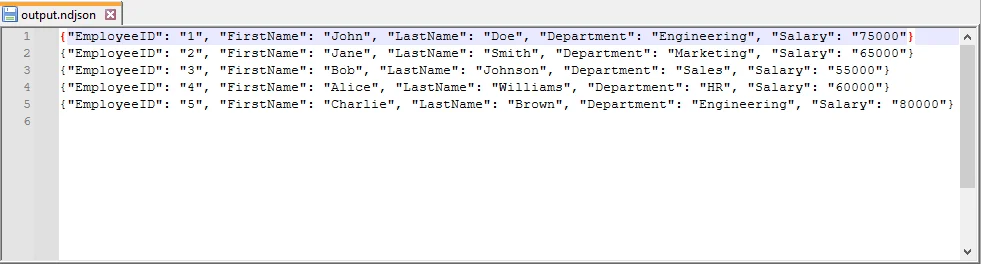
JSON Lines (also called NDJSON – Newline Delimited JSON) is a format where each line is a separate JSON object. It is ideal for large datasets, streaming, and big data pipelines.
Why use NDJSON?
- Streaming-friendly: Process one record at a time without loading the entire file into memory.
- Big data compatibility: Tools like Elasticsearch, Logstash, and Hadoop natively support NDJSON.
- Error isolation: If one line is corrupted, the rest of the file remains valid.
Code Example
from spire.xls import *
import json

# Create a Workbook instance and load the CSV file (comma-separated)
workbook = Workbook()
workbook.LoadFromFile("employee.csv", ",")

# Get the first worksheet from the workbook
sheet = workbook.Worksheets[0]

# Extract headers from the first row to use as JSON keys
headers = [sheet.Range[1, j].Text for j in range(1, sheet.LastColumn + 1)]

# Open a file to write JSON Lines (NDJSON) format
with open("output.ndjson", "w", encoding="utf-8") as f:
    # Loop through each row in the worksheet, starting from the second row
    for i in range(2, sheet.LastRow + 1):
        # Map each header to its corresponding cell value for the current row
        row = {headers[j - 1]: sheet.Range[i, j].Text for j in range(1, sheet.LastColumn + 1)}

        # Write the JSON object to the file followed by a newline
        # Each line is a separate JSON object (NDJSON format)
        f.write(json.dumps(row, ensure_ascii=False) + "\n")

# Release resources used by the workbook
workbook.Dispose()
Output NDJSON
Handle Large CSV Files to JSON Conversion
For large CSV files, it’s not always efficient to load everything into memory at once. With Spire.XLS, you can still load the file as a worksheet, but instead of appending everything into a list, you can process rows in chunks and write them to JSON incrementally. This technique minimizes memory usage, making it suitable for big CSV to JSON conversion in Python.
Code Example
from spire.xls import *
import json

# Create a Workbook instance and load the CSV file (comma-separated)
workbook = Workbook()
workbook.LoadFromFile("large.csv", ",")

# Get the first worksheet from the workbook
sheet = workbook.Worksheets[0]

# Open a JSON file for writing, with UTF-8 encoding
with open("large.json", "w", encoding="utf-8") as json_file:
    json_file.write("[\n")  # Start the JSON array
    first = True  # Flag to handle commas between JSON objects

    # Loop through each row in the worksheet, starting from the second row
    # (skip the header row)
    for i in range(2, sheet.LastRow + 1):
        # Create a dictionary mapping each header to its corresponding cell value
        row = {sheet.Range[1, j].Text: sheet.Range[i, j].Text
               for j in range(1, sheet.LastColumn + 1)}

        # Add a comma before the object if it is not the first row
        if not first:
            json_file.write(",\n")

        # Write the JSON object to the file
        json.dump(row, json_file, ensure_ascii=False)
        first = False  # After the first row, set the flag to False

    json_file.write("\n]")  # End the JSON array

# Release resources used by the workbook
workbook.Dispose()
Best Practices for CSV to JSON Conversion
When converting CSV to JSON in Python, follow these best practices can ensure data integrity and compatibility:
- Always Use CSV headers as JSON keys.
- Handle missing values with null or default values.
- Normalize data types (convert numeric strings to integers or floats).
- Use UTF-8 encoding for JSON files.
- Stream large CSV files row by row to reduce memory usage.
- Validate JSON structure after writing, especially for nested JSON.
Conclusion
Converting CSV to JSON in Python helps you work with data more efficiently and adapt it for modern applications. Using Python and libraries like Spire.XLS for Python, you can:
- Convert flat CSV files into structured JSON objects.
- Organize related CSV data into nested JSON structures.
- Group multiple CSV rows into coherent JSON objects for analysis or APIs.
- Create JSON Lines (NDJSON) for large datasets or streaming scenarios.
- Process large CSV files efficiently without loading everything into memory.
These approaches let you handle CSV data in a way that fits your workflow, making it easier to prepare, share, and analyze data for APIs, applications, or big data pipelines.
FAQs
Q1: How do I convert CSV to JSON with headers in Python?
A1: If your CSV has headers, use the first row as keys and map subsequent rows to dictionaries. With Spire.XLS, you can access sheet.Range[1, j].Text for headers.
Q2: How do I convert CSV to nested JSON in Python?
A2: Identify related columns (e.g., Street and City) and group them into a sub-object when building JSON. See the Nested JSON example above.
Q3: What’s the best way to handle large CSV files when converting to JSON?
A3: Use a streaming approach where each row is processed and written to JSON immediately, instead of storing everything in memory.
Q4: Can Spire.XLS handle CSV files with different delimiters?
A4: Yes, when loading the CSV with Spire.XLS’s LoadFromFile method, specify the delimiter (e.g., "," or ";").
Q5: How to convert JSON back to CSV in Python?
A5: Use Python’s json module to read the JSON file into a list of dictionaries, then write it back to CSV using Spire.XLS for Python for advanced formatting and export options.
Q6: How to convert CSV to JSON Lines (NDJSON) in Python?
A6: JSON Lines (NDJSON) writes each JSON object on a separate line. Stream each CSV row to the output file line by line, which is memory-efficient and compatible with big data pipelines like Elasticsearch or Logstash.
Dividi fogli Excel in file individuali (Manuale e Automatico)
Indice dei contenuti
Installa con Pypi
pip install Spire.Xls
Link Correlati
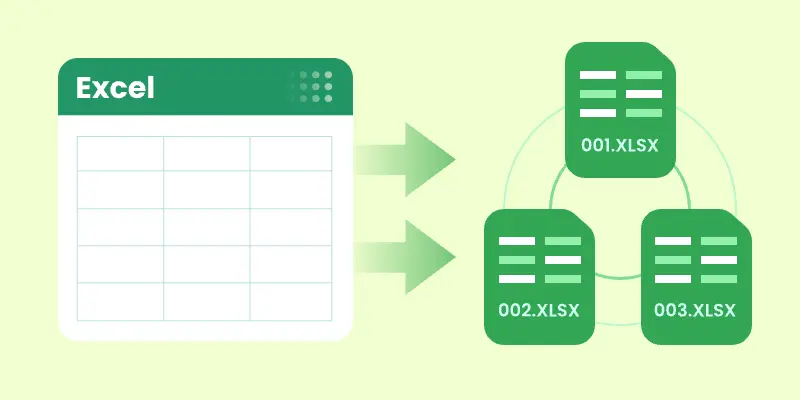
Excel è uno degli strumenti più utilizzati per la gestione di dati strutturati, dai modelli finanziari ai report sulle vendite e tutto il resto. Ma man mano che le cartelle di lavoro diventano più grandi, con più fogli di lavoro che coprono diversi argomenti o dipartimenti, gestirle e condividerle diventa ingombrante.
Immagina una situazione in cui desideri inviare solo il foglio di lavoro Vendite al team di vendita, il foglio di lavoro Risorse Umane al dipartimento Risorse Umane e il foglio di lavoro Finanza al tuo commercialista. Tenere tutto all'interno di un'unica gigantesca cartella di lavoro rende tutto complicato. La soluzione migliore è dividere i fogli di Excel in file separati, in modo che ogni destinatario riceva solo i dati di cui ha bisogno.
In questo articolo, esploreremo tre metodi comprovati per raggiungere questo obiettivo. Inizieremo con un rapido metodo manuale, passeremo alle macro VBA all'interno di Excel e finiremo con un approccio Python perfetto per sviluppatori e scenari di automazione.
Perché dividere i fogli di Excel in file separati?
Ci sono diverse ragioni pratiche per cui dividere una cartella di lavoro in più file è utile:
- Condivisione selettiva: non tutti gli stakeholder hanno bisogno dell'accesso a tutti i dati. Dividere i fogli ti consente di distribuire solo i file pertinenti.
- Prestazioni migliorate: cartelle di lavoro di grandi dimensioni con molti fogli possono diventare lente da aprire ed elaborare. Dividerle in file più piccoli migliora le prestazioni.
- Migliore organizzazione: file separati possono rendere più strutturata la gestione dei progetti e la reportistica.
- Automazione e reportistica: la divisione fa spesso parte di flussi di lavoro automatizzati in cui vengono generati report diversi per dipartimenti diversi.
- Controllo versione: i file più piccoli sono più facili da tracciare e mantenere nei sistemi di controllo versione rispetto a un'unica gigantesca cartella di lavoro.
Che tu sia un utente quotidiano di Excel o uno sviluppatore che crea pipeline di reportistica automatizzate, la divisione dei fogli è un compito che vale la pena padroneggiare.
Trucco manuale rapido: copiare fogli in nuove cartelle di lavoro
Se hai solo bisogno di dividere alcuni fogli e non ti dispiace fare qualche clic, l'interfaccia integrata di Excel fornisce un modo semplice per farlo.
Come funziona:
- Apri la tua cartella di lavoro usando MS Excel.
- Fai clic con il pulsante destro del mouse sulla scheda del foglio che desideri separare e seleziona Sposta o copia....
- Nel menu a discesa Nella cartella:, seleziona (nuova cartella).
- Spunta la casella Crea una copia, quindi fai clic su OK.
- Salva la nuova cartella di lavoro con un nuovo nome.
- Ripeti questo processo per ogni foglio che desideri dividere in un file individuale.
Pro:
- Non richiede competenze di programmazione.
- Integrato direttamente in Excel — non è necessaria alcuna installazione.
- Semplice e affidabile per compiti una tantum.
Contro:
- Richiede molto tempo se devi dividere molti fogli.
- Soggetto a errori (dimenticare di salvare o rinominare correttamente i file).
- Nessuna automazione — devi ripetere i passaggi manualmente ogni volta.
Ideale per:
- Utenti che raramente hanno bisogno di dividere i fogli.
- Compiti rapidi e occasionali in cui solo un paio di fogli necessitano di separazione.
Automazione in Excel: Macro VBA per dividere i fogli
Per un uso più frequente, l'editor VBA (Visual Basic for Applications) integrato di Excel fornisce un modo per automatizzare la divisione. Con una piccola macro, Excel può scorrere ogni foglio di lavoro e salvarlo come una nuova cartella di lavoro, risparmiando ore di lavoro manuale.
Come funziona:
- Apri Excel e premi Alt + F11 per aprire l'editor VBA.
- Vai su Inserisci > Modulo.
- Incolla il seguente codice nella finestra del modulo:
- Premi F5 (o vai su > Esegui Sub/UserForm) per eseguire la macro.
- Excel creerà file separati per ogni foglio di lavoro nella stessa cartella della tua cartella di lavoro originale.
Sub SplitSheetsIntoWorkbooks()
    Dim ws As Worksheet
    Dim newWorkbook As Workbook
    Dim originalWorkbook As Workbook

    Set originalWorkbook = ThisWorkbook
    Application.ScreenUpdating = False

    For Each ws In originalWorkbook.Worksheets
        ws.Copy
        Set newWorkbook = ActiveWorkbook
        newWorkbook.SaveAs Filename:=originalWorkbook.Path & "\" & ws.Name & ".xlsx"
        newWorkbook.Close SaveChanges:=False
Next ws

MsgBox "Tutti i fogli sono stati salvati come file separati!"
End Sub
Pro:
- Completamente automatizzato — un clic e ogni foglio viene esportato.
- Integrato in Excel — non è necessario alcun software aggiuntivo.
- Risparmia una quantità significativa di tempo rispetto all'approccio manuale.
Contro:
- Richiede l'abilitazione delle macro, che alcune organizzazioni limitano per motivi di sicurezza.
- Il VBA è alquanto obsoleto e il debug degli errori può essere frustrante per i principianti.
- Flessibilità limitata (ad esempio, la gestione di cartelle di lavoro molto grandi o regole di esportazione personalizzate richiede la modifica della macro).
Ideale per:
- Utenti di Excel di livello intermedio o avanzato.
- Scenari in cui è necessario dividere frequentemente i fogli nelle cartelle di lavoro.
Automazione con Python: salvare ogni foglio di lavoro come un file
Se sei uno sviluppatore o hai bisogno della massima flessibilità, Python offre un approccio moderno. Utilizzando librerie come Spire.XLS for Python, puoi elaborare i file di Excel programmaticamente e dividere i fogli in blocco. Questo è ideale per flussi di lavoro che coinvolgono file di grandi dimensioni, più cartelle di lavoro o l'integrazione con altri sistemi.
Come funziona:
- Installa Python (se non ce l'hai già).
- Installa la libreria Spire.XLS for Python:
- Usa uno script come il seguente:
pip install spire.xlsfrom spire.xls import *
from spire.xls.common import *
# Create an object of the Workbook class
workbook = Workbook()
# Load an Excel file
workbook.LoadFromFile("Sample.xlsx")
# Specify the folder path for the generated Excel files
folderPath = "C:\\Users\\Administrator\\Desktop\\Output\\"
# Iterate through all worksheets in the Excel file
for worksheet in workbook.Worksheets:
# For each worksheet, create a new Workbook object
newWorkbook = Workbook()
# Remove the worksheets from the new workbook
newWorkbook.Worksheets.Clear()
# Copy the worksheet from the Excel file to the new workbook
newWorkbook.Worksheets.AddCopy(worksheet)
# Save the new workbook to the specified folder
newWorkbook.SaveToFile(folderPath + worksheet.Name + ".xlsx", FileFormat.Version2016)
workbook.Dispose()
Qui c'è la guida completa su come dividere Excel per fogli, righe e colonne in Python.
Pro:
- Altamente flessibile — puoi estendere lo script per filtrare fogli, dividere per riga/colonna o esportare in CSV/PDF.
- Perfetto per l'elaborazione batch e l'automazione su larga scala.
- Si integra con altri sistemi e flussi di lavoro.
Contro:
- Richiede alcune conoscenze di programmazione.
- La configurazione iniziale (Python + librerie) richiede più tempo rispetto al VBA.
Ideale per:
- Sviluppatori che automatizzano pipeline di dati.
- Aziende con compiti di divisione grandi e ripetitivi.
- Utenti avanzati che necessitano di più controllo di quello offerto dal VBA.
Riepilogo: quale metodo dovresti scegliere?
Dividere i fogli di Excel in file individuali è una sfida comune, ma il metodo giusto dipende dal tuo contesto:
- Trucco manuale rapido: perfetto se hai solo bisogno di separare un paio di fogli una volta ogni tanto. È facile e non richiede alcuna codifica.
- Macro VBA: il metodo preferito dagli utenti esperti di Excel. Una volta impostato, può far risparmiare ore di lavoro manuale, specialmente se dividi spesso le cartelle di lavoro.
- Script Python: l'opzione migliore per gli sviluppatori o chiunque crei flussi di lavoro automatizzati. Fornisce pieno controllo, scalabilità e la capacità di estendere la soluzione per adattarla a complesse esigenze aziendali.
Alla fine della giornata, il metodo che scegli si riduce a quanto spesso hai bisogno di dividere i fogli e quanto ti senti a tuo agio con l'automazione. Gli utenti occasionali possono fare affidamento sull'interfaccia di Excel, mentre i professionisti traggono maggiori benefici dall'automazione VBA o Python.
Vedi anche
Dividir planilhas do Excel em arquivos individuais (Manual e Automatizado)
Índice
Instalar com Pypi
pip install Spire.Xls
Links Relacionados
O Excel é uma das ferramentas mais amplamente utilizadas para lidar com dados estruturados, desde modelos financeiros até relatórios de vendas e tudo mais. Mas à medida que as pastas de trabalho crescem, com várias planilhas cobrindo diferentes tópicos ou departamentos, gerenciá-las e compartilhá-las torna-se complicado.
Imagine uma situação em que você deseja enviar apenas a planilha de Vendas para a equipe de vendas, a planilha de RH para o departamento de RH e a planilha de Finanças para o seu contador. Manter tudo dentro de uma pasta de trabalho gigante torna isso confuso. A melhor solução é dividir as planilhas do Excel em arquivos separados — para que cada destinatário receba apenas os dados de que precisa.
Neste artigo, exploraremos três métodos comprovados para realizar isso. Começaremos com um rápido método manual, passaremos para macros VBA dentro do Excel e terminaremos com uma abordagem Python que é perfeita para desenvolvedores e cenários de automação.
Por que dividir planilhas do Excel em arquivos separados?
Existem várias razões práticas pelas quais dividir uma pasta de trabalho em vários arquivos é útil:
- Compartilhamento Seletivo: Nem todo interessado precisa de acesso a todos os dados. Dividir planilhas permite distribuir apenas os arquivos relevantes.
- Desempenho Aprimorado: Pastas de trabalho grandes com muitas planilhas podem ficar lentas para abrir e processar. Dividi-las em arquivos menores melhora o desempenho.
- Melhor Organização: Arquivos separados podem tornar o gerenciamento de projetos e relatórios mais estruturados.
- Automação e Relatórios: A divisão é frequentemente parte de fluxos de trabalho automatizados onde diferentes relatórios são gerados para diferentes departamentos.
- Controle de Versão: Arquivos menores são mais fáceis de rastrear e manter em sistemas de controle de versão em comparação com uma pasta de trabalho gigante.
Seja você um usuário diário do Excel ou um desenvolvedor construindo pipelines de relatórios automatizados, dividir planilhas é uma tarefa que vale a pena dominar.
Truque manual rápido: copiar planilhas para novas pastas de trabalho
Se você precisa dividir apenas algumas planilhas e não se importa em clicar um pouco, a interface integrada do Excel oferece uma maneira direta de fazer isso.
Como funciona:
- Abra sua pasta de trabalho usando o MS Excel.
- Clique com o botão direito na guia da planilha que deseja separar e selecione Mover ou Copiar....
- No menu suspenso Para pasta:, selecione (nova pasta).
- Marque a caixa Criar uma cópia e clique em OK.
- Salve a nova pasta de trabalho com um novo nome.
- Repita este processo para cada planilha que deseja dividir em um arquivo individual.
Prós:
- Não requer habilidades de codificação.
- Integrado diretamente no Excel — nenhuma instalação necessária.
- Simples e confiável para tarefas únicas.
Contras:
- Consome tempo se você precisar dividir muitas planilhas.
- Propenso a erros (esquecer de salvar ou renomear arquivos corretamente).
- Sem automação — você deve repetir os passos manualmente todas as vezes.
Melhor para:
- Usuários que raramente precisam dividir planilhas.
- Tarefas rápidas e únicas onde apenas algumas planilhas precisam de separação.
Automatizar no Excel: Macro VBA para dividir planilhas
Para uso mais frequente, o editor VBA (Visual Basic for Applications) integrado do Excel oferece uma maneira de automatizar a divisão. Com uma pequena macro, o Excel pode percorrer cada planilha e salvá-la como uma nova pasta de trabalho — economizando horas de trabalho manual.
Como funciona:
- Abra o Excel e pressione Alt + F11 para abrir o editor VBA.
- Vá para Inserir > Módulo.
- Cole o seguinte código na janela do módulo:
- Pressione F5 (ou vá para > Executar Sub/UserForm) para executar a macro.
- O Excel criará arquivos separados para cada planilha na mesma pasta da sua pasta de trabalho original.
Sub SplitSheetsIntoWorkbooks()
    Dim ws As Worksheet
    Dim newWorkbook As Workbook
    Dim originalWorkbook As Workbook

    Set originalWorkbook = ThisWorkbook
    Application.ScreenUpdating = False

    For Each ws In originalWorkbook.Worksheets
        ws.Copy
        Set newWorkbook = ActiveWorkbook
        newWorkbook.SaveAs Filename:=originalWorkbook.Path & "\" & ws.Name & ".xlsx"
        newWorkbook.Close SaveChanges:=False
Next ws

MsgBox "Todas as planilhas foram salvas como arquivos separados!"
End Sub
Prós:
- Totalmente automatizado — um clique e cada planilha é exportada.
- Integrado ao Excel — nenhum software extra necessário.
- Economiza tempo significativo em comparação com a abordagem manual.
Contras:
- Requer a habilitação de macros, que algumas organizações restringem por motivos de segurança.
- O VBA é um tanto antiquado, e depurar erros pode ser frustrante para iniciantes.
- Flexibilidade limitada (por exemplo, lidar com pastas de trabalho muito grandes ou regras de exportação personalizadas requer a edição da macro).
Melhor para:
- Usuários de Excel intermediários a avançados.
- Cenários em que você frequentemente precisa dividir planilhas em pastas de trabalho.
Automatizar com Python: salvar cada planilha como um arquivo
Se você é um desenvolvedor ou precisa de máxima flexibilidade, o Python oferece uma abordagem moderna. Usando bibliotecas como Spire.XLS for Python, você pode processar arquivos do Excel programaticamente e dividir planilhas em massa. Isso é ideal para fluxos de trabalho envolvendo arquivos grandes, várias pastas de trabalho ou integração com outros sistemas.
Como funciona:
- Instale o Python (se ainda não o tiver).
- Instale a biblioteca Spire.XLS for Python:
- Use um script como o seguinte:
pip install spire.xlsfrom spire.xls import *
from spire.xls.common import *
# Create an object of the Workbook class
workbook = Workbook()
# Load an Excel file
workbook.LoadFromFile("Sample.xlsx")
# Specify the folder path for the generated Excel files
folderPath = "C:\\Users\\Administrator\\Desktop\\Output\\"
# Iterate through all worksheets in the Excel file
for worksheet in workbook.Worksheets:
# For each worksheet, create a new Workbook object
newWorkbook = Workbook()
# Remove the worksheets from the new workbook
newWorkbook.Worksheets.Clear()
# Copy the worksheet from the Excel file to the new workbook
newWorkbook.Worksheets.AddCopy(worksheet)
# Save the new workbook to the specified folder
newWorkbook.SaveToFile(folderPath + worksheet.Name + ".xlsx", FileFormat.Version2016)
workbook.Dispose()
Aqui está o guia completo sobre como dividir o Excel por planilhas, linhas e colunas em Python.
Prós:
- Altamente flexível — você pode estender o script para filtrar planilhas, dividir por linha/coluna ou exportar para CSV/PDF.
- Perfeito para processamento em lote e automação em larga escala.
- Integra-se com outros sistemas e fluxos de trabalho.
Contras:
- Requer algum conhecimento de codificação.
- A configuração inicial (Python + bibliotecas) leva mais tempo do que o VBA.
Melhor para:
- Desenvolvedores que automatizam pipelines de dados.
- Empresas com tarefas de divisão grandes e repetitivas.
- Usuários avançados que precisam de mais controle do que o VBA oferece.
Resumo: Qual método você deve escolher?
Dividir planilhas do Excel em arquivos individuais é um desafio comum, mas o método certo depende do seu contexto:
- Truque manual rápido: Perfeito se você só precisa separar algumas planilhas de vez em quando. É fácil e não requer codificação.
- Macro VBA: O método preferido para usuários avançados do Excel. Uma vez configurado, pode economizar horas de trabalho manual, especialmente se você divide pastas de trabalho com frequência.
- Script Python: A melhor opção para desenvolvedores ou qualquer pessoa que esteja construindo fluxos de trabalho automatizados. Ele fornece controle total, escalabilidade e a capacidade de estender a solução para atender a necessidades complexas de negócios.
No final das contas, o método que você escolhe se resume a com que frequência você precisa dividir planilhas e quão confortável você está com a automação. Usuários ocasionais podem contar com a interface do Excel, enquanto os profissionais se beneficiam mais da automação com VBA ou Python.
Veja também
Excel 시트를 개별 파일로 분할 (수동 및 자동)
목차
Pypi로 설치
pip install Spire.Xls
관련 링크
Excel은 금융 모델부터 판매 보고서 및 그 사이의 모든 것에 이르기까지 구조화된 데이터를 처리하는 데 가장 널리 사용되는 도구 중 하나입니다. 그러나 통합 문서가 커지고 여러 워크시트가 다른 주제나 부서를 다루게 되면 관리 및 공유가 번거로워집니다.
판매 워크시트는 영업팀에, HR 워크시트는 인사부에, 재무 워크시트는 회계사에게만 보내고 싶은 상황을 상상해 보십시오. 모든 것을 하나의 거대한 통합 문서 안에 두는 것은 지저분합니다. 가장 좋은 해결책은 Excel 시트를 별도 파일로 분리하는 것입니다. 그러면 각 수신자는 필요한 데이터만 받게 됩니다.
이 기사에서는 이를 달성하기 위한 세 가지 검증된 방법을 살펴보겠습니다. 빠른 수동 방법으로 시작하여 Excel 내부의 VBA 매크로로 이동하고 개발자와 자동화 시나리오에 완벽한 Python 접근 방식으로 마무리합니다.
Excel 시트를 별도 파일로 분리하는 이유
통합 문서를 여러 파일로 분리하는 것이 유용한 몇 가지 실용적인 이유가 있습니다:
- 선택적 공유: 모든 이해 관계자가 모든 데이터에 액세스할 필요는 없습니다. 시트를 분리하면 관련 파일만 배포할 수 있습니다.
- 성능 향상: 시트가 많은 대용량 통합 문서는 열고 처리하는 속도가 느려질 수 있습니다. 더 작은 파일로 분리하면 성능이 향상됩니다.
- 더 나은 조직: 별도 파일은 프로젝트 관리 및 보고를 더 체계적으로 만들 수 있습니다.
- 자동화 및 보고: 분리는 종종 다른 부서를 위해 다른 보고서가 생성되는 자동화된 워크플로우의 일부입니다.
- 버전 관리: 작은 파일은 하나의 거대한 통합 문서에 비해 버전 관리 시스템에서 추적하고 유지 관리하기가 더 쉽습니다.
일상적인 Excel 사용자이든 자동화된 보고 파이프라인을 구축하는 개발자이든, 시트 분리는 마스터할 가치가 있는 작업입니다.
빠른 수동 트릭: 시트를 새 통합 문서로 복사
몇 개의 시트만 분리하면 되고 약간의 클릭이 문제 되지 않는다면 Excel의 기본 제공 인터페이스가 이를 수행하는 간단한 방법을 제공합니다.
작동 방식:
- MS Excel을 사용하여 통합 문서를 엽니다.
- 분리하려는 시트 탭을 마우스 오른쪽 버튼으로 클릭하고 이동/복사...를 선택합니다.
- 대상 통합 문서: 드롭다운에서 (새 통합 문서)를 선택합니다.
- 복사본 만들기 확인란을 선택한 다음 확인을 클릭합니다.
- 새 통합 문서를 새 이름으로 저장합니다.
- 개별 파일로 분리하려는 모든 시트에 대해 이 과정을 반복합니다.
장점:
- 코딩 기술이 필요하지 않습니다.
- Excel에 직접 내장되어 있어 설치가 필요 없습니다.
- 일회성 작업에 간단하고 신뢰할 수 있습니다.
단점:
- 많은 시트를 분리해야 하는 경우 시간이 많이 걸립니다.
- 오류 발생 가능성이 있습니다(파일을 올바르게 저장하거나 이름을 바꾸는 것을 잊어버림).
- 자동화 없음 — 매번 수동으로 단계를 반복해야 합니다.
적합한 대상:
- 시트를 거의 분리할 필요가 없는 사용자.
- 두어 개의 시트만 분리하면 되는 빠른 일회성 작업.
Excel에서 자동화: 시트 분리를 위한 VBA 매크로
더 자주 사용하는 경우 Excel의 기본 제공 VBA(Visual Basic for Applications) 편집기가 분리를 자동화하는 방법을 제공합니다. 작은 매크로를 사용하면 Excel이 모든 워크시트를 반복하고 새 통합 문서로 저장하여 수동 작업 시간을 절약할 수 있습니다.
작동 방식:
- Excel을 열고 Alt + F11을 눌러 VBA 편집기를 엽니다.
- 삽입 > 모듈로 이동합니다.
- 다음 코드를 모듈 창에 붙여넣습니다:
- F5 키를 누르거나(> Sub/UserForm 실행) 매크로를 실행합니다.
- Excel이 원본 통합 문서와 동일한 폴더에 각 워크시트에 대한 별도 파일을 생성합니다.
Sub SplitSheetsIntoWorkbooks()
    Dim ws As Worksheet
    Dim newWorkbook As Workbook
    Dim originalWorkbook As Workbook

    Set originalWorkbook = ThisWorkbook
    Application.ScreenUpdating = False

    For Each ws In originalWorkbook.Worksheets
        ws.Copy
        Set newWorkbook = ActiveWorkbook
        newWorkbook.SaveAs Filename:=originalWorkbook.Path & "\" & ws.Name & ".xlsx"
        newWorkbook.Close SaveChanges:=False
Next ws

MsgBox "모든 시트가 별도 파일로 저장되었습니다!"
End Sub
장점:
- 완전 자동화 — 한 번의 클릭으로 모든 시트가 내보내집니다.
- Excel에 내장되어 있어 추가 소프트웨어가 필요 없습니다.
- 수동 접근 방식에 비해 상당한 시간을 절약합니다.
단점:
- 매크로를 활성화해야 하며, 일부 조직에서는 보안상의 이유로 이를 제한합니다.
- VBA는 다소 구식이며 초보자에게는 오류 디버깅이 실망스러울 수 있습니다.
- 유연성 제한(예: 매우 큰 통합 문서 처리 또는 사용자 지정 내보내기 규칙은 매크로 편집 필요).
적합한 대상:
- 중급에서 고급 Excel 사용자.
- 통합 문서에서 시트를 자주 분리해야 하는 시나리오.
Python으로 자동화: 각 워크시트를 파일로 저장
개발자이거나 최대의 유연성이 필요한 경우 Python은 현대적인 접근 방식을 제공합니다. Spire.XLS for Python과 같은 라이브러리를 사용하면 Excel 파일을 프로그래밍 방식으로 처리하고 시트를 대량으로 분리할 수 있습니다. 이는 대용량 파일, 여러 통합 문서 또는 다른 시스템과의 통합을 포함하는 워크플로우에 이상적입니다.
작동 방식:
- Python 설치 (아직 없는 경우).
- Spire.XLS for Python 라이브러리 설치:
- 다음과 같은 스크립트 사용:
pip install spire.xlsfrom spire.xls import *
from spire.xls.common import *
# Create an object of the Workbook class
workbook = Workbook()
# Load an Excel file
workbook.LoadFromFile("Sample.xlsx")
# Specify the folder path for the generated Excel files
folderPath = "C:\\Users\\Administrator\\Desktop\\Output\\"
# Iterate through all worksheets in the Excel file
for worksheet in workbook.Worksheets:
# For each worksheet, create a new Workbook object
newWorkbook = Workbook()
# Remove the worksheets from the new workbook
newWorkbook.Worksheets.Clear()
# Copy the worksheet from the Excel file to the new workbook
newWorkbook.Worksheets.AddCopy(worksheet)
# Save the new workbook to the specified folder
newWorkbook.SaveToFile(folderPath + worksheet.Name + ".xlsx", FileFormat.Version2016)
workbook.Dispose()
Python에서 시트, 행, 열별로 Excel을 분리하는 방법에 대한 전체 가이드는 다음과 같습니다.
장점:
- 높은 유연성 — 스크립트를 확장하여 시트를 필터링하고, 행/열별로 분리하거나, CSV/PDF로 내보낼 수 있습니다.
- 일괄 처리 및 대규모 자동화에 적합합니다.
- 다른 시스템 및 워크플로우와 통합됩니다.
단점:
- 약간의 코딩 지식이 필요합니다.
- 초기 설정(Python + 라이브러리)이 VBA보다 오래 걸립니다.
적합한 대상:
- 데이터 파이프라인을 자동화하는 개발자.
- 크고 반복적인 분리 작업이 있는 기업.
- VBA가 제공하는 것보다 더 많은 제어가 필요한 고급 사용자.
요약: 어떤 방법을 선택해야 할까요?
Excel 시트를 개별 파일로 분리하는 것은 일반적인 과제이지만 올바른 방법은 상황에 따라 다릅니다:
- 빠른 수동 트릭: 가끔 두어 개의 시트를 분리해야 하는 경우에 적합합니다. 쉽고 코딩이 필요하지 않습니다.
- VBA 매크로: 고급 Excel 사용자에게 적합한 방법입니다. 일단 설정하면, 특히 통합 문서를 자주 분리하는 경우 수동 작업 시간을 절약할 수 있습니다.
- Python 스크립트: 개발자 또는 자동화된 워크플로우를 구축하는 모든 사람에게 가장 좋은 옵션입니다. 완전한 제어, 확장성 및 복잡한 비즈니스 요구에 맞게 솔루션을 확장할 수 있는 기능을 제공합니다.
결국, 선택하는 방법은 시트를 얼마나 자주 분리해야 하는지, 자동화에 얼마나 익숙한지에 달려 있습니다. 가끔 사용하는 사용자는 Excel의 인터페이스에 의존할 수 있으며 전문가는 VBA 또는 Python 자동화의 이점을 더 많이 누릴 수 있습니다.
참조 항목
Diviser les feuilles Excel en fichiers individuels (Manuel et Automatisé)
Table des matières
- Pourquoi diviser les feuilles Excel en fichiers distincts ?
- Astuce manuelle rapide : Copier des feuilles dans de nouveaux classeurs
- Automatiser dans Excel : Macro VBA pour diviser les feuilles
- Automatiser avec Python : Enregistrer chaque feuille de calcul en tant que fichier
- Résumé : Quelle méthode choisir ?
Installer avec Pypi
pip install Spire.Xls
Liens connexes
Excel est l'un des outils les plus largement utilisés pour gérer les données structurées, des modèles financiers aux rapports de vente et tout ce qui se trouve entre les deux. Mais à mesure que les classeurs s'agrandissent, avec plusieurs feuilles de calcul couvrant différents sujets ou départements, leur gestion et leur partage deviennent fastidieux.
Imaginez une situation où vous souhaitez envoyer uniquement la feuille de calcul Ventes à l'équipe des ventes, la feuille RH au département RH et la feuille Finance à votre comptable. Tout garder à l'intérieur d'un classeur géant rend cela désordonné. La meilleure solution est de diviser les feuilles Excel en fichiers distincts — afin que chaque destinataire n'obtienne que les données dont il a besoin.
Dans cet article, nous explorerons trois méthodes éprouvées pour y parvenir. Nous commencerons par une méthode manuelle rapide, passerons aux macros VBA à l'intérieur d'Excel et finirons par une approche Python parfaite pour les développeurs et les scénarios d'automatisation.
Pourquoi diviser les feuilles Excel en fichiers distincts ?
Il existe plusieurs raisons pratiques pour lesquelles la division d'un classeur en plusieurs fichiers est utile :
- Partage sélectif : Tous les intervenants n'ont pas besoin d'accéder à toutes les données. La division des feuilles vous permet de distribuer uniquement les fichiers pertinents.
- Performance améliorée : Les grands classeurs avec de nombreuses feuilles peuvent devenir lents à ouvrir et à traiter. Les diviser en fichiers plus petits améliore les performances.
- Meilleure organisation : Des fichiers séparés peuvent rendre la gestion de projet et les rapports plus structurés.
- Automatisation et rapports : La division fait souvent partie de flux de travail automatisés où différents rapports sont générés pour différents départements.
- Contrôle de version : Les fichiers plus petits sont plus faciles à suivre et à maintenir dans les systèmes de contrôle de version par rapport à un classeur géant.
Que vous soyez un utilisateur quotidien d'Excel ou un développeur créant des pipelines de rapports automatisés, la division des feuilles est une tâche à maîtriser.
Astuce manuelle rapide : Copier des feuilles dans de nouveaux classeurs
Si vous n'avez besoin de diviser que quelques feuilles et que cela ne vous dérange pas de cliquer un peu, l'interface intégrée d'Excel offre un moyen simple de le faire.
Comment ça marche :
- Ouvrez votre classeur à l'aide de MS Excel.
- Cliquez avec le bouton droit sur l'onglet de la feuille que vous souhaitez séparer et sélectionnez Déplacer ou copier....
- Dans la liste déroulante Dans le classeur :, sélectionnez (nouveau classeur).
- Cochez la case Créer une copie, puis cliquez sur OK.
- Enregistrez le nouveau classeur sous un nouveau nom.
- Répétez ce processus pour chaque feuille que vous souhaitez diviser en un fichier individuel.
Avantages :
- Ne nécessite aucune compétence en codage.
- Intégré directement dans Excel — aucune installation n'est nécessaire.
- Simple et fiable pour les tâches ponctuelles.
Inconvénients :
- Prend du temps si vous devez diviser de nombreuses feuilles.
- Sujet aux erreurs (oublier d'enregistrer ou de renommer correctement les fichiers).
- Pas d'automatisation — vous devez répéter les étapes manuellement à chaque fois.
Idéal pour :
- Les utilisateurs qui ont rarement besoin de diviser des feuilles.
- Les tâches rapides et ponctuelles où seules quelques feuilles doivent être séparées.
Automatiser dans Excel : Macro VBA pour diviser les feuilles
Pour une utilisation plus fréquente, l'éditeur VBA (Visual Basic for Applications) intégré d'Excel offre un moyen d'automatiser la division. Avec une petite macro, Excel peut parcourir chaque feuille de calcul et l'enregistrer en tant que nouveau classeur, économisant des heures de travail manuel.
Comment ça marche :
- Ouvrez Excel et appuyez sur Alt + F11 pour ouvrir l'éditeur VBA.
- Allez dans Insertion > Module.
- Collez le code suivant dans la fenêtre du module :
- Appuyez sur F5 (ou allez dans > Exécuter Sub/UserForm) pour exécuter la macro.
- Excel créera des fichiers distincts pour chaque feuille de calcul dans le même dossier que votre classeur d'origine.
Sub SplitSheetsIntoWorkbooks()
    Dim ws As Worksheet
    Dim newWorkbook As Workbook
    Dim originalWorkbook As Workbook

    Set originalWorkbook = ThisWorkbook
    Application.ScreenUpdating = False

    For Each ws In originalWorkbook.Worksheets
        ws.Copy
        Set newWorkbook = ActiveWorkbook
        newWorkbook.SaveAs Filename:=originalWorkbook.Path & "\" & ws.Name & ".xlsx"
        newWorkbook.Close SaveChanges:=False
Next ws

MsgBox "Toutes les feuilles ont été enregistrées en tant que fichiers distincts !"
End Sub
Avantages :
- Entièrement automatisé — un clic et chaque feuille est exportée.
- Intégré à Excel — aucun logiciel supplémentaire n'est nécessaire.
- Gain de temps significatif par rapport à l'approche manuelle.
Inconvénients :
- Nécessite l'activation des macros, ce que certaines organisations restreignent pour des raisons de sécurité.
- VBA est quelque peu obsolète, et le débogage des erreurs peut être frustrant pour les débutants.
- Flexibilité limitée (par exemple, la gestion de très grands classeurs ou de règles d'exportation personnalisées nécessite de modifier la macro).
Idéal pour :
- Utilisateurs Excel de niveau intermédiaire à avancé.
- Scénarios où vous devez fréquemment diviser des feuilles dans des classeurs.
Automatiser avec Python : Enregistrer chaque feuille de calcul en tant que fichier
Si vous êtes développeur ou si vous avez besoin d'une flexibilité maximale, Python offre une approche moderne. En utilisant des bibliothèques comme Spire.XLS for Python, vous pouvez traiter les fichiers Excel par programmation et diviser les feuilles en vrac. C'est idéal pour les flux de travail impliquant des fichiers volumineux, plusieurs classeurs ou l'intégration avec d'autres systèmes.
Comment ça marche :
- Installez Python (si vous ne l'avez pas déjà).
- Installez la bibliothèque Spire.XLS for Python :
- Utilisez un script comme le suivant :
pip install spire.xlsfrom spire.xls import *
from spire.xls.common import *
# Create an object of the Workbook class
workbook = Workbook()
# Load an Excel file
workbook.LoadFromFile("Sample.xlsx")
# Specify the folder path for the generated Excel files
folderPath = "C:\\Users\\Administrator\\Desktop\\Output\\"
# Iterate through all worksheets in the Excel file
for worksheet in workbook.Worksheets:
# For each worksheet, create a new Workbook object
newWorkbook = Workbook()
# Remove the worksheets from the new workbook
newWorkbook.Worksheets.Clear()
# Copy the worksheet from the Excel file to the new workbook
newWorkbook.Worksheets.AddCopy(worksheet)
# Save the new workbook to the specified folder
newWorkbook.SaveToFile(folderPath + worksheet.Name + ".xlsx", FileFormat.Version2016)
workbook.Dispose()
Voici le guide complet sur comment diviser Excel par feuilles, lignes et colonnes en Python.
Avantages :
- Très flexible — vous pouvez étendre le script pour filtrer les feuilles, diviser par ligne/colonne ou exporter en CSV/PDF.
- Parfait pour le traitement par lots et l'automatisation à grande échelle.
- S'intègre à d'autres systèmes et flux de travail.
Inconvénients :
- Nécessite des connaissances en codage.
- La configuration initiale (Python + bibliothèques) prend plus de temps que VBA.
Idéal pour :
- Les développeurs qui automatisent les pipelines de données.
- Les entreprises ayant des tâches de division importantes et répétitives.
- Les utilisateurs avancés qui ont besoin de plus de contrôle que ce que VBA offre.
Résumé : Quelle méthode choisir ?
Diviser les feuilles Excel en fichiers individuels est un défi courant, mais la bonne méthode dépend de votre contexte :
- Astuce manuelle rapide : Parfait si vous n'avez besoin de séparer que quelques feuilles de temps en temps. C'est facile et ne nécessite aucun codage.
- Macro VBA : La méthode de prédilection pour les utilisateurs avancés d'Excel. Une fois configurée, elle peut économiser des heures de travail manuel, surtout si vous divisez fréquemment des classeurs.
- Script Python : La meilleure option pour les développeurs ou toute personne créant des flux de travail automatisés. Il offre un contrôle total, une évolutivité et la possibilité d'étendre la solution pour répondre à des besoins métier complexes.
En fin de compte, la méthode que vous choisissez dépend de la fréquence à laquelle vous devez diviser les feuilles et de votre aisance avec l'automatisation. Les utilisateurs occasionnels peuvent compter sur l'interface d'Excel, tandis que les professionnels bénéficient davantage de l'automatisation VBA ou Python.
Voir également
Dividir hojas de Excel en archivos individuales (Manual y Automatizado)
Tabla de Contenidos
Instalar con Pypi
pip install Spire.Xls
Enlaces Relacionados
Excel es una de las herramientas más utilizadas para manejar datos estructurados, desde modelos financieros hasta informes de ventas y todo lo demás. Pero a medida que los libros de trabajo crecen, con múltiples hojas de cálculo que cubren diferentes temas o departamentos, gestionarlos y compartirlos se vuelve engorroso.
Imagina una situación en la que quieres enviar solo la hoja de cálculo de Ventas al equipo de ventas, la hoja de RRHH al departamento de RRHH y la hoja de Finanzas a tu contable. Mantener todo dentro de un libro de trabajo gigante lo complica todo. La mejor solución es dividir las hojas de Excel en archivos separados, para que cada destinatario obtenga solo los datos que necesita.
En este artículo, exploraremos tres métodos probados para lograr esto. Comenzaremos con un rápido método manual, pasaremos a las macros de VBA dentro de Excel y terminaremos con un enfoque de Python que es perfecto para desarrolladores y escenarios de automatización.
¿Por qué dividir hojas de Excel en archivos separados?
Hay varias razones prácticas por las que dividir un libro de trabajo en múltiples archivos es útil:
- Compartir selectivamente: no todas las partes interesadas necesitan acceso a todos los datos. Dividir las hojas te permite distribuir solo los archivos relevantes.
- Rendimiento mejorado: los libros de trabajo grandes con muchas hojas pueden volverse lentos para abrir y procesar. Dividirlos en archivos más pequeños mejora el rendimiento.
- Mejor organización: los archivos separados pueden hacer que la gestión de proyectos y la generación de informes sean más estructuradas.
- Automatización e informes: la división suele ser parte de flujos de trabajo automatizados donde se generan diferentes informes para diferentes departamentos.
- Control de versiones: los archivos más pequeños son más fáciles de rastrear y mantener en sistemas de control de versiones en comparación con un libro de trabajo gigante.
Ya seas un usuario diario de Excel o un desarrollador que crea canalizaciones de informes automatizados, dividir hojas es una tarea que vale la pena dominar.
Truco manual rápido: copiar hojas en nuevos libros
Si solo necesitas dividir unas pocas hojas y no te importa hacer clic un poco, la interfaz integrada de Excel proporciona una forma sencilla de hacerlo.
Cómo funciona:
- Abre tu libro de trabajo con MS Excel.
- Haz clic derecho en la pestaña de la hoja que deseas separar y selecciona Mover o copiar....
- En el menú desplegable Al libro:, selecciona (nuevo libro).
- Marca la casilla Crear una copia y luego haz clic en Aceptar.
- Guarda el nuevo libro de trabajo con un nuevo nombre.
- Repite este proceso para cada hoja que quieras dividir en un archivo individual.
Pros:
- No requiere habilidades de codificación.
- Integrado directamente en Excel, no se necesita instalación.
- Simple y fiable para tareas únicas.
Contras:
- Consume mucho tiempo si necesitas dividir muchas hojas.
- Propenso a errores (olvidar guardar o renombrar archivos correctamente).
- Sin automatización: debes repetir los pasos manualmente cada vez.
Ideal para:
- Usuarios que rara vez necesitan dividir hojas.
- Tareas rápidas y únicas en las que solo se necesita separar un par de hojas.
Automatizar en Excel: Macro de VBA para dividir hojas
Para un uso más frecuente, el editor de VBA (Visual Basic for Applications) integrado de Excel proporciona una forma de automatizar la división. Con una pequeña macro, Excel puede recorrer cada hoja de cálculo y guardarla como un nuevo libro de trabajo, ahorrando horas de trabajo manual.
Cómo funciona:
- Abre Excel y presiona Alt + F11 para abrir el editor de VBA.
- Ve a Insertar > Módulo.
- Pega el siguiente código en la ventana del módulo:
- Presiona F5 (o ve a > Ejecutar Sub/UserForm) para ejecutar la macro.
- Excel creará archivos separados para cada hoja de cálculo en la misma carpeta que tu libro de trabajo original.
Sub SplitSheetsIntoWorkbooks()
    Dim ws As Worksheet
    Dim newWorkbook As Workbook
    Dim originalWorkbook As Workbook

    Set originalWorkbook = ThisWorkbook
    Application.ScreenUpdating = False

    For Each ws In originalWorkbook.Worksheets
        ws.Copy
        Set newWorkbook = ActiveWorkbook
        newWorkbook.SaveAs Filename:=originalWorkbook.Path & "\" & ws.Name & ".xlsx"
        newWorkbook.Close SaveChanges:=False
Next ws

MsgBox "¡Todas las hojas se han guardado como archivos separados!"
End Sub
Pros:
- Totalmente automatizado: un clic y cada hoja se exporta.
- Integrado en Excel, no se necesita software adicional.
- Ahorra una cantidad significativa de tiempo en comparación con el enfoque manual.
Contras:
- Requiere habilitar macros, lo que algunas organizaciones restringen por motivos de seguridad.
- VBA está algo desactualizado y depurar errores puede ser frustrante para los principiantes.
- Flexibilidad limitada (por ejemplo, manejar libros de trabajo muy grandes o reglas de exportación personalizadas requiere editar la macro).
Ideal para:
- Usuarios de Excel de nivel intermedio a avanzado.
- Escenarios en los que con frecuencia necesitas dividir hojas en libros de trabajo.
Automatizar con Python: guardar cada hoja de cálculo como un archivo
Si eres desarrollador o necesitas la máxima flexibilidad, Python proporciona un enfoque moderno. Usando bibliotecas como Spire.XLS for Python, puedes procesar archivos de Excel mediante programación y dividir hojas en masa. Esto es ideal para flujos de trabajo que involucran archivos grandes, múltiples libros de trabajo o integración con otros sistemas.
Cómo funciona:
- Instala Python (si aún no lo tienes).
- Instala la biblioteca Spire.XLS for Python:
- Usa un script como el siguiente:
pip install spire.xlsfrom spire.xls import *
from spire.xls.common import *
# Create an object of the Workbook class
workbook = Workbook()
# Load an Excel file
workbook.LoadFromFile("Sample.xlsx")
# Specify the folder path for the generated Excel files
folderPath = "C:\\Users\\Administrator\\Desktop\\Output\\"
# Iterate through all worksheets in the Excel file
for worksheet in workbook.Worksheets:
# For each worksheet, create a new Workbook object
newWorkbook = Workbook()
# Remove the worksheets from the new workbook
newWorkbook.Worksheets.Clear()
# Copy the worksheet from the Excel file to the new workbook
newWorkbook.Worksheets.AddCopy(worksheet)
# Save the new workbook to the specified folder
newWorkbook.SaveToFile(folderPath + worksheet.Name + ".xlsx", FileFormat.Version2016)
workbook.Dispose()
Aquí está la guía completa sobre cómo dividir Excel por hojas, filas y columnas en Python.
Pros:
- Altamente flexible: puedes ampliar el script para filtrar hojas, dividir por fila/columna o exportar a CSV/PDF.
- Perfecto para el procesamiento por lotes y la automatización a gran escala.
- Se integra con otros sistemas y flujos de trabajo.
Contras:
- Requiere algunos conocimientos de codificación.
- La configuración inicial (Python + bibliotecas) lleva más tiempo que VBA.
Ideal para:
- Desarrolladores que automatizan canalizaciones de datos.
- Empresas con tareas de división grandes y repetitivas.
- Usuarios avanzados que necesitan más control del que ofrece VBA.
Resumen: ¿Qué método deberías elegir?
Dividir hojas de Excel en archivos individuales es un desafío común, pero el método correcto depende de tu contexto:
- Truco manual rápido: perfecto si solo necesitas separar un par de hojas de vez en cuando. Es fácil y no requiere codificación.
- Macro de VBA: el método preferido para los usuarios avanzados de Excel. Una vez configurado, puede ahorrar horas de trabajo manual, especialmente si divides libros de trabajo con frecuencia.
- Script de Python: la mejor opción para desarrolladores o cualquiera que cree flujos de trabajo automatizados. Proporciona control total, escalabilidad y la capacidad de ampliar la solución para adaptarla a necesidades empresariales complejas.
Al final del día, el método que elijas se reduce a con qué frecuencia necesitas dividir hojas y qué tan cómodo te sientes con la automatización. Los usuarios ocasionales pueden confiar en la interfaz de Excel, mientras que los profesionales se benefician más de la automatización con VBA o Python.
Ver también
Excel-Blätter in einzelne Dateien aufteilen (Manuell & Automatisiert)
Inhaltsverzeichnis
Mit Pypi installieren
pip install Spire.Xls
Verwandte Links
Excel ist eines der am weitesten verbreiteten Werkzeuge zur Verarbeitung strukturierter Daten, von Finanzmodellen über Verkaufsberichte bis hin zu allem dazwischen. Aber wenn Arbeitsmappen größer werden, mit mehreren Arbeitsblättern, die verschiedene Themen oder Abteilungen abdecken, wird ihre Verwaltung und Freigabe umständlich.
Stellen Sie sich eine Situation vor, in der Sie nur das Verkaufsarbeitsblatt an das Verkaufsteam, das HR-Arbeitsblatt an die Personalabteilung und das Finanzarbeitsblatt an Ihren Buchhalter senden möchten. Alles in einer riesigen Arbeitsmappe zu belassen, macht dies unübersichtlich. Die beste Lösung ist, Excel-Blätter in separate Dateien aufzuteilen – so erhält jeder Empfänger nur die Daten, die er benötigt.
In diesem Artikel werden wir drei bewährte Methoden untersuchen, um dies zu erreichen. Wir beginnen mit einer schnellen manuellen Methode, gehen weiter zu VBA-Makros innerhalb von Excel und schließen mit einem Python-Ansatz ab, der perfekt für Entwickler und Automatisierungsszenarien geeignet ist.
Warum Excel-Blätter in separate Dateien aufteilen?
Es gibt mehrere praktische Gründe, warum das Aufteilen einer Arbeitsmappe in mehrere Dateien hilfreich ist:
- Selektive Freigabe: Nicht jeder Stakeholder benötigt Zugriff auf alle Daten. Das Aufteilen von Blättern ermöglicht es Ihnen, nur relevante Dateien zu verteilen.
- Verbesserte Leistung: Große Arbeitsmappen mit vielen Blättern können langsam geöffnet und verarbeitet werden. Das Aufteilen in kleinere Dateien verbessert die Leistung.
- Bessere Organisation: Separate Dateien können das Projektmanagement und die Berichterstattung strukturierter gestalten.
- Automatisierung und Berichterstattung: Das Aufteilen ist oft Teil automatisierter Arbeitsabläufe, bei denen unterschiedliche Berichte für verschiedene Abteilungen erstellt werden.
- Versionskontrolle: Kleinere Dateien sind in Versionskontrollsystemen leichter zu verfolgen und zu warten als eine riesige Arbeitsmappe.
Egal, ob Sie ein alltäglicher Excel-Benutzer oder ein Entwickler sind, der automatisierte Berichtspipelines erstellt, das Aufteilen von Blättern ist eine Aufgabe, die es wert ist, gemeistert zu werden.
Schneller manueller Trick: Blätter in neue Arbeitsmappen kopieren
Wenn Sie nur wenige Blätter aufteilen müssen und ein wenig Klicken nichts ausmacht, bietet die integrierte Oberfläche von Excel eine unkomplizierte Möglichkeit, dies zu tun.
So funktioniert es:
- Öffnen Sie Ihre Arbeitsmappe mit MS Excel.
- Klicken Sie mit der rechten Maustaste auf die Blattregisterkarte, die Sie trennen möchten, und wählen Sie Verschieben oder Kopieren....
- Wählen Sie im Dropdown-Menü Zur Mappe: die Option (neue Arbeitsmappe) aus.
- Aktivieren Sie das Kontrollkästchen Kopie erstellen und klicken Sie dann auf OK.
- Speichern Sie die neue Arbeitsmappe unter einem neuen Namen.
- Wiederholen Sie diesen Vorgang für jedes Blatt, das Sie in eine einzelne Datei aufteilen möchten.
Vorteile:
- Erfordert keine Programmierkenntnisse.
- Direkt in Excel integriert – keine Installation erforderlich.
- Einfach und zuverlässig für einmalige Aufgaben.
Nachteile:
- Zeitaufwändig, wenn Sie viele Blätter aufteilen müssen.
- Fehleranfällig (Vergessen, Dateien ordnungsgemäß zu speichern oder umzubenennen).
- Keine Automatisierung – Sie müssen die Schritte jedes Mal manuell wiederholen.
Am besten geeignet für:
- Benutzer, die selten Blätter aufteilen müssen.
- Schnelle, einmalige Aufgaben, bei denen nur ein paar Blätter getrennt werden müssen.
Automatisierung in Excel: VBA-Makro zum Aufteilen von Blättern
Für eine häufigere Verwendung bietet der integrierte VBA-Editor (Visual Basic for Applications) von Excel eine Möglichkeit zur Automatisierung der Aufteilung. Mit einem kleinen Makro kann Excel jedes Arbeitsblatt durchlaufen und als neue Arbeitsmappe speichern – was Stunden an manueller Arbeit spart.
So funktioniert es:
- Öffnen Sie Excel und drücken Sie Alt + F11, um den VBA-Editor zu öffnen.
- Gehen Sie zu Einfügen > Modul.
- Fügen Sie den folgenden Code in das Modulfenster ein:
- Drücken Sie F5 (oder gehen Sie zu > Sub/UserForm ausführen), um das Makro auszuführen.
- Excel erstellt separate Dateien für jedes Arbeitsblatt im selben Ordner wie Ihre ursprüngliche Arbeitsmappe.
Sub SplitSheetsIntoWorkbooks()
    Dim ws As Worksheet
    Dim newWorkbook As Workbook
    Dim originalWorkbook As Workbook

    Set originalWorkbook = ThisWorkbook
    Application.ScreenUpdating = False

    For Each ws In originalWorkbook.Worksheets
        ws.Copy
        Set newWorkbook = ActiveWorkbook
        newWorkbook.SaveAs Filename:=originalWorkbook.Path & "\" & ws.Name & ".xlsx"
        newWorkbook.Close SaveChanges:=False
Next ws

MsgBox "Alle Blätter wurden als separate Dateien gespeichert!"
End Sub
Vorteile:
- Vollautomatisch – ein Klick und jedes Blatt wird exportiert.
- In Excel integriert – keine zusätzliche Software erforderlich.
- Spart im Vergleich zum manuellen Ansatz erheblich Zeit.
Nachteile:
- Erfordert die Aktivierung von Makros, was einige Organisationen aus Sicherheitsgründen einschränken.
- VBA ist etwas veraltet, und das Debuggen von Fehlern kann für Anfänger frustrierend sein.
- Begrenzte Flexibilität (z. B. erfordert die Verarbeitung sehr großer Arbeitsmappen oder benutzerdefinierter Exportregeln die Bearbeitung des Makros).
Am besten geeignet für:
- Mittlere bis fortgeschrittene Excel-Benutzer.
- Szenarien, in denen Sie häufig Blätter in Arbeitsmappen aufteilen müssen.
Automatisierung mit Python: Jedes Arbeitsblatt als Datei speichern
Wenn Sie Entwickler sind oder maximale Flexibilität benötigen, bietet Python einen modernen Ansatz. Mit Bibliotheken wie Spire.XLS for Python können Sie Excel-Dateien programmgesteuert verarbeiten und Blätter stapelweise aufteilen. Dies ist ideal für Arbeitsabläufe mit großen Dateien, mehreren Arbeitsmappen oder der Integration mit anderen Systemen.
So funktioniert es:
- Installieren Sie Python (falls Sie es noch nicht haben).
- Installieren Sie die Bibliothek Spire.XLS for Python:
- Verwenden Sie ein Skript wie das folgende:
pip install spire.xlsfrom spire.xls import *
from spire.xls.common import *
# Create an object of the Workbook class
workbook = Workbook()
# Load an Excel file
workbook.LoadFromFile("Sample.xlsx")
# Specify the folder path for the generated Excel files
folderPath = "C:\\Users\\Administrator\\Desktop\\Output\\"
# Iterate through all worksheets in the Excel file
for worksheet in workbook.Worksheets:
# For each worksheet, create a new Workbook object
newWorkbook = Workbook()
# Remove the worksheets from the new workbook
newWorkbook.Worksheets.Clear()
# Copy the worksheet from the Excel file to the new workbook
newWorkbook.Worksheets.AddCopy(worksheet)
# Save the new workbook to the specified folder
newWorkbook.SaveToFile(folderPath + worksheet.Name + ".xlsx", FileFormat.Version2016)
workbook.Dispose()
Hier ist die vollständige Anleitung zum Aufteilen von Excel nach Blättern, Zeilen und Spalten in Python.
Vorteile:
- Sehr flexibel – Sie können das Skript erweitern, um Blätter zu filtern, nach Zeilen/Spalten aufzuteilen oder in CSV/PDF zu exportieren.
- Perfekt für die Stapelverarbeitung und groß angelegte Automatisierung.
- Integriert sich in andere Systeme und Arbeitsabläufe.
Nachteile:
- Erfordert einige Programmierkenntnisse.
- Die Ersteinrichtung (Python + Bibliotheken) dauert länger als bei VBA.
Am besten geeignet für:
- Entwickler, die Datenpipelines automatisieren.
- Unternehmen mit großen, sich wiederholenden Aufteilungsaufgaben.
- Fortgeschrittene Benutzer, die mehr Kontrolle benötigen, als VBA bietet.
Zusammenfassung: Welche Methode sollten Sie wählen?
Das Aufteilen von Excel-Blättern in einzelne Dateien ist eine häufige Herausforderung, aber die richtige Methode hängt von Ihrem Kontext ab:
- Schneller manueller Trick: Perfekt, wenn Sie nur gelegentlich ein paar Blätter trennen müssen. Es ist einfach und erfordert keine Programmierung.
- VBA-Makro: Die bevorzugte Methode für Power-Excel-Benutzer. Einmal eingerichtet, kann es Stunden manueller Arbeit sparen, besonders wenn Sie häufig Arbeitsmappen aufteilen.
- Python-Skript: Die beste Option für Entwickler oder alle, die automatisierte Arbeitsabläufe erstellen. Es bietet volle Kontrolle, Skalierbarkeit und die Möglichkeit, die Lösung an komplexe Geschäftsanforderungen anzupassen.
Letztendlich hängt die von Ihnen gewählte Methode davon ab, wie oft Sie Blätter aufteilen müssen und wie vertraut Sie mit der Automatisierung sind. Gelegentliche Benutzer können sich auf die Excel-Oberfläche verlassen, während Profis mehr von der VBA- oder Python-Automatisierung profitieren.
Siehe auch
Разделить листы Excel на отдельные файлы (вручную и автоматически)
Содержание
Установить с помощью Pypi
pip install Spire.Xls
Похожие ссылки
Excel — один из наиболее широко используемых инструментов для обработки структурированных данных, от финансовых моделей до отчетов о продажах и всего, что между ними. Но по мере того, как рабочие книги становятся больше, с несколькими листами, охватывающими разные темы или отделы, управление ими и их совместное использование становится громоздким.
Представьте ситуацию, когда вы хотите отправить только лист "Продажи" команде продаж, лист "HR" отделу кадров и лист "Финансы" вашему бухгалтеру. Хранение всего в одной гигантской рабочей книге делает это грязным. Лучшее решение — разделить листы Excel на отдельные файлы — чтобы каждый получатель получал только те данные, которые ему нужны.
В этой статье мы рассмотрим три проверенных метода для достижения этой цели. Мы начнем с быстрого ручного метода, перейдем к макросам VBA внутри Excel и закончим подходом на Python, который идеально подходит для разработчиков и сценариев автоматизации.
Зачем разделять листы Excel на отдельные файлы?
Существует несколько практических причин, по которым разделение рабочей книги на несколько файлов полезно:
- Выборочный обмен: не каждому заинтересованному лицу нужен доступ ко всем данным. Разделение листов позволяет распространять только релевантные файлы.
- Улучшенная производительность: большие рабочие книги с множеством листов могут медленно открываться и обрабатываться. Разделение их на файлы меньшего размера улучшает производительность.
- Лучшая организация: отдельные файлы могут сделать управление проектами и отчетность более структурированными.
- Автоматизация и отчетность: разделение часто является частью автоматизированных рабочих процессов, где для разных отделов создаются разные отчеты.
- Контроль версий: файлы меньшего размера легче отслеживать и поддерживать в системах контроля версий по сравнению с одной гигантской рабочей книгой.
Независимо от того, являетесь ли вы обычным пользователем Excel или разработчиком, создающим автоматизированные конвейеры отчетности, разделение листов — это задача, которую стоит освоить.
Быстрый ручной способ: копирование листов в новые книги
Если вам нужно разделить всего несколько листов и вы не против немного покликать, встроенный интерфейс Excel предоставляет простой способ сделать это.
Как это работает:
- Откройте свою рабочую книгу с помощью MS Excel.
- Щелкните правой кнопкой мыши на вкладке листа, который вы хотите отделить, и выберите Переместить или скопировать....
- В выпадающем списке В книгу: выберите (новая книга).
- Установите флажок Создать копию, затем нажмите OK.
- Сохраните новую рабочую книгу под новым именем.
- Повторите этот процесс для каждого листа, который вы хотите разделить на отдельный файл.
Плюсы:
- Не требует навыков программирования.
- Встроено прямо в Excel — не требуется установка.
- Просто и надежно для одноразовых задач.
Минусы:
- Занимает много времени, если вам нужно разделить много листов.
- Склонность к ошибкам (забыть сохранить или правильно переименовать файлы).
- Нет автоматизации — вы должны повторять шаги вручную каждый раз.
Лучше всего подходит для:
- Пользователей, которым редко нужно разделять листы.
- Быстрых, одноразовых задач, где требуется отделить всего пару листов.
Автоматизация в Excel: макрос VBA для разделения листов
Для более частого использования встроенный в Excel редактор VBA (Visual Basic for Applications) предоставляет способ автоматизировать разделение. С помощью небольшого макроса Excel может пройтись по каждому листу и сохранить его как новую рабочую книгу, экономя часы ручной работы.
Как это работает:
- Откройте Excel и нажмите Alt + F11, чтобы открыть редактор VBA.
- Перейдите в Insert > Module.
- Вставьте следующий код в окно модуля:
- Нажмите F5 (или перейдите в > Run Sub/UserForm), чтобы выполнить макрос.
- Excel создаст отдельные файлы для каждого листа в той же папке, что и ваша исходная рабочая книга.
Sub SplitSheetsIntoWorkbooks()
    Dim ws As Worksheet
    Dim newWorkbook As Workbook
    Dim originalWorkbook As Workbook

    Set originalWorkbook = ThisWorkbook
    Application.ScreenUpdating = False

    For Each ws In originalWorkbook.Worksheets
        ws.Copy
        Set newWorkbook = ActiveWorkbook
        newWorkbook.SaveAs Filename:=originalWorkbook.Path & "\" & ws.Name & ".xlsx"
        newWorkbook.Close SaveChanges:=False
Next ws

MsgBox "Все листы были сохранены как отдельные файлы!"
End Sub
Плюсы:
- Полностью автоматизировано — один клик, и каждый лист экспортирован.
- Встроено в Excel — не требуется дополнительное программное обеспечение.
- Значительно экономит время по сравнению с ручным подходом.
Минусы:
- Требует включения макросов, что некоторые организации ограничивают из соображений безопасности.
- VBA несколько устарел, и отладка ошибок может быть утомительной для новичков.
- Ограниченная гибкость (например, обработка очень больших рабочих книг или пользовательские правила экспорта требуют редактирования макроса).
Лучше всего подходит для:
- Пользователей Excel среднего и продвинутого уровня.
- Сценариев, когда вам часто нужно разделять листы в рабочих книгах.
Автоматизация с помощью Python: сохранение каждого листа как отдельного файла
Если вы разработчик или вам нужна максимальная гибкость, Python предлагает современный подход. Используя библиотеки, такие как Spire.XLS for Python, вы можете обрабатывать файлы Excel программно и разделять листы в пакетном режиме. Это идеально подходит для рабочих процессов, связанных с большими файлами, несколькими рабочими книгами или интеграцией с другими системами.
Как это работает:
- Установите Python (если у вас его еще нет).
- Установите библиотеку Spire.XLS for Python:
- Используйте следующий скрипт:
pip install spire.xlsfrom spire.xls import *
from spire.xls.common import *
# Create an object of the Workbook class
workbook = Workbook()
# Load an Excel file
workbook.LoadFromFile("Sample.xlsx")
# Specify the folder path for the generated Excel files
folderPath = "C:\\Users\\Administrator\\Desktop\\Output\\"
# Iterate through all worksheets in the Excel file
for worksheet in workbook.Worksheets:
# For each worksheet, create a new Workbook object
newWorkbook = Workbook()
# Remove the worksheets from the new workbook
newWorkbook.Worksheets.Clear()
# Copy the worksheet from the Excel file to the new workbook
newWorkbook.Worksheets.AddCopy(worksheet)
# Save the new workbook to the specified folder
newWorkbook.SaveToFile(folderPath + worksheet.Name + ".xlsx", FileFormat.Version2016)
workbook.Dispose()
Вот полное руководство о том, как разделить Excel по листам, строкам и столбцам в Python.
Плюсы:
- Высокая гибкость — вы можете расширить скрипт для фильтрации листов, разделения по строкам/столбцам или экспорта в CSV/PDF.
- Идеально подходит для пакетной обработки и крупномасштабной автоматизации.
- Интегрируется с другими системами и рабочими процессами.
Минусы:
- Требует некоторых знаний в области программирования.
- Начальная настройка (Python + библиотеки) занимает больше времени, чем VBA.
Лучше всего подходит для:
- Разработчиков, автоматизирующих конвейеры данных.
- Предприятий с большими, повторяющимися задачами разделения.
- Продвинутых пользователей, которым нужно больше контроля, чем предлагает VBA.
Итог: какой метод выбрать?
Разделение листов Excel на отдельные файлы — распространенная задача, но правильный метод зависит от вашего контекста:
- Быстрый ручной способ: идеально, если вам нужно отделить пару листов время от времени. Это легко и не требует никакого кодирования.
- Макрос VBA: основной метод для опытных пользователей Excel. После настройки он может сэкономить часы ручной работы, особенно если вы часто разделяете рабочие книги.
- Скрипт Python: лучший вариант для разработчиков или всех, кто создает автоматизированные рабочие процессы. Он обеспечивает полный контроль, масштабируемость и возможность расширения решения для соответствия сложным бизнес-требованиям.
В конце концов, выбранный вами метод сводится к тому, как часто вам нужно разделять листы и насколько вам комфортно с автоматизацией. Случайные пользователи могут положиться на интерфейс Excel, в то время как профессионалы получают больше преимуществ от автоматизации с помощью VBA или Python.
Смотрите также
Automate Excel Writing in Python: Professional Reporting Practices
Excel remains one of the most widely used tools for organizing, analyzing, and presenting data. From financial reports to operational dashboards, many workflows require exporting data into Excel for better readability and sharing. Instead of manually entering information, automating Excel file writing with Python makes it faster, more reliable, and more scalable.
This tutorial explains how to write data to Excel files with Python, covering structured data insertion, formatting, and exporting. The examples use a Python Excel library that allows programmatic creation and customization of workbooks.
What's Included in This Tutorial:
- Setting Up the Environment
- Writing Data into Excel Files
- Formatting While Writing
- Working with Multiple Worksheets
- Best Practices
- Conclusion
- FAQ
Setting Up the Environment
Before writing Excel files in Python, you need a library that supports creating, loading, and saving workbooks programmatically. Spire.XLS for Python provides a complete API for these operations, enabling automated report generation and data processing.
Install the package using pip:
pip install spire.xls
Once installed, you can handle Excel files using three core operations:
- Creating a new workbook – initialize a new Excel document with Workbook().
- Loading an existing workbook – open an existing Excel file using LoadFromFile().
- Saving a workbook – export the workbook to the desired format with SaveToFile(), supporting .xlsx, .xls, CSV, and more.
These operations form the foundation for further data writing, formatting, and multi-sheet management in Python.
Writing Data into Excel Files with Python
In real-world business scenarios, you may need to create new Excel files, update existing reports, or write different types of data—such as text, numbers, dates, and formulas. This section demonstrates how to efficiently write and manage data in Excel files with Python across these common use cases.
Appending Data to an Existing Excel File
When you need to update an existing Excel workbook with new information—such as adding recent sales records, inventory updates, or additional data rows—you can open the file, append the data programmatically, and save it without overwriting existing content:
from spire.xls import Workbook, ExcelVersion

workbook = Workbook()
workbook.LoadFromFile("Sample.xlsx")
sheet = workbook.Worksheets[0]

# Add new rows
sheet.Range["A4"].Value = "Laptop"
sheet.Range["B4"].NumberValue = 5
sheet.Range["C4"].NumberValue = 1200.00

sheet.Range["A5"].Value = "Monitor"
sheet.Range["B5"].NumberValue = 10
sheet.Range["C5"].NumberValue = 300.00

workbook.SaveToFile("output/updated_excel.xlsx", ExcelVersion.Version2016)
Key elements used:
- LoadFromFile() – loads an existing Excel file into the workbook object.
- Range["CellName"] – references a specific cell in the sheet using its name.
- Value / NumberValue – assigns text or numeric data to cells.
- SaveToFile() – saves the workbook to a file in the specified Excel format.
This method allows continuous updates to reports while preserving existing content.
Example showing appended data:
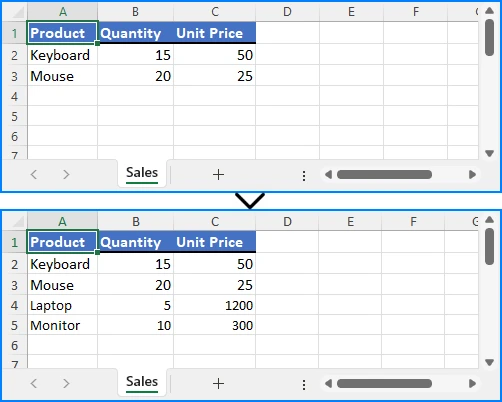
Writing Multiple Rows and Columns to a New Excel File
When dealing with larger datasets, writing multiple rows and columns at once is much more efficient than updating individual cells one by one. This approach not only saves time but also ensures consistent data insertion across the worksheet:
from spire.xls import Workbook, ExcelVersion

# Create a new Excel workbook
workbook = Workbook()
sheet = workbook.Worksheets[0]

orders = [
    ["OrderID", "Customer", "Product", "Quantity", "Price", "Status"],
    [1001, "Alice", "Laptop", 2, 1200.00, "Shipped"],
    [1002, "Bob", "Monitor", 1, 300.00, "Pending"],
    [1003, "Charlie", "Keyboard", 5, 45.00, "Delivered"],
    [1004, "David", "Mouse", 3, 25.00, "Shipped"],
    [1005, "Eva", "Tablet", 1, 450.00, "Pending"]
]

for row_index, row_data in enumerate(orders, start=1):
    for col_index, value in enumerate(row_data, start=1):
        if isinstance(value, (int, float)):
            sheet.Range[row_index, col_index].NumberValue = value
        else:
            sheet.Range[row_index, col_index].Value = value

workbook.SaveToFile("output/orders.xlsx", ExcelVersion.Version2016)
Important elements in this example:
- enumerate() – provides row and column indices for looping.
- Range[row, col] – references a cell in the worksheet by its row and column indexes.
Batch writing ensures efficiency, especially when exporting database query results or operational reports.
Example showing batch data insertion:
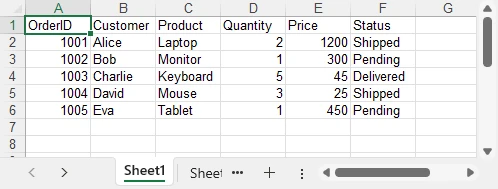
Writing Different Data Types
Excel cells can contain various types of data, such as text, numbers, dates, formulas, and more. Using the correct properties and methods ensures that each type is stored and displayed appropriately, allowing accurate calculations and proper formatting:
from spire.xls import Workbook, ExcelVersion, DateTime, TimeSpan

workbook = Workbook()
sheet = workbook.Worksheets[0]

# Set general value
sheet.Range[2, 2].Text = "General Example"
sheet.Range[2, 3].Value = "General 123"

# Set number value
sheet.Range[3, 2].Text = "Number Example"
sheet.Range[3, 3].NumberValue = 1234.56
sheet.Range[3, 3].NumberFormat = "0.000"

# Set datetime value
sheet.Range[4, 2].Text = "Date Example"
sheet.Range[4, 3].DateTimeValue = DateTime.get_UtcNow()

# Set formula value
sheet.Range[5, 2].Text = "Formula Example"
sheet.Range[5, 5].NumberValue = 1234.56
sheet.Range[5, 6].NumberValue = 6543.21
sheet.Range[5, 3].Formula = "=SUM(E5:F5)"

# Set text
sheet.Range[6, 2].Text = "Text Example"
sheet.Range[6, 3].Text = "Text"

# Set boolean value
sheet.Range[7, 2].Text = "Boolean Example"
sheet.Range[7, 3].BooleanValue = True

sheet.AllocatedRange.AutoFitColumns()

workbook.SaveToFile("output/value_types.xlsx", ExcelVersion.Version2016)
Key functions and properties used:
- Value – assigns or retrieves the general value of a cell, suitable for text or mixed content.
- NumberValue – specifically handles numeric values in a cell, ensuring proper number formatting and calculations.
- DateTimeValue – used to input or obtain date and time values in a cell with correct formatting.
- Formula – sets or retrieves the formula expression in a cell to perform dynamic calculations.
- BooleanValue – stores or returns a Boolean (True/False) value in a cell.
- Text – retrieves the displayed text of a cell, including any applied formatting.
Proper handling of different data types is essential for accurate business calculations and reporting. For more details on supported data types, see the XlsRange API reference.
Example showing mixed data types:
Formatting Excel While Writing Data with Python
To make Excel reports clear and professional, it’s important to apply formatting while entering or updating data. This section demonstrates how to enhance readability and presentation by styling cells, setting number formats, and adjusting column widths and row heights as you write data into Excel.
Applying Cell Styles
You can enhance the readability and appearance of your Excel sheet by applying various styles to cells, such as fonts, borders, and background colors:
from spire.xls import Workbook, Color, FontUnderlineType, ExcelVersion

workbook = Workbook()
sheet = workbook.Worksheets[0]
sheet.Range["A1"].Value = "Product"
sheet.Range["B1"].Value = "Category"
sheet.Range["C1"].Value = "Price"
sheet.Range["D1"].Value = "Quantity"
sheet.Range["E1"].Value = "Total"
sheet.Range["A2"].Value = "MacBook Pro"
sheet.Range["B2"].Value = "Laptop"
sheet.Range["C2"].NumberValue = 999.99
sheet.Range["D2"].NumberValue = 1
sheet.Range["E2"].Formula = "=C2*D2"
sheet.Range["A3"].Value = "iPhone 16 Pro"
sheet.Range["B3"].Value = "Smartphone"
sheet.Range["C3"].NumberValue = 899.99
sheet.Range["D3"].NumberValue = 1
sheet.Range["E3"].Formula = "=C3*D3"

# Set header style
header = sheet.Range["A1:E1"]
header.Style.Font.FontName = "Arial"
header.Style.Font.Size = 14.0
header.Style.Font.IsBold = True
header.Style.Font.Underline = FontUnderlineType.Single
header.Style.Interior.Color = Color.get_LightGray()
header.Style.Borders[BordersLineType.EdgeRight].LineStyle = LineStyleType.Medium
Core components demonstrated:
- Style.Font – controls font-related settings such as bold, underline, and more (full list of supported properties can be found in the Style.Font API documentation).
- FontUnderlineType.Single – applies a single underline.
- Interior.Color – fills the cell background with a specified color.
- Borders.LineStyle – adds borders around cells.
Styled cells enhance readability and emphasize critical sections.
Setting Number Formats for Excel Cells
Numbers in Excel often require specific display formats to improve readability and presentation. Using CellRange.NumberFormat, you can control how numeric values appear, such as applying currency, percentage, or integer formats:
# Apply number formats
sheet.Range["C2:C3"].NumberFormat = "$#,##0.00"   # Currency format
sheet.Range["D2:D3"].NumberFormat = "0"           # Integer format
sheet.Range["E2:E3"].NumberFormat = "$#,##0.00"
Key highlights:
- NumberFormat – enables reading and setting Excel cell number formats, controlling how numbers are displayed while keeping the raw data intact.
- Format codes define display rules such as currency symbols, decimal places, or percentage styles, giving you flexibility in presenting numerical data.
With proper number formatting, financial data is easier to interpret and looks more professional. For more details and a full list of format codes, see our dedicated guide on Setting Excel Cell Number Format in Python.
Adjusting Column Widths and Row Heights
Properly adjusting column widths and row heights ensures that all content is clearly visible. You can set them manually or use automatic fitting to match the content:
# Auto-fit column widths and row heights
for col in range(1, 5):
    sheet.AutoFitColumn(col)
for row in range(1, 3):
    sheet.AutoFitRow(row)

# Auto-fit a specific range of cells
#sheet.Range["A1:E3"].AutoFitColumns()
#sheet.Range["A1:E3"].AutoFitRows()

# Set a fixed column width and row height
sheet.Columns[1].Width = 150
sheet.Rows[1].Height = 30

workbook.SaveToFile("output/formatted_excel.xlsx", ExcelVersion.Version2016)
Key highlights:
- AutoFitColumn(colIndex) / AutoFitRow(rowIndex) – automatically adjust a single column or row to fit its content.
- CellRange.AutoFitColumns() / AutoFitRows() – automatically adjust all columns or rows within a specified cell range.
- Columns[colIndex].Width / Rows[rowIndex].Height – manually set a fixed width or height for precise control.
With these options, you can choose between automatic fitting for dynamic data or fixed dimensions for consistent layout, ensuring your Excel worksheets remain both readable and professionally formatted.
Example showing styled and auto-fitted headers:
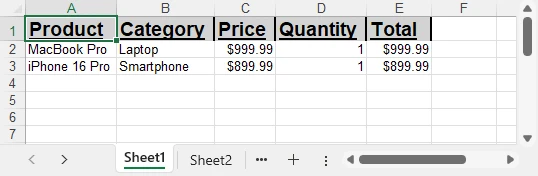
To explore more advanced techniques for formatting Excel sheets in Python, including fonts, colors, borders, and conditional formatting, check out our dedicated guide on Formatting Excel in Python for detailed instructions.
Managing Multiple Worksheets in Excel with Python
In Excel, organizing data into multiple worksheets helps keep related information separated and easy to manage. For example, you can maintain separate sheets for sales, purchases, inventory, or other categories within the same workbook. This section demonstrates how to create, access, and manage multiple worksheets using Python.
from spire.xls import Workbook, ExcelVersion

workbook = Workbook()

sheet = workbook.Worksheets[0]
sheet.Name = "Sales"

sheet1 = workbook.Worksheets["Sheet2"]
sheet1.Name = "Purchases"

sheet2 = workbook.Worksheets.Add("Inventory")
sheet2.Range["A1"].Value = "ProductID"
sheet2.Range["B1"].Value = "Stock"

workbook.SaveToFile("output/multi_sheet.xlsx", ExcelVersion.Version2016)
Main features highlighted:
- Worksheets[Index] – access a worksheet by its position in the workbook (useful for iterating over all sheets or referencing the first/last sheet).
- Worksheets["SheetName"] – access a worksheet by its name, which is more readable and reliable if the sheet order might change.
- Worksheets.Add("SheetName") – create a new worksheet to organize different categories of data such as departments, sales regions, or product lines.
These methods allow you to structure your Excel file efficiently, keeping related data on separate sheets for clarity and easier management.
Example showing multiple worksheets:
Best Practices for Writing Excel Files with Python
When writing Excel files with Python, follow best practices to maintain efficiency, consistency, and usability:
- Use descriptive sheet names like “Sales_2024” instead of “Sheet1.”
- Batch write large datasets instead of individual cell updates to improve performance.
- Apply consistent formatting for headers, totals, and key columns.
- Leverage Excel formulas to maintain dynamic calculations.
- Validate data types to prevent misinterpretation in charts or formulas.
- Choose file formats suited to the audience: .xlsx for modern users, .xls only for legacy compatibility.
- Organize worksheets logically, grouping related datasets for easy navigation.
Implementing these practices avoids common pitfalls and produces professional, reusable reports.
Conclusion
Automating Excel writing in Python significantly streamlines reporting. By creating workbooks, writing data efficiently, applying styles, managing worksheets, and handling diverse data types, developers can ensure consistent, accurate, and professional Excel reports. To explore the library further, you can request a free temporary license or try the Free Spire.XLS for Python edition.
Python Excel Writing FAQ
Q1: Can Python write to an existing Excel file?
Yes, Python can load an existing workbook, append or modify data, and save it while preserving all previously entered content.
Q2: How to efficiently handle large datasets in Python?
Batch writing multiple rows and minimizing formatting during data insertion helps maintain high performance even with thousands of rows.
Q3: Can formulas be included in Excel files?
Yes, you can insert formulas, including =SUM() and more complex calculations, to keep your Excel reports dynamic and automatically updated.
Q4: Which Excel formats are supported?
Spire.XLS for Python can save files in .xlsx, .xls, CSV, and even export to PDF, covering most common use cases and compatibility needs.