Excel에서 셀을 나누는 방법 (텍스트 나누기, 빠른 채우기, Python)
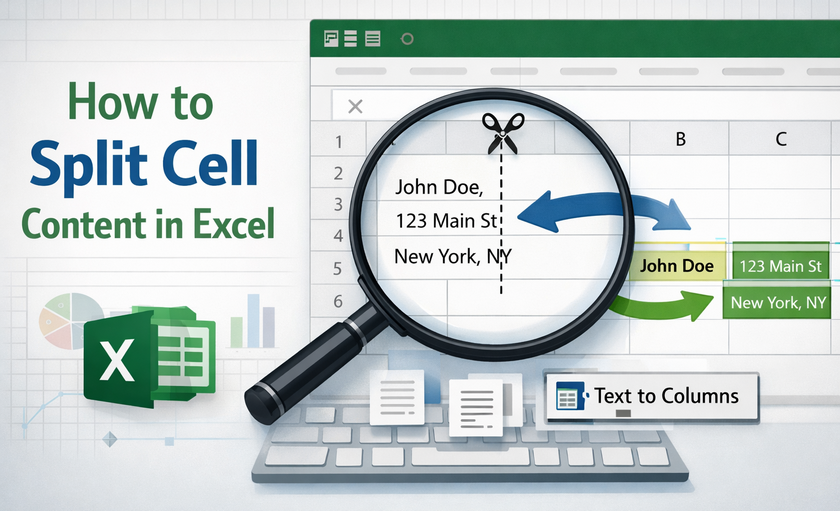
Excel에서 셀을 분할하는 방법을 마스터하는 것은 스프레드시트로 작업하는 모든 사람에게 가장 필수적인 데이터 정리 기술 중 하나입니다. 우리 모두는 Excel에 데이터를 붙여넣었을 때 모든 정보가 단일 열에 빽빽하게 들어차 이름, 주소, 이메일, 제품 코드가 정렬, 필터링 또는 의미 있는 분석에 쓸모없는 뒤죽박죽이 되는 경험을 해본 적이 있습니다.
Excel에서는 단일 셀을 동일한 열 내에서 두 개의 더 작은 셀로 물리적으로 나눌 수는 없지만, 셀의 내용을 여러 인접한 열에 분할할 수 있는 강력한 도구를 제공합니다. 이 가이드에서는 빠른 채우기와 같은 초보자 친화적인 원클릭 도구부터 파워 쿼리 및 Python을 사용한 자동화된 워크플로우에 이르기까지 Excel에서 셀 데이터를 분할하는 5가지 최고의 방법을 자세히 살펴보겠습니다.
다음 내용을 배우게 됩니다:
- Excel에서 "셀 분할"이란 무엇을 의미하나요?
- 방법 1: Excel 텍스트 나누기를 사용하여 셀 분할
- 방법 2: 빠른 채우기를 사용하여 셀 분할
- 방법 3: 수식을 사용하여 셀 분할
- 방법 4: 파워 쿼리를 사용하여 셀 분할
- 방법 5: Python을 사용하여 셀 분할
- 자주 묻는 질문: Excel에서 셀을 분리하는 방법
이 가이드를 마치면 지저분하고 작업하기 어려운 데이터를 몇 분 만에 분석 준비가 된 스프레드시트로 바꿀 수 있게 될 것입니다.
Excel에서 "셀 분할"이란 무엇을 의미하나요?
Excel에서 "셀 분할"이라는 문구는 단일 셀을 물리적으로 나눌 수 없기 때문에 혼란스러울 수 있습니다. 대신 이 용어는 두 가지 다른 작업을 의미합니다.
- 셀 내용 분할: 한 셀 안의 데이터를 가져와 여러 인접 셀에 분배하는 것 (예: "John Smith"를 한 열에는 "John", 다음 열에는 "Smith"로 분리).
- 병합된 셀 분할: 병합을 취소하여 원래의 개별 셀로 복원하는 것.
이 가이드는 첫 번째, 더 일반적인 작업인 Excel에서 셀 데이터 분할에 중점을 둡니다.
방법 1: Excel 텍스트 나누기를 사용하여 셀 분할
텍스트 나누기는 셀 또는 열의 텍스트를 두 개 이상의 개별 열로 분할할 수 있는 Excel의 기본 제공 도구입니다. 구분 기호로 분리된 데이터(쉼표, 공백 또는 기타 문자로 구분된 텍스트)와 고정 너비 데이터(일관된 간격의 텍스트) 모두에 작동합니다. 각각의 사용 방법은 다음과 같습니다.
옵션 A: 구분 기호로 셀 분할
이 방법은 CSV 파일과 같은 데이터를 분할하거나 항목이 일관된 기호로 구분된 목록에 적합합니다.
- 분할하려는 셀 또는 열을 선택합니다.
- 데이터 탭으로 이동 → 텍스트 나누기(데이터 도구 그룹 내)를 클릭합니다.
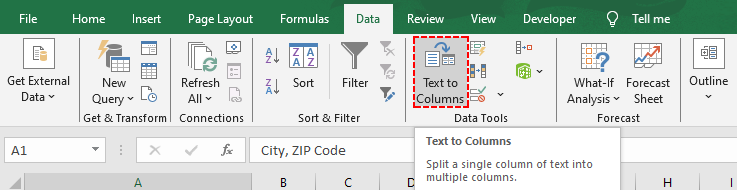
- 텍스트 나누기 마법사에서:
- 구분 기호로 분리됨을 선택 → 다음을 클릭합니다.
- 구분 기호 옆의 확인란을 선택합니다(예: 쉼표, 공백 또는 탭) →다음을 클릭합니다.
- 대상을 선택합니다(분할된 데이터를 배치할 위치—예: C열에서 시작하려면 $C$1).
- 열 서식을 선택합니다(예: 텍스트/숫자는 일반, 전화번호는 텍스트)
- 마침을 클릭합니다. 이제 데이터가 별도의 열로 분할됩니다.
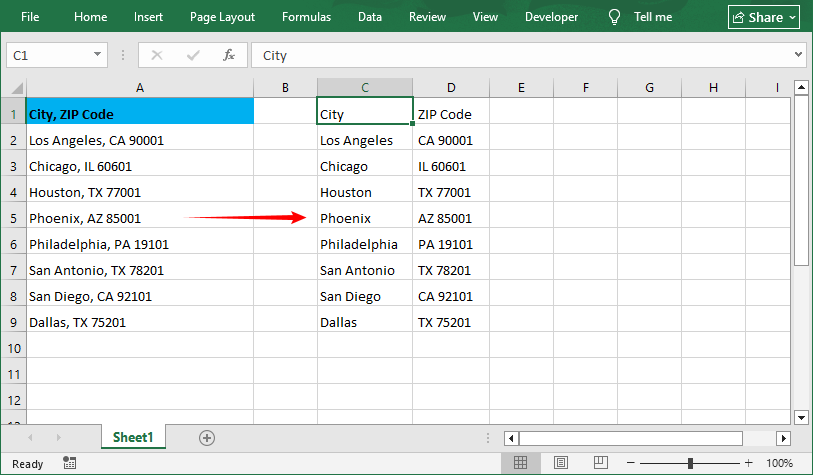
전문가 팁: 구분 기호를 선택하는 동안 필요한 경우 여러 구분 기호를 선택할 수 있습니다(예: 쉼표 + 공백). 구분 기호가 목록에 없으면 기타를 선택하고 문자(예: 하이픈 “-” 또는 파이프 “|”)를 입력합니다.
옵션 B: 고정 너비로 텍스트 분할
이 방법은 균일한 간격으로 정렬된 데이터(예: 제품 코드, 서식 지정된 ID)에 이상적입니다.
- 위의 1-2단계를 따릅니다(셀 선택 → 데이터 → 텍스트 나누기).
- 텍스트 나누기 마법사에서:
- 고정 너비를 선택 → 다음을 클릭합니다.
- 분할 선을 추가하려면 클릭하고, 위치를 조정하려면 드래그하고, 선을 삭제하려면 두 번 클릭합니다 → 다음을 클릭합니다.

- 대상 및 열 서식을 선택 → 마침을 클릭합니다.
분할된 데이터는 다음과 같습니다:
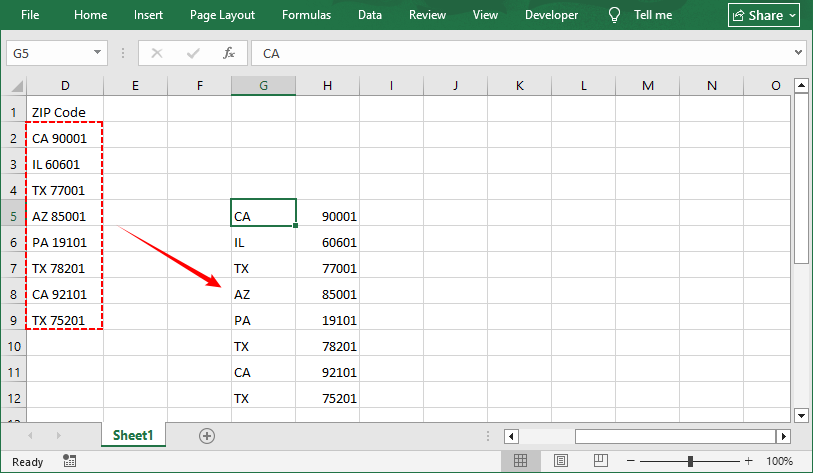
확장: 셀 안에 목록이 있고 셀을 여러 행으로 분할하려면 텍스트 나누기와 Excel 행/열 바꿈 기능을 결합할 수 있습니다.
방법 2: 빠른 채우기를 사용하여 셀 분할
빠른 채우기는 Excel의 간단한 원클릭 분할을 위한 "마법" 도구입니다. 사용자가 정의한 패턴을 인식하고 나머지를 자동 완성합니다. 메뉴나 수식이 필요 없으며, 이름, 전화번호, 지역 번호 또는 사용자 지정 패턴을 추출하는 데 적합합니다.
Excel 셀 분할에 빠른 채우기를 사용하는 방법
시나리오: A열의 전체 이름 목록에서 이름을 추출합니다.
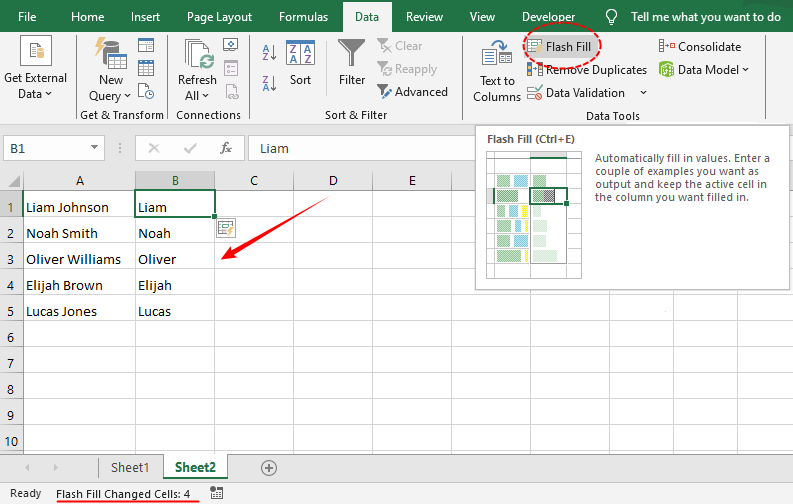
- 데이터 옆 셀에 첫 번째 분할 결과를 입력합니다. 예를 들어, 셀 A1이 “Liam Johnson”이면 B1에 “Liam”을 입력합니다.
- 셀 B1(예제가 있는 셀)을 클릭합니다.
- 데이터 탭으로 이동 → 빠른 채우기를 클릭합니다(또는 Windows에서 단축키 Ctrl + E 사용).
- Excel이 나머지 열을 분할된 이름으로 자동으로 채웁니다. 필요한 경우 성에 대해 반복합니다.
방법 3: 수식을 사용하여 셀 분할
유연하고 동적인 분할(예: 원본 데이터가 변경될 때 분할 결과를 자동으로 업데이트)을 위해서는 Excel에서 분할 수식을 사용합니다. 가장 일반적인 수식은 LEFT, RIGHT 및 TEXTSPLIT(Excel 365/2021 이상)입니다.
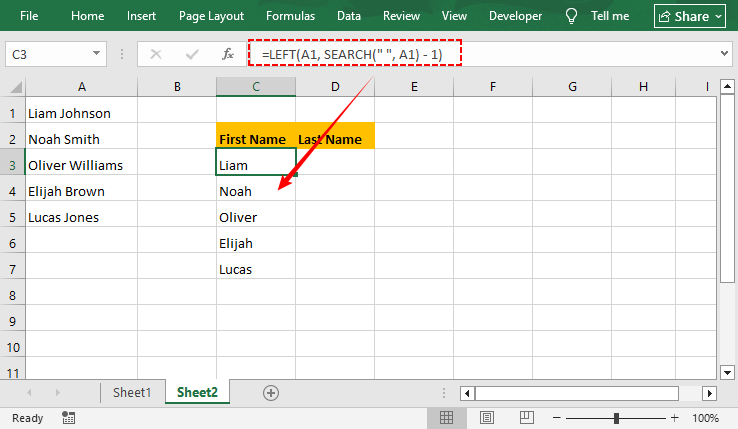
구분 기호 앞의 텍스트 추출 (LEFT + SEARCH)
이 수식을 사용하여 특정 문자(예: 공백 또는 쉼표) 앞의 텍스트를 분할합니다.
=LEFT(A1, SEARCH(" ", A1) - 1)
- SEARCH(" ", A1): 첫 번째 공백의 위치 번호를 찾습니다.
- -1: 공백 자체를 제거하여 “Liam” 대신 “Liam ”을 얻습니다.
구분 기호 뒤의 텍스트 추출 (RIGHT + LEN + SEARCH)
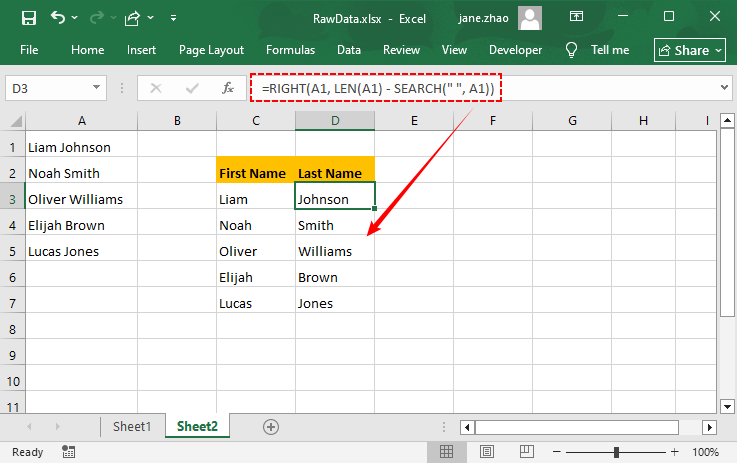
이 수식을 사용하여 특정 문자 뒤의 텍스트를 분할합니다(오른쪽 부분):
=RIGHT(A1, LEN(A1) - SEARCH(" ", A1))
- LEN(A1): 텍스트의 총 길이를 가져옵니다.
- 공백의 위치를 빼서 나머지 텍스트를 가져옵니다.
- 참고: 이 수식은 단일 구분 기호(예: 공백 하나 또는 쉼표 하나)의 경우에만 작동합니다. 첫 번째 구분 기호 뒤의 모든 텍스트를 단일 블록으로 추출하며 여러 구분 기호를 처리할 수 없습니다.
Microsoft 365를 사용하는 경우 TEXTSPLIT 수식을 사용하여 구분 기호로 텍스트를 분할하고 결과를 인접 셀에 자동으로 분산시킬 수 있습니다.
방법 4: 파워 쿼리를 사용하여 셀 분할
파워 쿼리는 대량 데이터 분할 또는 자동화된 새로 고침(예: 매주 새 데이터 가져오기)을 위한 최고의 도구입니다. 원본 데이터를 그대로 유지하고 한 번의 클릭으로 분할 결과를 새로 고칠 수 있어 데이터 파이프라인 및 정기적인 데이터 정리에 매우 중요합니다.
단계별: 파워 쿼리에서 Excel 열 분할
-
데이터 범위를 선택 → 데이터 탭으로 이동 → 테이블/범위에서를 클릭합니다(파워 쿼리가 열립니다).
-
파워 쿼리 편집기에서 분할하려는 열을 선택합니다.
-
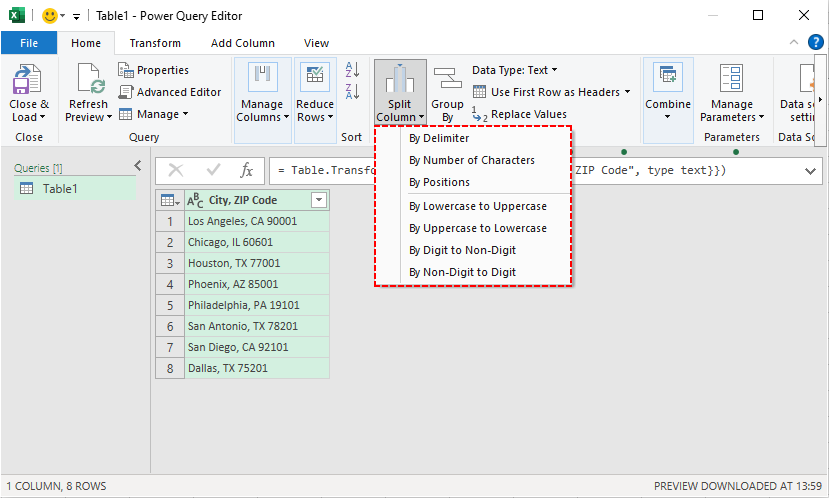
열 분할 드롭다운을 클릭하고 옵션을 선택합니다.
- 구분 기호 기준: 쉼표, 공백 또는 사용자 지정 문자로 분할합니다.
- 문자 수 기준: 고정 길이 데이터를 분할합니다.
- 위치 기준: 특정 문자 위치에서 분할합니다.
- 소문자에서 대문자로: 소문자 뒤에 대문자가 오는 경우 분할합니다(예: "AirPlane" → "Air", "Plane").
- 대문자에서 소문자로: 대문자 뒤에 소문자가 오는 경우 분할합니다(예: "iPhone" → "i", "Phone").
- 숫자에서 숫자가 아닌 문자로: 숫자 뒤에 텍스트가 오는 경우 분할합니다(예: "123Shoes" → "123", "Shoes").
- 숫자가 아닌 문자에서 숫자로: 텍스트 뒤에 숫자가 오는 경우 분할합니다(예: "Shoes123" → "Shoes", "123")
-
분할 설정을 선택 → 확인을 클릭합니다.
-
닫기 및 로드를 클릭하여 분할된 데이터를 새 워크시트로 내보냅니다.
데이터를 분할하고 정리한 후 다음 단계는 종종 중복 제거입니다. 분석의 정확성을 보장하기 위해 Excel에서 중복을 식별하고 제거하는 방법 을 알아보세요.
방법 5: Python을 사용하여 셀 분할
대규모로 셀 분할을 자동화하거나 분할을 Python 워크플로우에 통합해야 하는 사용자를 위해 Free Spire.XLS for Python 라이브러리는 강력한 코드 기반 솔루션입니다. 모든 Excel 파일 형식(.xlsx, .xls)에서 작동하며 수동 Excel 상호 작용이 필요하지 않습니다.
Excel에서 셀을 분리하는 Python 코드
이 코드는 셀 내용을 인접한 열로 분할합니다. 입력 Excel 파일을 읽고 A열을 처리한 다음 분할 결과를 새 출력 파일의 인접한 열에 씁니다.
from spire.xls import *
from spire.xls.common import *

# Create an object of the Workbook class
workbook = Workbook()
# Load the Excel file
workbook.LoadFromFile("Data.xlsx")

# Get the first worksheet in the file
sheet = workbook.Worksheets[0]

# Loop through each row in the worksheet
for i in range(sheet.LastRow):
    # Get the text of the first cell in the current row
    text = sheet.Range[i + 1, 1].Text
    # Split the text by comma
    splitText = text.split(',')
    # Write the split data into individual columns
    for j in range(len(splitText)):
        sheet.Range[i + 1, j + 2].Text = splitText[j]

# Automatically adjust column widths in the worksheet
sheet.AllocatedRange.AutoFitColumns()

# Save the modified Excel file
workbook.SaveToFile("TextToColumns.xlsx", ExcelVersion.Version2016)
workbook.Dispose()
주요 코드 설명:
- Workbook() / LoadFromFile(): Excel 파일 핸들러를 초기화하고 소스 파일을 로드합니다.
- LastRow: 데이터가 있는 총 행 수를 가져옵니다(빈 행 반복 방지).
- split(','): 쉼표로 셀 내용을 분할합니다(필요에 따라 구분 기호 변경).
- sheet.Range[i + 1, j + 2].Text: A열의 원본 데이터를 덮어쓰지 않도록 B열(인덱스 2)부터 분할된 값을 씁니다.
- SaveToFile(): 결과를 새 파일로 내보냅니다.
셀 텍스트를 열로 분할한 결과:
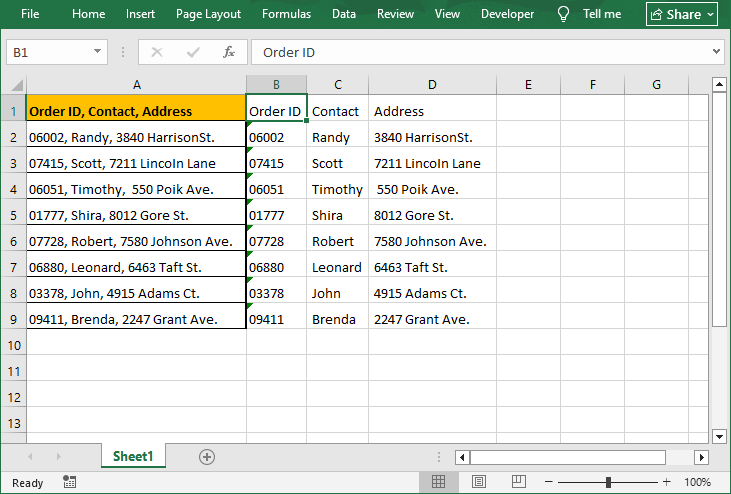
셀 내용을 구조화된 열로 분할한 후, 새 열에 데이터 유효성 검사를 적용하여 일관된 데이터 입력을 보장합니다(예: 우편 번호에 대한 숫자 형식).
Excel에서 셀을 나누기 위한 전문가 팁
- 데이터 백업: 분할하기 전에 항상 원본 데이터의 복사본을 만드십시오. 일부 분할 작업은 되돌리기 어렵습니다.
- 먼저 데이터 정리: 오류를 방지하기 위해 분할하기 전에 여분의 공백이나 숨겨진 문자를 제거하십시오.
- 빈 열 삽입: 분할 결과가 기존 내용을 덮어쓰는 것을 방지하기 위해 데이터 오른쪽에 충분한 빈 열을 추가하십시오.
- 데이터 미리보기 확인: 마치기 전에 항상 텍스트 나누기 마법사 및 파워 쿼리에서 데이터 미리보기를 확인하십시오. 이렇게 하면 구분 기호 실수를 조기에 발견할 수 있습니다.
마지막 생각들
Excel에서 셀을 분할하는 방법을 마스터하는 것은 지저분한 데이터를 구조화되고 강력한 자산으로 변환하는 기본 기술입니다. 빠른 채우기/텍스트 나누기를 사용하는 초보자, 파워 쿼리 파이프라인을 구축하는 고급 분석가, 또는 Python으로 대량 Excel 셀 분할을 자동화하는 기술에 정통한 사용자이든, 이제 모든 데이터 정리 과제를 위한 완벽한 툴킷을 갖게 되었습니다.
가장 편안하게 느껴지는 방법으로 시작하고 필요에 따라 더 고급 옵션을 실험해 보십시오. 이러한 기술을 사용하면 수많은 시간을 절약하고 분석 및 의사 결정을 위해 데이터의 잠재력을 최대한 활용할 수 있습니다.
자주 묻는 질문: Excel에서 셀을 분리하는 방법
Q1. 단일 셀을 (내용뿐만 아니라) 두 개의 더 작은 셀로 분할할 수 있나요?
아니요. Excel에서는 병합되지 않은 단일 셀을 동일한 열 내에서 두 개의 더 작은 셀로 물리적으로 분할할 수 없습니다. 그리드 구조는 고정되어 있습니다.
Q2. 텍스트 나누기가 회색으로 표시되는 이유는 무엇인가요?
다음과 같은 경우 도구가 비활성화됩니다.
- 시트가 보호되어 있습니다(검토 → 시트 보호 해제를 통해 보호 해제).
- 병합된 셀이 있습니다(홈 → 병합하고 가운데 맞춤 → 셀 병합 해제를 통해 병합 해제).
- 셀을 편집 중입니다(편집 모드를 종료하려면 Enter 키를 누름).
Q3. Google Sheets에서 셀을 분할하려면 어떻게 해야 하나요?
Google Sheets는 대부분의 분할에 SPLIT 함수(Excel의 TEXTSPLIT에 해당)를 사용합니다.
- 기본 구분 기호로 분할: =SPLIT(A1, ",") (쉼표로 분할, 공백/하이픈으로 대체).
- 줄 바꿈으로 분할: =SPLIT(A1, CHAR(10)).
- 행으로 분할(열 아님): =TRANSPOSE(SPLIT(A1, ",")).
Google Sheets에는 텍스트 나누기에 해당하는 기능도 있습니다. 범위를 선택 → 데이터 → 텍스트를 열로 분할(구분 기호를 자동 감지하거나 사용자 지정 구분 기호를 선택할 수 있음).
Q4. 월간 보고서의 셀 분할을 자동화할 수 있나요?
예. 가장 좋은 옵션은 다음과 같습니다.
- 파워 쿼리: 분할을 한 번 설정합니다. 매월 새 데이터를 소스 테이블에 붙여넣고 새로 고침을 클릭합니다. 이것이 가장 쉽고 일반적인 접근 방식입니다.
- Python: 스크립트를 작성하고 Windows 작업 스케줄러 또는 cron 작업을 사용하여 실행하도록 예약합니다.
더 보기
Come dividere una cella in Excel (Testo in colonne, Anteprima suggerimenti, Python)
Indice
Padroneggiare come dividere una cella in Excel è una delle competenze più essenziali per la pulizia dei dati per chiunque lavori con fogli di calcolo. Ci siamo passati tutti: incollare dati in Excel solo per trovare ogni informazione stipata in una singola colonna, trasformando nomi, indirizzi, email e codici prodotto in un pasticcio confuso che è inutile per l'ordinamento, il filtraggio o un'analisi significativa.
Anche se Excel non consente di dividere fisicamente una singola cella in due celle più piccole all'interno della stessa colonna, fornisce potenti strumenti per dividere il contenuto di una cella su più colonne adiacenti. In questa guida, analizzeremo i 5 metodi migliori per dividere i dati delle celle in Excel, dagli strumenti a un clic per principianti come il Riempimento automatico ai flussi di lavoro automatizzati con Power Query e Python.
Imparerai:
- Cosa significa "Dividi una cella" in Excel?
- Metodo 1: Dividi cella con Testo in colonne di Excel
- Metodo 2: Dividi cella con Riempimento automatico
- Metodo 3: Dividi cella con Formule
- Metodo 4: Dividi cella con Power Query
- Metodo 5: Dividi cella con Python
- FAQ: Come separare una cella in Excel
Alla fine, sarai in grado di trasformare dati disordinati e inutilizzabili in fogli di calcolo pronti per l'analisi in pochi minuti.
Cosa significa "Dividi una cella" in Excel?
In Excel, la frase "dividi una cella" può creare confusione perché non è possibile dividere fisicamente una singola cella. Invece, il termine si riferisce a due azioni diverse:
- Divisione del contenuto di una cella: prendere i dati all'interno di una cella e distribuirli su più celle adiacenti (ad esempio, separando "Mario Rossi" in "Mario" in una colonna e "Rossi" nella successiva).
- Divisione di una cella unita: annullare un'unione per ripristinare le celle singole originali.
Questa guida si concentra sulla prima attività, più comune: dividere i dati delle celle in Excel.
Metodo 1: Dividi cella con Testo in colonne di Excel
Testo in colonne è uno strumento integrato di Excel che consente di dividere il testo di una cella o di una colonna in due o più colonne separate. Funziona sia per dati delimitati (testo separato da virgole, spazi o altri caratteri) sia per dati a larghezza fissa (testo con spaziatura coerente). Ecco come utilizzare ciascuno:
Opzione A: Dividi cella di Excel per delimitatore
Questo metodo è perfetto per dividere dati come file CSV o elenchi in cui gli elementi sono separati da un simbolo coerente.
- Seleziona le celle o la colonna che desideri dividere.
- Vai alla scheda Dati → fai clic su Testo in colonne (nel gruppo Strumenti dati).
- Nella procedura guidata Testo in colonne:
- Seleziona Delimitato → fai clic su Avanti.
- Seleziona la casella accanto al tuo delimitatore (ad es. Virgola, Spazio o Tabulazione) → fai clic su Avanti.
- Scegli una Destinazione (dove posizionare i dati divisi, ad es. $C$1 per iniziare nella colonna C).
- Seleziona i formati delle colonne (ad es. Generale per testo/numeri, Testo per i numeri di telefono)
- Fai clic su Fine. I tuoi dati sono ora divisi in colonne separate.
Suggerimento: durante la selezione del delimitatore, è possibile selezionare più delimitatori se necessario (ad es. virgola + spazio). Se il delimitatore non è elencato, seleziona Altro e digita il carattere (ad es. un trattino "-" o una barra verticale "|").
Opzione B: Dividi testo di Excel per larghezza fissa
Questo metodo è ideale per dati allineati con spaziatura uniforme (ad es. codici prodotto, ID formattati):
- Segui i passaggi 1-2 sopra (seleziona celle → Dati → Testo in colonne).
- Nella procedura guidata Testo in colonne:
- Seleziona Larghezza fissa → fai clic su Avanti.
- Fai clic per aggiungere linee di divisione, trascina per regolare le posizioni o fai doppio clic per eliminare le linee → fai clic su Avanti.
- Scegli una destinazione e i formati delle colonne → fai clic su Fine.
I dati divisi appaiono così:
Espandi: se hai un elenco all'interno di una cella e desideri dividere la cella in più righe, puoi combinare Testo in colonne con la funzione Trasponi di Excel.
Metodo 2: Dividi cella con Riempimento automatico
Riempimento automatico è lo strumento "magico" di Excel per divisioni semplici con un clic. Riconosce i modelli definiti e completa automaticamente il resto. Nessun menu o formula, perfetto per estrarre nomi, numeri di telefono, prefissi o modelli personalizzati.
Come utilizzare il Riempimento automatico per la divisione delle celle di Excel
Scenario: estrarre i nomi da un elenco di nomi completi nella colonna A.
- Digita il primo risultato della divisione nella cella accanto ai tuoi dati. Ad esempio, se la cella A1 è “Liam Johnson”, digita “Liam” in B1.
- Fai clic sulla cella B1 (quella con il tuo esempio).
- Vai alla scheda Dati → fai clic su Riempimento automatico (o usa la scorciatoia Ctrl + E su Windows).
- Excel riempirà automaticamente il resto della colonna con i nomi divisi. Ripeti per i cognomi se necessario.
Metodo 3: Dividi cella con Formule
Per divisioni flessibili e dinamiche (ad es. aggiornare automaticamente il risultato della divisione quando i dati originali cambiano), utilizza la formula di divisione in Excel. Le formule più comuni sono SINISTRA, DESTRA e TESTO.DIVIDI (Excel 365/2021+).
Estrai testo prima di un delimitatore (SINISTRA + RICERCA)
Usa questa formula per dividere il testo prima di un carattere specifico (ad es. uno spazio o una virgola).
=SINISTRA(A1; RICERCA(" "; A1) - 1)
- RICERCA(" "; A1): trova il numero di posizione del primo spazio.
- -1: rimuove lo spazio stesso, quindi ottieni "Liam" invece di "Liam ".
Estrai testo dopo un delimitatore (DESTRA + LUNGH + RICERCA)
Usa questa formula per dividere il testo dopo un carattere specifico (parte destra):
=DESTRA(A1; LUNGH(A1) - RICERCA(" "; A1))
- LUNGH(A1): ottiene la lunghezza totale del testo.
- Sottrai la posizione dello spazio per ottenere il testo rimanente.
- Nota: questa formula funziona solo per i casi con un singolo delimitatore (ad es. uno spazio o una virgola). Estrae tutto il testo dopo il primo delimitatore come un singolo blocco e non può gestire più delimitatori.
Se utilizzi Microsoft 365, puoi utilizzare la formula TESTO.DIVIDI per dividere il testo in base a un delimitatore e distribuire automaticamente i risultati nelle celle adiacenti.
Metodo 4: Dividi cella con Power Query
Power Query è lo strumento migliore per divisioni di dati in blocco o aggiornamenti automatici (ad es. importazione settimanale di nuovi dati). Mantiene intatti i dati originali e consente di aggiornare i risultati della divisione con un clic, fondamentale per le pipeline di dati e la pulizia regolare dei dati.
Passo dopo passo: Dividi colonne di Excel in Power Query
-
Seleziona il tuo intervallo di dati → vai alla scheda Dati → fai clic su Da tabella/intervallo (si aprirà Power Query).
-
Nell'editor di Power Query, seleziona la colonna che desideri dividere.
-
Fai clic sul menu a discesa Dividi colonna e seleziona un'opzione:
- Per delimitatore: dividi per virgole, spazi o caratteri personalizzati.
- Per numero di caratteri: dividi dati a lunghezza fissa.
- Per posizioni: dividi in posizioni di caratteri specifiche.
- Da minuscolo a maiuscolo: divide quando una lettera minuscola è seguita da una maiuscola (ad es. "AirPlane" → "Air", "Plane").
- Da maiuscolo a minuscolo: divide quando una maiuscola è seguita da una minuscola (ad es. "iPhone" → "i", "Phone").
- Da cifra a non cifra: divide quando un numero è seguito da testo (ad es. "123Shoes" → "123", "Shoes").
- Da non cifra a cifra: divide quando il testo è seguito da un numero (ad es. "Shoes123" → "Shoes", "123")
-
Seleziona le impostazioni di divisione → fai clic su OK.
-
Fai clic su Chiudi e carica per esportare i dati divisi in un nuovo foglio di lavoro.
Dopo aver diviso e organizzato i dati, il passaggio successivo è spesso la deduplicazione. Scopri come identificare e rimuovere i duplicati in Excel per garantire che la tua analisi sia accurata.
Metodo 5: Dividi cella con Python
Per gli utenti che necessitano di automatizzare la divisione delle celle su larga scala o di integrare la divisione in un flusso di lavoro Python, la libreria Free Spire.XLS for Python è una soluzione solida basata su codice. Funziona con tutti i formati di file Excel (.xlsx, .xls) e non richiede alcuna interazione manuale con Excel.
Codice Python per separare le celle in Excel
Questo codice divide il contenuto della cella in colonne adiacenti. Legge un file Excel di input, elabora la colonna A e scrive i risultati della divisione nelle colonne adiacenti in un nuovo file di output:
from spire.xls import *
from spire.xls.common import *

# Create an object of the Workbook class
workbook = Workbook()
# Load the Excel file
workbook.LoadFromFile("Data.xlsx")

# Get the first worksheet in the file
sheet = workbook.Worksheets[0]

# Loop through each row in the worksheet
for i in range(sheet.LastRow):
    # Get the text of the first cell in the current row
    text = sheet.Range[i + 1, 1].Text
    # Split the text by comma
    splitText = text.split(',')
    # Write the split data into individual columns
    for j in range(len(splitText)):
        sheet.Range[i + 1, j + 2].Text = splitText[j]

# Automatically adjust column widths in the worksheet
sheet.AllocatedRange.AutoFitColumns()

# Save the modified Excel file
workbook.SaveToFile("TextToColumns.xlsx", ExcelVersion.Version2016)
workbook.Dispose()
Spiegazioni chiave del codice:
- Workbook() / LoadFromFile(): inizializza il gestore di file Excel e carica il file di origine.
- LastRow: ottiene il numero totale di righe con dati (evita di scorrere le righe vuote).
- split(','): divide il contenuto della cella per virgole (cambia il delimitatore secondo necessità).
- sheet.Range[i + 1, j + 2].Text: scrive i valori divisi a partire dalla colonna B (indice 2) per evitare di sovrascrivere i dati originali nelle colonne A.
- SaveToFile(): esporta i risultati in un nuovo file.
Il risultato della divisione del testo della cella in colonne:
Dopo aver diviso il contenuto della cella in colonne strutturate, applica la convalida dei dati alle nuove colonne per garantire un inserimento dati coerente (ad es. formati numerici per i codici postali).
Suggerimenti professionali per dividere una cella in Excel
- Esegui il backup dei tuoi dati: crea sempre una copia dei dati originali prima di dividerli. Alcune azioni di divisione sono difficili da annullare.
- Pulisci prima i dati: rimuovi spazi extra o caratteri nascosti prima di dividere per evitare errori.
- Inserisci colonne vuote: aggiungi abbastanza colonne vuote a destra dei tuoi dati per evitare che i risultati della divisione sovrascrivano il contenuto esistente.
- Controlla l'anteprima dei dati: guarda sempre l'anteprima dei dati nella procedura guidata Testo in colonne e in Power Query prima di terminare. Ciò consente di individuare tempestivamente gli errori di delimitazione.
Considerazioni finali
Padroneggiare come dividere una cella in Excel è una competenza fondamentale che trasforma dati disordinati in una risorsa strutturata e potente. Che tu sia un principiante che utilizza Riempimento automatico/Testo in colonne, un analista avanzato che crea pipeline di Power Query o un utente esperto di tecnologia che automatizza la divisione di celle Excel in blocco con Python, ora hai un toolkit completo per qualsiasi sfida di pulizia dei dati.
Inizia con il metodo che ti sembra più comodo e sperimenta le opzioni più avanzate man mano che le tue esigenze crescono. Con queste tecniche, risparmierai innumerevoli ore e sbloccherai il pieno potenziale dei tuoi dati per l'analisi e il processo decisionale.
FAQ: Come separare una cella in Excel
D1. Posso dividere una singola cella in due celle più piccole (non solo il contenuto)?
No. Excel non consente di dividere fisicamente una singola cella non unita in due celle più piccole all'interno della stessa colonna. La struttura della griglia è fissa.
D2. Perché Testo in colonne è disattivato?
Lo strumento è disabilitato se:
- Il tuo foglio è protetto (rimuovi la protezione tramite Revisione → Rimuovi protezione foglio).
- Hai celle unite (separa tramite Home → Unisci e allinea al centro → Separa celle).
- Stai modificando una cella (premi Invio per uscire dalla modalità di modifica).
D3. Come si divide una cella in Fogli Google?
Fogli Google utilizza la funzione SPLIT (l'equivalente di TESTO.DIVIDI di Excel) per la maggior parte delle divisioni:
- Divisione di base per delimitatore: =SPLIT(A1; ",") (divisione per virgola; sostituire con spazio/trattino).
- Divisione per interruzioni di riga: =SPLIT(A1; CHAR(10)).
- Divisione in righe (non colonne): =TRANSPOSE(SPLIT(A1; ",")).
Fogli Google ha anche un equivalente di Testo in colonne: seleziona l'intervallo → Dati → Dividi testo in colonne (rileva automaticamente i delimitatori o ti consente di sceglierne uno personalizzato).
D4. Posso automatizzare la divisione delle celle per i report mensili?
Sì. Le migliori opzioni sono:
- Power Query: imposta la divisione una volta. Ogni mese, incolla i nuovi dati nella tabella di origine e fai clic su Aggiorna. Questo è l'approccio più semplice e comune.
- Python: scrivi uno script e pianificane l'esecuzione utilizzando l'Utilità di pianificazione di Windows o un cron job.
Vedi anche
Comment diviser une cellule dans Excel (Convertir, Remplissage instantané, Python)
Table des matières
- Que signifie "diviser une cellule" dans Excel ?
- Méthode 1 : Diviser une cellule avec la fonction "Texte en colonnes" d'Excel
- Méthode 2 : Diviser une cellule avec le remplissage instantané
- Méthode 3 : Diviser une cellule avec des formules
- Méthode 4 : Diviser une cellule avec Power Query
- Méthode 5 : Diviser une cellule avec Python
- FAQ : Comment séparer une cellule dans Excel
Maîtriser comment diviser une cellule dans Excel est l'une des compétences de nettoyage de données les plus essentielles pour quiconque travaille avec des feuilles de calcul. Nous sommes tous passés par là : coller des données dans Excel pour constater que chaque information est entassée dans une seule colonne, transformant les noms, adresses, e-mails et codes de produits en un fouillis inutilisable pour le tri, le filtrage ou une analyse pertinente.
Bien qu'Excel ne permette pas de diviser physiquement une seule cellule en deux cellules plus petites dans la même colonne, il fournit des outils puissants pour répartir le contenu d'une cellule sur plusieurs colonnes adjacentes. Dans ce guide, nous allons détailler les 5 meilleures méthodes pour diviser les données d'une cellule dans Excel, des outils conviviaux en un clic comme le remplissage instantané aux flux de travail automatisés avec Power Query et Python.
Vous apprendrez :
- Que signifie "diviser une cellule" dans Excel ?
- Méthode 1 : Diviser une cellule avec la fonction "Texte en colonnes" d'Excel
- Méthode 2 : Diviser une cellule avec le remplissage instantané
- Méthode 3 : Diviser une cellule avec des formules
- Méthode 4 : Diviser une cellule avec Power Query
- Méthode 5 : Diviser une cellule avec Python
- FAQ : Comment séparer une cellule dans Excel
À la fin, vous serez capable de transformer des données désordonnées et inutilisables en feuilles de calcul prêtes pour l'analyse en quelques minutes.
Que signifie "diviser une cellule" dans Excel ?
Dans Excel, l'expression "diviser une cellule" peut prêter à confusion car vous ne pouvez pas diviser physiquement une seule cellule. Au lieu de cela, le terme fait référence à deux actions différentes :
- Diviser le contenu d'une cellule : Prendre les données à l'intérieur d'une cellule et les répartir sur plusieurs cellules adjacentes (par exemple, séparer "John Smith" en "John" dans une colonne et "Smith" dans la suivante).
- Fractionner une cellule fusionnée : Annuler une fusion pour restaurer les cellules individuelles d'origine.
Ce guide se concentre sur la première tâche, plus courante : diviser les données d'une cellule dans Excel.
Méthode 1 : Diviser une cellule avec la fonction "Texte en colonnes" d'Excel
Texte en colonnes est un outil intégré d'Excel qui vous permet de diviser le texte d'une cellule ou d'une colonne en deux ou plusieurs colonnes distinctes. Il fonctionne à la fois pour les données délimitées (texte séparé par des virgules, des espaces ou d'autres caractères) et les données à largeur fixe (texte avec un espacement cohérent). Voici comment utiliser chaque option :
Option A : Diviser une cellule Excel par délimiteur
Cette méthode est parfaite pour diviser des données comme des fichiers CSV, ou des listes où les éléments sont séparés par un symbole cohérent.
- Sélectionnez les cellules ou la colonne que vous souhaitez diviser.
- Allez dans l'onglet Données → cliquez sur Texte en colonnes (dans le groupe Outils de données).
- Dans l'assistant de conversion Texte en colonnes :
- Sélectionnez Délimité → cliquez sur Suivant.
- Cochez la case à côté de votre délimiteur (par exemple, Virgule, Espace ou Tabulation) → cliquez sur Suivant.
- Choisissez une Destination (où placer les données divisées, par exemple, $C$1 pour commencer dans la colonne C).
- Sélectionnez les formats de colonne (par exemple, Général pour le texte/les nombres, Texte pour les numéros de téléphone)
- Cliquez sur Terminer. Vos données sont maintenant divisées en colonnes distinctes.
Conseil de pro : Lors de la sélection du délimiteur, vous pouvez cocher plusieurs délimiteurs si nécessaire (par exemple, virgule + espace). Si votre délimiteur n'est pas répertorié, sélectionnez Autre et tapez le caractère (par exemple, un trait d'union “-” ou une barre verticale “|”).
Option B : Diviser le texte Excel par largeur fixe
Cette méthode est idéale pour les données alignées avec un espacement uniforme (par exemple, les codes de produits, les identifiants formatés) :
- Suivez les étapes 1-2 ci-dessus (sélectionnez les cellules → Données → Texte en colonnes).
- Dans l'assistant de conversion Texte en colonnes :
- Sélectionnez Largeur fixe → cliquez sur Suivant.
- Cliquez pour ajouter des lignes de division, faites glisser pour ajuster les positions, ou double-cliquez pour supprimer des lignes → cliquez sur Suivant.
- Choisissez une destination et des formats de colonne → cliquez sur Terminer.
Les données divisées ressemblent à ceci :
Développer : Si vous avez une liste à l'intérieur d'une cellule et que vous souhaitez diviser la cellule en plusieurs lignes, vous pouvez combiner Texte en colonnes avec la fonction Transposer d'Excel.
Méthode 2 : Diviser une cellule avec le remplissage instantané
Le remplissage instantané est l'outil "magique" d'Excel pour des divisions simples en un clic. Il reconnaît les modèles que vous définissez et complète automatiquement le reste. Pas de menus ni de formules, parfait pour extraire des prénoms, des numéros de téléphone, des indicatifs régionaux ou des modèles personnalisés.
Comment utiliser le remplissage instantané pour diviser une cellule Excel
Scénario : Extraire les prénoms d'une liste de noms complets dans la colonne A.
- Tapez le premier résultat de la division dans la cellule à côté de vos données. Par exemple, si la cellule A1 contient “Liam Johnson”, tapez “Liam” dans B1.
- Cliquez sur la cellule B1 (celle avec votre exemple).
- Allez dans l'onglet Données → cliquez sur Remplissage instantané (ou utilisez le raccourci Ctrl + E sous Windows).
- Excel remplira automatiquement le reste de la colonne avec les prénoms divisés. Répétez l'opération pour les noms de famille si nécessaire.
Méthode 3 : Diviser une cellule avec des formules
Pour des divisions flexibles et dynamiques (par exemple, mettre à jour automatiquement le résultat de la division lorsque les données d'origine changent), utilisez la formule de division dans Excel. Les formules les plus courantes sont GAUCHE, DROITE et FRACTIONNER.TEXTE (Excel 365/2021+).
Extraire le texte avant un délimiteur (GAUCHE + CHERCHE)
Utilisez cette formule pour diviser le texte avant un caractère spécifique (par exemple, un espace ou une virgule).
=GAUCHE(A1; CHERCHE(" "; A1) - 1)
- CHERCHE(" ", A1) : Trouve le numéro de position du premier espace.
- -1 : Supprime l'espace lui-même, vous obtenez donc “Liam” au lieu de “Liam ”.
Extraire le texte après un délimiteur (DROITE + NBCAR + CHERCHE)
Utilisez cette formule pour diviser le texte après un caractère spécifique (partie droite) :
=DROITE(A1; NBCAR(A1) - CHERCHE(" "; A1))
- NBCAR(A1) : Obtient la longueur totale du texte.
- Soustrayez la position de l'espace pour obtenir le texte restant.
- Remarque : Cette formule ne fonctionne que pour les cas à délimiteur unique (par exemple, un seul espace ou une seule virgule). Elle extrait tout le texte après le premier délimiteur en un seul bloc et ne peut pas gérer plusieurs délimiteurs.
Si vous utilisez Microsoft 365, vous pouvez utiliser la formule FRACTIONNER.TEXTE pour diviser le texte par un délimiteur et répartir automatiquement les résultats dans les cellules adjacentes.
Méthode 4 : Diviser une cellule avec Power Query
Power Query est le meilleur outil pour les divisions de données en masse ou les actualisations automatisées (par exemple, l'importation de nouvelles données chaque semaine). Il conserve vos données d'origine intactes et vous permet d'actualiser les résultats de la division en un seul clic, ce qui est essentiel pour les pipelines de données et le nettoyage régulier des données.
Étape par étape : Diviser des colonnes Excel dans Power Query
-
Sélectionnez votre plage de données → allez dans l'onglet Données → cliquez sur À partir d'un tableau/d'une plage (Power Query s'ouvrira).
-
Dans l'éditeur Power Query, sélectionnez la colonne que vous souhaitez diviser.
-
Cliquez sur le menu déroulant Fractionner la colonne et sélectionnez une option :
- Par délimiteur : Diviser par des virgules, des espaces ou des caractères personnalisés.
- Par nombre de caractères : Diviser des données de longueur fixe.
- Par positions : Diviser à des positions de caractères spécifiques.
- De minuscule à majuscule : Divise lorsqu'une lettre minuscule est suivie d'une majuscule (par exemple, "AirPlane" → "Air", "Plane").
- De majuscule à minuscule : Divise lorsqu'une majuscule est suivie d'une minuscule (par exemple, "iPhone" → "i", "Phone").
- Du chiffre au non-chiffre : Divise lorsqu'un nombre est suivi de texte (par exemple, "123Shoes" → "123", "Shoes").
- Du non-chiffre au chiffre : Divise lorsque du texte est suivi d'un nombre (par exemple, "Shoes123" → "Shoes", "123")
-
Sélectionnez vos paramètres de division → cliquez sur OK.
-
Cliquez sur Fermer et charger pour exporter les données divisées vers une nouvelle feuille de calcul.
Après avoir divisé et organisé vos données, l'étape suivante est souvent la déduplication. Découvrez comment identifier et supprimer les doublons dans Excel pour garantir l'exactitude de votre analyse.
Méthode 5 : Diviser une cellule avec Python
Pour les utilisateurs qui ont besoin d'automatiser la division de cellules à grande échelle ou d'intégrer la division dans un flux de travail Python, la bibliothèque Free Spire.XLS for Python est une solution robuste basée sur le code. Elle fonctionne avec tous les formats de fichiers Excel (.xlsx, .xls) et ne nécessite aucune interaction manuelle avec Excel.
Code Python pour séparer une cellule dans Excel
Ce code divise le contenu d'une cellule en colonnes adjacentes. Il lit un fichier Excel d'entrée, traite la colonne A et écrit les résultats de la division dans des colonnes adjacentes dans un nouveau fichier de sortie :
from spire.xls import *
from spire.xls.common import *

# Create an object of the Workbook class
workbook = Workbook()
# Load the Excel file
workbook.LoadFromFile("Data.xlsx")

# Get the first worksheet in the file
sheet = workbook.Worksheets[0]

# Loop through each row in the worksheet
for i in range(sheet.LastRow):
    # Get the text of the first cell in the current row
    text = sheet.Range[i + 1, 1].Text
    # Split the text by comma
    splitText = text.split(',')
    # Write the split data into individual columns
    for j in range(len(splitText)):
        sheet.Range[i + 1, j + 2].Text = splitText[j]

# Automatically adjust column widths in the worksheet
sheet.AllocatedRange.AutoFitColumns()

# Save the modified Excel file
workbook.SaveToFile("TextToColumns.xlsx", ExcelVersion.Version2016)
workbook.Dispose()
Explications clés du code :
- Workbook() / LoadFromFile() : Initialise le gestionnaire de fichiers Excel et charge votre fichier source.
- LastRow : Obtient le nombre total de lignes avec des données (évite de boucler sur des lignes vides).
- split(',') : Divise le contenu de la cellule par des virgules (changez le délimiteur si nécessaire).
- sheet.Range[i + 1, j + 2].Text : Écrit les valeurs divisées à partir de la colonne B (index 2) pour éviter d'écraser les données d'origine dans les colonnes A.
- SaveToFile() : Exporte les résultats dans un nouveau fichier.
Le résultat de la division du texte de la cellule en colonnes :
Après avoir divisé le contenu des cellules en colonnes structurées, appliquez la validation des données aux nouvelles colonnes pour garantir une saisie de données cohérente (par exemple, des formats numériques pour les codes postaux).
Conseils de pro pour diviser une cellule dans Excel
- Sauvegardez vos données : Faites toujours une copie de vos données originales avant de les diviser. Certaines actions de division sont difficiles à annuler.
- Nettoyez d'abord les données : Supprimez les espaces supplémentaires ou les caractères cachés avant de diviser pour éviter les erreurs.
- Insérez des colonnes vides : Ajoutez suffisamment de colonnes vides à droite de vos données pour éviter que les résultats de la division n'écrasent le contenu existant.
- Vérifiez l'aperçu de vos données : Regardez toujours l'aperçu des données dans l'assistant Texte en colonnes et dans Power Query avant de terminer. Cela permet de détecter rapidement les erreurs de délimiteur.
Réflexions finales
Maîtriser comment diviser une cellule dans Excel est une compétence fondamentale qui transforme des données désordonnées en un atout structuré et puissant. Que vous soyez un débutant utilisant le remplissage instantané/Texte en colonnes, un analyste avancé créant des pipelines Power Query, ou un utilisateur averti automatisant la division de cellules Excel en masse avec Python, vous disposez maintenant d'une boîte à outils complète pour tout défi de nettoyage de données.
Commencez par la méthode qui vous semble la plus confortable et expérimentez avec les options plus avancées à mesure que vos besoins augmentent. Avec ces techniques, vous économiserez d'innombrables heures et libérerez tout le potentiel de vos données pour l'analyse et la prise de décision.
FAQ : Comment séparer une cellule dans Excel
Q1. Puis-je diviser une seule cellule en deux cellules plus petites (pas seulement le contenu) ?
Non. Excel ne vous permet pas de diviser physiquement une seule cellule non fusionnée en deux cellules plus petites dans la même colonne. La structure de la grille est fixe.
Q2. Pourquoi l'option Texte en colonnes est-elle grisée ?
L'outil est désactivé si :
- Votre feuille est protégée (ôtez la protection via Révision → Ôter la protection de la feuille).
- Vous avez des cellules fusionnées (dissociez-les via Accueil → Fusionner et centrer → Dissocier les cellules).
- Vous êtes en train de modifier une cellule (appuyez sur Entrée pour quitter le mode d'édition).
Q3. Comment diviser une cellule dans Google Sheets ?
Google Sheets utilise la fonction SPLIT (l'équivalent de FRACTIONNER.TEXTE d'Excel) pour la plupart des divisions :
- Division de base par délimiteur : =SPLIT(A1; ",") (diviser par virgule ; remplacer par un espace/trait d'union).
- Diviser par sauts de ligne : =SPLIT(A1; CHAR(10)).
- Diviser en lignes (pas en colonnes) : =TRANSPOSE(SPLIT(A1; ",")).
Google Sheets dispose également d'un équivalent de Texte en colonnes : sélectionnez la plage → Données → Fractionner le texte en colonnes (détecte automatiquement les délimiteurs ou vous permet d'en choisir un personnalisé).
Q4. Puis-je automatiser la division de cellules pour les rapports mensuels ?
Oui. Les meilleures options sont :
- Power Query : Configurez la division une seule fois. Chaque mois, collez les nouvelles données dans le tableau source et cliquez sur Actualiser. C'est l'approche la plus simple et la plus courante.
- Python : Écrivez un script et planifiez son exécution à l'aide du Planificateur de tâches Windows ou d'une tâche cron.
Voir aussi
- Comment diviser des feuilles Excel en plusieurs fichiers (3 façons)
- Comment supprimer les lignes vides dans Excel : 5 méthodes faciles
- Comment supprimer les colonnes en double dans Excel : 4 meilleures façons
- Diviser des données en plusieurs colonnes dans Excel en C#
- Diviser du texte en colonnes dans Excel en Java
Cómo dividir una celda en Excel (Texto en columnas, Relleno rápido, Python)
Tabla de Contenidos
- ¿Qué significa "dividir una celda" en Excel?
- Método 1: Dividir celda con Texto en columnas de Excel
- Método 2: Dividir celda con Relleno rápido
- Método 3: Dividir celda con Fórmulas
- Método 4: Dividir celda con Power Query
- Método 5: Dividir celda con Python
- Preguntas frecuentes: Cómo separar una celda en Excel
Dominar cómo dividir una celda en Excel es una de las habilidades de limpieza de datos más esenciales para cualquiera que trabaje con hojas de cálculo. Todos hemos pasado por eso: pegar datos en Excel solo para encontrar cada pieza de información apiñada en una sola columna, convirtiendo nombres, direcciones, correos electrónicos y códigos de producto en un desorden confuso que es inútil para ordenar, filtrar o realizar un análisis significativo.
Aunque Excel no te permite dividir físicamente una sola celda en dos celdas más pequeñas dentro de la misma columna, proporciona herramientas potentes para dividir el contenido de una celda en varias columnas adyacentes. En esta guía, desglosaremos los 5 mejores métodos para dividir datos de celdas en Excel, desde herramientas de un solo clic para principiantes como el Relleno rápido hasta flujos de trabajo automatizados con Power Query y Python.
Aprenderás:
- ¿Qué significa "dividir una celda" en Excel?
- Método 1: Dividir celda con Texto en columnas de Excel
- Método 2: Dividir celda con Relleno rápido
- Método 3: Dividir celda con Fórmulas
- Método 4: Dividir celda con Power Query
- Método 5: Dividir celda con Python
- Preguntas frecuentes: Cómo separar una celda en Excel
Al final, podrás convertir datos desordenados e inutilizables en hojas de cálculo listas para el análisis en minutos.
¿Qué significa "dividir una celda" en Excel?
En Excel, la frase "dividir una celda" puede ser confusa porque no se puede dividir físicamente una sola celda. En cambio, el término se refiere a dos acciones diferentes:
- Dividir el contenido de una celda: Tomar los datos dentro de una celda y distribuirlos en varias celdas adyacentes (por ejemplo, separar "John Smith" en "John" en una columna y "Smith" en la siguiente).
- Dividir una celda combinada: Deshacer una combinación para restaurar las celdas individuales originales.
Esta guía se centra en la primera tarea, la más común: dividir datos de celdas en Excel.
Método 1: Dividir celda con Texto en columnas de Excel
Texto en columnas es una herramienta integrada de Excel que te permite dividir el texto de una celda o columna en dos o más columnas separadas. Funciona tanto para datos delimitados (texto separado por comas, espacios u otros caracteres) como para datos de ancho fijo (texto con espaciado constante). A continuación, se explica cómo usar cada uno:
Opción A: Dividir celda de Excel por delimitador
Este método es perfecto para dividir datos como archivos CSV o listas donde los elementos están separados por un símbolo constante.
- Selecciona las celdas o la columna que deseas dividir.
- Ve a la pestaña Datos → haz clic en Texto en columnas (en el grupo Herramientas de datos).
- En el Asistente para convertir texto en columnas:
- Selecciona Delimitados → haz clic en Siguiente.
- Marca la casilla junto a tu delimitador (p. ej., Coma, Espacio o Tabulación) → haz clic en Siguiente.
- Elige un Destino (dónde colocar los datos divididos, p. ej., $C$1 para comenzar en la columna C).
- Selecciona los formatos de columna (p. ej., General para texto/números, Texto para números de teléfono)
- Haz clic en Finalizar. Tus datos ahora están divididos en columnas separadas.
Consejo profesional: Al seleccionar el delimitador, puedes marcar varios delimitadores si es necesario (p. ej., coma + espacio). Si tu delimitador no está en la lista, selecciona Otro y escribe el carácter (p. ej., un guion “-” o una barra vertical “|”).
Opción B: Dividir texto de Excel por ancho fijo
Este método es ideal para datos alineados con espaciado uniforme (p. ej., códigos de producto, ID con formato):
- Sigue los pasos 1-2 anteriores (seleccionar celdas → Datos → Texto en columnas).
- En el Asistente para convertir texto en columnas:
- Selecciona Ancho fijo → haz clic en Siguiente.
- Haz clic para agregar líneas de división, arrastra para ajustar posiciones o haz doble clic para eliminar líneas → haz clic en Siguiente.
- Elige un destino y formatos de columna → haz clic en Finalizar.
Los datos divididos se ven así:
Ampliar: Si tienes una lista dentro de una celda y quieres dividir la celda en varias filas, puedes combinar Texto en columnas con la función Transponer de Excel.
Método 2: Dividir celda con Relleno rápido
Relleno rápido es la herramienta "mágica" de Excel para divisiones simples con un solo clic. Reconoce los patrones que defines y autocompleta el resto. Sin menús ni fórmulas, es perfecto para extraer nombres, números de teléfono, códigos de área o patrones personalizados.
Cómo usar el Relleno rápido para dividir celdas de Excel
Escenario: Extraer los nombres de una lista de nombres completos en la columna A.
- Escribe el primer resultado de la división en la celda junto a tus datos. Por ejemplo, si la celda A1 es “Liam Johnson”, escribe “Liam” en B1.
- Haz clic en la celda B1 (la que tiene tu ejemplo).
- Ve a la pestaña Datos → haz clic en Relleno rápido (o usa el atajo Ctrl + E en Windows).
- Excel llenará automáticamente el resto de la columna con los nombres divididos. Repite para los apellidos si es necesario.
Método 3: Dividir celda con Fórmulas
Para divisiones flexibles y dinámicas (p. ej., que el resultado de la división se actualice automáticamente cuando cambien los datos originales), usa la fórmula de división en Excel. Las fórmulas más comunes son IZQUIERDA, DERECHA y DIVIDIRTEXTO (Excel 365/2021+).
Extraer texto antes de un delimitador (IZQUIERDA + ENCONTRAR)
Usa esta fórmula para dividir texto antes de un carácter específico (p. ej., un espacio o una coma).
=IZQUIERDA(A1, ENCONTRAR(" ", A1) - 1)
- ENCONTRAR(" ", A1): Encuentra el número de posición del primer espacio.
- -1: Elimina el espacio en sí, para que obtengas “Liam” en lugar de “Liam ”.
Extraer texto después de un delimitador (DERECHA + LARGO + ENCONTRAR)
Usa esta fórmula para dividir texto después de un carácter específico (la parte derecha):
=DERECHA(A1, LARGO(A1) - ENCONTRAR(" ", A1))
- LARGO(A1): Obtiene la longitud total del texto.
- Resta la posición del espacio para obtener el texto restante.
- Nota: Esta fórmula solo funciona para casos con un único delimitador (p. ej., un espacio o una coma). Extrae todo el texto después del primer delimitador como un solo bloque y no puede manejar múltiples delimitadores.
Si estás usando Microsoft 365, puedes usar la fórmula DIVIDIRTEXTO para dividir texto por un delimitador y volcar los resultados en celdas adyacentes automáticamente.
Método 4: Dividir celda con Power Query
Power Query es la mejor herramienta para divisiones de datos masivas o actualizaciones automatizadas (p. ej., importar nuevos datos semanalmente). Mantiene tus datos originales intactos y te permite actualizar los resultados de la división con un solo clic, lo cual es fundamental para los flujos de datos y la limpieza regular de datos.
Paso a paso: Dividir columnas de Excel en Power Query
-
Selecciona tu rango de datos → ve a la pestaña Datos → haz clic en Desde tabla/rango (se abrirá Power Query).
-
En el Editor de Power Query, selecciona la columna que deseas dividir.
-
Haz clic en el menú desplegable Dividir columna y selecciona una opción:
- Por delimitador: Dividir por comas, espacios o caracteres personalizados.
- Por número de caracteres: Dividir datos de longitud fija.
- Por posiciones: Dividir en posiciones de caracteres específicas.
- De minúscula a mayúscula: Divide cuando una letra minúscula es seguida por una mayúscula (p. ej., "AirPlane" → "Air", "Plane").
- De mayúscula a minúscula: Divide cuando una mayúscula es seguida por una minúscula (p. ej., "iPhone" → "i", "Phone").
- De dígito a no dígito: Divide cuando un número es seguido por texto (p. ej., "123Shoes" → "123", "Shoes").
- De no dígito a dígito: Divide cuando un texto es seguido por un número (p. ej., "Shoes123" → "Shoes", "123")
-
Selecciona tu configuración de división → haz clic en Aceptar.
-
Haz clic en Cerrar y cargar para exportar los datos divididos a una nueva hoja de cálculo.
Después de dividir y organizar tus datos, el siguiente paso suele ser la deduplicación. Descubre cómo identificar y eliminar duplicados en Excel para asegurar que tu análisis sea preciso.
Método 5: Dividir celda con Python
Para los usuarios que necesitan automatizar la división de celdas a gran escala o integrar la división en un flujo de trabajo de Python, la biblioteca Free Spire.XLS for Python es una solución robusta basada en código. Funciona con todos los formatos de archivo de Excel (.xlsx, .xls) y no requiere interacción manual con Excel.
Código de Python para separar celdas en Excel
Este código divide el contenido de una celda en columnas adyacentes. Lee un archivo de Excel de entrada, procesa la columna A y escribe los resultados de la división en columnas adyacentes en un nuevo archivo de salida:
from spire.xls import *
from spire.xls.common import *

# Create an object of the Workbook class
workbook = Workbook()
# Load the Excel file
workbook.LoadFromFile("Data.xlsx")

# Get the first worksheet in the file
sheet = workbook.Worksheets[0]

# Loop through each row in the worksheet
for i in range(sheet.LastRow):
    # Get the text of the first cell in the current row
    text = sheet.Range[i + 1, 1].Text
    # Split the text by comma
    splitText = text.split(',')
    # Write the split data into individual columns
    for j in range(len(splitText)):
        sheet.Range[i + 1, j + 2].Text = splitText[j]

# Automatically adjust column widths in the worksheet
sheet.AllocatedRange.AutoFitColumns()

# Save the modified Excel file
workbook.SaveToFile("TextToColumns.xlsx", ExcelVersion.Version2016)
workbook.Dispose()
Explicaciones clave del código:
- Workbook() / LoadFromFile(): Inicializa el manejador de archivos de Excel y carga tu archivo de origen.
- LastRow: Obtiene el número total de filas con datos (evita recorrer filas vacías).
- split(','): Divide el contenido de la celda por comas (cambia el delimitador según sea necesario).
- sheet.Range[i + 1, j + 2].Text: Escribe los valores divididos comenzando en la columna B (índice 2) para evitar sobrescribir los datos originales en la columna A.
- SaveToFile(): Exporta los resultados a un nuevo archivo.
El resultado de dividir el texto de la celda en columnas:
Después de dividir el contenido de la celda en columnas estructuradas, aplica la validación de datos a las nuevas columnas para garantizar una entrada de datos consistente (p. ej., formatos numéricos para códigos postales).
Consejos profesionales para dividir una celda en Excel
- Haz una copia de seguridad de tus datos: Siempre haz una copia de tus datos originales antes de dividirlos. Algunas acciones de división son difíciles de deshacer.
- Limpia los datos primero: Elimina espacios adicionales o caracteres ocultos antes de dividir para evitar errores.
- Inserta columnas en blanco: Agrega suficientes columnas en blanco a la derecha de tus datos para evitar que los resultados de la división sobrescriban el contenido existente.
- Revisa la vista previa de tus datos: Siempre mira la vista previa de los datos en el asistente de Texto en columnas y en Power Query antes de finalizar. Esto detecta errores de delimitador a tiempo.
Conclusiones finales
Dominar cómo dividir una celda en Excel es una habilidad fundamental que transforma datos desordenados en un activo estructurado y potente. Ya seas un principiante que usa Relleno rápido/Texto en columnas, un analista avanzado que construye flujos de trabajo en Power Query, o un usuario tecnológico que automatiza la división masiva de celdas de Excel con Python, ahora tienes un conjunto de herramientas completo para cualquier desafío de limpieza de datos.
Comienza con el método que te resulte más cómodo y experimenta con las opciones más avanzadas a medida que crezcan tus necesidades. Con estas técnicas, ahorrarás innumerables horas y desbloquearás todo el potencial de tus datos para el análisis y la toma de decisiones.
Preguntas frecuentes: Cómo separar una celda en Excel
P1. ¿Puedo dividir una sola celda en dos celdas más pequeñas (no solo el contenido)?
No. Excel no permite dividir físicamente una sola celda no combinada en dos celdas más pequeñas dentro de la misma columna. La estructura de la cuadrícula es fija.
P2. ¿Por qué está deshabilitado Texto en columnas?
La herramienta está deshabilitada si:
- Tu hoja está protegida (desprotégela a través de Revisar → Desproteger hoja).
- Tienes celdas combinadas (descombínalas a través de Inicio → Combinar y centrar → Descombinar celdas).
- Estás editando una celda (presiona Enter para salir del modo de edición).
P3. ¿Cómo divido una celda en Google Sheets?
Google Sheets usa la función SPLIT (el equivalente a DIVIDIRTEXTO de Excel) para la mayoría de las divisiones:
- División básica por delimitador: =SPLIT(A1, ",") (dividir por coma; reemplazar con espacio/guion).
- Dividir por saltos de línea: =SPLIT(A1, CHAR(10)).
- Dividir en filas (no en columnas): =TRANSPOSE(SPLIT(A1, ",")).
Google Sheets también tiene un equivalente a Texto en columnas: selecciona el rango → Datos → Dividir texto en columnas (detecta automáticamente los delimitadores o te permite elegir uno personalizado).
P4. ¿Puedo automatizar la división de celdas para informes mensuales?
Sí. Las mejores opciones son:
- Power Query: Configura la división una vez. Cada mes, pega los nuevos datos en la tabla de origen y haz clic en Actualizar. Este es el enfoque más fácil y común.
- Python: Escribe un script y prográmalo para que se ejecute usando el Programador de tareas de Windows o un cron job.
Ver También
So teilen Sie eine Zelle in Excel (Text in Spalten, Blitzvorschau, Python)
Inhaltsverzeichnis
Das Beherrschen, wie man eine Zelle in Excel teilt, ist eine der wichtigsten Fähigkeiten zur Datenbereinigung für jeden, der mit Tabellenkalkulationen arbeitet. Wir alle kennen das: Daten in Excel einfügen und feststellen, dass alle Informationen in eine einzige Spalte gequetscht sind, was Namen, Adressen, E-Mails und Produktcodes in ein unübersichtliches Durcheinander verwandelt, das für das Sortieren, Filtern oder eine sinnvolle Analyse unbrauchbar ist.
Obwohl Excel es nicht erlaubt, eine einzelne Zelle physisch in zwei kleinere Zellen innerhalb derselben Spalte zu teilen, bietet es leistungsstarke Werkzeuge, um den Inhalt einer Zelle auf mehrere benachbarte Spalten aufzuteilen. In diesem Leitfaden werden wir die 5 besten Methoden zum Teilen von Zellendaten in Excel aufschlüsseln – von anfängerfreundlichen Ein-Klick-Werkzeugen wie der Blitzvorschau bis hin zu automatisierten Arbeitsabläufen mit Power Query und Python.
Sie werden lernen:
- Was bedeutet "eine Zelle teilen" in Excel?
- Methode 1: Zelle mit Excel-Text in Spalten teilen
- Methode 2: Zelle mit Blitzvorschau teilen
- Methode 3: Zelle mit Formeln teilen
- Methode 4: Zelle mit Power Query teilen
- Methode 5: Zelle mit Python teilen
- FAQs: Wie man eine Zelle in Excel trennt
Am Ende werden Sie in der Lage sein, unordentliche, unbrauchbare Daten in wenigen Minuten in analysebereite Tabellenkalkulationen umzuwandeln.
Was bedeutet "eine Zelle teilen" in Excel?
In Excel kann der Ausdruck "eine Zelle teilen" verwirrend sein, da man eine einzelne Zelle nicht physisch teilen kann. Stattdessen bezieht sich der Begriff auf zwei verschiedene Aktionen:
- Inhalte einer Zelle aufteilen: Die Daten innerhalb einer Zelle nehmen und auf mehrere benachbarte Zellen verteilen (z. B. "John Smith" in "John" in einer Spalte und "Smith" in der nächsten trennen).
- Eine verbundene Zelle teilen: Eine Verbindung aufheben, um die ursprünglichen, einzelnen Zellen wiederherzustellen.
Dieser Leitfaden konzentriert sich auf die erste, häufigere Aufgabe: Zellendaten in Excel aufteilen.
Methode 1: Zelle mit Excel-Text in Spalten teilen
Text in Spalten ist ein integriertes Excel-Tool, mit dem Sie den Text einer Zelle oder Spalte in zwei oder mehr separate Spalten aufteilen können. Es funktioniert sowohl für getrennte Daten (Text, der durch Kommas, Leerzeichen oder andere Zeichen getrennt ist) als auch für Daten mit fester Breite (Text mit einheitlichem Abstand). So verwenden Sie jede Methode:
Option A: Excel-Zelle nach Trennzeichen teilen
Diese Methode eignet sich perfekt zum Aufteilen von Daten wie CSV-Dateien oder Listen, bei denen Elemente durch ein einheitliches Symbol getrennt sind.
- Wählen Sie die Zellen oder die Spalte aus, die Sie teilen möchten.
- Gehen Sie zum Tab Daten → klicken Sie auf Text in Spalten (in der Gruppe Datentools).
- Im Textkonvertierungs-Assistenten:
- Wählen Sie Getrennt → klicken Sie auf Weiter.
- Aktivieren Sie das Kontrollkästchen neben Ihrem Trennzeichen (z. B. Komma, Leerzeichen oder Tabstopp) → klicken Sie auf Weiter.
- Wählen Sie ein Ziel (wo die geteilten Daten platziert werden sollen – z. B. $C$1, um in Spalte C zu beginnen).
- Wählen Sie Spaltenformate aus (z. B. Allgemein für Text/Zahlen, Text für Telefonnummern)
- Klicken Sie auf Fertig stellen. Ihre Daten sind jetzt in separate Spalten aufgeteilt.
Profi-Tipp: Bei der Auswahl des Trennzeichens können Sie bei Bedarf mehrere Trennzeichen aktivieren (z. B. Komma + Leerzeichen). Wenn Ihr Trennzeichen nicht aufgeführt ist, wählen Sie Andere und geben Sie das Zeichen ein (z. B. einen Bindestrich „-“ oder ein Pipe-Symbol „|“).
Option B: Excel-Text nach fester Breite teilen
Diese Methode ist ideal für Daten, die mit einheitlichem Abstand ausgerichtet sind (z. B. Produktcodes, formatierte IDs):
- Befolgen Sie die obigen Schritte 1-2 (Zellen auswählen → Daten → Text in Spalten).
- Im Textkonvertierungs-Assistenten:
- Wählen Sie Feste Breite → klicken Sie auf Weiter.
- Klicken Sie, um Trennlinien hinzuzufügen, ziehen Sie, um Positionen anzupassen, oder doppelklicken Sie, um Linien zu löschen → klicken Sie auf Weiter.
- Wählen Sie ein Ziel und Spaltenformate → klicken Sie auf Fertig stellen.
Die geteilten Daten sehen so aus:
Erweitern: Wenn Sie eine Liste in einer Zelle haben und die Zelle in mehrere Zeilen aufteilen möchten, können Sie Text in Spalten mit der Excel Transponieren-Funktion kombinieren.
Methode 2: Zelle mit Blitzvorschau teilen
Die Blitzvorschau ist das "magische" Werkzeug von Excel für einfache Ein-Klick-Teilungen. Es erkennt von Ihnen definierte Muster und vervollständigt den Rest automatisch. Keine Menüs oder Formeln, perfekt zum Extrahieren von Vornamen, Telefonnummern, Vorwahlen oder benutzerdefinierten Mustern.
Wie man die Blitzvorschau zum Teilen von Excel-Zellen verwendet
Szenario: Vornamen aus einer vollständigen Namensliste in Spalte A extrahieren.
- Geben Sie das erste Teilungsergebnis in die Zelle neben Ihren Daten ein. Wenn beispielsweise Zelle A1 „Liam Johnson“ enthält, geben Sie „Liam“ in B1 ein.
- Klicken Sie auf Zelle B1 (die mit Ihrem Beispiel).
- Gehen Sie zum Tab Daten → klicken Sie auf Blitzvorschau (oder verwenden Sie die Tastenkombination Strg + E unter Windows).
- Excel füllt den Rest der Spalte automatisch mit den geteilten Vornamen. Wiederholen Sie dies bei Bedarf für die Nachnamen.
Methode 3: Zelle mit Formeln teilen
Für flexible, dynamische Teilungen (z. B. automatische Aktualisierung des Teilungsergebnisses bei Änderung der Originaldaten) verwenden Sie die Teilungsformel in Excel. Die gebräuchlichsten Formeln sind LINKS, RECHTS und TEXTTEILEN (Excel 365/2021+).
Text vor einem Trennzeichen extrahieren (LINKS + SUCHEN)
Verwenden Sie diese Formel, um Text vor einem bestimmten Zeichen (z. B. einem Leerzeichen oder Komma) zu teilen.
=LINKS(A1; SUCHEN(" "; A1) - 1)
- SUCHEN(" "; A1): Findet die Positionsnummer des ersten Leerzeichens.
- -1: Entfernt das Leerzeichen selbst, sodass Sie „Liam“ anstelle von „Liam “ erhalten.
Text nach einem Trennzeichen extrahieren (RECHTS + LÄNGE + SUCHEN)
Verwenden Sie diese Formel, um Text nach einem bestimmten Zeichen zu teilen (rechter Teil):
=RECHTS(A1; LÄNGE(A1) - SUCHEN(" "; A1))
- LÄNGE(A1): Ermittelt die Gesamtlänge des Textes.
- Subtrahieren Sie die Position des Leerzeichens, um den verbleibenden Text zu erhalten.
- Hinweis: Diese Formel funktioniert nur für Fälle mit einem einzigen Trennzeichen (z. B. ein Leerzeichen oder Komma). Sie extrahiert den gesamten Text nach dem ersten Trennzeichen als einen einzigen Block und kann nicht mit mehreren Trennzeichen umgehen.
Wenn Sie Microsoft 365 verwenden, können Sie die TEXTTEILEN-Formel verwenden, um Text nach einem Trennzeichen zu teilen und die Ergebnisse automatisch in benachbarte Zellen zu übernehmen.
Methode 4: Zelle mit Power Query teilen
Power Query ist das beste Werkzeug für Massendaten-Teilungen oder automatisierte Aktualisierungen (z. B. wöchentlicher Import neuer Daten). Es hält Ihre Originaldaten intakt und ermöglicht es Ihnen, die Teilungsergebnisse mit einem Klick zu aktualisieren – entscheidend für Datenpipelines und regelmäßige Datenbereinigung.
Schritt-für-Schritt: Excel-Spalten in Power Query teilen
-
Wählen Sie Ihren Datenbereich aus → gehen Sie zum Tab Daten → klicken Sie auf Aus Tabelle/Bereich (Power Query wird geöffnet).
-
Wählen Sie im Power Query-Editor die Spalte aus, die Sie teilen möchten.
-
Klicken Sie auf das Dropdown-Menü Spalte teilen und wählen Sie eine Option aus:
- Nach Trennzeichen: Nach Kommas, Leerzeichen oder benutzerdefinierten Zeichen teilen.
- Nach Anzahl der Zeichen: Daten mit fester Länge teilen.
- Nach Positionen: An bestimmten Zeichenpositionen teilen.
- Von Klein- zu Großbuchstaben: Teilt, wenn auf einen Kleinbuchstaben ein Großbuchstabe folgt (z. B. "AirPlane" → "Air", "Plane").
- Von Groß- zu Kleinbuchstaben: Teilt, wenn auf einen Großbuchstaben ein Kleinbuchstabe folgt (z. B. "iPhone" → "i", "Phone").
- Von Ziffer zu Nicht-Ziffer: Teilt, wenn auf eine Zahl Text folgt (z. B. "123Schuhe" → "123", "Schuhe").
- Von Nicht-Ziffer zu Ziffer: Teilt, wenn auf Text eine Zahl folgt (z. B. "Schuhe123" → "Schuhe", "123")
-
Wählen Sie Ihre Teilungseinstellungen → klicken Sie auf OK.
-
Klicken Sie auf Schließen & Laden, um die geteilten Daten in ein neues Arbeitsblatt zu exportieren.
Nach dem Teilen und Organisieren Ihrer Daten ist der nächste Schritt oft die Deduplizierung. Erfahren Sie, wie Sie Duplikate in Excel identifizieren und entfernen , um sicherzustellen, dass Ihre Analyse korrekt ist.
Methode 5: Zelle mit Python teilen
Für Benutzer, die das Teilen von Zellen im großen Maßstab automatisieren oder die Teilung in einen Python-Workflow integrieren müssen, ist die Bibliothek Free Spire.XLS for Python eine robuste, codebasierte Lösung. Sie funktioniert mit allen Excel-Dateiformaten (.xlsx, .xls) und erfordert keine manuelle Interaktion mit Excel.
Python-Code zum Trennen von Zellen in Excel
Dieser Code teilt den Zellinhalt in benachbarte Spalten auf. Er liest eine Excel-Eingabedatei, verarbeitet Spalte A und schreibt die Teilungsergebnisse in benachbarte Spalten in einer neuen Ausgabedatei:
from spire.xls import *
from spire.xls.common import *

# Create an object of the Workbook class
workbook = Workbook()
# Load the Excel file
workbook.LoadFromFile("Data.xlsx")

# Get the first worksheet in the file
sheet = workbook.Worksheets[0]

# Loop through each row in the worksheet
for i in range(sheet.LastRow):
    # Get the text of the first cell in the current row
    text = sheet.Range[i + 1, 1].Text
    # Split the text by comma
    splitText = text.split(',')
    # Write the split data into individual columns
    for j in range(len(splitText)):
        sheet.Range[i + 1, j + 2].Text = splitText[j]

# Automatically adjust column widths in the worksheet
sheet.AllocatedRange.AutoFitColumns()

# Save the modified Excel file
workbook.SaveToFile("TextToColumns.xlsx", ExcelVersion.Version2016)
workbook.Dispose()
Erklärungen zum Schlüsselcode:
- Workbook() / LoadFromFile(): Initialisiert den Excel-Datei-Handler und lädt Ihre Quelldatei.
- LastRow: Ermittelt die Gesamtzahl der Zeilen mit Daten (vermeidet das Durchlaufen leerer Zeilen).
- split(','): Teilt den Zellinhalt nach Kommas (Trennzeichen nach Bedarf ändern).
- sheet.Range[i + 1, j + 2].Text: Schreibt geteilte Werte ab Spalte B (Index 2), um das Überschreiben der Originaldaten in Spalte A zu vermeiden.
- SaveToFile(): Exportiert die Ergebnisse in eine neue Datei.
Das Ergebnis der Aufteilung von Zelltext in Spalten:
Nachdem Sie den Zellinhalt in strukturierte Spalten aufgeteilt haben, wenden Sie die Datenüberprüfung an, um eine konsistente Dateneingabe zu gewährleisten (z. B. numerische Formate für Postleitzahlen).
Profi-Tipps zum Teilen einer Zelle in Excel
- Sichern Sie Ihre Daten: Erstellen Sie immer eine Kopie Ihrer Originaldaten, bevor Sie sie teilen. Einige Teilungsaktionen sind schwer rückgängig zu machen.
- Daten zuerst bereinigen: Entfernen Sie zusätzliche Leerzeichen oder versteckte Zeichen vor dem Teilen, um Fehler zu vermeiden.
- Leere Spalten einfügen: Fügen Sie rechts neben Ihren Daten genügend leere Spalten hinzu, um zu verhindern, dass die Teilungsergebnisse vorhandene Inhalte überschreiben.
- Überprüfen Sie Ihre Datenvorschau: Schauen Sie sich immer die Datenvorschau im Textkonvertierungs-Assistenten und in Power Query an, bevor Sie fertigstellen. Dies fängt Trennzeichenfehler frühzeitig ab.
Abschließende Gedanken
Das Beherrschen, wie man eine Zelle in Excel teilt, ist eine grundlegende Fähigkeit, die unordentliche Daten in ein strukturiertes, leistungsstarkes Gut verwandelt. Egal, ob Sie ein Anfänger sind, der die Blitzvorschau/Text in Spalten verwendet, ein fortgeschrittener Analyst, der Power Query-Pipelines erstellt, oder ein technisch versierter Benutzer, der das Massen-Teilen von Excel-Zellen mit Python automatisiert, Sie haben jetzt ein komplettes Toolkit für jede Datenbereinigungs-Herausforderung.
Beginnen Sie mit der Methode, die sich am angenehmsten anfühlt, und experimentieren Sie mit den fortgeschritteneren Optionen, wenn Ihre Anforderungen wachsen. Mit diesen Techniken sparen Sie unzählige Stunden und schöpfen das volle Potenzial Ihrer Daten für Analysen und Entscheidungen aus.
FAQs: Wie man eine Zelle in Excel trennt
F1. Kann ich eine einzelne Zelle in zwei kleinere Zellen teilen (nicht nur den Inhalt)?
Nein. Excel erlaubt es nicht, eine einzelne, nicht verbundene Zelle physisch in zwei kleinere Zellen innerhalb derselben Spalte zu teilen. Die Gitterstruktur ist fest.
F2. Warum ist Text in Spalten ausgegraut?
Das Werkzeug ist deaktiviert, wenn:
- Ihr Blatt geschützt ist (Schutz aufheben über Überprüfen → Blattschutz aufheben).
- Sie verbundene Zellen haben (Verbindung aufheben über Start → Verbinden und zentrieren → Zellverbund aufheben).
- Sie eine Zelle bearbeiten (drücken Sie die Eingabetaste, um den Bearbeitungsmodus zu verlassen).
F3. Wie teile ich eine Zelle in Google Sheets?
Google Sheets verwendet die SPLIT-Funktion (das Äquivalent zu Excels TEXTTEILEN) für die meisten Teilungen:
- Einfache Teilung nach Trennzeichen: =SPLIT(A1; ",") (Teilung nach Komma; durch Leerzeichen/Bindestrich ersetzen).
- Teilung nach Zeilenumbrüchen: =SPLIT(A1; ZEICHEN(10)).
- In Zeilen teilen (nicht Spalten): =MTRANS(SPLIT(A1; ",")).
Google Sheets hat auch ein Äquivalent zu Text in Spalten: Bereich auswählen → Daten → Text in Spalten teilen (erkennt Trennzeichen automatisch oder lässt Sie ein benutzerdefiniertes auswählen).
F4. Kann ich das Teilen von Zellen für monatliche Berichte automatisieren?
Ja. Die besten Optionen sind:
- Power Query: Richten Sie die Teilung einmal ein. Fügen Sie jeden Monat neue Daten in die Quelltabelle ein und klicken Sie auf Aktualisieren. Dies ist der einfachste und gebräuchlichste Ansatz.
- Python: Schreiben Sie ein Skript und planen Sie dessen Ausführung mit dem Windows Task Scheduler oder einem Cron-Job.
Siehe auch
Как разбить ячейку в Excel (Текст по столбцам, Мгновенное заполнение, Python)
Содержание
- Что означает "Разделить ячейку" в Excel?
- Способ 1: Разделение ячейки с помощью функции "Текст по столбцам" в Excel
- Способ 2: Разделение ячейки с помощью мгновенного заполнения
- Способ 3: Разделение ячейки с помощью формул
- Способ 4: Разделение ячейки с помощью Power Query
- Способ 5: Разделение ячейки с помощью Python
- Часто задаваемые вопросы: Как разделить ячейку в Excel
Освоение как разделить ячейку в Excel — один из самых важных навыков очистки данных для всех, кто работает с электронными таблицами. Мы все были в такой ситуации: вставляешь данные в Excel и обнаруживаешь, что вся информация сбита в один столбец, превращая имена, адреса, электронные письма и коды продуктов в беспорядочную мешанину, бесполезную для сортировки, фильтрации или осмысленного анализа.
Хотя Excel не позволяет физически разделить одну ячейку на две меньшие в пределах одного столбца, он предоставляет мощные инструменты для разделения содержимого ячейки по нескольким смежным столбцам. В этом руководстве мы рассмотрим 5 лучших способов разделения данных ячейки в Excel — от удобных для новичков инструментов в один клик, таких как мгновенное заполнение, до автоматизированных рабочих процессов с Power Query и Python.
Вы узнаете:
- Что означает "Разделить ячейку" в Excel?
- Способ 1: Разделение ячейки с помощью функции "Текст по столбцам" в Excel
- Способ 2: Разделение ячейки с помощью мгновенного заполнения
- Способ 3: Разделение ячейки с помощью формул
- Способ 4: Разделение ячейки с помощью Power Query
- Способ 5: Разделение ячейки с помощью Python
- Часто задаваемые вопросы: Как разделить ячейку в Excel
К концу этого руководства вы сможете за считанные минуты превратить беспорядочные, нерабочие данные в готовые к анализу электронные таблицы.
Что означает "Разделить ячейку" в Excel?
В Excel фраза "разделить ячейку" может сбивать с толку, потому что вы не можете физически разделить одну ячейку. Вместо этого этот термин относится к двум разным действиям:
- Разделение содержимого ячейки: Взятие данных из одной ячейки и их распределение по нескольким смежным ячейкам (например, разделение "Иван Петров" на "Иван" в одном столбце и "Петров" в следующем).
- Разделение объединенной ячейки: Отмена объединения для восстановления исходных, отдельных ячеек.
Это руководство посвящено первой, более распространенной задаче: разделению данных ячейки в Excel.
Способ 1: Разделение ячейки с помощью функции "Текст по столбцам" в Excel
Текст по столбцам — это встроенный инструмент Excel, который позволяет разделить текст ячейки или столбца на два или более отдельных столбца. Он работает как с данными с разделителями (текст, разделенный запятыми, пробелами или другими символами), так и с данными фиксированной ширины (текст с постоянными интервалами). Вот как использовать каждый из них:
Вариант А: Разделение ячейки Excel по разделителю
Этот метод идеально подходит для разделения данных, таких как CSV-файлы или списки, где элементы разделены постоянным символом.
- Выберите ячейки или столбец, которые вы хотите разделить.
- Перейдите на вкладку Данные → нажмите Текст по столбцам (в группе "Работа с данными").
- В мастере "Текст по столбцам":
- Выберите с разделителями → нажмите Далее.
- Установите флажок рядом с вашим разделителем (например, Запятая, Пробел или Табуляция) → нажмите Далее.
- Выберите Назначение (куда поместить разделенные данные — например, $C$1, чтобы начать со столбца C).
- Выберите форматы столбцов (например, Общий для текста/чисел, Текст для телефонных номеров)
- Нажмите Готово. Ваши данные теперь разделены на отдельные столбцы.
Совет: При выборе разделителя вы можете отметить несколько разделителей, если это необходимо (например, запятая + пробел). Если вашего разделителя нет в списке, выберите Другой и введите символ (например, дефис «-» или вертикальную черту «|»).
Вариант Б: Разделение текста в Excel по фиксированной ширине
Этот метод идеально подходит для данных, выровненных с одинаковыми интервалами (например, коды продуктов, отформатированные идентификаторы):
- Выполните шаги 1-2 выше (выберите ячейки → Данные → Текст по столбцам).
- В мастере "Текст по столбцам":
- Выберите фиксированной ширины → нажмите Далее.
- Щелкните, чтобы добавить линии разделения, перетащите для настройки позиций или дважды щелкните, чтобы удалить линии → нажмите Далее.
- Выберите назначение и форматы столбцов → нажмите Готово.
Разделенные данные выглядят так:
Расширение: Если у вас есть список внутри ячейки и вы хотите разделить ячейку на несколько строк, вы можете объединить "Текст по столбцам" с функцией Транспонирование в Excel.
Способ 2: Разделение ячейки с помощью мгновенного заполнения
Мгновенное заполнение — это "волшебный" инструмент Excel для простого разделения в один клик. Он распознает заданные вами шаблоны и автоматически завершает остальное. Никаких меню или формул, идеально подходит для извлечения имен, телефонных номеров, кодов городов или пользовательских шаблонов.
Как использовать мгновенное заполнение для разделения ячейки в Excel
Сценарий: Извлечь имена из списка полных имен в столбце A.
- Введите первый результат разделения в ячейку рядом с вашими данными. Например, если в ячейке A1 находится «Лиам Джонсон», введите «Лиам» в B1.
- Щелкните по ячейке B1 (той, что с вашим примером).
- Перейдите на вкладку Данные → нажмите Мгновенное заполнение (или используйте сочетание клавиш Ctrl + E в Windows).
- Excel автоматически заполнит остальную часть столбца разделенными именами. При необходимости повторите для фамилий.
Способ 3: Разделение ячейки с помощью формул
Для гибкого, динамического разделения (например, автоматического обновления результата разделения при изменении исходных данных) используйте формулу разделения в Excel. Наиболее распространенными формулами являются ЛЕВСИМВ, ПРАВСИМВ и РАЗДЕЛИТЬ.ТЕКСТ (Excel 365/2021+).
Извлечение текста перед разделителем (ЛЕВСИМВ + ПОИСК)
Используйте эту формулу для разделения текста перед определенным символом (например, пробелом или запятой).
=ЛЕВСИМВ(A1; ПОИСК(" "; A1) - 1)
- ПОИСК(" "; A1): Находит номер позиции первого пробела.
- -1: Удаляет сам пробел, так что вы получаете «Лиам» вместо «Лиам ».
Извлечение текста после разделителя (ПРАВСИМВ + ДЛСТР + ПОИСК)
Используйте эту формулу для разделения текста после определенного символа (правая часть):
=ПРАВСИМВ(A1; ДЛСТР(A1) - ПОИСК(" "; A1))
- ДЛСТР(A1): Получает общую длину текста.
- Вычтите позицию пробела, чтобы получить оставшийся текст.
- Примечание: Эта формула работает только для случаев с одним разделителем (например, один пробел или запятая). Она извлекает весь текст после первого разделителя как единый блок и не может обрабатывать несколько разделителей.
Если вы используете Microsoft 365, вы можете использовать формулу РАЗДЕЛИТЬ.ТЕКСТ для разделения текста по разделителю и автоматического вывода результатов в смежные ячейки.
Способ 4: Разделение ячейки с помощью Power Query
Power Query — лучший инструмент для массового разделения данных или автоматического обновления (например, еженедельного импорта новых данных). Он сохраняет ваши исходные данные в целости и позволяет обновлять результаты разделения одним щелчком мыши — что крайне важно для конвейеров данных и регулярной очистки данных.
Пошаговое руководство: Разделение столбцов в Excel с помощью Power Query
-
Выберите диапазон данных → перейдите на вкладку Данные → нажмите Из таблицы/диапазона (откроется Power Query).
-
В редакторе Power Query выберите столбец, который вы хотите разделить.
-
Нажмите на выпадающий список Разделить столбец и выберите один из вариантов:
- По разделителю: Разделение по запятым, пробелам или пользовательским символам.
- По количеству символов: Разделение данных фиксированной длины.
- По позициям: Разделение в определенных позициях символов.
- От строчной к прописной: Разделяет, когда за строчной буквой следует прописная (например, "AirPlane" → "Air", "Plane").
- От прописной к строчной: Разделяет, когда за прописной буквой следует строчная (например, "iPhone" → "i", "Phone").
- От цифры к не-цифре: Разделяет, когда за числом следует текст (например, "123Shoes" → "123", "Shoes").
- От не-цифры к цифре: Разделяет, когда за текстом следует число (например, "Shoes123" → "Shoes", "123")
-
Выберите настройки разделения → нажмите OK.
-
Нажмите Закрыть и загрузить, чтобы экспортировать разделенные данные на новый лист.
После разделения и организации данных следующим шагом часто является удаление дубликатов. Узнайте, как найти и удалить дубликаты в Excel, чтобы обеспечить точность вашего анализа.
Способ 5: Разделение ячейки с помощью Python
Для пользователей, которым необходимо автоматизировать разделение ячеек в больших масштабах или интегрировать разделение в рабочий процесс Python, библиотека Free Spire.XLS for Python является надежным решением на основе кода. Она работает со всеми форматами файлов Excel (.xlsx, .xls) и не требует ручного взаимодействия с Excel.
Код Python для разделения ячейки в Excel
Этот код разделяет содержимое ячейки на смежные столбцы. Он считывает входной файл Excel, обрабатывает столбец A и записывает результаты разделения в смежные столбцы в новом выходном файле:
from spire.xls import *
from spire.xls.common import *

# Create an object of the Workbook class
workbook = Workbook()
# Load the Excel file
workbook.LoadFromFile("Data.xlsx")

# Get the first worksheet in the file
sheet = workbook.Worksheets[0]

# Loop through each row in the worksheet
for i in range(sheet.LastRow):
    # Get the text of the first cell in the current row
    text = sheet.Range[i + 1, 1].Text
    # Split the text by comma
    splitText = text.split(',')
    # Write the split data into individual columns
    for j in range(len(splitText)):
        sheet.Range[i + 1, j + 2].Text = splitText[j]

# Automatically adjust column widths in the worksheet
sheet.AllocatedRange.AutoFitColumns()

# Save the modified Excel file
workbook.SaveToFile("TextToColumns.xlsx", ExcelVersion.Version2016)
workbook.Dispose()
Объяснения ключевого кода:
- Workbook() / LoadFromFile(): Инициализирует обработчик файлов Excel и загружает ваш исходный файл.
- LastRow: Получает общее количество строк с данными (избегает перебора пустых строк).
- split(','): Разделяет содержимое ячейки по запятым (при необходимости измените разделитель).
- sheet.Range[i + 1, j + 2].Text: Записывает разделенные значения, начиная со столбца B (индекс 2), чтобы избежать перезаписи исходных данных в столбце A.
- SaveToFile(): Экспортирует результаты в новый файл.
Результат разделения текста ячейки на столбцы:
После разделения содержимого ячейки на структурированные столбцы, примените проверку данных к новым столбцам, чтобы обеспечить последовательный ввод данных (например, числовые форматы для почтовых индексов).
Профессиональные советы по разделению ячейки в Excel
- Сделайте резервную копию данных: Всегда делайте копию исходных данных перед разделением. Некоторые действия по разделению трудно отменить.
- Сначала очистите данные: Удалите лишние пробелы или скрытые символы перед разделением, чтобы избежать ошибок.
- Вставьте пустые столбцы: Добавьте достаточное количество пустых столбцов справа от ваших данных, чтобы результаты разделения не перезаписали существующее содержимое.
- Проверьте предварительный просмотр данных: Всегда смотрите на предварительный просмотр данных в мастере "Текст по столбцам" и Power Query перед завершением. Это помогает выявить ошибки с разделителями на ранней стадии.
Заключительные мысли
Освоение как разделить ячейку в Excel — это фундаментальный навык, который превращает беспорядочные данные в структурированный, мощный актив. Независимо от того, являетесь ли вы новичком, использующим мгновенное заполнение/текст по столбцам, продвинутым аналитиком, создающим конвейеры Power Query, или технически подкованным пользователем, автоматизирующим массовое разделение ячеек Excel с помощью Python, теперь у вас есть полный набор инструментов для любой задачи по очистке данных.
Начните с метода, который кажется вам наиболее удобным, и экспериментируйте с более продвинутыми вариантами по мере роста ваших потребностей. С помощью этих техник вы сэкономите бесчисленные часы и раскроете весь потенциал ваших данных для анализа и принятия решений.
Часто задаваемые вопросы: Как разделить ячейку в Excel
В1. Могу ли я разделить одну ячейку на две меньшие ячейки (а не только содержимое)?
Нет. Excel не позволяет физически разделить одну, необъединенную ячейку на две меньшие ячейки в пределах одного столбца. Структура сетки является фиксированной.
В2. Почему функция "Текст по столбцам" неактивна (серая)?
Инструмент отключен, если:
- Ваш лист защищен (снимите защиту через Рецензирование → Снять защиту листа).
- У вас есть объединенные ячейки (отмените объединение через Главная → Объединить и поместить в центре → Отменить объединение ячеек).
- Вы редактируете ячейку (нажмите Enter, чтобы выйти из режима редактирования).
В3. Как разделить ячейку в Google Sheets?
Google Sheets использует функцию SPLIT (эквивалент TEXTSPLIT в Excel) для большинства разделений:
- Основное разделение по разделителю: =SPLIT(A1; ",") (разделение по запятой; замените на пробел/дефис).
- Разделение по разрывам строк: =SPLIT(A1; CHAR(10)).
- Разделение на строки (а не столбцы): =TRANSPOSE(SPLIT(A1; ",")).
В Google Sheets также есть эквивалент Текст по столбцам: выберите диапазон → Данные → Разделить текст на столбцы (автоматически определяет разделители или позволяет выбрать пользовательский).
В4. Могу ли я автоматизировать разделение ячеек для ежемесячных отчетов?
Да. Лучшие варианты:
- Power Query: Настройте разделение один раз. Каждый месяц вставляйте новые данные в исходную таблицу и нажимайте Обновить. Это самый простой и распространенный подход.
- Python: Напишите скрипт и запланируйте его запуск с помощью планировщика заданий Windows или cron.
Смотрите также
Convert PDF to OFD in C++ | Batch Process & Page Extraction

The Open Fixed-layout Document (OFD) format is a national standard in China, widely used for electronic invoicing and official documentation. For developers working in C++, converting PDF to OFD efficiently is a common requirement. This tutorial demonstrates how to use the Spire.PDF for C++ library to handle three common scenarios: direct file conversion, extracting specific page ranges, and batch processing entire directories. By following these examples, you can integrate robust conversion logic into your applications with minimal overhead.
Converting a Single PDF to OFD
When converting PDF files to OFD, the most common task is a direct PDF-to-OFD conversion. This process involves only three main steps: initializing the document engine, loading the source PDF file from a disk, and exporting the PDF to OFD.
Key Steps:
- Create a PdfDocument instance.
- Load a PDF file using PdfDocument->LoadFromFile() method.
- Save the PDF as an OFD document using PdfDocument->SaveToFile(filename, FileFormat::OFD) method.
Here's the sample code showing how to directly convert a PDF file to an OFD document:
#include "Spire.Pdf.o.h"

using namespace Spire::Pdf;

int main()
{
    //  Create a PdfDocument instance
    PdfDocument* pdf = new PdfDocument();

    // Load a PDF
    pdf->LoadFromFile(L"/input/Booklet.pdf");

    // Save  the PDF as an OFD document
    pdf->SaveToFile(L"/output/ToOFD.ofd", FileFormat::OFD);

    pdf->Close();
    delete pdf;

    return 0;
}
The preview of the original PDF and the converted OFD document:
Beyond OFD, you can also streamline your office workflows by converting PDF to Excel for data analysis or converting PDF to Word for document editing.
Converting a Specific Page Range to OFD
In many cases, you may only need to convert a portion of a PDF document, such as extracting specific chapters from a report or invoice pages for archiving. To fulfill this requirement, you can precisely define a page range for conversion—or alternatively, split the PDF into multiple files first and then perform the conversion. In this chapter, we will focus on the former option, which is ideal for optimizing file sizes and ensuring the output OFD contains only the data relevant to your business workflow.
Key Steps:
- Initialize two PdfDocument instances.
- Load the source PDF and determine the total page count.
- Iterate through the desired range (e.g., indices 1 to 2 for the 2nd and 3rd pages).
- Add a blank page to the new document and draw the source page content onto it using CreateTemplate()->Draw().
- Save the newly constructed document to the OFD format with PdfDocument->SaveToFile(filename, FileFormat::OFD) method.
The following example shows how to convert the 2nd and the 3rd pages of a PDF to an OFD file:
#include "Spire.Pdf.o.h"
#include <iostream>

using namespace Spire::Pdf;

int main()
{
    // 1. Use intrusive_ptr to create a PdfDocument instance and load a PDF file
    intrusive_ptr<PdfDocument> oldPdf = new PdfDocument();
    oldPdf->LoadFromFile(L"/input/Booklet.pdf");

    // Create a new PdfDocument object
    intrusive_ptr<PdfDocument> newPdf = new PdfDocument();

    // Get the page count of the source file
    int pageCount = oldPdf->GetPages()->GetCount();
    std::cout << "Total pages: " << pageCount << std::endl;

    // Extract pages from the 2nd to the 3rd page
    if (pageCount >= 3)
    {
        for (int i = 1; i <= 2; i++)
        {
            // Create a new page with the same size in the destination document
            intrusive_ptr<PdfMargins> margins = new PdfMargins(0);
            intrusive_ptr<PdfPageBase> newPage = newPdf->GetPages()->Add(oldPdf->GetPages()->GetItem(i)->GetSize(), margins);

            // Create a template from the source page and draw it onto the new page
            oldPdf->GetPages()->GetItem(i)->CreateTemplate()->Draw(newPage, new PointF(0, 0));
        }

        // Save the result as an OFD document
        newPdf->SaveToFile(L"/output/RangeResult.ofd", FileFormat::OFD);
        std::cout << "OFD saved successfully via Drawing Template logic." << std::endl;
    }

    // Close the documents
    newPdf->Close();
    oldPdf->Close();

    return 0;
}
Here's the preview of the PDF file and the OFD document:
Batch Converting Multiple PDF Files
For large-scale industrial applications or document management systems, processing PDF files individually is often inefficient. Automating the conversion of entire directories is a vital requirement for high-volume workflows, such as migrating legacy archives or synchronizing cloud storage folders. By leveraging the Spire.PDF library, you can implement a robust solution that automatically detects and converts every PDF within a target directory, ensuring consistent output while saving significant manual labor.
Key Steps:
- Define the input and output directory paths.
- Initialize a single PdfDocument instance.
- Loop through the input folder to access each PDF file.
- Convert the current PDF document to OFD using PdfDocument->SaveToFile(filename, FileFormat::OFD) method.
#include "Spire.Pdf.o.h"
#include <iostream>
#include <filesystem>
#include <string>

namespace fs = std::filesystem;
using namespace Spire::Pdf;

int main()
{
    // Define input and output directories
    std::string inputDir = "E:/input/pdf/";
    std::string outputDir = "/output/pdftoofd/";

    // Create a PdfDocument instance
    intrusive_ptr<PdfDocument> pdf = new PdfDocument();

    // Iterate through the input directory
    for (const auto& entry : fs::directory_iterator(inputDir))
    {
        // Process only .pdf files
        if (entry.path().extension() == ".pdf")
        {
            // Get the current file path
            std::wstring inputPath = entry.path().wstring();

            // Construct the output file path (change extension to .ofd)
            std::wstring outputFileName = entry.path().stem().wstring() + L".ofd";
            std::wstring outputPath = fs::path(outputDir).wstring() + outputFileName;

            // Load the PDF file
            pdf->LoadFromFile(inputPath.c_str());

            // Save as OFD format
            pdf->SaveToFile(outputPath.c_str(), FileFormat::OFD);

            std::wcout << L"Converted: " << outputFileName << std::endl;
        }
    }

    // Close the document and release resources
    pdf->Close();

    std::cout << "Batch conversion completed." << std::endl;
    return 0;
}
Once you have mastered batch conversion, you can further optimize your document pipeline by learning how to merge multiple PDF files into a single PDF in C++ before or after processing.
FAQs about Converting PDF to OFD
Q: Does the OFD format support all elements from the original PDF?
A: Yes, the conversion process via Spire.PDF preserves text, vector graphics, and images. By using the CreateTemplate() and Draw() methods for page extraction, the library ensures that the layout and visual integrity of the original PDF are accurately mapped to the OFD fixed-layout standard.
Q: How does the conversion handle high-resolution images within a PDF?
A: The conversion engine maintains the DPI and compression settings of the original PDF images. If you are performing batch conversions, the output OFD files will remain optimized for high-quality rendering without excessive file size increases.
Q: Is it possible to convert PDF forms or interactive elements to OFD?
A: OFD is primarily a fixed-layout format meant for standardized viewing and printing. During conversion, interactive form fields are typically flattened into the visual layer of the OFD, ensuring the data remains visible even if the interactivity is no longer required in the final document.
Conclusion
In conclusion, Spire.PDF for C++ offers a flexible and powerful API for handling OFD conversions. Whether you are performing a simple file format swap or executing page conversions, the library ensures high fidelity and document integrity. By automating these tasks with batch processing and modern C++ features, developers can significantly reduce manual effort and streamline document workflows.
If you are looking to enhance your document processing capabilities, we encourage you to explore the full potential of Spire.PDF. Should you encounter any challenges or have specific technical questions during your implementation, please feel free to contact us for professional technical assistance!
Como remover uma lista suspensa no Excel
Índice
- O que é uma lista suspensa no Excel?
- Método Padrão: Remover Lista Suspensa via Validação de Dados
- Exclusão Completa: Excluir Lista Suspensa + Conteúdo/Formatação da Célula
- Remoção em Lote: Limpar Lista Suspensa usando uma Macro VBA
- Método Avançado: Remover Listas Suspensas do Excel com Python
- Perguntas Frequentes (FAQ)
As listas suspensas do Excel são essenciais para a consistência da entrada de dados, evitando erros de digitação e padronizando as entradas. Mas ao reestruturar planilhas, remover regras de validação desatualizadas ou simplificar pastas de trabalho para usuários casuais, você precisará saber como remover lista suspensa no Excel.
Neste guia, vamos orientá-lo através do método simples para excluir lista suspensa no Excel sem quebrar seus dados, desde a exclusão de uma única lista suspensa até a remoção em lote em planilhas inteiras e a automação da limpeza de dezenas de arquivos usando Python.
Navegação Rápida:
- O que é uma lista suspensa no Excel?
- Método Padrão: Remover Lista Suspensa via Validação de Dados
- Exclusão Completa: Excluir Lista Suspensa + Conteúdo/Formatação da Célula
- Remoção em Lote: Limpar Lista Suspensa usando uma Macro VBA
- Método Avançado: Remover Listas Suspensas do Excel com Python
- Perguntas Frequentes (FAQ)
O que é uma lista suspensa no Excel?
No Excel, uma lista suspensa é criada usando um recurso chamado Validação de Dados. Este recurso restringe o tipo de dados (ou os valores específicos) que podem ser inseridos em uma célula.
Quando você remove uma lista suspensa, está essencialmente limpando as regras de Validação de Dados aplicadas a essa célula ou intervalo.
Método Padrão: Remover Lista Suspensa via Validação de Dados
O método de Validação de Dados é a maneira oficial e mais confiável de eliminar a lista suspensa no Excel, mantendo todos os valores de célula existentes intactos. Este método funciona para células únicas, intervalos adjacentes ou células não adjacentes.
Instruções Passo a Passo:
- Abra sua planilha do Excel e selecione a célula (ou intervalo de células) que contém a lista suspensa que você deseja remover.
- Navegue até a guia Dados na Faixa de Opções do Excel.
- No grupo Ferramentas de Dados, clique no botão Validação de Dados.
- Na caixa de diálogo Validação de Dados, vá para a guia Configurações.
- Clique no botão Limpar Tudo para apagar todas as regras de validação (incluindo a lista suspensa, mensagens de entrada e alertas de erro).
- Clique em OK para aplicar as alterações. A seta suspensa desaparecerá instantaneamente e os dados da sua célula permanecerão inalterados.
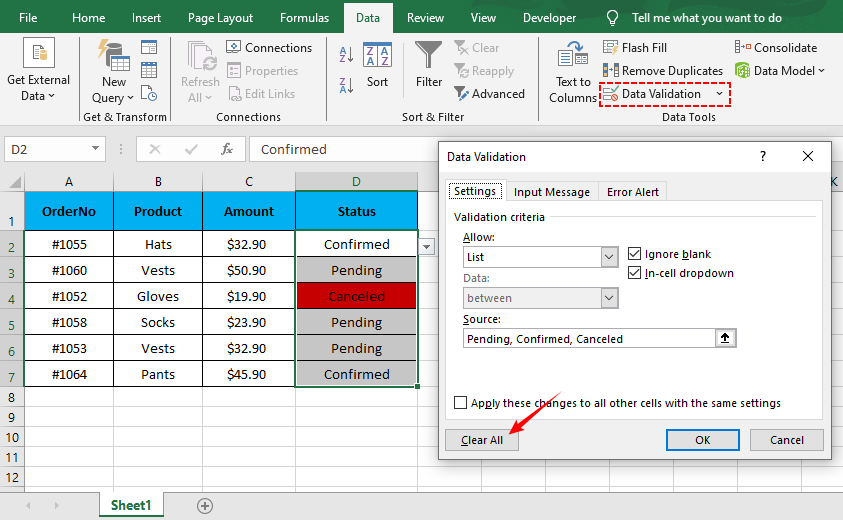
Agora que você aprendeu a remover listas suspensas indesejadas, pode estar interessado em criá-las do zero. Nosso guia sobre Como Criar uma Lista Suspensa no Excel orienta você na configuração de regras de validação de dados usando listas estáticas e intervalos dinâmicos.
Exclusão Completa: Excluir Lista Suspensa + Conteúdo/Formatação da Célula
Se você não precisa dos dados da célula, da formatação, ou da lista suspensa, use as ferramentas Limpar do Excel para apagar tudo de uma só vez. Isso é ideal para redefinir células ou excluir seções não utilizadas de uma planilha.
Instruções Passo a Passo:
- Selecione as células com a lista suspensa que você deseja excluir.
- Vá para a guia Página Inicial > grupo Edição > clique em Limpar (ícone de borracha).
- Selecione a opção Limpar Tudo para excluir a lista suspensa, os dados da célula, a formatação e os comentários de uma só vez.
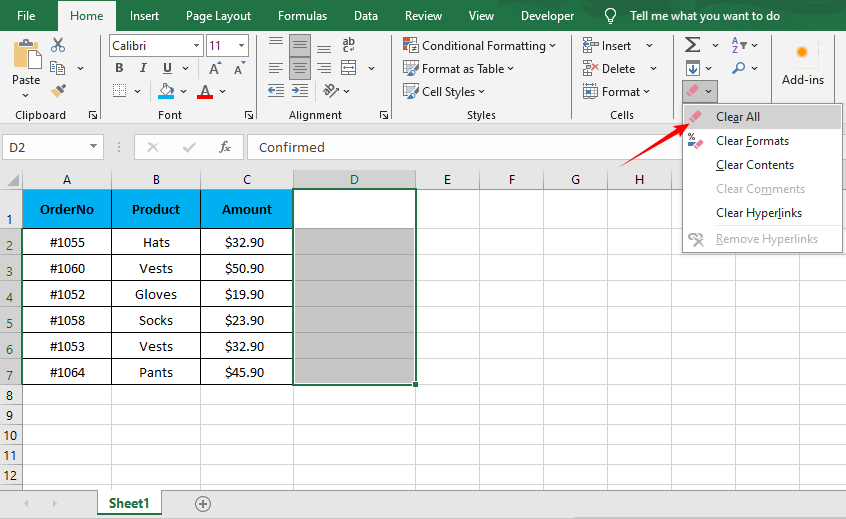
Aviso: Use isso apenas se quiser a célula completamente vazia e simples. Para limpezas parciais (por exemplo, apenas conteúdo, não formatação), use as outras subopções de Limpar (Limpar Conteúdo, Limpar Formatos).
Remoção em Lote: Limpar Lista Suspensa usando uma Macro VBA
Se sua pasta de trabalho tem dezenas de planilhas e você precisa remover cada menu suspenso, uma macro VBA simples é a solução mais eficiente. Este método exclui todas as regras de Validação de Dados (e listas suspensas) em toda a pasta de trabalho em segundos — sem necessidade de seleção manual de células.
Como fazer:
- Pressione Alt + F11 para abrir o editor do VBA.
- Vá para Inserir > Módulo.
- Cole o seguinte código:
Sub RemoveAllDropDowns()
    Dim ws As Worksheet
    For Each ws In ActiveWorkbook.Worksheets
        ws.Cells.Validation.Delete
    Next ws
End Sub
- Pressione F5 para executá-lo.
Esta macro percorre cada planilha em sua pasta de trabalho ativa e exclui todas as listas de Validação de Dados.
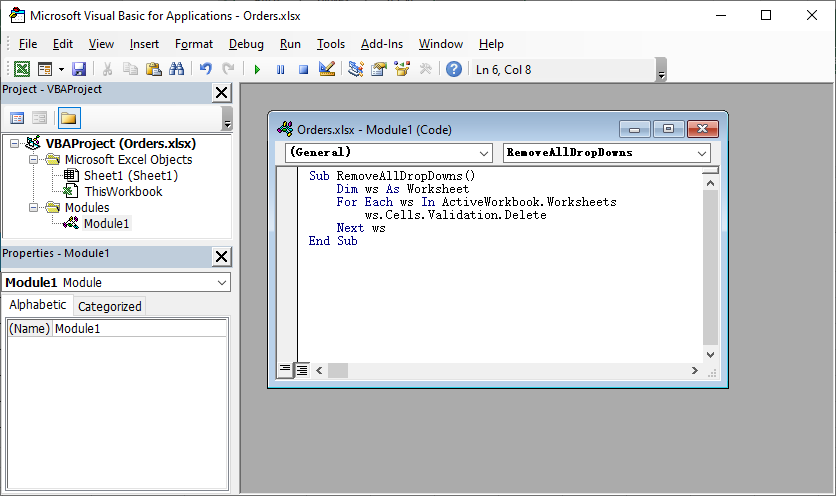
Depois que suas listas suspensas forem removidas e a entrada de dados for liberada, você pode querer limpar as entradas duplicadas que os usuários inseriram. Aprenda a remover duplicatas no Excel para manter seus registros arrumados e organizados.
Método Avançado: Remover Listas Suspensas do Excel com Python
Para usuários que precisam automatizar a remoção de listas suspensas em vários arquivos do Excel ou integrar isso a um script, o Free Spire.XLS for Python é uma biblioteca gratuita e poderosa que permite manipular arquivos do Excel programaticamente — sem a necessidade do aplicativo de desktop do Excel.
Instale a Biblioteca Python Gratuita
Execute este comando em seu prompt de comando/terminal para instalar a biblioteca via pip:
pip install Spire.Xls.Free
Código Python para Remover Listas Suspensas (Validação de Dados)
Este código irá:
- Abrir um arquivo Excel
- Remover todas as listas suspensas de um intervalo de células específico
- Salvar o arquivo modificado (preservando todos os outros dados/formatação)
from spire.xls import *
from spire.xls.common import *

# Crie um objeto Workbook para carregar o arquivo Excel
workbook = Workbook()

# Carregue seu arquivo Excel (substitua pelo caminho do seu arquivo)
workbook.LoadFromFile("input.xlsx")

# Obtenha a primeira planilha
worksheet = workbook.Worksheets[0]

# Crie uma lista de retângulos para definir o intervalo de células para remoção
# Rectangle.FromLTRB(Esquerda, Topo, Direita, Fundo) — todos os valores são baseados em 0
rects= []
rects.append(Rectangle.FromLTRB(0,0,3,6)) # Intervalo A1:D7

# Remova a validação de dados (listas suspensas) do intervalo de células especificado
worksheet.DVTable.Remove(rects)

# Salve o arquivo modificado
workbook.SaveToFile("RemoveDropdowns.xlsx")
workbook.Dispose()
Personalizando o Intervalo
Para remover a validação de um intervalo diferente, basta ajustar as coordenadas de Rectangle.FromLTRB. Por exemplo:
- Para cobrir as colunas B a D (índices 1 a 3) e as linhas 2 a 10 (índices 1 a 9), use Rectangle.FromLTRB(1, 1, 3, 9).
- Para remover a validação de vários intervalos separados, adicione vários retângulos à lista rects.
Resultado:
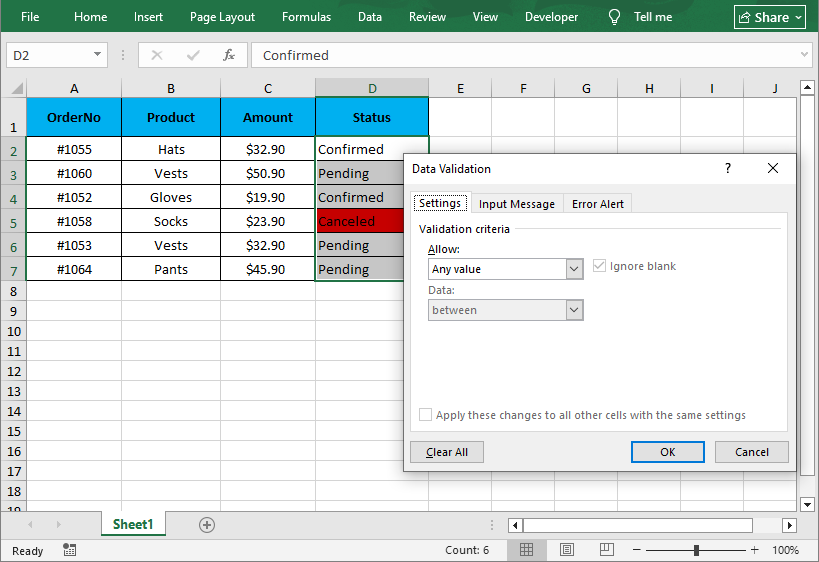
Enquanto as listas suspensas controlam o que os usuários podem inserir, a formatação condicional controla como os dados aparecem. A biblioteca Free Spire.XLS também permite que você aplique formatação condicional no Excel para destacar automaticamente as células com base em seus valores depois de remover as restrições de validação.
Perguntas Frequentes (FAQ)
P1. Por que não posso simplesmente pressionar a tecla Delete para remover uma lista suspensa?
R: Pressionar a tecla Delete (ou Backspace) apenas remove o valor dentro da célula. Não remove a regra de Validação de Dados subjacente. A seta suspensa ainda aparecerá quando você selecionar a célula novamente.
P2. Como removo a seta, mas mantenho a lista ativa?
R: Tecnicamente, você não pode remover a seta enquanto mantém a lista funcional, pois a seta é a interface de usuário principal para a lista suspensa. No entanto, você pode ocultar a seta desmarcando a caixa de seleção "Lista suspensa na célula" nas configurações de Validação de Dados.
- Resultado: A célula ainda restringirá as entradas à sua lista. Os usuários devem digitar o valor permitido manualmente; a seta não aparecerá.
P3. A remoção da lista suspensa excluirá os dados da célula?
R: Não, desde que você use o botão Limpar Tudo no menu de Validação de Dados primeiro, o texto permanecerá.
P4. Posso remover listas suspensas de vários arquivos do Excel de uma só vez?
R: Sim. Existem duas maneiras:
- Python (Recomendado): Use o script Free Spire.XLS fornecido acima, mas envolva-o em um loop que itera sobre os arquivos em uma pasta usando os.listdir().
- Macro VBA: Crie uma macro que abra cada arquivo em uma pasta, limpe a validação, salve e feche-o (melhor para usuários avançados do Excel).
Resumo
Aprender como remover uma lista suspensa no Excel é uma habilidade básica, mas essencial, do Excel que mantém suas planilhas flexíveis e sem desordem. O método de Validação de Dados é o padrão ouro para remoção segura e direcionada; as macros VBA agilizam edições em grande escala; e a automação com Python permite limpar listas suspensas de intervalos de células precisos, ideal para fluxos de trabalho automatizados.
Seguindo este guia, você pode assumir o controle total de suas planilhas do Excel, removendo restrições sempre que precisar. Para mais dicas de automação do Excel com Python, confira nossos outros tutoriais sobre validação de dados, formatação e otimização de planilhas.
Veja Também
Excel에서 드롭다운 목록을 제거하는 방법
Excel 드롭다운 목록은 데이터 입력의 일관성을 유지하고, 오타를 방지하며, 입력을 표준화하는 데 필수적입니다. 하지만 스프레드시트를 재구성하거나, 오래된 유효성 검사 규칙을 제거하거나, 일반 사용자를 위해 통합 문서를 단순화할 때는 Excel에서 드롭다운 목록을 제거하는 방법을 알아야 합니다.
이 가이드에서는 데이터를 손상시키지 않고 Excel에서 드롭다운 목록을 삭제하는 간단한 방법을 안내합니다. 단일 드롭다운 삭제부터 전체 워크시트에서 일괄 제거하고 Python을 사용하여 수십 개의 파일을 자동으로 정리하는 방법까지 다룹니다.
빠른 탐색:
- Excel의 드롭다운 목록이란 무엇인가요?
- 표준 방법: 데이터 유효성 검사를 통해 드롭다운 목록 제거
- 전체 삭제: 드롭다운 + 셀 내용/서식 삭제
- 일괄 제거: VBA 매크로를 사용하여 드롭다운 지우기
- 고급 방법: Python을 사용하여 Excel 드롭다운 목록 제거
- 자주 묻는 질문 (FAQ)
Excel의 드롭다운 목록이란 무엇인가요?
Excel에서 드롭다운 목록은 데이터 유효성 검사라는 기능을 사용하여 만들어집니다. 이 기능은 셀에 입력할 수 있는 데이터 유형(또는 특정 값)을 제한합니다.
드롭다운 목록을 제거하면 해당 셀이나 범위에 적용된 데이터 유효성 검사 규칙을 지우는 것입니다.
표준 방법: 데이터 유효성 검사를 통해 드롭다운 목록 제거
데이터 유효성 검사 방법은 기존의 모든 셀 값을 그대로 유지하면서 Excel에서 드롭다운 목록을 제거하는 가장 공식적이고 신뢰할 수 있는 방법입니다. 이 방법은 단일 셀, 인접한 범위 또는 비인접 셀에 모두 적용됩니다.
단계별 지침:
- Excel 워크시트를 열고 제거하려는 드롭다운 목록이 포함된 셀(또는 셀 범위)을 선택합니다.
- Excel 리본의 데이터 탭으로 이동합니다.
- 데이터 도구 그룹에서 데이터 유효성 검사 버튼을 클릭합니다.
- 데이터 유효성 검사 대화 상자에서 설정 탭으로 이동합니다.
- 모두 지우기 버튼을 클릭하여 모든 유효성 검사 규칙(드롭다운 목록, 입력 메시지 및 오류 알림 포함)을 지웁니다.
- 확인을 클릭하여 변경 사항을 적용합니다. 드롭다운 화살표가 즉시 사라지고 셀 데이터는 변경되지 않은 상태로 유지됩니다.
이제 원치 않는 드롭다운 목록을 제거하는 방법을 배웠으니, 처음부터 새로 만드는 데 관심이 있을 수 있습니다. Excel에서 드롭다운 목록을 만드는 방법 가이드에서는 정적 목록과 동적 범위를 모두 사용하여 데이터 유효성 검사 규칙을 설정하는 방법을 안내합니다.
전체 삭제: 드롭다운 + 셀 내용/서식 삭제
셀 데이터, 서식 또는 드롭다운 목록이 필요하지 않은 경우 Excel의 지우기 도구를 사용하여 한 번에 모든 것을 지울 수 있습니다. 이는 셀을 재설정하거나 스프레드시트의 사용하지 않는 섹션을 삭제하는 데 이상적입니다.
단계별 지침:
- 삭제하려는 드롭다운 목록이 있는 셀을 선택합니다.
- 홈 탭 > 편집 그룹으로 이동하여 지우기(지우개 아이콘)를 클릭합니다.
- 모두 지우기 옵션을 선택하여 드롭다운, 셀 데이터, 서식 및 메모를 한 번에 삭제합니다.
경고: 셀을 완전히 비우고 일반 상태로 만들고 싶을 때만 이 방법을 사용하십시오. 부분적으로 지우려면(예: 서식은 그대로 두고 내용만 지우기) 다른 지우기 하위 옵션(내용 지우기, 서식 지우기)을 사용하십시오.
일괄 제거: VBA 매크로를 사용하여 드롭다운 지우기
통합 문서에 수십 개의 시트가 있고 모든 드롭다운 메뉴를 제거해야 하는 경우 간단한 VBA 매크로가 가장 효율적인 해결책입니다. 이 방법은 수동으로 셀을 선택할 필요 없이 전체 통합 문서의 모든 데이터 유효성 검사 규칙(및 드롭다운)을 몇 초 만에 삭제합니다.
방법:
- Alt + F11을 눌러 VBA 편집기를 엽니다.
- 삽입 > 모듈로 이동합니다.
- 다음 코드를 붙여넣습니다:
Sub RemoveAllDropDowns()
    Dim ws As Worksheet
    For Each ws In ActiveWorkbook.Worksheets
        ws.Cells.Validation.Delete
    Next ws
End Sub
- F5 키를 눌러 실행합니다.
이 매크로는 활성 통합 문서의 모든 워크시트를 순환하며 모든 데이터 유효성 검사 목록을 삭제합니다.
드롭다운 목록이 제거되고 데이터 입력을 자유롭게 할 수 있게 되면 사용자가 입력한 중복 항목을 정리하고 싶을 수 있습니다. Excel에서 중복을 제거하는 방법을 배워 기록을 깔끔하고 체계적으로 유지하세요.
고급 방법: Python을 사용하여 Excel 드롭다운 목록 제거
여러 Excel 파일에서 드롭다운 제거를 자동화하거나 이를 스크립트에 통합해야 하는 사용자를 위해, Free Spire.XLS for Python은 Excel 데스크톱 앱 없이 프로그래밍 방식으로 Excel 파일을 조작할 수 있는 강력한 무료 라이브러리입니다.
무료 Python 라이브러리 설치
명령 프롬프트/터미널에서 다음 명령을 실행하여 pip를 통해 라이브러리를 설치합니다:
pip install Spire.Xls.Free
드롭다운 목록(데이터 유효성 검사)을 제거하는 Python 코드
이 코드는 다음을 수행합니다:
- Excel 파일 열기
- 특정 셀 범위에서 모든 드롭다운 목록 제거
- 수정된 파일 저장 (다른 모든 데이터/서식 보존)
from spire.xls import *
from spire.xls.common import *

# Create a Workbook object to load the Excel file
workbook = Workbook()

# Load your Excel file (replace with your file path)
workbook.LoadFromFile("input.xlsx")

# Get the first worksheet
worksheet = workbook.Worksheets[0]

# Create a list of rectangles to define the cell range for removal
# Rectangle.FromLTRB(Left, Top, Right, Bottom) — all values are 0-indexed
rects= []
rects.append(Rectangle.FromLTRB(0,0,3,6)) # Range A1:D7

# Remove data validation (drop-down lists) from the specified cell range
worksheet.DVTable.Remove(rects)

# Save the modified file
workbook.SaveToFile("RemoveDropdowns.xlsx")
workbook.Dispose()
범위 사용자 지정
다른 범위에서 유효성 검사를 제거하려면 Rectangle.FromLTRB 좌표를 조정하기만 하면 됩니다. 예를 들어:
- B열에서 D열(인덱스 1~3)과 2행에서 10행(인덱스 1~9)을 포함하려면 Rectangle.FromLTRB(1, 1, 3, 9)를 사용합니다.
- 여러 개의 개별 범위에서 유효성 검사를 제거하려면 rects 목록에 여러 개의 사각형을 추가합니다.
결과:
드롭다운 목록은 사용자가 입력할 수 있는 내용을 제어하는 반면, 조건부 서식은 데이터가 표시되는 방식을 제어합니다. Free Spire.XLS 라이브러리를 사용하면 유효성 검사 제한을 제거한 후 값에 따라 셀을 자동으로 강조 표시하도록 Excel에서 조건부 서식을 적용할 수도 있습니다.
자주 묻는 질문 (FAQ)
Q1. 왜 Delete 키를 눌러서 드롭다운 목록을 제거할 수 없나요?
A: Delete 키(또는 Backspace)를 누르면 셀 안의 값만 제거됩니다. 기본 데이터 유효성 검사 규칙은 제거되지 않습니다. 셀을 다시 선택하면 드롭다운 화살표가 계속 나타납니다.
Q2. 화살표는 제거하고 목록은 활성 상태로 유지하려면 어떻게 해야 하나요?
A: 기술적으로, 화살표는 드롭다운의 기본 사용자 인터페이스이므로 목록을 기능적으로 유지하면서 화살표를 제거할 수는 없습니다. 그러나 데이터 유효성 검사 설정에서 "셀 내 드롭다운" 확인란의 선택을 취소하여 화살표를 숨길 수 있습니다.
- 결과: 셀은 여전히 목록에 있는 항목으로 입력을 제한합니다. 사용자는 허용된 값을 수동으로 입력해야 하며, 화살표는 나타나지 않습니다.
Q3. 드롭다운을 제거하면 셀의 데이터가 삭제되나요?
A: 아니요, 데이터 유효성 검사 메뉴의 모두 지우기 버튼을 먼저 사용하는 한 텍스트는 그대로 유지됩니다.
Q4. 여러 Excel 파일에서 한 번에 드롭다운을 제거할 수 있나요?
A: 예. 두 가지 방법이 있습니다:
- Python (권장): 위에 제공된 Free Spire.XLS 스크립트를 사용하되, os.listdir()를 사용하여 폴더의 파일을 반복하는 루프로 감쌉니다.
- VBA 매크로: 폴더의 각 파일을 열고, 유효성 검사를 지우고, 저장하고, 닫는 매크로를 만듭니다 (Excel 고급 사용자에게 가장 적합).
요약
Excel에서 드롭다운 목록을 제거하는 방법을 배우는 것은 스프레드시트를 유연하고 깔끔하게 유지하는 기본적이면서도 필수적인 Excel 기술입니다. 데이터 유효성 검사 방법은 안전하고 대상이 명확한 제거를 위한 황금 표준이며, VBA 매크로는 대규모 편집을 간소화하고, Python 자동화는 자동화된 워크플로에 이상적인 정밀한 셀 범위에서 드롭다운을 지울 수 있게 해줍니다.
이 가이드를 따르면 필요할 때마다 제한을 제거하여 Excel 시트를 완전히 제어할 수 있습니다. Python을 사용한 더 많은 Excel 자동화 팁은 데이터 유효성 검사, 서식 지정 및 스프레드시트 최적화에 대한 다른 자습서를 확인하십시오.
참고 항목
Come rimuovere un elenco a discesa in Excel
Indice
- Cos'è un elenco a discesa in Excel?
- Metodo standard: Rimuovere l'elenco a discesa tramite la convalida dei dati
- Eliminazione completa: Elimina elenco a discesa + contenuto/formattazione della cella
- Rimozione in blocco: Cancellare l'elenco a discesa usando una macro VBA
- Metodo avanzato: Rimuovere gli elenchi a discesa di Excel con Python
- Domande frequenti (FAQ)
Gli elenchi a discesa di Excel sono essenziali per la coerenza dell'immissione dei dati, prevenendo errori di battitura e standardizzando gli input. Ma quando si ristrutturano i fogli di calcolo, si rimuovono regole di convalida obsolete o si semplificano le cartelle di lavoro per gli utenti occasionali, è necessario sapere come rimuovere un elenco a discesa in Excel.
In questa guida, ti illustreremo il metodo semplice per eliminare un elenco a discesa in Excel senza danneggiare i tuoi dati, dall'eliminazione di un singolo elenco a discesa alla loro rimozione in blocco da interi fogli di lavoro e all'automazione della pulizia per decine di file utilizzando Python.
Navigazione rapida:
- Cos'è un elenco a discesa in Excel?
- Metodo standard: Rimuovere l'elenco a discesa tramite la convalida dei dati
- Eliminazione completa: Elimina elenco a discesa + contenuto/formattazione della cella
- Rimozione in blocco: Cancellare l'elenco a discesa usando una macro VBA
- Metodo avanzato: Rimuovere gli elenchi a discesa di Excel con Python
- Domande frequenti (FAQ)
Cos'è un elenco a discesa in Excel?
In Excel, un elenco a discesa viene creato utilizzando una funzione chiamata Convalida dati. Questa funzione limita il tipo di dati (o i valori specifici) che possono essere inseriti in una cella.
Quando si rimuove un elenco a discesa, si stanno essenzialmente cancellando le regole di convalida dei dati applicate a quella cella o intervallo.
Metodo standard: Rimuovere l'elenco a discesa tramite la convalida dei dati
Il metodo di convalida dei dati è il modo ufficiale e più affidabile per eliminare un elenco a discesa in Excel mantenendo intatti tutti i valori delle celle esistenti. Questo metodo funziona per singole celle, intervalli adiacenti o celle non adiacenti.
Istruzioni passo-passo:
- Apri il tuo foglio di lavoro Excel e seleziona la cella (o l'intervallo di celle) che contiene l'elenco a discesa che desideri rimuovere.
- Vai alla scheda Dati sulla barra multifunzione di Excel.
- Nel gruppo Strumenti dati, fai clic sul pulsante Convalida dati.
- Nella finestra di dialogo Convalida dati, vai alla scheda Impostazioni.
- Fai clic sul pulsante Cancella tutto per cancellare tutte le regole di convalida (inclusi l'elenco a discesa, i messaggi di input e gli avvisi di errore).
- Fai clic su OK per applicare le modifiche. La freccia a discesa scomparirà immediatamente e i dati della cella rimarranno invariati.
Ora che hai imparato come rimuovere gli elenchi a discesa indesiderati, potresti essere interessato a crearli da zero. La nostra guida su Come creare un elenco a discesa in Excel ti guida nella configurazione delle regole di convalida dei dati utilizzando sia elenchi statici che intervalli dinamici.
Eliminazione completa: Elimina elenco a discesa + contenuto/formattazione della cella
Se non hai bisogno dei dati della cella, della formattazione, o dell'elenco a discesa, usa gli strumenti Cancella di Excel per cancellare tutto in un solo passaggio. Questo è ideale per reimpostare le celle o eliminare sezioni non utilizzate di un foglio di calcolo.
Istruzioni passo-passo:
- Seleziona le celle con l'elenco a discesa che desideri eliminare.
- Vai alla scheda Home > gruppo Modifica > fai clic su Cancella (icona della gomma).
- Seleziona l'opzione Cancella tutto per eliminare contemporaneamente l'elenco a discesa, i dati della cella, la formattazione e i commenti.
Avvertenza: usalo solo se vuoi che la cella sia completamente vuota e semplice. Per cancellazioni parziali (ad es. solo contenuto, non formattazione), utilizza le altre sotto-opzioni di Cancella (Cancella contenuto, Cancella formati).
Rimozione in blocco: Cancellare l'elenco a discesa usando una macro VBA
Se la tua cartella di lavoro ha dozzine di fogli e devi rimuovere ogni singolo menu a discesa, una semplice macro VBA è la soluzione più efficiente. Questo metodo elimina tutte le regole di convalida dei dati (e gli elenchi a discesa) in tutta la cartella di lavoro in pochi secondi, senza richiedere la selezione manuale delle celle.
Come farlo:
- Premi Alt + F11 per aprire l'editor VBA.
- Vai a Inserisci > Modulo.
- Incolla il seguente codice:
Sub RemoveAllDropDowns()
    Dim ws As Worksheet
    For Each ws In ActiveWorkbook.Worksheets
        ws.Cells.Validation.Delete
    Next ws
End Sub
- Premi F5 per eseguirlo.
Questa macro scorre ogni foglio di lavoro nella tua cartella di lavoro attiva ed elimina tutti gli elenchi di convalida dei dati.
Una volta rimossi gli elenchi a discesa e liberata l'immissione dei dati, potresti voler ripulire le voci duplicate che gli utenti hanno inserito. Scopri come rimuovere i duplicati in Excel per mantenere i tuoi record ordinati e organizzati.
Metodo avanzato: Rimuovere gli elenchi a discesa di Excel con Python
Per gli utenti che necessitano di automatizzare la rimozione degli elenchi a discesa su più file Excel o di integrare ciò in uno script, Free Spire.XLS for Python è una libreria gratuita e potente che consente di manipolare i file Excel a livello di codice, senza bisogno dell'applicazione desktop di Excel.
Installa la libreria Python gratuita
Esegui questo comando nel tuo prompt dei comandi/terminale per installare la libreria tramite pip:
pip install Spire.Xls.Free
Codice Python per rimuovere gli elenchi a discesa (convalida dei dati)
Questo codice:
- Apri un file Excel
- Rimuovi tutti gli elenchi a discesa da un intervallo di celle specifico
- Salva il file modificato (preservando tutti gli altri dati/formattazione)
from spire.xls import *
from spire.xls.common import *

# Create a Workbook object to load the Excel file
workbook = Workbook()

# Load your Excel file (replace with your file path)
workbook.LoadFromFile("input.xlsx")

# Get the first worksheet
worksheet = workbook.Worksheets[0]

# Create a list of rectangles to define the cell range for removal
# Rectangle.FromLTRB(Left, Top, Right, Bottom) — all values are 0-indexed
rects= []
rects.append(Rectangle.FromLTRB(0,0,3,6)) # Range A1:D7

# Remove data validation (drop-down lists) from the specified cell range
worksheet.DVTable.Remove(rects)

# Save the modified file
workbook.SaveToFile("RemoveDropdowns.xlsx")
workbook.Dispose()
Personalizzazione dell'intervallo
Per rimuovere la convalida da un intervallo diverso, è sufficiente regolare le coordinate di Rectangle.FromLTRB. Ad esempio:
- Per coprire le colonne da B a D (indici da 1 a 3) e le righe da 2 a 10 (indici da 1 a 9), utilizzare Rectangle.FromLTRB(1, 1, 3, 9).
- Per rimuovere la convalida da più intervalli separati, aggiungere più rettangoli all'elenco rects.
Risultato:
Mentre gli elenchi a discesa controllano ciò che gli utenti possono inserire, la formattazione condizionale controlla come appaiono i dati. La libreria Free Spire.XLS ti consente anche di applicare la formattazione condizionale in Excel per evidenziare automaticamente le celle in base ai loro valori dopo aver rimosso le restrizioni di convalida.
Domande frequenti (FAQ)
D1. Perché non posso semplicemente premere il tasto Canc per rimuovere un elenco a discesa?
R: Premendo il tasto Canc (o Backspace) si rimuove solo il valore all'interno della cella. Non rimuove la regola di convalida dei dati sottostante. La freccia a discesa apparirà ancora quando si seleziona nuovamente la cella.
D2. Come posso rimuovere la freccia ma mantenere attivo l'elenco?
R: Tecnicamente, non è possibile rimuovere la freccia mantenendo l'elenco funzionale, poiché la freccia è l'interfaccia utente principale per l'elenco a discesa. Tuttavia, è possibile nascondere la freccia deselezionando la casella di controllo "Elenco a discesa nella cella" nelle impostazioni di convalida dei dati.
- Risultato: la cella limiterà comunque le voci al tuo elenco. Gli utenti devono digitare manualmente il valore consentito; la freccia non apparirà.
D3. La rimozione dell'elenco a discesa eliminerà i dati nella cella?
R: No, finché si utilizza prima il pulsante Cancella tutto nel menu Convalida dati, il testo rimarrà.
D4. Posso rimuovere gli elenchi a discesa da più file Excel contemporaneamente?
R: Sì. Ci sono due modi:
- Python (consigliato): utilizzare lo script Free Spire.XLS fornito sopra, ma inserirlo in un ciclo che scorre i file in una cartella utilizzando os.listdir().
- Macro VBA: creare una macro che apra ogni file in una cartella, cancelli la convalida, salvi e lo chiuda (ideale per gli utenti esperti di Excel).
Riepilogo
Imparare come rimuovere un elenco a discesa in Excel è un'abilità di base ma essenziale di Excel che mantiene i tuoi fogli di calcolo flessibili e ordinati. Il metodo di convalida dei dati è lo standard di riferimento per una rimozione sicura e mirata; le macro VBA semplificano le modifiche su larga scala; e l'automazione con Python consente di cancellare gli elenchi a discesa da intervalli di celle precisi, ideale per flussi di lavoro automatizzati.
Seguendo questa guida, puoi assumere il pieno controllo dei tuoi fogli Excel, rimuovendo le restrizioni ogni volta che ne hai bisogno. Per ulteriori suggerimenti sull'automazione di Excel con Python, consulta i nostri altri tutorial sulla convalida dei dati, la formattazione e l'ottimizzazione dei fogli di calcolo.