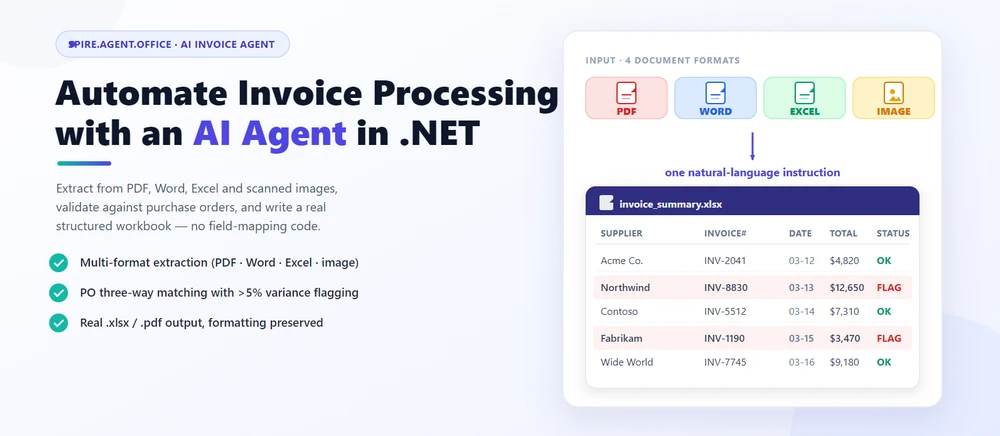
Automated invoice processing means reading incoming vendor invoices, extracting line items, validating them against purchase orders, and writing the results into a structured workbook your finance system can consume. In practice, this is document automation in .NET where a natural-language instruction replaces the field-mapping and layout code. Spire.Agent.Office is a document AI agent SDK that handles the language; a deterministic document layer guarantees real, well-formed Excel and PDF files.
Quick Navigation
- Why Invoice Processing Is a Good Fit for AI
- What an AI Invoice Agent Can and Cannot Do
- Common Invoice Processing Scenarios
- Three Ways to Automate Invoice Processing in .NET
- A Working Example: Extract, Validate, and Report in C#
- Why Use Spire.Agent.Office for AI Invoice Processing
- FAQ
1. Why Invoice Processing Is a Good Fit for AI
Invoice work in a developer's world is three repetitive jobs: reading (extracting vendor, date, line items, and totals from documents that arrive as PDFs, Word files, Excel sheets, or scanned images), checking (matching invoices against purchase orders and flagging discrepancies), and producing (writing the results into a structured workbook your accounting system can consume).
For .NET developers, the challenge is not only understanding invoice content; it is turning unstructured, multi-format documents into structured, repeatable workflows your application can own.
Three properties make these tasks ideal for a language model rather than hand-written rules:
- The input is multi-format. Incoming invoices arrive as PDF attachments, scanned images, Word documents, or Excel files — each with a different layout. Rules that handle one format break on the next; an LLM reads text directly regardless of file type.
-
The output is document-shaped. The deliverable is a real
.xlsxor.pdfwith correct formatting, not a text blob. This is where a document layer earns its keep. - The volume changes constantly. Onboarding 50 new suppliers or reviewing 200 vendor invoices in a month means a config-driven solution, not re-coding per supplier.
In practice, extraction and validation go together: teams want invoices summarized and discrepancies flagged, and new invoices generated from a template plus structured data. For a deeper look at how a document AI agent is put together and where it fits in a content pipeline, see AI Agent for Document Processing: What It Is and How It Works.
2. What an AI Invoice Agent Can and Cannot Do
| Can do | Cannot do |
|---|---|
| Extract vendor, date, line items, totals from PDF, Word, Excel, and scanned images | Replace professional AP review for high-value or regulated transactions |
| Match invoices against purchase orders and flag discrepancies | Guarantee matching accuracy on intentionally ambiguous or fraudulent invoices |
| Generate structured workbooks or PDF reports in batch | Negotiate or accept terms on your behalf |
| Keep formatting, table styles, and fonts intact | Interpret new or ambiguous supplier terms; route to procurement |
| Run inside your own application (no cloud upload) | Guarantee output is error-free without review |
The division of labor: the agent automates the reading, extraction, and validation (the hours an AP clerk would spend), while a human reviewer owns the final sign-off. That boundary is what keeps the tool useful and the process defensible.
3. Common Invoice Processing Scenarios
Invoice processing spans more than one-off extraction. The same pattern (an instruction, invoice files, and optional reference data) covers the scenarios teams search for most:
| Scenario | Example instruction |
|---|---|
| Multi-format invoice extraction | "Extract vendor, date, line items, and totals from these invoices and merge into one worksheet." |
| PO three-way matching | "Compare each invoice against purchase orders and flag discrepancies over 5%." |
| Batch invoice reporting | "Generate a summary workbook with total amount by supplier, flagged discrepancies, and a printable report." |
| Duplicate detection | "Identify potential duplicate invoices by comparing vendor, date, and amount across the inbox." |
| Approval workflow routing | "Route invoices above $10,000 to the approval queue and below to auto-approve." |
Each scenario is the same architecture: an instruction in, a real document out.
4. Three Ways to Automate Invoice Processing in .NET
| Approach | Code volume | Format fidelity | Maintenance | Best for |
|---|---|---|---|---|
| Document AI agent (LLM + document layer) | One instruction + ~10 lines | High (real Excel/PDF files) | Low (change behavior by editing instructions) | Teams automating invoices without building an LLM pipeline |
| Raw LLM API (OpenAI/Claude + your own code) | High (prompts, parsing, file I/O) | Low (LLMs don't natively read/write Office files) | High (you own RAG, routing, errors) | Teams that already run an LLM stack |
| Traditional SDK (Spire.Office or similar) | Dozens of lines per document type | High (deterministic) | High (every mapping is code) | Fixed, well-specified invoices that rarely change |
The key point: an LLM cannot read a PDF invoice without a document-processing layer, and a traditional SDK cannot understand a natural-language request. A document AI agent combines both.
That is not to say the traditional route is wrong. For fixed, well-specified invoices that rarely change, a deterministic SDK is often the right call, and Spire.Office still serves that need. If that is your situation, Generate Word Documents from Excel Data in C# demonstrates the classic data-driven document generation workflow. The agent earns its place when supplier layouts, input formats, and validation rules change often enough that re-coding becomes the bottleneck.
Why a Raw LLM API Is Not Enough for Invoice Processing
Calling gpt-4 or claude directly to "extract data from this invoice" fails in three ways that matter in production:
-
It cannot reliably read or write Office files. LLMs see text, not
.xlsxand.pdfstructure. Reading a PDF invoice, keeping a line-item table intact, or producing a valid Excel workbook usually requires a separate extraction and reconstruction pipeline you have to build yourself. - Formatting is not guaranteed. Invoice reports carry column headers, number formats, and conditional fills that matter to the accounting team. A raw LLM returns text, and the formatting you lose is exactly what AP departments care about.
- You reimplement the whole orchestration. Prompt design, field mapping, error handling, file I/O, and output validation become your code to own and maintain.
A document AI agent pairs the model's language understanding with deterministic document APIs: the model decides what to extract or match, and the document layer guarantees the file is real and well-formed. That is the difference between a demo and a workflow a team can ship.
5. A Working Example: Extract, Validate, and Report in C#
Below is a task the AP team repeats every month: processing incoming vendor invoices, extracting data from mismatched formats, validating against purchase orders, and producing a structured workbook. The implementation uses Spire.Agent.Office for .NET, an AI agent that processes Word, Excel, PowerPoint, and PDF documents through natural-language instructions. The example is designed around that workflow rather than copied from a tutorial; the official Getting Started and AI Contract Review in C# tutorials document the API setup step by step, while this section focuses on the C# integration patterns.
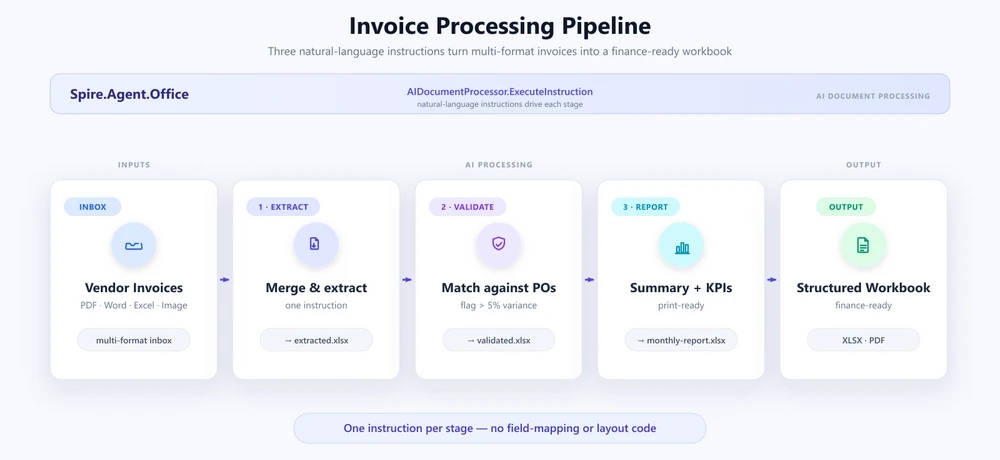
1. Extract data from every invoice in the inbox. Configure the agent once, then read the inbox folder and have each invoice parsed into a single merged table:
using System.IO;
using Spire.Agent.Office.AI;
using Spire.Agent.Office.Extensions;
using Spire.Doc;
using Spire.Pdf;
using Spire.Xls;

AIOptions agentOptions = new AIOptions();
agentOptions.WorkDir = @"C:\ap-invoices\output";
agentOptions.SpireToken = spireToken;

string extractPrompt =
    "Read every vendor invoice file in the inbox (PDF, Word, Excel, or images) and extract " +
    "each supplier's information: company name, invoice number, issue date, due date, line " +
    "items (description, quantity, unit price, amount), subtotal, tax, and total. Merge the " +
    "results into one worksheet with columns: Supplier, InvoiceNumber, IssueDate, DueDate, " +
    "Description, Quantity, UnitPrice, LineAmount, Subtotal, Tax, Total. Skip duplicate header " +
    "rows and save as a workbook.";

Directory.CreateDirectory(@"C:\ap-invoices\output");

string[] invoiceFiles = Directory.GetFiles(@"C:\ap-invoices\inbox", "*.*");
The agent handles the multi-format challenge — PDFs, scanned images, Word documents, and Excel files all flow through the same instruction without format-specific code:
using (Workbook extracted = new Workbook())
{
    AIResult result = extracted.AI(agentOptions).ExecuteInstruction(
        extracted,
        extractPrompt,
        @"C:\ap-invoices\output\extracted.xlsx",
        invoiceFiles);

    if (result == null || !result.Success)
        throw new InvalidOperationException(
            $"Extraction failed: {result?.ErrorMessage}");
}
Key API Calls
-
Workbook.AI(agentOptions)— attaches the AI document processor to a workbook object -
ExecuteInstruction(doc, instruction, savePath, attachments)— runs the extraction and writes the merged workbook -
AIResult.Success/AIResult.ErrorMessage— verifies the result and surfaces errors
Output
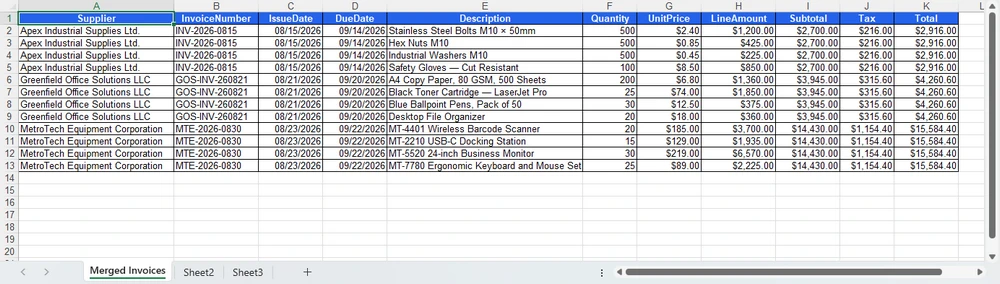
2. Validate against purchase orders. Load the extracted file and state the matching rule in plain English. The agent adds a Validation sheet and leaves the source data untouched:
using (Workbook validation = new Workbook())
{
    validation.LoadFromFile(@"C:\ap-invoices\output\extracted.xlsx");

    string[] poFiles = { @"C:\ap-invoices\data\purchase-orders.xlsx" };

    AIResult result = validation.AI(agentOptions).ExecuteInstruction(
        validation,
        "Add a 'Validation' sheet. Compare each invoice line item against the purchase orders " +
        "in the attachments, flag invoices where the total differs from the PO by more than 5%, " +
        "flag line items whose description does not match the PO. Highlight discrepancies in red " +
        "and add a 'Reason' column explaining each discrepancy. Leave the original data sheets unchanged.",
        @"C:\ap-invoices\output\validated.xlsx",
        poFiles);

    if (result == null || !result.Success)
        throw new InvalidOperationException(
            $"Validation failed: {result?.ErrorMessage}");
}
The Validation sheet lands alongside the source data, with the flagged rows, red fills, and Reason column applied by the instruction:
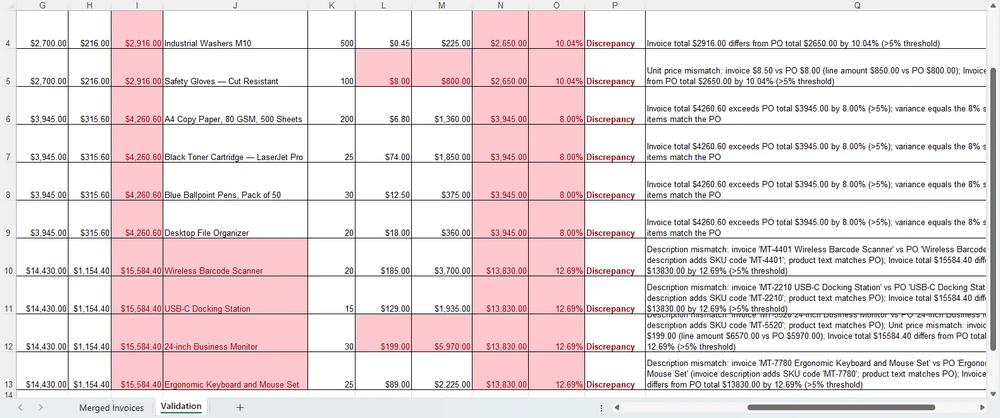
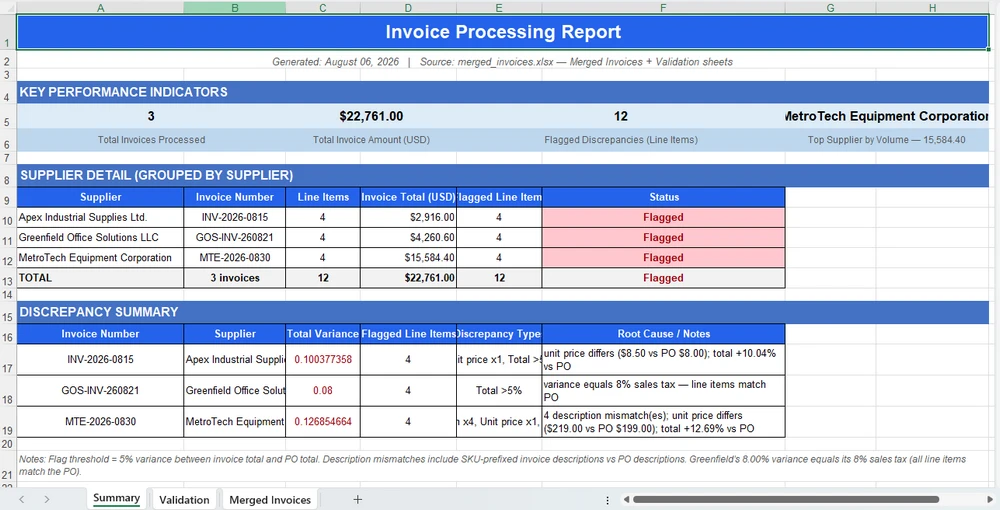
3. Report. Compose the summary from section 5 and export it. The savePath alone chooses the format — .xlsx here, .pdf for distribution:
using (Workbook report = new Workbook())
{
    report.LoadFromFile(@"C:\ap-invoices\output\validated.xlsx");

    AIResult result = report.AI(agentOptions).ExecuteInstruction(
        report,
        "Produce a processing report. Add a 'Summary' sheet at the front with a KPI block " +
        "(total invoices processed, total amount, count of flagged discrepancies, top supplier by " +
        "volume), a detail table grouped by supplier, and a discrepancy summary. Format it for print " +
        "and save the finished workbook.",
        @"C:\ap-invoices\output\monthly-report.xlsx");

    if (result == null || !result.Success)
        throw new InvalidOperationException(
            $"Report generation failed: {result?.ErrorMessage}");
}
The Summary sheet lands at the front of the workbook, ready for print or PDF export:
Why This Is Different: Traditional SDK vs. AI Agent
The value of the agent is clearest side by side. With the traditional SDK you locate each field by header string, hardcode every validation threshold, and write every cell by cell — and re-tune all of it when a supplier changes their layout or the rule changes. The sketch below (simplified for illustration) shows the shape of that work:
// Traditional SDK (illustrative): every field is located and extracted
// by header string, thresholds are hardcoded, and output is written cell by cell
foreach (string file in invoiceFiles)
{
    Workbook wb = new Workbook();
    wb.LoadFromFile(file);
    Worksheet sheet = wb.Worksheets[0];

    // Fails the moment a supplier changes "Total Due" to "Amount Payable".
    int totalCol = FindColumnByHeader(sheet, "Total Due");
    int vendorCol = FindColumnByHeader(sheet, "Vendor Name");

    for (int r = sheet.LastRow; r >= 2; r--)
    {
        double invoiceTotal = double.Parse(sheet.Range[r, totalCol].Text);
        double poTotal = GetPoTotal(sheet.Range[r, 1].Text);
        double diff = Math.Abs(invoiceTotal - poTotal) / poTotal;

        // One hardcoded threshold; a construction supplier triggers false alarms.
        if (diff > 0.05) sheet.Range[r, totalCol].Style.Color = Color.Red;
    }
    // ... then merge, then validate, then summary -- hundreds of lines per supplier and per month.
}
The AI agent replaces that orchestration with one instruction:
validation.AI(agentOptions).ExecuteInstruction(
    validation,
    "Add a 'Validation' sheet. Compare each invoice line item against the purchase orders " +
    "in the attachments, flag invoices where the total differs from the PO by more than 5%, " +
    "flag line items whose description does not match the PO. Highlight discrepancies in red " +
    "and add a 'Reason' column explaining each discrepancy. Leave the original data sheets unchanged.",
    @"C:\ap-invoices\output\validated.xlsx",
    poFiles);
Both produce the same validation workbook. Where the SDK grows a FindColumnByHeader call for every field, a threshold comparison for every rule, and a cell write for every fill, the agent absorbs the same work into one instruction. When a supplier changes their layout or the finance team changes the variance threshold, you edit the instruction, not the code.
6. Why Use Spire.Agent.Office for AI Invoice Processing
The three-way comparison above is deliberately product-neutral; the same pattern works with any capable LLM. Where Spire.Agent.Office earns its place for .NET teams is in three specific areas:
- Native multi-format invoice processing. PDFs, Word documents, Excel files, and scanned images are first-class citizens, not formats you bolt on. The agent reads and extracts from all four formats in a single instruction.
- Formatting is preserved. Invoice reports carry column headers, number formats, and conditional fills that must survive processing. The agent's document layer keeps them intact. Include "preserve the original document layout and styling" in your instruction and the output stays true to the template.
- Native .NET integration. It is a C# SDK that drops into an existing .NET application. No separate document-processing service to build or maintain, no cross-service plumbing. The example above is the whole integration surface.
If you already run Spire.Office for document processing, the agent is the natural next layer: the same Workbook object gains an AI() processor that turns instructions into executed workflows.
7. FAQ
Can AI invoice processing work with scanned images?
Yes. The extraction example above loads scanned image files alongside PDFs and Word documents, and the agent reads and analyzes each file in its native format. For scanned images with no extractable text layer, the agent works with the image content directly. If the scan quality is poor, consider running OCR first for best results.
Can invoice data stay inside my environment?
Yes, with one important nuance. Spire.Agent.Office runs from your own application, so the SDK, templates, and document processing stay inside your environment. Invoice files are not uploaded to a third-party document service for storage or conversion. To analyze invoice content, the AI needs the relevant text, and it is sent to the model for processing; that is an inherent step of any AI workflow. If you deploy your own model on your local network, the content stays entirely within your infrastructure. If you connect through a hosted model API such as OpenAI or Azure OpenAI, the relevant content is transmitted to that provider over the network per your configuration.
Can I use my own AI model with Spire.Agent.Office?
Yes. Spire.Agent.Office supports flexible AI model integration and is compatible with mainstream AI infrastructure, including hosted model APIs and privately deployed models. You can point the agent at your own endpoint. See the integration tutorial for setup details; for questions about which providers are supported in your deployment, contact your account team at sales@e-iceblue.com.
Which model does Spire.Agent.Office use for invoice processing?
Spire.Agent.Office connects to a large language model behind a SpireToken key. You describe the extraction or validation task in natural language, and the agent orchestrates the underlying document-processing tools. The model handles understanding; the document layer guarantees formatting and file fidelity.
Can it process invoices in batch?
Yes. One instruction applied to a folder of invoice files, and the agent produces one consolidated workbook with all extracted data. Both field extraction and cross-document matching are supported. For the agent to pick up every invoice, keep the inbox folder organized and avoid blank files; if the number of processed invoices does not match the inbox count, check the data source first.
Will the AI change my workbook's formatting?
Not if you say so. Include a phrase like "preserve the original document layout, styling, and fonts" in your instruction; the official tutorial documents this exact fix.
How is this different from using a raw LLM API?
A raw LLM cannot reliably read, edit, or write Word and Excel files on its own; it needs a document-processing layer. A document AI agent pairs the LLM's language understanding with deterministic document APIs, so the output is a real, well-formed file.
Ready to Automate Your Invoice Processing?
Extraction, validation, and report composition are the fastest places to get value: point the agent at the inbox, describe the processing rules, and get a structured workbook or PDF out. Follow the Getting Started tutorial to run your first invoice workflow in .NET.
Further Reading
- Spire.Agent.Office product overview -- AI agent SDKs for every Office document format
- AI Agent for Document Processing: What It Is and How It Works -- the document AI agent concept explained
- Generate Word Documents from Excel Data in C# -- data-driven document generation with the deterministic SDK
- AI Contract Review in C# -- the same agent workflow applied to Word and PDF documents