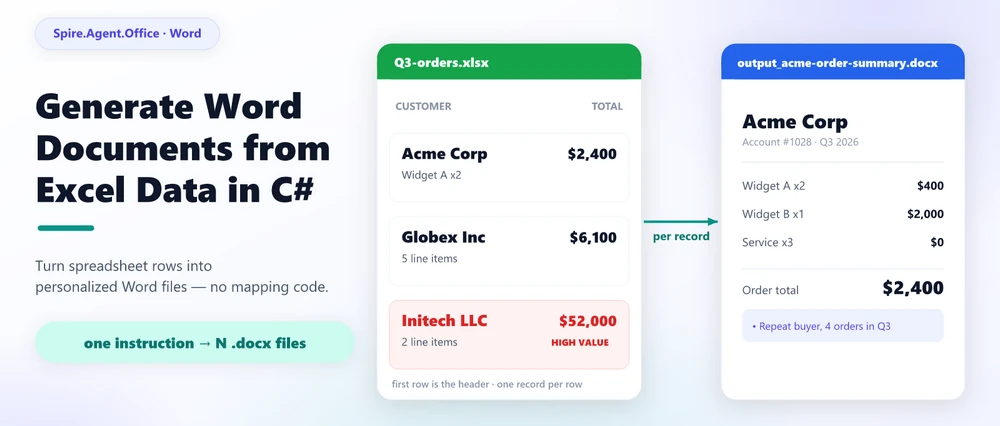
Generate Word documents from Excel data means using spreadsheet rows as the source for one or more structured Word files, usually by following a template or a document-generation workflow. Traditionally this job is handled with Word Mail Merge: you map Excel columns to fields in a .docx template and let Word emit one document per row. The same task can be automated in C# with a document SDK, or pushed further with an AI document agent that carries the requirement as a natural-language instruction. This article compares the routes, shows where mail merge stops coping, and walks a working C# example built on Spire.Agent.Office, an AI agent SDK for Office documents.
Quick Navigation
- What Does It Mean to Generate Word Documents from Excel?
- Mail Merge from Excel to Word
- Three Ways to Automate Word Generation from Excel in .NET
- Generate Personalized Word Documents from Excel in C#
- FAQ
1. What Does It Mean to Generate Word Documents from Excel Data?
The phrase sounds close to "convert Excel to Word," but the intent is different. Converting .xlsx to .docx changes a file's format and keeps its content roughly the same. Generating Word documents from Excel data builds new documents whose content is derived from cells in a spreadsheet: an order sheet per customer, a monthly report per region, a batch of letters or labels from an address list, a set of invoices from an orders sheet.
The recurring shape of the requirement is nearly always the same:
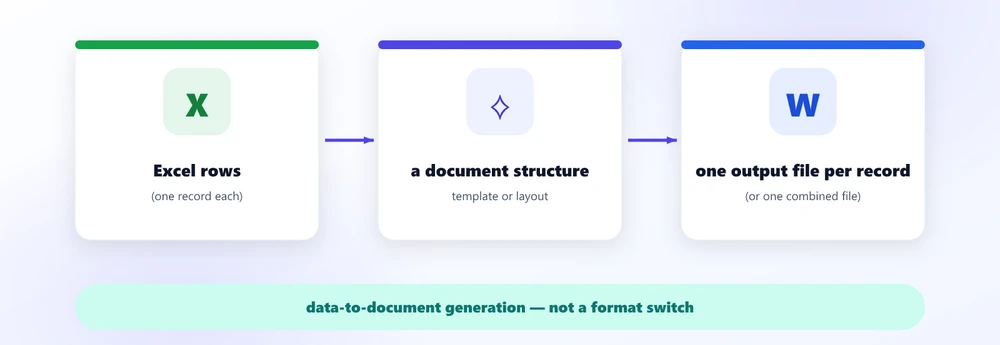
Sent as a real sentence it sounds like: "I have a list of customers and their orders in Excel; I need a Word document for each one with their information, their items, and a total." The word that matters is derived: the document content comes from data, so this is data-to-document generation, not a format switch.
That is the demand this article targets. Everything below is about the different ways to satisfy it and the point at which you should stop wiring fields by hand.
2. The Traditional Way: Mail Merge from Excel to Word
At the UI level, the default answer to "turn this Excel list into many Word documents" is Word Mail Merge. It is the feature most people are thinking of when they search for the task, and Microsoft ships a click-by-click guide for it. The mechanism is simple and well understood:
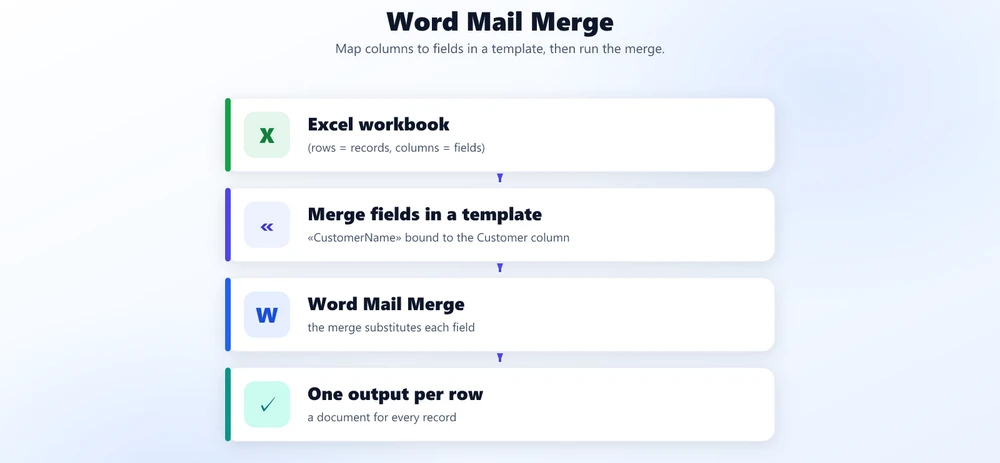
You place a field like «CustomerName» inside a letter template, bind it to the Customer column of the Excel source, run the merge, and Word writes one document per row with that value substituted. Because the row count can be thousands, it turns "open a file, copy the text, change the name" into a batch operation with zero code.
Mail merge is good at exactly one shape of work: put this column into that field, many times. Letters, envelopes, labels, and notices with a fixed layout are its home turf. It runs inside Office, needs no programming, and for those stable, field-only documents it is genuinely the right tool.
3. When Mail Merge Hits Its Limits
The limit arrives the moment the document stops being a fixed form with blank spots and becomes something that must depend on the data. Mail merge substitutes values; it does not decide structure, reason about content, or compose anything new.
Compare two requests. The first is what mail merge handles:
"Put the customer's name in the name spot, the address in the address spot, and the order into the order details."
The second is the request most real reporting turns out to be:
"Read this Excel workbook, analyze each customer's data, create a personalized report with their items and totals, add a summary of their buying pattern, and save each result as a separate Word document."
The second request fails on all three of mail merge's assumptions:
- The structure varies. A customer with three line items needs a different document body than one with thirty. Merge fields assume a fixed layout with fixed blanks; they do not grow a table by as many rows as the data requires.
- Content must be computed, not copied. "Summarize the buying pattern" and "flag high-value customers" produce text and decisions that no column holds. There is no source field to bind them to.
- The output is a batch of real files. Each record should be its own Word document with its own name, and the workflow should run unattended inside an application, not from an Office wizard.
That is the honest position of mail merge, stated fairly: it is excellent at field mapping, but it becomes less suitable when document structure, content, or output logic must vary with the data. The deeper requirement -- turn data into documents -- is a generation problem, and it is where the automation routes below start.
4. Turn the Requirement into an Instruction: the Agent Way
The alternative that fits the correct version of the problem is an AI document agent: a natural-language layer on top of a deterministic document engine. Instead of enumerating template fields and per-field code, you describe the output, and the agent can handle requirements that are difficult to express with traditional mail merge -- reading the data, shaping the structure, writing the analysis -- while the document engine guarantees a real, well-formed .docx (or PDF) comes out.
The value is easier to see as a chain:
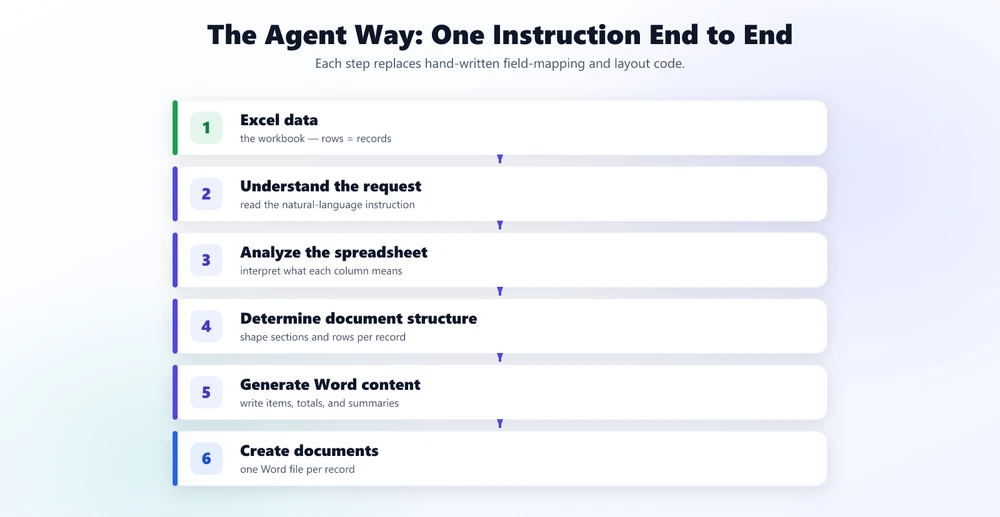
Steps that are difficult to express with traditional mail merge -- especially the middle three -- are exactly where an agent can earn its keep. It can interpret what a column means ("Total Amount," "Sales," and "Net" can name the same concept under three headers), shape a document structure to each record, and compose the summary paragraphs. What you provide is a sentence, not a field map.
The message to carry into the rest of this article: mail merge maps Excel columns to Word fields; an AI agent generates documents from a requirement. The former is a value-substitution step, the latter is what the request actually was.
5. Three Ways to Automate Word Generation from Excel in .NET
Settling on the right route matters more than the code, because each route has a different cost curve. For a .NET application that needs this workflow, the realistic choices are:
| Approach | What it takes | Flexibility | Best for |
|---|---|---|---|
| Word Mail Merge | A .docx template with merge fields + an Excel source; run the merge (or script it) | Maps one column to one field; stalls on variable structure, conditional content, analysis | Letters, labels, envelopes, notices with a fixed shape |
| SDK field binding | Load the template in code, open the workbook, loop rows, bind/find-replace per record, save each file | Deterministic and testable; you hand-maintain the column map and layout, every change recompiles | Repeating one stable document shape at scale |
| Natural-language AI agent | Pass the workbook as an attachment, describe the output, read the result | Handles variable structure, per-record analysis, conditional sections, summaries | Documents that vary with the data, or workflows that change month to month |
A shortcut that decides most cases:
- Shape never changes, one field per column, bulk letters -- mail merge is hard to beat.
- Shape never changes but you need it in code, deterministic and testable -- use an SDK field-binding loop.
- The document must vary with the data, include analysis, or change often -- that is where an AI agent pays for itself, because the cost of a change can often be reduced to updating the instruction rather than changing the mapping and layout logic in code.
6. Generate Personalized Word Documents from Excel in C#
A concrete, working version of the "one Word document per record" requirement is a customer order summary. The inputs are a workbook of customer orders and a light Word template; the output is one personalized document per customer. The full setup -- token, package, and project wiring -- is documented in the Getting Started tutorial; here we focus on the generation call itself.
using Spire.Doc;
using Spire.Agent.Office.AI;
using Spire.Agent.Office.Extensions;

AIOptions options = new AIOptions
{
    SpireToken = spireToken,
    WorkDir = @"C:\order-ops\output",   // folder the generated documents are written to
    TimeoutMs = 300000
};

using (Document doc = new Document())
{
    // The template supplies per-record anchors; the workbook is the data source.
    doc.LoadFromFile(@"C:\order-ops\templates\order-summary-template.docx");

    // savePath = null: one instruction produces one document per record,
    // written into the WorkDir output folder. No C# loop over the rows.
    AIResult result = doc.AI(options).ExecuteInstruction(
        doc,
        "Read the customer order data in Q3-orders.xlsx. Generate one independent " +
        "Word order summary per customer, row by row. Include their contact " +
        "information, every line item with quantity and amount, the order totals, " +
        "and a one-paragraph summary of their purchasing pattern. Flag customers " +
        "whose total exceeds 50,000 as high-value. Save each document as its own " +
        "file named output_ followed by the customer's name (for example " +
        "output_acme-order-summary.docx).",
        null,
        new[] { @"C:\order-ops\input\Q3-orders.xlsx" });

    if (result == null || !result.Success)
        throw new InvalidOperationException($"Generation failed: {result?.ErrorMessage}");
}
Three details matter when you run this yourself. First, the instruction is where the generation logic lives: the analysis ("summary of their purchasing pattern"), the conditional logic ("flag customers above 50,000"), and the per-record structure ("every line item"). Second, the workbook should be tidy: first row is the header, one record per row, no empty rows or merged header cells -- the same rules Word's own data source expects. Third, the base document anchors the output layout; a lightly structured one can give the agent a useful starting point for the structure of each record. With a fully empty base document, the same instruction produces a single composed document instead.
A naming rule matters here: documents the agent writes into WorkDir must start with the output_ prefix, or the SDK does not count them as generated files. That is why the instruction above asks for files like output_acme-order-summary.docx instead of bare customer names.
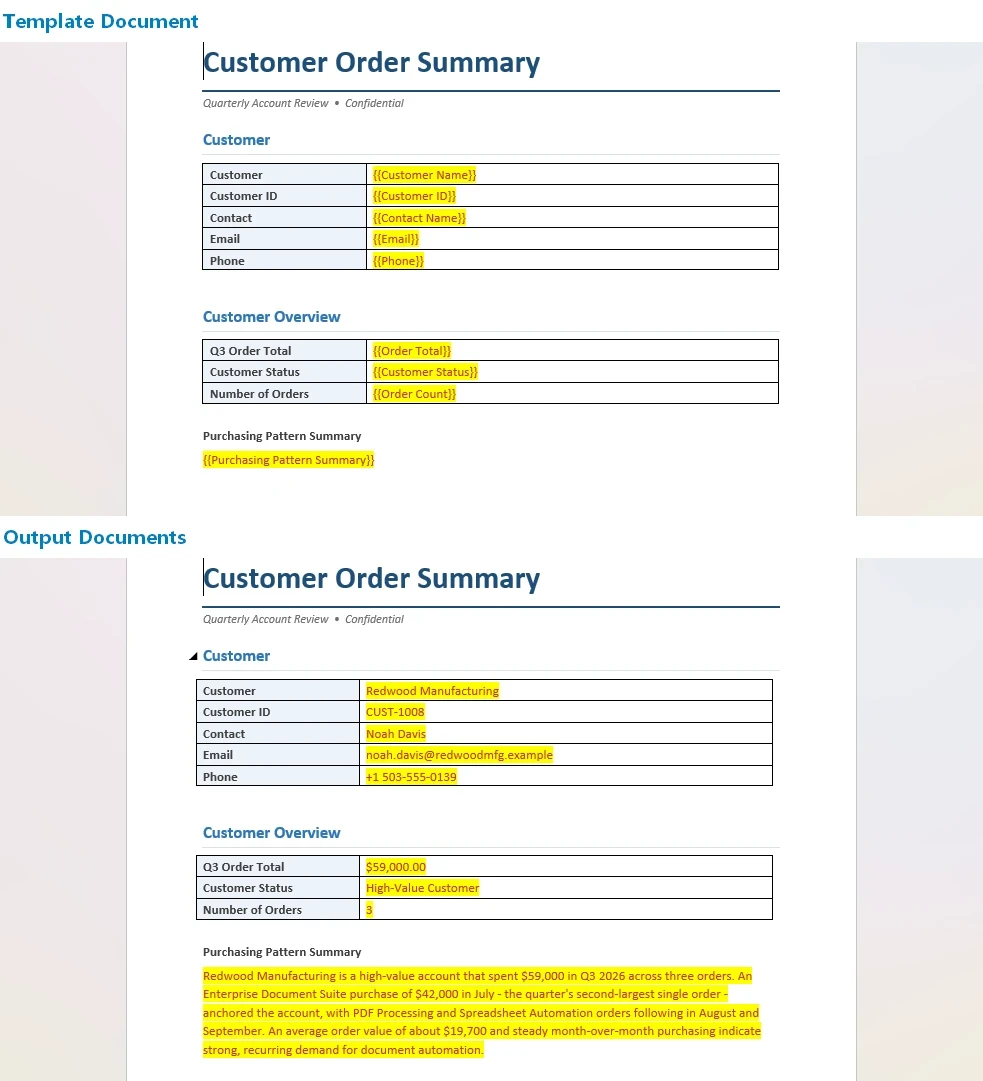
The .docx extension on your save target or file pattern picks the output format; point the same instruction at .pdf and the agent exports the identical documents for distribution, with no separate rendering step.
Key API Calls
-
Document.AI(options)-- attaches the AI document processor to a Word document object -
ExecuteInstruction(doc, instruction, savePath, attachments)-- runs the generation;nullsavePath means "write intoWorkDir", and the workbook rides along inattachmentPaths -
AIResult.Success/AIResult.ErrorMessage-- verifies the run and surfaces failures
7. What You Would Write Without an Agent
For contrast, the SDK-field-binding route for the same job does everything explicitly. The following is intentionally simplified to show the amount of application logic involved; a production implementation would also need to load and group the workbook data:
using Spire.Doc;
using Spire.Xls;

// A fixed shape is fine; every variation is more wiring.
foreach (DataRow row in customersTable.Rows)
{
    using (Document doc = new Document())
    {
        doc.LoadFromFile(@"templates\order-summary-template.docx");

        // Find-and-replace per anchor...
        doc.Replace("{{CustomerName}}", row["Customer"].ToString(), true, true);
        doc.Replace("{{TotalAmount}}", row["Amount"].ToString("C"), true, true);

        // Line items live in a second sheet: you hand-join them per customer,
        // build a table, and insert it at a bookmark...
        // The "flag high-value customers" rule is an if/else you maintain,
        // and the per-customer summary paragraph is a template you write by hand.
        doc.SaveToFile($@"out\{row["Customer"]}-order-summary.docx");
    }
    // ... and every new rule, column, or layout change means editing this and recompiling.
}
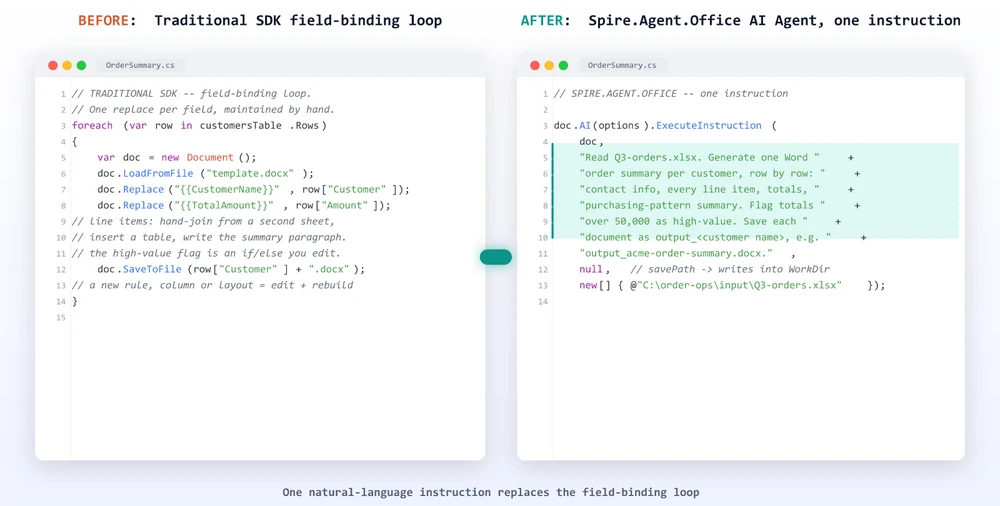
The agent does not remove the need for code -- it removes the need for mapping and layout code. The difference is where the logic lives: in a column index and a find-and-replace, or in a sentence the business can read and edit. When business rules or document structures change frequently, the natural-language approach can reduce the amount of mapping and layout code that must be maintained. The template-plus-data pattern scales beyond order summaries: Batch Contract Generation with Spire.Agent.Office walks the same one-instruction, one-document-per-record flow applied to contracts.
8. Where AI Stops and Application Logic Begins
A useful boundary is not "what AI can and cannot do" but what the application should keep owning. A document generation agent sits on top of deterministic code; it does not replace it.
Your application still owns the parts that have nothing to do with understanding the spreadsheet:
- File discovery and access -- finding the workbook, checking permissions, staging inputs
- Workflow scheduling -- when the job runs, on what trigger, in what order
- Data source control -- which workbook is an authorized input and where it came from
- Error handling and retries -- what happens when a file is missing or a run fails
- Final approval -- a human reviews the generated documents before they ship
The agent handles the semantic steps:
- Understanding -- reading what each column means from different workbooks
- Planning structure -- determining how many sections and rows the document needs
- Analysis -- turning order data into a summary and a high-value flag
- Composition -- assembling personalized Word documents from the requirement
Keep the deterministic plumbing in code, where it is testable and auditable, and hand the semantic generation to the agent. Each side does what it is good at. AI Contract Review in C# shows the same split from the other side: the agent handles the semantic step of reviewing a document's content while the application keeps the deterministic file handling around it.
9. FAQ
Is this a replacement for Word mail merge?
Not a drop-in replacement; it is the same job taken further. Mail merge maps Excel columns into fixed Word fields, which is enough for a letter with a stable shape. An AI agent can do that too, and can also read the workbook by content, shape structure per record, add analysis, and compose prose. For simple fixed-shape outputs, mail merge stays a fine tool; when the document must vary with the data, the agent carries more of the work.
How do I generate multiple Word documents from Excel data?
Pass the workbook as an attachment, set the save path to null, and point AIOptions.WorkDir at an output folder. One ExecuteInstruction with a row-by-row instruction makes the agent produce one independent document per record, each saved to that folder. No C# loop over the rows is needed for the per-record batch.
Can I generate Word documents from Excel without using Mail Merge?
Yes. In C# you can bind a template with the SDK directly, or hand the workbook to an AI agent that reads it from a natural-language instruction, and receive a real .docx or PDF in return. Mail merge is one route, not the only route, and it is the least flexible once the document needs analysis or conditional sections.
What is the difference between Mail Merge and AI document generation?
Mail merge binds defined fields to defined columns: Excel column in, Word field out. AI document generation interprets the request and the data together, so it can interpret what each column means and shape the document's structure accordingly, produce conditional or analytical content, and assemble several documents from one instruction. The former is a mapping step; the latter is a generation task.
Can I generate personalized Word documents from an Excel file in C#?
Yes. Load a Word template or a blank document into Spire.Doc, attach the Excel workbook, and call ExecuteInstruction with a description of the personalized output. The agent reads each record and composes a document tuned to it, saved per record or as one combined file, all inside your own .NET application.
Can an AI agent use Excel data to generate Word documents?
Yes. Spire.Agent.Office pairs a language model with a deterministic Word and Excel layer, so the instruction is understood and the result is still a real Word file your team can open, format, and distribute. The agent interprets the spreadsheet's content rather than relying on a fixed column mapping, which is what makes heterogeneous inputs work.
Ready to Automate Your Word Generation?
If your workflow is "Excel data becomes personalized Word documents," the fastest path is to describe the output and let the agent handle the rest. Follow the Getting Started tutorial to run your first instruction-driven Word workflow in .NET.
Further Reading
- Generate Various Word Templates with Spire.Agent.Office -- the same generation pattern applied to different Word templates
- Automating Student Score Analysis and Ranking with Spire.Agent.Office -- an Excel-side workflow that feeds the documents this article generates
- Spire.Agent.Office product overview -- AI agent SDKs for every Office document format