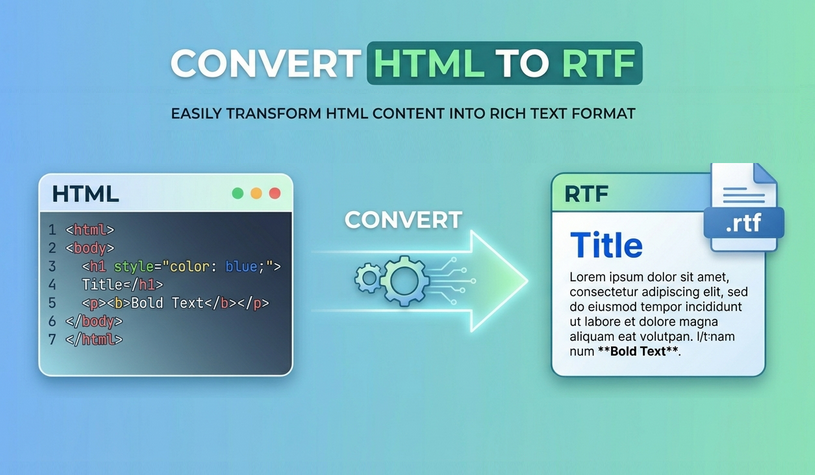
HTML (HyperText Markup Language) is the backbone of the web, but it’s not always the best format for document editing or sharing. RTF (Rich Text Format), on the other hand, is a cross-platform document format supported by virtually every word processor—Microsoft Word, Google Docs, LibreOffice, and even older software like WordPad.
Converting HTML to RTF allows you to:
- Preserve basic formatting (bold, italics, fonts, colors)
- Keep images and tables intact
- Share editable documents without relying on web browsers
- Avoid layout shifts caused by CSS or missing external files
Whether you’re a developer, content creator, or business professional, mastering efficient HTML to rich text (RTF) conversion streamlines your workflow and eliminates formatting frustrations. Below, we explore 4 practical methods from one-click online tools to automated code solutions, suitable for all usage scenarios.
- Free Online HTML to RTF Converters
- Convert with Microsoft Word
- Pandoc Command-Line Tool
- Automate with C#
- Which HTML to RTF Method Fits You?
- Frequently Asked Questions (FAQ)
1. Free Online HTML to RTF Converters (Fastest for Small Files)
✔ Best for: Quick, one‑off conversions of small files that are not sensitive.
If you need to convert a few HTML files quickly and don’t want to install software, online converters are the way to go. They work by parsing your HTML file and generating a downloadable RTF document. Here are the top picks:
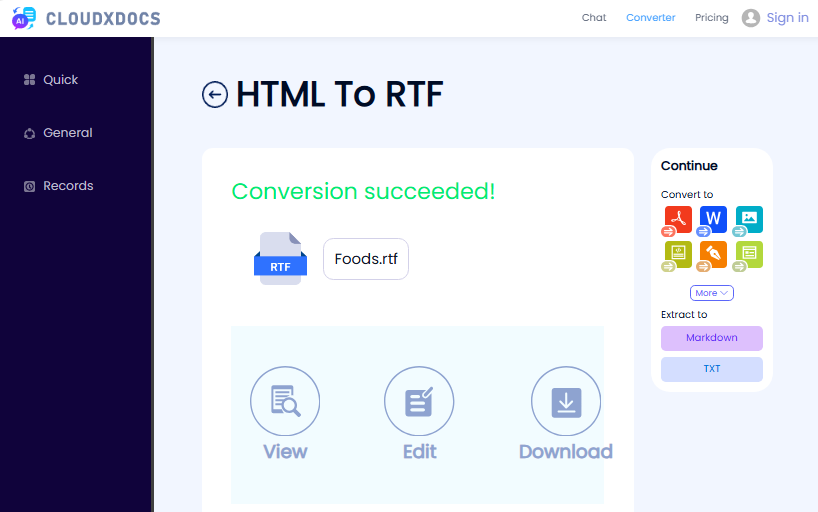
- CLOUDXDOCS: Clean ad-free interface, perfect for basic HTML formatting
- Convertio: Supports file uploads up to 100MB, retains basic styles.
- OnlineConvert: Free, no registration, preserves tables and inline CSS.
General steps to convert HTML to RTF online:
- Go to your chosen converter.
- Upload the .html file.
- Select RTF as the output format.
- Click Convert and download the generated RTF file.
Example of using CLOUDXDOCS converter:
Bonus: Beyond converting an HTML file to RTF for editable rich text, HTML to PDF conversion is equally essential for creating shareable, fixed-layout documents.
2. Convert with Microsoft Word (Offline, High Fidelity)
✔ Best for: Users who already own Microsoft Word and need the highest possible formatting accuracy for complex tables, fonts, and nested elements.
Microsoft Word has built‑in HTML rendering capabilities. It can open any .html file and preserve most CSS styles (inline, embedded, and even external stylesheets). Then you save as RTF.
How to convert HTML to rich text in Word:
- Open Microsoft Word.
- Go to File > Open and select your .html file.
- Word will automatically parse the HTML structure and render it as a formatted document.
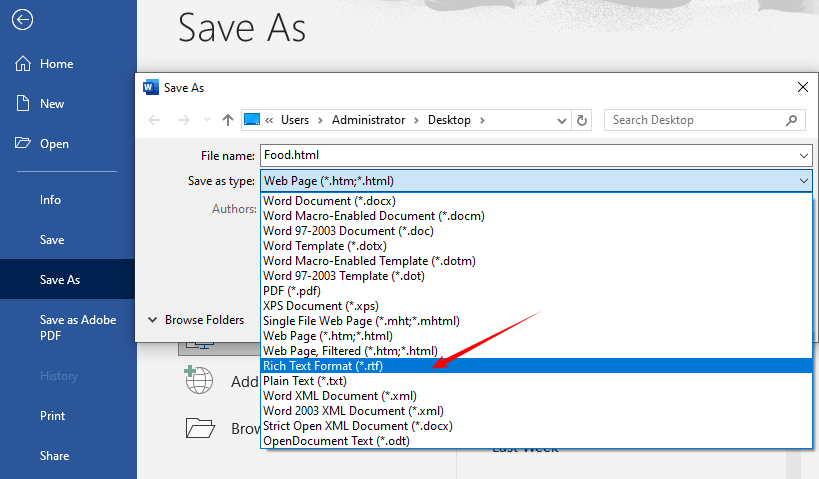
- Once loaded, go to File > Save As.
- Choose Rich Text Format (.rtf) from the file type dropdown.
- Save the file.
Advanced Tips
- Fixing missing images: If images are linked to local paths, Word may not find them. Before opening in Word, edit the HTML to use absolute URLs or embed images as base64.
- Adjust page settings: Word uses its default page setup (usually Letter or A4). To change, go to “Layout > Size” before saving.
- Handling CSS @media queries: Word ignores most print‑specific CSS. If your HTML has separate print styles, they may not apply. Consider stripping them out.
Free Alternative: Use LibreOffice (Windows/Mac/Linux) for free offline high-quality HTML to rich text conversion without paying for Microsoft Word.
3. Pandoc Command-Line Tool (Best for Batch Conversions)
✔ Best for: Developers, technical writers, and anyone comfortable with the command line who needs to convert many HTML files quickly, reliably, and for free.
Pandoc is a free, open-source command-line tool that converts documents between dozens of formats, including HTML to RTF. It’s the gold standard for batch processing or integrating into scripts.
How to use Pandoc:
- Install Pandoc from pandoc.org.
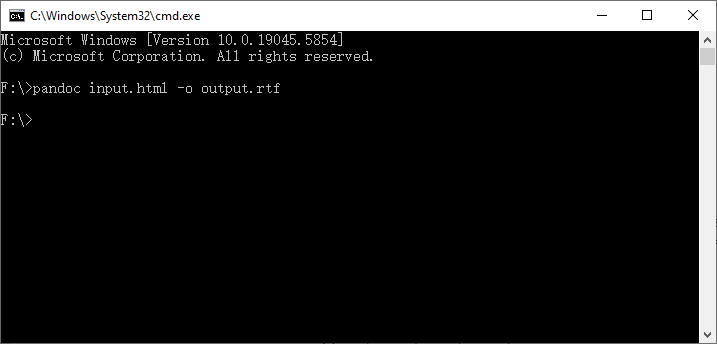
- Single file conversion (open Command Prompt/Terminal):
pandoc input.html -o output.rtf
- Batch convert all HTML files in a folder to RTF (Windows PowerShell):
Get-ChildItem *.html | ForEach-Object { pandoc $_.FullName -o $($_.BaseName + ".rtf") }
When to choose Pandoc: You care about document structure (headings, paragraphs, lists) and don’t need exact CSS styling. For pixel‑perfect conversions, use Microsoft Word or LibreOffice.
RTF retains formatting. If your goal is to remove formatting entirely, the HTML to text feature lets you extract plain text content instantly from any HTML file.
4. Automate with C# (Programmable .NET Solution)
✔ Best for: .NET developers integrating HTML→RTF conversion into web applications, desktop software, or automated workflows where you don’t want to rely on external executables.
Free Spire.Doc for .NET is a free .NET library that enables programmatic C# HTML to RTF conversion with just a few lines of code. It supports handling complex HTML structures such as CSS styles, tables, and lists.
C# Code Example for Converting an HTML file to RTF
using Spire.Doc;

namespace ConvertHtmlToRTF
{
    class Program
    {
        static void Main()
        {
            // 1. Create a Document object
            Document doc = new Document();

            // 2. Load an HTML file
            doc.LoadFromFile("Test.html", FileFormat.Html);

            // 3. Save the HTML file as rtf format
            doc.SaveToFile("HTMLtoRTF.rtf", FileFormat.Rtf);
            doc.Dispose();
        }
    }
}
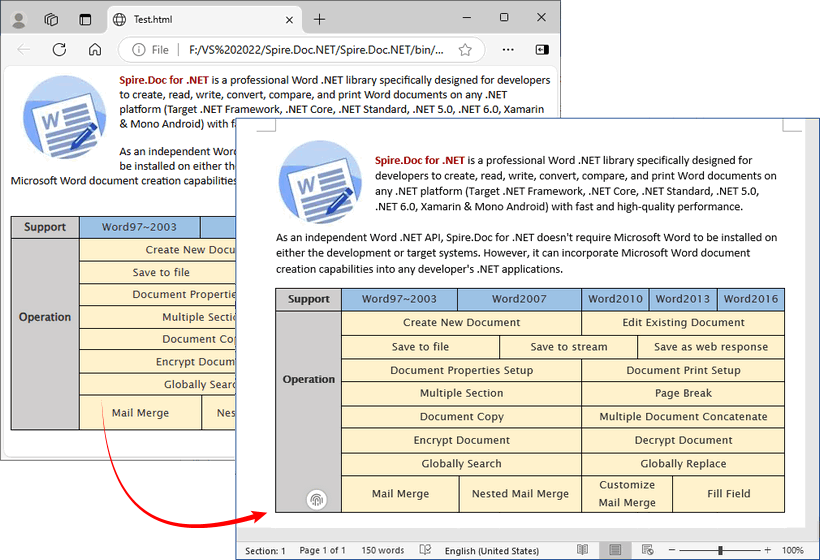
This code loads a local HTML file and generates a formatted RTF document using the SaveToFile() method. Beyond local file processing, Free Spire.Doc fully supports converting dynamic HTML string fetched from user input, third-party APIs, or databases.
Conversion result:
When to choose Free Spire.Doc: You are already in a .NET ecosystem, you need to convert HTML fragments or full documents programmatically, and your documents are short. For large documents, consider Pandoc or the Spire.Doc commercial version.
Comparison Table: Which HTML to RTF Method Fits You?
| Method | Style Preservation | Cost | Technical Skill | Privacy | Batch Capable |
|---|---|---|---|---|---|
| Online Converter | Medium | Free (limits) | Low | Low (data leaves your device) | Limited |
| Microsoft Word | Very High | Paid (license) | Low | High | No (manual each file) |
| Pandoc (CLI) | Medium (structure only) | Free | Medium | High | Yes (scriptable) |
| C# + Spire.Doc | High | Free (limits) | High | High | Yes (programmatic) |
Final Thoughts
Converting HTML to RTF is simple and approachable for all users. For quick, single-file tasks, use free online HTML to rich text converters. For frequent or sensitive document conversions, choose offline software like Microsoft Word and LibreOffice. For batch processing and automated workflows, turn to command-line tools such as Pandoc or programming libraries like Free Spire.Doc.
By following the tips in this guide, you’ll enjoy seamless, accurate HTML to RTF conversions that are fully tailored to your needs.
Frequently Asked Questions (FAQ)
Q: Is HTML to RTF conversion free?
A: Yes, some online converters, LibreOffice, Pandoc, and Free Spire.Doc are all free to use.
Q: Can I convert HTML to RTF without losing formatting?
A: Yes. Use Microsoft Word (offline), Pandoc or Free Spire.Doc for maximum style retention. Embed images as base64 in HTML to keep all images.
Q: Can I batch convert multiple HTML files to RTF?
A: Yes. Use command-line tools (Pandoc) or programming library (Free Spire.Doc) for batch conversions. Some online tools also support bulk uploads (check their file size limits).
Q: Does RTF support hyperlinks from HTML?
A: Yes, RTF supports hyperlinks. Most converters preserve <a href="/..."> as clickable links in the RTF. However, some RTF viewers may require you to hold Ctrl+Click.
Q: Can I convert a web page URL directly to RTF?
A: Yes. Some online converters (OnlineConvert) support URL input; you can also save the web page as HTML first, then convert it offline.