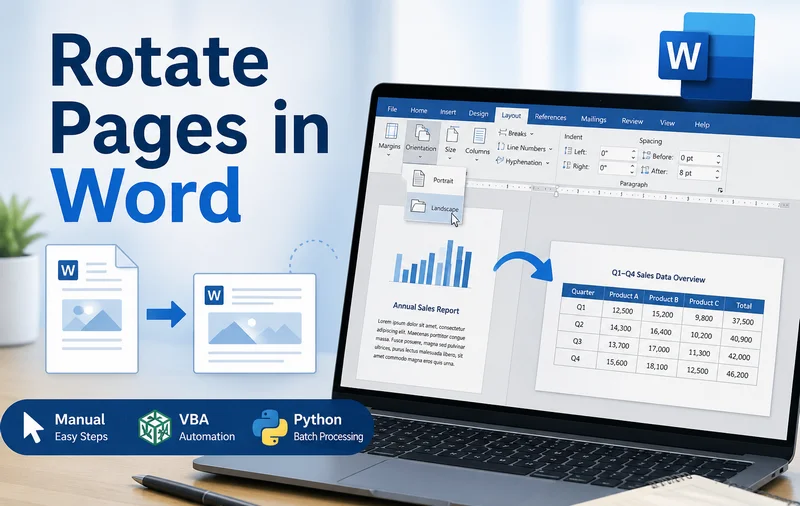
Have you ever tried to insert a wide Excel table into a Word document, only to see the content spill outside the page margins? This usually happens when the default portrait layout isn't wide enough to display large tables or images properly.
At this point, you need to rotate the page in Word by switching it from portrait to landscape. This simple adjustment gives you more horizontal space and immediately fixes layout issues. In this guide, we’ll walk through practical ways to rotate pages in Word, from manually adjusting a single page to automating the process with VBA and Python.
- Rotate One Page in Microsoft Word
- Rotate Pages in Word Documents with VBA
- Rotating Pages in Word Documents via Python
- Tips for Rotating a Page in Word
- Method Comparison
How to Rotate One Page in Microsoft Word
When rotating pages in a Word document, the most common headache is figuring out how to rotate one page without flipping the entire document. If you change the orientation normally, every single page follows suit. The key to fixing this is using Section Breaks.
Section breaks allow you to divide a continuous document into independent sections. Since Word’s page orientation settings operate on a per-section basis, creating these divisions is exactly what allows you to rotate a single page while leaving the rest of the document untouched.
Steps to Make One Page Landscape:
- Step 1. Place your cursor at the very beginning of the page you want to rotate.
- Step 2. Go to the Layout tab, click Breaks, and select Next Page under Section Breaks.
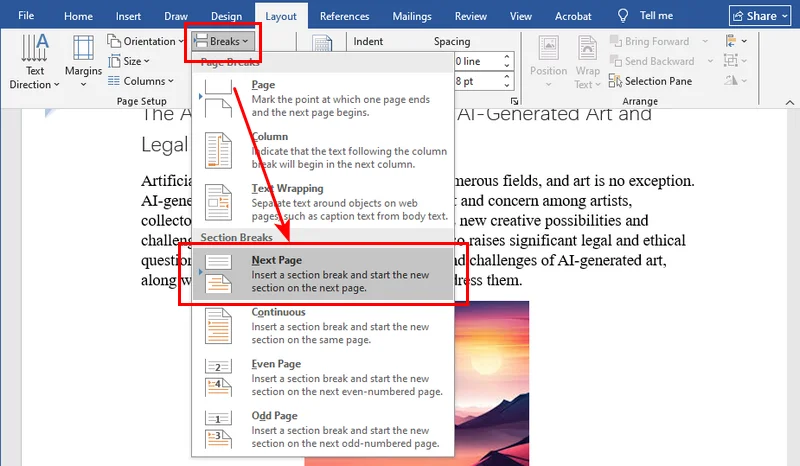
- Step 3. Move your cursor to the end of that same page and repeat the process (insert another Next Page break).
- Step 4. Now, click anywhere on that isolated page. Go to Layout > Orientation and select Landscape.
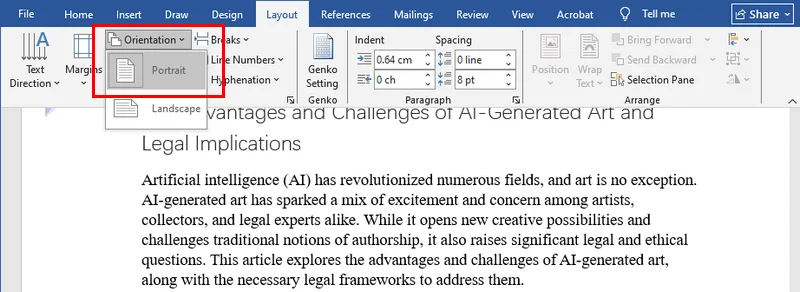
For most users, this is the most straightforward and intuitive solution. Since Microsoft Word is already a standard tool on almost every computer, you don't need to install any extra software. It’s the perfect quick fix when you only have one or two specific pages that need to be landscape.
Note: Page breaks and section breaks are often confused. If you accidentally insert a page break, you can follow this guide to quickly fix it: How to Remove Page Breaks in Word (4 Easy Methods).
How to Rotate Pages in Word Documents with VBA
If you're working with a large document and need to adjust multiple sections, manually repeating the same steps can quickly become inefficient. This is where VBA (Visual Basic for Applications) becomes useful.
By recording or writing a macro, you can apply orientation changes to specific sections with a single action. Since VBA is built directly into Microsoft Word, it’s a convenient option for automating repetitive formatting tasks without relying on external tools.
VBA Code Snippet:
To rotate the current section to landscape, you can use the following macro:
Sub RotateSectionToLandscape()
    ' Target the setup of the current selection's section
    With Selection.PageSetup
        .Orientation = wdOrientLandscape
        ' Optional: Adjust width/height for older Word versions
        .PageWidth = InchesToPoints(11.69)
        .PageHeight = InchesToPoints(8.27)
    End With
    MsgBox "Section rotated successfully!"
End Sub
Note: While VBA is great for quick internal tasks, it has its limits. If you need to process thousands of documents on a server or integrate this logic into workflow, you’ll find that VBA requires MS Word to be open and running. For behind-the-scenes scaling, you’ll want to look at the Python solution in the next section.
Rotating Pages in Word Documents via Python
For those managing thousands of files or building document processing apps, manual clicking isn't an option. You need a programmatic way to control page orientation in Word. We can achieve this using Free Spire.Doc for Python.
Free Spire.Doc provides a simple API for handling advanced Word document operations. It allows you to perform complex tasks, like section-based orientation changes, with just a few lines of code, all while ensuring that your headers, footers, and margins remain intact.
Python Code Example:
The following code demonstrates a simple four-step workflow to rotate pages: loading the Word document, accessing the specific section, setting that section to a landscape orientation via PageOrientation.Landscape, and finally saving the modified file.
from spire.doc import *
from spire.doc.common import *

# Create a Document object and load a Word file
doc = Document()
doc.LoadFromFile("/input/sample.docx")

# Access the first section
section = doc.Sections.get_Item(0)

# Set page orientation to landscape
section.PageSetup.Orientation = PageOrientation.Landscape

# Save the modified document
doc.SaveToFile("/output/rotated.docx", FileFormat.Docx2019)
doc.Close()
Here's the preview of the original file and the rotated Word documents:
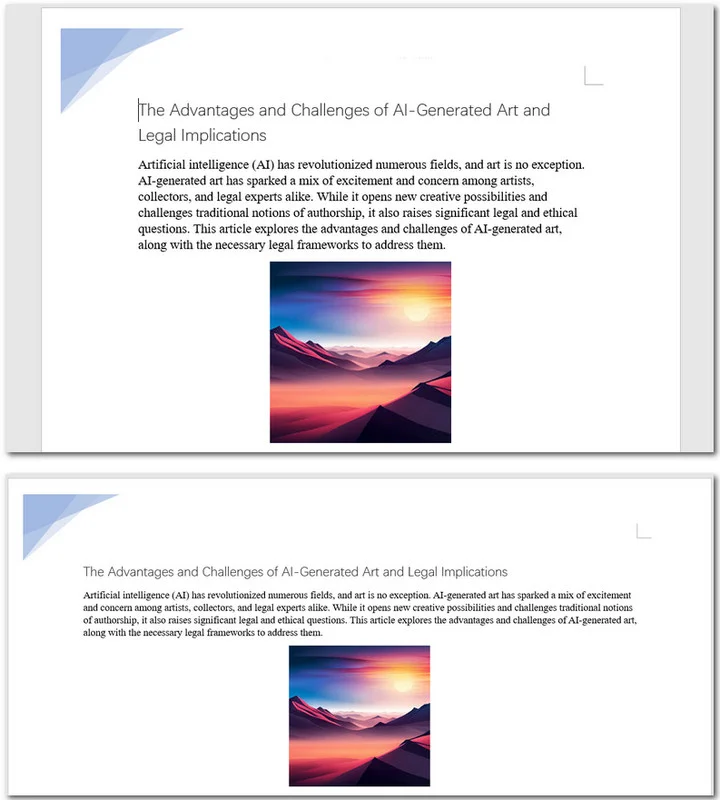
You can also iterate through multiple sections and apply changes conditionally:
for i in range(doc.Sections.Count):
    section = doc.Sections.get_Item(i)
    if i % 2 == 0:  # Example condition
        section.PageSetup.Orientation = PageOrientation.Landscape
Advanced Tips for Rotating a Page in Word
When you rotate Word document sections, you may encounter some problems. Here are a few practical tips to maintain a clean layout after changing page orientation:
- Continuous Page Numbering: Sometimes, inserting a section break restarts your page numbers at "1". To fix this, double-click your footer, go to Page Number > Format Page Numbers, and select Continue from previous section.
- Header Alignment: A header that looks great in Portrait might look too short in Landscape. You may need to uncheck "Link to Previous" in the Header & Footer settings to give your horizontal pages a unique look.
Tip: After adjusting page orientation, you can refine the page layout further, such as adding borders to specific pages for a more polished look.
Method Comparison: Which Way Should You Choose?
Before wrapping up, here’s a quick comparison of the three methods to help you decide which one best fits your needs:
| Method | Difficulty | Best For | Automation Level | Flexibility | Requires Word Installed |
|---|---|---|---|---|---|
| Manual (Word) | Easy | One or a few pages | None | Medium | Yes |
| VBA | Medium | Repetitive tasks within one doc | Partial | High | Yes |
| Python | Advanced | Batch processing / multiple docs | Full | Very High | No |
Conclusion
This guide covers three popular methods to rotate a page in Word documents. If you are a casual user, leveraging Microsoft Word’s built-in orientation settings combined with section breaks is the most straightforward approach. If you need to handle repetitive tasks across a large document, then a VBA macro can save you significant time and effort. Finally, for developers who need to automate the processing of massive file batches on a server, Free Spire.Doc for Python stands out as the ultimate professional solution.