PDF version incompatibility is one of the most common headaches for anyone working with digital files. Old software cannot load new PDFs properly, while legacy-format files often fail to meet the requirements of modern platforms and official filing systems. Whether you need to upgrade for better security and functionality, or downgrade for broader compatibility, learning to convert PDF versions is an essential skill.
In this guide, we will explore what PDF versions are, why they matter, and, most importantly, provide step-by-step tutorials for multiple conversion methods to fix compatibility issues once and for all.
- Overview of PDF Versions: A Quick History
- Why Would I Need to Convert a PDF Version?
- How to Check PDF Version First
- Method 1: Free Online PDF Version Converters
- Method 2: Offline Free Desktop Tools
- Method 3: Programmatically Convert PDF Version via C#
- Frequently Asked Questions (FAQs)
Overview of PDF Versions: A Quick History
The PDF format has evolved significantly over more than 30 years. Each new version introduced more advanced features, while also bringing compatibility challenges. Below are the major version milestones:
| PDF Version | Introduced With | Key Features |
|---|---|---|
| PDF 1.0–1.2 | Acrobat 1.0 (1993) | Basic text, images, and hyperlinks |
| PDF 1.3 | Acrobat 4.0 (2000) | Digital signatures and JavaScript support |
| PDF 1.4 | Acrobat 5.0 (2001) | Transparency effects, enhanced security, and metadata |
| PDF 1.5 | Acrobat 6.0 (2003) | Layers (optional content) and improved compression |
| PDF 1.6 | Acrobat 7.0 (2005) | 3D content and AES encryption |
| PDF 1.7 | Acrobat 8.0 (2006) | Later became the ISO standard for PDF (ISO 32000-1:2008) |
| PDF 2.0 | ISO 32000-2 (2017) | Enhanced accessibility, improved digital signatures, and better encryption |
Why Would I Need to Convert a PDF Version?
A mismatch between the PDF version and your viewing software can lead to several problems:
- Broken Visuals: Graphics may appear incorrectly if transparency effects are not supported.
- Interactive Failures: Forms, 3D content, and embedded multimedia simply won't work.
- Font Errors: Text might be replaced with the wrong font or show up as empty boxes.
- Complete Failure: The file may display an error message, crash your software, or refuse to open.
Here are the most common reasons you might need to perform a conversion:
- Upgrading to a Newer Version: To take advantage of the latest security, accessibility, and interactive features found in PDF 2.0.
- Downgrading to an Older Version for Compatibility: The most common reason. For example, some government systems and legal e-filing portals only accept files saved in the older PDF 1.4 format.
- Converting to a Specialized Subset: Beyond the main versions, there are ISO-standardized subsets designed for specific needs. Convert to PDF/A for long-term archiving, PDF/X for professional printing, and PDF/E for engineering and CAD documents.
How to Check PDF Version First
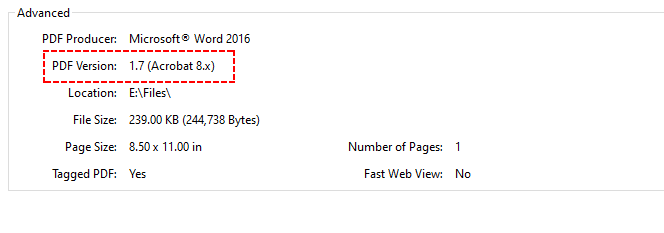
Before you convert PDF version, confirm your existing file version to avoid unnecessary conversions. Here’s a quick verification using Adobe:
- Open your PDF file in Adobe Acrobat or Adobe Reader.
- Click File > Properties.
- Locate the PDF Version field under the “Description” tab.
Example:
Method 1: Free Online PDF Version Converters
Online PDF converters are perfect for quick, one-off conversions for small to medium-sized files. They support all version conversions (1.4, 1.5, 1.7, 2.0) and require no installation.
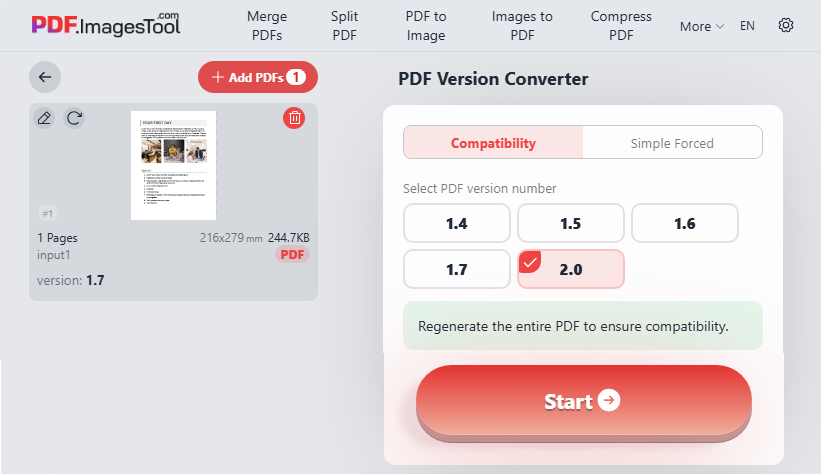
Steps to change PDF version online:
- Open a trusted free PDF version converter tool (e.g., PDF.ImagesTool.com).
- Upload your target PDF file.
- Select your desired output PDF version.
- Click “Start”, then download your updated PDF file.
In this example, we convert PDF to a newer version online (1.7 → 2.0):
Often, a user has a large PDF with mixed content—some pages need to be downgraded while others must remain at a higher version. Extracting PDF pages is a complementary operation in such cases.
Method 2: Offline Free Desktop Tools
Desktop tools are ideal for private, confidential files or users who prefer not to upload files to the cloud. Two mainstream free/paid options are recommended below.
Option A: Using Adobe Acrobat Pro
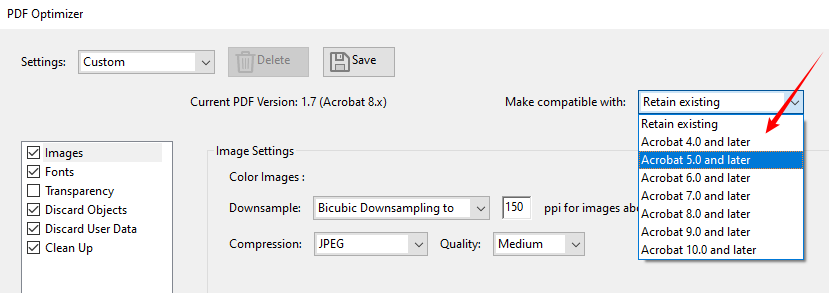
Acrobat Pro offers the most reliable offline PDF version conversion with zero data leaks and full quality retention. Here are the steps to downgrade PDF version:
- Open your PDF in Adobe Acrobat Pro.
- Navigate to File > Save As Other > Optimized PDF....
- In the "PDF Optimizer" dialog, find the Make compatible with drop-down menu.
- Select the desired version. For example, choose "Acrobat 5.0” for PDF 1.4.
- Click OK and save the optimized file with the new version.
Example: Convert PDF 1.7 to PDF 1.4
Pro Tip: Downgrading a PDF can increase file size due to flattened transparency and layers. Follow this guide to compress the resulting PDF without losing quality.
Option B: Using LibreOffice (Free Alternative)
If you do not have Adobe Acrobat Pro, free open-source desktop tools like LibreOffice allow you to convert PDF versions for free. Ideal for regular users who need offline conversion with no extra cost.
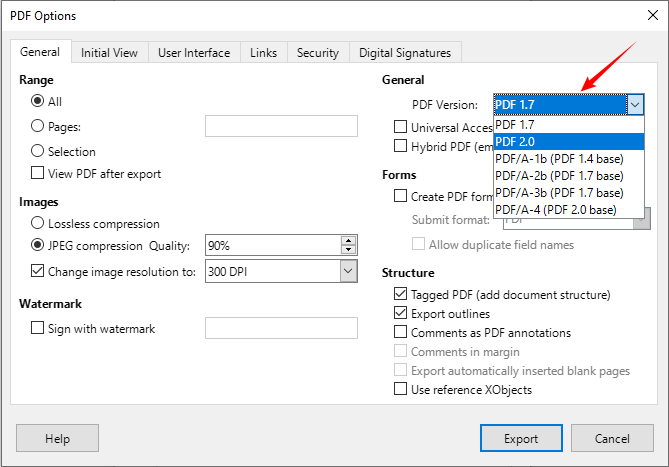
- Open your PDF file in LibreOffice Draw.
- Go to File > Export As > Export as PDF.
- Navigate to the General tab and select your target PDF version.
- Adjust other settings as needed, then click Export to save the file.
Method 3: Programmatically Convert PDF Version via C#
For .NET developers building automated document processing systems, enterprise bulk PDF conversion, or backend automation scripts, use the Free Spire.PDF library to realize automatic PDF version conversion via code.
Sample C# Code to Change PDF Version
using Spire.Pdf;

namespace ConvertPDFVersion
{
    class Program
    {
        static void Main(string[] args)
        {
            // Create a PdfDocument object
            PdfDocument pdf = new PdfDocument();

            // Load a sample PDF file
            pdf.LoadFromFile("F:\\sample.pdf");

            // Change the PDF to version 1.7
            pdf.FileInfo.Version = PdfVersion.Version1_7;

            // Save the result file
            pdf.SaveToFile("F:\\ConvertVersion.pdf");
        }
    }
}
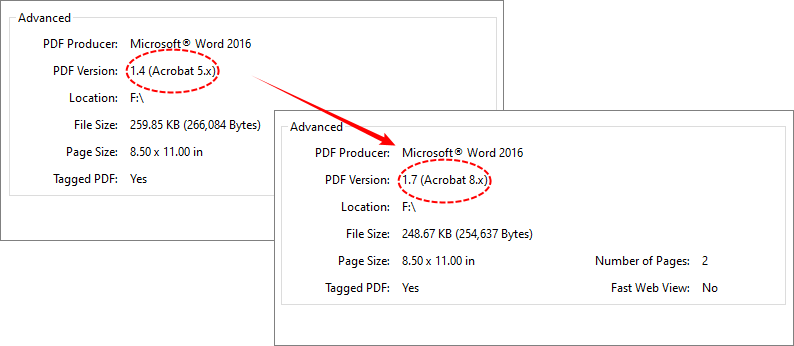
Free Spire.PDF provides a PdfDocument class with a FileInfo.Version property. Setting this property changes the internal version header and triggers the library to remove or adjust features that are incompatible with the target version.
Output: Convert PDF version 1.4 to 1.7
You can modify the PdfVersion enumeration value to switch to other versions (supports PDF 1.0 to 1.7).
Frequently Asked Questions (FAQs)
Q1: Which PDF version offers the best compatibility?
A: PDF 1.7 is the best all-around version for universal compatibility. For strict legacy systems or government portals, PDF 1.4 is the safest choice.
Q2: Can I convert PDF version without losing quality?
A: Yes. Use offline tools like Adobe Acrobat Pro, LibreOffice, or Free Spire.PDF for lossless conversion. Online tools may cause minor image compression. Downgrading PDFs will remove advanced new features but will not ruin file quality.
Q3: Is it safe to downgrade a PDF version?
A: Yes, downgrading is safe for standard documents. Note that advanced features exclusive to newer versions (like 3D graphics or modern encryption) will be removed during downgrading.
Q4: Does converting PDF version work for scanned/image-based PDFs?
A: Yes. Version conversion takes effect on both editable native PDFs and scanned image-only PDFs. Since scanned PDFs contain no advanced features like layers, 3D content or dynamic forms, downgrading or upgrading will not damage content or visual display.
Final Thoughts
Knowing how to convert PDF versions is a valuable skill that saves time and prevents document headaches. Whether you need to downgrade or upgrade PDF version, the methods outlined above provide reliable solutions for every scenario—from one-off online conversions to automated enterprise workflows.
Summary of method selection:
- Quick & simple → Online converter (non-sensitive small files).
- Secure & professional → Adobe Acrobat Pro (offline, full control).
- Free & offline → LibreOffice Draw (open source, good for basic documents).
- Automation & batch → Free Spire.PDF with C# (for developers).
Always check your current PDF version first, then choose the conversion method that best fits your requirements. By mastering PDF version conversion, you turn a potential point of failure into a seamless part of your document workflow.