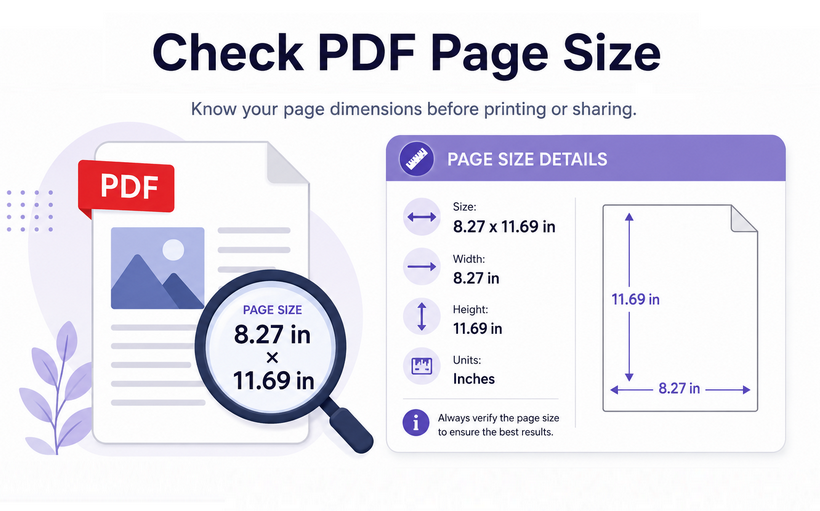
Checking page size of PDF is an essential daily operation for office staff, graphic designers, and printing professionals alike. Incorrect page dimensions can lead to clipped content, skewed layouts, and even automatic rejection of official document submissions.
From quick one-off checks on individual PDFs to large-scale bulk inspection of hundreds of documents, different usage scenarios call for tailored solutions. This article will guide you through how to check PDF page size using 4 fast and free tools. No paid software is required, and by the end, you will never have to guess a PDF’s dimensions again.
- Why Knowing Your PDF Page Size Matters
- The Easiest Method - Using Adobe Acrobat Reader
- Web Browser Method - Checking via Chrome/Edge
- No Software? Using Online PDF Page Size Checker
- Automate with Code - Check Page Size of PDF via C#
- Standard PDF Page Size Reference Table
- FAQs
Why Knowing Your PDF Page Size Matters
Checking the exact dimensions of a PDF page is crucial for several reasons:
- Professional Printing: Printers require exact specifications. An incorrect page size can lead to cut-off text, misaligned margins, and rejected print jobs.
- Form Submissions: Many official forms and applications require a specific paper size (e.g., Letter or A4). Using the wrong size could result in automatic rejection.
- Design and Layout: Designers need to ensure elements fit perfectly within the page boundaries.
- File Consistency: A PDF document can contain pages of mixed sizes. Checking them ensures a uniform and professional final product.
⚠️ Note: Don’t confuse page size with file size. They are unrelated.
- Page size = physical width & height (e.g., 8.5”×11”, 210×297 mm).
- File size = storage space on disk (e.g., 2.5 MB).
The Easiest Method - Using Adobe Acrobat Reader
Adobe Acrobat Reader is a popular free PDF viewer. It delivers precise page size measurements and works with all PDF files, including those with custom or non‑standard dimensions.
Here's the quickest way to find page size of PDF:
- Open your target PDF file with Adobe Acrobat Reader.
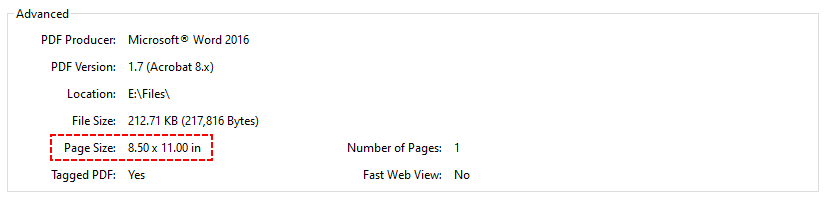
- Go to File > Properties (or simply use the keyboard shortcut Ctrl+D on Windows).
- In the Document Properties dialog box, click on the Description tab.
- Scroll down to find the Page Size field. It will display exact dimensions (e.g., 8.5 x 11 in / 210 x 297 mm).
After checking your PDF page dimensions, the next logical steps are resizing and cropping. Resizing changes the entire PDF page size—e.g., converting A4 to Letter by scaling content up or down. Cropping PDF pages removes unwanted edges (white margins, crop marks) without scaling the content.
Web Browser Method - Checking via Chrome/Edge
If you don’t have a PDF viewer installed, modern browsers like Google Chrome and Microsoft Edge can display PDF page sizes without any additional software.
How to know PDF paper size in a browser:
- Open your PDF file in Chrome (or Edge) browser.
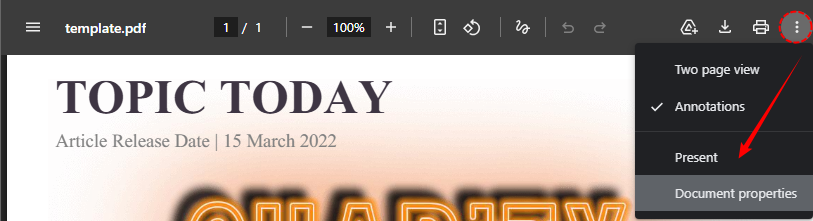
- Click the three vertical dots (menu icon) in the top‑right corner.
- From the dropdown, select “Document Properties”.
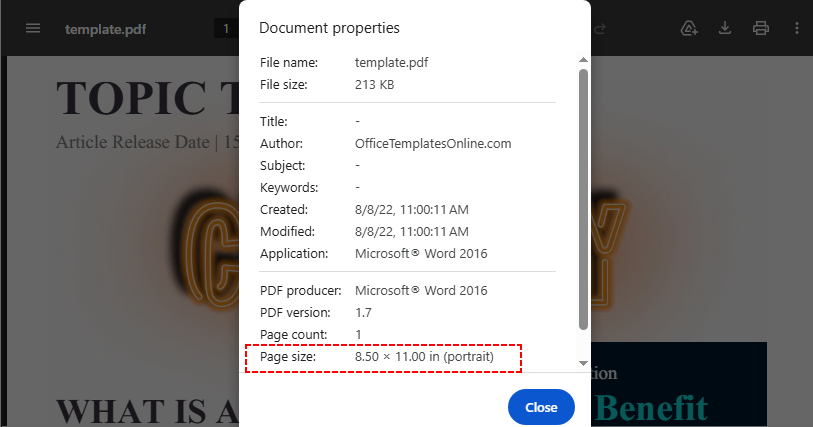
- Check Page size plus portrait/landscape orientation in the pop-up panel.
❌ Limitation: For multi-page documents with mixed page sizes, most browsers cannot display exact dimensions—they only show "varies." In this scenario, use the methods below.
No Software? Using Online PDF Page Size Checker
For users who prefer to avoid desktop software entirely, or need a quick cross‑platform solution, online PDF tools are an excellent alternative. These web‑based analyzers typically scan the entire document and identify mixed PDF page sizes in seconds.
Steps to check PDF page size online:
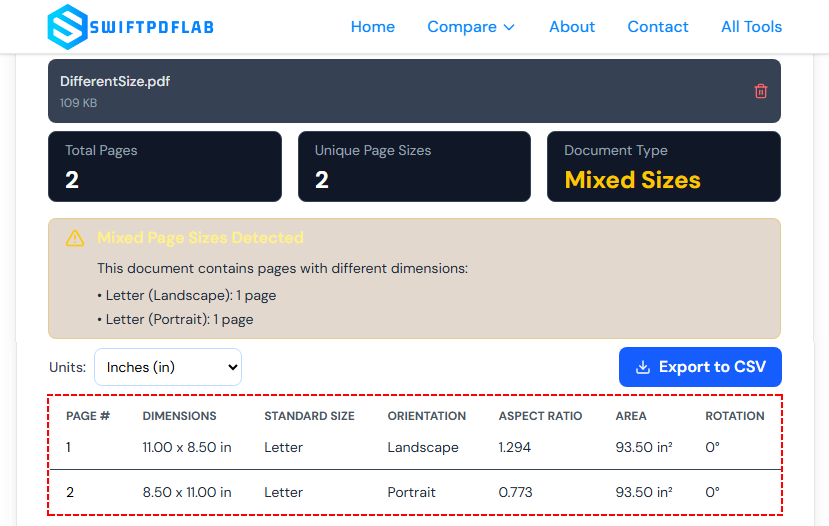
- Open a trusted free online PDF page size checker (e.g., SwiftPDFLab’s Page Dimensions Analyzer)
- Upload your PDF file via drag-and-drop or file browser upload.
- The platform will analyze all pages and output detailed specs:
- Number of pages
- Page dimensions (in inches, mm, or points – you can switch units)
- Orientation (portrait/landscape)
- Standard size classification (e.g., “A4”, “Letter”, “Legal”)
- An indicator if the document has mixed page sizes
- Optional: Export the page information as a CSV file for documentation purposes.
Privacy Reminder: Never upload confidential or sensitive PDF documents to public online tools to prevent data leakage.
Automate with Code - Check Page Size of PDF via C#
If you work with large numbers of PDFs or you need to integrate page size detection into an automated workflow, using a .NET library like Free Spire.PDF is the most efficient approach.
Why use this method?
- You can scan all pages instantly.
- Get dimensions in points, inches, cm, or pixels.
- Works on servers (no GUI required).
- Free library with no watermarks for basic operations (10-page limit).
C# Code to Get PDF Page Size
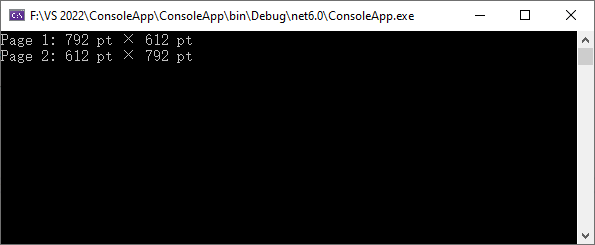
Every PDF internally stores page dimensions in points (1 point = 1/72 inch). The following code loads a PDF and prints the width and height of each page in points.
using System;
using Spire.Pdf;

namespace GetPDFPageSize_Points
{
    class Program
    {
        static void Main(string[] args)
        {
            PdfDocument pdf = new PdfDocument();
            pdf.LoadFromFile("SamplePDF.pdf");
            // Traverse every PDF page
            for (int i = 0; i < pdf.Pages.Count; i++)
            {
                PdfPageBase page = pdf.Pages[i];
                float widthPt = page.Size.Width;
                float heightPt = page.Size.Height;
                Console.WriteLine($"Page {i+1}: {widthPt} pt × {heightPt} pt");
            }
            Console.ReadKey();
        }
    }
}
Output:
Converting Points to Other Units
Points are technical but not always user‑friendly. To present dimensions in inches, centimeters, or pixels, use PdfUnitConvertor to switch measurement units
PdfUnitConvertor unitCvtr = new PdfUnitConvertor();
// Convert to inches
float inchW = unitCvtr.ConvertUnits(widthPt, PdfGraphicsUnit.Point, PdfGraphicsUnit.Inch);
float inchH = unitCvtr.ConvertUnits(heightPt, PdfGraphicsUnit.Point, PdfGraphicsUnit.Inch);

// Convert to centimeters
float cmW = unitCvtr.ConvertUnits(widthPt, PdfGraphicsUnit.Point, PdfGraphicsUnit.Centimeter);
float cmH = unitCvtr.ConvertUnits(heightPt, PdfGraphicsUnit.Point, PdfGraphicsUnit.Centimeter);

// Convert to pixels
float pxW = unitCvtr.ConvertUnits(widthPt, PdfGraphicsUnit.Point, PdfGraphicsUnit.Pixel);
float pxH = unitCvtr.ConvertUnits(heightPt, PdfGraphicsUnit.Point, PdfGraphicsUnit.Pixel);
Beyond just page dimensions, you may also need to detect page orientation and rotation angle —information that is especially useful when processing scanned documents or automatically straightening PDF pages.
Standard PDF Page Size Reference Table
After checking your PDF page size, use this table to identify standard formats or verify compliance with submission requirements.
| Paper Size | Width × Height (mm) | Width × Height (inches) | Width × Height (points) | Common Use |
|---|---|---|---|---|
| A4 | 210 × 297 mm | 8.27 × 11.69 in | 595 × 842 pt | Letters, reports, forms (most countries) |
| US Letter | 216 × 279 mm | 8.5 × 11 in | 612 × 792 pt | Business letters, resumes (US, Canada) |
| A3 | 297 × 420 mm | 11.69 × 16.54 in | 842 × 1191 pt | Diagrams, posters, small newspapers |
| A5 | 148 × 210 mm | 5.83 × 8.27 in | 420 × 595 pt | Notebooks, flyers, booklets |
| Legal | 216 × 356 mm | 8.5 × 14 in | 612 × 1008 pt | Legal contracts (US) |
| Tabloid / Ledger | 279 × 432 mm | 11 × 17 in | 792 × 1224 pt | Brochures, newsletters |
How to interpret custom sizes?
If the dimensions do not match any standard row, your PDF uses a custom page size. This is common for:
- Screenshots saved as PDF (size matches screen resolution)
- CAD drawings or architectural plans
- Scanned images with margins trimmed
Wrap‑Up
Knowing how to check PDF page size is a fundamental skill for anyone who works with digital documents. The above four solutions cover all user scenarios: use Adobe Reader for single local file verification, browsers for quick casual checks, online tools for cross-device temporary use, and C# coding for enterprise-level bulk automated inspection.
Always verify page dimensions before printing or document submission to avoid formatting errors, and refer to standard paper specs and conversion formulas to match required submission rules effortlessly.
FAQs
Q: Can a single PDF have pages of different sizes?
Yes, absolutely. A PDF document can contain a mix of different page sizes and orientations. For example, you could have a portrait A4 text page followed by a landscape A3 diagram. It's always a good idea to check page sizes for the entire document to avoid inconsistencies.
Q: How do I check if a PDF has mixed page sizes?
- Manual method (small documents): In Adobe Acrobat Reader, scroll through each page to check its dimension. This is tedious for long PDFs.
- Online tool method: Upload to a free page size checker; it will list sizes for all pages instantly.
- C# script method: Use the code above to scan every page and flag any that differ from the first page.
Q: How do I convert between inches, mm, and points?
You can use simple conversion formulas:
- Points → Inches: Divide points by 72. (e.g., 612 pt / 72 = 8.5 in).
- Inches → Points: Multiply inches by 72. (e.g., 8.5 in * 72 = 612 pt).
- Inches → mm: Multiply inches by 25.4. (e.g., 8.5 in * 25.4 = 215.9 mm).
- mm → Inches: Divide mm by 25.4. (e.g., 210 mm / 25.4 = 8.2677 in).
For quick reference: 1 inch = 72 points = 25.4 millimeters.
Q: Is there a way to check page sizes of multiple PDFs at once (bulk)?
Yes, write a C# script to loop through a folder, load each PDF, and extract page sizes. Here’s a minimal example:
string[] files = Directory.GetFiles(@"C:\PDFs\", "*.pdf");
foreach (string file in files)
{
    using (PdfDocument pdf = new PdfDocument())
    {
        pdf.LoadFromFile(file);
        Console.WriteLine($"{Path.GetFileName(file)}: {pdf.Pages[0].Size.Width} x {pdf.Pages[0].Size.Height} pts");
    }
}