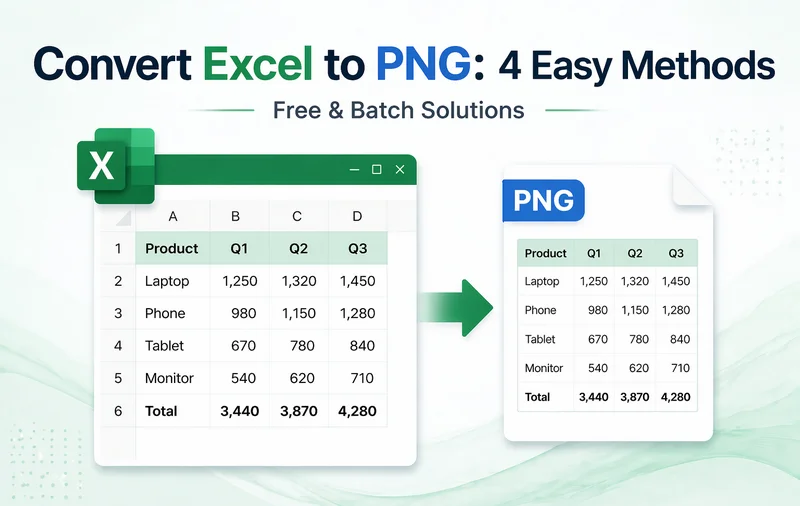
Excel files (.xlsx or .xls) are widely used for organizing and analyzing structured data, but they aren't always the best format for sharing. Formatting can shift across devices and the original workbook can be easily modified by others. Converting Excel to PNG turns your spreadsheet into a static image, making it easier to share, publish, or embed across different platforms without worrying about layout changes.
In this guide, we'll walk you through 4 practical methods to convert Excel to PNG without losing quality - from quick manual options to automated batch conversion using Python-so you can choose the approach that fits your needs.
Excel to PNG Methods Overview
- Method 1 - Copy Excel as Picture (Built-in Way)
- Method 2 - Screenshot Excel to PNG (Using Snipping Tool)
- Method 3 - Convert Excel to PNG Online (No Installation)
- Method 4 - Batch Convert Excel to PNG via Python (Automation)
Why Convert Excel to PNG?
While PDFs are common, PNG images offer unique advantages for digital content and reporting:
- Pixel-Perfect Consistency: Preserves layouts, cell styling, and fonts exactly as they appear in Excel-no broken formulas or shifted columns.
- Universal Accessibility: PNGs can be viewed on any smartphone, tablet, or OS without requiring Microsoft Excel or a specialized viewer.
- Seamless Integration: Ideal for embedding dashboards and charts directly into websites, documentation, or PowerPoint presentations.
- Enhanced Security (Read-Only): Effectively "locks" your data, preventing recipients from altering raw numbers or viewing sensitive hidden formulas.
- High-Quality Transparency: Unlike JPEGs, PNGs support transparency and offer better clarity for UI elements and data visualizations.
Method 1 - Copy Excel as Picture (Built-in Way)
If you want a fast Excel to PNG conversion without installing third-party software, Excel's built-in Copy as Picture feature is an excellent option. It preserves your exact cell formatting and table layout, making it ideal for exporting a selected range for reports and presentations.
Step-by-Step Guide:
-
Select the Excel data
Open your Excel workbook and highlight the cells you want to convert. -
Copy as Picture
On the Home tab, click the arrow next to Copy and choose Copy as Picture.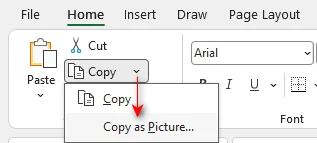
-
Choose image quality
Select As shown on screen and Picture for the best visual quality, then click OK.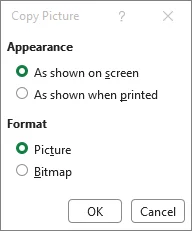
-
Paste the image
Select a blank cell and press Ctrl+V (Windows) or Cmd+V (Mac). -
Save as PNG
Right-click the pasted image → select Save as Picture → choose Portable Network Graphics (*.png) → pick a folder → hit Save.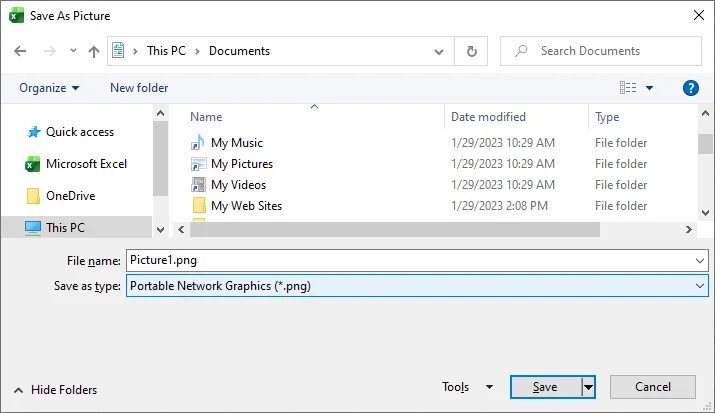
Pro Tips:
- This method exports only the highlighted cells, not the entire worksheet.
- The exported image typically has a white background.
- To further edit the image, paste it into an image editor such as Microsoft Paint (Windows) or Preview (Mac) instead.
When to Use This Method:
Best for small datasets and one-time conversions where layout fidelity matters.
If you need to save a chart specifically, see our guide on converting Excel charts to images.
Method 2 - Screenshot Excel to PNG (Using Snipping Tool)
Using a snipping tool (like Windows Snipping Tool or macOS Screenshot) is the most flexible way to convert Excel data into a PNG. Unlike Copy as Picture, these tools capture exactly what you see on your screen-including drop-down menus, comments, or even multiple overlapping windows-making it the best choice for creating software tutorials.
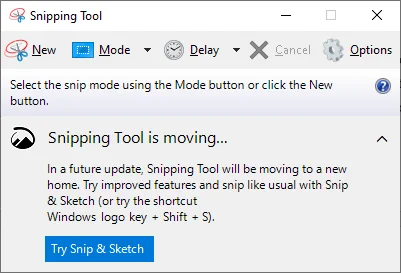
Steps:
-
Prepare the View
Adjust your Excel zoom level (e.g., to 150% or higher) for maximum clarity and hide any unwanted elements (like the Ribbon or formula bar). -
Open the Snipping Tool
Press Windows + Shift + S (Windows) or Cmd + Shift + 4 (Mac). -
Select the Excel Area
Click and drag your cursor to draw a box around the specific cell range. -
Annotate (Optional)
Click the preview window that appears to highlight key data or draw arrows on the image. -
Save as PNG
Click the Save icon to save the capture directly as a PNG file.
Pro Tips:
- The Windows + Shift + S shortcut works on Windows 10 and 11. For older Windows versions, search for Snipping Tool in the Start menu manually.
- Most tools offer a Free-form Snip mode, allowing you to capture non-rectangular areas of your spreadsheet if needed.
When to Use This Method:
Best for documentation, step-by-step guides, or when you need to quickly annotate data before sharing.
Method 3 - Convert Excel to PNG Online (No Installation)
For users without Microsoft Excel or those working on mobile devices, a web-based Excel to PNG converter provides a convenient way to transform spreadsheets into high-quality images. These tools run entirely in the browser and often support transparent backgrounds, which is ideal for web design or watermarking.
Top-Rated Online Converters:
- CloudConvert: Best for High-Resolution. Provides granular control over pixel density (DPI) and alpha channels (transparent background) to ensure crisp, professional PNG output.
- Zamzar: Best for Simplicity. A trusted industry veteran since 2006, offering a clean, three-step conversion process for XLS or XLSX to PNG.
- Cloudxdocs: Best for Complex Layouts. Built on professional-grade APIs, it excels at preserving merged cells and original styling.
How to Convert Excel to PNG Online:
-
Select a Trusted Tool
Navigate to a reputable site like CloudConvert.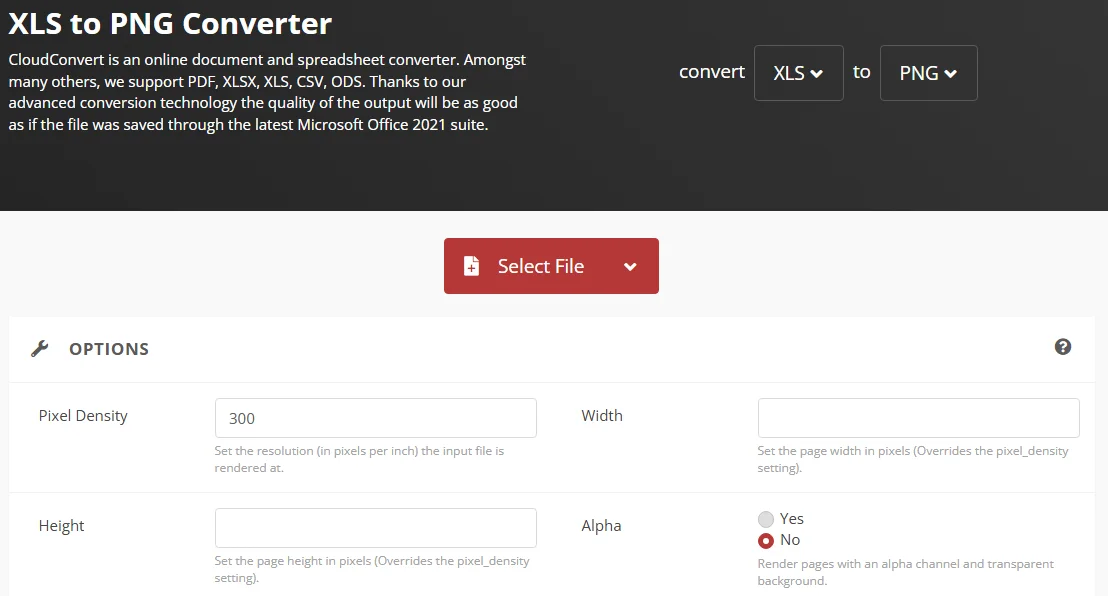
-
Upload Your Document
Click Select File to browse your computer or drag and drop your workbook directly into the browser. -
Configure Image Settings
Choose PNG as the output. If available, set the resolution to 300 DPI for professional printing or high-definition screens. -
Convert & Download
Click Convert. Once complete, download your images (often provided as a ZIP file if your Excel has multiple sheets).
Data Security & Privacy Note:
To protect your privacy, only upload non-sensitive information to public converters. Always prioritize tools that use SSL encryption and offer automatic file deletion within 24 hours. For confidential financial data, we recommend using the Excel Copy as Picture feature or a local snipping tool instead.
When to Use This Method:
- You need Excel to PNG conversion on mobile.
- You want transparent PNG output.
- You're converting whole worksheets or multiple sheets to images at once.
Method 4 - Batch Convert Excel to PNG via Python (Automation)
For developers, data analysts, and teams managing high-volume Excel files, automating Excel to PNG conversion with Python is the most scalable solution. This approach allows you to batch process hundreds of worksheets or workbooks and integrate image exports into reporting pipelines-without needing Microsoft Excel installed.
Key Benefits:
- No Office Dependency: Works on servers and Linux.
- Massive Scale: Convert 100+ files in seconds.
- High Fidelity: Preserves original cell formatting, fonts, and colors.
Prerequisites
Before you start, make sure you have:
- Python 3.7+
- Spire.XLS for Python - an independent library that creates, edits and converts Excel files without requiring Microsoft Office.
Installation:
pip install spire.xls
Python Example - Batch Convert Excel to PNG Images
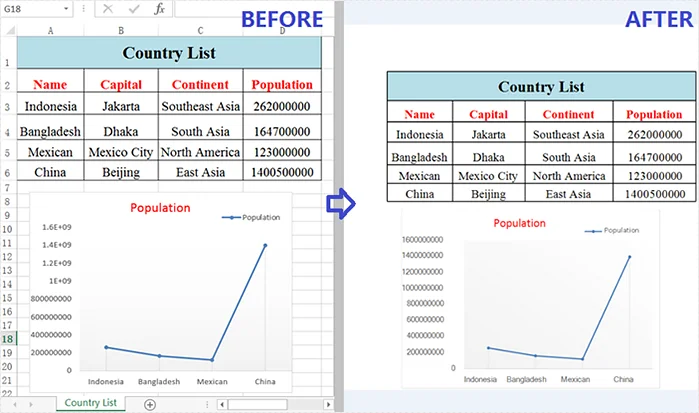
This script automatically saves all worksheets in a workbook as high-resolution PNG images:
from spire.xls import *

# Load the Excel file
workbook = Workbook()
workbook.LoadFromFile("input.xlsx")

# Loop through all worksheets
for i in range(workbook.Worksheets.Count):
    sheet = workbook.Worksheets[i]

    # Save each sheet as an image
    image = sheet.ToImage(sheet.FirstRow, sheet.FirstColumn, sheet.LastRow, sheet.LastColumn)
    image.Save(f"sheet_{i+1}.png")

# Dispose workbook
workbook.Dispose()
Here’s a preview of one of the exported PNG files:
Advanced Customization Options
-
Export a specific range
Instead of the whole sheet, you can specify exactly which rows and columns to capture:sheet.ToImage(5, 1, 10, 4) # Parameters: StartRow, StartColumn, EndRow, EndColumn -
Batch Convert Multiple Files
Use the os library to loop through an entire folder and save every Excel workbook as a PNG automatically:import os # Define the folder path folder_path = r"C:\Files" files = [f for f in os.listdir(folder_path) if f.endswith(".xlsx")] for file in files: wb = Workbook() wb.LoadFromFile(os.path.join(folder_path, file)) # Converts the first worksheet of each file to PNG sheet = wb.Worksheets[0] output_path = os.path.join(folder_path, file.replace(".xlsx", ".png")) sheet.ToImage(sheet.FirstRow, sheet.FirstColumn, sheet.LastRow, sheet.LastColumn).Save(output_path) wb.Dispose()
When to Use This Method:
- You're a developer building an automated workflow.
- You need to convert many Excel files or entire workbooks.
- Manual conversion isn't practical (e.g., scheduled reporting, pipelines, internal tools).
Quick Comparison: Which Excel to PNG Method Should You Choose
To help you decide, here is a quick comparison of all the Excel to PNG methods discussed above:
| Method | Best For | Ease of Use | Output Quality | Software Needed |
|---|---|---|---|---|
| Copy as Picture | Single tables / Small ranges | Very Easy | High | Microsoft Excel |
| Snipping Tools | Tutorials / Quick annotations | Fastest | Medium | None (Built-in) |
| Online Tools | Entire files / Mobile users | Easy | High | Web Browser |
| Python Script | Batch processing / Automation | Advanced | Professional | Python Environment |
Final Verdict:
- For a one-time report: Use Copy as Picture for the cleanest, native look.
- For sharing a quick guide: Use a Snipping Tool to add visual arrows and notes easily.
- For users on the go: Online Converters are the most convenient, mobile-friendly choice.
- For enterprise-level automation: Python is the most scalable solution for processing high-volume files.
Pro Tips for Better PNG Output
- Maximize Clarity: Increase your Excel zoom to 150%-200% before capturing or converting. This prevents blurry text in the final PNG.
- Optimize Visuals: Hide gridlines (View > Uncheck Gridlines) and remove empty rows or columns. A tidy spreadsheet ensures a professional, polished look.
- Check Font Compatibility: When using Python or online converters, stick to standard fonts like Arial or Calibri to ensure the exported image matches what you see on-screen.
- Batch Validation (Python Users): Test your script with a single file first to verify that formatting, fonts, and layout export correctly before running a large batch.
Troubleshooting Common Excel to PNG Issues
- Image is cut off: Check your Print Area settings. If a print area is defined, some converters may only capture that range, ignoring the rest of the sheet.
- Copy function is greyed out: Ensure you are not in Cell Edit Mode (blinking cursor inside a cell). Press Esc to exit editing before copying or exporting.
- Blurry or pixelated images: Avoid stretching or resizing the PNG after saving. For larger images, re-export at a higher zoom level instead of scaling.
- Sheet too large for one PNG: Very large sheets can become unreadable. Split datasets into logical sections or consider an Excel-to-PDF-to-PNG workflow for ultra-wide spreadsheets.
Frequently Asked Questions
Q1: Does converting Excel to PNG affect data quality?
A1: The data itself isn't changed, but it becomes a static image, meaning it can't be edited or recalculated.
Q2: Can I convert multiple Excel sheets to PNG in batch?
A2: Yes, you can use Python or a professional online converter to batch process Excel files or sheets efficiently.
Q3: How do I get a transparent background PNG from Excel?
A3: Excel usually outputs a white background image. To create a transparent PNG, you can:
- Use an online converter that supports alpha channels.
- Paste your Copy as Picture result into tools like remove.bg, then save as PNG with transparency.
Q4: Should I export Excel as PNG or PDF?
A4: It depends on your needs:
- PNG is perfect for embedding into slides, emails, websites, or reports as a visual.
- PDF is better for multi-page documents, official archiving, or high-quality printing, especially when text needs to remain searchable.