
Plain text files (.txt) are widely used in professional environments due to their simplicity. Their lack of formatting makes them lightweight and universally compatible. However, this simplicity becomes a weakness when data integration is required. For example, when importing an employee list into an ERP system or syncing technical documents with a search engine, raw text quickly becomes insufficient. It lacks the structure modern systems require.
In contrast, XML provides a structured machine-readable format. This makes finding a reliable way to convert text files to XML essential. Whether for a quick task or for a massive database, this guide offers three efficient solutions.
- Using an Online Text to XML Converter
- Save a Text File as XML Using Microsoft Word
- Convert TXT Files to XML with Free Spire Series
- Choosing the Best Way to Convert Text Files to XML
- FAQs
Option 1: Using an Online Text to XML Converter
If you have a single, small file and you are in a rush, an online text-to-XML converter like FreeFileConvert is often the first choice that comes to mind. These web-based tools allow you to upload a file and download the result in seconds.
Steps to Convert Text to XML Online:
- Step 1. Go to the FreeFileConvert's TXT to XML page.
-
Step 2. Select and upload a
.txtdocument from your local drive. - Step 3. Click the Convert Files button to start the text-to-XML conversion.
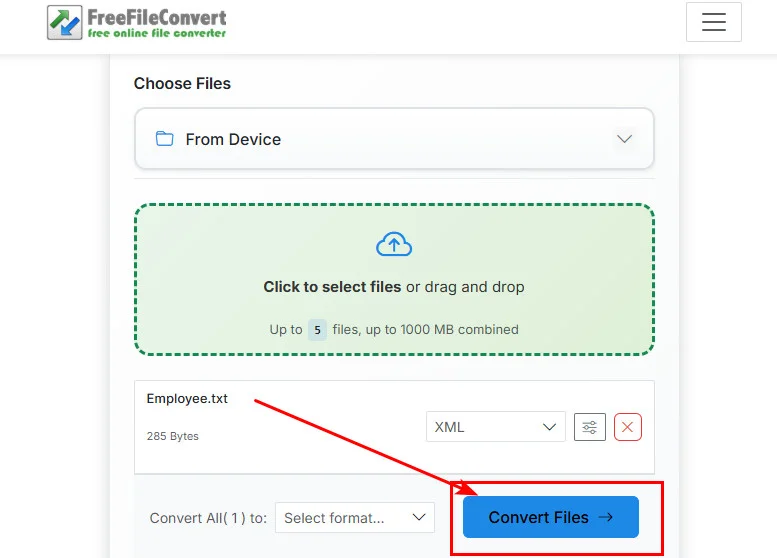
- Step 4. Wait for the processing to finish, then click the download button to save your new XML file.
Pros:
- No installation required.
- Works directly in your browser.
Cons:
- Uploading sensitive files to a third-party server can be dangerous.
- These tools often struggle to convert text documents to XML if the data has complex hierarchies.
- Limited number and size of text files.
Best For: Non-sensitive, small personal files that don't require specific formatting.
Option 2: Save a Text File as XML Using Microsoft Word
If you are looking for a quick, offline way to save a text file as XML without installing additional tools, Microsoft Word provides a simple built-in option. This method is especially useful for basic document conversion when strict XML structure is not required.
Steps to Save a Text File as XML in Word:
-
Step 1. Open Microsoft Word and load your
.txtfile. - Step 2. Click File > Save As.
- Step 3. Choose a location, then select XML Document (*.xml) from the file format dropdown.
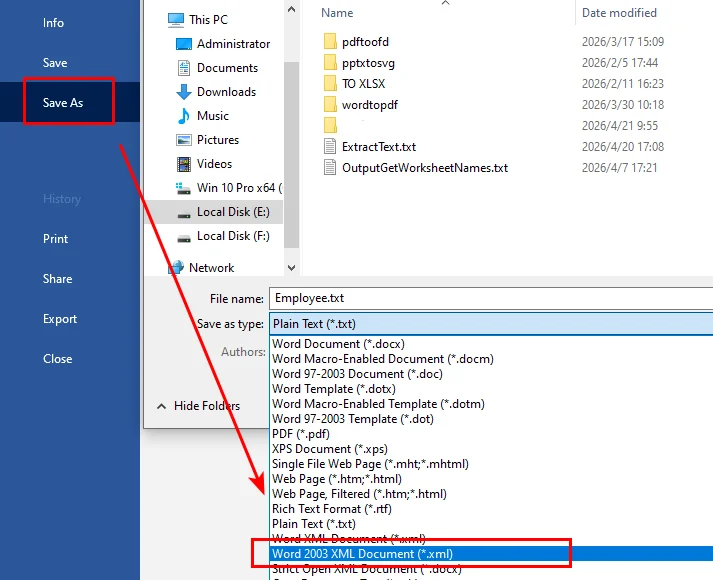
- Step 4. Click Save to export the file.
Pros:
- No additional tools are required if Word is already installed.
- Fully offline and secure.
- Very easy to use for beginners.
Cons:
- Generates Word-specific XML (WordML) with extra tags and metadata.
- Not suitable for structured data processing or system integration.
- Limited control over the XML structure.
Best For: Quick, one-time conversions where structure and data cleanliness are not critical.
Option 3: Convert TXT Files to XML with Free Spire Series
While the previous methods work well for small tasks, they become inefficient for large-scale conversions. In such cases, automation is the better choice.
By using a dedicated Python library like Free Spire.XLS, you can easily turn a messy pile of TXT files into structured XML data. This same logic allows you to convert TXT to Excel in Python if your project requires a spreadsheet instead of a markup language.
Scenario A: Structured Data Conversion (Table-like TXT)
This method is the best way to convert TXT to XML for structured datasets like sales reports or employee lists. It treats each line of your text file as a structured data record.
from spire.xls import *
from spire.xls.common import *

# Create a Workbook instance
workbook = Workbook()

# Load a text file
workbook.LoadFromFile("/input/Employee.txt", ",", 1, 1)

# Save the document as an XML document
workbook.SaveAsXml("/output/data_style.xml")
workbook.Dispose()
Here's the preview of the original text file and the output XML document:
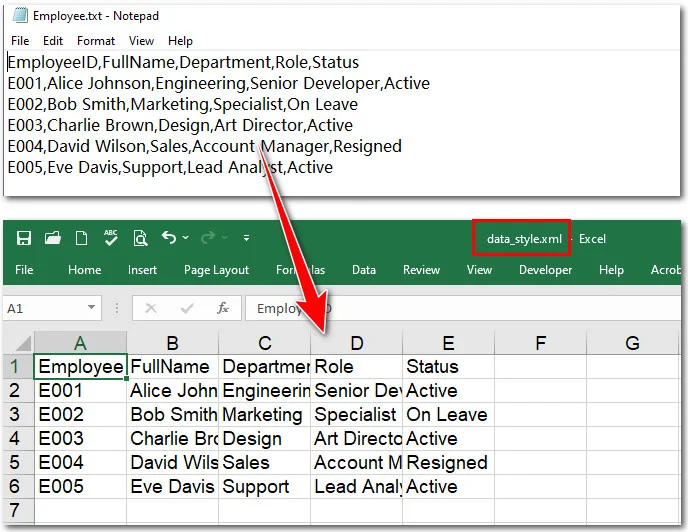
Understanding the Parameters of LoadFromFile:
To correctly map raw text data into a structured XML format, it is important to understand how each parameter works:
workbook.LoadFromFile("E:/Input/Employee.txt", ",", 1, 1)
-
File Path (
"E:/.../Employee.txt"): Specifies the location of your source text file. -
Delimiter (
","): Defines how the text content is split into columns. Common options include:-
","for CSV-style data -
"\t"for tab-separated values -
" "(space) or";"depending on your data format
-
-
Start Row (
1): Indicates the line number where data import begins. Use1if you want to include headers. -
Start Column (
1): Sets the starting column position in the worksheet (e.g.,1= Column A).
These parameters give you precise control over how raw text is parsed and structured during the conversion process.
Note: The delimiter determines how columns are separated. This flexibility also makes it easy to convert TXT to CSV in Python when working with common data exchange formats.
Scenario B: Text Content Conversion (Paragraph-based TXT)
If your text file consists of paragraphs, headings, and lists, rather than raw data columns, Free Spire.Doc is the better tool. It allows you to convert a text document to XML while preserving the logical flow and paragraph structure of the original content.
from spire.doc import *
from spire.doc.common import *


# Create a Document instance
doc = Document()
# Load a text file
doc.LoadFromFile("/input/Technical Specification AI Integration Module.txt")

# Save the text file as a new XML document
doc.SaveToFile("/output/texttoxml.xml", FileFormat.Xml)
doc.Close()
Here's the preview of the original text file and the converted XML document:
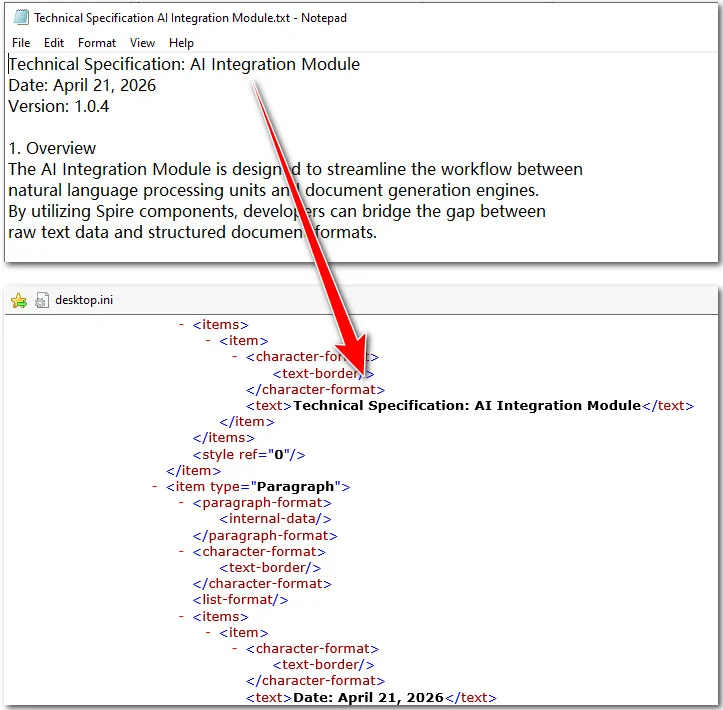
Pros:
- No Microsoft Office required.
- Document security.
- High efficiency.
- Clean data output.
Cons:
- Learning Curve.
- Environment Setup.
Best For: Developers, enterprise-level projects, and anyone needing to convert TXT to XML for large, sensitive datasets.
Choosing the Best Way to Convert Text Files to XML
| Method | Best For | Security | Batch Processing |
|---|---|---|---|
| Online Converter | One-time users | Low | Poor |
| Microsoft Word | Basic export | High | None |
| Free Spire Components | Developers & SEOs | Maximum | Excellent |
FAQs
Q1: Can I use Microsoft Word to save a text file as XML?
Yes, you can open a .txt file in Word and select Save As > XML Document. However, this creates a WordML file filled with complex styling code. For clean, data-ready nodes, using a tool like Free Spire.XLS is much more effective.
Q2: Is it safe to use free online converters for sensitive company data?
Generally, no. Most online tools upload your data to a third-party server. For sensitive information, it is safer to save a text file as XML locally using an offline editor or Python code to ensure privacy.
Q3: How can I convert TXT to XML for 1000+ files?
You can use a Python loop with the Free Spire library to batch process entire folders in seconds. If you later need to view or audit this structured data in a spreadsheet, you can also convert XML data to Excel using the same professional suite.
Conclusion
This guide explains three ways to convert text files to XML. Online tools are ideal for quick, non-sensitive tasks, while Microsoft Word offers a simple offline option for basic document export. For professional environments, the Free Spire series excels by automating batch conversions to save time. Ultimately, there is no best method; the right choice is simply the one that most efficiently fits your current workflow.