

TL;DR: Learn how to convert Markdown files and strings into HTML directly inside the browser using JavaScript and Spire.Doc WebAssembly (WASM) in React. No server-side processing required.
Markdown is commonly used for README files, documentation, technical articles, and other structured content. However, some applications need the content as an actual HTML file—for example, to publish it as a web page or pass it to another HTML-based workflow.
This article shows how to convert Markdown to HTML with JavaScript in a React application using Spire.Doc for JavaScript. It covers two common scenarios:
Prerequisites & Project Setup
Step 1: Install Spire.Doc for JavaScript
Open a terminal in the root directory of your React project and install the Spire.Doc package through NPM:
npm i spire.office
Step 2: Copy the Runtime Resources
After installation, copy the following runtime resources from node_modules/spire.office to the public directory of your React project:
- _framework
- spire.doc.js
- Spire.Doc.Wasm.zip
- spire.common.js
- Spire.Common.Wasm.zip
The examples also use CALIBRI.ttf for text rendering. Place the font file under public/static/font/.
For the file-based example, place the source Markdown document in public/static/data/MarkdownExample.md.
For detailed setup instructions, see How to Integrate Spire.Doc for JavaScript in a React Project.
Note: The examples use
process.env.PUBLIC_URL, which follows the Create React App convention. If your project uses Vite or another build tool, adjust the public asset paths accordingly.
Convert a Markdown File to HTML with JavaScript in React
If the Markdown content already exists as a .md file, it can be loaded into the WebAssembly virtual file system (VFS) and opened directly with Document.LoadFromFile(). The document can then be exported as HTML using Document.SaveToFile().
The file-based conversion follows four main stages:
- Module Initialization: Load and initialize the Spire.Doc WebAssembly module when the React component mounts.
- Input Loading: Add the required font and source Markdown file to the VFS using
FetchFileToVFS(). - Document Conversion: Load the
.mdfile withFileFormat.Markdownand save it withFileFormat.Html. - Output Handling: Read the generated HTML from the VFS and download it in the browser.
The following example converts MarkdownExample.md to MarkdownToHtml.html.
import React, { useState, useEffect } from 'react';

function App() {
  const [wasmModule, setWasmModule] = useState(null);

  // Load Spire.Doc
  useEffect(() => {
    (async () => {
      try {
        const publicUrl = process.env.PUBLIC_URL || '';

        const spireModule = await import(
          /* webpackIgnore: true */
          `${publicUrl}/spire.doc.js`
        );

        const rawModule = spireModule.default || spireModule;

        window.wasmModule =
          typeof rawModule === 'function'
            ? await rawModule({
                locateFile: (path) =>
                  path.endsWith('.wasm')
                    ? `${publicUrl}/${path}`
                    : path
              })
            : rawModule;

        setWasmModule(window.wasmModule);
      } catch (error) {
        console.error(
          'Failed to load spire.doc.js WASM module:',
          error
        );
      }
    })();
  }, []);

  // Convert Markdown file to HTML
  const convertMarkdownFileToHtml = async () => {
    const wasmModule = window.wasmModule?.spiredoc;

    if (!wasmModule) return;

    // Load the required font into the VFS
    await window.spire.FetchFileToVFS(
      'CALIBRI.ttf',
      '/Library/Fonts/',
      `${process.env.PUBLIC_URL}/static/font/`
    );

    // Load the Markdown file into the VFS
    const inputFileName = 'MarkdownExample.md';

    await window.spire.FetchFileToVFS(
      inputFileName,
      '',
      `${process.env.PUBLIC_URL}/static/data/`
    );

    // Create a Document instance
    const doc = new wasmModule.Document();

    try {
      // Load the Markdown document
      doc.LoadFromFile({
        fileName: inputFileName,
        fileFormat: wasmModule.FileFormat.Markdown
      });

      // Set HTML export options
      doc.HtmlExportOptions.CssStyleSheetType = wasmModule.CssStyleSheetType.Internal;
      doc.HtmlExportOptions.ImageEmbedded = true;

      // Save the document as HTML
      const outputFileName = 'MarkdownToHtml.html';

      doc.SaveToFile({
        fileName: outputFileName,
        fileFormat: wasmModule.FileFormat.Html
      });

      // Read the generated HTML from the VFS
      const htmlBytes =
        window.dotnetRuntime.Module.FS.readFile(
          outputFileName
        );

      // Download the HTML file
      const blob = new Blob(
        [htmlBytes],
        { type: 'text/html;charset=utf-8' }
      );

      const url = URL.createObjectURL(blob);
      const link = document.createElement('a');

      link.href = url;
      link.download = outputFileName;

      document.body.appendChild(link);
      link.click();
      document.body.removeChild(link);

      URL.revokeObjectURL(url);
    } finally {
      doc.Dispose();
    }
  };

  return (
    <div style={{ textAlign: 'center', height: '300px' }}>
      <h1>Convert Markdown File to HTML</h1>

      <button
        onClick={convertMarkdownFileToHtml}
        disabled={!wasmModule}
      >
        Convert and Download
      </button>
    </div>
  );
}

export default App;
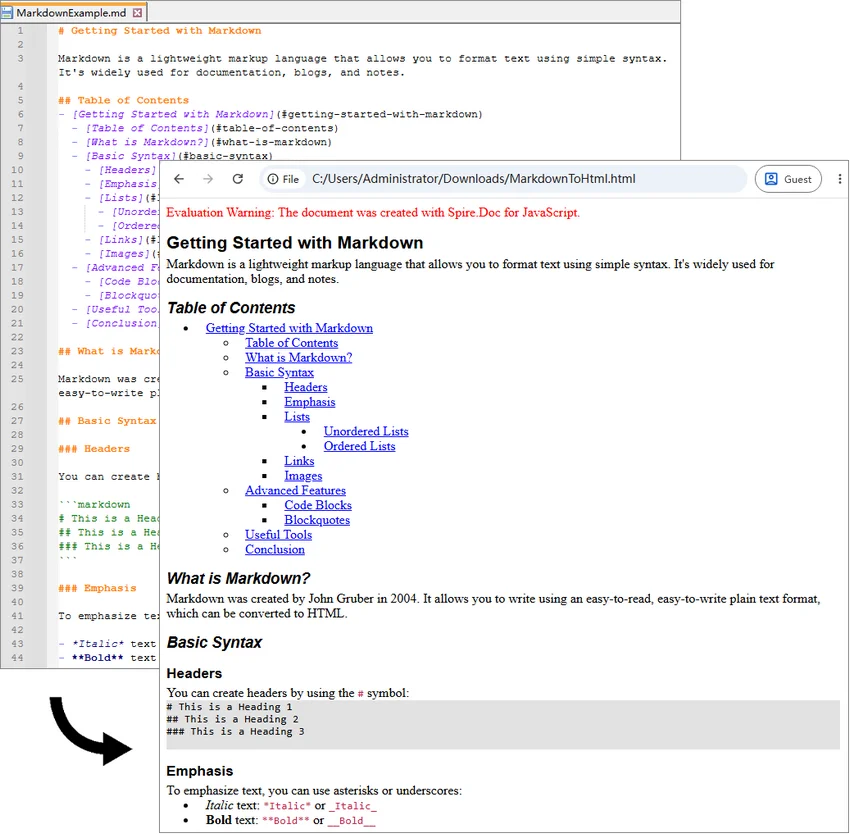
Once the WebAssembly module has loaded, click Convert and Download. The application loads MarkdownExample.md from public/static/data/, converts it to HTML, and downloads the generated MarkdownToHtml.html file.
Here, FetchFileToVFS() loads the source Markdown file into the WebAssembly virtual file system, and Document.LoadFromFile() reads the file from the VFS. CssStyleSheetType.Internal and ImageEmbedded embed styles and images directly in the HTML, while Document.SaveToFile() exports the document as HTML.
Output:
Convert a Markdown String to HTML with JavaScript in React
Markdown is also frequently generated or edited directly inside an application. Content returned by an API or CMS, for example, may already be available as a JavaScript string rather than an existing .md file.
Since Document.LoadFromFile() works with files available in the WebAssembly virtual file system, a Markdown string can first be written to a temporary .md file with FS.writeFile(). The temporary file can then be processed in the same way as a regular Markdown document.
The string-based conversion follows five main steps:
- Module Initialization: Load and initialize the Spire.Doc WebAssembly module.
- Content Preparation: Define or retrieve the Markdown string.
- VFS Creation: Write the Markdown string to a temporary
.mdfile usingFS.writeFile(). - Document Conversion: Load the virtual Markdown file and save it as HTML.
- Output Handling: Read the HTML file from the VFS and download or process it as needed.
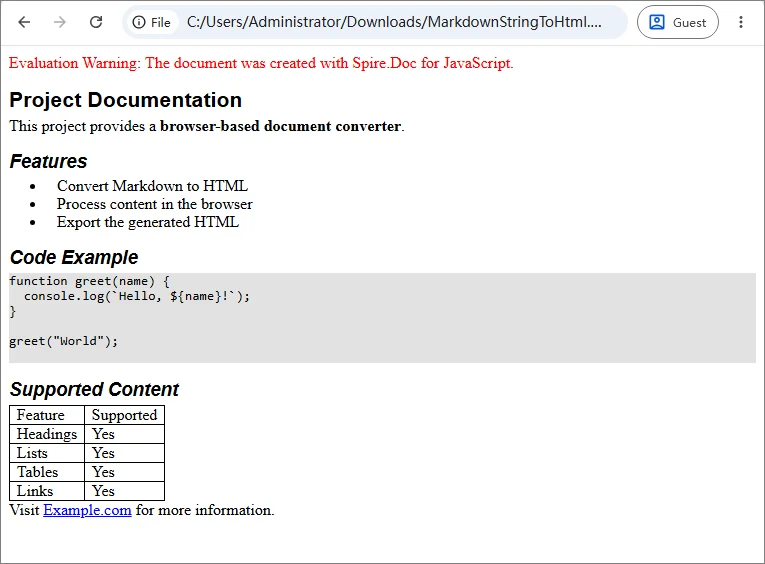
The following example converts a Markdown string containing headings, lists, code, links, and a table.
import React, { useState, useEffect } from 'react';

function App() {
  const [wasmModule, setWasmModule] = useState(null);

  // Load Spire.Doc
  useEffect(() => {
    (async () => {
      try {
        const publicUrl = process.env.PUBLIC_URL || '';

        const spireModule = await import(
          /* webpackIgnore: true */
          `${publicUrl}/spire.doc.js`
        );

        const rawModule = spireModule.default || spireModule;

        window.wasmModule =
          typeof rawModule === 'function'
            ? await rawModule({
                locateFile: (path) =>
                  path.endsWith('.wasm')
                    ? `${publicUrl}/${path}`
                    : path
              })
            : rawModule;

        setWasmModule(window.wasmModule);
      } catch (error) {
        console.error(
          'Failed to load spire.doc.js WASM module:',
          error
        );
      }
    })();
  }, []);

  // Convert Markdown string to HTML
  const convertMarkdownStringToHtml = async () => {
    const wasmModule = window.wasmModule?.spiredoc;

    if (!wasmModule) return;

    // Load the required font into the VFS
    await window.spire.FetchFileToVFS(
      'CALIBRI.ttf',
      '/Library/Fonts/',
      `${process.env.PUBLIC_URL}/static/font/`
    );

    // Define the Markdown string
    const markdownString = `# Project Documentation

This project provides a **browser-based document converter**.

## Features

- Convert Markdown to HTML
- Process content in the browser
- Export the generated HTML

## Code Example

\`\`\`javascript
function greet(name) {
  console.log(\`Hello, \${name}!\`);
}

greet("World");
\`\`\`

## Supported Content

| Feature | Supported |
|---------|-----------|
| Headings | Yes |
| Lists | Yes |
| Tables | Yes |
| Links | Yes |

Visit [Example.com](https://example.com) for more information.
`;

    const inputFileName = 'MarkdownString.md';
    const outputFileName = 'MarkdownStringToHtml.html';

    // Write the Markdown string to the VFS
    window.dotnetRuntime.Module.FS.writeFile(
      inputFileName,
      markdownString,
      { encoding: 'utf8' }
    );

    // Create a Document instance
    const doc = new wasmModule.Document();

    try {
      // Load the Markdown document
      doc.LoadFromFile({
        fileName: inputFileName,
        fileFormat: wasmModule.FileFormat.Markdown
      });

      // Set HTML export options
      doc.HtmlExportOptions.CssStyleSheetType = wasmModule.CssStyleSheetType.Internal;
      doc.HtmlExportOptions.ImageEmbedded = true;

      // Save the document as HTML
      doc.SaveToFile({
        fileName: outputFileName,
        fileFormat: wasmModule.FileFormat.Html
      });

      // Read the generated HTML from the VFS
      const htmlBytes =
        window.dotnetRuntime.Module.FS.readFile(
          outputFileName
        );

      // Download the HTML file
      const blob = new Blob(
        [htmlBytes],
        { type: 'text/html;charset=utf-8' }
      );

      const url = URL.createObjectURL(blob);
      const link = document.createElement('a');

      link.href = url;
      link.download = outputFileName;

      document.body.appendChild(link);
      link.click();
      document.body.removeChild(link);

      URL.revokeObjectURL(url);
    } finally {
      doc.Dispose();
    }
  };

  return (
    <div style={{ textAlign: 'center', height: '300px' }}>
      <h1>Convert Markdown String to HTML</h1>

      <button
        onClick={convertMarkdownStringToHtml}
        disabled={!wasmModule}
      >
        Convert and Download
      </button>
    </div>
  );
}

export default App;
Unlike the previous example, there is no source .md file to load. The Markdown content is written directly to the VFS with FS.writeFile().
window.dotnetRuntime.Module.FS.writeFile(
  inputFileName,
  markdownString,
  { encoding: 'utf8' }
);
This approach also works with Markdown returned from an API, database, CMS, or text editor. Instead of defining markdownString directly in the code, pass the retrieved Markdown content to FS.writeFile().
Output:
Troubleshooting Common MD to HTML Issues
Most conversion problems in a React JavaScript project relate to WebAssembly initialization, public asset paths, or files not loaded into the VFS correctly. The table below lists the most common issues and what to check first.
| Issue | Possible Cause | What to Check |
|---|---|---|
spiredoc is undefined |
The conversion starts before WASM initialization finishes | Keep the conversion button disabled until wasmModule is available |
| 404 when loading runtime files | One or more Spire.Doc assets are missing or the public path is incorrect | Check spire.doc.js, _framework/, WASM resources, and the browser Network panel |
MarkdownExample.md cannot be loaded |
The source file path passed to FetchFileToVFS() is incorrect |
Verify that the file is available under public/static/data/ |
| Font loading fails | CALIBRI.ttf is missing or the font path is incorrect |
Confirm that the font is accessible under public/static/font/ |
| Conversion works locally but fails after deployment | The deployed application uses a different public base path | Verify the generated URLs and adjust process.env.PUBLIC_URL or the equivalent build-tool setting |
| Browser memory increases after repeated conversions | Document objects are not released | Call doc.Dispose() after each conversion, preferably in a finally block |
FAQs
Q: How do I convert a user-selected Markdown file to HTML?
A: A file selected through <input type="file"> is different from a Markdown file stored in the application's public assets.
Read the selected file with the browser File API:
const markdownString = await file.text();
Then write the string to the VFS with FS.writeFile() and use the same conversion process shown in the Markdown string example.
Q: Can I preview the generated HTML instead of downloading it?
A: Yes. Read the generated HTML from the VFS and decode the returned bytes:
const htmlBytes = window.dotnetRuntime.Module.FS.readFile(outputFileName);
const html = new TextDecoder('utf-8').decode(htmlBytes);
The resulting string can then be displayed with an iframe:
<iframe
  title="HTML Preview"
  srcDoc={html}
/>
Security Note: If the Markdown comes from untrusted users or external sources, treat the generated HTML as untrusted content as well and sanitize or isolate it before rendering it in a production application.
Q: Does Markdown-to-HTML conversion require a backend?
A: No. In the examples above, document processing runs through WebAssembly in the browser. The source Markdown and generated HTML are handled through the client-side virtual file system.
A backend may still be needed if your application needs to store the generated file, retrieve protected source content, or perform other server-side operations.
Conclusion
This article showed how to convert Markdown to HTML with JavaScript in React, covering both Markdown files and Markdown strings. By running the conversion through WebAssembly in the browser, content from files, editors, APIs, or CMS platforms can be turned into HTML for download, preview, or further processing. The same core conversion logic can be reused across different Markdown sources.

