
Splitting PDF documents is a common requirement in web applications. For example, you may need to divide a long report into single-page files, extract the cover page separately, or separate the first page from the remaining pages for further processing. Instead of uploading files to a server, you can perform these operations directly in a React application with JavaScript.
Spire.PDF for JavaScript enables developers to load, manipulate, and save PDF documents in browser-based applications. It works with WebAssembly and a virtual file system, allowing PDF files to be processed on the client side.
This article demonstrates how to split PDF documents using JavaScript in React with Spire.PDF for JavaScript.
Install Spire.PDF for JavaScript in a React Project
Open a terminal in the root directory of your React project and install the spire.office package:
npm i spire.office
After the installation is complete, copy the following runtime files and folder from the installed package to the React project's public folder:
public/
├── _framework/
├── spire.pdf.js
├── Spire.Pdf.Wasm.zip
├── spire.common.js
└── Spire.Common.Wasm.zip
The JavaScript loader, WebAssembly resources, and supporting framework files must remain accessible as static assets when the application runs. For detailed setup instructions and the exact integration process, see How to Integrate Spire.PDF for JavaScript in a React Project.
In the examples below, the PDF file to be split is named input.pdf. Place this file in the public folder as well, so that it can be loaded in the React application.
public/
├── input.pdf
└── ...
Split a PDF into Individual Files by Page in JavaScript
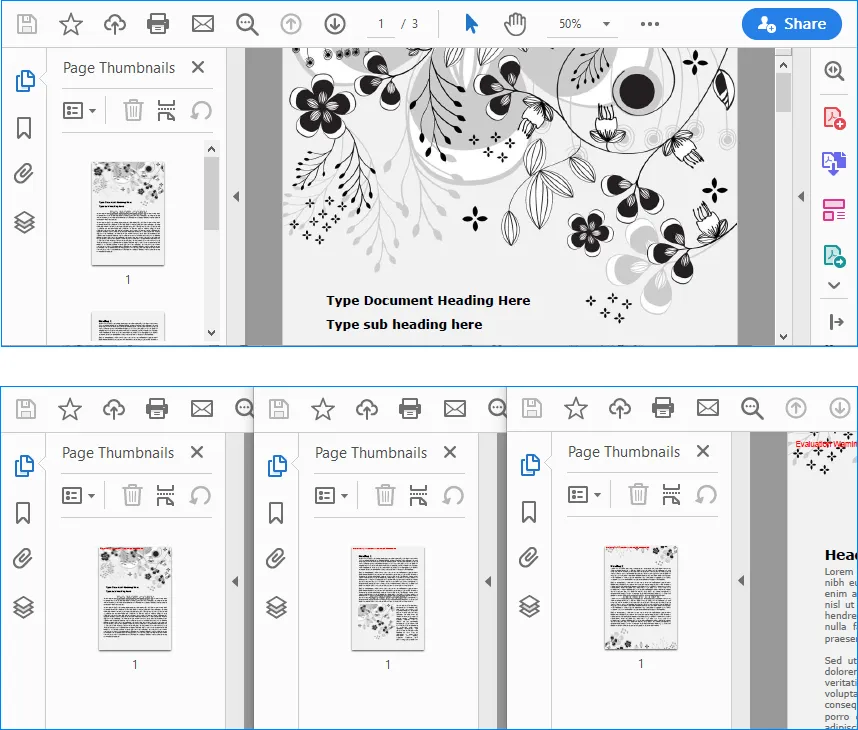
If you want to split a PDF document into multiple single-page PDF files, you can use the Split() method. This method separates the original PDF into individual documents and saves each page as a new PDF file.
The following example loads input.pdf, splits it page by page, and downloads each generated PDF file in the browser.
import React, { useState, useEffect } from 'react';

function App() {
  const [wasmModule, setWasmModule] = useState(null);

  useEffect(() => {
    (async () => {
      const publicUrl = process.env.PUBLIC_URL || '';
      const spireModule = await import(/* webpackIgnore: true */ `${publicUrl}/spire.pdf.js`);
      const rawModule = spireModule.default || spireModule;
      window.wasmModule = typeof rawModule === 'function'
        ? await rawModule({ locateFile: p => p.endsWith('.wasm') ? `${publicUrl}/${p}` : p })
        : rawModule;
      setWasmModule(window.wasmModule);
    })();
  }, []);

  const loadPdfToVfs = async (fileName) => {
    const publicUrl = process.env.PUBLIC_URL || '';
    const response = await fetch(`${publicUrl}/${fileName}`);
    const fileBytes = new Uint8Array(await response.arrayBuffer());
    window.dotnetRuntime.Module.FS.writeFile(fileName, fileBytes, { flags: 'w+' });
    return fileName;
  };

  const SplitPdf = async () => {
    const wasmModule = window.wasmModule?.spirepdf;
    if (!wasmModule) return;

    const inputFile = await loadPdfToVfs('input.pdf');

    const doc = new wasmModule.PdfDocument();
    doc.LoadFromFile(inputFile);

    const pageCount = doc.Pages.Count;
    const outFileName = 'SplitDocument_result-{0}.pdf';
    doc.Split(outFileName);

    for (let i = 0; i < pageCount; i++) {
      const splitFileName = `SplitDocument_result-${i}.pdf`;
      const fileArray = window.dotnetRuntime.Module.FS.readFile(splitFileName);
      const file = new Blob([fileArray], { type: 'application/pdf' });
      const url = URL.createObjectURL(file);
      const a = document.createElement('a');
      a.href = url;
      a.download = splitFileName;
      document.body.appendChild(a);
      a.click();
      document.body.removeChild(a);
      URL.revokeObjectURL(url);
    }
  };

  return (
    <div style={{ textAlign: 'center', height: '300px' }}>
      <h1>Split PDF Documents in React</h1>
      <button onClick={SplitPdf} disabled={!wasmModule}>
        Split PDF
      </button>
    </div>
  );
}

export default App;
Output:
Code Explanation
The code first imports and initializes the Spire.PDF WebAssembly module when the React component is mounted.
const spireModule = await import(/* webpackIgnore: true */ `${publicUrl}/spire.pdf.js`);
Then, the loadPdfToVfs() function loads input.pdf from the public folder and writes it into the virtual file system:
window.dotnetRuntime.Module.FS.writeFile(fileName, fileBytes, { flags: 'w+' });
After the PDF file is loaded, a PdfDocument object is created and the source PDF is opened:
const doc = new wasmModule.PdfDocument();
doc.LoadFromFile(inputFile);
The Split() method splits the PDF document into separate PDF files. The {0} placeholder in the output file name is replaced by the page index:
const outFileName = 'SplitDocument_result-{0}.pdf';
doc.Split(outFileName);
Finally, the generated PDF files are read from the virtual file system, converted into Blob objects, and downloaded in the browser.
Split a PDF by Page Range in JavaScript
In some cases, you may not want to split every page into a separate file. Instead, you may want to extract one page as an individual PDF and save the remaining pages as another PDF. This can be done by creating new PdfDocument objects and inserting selected pages from the source document.
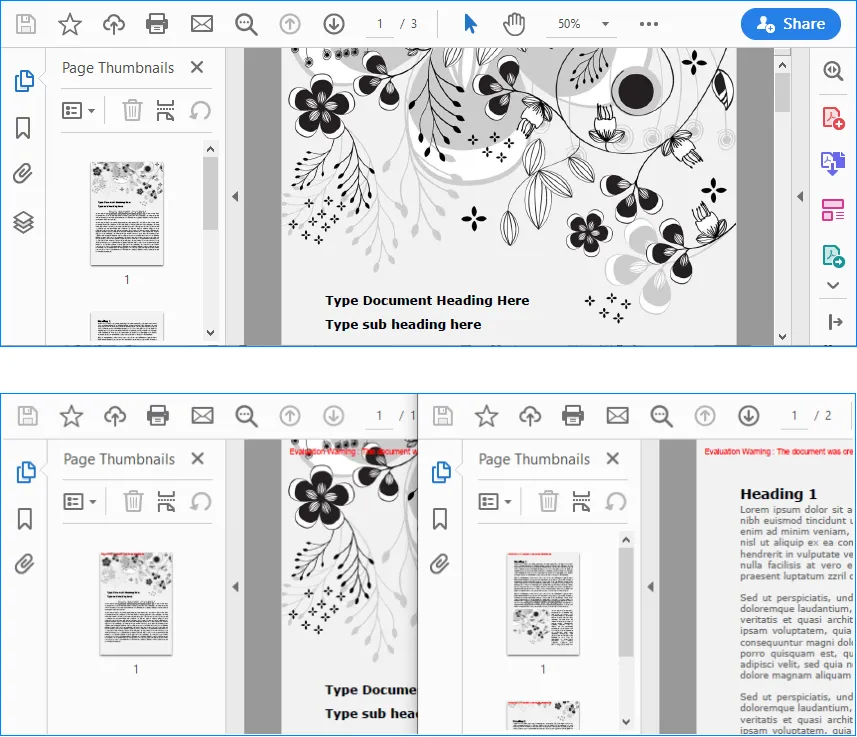
The following example splits input.pdf into two files:
Split-1.pdf: contains the first pageSplit-2.pdf: contains the remaining pages
import React, { useState, useEffect } from 'react';

function App() {
  const [wasmModule, setWasmModule] = useState(null);

  useEffect(() => {
    (async () => {
      const publicUrl = process.env.PUBLIC_URL || '';
      const spireModule = await import(/* webpackIgnore: true */ `${publicUrl}/spire.pdf.js`);
      const rawModule = spireModule.default || spireModule;
      window.wasmModule = typeof rawModule === 'function'
        ? await rawModule({ locateFile: p => p.endsWith('.wasm') ? `${publicUrl}/${p}` : p })
        : rawModule;
      setWasmModule(window.wasmModule);
    })();
  }, []);

  const loadPdfToVfs = async (fileName) => {
    const publicUrl = process.env.PUBLIC_URL || '';
    const response = await fetch(`${publicUrl}/${fileName}`);
    const fileBytes = new Uint8Array(await response.arrayBuffer());
    window.dotnetRuntime.Module.FS.writeFile(fileName, fileBytes, { flags: 'w+' });
    return fileName;
  };

  const SplitPdf = async () => {
    const wasmModule = window.wasmModule?.spirepdf;
    if (!wasmModule) return;

    const inputFile = await loadPdfToVfs('input.pdf');

    const doc = new wasmModule.PdfDocument();
    doc.LoadFromFile(inputFile);

    const newDoc1 = new wasmModule.PdfDocument();
    const newDoc2 = new wasmModule.PdfDocument();

    newDoc1.InsertPage(doc, 0);
    newDoc2.InsertPageRange(doc, 1, doc.Pages.Count - 1);

    newDoc1.SaveToFile('Split-1.pdf');
    newDoc2.SaveToFile('Split-2.pdf');

    for (const splitFileName of ['Split-1.pdf', 'Split-2.pdf']) {
      const fileArray = window.dotnetRuntime.Module.FS.readFile(splitFileName);
      const file = new Blob([fileArray], { type: 'application/pdf' });
      const url = URL.createObjectURL(file);
      const a = document.createElement('a');
      a.href = url;
      a.download = splitFileName;
      document.body.appendChild(a);
      a.click();
      document.body.removeChild(a);
      URL.revokeObjectURL(url);
    }
  };

  return (
    <div style={{ textAlign: 'center', height: '300px' }}>
      <h1>Split PDF Documents in React</h1>
      <button onClick={SplitPdf} disabled={!wasmModule}>
        Split PDF
      </button>
    </div>
  );
}

export default App;
Output:
Code Explanation
This example also starts by loading the source PDF file into the virtual file system and opening it with PdfDocument.
const doc = new wasmModule.PdfDocument();
doc.LoadFromFile(inputFile);
Then, two new PDF documents are created:
const newDoc1 = new wasmModule.PdfDocument();
const newDoc2 = new wasmModule.PdfDocument();
The first page of the source PDF is inserted into newDoc1:
newDoc1.InsertPage(doc, 0);
The remaining pages are inserted into newDoc2 with InsertPageRange():
newDoc2.InsertPageRange(doc, 1, doc.Pages.Count - 1);
Here, page indexes are zero-based. The number 1 means the second page of the original PDF, and doc.Pages.Count - 1 means all remaining pages after the first page.
After inserting the selected pages, the two new PDF documents are saved:
newDoc1.SaveToFile('Split-1.pdf');
newDoc2.SaveToFile('Split-2.pdf');
Finally, both output files are read from the virtual file system and downloaded to the local computer.
Conclusion
This article demonstrated how to split PDF documents in a React application using Spire.PDF for JavaScript. With the Split() method, you can divide a PDF into separate single-page documents. With InsertPage() and InsertPageRange(), you can extract specific pages or page ranges into new PDF files.
These methods are useful for building browser-based PDF tools, document management systems, online file-processing applications, and other React applications that require PDF splitting without server-side processing.
FAQs
Can I split a PDF into one file per page in React?
Yes. You can use the Split() method provided by Spire.PDF for JavaScript to split a PDF document into separate PDF files. Each page of the original PDF will be saved as an individual PDF file.
Can I split only a specific page range from a PDF?
Yes. Instead of splitting every page, you can create a new PdfDocument object and use InsertPage() or InsertPageRange() to copy selected pages from the source PDF into a new PDF document.
Are page indexes zero-based in Spire.PDF for JavaScript?
Yes. Page indexes start from 0. For example, page index 0 refers to the first page, and page index 1 refers to the second page. When using InsertPageRange(), make sure the start index and page count are set correctly.
Do I need a server to split PDF documents in React?
No. With Spire.PDF for JavaScript, the PDF can be loaded, processed, and saved in the browser using WebAssembly and the virtual file system. This makes it possible to split PDF documents directly in a React application without sending the file to a server.

