Извлечение таблиц из PDF: 4 простых и продвинутых метода
Содержание
PDF-файлы отлично подходят для сохранения макетов документов, но извлечение табличных данных из них может быть утомительным. Основная причина заключается в том, что PDF-файлы разработаны для последовательного визуального отображения на разных устройствах, а не для извлечения структурированных данных. В результате таблицы могут существовать в виде выбираемого текста в цифровых PDF-файлах или в виде изображений в отсканированных файлах, причем структуры сильно различаются.
К счастью, существует несколько практических способов извлечения таблиц из PDF, в зависимости от ваших потребностей и уровня технической подготовки. В этом руководстве мы рассмотрим четыре эффективных метода, от простых инструментов без кода, таких как Excel и Google Docs, до мощного решения на основе Python для полного контроля и автоматизации.
Обзор методов:
- Метод 1: Microsoft Excel (встроенный импорт PDF)
- Метод 2: Google Документы (бесплатно и просто)
- Метод 3: Adobe Acrobat Pro (функция экспорта)
- Метод 4: Python (полный контроль и автоматизация)
Метод 1: Microsoft Excel (встроенный импорт PDF)
Лучше всего подходит для: пользователей Windows с Microsoft Office 365 или Excel 2016+ (только для Windows).
Microsoft Excel имеет встроенную функцию импорта PDF, которая удивительно хорошо работает с цифровыми PDF-файлами. Она напрямую подключается к файлу и пытается обнаружить и преобразовать таблицы.
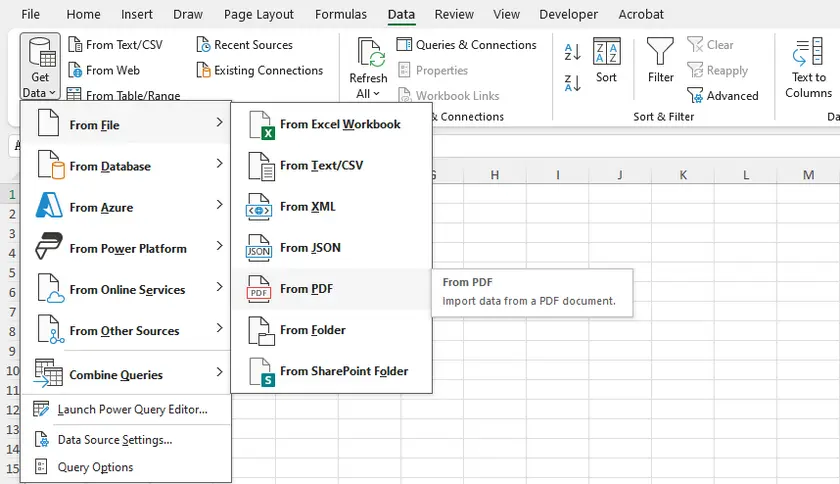
Пошаговые инструкции
- Откройте Microsoft Excel.
- Перейдите в раздел Данные → Получить данные → Из файла → Из PDF.
- Найдите и выберите ваш PDF-файл.
- Появится окно навигатора, показывающее все обнаруженные таблицы и страницы.
- Выберите таблицы, которые вы хотите импортировать, и нажмите Загрузить (для прямого импорта) или Преобразовать данные (для очистки перед загрузкой).
- Excel импортирует таблицу в рабочий лист, сохраняя структуру строк/столбцов достаточно хорошо.
Плюсы и минусы
| Плюсы | Минусы |
|---|---|
| Не требуется дополнительное программное обеспечение (с Office) | Только для Windows |
| Сохраняет числовые форматы | Проблемы со слитыми ячейками |
| Хорошо подходит для цифровых, текстовых PDF | Нет OCR для отсканированных PDF |
| Можно обновлять данные, если PDF обновляется | Может быть медленным для больших PDF |
Метод 2: Google Документы (бесплатно и просто)
Лучше всего подходит для: быстрого разового извлечения, когда у вас нет Excel или платных инструментов.
Google Документы предлагает скрытый, но бесплатный способ извлечения таблиц из PDF-файлов. Он работает путем преобразования всего PDF в редактируемый документ Google, где таблицы становятся сетками на основе текста.
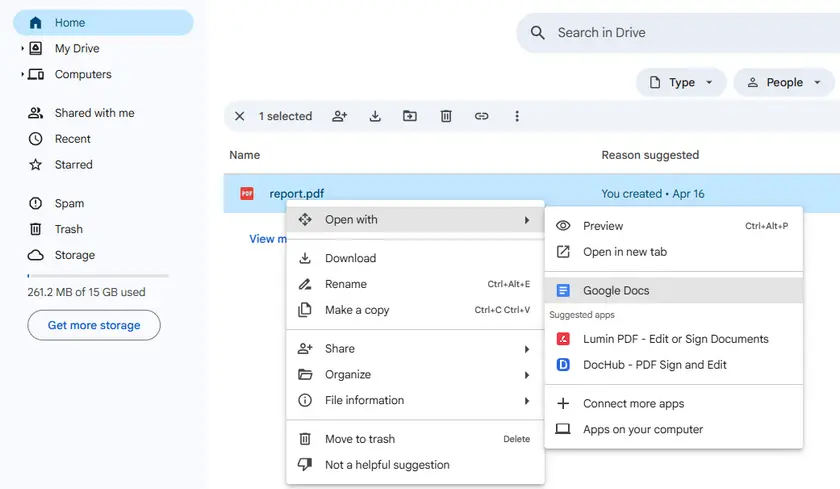
Пошаговые инструкции
- Загрузите PDF в Google Диск.
- Щелкните правой кнопкой мыши по PDF → Открыть с помощью → Google Документы.
- Дождитесь обработки файла Google Документами.
- Прокрутите, чтобы найти таблицу. Она появится в виде сетки на основе текста (строки и столбцы разделены пробелами или табуляцией).
- Скопируйте область таблицы и вставьте ее в Google Таблицы или Microsoft Excel.
Плюсы и минусы
| Плюсы | Минусы |
|---|---|
| Полностью бесплатно | Нет реального обнаружения таблиц (только выравнивание текста) |
| Не требуется установка программного обеспечения | Неаккуратные результаты со сложными таблицами |
| Работает на любой ОС с браузером | Плохая обработка слитых ячеек или многострочных ячеек |
| Надежно обрабатывает простые таблицы | Нет OCR (отсканированные PDF отображаются как изображения) |
Метод 3: Adobe Acrobat Pro (функция экспорта)
Лучше всего подходит для: профессионалов, у которых уже есть Acrobat Pro и которым требуется надежный экспорт из цифровых PDF.
Adobe Acrobat Pro (не бесплатный Reader) имеет встроенную функцию экспорта, которая преобразует таблицы PDF напрямую в Excel или CSV. Он сохраняет больше форматирования, чем бесплатные инструменты.
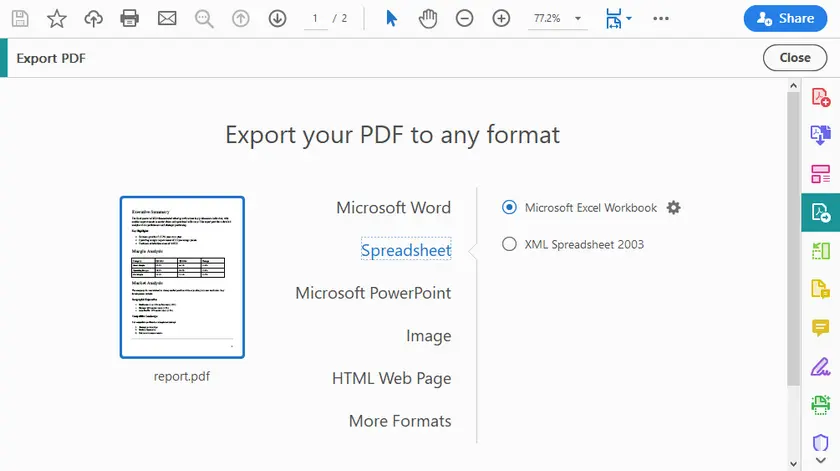
Пошаговые инструкции
- Откройте PDF в Adobe Acrobat Pro.
- Нажмите Экспорт PDF (панель инструментов справа).
- Выберите Электронная таблица → Книга Microsoft Excel (или CSV).
- Нажмите Экспорт.
- Выберите местоположение и сохраните.
- Откройте сгенерированный файл Excel и проверьте таблицы.
Дополнительные советы
- Используйте опцию Распознать текст (OCR), если работаете с отсканированными PDF.
- Для многостраничных таблиц Acrobat часто разумно объединяет их.
- Вы можете экспортировать только выбранные страницы, чтобы сэкономить время.
Плюсы и минусы
| Плюсы | Минусы |
|---|---|
| Высокая точность для цифровых PDF | Дорого (требуется подписка) |
| Хорошо обрабатывает многостраничные таблицы | Нет детального контроля над извлечением |
| Сохраняет формулы и числа | Все еще проблемы с очень сложными вложенными таблицами |
| Доступна пакетная обработка | Только для Windows/macOS (нет веб-версии) |
Метод 4: Python (полный контроль и автоматизация)
Лучше всего подходит для: разработчиков, специалистов по данным и продвинутых пользователей, которым требуется максимальная гибкость, работа с отсканированными PDF или пакетная обработка файлов.
Python предоставляет полный контроль над процессом извлечения. Вы можете работать с цифровыми PDF с помощью таких библиотек, как pdfplumber, camelot или Spire.PDF for Python (коммерческая библиотека с доступной бесплатной версией). Ниже приведен практический пример использования Spire.PDF для извлечения таблиц и сохранения их в виде чистых текстовых файлов.
Установка
pip install spire.pdf
Полный пример кода (извлечение таблиц в файлы TXT)
Следующий код извлекает все таблицы с указанной страницы PDF и сохраняет каждую таблицу в отдельный текстовый файл в формате, похожем на CSV:
from spire.pdf.common import *
from spire.pdf import *

# Создать объект PdfDocument
doc = PdfDocument()

# Загрузить PDF-файл
doc.LoadFromFile("report.pdf")

# Создать объект PdfTableExtractor
extractor = PdfTableExtractor(doc)

# Извлечь таблицы с определенной страницы (индекс страницы начинается с 0)
tableList = extractor.ExtractTable(0)

# Определить, не пуст ли список таблиц
if tableList is not None:

    # Пройти по таблицам на странице
    for i in range(len(tableList)):

        # Создать новый список для хранения данных этой таблицы
        builder = []

        # Получить конкретную таблицу
        table = tableList[i]

        # Получить количество строк и столбцов
        row = table.GetRowCount()
        column = table.GetColumnCount()

        # Пройти по каждой строке и столбцу
        for m in range(row):
            for n in range(column):

                # Получить текст из конкретной ячейки
                text = table.GetText(m, n)

                # Добавить текст, за которым следует запятая (в стиле CSV)
                builder.append(text + ",")
            builder.append("\n")  # Конец строки
        builder.append("\n")      # Пустая строка между таблицами

        # Записать содержимое в текстовый файл
        with open(f"output/Table-{i + 1}.txt", "w", encoding="utf-8") as file:
            file.write("".join(builder))

# Закрыть документ
doc.Close()
Вывод:
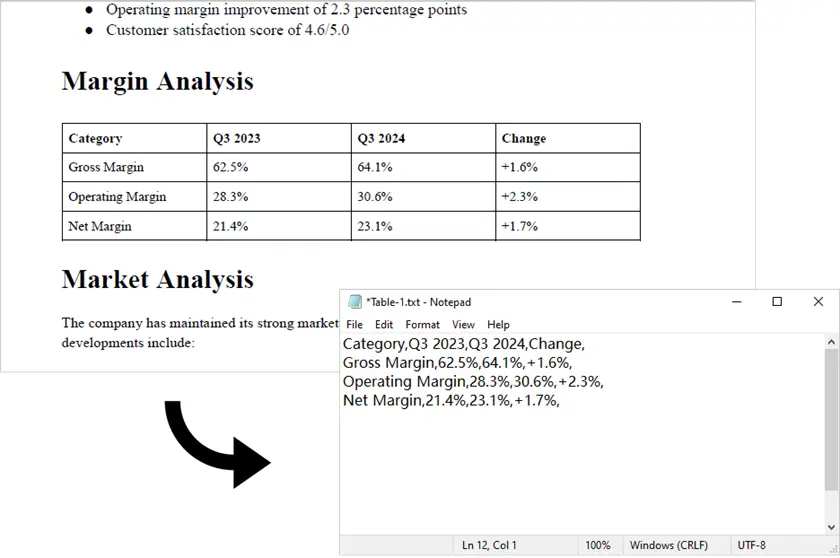
Примечание: Этот скрипт работает только с цифровыми PDF (текстовыми). Для отсканированных PDF одного Spire.PDF недостаточно. В таких случаях вы можете сначала преобразовать PDF в изображения с помощью Spire.PDF, а затем применить движок OCR, такой как pytesseract, вместе с дополнительной логикой обработки для обнаружения и извлечения табличных данных.
Почему Python?
- Обрабатывает как цифровые, так и отсканированные PDF (с интеграцией OCR)
- Пакетная обработка сотен файлов
- Настраиваемая постобработка (очистка, объединение, проверка)
- Может быть интегрирован в веб-приложения, API или конвейеры ETL
- Вы точно контролируете, как таблицы форматируются и сохраняются
Как комплексная библиотека для работы с PDF, Spire.PDF for Python не только извлекает таблицы из PDF, но также поддерживает извлечение изображений, метаданных и вложений. Кроме того, он может экспортировать целые документы в такие форматы, как Word, Excel и TXT.
Плюсы и минусы
| Плюсы | Минусы |
|---|---|
| Полный контроль над логикой извлечения | Требует знаний программирования |
| Обрабатывает сложные и многостраничные таблицы | Более крутая кривая обучения |
| Пакетная обработка тысяч файлов | Spire.PDF требует лицензии для коммерческого использования (бесплатно для личного) |
| Чистые, воспроизводимые результаты | Обнаружение таблиц не идеально для всех PDF |
| Легко интегрируется с pandas, Excel или базами данных |
Сравнительная таблица: выбор правильного метода
| Метод | Простота использования | Обрабатывает отсканированные PDF | Пакетная обработка | Стоимость | Лучше всего подходит для |
|---|---|---|---|---|---|
| Excel | Средняя | x | x | Требуется Office | Быстрые, разовые цифровые таблицы |
| Google Docs | Высокая | x | x | Бесплатно | Простые таблицы, без ПО |
| Adobe Acrobat Pro | Высокая | √ | x | Платно | Профессиональные, нетехнические пользователи |
| Python | Низкая | √ | √ | Бесплатно / Платно | Максимальная гибкость, крупномасштабные, отсканированные PDF |
Заключение
Извлечение таблиц из PDF не обязательно должно быть головной болью. Правильный метод полностью зависит от вашей конкретной ситуации:
- Для одноразовой простой таблицы → Сначала попробуйте Google Документы или онлайн-инструмент.
- Для профессиональных, отполированных результатов → Используйте Excel или Adobe Acrobat Pro, если у вас есть доступ.
- Для максимального контроля, сложных таблиц или отсканированных документов → Python — ваш лучший выбор.
Начните с самого простого метода, который соответствует вашим потребностям. По мере роста ваших требований (больше файлов, отсканированные документы, пользовательская очистка) вы всегда можете перейти на более мощные инструменты, такие как Python. Ключ в том, чтобы признать, что извлечение таблиц не является универсальной проблемой, и теперь у вас есть четыре способа ее решить.
Часто задаваемые вопросы
В1. Почему сложно извлекать таблицы из PDF?
Потому что PDF хранят контент как позиционированный текст, а не как структурированные табличные данные, что делает извлечение менее простым.
В2. Какой метод дает наиболее точные результаты?
Adobe Acrobat Pro обычно обеспечивает наилучшую точность для сложных таблиц.
В3. Могу ли я извлекать таблицы из отсканированных PDF?
Да, но это требует OCR (оптического распознавания символов). Инструменты, такие как Adobe Acrobat или Spire.PDF (с компонентом OCR), могут преобразовывать отсканированные изображения в машиночитаемый текст, после чего можно обнаруживать и извлекать табличные данные.
В4. Лучше ли Python, чем другие методы?
Зависит от ситуации. Python лучше всего подходит для автоматизации и крупномасштабной обработки, но избыточен для разовых задач.
В5. Могу ли я напрямую преобразовывать извлеченные таблицы в Excel?
Да. Большинство инструментов (Excel, Acrobat) поддерживают прямой экспорт в .xlsx, а Python может быть расширен для выполнения того же.
См. также
Como remover imagens de PDF (Um guia completo para 2026)
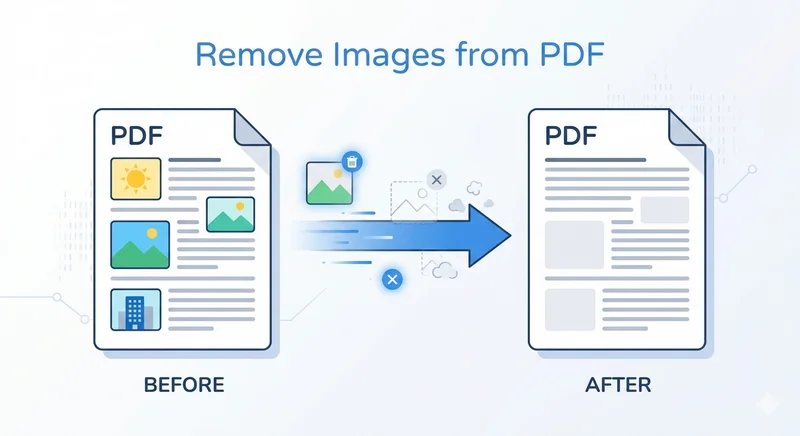
Às vezes, um PDF que parece perfeitamente bom torna-se difícil de compartilhar devido a imagens grandes incorporadas. Você pode enfrentar limites de anexo de e-mail, uploads lentos ou inchaço desnecessário do arquivo ao trabalhar com relatórios ou documentos digitalizados. Nesses casos, saber como remover imagens de documentos PDF pode ajudá-lo a reduzir rapidamente o tamanho do arquivo e simplificar o conteúdo.
Neste guia, abordaremos maneiras práticas de excluir imagens de arquivos PDF, desde ferramentas manuais até soluções automatizadas com Python.
- Remover Imagens de Arquivos PDF com Adobe Acrobat
- Excluir Imagens de PDF com Ferramentas Online de PDF
- Remover Todas as Imagens de PDF Automaticamente com Python
- Solução de Problemas e Perguntas Frequentes
- Conclusão
Método 1: Remover Imagens de Arquivos PDF com Adobe Acrobat
Quando se trata de remover imagens de documentos PDF, a primeira ferramenta que pode vir à mente é o Adobe Acrobat. Como um editor profissional de PDF, ele oferece um ambiente confiável e seguro, o que significa que você não precisa confiar seus dados sensíveis a instalações de terceiros ou servidores web desconhecidos. O Adobe Acrobat fornece controle preciso sobre os elementos do PDF, garantindo que, ao remover imagens de arquivos PDF, o texto e o layout originais permaneçam perfeitamente intactos.
Aqui estão os passos para remover uma imagem de um PDF usando o Adobe Acrobat:
- Passo 1. Abra seu arquivo e navegue até a ferramenta Editar PDF no painel direito.
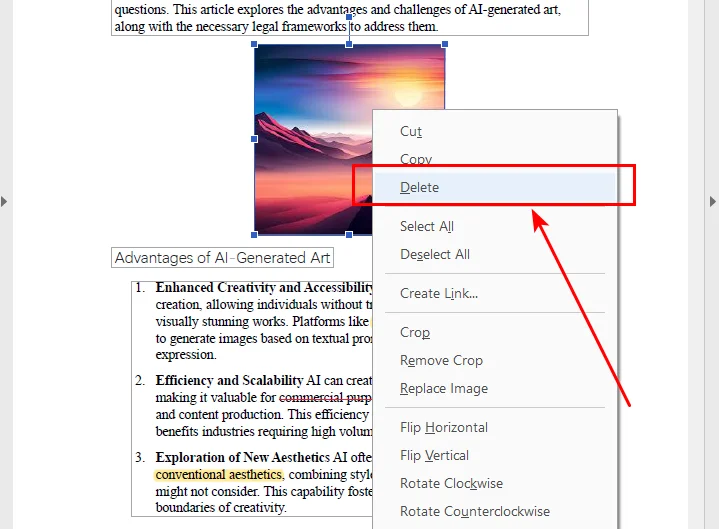
- Passo 2. Clique na imagem que você deseja remover. Uma caixa delimitadora aparecerá.
- Passo 3. Pressione a tecla Delete em seu teclado.
- Passo 4. Salve seu documento.
Embora o Adobe Acrobat seja a ferramenta mais confiável para processamento de PDF, ele requer uma assinatura premium, o que pode não ser ideal para uma correção única. Se você está procurando resultados profissionais sem o ecossistema Adobe, ferramentas como Nitro PDF ou Foxit Editor oferecem modos de edição semelhantes que são perfeitos para inspeção manual. Mas se você está procurando uma maneira mais econômica ou automatizada de excluir imagens de arquivos PDF, as ferramentas online e as soluções Python discutidas abaixo podem ser uma opção mais adequada.
Método 2: Excluir Imagens de PDF com Ferramentas Online de PDF
Se você só precisa processar um arquivo ocasionalmente, não há necessidade de assinar o Adobe Acrobat para uma única tarefa. Em vez disso, editores de PDF online gratuitos oferecem uma alternativa muito mais conveniente. Plataformas como Sejda fornecem recursos de edição poderosos diretamente no seu navegador sem instalação. Basta fazer o upload do seu documento e você pode remover imagens de arquivos PDF instantaneamente em qualquer lugar.
Veja como remover uma imagem de um PDF online usando o Sejda como exemplo:
- Passo 1. Faça o upload do seu documento para o editor online Sejda.
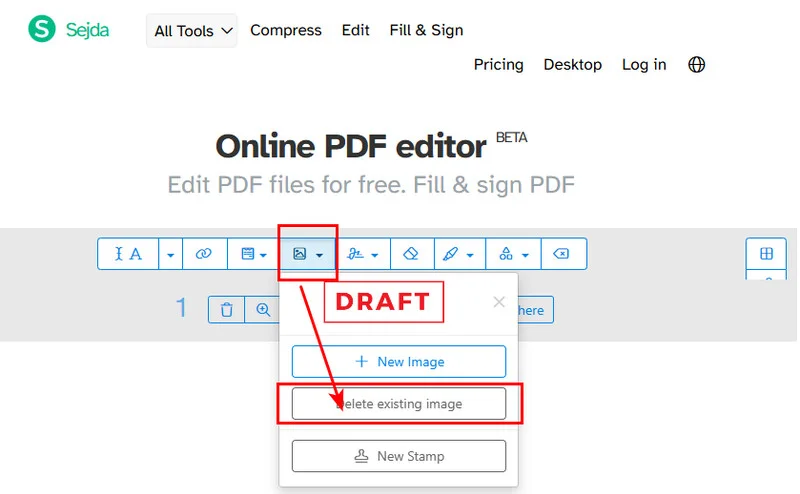
- Passo 2. Clique na seta suspensa ao lado do botão Imagens na barra de ferramentas superior.
- Passo 3. Selecione a opção Excluir imagem existente na lista.
- Passo 4. Localize a imagem que você deseja remover e clique no ícone Excluir que aparece em seu canto superior esquerdo.
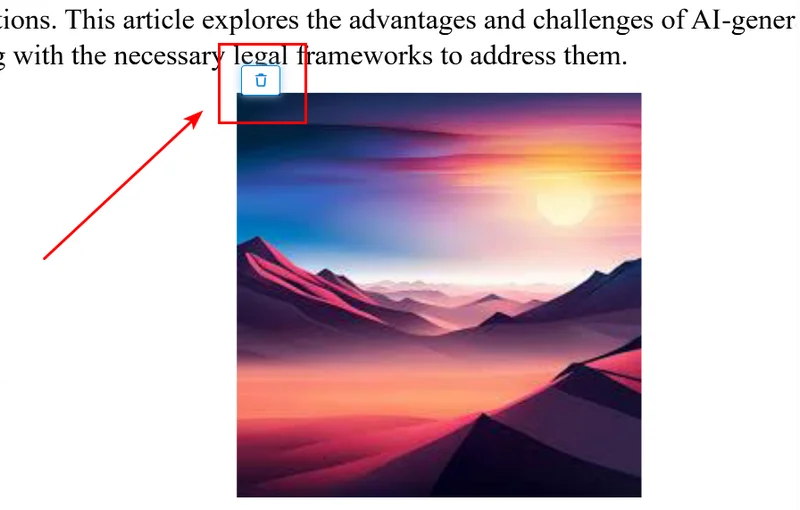
Embora o Sejda seja poderoso, ele tem suas limitações. A versão gratuita restringe você a três tarefas por dia e tem limites de tamanho de arquivo e contagem de páginas. Para usuários que lidam com grandes volumes de documentos ou dados altamente confidenciais, essas restrições online e riscos de privacidade podem tornar a solução automatizada com Python abaixo uma opção melhor.
Dica: Se o seu objetivo não é se livrar dessas imagens, mas salvá-las para outros projetos, confira nosso guia sobre como extrair imagens de PDF usando as melhores ferramentas gratuitas disponíveis.
Método 3: Remover Todas as Imagens de PDF Automaticamente com Python
Se você está lidando com centenas de arquivos, o clique manual é uma perda de tempo. Você pode aprender a remover todas as imagens de documentos PDF programaticamente usando Python. Usaremos a biblioteca Free Spire.PDF for Python porque ela é poderosa e lida com recursos complexos de PDF de forma eficiente sem o Adobe Acrobat.
Configuração do Ambiente
Primeiro, instale a biblioteca usando pip:
pip install Spire.Pdf.Free
Como o Script Funciona
O script Python remove imagens de arquivos PDF chamando a classe PdfImageHelper para escanear o dicionário de recursos internos de cada página. Este método identifica objetos de imagem e os remove completamente do documento. Excluímos esses objetos em ordem reversa para garantir que o índice interno do documento permaneça estável até que a página seja completamente limpa.
O Código Python
from spire.pdf.common import *
from spire.pdf import *

# Criar uma instância de PdfDocument
doc = PdfDocument()

# Carregar o documento PDF
doc.LoadFromFile("/input/Sample.pdf")

# Inicializar o Image Helper
image_helper = PdfImageHelper()

# Iterar por cada página no documento
for i in range(doc.Pages.Count):
    page = doc.Pages.get_Item(i)

    # Obter todas as informações de imagem da página atual
    image_infos = image_helper.GetImagesInfo(page)

    # Se imagens forem encontradas, excluí-las em ordem reversa
    if image_infos:
        for j in range(len(image_infos) - 1, -1, -1):
            image_helper.DeleteImage(image_infos[j])

# Salvar o resultado em um novo arquivo
doc.SaveToFile("/output/no images.pdf", FileFormat.PDF)
doc.Dispose()
Aqui está a prévia do arquivo original e do arquivo PDF de saída:
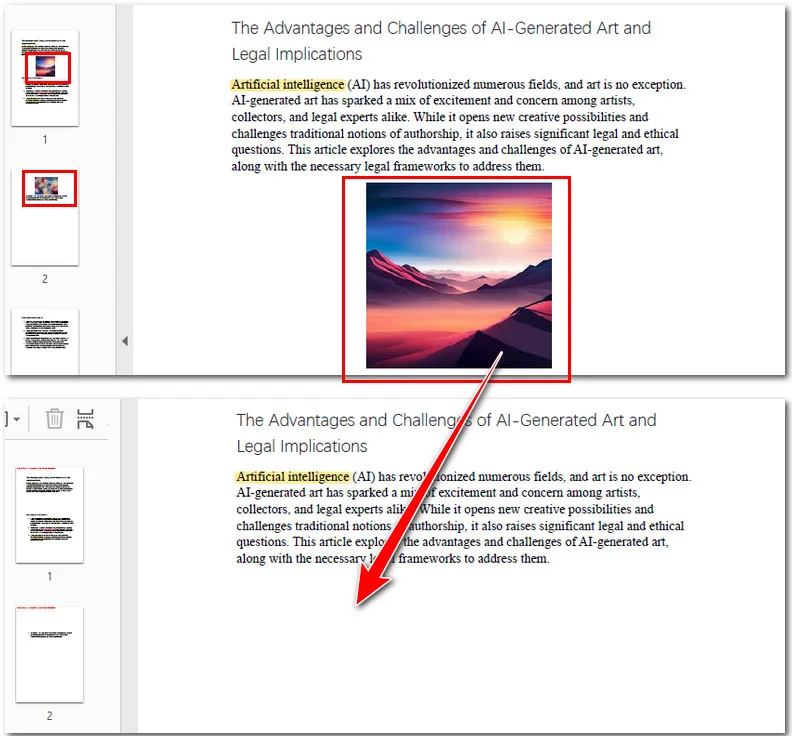
Essa abordagem programática é ideal para fluxos de trabalho de nível empresarial onde você precisa processar grandes volumes de arquivos com alta velocidade e consistência. Ao integrar isso ao seu trabalho, você pode automatizar a geração de versões de documentos apenas em texto em apenas alguns segundos.
Você pode gostar: Python: Definir a Transparência de Imagens PDF
Solução de Problemas e Perguntas Frequentes
P: Por que há um espaço em branco onde a imagem estava?
R: PDFs são construídos em camadas. Quando você exclui uma imagem, você está removendo o objeto, mas o texto não "flui" automaticamente para cima para preencher a lacuna como acontece em um documento do Word.
P: Por que não consigo selecionar a imagem?
R: Se você não consegue clicar nela, a "imagem" pode ser, na verdade, parte de uma página digitalizada (a página inteira é uma grande imagem) ou um gráfico vetorial feito de milhares de pequenos caminhos.
P: Remover imagens afetará a formatação do texto?
R: Geralmente, não. Desde que você use um editor de PDF adequado ou o método Python acima, as coordenadas do texto permanecem fixas.
Conclusão
A escolha da ferramenta certa para remover imagens de arquivos PDF depende, em última análise, de suas necessidades específicas de precisão, velocidade e volume. Para tarefas únicas que exigem precisão, o Adobe Acrobat continua sendo a escolha profissional, enquanto o Sejda oferece uma alternativa conveniente e sem instalação para edições rápidas em qualquer lugar. No entanto, para tarefas que envolvem lotes massivos de arquivos, a automação com Python via Free Spire.PDF oferece velocidade e privacidade de dados incomparáveis. Ao selecionar o método que se adapta ao seu fluxo de trabalho, você pode reduzir eficientemente o tamanho dos arquivos e proteger informações confidenciais em segundos.
Leia Também:
PDF에서 이미지를 제거하는 방법 (2026년 전체 가이드)
때로는 완벽해 보이는 PDF 파일이 포함된 대용량 이미지 때문에 공유하기 어려워질 수 있습니다. 보고서나 스캔한 문서를 작업할 때 이메일 첨부 파일 제한, 느린 업로드 또는 불필요한 파일 용량 증가에 직면할 수 있습니다. 이 경우 PDF 문서에서 이미지를 제거하는 방법을 알면 파일 크기를 빠르게 줄이고 콘텐츠를 단순화하는 데 도움이 될 수 있습니다.
이 가이드에서는 수동 도구부터 자동화된 Python 솔루션까지 PDF 파일에서 이미지를 삭제하는 실용적인 방법을 안내합니다.
- Adobe Acrobat으로 PDF 파일에서 이미지 제거하기
- 온라인 PDF 도구로 PDF에서 이미지 삭제하기
- Python으로 PDF에서 모든 이미지 자동 제거하기
- 문제 해결 및 FAQ
- 결론
방법 1: Adobe Acrobat으로 PDF 파일에서 이미지 제거하기
PDF 문서에서 이미지를 제거할 때 가장 먼저 떠오르는 도구는 Adobe Acrobat일 것입니다. 전문 PDF 편집기인 Adobe Acrobat은 권위 있고 안전한 환경을 제공하므로 민감한 데이터를 타사 설치 프로그램이나 알 수 없는 웹 서버에 신뢰할 필요가 없습니다. Adobe Acrobat은 PDF 요소에 대한 정밀한 제어를 제공하여 PDF 파일에서 이미지를 제거할 때 원본 텍스트와 레이아웃이 완벽하게 유지되도록 합니다.
Adobe Acrobat을 사용하여 PDF에서 이미지를 제거하는 단계는 다음과 같습니다.
- 1단계. 파일을 열고 오른쪽 창에서 PDF 편집 도구로 이동합니다.
- 2단계. 제거하려는 이미지를 클릭합니다. 경계 상자가 나타납니다.
- 3단계. 키보드에서 Delete 키를 누릅니다.
- 4단계. 문서를 저장합니다.
Adobe Acrobat은 PDF 처리에 가장 신뢰할 수 있는 도구이지만 프리미엄 구독이 필요하므로 일회성 수정에는 이상적이지 않을 수 있습니다. Adobe 생태계 없이 전문적인 결과를 원한다면 Nitro PDF 또는 Foxit Editor와 같은 도구는 수동 검사에 완벽한 유사한 편집 모드를 제공합니다. 하지만 PDF 파일에서 이미지를 삭제하는 더 비용 효율적이거나 자동화된 방법을 찾고 있다면 아래에서 설명하는 온라인 도구와 Python 솔루션이 더 적합할 수 있습니다.
방법 2: 온라인 PDF 도구로 PDF에서 이미지 삭제하기
파일을 가끔 처리해야 하는 경우 단일 작업을 위해 Adobe Acrobat을 구독할 필요가 없습니다. 대신 무료 온라인 PDF 편집기는 훨씬 더 편리한 대안을 제공합니다. Sejda와 같은 플랫폼은 설치 없이 브라우저에서 바로 강력한 편집 기능을 제공합니다. 문서를 업로드하기만 하면 이동 중에도 PDF 파일에서 이미지를 즉시 제거할 수 있습니다.
Sejda를 예로 들어 온라인에서 PDF의 이미지를 제거하는 방법은 다음과 같습니다.
- 1단계. Sejda 온라인 편집기에 문서를 업로드합니다.
- 2단계. 상단 도구 모음에서 이미지 버튼 옆의 드롭다운 화살표를 클릭합니다.
- 3단계. 목록에서 기존 이미지 삭제 옵션을 선택합니다.
- 4단계. 제거하려는 이미지를 찾고 왼쪽 상단 모서리에 나타나는 삭제 아이콘을 클릭합니다.
Sejda는 강력하지만 제한 사항이 있습니다. 무료 버전은 하루에 세 가지 작업으로 제한되며 파일 크기와 페이지 수에 제한이 있습니다. 대량의 문서를 처리하거나 매우 민감한 데이터를 다루는 사용자에게는 이러한 온라인 제약 조건과 개인 정보 보호 위험으로 인해 아래의 자동화된 Python 솔루션이 더 적합할 수 있습니다.
팁: 이미지를 제거하는 것이 아니라 다른 프로젝트를 위해 저장하는 것이 목표라면, 최고의 무료 도구를 사용하여 PDF 이미지를 추출하는 방법에 대한 가이드를 확인하세요.
방법 3: Python으로 PDF에서 모든 이미지 자동 제거하기
수백 개의 파일을 다루는 경우 수동 클릭은 시간 낭비입니다. Python을 사용하여 프로그래밍 방식으로 PDF 문서에서 모든 이미지를 제거하는 방법을 배울 수 있습니다. 무료 Spire.PDF for Python 라이브러리를 사용할 것입니다. 이 라이브러리는 강력하고 Adobe Acrobat 없이도 복잡한 PDF 리소스를 효율적으로 처리하기 때문입니다.
환경 설정
먼저 pip를 사용하여 라이브러리를 설치합니다.
pip install Spire.Pdf.Free
스크립트 작동 방식
Python 스크립트는 PdfImageHelper 클래스를 호출하여 모든 페이지의 내부 리소스 사전을 스캔하여 PDF 파일에서 이미지를 제거합니다. 이 방법은 이미지 객체를 식별하고 문서에서 완전히 제거합니다. 문서의 내부 인덱싱이 페이지가 완전히 지워질 때까지 안정적으로 유지되도록 객체를 역순으로 삭제합니다.
Python 코드
from spire.pdf.common import *
from spire.pdf import *

# PdfDocument 인스턴스 생성
doc = PdfDocument()

# PDF 문서 로드
doc.LoadFromFile("/input/Sample.pdf")

# 이미지 도우미 초기화
image_helper = PdfImageHelper()

# 문서의 각 페이지를 반복
for i in range(doc.Pages.Count):
    page = doc.Pages.get_Item(i)

    # 현재 페이지의 모든 이미지 정보 가져오기
    image_infos = image_helper.GetImagesInfo(page)

    # 이미지가 발견되면 역순으로 삭제
    if image_infos:
        for j in range(len(image_infos) - 1, -1, -1):
            image_helper.DeleteImage(image_infos[j])

# 결과를 새 파일에 저장
doc.SaveToFile("/output/no images.pdf", FileFormat.PDF)
doc.Dispose()
원본 파일과 출력 PDF 파일의 미리 보기는 다음과 같습니다.
이 프로그래밍 방식 접근 방식은 속도와 일관성이 높은 대규모 파일 처리가 필요한 엔터프라이즈 수준 워크플로우에 이상적입니다. 이를 작업에 통합하면 몇 초 만에 텍스트 전용 문서 버전을 자동화할 수 있습니다.
다음도 유용할 수 있습니다: Python: PDF 이미지의 투명도 설정
문제 해결 및 FAQ
Q: 이미지가 있던 자리에 빈 흰색 공간이 있는 이유는 무엇인가요?
A: PDF는 레이어로 구성됩니다. 이미지를 삭제하면 객체가 제거되지만, Word 문서처럼 텍스트가 자동으로 위로 "흐름"하여 빈 공간을 채우지는 않습니다.
Q: 이미지를 선택할 수 없는 이유는 무엇인가요?
A: 클릭할 수 없다면 해당 "이미지"는 스캔된 페이지(전체 페이지가 하나의 큰 그림)의 일부이거나 수천 개의 작은 경로로 만들어진 벡터 그래픽일 수 있습니다.
Q: 이미지를 제거하면 텍스트 서식에 영향을 미치나요?
A: 일반적으로 그렇지 않습니다. 적절한 PDF 편집기나 위의 Python 방법을 사용하는 한 텍스트 좌표는 고정됩니다.
결론
PDF 파일에서 이미지를 제거하는 올바른 도구를 선택하는 것은 궁극적으로 정확성, 속도 및 볼륨에 대한 특정 요구 사항에 따라 달라집니다. 정확성이 필요한 일회성 작업의 경우 Adobe Acrobat이 전문적인 선택으로 남아 있으며, Sejda는 이동 중에도 빠른 편집을 위한 편리한 설치 없는 대안을 제공합니다. 그러나 대규모 파일 일괄 처리가 포함된 작업의 경우 Free Spire.PDF를 통한 Python 자동화는 비교할 수 없는 속도와 데이터 개인 정보를 제공합니다. 워크플로우에 맞는 방법을 선택하면 파일 크기를 효율적으로 줄이고 민감한 정보를 몇 초 만에 보호할 수 있습니다.
함께 읽어보기:
Come rimuovere immagini da PDF (Una guida completa per il 2026)
Indice dei contenuti
A volte un PDF che sembra perfetto diventa difficile da condividere a causa di immagini incorporate di grandi dimensioni. Potresti riscontrare limiti di allegati email, caricamenti lenti o un gonfiore inutile del file quando lavori con report o documenti scansionati. In questi casi, sapere come rimuovere immagini dai documenti PDF può aiutarti a ridurre rapidamente le dimensioni del file e semplificare il contenuto.
In questa guida, ti illustreremo modi pratici per eliminare immagini dai file PDF, dagli strumenti manuali alle soluzioni Python automatizzate.
- Rimuovere immagini dai file PDF con Adobe Acrobat
- Eliminare immagini da PDF con strumenti PDF online
- Rimuovere automaticamente tutte le immagini da PDF con Python
- Risoluzione dei problemi e domande frequenti
- Conclusione
Metodo 1: Rimuovere immagini dai file PDF con Adobe Acrobat
Quando si tratta di rimuovere immagini dai documenti PDF, il primo strumento che potrebbe venirti in mente è Adobe Acrobat. In quanto editor PDF professionale, offre un ambiente autorevole e sicuro, il che significa che non devi affidare i tuoi dati sensibili a installazioni di terze parti o server web sconosciuti. Adobe Acrobat fornisce un controllo preciso sugli elementi PDF, garantendo che quando rimuovi immagini dai file PDF, il testo e il layout originali rimangano perfettamente intatti.
Ecco i passaggi per rimuovere un'immagine da un PDF utilizzando Adobe Acrobat:
- Passaggio 1. Apri il tuo file e vai allo strumento Modifica PDF nel riquadro di destra.
- Passaggio 2. Fai clic sull'immagine che desideri eliminare. Apparirà una casella di delimitazione.
- Passaggio 3. Premi il tasto Canc sulla tastiera.
- Passaggio 4. Salva il tuo documento.
Sebbene Adobe Acrobat sia lo strumento più affidabile per l'elaborazione di PDF, richiede un abbonamento premium, che potrebbe non essere ideale per una soluzione una tantum. Se stai cercando risultati professionali senza l'ecosistema Adobe, strumenti come Nitro PDF o Foxit Editor offrono modalità di modifica simili, perfette per l'ispezione manuale. Ma se stai cercando un modo più conveniente o automatizzato per eliminare immagini dai file PDF, gli strumenti online e le soluzioni Python discusse di seguito potrebbero essere un'opzione più adatta.
Metodo 2: Eliminare immagini da PDF con strumenti PDF online
Se hai solo bisogno di elaborare un file occasionalmente, non è necessario abbonarsi ad Adobe Acrobat per un singolo compito. Invece, gli editor PDF online gratuiti offrono un'alternativa molto più conveniente. Piattaforme come Sejda forniscono potenti funzionalità di modifica direttamente nel tuo browser senza installazione. Carica semplicemente il tuo documento e puoi rimuovere immagini dai file PDF all'istante mentre sei in movimento.
Ecco come rimuovere un'immagine da un PDF online utilizzando Sejda come esempio:
- Passaggio 1. Carica il tuo documento nell'editor online Sejda.
- Passaggio 2. Fai clic sulla freccia a discesa accanto al pulsante Immagini nella barra degli strumenti in alto.
- Passaggio 3. Seleziona l'opzione Elimina immagine esistente dall'elenco.
- Passaggio 4. Individua l'immagine che desideri rimuovere e fai clic sull'icona Elimina che appare nell'angolo in alto a sinistra.
Sebbene Sejda sia potente, ha i suoi limiti. La versione gratuita ti limita a tre attività al giorno e ha limiti sulla dimensione del file e sul numero di pagine. Per gli utenti che gestiscono grandi volumi di documenti o dati altamente riservati, questi vincoli online e i rischi per la privacy potrebbero rendere la soluzione Python automatizzata di seguito una scelta migliore.
Suggerimento: Se il tuo obiettivo non è eliminare queste immagini ma salvarle per altri progetti, consulta la nostra guida su come estrarre immagini da PDF utilizzando i migliori strumenti gratuiti disponibili.
Metodo 3: Rimuovere automaticamente tutte le immagini da PDF con Python
Se stai gestendo centinaia di file, fare clic manualmente è una perdita di tempo. Puoi imparare come rimuovere tutte le immagini dai documenti PDF programmaticamente utilizzando Python. Utilizzeremo la libreria Free Spire.PDF for Python perché è potente e gestisce in modo efficiente risorse PDF complesse senza Adobe Acrobat.
Configurazione dell'ambiente
Innanzitutto, installa la libreria usando pip:
pip install Spire.Pdf.Free
Come funziona lo script
Lo script Python rimuove le immagini dai file PDF chiamando la classe PdfImageHelper per scansionare il dizionario delle risorse interne di ogni pagina. Questo metodo identifica gli oggetti immagine e li rimuove completamente dal documento. Eliminiamo questi oggetti in ordine inverso per garantire che l'indicizzazione interna del documento rimanga stabile finché la pagina non viene completamente svuotata.
Il codice Python
from spire.pdf.common import *
from spire.pdf import *

# Crea un'istanza di PdfDocument
doc = PdfDocument()

# Carica il documento PDF
doc.LoadFromFile("/input/Sample.pdf")

# Inizializza l'Image Helper
image_helper = PdfImageHelper()

# Itera su ogni pagina del documento
for i in range(doc.Pages.Count):
    page = doc.Pages.get_Item(i)

    # Ottieni tutte le informazioni sulle immagini dalla pagina corrente
    image_infos = image_helper.GetImagesInfo(page)

    # Se vengono trovate immagini, eliminale in ordine inverso
    if image_infos:
        for j in range(len(image_infos) - 1, -1, -1):
            image_helper.DeleteImage(image_infos[j])

# Salva il risultato in un nuovo file
doc.SaveToFile("/output/no images.pdf", FileFormat.PDF)
doc.Dispose()
Ecco l'anteprima del file originale e del file PDF di output:
Questo approccio programmatico è ideale per flussi di lavoro a livello aziendale in cui è necessario elaborare enormi volumi di file con alta velocità e coerenza. Integrando questo nel tuo lavoro, puoi automatizzare la generazione di versioni di documenti solo testuali in pochi secondi.
Potrebbe interessarti: Python: Imposta la trasparenza delle immagini PDF
Risoluzione dei problemi e domande frequenti
D: Perché c'è uno spazio bianco vuoto dove c'era l'immagine?
R: I PDF sono costruiti a strati. Quando elimini un'immagine, stai rimuovendo l'oggetto, ma il testo non "fluisce" automaticamente verso l'alto per riempire lo spazio come fa in un documento Word.
D: Perché non riesco a selezionare l'immagine?
R: Se non riesci a cliccarci sopra, l'"immagine" potrebbe in realtà far parte di una pagina scansionata (l'intera pagina è un'unica grande immagine) o una grafica vettoriale composta da migliaia di piccoli tracciati.
D: La rimozione delle immagini influenzerà la formattazione del testo?
R: Generalmente, no. Finché utilizzi un editor PDF appropriato o il metodo Python sopra descritto, le coordinate del testo rimangono fisse.
Conclusione
La scelta dello strumento giusto per rimuovere immagini dai file PDF dipende in ultima analisi dalle tue esigenze specifiche in termini di precisione, velocità e volume. Per attività una tantum che richiedono precisione, Adobe Acrobat rimane la scelta professionale, mentre Sejda offre un'alternativa conveniente e senza installazione per modifiche rapide in movimento. Tuttavia, per attività che coinvolgono enormi lotti di file, l'automazione Python tramite Free Spire.PDF offre velocità e privacy dei dati impareggiabili. Scegliendo il metodo che si adatta al tuo flusso di lavoro, puoi ridurre in modo efficiente le dimensioni dei file e proteggere le informazioni sensibili in pochi secondi.
Leggi anche:
Comment supprimer des images d'un PDF (Un guide complet pour 2026)
Parfois, un PDF qui semble parfait devient difficile à partager en raison de grandes images intégrées. Vous pourriez rencontrer des limites de taille de pièces jointes d'e-mail, des téléchargements lents ou un gonflement inutile du fichier lorsque vous travaillez avec des rapports ou des documents numérisés. Dans ces cas, savoir comment supprimer des images des documents PDF peut vous aider à réduire rapidement la taille du fichier et à simplifier le contenu.
Dans ce guide, nous vous présenterons des moyens pratiques de supprimer des images de fichiers PDF, des outils manuels aux solutions Python automatisées.
- Supprimer des images des fichiers PDF avec Adobe Acrobat
- Supprimer des images des PDF avec des outils PDF en ligne
- Supprimer automatiquement toutes les images d'un PDF avec Python
- Dépannage et FAQ
- Conclusion
Méthode 1 : Supprimer des images des fichiers PDF avec Adobe Acrobat
Lorsqu'il s'agit de supprimer des images de documents PDF, le premier outil qui peut vous venir à l'esprit est Adobe Acrobat. En tant qu'éditeur PDF professionnel, il offre un environnement faisant autorité et sécurisé, ce qui signifie que vous n'avez pas à confier vos données sensibles à des installations tierces ou à des serveurs Web inconnus. Adobe Acrobat offre un contrôle précis sur les éléments PDF, garantissant que lorsque vous supprimez des images de fichiers PDF, le texte et la mise en page d'origine restent parfaitement intacts.
Voici les étapes pour supprimer une image d'un PDF à l'aide d'Adobe Acrobat :
- Étape 1. Ouvrez votre fichier et accédez à l'outil Modifier le PDF dans le volet de droite.
- Étape 2. Cliquez sur l'image que vous souhaitez supprimer. Une boîte de délimitation apparaîtra.
- Étape 3. Appuyez sur la touche Supprimer de votre clavier.
- Étape 4. Enregistrez votre document.
Bien qu'Adobe Acrobat soit l'outil le plus fiable pour le traitement des PDF, il nécessite un abonnement premium, ce qui peut ne pas être idéal pour une solution unique. Si vous recherchez des résultats professionnels sans l'écosystème Adobe, des outils comme Nitro PDF ou Foxit Editor offrent des modes d'édition similaires qui sont parfaits pour une inspection manuelle. Mais si vous recherchez un moyen plus économique ou automatisé de supprimer des images de fichiers PDF, les outils en ligne et les solutions Python abordés ci-dessous peuvent être une option plus appropriée.
Méthode 2 : Supprimer des images des PDF avec des outils PDF en ligne
Si vous n'avez besoin de traiter un fichier qu'occasionnellement, il n'est pas nécessaire de vous abonner à Adobe Acrobat pour une seule tâche. Au lieu de cela, les éditeurs PDF en ligne gratuits offrent une alternative beaucoup plus pratique. Des plateformes comme Sejda offrent de puissantes fonctionnalités d'édition directement dans votre navigateur sans installation. Téléchargez simplement votre document et vous pouvez supprimer des images de fichiers PDF instantanément, où que vous soyez.
Voici comment supprimer une image d'un PDF en ligne en utilisant Sejda comme exemple :
- Étape 1. Téléchargez votre document dans l'éditeur en ligne Sejda.
- Étape 2. Cliquez sur la flèche déroulante à côté du bouton Images dans la barre d'outils supérieure.
- Étape 3. Sélectionnez l'option Supprimer l'image existante dans la liste.
- Étape 4. Localisez l'image que vous souhaitez supprimer et cliquez sur l'icône Supprimer qui apparaît dans son coin supérieur gauche.
Bien que Sejda soit puissant, il a ses limites. La version gratuite vous limite à trois tâches par jour et a des limites sur la taille des fichiers et le nombre de pages. Pour les utilisateurs qui traitent de grands volumes de documents ou des données hautement confidentielles, ces contraintes en ligne et ces risques de confidentialité pourraient faire de la solution Python automatisée ci-dessous un meilleur choix.
Astuce : Si votre objectif n'est pas de vous débarrasser de ces images mais de les enregistrer pour d'autres projets, consultez notre guide sur la façon d'extraire des images PDF à l'aide des meilleurs outils gratuits disponibles.
Méthode 3 : Supprimer automatiquement toutes les images d'un PDF avec Python
Si vous traitez des centaines de fichiers, le clic manuel est une perte de temps. Vous pouvez apprendre à supprimer toutes les images des documents PDF par programmation à l'aide de Python. Nous utiliserons la bibliothèque Free Spire.PDF for Python car elle est puissante et gère efficacement les ressources PDF complexes sans Adobe Acrobat.
Configuration de l'environnement
Tout d'abord, installez la bibliothèque à l'aide de pip :
pip install Spire.Pdf.Free
Comment fonctionne le script
Le script Python supprime les images des fichiers PDF en appelant la classe PdfImageHelper pour scanner le dictionnaire des ressources internes de chaque page. Cette méthode identifie les objets image et les supprime complètement du document. Nous supprimons ces objets dans l'ordre inverse pour garantir que l'indexation interne du document reste stable jusqu'à ce que la page soit complètement effacée.
Le code Python
from spire.pdf.common import *
from spire.pdf import *

# Créer une instance de PdfDocument
doc = PdfDocument()

# Charger le document PDF
doc.LoadFromFile("/input/Sample.pdf")

# Initialiser l'aide d'image
image_helper = PdfImageHelper()

# Itérer sur chaque page du document
for i in range(doc.Pages.Count):
    page = doc.Pages.get_Item(i)

    # Obtenir toutes les informations d'image de la page actuelle
    image_infos = image_helper.GetImagesInfo(page)

    # Si des images sont trouvées, les supprimer dans l'ordre inverse
    if image_infos:
        for j in range(len(image_infos) - 1, -1, -1):
            image_helper.DeleteImage(image_infos[j])

# Enregistrer le résultat dans un nouveau fichier
doc.SaveToFile("/output/no images.pdf", FileFormat.PDF)
doc.Dispose()
Voici l'aperçu du fichier d'origine et du fichier PDF de sortie :
Cette approche programmatique est idéale pour les flux de travail de niveau entreprise où vous devez traiter des volumes massifs de fichiers avec une vitesse et une cohérence élevées. En intégrant cela dans votre travail, vous pouvez automatiser la génération de versions de documents uniquement textuelles en quelques secondes.
Vous pourriez aimer : Python : définir la transparence des images PDF
Dépannage et FAQ
Q : Pourquoi y a-t-il un espace blanc vide là où se trouvait l'image ?
R : Les PDF sont construits en couches. Lorsque vous supprimez une image, vous supprimez l'objet, mais le texte ne "s'écoule" pas automatiquement vers le haut pour combler le vide comme il le fait dans un document Word.
Q : Pourquoi ne puis-je pas sélectionner l'image ?
R : Si vous ne pouvez pas cliquer dessus, l'"image" pourrait en fait faire partie d'une page numérisée (toute la page est une grande image) ou d'un graphique vectoriel composé de milliers de petits tracés.
Q : La suppression d'images affectera-t-elle la mise en forme du texte ?
R : Généralement, non. Tant que vous utilisez un éditeur PDF approprié ou la méthode Python ci-dessus, les coordonnées du texte restent fixes.
Conclusion
Le choix du bon outil pour supprimer des images de fichiers PDF dépend finalement de vos besoins spécifiques en matière de précision, de vitesse et de volume. Pour les tâches ponctuelles nécessitant de la précision, Adobe Acrobat reste le choix professionnel, tandis que Sejda offre une alternative pratique sans installation pour des modifications rapides sur le pouce. Cependant, pour les tâches impliquant des lots de fichiers massifs, l'automatisation Python via Free Spire.PDF offre une vitesse et une confidentialité des données inégalées. En sélectionnant la méthode qui correspond à votre flux de travail, vous pouvez réduire efficacement la taille des fichiers et protéger les informations sensibles en quelques secondes.
À lire également :
Cómo eliminar imágenes de un PDF (Guía completa para 2026)
Tabla de Contenidos
A veces, un PDF que parece perfectamente bien se vuelve difícil de compartir debido a imágenes incrustadas grandes. Puede encontrarse con límites de tamaño de archivo adjunto de correo electrónico, cargas lentas o un inflado innecesario del archivo al trabajar con informes o documentos escaneados. En estos casos, saber cómo eliminar imágenes de documentos PDF puede ayudarle a reducir rápidamente el tamaño del archivo y simplificar el contenido.
En esta guía, le mostraremos formas prácticas de eliminar imágenes de archivos PDF, desde herramientas manuales hasta soluciones automatizadas con Python.
- Eliminar imágenes de archivos PDF con Adobe Acrobat
- Eliminar imágenes de PDF con herramientas PDF en línea
- Eliminar todas las imágenes de PDF automáticamente con Python
- Solución de problemas y preguntas frecuentes
- Conclusión
Método 1: Eliminar imágenes de archivos PDF con Adobe Acrobat
Cuando se trata de eliminar imágenes de documentos PDF, la primera herramienta que puede venirle a la mente es Adobe Acrobat. Como editor profesional de PDF, ofrece un entorno autoritario y seguro, lo que significa que no tiene que confiar sus datos confidenciales a instalaciones de terceros o servidores web desconocidos. Adobe Acrobat proporciona un control preciso sobre los elementos del PDF, asegurando que cuando elimine imágenes de los archivos PDF, el texto y el diseño originales permanezcan perfectamente intactos.
Aquí están los pasos para eliminar una imagen de un PDF usando Adobe Acrobat:
- Paso 1. Abra su archivo y navegue a la herramienta Editar PDF en el panel derecho.
- Paso 2. Haga clic en la imagen que desea eliminar. Aparecerá un cuadro delimitador.
- Paso 3. Presione la tecla Eliminar en su teclado.
- Paso 4. Guarde su documento.
Si bien Adobe Acrobat es la herramienta más confiable para el procesamiento de PDF, requiere una suscripción premium, que podría no ser ideal para una solución única. Si busca resultados profesionales sin el ecosistema de Adobe, herramientas como Nitro PDF o Foxit Editor ofrecen modos de edición similares que son perfectos para la inspección manual. Pero si busca una forma más rentable o automatizada de eliminar imágenes de archivos PDF, las herramientas en línea y las soluciones de Python que se analizan a continuación pueden ser una opción más adecuada.
Método 2: Eliminar imágenes de PDF con herramientas PDF en línea
Si solo necesita procesar un archivo ocasionalmente, no hay necesidad de suscribirse a Adobe Acrobat para una sola tarea. En su lugar, los editores de PDF en línea gratuitos ofrecen una alternativa mucho más conveniente. Plataformas como Sejda proporcionan potentes funciones de edición directamente en su navegador sin necesidad de instalación. Simplemente cargue su documento y podrá eliminar imágenes de archivos PDF al instante mientras viaja.
Así es como se elimina una imagen de un PDF en línea usando Sejda como ejemplo:
- Paso 1. Cargue su documento en el editor en línea de Sejda.
- Paso 2. Haga clic en la flecha desplegable junto al botón Imágenes en la barra de herramientas superior.
- Paso 3. Seleccione la opción Eliminar imagen existente de la lista.
- Paso 4. Localice la imagen que desea eliminar y haga clic en el icono Eliminar que aparece en su esquina superior izquierda.
Si bien Sejda es potente, tiene sus limitaciones. La versión gratuita le limita a tres tareas por día y tiene límites en el tamaño del archivo y el número de páginas. Para los usuarios que manejan grandes volúmenes de documentos o datos altamente confidenciales, estas limitaciones en línea y los riesgos de privacidad podrían hacer que la solución automatizada de Python a continuación sea un mejor ajuste.
Consejo: Si su objetivo no es deshacerse de estas imágenes, sino guardarlas para otros proyectos, consulte nuestra guía sobre cómo extraer imágenes de PDF utilizando las mejores herramientas gratuitas disponibles.
Método 3: Eliminar todas las imágenes de PDF automáticamente con Python
Si está tratando con cientos de archivos, hacer clic manualmente es una pérdida de tiempo. Puede aprender a eliminar todas las imágenes de documentos PDF mediante programación usando Python. Utilizaremos la biblioteca Free Spire.PDF for Python porque es potente y maneja recursos PDF complejos de manera eficiente sin Adobe Acrobat.
Configuración del entorno
Primero, instale la biblioteca usando pip:
pip install Spire.Pdf.Free
Cómo funciona el script
El script de Python elimina imágenes de archivos PDF llamando a la clase PdfImageHelper para escanear el diccionario de recursos internos de cada página. Este método identifica los objetos de imagen y los elimina por completo del documento. Eliminamos estos objetos en orden inverso para garantizar que el índice interno del documento permanezca estable hasta que la página se limpie por completo.
El código Python
from spire.pdf.common import *
from spire.pdf import *

# Crear una instancia de PdfDocument
doc = PdfDocument()

# Cargar el documento PDF
doc.LoadFromFile("/input/Sample.pdf")

# Inicializar el Ayudante de Imágenes
image_helper = PdfImageHelper()

# Iterar a través de cada página del documento
for i in range(doc.Pages.Count):
    page = doc.Pages.get_Item(i)

    # Obtener toda la información de imágenes de la página actual
    image_infos = image_helper.GetImagesInfo(page)

    # Si se encuentran imágenes, elimínelas en orden inverso
    if image_infos:
        for j in range(len(image_infos) - 1, -1, -1):
            image_helper.DeleteImage(image_infos[j])

# Guardar el resultado en un nuevo archivo
doc.SaveToFile("/output/no images.pdf", FileFormat.PDF)
doc.Dispose()
Aquí está la vista previa del archivo original y el archivo PDF de salida:
Este enfoque programático es ideal para flujos de trabajo a nivel empresarial donde necesita procesar grandes volúmenes de archivos con alta velocidad y consistencia. Al integrar esto en su trabajo, puede automatizar la generación de versiones de documentos solo de texto en solo unos segundos.
Puede que le interese: Python: Establecer la transparencia de las imágenes PDF
Solución de problemas y preguntas frecuentes
P: ¿Por qué hay un espacio en blanco donde estaba la imagen?
R: Los PDF se construyen en capas. Cuando elimina una imagen, está eliminando el objeto, pero el texto no se "desborda" automáticamente hacia arriba para llenar el espacio como lo hace en un documento de Word.
P: ¿Por qué no puedo seleccionar la imagen?
R: Si no puede hacer clic en ella, la "imagen" podría ser en realidad parte de una página escaneada (toda la página es una imagen grande) o un gráfico vectorial hecho de miles de pequeños trazados.
P: ¿Eliminar imágenes afectará el formato del texto?
R: Generalmente, no. Siempre que utilice un editor de PDF adecuado o el método de Python anterior, las coordenadas del texto permanecen fijas.
Conclusión
La elección de la herramienta adecuada para eliminar imágenes de archivos PDF depende en última instancia de sus necesidades específicas de precisión, velocidad y volumen. Para tareas únicas que requieren precisión, Adobe Acrobat sigue siendo la opción profesional, mientras que Sejda ofrece una alternativa conveniente y sin instalación para ediciones rápidas sobre la marcha. Sin embargo, para tareas que involucran lotes masivos de archivos, la automatización con Python a través de Free Spire.PDF proporciona una velocidad y privacidad de datos inigualables. Al seleccionar el método que se adapta a su flujo de trabajo, puede reducir eficientemente el tamaño de los archivos y proteger la información confidencial en segundos.
También lea:
So entfernen Sie Bilder aus PDF (Ein vollständiger Leitfaden für 2026)
Manchmal wird eine PDF-Datei, die perfekt aussieht, schwer zu teilen, da sie große eingebettete Bilder enthält. Sie können E-Mail-Anhangslimits, langsame Uploads oder unnötige Dateigrößenüberschreitungen bei der Arbeit mit Berichten oder gescannten Dokumenten haben. In diesen Fällen kann die Kenntnis, wie man Bilder aus PDF-Dokumenten entfernt, Ihnen helfen, die Dateigröße schnell zu reduzieren und den Inhalt zu vereinfachen.
In diesem Leitfaden führen wir Sie durch praktische Möglichkeiten, Bilder aus PDF-Dateien zu löschen, von manuellen Tools bis hin zu automatisierten Python-Lösungen.
- Bilder aus PDF-Dateien mit Adobe Acrobat entfernen
- Bilder mit Online-PDF-Tools aus PDF löschen
- Alle Bilder automatisch mit Python aus PDF entfernen
- Fehlerbehebung & FAQs
- Fazit
Methode 1: Bilder aus PDF-Dateien mit Adobe Acrobat entfernen
Wenn es darum geht, Bilder aus PDF-Dokumenten zu entfernen, ist das erste Werkzeug, das Ihnen vielleicht einfällt, Adobe Acrobat. Als professioneller PDF-Editor bietet er eine autoritative und sichere Umgebung, was bedeutet, dass Sie Ihre sensiblen Daten keinen Drittanbieterinstallationen oder unbekannten Webservern anvertrauen müssen. Adobe Acrobat bietet präzise Kontrolle über PDF-Elemente und stellt sicher, dass beim Entfernen von Bildern aus PDF-Dateien der ursprüngliche Text und das Layout perfekt erhalten bleiben.
Hier sind die Schritte zum Entfernen eines Bildes aus einer PDF-Datei mit Adobe Acrobat:
- Schritt 1. Öffnen Sie Ihre Datei und navigieren Sie zum Werkzeug PDF bearbeiten im rechten Bereich.
- Schritt 2. Klicken Sie auf das Bild, das Sie entfernen möchten. Ein Begrenzungsrahmen wird angezeigt.
- Schritt 3. Drücken Sie die Taste Entf auf Ihrer Tastatur.
- Schritt 4. Speichern Sie Ihr Dokument.
Obwohl Adobe Acrobat das vertrauenswürdigste Werkzeug für die PDF-Verarbeitung ist, erfordert es ein Premium-Abonnement, was für eine einmalige Lösung möglicherweise nicht ideal ist. Wenn Sie professionelle Ergebnisse ohne das Adobe-Ökosystem suchen, bieten Tools wie Nitro PDF oder Foxit Editor ähnliche Bearbeitungsmodi, die sich perfekt für die manuelle Überprüfung eignen. Wenn Sie jedoch nach einer kostengünstigeren oder automatisierten Möglichkeit suchen, Bilder aus PDF-Dateien zu löschen, sind die unten beschriebenen Online-Tools und Python-Lösungen möglicherweise eine geeignetere Option.
Methode 2: Bilder mit Online-PDF-Tools aus PDF löschen
Wenn Sie eine Datei nur gelegentlich bearbeiten müssen, gibt es keinen Grund, Adobe Acrobat für eine einzelne Aufgabe zu abonnieren. Stattdessen bieten kostenlose Online-PDF-Editoren eine viel bequemere Alternative. Plattformen wie Sejda bieten leistungsstarke Bearbeitungsfunktionen direkt in Ihrem Browser ohne Installation. Laden Sie einfach Ihr Dokument hoch, und Sie können Bilder aus PDF-Dateien sofort unterwegs entfernen.
So entfernen Sie ein Bild aus einer PDF-Datei online mit Sejda als Beispiel:
- Schritt 1. Laden Sie Ihr Dokument in den Sejda Online-Editor hoch.
- Schritt 2. Klicken Sie auf den Dropdown-Pfeil neben der Schaltfläche Bilder in der oberen Symbolleiste.
- Schritt 3. Wählen Sie aus der Liste die Option Vorhandenes Bild löschen.
- Schritt 4. Suchen Sie das Bild, das Sie entfernen möchten, und klicken Sie auf das Löschen-Symbol, das in der oberen linken Ecke erscheint.
Obwohl Sejda leistungsstark ist, hat es seine Grenzen. Die kostenlose Version beschränkt Sie auf drei Aufgaben pro Tag und hat Einschränkungen bei Dateigröße und Seitenzahl. Für Benutzer, die große Mengen an Dokumenten oder hochvertrauliche Daten verarbeiten, könnten diese Online-Beschränkungen und Datenschutzrisiken die unten beschriebene automatisierte Python-Lösung besser geeignet machen.
Tipp: Wenn Ihr Ziel nicht darin besteht, diese Bilder zu entfernen, sondern sie für andere Projekte zu speichern, lesen Sie unseren Leitfaden, wie Sie PDF-Bilder extrahieren mit den besten kostenlosen Tools.
Methode 3: Alle Bilder automatisch mit Python aus PDF entfernen
Wenn Sie Hunderte von Dateien bearbeiten, ist manuelles Klicken Zeitverschwendung. Sie können lernen, wie Sie alle Bilder aus PDF-Dokumenten programmatisch mit Python entfernen. Wir werden die Bibliothek Free Spire.PDF for Python verwenden, da sie leistungsstark ist und komplexe PDF-Ressourcen effizient ohne Adobe Acrobat verarbeitet.
Umgebungssetup
Installieren Sie zuerst die Bibliothek mit pip:
pip install Spire.Pdf.Free
Wie das Skript funktioniert
Das Python-Skript entfernt Bilder aus PDF-Dateien, indem es die Klasse PdfImageHelper aufruft, um das interne Ressourcenverzeichnis jeder Seite zu scannen. Diese Methode identifiziert Bildobjekte und entfernt sie vollständig aus dem Dokument. Wir löschen diese Objekte in umgekehrter Reihenfolge, um sicherzustellen, dass die interne Indizierung des Dokuments stabil bleibt, bis die Seite vollständig gelöscht ist.
Der Python-Code
from spire.pdf.common import *
from spire.pdf import *

# Erstellen Sie eine PdfDocument-Instanz
doc = PdfDocument()

# Laden Sie das PDF-Dokument
doc.LoadFromFile("/input/Sample.pdf")

# Initialisieren Sie den Image Helper
image_helper = PdfImageHelper()

# Iterieren Sie durch jede Seite im Dokument
for i in range(doc.Pages.Count):
    page = doc.Pages.get_Item(i)

    # Rufen Sie alle Bildinformationen von der aktuellen Seite ab
    image_infos = image_helper.GetImagesInfo(page)

    # Wenn Bilder gefunden werden, löschen Sie sie in umgekehrter Reihenfolge
    if image_infos:
        for j in range(len(image_infos) - 1, -1, -1):
            image_helper.DeleteImage(image_infos[j])

# Speichern Sie das Ergebnis in einer neuen Datei
doc.SaveToFile("/output/no images.pdf", FileFormat.PDF)
doc.Dispose()
Hier ist die Vorschau der Originaldatei und der Ausgabe-PDF-Datei:
Dieser programmatische Ansatz ist ideal für unternehmensweite Workflows, bei denen Sie riesige Mengen an Dateien mit hoher Geschwindigkeit und Konsistenz verarbeiten müssen. Durch die Integration in Ihre Arbeit können Sie die Erstellung von reinen Textversionen von Dokumenten in nur wenigen Sekunden automatisieren.
Vielleicht gefällt Ihnen: Python: Transparenz von PDF-Bildern festlegen
Fehlerbehebung & FAQs
F: Warum ist dort ein leerer weißer Bereich, wo das Bild war?
A: PDFs sind in Ebenen aufgebaut. Wenn Sie ein Bild löschen, entfernen Sie das Objekt, aber der Text fließt nicht automatisch nach oben, um die Lücke zu füllen, wie es in einem Word-Dokument geschieht.
F: Warum kann ich das Bild nicht auswählen?
A: Wenn Sie nicht darauf klicken können, ist das "Bild" möglicherweise Teil einer gescannten Seite (die gesamte Seite ist ein großes Bild) oder eine Vektorgrafik aus Tausenden von winzigen Pfaden.
F: Beeinträchtigt das Entfernen von Bildern die Textformatierung?
A: Im Allgemeinen nein. Solange Sie einen ordnungsgemäßen PDF-Editor oder die obige Python-Methode verwenden, bleiben die Textkoordinaten unverändert.
Fazit
Die Wahl des richtigen Werkzeugs zum Entfernen von Bildern aus PDF-Dateien hängt letztendlich von Ihren spezifischen Anforderungen an Präzision, Geschwindigkeit und Volumen ab. Für einmalige Aufgaben, die Genauigkeit erfordern, bleibt Adobe Acrobat die professionelle Wahl, während Sejda eine bequeme, installationsfreie Alternative für schnelle Bearbeitungen unterwegs bietet. Für Aufgaben, die riesige Dateibatchs beinhalten, bietet die Python-Automatisierung über Free Spire.PDF jedoch unübertroffene Geschwindigkeit und Datenschutz. Indem Sie die Methode wählen, die zu Ihrem Workflow passt, können Sie die Dateigrößen effizient reduzieren und sensible Informationen in Sekundenschnelle schützen.
Lesen Sie auch:
Как удалить изображения из PDF (полное руководство на 2026 год)
Содержание
Иногда PDF-файл, который выглядит совершенно нормально, становится трудно передать из-за больших встроенных изображений. Вы можете столкнуться с ограничениями на размер вложений электронной почты, медленной загрузкой или ненужным раздуванием файла при работе с отчетами или отсканированными документами. В таких случаях знание того, как удалить изображения из PDF-документов, поможет вам быстро уменьшить размер файла и упростить содержимое.
В этом руководстве мы расскажем о практических способах удаления изображений из PDF-файлов, от ручных инструментов до автоматизированных решений на Python.
- Удаление изображений из PDF-файлов с помощью Adobe Acrobat
- Удаление изображений из PDF с помощью онлайн-инструментов для работы с PDF
- Автоматическое удаление всех изображений из PDF с помощью Python
- Устранение неполадок и ответы на часто задаваемые вопросы
- Заключение
Метод 1: Удаление изображений из PDF-файлов с помощью Adobe Acrobat
Когда речь заходит об удалении изображений из PDF-документов, первым инструментом, который может прийти на ум, является Adobe Acrobat. Как профессиональный редактор PDF, он предлагает авторитетную и безопасную среду, что означает, что вам не придется доверять свои конфиденциальные данные сторонним установкам или неизвестным веб-серверам. Adobe Acrobat обеспечивает точный контроль над элементами PDF, гарантируя, что при удалении изображений из PDF-файлов исходный текст и макет останутся идеально нетронутыми.
Вот шаги по удалению изображения из PDF с помощью Adobe Acrobat:
- Шаг 1. Откройте файл и перейдите к инструменту Редактировать PDF в правой панели.
- Шаг 2. Щелкните изображение, которое вы хотите удалить. Появится ограничивающая рамка.
- Шаг 3. Нажмите клавишу Delete на клавиатуре.
- Шаг 4. Сохраните документ.
Хотя Adobe Acrobat является наиболее надежным инструментом для обработки PDF, он требует премиум-подписки, что может быть неидеально для одноразового исправления. Если вы ищете профессиональные результаты без экосистемы Adobe, такие инструменты, как Nitro PDF или Foxit Editor, предлагают аналогичные режимы редактирования, которые идеально подходят для ручной проверки. Но если вы ищете более экономичный или автоматизированный способ удаления изображений из PDF-файлов, онлайн-инструменты и решения на Python, обсуждаемые ниже, могут быть более подходящим вариантом.
Метод 2: Удаление изображений из PDF с помощью онлайн-инструментов для работы с PDF
Если вам нужно обрабатывать файл только время от времени, нет необходимости подписываться на Adobe Acrobat для одной задачи. Вместо этого бесплатные онлайн-редакторы PDF предлагают гораздо более удобную альтернативу. Платформы, такие как Sejda, предоставляют мощные функции редактирования прямо в вашем браузере без установки. Просто загрузите свой документ, и вы сможете мгновенно удалять изображения из PDF-файлов на ходу.
Вот как удалить изображение из PDF онлайн, используя Sejda в качестве примера:
- Шаг 1. Загрузите свой документ в онлайн-редактор Sejda.
- Шаг 2. Нажмите на стрелку раскрывающегося списка рядом с кнопкой Изображения в верхней панели инструментов.
- Шаг 3. Выберите опцию Удалить существующее изображение из списка.
- Шаг 4. Найдите изображение, которое вы хотите удалить, и нажмите значок Удалить, который появляется в его верхнем левом углу.
Хотя Sejda мощный, у него есть свои ограничения. Бесплатная версия ограничивает вас тремя задачами в день и имеет ограничения по размеру файла и количеству страниц. Для пользователей, работающих с большими объемами документов или высококонфиденциальными данными, эти онлайн-ограничения и риски конфиденциальности могут сделать автоматизированное решение на Python, описанное ниже, более подходящим.
Совет: Если ваша цель не избавиться от этих изображений, а сохранить их для других проектов, ознакомьтесь с нашим руководством о том, как извлекать изображения из PDF с помощью лучших бесплатных инструментов.
Метод 3: Автоматическое удаление всех изображений из PDF с помощью Python
Если вы работаете с сотнями файлов, ручное нажатие — пустая трата времени. Вы можете научиться удалять все изображения из PDF-документов программно с помощью Python. Мы будем использовать библиотеку Free Spire.PDF for Python, потому что она мощная и эффективно обрабатывает сложные ресурсы PDF без Adobe Acrobat.
Настройка среды
Сначала установите библиотеку с помощью pip:
pip install Spire.Pdf.Free
Как работает скрипт
Python-скрипт удаляет изображения из PDF-файлов, вызывая класс PdfImageHelper для сканирования словаря внутренних ресурсов каждой страницы. Этот метод идентифицирует объекты изображений и полностью удаляет их из документа. Мы удаляем эти объекты в обратном порядке, чтобы обеспечить стабильность внутреннего индексирования документа до полного очистки страницы.
Python-код
from spire.pdf.common import *
from spire.pdf import *

# Создать экземпляр PdfDocument
doc = PdfDocument()

# Загрузить PDF-документ
doc.LoadFromFile("/input/Sample.pdf")

# Инициализировать Image Helper
image_helper = PdfImageHelper()

# Пройти по каждой странице документа
for i in range(doc.Pages.Count):
    page = doc.Pages.get_Item(i)

    # Получить всю информацию об изображениях с текущей страницы
    image_infos = image_helper.GetImagesInfo(page)

    # Если изображения найдены, удалить их в обратном порядке
    if image_infos:
        for j in range(len(image_infos) - 1, -1, -1):
            image_helper.DeleteImage(image_infos[j])

# Сохранить результат в новый файл
doc.SaveToFile("/output/no images.pdf", FileFormat.PDF)
doc.Dispose()
Вот предварительный просмотр исходного файла и выходного PDF-файла:
Этот программный подход идеально подходит для корпоративных рабочих процессов, где вам нужно обрабатывать огромные объемы файлов с высокой скоростью и согласованностью. Интегрируя это в свою работу, вы можете автоматизировать создание версий документов только с текстом всего за несколько секунд.
Вам может понравиться: Python: установка прозрачности изображений PDF
Устранение неполадок и ответы на часто задаваемые вопросы
В: Почему там, где было изображение, осталось пустое белое пространство?
О: PDF-файлы построены по слоям. Когда вы удаляете изображение, вы удаляете объект, но текст автоматически не «перетекает» вверх, чтобы заполнить пробел, как это происходит в документе Word.
В: Почему я не могу выбрать изображение?
О: Если вы не можете щелкнуть его, «изображение» может быть частью отсканированной страницы (вся страница — это одно большое изображение) или векторной графикой, состоящей из тысяч крошечных путей.
В: Повлияет ли удаление изображений на форматирование текста?
О: Обычно нет. Пока вы используете правильный редактор PDF или приведенный выше метод Python, координаты текста остаются фиксированными.
Заключение
Выбор правильного инструмента для удаления изображений из PDF-файлов в конечном итоге зависит от ваших конкретных потребностей в точности, скорости и объеме. Для разовых задач, требующих точности, Adobe Acrobat остается профессиональным выбором, в то время как Sejda предлагает удобную альтернативу без установки для быстрых правок на ходу. Однако для задач, связанных с большими пакетами файлов, автоматизация Python через Free Spire.PDF обеспечивает непревзойденную скорость и конфиденциальность данных. Выбрав метод, соответствующий вашему рабочему процессу, вы сможете эффективно уменьшить размер файлов и защитить конфиденциальную информацию за считанные секунды.
Также читайте:
Como remover o fundo no PowerPoint: 5 maneiras fáceis
Sumário
- Resposta Rápida: Como Remover o Fundo no PowerPoint
- Método 1. Remover Fundo do Slide do PowerPoint (Formatar Plano de Fundo)
- Método 2. Excluir Fundo de Todos os Slides do PowerPoint Rapidamente (Slide Mestre)
- Método 3. Remover Fundo de Imagem no PowerPoint (Ferramenta Remover Fundo)
- Método 4. Limpar Fundo no PowerPoint Automaticamente com VBA
- Método 5. Remover Fundo em Lote no PowerPoint com Python
- Comparação: Qual Método Escolher?
- Por Que Remover o Fundo no PowerPoint
- Problemas Comuns de Remoção de Fundo e Soluções
- FAQs: Como Remover o Fundo no PowerPoint
Fundos confusos ou que distraem no PowerPoint podem, às vezes, fazer com que suas apresentações pareçam pouco profissionais, difíceis de ler e diminuir o engajamento da audiência. Aprender como remover o fundo no PowerPoint ajuda você a limpar rapidamente os slides, melhorar a legibilidade e manter uma aparência consistente e profissional.
Neste guia, mostraremos 5 métodos práticos para remover o fundo no PowerPoint - cobrindo slides individuais, imagens, apresentações inteiras e até mesmo vários arquivos - para que você possa criar slides limpos e polidos de forma mais eficiente.
Visão Geral dos Conteúdos
- Resposta Rápida: Como Remover o Fundo no PowerPoint
- Método 1. Remover Fundo do Slide do PowerPoint (Formatar Plano de Fundo)
- Método 2. Excluir Fundo de Todos os Slides do PowerPoint Rapidamente (Slide Mestre)
- Método 3. Remover Fundo de Imagem no PowerPoint (Ferramenta Remover Fundo)
- Método 4. Limpar Fundo no PowerPoint Automaticamente com VBA
- Método 5. Remover Fundo em Lote no PowerPoint com Python
- Comparação: Qual Método Escolher?
- Por Que Remover o Fundo no PowerPoint
- Problemas Comuns de Remoção de Fundo e Soluções
- FAQs: Como Remover o Fundo no PowerPoint
Resposta Rápida: Como Remover o Fundo no PowerPoint
Se você deseja remover o fundo no PowerPoint rapidamente, aqui estão os métodos mais fáceis:
- Use Formatar Plano de Fundo - melhor para slides individuais.
- Use Slide Mestre - melhor para todos os slides.
- Use Remover Fundo - melhor para imagens.
Continue lendo para obter instruções passo a passo e métodos avançados como VBA e Python.
Método 1. Remover Fundo do Slide do PowerPoint (Formatar Plano de Fundo)
Se você deseja remover o fundo de um slide rapidamente, o recurso Formatar Plano de Fundo é a opção mais direta. Ele permite limpar o fundo existente sem afetar texto ou outros elementos. Este método funciona melhor quando você precisa limpar um ou alguns slides.
Passos:
-
Selecione o slide do qual você deseja remover o fundo.
-
Vá para a guia Design e clique em Formatar Plano de Fundo (ou clique com o botão direito no slide e escolha Formatar Plano de Fundo).

-
No painel Formatar Plano de Fundo, selecione Preenchimento sólido.
-
Clique no botão Cor e escolha a cor branca no menu suspenso. O fundo agora foi removido dos slides selecionados.
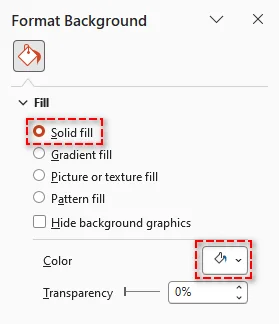
Dica Pro: Se você quiser que essa alteração se aplique a todos os slides da sua apresentação, clique em Aplicar a Todos na parte inferior do painel Formatar Plano de Fundo.
Quando usar: Use-o quando você precisar limpar apenas slides individuais sem afetar o restante da apresentação.
Se você quiser alterar ou personalizar fundos em vez de removê-los, veja nosso guia sobre alterar fundos de slides do PowerPoint.
Método 2. Excluir Fundo de Todos os Slides do PowerPoint Rapidamente (Slide Mestre)
Quando você precisa remover o fundo de todos os slides no PowerPoint, usar o Slide Mestre é a abordagem mais eficiente. Ele permite limpar configurações de fundo em vários slides de uma vez a partir de um único local. Este método é ideal para eliminar fundos indesejados, mantendo os slides consistentes sem editá-los um por um.
Passos:
-
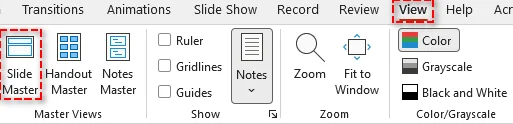
Navegue até a guia Exibir e selecione Slide Mestre no grupo Modos de Exibição Mestre.
-
No painel esquerdo, escolha o slide mestre ou o layout específico que você deseja editar.
-
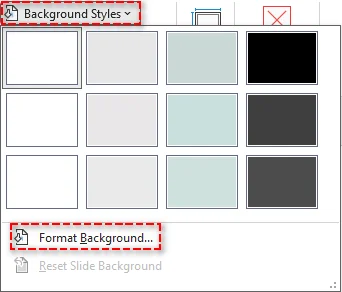
No grupo Plano de Fundo, clique em Estilos de Plano de Fundo > Formatar Plano de Fundo.
-
No painel Formatar Plano de Fundo, selecione Preenchimento sólido e escolha a cor branca no seletor de cores.
-
Clique em Fechar Slide Mestre para aplicar as alterações a todos os slides relacionados.
Dica: Se você tiver vários layouts usando o mesmo fundo, certifique-se de atualizar cada layout no Slide Mestre.
Quando usar: Use-o para aplicar a remoção consistente de fundo em toda a apresentação.
Solução de Problemas de Fundos Persistentes
Se os elementos de fundo ainda aparecerem após a remoção, eles geralmente fazem parte do tema do slide ou estão armazenados no Slide Mestre. Use os métodos abaixo para ocultá-los ou removê-los.
1. Ocultar Gráficos de Fundo do Tema
-
Abra o painel Formatar Plano de Fundo.
-
Marque a caixa Ocultar gráficos de plano de fundo para ocultar elementos baseados no tema, como linhas decorativas, formas ou logotipos.
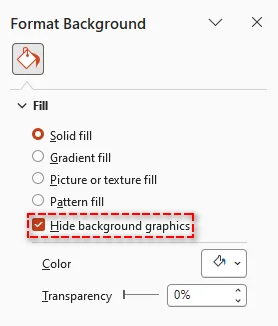
Observação: Isso apenas oculta elementos herdados do Slide Mestre. Não remove imagens ou objetos que foram adicionados manualmente ao slide.
2. Remover Elementos de Fundo via Slide Mestre
- Vá para a guia Exibir e selecione Slide Mestre.
- No painel esquerdo, selecione o slide mestre (pai) superior ou o layout específico.
- Clique no gráfico de fundo ou logotipo que você deseja remover e pressione Excluir.
- Clique em Fechar Modo de Exibição Mestre para aplicar as alterações.
Método 3. Remover Fundo de Imagem no PowerPoint (Ferramenta Remover Fundo)
Se você precisar remover o fundo de uma imagem no PowerPoint, a ferramenta integrada Remover Fundo oferece uma solução rápida e eficaz. Ela detecta automaticamente o assunto principal e remove áreas indesejadas com ajuste manual mínimo. Este método é ideal para limpar imagens diretamente em seus slides sem usar ferramentas externas.
Passos:
-
Selecione a imagem da qual você deseja remover o fundo.
-
Vá para a guia Formato de Imagem.
-
Selecione Remover Fundo. O PowerPoint destacará o fundo em roxo.

-
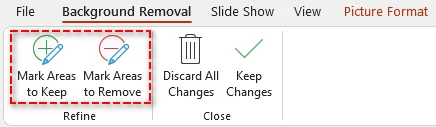
Ajuste a seleção usando Marcar Áreas para Manter ou Marcar Áreas para Remover, se necessário.
-
Clique em Manter Alterações para aplicar a remoção de fundo.
Dicas e Observações:
- Este método funciona melhor quando há um contraste claro entre o assunto e o fundo.
- O recurso Remover Fundo está disponível em versões recentes para desktop, como PowerPoint para Microsoft 365, 2024 e 2021, mas pode não ser suportado em algumas versões web.
- Para imagens com um fundo de cor sólida, vá para Formato de Imagem > Cor > Definir Cor Transparente e clique no fundo para torná-lo transparente rapidamente.
Quando usar: Use-o para remover fundos de imagens, mantendo o assunto principal.
Método 4. Limpar Fundo no PowerPoint Automaticamente com VBA
Se você precisar realizar tarefas repetitivas de remoção de fundo, o VBA oferece uma maneira de automatizar o processo dentro do PowerPoint. Ao executar uma macro simples, você pode atualizar vários slides sem trabalho manual. Este método é útil para usuários familiarizados com scripts básicos.
Macro VBA para Remover Fundos de Todos os Slides
Este script percorre cada slide na apresentação ativa, desabilita o fundo mestre e limpa os elementos de fundo automaticamente.
Sub RemoveAllBackgrounds()
    Dim sld As Slide

    ' Loop through each slide in the presentation
    For Each sld In ActivePresentation.Slides
        ' Follow Master Background: Set to False to customize
        sld.FollowMasterBackground = msoFalse

        ' Set the background fill to visible = false (Transparent/No Fill)
        sld.Background.Fill.Visible = msoFalse

        ' Alternatively, hide background graphics (like logos/themes)
        sld.DisplayMasterShapes = msoFalse
    Next sld

    MsgBox "All slide backgrounds have been removed!", vbInformation
End Sub
Propriedades Chave Explicadas:
- FollowMasterBackground: Definido como msoFalse para substituir o fundo do Slide Mestre.
- DisplayMasterShapes: Oculta elementos de fundo como logotipos ou formas de design do Slide Mestre.
- Background.Fill.Visible: Controla se o preenchimento do fundo é visível.
Como usar o script:
- Pressione Alt + F11 para abrir o Editor VBA.
- Vá para Inserir > Módulo.
- Cole o código na janela do módulo.
- Pressione F5 ou clique no botão Executar para executar a macro.
Observações:
- Este método não remove imagens inseridas como formas. Se o seu fundo for um objeto de imagem, você precisará de um script separado para excluir essas formas.
- Sempre salve uma cópia da sua apresentação antes de executar macros, pois as ações do VBA não podem ser desfeitas.
- Se as macros estiverem desabilitadas, vá para Arquivo > Opções > Central de Confiabilidade > Configurações da Central de Confiabilidade > Configurações de Macro para habilitá-las.
Quando Usar: Ideal para automatizar tarefas repetitivas de remoção de fundo dentro do PowerPoint.
Método 5. Remover Fundo em Lote no PowerPoint com Python
Para tarefas em larga escala envolvendo vários arquivos do PowerPoint, usar Python pode melhorar significativamente a eficiência. Com a biblioteca certa, como Spire.Presentation for Python, você pode automatizar a remoção de fundo entre apresentações sem abrir o PowerPoint manualmente. Este método é ideal para processamento em lote e fluxos de trabalho de back-end.
Guia Passo a Passo:
-
Instale a biblioteca via pip:
pip install spire.presentation -
Escreva o Script Python:
O exemplo a seguir mostra como remover o fundo de slides em lote de vários arquivos .pptx do PowerPoint:
from spire.presentation import *
import os

# Folder containing the PPTX files to process
input_folder = "presentations"      # Folder with all the PPTX files
output_folder = "processed"         # Folder to save processed files

# Create output folder if it doesn't exist
if not os.path.exists(output_folder):
    os.makedirs(output_folder)

# Loop through all PPTX files in the input folder
for filename in os.listdir(input_folder):
    if filename.lower().endswith(".pptx"):
        input_path = os.path.join(input_folder, filename)
        output_path = os.path.join(output_folder, f"RemoveBackground_{filename}")

        # Load the presentation
        presentation = Presentation()
        presentation.LoadFromFile(input_path)

        # Loop through each slide and remove background
        for slide in presentation.Slides:
            slide.SlideBackground.Type = BackgroundType.none

        # Save the modified presentation
        presentation.SaveToFile(output_path, FileFormat.Pptx2010)
        presentation.Dispose()

        print(f"Processed: {filename} → {output_path}")

print("All presentations have been processed successfully.")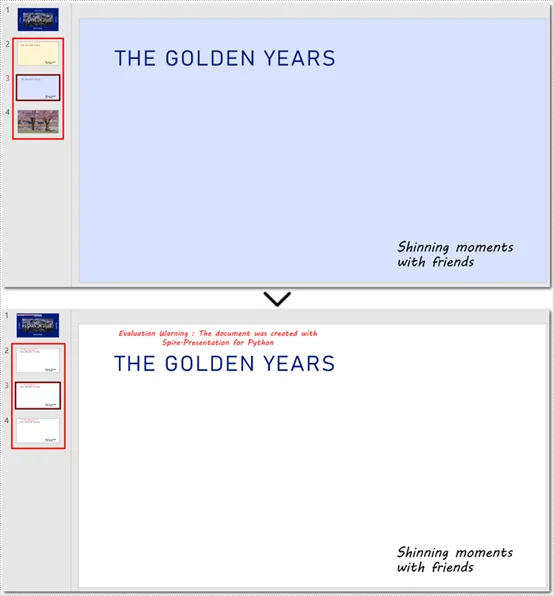
Dica: Além de remover o fundo dos slides, você também pode remover o fundo dos slides mestres.
Quando usar: Ideal para processar vários arquivos do PowerPoint em lote de forma eficiente.
Comparação: Qual Método Escolher?
Escolher a maneira certa de remover o fundo no PowerPoint depende de quantos slides você está trabalhando e se você precisa de automação.
Aqui está uma comparação rápida dos cinco métodos:
| Método | Melhor para | Escopo | Nível de Habilidade |
|---|---|---|---|
| Formatar Plano de Fundo | Limpeza rápida de slides | Slides individuais / poucos | Iniciante |
| Slide Mestre | Consistência em toda a apresentação | Apresentação inteira | Iniciante |
| Remover Fundo (Imagem) | Edição de imagem | Imagens individuais | Iniciante |
| VBA | Tarefas repetitivas dentro do PowerPoint | Vários slides | Intermediário |
| Python | Processamento em lote | Várias apresentações | Avançado |
Recomendação Rápida:
- Para a maioria dos usuários, Formatar Plano de Fundo e Slide Mestre são suficientes para tarefas diárias.
- Use VBA se você precisar automatizar ações repetidas dentro do PowerPoint.
- Escolha Python se você precisar processar vários arquivos ou criar fluxos de trabalho automatizados.
Por Que Remover o Fundo no PowerPoint
Remover fundos no PowerPoint não é apenas uma questão de limpeza visual - pode melhorar significativamente a aparência e o desempenho da sua apresentação. Aqui estão os principais benefícios:
- Melhor Clareza Visual: Remova elementos distrativos que competem com seu conteúdo.
- Consistência de Marca: Elimine fundos inconsistentes ou indesejados.
- Melhor Legibilidade: Fundos limpos ajudam o texto a se destacar com mais clareza.
- Design Simplificado: Remova visuais desnecessários e concentre-se nas informações principais.
- Qualidade Profissional: Crie apresentações limpas e sem distrações.
Problemas Comuns de Remoção de Fundo e Soluções
- Gráficos de fundo ou logotipos ainda visíveis - Esses elementos geralmente fazem parte do Slide Mestre. Para removê-los, vá para Exibir > Slide Mestre, selecione o slide pai ou os layouts afetados, exclua os elementos e, em seguida, feche o Modo de Exibição Mestre.
- Não é possível remover o fundo - A apresentação pode estar protegida ou restrita. Verifique as permissões de edição do arquivo e habilite a edição, se necessário, antes de fazer alterações.
- As alterações não se aplicam a todos os slides - Remover o fundo em um slide não afeta os outros. Use Aplicar a Todos no painel Formatar Plano de Fundo ou atualize o Slide Mestre para aplicar as alterações em toda a apresentação.
FAQs: Como Remover o Fundo no PowerPoint
Q1: Posso remover fundos de todos os slides de uma vez?
R1: Sim, usando Slide Mestre, VBA ou automação com Python, você pode remover fundos em toda a apresentação ou em vários arquivos.
Q2: Posso remover fundos sem o PowerPoint?
R2: Sim, bibliotecas Python como Spire.Presentation permitem a remoção de fundos sem o Microsoft PowerPoint instalado.
Q3: Remover o fundo afetará imagens ou texto nos meus slides?
R3: Não, remover o fundo do slide geralmente não afeta outro conteúdo do slide, como caixas de texto ou imagens. No entanto, sempre crie um backup antes de usar ferramentas automatizadas como scripts VBA ou Python para evitar alterações acidentais.
Q4: O VBA é seguro para usar na remoção de fundo do PowerPoint?
R4: Sim, desde que você habilite macros apenas de fontes confiáveis e salve um backup antes de executar o script.
Veja Também
PowerPoint에서 배경을 제거하는 방법: 5가지 쉬운 방법
목차
- 빠른 답변: PowerPoint에서 배경을 제거하는 방법
- 방법 1. PowerPoint 슬라이드 배경 제거 (배경 서식)
- 방법 2. 모든 PowerPoint 슬라이드 배경 빠르게 삭제 (슬라이드 마스터)
- 방법 3. PowerPoint에서 이미지 배경 제거 (배경 제거 도구)
- 방법 4. VBA를 사용하여 PowerPoint 배경 자동 삭제
- 방법 5. Python을 사용하여 PowerPoint에서 일괄 배경 제거
- 비교: 어떤 방법을 선택해야 할까요?
- PowerPoint에서 배경을 제거하는 이유
- 일반적인 배경 제거 문제 및 해결 방법
- 자주 묻는 질문: PowerPoint에서 배경을 제거하는 방법
PowerPoint에서 산만하거나 주의를 산만하게 하는 배경은 프레젠테이션을 비전문적으로 보이게 하고, 읽기 어렵게 만들며, 청중의 참여를 줄일 수 있습니다. PowerPoint에서 배경을 제거하는 방법을 배우면 슬라이드를 빠르게 정리하고, 가독성을 개선하며, 일관되고 전문적인 모양을 유지하는 데 도움이 됩니다.
이 가이드에서는 단일 슬라이드, 이미지, 전체 프레젠테이션 및 여러 파일에 걸쳐 PowerPoint에서 배경을 제거하는 5가지 실용적인 방법을 보여드리겠습니다. 이를 통해 더 효율적으로 깔끔하고 세련된 슬라이드를 만들 수 있습니다.
콘텐츠 개요
- 빠른 답변: PowerPoint에서 배경을 제거하는 방법
- 방법 1. PowerPoint 슬라이드 배경 제거 (배경 서식)
- 방법 2. 모든 PowerPoint 슬라이드 배경 빠르게 삭제 (슬라이드 마스터)
- 방법 3. PowerPoint에서 이미지 배경 제거 (배경 제거 도구)
- 방법 4. VBA를 사용하여 PowerPoint 배경 자동 삭제
- 방법 5. Python을 사용하여 PowerPoint에서 일괄 배경 제거
- 비교: 어떤 방법을 선택해야 할까요?
- PowerPoint에서 배경을 제거하는 이유
- 일반적인 배경 제거 문제 및 해결 방법
- 자주 묻는 질문: PowerPoint에서 배경을 제거하는 방법
빠른 답변: PowerPoint에서 배경을 제거하는 방법
PowerPoint에서 배경을 빠르게 제거하려면 다음이 가장 쉬운 방법입니다.
- 배경 서식 사용 - 단일 슬라이드에 가장 적합합니다.
- 슬라이드 마스터 사용 - 모든 슬라이드에 가장 적합합니다.
- 배경 제거 사용 - 이미지에 가장 적합합니다.
단계별 지침과 VBA 및 Python과 같은 고급 방법을 계속 읽어보세요.
방법 1. PowerPoint 슬라이드 배경 제거 (배경 서식)
슬라이드에서 배경을 빠르게 제거하려면 배경 서식 기능이 가장 간단한 옵션입니다. 텍스트나 다른 요소에 영향을 주지 않고 기존 배경을 지울 수 있습니다. 이 방법은 하나 또는 몇 개의 슬라이드를 정리해야 할 때 가장 잘 작동합니다.
단계:
-
배경을 제거하려는 슬라이드를 선택합니다.
-
디자인 탭으로 이동하여 배경 서식을 클릭합니다 (또는 슬라이드를 마우스 오른쪽 버튼으로 클릭하고 배경 서식을 선택합니다).
-
배경 서식 창에서 단색 채우기를 선택합니다.
-
색 버튼을 클릭하고 드롭다운에서 흰색을 선택합니다. 이제 선택한 슬라이드에서 배경이 제거되었습니다.
전문가 팁: 이 변경 사항을 프레젠테이션의 모든 슬라이드에 적용하려면 배경 서식 창 하단의 모두 적용을 클릭합니다.
사용 시기: 프레젠테이션의 나머지 부분에 영향을 주지 않고 개별 슬라이드만 정리해야 할 때 사용합니다.
배경을 제거하는 대신 배경을 변경하거나 사용자 지정하려면 PowerPoint 슬라이드 배경 변경에 대한 가이드를 참조하세요.
방법 2. 모든 PowerPoint 슬라이드 배경 빠르게 삭제 (슬라이드 마스터)
PowerPoint의 모든 슬라이드에서 배경을 제거해야 할 때 슬라이드 마스터를 사용하는 것이 가장 효율적인 접근 방식입니다. 이를 통해 단일 위치에서 한 번에 여러 슬라이드의 배경 설정을 지울 수 있습니다. 이 방법은 슬라이드를 하나씩 편집하지 않고 원치 않는 배경을 제거하는 데 이상적입니다.
단계:
-
보기 탭으로 이동하여 마스터 보기 그룹에서 슬라이드 마스터를 선택합니다.
-
왼쪽 창에서 편집하려는 마스터 슬라이드 또는 특정 레이아웃을 선택합니다.
-
배경 그룹에서 배경 스타일 > 배경 서식을 클릭합니다.
-
배경 서식 창에서 단색 채우기를 선택하고 색상 선택기에서 흰색을 선택합니다.
-
슬라이드 마스터 닫기를 클릭하여 변경 사항을 관련 슬라이드에 적용합니다.
팁: 동일한 배경을 사용하는 여러 레이아웃이 있는 경우 각 레이아웃을 슬라이드 마스터에서 업데이트해야 합니다.
사용 시기: 전체 프레젠테이션에 걸쳐 일관된 배경 제거를 적용하는 데 사용합니다.
까다로운 배경 문제 해결
제거 후에도 배경 요소가 계속 표시되면 일반적으로 슬라이드 테마의 일부이거나 슬라이드 마스터에 저장된 것입니다. 아래 방법을 사용하여 숨기거나 제거합니다.
1. 테마 배경 그래픽 숨기기
-
배경 서식 창을 엽니다.
-
배경 그래픽 숨기기 확인란을 선택하여 장식 선, 모양 또는 로고와 같은 테마 기반 요소를 숨깁니다.
참고: 이 기능은 슬라이드 마스터에서 상속된 요소만 숨깁니다. 슬라이드에 수동으로 추가된 이미지나 개체는 제거하지 않습니다.
2. 슬라이드 마스터를 통해 배경 요소 제거
- 보기 탭으로 이동하여 슬라이드 마스터를 선택합니다.
- 왼쪽 창에서 최상위 (부모) 마스터 슬라이드 또는 특정 레이아웃을 선택합니다.
- 제거하려는 배경 그래픽 또는 로고를 클릭하고 Delete 키를 누릅니다.
- 마스터 보기 닫기를 클릭하여 변경 사항을 적용합니다.
방법 3. PowerPoint에서 이미지 배경 제거 (배경 제거 도구)
PowerPoint에서 이미지 배경을 제거해야 하는 경우 내장된 배경 제거 도구를 사용하면 빠르고 효과적인 솔루션을 제공합니다. 주요 개체를 자동으로 감지하고 최소한의 수동 조정으로 원치 않는 영역을 제거합니다. 이 방법은 외부 도구를 사용하지 않고 슬라이드 내에서 직접 이미지를 정리하는 데 이상적입니다.
단계:
-
배경을 제거하려는 이미지를 선택합니다.
-
그림 서식 탭으로 이동합니다.
-
배경 제거를 선택합니다. PowerPoint가 배경을 보라색으로 강조 표시합니다.
-
필요한 경우 유지할 영역 표시 또는 제거할 영역 표시를 사용하여 선택 영역을 조정합니다.
-
변경 내용 유지를 클릭하여 배경 제거를 적용합니다.
팁 및 참고 사항:
- 이 방법은 개체와 배경 사이에 명확한 대비가 있을 때 가장 잘 작동합니다.
- 배경 제거 기능은 PowerPoint for Microsoft 365, 2024, 2021과 같은 최신 데스크톱 버전에서 사용할 수 있지만 일부 웹 버전에서는 지원되지 않을 수 있습니다.
- 단색 배경이 있는 이미지의 경우 그림 서식 > 색 > 투명색 설정으로 이동한 다음 배경을 클릭하여 빠르게 투명하게 만듭니다.
사용 시기: 주요 개체를 유지하면서 이미지에서 배경을 제거하는 데 사용합니다.
방법 4. VBA를 사용하여 PowerPoint 배경 자동 삭제
반복적인 배경 제거 작업을 수행해야 하는 경우 VBA를 사용하면 PowerPoint 내에서 프로세스를 자동화할 수 있습니다. 간단한 매크로를 실행하여 수동 작업 없이 여러 슬라이드를 업데이트할 수 있습니다. 이 방법은 기본 스크립팅에 익숙한 사용자에게 유용합니다.
모든 슬라이드에서 배경을 제거하는 VBA 매크로
이 스크립트는 활성 프레젠테이션의 각 슬라이드를 반복하고, 마스터 배경을 비활성화하고, 배경 요소를 자동으로 지웁니다.
Sub RemoveAllBackgrounds()
    Dim sld As Slide

    ' 프레젠테이션의 각 슬라이드를 반복합니다.
    For Each sld In ActivePresentation.Slides
        ' 마스터 배경 따르기: 사용자 지정하려면 False로 설정합니다.
        sld.FollowMasterBackground = msoFalse

        ' 배경 채우기를 표시=false (투명/채우기 없음)로 설정합니다.
        sld.Background.Fill.Visible = msoFalse

        ' 또는 배경 그래픽 (로고/테마 등)을 숨깁니다.
        sld.DisplayMasterShapes = msoFalse
    Next sld

    MsgBox "모든 슬라이드 배경이 제거되었습니다!", vbInformation
End Sub
주요 속성 설명:
- FollowMasterBackground: 슬라이드 마스터 배경을 재정의하려면 msoFalse로 설정합니다.
- DisplayMasterShapes: 슬라이드 마스터의 로고 또는 디자인 모양과 같은 배경 요소를 숨깁니다.
- Background.Fill.Visible: 배경 채우기가 표시되는지 여부를 제어합니다.
스크립트 사용 방법:
- Alt + F11을 눌러 VBA 편집기를 엽니다.
- 삽입 > 모듈로 이동합니다.
- 모듈 창에 코드를 붙여넣습니다.
- F5를 누르거나 실행 버튼을 클릭하여 매크로를 실행합니다.
참고 사항:
- 이 방법은 이미지로 삽입된 모양은 제거하지 않습니다. 배경이 그림 개체인 경우 해당 모양을 삭제하려면 별도의 스크립트가 필요합니다.
- 항상 매크로를 실행하기 전에 프레젠테이션 사본을 저장하십시오. VBA 작업은 실행 취소할 수 없습니다.
- 매크로가 비활성화된 경우 파일 > 옵션 > 보안 센터 > 보안 센터 설정 > 매크로 설정으로 이동하여 활성화합니다.
사용 시기: PowerPoint 내에서 반복적인 배경 제거 작업을 자동화하는 데 이상적입니다.
방법 5. Python을 사용하여 PowerPoint에서 일괄 배경 제거
여러 PowerPoint 파일을 포함하는 대규모 작업의 경우 Python을 사용하면 효율성을 크게 향상시킬 수 있습니다. Spire.Presentation for Python과 같은 올바른 라이브러리를 사용하면 PowerPoint를 수동으로 열지 않고도 프레젠테이션 전반에 걸쳐 배경 제거를 자동화할 수 있습니다. 이 방법은 일괄 처리 및 백엔드 워크플로에 이상적입니다.
단계별 가이드:
-
pip를 통해 라이브러리를 설치합니다.
pip install spire.presentation -
Python 스크립트 작성:
다음 예는 여러 PowerPoint .pptx 파일에서 슬라이드 배경을 일괄 제거하는 방법을 보여줍니다.
from spire.presentation import *
import os

# 처리할 PPTX 파일이 포함된 폴더
input_folder = "presentations"      # 모든 PPTX 파일이 있는 폴더
output_folder = "processed"         # 처리된 파일을 저장할 폴더

# 출력 폴더가 없으면 생성합니다.
if not os.path.exists(output_folder):
    os.makedirs(output_folder)

# 입력 폴더의 모든 PPTX 파일을 반복합니다.
for filename in os.listdir(input_folder):
    if filename.lower().endswith(".pptx"):
        input_path = os.path.join(input_folder, filename)
        output_path = os.path.join(output_folder, f"RemoveBackground_{filename}")

        # 프레젠테이션 로드
        presentation = Presentation()
        presentation.LoadFromFile(input_path)

        # 각 슬라이드를 반복하고 배경 제거
        for slide in presentation.Slides:
            slide.SlideBackground.Type = BackgroundType.none

        # 수정된 프레젠테이션 저장
        presentation.SaveToFile(output_path, FileFormat.Pptx2010)
        presentation.Dispose()

        print(f"처리됨: {filename} → {output_path}")

print("모든 프레젠테이션이 성공적으로 처리되었습니다.")
팁: 슬라이드 배경을 제거하는 것 외에도 슬라이드 마스터의 배경을 제거할 수도 있습니다.
사용 시기: 여러 PowerPoint 파일을 효율적으로 일괄 처리하는 데 이상적입니다.
비교: 어떤 방법을 선택해야 할까요?
PowerPoint에서 배경을 제거하는 올바른 방법을 선택하는 것은 작업 중인 슬라이드 수와 자동화가 필요한지에 따라 달라집니다.
다섯 가지 방법의 빠른 비교입니다.
| 방법 | 가장 적합한 경우 | 범위 | 기술 수준 |
|---|---|---|---|
| 배경 서식 | 빠른 슬라이드 정리 | 단일 / 소수 슬라이드 | 초급 |
| 슬라이드 마스터 | 프레젠테이션 전체 일관성 | 전체 프레젠테이션 | 초급 |
| 배경 제거 (이미지) | 이미지 편집 | 개별 이미지 | 초급 |
| VBA | PowerPoint 내 반복 작업 | 여러 슬라이드 | 중급 |
| Python | 일괄 처리 | 여러 프레젠테이션 | 고급 |
빠른 권장 사항:
- 대부분의 사용자의 경우 배경 서식 및 슬라이드 마스터가 일상적인 작업에 충분합니다.
- PowerPoint 내에서 반복적인 작업을 자동화해야 하는 경우 VBA를 사용합니다.
- 여러 파일을 처리하거나 자동화된 워크플로를 구축해야 하는 경우 Python을 선택합니다.
PowerPoint에서 배경을 제거하는 이유
PowerPoint에서 배경을 제거하는 것은 단순히 시각적인 정리를 넘어 프레젠테이션의 모양과 성능을 크게 향상시킬 수 있습니다. 주요 이점은 다음과 같습니다.
- 향상된 시각적 명확성: 콘텐츠와 경쟁하는 산만 한 요소를 제거합니다.
- 브랜드 일관성: 일관되지 않거나 원치 않는 배경을 제거합니다.
- 가독성 향상: 깔끔한 배경은 텍스트를 더 명확하게 돋보이게 합니다.
- 간소화된 디자인: 불필요한 시각 요소를 제거하고 핵심 정보에 집중합니다.
- 전문적인 품질: 깔끔하고 산만 하지 않은 프레젠테이션을 만듭니다.
일반적인 배경 제거 문제 및 해결 방법
- 배경 그래픽 또는 로고가 계속 표시됨 - 이러한 요소는 종종 슬라이드 마스터의 일부입니다. 이를 제거하려면 보기 > 슬라이드 마스터로 이동하여 부모 슬라이드 또는 영향을 받는 레이아웃을 선택하고 요소를 삭제한 다음 마스터 보기 닫기를 클릭합니다.
- 배경을 제거할 수 없음 - 프레젠테이션이 보호되거나 제한되었을 수 있습니다. 파일의 편집 권한을 확인하고 변경하기 전에 필요한 경우 편집을 활성화합니다.
- 변경 사항이 모든 슬라이드에 적용되지 않음 - 한 슬라이드에서 배경을 제거해도 다른 슬라이드에는 영향을 주지 않습니다. 배경 서식 창에서 모두 적용을 사용하거나 슬라이드 마스터를 업데이트하여 전체 프레젠테이션에 변경 사항을 적용합니다.
자주 묻는 질문: PowerPoint에서 배경을 제거하는 방법
Q1: 모든 슬라이드의 배경을 한 번에 제거할 수 있습니까?
A1: 예, 슬라이드 마스터, VBA 또는 Python 자동화를 사용하여 전체 프레젠테이션 또는 여러 파일에 걸쳐 배경을 제거할 수 있습니다.
Q2: PowerPoint 없이 배경을 제거할 수 있습니까?
A2: 예, Spire.Presentation과 같은 Python 라이브러리를 사용하면 Microsoft PowerPoint가 설치되지 않은 상태에서도 배경을 제거할 수 있습니다.
Q3: 배경을 제거하면 슬라이드의 이미지나 텍스트에 영향을 미칩니까?
A3: 아니요, 슬라이드 배경을 제거해도 일반적으로 텍스트 상자나 이미지와 같은 다른 슬라이드 콘텐츠에는 영향을 주지 않습니다. 그러나 VBA 또는 Python 스크립트와 같은 자동화 도구를 사용하기 전에 항상 백업을 만들어 우발적인 변경을 방지하십시오.
Q4: VBA를 PowerPoint 배경 제거에 안전하게 사용할 수 있습니까?
A4: 예, 신뢰할 수 있는 소스의 매크로만 활성화하고 스크립트를 실행하기 전에 백업을 저장하는 한 안전합니다.