
Java (485)

Converting CSV files to Excel is a common task for Java developers working on data reporting, analytics pipelines, or file transformation tools. While manual CSV parsing is possible, it often leads to bloated code and limited formatting. Using a dedicated Excel library like Spire.XLS for Java simplifies the process and allows full control over layout, styles, templates, and data consolidation.
In this tutorial, we’ll walk through various use cases to convert CSV to Excel using Java — including basic import/export, formatting, injecting CSV into templates, and merging multiple CSVs into a single Excel file.
Quick Navigation
- Set Up Spire.XLS in Your Java Project
- Convert a CSV File to Excel Using Java
- Format Excel Output Using Java
- Merge Multiple CSV Files into One Excel File
- Tips & Troubleshooting
- Frequently Asked Questions
Set Up Spire.XLS in Your Java Project
Before converting CSV to Excel, you’ll need to add Spire.XLS for Java to your project. It supports both .xls and .xlsx formats and provides a clean API for working with Excel files without relying on Microsoft Office.
Install via Maven
<repositories>
    <repository>
        <id>com.e-iceblue</id>
        <name>e-iceblue</name>
        <url>https://repo.e-iceblue.com/nexus/content/groups/public/</url>
    </repository>
</repositories>
<dependencies>
    <dependency>
        <groupId>e-iceblue</groupId>
        <artifactId>spire.xls</artifactId>
        <version>16.7.3</version>
    </dependency>
</dependencies>
Add JAR Manually
Download Spire.XLS for Java and add the JAR to your classpath manually. For smaller projects, you can also use the Free Spire.XLS for Java.
Convert a CSV File to Excel Using Java
The simplest use case is to convert a single .csv file into .xlsx or .xls format in Java. Spire.XLS makes this process easy using just two methods: loadFromFile() to read the CSV, and saveToFile() to export it as Excel.
import com.spire.xls.*;

public class CsvToXlsx {
    public static void main(String[] args) {
        Workbook workbook = new Workbook();
        workbook.loadFromFile("data.csv", ",");
        workbook.saveToFile("output.xlsx", ExcelVersion.Version2013);
    }
}
To generate .xls format instead, use ExcelVersion.Version97to2003.
Below is the output Excel file generated after converting the CSV:

You can also specify a custom delimiter or choose the row/column to begin inserting data — useful if your sheet has titles or a fixed layout.
workbook.loadFromFile("data_semicolon.csv", ";", 3, 2);
Format Excel Output Using Java
When you're exporting CSV for reporting or customer-facing documents, it's often necessary to apply styles for better readability and presentation. Spire.XLS allows you to set cell fonts, colors, and number formats using the CellStyle class, automatically adjust column widths to fit content, and more.
Example: Apply Styling and Auto-Fit Columns
import com.spire.xls.*;

public class CsvToXlsx {
    public static void main(String[] args) {
        Workbook workbook = new Workbook();
        workbook.loadFromFile("data.csv", ",");

        Worksheet sheet = workbook.getWorksheets().get(0);

        // Format header row
        CellStyle headerStyle = workbook.getStyles().addStyle("Header");
        headerStyle.getFont().isBold(true);
        headerStyle.setKnownColor(ExcelColors.LightYellow);
        for (int col = 1; col <= sheet.getLastColumn(); col++) {
            sheet.getCellRange(1, col).setStyle(headerStyle);
        }

        // Format numeric column
        CellStyle numStyle = workbook.getStyles().addStyle("Numbers");
        numStyle.setNumberFormat("#,##0.00");
        sheet.getCellRange("B2:B100").setStyle(numStyle);

        // Auto-fit all columns
        for (int i = 1; i <= sheet.getLastRow(); i++) {
            sheet.autoFitColumn(i);
        }

        workbook.saveToFile("formatted_output.xlsx", ExcelVersion.Version2013);
    }
}
Here’s what the styled Excel output looks like with formatted headers and numeric columns:
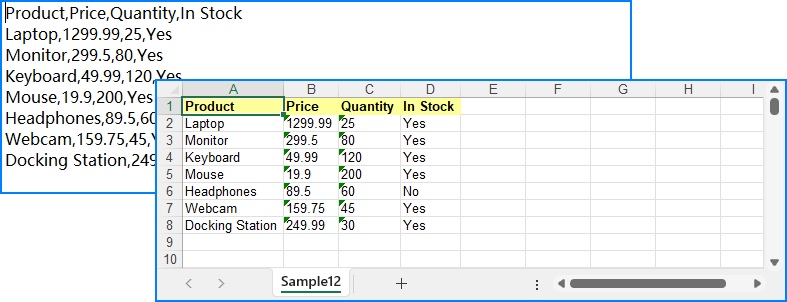
Need to use a pre-designed Excel template? You can load an existing .xlsx file and insert your data using methods like insertArray(). Just note that formatting won’t automatically apply — use CellStyle to style your data programmatically.
Merge Multiple CSV Files into One Excel File
When handling batch processing or multi-source datasets, it’s common to combine multiple CSV files into a single Excel workbook. Spire.XLS lets you:
- Merge each CSV into a separate worksheet, or
- Append all CSV content into a single worksheet
Option 1: Separate Worksheets per CSV
import com.spire.xls.*;
import java.io.File;

public class CsvToXlsx {
    public static void main(String[] args) {
        // Get the CSV file names
        File[] csvFiles = new File("CSVs/").listFiles((dir, name) -> name.endsWith(".csv"));
        // Create a workbook and clear all worksheets
        Workbook workbook = new Workbook();
        workbook.getWorksheets().clear();

        for (File csv : csvFiles) {
            // Load the CSV file
            Workbook temp = new Workbook();
            temp.loadFromFile(csv.getAbsolutePath(), ",");
            // Append the CSV file to the workbook as a worksheet
            workbook.getWorksheets().addCopy(temp.getWorksheets().get(0));
        }

        // Save the workbook
        workbook.saveToFile("merged.xlsx", ExcelVersion.Version2016);
    }
}
Each CSV file is placed into its own worksheet in the final Excel file:

Option 2: All Data in a Single Worksheet
import com.spire.xls.*;
import java.io.File;

public class CsvToXlsx {
    public static void main(String[] args) {
        // Get the CSV file names
        File[] csvFiles = new File("CSVs/").listFiles((dir, name) -> name.endsWith(".csv"));
        // Create a workbook
        Workbook workbook = new Workbook();
        // Clear default sheets and add a new one
        workbook.getWorksheets().clear();
        Worksheet sheet = workbook.getWorksheets().add("Sample");

        int startRow = 1;
        boolean isFirstFile = true;

        for (File csv : csvFiles) {
            // Load the CSV data
            Workbook temp = new Workbook();
            temp.loadFromFile(csv.getAbsolutePath(), ",");
            Worksheet tempSheet = temp.getWorksheets().get(0);

            // Check if it's the first file
            int startReadRow = isFirstFile ? 1 : 2;
            isFirstFile = false;

            // Copy the CSV data to the sheet
            for (int r = startReadRow; r <= tempSheet.getLastRow(); r++) {
                for (int c = 1; c <= tempSheet.getLastColumn(); c++) {
                    sheet.getCellRange(startRow, c).setValue(tempSheet.getCellRange(r, c).getText());
                }
                startRow++;
            }
        }

        // Save the merged workbook
        workbook.saveToFile("merged_single_sheet.xlsx", ExcelVersion.Version2016);
    }
}
Below is the final Excel sheet with all CSV data merged into a single worksheet:
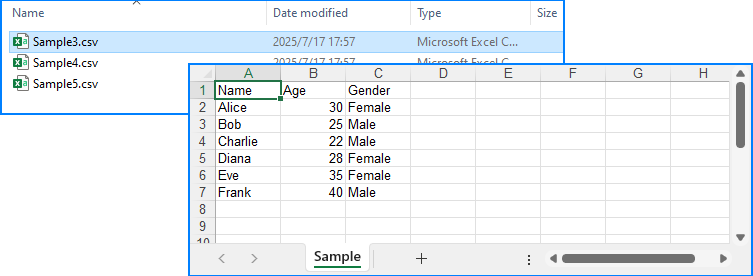
Related Article: How to Merge Excel Files Using Java
Tips & Troubleshooting
Problems with your output? Try these fixes:
-
Text garbled in Excel → Make sure your CSV is UTF-8 encoded.
-
Wrong column alignment? → Check if delimiters are mismatched.
-
Large CSV files? → Split files or use multiple sheets for better memory handling.
-
Appending files with different structures? → Normalize column headers beforehand.
Conclusion
Whether you're handling a simple CSV file or building a more advanced reporting workflow, Spire.XLS for Java offers a powerful and flexible solution for converting CSV to Excel through Java code. It allows you to convert CSV files to XLSX or XLS with just a few lines of code, apply professional formatting to ensure readability, inject data into pre-designed templates for consistent branding, and even merge multiple CSVs into a single, well-organized workbook. By automating these processes, you can minimize manual effort and generate clean, professional Excel files more efficiently.
You can apply for a free temporary license to experience the full capabilities without limitations.
Frequently Asked Questions
How do I convert CSV to XLSX in Java?
Use Workbook.loadFromFile("file.csv", ",") and then saveToFile("output.xlsx", ExcelVersion.Version2016).
Can I format the Excel output?
Yes. Use CellStyle to control fonts, colors, alignment, and number formats.
Is it possible to use Excel templates for CSV data?
Absolutely. Load a .xlsx template and inject CSV using setText() or insertDataTable().
How can I merge several CSV files into one Excel file?
Use either multiple worksheets or merge everything into one sheet row by row.

Inserting subscript in Excel is a common requirement, especially when dealing with chemical formulas like CO₂, statistical footnotes, or scientific data. Using subscripts helps make data clearer and more polished, enhancing the professionalism of your documents. However, Excel’s built-in subscript feature is cumbersome and doesn’t support batch application, which can significantly slow down your workflow.
Fortunately, with the help of Java code, you can efficiently insert subscripts in Excel, freeing yourself from tedious manual work and making your tasks faster and more professional.
- Preparation
- Insert New Text with Subscript
- Apply Subscript to Existing Text
- Insert Subscript for Multiple Matches in Single Cell
- Conclusion
Preparation
Inserting a subscript in Excel using Java involves adding Java libraries. In today’s blog, we will use Spire.XLS for Java as an example to accomplish this task. Spire.XLS is a powerful Java component that works independently without relying on Microsoft Office. In addition to reading, editing, and converting Excel files, it allows users to perform advanced tasks as well.
To install it on your device, there are two options:
- If you are using Maven, add the following code to your pom.xml file:
<repositories>
    <repository>
        <id>com.e-iceblue</id>
        <name>e-iceblue</name>
        <url>https://repo.e-iceblue.com/nexus/content/groups/public/</url>
    </repository>
</repositories>
<dependencies>
    <dependency>
        <groupId>e-iceblue</groupId>
        <artifactId>spire.xls</artifactId>
        <version>16.7.3</version>
    </dependency>
</dependencies>
- If you prefer manual installation, download the Spire.XLS package and add the .jar file to your Java IDE.
Inserting Subscript in Excel: How to Insert New Text with Subscript
First, let’s see how to insert new text into an Excel cell with subscript formatting already applied. By setting the subscript when creating a new document, you can generate the final file directly without needing to reopen and adjust it later.
Steps—Inserting subscript in Excel when adding new text with Java:
- Create a Workbook and get a worksheet.
- Get a cell range using Worksheet.getCellRange() method.
- Specify text through CellRange.getRichText().setText() method.
- Create a font through Workbook.createFont() method.
- Set ExcelFont.isSubscript() to true.
- Apply the font to a text range in the cell using RichText.setFont(startIndex, endIndex, font) method.
The following code shows how to insert the text "R100-0.06" into cell B2 and set the subscript:
import com.spire.xls.*;

import java.awt.*;

public class InsertSubscriptNewText {

    public static void main(String[] args) {

        // Create a Workbook instance
        Workbook workbook = new Workbook();

        // Get the first worksheet
        Worksheet sheet = workbook.getWorksheets().get(0);

        // Insert text to B2
        sheet.getCellRange("B2").setText("This is an example of Subscript:");

        // Insert text to B3 and apply subscript effect
        CellRange range = sheet.getCellRange("B3");
        range.getRichText().setText("R100-0.06");
        ExcelFont font = workbook.createFont();
        font.isSubscript(true);
        font.setColor(Color.red);
        range.getRichText().setFont(4, 8, font);

        // Auto fit column width
        sheet.getAllocatedRange().autoFitColumns();

        // Save the document
        workbook.saveToFile("/SubscriptNewText.xlsx", ExcelVersion.Version2016);
    }
}
Result Preview:

Tip: By setting ExcelFont.isSuperscript() to true, you can apply superscript to text in Excel files.
Inserting Subscript in Excel: Apply Subscript to Existing Text
Although inserting subscripts while creating a new Excel file can simplify later work, in most cases, you’ll need to deal with existing files that already contain content. This section shows you how to quickly apply subscript formatting to existing text in Excel using Java.
Steps—Inserting subscript to Excel file with existing text:
- Create a Workbook instance and read an Excel file.
- Get a worksheet and get the cell range.
- Loop through cells in the cell range and find the text to apply subscript.
- Set the text in the cell’s rich text using RichText.setText() to preserve the existing content.
- Create a font by calling Workbook.createFont() method and configure it as Subscript by setting ExcelFont.isSubscript() to true.
- Apply the subscript using RichText.setFont(index, index, subFont) method.
The following code demonstrates how to set subscripts for chemical formulas in the cells within the A1:A3 range:
import com.spire.xls.*;

public class SubscriptExistingContent {

    public static void main(String[] args) {
        // Create a Workbook and load an Excel file
        Workbook workbook = new Workbook();
        // Load an Excel file
        workbook.loadFromFile(("/test.xlsx"));

        // Get a worksheet
        Worksheet sheet = workbook.getWorksheets().get(0);

        // Loop through A1:A3
        for (int i = 1; i <= 3; i++) {
            CellRange cell = sheet.getCellRange("A" + i);
            String text = cell.getText();

            // Find "2" in cells
            int index = text.indexOf("2");
            if (index != -1) {
                // Set RichText to keep original text
cell.getRichText().setText(text);

                // Create font and set as subscript
                ExcelFont subFont = workbook.createFont();
                subFont.isSubscript(true);

                // Apply subscript to "2"
                cell.getRichText().setFont(index, index, subFont);
            }
        }

        // Auto fit columns
        sheet.getAllocatedRange().autoFitColumns();

        // Save the Excel file
        workbook.saveToFile("/SubscriptExistingContent.xlsx", ExcelVersion.Version2016);
    }
}
Result Preview:
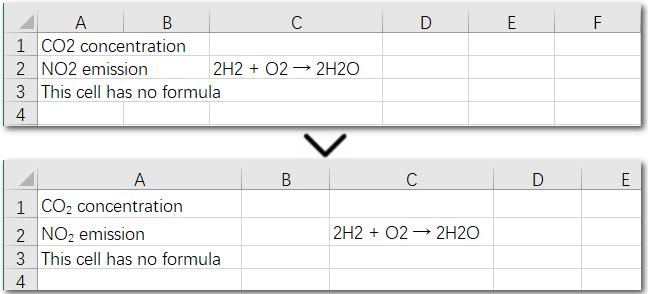
The above code helps us find and set the first matching character as a subscript in an existing cell. But what if the same character appears multiple times in the same cell? How can we apply subscripts to all of them at once? Let’s explore this in the next section.
Inserting Subscript in Excel: Handle Multiple Matches in a Single Cell
Using a search-and-apply method to set subscript formatting works well when there is only one instance in the cell that needs to be subscripted, such as in H₂. However, if the cell contains a chemical equation, the situation becomes more complex: there might be multiple places where subscripts are needed, along with normal numbers representing coefficients (e.g., 2H₂ + O₂ → 2H₂O). In this case, the solution is to set subscripts precisely by specifying the exact positions of the target characters in the text. Let’s take a look at the detailed steps.
Steps—Inserting multiple subscripts in Excel cells:
- Create a Workbook object and read an Excel file.
- Get a worksheet and a cell range.
- Read text in the cell range and set it to rich text using CellRange.getRichText().setText() method.
- Create a font by calling Workbook.createFont() method and configure it as subscript by setting ExcelFont.isSubscript() to true.
- Apply subscript to specific characters with CellRange.getRichText().setFont(index, index, subFont) method.
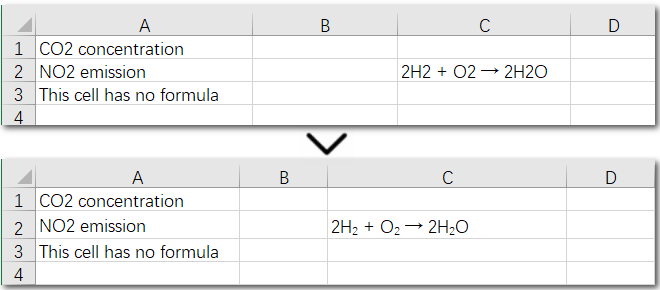
The following code demonstrates how to set subscripts for the necessary parts of the chemical equation “2H₂ + O₂ → 2H₂O” in cell C2:
import com.spire.xls.*;

public class SubscriptSpecificCell {

    public static void main(String[] args) {
        // Create a Workbook instance and load an Excel file
        Workbook workbook = new Workbook();
        workbook.loadFromFile(("/test.xlsx"));

        // Get the first worksheet
        Worksheet sheet = workbook.getWorksheets().get(0);

        // Get a cell range
        CellRange cell = sheet.getCellRange("C2");

        // Read text from C2
        String text = cell.getText();


        // Set text to RichText
        cell.getRichText().setText(text);

        // Create font object and set it as subscript
        ExcelFont subFont = workbook.createFont();
        subFont.isSubscript(true);

        // Set subscript for specific cell
        cell.getRichText().setFont(2, 2, subFont);
        cell.getRichText().setFont(7, 7, subFont);
        cell.getRichText().setFont(13, 13, subFont);

        // Auto fit columns
        sheet.getAllocatedRange().autoFitColumns();

        // Save the Excel file
        workbook.saveToFile("/SubscriptSpecificCell.xlsx", ExcelVersion.Version2016);
    }
}
Result Preview:
Conclusion
This guide provides a detailed explanation of how to set subscripts in Excel, whether you need to apply them to a single cell or a range of cells, and whether you’re formatting one instance or multiple occurrences. By the end of this page, inserting subscript in Excel will be a breeze for you. Give Spire.XLS a try and start creating professional Excel workbooks today!

Plain text (.txt) files are simple and widely used, but they lack formatting and structure. If you need to enhance a TXT file with headings, fonts, tables, or images, converting it to a Word (.docx) file is a great solution.
In this tutorial, you'll learn how to convert a .txt file to a .docx Word document in Java using Spire.Doc for Java — a powerful library for Word document processing.
Why choose Spire.Doc for Java:
- The converted Word document preserves the line breaks and content from the TXT file.
- You can further modify fonts, add styles, or insert images using Spire.Doc's rich formatting APIs.
- Supported various output formats, including converting Word to PDF, Excel, TIFF, PostScript, etc.
Prerequisites
To convert TXT to Word with Spire.Doc for Java smoothly, you should download it from its official download page and add the Spire.Doc.jar file as a dependency in your Java program.
If you are using Maven, you can easily import the JAR file by adding the following code to your project's pom.xml file:
<repositories>
    <repository>
        <id>com.e-iceblue</id>
        <name>e-iceblue</name>
        <url>https://repo.e-iceblue.com/nexus/content/groups/public/</url>
    </repository>
</repositories>
<dependencies>
    <dependency>
        <groupId>e-iceblue</groupId>
        <artifactId>spire.doc</artifactId>
        <version>13.6.2</version>
    </dependency>
</dependencies>
Steps to Convert TXT to Word in Java
Now let's take a look at how to implement it in code. With Spire.Doc for Java, the process is straightforward. You can complete the conversion with just a few lines — no need for manual formatting or additional dependencies.
To help you better understand the code:
- Document is the core class that acts as an in-memory representation of a Word document.
- loadFromFile() uses internal parsers to read .txt content and wrap it into a single Word section with default font and margins.
- When saveToFile() is called, Spire.Doc automatically converts the plain text into a .docx file by generating a structured Word document in the OpenXML format.
Below is a step-by-step code example to help you get started quickly:
import com.spire.doc.Document;
import com.spire.doc.FileFormat;

public class ConvertTextToWord {

    public static void main(String[] args) {

        // Create a Text object
        Document txt = new Document();

        // Load a Word document
        txt.loadFromFile("C:\\Users\\Administrator\\Desktop\\Input.txt");

        // Save the document to Word
        txt.saveToFile("ToWord.docx", FileFormat.Docx);

        // Dispose resources
        doc.dispose();
    }
}
RESULT:
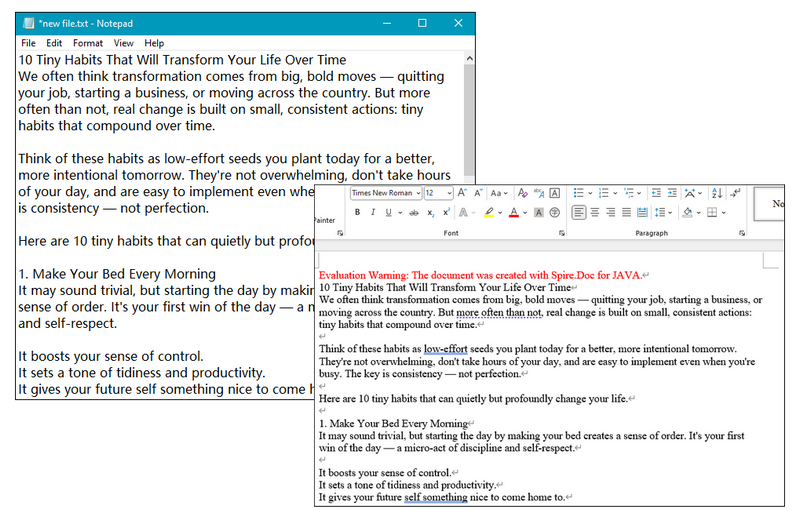
Tip:
After converting TXT files to DOC/DOCX, you can further customize the document's formatting as needed. To simplify this process, Spire.Doc for Java provides built-in support for editing text properties such as changing font color, inserting footnote, adding text and image watermark, etc.
How to Convert Word to TXT with Java
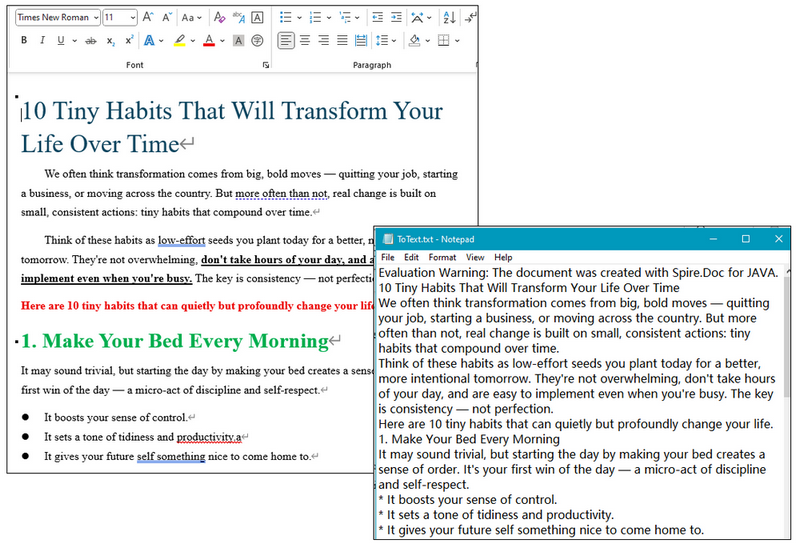
Except for TXT to Word conversion, Spire.Doc for Java also supports converting DOC/DOCX files to TXT format, making it easy to extract plain text from richly formatted Word documents. This functionality is especially useful when you need to strip out styling and layout to work with clean, raw content — such as for text analysis, search indexing, archiving, or importing into other systems that only support plain text.
Simply copy the code below and run the code to manage conversion:
import com.spire.doc.Document;
import com.spire.doc.FileFormat;

public class ConvertWordtoText {

    public static void main(String[] args) {

        // Create a Doc object
        Document doc = new Document();

        // Load a Word document
        doc.loadFromFile("C:\\Users\\Administrator\\Desktop\\Input.doc");

        // Save the document to Word
        doc.saveToFile("ToText.txt", FileFormat.Txt);

        // Dispose resources
        doc.dispose();
    }
}
RESULT:
Get a Free License
To remove evaluation watermarks and unlock full features, you can request a free 30-day license.
Conclusion
With Spire.Doc for Java, converting TXT to Word is fast, accurate, and doesn't require Microsoft Word to be installed. This is especially useful for Java developers working on reporting, document generation, or file conversion tools. Don't hesitate and give it a try now.
