
Java (485)
Text boxes in Microsoft Word are flexible elements that improve the layout and design of documents. They enable users to place text separately from the main text flow, facilitating the creation of visually attractive documents. At times, you might need to extract text from these text boxes for reuse, or update the content within them to maintain clarity and relevance. This article demonstrates how to extract or update textboxes in a Word document using Java with Spire.Doc for Java.
Install Spire.Doc for Java
First of all, you're required to add the Spire.Doc.jar file as a dependency in your Java program. The JAR file can be downloaded from this link. If you use Maven, you can easily import the JAR file in your application by adding the following code to your project's pom.xml file.
<repositories>
    <repository>
        <id>com.e-iceblue</id>
        <name>e-iceblue</name>
        <url>https://repo.e-iceblue.com/nexus/content/groups/public/</url>
    </repository>
</repositories>
<dependencies>
    <dependency>
        <groupId>e-iceblue</groupId>
        <artifactId>spire.doc</artifactId>
        <version>14.8.4</version>
    </dependency>
</dependencies>
Extract Text from a Textbox in Word in Java
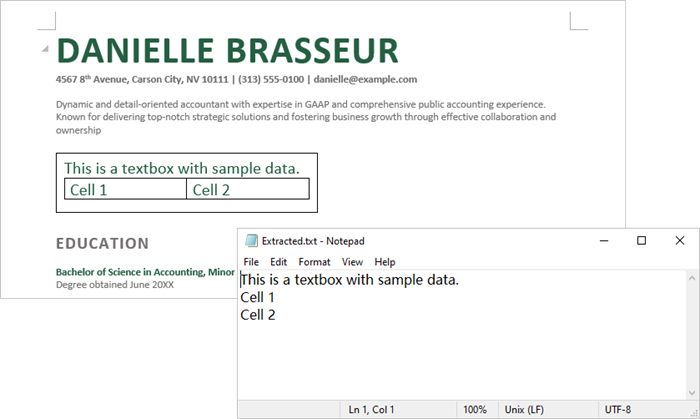
With Spire.Doc for Java, you can access a specific text box in a document using the Document.getTextBoxes().get() method. You can then iterate through the child objects of the text box to check if each one is a paragraph or a table. For paragraphs, retrieve the text using the Paragraph.getText() method. For tables, loop through the cells to extract text from each cell.
Here are the steps to extract text from a text box in a Word document:
- Create a Document object.
- Load a Word file using Document.loadFromFile() method.
- Access a specific text box using Document.getTextBoxes().get() method.
- Iterate through the child objects of the text box.
- Check if a child object is a paragraph. If so, use Paragraph.getText() method to get the text.
- Check if a child object is a table. If so, use extractTextFromTable() method to retrieve the text from the table.
- Java
import com.spire.doc.*;
import com.spire.doc.documents.DocumentObjectType;
import com.spire.doc.documents.Paragraph;
import com.spire.doc.fields.TextBox;

import java.io.FileWriter;
import java.io.IOException;

public class ExtractTextFromTextbox {

    public static void main(String[] args) throws IOException {

        // Create a Document object
        Document document = new Document();

        // Load a Word file
        document.loadFromFile("C:\\Users\\Administrator\\Desktop\\Input.docx");

        // Get a specific textbox
        TextBox textBox = document.getTextBoxes().get(0);

        // Create a FileWriter to write extracted text to a txt file
        FileWriter fileWriter = new FileWriter("Extracted.txt");

        // Iterate though child objects of the textbox
        for (Object object: textBox.getChildObjects()) {

            // Determine if the child object is a paragraph
            if (((DocumentObject) object).getDocumentObjectType() == DocumentObjectType.Paragraph) {

                // Write paragraph text to the txt file
                fileWriter.write(((Paragraph)object).getText() + "\n");
            }

            // Determine if the child object is a table
            if (((DocumentObject) object).getDocumentObjectType() == DocumentObjectType.Table) {

                // Extract text from table to the txt file
                extractTextFromTable((Table)object, fileWriter);
            }
        }

        // Close the stream
        fileWriter.close();
    }

    // Extract text from a table
    static void extractTextFromTable(Table table, FileWriter fileWriter) throws IOException {
        for (int i = 0; i < table.getRows().getCount(); i++) {
            TableRow row = table.getRows().get(i);
            for (int j = 0; j < row.getCells().getCount(); j++) {
                TableCell cell = row.getCells().get(j);
                for (Object paragraph: cell.getParagraphs()) {
                    fileWriter.write(((Paragraph) paragraph).getText() + "\n");
                }
            }
        }
    }
}
Update a Textbox in Word in Java
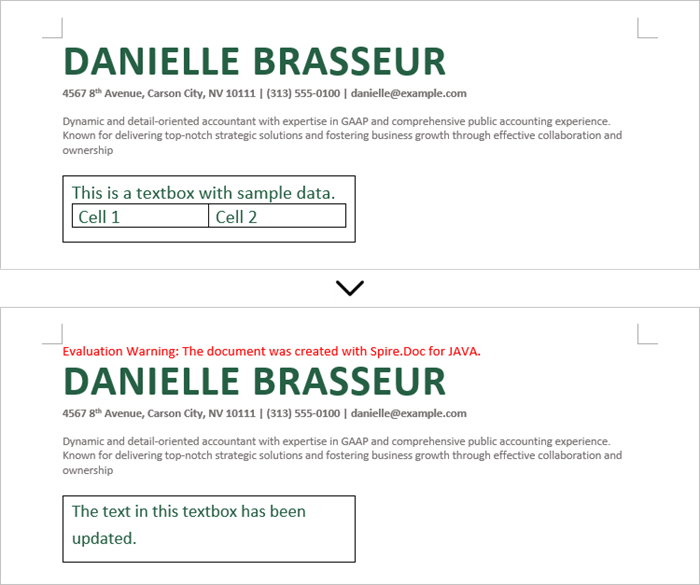
To modify a text box, first remove its existing content using TextBox.getChildObjects.clear() method. Then, create a new paragraph and assign the desired text to it.
Here are the steps to update a text box in a Word document:
- Create a Document object.
- Load a Word file using Document.loadFromFile() method.
- Get a specific textbox using Document.getTextBoxes().get() method.
- Remove existing content of the textbox using TextBox.getChildObjects().clear() method.
- Add a paragraph to the textbox using TextBox.getBody().addParagraph() method.
- Add text to the paragraph using Paragraph.appendText() method.
- Save the document to a different Word file.
- Java
import com.spire.doc.Document;
import com.spire.doc.FileFormat;
import com.spire.doc.documents.Paragraph;
import com.spire.doc.fields.TextBox;
import com.spire.doc.fields.TextRange;

public class UpdateTextbox {

    public static void main(String[] args) {

        // Create a Document object
        Document document = new Document();

        // Load a Word file
        document.loadFromFile("C:\\Users\\Administrator\\Desktop\\Input.docx");

        // Get a specific textbox
        TextBox textBox = document.getTextBoxes().get(0);

        // Remove child objects of the textbox
        textBox.getChildObjects().clear();

        // Add a new paragraph to the textbox
        Paragraph paragraph = textBox.getBody().addParagraph();

        // Set line spacing
        paragraph.getFormat().setLineSpacing(15f);

        // Add text to the paragraph
        TextRange textRange = paragraph.appendText("The text in this textbox has been updated.");

        // Set font size
        textRange.getCharacterFormat().setFontSize(15f);

        // Save the document to a different Word file
        document.saveToFile("UpdateTextbox.docx", FileFormat.Docx_2019);

        // Dispose resources
        document.dispose();
    }
}
Apply for a Temporary License
If you'd like to remove the evaluation message from the generated documents, or to get rid of the function limitations, please request a 30-day trial license for yourself.
Verifying digital signatures in PDFs is crucial for ensuring that a document remains unaltered and genuinely comes from the stated signer. This verification process is essential for maintaining the document’s integrity and trustworthiness. Additionally, extracting digital signatures allows you to retrieve signature details, such as the signature image and certificate information, which can be useful for further validation or archival purposes. In this article, we will demonstrate how to verify and extract digital signatures in PDFs in Java using Spire.PDF for Java.
- Verify Digital Signatures in PDF in Java
- Detect Whether a Signed PDF Has Been Modified in Java
- Extract Signature Images and Certificate Information from PDF in Java
Install Spire.PDF for Java
First of all, you're required to add the Spire.Pdf.jar file as a dependency in your Java program. The JAR file can be downloaded from this link. If you use Maven, you can easily import the JAR file in your application by adding the following code to your project's pom.xml file.
<repositories>
    <repository>
        <id>com.e-iceblue</id>
        <name>e-iceblue</name>
        <url>https://repo.e-iceblue.com/nexus/content/groups/public/</url>
    </repository>
</repositories>
<dependencies>
    <dependency>
        <groupId>e-iceblue</groupId>
        <artifactId>spire.pdf</artifactId>
        <version>12.9.0</version>
    </dependency>
</dependencies>
Verify Digital Signatures in PDF in Java
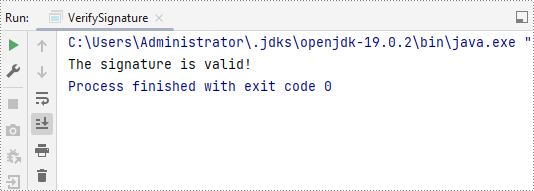
Spire.PDF for Java provides the PdfSignature.verifySignature() method to check the validity of digital signatures in PDF documents. The detailed steps are as follows.
- Create an object of the PdfDocument class.
- Load a PDF document using the PdfDocument.LoadFromFile() method.
- Get the form of the PDF document using the PdfDocument.Form property.
- Iterate through all fields in the form and find the signature field.
- Get the signature using the PdfSignatureFieldWidget.getSignature() method.
- Verify the validity of the signature using the PdfSignature.verifySignature() method.
- Java
import com.spire.pdf.PdfDocument;
import com.spire.pdf.fields.PdfField;
import com.spire.pdf.security.PdfSignature;
import com.spire.pdf.widget.PdfFormWidget;
import com.spire.pdf.widget.PdfSignatureFieldWidget;

public class VerifySignature {
    public static void main(String[] args) {
        // Create a PdfDocument object
        PdfDocument pdf = new PdfDocument();
        // Load a PDF document
        pdf.loadFromFile("Signature.pdf");

        // Get the form of the PDF document
        PdfFormWidget formWidget = (PdfFormWidget) pdf.getForm();

        if(formWidget.getFieldsWidget().getCount() > 0)
        {
            // Iterate through all fields in the form
            for(int i = 0; i < formWidget.getFieldsWidget().getCount(); i ++)
            {
                PdfField field = formWidget.getFieldsWidget().get(i);
                // Find the signature field
                if (field instanceof PdfSignatureFieldWidget)
                {
                    PdfSignatureFieldWidget signatureField = (PdfSignatureFieldWidget) field;
                    // Get the signature
                    PdfSignature signature = signatureField.getSignature();
                    // Verify the signature
                    boolean valid = signature.verifySignature();
                    if(valid)
                    {
                      System.out.print("The signature is valid!");
                    }
                    else
                    {
                        System.out.print("The signature is invalid!");
                    }
                }
            }
        }
    }
}
Detect Whether a Signed PDF Has Been Modified in Java
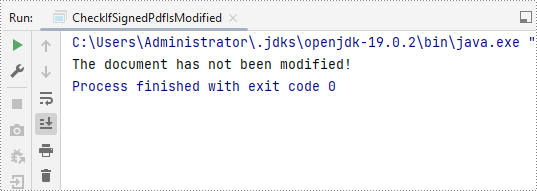
To verify if a signed PDF document has been modified, you can use the PdfSignature.VerifyDocModified() method. The detailed steps are as follows.
- Create an object of the PdfDocument class.
- Load a PDF document using the PdfDocument.LoadFromFile() method.
- Get the form of the PDF document using the PdfDocument.Form property.
- Iterate through all fields in the form and find the signature field.
- Get the signature using the PdfSignatureFieldWidget.getSignature() method.
- Verify if the document has been modified since it was signed using the PdfSignature.VerifyDocModified() method.
- Java
import com.spire.pdf.PdfDocument;
import com.spire.pdf.fields.PdfField;
import com.spire.pdf.security.PdfSignature;
import com.spire.pdf.widget.PdfFormWidget;
import com.spire.pdf.widget.PdfSignatureFieldWidget;

public class CheckIfSignedPdfIsModified {
    public static void main(String[] args) {
        // Create a PdfDocument object
        PdfDocument pdf = new PdfDocument();
        // Load a PDF document
        pdf.loadFromFile("Signature.pdf");

        // Get the form of the PDF document
        PdfFormWidget formWidget = (PdfFormWidget) pdf.getForm();

        if(formWidget.getFieldsWidget().getCount() > 0) {
            // Iterate through all fields in the form
            for (int i = 0; i < formWidget.getFieldsWidget().getCount(); i++) {
                PdfField field = formWidget.getFieldsWidget().get(i);
                // Find the signature field
                if (field instanceof PdfSignatureFieldWidget) {
                    PdfSignatureFieldWidget signatureField = (PdfSignatureFieldWidget) field;
                    // Get the signature
                    PdfSignature signature = signatureField.getSignature();
                    // Verify the signaure
                    boolean modified = signature.verifyDocModified();
                    if(modified)
                    {
                        System.out.print("The document has been modified!");
                    }
                    else
                    {
                        System.out.print("The document has not been modified!");
                    }
                }
            }
        }
    }
}
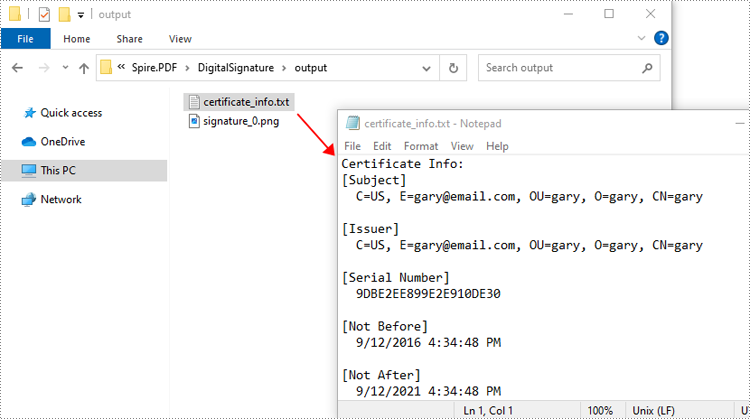
Extract Signature Images and Certificate Information from PDF in Java
To extract signature images and certificate information from PDF, you can use the PdfFormWidget.extractSignatureAsImages() and PdfSignture.getCertificate().toString() methods. The detailed steps are as follows.
- Create an object of the PdfDocument class.
- Load a PDF document using the PdfDocument.LoadFromFile() method.
- Get the form of the PDF document using the PdfDocument.Form property.
- Extract signature images using the PdfFormWidget.extractSignatureAsImages() method and then save each image to file.
- Iterate through all fields in the form and find the signature field.
- Get the signature using the PdfSignatureFieldWidget.getSignature() method.
- Get the certificate information of the signature using the PdfSignture.getCertificate().toString() method.
- Java
import com.spire.pdf.PdfDocument;
import com.spire.pdf.fields.PdfField;
import com.spire.pdf.security.PdfCertificate;
import com.spire.pdf.security.PdfSignature;
import com.spire.pdf.widget.PdfFormWidget;
import com.spire.pdf.widget.PdfSignatureFieldWidget;

import javax.imageio.ImageIO;
import java.awt.*;
import java.awt.image.BufferedImage;
import java.io.BufferedWriter;
import java.io.File;
import java.io.FileWriter;
import java.io.IOException;

public class ExtractSignatureImage {
    public static void main(String[] args) {
        // Create a PdfDocument object
        PdfDocument pdf = new PdfDocument();
        // Load a PDF document
        pdf.loadFromFile("Signature.pdf");

        // Get the form of the PDF document
        PdfFormWidget formWidget = (PdfFormWidget) pdf.getForm();

        // Extract signature images
        Image[] images = formWidget.extractSignatureAsImages();
        // Iterate through the images and save each image to file
        for (int i = 0; i < images.length; i++) {
            try {
                // Convert the Image to BufferedImage
                BufferedImage bufferedImage = (BufferedImage) images[i];
                // Define the output file path
                File outputFile = new File("output\\signature_" + i + ".png");
                // Save the image as a PNG file
                ImageIO.write(bufferedImage, "png", outputFile);
            } catch (IOException e) {
                e.printStackTrace();
            }
        }

        // Create a text file to save the certificate information
        try (BufferedWriter writer = new BufferedWriter(new FileWriter("output\\certificate_info.txt"))) {
            if (formWidget.getFieldsWidget().getCount() > 0) {
                // Iterate through all fields in the form
                for (int i = 0; i < formWidget.getFieldsWidget().getCount(); i++) {
                    PdfField field = formWidget.getFieldsWidget().get(i);
                    // Find the signature field
                    if (field instanceof PdfSignatureFieldWidget) {
                        PdfSignatureFieldWidget signatureField = (PdfSignatureFieldWidget) field;
                        // Get the signature
                        PdfSignature signature = signatureField.getSignature();

                        // Get the certificate info of the signature
                        String certificateInfo = signature.getCertificate() != null ? signature.getCertificate().toString() : "No certificate";

                        // Write the certificate information to the text file
                        writer.write("Certificate Info: \n" + certificateInfo);
                        writer.write("-----------------------------------\n");
                    }
                }
            } else {
                writer.write("No signature fields found.");
            }
        } catch (IOException e) {
            e.printStackTrace();
        }
    }
}
Apply for a Temporary License
If you'd like to remove the evaluation message from the generated documents, or to get rid of the function limitations, please request a 30-day trial license for yourself.

Spire.OCR for Java is a professional OCR library to read text from Images in JPG, PNG, GIF, BMP and TIFF formats. Developers can easily add OCR functionalities on Java applications (J2SE and J2EE). It supports commonly used image formats and provides functionalities like reading multiple characters and fonts from images, bold and italic styles and much more.
Spire.OCR for Java provides a very easy way to extract text from images. With just three lines of code in Java, Spire.OCR supports read texts from variable common image formats, such as Bitmap, JPG, PNG, TIFF and GIF.


