
Java (485)
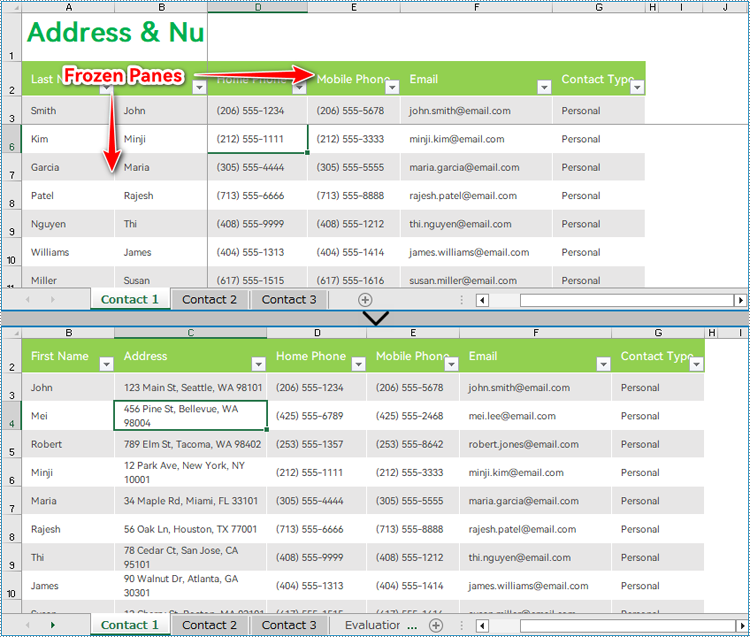
The Freeze Panes feature in Excel allows users to lock specific rows and columns while scrolling, ensuring that critical information remains visible regardless of the dataset's size. However, there are instances where unfreezing panes becomes necessary. Unfreezing rows and columns grants users the freedom to navigate large datasets seamlessly, facilitating comprehensive data analysis, editing, and formatting. the contents of frozen panes are often important information, and being able to obtain the range of frozen panes can facilitate easier access to this content. This article demonstrates how to use Spire.XLS for Java to unfreeze panes and obtain frozen rows and columns in Excel worksheets with Java code.
- Unfreeze Panes in Excel Worksheets with Java
- Obtain Frozen Rows and Columns in Excel Worksheets with Java
Install Spire.XLS for Java
First of all, you're required to add the Spire.Xls.jar file as a dependency in your Java program. The JAR file can be downloaded from this link. If you use Maven, you can easily import the JAR file in your application by adding the following code to your project's pom.xml file.
<repositories>
    <repository>
        <id>com.e-iceblue</id>
        <name>e-iceblue</name>
        <url>https://repo.e-iceblue.com/nexus/content/groups/public/</url>
    </repository>
</repositories>
<dependencies>
    <dependency>
        <groupId>e-iceblue</groupId>
        <artifactId>spire.xls</artifactId>
        <version>16.8.4</version>
    </dependency>
</dependencies>
Unfreeze Panes in Excel Worksheets with Java
With Spire.XLS for Java, developers get a worksheet using Workbook.getWorksheets().get() method and unfreeze the panes using Worksheet.RemovePanes() method. The detailed steps for unfreezing panes in an Excel worksheet are as follows:
- Create an object of Workbook class.
- Load an Excel workbook using Workbook.loadFromFile() method.
- Get a worksheet from the workbook using Workbook.getWorksheets().get() method.
- Unfreeze panes in the worksheet using Worksheet.removePanes() method.
- Save the workbook using Workbook.saveToFile() method.
- Java
import com.spire.xls.Workbook;
import com.spire.xls.Worksheet;

public class UnfreezePanes {
    public static void main(String[] args) {
        // Create an object of Workbook class
        Workbook wb = new Workbook();

        // Load an Excel workbook
        wb.loadFromFile("Sample.xlsx");

        // Get the first worksheet
        Worksheet sheet = wb.getWorksheets().get(0);

        // Unfreeze the panes
        sheet.removePanes();

        // Save the workbook
        wb.saveToFile("output/UnfreezePanes.xlsx");
        wb.dispose();
    }
}
Obtain Frozen Rows and Columns in Excel Worksheets with Java
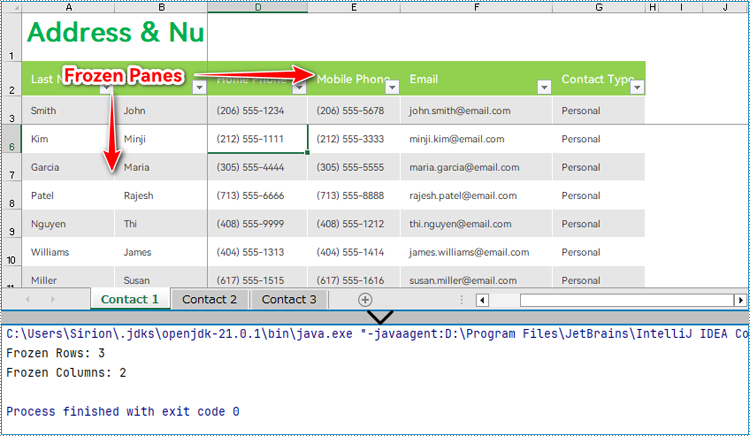
Spire.XLS for Java provides the Worksheet.getFreezePanes() method to get the row and column indexes of the frozen panes, which allows developers to conveniently extract, remove, or format the content of the frozen panes. The parameters obtained are in the format of an int list: [int rowIndex, int columnIndex]. For example, [1, 0] indicates that the first row is frozen.
The detailed steps for obtaining the row and column parameters of the frozen panes are as follows:
- Create an object of Workbook class.
- Load an Excel workbook using Workbook.loadFromFile() method.
- Get the first worksheet using Workbook.getWorksheets().get() method.
- Get the indexes of the frozen rows and columns using Worksheet.getFreezePanes() method.
- Output the result.
- Java
import com.spire.xls.Workbook;
import com.spire.xls.Worksheet;

public class GetFrozenCellRange {
    public static void main(String[] args) {
        // Create an object of Document clas
        Workbook wb = new Workbook();

        // Load an Excel file
        wb.loadFromFile("Sample.xlsx");

        // Get the first worksheet
        Worksheet ws = wb.getWorksheets().get(0);

        // Get the indexes of the frozen rows and columns
        int[] index = ws.getFreezePanes();

        // Output the result
        System.out.println("Frozen Rows: " + index[0] + "\r\nFrozen Columns: " + index[1]);
        wb.dispose();
    }
}
Apply for a Temporary License
If you'd like to remove the evaluation message from the generated documents, or to get rid of the function limitations, please request a 30-day trial license for yourself.
Extracting content from Word documents plays a crucial role in both work and study. Extracting one page of content helps in quickly browsing and summarizing key points, while extracting content from one section aids in in-depth study of specific topics or sections. Extracting the entire document allows you to have a comprehensive understanding of the document content, facilitating deep analysis and comprehensive comprehension. This article will introduce how to use Spire.Doc for Java to read a page, a section, and the entire content of a Word document in a Java project.
- Read a Page from a Word Document in Java
- Read a Section from a Word Document in Java
- Read the Entire Content from a Word Document in Java
Install Spire.Doc for Java
First, you're required to add the Spire.Doc.jar file as a dependency in your Java program. The JAR file can be downloaded from this link. If you use Maven, you can easily import the JAR file in your application by adding the following code to your project's pom.xml file.
<repositories>
    <repository>
        <id>com.e-iceblue</id>
        <name>e-iceblue</name>
        <url>https://repo.e-iceblue.com/nexus/content/groups/public/</url>
    </repository>
</repositories>
<dependencies>
    <dependency>
        <groupId>e-iceblue</groupId>
        <artifactId>spire.doc</artifactId>
        <version>14.8.4</version>
    </dependency>
</dependencies>
Read a Page from a Word Document in Java
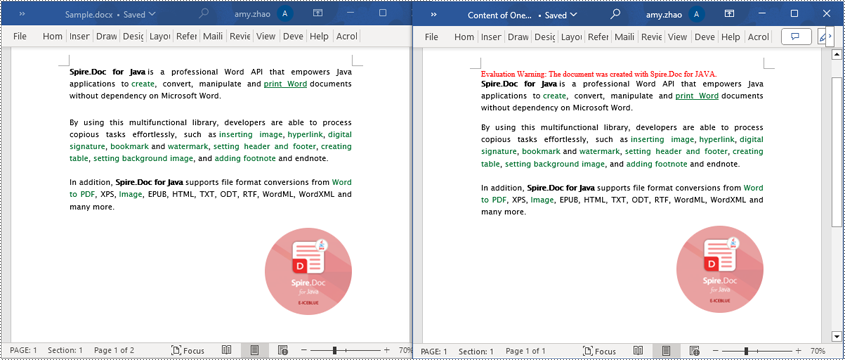
Using the FixedLayoutDocument class and FixedLayoutPage class makes it easy to extract content from a specified page. To facilitate viewing the extracted content, the following example code saves the extracted content to a new Word document. The detailed steps are as follows:
- Create a Document object.
- Load a Word document using the Document.loadFromFile() method.
- Create a FixedLayoutDocument object.
- Obtain a FixedLayoutPage object for a page in the document.
- Use the FixedLayoutPage.getSection() method to get the section where the page is located.
- Get the index position of the first paragraph on the page within the section.
- Get the index position of the last paragraph on the page within the section.
- Create another Document object.
- Add a new section using Document.addSection().
- Clone the properties of the original section to the new section using Section.cloneSectionPropertiesTo(newSection) method.
- Copy the content of the page from the original document to the new document.
- Save the resulting document using the Document.saveToFile() method.
- Java
import com.spire.doc.*;
import com.spire.doc.pages.*;
import com.spire.doc.documents.*;

public class ReadOnePage {
    public static void main(String[] args) {
        // Create a new document object
        Document document = new Document();

        // Load document content from the specified file
        document.loadFromFile("Sample.docx");

        // Create a fixed layout document object
        FixedLayoutDocument layoutDoc = new FixedLayoutDocument(document);

        // Get the first page
        FixedLayoutPage page = layoutDoc.getPages().get(0);

        // Get the section where the page is located
        Section section = page.getSection();

        // Get the first paragraph of the page
        Paragraph paragraphStart = page.getColumns().get(0).getLines().getFirst().getParagraph();
        int startIndex = 0;
        if (paragraphStart != null) {
            // Get the index of the paragraph in the section
            startIndex = section.getBody().getChildObjects().indexOf(paragraphStart);
        }

        // Get the last paragraph of the page
        Paragraph paragraphEnd = page.getColumns().get(0).getLines().getLast().getParagraph();

        int endIndex = 0;
        if (paragraphEnd != null) {
            // Get the index of the paragraph in the section
            endIndex = section.getBody().getChildObjects().indexOf(paragraphEnd);
        }

        // Create a new document object
        Document newdoc = new Document();

        // Add a new section
        Section newSection = newdoc.addSection();

        // Clone the properties of the original section to the new section
        section.cloneSectionPropertiesTo(newSection);

        // Copy the content of the original document's page to the new document
        for (int i = startIndex; i <=endIndex; i++)
        {
            newSection.getBody().getChildObjects().add(section.getBody().getChildObjects().get(i).deepClone());
        }

        // Save the new document to the specified file
        newdoc.saveToFile("Content of One Page.docx", FileFormat.Docx);

        // Close and release the new document
        newdoc.close();
        newdoc.dispose();

        // Close and release the original document
        document.close();
        document.dispose();
    }
}
Read a Section from a Word Document in Java
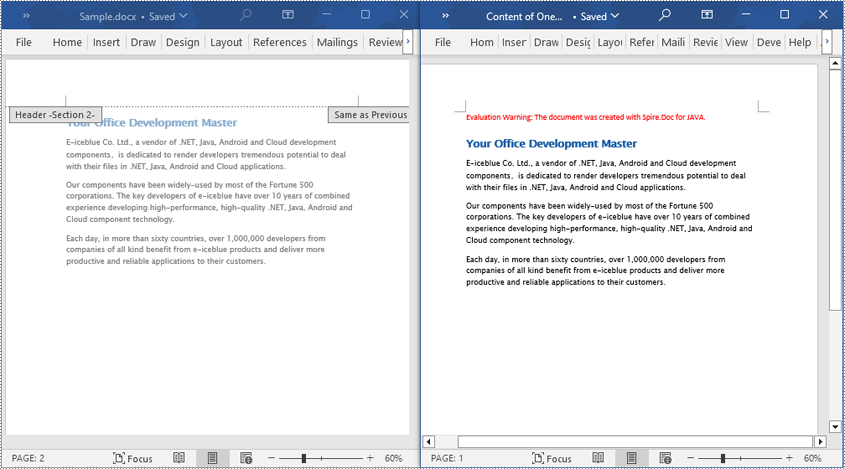
Using Document.Sections[index], you can access specific Section objects that contain the header, footer, and body content of a document. The following example demonstrates a simple method to copy all content from one section to another document. The detailed steps are as follows:
- Create a Document object.
- Load a Word document using the Document.loadFromFile() method.
- Use Document.getSections().get(1) to retrieve the second section of the document.
- Create another new Document object.
- Clone the default style of the original document to the new document using Document.cloneDefaultStyleTo(newdoc) method.
- Use Document.getSections().add(section.deepClone()) to clone the content of the second section of the original document to the new document.
- Save the resulting document using the Document.saveToFile() method.
- Java
import com.spire.doc.*;

public class ReadOneSection {
    public static void main(String[] args) {
        // Create a new document object
        Document document = new Document();

        // Load a Word document from a file
        document.loadFromFile("Sample.docx");

        // Get the second section of the document
        Section section = document.getSections().get(1);

        // Create a new document object
        Document newdoc = new Document();

        // Clone the default style to the new document
        document.cloneDefaultStyleTo(newdoc);

        // Clone the second section to the new document
        newdoc.getSections().add(section.deepClone());

        // Save the new document to a file
        newdoc.saveToFile("Content of One Section.docx", FileFormat.Docx);

        // Close and release the new document object
        newdoc.close();
        newdoc.dispose();

        // Close and release the original document object
        document.close();
        document.dispose();
    }
}
Read the Entire Content from a Word Document in Java
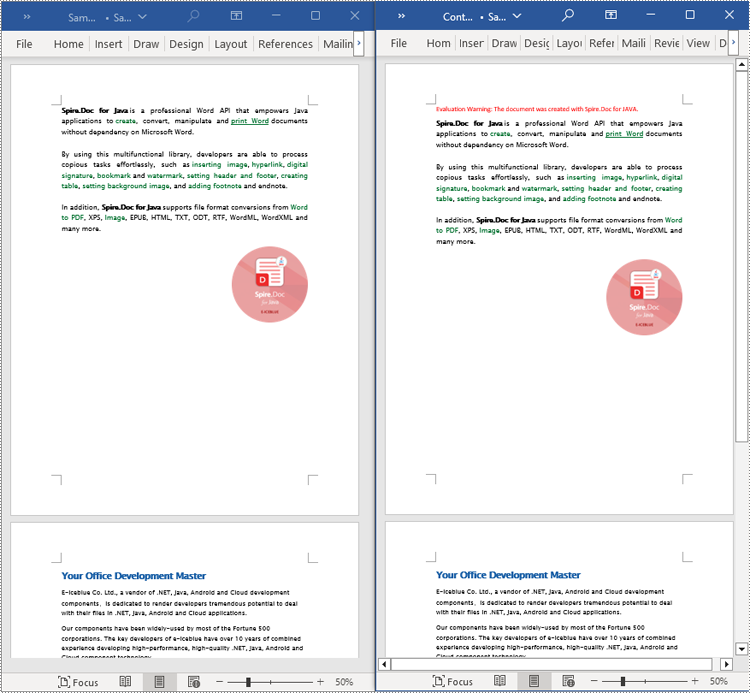
This example demonstrates how to iterate through each section of the original document to read the entire content of the document and clone each section into a new document. This method can help you quickly replicate both the structure and content of the entire document, preserving the format and layout of the original document in the new document. Such operations are very useful for maintaining the integrity and consistency of the document structure. The detailed steps are as follows:
- Create a Document object.
- Load a Word document using the Document.loadFromFile() method.
- Create another new Document object.
- Clone the default style of the original document to the new document using the Document.cloneDefaultStyleTo(newdoc) method.
- Iterate through each section of the original document using a for loop and clone it into the new document.
- Save the resulting document using the Document.saveToFile() method.
- Java
import com.spire.doc.*;

public class ReadOneDocument {
    public static void main(String[] args) {
        // Create a new document object
        Document document = new Document();

        // Load a Word document from a file
        document.loadFromFile("Sample.docx");

        // Create a new document object
        Document newdoc = new Document();

        // Clone the default style to the new document
        document.cloneDefaultStyleTo(newdoc);

        // Iterate through each section in the original document and clone it to the new document
        for (Section sourceSection : (Iterable<Section>) document.getSections()) {
            newdoc.getSections().add(sourceSection.deepClone());
        }
        // Save the new document to a file
        newdoc.saveToFile("Content of the entire document.docx", FileFormat.Docx);

        // Close and release the new document object
        newdoc.close();
        newdoc.dispose();

        // Close and release the original document object
        document.close();
        document.dispose();
    }
}
Apply for a Temporary License
If you'd like to remove the evaluation message from the generated documents, or to get rid of the function limitations, please request a 30-day trial license for yourself.
Adding, inserting, and deleting pages in a Word document are crucial steps in managing and presenting content. By adding or inserting new pages, you can expand the document to accommodate more content, making it more organized and readable. Deleting pages helps simplify the document by removing unnecessary or erroneous information. These operations can enhance the overall quality and clarity of the document. This article will demonstrate how to use Spire.Doc for Java to add, insert, and delete pages in a Word document within a Java project.
- Add a Page in a Word Document in Java
- Insert a Page in a Word Document in Java
- Delete a Page from a Word Document in Java
Install Spire.Doc for Java
First, you're required to add the Spire.Doc.jar file as a dependency in your Java program. The JAR file can be downloaded from this link. If you use Maven, you can easily import the JAR file in your application by adding the following code to your project's pom.xml file.
<repositories>
    <repository>
        <id>com.e-iceblue</id>
        <name>e-iceblue</name>
        <url>https://repo.e-iceblue.com/nexus/content/groups/public/</url>
    </repository>
</repositories>
<dependencies>
    <dependency>
        <groupId>e-iceblue</groupId>
        <artifactId>spire.doc</artifactId>
        <version>14.8.4</version>
    </dependency>
</dependencies>
Add a Page in a Word Document in Java
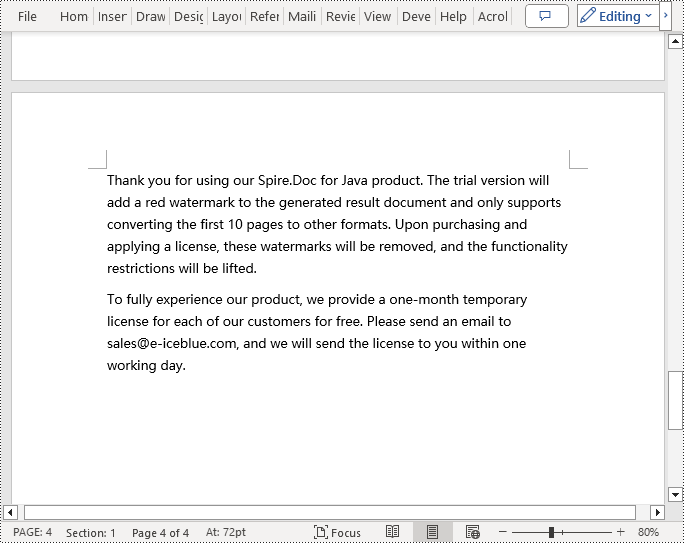
The steps to add a new page at the end of a Word document include locating the last section, and then inserting a page break at the end of that section's last paragraph. This way ensures that any content added subsequently will start displaying on a new page, maintaining the clarity and coherence of the document structure. The detailed steps are as follows:
- Create a Document object.
- Load a Word document using the Document.loadFromFile() method.
- Get the body of the last section of the document using Document.getLastSection().getBody().
- Add a page break by calling Paragraph.appendBreak(BreakType.Page_Break) method.
- Create a new paragraph style ParagraphStyle object.
- Add the new paragraph style to the document's style collection using Document.getStyles().add(paragraphStyle) method.
- Create a new paragraph Paragraph object and set the text content.
- Apply the previously created paragraph style to the new paragraph using Paragraph.applyStyle(paragraphStyle.getName()) method.
- Add the new paragraph to the document using Body.getChildObjects().add(paragraph) method.
- Save the resulting document using the Document.saveToFile() method.
- Java
import com.spire.doc.*;
import com.spire.doc.documents.*;

public class AddOnePage {
    public static void main(String[] args) {
        // Create a new document object
        Document document = new Document();

        // Load a sample document from a file
        document.loadFromFile("Sample.docx");

        // Get the body of the last section of the document
        Body body = document.getLastSection().getBody();

        // Insert a page break after the last paragraph in the body
        body.getLastParagraph().appendBreak(BreakType.Page_Break);

        // Create a new paragraph style
        ParagraphStyle paragraphStyle = new ParagraphStyle(document);
        paragraphStyle.setName("CustomParagraphStyle1");
        paragraphStyle.getParagraphFormat().setLineSpacing(12);
        paragraphStyle.getParagraphFormat().setAfterSpacing(8);
        paragraphStyle.getCharacterFormat().setFontName("Microsoft YaHei");
        paragraphStyle.getCharacterFormat().setFontSize(12);

        // Add the paragraph style to the document's style collection
        document.getStyles().add(paragraphStyle);

        // Create a new paragraph and set the text content
        Paragraph paragraph = new Paragraph(document);
        paragraph.appendText("Thank you for using our Spire.Doc for Java product. The trial version will add a red watermark to the generated result document and only supports converting the first 10 pages to other formats. Upon purchasing and applying a license, these watermarks will be removed, and the functionality restrictions will be lifted.");

        // Apply the paragraph style
        paragraph.applyStyle(paragraphStyle.getName());

        // Add the paragraph to the body's content collection
        body.getChildObjects().add(paragraph);

        // Create another new paragraph and set the text content
        paragraph = new Paragraph(document);
        paragraph.appendText("To fully experience our product, we provide a one-month temporary license for each of our customers for free. Please send an email to sales@e-iceblue.com, and we will send the license to you within one working day.");

        // Apply the paragraph style
        paragraph.applyStyle(paragraphStyle.getName());

        // Add the paragraph to the body's content collection
        body.getChildObjects().add(paragraph);

        // Save the document to a specified path
        document.saveToFile("Add a Page.docx", FileFormat.Docx);

        // Close the document
        document.close();

        // Dispose of the document object's resources
        document.dispose();
    }
}
Insert a Page in a Word Document in Java
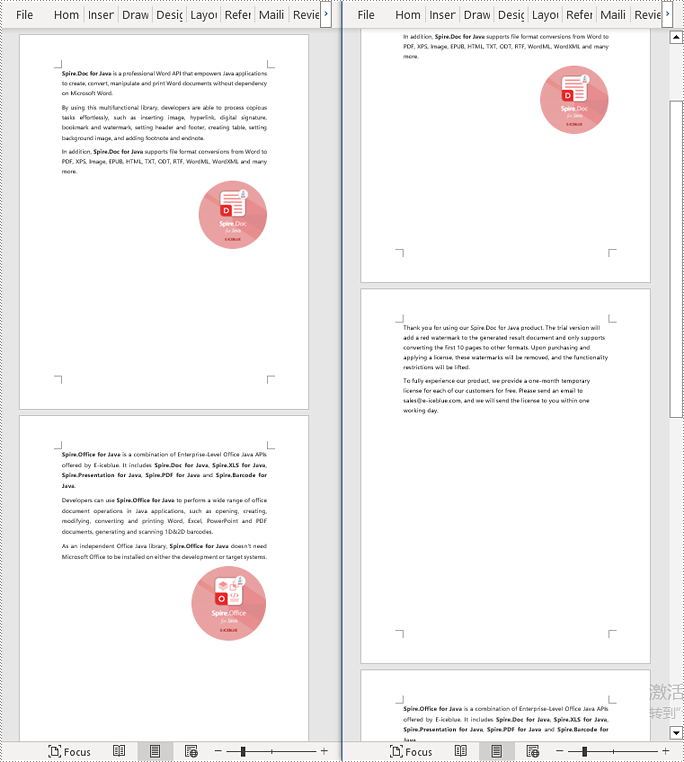
Before inserting a new page, it is necessary to determine the ending position index of the specified page content within the section, and then add the content of the new page to the document one by one. To ensure that the content is separated from the subsequent pages, page breaks need to be inserted at appropriate positions. The detailed steps are as follows:
- Create a Document object.
- Load a Word document using the Document.loadFromFile() method.
- Create a FixedLayoutDocument object.
- Obtain the FixedLayoutPage object of a page in the document.
- Get the index position of the last paragraph on the page within the section.
- Create a new paragraph style ParagraphStyle object.
- Add the new paragraph style to the document using the Document.getStyles().add(paragraphStyle) method.
- Create a new paragraph Paragraph object and set the text content.
- Apply the previously created paragraph style to the new paragraph using the Paragraph.applyStyle(paragraphStyle.getName()) method.
- Insert the new paragraph at the specified position using the Body.getChildObjects().insert(index, Paragraph) method.
- Create another new paragraph object, set its text content, add a page break by calling the Paragraph.appendBreak(BreakType.Page_Break) method, apply the previously created paragraph style, and finally insert this paragraph into the document.
- Save the resulting document using the Document.saveToFile() method.
- Java
import com.spire.doc.*;
import com.spire.doc.pages.*;
import com.spire.doc.documents.*;

public class InsertOnePage {
    public static void main(String[] args) {
        // Create a new document object
        Document document = new Document();

        // Load a sample document from a file
        document.loadFromFile("Sample.docx");

        // Create a fixed layout document object
        FixedLayoutDocument layoutDoc = new FixedLayoutDocument(document);

        // Get the first page
        FixedLayoutPage page = layoutDoc.getPages().get(0);

        // Get the body of the document
        Body body = page.getSection().getBody();

        // Get the paragraph at the end of the current page
        Paragraph paragraphEnd = page.getColumns().get(0).getLines().getLast().getParagraph();

        // Initialize the end index
        int endIndex = 0;
        if (paragraphEnd != null) {
            // Get the index of the last paragraph
            endIndex = body.getChildObjects().indexOf(paragraphEnd);
        }

        // Create a new paragraph style
        ParagraphStyle paragraphStyle = new ParagraphStyle(document);
        paragraphStyle.setName("CustomParagraphStyle1");
        paragraphStyle.getParagraphFormat().setLineSpacing(12);
        paragraphStyle.getParagraphFormat().setAfterSpacing(8);
        paragraphStyle.getCharacterFormat().setFontName("Microsoft YaHei");
        paragraphStyle.getCharacterFormat().setFontSize(12);

        // Add the style to the document
        document.getStyles().add(paragraphStyle);

        // Create a new paragraph and set the text content
        Paragraph paragraph = new Paragraph(document);
        paragraph.appendText("Thank you for using our Spire.Doc for Java product. The trial version will add a red watermark to the generated result document and only supports converting the first 10 pages to other formats. Upon purchasing and applying a license, these watermarks will be removed, and the functionality restrictions will be lifted.");

        // Apply the paragraph style
        paragraph.applyStyle(paragraphStyle.getName());

        // Insert the paragraph at the specified position
        body.getChildObjects().insert(endIndex + 1, paragraph);

        // Create another new paragraph and set the text content
        paragraph = new Paragraph(document);
        paragraph.appendText("To fully experience our product, we provide a one-month temporary license for each of our customers for free. Please send an email to sales@e-iceblue.com, and we will send the license to you within one working day.");

        // Apply the paragraph style
        paragraph.applyStyle(paragraphStyle.getName());

        // Add a page break
        paragraph.appendBreak(BreakType.Page_Break);

        // Insert the paragraph at the specified position
        body.getChildObjects().insert(endIndex + 2, paragraph);

        // Save the document to a specified path
        document.saveToFile("Insert a New Page after a Specified Page.docx", FileFormat.Docx);

        // Close and dispose of the document object's resources
        document.close();
        document.dispose();
    }
}
Delete a Page from a Word Document in Java
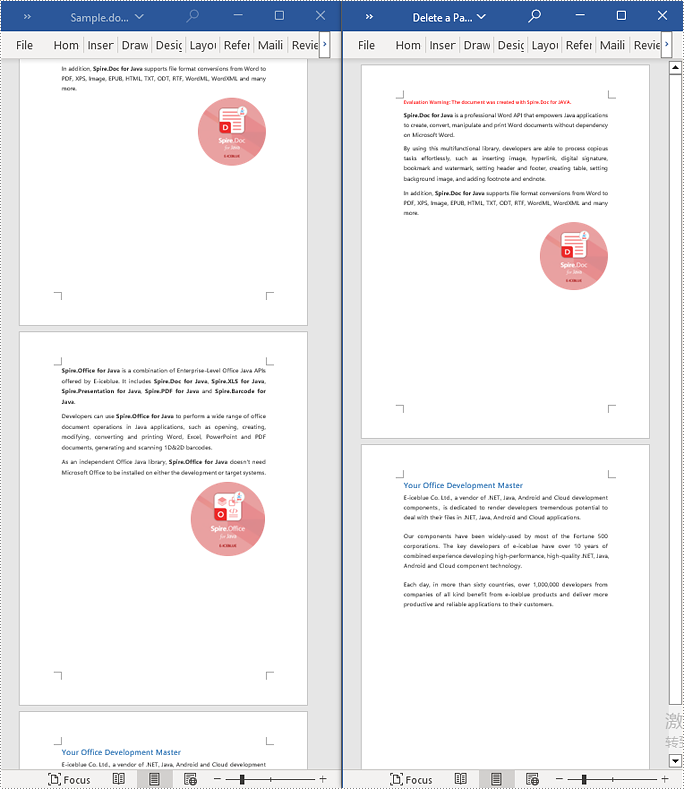
To delete the content of a page, you first need to find the position index of the starting and ending elements of that page in the document. Then, by looping through, you can remove these elements one by one to delete the entire content of the page. The detailed steps are as follows:
- Create a Document object.
- Load a Word document using the Document.loadFromFile() method.
- Create a FixedLayoutDocument object.
- Obtain the FixedLayoutPage object of the first page in the document.
- Use the FixedLayoutPage.getSection() method to get the section where the page is located.
- Get the index position of the first paragraph on the page within the section.
- Get the index position of the last paragraph on the page within the section.
- Use a for loop to remove the content of the page one by one.
- Save the resulting document using the Document.saveToFile() method.
- Java
import com.spire.doc.*;
import com.spire.doc.pages.*;
import com.spire.doc.documents.*;

public class RemoveOnePage {
    public static void main(String[] args) {
        // Create a new document object
        Document document = new Document();

        // Load a sample document from a file
        document.loadFromFile("Sample.docx");

        // Create a fixed layout document object
        FixedLayoutDocument layoutDoc = new FixedLayoutDocument(document);

        // Get the second page
        FixedLayoutPage page = layoutDoc.getPages().get(1);

        // Get the section of the page
        Section section = page.getSection();

        // Get the first paragraph on the first page
        Paragraph paragraphStart = page.getColumns().get(0).getLines().getFirst().getParagraph();
        int startIndex = 0;
        if (paragraphStart != null) {
            // Get the index of the starting paragraph
            startIndex = section.getBody().getChildObjects().indexOf(paragraphStart);
        }

        // Get the last paragraph on the last page
        Paragraph paragraphEnd = page.getColumns().get(0).getLines().getLast().getParagraph();

        int endIndex = 0;
        if (paragraphEnd != null) {
            // Get the index of the ending paragraph
            endIndex = section.getBody().getChildObjects().indexOf(paragraphEnd);
        }

        // Remove paragraphs within the specified range
        for (int i = 0; i <= (endIndex - startIndex); i++) {
            section.getBody().getChildObjects().removeAt(startIndex);
        }

        // Save the document to a specified path
        document.saveToFile("Delete a Page.docx", FileFormat.Docx);

        // Close and dispose of the document object's resources
        document.close();
        document.dispose();
    }
}
Apply for a Temporary License
If you'd like to remove the evaluation message from the generated documents, or to get rid of the function limitations, please request a 30-day trial license for yourself.
