
Knowledgebase (2417)
Children categories
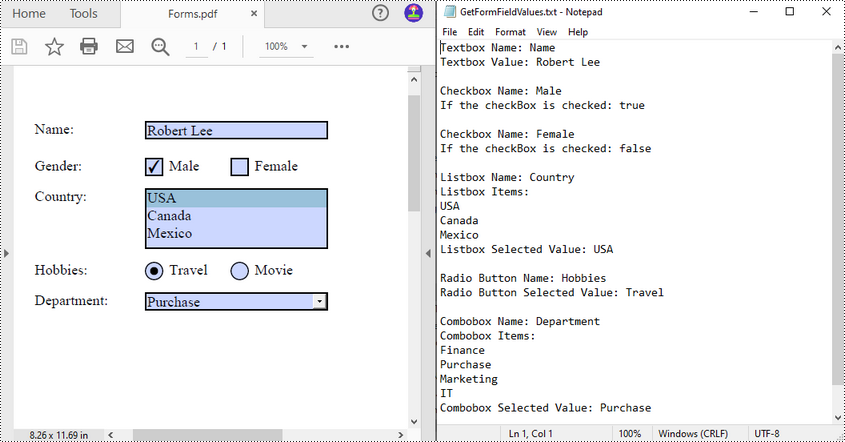
Extracting values from PDF forms can be a crucial task for organizations looking to analyze and utilize the information collected from these forms. For example, a company may use PDF forms to collect customer contact details or feedback on products or services. By extracting the PDF form data, the company can easily input the information into their database for further analysis and follow-up. In this article, you will learn how to extract values from PDF forms in Java using Spire.PDF for Java.
Install Spire.PDF for Java
First of all, you're required to add the Spire.Pdf.jar file as a dependency in your Java program. The JAR file can be downloaded from this link. If you use Maven, you can easily import the JAR file in your application by adding the following code to your project's pom.xml file.
<repositories>
    <repository>
        <id>com.e-iceblue</id>
        <name>e-iceblue</name>
        <url>https://repo.e-iceblue.com/nexus/content/groups/public/</url>
    </repository>
</repositories>
<dependencies>
    <dependency>
        <groupId>e-iceblue</groupId>
        <artifactId>spire.pdf</artifactId>
        <version>12.9.0</version>
    </dependency>
</dependencies>
Extract Data from PDF Forms in Java
Spire.PDF for Java supports various types of PDF form fields, including:
- Text box field (represented by the PdfTextBoxFieldWidget class)
- Check box field (represented by the PdfCheckBoxWidgetFieldWidget class)
- Radio button field (represented by the PdfRadioButtonListFieldWidget class)
- List box field (represented by the PdfListBoxWidgetFieldWidget class)
- Combo box field (represented by the PdfComboBoxWidgetFieldWidget class)
Before extracting data from the PDF forms, it is necessary to determine the specific type of each form field first, and then you can use the properties of the corresponding form field class to extract their values accurately. The following are the detailed steps.
- Initialize an instance of the PdfDocument class.
- Load a PDF document using PdfDocument.loadFromFile() method.
- Get the forms in the PDF document using PdfDocument.getForm() method.
- Create a StringBuilder instance to store the extracted form field values.
- Iterate through all fields in the PDF forms.
- Determine the types of the form fields, then get the names and values of the form fields using the corresponding properties.
- Write the results to a txt file.
- Java
import com.spire.pdf.PdfDocument;
import com.spire.pdf.fields.PdfField;
import com.spire.pdf.widget.*;

import java.io.FileWriter;
import java.io.IOException;

public class ReadPdfFormValues {
    public static void main(String[] args) throws Exception{
        //Create a PdfDocument instance
        PdfDocument pdf = new PdfDocument();

        //Load a PDF document
        pdf.loadFromFile("forms.pdf");

        //Create a StringBuilder instance
        StringBuilder sb = new StringBuilder();

        //Get PDF forms
        PdfFormWidget formWidget = (PdfFormWidget)pdf.getForm();

        //Iterate through all fields in the form
        for (int i = 0; i < formWidget.getFieldsWidget().getList().size(); i++)
        {
            PdfField field = (PdfField)formWidget.getFieldsWidget().getList().get(i);

            //Get the name and value of the textbox field
            if (field instanceof PdfTextBoxFieldWidget)
            {
                PdfTextBoxFieldWidget textBoxField = (PdfTextBoxFieldWidget)field ;
                String text = textBoxField.getName();
                String value = textBoxField.getText();
                sb.append("Textbox Name: " + text + "\r\n");
                sb.append("Textbox Value: " + value + "\n\r");
            }

            //Get the name of the listbox field
            if (field instanceof PdfListBoxWidgetFieldWidget)
            {
                PdfListBoxWidgetFieldWidget listBoxField = (PdfListBoxWidgetFieldWidget)field;
                String name = listBoxField.getName();
                sb.append("Listbox Name: " + name + "\r\n");

                //Get the items of the listbox field
                sb.append("Listbox Items: \r\n");
                PdfListWidgetItemCollection items = listBoxField.getValues();
                for (int j = 0; j < items.getCount(); j ++)
                {
                    sb.append( items.get(j).getValue() + "\r\n");
                }

                //Get the selected item of the listbox field
                String selectedValue = listBoxField.getSelectedValue();
                sb.append("Listbox Selected Value: " + selectedValue + "\n\r");

            }

            //Get the name of the combo box field
            if (field instanceof PdfComboBoxWidgetFieldWidget)
            {
                PdfComboBoxWidgetFieldWidget comBoxField = (PdfComboBoxWidgetFieldWidget)field;
                String name = comBoxField.getName();
                sb.append("Combobox Name: " + name + "\r\n");

                //Get the items of the combo box field
                sb.append("Combobox Items: \r\n");
                PdfListWidgetItemCollection items = comBoxField.getValues();
                for (int j = 0; j < items.getCount(); j ++)
                {
                    sb.append( items.get(j).getValue() + "\r\n");
                }

                //Get the selected item of the combo box field
                String selectedValue = comBoxField.getSelectedValue();
                sb.append("Combobox Selected Value: " + selectedValue + "\n\r");

            }

            //Get the name and selected item of the radio button field
            if (field instanceof PdfRadioButtonListFieldWidget)
            {
                PdfRadioButtonListFieldWidget radioBtnField = (PdfRadioButtonListFieldWidget)field;
                String name = radioBtnField.getName();
                String value = radioBtnField.getValue();
                sb.append("Radio Button Name: " + name + "\r\n");
                sb.append("Radio Button Selected Value: " + value + "\n\r");
            }

            //Get the name and status of the checkbox field
            if (field instanceof PdfCheckBoxWidgetFieldWidget)
            {
                PdfCheckBoxWidgetFieldWidget checkBoxField = (PdfCheckBoxWidgetFieldWidget)field;
                String name = checkBoxField.getName();
                sb.append("Checkbox Name: " + name + "\r\n");

                boolean state = checkBoxField.getChecked();
                sb.append("If the checkBox is checked: " + state + "\n\r");
            }
        }

        //Write the results to a txt file
        writeStringToTxt(sb.toString(), "GetFormFieldValues.txt");
    }

    public static void writeStringToTxt(String content, String txtFileName) throws IOException {
        FileWriter fWriter = new FileWriter(txtFileName, true);
        try {
            fWriter.write(content);
        } catch (IOException ex) {
            ex.printStackTrace();
        } finally {
            try {
                fWriter.flush();
                fWriter.close();
            } catch (IOException ex) {
                ex.printStackTrace();
            }
        }
    }
}
Apply for a Temporary License
If you'd like to remove the evaluation message from the generated documents, or to get rid of the function limitations, please request a 30-day trial license for yourself.
When generating a QR code, you might want to add a custom image such as your company’s logo or your personal profile image to it. In this article, you will learn how to achieve this task programmatically in C# and VB.NET using Spire.Barcode for .NET library.
Install Spire.Barcode for .NET
To begin with, you need to add the DLL files included in the Spire.Barcode for.NET package as references in your .NET project. The DLL files can be either downloaded from this link or installed via NuGet.
PM> Install-Package Spire.Barcode
Note: This feature relies on a commercial license. If you want to test it, please go to the end of this article to request a temporary license.
Generate QR Code with a Logo Image in C# and VB.NET
The following are the steps to generate a QR code with a logo image:
- Create a BarcodeSettings object.
- Set barcode type, error correction level and data etc. using BarcodeSettings.Type, BarcodeSettings.QRCodeECL and BarcodeSetting.Data properties.
- Set logo image using BarcodeSettings.QRCodeLogoImage property.
- Create a BarCodeGenerator object based on the settings.
- Generate QR code image using BarCodeGenerator.GenerateImage() method.
- Save the image using Image.Save() method.
- C#
- VB.NET
using Spire.Barcode;
using Spire.License;
using System.Drawing;

namespace AddLogoToQR
{
    class Program
    {
        static void Main(string[] args)
        {
            //Load license
            Spire.License.LicenseProvider.SetLicenseFileFullPath("license.elic.xml");

            //Create a BarcodeSettings object
            BarcodeSettings settings = new BarcodeSettings();

            //Set barcode type, error correction level, data, etc.
            settings.Type = BarCodeType.QRCode;
            settings.QRCodeECL = QRCodeECL.M;
            settings.ShowText = false;
            settings.X = 2.5f;
            string data = "www.e-iceblue.com";
            settings.Data = data;
            settings.Data2D = data;

            //Set logo image
            settings.QRCodeLogoImage = Image.FromFile(@"C:\Users\Administrator\Desktop\logo.png");

            //Generate QR image based on the settings
            BarCodeGenerator generator = new BarCodeGenerator(settings);
            Image image = generator.GenerateImage();
            image.Save("QR.png", System.Drawing.Imaging.ImageFormat.Png);
        }
    }
}

Apply for a Temporary License
If you'd like to remove the evaluation message from the generated documents, or to get rid of the function limitations, please request a 30-day trial license for yourself.
People often need to replace text in a PDF document for a variety of reasons. It could be to correct errors or typos, update outdated information, customize the content for a specific audience or purpose, or comply with legal or regulatory requirements. By replacing text in a PDF, individuals can ensure accuracy, maintain document integrity, and enhance the overall quality and relevance of the information presented.
In this article, you will learn how to replace text in a PDF document in C# by using the Spire.PDF for .NET library.
- Replace Text in a Specific PDF Page in C#
- Replace Text in an Entire PDF Document in C#
- Replace the First Occurrence of the Target Text in C#
- Replace Text Based on a Regular Expression in C#
Install Spire.PDF for .NET
To begin with, you need to add the DLL files included in the Spire.PDF for.NET package as references in your .NET project. The DLL files can be either downloaded from this link or installed via NuGet.
PM> Install-Package Spire.PDF
Replace Text in a Specific PDF Page in C#
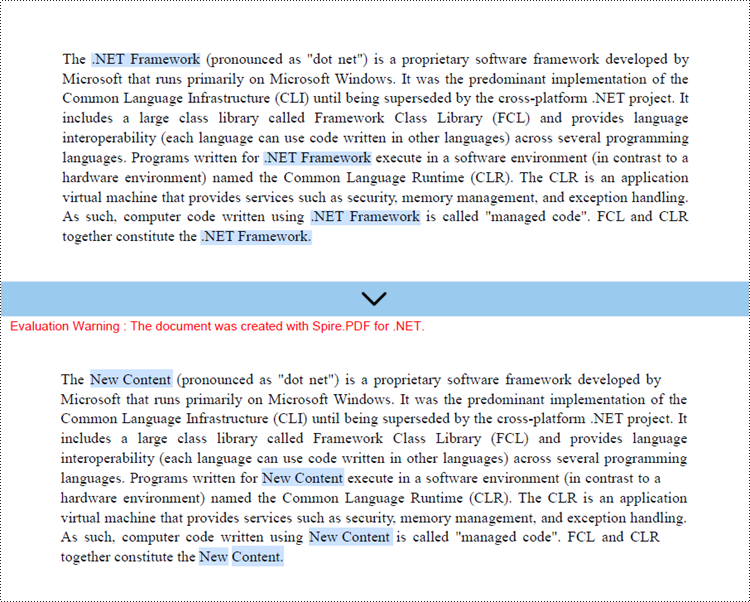
Spire.PDF for .NET offers the PdfTextReplacer.ReplaceAllText() method, allowing users to replace all occurrences of target text in a page with new text. The following are the steps to replace text in a specific page using C#.
- Create a PdfDocument object.
- Load a PDF file for a specified path.
- Get a specific page from the document.
- Create a PdfTextReplaceOptions object, and specify the replace options using ReplaceType property of the object.
- Create a PdfTextReplacer object, and apply the replace options using Options property of it.
- Replace all occurrences of the target text in the page with new text using PdfTextReplacer.ReplaceAllText() method.
- Save the document to a different PDF file.
- C#
using Spire.Pdf;
using Spire.Pdf.Texts;

namespace ReplaceTextInPage
{
    class Program
    {
        static void Main(string[] args)
        {
            // Create a PdfDocument object
            PdfDocument doc = new PdfDocument();

            // Load a PDF file
            doc.LoadFromFile("C:\\Users\\Administrator\\Desktop\\Input.pdf");

            // Create a PdfTextReplaceOptions object
            PdfTextReplaceOptions textReplaceOptions = new PdfTextReplaceOptions();

            // Specify the options for text replacement
            textReplaceOptions.ReplaceType = PdfTextReplaceOptions.ReplaceActionType.IgnoreCase;
            textReplaceOptions.ReplaceType = PdfTextReplaceOptions.ReplaceActionType.WholeWord;
            textReplaceOptions.ReplaceType = PdfTextReplaceOptions.ReplaceActionType.AutofitWidth;

            // Get a specific page
            PdfPageBase page = doc.Pages[0];

            // Create a PdfTextReplacer object based on the page
            PdfTextReplacer textReplacer = new PdfTextReplacer(page);

            // Set the replace options
            textReplacer.Options = textReplaceOptions;

            // Replace all occurrences of target text with new text
            textReplacer.ReplaceAllText(".NET Framework", "New Content");

            // Save the document to a different PDF file
            doc.SaveToFile("ReplaceTextInPage.pdf");

            // Dispose resources
            doc.Dispose();
        }
    }
}
Replace Text in an Entire PDF Document in C#
In order to replace all occurrences of target text in the entire document with new text, you need to iterate through pages in the document and replace text on each page using the PdfTextReplacer.ReplaceAllText() method.
The following are the steps to replace text in an entire PDF document using C#.
- Create a PdfDocument object.
- Load a PDF file for a specified path.
- Create a PdfTextReplaceOptions object, and specify the replace options using ReplaceType property of the object.
- Iterate through the pages in the document.
- Create a PdfTextReplacer object based on a specified page, and apply the replace options using Options property of it.
- Replace all occurrences of the target text in the page with new text using PdfTextReplacer.ReplaceAllText() method.
- Save the document to a different PDF file.
- C#
using Spire.Pdf;
using Spire.Pdf.Texts;

namespace ReplaceInEntireDocument
{
    class Program
    {
        static void Main(string[] args)
        {
            // Create a PdfDocument object
            PdfDocument doc = new PdfDocument();

            // Load a PDF file
            doc.LoadFromFile("C:\\Users\\Administrator\\Desktop\\Input.pdf");

            // Create a PdfTextReplaceOptions object
            PdfTextReplaceOptions textReplaceOptions = new PdfTextReplaceOptions();

            // Specify the options for text replacement
            textReplaceOptions.ReplaceType = PdfTextReplaceOptions.ReplaceActionType.IgnoreCase;
            textReplaceOptions.ReplaceType = PdfTextReplaceOptions.ReplaceActionType.WholeWord;
            textReplaceOptions.ReplaceType = PdfTextReplaceOptions.ReplaceActionType.AutofitWidth;

            for (int i = 0; i < doc.Pages.Count; i++) {

                // Get a specific page
                PdfPageBase page = doc.Pages[i];

                // Create a PdfTextReplacer object based on the page
                PdfTextReplacer textReplacer = new PdfTextReplacer(page);

                // Set the replace options
                textReplacer.Options = textReplaceOptions;

                // Replace all occurrences of target text with new text
                textReplacer.ReplaceAllText(".NET Framework", "New Content");
            }


            // Save the document to a different PDF file
            doc.SaveToFile("ReplaceTextInDocument.pdf");

            // Dispose resources
            doc.Dispose();
        }
    }
}
Replace the First Occurrence of the Target Text in C#
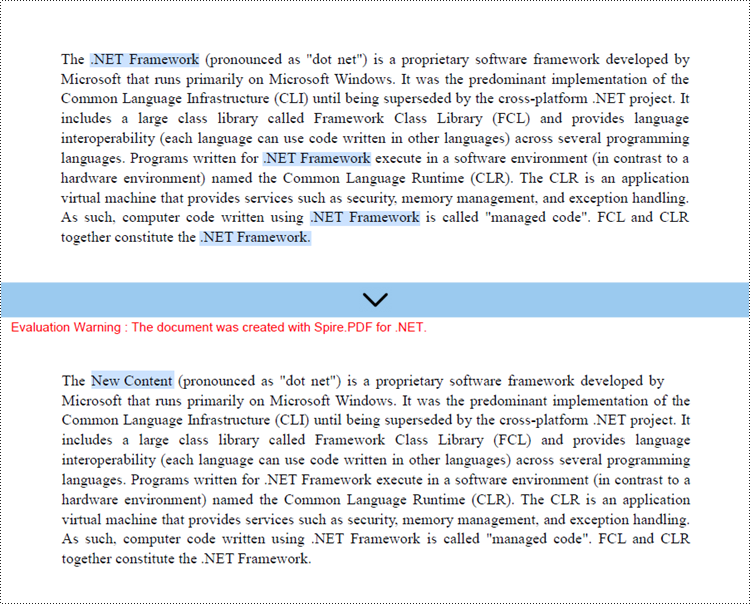
Instead of replacing all text on a page, you can only replace the first occurrence of the target text by utilizing the ReplaceText() method of the PdfTextReplacer class.
The following are the steps to replace the first occurrence of the target text using C#.
- Create a PdfDocument object.
- Load a PDF file for a specified path.
- Get a specific page from the document.
- Create a PdfTextReplaceOptions object, and specify the replace options using ReplaceType property of the object.
- Create a PdfTextReplacer object, and apply the replace options using Options property of it.
- Replace the first occurrence of the target text in the page with new text using PdfTextReplacer.ReplaceText() method.
- Save the document to a different PDF file.
- C#
using Spire.Pdf;
using Spire.Pdf.Texts;

namespace ReplaceFirstOccurance
{
    class Program
    {
        static void Main(string[] args)
        {
            // Create a PdfDocument object
            PdfDocument doc = new PdfDocument();

            // Load a PDF file
            doc.LoadFromFile("C:\\Users\\Administrator\\Desktop\\Input.pdf");

            // Create a PdfTextReplaceOptions object
            PdfTextReplaceOptions textReplaceOptions = new PdfTextReplaceOptions();

            // Specify the options for text replacement
            textReplaceOptions.ReplaceType = PdfTextReplaceOptions.ReplaceActionType.IgnoreCase;
            textReplaceOptions.ReplaceType = PdfTextReplaceOptions.ReplaceActionType.WholeWord;
            textReplaceOptions.ReplaceType = PdfTextReplaceOptions.ReplaceActionType.AutofitWidth;

            // Get a specific page
            PdfPageBase page = doc.Pages[1];

            // Create a PdfTextReplacer object based on the page
            PdfTextReplacer textReplacer = new PdfTextReplacer(page);

            // Set the replace options
            textReplacer.Options = textReplaceOptions;

            // Replace the first occurrence of target text with new text
            textReplacer.ReplaceText(".NET Framework", "New Content");

            // Save the document to a different PDF file
            doc.SaveToFile("ReplaceFirstOccurance.pdf");

            // Dispose resources
            doc.Dispose();
        }
    }
}
Replace Text Based on a Regular Expression in C#
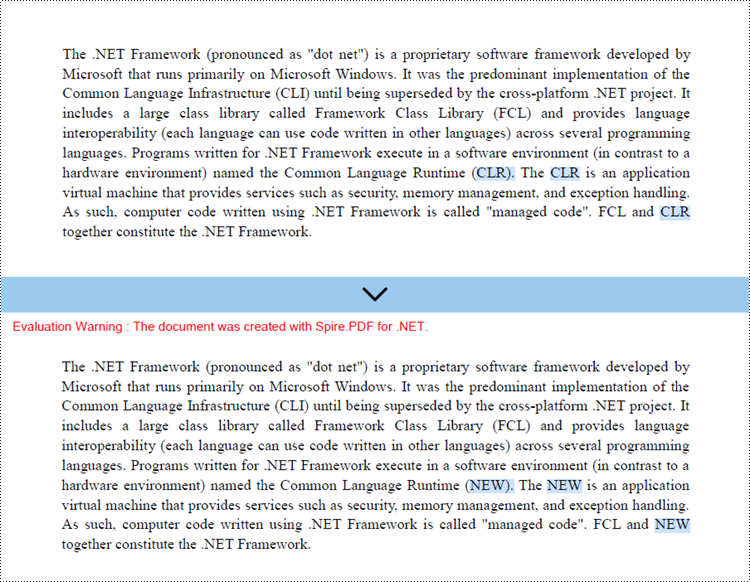
Regular expressions are powerful and versatile patterns used for matching and manipulating text. With Spire.PDF, you utilize regular expressions to search for specific text patterns in a PDF and replace them with new strings.
The steps to replace text in PDF based on a regular expression are as follows.
- Create a PdfDocument object.
- Load a PDF file for a specified path.
- Get a specific page from the document.
- Create a PdfTextReplaceOptions object.
- Specify the replace type as Regex using PdfTextReplaceOptions.ReplaceType property.
- Create a PdfTextReplacer object, and apply the replace options using Options property of it.
- Find and replace the text that matches a specified regular expression using PdfTextReplacer.ReplaceAllText() method.
- Save the document to a different PDF file.
- C#
using Spire.Pdf;
using Spire.Pdf.Texts;

namespace ReplaceUsingRegularExpression
{
    class Program
    {
        static void Main(string[] args)
        {
            // Create a PdfDocument object
            PdfDocument doc = new PdfDocument();

            // Load a PDF file
            doc.LoadFromFile("C:\\Users\\Administrator\\Desktop\\Input.pdf");

            // Create a PdfTextReplaceOptions object
            PdfTextReplaceOptions textReplaceOptions = new PdfTextReplaceOptions();

            // Set the replace type as Regex
            textReplaceOptions.ReplaceType = PdfTextReplaceOptions.ReplaceActionType.Regex;

            // Get a specific page
            PdfPageBase page = doc.Pages[1];

            // Create a PdfTextReplacer object based on the page
            PdfTextReplacer textReplacer = new PdfTextReplacer(page);

            // Set the replace options
            textReplacer.Options = textReplaceOptions;

            // Specify the regular expression
            string regularExpression = @"\bC\w*?R\b";

            // Replace all occurrences that match the regular expression with new text
            textReplacer.ReplaceAllText(regularExpression, "NEW");

            // Save the document to a different PDF file
            doc.SaveToFile("ReplaceWithRegularExpression.pdf");

            // Dispose resources
            doc.Dispose();
        }
    }
}
Apply for a Temporary License
If you'd like to remove the evaluation message from the generated documents, or to get rid of the function limitations, please request a 30-day trial license for yourself.
