Knowledgebase (2417)
Children categories
For the function of converting image to PDF, Spire.PDF can handle it quickly and effectively. This .NET PDF library can not only convert images of commonly used formats to PDF document such as jpg, bmp, png, but also convert gif, tif and ico images to PDF. Just download it here.
To convert multipage image to a PDF file with Spire.PDF, just copy the following code to your application and call method ConvertImagetoPDF and you will get it done.
Step 1: Method to split multipage image
Spire.Pdf has a method called DrawImage to convert image to PDF. But it cannot handle multipage image directly. So before conversion, multipage image need to be split into several one-page images.
Guid guid = image.FrameDimensionsList[0];
FrameDimension dimension = new FrameDimension(guid);
int pageCount = image.GetFrameCount(dimension);
This step is to get the total number of frames (pages) in the multipage image.
image.SelectActiveFrame(dimension, i);
And this step is to select one frame of frames within this image object.
image.Save(buffer, format);
Save the selected frame to the buffer.
Step 2: Convert image to PDF
After splitting multipage image, Spire.Pdf can draw these split images directly to PDF using method DrawImage.
PdfImage pdfImg = PdfImage.FromImage(img[i])
Load image file as PdfImage.
page.Canvas.DrawImage(pdfImg, x, 0, width, height);
Draw PdfImage to PDF. The only thing to do is to specify the location of image on PDF. Width and height is the size of area that image will be drawn on. Sometimes we need to scale up or down the size of the original size of image until it fit the PDF page. x and 0 locate the coordinate.
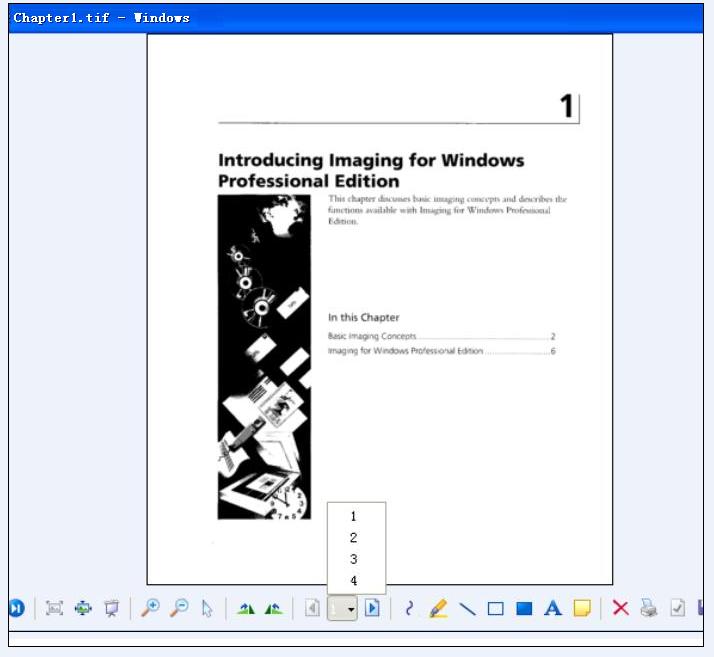
Check the effective screenshots for the original TIF file.
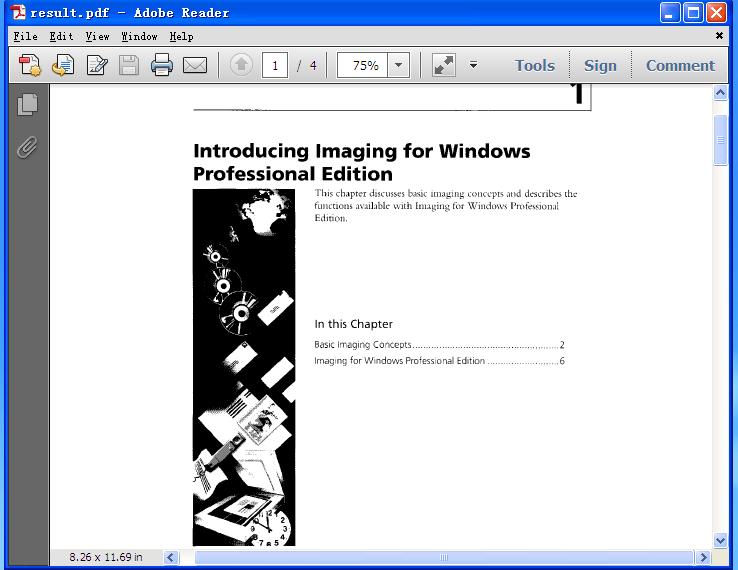
The target PDF file:
Full demo:
using Spire.Pdf;
using Spire.Pdf.Graphics;
using System;
using System.Drawing;
using System.Drawing.Imaging;
using System.IO;

namespace ConvertMultipageImagetoPDF
{
    class Program
    {
        static void Main(string[] args)
        {
            {
                ConvertImagetoPDF(@"..\..\Chapter1.tif");
            }
        }

        public static void ConvertImagetoPDF(String ImageFilename)
        {
            using (PdfDocument pdfDoc = new PdfDocument())
            {
                Image image = Image.FromFile(ImageFilename);

                Image[] img = SplitImages(image, ImageFormat.Png);

                for (int i = 0; i < img.Length; i++)
                {
                    PdfImage pdfImg = PdfImage.FromImage(img[i]);
                    PdfPageBase page = pdfDoc.Pages.Add();
                    float width = pdfImg.Width * 0.3f;
                    float height = pdfImg.Height * 0.3f;
                    float x = (page.Canvas.ClientSize.Width - width) / 2;

                    page.Canvas.DrawImage(pdfImg, x, 0, width, height);
                }

                string PdfFilename = "result.pdf";
                pdfDoc.SaveToFile(PdfFilename);
                System.Diagnostics.Process.Start(PdfFilename);
            }
        }

        public static Image[] SplitImages(Image image, ImageFormat format)
        {
            Guid guid = image.FrameDimensionsList[0];
            FrameDimension dimension = new FrameDimension(guid);
            int pageCount = image.GetFrameCount(dimension);

            Image[] frames = new Image[pageCount];

            for (int i = 0; i < pageCount; i++)
            {
                using (MemoryStream buffer = new MemoryStream())
                {
                    image.SelectActiveFrame(dimension, i);
                    image.Save(buffer, format);
                    frames[i] = Image.FromStream(buffer);
                }
            }
            return frames;
        }
    }
}
The article will introduce an easy way to convert Word to Emf by a powerful and independent Word .NET component called Spire.Doc, without Microsoft Word installed on the machine. It also offers support for converting Word and HTML to frequently-used image formats like Jpeg, Png, Gif, Bmp and Tiff, etc. Just click here to have a try.
Emf is a file extension for Enhanced MetaFile, used as a graphics language for printer drivers by the Windows operating system. In 1993, a newer version with additional commands 32-bit version of Win32/GDI introduced the Enhanced Metafile (Emf). Microsoft also recommends enhanced-format (Emf) functions to be used instead of rarely being used Windows-format (WMF) functions.
Spire.Doc presents almost the easiest solution to convert Word to Emf through the following 5 lines simple code.
using Spire.Doc;
using System.Drawing.Imaging;


namespace DOCEMF
{
    class Program
    {
        static void Main(string[] args)
        {
            // create an instance of Spire.Doc.Document
            Document doc = new Document();
            // load the file base on a specified file name
            doc.LoadFromFile(@"../../Original Word.docx", FileFormat.Docx);
            //convert the first page of document to image
            System.Drawing.Image image = doc.SaveToImages(0, Spire.Doc.Documents.ImageType.Metafile);
            // save the document object to Emf file
            image.Save(@"../../Convert Word to Image.emf", ImageFormat.Emf);
            //close the document
            doc.Close();

        }
    }
}
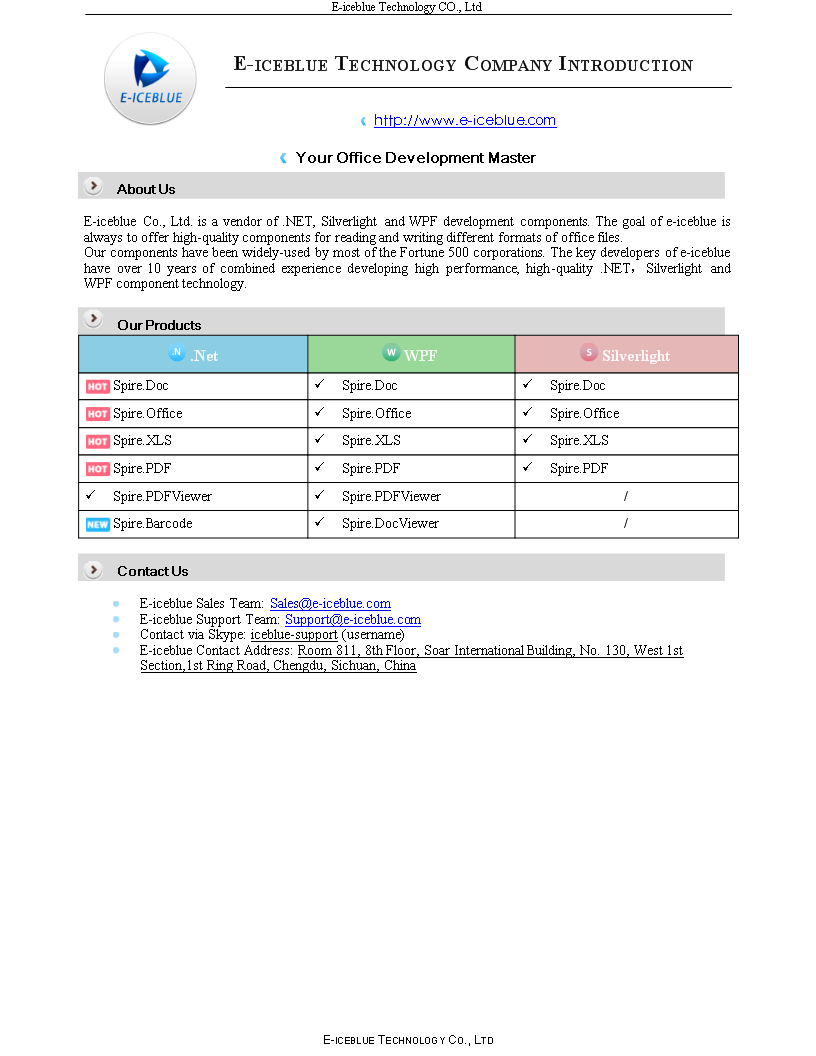
Check the effect screenshot below:
Converting HTML to PDF with C# PDF component is so important that we always try our best to improve our Spire.PDF better and better. We aim to make it is much more convenient for our developers to use. Now besides the previous method of converting HTML to PDF offered by Spire.PDF, we have a new plugin for html conversion to PDF. This section will focus on the new plugin of convert HTML to PDF. With this new plugin, we support to convert the HTML page with rich elements, such as HTTPS, CSS3, HTML5, JavaScript.
You need to download Spire.PDF and install it on your system, add Spire.PDF.dll as reference in the downloaded Bin folder thought the below path '..\Spire.PDF\Bin\NET4.0\Spire.PDF.dll'. And for gain the new plugin, you could get the new plugin from the download file directly: windows-x86.zip windows-x64.zip macosx_x64.zip linux_x64.tar.gz .
On Windows system, you need to unzip the convertor plugin package and copy the folder 'plugins' under the same folder of Spire.Pdf.dll. Before you use QT plugin for converting HTML to PDF, please ensure you have installed Microsoft Visual C++ 2015 Redistributable on your computer.
On Mac and Linux system, you need to copy the zip file under the system and then unzip the convertor plugin package there to use the plugins successfully.
C# HtmlToPdf.zip and VB.NET HtmlToPdfVB.zip, you could download and try it.
Calling the plugins is very simple, please check the below C# code for convert HTML to PDF.
using System.Drawing;
using Spire.Pdf.Graphics;
using Spire.Pdf.HtmlConverter.Qt;

namespace SPIREPDF_HTMLtoPDF
{
    class Program
    {
        static void Main(string[] args)
        {
            HtmlConverter.Convert("http://www.wikipedia.org/", "HTMLtoPDF.pdf",

                //enable javascript
                true,

                //load timeout
                100 * 1000,

                //page size
                new SizeF(612, 792),

                //page margins
                new PdfMargins(0, 0));
            System.Diagnostics.Process.Start("HTMLtoPDF.pdf");
        }
    }
}
Imports System.Drawing
Imports Spire.Pdf.Graphics
Imports Spire.Pdf.HtmlConverter.Qt

Module Module1

    Sub Main()
        HtmlConverter.Convert("http://www.wikipedia.org/", "HTMLtoPDF.pdf", True, 100 * 1000, New SizeF(612, 792), New PdfMargins(0, 0))
        System.Diagnostics.Process.Start("HTMLtoPDF.pdf")
    End Sub

End Module
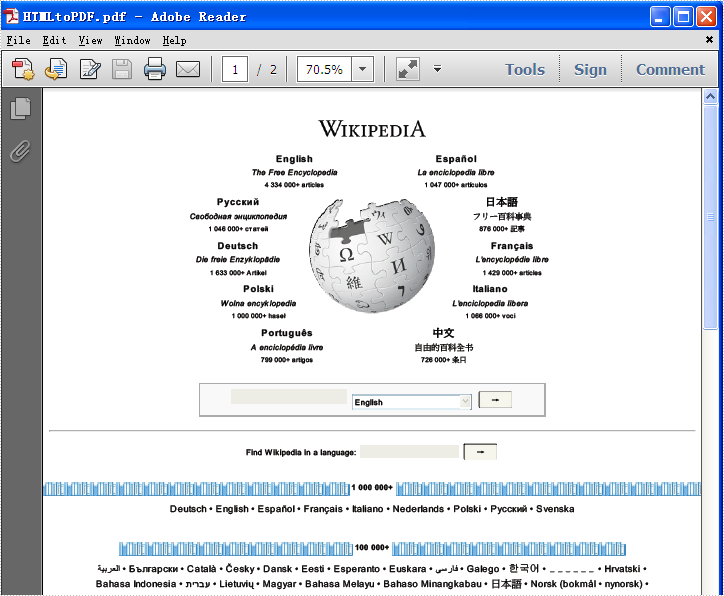
Please check the effective screenshot as below:
The following sample will focus on the new plugin of convert HTML string to PDF.
using System;
using System.Collections.Generic;
using System.Linq;
using System.Text;
using Spire.Pdf;
using System.IO;
using Spire.Pdf.HtmlConverter;
using System.Drawing;
namespace HTMLToPDFwithPlugins
{
    class Program
    {
        static void Main(string[] args)
        {
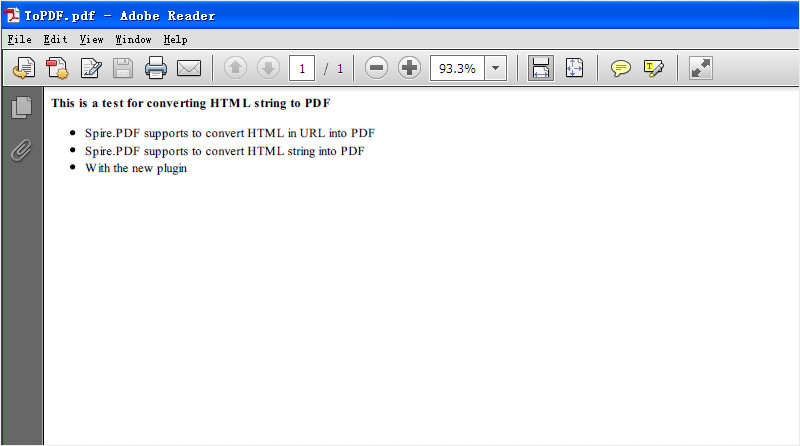
            string input =@"<strong>This is a test for converting HTML string to PDF </strong>
                 <ul><li>Spire.PDF supports to convert HTML in URL into PDF</li>
                 <li>Spire.PDF supports to convert HTML string into PDF</li>
                 <li>With the new plugin</li></ul>";

            string outputFile = "ToPDF.pdf";

            Spire.Pdf.HtmlConverter.Qt.HtmlConverter.Convert(input,

            outputFile,
            //enable javascript
            true,
            //load timeout
            10 * 1000,
            //page size
            new SizeF(612, 792),
            //page margins
            new Spire.Pdf.Graphics.PdfMargins(0),
            //load from content type
            LoadHtmlType.SourceCode
            );
            System.Diagnostics.Process.Start(outputFile);
        }
    }
}
Effective screenshot: