
Knowledgebase (2417)
Children categories
Programme Guide for Spire.Barcode
Spire.BarCode for .NET is a professional barcode component specially designed for .NET developers (C#, VB.NET, ASP.NET) to generate, read 1D & 2D barcodes. Developers and programmers can use Spire.BarCode to add Enterprise-Level barcode formats to their .net applications (ASP.NET, WinForms) quickly and easily. Below is how to use Spire.BarCode for .NET.
Step 1: Create Project
Create a C#/VB.NET Windows Forms Application project in visual studio, name it Barcode.
Step 2: Add Spire.Barcode.dll
- In Toolbox, right-click the blank area, select "Add Tab", name it "Spire.Barcode Controls".
- Right-click "Spire.Barcode Controls", select "Choose Items", select ".NET Framework Components", Click "Browse", find the Spire.Barcode.dll and double-click it.
- Then you will see "BarCodeControl" shown in "Spire.Barcode Controls" in Toolbox.
Step 3: Add Controls
Here is what the window looks like:
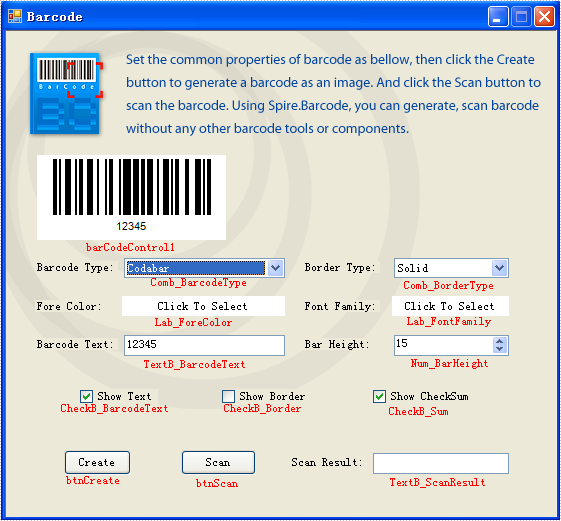
Step 4: Generate Barcode Image
btnCreate_Click is the method to generate barcode image. There are two import classes-BarCodeControl and BarCodeGenerator in this method. BarCodeControl stores information about barcode.
Here are some introductions about some of its properties:
| Name of Property | Description |
| Data | Stores the data that is to be encoded to one-dimension barcode. |
| Data2D | Stores the data that is to be encoded to two-dimension barcode. |
| Type | Indicates the type of barcode that is to be generated. |
| HasBorder | Indicates whether barcode image has border. |
| BorderDashStyle | Stores the type of border barcode image has. |
| BarHeight | Stores the height of barcode image. |
| CheckB_BarcodeText | Indicates whether to show the barcode text. |
| TextFont | Stores the font of barcode text. |
| ForeColor | Stores the fore color of barcode image. |
| CheckB_Sum | Indicates whether to show the checksum digit in Code128 and EAN128 Barcodes. |
BarCodeGenerator is the class to generate barcode image. Its constructor takes one parameter – a BarCodeControl instance. It has a method called GenerateImage() whose return value is Image object to generate image.
//Generate the barcode based on the this.barCodeControl1
BarCodeGenerator generator = new BarCodeGenerator(this.barCodeControl1);
Image barcode = generator.GenerateImage();

//save the barcode as an image
barcode.Save("barcode.png");
'Generate the barcode based on the barCodeControl1
Dim generator As New BarCodeGenerator(barCodeControl1)
Dim barcode As Image = generator.GenerateImage()

'save the barcode as an image
barcode.Save("barcode.png")
Step 5: Scan Barcode Image
BarcodeScanner is the class to scan barcode image. Call its method Scan with the Bitmap object containing the barcode image, it returns a string [] value where the scanning result is stored.
And btnScan_Click uses the class BarcodeScanner to scan barcode image in its code.
Here is the code in btnScan_Click.
private void btnScan_Click(object sender, EventArgs e)
{
//scan the barcode
string[] datas = Spire.Barcode.BarcodeScanner.Scan("barcode.png");

//show the scan result
this.TextB_ScanResult.Text = datas[0];
}
Private Sub btnScan_Click(ByVal sender As Object, ByVal e As EventArgs) Handles btnScan.Click
'scan the barcode
Dim datas() As String = Spire.Barcode.BarcodeScanner.Scan("barcode.png")

'show the scan result
Me.TextB_ScanResult.Text = datas(0)
End Sub
Step 6. Running
Run the project. You will see a window opened.
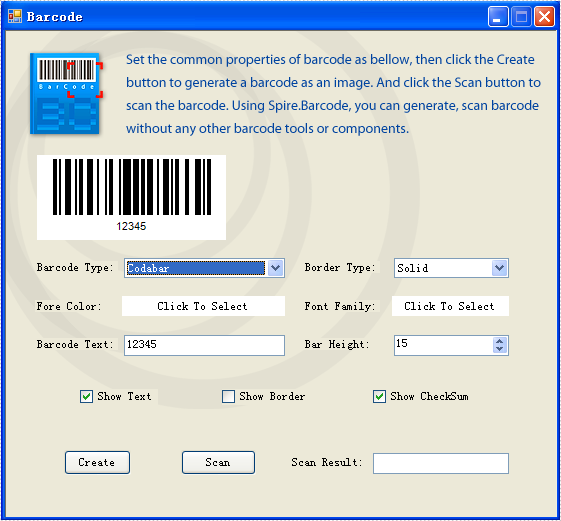
Put in some settings and click the button "Create". You will see the generated barcode image.

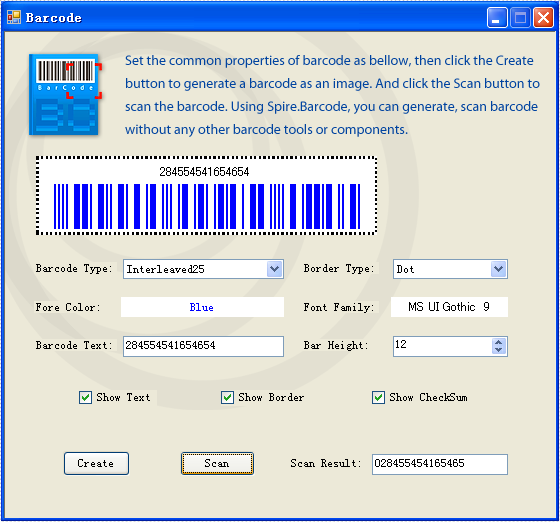
Click the button "Scan". You will see the barcode text shown in TextB_ScanResult.
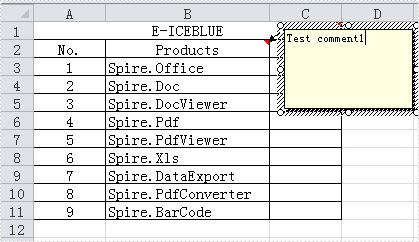
As we know, when we add a comment in MS-Excel, there will be Author appended automatically by Excel program. In fact, there is not the Author property in the comment in MS-Excel, which is just a text with special bold font style, and you can edit, remove, and insert other strings. After adding a comment (e.g., Test comment1) by using Spire.XLS component, there is no author is written into excel file. Check the below picture:
How to add a comment with editable Author property by Spire.XLS component? Just like the comment in the following picture:
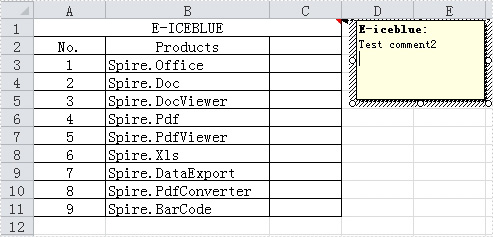
Download Spire.XLS for .NET and install it on your computer. Then create CreateComment(CellRange range,string text, string author=null) method to implement it. Firstly, add a comment for a specified range by calling the CellRange.AddComment() method. Then, if the author is specified, create a new font with bold style and apply the font to the author text.
The following is the code for the method:
static ExcelComment CreateComment(CellRange range,string text, string author=null)
        {
           ExcelComment comment= range.AddComment();
           comment.Text = String.IsNullOrEmpty(author) ? text : author + ":\n" + text;
           if (!String.IsNullOrEmpty(author))
           {
               ExcelFont font = range.Worksheet.Workbook.CreateFont();
               font.FontName = "Tahoma";
               font.KnownColor = ExcelColors.Black;
               font.IsBold = true;
               comment.RichText.SetFont(0, author.Length,font);
           }
           return comment;
        }
Private Function CreateComment(ByVal range As CellRange, ByVal text As String, Optional ByVal author As String = Nothing) As ExcelComment
        Dim comment As ExcelComment = range.AddComment()
        comment.Text = If([String].IsNullOrEmpty(author), text, author & ":" & vbLf & text)
        If Not [String].IsNullOrEmpty(author) Then
            Dim font As ExcelFont = range.Worksheet.Workbook.CreateFont()
            font.FontName = "Tahoma"
            font.KnownColor = ExcelColors.Black
            font.IsBold = True
            comment.RichText.SetFont(0, author.Length, font)
        End If
        Return comment
    End Function
Next, you can call the method to add comments with author to your excel file.
CellRange range = sheet.Range["A1"];
CreateComment(range, "Test comment2", "E-iceblue");
Dim range As CellRange = sheet.Range("A1")
CreateComment(range, "Test comment2", "E-iceblue")
Tables in Word documents allow users to organize data in a structured, readable format. However, at times you may find that some tables are outdated or no longer serve their intended purpose, making it necessary to remove them. In this article, you will learn how to remove tables from a Word document in C# using Spire.Doc for .NET.
Install Spire.Doc for .NET
To begin with, you need to add the DLL files included in the Spire.Doc for.NET package as references in your .NET project. The DLL files can be either downloaded from this link or installed via NuGet.
PM> Install-Package Spire.Doc
Remove a Specified Table in Word in C#
Spire.Doc for .NET provides the Section.Tables.RemoveAt(int index) method to delete a specified table in a Word document by index. The following are the detailed steps.
- Create a Document instance.
- Load a Word document using Document.LoadFromFile() method.
- Get a specified section using Document.Sections[] property.
- Delete a specified table by index using Section.Tables.RemoveAt() method.
- Save the result document using Document.SaveToFile() method.
- C#
using Spire.Doc;

namespace RemoveTable
{
    class Program
    {
        static void Main(string[] args)
        {
            //Create a Document instance
            Document doc = new Document();

            //Load a Word document
            doc.LoadFromFile("tables.docx");

            //Get the first section in the document
            Section sec = doc.Sections[0];

            //Remove the first table in the section
            sec.Tables.RemoveAt(0);

            //Save the result document
            doc.SaveToFile("RemoveATable.docx", FileFormat.Docx);
        }
    }
}
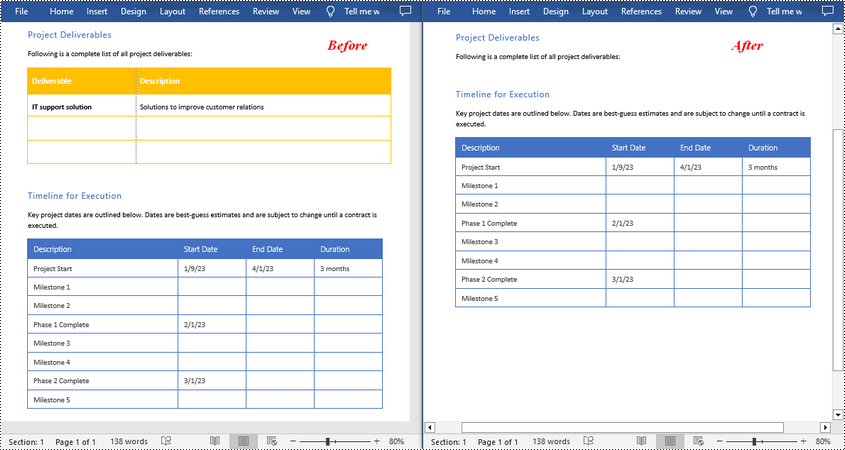
Remove All Tables in Word in C#
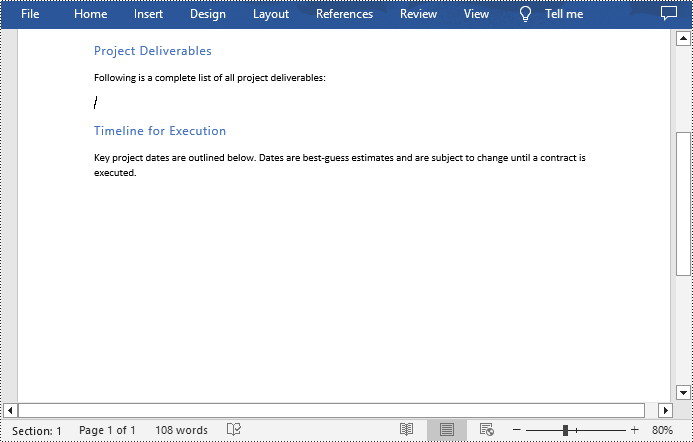
To delete all tables from a Word document, you need to iterate through all sections in the document, then iterate through all tables in each section and remove them through the Section.Tables.Remove() method. The following are the detailed steps.
- Create a Document instance.
- Load a Word document using Document.LoadFromFile() method.
- Iterate through all sections in the document.
- Iterate through all tables in each section.
- Delete the tables using Section.Tables.Remove() method.
- Save the result document using Document.SaveToFile() method.
- C#
using Spire.Doc;

namespace RemoveAllTable
{
    class Program
    {
        static void Main(string[] args)
        {
            //Create a Document instance
            Document doc = new Document();

            //Load a Word document
            doc.LoadFromFile("tables.docx");

            //Iterate through all sections in the document
            foreach (Section section in doc.Sections)
            {
                //Iterate through all tables in each section
                foreach (Table table in section.Tables)
                {
                    //Remove the tables
                    section.Tables.Remove(table);
                }
            }

            //Save the result document
            doc.SaveToFile("RemoveTables.docx", FileFormat.Docx);
        }
    }
}
Apply for a Temporary License
If you'd like to remove the evaluation message from the generated documents, or to get rid of the function limitations, please request a 30-day trial license for yourself.
