How to Set Excel Background Color in WPF

2012-06-26 07:02:06 Written by Koohji

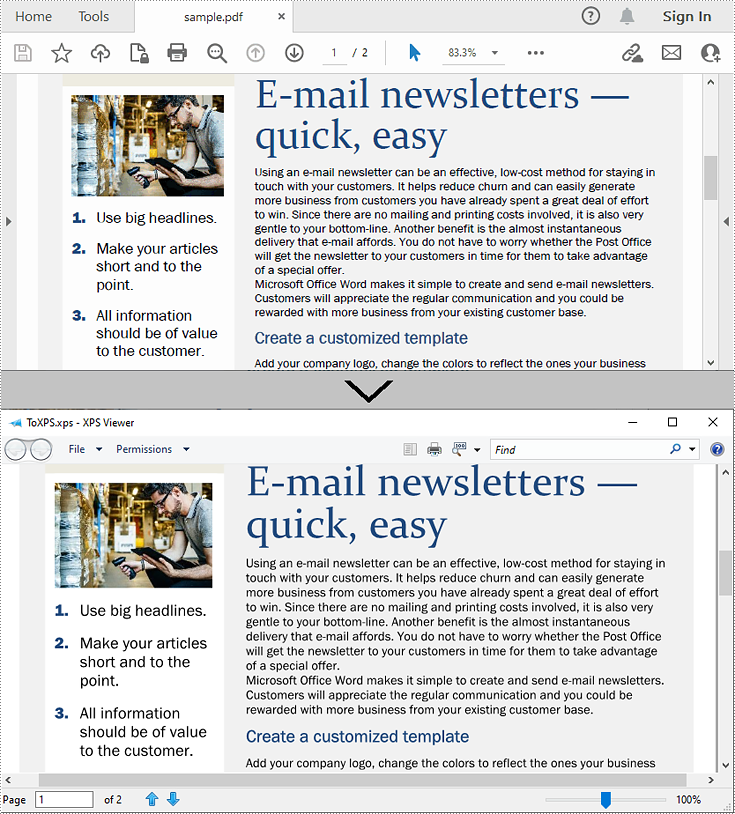
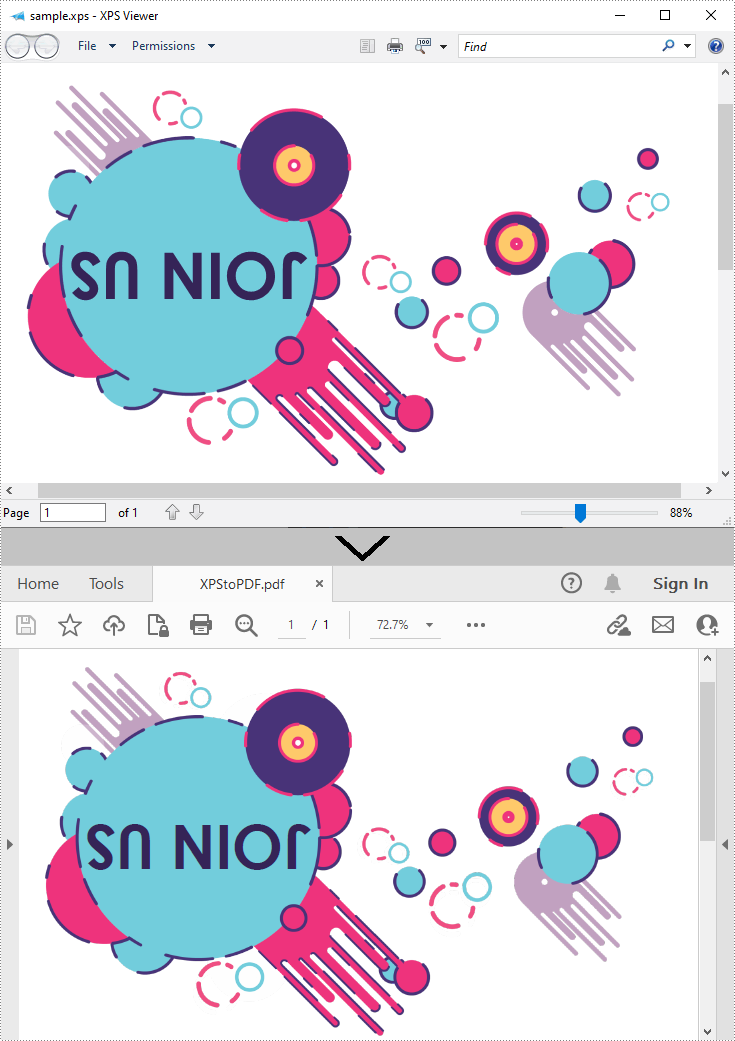
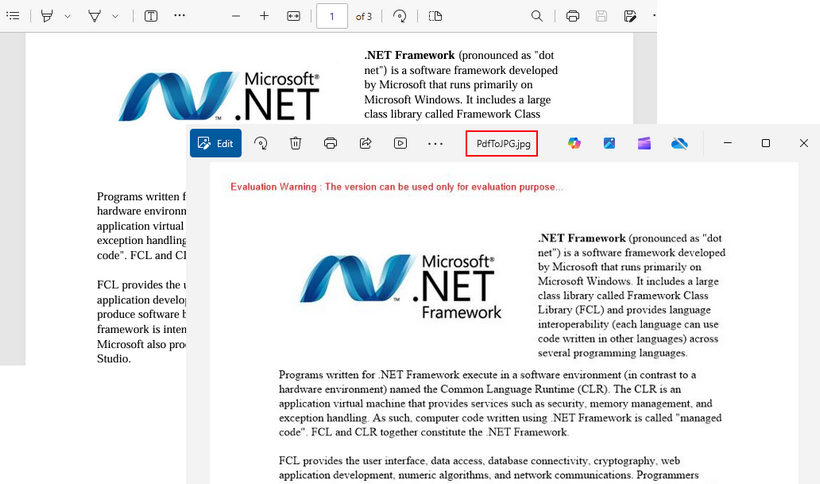
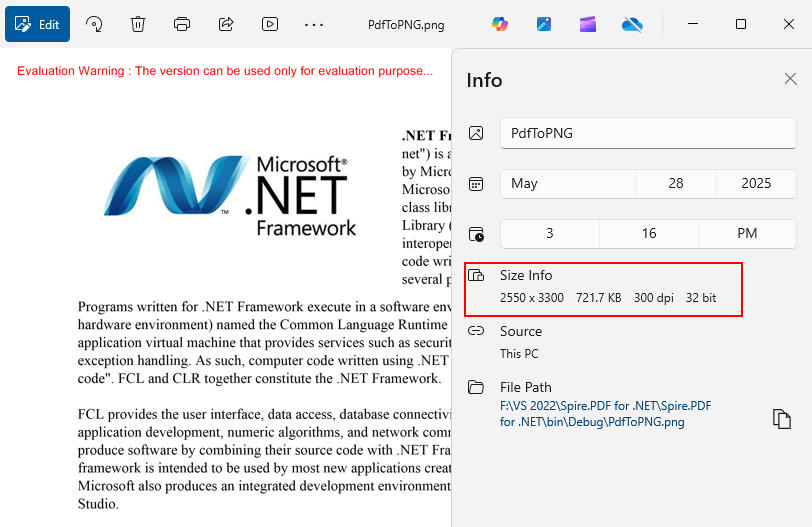
Excel background color is a very useful property when we need to demonstrate data for special purpose. That is also a basic feature for any Excel solution developer. Here will demonstrate how to design Excel background color regardless whether Microsoft Excel is installed on your system or not. Spire.Xls for WPF is a professional component for directly managing Excel operations. With it you can easily and fast set Excel background color in WPF.

Spire.Xls for WPF is always welcome to any kind of trial and evaluation. So now please feel free to download Spire.Xls for WPF and then follow our guide to easily set Excel background color in WPF or try other function of Spire.Xls for WPF.

Friendly Reminder:

  • Before we code to set Excel background color in WPF, please add spire.xls dll as reference by Clicking ProjectAdd ReferenceBrowse → Choose the folder contains Spire.XLS for WPFBin.NET 4.0.
  • Please make sure the namespace-Spire.Xls being imported.

Next we will demonstrate the how to set Excel background color in WPF within just 3 Steps.

Step 1: Load Excel in WPF

Spire.XLS for WPF enables users directly loading Excel file or create a new Excel. We will load an Excel in this step and later set its background color in WPF. Please check the code examples below.

[C#]
Workbook workbook = new Workbook(); 
workbook.LoadFromFile(@"..\test.xls", ExcelVersion.Version97to2003);
[VB.NET]
Dim workbook As New Workbook()
workbook.LoadFromFile("..\test.xls", ExcelVersion.Version97to2003)

Step 2: Set Excel background color in WPF

In this step, we will set the background color of the Excel which we just loaded above. With Spire.Xls for WPF, developers only need few lines of codes to freely set background colors in Excel. Please check the following example.

[C#]
Worksheet worksheet = workbook.Worksheets[0];
//set the backgroundcolor=LightBlue of Range["A2:E9"]
worksheet.Range["A2:E9"].Style.Color = Color.LightBlue;
//set the backgroundcolor=Silver of Range["A11:E18"]
worksheet.Range["A11:E18"].Style.Color = Color.Silver;
[VB.NET]
Dim worksheet As Worksheet = workbook.Worksheets(0)
'set the backgroundcolor=LightBlue of Range["A2:E9"]
worksheet.Range("A2:E9").Style.Color = Color.LightBlue
'set the backgroundcolor=Silver of Range["A11:E18"]
worksheet.Range("A11:E18").Style.Color = Color.Silver

Step 3: Save and preview

Now we will use the following codes to save and preview our work.

[C#]
workbook.SaveToFile("sample.xls", ExcelVersion.Version97to2003);
System.Diagnostics.Process.Start(workbook.FileName);
[VB.NET]
workbook.SaveToFile("sample.xls", ExcelVersion.Version97to2003)
System.Diagnostics.Process.Start(workbook.FileName)

We have successfully set Excel background color in WPF, now press F5 to run this application and you will see the different background color we set. Below is an effective screenshot, please have a check:

How to Draw Text in PDF Document in WPF

2012-06-26 02:17:29 Written by Koohji

Text enjoys the same popularity whatever it is in PDF documents or in word files. Without it, people can hardly show their real purpose even with the help of images, tables, graphics or hyperlinks. Spire.PDF for WPF not only enables you to easily draw text in PDF document, but also allows you to align, rotate, transform Text and set text font & color in minutes.

Before you start, please make sure that Spire.PDF for WPF (or Spire.Office for WPF) is correctly installed on your system. Please follow the below procedure to realize this task.

Step 1: Create a new project

  • Create a new project in WPF Application
  • Add a button in MainWindow and set the button Content property to be "Run".
  • Add Spire.Pdf.Wpf.dll and System.Drawing as references. After adding the namespaces, you can view the below codes.
[C#]
using System.Drawing;
using Spire.Pdf;
using Spire.Pdf.Graphics;

namespace WPFPDFtext
{
    /// 
    /// Interaction logic for MainWindow.xaml
    /// 
    public partial class MainWindow : Window
    {
        public MainWindow()
        {
            InitializeComponent();
        }

        private void button1_Click(object sender, RoutedEventArgs e)
        {

        }
    }
}
[VB.NET]
Imports System.Drawing
Imports Spire.Pdf
Imports Spire.Pdf.Graphics
Namespace WPFPDFtext
	''' 
	''' Interaction logic for MainWindow.xaml
	''' 
	Public Partial Class MainWindow
		Inherits Window
		Public Sub New()
			InitializeComponent()
		End Sub

		Private Sub button1_Click(sender As Object, e As RoutedEventArgs)
	          End Sub
	End Class
End Namespace

Step 2: Draw text of various styles in PDF document

Create a new PDF document and add a page in it

[C#]
            //Create a pdf document.
            PdfDocument doc = new PdfDocument();

            // Create one page
            PdfPageBase page = doc.Pages.Add();
[VB.NET]
	'Create a pdf document.
	Dim doc As New PdfDocument()

	'Create one page
	Dim page As PdfPageBase = doc.Pages.Add()

Draw text in the page

[C#]
        private static void DrawText(PdfPageBase page)
        {
            //save graphics state
            PdfGraphicsState state = page.Canvas.Save();

            //Draw text - brush
            String text = "Text,turn Around! Go! Go! Go!";
            PdfPen pen = PdfPens.DeepSkyBlue;
            PdfSolidBrush brush = new PdfSolidBrush(System.Drawing.Color.Blue);
            PdfStringFormat format = new PdfStringFormat();
            PdfFont font = new PdfFont(PdfFontFamily.Helvetica, 18f, PdfFontStyle.Italic);
            SizeF size = font.MeasureString(text, format);
            RectangleF rctg
                = new RectangleF(page.Canvas.ClientSize.Width / 2 + 10, 180,
                size.Width / 3 * 2, size.Height * 3);
            page.Canvas.DrawString(text, font, pen, brush, rctg, format);

            //restor graphics
            page.Canvas.Restore(state);
        }
[VB.NET]
Private Shared Sub DrawText(page As PdfPageBase)
	'save graphics state
	Dim state As PdfGraphicsState = page.Canvas.Save()

	'Draw text - brush
	Dim text As [String] = "Text,turn Around! Go! Go! Go!"
	Dim pen As PdfPen = PdfPens.DeepSkyBlue
	Dim brush As New PdfSolidBrush(System.Drawing.Color.Blue)
	Dim format As New PdfStringFormat()			
           Dim size As SizeF = font.MeasureString(text, format)
	Dim rctg As New RectangleF(page.Canvas.ClientSize.Width / 2 + 10, 180, size.Width / 3 * 2, size.Height * 3)
	page.Canvas.DrawString(text, font, pen, brush, rctg, format)

	'restor graphics
	page.Canvas.Restore(state)
End Sub

Align PDF text. This step allows you to align text and align text in rectangle

[C#]
        private static void AlignText(PdfPageBase page)
        {
            //Draw the text - alignment
            PdfFont font = new PdfFont(PdfFontFamily.Helvetica, 20f);
            PdfSolidBrush brush = new PdfSolidBrush(System.Drawing.Color.DarkSeaGreen);

            PdfStringFormat leftAlignment = new PdfStringFormat(PdfTextAlignment.Left, PdfVerticalAlignment.Middle);
            page.Canvas.DrawString("Left!", font, brush, 0, 40, leftAlignment);
            page.Canvas.DrawString("Left!", font, brush, 0, 60, leftAlignment);

            PdfStringFormat rightAlignment = new PdfStringFormat(PdfTextAlignment.Right, PdfVerticalAlignment.Middle);
            page.Canvas.DrawString("Right!", font, brush, page.Canvas.ClientSize.Width, 40, rightAlignment);
            page.Canvas.DrawString("Right!", font, brush, page.Canvas.ClientSize.Width, 60, rightAlignment);

            PdfStringFormat centerAlignment
                = new PdfStringFormat(PdfTextAlignment.Center, PdfVerticalAlignment.Middle);
            page.Canvas.DrawString("Text,turn Around! Go! Go! Go!",
                font, brush, page.Canvas.ClientSize.Width / 2, 40, centerAlignment);
        }
        private static void AlignTextInRectangle(PdfPageBase page)
        {
            //Draw the text - align in rectangle
            PdfFont font = new PdfFont(PdfFontFamily.Helvetica, 10f);
            PdfSolidBrush brush = new PdfSolidBrush(System.Drawing.Color.Blue);
            RectangleF rctg1 = new RectangleF(0, 70, page.Canvas.ClientSize.Width / 2, 100);
            RectangleF rctg2
                = new RectangleF(page.Canvas.ClientSize.Width / 2, 70, page.Canvas.ClientSize.Width / 2, 100);
            page.Canvas.DrawRectangle(new PdfSolidBrush(System.Drawing.Color.LightBlue), rctg1);
            page.Canvas.DrawRectangle(new PdfSolidBrush(System.Drawing.Color.SkyBlue), rctg2);

            PdfStringFormat leftAlignment
                = new PdfStringFormat(PdfTextAlignment.Left, PdfVerticalAlignment.Top);
            page.Canvas.DrawString("Left! Left!", font, brush, rctg1, leftAlignment);
            page.Canvas.DrawString("Left! Left!", font, brush, rctg2, leftAlignment);

            PdfStringFormat rightAlignment
                = new PdfStringFormat(PdfTextAlignment.Right, PdfVerticalAlignment.Middle);
            page.Canvas.DrawString("Right! Right!", font, brush, rctg1, rightAlignment);
            page.Canvas.DrawString("Right! Right!", font, brush, rctg2, rightAlignment);

            PdfStringFormat centerAlignment
                = new PdfStringFormat(PdfTextAlignment.Center, PdfVerticalAlignment.Bottom);
            page.Canvas.DrawString("Text,turn Around! Go! Go! Go!", font, brush, rctg1, centerAlignment);
            page.Canvas.DrawString("Text,turn Around! Go! Go! Go!", font, brush, rctg2, centerAlignment);
        }
[VB.NET]
Private Shared Sub AlignText(page As PdfPageBase)
	'Draw the text - alignment
	Dim font As New PdfFont(PdfFontFamily.Helvetica, 20F)
	Dim brush As New PdfSolidBrush(System.Drawing.Color.DarkSeaGreen)

	Dim leftAlignment As New PdfStringFormat(PdfTextAlignment.Left, PdfVerticalAlignment.Middle)
	page.Canvas.DrawString("Left!", font, brush, 0, 40, leftAlignment)
	page.Canvas.DrawString("Left!", font, brush, 0, 60, leftAlignment)

	Dim rightAlignment As New PdfStringFormat(PdfTextAlignment.Right, PdfVerticalAlignment.Middle)
	page.Canvas.DrawString("Right!", font, brush, page.Canvas.ClientSize.Width, 40, rightAlignment)
	page.Canvas.DrawString("Right!", font, brush, page.Canvas.ClientSize.Width, 60, rightAlignment)

	Dim centerAlignment As New PdfStringFormat(PdfTextAlignment.Center, PdfVerticalAlignment.Middle)
	page.Canvas.DrawString("Text,turn Around! Go! Go! Go!", font, brush, page.Canvas.ClientSize.Width / 2, 40, centerAlignment)
End Sub
Private Shared Sub AlignTextInRectangle(page As PdfPageBase)
	'Draw the text - align in rectangle
	Dim font As New PdfFont(PdfFontFamily.Helvetica, 10F)
	Dim brush As New PdfSolidBrush(System.Drawing.Color.Blue)
	Dim rctg1 As New RectangleF(0, 70, page.Canvas.ClientSize.Width / 2, 100)
	Dim rctg2 As New RectangleF(page.Canvas.ClientSize.Width / 2, 70, page.Canvas.ClientSize.Width / 2, 100)
	page.Canvas.DrawRectangle(New PdfSolidBrush(System.Drawing.Color.LightBlue), rctg1)
	page.Canvas.DrawRectangle(New PdfSolidBrush(System.Drawing.Color.SkyBlue), rctg2)

	Dim leftAlignment As New PdfStringFormat(PdfTextAlignment.Left, PdfVerticalAlignment.Top)
	page.Canvas.DrawString("Left! Left!", font, brush, rctg1, leftAlignment)
	page.Canvas.DrawString("Left! Left!", font, brush, rctg2, leftAlignment)

	Dim rightAlignment As New PdfStringFormat(PdfTextAlignment.Right, PdfVerticalAlignment.Middle)
	page.Canvas.DrawString("Right! Right!", font, brush, rctg1, rightAlignment)
	page.Canvas.DrawString("Right! Right!", font, brush, rctg2, rightAlignment)

	Dim centerAlignment As New PdfStringFormat(PdfTextAlignment.Center, PdfVerticalAlignment.Bottom)
	page.Canvas.DrawString("Text,turn Around! Go! Go! Go!", font, brush, rctg1, centerAlignment)
	page.Canvas.DrawString("Text,turn Around! Go! Go! Go!", font, brush, rctg2, centerAlignment)
End Sub

Rotate PDF text

[C#]
  private static void RotateText(PdfPageBase page)
        {
            //save graphics state
            PdfGraphicsState state = page.Canvas.Save();

            //Draw the text - transform           
            PdfFont font = new PdfFont(PdfFontFamily.Helvetica, 10f);
            PdfSolidBrush brush = new PdfSolidBrush(System.Drawing.Color.DarkOrchid);

            PdfStringFormat centerAlignment
                = new PdfStringFormat(PdfTextAlignment.Left, PdfVerticalAlignment.Middle);
            float x = page.Canvas.ClientSize.Width / 2;
            float y = 380;

            page.Canvas.TranslateTransform(x, y);
            for (int i = 0; i < 12; i++)
            {
                page.Canvas.RotateTransform(30);
                page.Canvas.DrawString("Text,turn Around! Go! Go! Go!", font, brush, 20, 0, centerAlignment);
            }

            //restor graphics
            page.Canvas.Restore(state);
        }
[VB.NET]
Private Shared Sub RotateText(page As PdfPageBase)
	'save graphics state
	Dim state As PdfGraphicsState = page.Canvas.Save()

	'Draw the text - transform           
	Dim font As New PdfFont(PdfFontFamily.Helvetica, 10F)
	Dim brush As New PdfSolidBrush(System.Drawing.Color.DarkOrchid)

	Dim centerAlignment As New PdfStringFormat(PdfTextAlignment.Left, PdfVerticalAlignment.Middle)
	Dim x As Single = page.Canvas.ClientSize.Width / 2
	Dim y As Single = 380

	page.Canvas.TranslateTransform(x, y)
	For i As Integer = 0 To 11
		page.Canvas.RotateTransform(30)
		page.Canvas.DrawString("Text,turn Around! Go! Go! Go!", font, brush, 20, 0, centerAlignment)
	Next

	'restor graphics
	page.Canvas.Restore(state)
End Sub

Transform PDF text

[C#]
private static void TransformText(PdfPageBase page)
        {
            //save graphics state
            PdfGraphicsState state = page.Canvas.Save();

            //Draw the text - transform           
            PdfFont font = new PdfFont(PdfFontFamily.Helvetica, 18f);
            PdfSolidBrush brush1 = new PdfSolidBrush(System.Drawing.Color.LightSeaGreen);
            PdfSolidBrush brush2 = new PdfSolidBrush(System.Drawing.Color.CadetBlue);

            page.Canvas.TranslateTransform(20, 200);
            page.Canvas.ScaleTransform(1f, 0.6f);
            page.Canvas.SkewTransform(-10, 0);
            page.Canvas.DrawString("Text,turn Around! Go! Go! Go!", font, brush1, 0, 0);

            page.Canvas.SkewTransform(10, 0);
            page.Canvas.DrawString("Text,turn Around! Go! Go! Go!", font, brush2, 0, 0);

            page.Canvas.ScaleTransform(1f, -1f);
            page.Canvas.DrawString("Text,turn Around! Go! Go! Go!", font, brush2, 0, -2 * 18);
            //restor graphics
            page.Canvas.Restore(state);
        }
[VB.NET]
Private Shared Sub TransformText(page As PdfPageBase)
	'save graphics state
	Dim state As PdfGraphicsState = page.Canvas.Save()

	'Draw the text - transform           
	Dim font As New PdfFont(PdfFontFamily.Helvetica, 18F)
	Dim brush1 As New PdfSolidBrush(System.Drawing.Color.LightSeaGreen)
	Dim brush2 As New PdfSolidBrush(System.Drawing.Color.CadetBlue)

	page.Canvas.TranslateTransform(20, 200)
	page.Canvas.ScaleTransform(1F, 0.6F)
	page.Canvas.SkewTransform(-10, 0)
	page.Canvas.DrawString("Text,turn Around! Go! Go! Go!", font, brush1, 0, 0)

	page.Canvas.SkewTransform(10, 0)
	page.Canvas.DrawString("Text,turn Around! Go! Go! Go!", font, brush2, 0, 0)

	page.Canvas.ScaleTransform(1F, -1F)
	page.Canvas.DrawString("Text,turn Around! Go! Go! Go!", font, brush2, 0, -2 * 18)
	'restor graphics
	page.Canvas.Restore(state)
End Sub

Step 3: Save and launch the file

[C#]
            //Save doc file.
            doc.SaveToFile("DrawText.pdf");
            doc.Close();

            //Launching the Pdf file.
            System.Diagnostics.Process.Start("DrawText.pdf");
[VB.NET]
	'Save doc file.
	doc.SaveToFile("DrawText.pdf")
	doc.Close()

	'Launching the Pdf file.
	System.Diagnostics.Process.Start("DrawText.pdf")

Effective Screeshot:

Draw Text in PDF

Draw PDF Barcode for WPF

2012-06-21 09:00:49 Written by Koohji

PDF barcode is mainly used in commodity transaction which, to a large extent, increases efficiency and escapes human errors. The most frequently case we use barcode is that when we go shopping in the supermarket, the operator only needs to scan the barcodes, the price of the goods will automatically show. Obviously, all the information has been input in the customer data table system. Through barcode, people can easily find the details of a good in a short time. Since barcode is so wonderful, let me share a solution to draw barcode in PDF document.

Spire.PDF for WPF enables users to easily draw barcode in PDF document with C#, VB.NET for WPF. Before you start, please freely Download Spire.PDF (Spire.Office) and install it with .NET Framework 2.0 (or above) together on your system. The detail procedure can be shown below.

Step 1: Create a new project

  • Create a new project in WPF Application
  • Add a button in MainWindow and set the button Content property to be "Run".
  • Add Spire.Pdf.Wpf.dll and System.Drawing as references. After adding the namespaces, you can view the below codes.
[C#]
using System.Drawing;
using Spire.Pdf;
using Spire.Pdf.Graphics;
using Spire.Pdf.Barcode;

namespace PDFWPFbarcode
{
    /// 
    /// Interaction logic for MainWindow.xaml
    /// 
    public partial class MainWindow : Window
    {
        public MainWindow()
        {
            InitializeComponent();
        }

        private void button1_Click(object sender, RoutedEventArgs e)
        {

        }
    }
}
[VB.NET]
Imports System.Drawing
Imports Spire.Pdf
Imports Spire.Pdf.Graphics
Imports Spire.Pdf.Barcode

Namespace PDFWPFbarcode
	''' 
	''' Interaction logic for MainWindow.xaml
	''' 
	Public Partial Class MainWindow
		Inherits Window
		Public Sub New()
			InitializeComponent()
		End Sub

		Private Sub button1_Click(sender As Object, e As RoutedEventArgs)
	          End Sub
	End Class
End Namespace

Step 2: Draw barcodes in PDF document

Create a PDF document, set its margin and add one page in it

[C#]
            //Create a pdf document.
            PdfDocument doc = new PdfDocument();

            //margin
            PdfUnitConvertor unitCvtr = new PdfUnitConvertor();
            PdfMargins margin = new PdfMargins();
            margin.Top = unitCvtr.ConvertUnits(2.54f, PdfGraphicsUnit.Centimeter, PdfGraphicsUnit.Point);
            margin.Bottom = margin.Top;
            margin.Left = unitCvtr.ConvertUnits(3.17f, PdfGraphicsUnit.Centimeter, PdfGraphicsUnit.Point);
            margin.Right = margin.Left;

            PdfSection section = doc.Sections.Add();
            section.PageSettings.Margins = margin;
            section.PageSettings.Size = PdfPageSize.A4;

            // Create one page
            PdfPageBase page = section.Pages.Add();
            float y = 10;
            PdfTrueTypeFont font1 = new PdfTrueTypeFont(new Font("Arial", 12f, System.Drawing.FontStyle.Bold), true);
[VB.NET]
        'Create a pdf document.
	Dim doc As New PdfDocument()

	'margin
	Dim unitCvtr As New PdfUnitConvertor()
	Dim margin As New PdfMargins()
	margin.Top = unitCvtr.ConvertUnits(2.54F, PdfGraphicsUnit.Centimeter, PdfGraphicsUnit.Point)
	margin.Bottom = margin.Top
	margin.Left = unitCvtr.ConvertUnits(3.17F, PdfGraphicsUnit.Centimeter, PdfGraphicsUnit.Point)
	margin.Right = margin.Left

	Dim section As PdfSection = doc.Sections.Add()
	section.PageSettings.Margins = margin
	section.PageSettings.Size = PdfPageSize.A4

	' Create one page
	Dim page As PdfPageBase = section.Pages.Add()
	Dim y As Single = 40
        Dim font1 As New PdfTrueTypeFont(New Font("Arial", 12F, System.Drawing.FontStyle.Bold), True)

Draw barcodes in PDF document

[C#]
            //draw Codebar
            PdfTextWidget text = new PdfTextWidget();
            text.Font = font1;
            text.Text = "Codebar:";
            PdfLayoutResult result = text.Draw(page, 0, y);
            page = result.Page;
            y = result.Bounds.Bottom + 2;

            PdfCodabarBarcode barcode1 = new PdfCodabarBarcode("00:12-3456/7890");
            barcode1.BarcodeToTextGapHeight = 1f;
            barcode1.EnableCheckDigit = true;
            barcode1.ShowCheckDigit = true;
            barcode1.TextDisplayLocation = TextLocation.Bottom;
            barcode1.TextColor = System.Drawing.Color.Blue;
            barcode1.Draw(page, new PointF(0, y));
            y = barcode1.Bounds.Bottom + 5;
            //draw Code11Barcode
            text.Text = "Code11:";
            result = text.Draw(page, 0, y);
            page = result.Page;
            y = result.Bounds.Bottom + 2;

            PdfCode11Barcode barcode2 = new PdfCode11Barcode("123-4567890");
            barcode2.BarcodeToTextGapHeight = 1f;
            barcode2.TextDisplayLocation = TextLocation.Bottom;
            barcode2.TextColor = System.Drawing.Color.Blue;
            barcode2.Draw(page, new PointF(0, y));
            y = barcode2.Bounds.Bottom + 5;
            //draw Code128-A
            text.Text = "Code128-A:";
            result = text.Draw(page, 0, y);
            page = result.Page;
            y = result.Bounds.Bottom + 2;

            PdfCode128ABarcode barcode3 = new PdfCode128ABarcode("HELLO 00-123");
            barcode3.BarcodeToTextGapHeight = 1f;
            barcode3.TextDisplayLocation = TextLocation.Bottom;
            barcode3.TextColor = System.Drawing.Color.Blue;
            barcode3.Draw(page, new PointF(0, y));
            y = barcode3.Bounds.Bottom + 5;
            //draw Code128-B
            text.Text = "Code128-B:";
            result = text.Draw(page, 0, y);
            page = result.Page;
            y = result.Bounds.Bottom + 2;

            PdfCode128BBarcode barcode4 = new PdfCode128BBarcode("Hello 00-123");
            barcode4.BarcodeToTextGapHeight = 1f;
            barcode4.TextDisplayLocation = TextLocation.Bottom;
            barcode4.TextColor = System.Drawing.Color.Blue;
            barcode4.Draw(page, new PointF(0, y));
            y = barcode4.Bounds.Bottom + 5;
            //draw Code32
            text.Text = "Code32:";
            result = text.Draw(page, 0, y);
            page = result.Page;
            y = result.Bounds.Bottom + 2;

            PdfCode32Barcode barcode5 = new PdfCode32Barcode("16273849");
            barcode5.BarcodeToTextGapHeight = 1f;
            barcode5.TextDisplayLocation = TextLocation.Bottom;
            barcode5.TextColor = System.Drawing.Color.Blue;
            barcode5.Draw(page, new PointF(0, y));
            y = barcode5.Bounds.Bottom + 5;

            page = section.Pages.Add();
            y = 10;
            //draw Code39
            text.Text = "Code39:";
            result = text.Draw(page, 0, y);
            page = result.Page;
            y = result.Bounds.Bottom + 2;

            PdfCode39Barcode barcode6 = new PdfCode39Barcode("16-273849");
            barcode6.BarcodeToTextGapHeight = 1f;
            barcode6.TextDisplayLocation = TextLocation.Bottom;
            barcode6.TextColor = System.Drawing.Color.Blue;
            barcode6.Draw(page, new PointF(0, y));
            y = barcode6.Bounds.Bottom + 5;
            //draw Code39-E
            text.Text = "Code39-E:";
            result = text.Draw(page, 0, y);
            page = result.Page;
            y = result.Bounds.Bottom + 2;

            PdfCode39ExtendedBarcode barcode7 = new PdfCode39ExtendedBarcode("16-273849");
            barcode7.BarcodeToTextGapHeight = 1f;
            barcode7.TextDisplayLocation = TextLocation.Bottom;
            barcode7.TextColor = System.Drawing.Color.Blue;
            barcode7.Draw(page, new PointF(0, y));
            y = barcode7.Bounds.Bottom + 5;
            //draw Code93
            text.Text = "Code93:";
            result = text.Draw(page, 0, y);
            page = result.Page;
            y = result.Bounds.Bottom + 2;

            PdfCode93Barcode barcode8 = new PdfCode93Barcode("16-273849");
            barcode8.BarcodeToTextGapHeight = 1f;
            barcode8.TextDisplayLocation = TextLocation.Bottom;
            barcode8.TextColor = System.Drawing.Color.Blue;
            barcode8.QuietZone.Bottom = 5;
            barcode8.Draw(page, new PointF(0, y));
            y = barcode8.Bounds.Bottom + 5;
            //draw Code93-E
            text.Text = "Code93-E:";
            result = text.Draw(page, 0, y);
            page = result.Page;
            y = result.Bounds.Bottom + 2;

            PdfCode93ExtendedBarcode barcode9 = new PdfCode93ExtendedBarcode("16-273849");
            barcode9.BarcodeToTextGapHeight = 1f;
            barcode9.TextDisplayLocation = TextLocation.Bottom;
            barcode9.TextColor = System.Drawing.Color.Blue;
            barcode9.Draw(page, new PointF(0, y));
            y = barcode9.Bounds.Bottom + 5;
[VB.NET]
	'draw Codebar
	Dim text As New PdfTextWidget()
	text.Font = font1
	text.Text = "Codebar:"
	Dim result As PdfLayoutResult = text.Draw(page, 0, y)
	page = result.Page
	y = result.Bounds.Bottom + 2

	Dim barcode1 As New PdfCodabarBarcode("00:12-3456/7890")
	barcode1.BarcodeToTextGapHeight = 1F
	barcode1.EnableCheckDigit = True
	barcode1.ShowCheckDigit = True
	barcode1.TextDisplayLocation = TextLocation.Bottom
	barcode1.TextColor = System.Drawing.Color.Blue
	barcode1.Draw(page, New PointF(0, y))
	y = barcode1.Bounds.Bottom + 5


	'draw Code11Barcode
	text.Text = "Code11:"
	result = text.Draw(page, 0, y)
	page = result.Page
	y = result.Bounds.Bottom + 2

	Dim barcode2 As New PdfCode11Barcode("123-4567890")
	barcode2.BarcodeToTextGapHeight = 1F
	barcode2.TextDisplayLocation = TextLocation.Bottom
	barcode2.TextColor = System.Drawing.Color.Blue
	barcode2.Draw(page, New PointF(0, y))
	y = barcode2.Bounds.Bottom + 5


	'draw Code128-A
	text.Text = "Code128-A:"
	result = text.Draw(page, 0, y)
	page = result.Page
	y = result.Bounds.Bottom + 2

	Dim barcode3 As New PdfCode128ABarcode("HELLO 00-123")
	barcode3.BarcodeToTextGapHeight = 1F
	barcode3.TextDisplayLocation = TextLocation.Bottom
	barcode3.TextColor = System.Drawing.Color.Blue
	barcode3.Draw(page, New PointF(0, y))
	y = barcode3.Bounds.Bottom + 5


	'draw Code128-B
	text.Text = "Code128-B:"
	result = text.Draw(page, 0, y)
	page = result.Page
	y = result.Bounds.Bottom + 2

	Dim barcode4 As New PdfCode128BBarcode("Hello 00-123")
	barcode4.BarcodeToTextGapHeight = 1F
	barcode4.TextDisplayLocation = TextLocation.Bottom
	barcode4.TextColor = System.Drawing.Color.Blue
	barcode4.Draw(page, New PointF(0, y))
	y = barcode4.Bounds.Bottom + 5


	'draw Code32
	text.Text = "Code32:"
	result = text.Draw(page, 0, y)
	page = result.Page
	y = result.Bounds.Bottom + 2

	Dim barcode5 As New PdfCode32Barcode("16273849")
	barcode5.BarcodeToTextGapHeight = 1F
	barcode5.TextDisplayLocation = TextLocation.Bottom
	barcode5.TextColor = System.Drawing.Color.Blue
	barcode5.Draw(page, New PointF(0, y))
	y = barcode5.Bounds.Bottom + 5

	page = section.Pages.Add()
	y = 10


	'draw Code39
	text.Text = "Code39:"
	result = text.Draw(page, 0, y)
	page = result.Page
	y = result.Bounds.Bottom + 2

	Dim barcode6 As New PdfCode39Barcode("16-273849")
	barcode6.BarcodeToTextGapHeight = 1F
	barcode6.TextDisplayLocation = TextLocation.Bottom
	barcode6.TextColor = System.Drawing.Color.Blue
	barcode6.Draw(page, New PointF(0, y))
	y = barcode6.Bounds.Bottom + 5


	'draw Code39-E
	text.Text = "Code39-E:"
	result = text.Draw(page, 0, y)
	page = result.Page
	y = result.Bounds.Bottom + 2

	Dim barcode7 As New PdfCode39ExtendedBarcode("16-273849")
	barcode7.BarcodeToTextGapHeight = 1F
	barcode7.TextDisplayLocation = TextLocation.Bottom
	barcode7.TextColor = System.Drawing.Color.Blue
	barcode7.Draw(page, New PointF(0, y))
	y = barcode7.Bounds.Bottom + 5


	'draw Code93
	text.Text = "Code93:"
	result = text.Draw(page, 0, y)
	page = result.Page
	y = result.Bounds.Bottom + 2

	Dim barcode8 As New PdfCode93Barcode("16-273849")
	barcode8.BarcodeToTextGapHeight = 1F
	barcode8.TextDisplayLocation = TextLocation.Bottom
	barcode8.TextColor = System.Drawing.Color.Blue
	barcode8.QuietZone.Bottom = 5
	barcode8.Draw(page, New PointF(0, y))
	y = barcode8.Bounds.Bottom + 5


	'draw Code93-E
	text.Text = "Code93-E:"
	result = text.Draw(page, 0, y)
	page = result.Page
	y = result.Bounds.Bottom + 2

	Dim barcode9 As New PdfCode93ExtendedBarcode("16-273849")
	barcode9.BarcodeToTextGapHeight = 1F
	barcode9.TextDisplayLocation = TextLocation.Bottom
	barcode9.TextColor = System.Drawing.Color.Blue
	barcode9.Draw(page, New PointF(0, y))
	y = barcode9.Bounds.Bottom + 5

Step 3: Save and Launch

[C#]
            //Save pdf file.
            doc.SaveToFile("Barcode.pdf");
            doc.Close();

            //Launching the Pdf file.
            System.Diagnostics.Process.Start("Barcode.pdf");
[VB.NET]
	'Save pdf file.
	doc.SaveToFile("Barcode.pdf")
	doc.Close()

	'Launching the Pdf file.
	System.Diagnostics.Process.Start("Barcode.pdf")

Effective Screeshot:

Draw Barcode in PDF

page 289