
Knowledgebase (2417)
Children categories
Document properties, also known as metadata, are a set of data that describe a document. In Excel, you can add built-in document properties such as author, title, and keywords to quickly locate and identify documents in a folder. Or you can also add custom properties to provide more information about the Excel document. In this article, you will learn how to programmatically add built-in and custom document properties to an Excel document using Spire.XLS for .NET.
- Add Built-in Document Properties in Excel in C# and VB.NET
- Add Custom Document Properties in Excel in C# and VB.NET
Install Spire.XLS for .NET
To begin with, you need to add the DLL files included in the Spire.XLS for .NET package as references in your .NET project. The DLL files can be either downloaded from this link or installed via NuGet.
PM> Install-Package Spire.XLS
Add Built-in Document Properties in Excel in C# and VB.NET
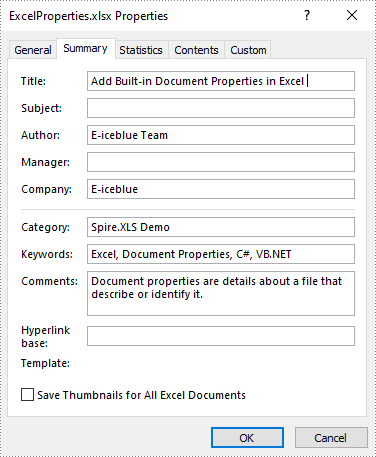
Built-in document properties are basic information about a document such as title, subject, author, category, etc. The names of these properties are predefined that cannot be edited, but Spire.XLS for .NET allows you to set specific values for these properties. The following are the detailed steps.
- Create a Workbook object.
- Load a sample Excel document using Workbook.LoadFromFile() method.
- Get the built-in document properties of the document using Workbook.DocumentProperties property.
- Set specific document properties such as title, author, keywords and comments using the properties of BuiltInDocumentProperties class.
- Save the result document using Workbook.SaveToFile() method.
- C#
- VB.NET
using Spire.Xls;

namespace ExcelProperties
{
    class Program
    {
        static void Main(string[] args)
        {
            //Create a Workbook object
            Workbook workbook = new Workbook();

            //Load a sample Excel document
            workbook.LoadFromFile("sample.xlsx");

            //Set built-in document properties for the Excel workbook
            workbook.DocumentProperties.Author = "E-iceblue Team";
            workbook.DocumentProperties.Title = "Add Built-in Document Properties in Excel ";
            workbook.DocumentProperties.Keywords = "Excel, Document Properties, C#, VB.NET";
            workbook.DocumentProperties.Category = "Spire.XLS Demo";
            workbook.DocumentProperties.Company = "E-iceblue";
            workbook.DocumentProperties.Comments = "Document properties are details about a file that describe or identify it.";

            //Save the result document
            workbook.SaveToFile("ExcelProperties.xlsx", FileFormat.Version2013);
        }
    }
}
Add Custom Document Properties in Excel in C# and VB.NET
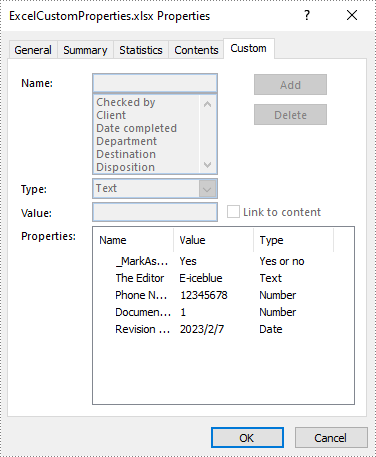
Custom document properties are additional properties that you can define for an Excel document. Spire.XLS for .NET allows you to add custom properties with specified names and values using ICustomDocumentProperties.Add() method. The following are the detailed steps.
- Create a Workbook object.
- Load a sample Excel document using Workbook.LoadFromFile() method.
- Get the custom document properties of the document using Workbook.CustomDocumentProperties property.
- Add custom document properties with different data types to the document using ICustomDocumentProperties.Add() method.
- Save the result document using Workbook.SaveToFile() method.
- C#
- VB.NET
using Spire.Xls;
using System;

namespace CustomExcelProperties
{
    class Program
    {
        static void Main(string[] args)
        {
            //Create a Workbook object
            Workbook workbook = new Workbook();

            //Load a sample Excel document
            workbook.LoadFromFile("sample.xlsx");

            //Add custom document properties to the document
            workbook.CustomDocumentProperties.Add("_MarkAsFinal", true);
            workbook.CustomDocumentProperties.Add("The Editor", "E-iceblue");
            workbook.CustomDocumentProperties.Add("Phone Number", 12345678);
            workbook.CustomDocumentProperties.Add("Document ID", 1);
            workbook.CustomDocumentProperties.Add("Revision Date", DateTime.Now);

            //Save the result document
            workbook.SaveToFile("ExcelCustomProperties.xlsx", FileFormat.Version2013);
        }
    }
}
Apply for a Temporary License
If you'd like to remove the evaluation message from the generated documents, or to get rid of the function limitations, please request a 30-day trial license for yourself.
Sometimes, we may get annoyed when we have to open many Excel files simultaneously. Merging Excel files of the same type or category can help us avoid the trouble and save us much time. This article will demonstrate how to merge Excel files into One in C# and VB.NET using Spire.XLS for .NET library.
- Merge Multiple Excel Workbooks into One in C# and VB.NET
- Merge Multiple Excel Worksheets into One in C# and VB.NET
Install Spire.XLS for .NET
To begin with, you need to add the DLL files included in the Spire.XLS for .NET package as references in your .NET project. The DLL files can be either downloaded from this link or installed via NuGet.
PM> Install-Package Spire.XLS
Merge Multiple Excel Workbooks into One in C# and VB.NET
The following are the steps to merge multiple Excel workbooks into one:
- Create a string array from the Excel file paths.
- Initialize a Workbook object to create a new Excel workbook, and clear the default worksheets in the workbook using Workbook.Worksheets.Clear() method.
- Initialize another temporary Workbook object.
- Loop through the string array, load the current workbook into the temporary Workbook object using Workbook.LoadFromFile() method.
- loop through the worksheets in the current workbook, then copy each worksheet from the current workbook to the new workbook using Workbook.Worksheets.AddCopy() method.
- Save the new workbook to file using Workbook.SaveToFile() method.
- C#
- VB.NET
using Spire.Xls;

namespace MergeExcelFiles
{
    class Program
    {
        static void Main(string[] args)
        {
            //Create a string array from Excel file paths
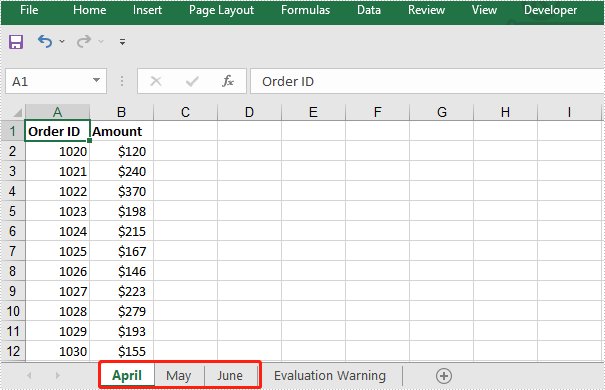
            string[] inputFiles = new string[] { "April.xlsx", "May.xlsx", "June.xlsx" };

            //Initialize a new Workbook object
            Workbook newWorkbook = new Workbook();
            //Clear the default worksheets
            newWorkbook.Worksheets.Clear();

            //Initialize another temporary Workbook object
            Workbook tempWorkbook = new Workbook();

            //Loop through the string array
            foreach (string file in inputFiles)
            {
                //Load the current workbook
                tempWorkbook.LoadFromFile(file);
                //Loop through the worksheets in the current workbook
                foreach (Worksheet sheet in tempWorkbook.Worksheets)
                {
                    //Copy each worksheet from the current workbook to the new workbook
                    newWorkbook.Worksheets.AddCopy(sheet, WorksheetCopyType.CopyAll);
                }
            }

            //Save the new workbook to file
            newWorkbook.SaveToFile("MergeWorkbooks.xlsx", ExcelVersion.Version2013);
        }
    }
}
The input Excel workbooks:

The merged Excel workbook:
Merge Multiple Excel Worksheets into One in C# and VB.NET
We can merge multiple worksheets in the same or different workbooks into one. The following steps show how to merge two Excel worksheets in the same workbook into a single worksheet:
- Initialize a Workbook object and load an Excel file using Workbook.LoadFromFile() method.
- Get the two worksheets that need to be merged using Workbook.Worksheets[sheetIndex] property. Note the sheet index is zero-based.
- Get the used range of the second worksheet using Worksheet.AllocatedRange property.
- Specify the destination range in the first worksheet using Worksheet.Range[rowIndex, columnIndex] property. Note the row and column indexes are 1-based.
- Copy the used range of the second worksheet to the destination range in the first worksheet using CellRange.Copy(destRange) method.
- Remove the second worksheet using XlsWorksheet.Remove() method.
- Save the result file using Workbook.SaveToFile() method.
- C#
- VB.NET
using Spire.Xls;

namespace MergeExcelWorksheets
{
    class Program
    {
        static void Main(string[] args)
        {
            //Create a Workbook object
            Workbook workbook = new Workbook();
            //Load an Excel file
            workbook.LoadFromFile("Sample.xlsx");

            //Get the first worksheet
            Worksheet sheet1 = workbook.Worksheets[0];
            //Get the second worksheet
            Worksheet sheet2 = workbook.Worksheets[1];

            //Get the used range in the second worksheet
            CellRange sourceRange = sheet2.AllocatedRange;
            //Specify the destination range in the first worksheet
            CellRange destRange = sheet1.Range[sheet1.LastRow + 1, 1];

            //Copy the used range of the second worksheet to the destination range in the first worksheet
            sourceRange.Copy(destRange);

            //Remove the second worksheet
            sheet2.Remove();

            //Save the result file
            workbook.SaveToFile("MergeWorksheets.xlsx", ExcelVersion.Version2013);
        }
    }
}
The input Excel worksheets:
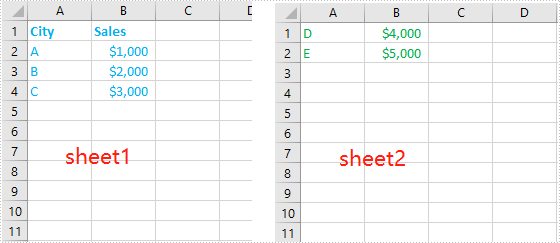
The merged Excel worksheets:

Apply for a Temporary License
If you'd like to remove the evaluation message from the generated documents, or to get rid of the function limitations, please request a 30-day trial license for yourself.
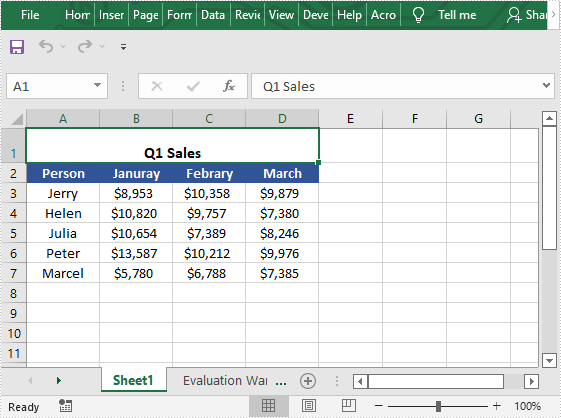
Merging cells means joining two or more separate cells into one large cell, which is useful when you need to create a label that spans multiple columns. In this article, we will demonstrate how to merge or unmerge cells in Excel in C# and VB.NET using Spire.XLS for .NET library.
Install Spire.XLS for .NET
To begin with, you need to add the DLL files included in the Spire.XLS for .NET package as references in your .NET project. The DLL files can be either downloaded from this link or installed via NuGet.
PM> Install-Package Spire.XLS
Merge Cells in Excel in C# and VB.NET
The following are the steps to merge cells in Excel:
- Create a Workbook instance
- Load the Excel file using Workbook.LoadFromFile() method.
- Get the desired worksheet using Workbook.Worksheets[sheetIndex] property.
- Access the specific range of cells and merge them into one using XlsRange.Merge() method.
- Center the text in the merged cell by setting CellRange.Style.HorizontalAlignment property to HorizontalAlignType.Center.
- Save the result file using Workbook.SaveToFile() method.
- C#
- VB.NET
using Spire.Xls;

namespace MergeCells
{
    class Program
    {
        static void Main(string[] args)
        {
            //Create a Workbook instance
            Workbook workbook = new Workbook();
            //Load the Excel file
            workbook.LoadFromFile("Sample.xlsx");

            //Get the first worksheet
            Worksheet sheet = workbook.Worksheets[0];
            //Merge cells A1-D1 into one cell
            CellRange range = sheet.Range["A1:D1"];
            range.Merge();
            //Center the text in the merged cell
            range.Style.HorizontalAlignment = HorizontalAlignType.Center;

            //Save the result file
            workbook.SaveToFile("MergeCells.xlsx", ExcelVersion.Version2013);
        }
    }
}
Unmerge Cells in Excel in C# and VB.NET
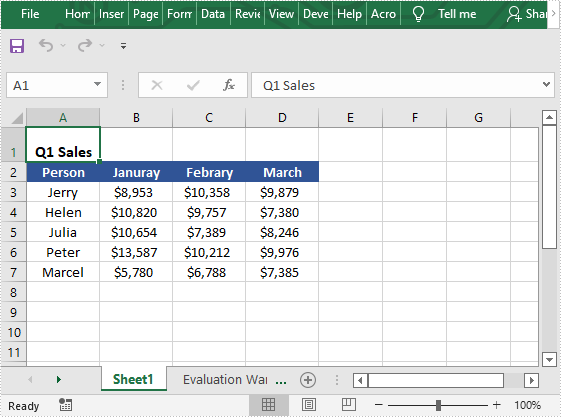
The following are the steps to unmerge cells in Excel:
- Create a Workbook instance
- Load the Excel file using Workbook.LoadFromFile() method.
- Get the desired worksheet using Workbook.Worksheets[sheetIndex] property.
- Access the specific range of cells and unmerge them using XlsRange.UnMerge() method.
- Save the result file using Workbook.SaveToFile() method.
- C#
- VB.NET
using Spire.Xls;

namespace UnmergeCells
{
    class Program
    {
        static void Main(string[] args)
        {

            //Create a Workbook instance
            Workbook workbook = new Workbook();
            //Load the Excel file
            workbook.LoadFromFile("MergeCells.xlsx");

            //Get the first worksheet
            Worksheet sheet = workbook.Worksheets[0];
            //Unmerge cells A1-D1
            CellRange range = sheet.Range["A1:D1"];
            range.UnMerge();

            //Save the result file
            workbook.SaveToFile("UnMergeCells.xlsx", ExcelVersion.Version2013);
        }
    }
}
Apply for a Temporary License
If you'd like to remove the evaluation message from the generated documents, or to get rid of the function limitations, please request a 30-day trial license for yourself.
