
Knowledgebase (2417)
Children categories
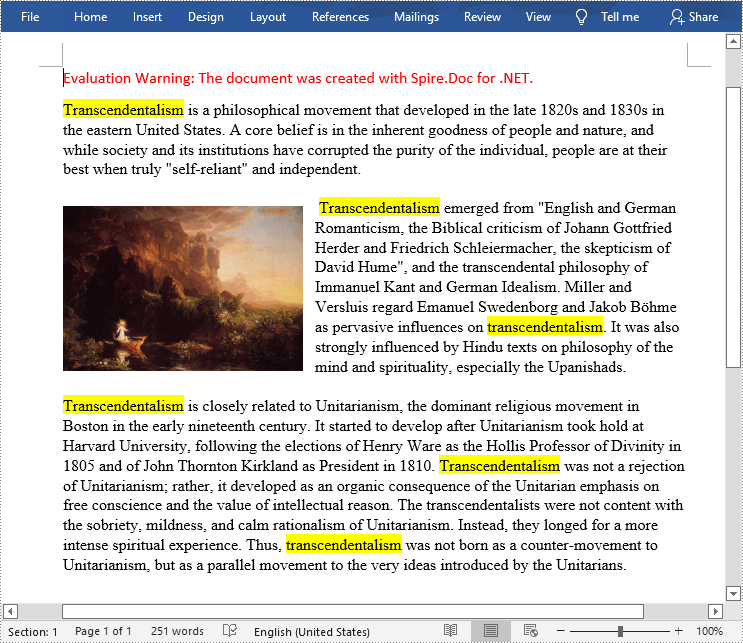
Finding specific text or phrases in a long Word document can be a bit of a hassle. Fortunately, MS Word provides the "Find" function to locate specific content in a document quickly. You can also highlight the found content with a background color to ensure that they won't be overlooked by the readers. This article will demonstrate how to programmatically find and highlight text in a Word document using Spire.Doc for .NET.
Install Spire.Doc for .NET
To begin with, you need to add the DLL files included in the Spire.Doc for .NET package as references in your .NET project. The DLLs files can be either downloaded from this link or installed via NuGet.
PM> Install-Package Spire.Doc
Find and Highlight Text in a Word Document
The detailed steps are as follows.
- Create a Document instance
- Load a sample Word document using Document.LoadFromFile() method.
- Find all matching text in the document using Document.FindAllString(string matchString, bool caseSensitive, bool wholeWord) method.
- Loop through all matching text in the document.
- Get the text range of a specific matching text using TextSelection.GetAsOneRange() method, and then set its highlight color using TextRange.CharacterFormat.HighlightColor property.
- Save the result file using Document.SaveToFile() method.
- C#
- VB.NET
using System.Drawing;
using Spire.Doc;
using Spire.Doc.Documents;

namespace FindHighlight
{
    class Program
    {
        static void Main(string[] args)
        {
            //Create a Document instance
            Document document = new Document();

            //Load a sample Word document
            document.LoadFromFile("input.docx");

            //Find all matching text in the document
            TextSelection[] text = document.FindAllString("transcendentalism", false, true);

            //Loop through all matching text and set highlight color for them
            foreach (TextSelection seletion in text)
            {
                seletion.GetAsOneRange().CharacterFormat.HighlightColor = Color.Yellow;
            }

            //Save the result file
            document.SaveToFile("FindHighlight.docx", FileFormat.Docx);
        }
    }
}
Apply for a Temporary License
If you'd like to remove the evaluation message from the generated documents, or to get rid of the function limitations, please request a 30-day trial license for yourself.
Word Heading can be taken as title of each part in Word document. This guide demonstrates solution to manage these Word headings and form them as a catalogue in C# and VB.NET.
In Word document, users can set some contents, for example, phrases of summary of the following paragraphs, as headings. These Word headings can be displayed in the first page of whole document and form as catalogue after arrangement so that readers can get outline of whole document. Solution in this guide presents how to manage Word headings with numbered style in a new created document in C# and VB.NET via Spire.Doc for .NET and screenshot below shows results of managing Word headings.
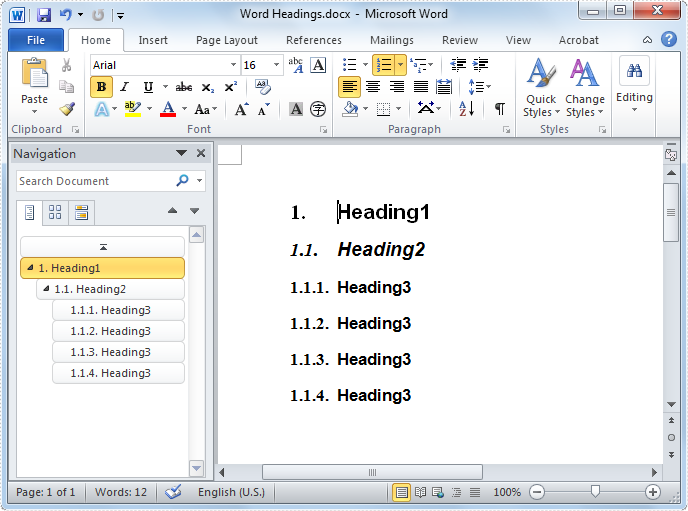
Heading is one of kind of styles for paragraphs and Spire.Doc for .NET provides several BuiltinStyle types for paragraphs. In this example, three BuiltinStyle types will be applied: Heading1, Heading2 and Heading3. Following, details will be presented step by step.
Firstly, initialize a Document instance and add section, paragraph for this instance. Secondly, invoke AppendText method with parameter string text and ApplyStyle(BuiltinStyle.Heading1) method of Paragraph class to add text and set heading style for new added paragraph. Then, invoke ListFromat.ApplyNumberedStyle() method of Paragraph class to set number list for it. Thirdly, add new paragraph and set Heading2 style for it as the previous step. Initialize a ListStyle instance for document with Numbered ListType. Then, initialize a ListLevel instance from ListStyle and set UsePrevLevelPattern and NumberPrefix properties for this instance. After that, invoke ListStyleCollection.Add(ListStyle) method of Document class and ListFormat.ApplyStyle method of Paragraph class with parameter string styleName to add ListStyle for Heading2. Fourthly, add a new paragraph and set BuiltinStyle as Heading3 and apply ListStyle for this paragraph as the previous step. Finally, invoke SaveToFile method of Document class with parameter string fileName and FileFormat to save this document. Refer the code:
using Spire.Doc;
using Spire.Doc.Documents;

namespace WordHeading
{
    class Heading
    {
        static void Main(string[] args)
        {
             //Create Document
             Document document = new Document();
             Section section = document.AddSection();
             Paragraph paragraph = section.Paragraphs.Count > 0 ? section.Paragraphs[0] : section.AddParagraph();

             //Add Heading 1
             paragraph = section.AddParagraph();
             paragraph.AppendText(BuiltinStyle.Heading1.ToString());
             paragraph.ApplyStyle(BuiltinStyle.Heading1);
             paragraph.ListFormat.ApplyNumberedStyle();

             //Add Heading 2
             paragraph = section.AddParagraph();
             paragraph.AppendText(BuiltinStyle.Heading2.ToString());
             paragraph.ApplyStyle(BuiltinStyle.Heading2);

             //List Style for Headings 2
             ListStyle listSty2 = document.Styles.Add(ListType.Numbered, "MyStyle2");

             foreach (ListLevel listLev in listSty2.ListRef.Levels)
             {
                 listLev.UsePrevLevelPattern = true;
                 listLev.NumberPrefix = "1.";
             }

             paragraph.ListFormat.ApplyStyle(listSty2.Name);

             //Add List Style 3
             ListStyle listSty3 = document.Styles.Add(ListType.Numbered, "MyStyle3");
             foreach (ListLevel listLev in listSty3.ListRef.Levels)
             {
                 listLev.UsePrevLevelPattern = true;
                 listLev.NumberPrefix = "1.1.";
             }

             //Add Heading 3
             for (int i = 0; i < 4; i++)
             {
                 paragraph = section.AddParagraph();

                 //Append Text
                 paragraph.AppendText(BuiltinStyle.Heading3.ToString());

                 //Apply List Style 3 for Heading 3
                 paragraph.ApplyStyle(BuiltinStyle.Heading3);
                 paragraph.ListFormat.ApplyStyle(listSty3.Name);
             }

             //Save and Launch
             document.SaveToFile("Word Headings.docx", FileFormat.Docx);
        }
    }
}
Imports Spire.Doc
Imports Spire.Doc.Documents

Namespace WordHeading
    Friend Class Heading
        Shared Sub Main(ByVal args() As String)
         'Create Document
         Dim document As New Document()
         Dim section As Section = document.AddSection()
         Dim paragraph As Paragraph = If(section.Paragraphs.Count > 0, section.Paragraphs(0), section.AddParagraph())

         'Add Heading 1
         paragraph = section.AddParagraph()
         paragraph.AppendText(BuiltinStyle.Heading1.ToString())
         paragraph.ApplyStyle(BuiltinStyle.Heading1)
         paragraph.ListFormat.ApplyNumberedStyle()

         'Add Heading 2
         paragraph = section.AddParagraph()
         paragraph.AppendText(BuiltinStyle.Heading2.ToString())
         paragraph.ApplyStyle(BuiltinStyle.Heading2)

         ' List Style for Headings 2
         Dim listSty2 As ListStyle = document.Styles.Add(ListType.Numbered, "MyStyle2")

         For Each listLev As ListLevel In listSty2.ListRef.Levels
             listLev.UsePrevLevelPattern = True
             listLev.NumberPrefix = "1."
         Next

         paragraph.ListFormat.ApplyStyle(listSty2.Name)

         ' Add List Style 3
         Dim listSty3 As ListStyle = document.Styles.Add(ListType.Numbered, "MyStyle3")

         For Each listLev As ListLevel In listSty3.ListRef.Levels
             listLev.UsePrevLevelPattern = True
             listLev.NumberPrefix = "1.1."
         Next

         'Add Heading 3
         For i As Integer = 0 To 3
             paragraph = section.AddParagraph()

             'Append Text
             paragraph.AppendText(BuiltinStyle.Heading3.ToString())

             'Apply List Style 3 for Heading 3
             paragraph.ApplyStyle(BuiltinStyle.Heading3)
             paragraph.ListFormat.ApplyStyle(listSty3.Name)
         Next i

         'Save and Launch
         document.SaveToFile("Word Headings.docx", FileFormat.Docx)
        End Sub
    End Class
End Namespace
Spire.Doc, as professional Word component, is very powerful on fast generating, loading, writing, modifying and saving Word documents in .NET, WPF, Silverlight without Word automation and any third party tools.
PDF properties are metadata that provide additional information about a PDF file. Typically, these properties include, but are not limited to, the title of the document, the author, keywords, subject and the application that created the document. When there are a large number of PDF files, adding properties is essential as it can make the files easily retrievable. In this article, you will learn how to programmatically set or get PDF properties using Spire.PDF for .NET.
Install Spire.PDF for .NET
To begin with, you need to add the DLL files included in the Spire.PDF for.NET package as references in your .NET project. The DLL files can be either downloaded from this link or installed via NuGet.
PM> Install-Package Spire.PDF
Set the Properties of a PDF File in C# and VB.NET
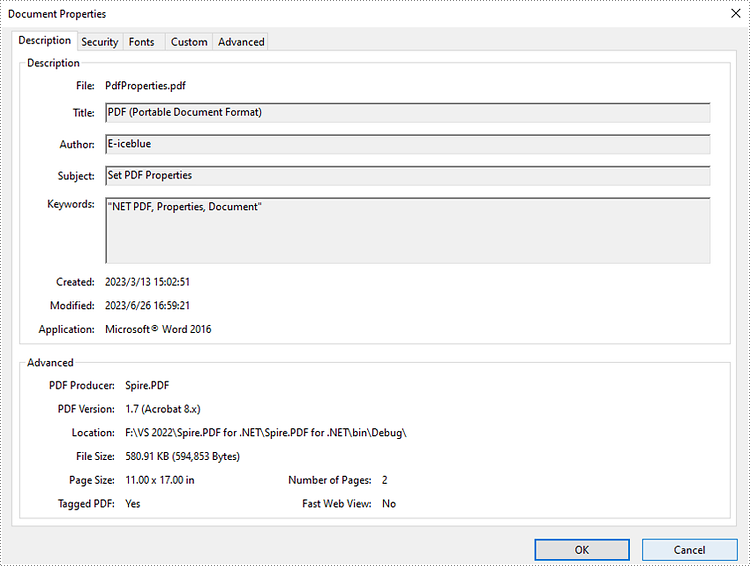
Basic PDF document properties such as title, author, subject and keywords make it easier for users to search or retrieve specific documents later on. The following are the detailed steps on how to set these properties using Spire.PDF for .NET.
- Create a PdfDocument instance.
- Load a PDF file using PdfDocument.LoadFromFile() method.
- Get PDF properties using PdfDocument.DocumentInformation property, and then set values for specific document properties such as title, subject and author through Title, Subject and Author properties of PdfDocumentInformation class.
- Save the result PDF file using PdfDocument.SaveToFile () method.
- C#
- VB.NET
using Spire.Pdf;

namespace PDFProperties
{
    class Properties
    {
        static void Main(string[] args)
        {
            //Create a PdfDocument instance
            PdfDocument pdf = new PdfDocument();

            //Load a sample PDF document
            pdf.LoadFromFile("input.pdf");

            //Set the title
            pdf.DocumentInformation.Title = "PDF (Portable Document Format)";

            //Set the author
            pdf.DocumentInformation.Author = "E-iceblue";

            //Set the subject
            pdf.DocumentInformation.Subject = "Set PDF Properties";

            //Set the keywords
            pdf.DocumentInformation.Keywords = "NET PDF, Properties, Document";

            //Set the producer name
            pdf.DocumentInformation.Producer = "Spire.PDF";

            //Save the result document
            pdf.SaveToFile("PdfProperties.pdf");
        }
    }
}
Get the Properties of a PDF File in C# and VB.NET
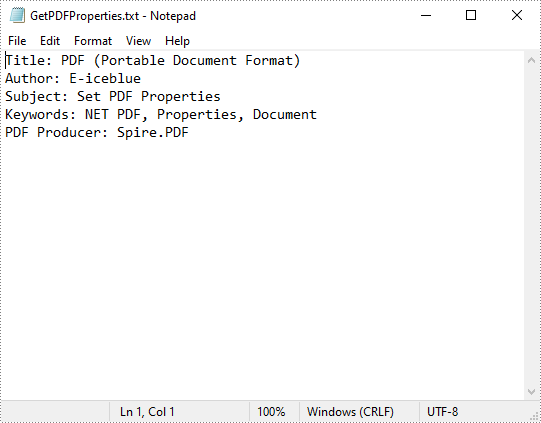
To get specific PDF properties, you can use the corresponding properties under the PdfDocumentInformation class. The following are the detailed steps.
- Create a PdfDocument instance.
- Load a PDF file using PdfDocument.LoadFromFile() method.
- Create a StringBuilder instance.
- Get PDF properties using PdfDocument.DocumentInformation property, and then get specific document properties such as title, author, keyword using properties under PdfDocumentInformation class.
- Append the extracted properties to the StringBuilder instance using StringBuilder.Append() method.
- Write the StringBuilder to a TXT file using File.WriteAllText() method.
- C#
- VB.NET
using Spire.Pdf;
using System.IO;
using System.Text;

namespace GetPdfProperties

{
    class Program
    {
        static void Main(string[] args)
        {
            //Create a PdfDocument instance
            PdfDocument pdf = new PdfDocument();

            //Load a sample PDF document
            pdf.LoadFromFile("PdfProperties.pdf");

            //Create a StringBuilder instance
            StringBuilder content = new StringBuilder();

            //Get the PDF document properties and append them in the StringBuilder
            content.Append("Title: " + pdf.DocumentInformation.Title + "\r\n");
            content.Append("Author: " + pdf.DocumentInformation.Author + "\r\n");
            content.Append("Subject: " + pdf.DocumentInformation.Subject + "\r\n");
            content.Append("Keywords: " + pdf.DocumentInformation.Keywords + "\r\n");
            content.Append("PDF Producer: " + pdf.DocumentInformation.Producer + "\r\n");

            //Write the StringBuilder to a TXT file
            File.WriteAllText("GetPDFProperties.txt", content.ToString());
        }
    }
}
Apply for a Temporary License
If you'd like to remove the evaluation message from the generated documents, or to get rid of the function limitations, please request a 30-day trial license for yourself.
