Knowledgebase (2417)
Children categories
PDF pagination not only enables users to add page numbers in PDF file but also can divide PDF document into sections so that some additional information such as PDF file cover, introduction or reference can be added. So PDF pagination provides great convenience for managing large files or organizing books. This section will show you a solution to paginate PDF pages via a .NET PDF component in C#, VB.NET.
Spire.PDF for .NET, a PDF component for managing PDF files, enables you to paginate PDF pages quickly with C#, VB.NET. Before expounding the main code, I want to show the screenshot of the output PDF file as below:
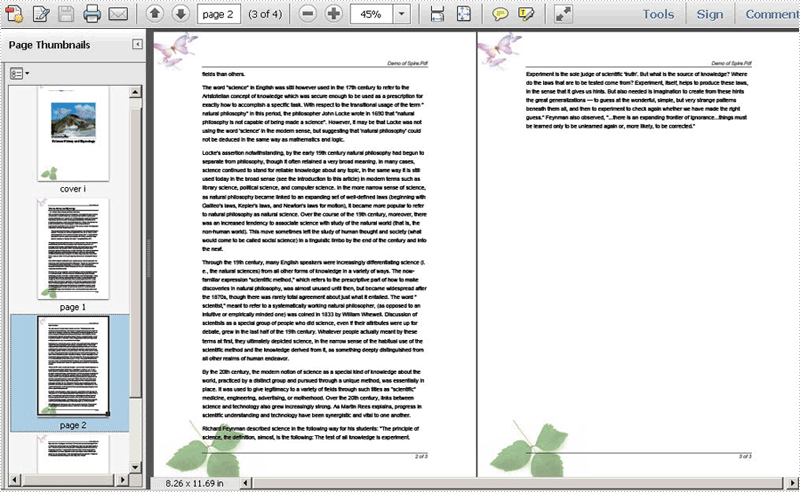
Here you can download Spire.PDF for .NET and install it on your system. After adding Spire.Pdf dll, let us start to paginate PDF file together.
In the whole solution, there are three main steps to paginate PDF file. One is to draw page number; another is to draw content; the last one is to draw PDF cover so that you can add additional information. Let us see them one by one.
Paginate PDF - Draw PDF Page Number
When drawing page number, page label is also set in below method. By calling this method: DrawString(string s, PdfFontBase font, PdfBrush brush, float x, float y, PdfStringFormat format). You can not only set page label font, color, position and format. Please see detail code below:
            foreach (PdfPageBase page in section.Pages)
            {
                page.Canvas.SetTransparency(0.5f);
                PdfBrush brush = PdfBrushes.Black;
                PdfPen pen = new PdfPen(brush, 0.75f);
                PdfTrueTypeFont font = new PdfTrueTypeFont(new Font("Arial", 9f, FontStyle.Italic), true);
                PdfStringFormat format = new PdfStringFormat(PdfTextAlignment.Right);
                format.MeasureTrailingSpaces = true;
                float space = font.Height * 0.75f;
                float x = margin.Left;
                float width = page.Canvas.ClientSize.Width - margin.Left - margin.Right;
                float y = page.Canvas.ClientSize.Height - margin.Bottom + space;
                page.Canvas.DrawLine(pen, x, y, x + width, y);
                y = y + 1;
                String numberLabel
                    = String.Format("{0} of {1}", startNumber++, pageCount);
                page.Canvas.DrawString(numberLabel, font, brush, x + width, y, format);
                page.Canvas.SetTransparency(1);
            }
         For Each page As PdfPageBase In section.Pages
            page.Canvas.SetTransparency(0.5!)
            Dim brush As PdfBrush = PdfBrushes.Black
            Dim pen As PdfPen = New PdfPen(brush, 0.75!)
            Dim font As PdfTrueTypeFont = New PdfTrueTypeFont(New Font("Arial", 9!, FontStyle.Italic), true)
            Dim format As PdfStringFormat = New PdfStringFormat(PdfTextAlignment.Right)
            format.MeasureTrailingSpaces = true
            Dim space As Single = (font.Height * 0.75!)
            Dim x As Single = margin.Left
            Dim width As Single = (page.Canvas.ClientSize.Width  _
                        - (margin.Left - margin.Right))
            Dim y As Single = ((page.Canvas.ClientSize.Height - margin.Bottom)  _
                        + space)
            page.Canvas.DrawLine(pen, x, y, (x + width), y)
            y = (y + 1)
            Dim numberLabel As String = String.Format("{0} of {1}", startNumber++, pageCount)
            page.Canvas.DrawString(numberLabel, font, brush, (x + width), y, format)
            page.Canvas.SetTransparency(1)
        Next
Paginate PDF - Draw PDF Content
PDF content depends on your own like, so here I avoid coding them in detail.
Paginate PDF - Draw PDF Cover
Cover page is always the best place for adding additional information about this PDF file. In below method, I ignore adding reference content and document title, you can add cover image a class PdfImage in the PDF cover page. Please see code below:
            //cover
            PdfBrush brush3 = PdfBrushes.Black;
            PdfBrush brush4 = new PdfSolidBrush(new PdfRGBColor(0xf9, 0xf9, 0xf9));
            PdfImage image
                = PdfImage.FromFile(@"..\potala palace1.jpg");
            String text = paginate_PDF.Properties.Resources.ImageDescription;
            float r = image.PhysicalDimension.Height / image.Height;
            PdfPen pen = new PdfPen(brush1, r);
            SizeF size = font1.MeasureString(text, image.PhysicalDimension.Width - 2);
            PdfTemplate template
                = new PdfTemplate(image.PhysicalDimension.Width + 4 * r + 4,
                    image.PhysicalDimension.Height + 4 * r + 7 + size.Height);
            template.Graphics.DrawRectangle(pen, brush4, 0, 0, template.Width, template.Height);
        'cover
        Dim brush3 As PdfBrush = PdfBrushes.Black
        Dim brush4 As PdfBrush = New PdfSolidBrush(New PdfRGBColor(249, 249, 249))
        Dim image As PdfImage = PdfImage.FromFile("..\potala palace1.jpg")
        Dim text As String = paginate_PDF.Properties.Resources.ImageDescription
        Dim r As Single = (image.PhysicalDimension.Height / image.Height)
        Dim pen As PdfPen = New PdfPen(brush1, r)
        Dim size As SizeF = font1.MeasureString(text, (image.PhysicalDimension.Width - 2))
        Dim template As PdfTemplate = New PdfTemplate((image.PhysicalDimension.Width  _
                        + ((4 * r)  _
                        + 4)), (image.PhysicalDimension.Height  _
                        + ((4 * r) + (7 + size.Height))))
        template.Graphics.DrawRectangle(pen, brush4, 0, 0, template.Width, template.Height)
Spire.PDF for .NET is a professional PDF component to generate, edit, read, and manipulate PDF documents in your .NET applications with C#, VB.NET.
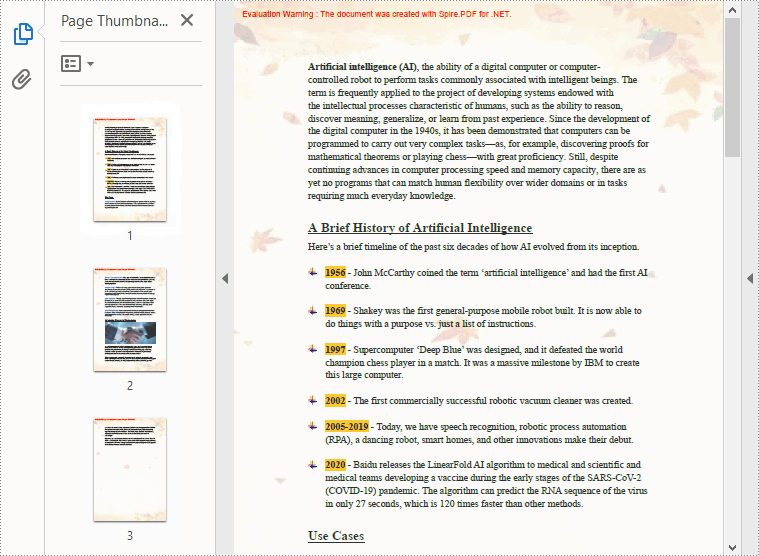
In a PDF document, the background refers to the overall visual appearance behind the content of the pages. The background can be a simple solid color or an image of your choice. Adding backgrounds to PDFs can help you add visual interest to your documents and also enhance readability. In this article, you will learn how to programmatically set the background color or image for PDF using Spire.PDF for .NET.
Install Spire.PDF for .NET
To begin with, you need to add the DLL files included in the Spire.PDF for.NET package as references in your .NET project. The DLL files can be either downloaded from this link or installed via NuGet.
PM> Install-Package Spire.PDF
Add Background Color to PDF Documents in C# and VB.NET
The PdfPageBase.BackgroundColor property offered by Spire.PDF for .NET allows you to set a solid color as the PDF background. The following are the detailed steps.
- Create a PdfDocument instance.
- Load a sample PDF file using PdfDocument.LoadFromFile() method.
- Loop through all the PDF pages and add a background color to each page using PdfPageBase.BackgroundColor property.
- Set the opacity of the background using PdfPageBase.BackgroudOpacity property.
- Save the result document using PdfDocument.SaveToFile() method.
- C#
- VB.NET
using Spire.Pdf;
using System.Drawing;

namespace PDFBackgroundColor
{
    class Program
    {
        static void Main(string[] args)
        {
            //Create a PdfDocument instance
            PdfDocument pdf = new PdfDocument();

            //Load a sample PDF file from disk
            pdf.LoadFromFile("input.pdf");

            //Loop through the pages in the PDF file
            foreach (PdfPageBase page in pdf.Pages)
            {
                //Set the background color for each page
                page.BackgroundColor = Color.Yellow;

                //Set the opacity of the background
                page.BackgroudOpacity = 0.1f;
            }

            //Save the result PDF file
            pdf.SaveToFile("BackgroundColor.pdf");
            pdf.Close();

        }
    }
}

Add Background Images to PDF Documents C# and VB.NET
If you want to add an image as a background to match the document theme, you can use the PdfPageBase.BackgroundImage property. The following are the detailed steps.
- Create a PdfDocument instance.
- Load a sample PDF file using PdfDocument.LoadFromFile() method.
- Loop through all the PDF pages and add a background picture to each page using PdfPageBase.BackgroundImage property.
- Set the opacity of the background using PdfPageBase.BackgroudOpacity property.
- Save the result document using PdfDocument.SaveToFile() method.
- C#
- VB.NET
using Spire.Pdf;
using System.Drawing;

namespace PDFBackgroundImage
{
    class Program
    {
        static void Main(string[] args)
        {
            //Create a PdfDocument instance
            PdfDocument pdf = new PdfDocument();

            //Load a sample PDF file from disk
            pdf.LoadFromFile("input.pdf");

            //Load an image
            Image background = Image.FromFile("background.png");

            //Loop through the pages in the PDF file
            foreach (PdfPageBase page in pdf.Pages)
            {
                //Set the loaded image as the background image for each page
                page.BackgroundImage = background;

                //Set the opacity of the background
                page.BackgroudOpacity = 0.2f;
            }

            //Save the result PDF file
            pdf.SaveToFile("BackgroundImage.pdf");
            pdf.Close();

        }
    }
}
Apply for a Temporary License
If you'd like to remove the evaluation message from the generated documents, or to get rid of the function limitations, please request a 30-day trial license for yourself.
The sample demonstrates how to create Word Footer in Silverlight via Spire.Doc.