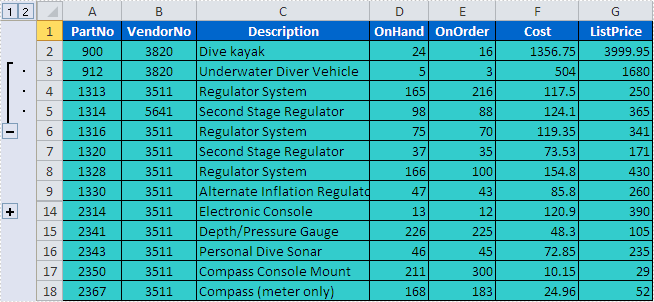
The sample demonstrates how to create Excel group in Silverlight via Spire.XLS.
<Application xmlns="http://schemas.microsoft.com/winfx/2006/xaml/presentation"
             xmlns:x="http://schemas.microsoft.com/winfx/2006/xaml"
             x:Class="group.App">

    <Application.Resources>

    </Application.Resources>
</Application>
using System;
using System.Windows;

namespace group
{
    public partial class App : Application
    {

        public App()
        {
            this.Startup += this.Application_Startup;
            this.Exit += this.Application_Exit;
            this.UnhandledException += this.Application_UnhandledException;

            InitializeComponent();
        }

        private void Application_Startup(object sender, StartupEventArgs e)
        {
            this.RootVisual = new MainPage();
        }

        private void Application_Exit(object sender, EventArgs e)
        {

        }

        private void Application_UnhandledException(object sender, ApplicationUnhandledExceptionEventArgs e)
        {
            // If the app is running outside of the debugger then report the exception using
            // the browser's exception mechanism. On IE this will display it a yellow alert
            // icon in the status bar and Firefox will display a script error.
            if (!System.Diagnostics.Debugger.IsAttached)
            {

                // NOTE: This will allow the application to continue running after an exception has been thrown
                // but not handled.
                // For production applications this error handling should be replaced with something that will
                // report the error to the website and stop the application.
                e.Handled = true;
                Deployment.Current.Dispatcher.BeginInvoke(delegate { ReportErrorToDOM(e); });
            }
        }

        private void ReportErrorToDOM(ApplicationUnhandledExceptionEventArgs e)
        {
            try
            {
                string errorMsg = e.ExceptionObject.Message + e.ExceptionObject.StackTrace;
                errorMsg = errorMsg.Replace('"', '\'').Replace("\r\n", @"\n");

                System.Windows.Browser.HtmlPage.Window.Eval("throw new Error(\"Unhandled Error in Silverlight Application " + errorMsg + "\");");
            }
            catch (Exception)
            {
            }
        }
    }
}
Imports System.Net
Imports System.Windows
Imports System.Windows.Controls
Imports System.Windows.Documents
Imports System.Windows.Input
Imports System.Windows.Media
Imports System.Windows.Media.Animation
Imports System.Windows.Shapes

Namespace group
	Partial Public Class App
		Inherits Application

		Public Sub New()
			AddHandler Me.Startup, AddressOf Application_Startup
			AddHandler Me.Exit, AddressOf Application_Exit
			AddHandler Me.UnhandledException, AddressOf Application_UnhandledException

			InitializeComponent()
		End Sub

		Private Sub Application_Startup(ByVal sender As Object, ByVal e As StartupEventArgs)
			Me.RootVisual = New MainPage()
		End Sub

		Private Sub Application_Exit(ByVal sender As Object, ByVal e As EventArgs)

		End Sub

		Private Sub Application_UnhandledException(ByVal sender As Object, ByVal e As ApplicationUnhandledExceptionEventArgs)
			' If the app is running outside of the debugger then report the exception using
			' the browser's exception mechanism. On IE this will display it a yellow alert
			' icon in the status bar and Firefox will display a script error.
			If Not Debugger.IsAttached Then

				' NOTE: This will allow the application to continue running after an exception has been thrown
				' but not handled.
				' For production applications this error handling should be replaced with something that will
				' report the error to the website and stop the application.
				e.Handled = True
				Deployment.Current.Dispatcher.BeginInvoke(Sub() ReportErrorToDOM(e))
			End If
		End Sub

		Private Sub ReportErrorToDOM(ByVal e As ApplicationUnhandledExceptionEventArgs)
			Try
				Dim errorMsg As String = e.ExceptionObject.Message + e.ExceptionObject.StackTrace
				errorMsg = errorMsg.Replace(""""c, "'"c).Replace(vbCrLf, vbLf)

				System.Windows.Browser.HtmlPage.Window.Eval("throw new Error(""Unhandled Error in Silverlight Application " & errorMsg & """);")
			Catch e1 As Exception
			End Try
		End Sub
	End Class
End Namespace
<UserControl x:Class="group.MainPage"
    xmlns="http://schemas.microsoft.com/winfx/2006/xaml/presentation"
    xmlns:x="http://schemas.microsoft.com/winfx/2006/xaml"
    xmlns:d="http://schemas.microsoft.com/expression/blend/2008"
    xmlns:mc="http://schemas.openxmlformats.org/markup-compatibility/2006"
    mc:Ignorable="d"
    d:DesignHeight="298" d:DesignWidth="491" xmlns:sdk="http://schemas.microsoft.com/winfx/2006/xaml/presentation/sdk">

    <Grid x:Name="LayoutRoot" Background="#FFB5FFFF" Loaded="LayoutRoot_Loaded" Height="272" Width="491">
        <Button Content="Run" Height="23" HorizontalAlignment="Left" Margin="387,206,0,0" Name="buttonRun" VerticalAlignment="Top" Width="75" Click="buttonRun_Click" />
        <sdk:Label Height="53" HorizontalAlignment="Center" Margin="12,86,29,133" Name="label1" VerticalAlignment="Center" Width="450" Content="This sample demonstrate how to create a group in xls" FontSize="14" FontWeight="Bold" HorizontalContentAlignment="Center" IsEnabled="False" />
    </Grid>
</UserControl>
using System;
using System.Windows;
using System.Windows.Controls;
using System.Reflection;
using System.IO;

using Spire.Xls;

namespace group
{
    public partial class MainPage : UserControl
    {
        Workbook workbook = null;
        SaveFileDialog saveFileDialog = new SaveFileDialog();
        public MainPage()
        {
            InitializeComponent();
            this.workbook = new Workbook();
            this.saveFileDialog.Filter = "Excel Document(*.xls)|*.xls";
        }

        private void LayoutRoot_Loaded(object sender, RoutedEventArgs e)
        {
           //load the workbook through stream
            Assembly assembly = this.GetType().Assembly;
            foreach (String name in assembly.GetManifestResourceNames())
            {
                if(name.EndsWith(".xls"))
                {
                   using(Stream fileStr=assembly.GetManifestResourceStream(name))
                   {
                       this.workbook.LoadFromStream(fileStr);
                   }

                }
            }
        }

        private void buttonRun_Click(object sender, RoutedEventArgs e)
        {
            //group the third,fourth and fifth rows
            Worksheet sheet = this.workbook.Worksheets[0];
            sheet.GroupByRows(3, 5, true);

            //group the tenth,eleventh,twelveth and thirteenth rows
            sheet.GroupByRows(10, 13, true);

            //save the workbook via stream
            bool? result = this.saveFileDialog.ShowDialog();
            if (result.HasValue && result.Value)
            {
                using (Stream stream = this.saveFileDialog.OpenFile())
                {
                    this.workbook.SaveToStream(stream);
                }
            }
        }
    }
}
Imports System.Windows
Imports System.Windows.Controls
Imports System.Reflection
Imports System.IO

Imports Spire.Xls

Namespace group
	Partial Public Class MainPage
		Inherits UserControl
		Private workbook As Workbook = Nothing
		Private saveFileDialog As New SaveFileDialog()
		Public Sub New()
			InitializeComponent()
			Me.workbook = New Workbook()
			Me.saveFileDialog.Filter = "Excel Document(*.xls)|*.xls"
		End Sub

		Private Sub LayoutRoot_Loaded(ByVal sender As Object, ByVal e As RoutedEventArgs)
		   'load the workbook through stream
			Dim [assembly] As System.Reflection.Assembly = Me.GetType().Assembly
			For Each name As String In [assembly].GetManifestResourceNames()
				If name.EndsWith(".xls") Then
				   Using fileStr As Stream=[assembly].GetManifestResourceStream(name)
					   Me.workbook.LoadFromStream(fileStr)
				   End Using

				End If
			Next name
		End Sub

		Private Sub buttonRun_Click(ByVal sender As Object, ByVal e As RoutedEventArgs)
			'group the third,fourth and fifth rows
			Dim sheet As Worksheet = Me.workbook.Worksheets(0)
			sheet.GroupByRows(3, 5, True)

			'group the tenth,eleventh,twelveth and thirteenth rows
			sheet.GroupByRows(10, 13, True)

			'save the workbook via stream
			Dim result? As Boolean = Me.saveFileDialog.ShowDialog()
			If result.HasValue AndAlso result.Value Then
				Using stream As Stream = Me.saveFileDialog.OpenFile()
					Me.workbook.SaveToStream(stream)
				End Using
			End If
		End Sub
	End Class
End Namespace