Knowledgebase (2417)
Children categories
There can be no doubt that image and text are the most basic elements for a PDF document. In most cases, people need to insert images and text in a PDF file. While actually, things are not as easy as that. For example, you want to insert an image to your PDF document, but this image is in another PDF file, you can neither find a same picture from internet nor paste it directly to your own PDF. In such a situation, you have to extract the PDF image first and then, insert the images you want to your PDF.
This article is designed to share a method to extract images and text from PDF document for WPF via Spire.PDF for WPF. Using Spire.PDF for WPF, you can easily and quickly extract the PDF images and text, then, add any images you want to another PDF. Please follow the below steps.
Download Spire.PDF (Spire.Office) and with .NET Framework 2.0 (or above) together. Install and follow the guide below.
Step 1: Create a new project
- Create a new project in WPF Application
- Add a button in MainWindow and set the button Content property to be "Run".
- Add Spire.Pdf.Wpf.dll and System.Drawing as references. After adding the namespaces, you can view the below codes.
using System.Drawing;
using Spire.Pdf;
using Spire.Pdf.Graphics;
using System.IO;
using System.Drawing.Imaging;

namespace pdfextractwpf
{
    ///
    /// Interaction logic for MainWindow.xaml
    ///
    public partial class MainWindow : Window
    {
        public MainWindow()
        {
            InitializeComponent();
        }

        private void button1_Click(object sender, RoutedEventArgs e)
        {

        }
    }
}
Imports System.Drawing
Imports Spire.Pdf
Imports Spire.Pdf.Graphics
Imports System.IO
Imports System.Drawing.Imaging

Namespace pdfextractwpf
	'''
	''' Interaction logic for MainWindow.xaml
	'''
	Public Partial Class MainWindow
		Inherits Window
		Public Sub New()
			InitializeComponent()
		End Sub

		Private Sub button1_Click(sender As Object, e As RoutedEventArgs)
	          End Sub
	End Class
End Namespace
Step 2: Extract images and text from PDF document
Load a PDF file from system
            //Create a pdf document.
            PdfDocument doc = new PdfDocument();
            doc.LoadFromFile(@"D:\e-iceblue\Spire.PDF\Demos\Data\Sample2.pdf");
	'Create a pdf document.
	Dim doc As New PdfDocument()
        doc.LoadFromFile("D:\e-iceblue\Spire.PDF\Demos\Data\Sample2.pdf")
Extract images and text from PDF document
            StringBuilder buffer = new StringBuilder();
            IList images = new List();

            foreach (PdfPageBase page in doc.Pages)
            {
                buffer.Append(page.ExtractText());
                foreach (System.Drawing.Image image in page.ExtractImages())
                {
                    images.Add(image);
                }
            }

            doc.Close();
	Dim buffer As New StringBuilder()
	Dim images As IList(Of System.Drawing.Image) = New List(Of System.Drawing.Image)()

	For Each page As PdfPageBase In doc.Pages
		buffer.Append(page.ExtractText())
		For Each image As System.Drawing.Image In page.ExtractImages()
			images.Add(image)
		Next
	Next

	doc.Close()
Save the extracted images and text.
            //save text
            String fileName = "TextInPdf.txt";
            File.WriteAllText(fileName, buffer.ToString());

            //save image
            int index = 0;
            foreach (System.Drawing.Image image in images)
            {
                String imageFileName
                    = String.Format("Image-{0}.png", index++);
                image.Save(imageFileName, ImageFormat.Png);
            }
	'save text
	Dim fileName As [String] = "TextInPdf.txt"
	File.WriteAllText(fileName, buffer.ToString())

	'save image
	Dim index As Integer = 0
	For Each image As System.Drawing.Image In images
		Dim imageFileName As [String] = [String].Format("Image-{0}.png", System.Math.Max(System.Threading.Interlocked.Increment(index),index - 1))
		image.Save(imageFileName, ImageFormat.Png)
	Next
Step 3: Insert the extracted image to a newly built PDF file
Create a new PDF document and add a page in it
            PdfDocument newDoc = new PdfDocument();
            PdfPageBase newPage = newDoc.Pages.Add();
	Dim newDoc As New PdfDocument()
        Dim newPage As PdfPageBase = newDoc.Pages.Add()
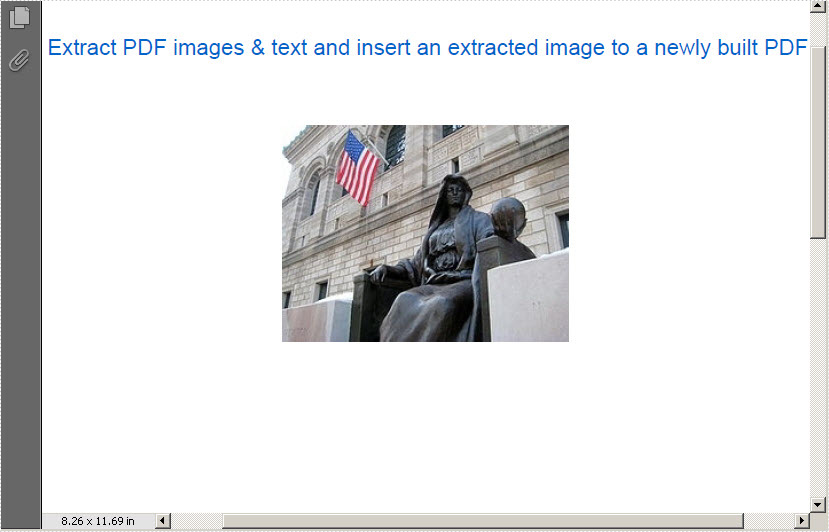
Draw the PDF text. And insert the extracted the third image in the newly built PDF document.
            newPage.Canvas.DrawString("Extract PDF images & text and insert an extracted image to a newly built PDF",
                                   new PdfFont(PdfFontFamily.Helvetica, 14.5f),
                                   new PdfSolidBrush(new PdfRGBColor(0,100,200)),
                                   10, 40);
            PdfImage img = PdfImage.FromImage(images[2]);
            float width = img.Width * 0.75f;
            float height = img.Height * 0.75f;
            float x = (newPage.Canvas.ClientSize.Width - width) / 2;

            newPage.Canvas.DrawImage(img, x, 100, width, height);
	newPage.Canvas.DrawString("Extract PDF images & text and insert an extracted image to a newly built PDF",
                                    New PdfFont(PdfFontFamily.Helvetica, 14.5F),
                                    New PdfSolidBrush(New PdfRGBColor(0, 100, 200)), 10, 40)
	Dim img As PdfImage = PdfImage.FromImage(images(2))
	Dim width As Single = img.Width * 0.75F
	Dim height As Single = img.Height * 0.75F
	Dim x As Single = (newPage.Canvas.ClientSize.Width - width) / 2
          newPage.Canvas.DrawImage(img, x, 100, width, height)
Save and launch the PDF file
            newDoc.SaveToFile("Image.pdf");
            newDoc.Close();
            System.Diagnostics.Process.Start("Image.pdf");
	newDoc.SaveToFile("Image.pdf")
	newDoc.Close()
	System.Diagnostics.Process.Start("Image.pdf")
Effecive Screenshot:
>
Spire.PDF for WPF allows its users not only to extract images and text from PDF document, but also can save the images to the most popular formats such as .PNG, JPG, BMP, GIF and so on. Click to know more
Export data is equally important with import data for excel users. Export data from Exel worksheet directly to datatable escapes many troubles and saves much time. This post will introduce you a method to export data from excel worksheet to datatable for WPF with C#, VB.NET.
Spire.XLS for WPF enables you to quickly export your data from Excel worksheet to datatable by following the below three steps. Spire.XLS for WPF supports to operate Excel 97-2003, Excel 2007 and Excel 2010. However, .NET Framework and Visual Studio must be installed for using Spire.XLS for WPF.
Make sure Spire.XLS and Visual Studio are correctly installed. And then follow steps.
Step 1: Create a new project
Create a new project by choosing WPF Application in Visual Studio.
Add a button and dataGrid in MainWindow. The default button name is "Button1". You can set Button1 Content property to be "Run" in its properties by right clicking it.
Step 2: Add reference and project namespaces
Add Spire.XLS. Wpf.dll as reference in Project. The Default location of Spire.Doc for WPF is "C:\Program Files\e-iceblue\Spire.XLS for WPF".
Double click the "Run" button, you can see the following method has been added automatically:
namespace dataexport

{
    ///
    /// Interaction logic for MainWindow.xaml
    ///
    public partial class MainWindow : Window
    {
        public MainWindow()
        {
            InitializeComponent();
        }

        private void button1_Click(object sender, RoutedEventArgs e)
        {
     }
    }
}
Namespace dataexport

	'''
	''' Interaction logic for MainWindow.xaml
	'''
	Public Partial Class MainWindow
		Inherits Window
		Public Sub New()
			InitializeComponent()
		End Sub

		Private Sub button1_Click(sender As Object, e As RoutedEventArgs)
             End Sub
	 End Class
End Namespace
Add below namespaces at the top of the method
using Spire.Xls;
using System.Data;
Imports Spire.Xls
Imports System.Data
Step 3: Export data from excel worksheet to datatable
Create a new Excel workbook and load an excel file from system
Workbook workbook = new Workbook();
workbook.LoadFromFile(@"D:\michelle\e-iceblue\Spire.XLS\Demos\Data\dataexport.xls", ExcelVersion.Version97to2003);
Worksheet sheet = workbook.Worksheets[0];
Dim workbook As New Workbook()
workbook.LoadFromFile("D:\michelle\e-iceblue\Spire.XLS\Demos\Data\dataexport.xls", ExcelVersion.Version97to2003)
Dim sheet As Worksheet = workbook.Worksheets(0)
Export data from excel worksheet to datatable:
DataTable dataTable = sheet.ExportDataTable();
DataView view = new DataView(dataTable);
this.dataGrid1.ItemsSource = view;
this.dataGrid1.AutoGenerateColumns = true;
Dim dataTable As DataTable = sheet.ExportDataTable()
Dim view As New DataView(dataTable)
Me.dataGrid1.ItemsSource = view
Me.dataGrid1.AutoGenerateColumns = True
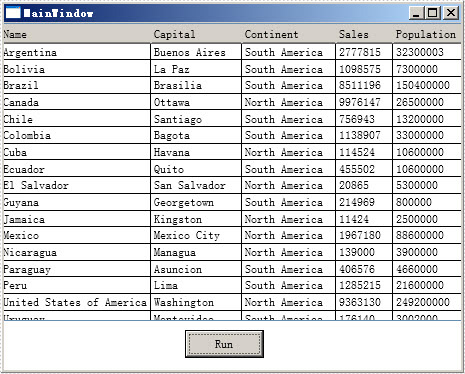
Press F5 and click "Run" in MainWindow, you can see the datatable as below picture.
Effective Screeshot:
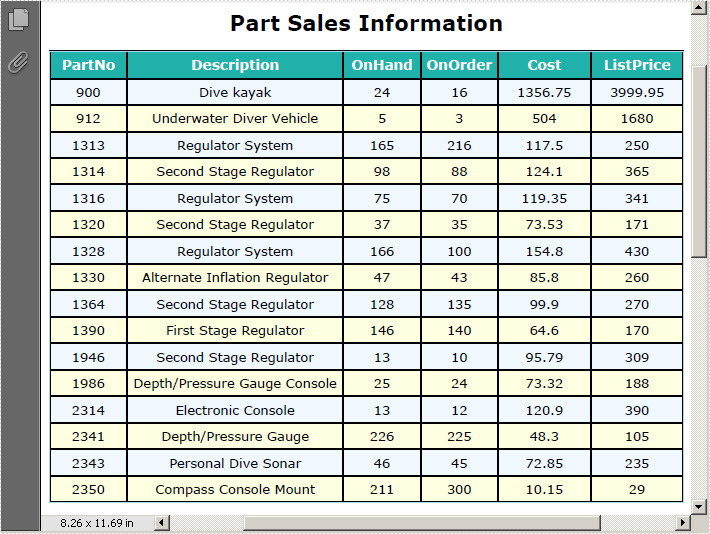
PDF Table plays a significant role of clearly displaying data information in PDF document, which cannot be replaced by words. It provides great convenience for its users. For example, a product list can be more easily recognized and checked than numerous words. Thus, it is very necessary to learn how to generate table in PDF document.
In this article, I will not only introduce users how to generate table in PDF document, but also tell you how to set table style such as font, background color and data size by using Spire.PDF for WPF.
Spire.PDF for WPF enables you to quickly realize the task of drawing a PDF table by the below steps.
Step 1: Create a new project
- Create a new project in WPF Application
- Add a button in MainWindow, and set the button Content to be "Run"
Step 2: Add references and namespaces
- Add System.Drawing and Spire.Pdf.Wpf.dll as references
- Add below namespaces at the top of the method
using System.Drawing;
using Spire.Pdf;
using Spire.Pdf.Graphics;
using Spire.Pdf.Graphics.Fonts;
using Spire.Pdf.Tables;
Imports System.Drawing
Imports Spire.Pdf
Imports Spire.Pdf.Graphics
Imports Spire.Pdf.Graphics.Fonts
Imports Spire.Pdf.Tables
Step 3: Draw table in PDF document and set the table style
Create a new PDF document and set its margin
             //create a new PDF document
            PdfDocument doc = new PdfDocument();

            PdfUnitConvertor unitCvtr = new PdfUnitConvertor();
            PdfMargins margin = new PdfMargins();
            margin.Top = unitCvtr.ConvertUnits(2.54f, PdfGraphicsUnit.Centimeter, PdfGraphicsUnit.Point);
            margin.Bottom = margin.Top;
            margin.Left = unitCvtr.ConvertUnits(3.17f, PdfGraphicsUnit.Centimeter, PdfGraphicsUnit.Point);
            margin.Right = margin.Left;

            PdfPageBase page = doc.Pages.Add(PdfPageSize.A4, margin);
            float y = 20;
           'create a new PDF document
	 Dim doc As New PdfDocument()

	 Dim unitCvtr As New PdfUnitConvertor()
	 Dim margin As New PdfMargins()
	  margin.Top = unitCvtr.ConvertUnits(2.54F, PdfGraphicsUnit.Centimeter, PdfGraphicsUnit.Point)
	  margin.Bottom = margin.Top
	  margin.Left = unitCvtr.ConvertUnits(3.17F, PdfGraphicsUnit.Centimeter, PdfGraphicsUnit.Point)
	  margin.Right = margin.Left

	  Dim page As PdfPageBase = doc.Pages.Add(PdfPageSize.A4, margin)
	  Dim y As Single = 20
Set table title and then, add data information in PDF document
           //add PDF title
            PdfBrush brush1 = PdfBrushes.Black;
            PdfTrueTypeFont font1 = new PdfTrueTypeFont(new Font("Verdana", 14f, System.Drawing.FontStyle.Bold));
            PdfStringFormat format1 = new PdfStringFormat(PdfTextAlignment.Center);
            page.Canvas.DrawString("Part Sales Information", font1, brush1, page.Canvas.ClientSize.Width / 2, y, format1);
            y = y + font1.MeasureString("Part Sales Information", format1).Height;
            y = y + 10;

            //add data information
            String[] data
         = {
        "PartNo;Description;OnHand;OnOrder;Cost;ListPrice",
        "900;Dive kayak;24;16;1356.75;3999.95",
        "912;Underwater Diver Vehicle;5;3;504;1680",
        "1313;Regulator System;165;216;117.5;250",
        "1314;Second Stage Regulator;98;88;124.1;365",
        "1316;Regulator System;75;70;119.35;341",
        "1320;Second Stage Regulator;37;35;73.53;171",
        "1328;Regulator System;166;100;154.8;430",
        "1330;Alternate Inflation Regulator;47;43;85.8;260",
        "1364;Second Stage Regulator;128;135;99.9;270",
        "1390;First Stage Regulator;146;140;64.6;170",
        "1946;Second Stage Regulator;13;10;95.79;309",
        "1986;Depth/Pressure Gauge Console;25;24;73.32;188",
        "2314;Electronic Console;13;12;120.9;390",
        "2341;Depth/Pressure Gauge;226;225;48.3;105",
        "2343;Personal Dive Sonar;46;45;72.85;235",
        "2350;Compass Console Mount;211;300;10.15;29"
            };

            String[][] dataSource
                = new String[data.Length][];
            for (int i = 0; i < data.Length; i++)
            {
                dataSource[i] = data[i].Split(';');
            }
	'add PDF title
	Dim brush1 As PdfBrush = PdfBrushes.Black
	Dim font1 As New PdfTrueTypeFont(New Font("Verdana", 14F, System.Drawing.FontStyle.Bold))
	Dim format1 As New PdfStringFormat(PdfTextAlignment.Center)
	page.Canvas.DrawString("Part Sales Information", font1, brush1, page.Canvas.ClientSize.Width / 2, y, format1)
	y = y + font1.MeasureString("Part Sales Information", format1).Height
	y = y + 10

	'add data information
	Dim data As [String]() = {"PartNo;Description;OnHand;OnOrder;Cost;ListPrice",
"900;Dive kayak;24;16;1356.75;3999.95",
"912;Underwater Diver Vehicle;5;3;504;1680",
       "1313;Regulator System;165;216;117.5;250",
       "1314;Second Stage Regulator;98;88;124.1;365",
       "1316;Regulator System;75;70;119.35;341",
       "1320;Second Stage Regulator;37;35;73.53;171",
       "1328;Regulator System;166;100;154.8;430",
       "1330;Alternate Inflation Regulator;47;43;85.8;260",
       "1364;Second Stage Regulator;128;135;99.9;270",
       "1390;First Stage Regulator;146;140;64.6;170",
       "1946;Second Stage Regulator;13;10;95.79;309",
       "1986;Depth/Pressure Gauge Console;25;24;73.32;188",
       "2314;Electronic Console;13;12;120.9;390",
       "2341;Depth/Pressure Gauge;226;225;48.3;105",
       "2343;Personal Dive Sonar;46;45;72.85;235",
       "2350;Compass Console Mount;211;300;10.15;29"}

	Dim dataSource As [String]()() = New [String](data.Length - 1)() {}
	For i As Integer = 0 To data.Length - 1
		dataSource(i) = data(i).Split(";"C)
	Next
Set PDF table style and data format
            //Set table header
            PdfTable table = new PdfTable();
            table.Style.CellPadding = 3;
            table.Style.HeaderSource = PdfHeaderSource.Rows;
            table.Style.HeaderRowCount = 1;
            table.DataSource = dataSource;
            table.Style.ShowHeader = true;

            table.Style.HeaderStyle.BackgroundBrush = PdfBrushes.LightSeaGreen;
            table.Style.HeaderStyle.Font = new PdfTrueTypeFont(new Font("Verdana", 9f, System.Drawing.FontStyle.Bold));
            table.Style.HeaderStyle.StringFormat = new PdfStringFormat(PdfTextAlignment.Center);
            table.Style.HeaderStyle.TextBrush = PdfBrushes.White;

            //Set table style and data format
            table.Style.BorderPen = new PdfPen(PdfBrushes.LightBlue, 0.5f);
            table.Style.DefaultStyle.BackgroundBrush = PdfBrushes.LightYellow;
            table.Style.DefaultStyle.Font = new PdfTrueTypeFont(new Font("Verdana", 8.5f));
            table.Style.AlternateStyle = new PdfCellStyle();
            table.Style.AlternateStyle.BackgroundBrush = PdfBrushes.AliceBlue;
            table.Style.AlternateStyle.Font = new PdfTrueTypeFont(new Font("Verdana", 8.5f));

            float width
                = page.Canvas.ClientSize.Width
                - (table.Columns.Count + 1) * table.Style.BorderPen.Width;
            table.Columns[0].Width = width * 0.1f * width;
            table.Columns[0].StringFormat
                = new PdfStringFormat(PdfTextAlignment.Center, PdfVerticalAlignment.Middle);

            table.Columns[1].Width = width * 0.28f * width;
            table.Columns[1].StringFormat
                = new PdfStringFormat(PdfTextAlignment.Center, PdfVerticalAlignment.Middle);
            table.Columns[2].Width = width * 0.1f * width;
            table.Columns[2].StringFormat
                = new PdfStringFormat(PdfTextAlignment.Center, PdfVerticalAlignment.Middle);
            table.Columns[3].Width = width * 0.1f * width;
            table.Columns[3].StringFormat
                = new PdfStringFormat(PdfTextAlignment.Center, PdfVerticalAlignment.Middle);
            table.Columns[4].Width = width * 0.12f * width;
            table.Columns[4].StringFormat
                = new PdfStringFormat(PdfTextAlignment.Center, PdfVerticalAlignment.Middle);
            table.Columns[5].Width = width * 0.12f * width;
            table.Columns[5].StringFormat
                = new PdfStringFormat(PdfTextAlignment.Center, PdfVerticalAlignment.Middle);

            PdfLayoutResult result = table.Draw(page, new PointF(0, y));
	'Set table header
	Dim table As New PdfTable()
	table.Style.CellPadding = 3
	table.Style.HeaderSource = PdfHeaderSource.Rows
	table.Style.HeaderRowCount = 1
	table.DataSource = dataSource
	table.Style.ShowHeader = True

	table.Style.HeaderStyle.BackgroundBrush = PdfBrushes.LightSeaGreen
	table.Style.HeaderStyle.Font = New PdfTrueTypeFont(New Font("Verdana", 9F, System.Drawing.FontStyle.Bold))
	table.Style.HeaderStyle.StringFormat = New PdfStringFormat(PdfTextAlignment.Center)
	table.Style.HeaderStyle.TextBrush = PdfBrushes.White

	'Set table style and data format
	table.Style.BorderPen = New PdfPen(PdfBrushes.LightBlue, 0.5F)
	table.Style.DefaultStyle.BackgroundBrush = PdfBrushes.LightYellow
	table.Style.DefaultStyle.Font = New PdfTrueTypeFont(New Font("Verdana", 8.5F))
	table.Style.AlternateStyle = New PdfCellStyle()
	table.Style.AlternateStyle.BackgroundBrush = PdfBrushes.AliceBlue
	table.Style.AlternateStyle.Font = New PdfTrueTypeFont(New Font("Verdana", 8.5F))

	Dim width As Single = page.Canvas.ClientSize.Width - (table.Columns.Count + 1) * table.Style.BorderPen.Width
	table.Columns(0).Width = width * 0.1F * width
	table.Columns(0).StringFormat = New PdfStringFormat(PdfTextAlignment.Center, PdfVerticalAlignment.Middle)

	table.Columns(1).Width = width * 0.28F * width
	table.Columns(1).StringFormat = New PdfStringFormat(PdfTextAlignment.Center, PdfVerticalAlignment.Middle)
	table.Columns(2).Width = width * 0.1F * width
	table.Columns(2).StringFormat = New PdfStringFormat(PdfTextAlignment.Center, PdfVerticalAlignment.Middle)
	table.Columns(3).Width = width * 0.1F * width
	table.Columns(3).StringFormat = New PdfStringFormat(PdfTextAlignment.Center, PdfVerticalAlignment.Middle)
	table.Columns(4).Width = width * 0.12F * width
	table.Columns(4).StringFormat = New PdfStringFormat(PdfTextAlignment.Center, PdfVerticalAlignment.Middle)
	table.Columns(5).Width = width * 0.12F * width
	table.Columns(5).StringFormat = New PdfStringFormat(PdfTextAlignment.Center, PdfVerticalAlignment.Middle)

	Dim result As PdfLayoutResult = table.Draw(page, New PointF(0, y))
Step 4: Save and Launch
            // save and launch the file
            doc.SaveToFile("SimpleTable.pdf");
            doc.Close();
            System.Diagnostics.Process.Start("SimpleTable.pdf");
	' save and launch the file
	doc.SaveToFile("SimpleTable.pdf")
	doc.Close()
	System.Diagnostics.Process.Start("SimpleTable.pdf")
Effective Screeshot: