
Knowledgebase (2417)
Children categories
For PDF security, people are more likely to encrypt PDF file by setting up to two passwords: owner password and user password. The essential difference between these two passwords is that people can fully control the document by owner password, while only can open or have to subject to some restrictions by user password. This section will introduce a solution to easily encrypt your PDF by the two passwords via Spire.PDF for WPF.
Spire.PDF for WPF is a WPF PDF component, which can encrypt your PDF not only by owner password but also by restricting nine permissions when setting user password. In the solution, these two passwords are set by an object of PDFSecurity class which is contained in the namespace Spire.PDFDocument.Security.
Before you start, please feel free to download Spire.PDF for WPF first and encrypt your PDF file by below key steps after loading it.
Step1: Set PDF password size
In this step, three kinds of key size are applicable by the enum Spire.Pdf.Security.PdfEncryptionKeySize. They are: Key128Bit, Key256Bit and Key40Bit. You can choose any of the three according to your own situation.
doc.Security.KeySize = PdfEncryptionKeySize.Key256Bit;
doc.Security.KeySize = PdfEncryptionKeySize.Key256Bit
Step 2: Secure PDF file by passwords
Owner password and user password are set to encrypt your PDF file. Please make sure that the password size should not be over the key size you set in last step.
doc.Security.OwnerPassword = "e-iceblue";
doc.Security.UserPassword = "pdf";
doc.Security.OwnerPassword = "e-iceblue"
doc.Security.UserPassword = "pdf"
Step 3: Restrict certain permissions of user password
Nine access permissions of user password can be specified in the step, you can view them as below picture:
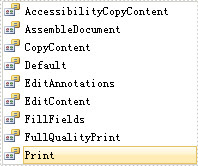
- AccessibilityCopyContent: copy accessibility content.
- AssembleDocument: assemble document permission. (Only for 128 bits key).
- CopyContent: copy content.
- Default: default value means users are authorized all permissions.
- EditAnnotations: add or modify text annotations, fill in interactive form fields.
- EditContent: edit content.
- FillFields: fill form fields. (Only for 128 bits key).
- FullQualityPrint: print document with full quality.
- Print: print document.
Here, three permissions are authorized: AccessibilityCopyContent, Print and EditAnnotations. Now, see following code:
doc.Security.Permissions = PdfPermissionsFlags.AccessibilityCopyContent | PdfPermissionsFlags.Print | PdfPermissionsFlags.EditAnnotations;
doc.Security.Permissions = PdfPermissionsFlags. AccessibilityCopyContent Or PdfPermissionsFlags. Print Or PdfPermissionsFlags.EditAnnotations
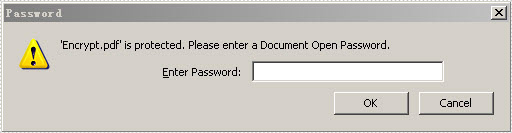
After you run the project, appears a dialog box in which you need to input password before opening the PDF document. You can look at the effective screenshot below:
This section will introduce an easy solution to convert image to PDF in WPF. In my method, image to PDF conversion is just a piece of cake since various image formats such as jpg, png and bmp, even images of gif, tif and ico can be converted to PDF through two key steps for Spire.PDF users.
Spire.PDF for WPF,a professional WPF PDF component, enables your WPF applications to read, write and manipulate PDF document without Adobe Acrobat or any third party component library. As for image to PDF conversion, apart from clearly converting images of different formats to PDF, Spire.PDF for WPF also allows you to directly load your images to PDF files from stream. Please feel free to Download Spire.PDF and give it a try following our programming guide below. The following is a picture which we will convert to PDF. At the bottom of this article, a target PDF will be presented.

Now it's time for the key procedure of image to PDF conversion. To realize the key procedure, we need below two steps.
Step 1: Load an image file from system
An image file is required in this step. The image format can be any format among jpg, png, bmp, gif, tif and ico. Here a jpg image is loaded.
//Load a jpg image from system
PdfImage image = PdfImage.FromFile(@"..\sky.jpg");
'Load a jpg image from system
Dim image As PdfImage = PdfImage.FromFile("..\sky.jpg")
Step 2: Set the image location and size to fit PDF page
Spire.PDF for WPF contains a namespace “Spire.Pdf.Graphics” in which image size and location are set through four parameters: Width/Height for image size and fitWidth/fitHeight for image location.
  //Set image display location and size in PDF
float widthFitRate = image.PhysicalDimension.Width / page.Canvas.ClientSize.Width;
float heightFitRate = image.PhysicalDimension.Height / page.Canvas.ClientSize.Height;
float fitRate = Math.Max(widthFitRate, heightFitRate);
float fitWidth = image.PhysicalDimension.Width / fitRate;
float fitHeight = image.PhysicalDimension.Height / fitRate;
page.Canvas.DrawImage(image, 30, 30, fitWidth, fitHeight);
'Set image display location and size in PDF
Dim widthFitRate As Single = image.PhysicalDimension.Width / page.Canvas.ClientSize.Width
Dim heightFitRate As Single = image.PhysicalDimension.Height / page.Canvas.ClientSize.Height
Dim fitRate As Single = Math.Max(widthFitRate, heightFitRate)
Dim fitWidth As Single = image.PhysicalDimension.Width / fitRate
Dim fitHeight As Single = image.PhysicalDimension.Height / fitRate
page.Canvas.DrawImage(image, 30, 30, fitWidth, fitHeight)
After this coding, run your application, you can find a target PDF as below.

HTML to PDF solution can be quite a few when people search on google. However, most solutions are not proper in use since what you view on webpage is not always completely same with what you get on your PDF. Some information such as dynamic image and anchor text in HTML are easily lost. This section will introduce a simple method to clearly convert HTML to PDF without any cut on WPF platform.
Spire.PDF for WPF, as a professional PDF component, allows you to clearly convert HTML to PDF only by three lines of key code on WPF platform. In the solution, you only need to load HTML file with four parameters:
- URL, the url of the webpage which will be converted to PDF file.
- Enable JavaScrpit, indicates whether enables the JavaScript of the webpage.
- Enable hyperlink, indicates whether enables the hyperlink of the webpage.
- Auto detect page break, indicates whether splits auto the web page in the result PDF file.
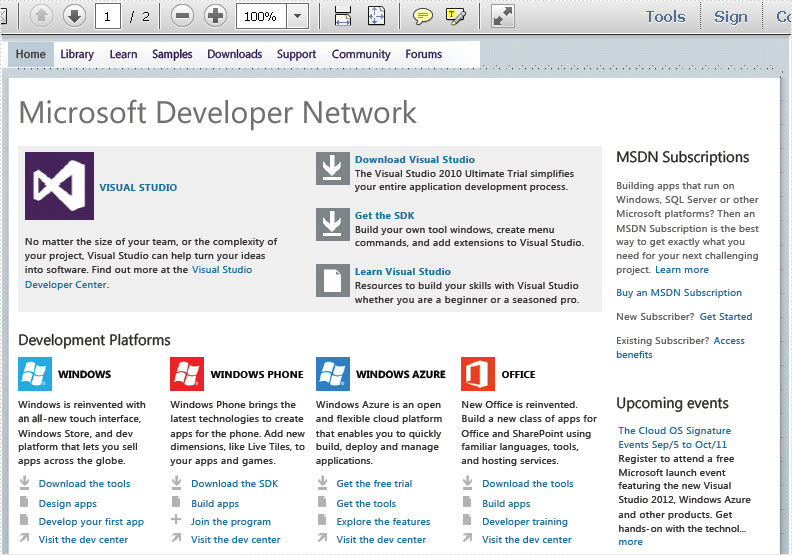
Then, save your html as PDF to file by calling the method PdfDocument.LoadFromHTM. Please preview the result screenshot of the whole project first as prove:
Before demonstrating the code, please feel free to download Spire.PDF and install it on system. Now, you can view the full code below:
using Spire.Pdf;

namespace WPFhtmltopdf
{
    ///
    /// Interaction logic for MainWindow.xaml
    ///
    public partial class MainWindow : Window
    {
        public MainWindow()
        {
            InitializeComponent();
        }
        [STAThread]
        private void button1_Click(object sender, RoutedEventArgs e)
        {

            //Create a new pdf document.
            PdfDocument doc = new PdfDocument();
            //load the webpage
            String url = "http://msdn.microsoft.com/";
            doc.LoadFromHTML(url, false, true, true);
            //Save html webpage as pdf file.
            doc.SaveToFile("sample.pdf");
            doc.Close();
        }
    }
}
Imports Spire.Pdf

Namespace WPFhtmltopdf
	'''
	''' Interaction logic for MainWindow.xaml
	'''
	Public Partial Class MainWindow
		Inherits Window
		Public Sub New()
			InitializeComponent()
		End Sub
		 _
		Private Sub button1_Click(sender As Object, e As RoutedEventArgs)

			'Create a new pdf document.
			Dim doc As New PdfDocument()
			'load the webpage
			Dim url As  = "http://msdn.microsoft.com/"
			doc.LoadFromHTML(url, False, True, True)
			'Save html webpage as pdf file.
			doc.SaveToFile("sample.pdf")
			doc.Close()
		End Sub
	End Class
End Namespace
Obviously, using this WPF PDF component, the webpage is easily converted to PDF. Both text and images are clearly shown in PDF file. Besides, Spire.PDF for WPF is a 100% secure PDF component software. No Malware, No Spyware and No Virus.
