Knowledgebase (2417)
Children categories
Digital Certificate, known as identity certificate, is an electronic document that uses a digital signature to bind together a public key with an identity. As long as the PDF digital certificate is created, it demonstrates the authority of a digital document. This section will introduce a solution to create PDF digital certificate for WPF via a WPF PDF component.
Spire.PDF for WPF , a WPF library which can fully control your PDF documents, enables you to create PDF digital certificate in a simple way. First, please see the effect of this digital certificate task as below picture:

Before viewing the code, please Download Spire.PDF for WPF and install it in system.
In this solution, first you need to load your .pfx file from system. Then, create a new instance of Spire.Pdf.Security.PdfCertificate class with two parameters passed, one is the certificate file and the other is the password of the imported .pfx file. After creating a PdfSignature class instance, you can add DocumentPermissions to be AllowComments, AllowFormFill and ForbidChanges.
When you create the PdfSignature class instance, there are four parameters. The parameter "page" enables you to choose which PDF page you decide to sign the digital certificate.
String pfxPath = @"..\Data\Demo.pfx";
PdfCertificate cert = new PdfCertificate(pfxPath, "e-iceblue");
PdfSignature signature = new PdfSignature(doc, page, cert, "demo");
signature.ContactInfo = "Harry Hu";
signature.Certificated = true;
signature.DocumentPermissions = PdfCertificationFlags.AllowFormFill;
Dim pfxPath As String = "..\Data\Demo.pfx"
Dim cert As New PdfCertificate(pfxPath, "e-iceblue")
Dim signature As New PdfSignature(doc, page, cert, "demo")
signature.ContactInfo = "Harry Hu"
signature.Certificated = True
signature.DocumentPermissions = PdfCertificationFlags.AllowFormFill
Spire.PDF for WPF enables your WPF applications to read, write and manipulate PDF documents without using Adobe Acrobat or any third party component library, click to know more about this WPF PDF component.
Image watermark can be used to beautify as well as specify your PDF document. A properly managed PDF document with suitable image watermark can both give a different feeling and show the content or background to its readers. For example, if your PDF document is about environment protection, you can insert an image related to this topic. Spire.PDF for WPF allows you to easily draw a PDF image watermark for WPF.
Before you start, please make sure that Spire.PDF for WPF (or Spire.Office for WPF) is correctly installed on your system. Please follow the below procedure to realize this task.
Step 1: Create a new project
- Create a new project in WPF Application
- Add a button in MainWindow and set the button Content property to be "Run".
- Add Spire.Pdf.Wpf.dll and System.Drawing as references. After adding the namespaces, you can view the below codes.
using System.Drawing;
using System.Drawing.Imaging;
using Spire.Pdf;
using Spire.Pdf.Graphics;
namespace WPFPDFwatermark
{
    ///
    /// Interaction logic for MainWindow.xaml
    ///
    public partial class MainWindow : Window
    {
        public MainWindow()
        {
            InitializeComponent();
        }

        private void button1_Click(object sender, RoutedEventArgs e)
        {

        }
    }
}
Imports System.Drawing
Imports System.Drawing.Imaging
Imports Spire.Pdf
Imports Spire.Pdf.Graphics
Namespace WPFPDFwatermark
	'''
	''' Interaction logic for MainWindow.xaml
	'''
	Public Partial Class MainWindow
		Inherits Window
		Public Sub New()
			InitializeComponent()
		End Sub

		Private Sub button1_Click(sender As Object, e As RoutedEventArgs)
	          End Sub
	End Class
End Namespace
Step 2: Create a new PDF document and draw image watermark in it
After creating a new PDF document and setting its margin, you need to add a page in it. And then, insert the image watermark in the page you just added.
            //Create a pdf document.
            PdfDocument doc = new PdfDocument();

            //margin
            PdfUnitConvertor unitCvtr = new PdfUnitConvertor();
            PdfMargins margin = new PdfMargins();
            margin.Top = unitCvtr.ConvertUnits(2.54f, PdfGraphicsUnit.Centimeter, PdfGraphicsUnit.Point);
            margin.Bottom = margin.Top;
            margin.Left = unitCvtr.ConvertUnits(3.17f, PdfGraphicsUnit.Centimeter, PdfGraphicsUnit.Point);
            margin.Right = margin.Left;

            // Create one page
            PdfPageBase page = doc.Pages.Add(PdfPageSize.A4, margin);
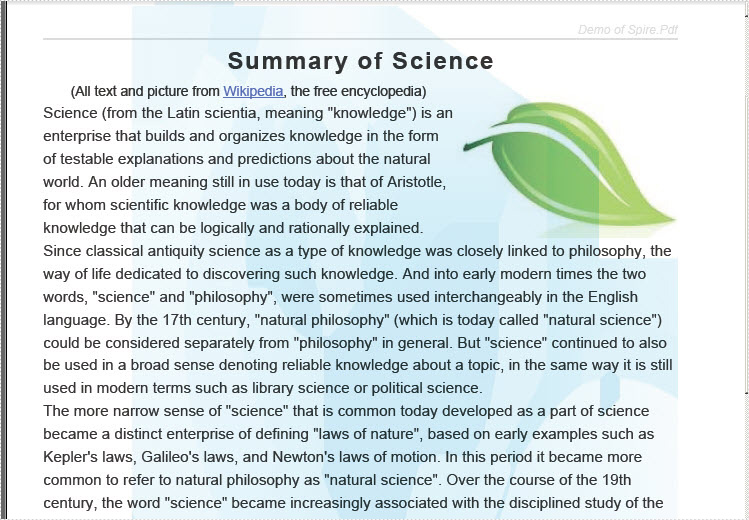
            System.Drawing.Image img = System.Drawing.Image.FromFile(@"D:\e-iceblue\Spire.PDF\Demos\Data\Backgroundimage.png");
            page.BackgroundImage = img;
	'Create a pdf document.
	Dim doc As New PdfDocument()

	'margin
	Dim unitCvtr As New PdfUnitConvertor()
	Dim margin As New PdfMargins()
	margin.Top = unitCvtr.ConvertUnits(2.54F, PdfGraphicsUnit.Centimeter, PdfGraphicsUnit.Point)
	margin.Bottom = margin.Top
	margin.Left = unitCvtr.ConvertUnits(3.17F, PdfGraphicsUnit.Centimeter, PdfGraphicsUnit.Point)
	margin.Right = margin.Left

	' Create one page
	Dim page As PdfPageBase = doc.Pages.Add(PdfPageSize.A4, margin)
	Dim img As System.Drawing.Image = System.Drawing.Image.FromFile("D:\e-iceblue\Spire.PDF\Demos\Data\Backgroundimage.png")
	page.BackgroundImage = img
Step 3: Draw page in PDF document
This step shows you to insert page header, title, icon and content in the page and set their formats. Actually, not all the PDF file must have a header or icon or reference content. So it is better to choose what you need according to your own situation.
    private static void DrawPage(PdfPageBase page)
        {
            float pageWidth = page.Canvas.ClientSize.Width;
            float y = 50;

            //page header
            PdfPen pen1 = new PdfPen(System.Drawing.Color.LightGray, 1f);
            PdfBrush brush1 = new PdfSolidBrush(System.Drawing.Color.LightGray);
            PdfTrueTypeFont font1 = new PdfTrueTypeFont(new Font("Arial", 8f, System.Drawing.FontStyle.Italic));
            PdfStringFormat format1 = new PdfStringFormat(PdfTextAlignment.Right);
            String text = "Demo of Spire.Pdf";
            page.Canvas.DrawString(text, font1, brush1, pageWidth, y, format1);
            SizeF size = font1.MeasureString(text, format1);
            y = y + size.Height + 1;
            page.Canvas.DrawLine(pen1, 0, y, pageWidth, y);

            //title
            y = y + 5;
            PdfBrush brush2 = new PdfSolidBrush(System.Drawing.Color.Black);
            PdfTrueTypeFont font2 = new PdfTrueTypeFont(new Font("Arial", 16f, System.Drawing.FontStyle.Bold));
            PdfStringFormat format2 = new PdfStringFormat(PdfTextAlignment.Center);
            format2.CharacterSpacing = 1f;
            text = "Summary of Science";
            page.Canvas.DrawString(text, font2, brush2, pageWidth / 2, y, format2);
            size = font2.MeasureString(text, format2);
            y = y + size.Height + 6;

            //icon
            PdfImage image = PdfImage.FromFile(@"D:\e-iceblue\Spire.PDF\Demos\Data\leaf.jpg");
            page.Canvas.DrawImage(image, new PointF(pageWidth - image.PhysicalDimension.Width, y));
            float imageLeftSpace = pageWidth - image.PhysicalDimension.Width - 2;
            float imageBottom = image.PhysicalDimension.Height + y;

            //refenrence content
            PdfTrueTypeFont font3 = new PdfTrueTypeFont(new Font("Arial", 9f));
            PdfStringFormat format3 = new PdfStringFormat();
            format3.ParagraphIndent = font3.Size * 2;
            format3.MeasureTrailingSpaces = true;
            format3.LineSpacing = font3.Size * 1.5f;
            String text1 = "(All text and picture from ";
            String text2 = "Wikipedia";
            String text3 = ", the free encyclopedia)";
            page.Canvas.DrawString(text1, font3, brush2, 0, y, format3);

            size = font3.MeasureString(text1, format3);
            float x1 = size.Width;
            format3.ParagraphIndent = 0;
            PdfTrueTypeFont font4 = new PdfTrueTypeFont(new Font("Arial", 9f,System.Drawing. FontStyle.Underline));
            PdfBrush brush3 = PdfBrushes.Blue;
            page.Canvas.DrawString(text2, font4, brush3, x1, y, format3);
            size = font4.MeasureString(text2, format3);
            x1 = x1 + size.Width;

            page.Canvas.DrawString(text3, font3, brush2, x1, y, format3);
            y = y + size.Height;

            //content
            PdfStringFormat format4 = new PdfStringFormat();
            text = System.IO.File.ReadAllText(@"D:\e-iceblue\Spire.PDF\Demos\Data\Summary_of_Science.txt");
            PdfTrueTypeFont font5 = new PdfTrueTypeFont(new Font("Arial", 10f));
            format4.LineSpacing = font5.Size * 1.5f;
            PdfStringLayouter textLayouter = new PdfStringLayouter();
            float imageLeftBlockHeight = imageBottom - y;
            PdfStringLayoutResult result
                = textLayouter.Layout(text, font5, format4, new SizeF(imageLeftSpace, imageLeftBlockHeight));
            if (result.ActualSize.Height < imageBottom - y)
            {
                imageLeftBlockHeight = imageLeftBlockHeight + result.LineHeight;
                result = textLayouter.Layout(text, font5, format4, new SizeF(imageLeftSpace, imageLeftBlockHeight));
            }
            foreach (LineInfo line in result.Lines)
            {
                page.Canvas.DrawString(line.Text, font5, brush2, 0, y, format4);
                y = y + result.LineHeight;
            }
            PdfTextWidget textWidget = new PdfTextWidget(result.Remainder, font5, brush2);
            PdfTextLayout textLayout = new PdfTextLayout();
            textLayout.Break = PdfLayoutBreakType.FitPage;
            textLayout.Layout = PdfLayoutType.Paginate;
            RectangleF bounds = new RectangleF(new PointF(0, y), page.Canvas.ClientSize);
            textWidget.StringFormat = format4;
            textWidget.Draw(page, bounds, textLayout);
        }
Private Shared Sub DrawPage(page As PdfPageBase)
	Dim pageWidth As Single = page.Canvas.ClientSize.Width
	Dim y As Single = 50

	'page header
	Dim pen1 As New PdfPen(System.Drawing.Color.LightGray, 1F)
	Dim brush1 As PdfBrush = New PdfSolidBrush(System.Drawing.Color.LightGray)
	Dim font1 As New PdfTrueTypeFont(New Font("Arial", 8F, System.Drawing.FontStyle.Italic))
	Dim format1 As New PdfStringFormat(PdfTextAlignment.Right)
	Dim text As [String] = "Demo of Spire.Pdf"
	page.Canvas.DrawString(text, font1, brush1, pageWidth, y, format1)
	Dim size As SizeF = font1.MeasureString(text, format1)
	y = y + size.Height + 1
	page.Canvas.DrawLine(pen1, 0, y, pageWidth, y)

	'title
	y = y + 5
	Dim brush2 As PdfBrush = New PdfSolidBrush(System.Drawing.Color.Black)
	Dim font2 As New PdfTrueTypeFont(New Font("Arial", 16F, System.Drawing.FontStyle.Bold))
	Dim format2 As New PdfStringFormat(PdfTextAlignment.Center)
	format2.CharacterSpacing = 1F
	text = "Summary of Science"
	page.Canvas.DrawString(text, font2, brush2, pageWidth / 2, y, format2)
	size = font2.MeasureString(text, format2)
	y = y + size.Height + 6

	'icon
	Dim image As PdfImage = PdfImage.FromFile("D:\e-iceblue\Spire.PDF\Demos\Data\leaf.jpg")
	page.Canvas.DrawImage(image, New PointF(pageWidth - image.PhysicalDimension.Width, y))
	Dim imageLeftSpace As Single = pageWidth - image.PhysicalDimension.Width - 2
	Dim imageBottom As Single = image.PhysicalDimension.Height + y

	'refenrence content
	Dim font3 As New PdfTrueTypeFont(New Font("Arial", 9F))
	Dim format3 As New PdfStringFormat()
	format3.ParagraphIndent = font3.Size * 2
	format3.MeasureTrailingSpaces = True
	format3.LineSpacing = font3.Size * 1.5F
	Dim text1 As [String] = "(All text and picture from "
	Dim text2 As [String] = "Wikipedia"
	Dim text3 As [String] = ", the free encyclopedia)"
	page.Canvas.DrawString(text1, font3, brush2, 0, y, format3)

	size = font3.MeasureString(text1, format3)
	Dim x1 As Single = size.Width
	format3.ParagraphIndent = 0
	Dim font4 As New PdfTrueTypeFont(New Font("Arial", 9F, System.Drawing.FontStyle.Underline))
	Dim brush3 As PdfBrush = PdfBrushes.Blue
	page.Canvas.DrawString(text2, font4, brush3, x1, y, format3)
	size = font4.MeasureString(text2, format3)
	x1 = x1 + size.Width

	page.Canvas.DrawString(text3, font3, brush2, x1, y, format3)
	y = y + size.Height

	'content
	Dim format4 As New PdfStringFormat()
	text = System.IO.File.ReadAllText("D:\e-iceblue\Spire.PDF\Demos\Data\Summary_of_Science.txt")
	Dim font5 As New PdfTrueTypeFont(New Font("Arial", 10F))
	format4.LineSpacing = font5.Size * 1.5F
	Dim textLayouter As New PdfStringLayouter()
	Dim imageLeftBlockHeight As Single = imageBottom - y
	Dim result As PdfStringLayoutResult = textLayouter.Layout(text, font5, format4, New SizeF(imageLeftSpace, imageLeftBlockHeight))
	If result.ActualSize.Height < imageBottom - y Then
		imageLeftBlockHeight = imageLeftBlockHeight + result.LineHeight
		result = textLayouter.Layout(text, font5, format4, New SizeF(imageLeftSpace, imageLeftBlockHeight))
	End If
	For Each line As LineInfo In result.Lines
		page.Canvas.DrawString(line.Text, font5, brush2, 0, y, format4)
		y = y + result.LineHeight
	Next
	Dim textWidget As New PdfTextWidget(result.Remainder, font5, brush2)
	Dim textLayout As New PdfTextLayout()
	textLayout.Break = PdfLayoutBreakType.FitPage
	textLayout.Layout = PdfLayoutType.Paginate
	Dim bounds As New RectangleF(New PointF(0, y), page.Canvas.ClientSize)
	textWidget.StringFormat = format4
	textWidget.Draw(page, bounds, textLayout)
End Sub
Step 4: Save and launch the file
            //Save pdf file.
            doc.SaveToFile("ImageWaterMark.pdf");
            doc.Close();
            //Launching the Pdf file.
            System.Diagnostics.Process.Start("ImageWaterMark.pdf");
	'Save pdf file.
	doc.SaveToFile("ImageWaterMark.pdf")
	doc.Close()
	'Launching the Pdf file.
	System.Diagnostics.Process.Start("ImageWaterMark.pdf")
Effective Screeshot:
Excel background color is a very useful property when we need to demonstrate data for special purpose. That is also a basic feature for any Excel solution developer. Here will demonstrate how to design Excel background color regardless whether Microsoft Excel is installed on your system or not. Spire.Xls for WPF is a professional component for directly managing Excel operations. With it you can easily and fast set Excel background color in WPF.
Spire.Xls for WPF is always welcome to any kind of trial and evaluation. So now please feel free to download Spire.Xls for WPF and then follow our guide to easily set Excel background color in WPF or try other function of Spire.Xls for WPF.
Friendly Reminder:
- Before we code to set Excel background color in WPF, please add spire.xls dll as reference by Clicking Project → Add Reference → Browse → Choose the folder contains Spire.XLS for WPF → Bin → .NET 4.0.
- Please make sure the namespace-Spire.Xls being imported.
Next we will demonstrate the how to set Excel background color in WPF within just 3 Steps.
Step 1: Load Excel in WPF
Spire.XLS for WPF enables users directly loading Excel file or create a new Excel. We will load an Excel in this step and later set its background color in WPF. Please check the code examples below.
Workbook workbook = new Workbook();
workbook.LoadFromFile(@"..\test.xls", ExcelVersion.Version97to2003);
Dim workbook As New Workbook()
workbook.LoadFromFile("..\test.xls", ExcelVersion.Version97to2003)
Step 2: Set Excel background color in WPF
In this step, we will set the background color of the Excel which we just loaded above. With Spire.Xls for WPF, developers only need few lines of codes to freely set background colors in Excel. Please check the following example.
Worksheet worksheet = workbook.Worksheets[0];
//set the backgroundcolor=LightBlue of Range["A2:E9"]
worksheet.Range["A2:E9"].Style.Color = Color.LightBlue;
//set the backgroundcolor=Silver of Range["A11:E18"]
worksheet.Range["A11:E18"].Style.Color = Color.Silver;
Dim worksheet As Worksheet = workbook.Worksheets(0)
'set the backgroundcolor=LightBlue of Range["A2:E9"]
worksheet.Range("A2:E9").Style.Color = Color.LightBlue
'set the backgroundcolor=Silver of Range["A11:E18"]
worksheet.Range("A11:E18").Style.Color = Color.Silver
Step 3: Save and preview
Now we will use the following codes to save and preview our work.
workbook.SaveToFile("sample.xls", ExcelVersion.Version97to2003);
System.Diagnostics.Process.Start(workbook.FileName);
workbook.SaveToFile("sample.xls", ExcelVersion.Version97to2003)
System.Diagnostics.Process.Start(workbook.FileName)
We have successfully set Excel background color in WPF, now press F5 to run this application and you will see the different background color we set. Below is an effective screenshot, please have a check: