
Knowledgebase (2417)
Children categories
During software development, developers may need to convert Word to HTML. Different from many available ways on Internet, in this example, the solution for converting Word to HTML enables WPF developers load a predefined Doc, Docx, or RTF document, fill it with data, convert the document to HTML.
Spire.Doc for WPF is a professional component specializing in manipulating Word document for WPF. To convert a Word to HTML simply in WPF, developers need to invoke document.LoadFromFile(), which is used to load document and document.SaveToFile(), which is used to convert document.
The following screenshot shows parts of contents of original Word document. The target HTML is at the bottom after this coding. It is shown in Firefox, same as the original document.

Download and install Spire.Doc for WPF on your system. Then, add a button in MainWindow and double click it to use the following code to convert Word to HTML in WPF
using Spire.Doc;
using System.Windows;

namespace WpfApplication1
{
    public partial class MainWindow : Window
    {
        public MainWindow()
        {
            InitializeComponent();
        }
        private void button1_Click(object sender, RoutedEventArgs e)
        {
            //Load Document
            Document document = new Document();
            document.LoadFromFile(@"E:\work\Documents\Humor Them.docx");

            //Convert to HTML
            document.SaveToFile("ToHTML.html", FileFormat.Html);

            //Launch Document
            System.Diagnostics.Process.Start("ToHTML.html");

        }


    }
}
Imports Spire.Doc
Imports System.Windows

Namespace WpfApplication1
	Public Partial Class MainWindow
		Inherits Window
		Public Sub New()
			InitializeComponent()
		End Sub
		Private Sub button1_Click(sender As Object, e As RoutedEventArgs)
			'Load Document
			Dim document As New Document()
			document.LoadFromFile("E:\work\Documents\Humor Them.docx")

			'Convert to HTML
			document.SaveToFile("ToHTML.html", FileFormat.Html)

			'Launch Document
			System.Diagnostics.Process.Start("ToHTML.html")

		End Sub


	End Class
End Namespace
After running, you can get the result as following:

Spire.Doc is an Microsoft Word component which enables users to perform a wide range of Word document processing tasks directly, such as generate, read, write and modify Word document in WPF, .NET and Silverlight.
Software developers are often asked to find a way to convert Microsoft Excel into PDF as PDF files are widely used for exchanging documents between organizations, government sectors and individuals. This solution demonstrates a way of converting Excel to PDF for WPF developers and maintains high visual fidelity in the conversion.
Spire.XLS for WPF is a WPF Excel component which enables your WPF applications to fast generate, read, write and modify Excel document without Microsoft Office Excel Automation. It also fully supports converting files from Excel to PDF, Excel to HTML, Excel to CSV, Excel to Text, Excel to Image and Excel to XML. All the conversion is independent of any other software.
Any kind of trial and evaluation is always welcomed. Please feel free to download Spire.XLS for WPF to have a trial and convert your Excel to PDF for personal use. Below is a screenshot of the source Excel file we load in this demo. At the end, a screenshot of PDF will be demonstrated for comparison with the source Excel file.
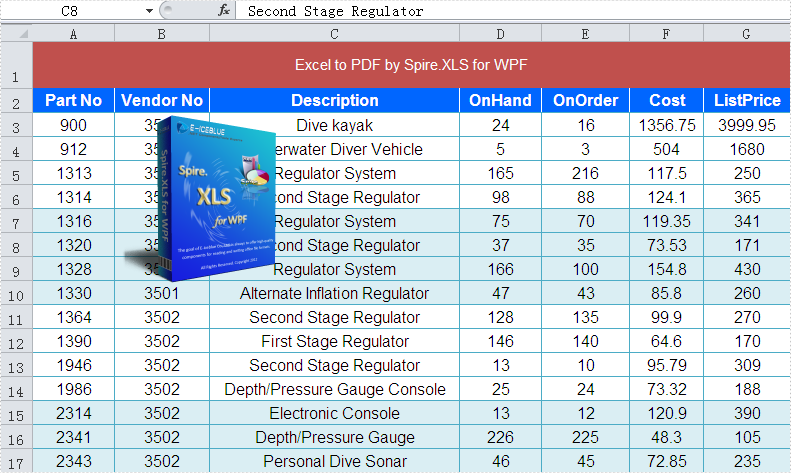
Now this is the key procedure for converting Excel to PDF in WPF.
Step 1: Load Excel file or Create Excel from scratch.
In this step, instantiate an object of the Workbook class by calling its empty constructor and then you may open/load an existing template file or skip this step if you are creating the workbook from scratch.
// load Excel file
Workbook workbook = new Workbook();
workbook.LoadFromFile("D:\\test.xlsx");
[VB.NET]
' load Excel file
Dim workbook As New Workbook()
workbook.LoadFromFile("D:\test.xlsx")
Step 2: Set PDF template.
In this step, we will set PDF template which will be used below.
// Set PDF template
PdfDocument pdfDocument = new PdfDocument();
pdfDocument.PageSettings.Orientation = PdfPageOrientation.Landscape;
pdfDocument.PageSettings.Width = 970;
pdfDocument.PageSettings.Height = 850;
' Set PDF template
Dim pdfDocument As New PdfDocument()
pdfDocument.PageSettings.Orientation = PdfPageOrientation.Landscape
pdfDocument.PageSettings.Width = 970
pdfDocument.PageSettings.Height = 850
Step 3: Convert Excel to PDF in WPF.
Now we will use the template which we have already set above to convert Excel to PDF in WPF.
//Convert Excel to PDF using the template above
PdfConverter pdfConverter = new PdfConverter(workbook);
PdfConverterSettings settings = new PdfConverterSettings();
settings.TemplateDocument = pdfDocument;
pdfDocument = pdfConverter.Convert(settings);
'Convert Excel to PDF using the template above
Dim pdfConverter As New PdfConverter(workbook)
Dim settings As New PdfConverterSettings()
settings.TemplateDocument = pdfDocument
pdfDocument = pdfConverter.Convert(settings)
Step 4: Save and preview PDF.
Please use the codes below to save and preview PDF.
// Save and preview PDF
pdfDocument.SaveToFile("sample.pdf");
System.Diagnostics.Process.Start("sample.pdf");
' Save and preview PDF
pdfDocument.SaveToFile("sample.pdf")
System.Diagnostics.Process.Start("sample.pdf")
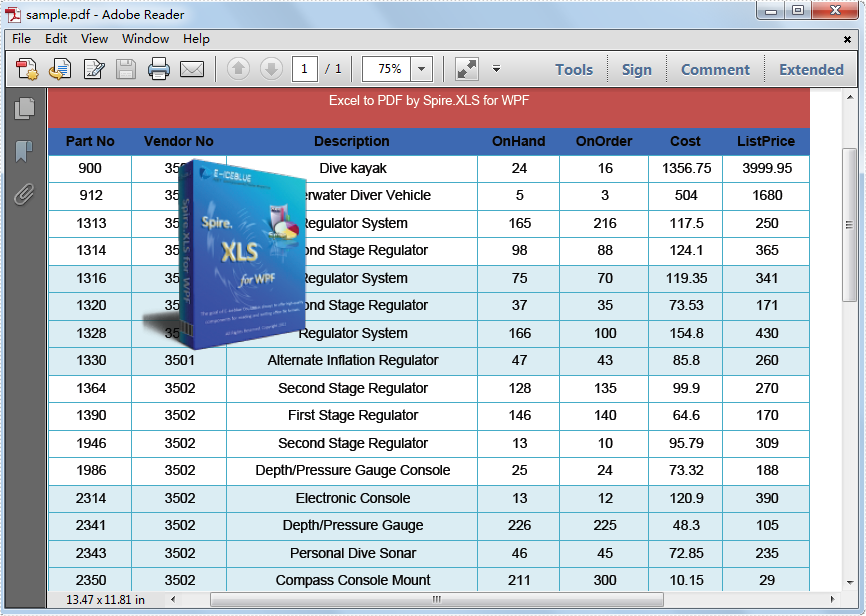
The picture below is a screenshot of the PDF, Please see:
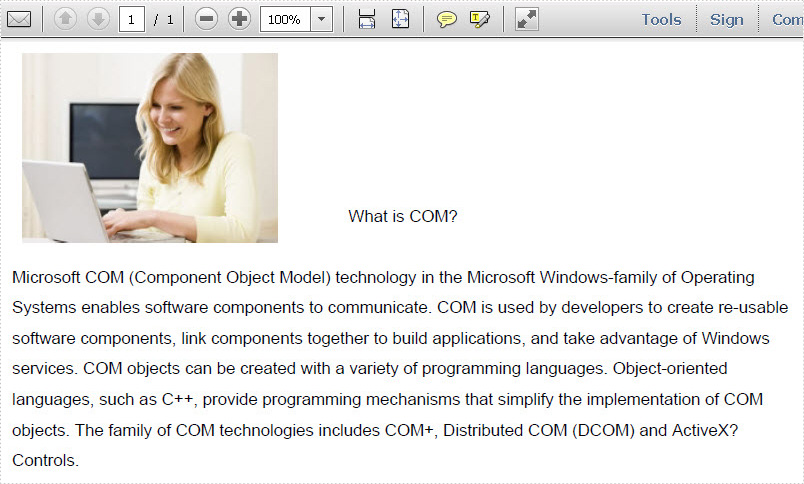
doc.LoadFromFile(@"..\Sample.pdf");
System.Drawing.Image image = System.Drawing.Image.FromFile(@"..\MS.jpg");
doc.LoadFromFile("..\Sample.pdf")
Dim image As System.Drawing.Image = System.Drawing.Image.FromFile("..\MS.jpg")
//adjust image size
int width = image.Width;
int height = image.Height;
float schale = 0.7f;
System.Drawing.Size size = new System.Drawing.Size((int)(width * schale), (int)(height * schale));
Bitmap schaleImage = new Bitmap(image, size);
//draw image into the first PDF page at specific position
PdfImage pdfImage = PdfImage.FromImage(schaleImage);
PdfPageBase page0 = doc.Pages[0];
PointF position = new PointF((page0.Canvas.ClientSize.Width - schaleImage.Width) / 8, 10);
page0.Canvas.DrawImage(pdfImage, position);
'adjust image size
Dim width As Integer = image.Width
Dim height As Integer = image.Height
Dim schale As Single = 0.7F
Dim size As New System.Drawing.Size(CInt(Math.Truncate(width * schale)), CInt(Math.Truncate(height * schale)))
Dim schaleImage As New Bitmap(image, size)
'draw image into the first PDF page at specific position
Dim pdfImage__1 As PdfImage = PdfImage.FromImage(schaleImage)
Dim page0 As PdfPageBase = doc.Pages(0)
Dim position As New PointF((page0.Canvas.ClientSize.Width - schaleImage.Width) / 8, 10)
page0.Canvas.DrawImage(pdfImage__1, position)
