
Knowledgebase (2417)
Children categories
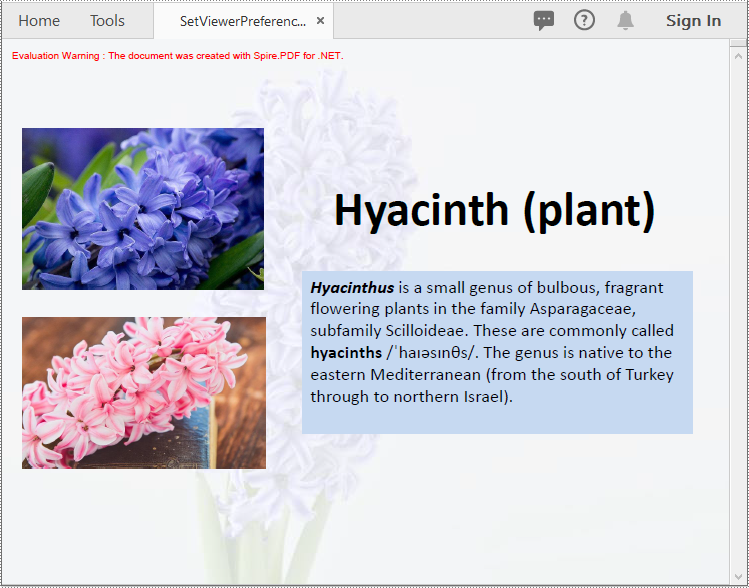
Optimizing the viewer preferences and zoom factors is crucial for improving the viewing experience of PDF documents. By using the appropriate viewer preferences and zoom factors, you can make your PDF documents more user-friendly, viewable and suitable for different devices and platforms. In this article, we will demonstrate how to set viewer preferences and zoom factors for PDF documents in C# and VB.NET using Spire.PDF for .NET.
Install Spire.PDF for .NET
To begin with, you need to add the DLL files included in the Spire.PDF for.NET package as references in your .NET project. The DLL files can be either downloaded from this link or installed via NuGet.
PM> Install-Package Spire.PDF
Set Viewer Preferences for PDF in C# and VB.NET
Viewer preferences are settings that can be applied to a PDF document to control how it is displayed when it is opened in a PDF viewer. These preferences can affect various aspects of the viewing experience, such as the initial view, page layout, and navigation tabs.
To set the viewer preference for a PDF document using Spire.PDF for .NET, you can follow these steps:
- Initialize an instance of PdfDocument class.
- Load a PDF document using PdfDocument.LoadFromFile() method.
- Get the PdfViewerPreferences object.
- Set viewer preference for the document using the properties provided by the PdfViewerPreferences class.
- Save the result document using PdfDocument.SaveToFile() method.
- C#
- VB.NET
using Spire.Pdf;

namespace SetViewerPreference
{
    internal class Program
    {
        static void Main(string[] args)
        {
            //Initialize an instance of PdfDocument class
            PdfDocument pdf = new PdfDocument();
            //Load a PDF document
            pdf.LoadFromFile(@"Example.pdf");

            //Get the PdfViewerPreferences object
            PdfViewerPreferences viewerPreferences = pdf.ViewerPreferences;

            //Set viewer preference
            viewerPreferences.FitWindow = false;
            viewerPreferences.HideMenubar = true;
            viewerPreferences.HideToolbar = true;
            viewerPreferences.CenterWindow= true;
            viewerPreferences.DisplayTitle = false;
            viewerPreferences.PageLayout = PdfPageLayout.SinglePage;
            viewerPreferences.PageMode = PdfPageMode.UseNone;

            //Save the result document
            pdf.SaveToFile("SetViewerPreference.pdf");
            pdf.Close();
        }
    }
}
Set Zoom Factors for PDF in C# and VB.NET
The zoom factor determines the zoom level of the PDF document when it is opened. By default, most PDF viewers set the zoom factor to "Fit Page," which scales the document to fit the width of the viewer window. However, you can also set a specific zoom factor, such as 60%, 150% or 200%, depending on your needs.
To set the zoom factor for a PDF document using Spire.PDF for .NET, you can follow these steps:
- Initialize an instance of PdfDocument class.
- Load a PDF document using PdfDocument.LoadFromFile() method.
- Get a specific page using PdfDocument.Pages[int index] property.
- Initialize an instance of the PdfDestination class.
- Set the destination mode, location and zoom factor using PdfDestination.Mode and PdfDestination.Location and PdfDestination.Zoom properties.
- Initialize an instance of the PdfGoToAction class and pass the PdfDestination instance to the constructor of the class as a parameter.
- Set the action to be executed when the document is opened using PdfDocument.AfterOpenAction property.
- Save the result document using PdfDocument.SaveToFile() method.
- C#
- VB.NET
using Spire.Pdf;
using Spire.Pdf.Actions;
using Spire.Pdf.General;
using System.Drawing;

namespace SetZoomFactor
{
    internal class Program
    {
        static void Main(string[] args)
        {
            //Initialize an instance of the PdfDocument class
            PdfDocument pdf = new PdfDocument();
            //Load a PDF document
            pdf.LoadFromFile(@"Example.pdf");

            //Get the first page
            PdfPageBase page = pdf.Pages[0];

            //Initialize an instance of the PdfDestination class
            PdfDestination dest = new PdfDestination(page);
            //Set the destination mode
            dest.Mode = PdfDestinationMode.Location;
            //Set the destination location
            dest.Location = new PointF(40f, 40f);
            //Set the zoom factor
            dest.Zoom = 1.5f;

            //Initialize an instance of the PdfGoToAction class
            PdfGoToAction gotoAction = new PdfGoToAction(dest);
            //Set the action to be executed when the document is opened
            pdf.AfterOpenAction = gotoAction;

            //Save the result document
            pdf.SaveToFile("SetZoomFactor.pdf");
            pdf.Close();
        }
    }
}

Apply for a Temporary License
If you'd like to remove the evaluation message from the generated documents, or to get rid of the function limitations, please request a 30-day trial license for yourself.
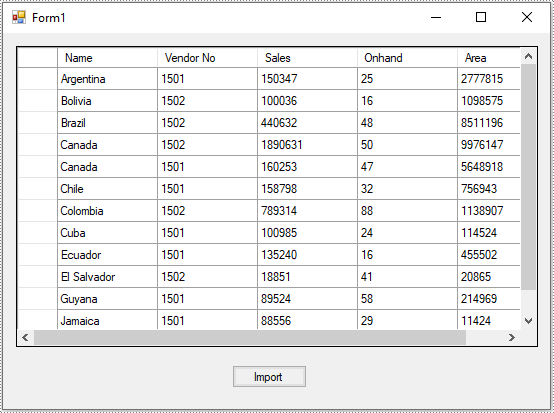
A DataTable represents a table of in-memory relational data. It can be populated from a data source like Microsoft SQL Server or from a file like CSV or Excel. In this article, you will learn how to populate DataTable from CSV, or in other words, how to convert CSV to DataTable in C# and VB.NET using Spire.XLS for .NET.
Install Spire.XLS for .NET
To begin with, you need to add the DLL files included in the Spire.XLS for .NET package as references in your .NET project. The DLL files can be either downloaded from this link or installed via NuGet.
PM> Install-Package Spire.XLS
Convert CSV to DataTable in C# and VB.NET
The following are the main steps to convert CSV to DataTable:
- Initialize an instance of Workbook class.
- Load a CSV file using Workbook.LoadFromFile() method and passing the file path and the delimiter/separator of the CSV file in the form of string as parameters.
- Get the desired worksheet by its index (zero-based) through Workbook.Worksheets[sheetIndex] property.
- Export data from the worksheet to a DataTable using Worksheet.ExportDataTable() method.
(The ExportDataTable() method has several overloads that can be used to control how the data will be exported, for example, ExportDataTable(CellRange range, bool exportColumnNames, bool computedFormulaValue): this overload allows you to specify the range to be exported along with whether to export columns names and calculated values of formulas.
- C#
- VB.NET
using Spire.Xls;
using System;
using System.Data;
using System.Windows.Forms;

namespace ConvertCsvToExcel
{
    public partial class Form1 : Form
    {
        public Form1()
        {
            InitializeComponent();
        }

        private void button1_Click(object sender, EventArgs e)
        {
            //Create a Workbook instance
            Workbook workbook = new Workbook();
            //Load a CSV file
            workbook.LoadFromFile(@"C:\Users\Administrator\Desktop\Input.csv", ",");

            //Get the first worksheet
            Worksheet worksheet = workbook.Worksheets[0];

            //Export data from the worksheet to a DataTable
            DataTable dt = worksheet.ExportDataTable();

            //This overload enables you to specify the range to be exported along with whether to export column names and calculated values of formulas
            //DataTable dt = worksheet.ExportDataTable(worksheet.Range["A1:C10"], true, true);

            //Show the DataTable in a DataGridView control (optional)
            dataGridView1.DataSource = dt;
        }
    }
}
Apply for a Temporary License
If you'd like to remove the evaluation message from the generated documents, or to get rid of the function limitations, please request a 30-day trial license for yourself.
This section will show you an easy solution to quickly export datatable from database to Excel via an Excel .NET component in C#, VB.NET.
Spire.XLS for .NET enables you to both export datatable to excel and import excel to datatable. This solution shows you two lines of key souce code for exporting data from datatable to Excel. One is XlsWorksheet.InsertDataTable(System.Data.DataTable dataTable, bool columnHeaders, int firstRow, int firstColumn) which is responsible for importing the data into worksheet. The other is Workbook.SaveToFile(string fileName) that is called to save the workbook to Excel file.

Here you can download Spire.XLS for .NET and start to perform the datatable to Excel task by below code.
Sample code:
private void button1_Click(object sender, EventArgs e)
        {
            //connect database
            OleDbConnection connection = new OleDbConnection();
            connection.ConnectionString @"Provider=""Microsoft.Jet.OLEDB.4.0"";Data Source=""demo.mdb"";User Id=;Password="
            OleDbCommand command = new OleDbCommand();
            command.CommandText = "select * from parts";
            DataSet dataSet = new System.Data.DataSet();
            OleDbDataAdapter dataAdapter = new OleDbDataAdapter(command.CommandText,connection);
            dataAdapter.Fill(dataSet);
            DataTable t = dataSet.Tables[0];
            //export datatable to excel
            Workbook book = new Workbook();
            Worksheet sheet = book.Worksheets[0];
            sheet.InsertDataTable(t, true, 1, 1);
            book.SaveToFile("insertTableToExcel.xls",ExcelVersion.Version97to2003);
            System.Diagnostics.Process.Start("insertTableToExcel.xls");
        }
Private Sub Button1_Click(sender As System.Object, e As System.EventArgs) Handles Button1.Click
        //connect database
        Dim connection As OleDbConnection = New OleDbConnection
        connection.ConnectionString = “Provider=””Microsoft.Jet.OLEDB.4.0””;
Data Source=""demo.mdb""; User Id=;Password="
        Dim command As OleDbCommand = New OleDbCommand
        command.CommandText = "select * from parts"
        Dim dataSet As DataSet = New System.Data.DataSet
        Dim dataAdapter As OleDbDataAdapter = New OleDbDataAdapter(command.CommandText, connection)
        dataAdapter.Fill(dataSet)
        Dim t As DataTable = dataSet.Tables(0)
        //export datatable to excel
        Dim book As Workbook = New Workbook
        Dim sheet As Worksheet = book.Worksheets(0)
        sheet.InsertDataTable(t, True, 1, 1)
        book.SaveToFile("insertTableToExcel.xls",ExcelVersion.Version97to2003)
        System.Diagnostics.Process.Start("insertTableToExcel.xls")
    End Sub
End Class
