
Knowledgebase (2417)
Children categories
A text box is a movable, resizable container for storing text or images. In Word documents, you can insert text boxes as sidebars or to bring focus to some important text, such as headings or quotes. Occasionally, you may also need to delete some mistakenly added text boxes. In this article, you will learn how to programmatically insert or remove a text box in a Word document using Spire.Doc for .NET.
Install Spire.Doc for .NET
To begin with, you need to add the DLL files included in the Spire.Doc for .NET package as references in your .NET project. The DLLs files can be either downloaded from this link or installed via NuGet.
PM> Install-Package Spire.Doc
Insert a Text Box in a Word Document
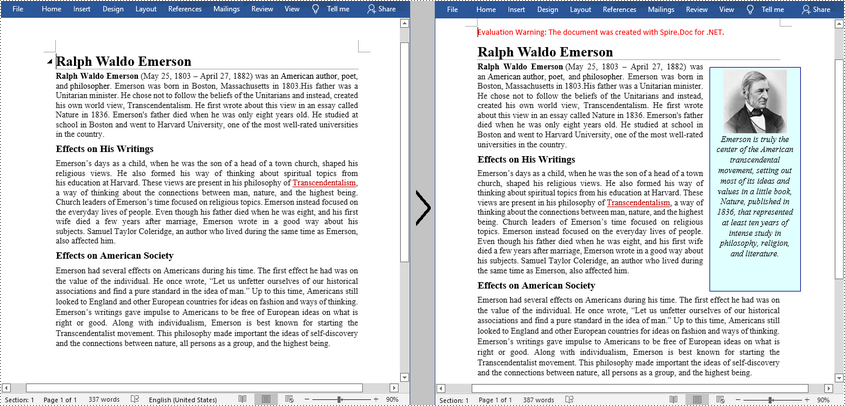
Spire.Doc for .NET provides the Paragraph.AppendTextBox(float width, float height) method to insert a text box in a specified paragraph. After the text box is inserted, Spire.Doc for .NET also provides the TextBox class for users to format the text box by setting its properties, such as Format, Body etc. The detailed steps are as follows.
- Create a Document instance, and then load a sample Word document using Document.LoadFromFile() method.
- Get the first section using Document.Sections[] property, and then add a paragraph to the section using Section.AddParagraph() method.
- Add a text box to the paragraph using Paragraph.AppendTextBox(float width, float height) method.
- Get the format of the text box using TextBox.Format property, and then set the text box's wrapping type, position, border color and fill color using the properties of TextBoxFormat Class.
- Add a paragraph to the text box using TextBox.Body.AddParagraph() method, and then set its alignment.
- Insert an image to the paragraph using Paragraph.AppendPicture() method, and then set the size of the inserted image.
- Insert text to the text box using Paragraph.AppendText() method, and then set the text font.
- Save the document to another file using Document.SaveToFile() method.
- C#
- VB.NET
using Spire.Doc;
using Spire.Doc.Documents;
using Spire.Doc.Fields;
using System.Drawing;

namespace InsertTextbox
{
    class Program
    {
        static void Main(string[] args)
        {
            //Create a Document instance
            Document document = new Document();

            //Load a sample Word document
            document.LoadFromFile("Ralph.docx");

            //Insert a textbox and set its wrapping style
            TextBox TB = document.Sections[0].AddParagraph().AppendTextBox(130, 320);
            TB.Format.TextWrappingStyle = TextWrappingStyle.Square;

            //Set the position of the textbox
            TB.Format.HorizontalOrigin = HorizontalOrigin.RightMarginArea;
            TB.Format.HorizontalPosition = -100;
            TB.Format.VerticalOrigin = VerticalOrigin.Page;
            TB.Format.VerticalPosition = 130f;

            //Set the border style and fill color of the textbox
            TB.Format.LineColor = Color.DarkBlue;
            TB.Format.FillColor = Color.LightCyan;

            //Insert an image to textbox as a paragraph
            Paragraph para = TB.Body.AddParagraph();
            DocPicture picture = para.AppendPicture(@"C:\Users\Administrator\Desktop\Ralph.jpg");

            //Set alignment for the paragraph
            para.Format.HorizontalAlignment = HorizontalAlignment.Center;

            //Set the size of the inserted image
            picture.Height = 90;
            picture.Width = 90;


            //Insert text to textbox as the second paragraph
            TextRange TR = para.AppendText("Emerson is truly the center of the American transcendental movement, "
                + "setting out most of its ideas and values in a little book, Nature, published in 1836, "
                + "that represented at least ten years of intense study in philosophy, religion, and literature.");

            //Set alignment for the paragraph
            para.Format.HorizontalAlignment = HorizontalAlignment.Center;

            //Set the font of the text
            TR.CharacterFormat.FontName = "Times New Roman";
            TR.CharacterFormat.FontSize = 12;
            TR.CharacterFormat.Italic = true;

            //Save the result file
            document.SaveToFile("AddTextBox.docx", FileFormat.Docx);
        }
    }
}
Remove a Text Box from a Word Document
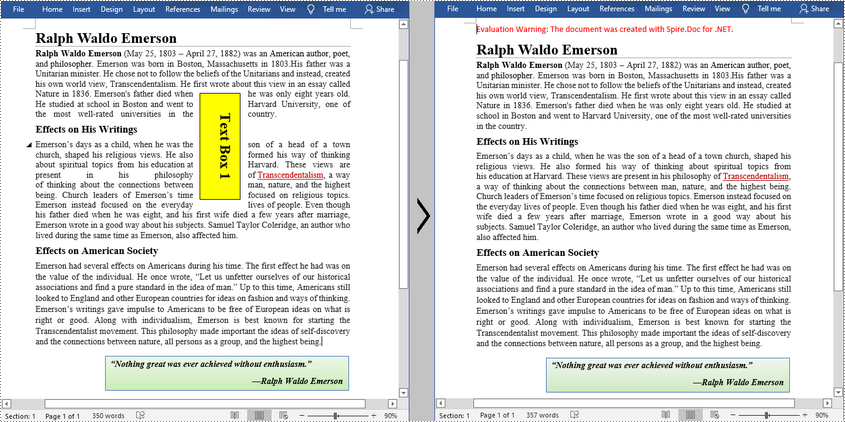
Spire.Doc for .NET provides the Document.TextBoxes.RemoveAt(int index) method to delete a specified text box. If you want to delete all text boxes from a Word document, you can use the Document.TextBoxes.Clear() method. The below example shows how to remove the first text box from a Word document.
- Create a Document instance.
- Load a sample Word document using Document.LoadFromFile() method.
- Remove the first text box using Document.TextBoxes.RemoveAt(int index) method.
- Save the document to another file using Document.SaveToFile() method.
- C#
- VB.NET
using Spire.Doc;

namespace Removetextbox
{
    class Program
    {
        static void Main(string[] args)
        {
            //Create a Document instance
            Document Doc = new Document();

            //Load a sample Word document
            Doc.LoadFromFile("TextBox.docx");

            //Remove the first text box
            Doc.TextBoxes.RemoveAt(0);

            //Remove all text boxes
            //Doc.TextBoxes.Clear();

            //Save the result document
            Doc.SaveToFile("RemoveTextbox.docx", FileFormat.Docx);
        }
    }
}
Apply for a Temporary License
If you'd like to remove the evaluation message from the generated documents, or to get rid of the function limitations, please request a 30-day trial license for yourself.
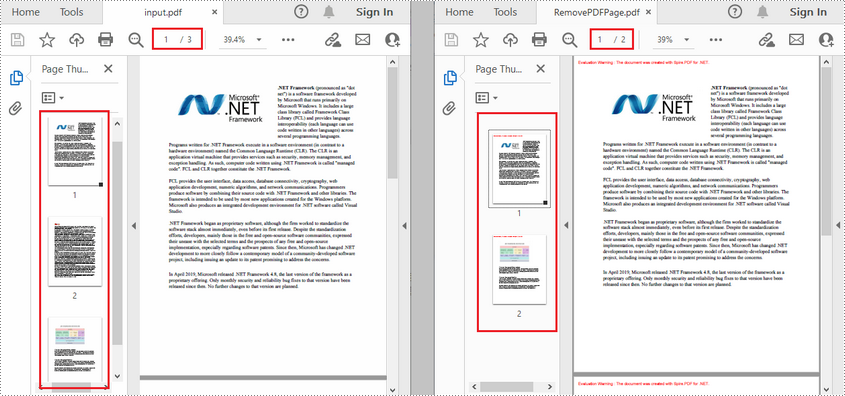
A PDF document can contain multiple pages with different text content, images, or other objects. Occasionally, users may need to delete certain pages with incorrectly drawn objects or pages that are irrelevant to the topic of the document. This article will demonstrate how to programmatically delete/remove pages from an existing PDF document using Spire.PDF for .NET.
Install Spire.PDF for .NET
To begin with, you need to add the DLL files included in the Spire.PDF for.NET package as references in your .NET project. The DLLs files can be either downloaded from this link or installed via NuGet.
PM> Install-Package Spire.PDF
Delete/Remove Pages from PDF
- Create a PdfDocument object.
- Load a sample PDF document using PdfDocument.LoadFromFile() method.
- Get the pages in the PDF document using PdfDocument.Pages property.
- Delete a specified page by index using PdfPageCollection.RemoveAt(int index)method.
- Save the document to another file using PdfDocument.SaveToFile() method.
- C#
- VB.NET
using Spire.Pdf;

namespace RemovePage
{
    class Program
    {
        static void Main(string[] args)
        {
            //Create a PdfDocument object
            PdfDocument document = new PdfDocument();

            //Load a sample PDF document
            document.LoadFromFile(@"E:\Files\input.pdf");

            //Remove the second page
            document.Pages.RemoveAt(1);

            //Save the result document
            document.SaveToFile("RemovePDFPage.pdf");
        }
    }
}
Apply for a Temporary License
If you'd like to remove the evaluation message from the generated documents, or to get rid of the function limitations, please request a 30-day trial license for yourself.
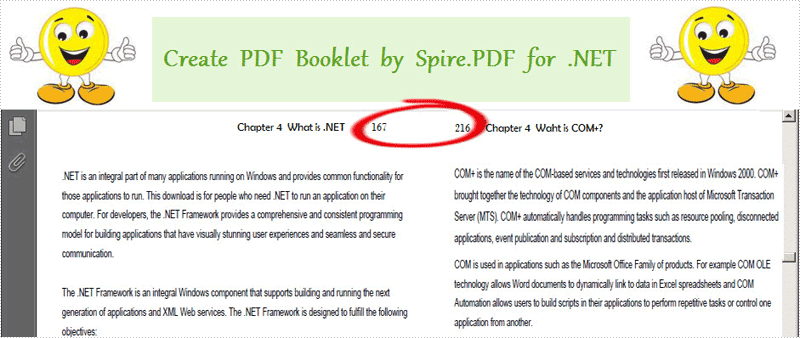
PDF booklet is pretty helpful when people print a huge PDF document. It enjoys special popularity among book, newspaper and magazine editors. This section will introduce a very simple way to create PDF booklet via a .NET PDF component in C#, VB.NET.
Spire.PDF for .NET is a .NET PDF library which can manipulate PDF documents without Adobe Acrobat or any third party library. Using this PDF component, you can quickly create PDF booklet in your .NET applications. After setting the PDF page width and height by a class Spire.Pdf.PdfPageSize, you can create your PDF booklet through implementing PdfDocument.CreateBooklet(string fileName, float width, float height, bool doubleSide) directly. Below picture shows the effect of this task:
Here you can quickly download Spire.PDF for .NET and install it on your system. After adding Spire.Pdf reference, please see the detail code of PDF booklet below.
Draw PDF Barcode in C#, VB.NET
using System.Drawing;
using Spire.Pdf;

namespace PDF_Booklet
{
    class Program
    {
        static void Main(string[] args)
        {
            //Load a PDF file
            PdfDocument doc = new PdfDocument();
            String srcPdf = @"..\read PDF.pdf";

            //Create PDF booklet
            float width = PdfPageSize.A4.Width * 2;
            float height = PdfPageSize.A4.Height;
            doc.CreateBooklet(srcPdf, width, height, true);

            //Save pdf file.
            doc.SaveToFile("Booklet.pdf");
            doc.Close();
            //Launching the Pdf file.
            System.Diagnostics.Process.Start("Booklet.pdf");
        }
    }
}
Imports System.Drawing
Imports Spire.Pdf

Namespace PDF_Booklet
	Class Program
		Private Shared Sub Main(args As String())
			'Load a PDF file
			Dim doc As New PdfDocument()
			Dim srcPdf As [String] = "..\read PDF.pdf"

			'Create PDF booklet
			Dim width As Single = PdfPageSize.A4.Width * 2
			Dim height As Single = PdfPageSize.A4.Height
			doc.CreateBooklet(srcPdf, width, height, True)

			'Save pdf file.
			doc.SaveToFile("Booklet.pdf")
			doc.Close()
			'Launching the Pdf file.
			System.Diagnostics.Process.Start("Booklet.pdf")
		End Sub
	End Class
End Namespace
Spire.PDF for .NET is a PDF component that enables you to create, read, edit and manipulate PDF files in C#, VB.NET
