 In daily work, extracting text from PDF files is a common task. For standard digital documents—such as those exported from Word to PDF—this process is usually straightforward. However, things get tricky when dealing with scanned PDFs, which are essentially images of printed documents. In such cases, traditional text extraction methods fail, and OCR (Optical Character Recognition) becomes necessary to recognize and convert the text within images into editable content.
In this article, we’ll walk through how to perform PDF OCR using Python to automate this workflow and significantly reduce manual effort.
- Why OCR is Needed for PDF Text Extraction
- Best Python OCR Libraries for PDF Processing
- Convert PDF Pages to Images Using Python
- Scan and Extract Text from Images Using Spire.OCR
- Conclusion
Why OCR is Needed for PDF Text Extraction
When it comes to extracting text from PDF files, one important factor that determines your approach is the type of PDF. Generally, PDFs fall into two categories: scanned (image-based) PDFs and searchable PDFs. Each requires a different strategy for text extraction.
-
Scanned PDFs are typically created by digitizing physical documents such as books, invoices, contracts, or magazines. While the text appears readable to the human eye, it's actually embedded as an image—making it inaccessible to traditional text extraction tools. Older digital files or password-protected PDFs may also lack an actual text layer.
-
Searchable PDFs, on the other hand, contain a hidden text layer that allows computers to search, copy, or parse the content. These files are usually generated directly from applications like Microsoft Word or PDF editors and are much easier to process programmatically.
This distinction highlights the importance of OCR (Optical Character Recognition) when working with scanned PDFs. With tools like Python PDF OCR, we can convert these image-based PDFs into images, run OCR to recognize the text, and extract it for further use—all in an automated way.
Best Python OCR Libraries for PDF Processing
Before diving into the implementation, let’s take a quick look at the tools we’ll be using in this tutorial. To simplify the process, we’ll use Spire.PDF for Python and Spire.OCR for Python to perform PDF OCR in Python.
- Spire.PDF will handle the conversion from PDF to images.
- Spire.OCR, a powerful OCR tool for PDF files, will recognize the text in those images and extract it as editable content.
You can install Spire.PDF using the following pip command:
pip install spire.pdf
and install Spire.OCR with:
pip install spire.ocr
Alternatively, you can download and install them manually by visiting the official Spire.PDF and Spire.OCR pages.
Convert PDF Pages to Images Using Python
Before we dive into Python PDF OCR, it's crucial to understand a foundational step: OCR technology doesn't directly process PDF files. Especially with image-based PDFs (like those created from scanned documents), we first need to convert them into individual image files.
Converting PDFs to images using the Spire.PDF library is straightforward. You simply load your target PDF document and then iterate through each page. For every page, call the PdfDocument.SaveAsImage() method to save it as a separate image file. Once this step is complete, your images are ready for the subsequent OCR process.
Here's a code example showing how to convert PDF to PNG:
from spire.pdf import *

# Load the PDF file
pdf = PdfDocument()
pdf.LoadFromFile("/AI-Generated Art.pdf")

# Loop through pages and save as images
for i in range(pdf.Pages.Count):
    # Convert each page to image
    with pdf.SaveAsImage(i) as image:

        # Save in different formats as needed
        image.Save(f"/output/pdftoimage/ToImage_{i}.png")
        # image.Save(f"Output/ToImage_{i}.jpg")
        # image.Save(f"Output/ToImage_{i}.bmp")

# Close the PDF document
pdf.Close()
Conversion result preview: 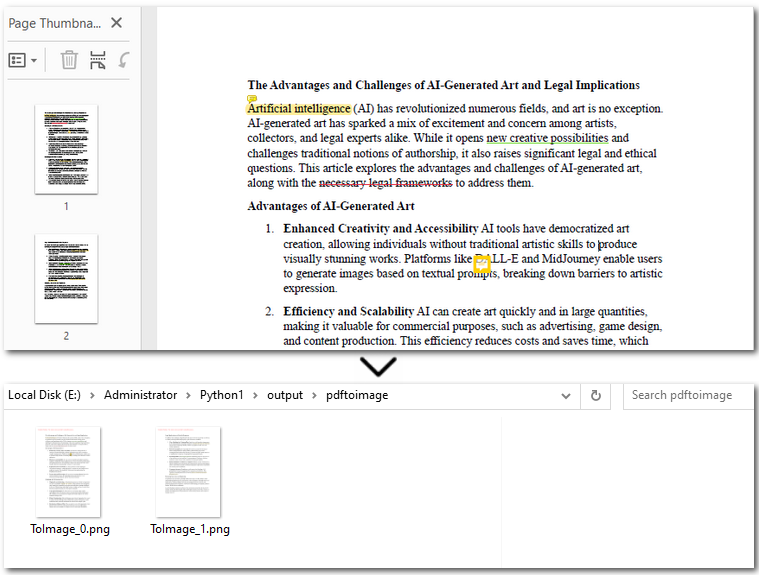
Scan and Extract Text from Images Using Spire.OCR
After converting the scanned PDF into images, we can now move on to OCR PDF with Python and to extract text from the PDF. With OcrScanner.Scan() from Spire.OCR, recognizing text in images becomes straightforward. It supports multiple languages such as English, Chinese, French, and German. Once the text is extracted, you can easily save it to a .txt file or generate a Word document.
The code example below shows how to OCR the first PDF page and export to text in Python:
from spire.ocr import *

# Create OCR scanner instance
scanner = OcrScanner()

# Configure OCR model path and language
configureOptions = ConfigureOptions()
configureOptions.ModelPath = r'E:/DownloadsNew/win-x64/'
configureOptions.Language = 'English'
scanner.ConfigureDependencies(configureOptions)

# Perform OCR on the image
scanner.Scan(r'/output/pdftoimage/ToImage_0.png')

# Save extracted text to file
text = scanner.Text.ToString()
with open('/output/scannedpdfoutput.txt', 'a', encoding='utf-8') as file:
    file.write(text + '\n')
Result preview: 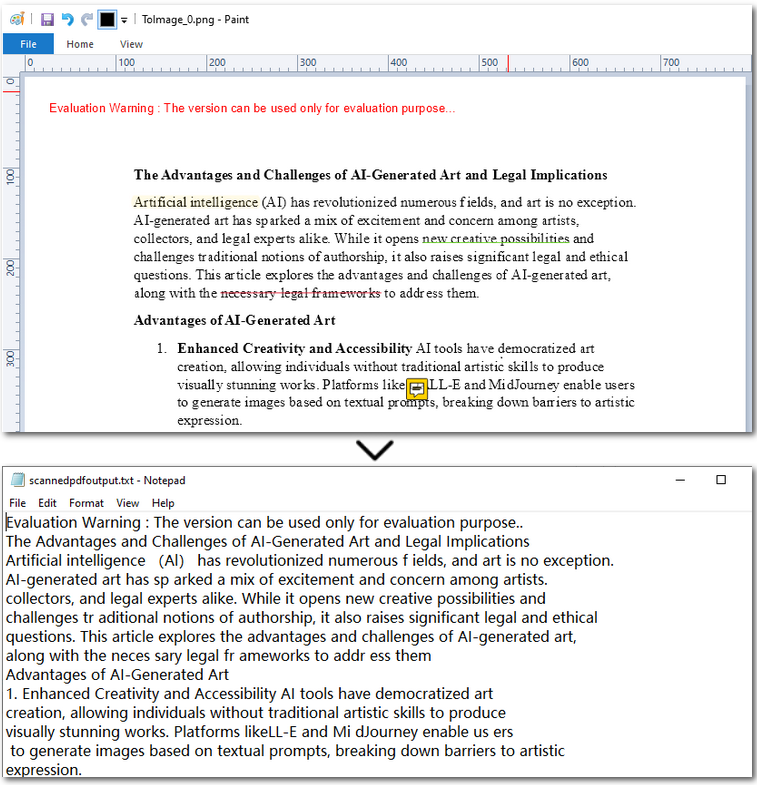
The Conclusion
In this article, we covered how to perform PDF OCR with Python—from converting PDFs to images, to recognizing text with OCR, and finally saving the extracted content as a plain text file. With this streamlined approach, extracting text from scanned PDFs becomes effortless. If you're looking to automate your PDF processing workflows, feel free to reach out and request a 30-day free trial. It’s time to simplify your document management.