Mail merge templates usually carry a few lines that only make sense when there is data behind them: a supplementary note, a remark, an optional cc. When the data is missing and only blank space is left behind, the layout is stretched apart, and the reader can hardly tell “this item was not included this time” from “something was left out”. The ideal outcome is for that line, together with the space it takes up, to disappear.
A related requirement turns up when a template has to be checked. When someone hands you a template, you need to know which merge fields it contains and how those fields are divided into merge regions. Expanding the field codes one by one to take stock of them is not realistic.
Spire.Doc for JavaScript handles both tasks in the browser: empty paragraphs and empty regions are cleaned up by the mail merge process itself, while region names and merge field names are read directly from MailMerge. The component runs on WebAssembly and reads and writes the template through a virtual file system (VFS), so no backend service is required.
This article covers two core features:
- Hide empty paragraphs and merge regions automatically after the merge
- Read the region names and merge field names from a Word template
For installation and project setup, refer to Integrating Spire.Doc for JavaScript in a React Project. The examples below assume Spire.Doc is installed and the WebAssembly module is initialized.
Hide Empty Paragraphs and Merge Regions After a Mail Merge
Prepare the Template
Two boolean properties on MailMerge control the automatic hiding of empty paragraphs and merge regions after a mail merge:
| Property | What it does | Default |
|---|---|---|
MailMerge.HideEmptyParagraphs |
Deletes paragraphs whose content is empty after the merge | false |
MailMerge.HideEmptyGroup |
Deletes merge regions whose internal paragraphs have all become empty | false |
Both properties are off by default and have to be set explicitly before MailMerge.Execute().
The sample template is a “Service Follow-up Confirmation” in which three optional constructs are written in three different ways:
| How it is written | Where it sits in the template | Merge result with hiding off |
|---|---|---|
«Optional Note» in a paragraph of its own |
after the introductory copy | kept as one blank line |
the merge region OptionalBlock (two region-marker paragraphs + two field paragraphs) |
after the delivery data row | kept as four blank lines |
Note: «Optional Remark» (label and field in one paragraph) |
before the signature | kept as the label Note: |
The part of the template that concerns hiding looks like this:
«Optional Note»

«GroupStart:OptionalBlock»
«Optional Line 1»
«Optional Line 2»
«GroupEnd:OptionalBlock»

Note: «Optional Remark»
In Word a region marker is a MERGEFIELD field like any other; only the field name is written as GroupStart:region name and GroupEnd:region name, and without quotation marks.
The Code
The steps are as follows:
- Get the Spire.Doc WASM module and confirm that it is ready.
- Load the sample template into the virtual file system (VFS), create a
Documentobject and load the file. - Before
MailMerge.Execute(), setHideEmptyParagraphsandHideEmptyGrouptotrue. - Call
MailMerge.Execute()with the field names and their values to run the mail merge. - Save the result with
Document.SaveToFile(), read it back from the VFS and trigger the browser download.
The code for hiding empty paragraphs and merge regions after a mail merge is as follows:
function App() {
  const HideEmptyRegions = async () => {
    // Get the Spire.Doc WASM module
    const docModule = window.wasmModule?.spiredoc;

    // Check if the module is ready
    if (!docModule) {
      alert('Spire.Doc is not ready yet');
      return;
    }
    // Load the sample template into the virtual file system (VFS)
    let inputFileName = "HideEmptyRegions.docx";
    await window.spire.FetchFileToVFS(inputFileName, "", `${process.env.PUBLIC_URL}static/data/`);

    // Create a document and load the template
    let doc = new docModule.Document();
    doc.LoadFromFile(inputFileName);

    // Provide values for three fields only; the optional fields in the
    // template are left empty
    let fieldNames = ["Contact Name", "Fax", "Date"];
    let fieldValues = ["John Smith", "+1 (69) 123456", docModule.DateTime.get_Now().Date.ToString()];

    // Hide the paragraphs and merge regions that come out empty
    doc.MailMerge.HideEmptyParagraphs = true;
    doc.MailMerge.HideEmptyGroup = true;

    // Execute the mail merge
    doc.MailMerge.Execute(fieldNames, fieldValues);

    // Define the output file name and save the document
    const outputFileName = "HideEmptyRegions-result.docx";
    doc.SaveToFile({ fileName: outputFileName, fileFormat: docModule.FileFormat.Docx2013 });

    doc.Dispose()

    // Read the saved file and convert it to a Blob
    const modifiedFileArray = window.dotnetRuntime.Module.FS.readFile(outputFileName);
    const blob = new Blob([modifiedFileArray], {type: "application/vnd.openxmlformats-officedocument.wordprocessingml.document"});
    const url = URL.createObjectURL(blob);
    const a = document.createElement('a');
    a.href = url;
    a.download = outputFileName;
    a.click();
    URL.revokeObjectURL(url);
  };

  return (
    <div style={{ textAlign: 'center', height: '300px' }}>
      <h1>Hide empty paragraphs and merge regions</h1>
      <button onClick={HideEmptyRegions}>Generate</button>
    </div>
  );
}
export default App;
The key statements are the two lines before Execute():
doc.MailMerge.HideEmptyParagraphs = true;
doc.MailMerge.HideEmptyGroup = true;
Both live on MailMerge, both default to false, and both have to be turned on explicitly. The timing matters: they have to be set before Execute(), because the deletion happens during the merge, and changing the properties after the merge has finished has no effect on the result that has already been produced.
fieldNames lists only the three main fields; Optional Note, Optional Line 1, Optional Line 2 and Optional Remark are given no values, so all of them come out empty after the merge.
The Result
With both switches on, the empty paragraphs and the empty region disappear along with the merge, and the follow-up confirmation returns to a compact single-page layout:
Word output after empty paragraphs and regions have been hidden during the mail merge
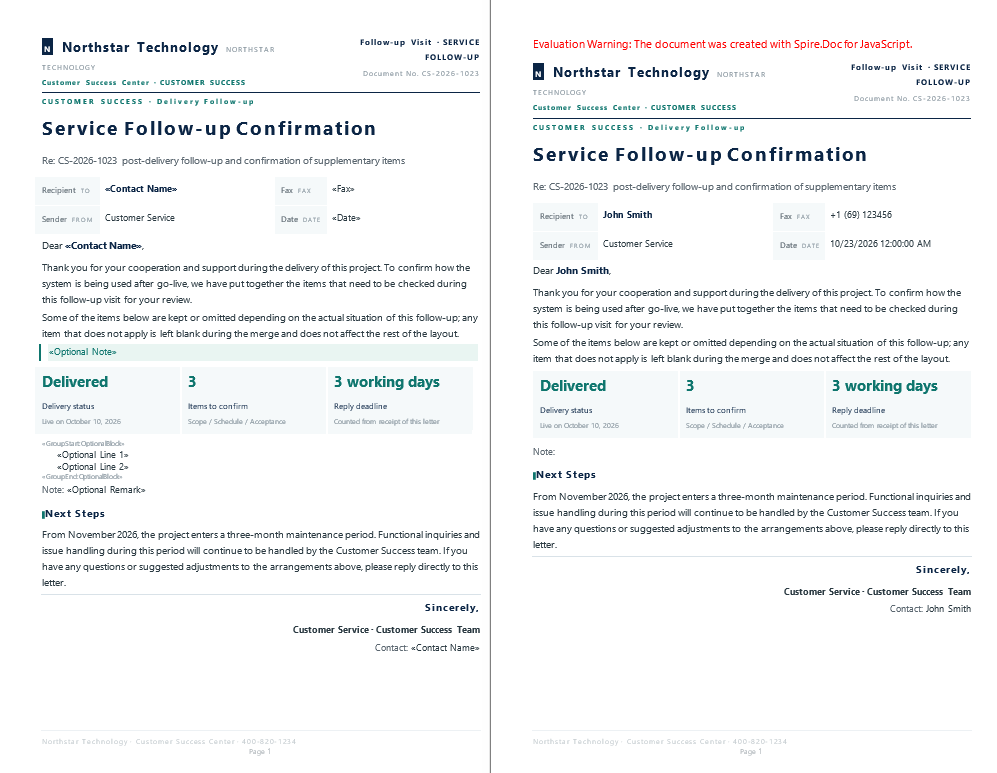
Comparing the output with both switches off (the control) and with both switches on, item by item against the template:
| What the template holds | Both switches off | Both switches on |
|---|---|---|
«Optional Note» (a paragraph of its own) |
kept as one blank line | the whole paragraph is removed |
the region OptionalBlock (four paragraphs) |
kept as four blank lines | all four paragraphs are removed |
Note: «Optional Remark» |
keeps Note: |
keeps Note: |
| empty paragraphs already in the template (used for spacing) | kept | kept |
The control document has 46 lines of text in total and the result document has 41; the difference of 5 lines corresponds exactly to the paragraph holding «Optional Note» and the four paragraphs of the region OptionalBlock, while the empty lines the template already used for spacing are left untouched.
Two rules follow from this:
- The test is whether the paragraph still holds content after the merge, not whether the field received a value.
Optional Remarkin the third construct is just as empty, but the paragraph also holds the labelNote:, so the whole paragraph is kept and only the field's position is left blank. To make the label disappear together with the field, the label has to be folded into the field value. HideEmptyParagraphsis the property that actually performs the deletion. SettingHideEmptyGroup = truealone while leavingHideEmptyParagraphs = falseproduces output identical to leaving both switches off; setting onlyHideEmptyParagraphs = trueproduces output identical to turning both on.
Hide Only Empty Paragraphs Without Merge Regions
If a template only needs a line to disappear when it comes out empty and defines no merge regions, setting HideEmptyParagraphs alone is enough:
// When the template has no merge regions, this switch alone is enough
doc.MailMerge.HideEmptyParagraphs = true;
With that setting the paragraphs inside a region are still deleted one by one, so the region disappears as well, with the same result as turning both switches on. Conversely, if the template really does define regions that should be cleared as a whole, setting both properties expresses the intent more clearly.
Read the Region Names and Merge Field Names from a Word Template
The Approach
Reading the region names and the merge field list from a Word template takes three methods on MailMerge, each at a different granularity:
| Method | What it returns |
|---|---|
GetMergeGroupNames() |
every region name in the document |
GetMergeFieldNames({ groupName: "Products" }) |
the merge field names inside the named region |
GetMergeFieldNames() |
every merge field name in the document (including region markers) |
The second method receives the region name inside an object as a named argument. That is how the WebAssembly build handles an overloaded method: methods sharing a name are dispatched by argument count and argument name, so the call has to be written as { groupName: "Products" }; passing a plain string will not match that overload.
Prepare the Template
The sample template is a product and team information list that contains two merge regions, Products and TeamRanking:
«GroupStart:Products»
Owner        «Contact Name»
Code         «Number»
Category     «Type»
Unit Price   «Price»
Date         «Date»
Vendor       «Vendor»
«GroupEnd:Products»

«GroupStart:TeamRanking»
Participant  «Name»
Points       «Score»
Place        «Ranking»
Award        «Award»
«GroupEnd:TeamRanking»
Each field occupies a paragraph of its own, and the region markers are paragraphs of their own as well.
The Code
The steps are as follows:
- Get the Spire.Doc WASM module and confirm that it is ready.
- Load the sample template into the virtual file system (VFS), create a
Documentobject and load the file. - Call
GetMergeGroupNames(),GetMergeFieldNames({ groupName: "Products" })andGetMergeFieldNames()in turn to read the three lists. - Join the three lists into text and write it to the VFS with
window.dotnetRuntime.Module.FS.writeFile(). - Read that text file back from the VFS, build a
text/plainBlob and trigger the browser download.
The code for reading the region names and merge field names from a Word template is as follows:
function App() {
  const IdentifyMergeFieldName = async () => {
    // Get the Spire.Doc WASM module
    const docModule = window.wasmModule?.spiredoc;

    // Check if the module is ready
    if (!docModule) {
      alert('Spire.Doc is not ready yet');
      return;
    }
    // Load the sample template into the virtual file system (VFS)
    let inputFileName = "IdentifyMergeFieldNames.docx";
    await window.spire.FetchFileToVFS(inputFileName, "", `${process.env.PUBLIC_URL}static/data/`);

    // Create a document and load the template
    let doc = new docModule.Document();
    doc.LoadFromFile(inputFileName);

    // Read all region names
    let GroupNames = doc.MailMerge.GetMergeGroupNames();

    // Read the merge field names inside a specific region
    let MergeFieldNamesWithinRegion = doc.MailMerge.GetMergeFieldNames({ groupName: "Products" });

    // Read every merge field name in the document
    let MergeFieldNames = doc.MailMerge.GetMergeFieldNames();

    // Join the results into text
    let content = [];
    content.push("----------------Group Names-----------------------------------------\n");
    for (let i = 0; i < GroupNames.length; i++) {
      content.push(GroupNames[i] + "\n");
    }
    content.push("----------------Merge field names within a specific group-----------\n");
    for (let j = 0; j < MergeFieldNamesWithinRegion.length; j++) {
      content.push(MergeFieldNamesWithinRegion[j] + "\n");
    }
    content.push("----------------All of the merge field names------------------------\n");
    for (let k = 0; k < MergeFieldNames.length; k++) {
      content.push(MergeFieldNames[k] + "\n");
    }

    // Write the TXT file
    const outputFileName = "IdentifyMergeFieldName-result.txt";
    window.dotnetRuntime.Module.FS.writeFile(outputFileName, content.join("\n"));

    // Close the document
    doc.Close();

    doc.Dispose()

    // Read the saved file and convert it to a Blob
    const modifiedFileArray = window.dotnetRuntime.Module.FS.readFile(outputFileName);
    const blob = new Blob([modifiedFileArray], {type: "text/plain"});
    const url = URL.createObjectURL(blob);
    const a = document.createElement('a');
    a.href = url;
    a.download = outputFileName;
    a.click();
    URL.revokeObjectURL(url);
  };

  return (
    <div style={{ textAlign: 'center', height: '300px' }}>
      <h1>Read region names and merge field names from a template</h1>
      <button onClick={IdentifyMergeFieldName}>Generate</button>
    </div>
  );
}
export default App;
Compared with the previous example, two things are different:
Execute()is not called. The example only reads the template's structure without merging any data, so the three lists can be read straight after loading.- The output goes through
window.dotnetRuntime.Module.FS.writeFile(fileName, text), writing the string directly into the virtual file system before atext/plainBlob triggers the download. It closes withdoc.Close(), because the example never changes the document's content.
All three methods return a collection (supporting length and indexed access) and are walked in the same way as Sections and Paragraphs.
The Result
Reading the two merge regions and all of the merge field names produces the following result:
Word output after the region names and merge field names have been read from a Word template
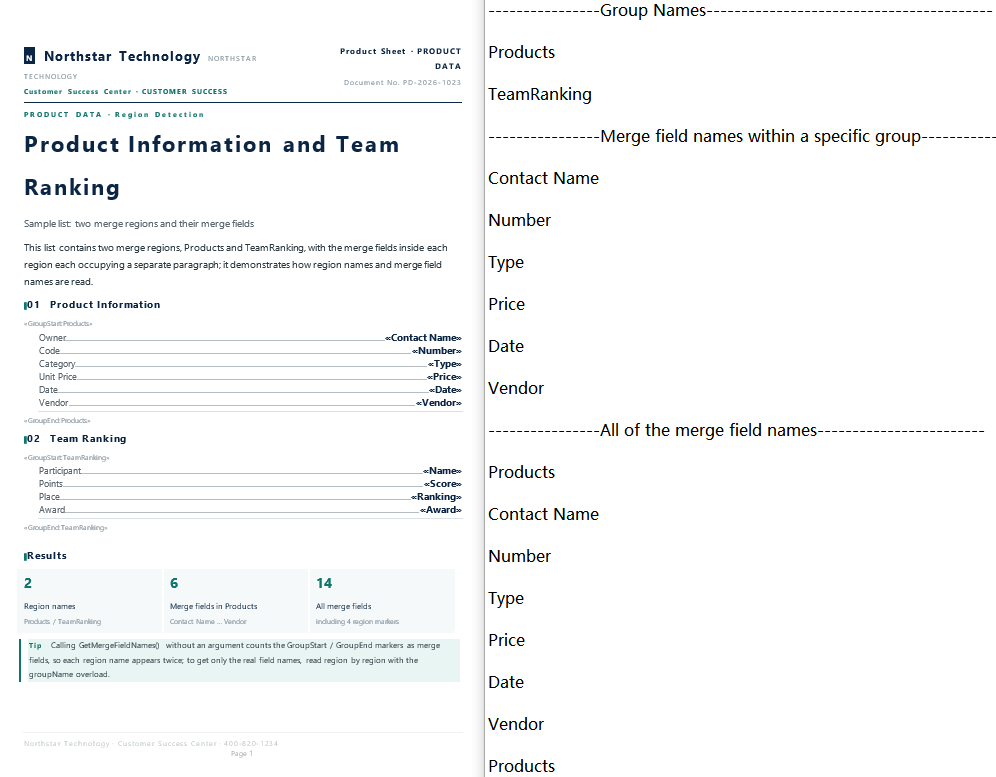
The output file is laid out as follows (the ---…--- lines are separators):
----------------Group Names-----------------------------------------

Products

TeamRanking

----------------Merge field names within a specific group-----------

Contact Name

Number

Type

Price

Date

Vendor

----------------All of the merge field names------------------------

Products

Contact Name

Number

Type

Price

Date

Vendor

Products

TeamRanking

Name

Score

Ranking

Award

TeamRanking
The three lists come out as:
Region names (2)
  Products, TeamRanking

Field names inside the Products region (6)
  Contact Name, Number, Type, Price, Date, Vendor

All field names (14 entries)
  Products, Contact Name, Number, Type, Price, Date, Vendor, Products,
  TeamRanking, Name, Score, Ranking, Award, TeamRanking
Two points are worth noting:
GetMergeFieldNames()with no argument counts the region markers themselves as field names.GroupStart:Productsis aMERGEFIELDfield in the document, so every region name appears twice: once for the opening marker and once for the closing marker. Among the 14 entries above,ProductsandTeamRankingeach appear twice.- The version that takes
groupNamereturns only the field names inside that region; none of the six results forProductscontains aGroupStart:orGroupEnd:marker.
Why is there an extra blank line between the entries? While the text is assembled,
content.push(name + "\n")already puts a newline at the end of every entry, andcontent.join("\n")adds another one between the elements, so two newlines end up in a row. For a compact list, drop the"\n"from thepushcall:
content.push(GroupNames[i]);
Filter Region Markers Out of the Full Field List
If the full list is really needed, take the region names first and filter them out of the result of GetMergeFieldNames():
const groups = doc.MailMerge.GetMergeGroupNames();
const names = doc.MailMerge.GetMergeFieldNames();

// Collect the region names into a set
const groupSet = {};
for (let i = 0; i < groups.length; i++) groupSet[groups[i]] = true;

// Filter out the region markers, keeping only real merge field names
const realFields = [];
for (let i = 0; i < names.length; i++) {
  if (!groupSet[names[i]]) realFields.push(names[i]);
}
If only the field names inside one particular region are needed, the overload that takes groupName is simpler, and its result never contains region markers.
FAQ
The switches for hiding empty lines are on and the blank line is still there
Cause: The property tests whether the paragraph still holds content after the merge. If the paragraph contains fixed text besides the field (for example, Note:), or the field itself is given a value, the whole paragraph is kept.
Solution: Check that the paragraph you want hidden holds nothing but the field. If the label should disappear together with the field, fold it into the field value: pass a complete string such as Note: … when there is data, and an empty string when there is none:
// The paragraph holds a single field; the label is carried by the field value
let fieldNames = ["Contact Name", "Remark Line"];
let fieldValues = ["John Smith", ""];
Why does setting only HideEmptyGroup = true have no effect
Cause: HideEmptyParagraphs is what actually deletes paragraphs. A region disappears as a whole because the paragraphs inside it are deleted one by one; with HideEmptyGroup turned on alone, the output is identical to leaving both switches off.
Solution: Set both properties together. If the template uses no merge regions, setting HideEmptyParagraphs alone produces the same output.
GetMergeFieldNames({ groupName: ... }) returns no data
Cause: The method is overloaded, and the WebAssembly build dispatches by argument name; passing a plain string (such as GetMergeFieldNames("Products")) does not match the overload that takes a region name.
Solution: Pass an object with a key, taking the region name from the name after GroupStart: in the template:
const fields = doc.MailMerge.GetMergeFieldNames({ groupName: "Products" });
Why do region names appear in the result of GetMergeFieldNames()
Cause: The opening and closing markers of a region are also MERGEFIELD fields in the document, so they are counted when the method is called without arguments, and every region name appears twice.
Solution: When only the field names inside one region are needed, use the overload that takes groupName; when the full list is needed, filter it using the result of GetMergeGroupNames() (see “Filter Region Markers Out of the Full Field List” above).
The template defines merge regions but GetMergeGroupNames() returns 0
Cause: The field code of a region marker is written as MERGEFIELD GroupStart:region name, with the field name unquoted. Written as MERGEFIELD "GroupStart:Products", it is usually treated as an ordinary merge field name and does not form a region. In addition, GroupStart and GroupEnd have to appear in pairs with the same region name at both ends; a marker without its counterpart is not recognised as a region.
Solution: Check these two field codes in the template:
{ MERGEFIELD  GroupStart:Products  \* MERGEFORMAT }
{ MERGEFIELD  GroupEnd:Products  \* MERGEFORMAT }
Get a Free License
Spire.Doc for JavaScript offers a 30-day full-featured free trial license with no functional limitations. Apply here to evaluate before purchasing.
