The same Word template often has to look different on different occasions: in a letter to a customer the name should carry a courtesy title, while in an internal filing table it should be upper case throughout. Editing the template field by field means maintaining a new file for every variation; assembling the judgement in code means the template loses its value for reuse.
This article handles both requirements in the browser with Spire.Doc for JavaScript. One is handled by field switches: instructions such as \b, \f and \* Upper are written into the template's field codes, so the same field value can land in the document in different shapes. The other is handled by a conditional field: the document hard-codes no sentence at all, but carries an IF field that lets Word decide, when the document is saved, which sentence the current data calls for; this kind of field is assembled dynamically in code.
The whole process runs in the browser on WebAssembly and manages the template document through a virtual file system (VFS); it needs neither an Office installation nor a backend service.
This article covers two core features:
For installation and project setup, refer to Integrating Spire.Doc for JavaScript in a React Project. The examples below assume Spire.Doc is installed and the WebAssembly module is initialized.
Use Field Switches in a Merge Field
A field switch is a short instruction written inside the MERGEFIELD field code, after the field name. It does not change the value passed in; it changes only the shape in which the value is written into the document: a prefix, a suffix, a change of case. Because the switch belongs to the template itself, hanging different switches on the same field in different places produces different results within one document.
The merge field switches used most often are:
| Switch | What it does |
|---|---|
| (none) | Outputs the field value as it is |
\b "Mr " |
Adds a prefix; the argument includes a trailing space |
\b Mr |
Adds a prefix; the argument has no space and sits flush against the field value |
\f " (Author)" |
Adds a suffix; the argument includes a leading space |
\* Upper |
Converts everything to upper case |
\* Lower |
Converts everything to lower case |
\* FirstCap |
Capitalises the first character only |
\* Caps |
Capitalises the first letter of every word |
\* MERGEFORMAT |
Keeps the field formatting; the text is unchanged |
Prepare the Template
To lay the output of every switch side by side for comparison, the sample uses a Customer Contact Card as its template: the same merge field XX_Name appears ten times in the “Name Format Comparison” table, each occurrence carrying a different switch, so the merge only has to supply the value once.
The ten field codes in the template are as follows ({ } are Word's field braces, which you type with Ctrl + F9):
{ MERGEFIELD  XX_Name }
{ MERGEFIELD  XX_Name  \b "Mr " }
{ MERGEFIELD  XX_Name  \b Mr }
{ MERGEFIELD  XX_Name  \f " (Author)" }
{ MERGEFIELD  XX_Name  \* Upper }
{ MERGEFIELD  XX_Name  \* Lower }
{ MERGEFIELD  XX_Name  \* FirstCap }
{ MERGEFIELD  XX_Name  \* Caps }
{ MERGEFIELD  XX_Name  \* MERGEFORMAT }
{ MERGEFIELD  XX_Name  \b "Mr " \f " (Author)" }
Spaces separate the field name from the switches and the switches from one another. If the text argument of a switch itself contains a space, wrap it in double quotes (as in \b "Mr "); in that case the space inside the quotes is part of the argument.
The Code
The steps are as follows:
- Get the Spire.Doc WASM module and confirm that it is ready.
- Load the sample template into the virtual file system (VFS), create a
Documentobject and load the file. - Prepare the field name and field value arrays: the field name is
XX_Nameand the field value isjason tang. - Call
Document.MailMerge.Execute()to run the mail merge. - Save the result with
Document.SaveToFile(). - Read the result file back from the VFS and trigger the browser download.
The code for using field switches in a Word merge field is as follows:
function App() {
  const MailMergeSwitches = async () => {
    // Get the Spire.Doc WASM module
    const docModule = window.wasmModule?.spiredoc;

    // Check if the module is ready
    if (!docModule) {
      alert('Spire.Doc is not ready yet');
      return;
    }

    // Load the sample template into the virtual file system (VFS)
    let inputFileName = "MailMergeSwitches.docx";
    await window.spire.FetchFileToVFS(inputFileName, "", `${process.env.PUBLIC_URL}static/data/`);

    // Create a document and load the template
    const doc = new docModule.Document();
    doc.LoadFromFile(inputFileName);

    // Provide a value for one field only; all ten occurrences in the template use it
    let fieldNames = ["XX_Name"];
    let fieldValues = ["jason tang"];

    // Execute the mail merge
    doc.MailMerge.Execute(fieldNames, fieldValues);

    // Define the output file name
    const outputFileName = "MailMergeSwitches-result.docx";

    // Save the document
    doc.SaveToFile({ fileName: outputFileName, fileFormat: docModule.FileFormat.Docx2013 });

    doc.Dispose()

    // Read the saved file and convert it to a Blob
    const modifiedFileArray = window.dotnetRuntime.Module.FS.readFile(outputFileName);
    const blob = new Blob([modifiedFileArray], {type: "application/vnd.openxmlformats-officedocument.wordprocessingml.document"});
    const url = URL.createObjectURL(blob);
    const a = document.createElement('a');
    a.href = url;
    a.download = outputFileName;
    a.click();
    URL.revokeObjectURL(url);
  };

  return (
    <div style={{ textAlign: 'center', height: '300px' }}>
      <h1>Merge data into a Word template that carries field switches</h1>
      <button onClick={MailMergeSwitches}>Generate</button>
    </div>
  );
}

export default App;
Notice that the code contains no switch-related API at all: every switch lives in the template's field codes, and Execute only has to give XX_Name a value. This is exactly how a field switch is meant to be used — the data stays the same, and the template decides the shape. The sample deliberately passes the value in lower case, as jason tang; if Jack Tang were passed, several of the case-related switches would produce output indistinguishable from the default row.
The Result
Merged with jason tang, the result is as follows:
Word output after the customer contact card has been merged, with all ten XX_Name occurrences generated from a single field value
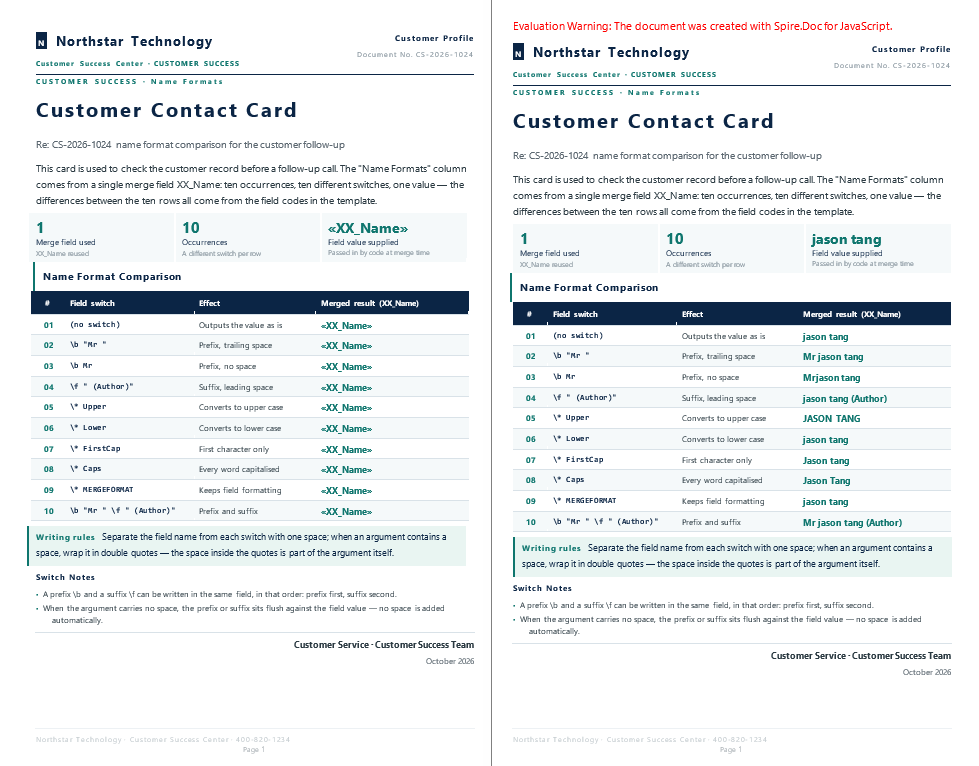
| Field switch | What it does | Merged result (XX_Name) |
|---|---|---|
(no switch) |
Outputs the value as is | jason tang |
\b "Mr " |
Prefix, trailing space | Mr jason tang |
\b Mr |
Prefix, no space | Mrjason tang |
\f " (Author)" |
Suffix, leading space | jason tang (Author) |
\* Upper |
Converts to upper case | JASON TANG |
\* Lower |
Converts to lower case | jason tang |
\* FirstCap |
First character only | Jason tang |
\* Caps |
Every word capitalised | Jason Tang |
\* MERGEFORMAT |
Keeps field formatting | jason tang |
\b "Mr " \f " (Author)" |
Prefix and suffix | Mr jason tang (Author) |
A few points are worth noting:
- The difference between
\b "Mr "and\b Mris that pair of quotes. The argument of the first isMrwith a trailing space, which outputsMr jason tang; the argument of the second isMrwith no space, so it sits flush against the field value and becomesMrjason tang. To leave a gap between the added text and the field value, write the space inside the quotes. \bis a prefix and\fis a suffix, and both can appear in the same field.\* FirstCapcapitalises only the first character (Jason tang), while\* Capscapitalises the first letter of every word (Jason Tang). The two names are similar but the effects differ.\* MERGEFORMATdoes not affect the text. It preserves the field's formatting, Word adds it by default when it creates a merge field.
Combine a Prefix and a Suffix in One Field
When a position needs both a courtesy title and a signature, there is no need to split \b and \f into two fields. Write both into the field code of the same field, in the order “prefix first, suffix second”; line 10 of the template is written exactly that way:
{ MERGEFIELD XX_Name \b "Mr " \f " (Author)" }
Passing jason tang produces Mr jason tang (Author) after the merge: one field value, with both the title and the signature attached at once.
Build and Execute a Conditional Field
Field switches can only change the shape; they cannot choose different text according to the data. When “show this sentence if the data meets the condition, otherwise show that one” is needed, a conditional field (an IF field) is required: an IF field holds a merge field as the test, followed by two result texts, and Word evaluates it when the document is saved.
{ IF { MERGEFIELD Count } > "1" "Greater than one" "Less than one" }
Taken apart, this stretch contains four kinds of element:
- an
IfField, whose field type is set toFieldType.FieldIf; - a merge field node (
FieldType.FieldMergeField) — the value being compared in the condition; - the operator and the two branch texts, appended as ordinary text fragments;
- a
FieldMarkof typeFieldMarkType.FieldEnd, which closes the field off and has to be assigned back toIfField.Endfor the field to be complete.
This document has no input template at all; both IF fields are built from scratch, so LoadFromFile is not needed — but the font still has to be loaded first for the layout Word performs when the document is saved.
The Code
The steps are as follows:
- Get the Spire.Doc WASM module and confirm that it is ready.
- Load the
ARIALUNI.TTFfont into the virtual file system (VFS). - Create a
Documentobject, add a section and then add the first paragraph. - Build an IF field with
IfField, appending in order the merge field that serves as the test, the operator, the comparison basis and the two branch texts. - Create a
FieldEndmark withCreateParagraphItem(), append it to the paragraph and assign it toIfField.End. - Build the second conditional field in the same way.
- Call
MailMerge.Execute()to supply values for the merge fields inside the conditional fields, and setIsUpdateFields = true. - Save the result file, read it back from the VFS and trigger the browser download.
The code for building and executing a conditional field is as follows:
function App() {
  const ExecuteConditionalField = async () => {
    // Get the Spire.Doc WASM module
    const docModule = window.wasmModule?.spiredoc;

    // Check if the module is ready
    if (!docModule) {
      alert('Spire.Doc is not ready yet');
      return;
    }

    // Load the ARIALUNI.TTF font into the virtual file system (VFS)
    await window.spire.FetchFileToVFS('ARIALUNI.TTF','/Library/Fonts/',`${process.env.PUBLIC_URL}/static/font/`);

    // Create a document and add a section
    let doc = new docModule.Document();
    let section = doc.AddSection();

    // First conditional field: Count > 1
    let paragraph = section.AddParagraph();
    let ifField1 = new docModule.IfField(doc);
    ifField1.Type = docModule.FieldType.FieldIf;
    ifField1.Code = "IF ";
    paragraph.Items.Add(ifField1);
    paragraph.AppendField("Count", docModule.FieldType.FieldMergeField);
    paragraph.AppendText(" > ");
    paragraph.AppendText("\"1\" ");
    paragraph.AppendText("\"Greater than one\" ");
    paragraph.AppendText("\"Less than one\"");
    let end1 = doc.CreateParagraphItem(docModule.ParagraphItemType.FieldMark);
    end1.Type = docModule.FieldMarkType.FieldEnd;
    paragraph.Items.Add(end1);
    ifField1.End = end1;

    // Second conditional field: Age > 50
    paragraph = section.AddParagraph();
    let ifField2 = new docModule.IfField(doc);
    ifField2.Type = docModule.FieldType.FieldIf;
    ifField2.Code = "IF ";
    paragraph.Items.Add(ifField2);
    paragraph.AppendField("Age", docModule.FieldType.FieldMergeField);
    paragraph.AppendText(" > ");
    paragraph.AppendText("\"50\" ");
    paragraph.AppendText("\"The old man\" ");
    paragraph.AppendText("\"The young man\"");
    let end2 = doc.CreateParagraphItem(docModule.ParagraphItemType.FieldMark);
    end2.Type = docModule.FieldMarkType.FieldEnd;
    paragraph.Items.Add(end2);
    ifField2.End = end2;

    // Supply values for the merge fields inside the conditional fields
    let fieldNames = ["Count", "Age"];
    let fieldValues = ["2", "30"];
    doc.MailMerge.Execute(fieldNames, fieldValues);

    // Make the fields evaluate when the document is saved
    doc.IsUpdateFields = true;

    // Define the output file name
    const outputFileName = "ExecuteConditionalField-result.docx";

    // Save the document
    doc.SaveToFile({ fileName: outputFileName, fileFormat: docModule.FileFormat.Docx2013 });

    doc.Dispose()

    // Read the saved file and convert it to a Blob
    const modifiedFileArray = window.dotnetRuntime.Module.FS.readFile(outputFileName);
    const blob = new Blob([modifiedFileArray], {type: "application/vnd.openxmlformats-officedocument.wordprocessingml.document"});
    const url = URL.createObjectURL(blob);
    const a = document.createElement('a');
    a.href = url;
    a.download = outputFileName;
    a.click();
    URL.revokeObjectURL(url);
  };

  return (
    <div style={{ textAlign: 'center', height: '300px' }}>
      <h1>Create and execute a conditional field</h1>
      <button onClick={ExecuteConditionalField}>Generate</button>
    </div>
  );
}

export default App;
A few details of the assembly order matter:
ifField.Code = "IF "only marks the field type. What actually assembles the body of the field is theAppendFieldand theAppendTextcalls that follow; they are laid out into this field one after another.- The operator and the two branch texts are all appended with
AppendText, and the quotes among them have to be written into the string itself ("\"1\" "). An IF field requires both result texts to be quoted, and these quote characters are what does it. - The order is fixed: compared value → operator → comparison basis → true branch → false branch. The false branch needs no extra space after its closing quote.
FieldEndis the field's closing mark. It has to be created withCreateParagraphItem(ParagraphItemType.FieldMark), given itsend.Type, appended to the paragraph and then assigned toifField.End. Skip any one of those steps and the field is incomplete.IsUpdateFields = truedecides whether the field is evaluated when the document is saved; it belongs afterExecuteand beforeSaveToFile.
The Result
With Count = "2" and Age = "30", the two conditional fields take the true branch and the false branch respectively. The evaluated result of a conditional field is only one line of text and the rest of the page is blank, so the two branches are shown here in a table:
| Field values | First paragraph (IF Count > "1") |
Second paragraph (IF Age > "50") |
|---|---|---|
Count = "2", Age = "30" |
Greater than one |
The young man |
Count = "0", Age = "70" |
Less than one |
The old man |
Replacing the values flips the result, without changing either the template structure or the code.
FAQ
The conditional field saves as two blank paragraphs — why
Cause: A field in the document is only an instruction waiting to be evaluated. When IsUpdateFields is not set, saving does not trigger evaluation, neither branch's text is output, and the result looks like two blank paragraphs.
Solution: Turn the switch on after Execute and before SaveToFile:
doc.MailMerge.Execute(fieldNames, fieldValues);
doc.IsUpdateFields = true;   // Make the fields evaluate when the document is saved
doc.SaveToFile({ fileName: outputFileName, fileFormat: docModule.FileFormat.Docx2013 });
The prefix added by \b is stuck to the name — what now
Cause: The text argument of a switch carries no space of its own. The argument of \b Mr is the two characters Mr, and the field value follows immediately in the output, which gives Mrjason tang.
Solution: Write the space into the argument and wrap it in double quotes:
{ MERGEFIELD XX_Name \b "Mr " }
\f works the same way: write the leading space inside the quotes. One space between the field name and the switch, and between switches, is enough; extra spaces do not affect parsing.
What is the difference between \* FirstCap and \* Caps
\* FirstCap converts only the first character to upper case and leaves the rest alone: jason tang → Jason tang.
\* Caps converts the first letter of every word to upper case: jason tang → Jason Tang.
When checking these two switches, the field value has to be lower case or mixed case; if the value is already Jack Tang, both lines look the same as the default line.
Why do some switches written on a merge field have no effect
Not every Word field switch takes part in the text replacement of a mail merge. \* MERGEFORMAT preserves the field's formatting and never changes the text to begin with; switches such as \m, \v and \# 0.00 (a number format) usually produce no visible change when used on a plain-text field value.
The ones verified in this article and usable as they are: \b, \f, \* Upper, \* Lower, \* FirstCap, \* Caps, and \* MERGEFORMAT, which can be stacked with a prefix or a suffix.
Changing the values of Count and Age does not change the output
Cause: The result text of a conditional field is cached in the document. When IsUpdateFields is not on, saving keeps the previous evaluation; changing only the values passed to Execute without running the merge and saving again naturally leaves the old content in the file.
Solution: After every change, go through “pass values → evaluate → save” again:
// Pass the new Count and Age
doc.MailMerge.Execute(fieldNames, fieldValues);

// Re-evaluate on save so the result follows the new values
doc.IsUpdateFields = true;

doc.SaveToFile({ fileName: outputFileName, fileFormat: docModule.FileFormat.Docx2013 });
Field name matching is case-insensitive: AppendField("Count", …) and Execute(["count"], …) are treated as the same field. What does affect the result is that the name itself cannot change — a field name not listed in Execute is not replaced, and its result area is left empty.
Get a Free License
Spire.Doc for JavaScript offers a 30-day full-featured free trial license with no functional limitations. Apply here to evaluate before purchasing.
