When the same document has to be sent to multiple recipients, only a few elements change from one copy to the next, such as the recipient name, fax number and date, while the rest of the layout and wording remains identical. Word's mail merge turns this variable content into merge fields kept in a mail merge template; at run time, a set of data is filled in to generate the corresponding document. Compared with saving each copy separately on the desktop, performing the merge in the browser does not require recipients to install Office, and the data does not have to be uploaded to a server for processing.
Using Spire.Doc for JavaScript as an example, this article explains the structure of the merge fields in a mail merge template, how MailMerge.Execute() is called, and how to prepare a date string for a target culture before the merge. The entire process runs in the browser through WebAssembly, and both the template and the data are read from and written to the local virtual file system (VFS).
This article covers three core features:
- Prepare a Mail Merge Template with Merge Fields in Word
- Execute a Mail Merge
- Format Date Fields by Culture
For installation and project setup, refer to Integrating Spire.Doc for JavaScript in a React Project. The examples below assume Spire.Doc is installed and the WebAssembly module is initialized.
Prepare a Mail Merge Template with Merge Fields in Word
A mail merge template is an ordinary .docx document: the fixed content is laid out as usual, and the positions that change with the data are replaced by merge fields. A merge field is enclosed by a pair of field markers; the field code declares the field name with MERGEFIELD, and the field result area displays placeholder text in the form «field name», which is the text replaced during the mail merge.
The mail merge template used in this article is a "Requirement Confirmation" letter. The letterhead, document number, body text and confirmation table are all fixed content, and three merge fields are defined:
| Merge Field | Location | Occurrences |
|---|---|---|
Contact Name |
Recipient row, salutation, closing contact | 3 |
Fax |
Fax row | 1 |
Date |
Date row | 1 |
Contact Name appears three times in the document. After the merge, all three occurrences take the same value, so it only has to be supplied once in the field value array.
The specific steps are as follows:
- Create a Word document and lay out the fixed content.
- Place the cursor where the variable content should go and press Ctrl + F9 to insert a pair of field markers.
- Enter the field code inside the markers, for example
MERGEFIELD "Contact Name" \* MERGEFORMAT; enclose the field name in double quotes when it contains spaces. - Press F9 to update the field. The position then displays placeholder text in the form
«Contact Name». - Insert the remaining merge fields at the other variable positions in the same way, save the document as .docx, and place it in the project's public directory, for example
public/static/data/MailMerge.docx.
It is important to note that the placeholder text «field name» belongs to the field's result area, which lies between the separate and end field markers. If the angle brackets are typed manually outside the field, they do not belong to that field and are not replaced during the merge. Pressing Alt + F9 switches between the field code and the field result, which helps verify where the field markers begin and end.
Execute a Mail Merge
MailMerge.Execute(fieldNames, fieldValues) takes two arrays of equal length, whose elements correspond by index:
| Parameter | Description |
|---|---|
fieldNames |
Array of field names, corresponding to the field names declared by MERGEFIELD in the template |
fieldValues |
Array of field values, corresponding to fieldNames by index |
Field name matching is case-insensitive. A field that exists in the template but is not listed in fieldNames is left blank in its result area after the merge.
The specific steps are as follows:
- Get the Spire.Doc WASM module and confirm that it is ready.
- Load the mail merge template and the font into the virtual file system (VFS).
- Create a
Documentobject and load the template. - Prepare the field name array and the field value array so that their order corresponds one to one.
- Call the
Document.MailMerge.Execute()method to execute the mail merge. - Save the result file with the
Document.SaveToFile()method, read it back from the VFS, and trigger a browser download.
The code for executing a mail merge is as follows:
function App() {
  const MailMerge = async () => {
    // Get the Spire.Doc WASM module
    const docModule = window.wasmModule?.spiredoc;

    // Check if the module is ready
    if (!docModule) {
      alert('Spire.Doc is not ready yet');
      return;
    }

    // Load the mail merge template and the font
    let inputFileName = 'MailMerge.docx';
    await window.spire.FetchFileToVFS(inputFileName, "", `${process.env.PUBLIC_URL}static/data/`);
    await window.spire.FetchFileToVFS('ARIALUNI.TTF', "/Library/Fonts/", `${process.env.PUBLIC_URL}static/font/`);

    // Create a Document instance and load the template
    const doc = new docModule.Document();
    doc.LoadFromFile(inputFileName);

    // Field names and field values correspond by index
    let fieldNames = ["Contact Name", "Fax", "Date"];
    let fieldValues = ["John Smith", "+1 (69) 123456", docModule.DateTime.get_Now().Date.ToString()];

    // Execute the mail merge
    doc.MailMerge.Execute(fieldNames, fieldValues);

    // Save the result file
    const outputFileName = 'MailMerge-result.docx';
    doc.SaveToFile({ fileName: outputFileName, fileFormat: docModule.FileFormat.Docx2013 });
    doc.Dispose();

    // Read the generated file from the VFS and trigger the download
    const fileArray = window.dotnetRuntime.Module.FS.readFile(outputFileName);
    const blob = new Blob([fileArray], { type: 'application/vnd.openxmlformats-officedocument.wordprocessingml.document' });
    const url = URL.createObjectURL(blob);
    const a = document.createElement('a');
    a.href = url;
    a.download = outputFileName;
    a.click();
    URL.revokeObjectURL(url);
  };

  return (
    <div style={{ textAlign: 'center', height: '300px' }}>
      <h1>Execute a Mail Merge</h1>
      <button onClick={MailMerge}>Generate</button>
    </div>
  );
}

export default App;
The merge logic itself is a single line, doc.MailMerge.Execute(fieldNames, fieldValues); the rest of the code delivers the template to the VFS and retrieves the result for download. DateTime.get_Now().Date.ToString() returns a string representation of the current date, which can be passed directly as the field value.
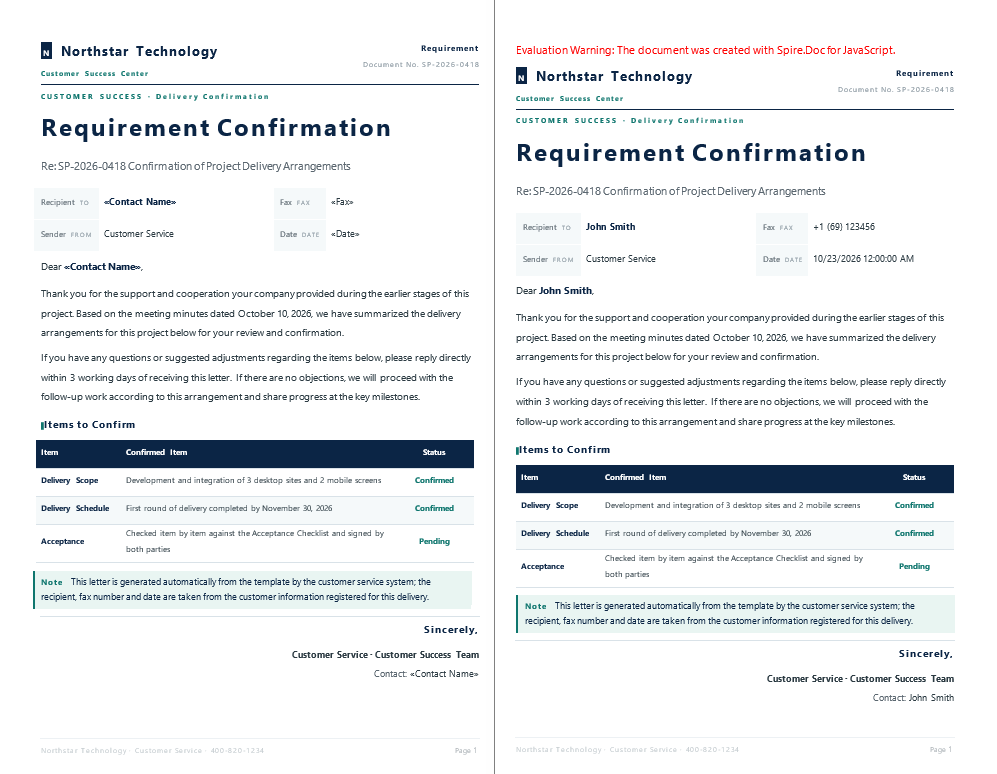
After the merge, all five merge field occurrences in the template are replaced with the corresponding field values, and the rest of the layout remains unchanged:
| Merge Field | Before Merge | After Merge |
|---|---|---|
Contact Name |
«Contact Name» | John Smith |
Fax |
«Fax» | +1 (69) 123456 |
Date |
«Date» | 10/22/2026 12:00:00 AM |
The three occurrences of Contact Name (recipient row, salutation, closing contact) all become John Smith, which shows that fields with the same name share one value.
Word document after a mail merge has been executed with JavaScript in React
Format Date Fields by Culture
The output format of DateTime.get_Now().Date.ToString() depends on the culture settings of the runtime environment: a Chinese environment produces 2026/10/22 上午12:00:00, while switching to an English environment may produce 10/22/2026 12:00:00 AM. For a recipient in Germany, the conventional form is 22.10.2026, 17:19:45 — day first, month in the middle, separated by dots.
The mail merge itself only places a piece of text at the field position and does not rearrange the date. The way to control the date format is therefore to format the value as a string for the target culture before it reaches MailMerge.Execute(). The browser's built-in Intl.DateTimeFormat performs this step; its first argument is the locale code and its second argument is the format options.
The specific steps are as follows:
- Get the Spire.Doc WASM module and confirm that it is ready.
- Load the mail merge template and the font into the virtual file system (VFS).
- Use
Intl.DateTimeFormat("de-DE", formatOptions)to format the current time as a German-style date string. - Replace the value of the
Datefield with this string, and keep the other field values unchanged. - Call the
Document.MailMerge.Execute()method to execute the mail merge. - Save the result file with the
Document.SaveToFile()method, read it back from the VFS, and trigger a browser download.
The code for formatting the date field by culture is as follows:
function App() {
  const ChangeLocale = async () => {
    // Get the Spire.Doc WASM module
    const docModule = window.wasmModule?.spiredoc;

    // Check if the module is ready
    if (!docModule) {
      alert('Spire.Doc is not ready yet');
      return;
    }

    // Load the mail merge template and the font
    let inputFileName = 'MailMerge.docx';
    await window.spire.FetchFileToVFS(inputFileName, "", `${process.env.PUBLIC_URL}static/data/`);
    await window.spire.FetchFileToVFS('ARIALUNI.TTF', "/Library/Fonts/", `${process.env.PUBLIC_URL}static/font/`);

    // Create a Document instance and load the template
    const doc = new docModule.Document();
    doc.LoadFromFile(inputFileName);

    // Prepare the date string for the German culture (day.month.year)
    const datestr = new Intl.DateTimeFormat('de-DE', {
      year: 'numeric', month: '2-digit', day: '2-digit',
      hour: '2-digit', minute: '2-digit', second: '2-digit'
    }).format(new Date());

    // Field names and field values correspond by index
    let fieldNames = ["Contact Name", "Fax", "Date"];
    let fieldValues = ["John Smith", "+1 (69) 123456", datestr];

    // Execute the mail merge
    doc.MailMerge.Execute(fieldNames, fieldValues);

    // Save the result file
    const outputFileName = 'ChangeLocale-result.docx';
    doc.SaveToFile({ fileName: outputFileName, fileFormat: docModule.FileFormat.Docx2013 });
    doc.Dispose();

    // Read the generated file from the VFS and trigger the download
    const fileArray = window.dotnetRuntime.Module.FS.readFile(outputFileName);
    const blob = new Blob([fileArray], { type: 'application/vnd.openxmlformats-officedocument.wordprocessingml.document' });
    const url = URL.createObjectURL(blob);
    const a = document.createElement('a');
    a.href = url;
    a.download = outputFileName;
    a.click();
    URL.revokeObjectURL(url);
  };

  return (
    <div style={{ textAlign: 'center', height: '300px' }}>
      <h1>Format Date Fields by Culture</h1>
      <button onClick={ChangeLocale}>Generate</button>
    </div>
  );
}

export default App;
The template is exactly the same and the merge call is exactly the same; what changes is the source of the date string in fieldValues:
const datestr = new Intl.DateTimeFormat('de-DE', { /* format options */ }).format(new Date());
Intl.DateTimeFormat is provided natively by the browser. The locale code can be switched among de-DE, en-US, fr-FR and ja-JP, and the date convention changes accordingly.
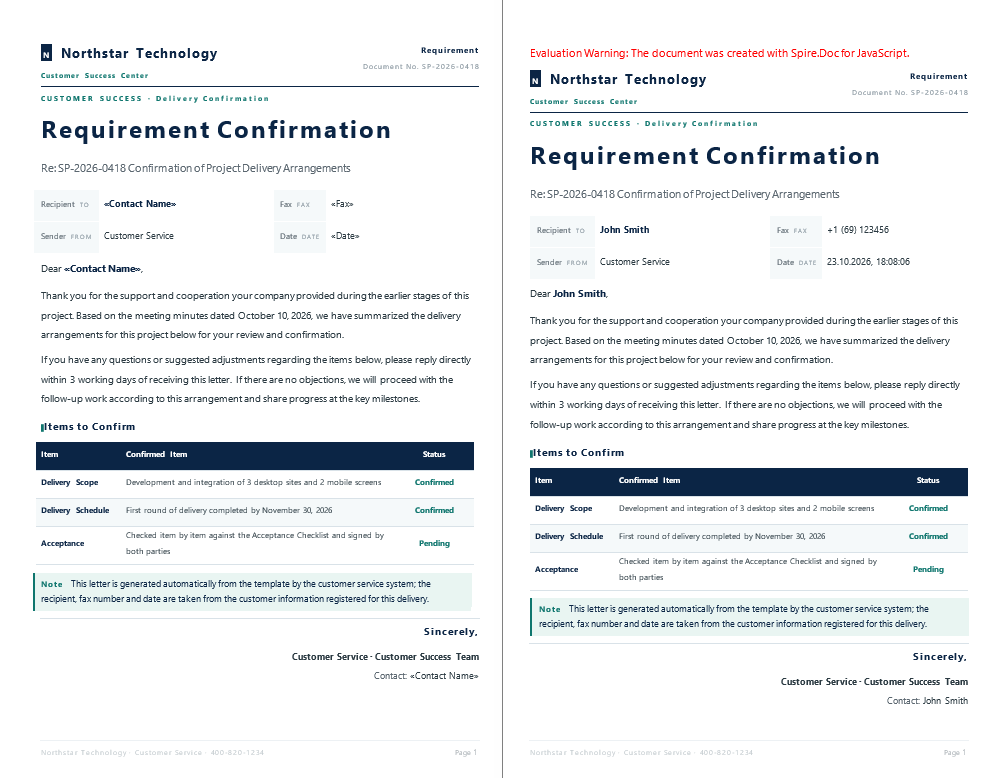
With the same template and the same set of data, only the format of the Date field differs:
| Source of the date field | Merge result |
|---|---|
DateTime.get_Now().Date.ToString() |
10/22/2026 12:00:00 AM |
Intl.DateTimeFormat('de-DE', …).format(new Date()) |
22.10.2026, 17:19:45 |
Word document after the date field has been formatted by culture with JavaScript in React
Output a Localized Date with toLocaleString
In addition to Intl.DateTimeFormat, the Date object itself provides localized output methods. toLocaleString() accepts the same locale code and format options and produces the same result:
const datestr = new Date().toLocaleString('de-DE', {
  year: 'numeric', month: '2-digit', day: '2-digit',
  hour: '2-digit', minute: '2-digit', second: '2-digit'
});
When only the date part is needed, use toLocaleDateString('de-DE', { year: 'numeric', month: '2-digit', day: '2-digit' }) instead. In data exchange scenarios that require an ISO-style form, toISOString().slice(0, 10) returns a string such as 2026-10-22 (this method uses the UTC date).
FAQ
Why does the merged document still contain a placeholder such as «Contact Name»
Cause: The placeholder text belongs to the field's result area, which lies between the separate and end markers of the field code. If « and » were typed as text outside the field, they are not part of that field; MailMerge.Execute() only replaces content inside the field, and text outside it remains as it is.
Solution: In Word, press Ctrl + F9 to create the field, enter the field code, and then press F9 so that Word generates the result text. Do not type the angle brackets manually outside the field. When the template is generated from code, « and » must be written between the separate and end markers, not as a separate run outside the field.
How should a field name that contains a space be written in the template and in JavaScript
In a Word field code, a field name containing spaces or other special characters is enclosed in double quotes:
{ MERGEFIELD "Contact Name" \* MERGEFORMAT }
What is passed to MailMerge.Execute() is the field name itself, without quotes:
let fieldNames = ["Contact Name"];
What is the result when a field in the template is not included in fieldNames
The field's result area is merged as an empty string rather than keeping the original placeholder, and the other fields in the template are processed as usual. This behavior can be used to leave a blank automatically when data is missing; if the original placeholder text should be kept, add the field name to fieldNames and place the original value at the corresponding position in fieldValues.
In addition, field name matching is case-insensitive, so "contact name" and "Contact Name" match the same field. The value actually used is determined by the array index, so the field names and the field values must keep the same order.
Why does the date appear differently on different computers after it is merged into the document
DateTime.get_Now().Date.ToString() produces output according to the current culture settings of the runtime environment, so systems or browsers with different regional settings return different strings. For stable output, follow the approach in "Format Date Fields by Culture": specify the locale code explicitly with Intl.DateTimeFormat and then pass the result to Execute.
In addition, in the environment used for the examples in this article, the time portion returned by DateTime.get_Now() is 12:00:00 AM, meaning that only the date is carried over. When a specific time is required, use the browser's Date object together with Intl.DateTimeFormat to generate the date string.
The downloaded docx will not open and is reported as corrupted
Cause: The Blob's MIME type is incomplete, or the downloaded bytes are not the ones read from the VFS after SaveToFile().
Solution: Declare the full MIME type for the docx and read the file only after saving is complete:
const fileArray = window.dotnetRuntime.Module.FS.readFile(outputFileName);
const blob = new Blob([fileArray], {
  type: 'application/vnd.openxmlformats-officedocument.wordprocessingml.document'
});
Get a Free License
Spire.Doc for JavaScript offers a 30-day full-featured free trial license with no functional limitations. Apply here to evaluate before purchasing.
