Python: Add or Remove Shapes in Word
In the modern office environment, Microsoft Word has become an indispensable part of our daily work and study. Whether it's writing reports, creating resumes, or designing promotional materials, Word provides us with a rich set of features and tools. Among them, the function of adding shapes is particularly popular among users because it allows us to easily enhance the visual appeal and expressiveness of documents. Manipulating shape elements is one of the highlights of Spire.Doc functionality, and this article will introduce you to how to add or delete shapes in Word using Spire.Doc for Python.
Install Spire.Doc for Python
This scenario requires Spire.Doc for Python and plum-dispatch v1.7.4. They can be easily installed in your Windows through the following pip command.
pip install Spire.Doc
If you are unsure how to install, please refer to this tutorial: How to Install Spire.Doc for Python on Windows
Add Shapes in Word Document in Python
Spire.Doc for Python supports adding various shapes such as rectangles, trapezoids, triangles, arrows, lines, emoticons, and many other predefined shape types. By calling the Paragraph.AppendShape(width: float, height: float, shapeType: 'ShapeType') method, you can not only easily insert these shapes at any position in the document but also customize various properties of the shapes, such as fill color, border style, rotation angle, transparency, etc., to meet different typesetting needs and visual effects. Below are the detailed steps:
- Create a new Document object.
- Call Document.AddSection() and Section.AddParagraph() methods to add a section and a paragraph within the section, respectively.
- Call the Paragraph.AppendShape(width: float, height: float, shapeType: 'ShapeType') method to add a shape on the paragraph, where width and height represent the dimensions of the shape, and shapeType enum is used to specify the type of shape.
- Define the style of the shape, such as fill color, border color, border style, and width.
- Set the horizontal and vertical position of the shape relative to the page.
- Add multiple other types of shapes using the same method.
- Save the document using the Document.SaveToFile() method.
- Python
from spire.doc import *
from spire.doc.common import *

# Create a new Document object
doc = Document()

# Add a new section in the document
sec = doc.AddSection()

# Add a paragraph in the new section
para = sec.AddParagraph()

# Add a rectangle shape in the paragraph with width and height both 60
shape1 = para.AppendShape(60, 60, ShapeType.Rectangle)

# Define the fill color of the shape
shape1.FillColor = Color.get_YellowGreen()

# Define the border color
shape1.StrokeColor = Color.get_Gray()

# Define the border style and width
shape1.LineStyle = ShapeLineStyle.Single
shape1.StrokeWeight = 1

# Set the horizontal and vertical position of the shape relative to the page
shape1.HorizontalOrigin = HorizontalOrigin.Page
shape1.HorizontalPosition = 100
shape1.VerticalOrigin = VerticalOrigin.Page
shape1.VerticalPosition = 200

# Similarly, add a triangle shape in the same paragraph and set its properties
shape2 = para.AppendShape(60, 60, ShapeType.Triangle)
shape2.FillColor = Color.get_Green()
shape2.StrokeColor = Color.get_Gray()
shape2.LineStyle = ShapeLineStyle.Single
shape2.StrokeWeight = 1
shape2.HorizontalOrigin = HorizontalOrigin.Page
shape2.HorizontalPosition = 200
shape2.VerticalOrigin = VerticalOrigin.Page
shape2.VerticalPosition = 200

# Add an arrow shape and set its properties
shape3 = para.AppendShape(60, 60, ShapeType.Arrow)
shape3.FillColor = Color.get_SeaGreen()
shape3.StrokeColor = Color.get_Gray()
shape3.LineStyle = ShapeLineStyle.Single
shape3.StrokeWeight = 1
shape3.HorizontalOrigin = HorizontalOrigin.Page
shape3.HorizontalPosition = 300
shape3.VerticalOrigin = VerticalOrigin.Page
shape3.VerticalPosition = 200

# Add a smiley face shape and set its properties
shape4 = para.AppendShape(60, 60, ShapeType.SmileyFace)
shape4.FillColor = Color.get_LightGreen()
shape4.StrokeColor = Color.get_Gray()
shape4.LineStyle = ShapeLineStyle.Single
shape4.StrokeWeight = 1
shape4.HorizontalOrigin = HorizontalOrigin.Page
shape4.HorizontalPosition = 400
shape4.VerticalOrigin = VerticalOrigin.Page
shape4.VerticalPosition = 200

# Save the document
outputFile = "AddShapes.docx"
doc.SaveToFile(outputFile, FileFormat.Docx2016)

# Release the document
doc.Close()

Add Shape Group in Word Document
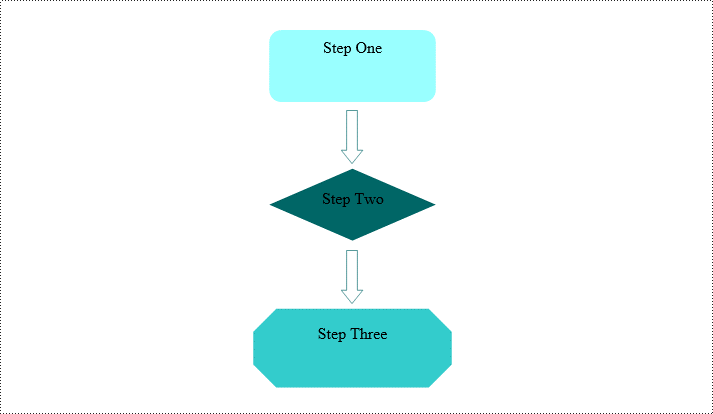
Spire.Doc for Python not only provides the functionality to add individual shapes (such as rectangles, circles, lines, etc.) but also supports creating and managing grouped shapes. A grouped shape is a special collection of shapes that organizes multiple independent shapes together to form a whole, sharing the same transformation properties (such as position, rotation angle, etc.). Here are the specific steps to achieve this:
- Create an object of the Document class.
- Call the Document.AddSection() method to add a blank section.
- Call the Section.AddParagraph() method to add a blank paragraph in the section.
- Call Paragraph.AppendShapeGroup() to add a shape group and specify its dimensions.
- Create a Textbox and specify its shape type, dimensions, position, fill color, and other properties.
- Add paragraphs within the Textbox and insert text, setting the paragraph's horizontal alignment to center.
- Add the Textbox to the list of child objects of the shape group.
- Similar to the above steps, create shapes for symbols like arrows, diamond-shaped text boxes, octagonal text boxes, and set their properties, adding them to the list of child objects of the shape group.
- Save the document using the Document.SaveToFile() method.
- Python
from spire.doc import *
from spire.doc.common import *

# Create a Document object
doc = Document()

# Add a section to the document
sec = doc.AddSection()

# Add a paragraph to the section
para = sec.AddParagraph()

# Add a shape group to the paragraph and specify its horizontal position
shapegroup = para.AppendShapeGroup(375, 350)
shapegroup.HorizontalPosition = 180

# Calculate the relative unit scale X and Y for the shape group for subsequent element size positioning
X = float((shapegroup.Width / 1000.0))
Y = float((shapegroup.Height / 1000.0))

# Create a rounded rectangle text box
txtBox = TextBox(doc)

# Set the shape type of the text box
txtBox.SetShapeType(ShapeType.RoundRectangle)

# Set the width and height of the text box
txtBox.Width = 125 / X
txtBox.Height = 54 / Y

# Add a paragraph inside the text box and set its horizontal alignment to center
paragraph = txtBox.Body.AddParagraph()
paragraph.Format.HorizontalAlignment = HorizontalAlignment.Center

# Add the text "Step One" to the paragraph
paragraph.AppendText("Step One")

# Set the horizontal and vertical position of the text box
txtBox.HorizontalPosition = 19 / X
txtBox.VerticalPosition = 27 / Y

# Set the fill color of the text box and remove the border line
txtBox.Format.FillColor = Color.FromRgb(153, 255, 255)
txtBox.Format.NoLine = True

# Add the text box to the list of child objects of the shape group
shapegroup.ChildObjects.Add(txtBox)

# Create a downward arrow shape and specify its shape type
arrowLineShape = ShapeObject(doc, ShapeType.DownArrow)

# Set the width and height of the arrow shape
arrowLineShape.Width = 16 / X
arrowLineShape.Height = 40 / Y

# Set the horizontal and vertical position of the arrow shape
arrowLineShape.HorizontalPosition = 73 / X
arrowLineShape.VerticalPosition = 87 / Y

# Set the stroke color of the arrow shape
arrowLineShape.StrokeColor = Color.get_CadetBlue()

# Add the arrow shape to the list of child objects of the shape group
shapegroup.ChildObjects.Add(arrowLineShape)

# (Similar subsequent code, creating diamond-shaped text boxes, downward arrow shapes, and octagonal text boxes, with corresponding property settings and positioning)

txtBox = TextBox(doc)
txtBox.SetShapeType(ShapeType.Diamond)
txtBox.Width = 125 / X
txtBox.Height = 54 / Y
paragraph = txtBox.Body.AddParagraph()
paragraph.Format.HorizontalAlignment = HorizontalAlignment.Center
paragraph.AppendText("Step Two")
txtBox.HorizontalPosition = 19 / X
txtBox.VerticalPosition = 131 / Y
txtBox.Format.FillColor = Color.FromRgb(0, 102, 102)
txtBox.Format.NoLine = True
shapegroup.ChildObjects.Add(txtBox)

arrowLineShape = ShapeObject(doc, ShapeType.DownArrow)
arrowLineShape.Width = 16 / X
arrowLineShape.Height = 40 / Y
arrowLineShape.HorizontalPosition = 73 / X
arrowLineShape.VerticalPosition = 192 / Y
arrowLineShape.StrokeColor = Color.get_CadetBlue()
shapegroup.ChildObjects.Add(arrowLineShape)

txtBox = TextBox(doc)
txtBox.SetShapeType(ShapeType.Octagon)
txtBox.Width = 149 / X
txtBox.Height = 59 / Y
paragraph = txtBox.Body.AddParagraph()
paragraph.Format.HorizontalAlignment = HorizontalAlignment.Center
paragraph.AppendText("Step Three")
txtBox.HorizontalPosition = 7 / X
txtBox.VerticalPosition = 236 / Y
txtBox.Format.FillColor = Color.FromRgb(51, 204, 204)
txtBox.Format.NoLine = True
shapegroup.ChildObjects.Add(txtBox)

# Define the output file name
outputFile = "ShapeGroup.docx"

# Save the document
doc.SaveToFile(outputFile, FileFormat.Docx2016)

# Close the document object
doc.Close()
Remove Shapes from Word Document
Spire.Doc for Python supports efficiently removing individual shapes and shape groups from a Word document. Below are the detailed steps:
- Create an object of the Document class.
- Call the Document.LoadFromFile() method to load a document containing shapes.
- Traverse through all the sections of the document and the body elements within the sections to get paragraphs.
- Check if the child elements under the paragraph are shape objects or shape group objects.
- Call the Paragraph.ChildObjects.Remove() method to remove the shape object.
- Save the document using the Document.SaveToFile() method.
- Python
from spire.doc import *
from spire.doc.common import *

# Create an object of the Document class
doc = Document()

# Load a Word document
doc.LoadFromFile("ShapeGroup.docx")

# Iterate through all sections of the document
for s in range(doc.Sections.Count):
    # Get the current section
    section = doc.Sections.get_Item(i)

    # Iterate through all child objects within the section
    for i in range(section.Body.ChildObjects.Count):
        # Get the current child object
        document_object = section.Body.ChildObjects.get_Item(i)

        # If the current child object is a paragraph
        if isinstance(document_object, Paragraph):
            # Convert the child object to a paragraph object
            paragraph = document_object

            # Initialize the inner loop index
            j = 0

            # Iterate through all child objects within the paragraph
            while j < paragraph.ChildObjects.Count:
                # Get the current child object within the paragraph
                c_obj = paragraph.ChildObjects.get_Item(i)

                # If the current child object is a shape group or shape object
                if isinstance(c_obj, ShapeGroup) or isinstance(c_obj, ShapeObject):
                    # Remove the shape object from the paragraph
                    paragraph.ChildObjects.Remove(c_obj)

                    # Update the inner loop index
                    j -= 1

                # Increment the inner loop index
                j += 1

# Save the document
doc.SaveToFile("RemovedShapes.docx", FileFormat.Docx2016)

# Close the document object
doc.Close()
Apply for a Temporary License
If you'd like to remove the evaluation message from the generated documents, or to get rid of the function limitations, please request a 30-day trial license for yourself.
Python: Set Paragraph Indentations in Word
Paragraph indentations determine the horizontal space between the page margins and the text of paragraphs. They are an important formatting tool used in various types of written documents, such as essays, reports, and articles, to improve readability and create a visual distinction between paragraphs. In this article, we will demonstrate how to set paragraph indentations in Word documents in Python using Spire.Doc for Python.
Install Spire.Doc for Python
This scenario requires Spire.Doc for Python and plum-dispatch v1.7.4. They can be easily installed in your Windows through the following pip command.
pip install Spire.Doc
If you are unsure how to install, please refer to this tutorial: How to Install Spire.Doc for Python on Windows
Set Paragraph Indentations in Word in Python
Microsoft Word provides four types of paragraph indent options that enable you to format your document efficiently. These options are as follows:
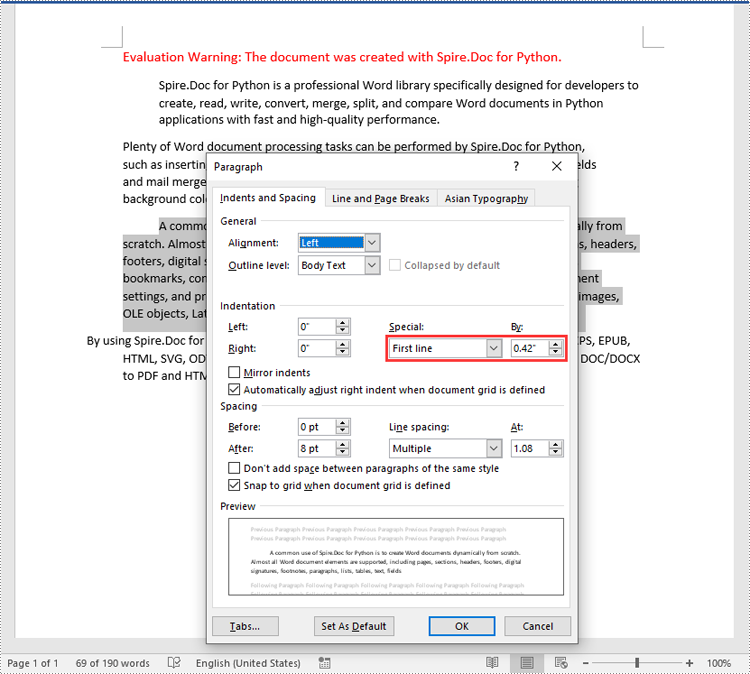
- First Line Indent: The first line indent refers to the horizontal space between the left margin and the beginning of the first line of a paragraph. It indents only the first line while keeping the subsequent lines aligned with the left margin.
- Left Indent: The left indent, also known as the paragraph indent or the left margin indent, determines the horizontal distance between the left margin and the entire paragraph. It uniformly indents the entire paragraph from the left margin.
- Right Indent: The right indent sets the horizontal distance between the right margin and the entire paragraph. It indents the paragraph from the right side, shifting the text towards the left.
- Hanging Indent: The hanging indent is a unique indentation style where the first line remains aligned with the left margin, while all subsequent lines of the paragraph are indented inward. This creates a "hanging" effect, commonly used for bibliographies, references, or citations.
Spire.Doc for Python supports all these types of indents. The table below lists some of the core classes and methods that are used to set different paragraph indents in Word with Spire.Doc for Python:
| Name | Description |
| ParagraphFormat Class | Represents the format of a paragraph. |
| ParagraphFormat.SetLeftIndent() Method | Sets the left indent value for paragraph. |
| ParagraphFormat.SetRightIndent() Method | Sets the right indent value for paragraph. |
| ParagraphFormat.SetFirstLineIndent() Method | Sets the first line or hanging indent value. Positive value represents first-line indent, and negative value represents hanging indent. |
The steps below explain how to set paragraph indents in a Word document using Spire.Doc for Python:
- Create a Document instance.
- Load a sample Word document using Document.LoadFromFile() method.
- Get a specific section using Document.Sections[] property.
- Get a specific paragraph using Section.Paragraphs[] property.
- Get the paragraph format using Paragraph.Format property, and then set the paragraph indent using the above listed methods of ParagraphFormat class.
- Save the document to another file using Document.SaveToFile() method.
- Python
from spire.doc import *
from spire.doc.common import *

# Create a Document instance
doc = Document()
# Load a sample Word document
doc.LoadFromFile(""Sample6.docx"")

# Get the first section
section = doc.Sections.get_Item(0)

# Get the first paragraph and set the left indent
para1 = section.Paragraphs.get_Item(0)
para1.Format.SetLeftIndent(30)

# Get the second paragraph and set the right indent
para2 = section.Paragraphs.get_Item(1)
para2.Format.SetRightIndent(30)

# Get the third paragraph and set the first line indent
para3 = section.Paragraphs.get_Item(2)
para3.Format.SetFirstLineIndent(30)

# Get the fourth paragraph and set the hanging indent
para4 = section.Paragraphs.get_Item(3)
para4.Format.SetFirstLineIndent(-30)

# Save the document to file
doc.SaveToFile(""SetIndents.docx"", FileFormat.Docx2013)
doc.Close()
Apply for a Temporary License
If you'd like to remove the evaluation message from the generated documents, or to get rid of the function limitations, please request a 30-day trial license for yourself.
Python: Create a Pie Chart or a Doughnut Chart in PowerPoint
Pie charts and doughnut charts are two popular types of data visualization tools that are widely used to show the proportional distribution of categories within the whole. Both charts can serve as powerful communication aids, allowing viewers to quickly grasp the significance of each component and how it relates to the overall picture.
While pie charts and doughnut charts share many similarities, they also have unique characteristics that make them suitable for different analytical scenarios. In this article, you will learn how to create a pie chart or a doughnut chart in PowerPoint with Python using Spire.Presentation for Python.
Install Spire.Presentation for Python
This scenario requires Spire.Presentation for Python and plum-dispatch v1.7.4. They can be easily installed in your Windows through the following pip command.
pip install Spire.Presentation
If you are unsure how to install, please refer to this tutorial: How to Install Spire.Presentation for Python on Windows
Create a Pie Chart in PowerPoint with Python
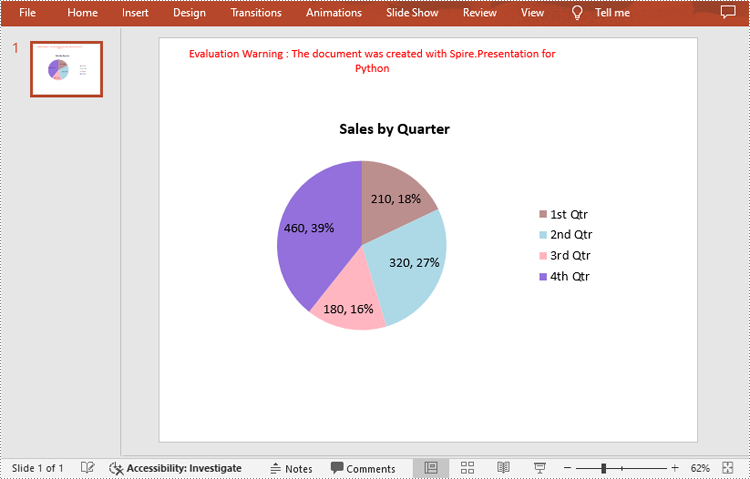
Pie charts are designed to resemble a circle, which is divided into sections or "slices", with each slice representing a portion of the whole.
With Spire.Prensetion for Python, you can add a pie chart to a presentation slide using the ISlide.Shapes.AppendChartInit(type: ChartType, rectangle: RectangleF, init: bool) method and specify the chart type as Pie. The following are the detailed steps.
- Create a Presentation instance.
- Get the first slide using Prenstion.Slides[] property.
- Add a pie chart at a specified location on the side using ISlide.Shapes.AppendChartInit(type: ChartType, rectangle RectangleF, init bool).
- Set and format the chart title.
- Define some data and append the data to the chart sheet as chart data using IChart.ChartData property.
- Set series labels, category labels, series values and other attributes using the properties of the IChart class.
- Set to show label value and percentage value.
- Save the result file using Presentation.SaveToFile() method.
- Python
from spire.presentation.common import *
from spire.presentation import *

# Create a Presentation instance
presentation = Presentation()

# Add a pie chart at a specified location on the first slide
rect = RectangleF.FromLTRB (40, 100, 590, 420)
chart = presentation.Slides[0].Shapes.AppendChartInit (ChartType.Pie, rect, False)

# Set and format chart title
chart.ChartTitle.TextProperties.Text = "Sales by Quarter"
chart.ChartTitle.TextProperties.IsCentered = True
chart.ChartTitle.Height = 30
chart.HasTitle = True

# Define some data
quarters = ["1st Qtr", "2nd Qtr", "3rd Qtr", "4th Qtr"]
sales = [210, 320, 180, 460]

# Append data to ChartData, which represents a data table where the chart data is stored
chart.ChartData[0,0].Text = "Quarters"
chart.ChartData[0,1].Text = "Sales"
i = 0
while i < len(quarters):
    chart.ChartData[i + 1,0].Text = quarters[i]
    chart.ChartData[i + 1,1].NumberValue = sales[i]
    i += 1

# Set series labels and category labels
chart.Series.SeriesLabel = chart.ChartData["B1","B1"]
chart.Categories.CategoryLabels = chart.ChartData["A2","A5"]

# Set values for series
chart.Series[0].Values = chart.ChartData["B2","B5"]

# Add data points to series
for i, unusedItem in enumerate(chart.Series[0].Values):
    cdp = ChartDataPoint(chart.Series[0])
    cdp.Index = i
    chart.Series[0].DataPoints.Add(cdp)

# Fill each data point with a different color
chart.Series[0].DataPoints.get_Item(0).Fill.FillType = FillFormatType.Solid
chart.Series[0].DataPoints.get_Item(0).Fill.SolidColor.Color = Color.get_RosyBrown()
chart.Series[0].DataPoints.get_Item(1).Fill.FillType = FillFormatType.Solid
chart.Series[0].DataPoints.get_Item(1).Fill.SolidColor.Color = Color.get_LightBlue()
chart.Series[0].DataPoints.get_Item(2).Fill.FillType = FillFormatType.Solid
chart.Series[0].DataPoints.get_Item(2).Fill.SolidColor.Color = Color.get_LightPink()
chart.Series[0].DataPoints.get_Item(3).Fill.FillType = FillFormatType.Solid
chart.Series[0].DataPoints.get_Item(3).Fill.SolidColor.Color = Color.get_MediumPurple()

# Set the data labels to display label value and percentage value
chart.Series[0].DataLabels.LabelValueVisible = True
chart.Series[0].DataLabels.PercentValueVisible = True

# Save the result file
presentation.SaveToFile("CreatePieChart.pptx", FileFormat.Pptx2016)
presentation.Dispose()
Create a Doughnut Chart in PowerPoint with Python
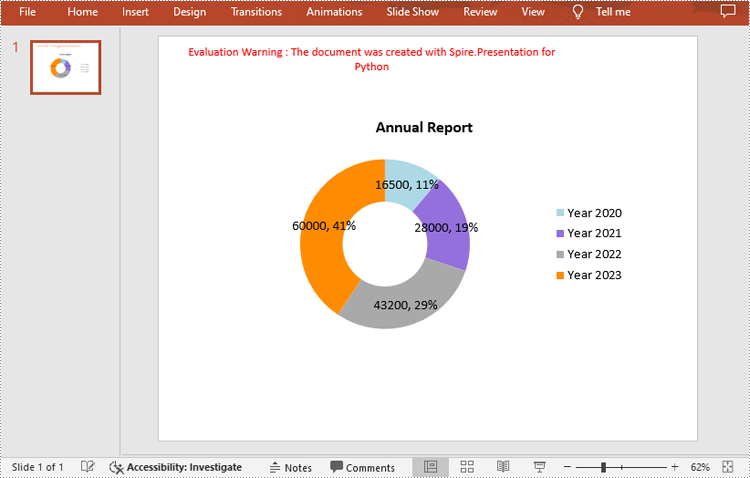
Doughnut charts are very similar to pie charts, with the primary difference being the presence of a "hole" in the center. This hole can be used to display additional information or to maintain a cleaner look.
To add a donut chart to a presentation slide, you can specify the ChartType parameter of ISlide.Shapes.AppendChartInit() method as Doughnut. The following are the detailed steps.
- Create a Presentation instance.
- Get the first slide using Prenstion.Slides[] property.
- Add a doughnut chart at a specified location on the side using ISlide.Shapes.AppendChartInit(type: ChartType, rectangle: RectangleF, init: bool).
- Define some data and append the data to the chart sheet as chart data using IChart.ChartData property.
- Set series labels, category labels, series values and other attributes using the properties of the IChart class.
- Set to show label value and percentage value.
- Save the result file using Presentation.SaveToFile() method.
- Python
from spire.presentation.common import *
from spire.presentation import *

# Create a Presentation instance
presentation = Presentation()

# Add a doughnut chart at a specified location on the first slide
rect = RectangleF.FromLTRB (80, 100, 630, 420)
chart = presentation.Slides[0].Shapes.AppendChartInit(ChartType.Doughnut, rect, False)

# Set and format chart title
chart.ChartTitle.TextProperties.Text = "Annual Report"
chart.ChartTitle.TextProperties.IsCentered = True
chart.ChartTitle.Height = 30

# Define some data
years = ["Year 2020", "Year 2021", "Year 2022", "Year 2023"]
sales = [16500, 28000, 43200, 60000]

# Append data to ChartData, which represents a data table where the chart data is stored
chart.ChartData[0,0].Text = "Quarters"
chart.ChartData[0,1].Text = "Sales"
i = 0
while i < len(years):
    chart.ChartData[i + 1,0].Text = years[i]
    chart.ChartData[i + 1,1].NumberValue = sales[i]
    i += 1

# Set series labels and category labels
chart.Series.SeriesLabel = chart.ChartData["B1","B1"]
chart.Categories.CategoryLabels = chart.ChartData["A2","A5"]

# Set values for series
chart.Series[0].Values = chart.ChartData["B2","B5"]

# Add data points to series
for i, item in enumerate(chart.Series[0].Values):
    cdp = ChartDataPoint(chart.Series[0])
    cdp.Index = i
    chart.Series[0].DataPoints.Add(cdp)

# Fill each data point with a different color
chart.Series[0].DataPoints.get_Item(0).Fill.FillType = FillFormatType.Solid
chart.Series[0].DataPoints.get_Item(0).Fill.SolidColor.Color = Color.get_LightBlue()
chart.Series[0].DataPoints.get_Item(1).Fill.FillType = FillFormatType.Solid
chart.Series[0].DataPoints.get_Item(1).Fill.SolidColor.Color = Color.get_MediumPurple()
chart.Series[0].DataPoints.get_Item(2).Fill.FillType = FillFormatType.Solid
chart.Series[0].DataPoints.get_Item(2).Fill.SolidColor.Color =  Color.get_DarkGray()
chart.Series[0].DataPoints.get_Item(3).Fill.FillType = FillFormatType.Solid
chart.Series[0].DataPoints.get_Item(3).Fill.SolidColor.Color = Color.get_DarkOrange()

# Set the data labels to display label value and percentage value
chart.Series[0].DataLabels.LabelValueVisible = True
chart.Series[0].DataLabels.PercentValueVisible = True

# Set the hole size of the doughnut chart
chart.Series[0].DoughnutHoleSize = 50

# Save the result file
presentation.SaveToFile("DoughnutChart.pptx", FileFormat.Pptx2016)
presentation.Dispose()
Apply for a Temporary License
If you'd like to remove the evaluation message from the generated documents, or to get rid of the function limitations, please request a 30-day trial license for yourself.
Python: Set or Remove Table Borders in PowerPoint
Table borders in PowerPoint refer to the visible lines or outlines that surround the cells within a table. These borders provide a visual separation between cells and help define the boundaries of the table. By setting or modifying table borders, you can customize the appearance of tables in your PowerPoint presentations. In this article, we will guide you on how to set and remove table borders in PowerPoint in Python using Spire.Presentation for Python.
Install Spire.Presentation for Python
This scenario requires Spire.Presentation for Python and plum-dispatch v1.7.4. They can be easily installed in your Windows through the following pip command.
pip install Spire.Presentation
If you are unsure how to install, please refer to this tutorial: How to Install Spire.Presentation for Python on Windows
Set Table Borders in PowerPoint in Python
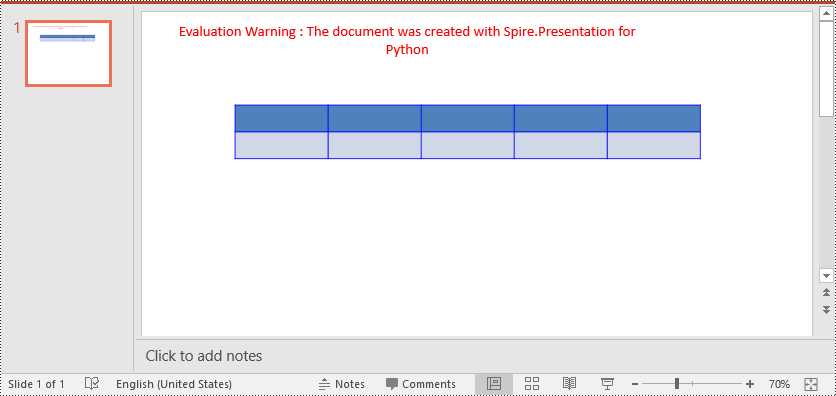
Spire.Presentation for Python provides the ITable.SetTableBorder() method, which allows you to set borders for a table in PowerPoint. The detailed steps are as follows.
- Create an object of the Presentation class.
- Get the first slide of the presentation using Presentation.Slides[] property.
- Add a table to the slide using ISlide.Shapes.AppendTable() method.
- Add borders to the table and set the border type, width, and color using ITable.SetTableBorder() method.
- Save the result presentation using Presentation.SaveToFile() method.
- Python
from spire.presentation.common import *
from spire.presentation import *

# Create a Presentation object
presentation = Presentation()
# Get  the first slide of the presentation
slide = presentation.Slides[0]

# Specify the number and size of rows and columns in table
widths = [100, 100, 100, 100, 100]
heights = [20, 20]

# Add a table to the first slide
table = slide.Shapes.AppendTable(100, 100, widths, heights)

# Add borders to the table and set the border type, width, and color
table.SetTableBorder(TableBorderType.All, 1, Color.get_Blue())

# Save the result presentation
presentation.SaveToFile("SetBorders.pptx", FileFormat.Pptx2013)
presentation.Dispose()
Remove Table Borders in PowerPoint in Python
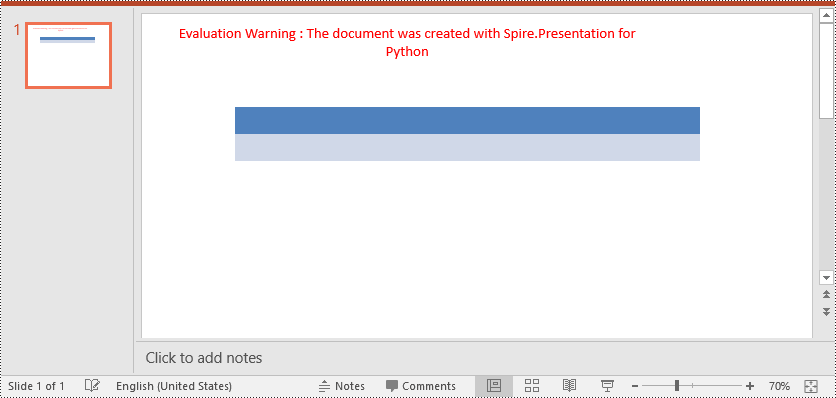
To remove borders from a table, you need to iterate through the cells in the table and then remove the borders from each cell. The detailed steps are as follows.
- Create an object of the Presentation class.
- Load a PowerPoint presentation using Presentation.LoadFromFile() method.
- Get a specific slide of the presentation using Presentation.Slides[] property.
- Get the table on the slide.
- Iterate through the rows in the table and the cells in each row.
- Remove the borders from each cell by setting the fill type of the top, bottom, left and right borders of the cell as none.
- Save the result presentation using Presentation.SaveToFile() method.
- Python
from spire.presentation.common import *
from spire.presentation import *

# Create a PowerPoint presentation
presentation = Presentation()
# Load a PowerPoint presentation
presentation.LoadFromFile("SetBorders.pptx")

# Get the first slide
slide = presentation.Slides[0]
# Get the table on the slide
table = slide.Shapes[0] if isinstance(slide.Shapes[0], ITable) else None
table = (ITable)(table)

# Iterate through the rows and cells in the table
for row in table.TableRows:
    for cell in row:
        # Remove borders from each cell by setting the fill type of the top, bottom, left and right borders of the cell as none
        cell.BorderTop.FillType = FillFormatType.none
        cell.BorderBottom.FillType = FillFormatType.none
        cell.BorderLeft.FillType = FillFormatType.none
        cell.BorderRight.FillType = FillFormatType.none

# Save the result presentation
presentation.SaveToFile("RemoveBorders.pptx", FileFormat.Pptx2013)
presentation.Dispose()
Apply for a Temporary License
If you'd like to remove the evaluation message from the generated documents, or to get rid of the function limitations, please request a 30-day trial license for yourself.
Python: Change the Margins of a PDF Document
Margins in a PDF document refer to the blank spaces surrounding the content on each page. They act as a buffer zone between the text or images and the edges of the page. Changing the margins of a PDF document can be a useful task when you want to adjust the layout, accommodate annotations or comments, or prepare the document for printing or presentation.
This article introduces how to modify the margins of a PDF document using the Spire.PDF for Python library. You will discover techniques to both increase and reduce the margins of your PDFs, enabling you to customize the layout according to your specific requirements.
Install Spire.PDF for Python
This scenario requires Spire.PDF for Python and plum-dispatch v1.7.4. They can be easily installed in your Windows through the following pip command.
pip install Spire.PDF
If you are unsure how to install, please refer to this tutorial: How to Install Spire.PDF for Python on Windows
Increase the Margins of a PDF Document in Python
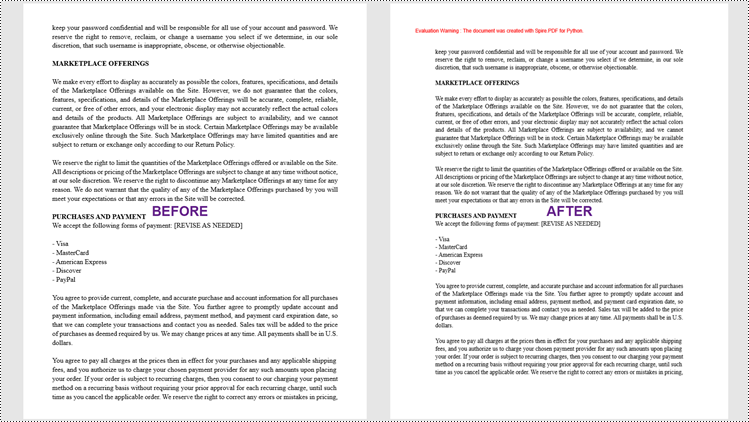
In Spire.PDF for Python, there isn't a direct method to modify the margins of an existing PDF document. However, you can increase the margins by creating a new PDF document with a page size equal to the original document's page size plus the increased margin values. Then, copy and paste (draw) each page of the original document into the appropriate place on the new document page.
The following are the steps to increase the margins of a PDF document using Python.
- Create a PdfDocument object called "originalPdf" and load the original PDF document.
- Create another PdfDocument object called "newPdf" for creating a new PDF document.
- Specify the desired increase values for the top, bottom, left, and right margins.
- Calculate the new page size by adding the margin increase values to the original page dimensions.
- Create a template based on the original PDF page using PdfPageBase.CreateTemplate() method.
- Add a new page to the "newPdf" document with the calculated page size using PdfDocument.Pages.Add() method.
- Draw the template onto the new page at the appropriate location to using PdfTemplate.Draw() method.
- Repeat steps 5-7 for each page in the original PDF document.
- Save the "newPdf" object to a PDF file.
- Python
from spire.pdf.common import *
from spire.pdf import *

# Create a PdfDocument object
originalPdf = PdfDocument()

# Load a PDF file
originalPdf.LoadFromFile("C:\\Users\\Administrator\\Desktop\\Input.pdf")

# Get the first page
"firstPage = originalPdf.Pages.get_Item(0)

# Create another PdfDocument object for creating new document
newPdf = PdfDocument()

# Set the increase values of the margins
marginsToAdd = newPdf.PageSettings.Margins
marginsToAdd.Top = 40
marginsToAdd.Bottom = 40
marginsToAdd.Left = 40
marginsToAdd.Right = 40

# Calculate the new page size
sizeF = SizeF(firstPage.Size.Width + marginsToAdd.Left + marginsToAdd.Right, firstPage.Size.Height + marginsToAdd.Top + marginsToAdd.Bottom)

# Iterate through the pages in the original document
for i in range(originalPdf.Pages.Count):

    # Create a template based on a specific page
    pdfTemplate = originalPdf.Pages.get_Item(i).CreateTemplate()"

    # Add a page to the new PDF
    page = newPdf.Pages.Add(sizeF)

    # Draw template on the page
    pdfTemplate.Draw(page, 0.0, 0.0)

# Save the new document
newPdf.SaveToFile("Output/IncreaseMargins.pdf", FileFormat.PDF)

# Dispose resources
originalPdf.Dispose()
newPdf.Dispose()
Reduce the Margins of a PDF Document in Python
Similarly, you can reduce the margins by creating a new PDF document with a page size equal to the page size of the original document minus the margin value to be reduced. Then, copy and paste (draw) each page of the original document into the appropriate place on the new document page.
To reduce the margins of a PDF document using Python, follow these steps:
- Create a PdfDocument object called "originalPdf" and load the original PDF document.
- Create another PdfDocument object called "newPdf" for creating a new PDF document.
- Specify the desired reduction values for the top, bottom, left, and right margins.
- Calculate the new page size by subtracting the margin value to be reduced from the original page size.
- Create a template based on the original PDF page using PdfPageBase.CreateTemplate() method.
- Add a new page to the "newPdf" document with the calculated page size using PdfDocument.Pages.Add() method.
- Draw the template onto the new page at the appropriate location using PdfTemplate.Draw() method.
- Repeat steps 5-7 for each page in the original PDF document.
- Save the "newPdf" object to a PDF file.
- Python
from spire.pdf.common import *
from spire.pdf import *

# Create a PdfDocument object
originalPdf = PdfDocument()

# Load a PDF file
originalPdf.LoadFromFile(""C:\\Users\\Administrator\\Desktop\\Input.pdf"")

# Get the first page
firstPage = originalPdf.Pages.get_Item(0)

# Create another PdfDocument object
newPdf = PdfDocument()

# Set the reduction value of the margins
topToReduce = 20.0
bottomToReduce = 20.0
leftToReduce = 20.0
rightToReduce = 20.0

# Calculate the new page size
sizeF = SizeF(firstPage.Size.Width - leftToReduce - rightToReduce, firstPage.Size.Height - topToReduce - bottomToReduce)

# Iterate through the pages in the original document
for i in range(originalPdf.Pages.Count):

    # Create a template based on a specific page
    pdfTemplate = originalPdf.Pages.get_Item(i).CreateTemplate()

    # Add a page to the new PDF
    page = newPdf.Pages.Add(sizeF, PdfMargins(0.0))

    # Draw template on the page
    pdfTemplate.Draw(page, -leftToReduce, -topToReduce)

# Save the new document
newPdf.SaveToFile(""Output/ReduceMargins.pdf"", FileFormat.PDF)

# Dispose resources
originalPdf.Dispose()
newPdf.Dispose()

Apply for a Temporary License
If you'd like to remove the evaluation message from the generated documents, or to get rid of the function limitations, please request a 30-day trial license for yourself.
Java: Read Content from a Word Document
Extracting content from Word documents plays a crucial role in both work and study. Extracting one page of content helps in quickly browsing and summarizing key points, while extracting content from one section aids in in-depth study of specific topics or sections. Extracting the entire document allows you to have a comprehensive understanding of the document content, facilitating deep analysis and comprehensive comprehension. This article will introduce how to use Spire.Doc for Java to read a page, a section, and the entire content of a Word document in a Java project.
- Read a Page from a Word Document in Java
- Read a Section from a Word Document in Java
- Read the Entire Content from a Word Document in Java
Install Spire.Doc for Java
First, you're required to add the Spire.Doc.jar file as a dependency in your Java program. The JAR file can be downloaded from this link. If you use Maven, you can easily import the JAR file in your application by adding the following code to your project's pom.xml file.
<repositories>
    <repository>
        <id>com.e-iceblue</id>
        <name>e-iceblue</name>
        <url>https://repo.e-iceblue.com/nexus/content/groups/public/</url>
    </repository>
</repositories>
<dependencies>
    <dependency>
        <groupId>e-iceblue</groupId>
        <artifactId>spire.doc</artifactId>
        <version>14.7.4</version>
    </dependency>
</dependencies>
Read a Page from a Word Document in Java
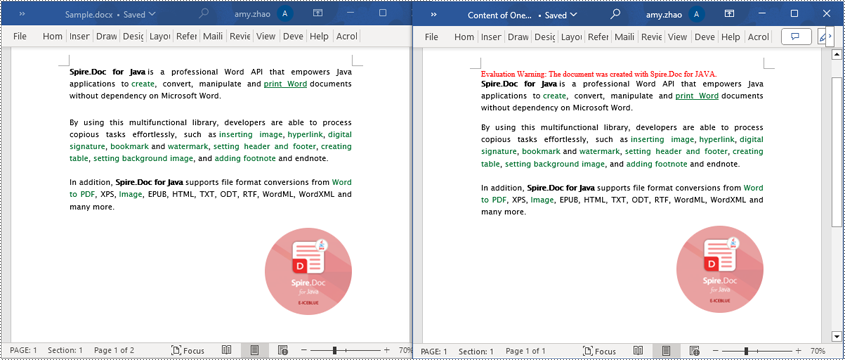
Using the FixedLayoutDocument class and FixedLayoutPage class makes it easy to extract content from a specified page. To facilitate viewing the extracted content, the following example code saves the extracted content to a new Word document. The detailed steps are as follows:
- Create a Document object.
- Load a Word document using the Document.loadFromFile() method.
- Create a FixedLayoutDocument object.
- Obtain a FixedLayoutPage object for a page in the document.
- Use the FixedLayoutPage.getSection() method to get the section where the page is located.
- Get the index position of the first paragraph on the page within the section.
- Get the index position of the last paragraph on the page within the section.
- Create another Document object.
- Add a new section using Document.addSection().
- Clone the properties of the original section to the new section using Section.cloneSectionPropertiesTo(newSection) method.
- Copy the content of the page from the original document to the new document.
- Save the resulting document using the Document.saveToFile() method.
- Java
import com.spire.doc.*;
import com.spire.doc.pages.*;
import com.spire.doc.documents.*;

public class ReadOnePage {
    public static void main(String[] args) {
        // Create a new document object
        Document document = new Document();

        // Load document content from the specified file
        document.loadFromFile("Sample.docx");

        // Create a fixed layout document object
        FixedLayoutDocument layoutDoc = new FixedLayoutDocument(document);

        // Get the first page
        FixedLayoutPage page = layoutDoc.getPages().get(0);

        // Get the section where the page is located
        Section section = page.getSection();

        // Get the first paragraph of the page
        Paragraph paragraphStart = page.getColumns().get(0).getLines().getFirst().getParagraph();
        int startIndex = 0;
        if (paragraphStart != null) {
            // Get the index of the paragraph in the section
            startIndex = section.getBody().getChildObjects().indexOf(paragraphStart);
        }

        // Get the last paragraph of the page
        Paragraph paragraphEnd = page.getColumns().get(0).getLines().getLast().getParagraph();

        int endIndex = 0;
        if (paragraphEnd != null) {
            // Get the index of the paragraph in the section
            endIndex = section.getBody().getChildObjects().indexOf(paragraphEnd);
        }

        // Create a new document object
        Document newdoc = new Document();

        // Add a new section
        Section newSection = newdoc.addSection();

        // Clone the properties of the original section to the new section
        section.cloneSectionPropertiesTo(newSection);

        // Copy the content of the original document's page to the new document
        for (int i = startIndex; i <=endIndex; i++)
        {
            newSection.getBody().getChildObjects().add(section.getBody().getChildObjects().get(i).deepClone());
        }

        // Save the new document to the specified file
        newdoc.saveToFile("Content of One Page.docx", FileFormat.Docx);

        // Close and release the new document
        newdoc.close();
        newdoc.dispose();

        // Close and release the original document
        document.close();
        document.dispose();
    }
}
Read a Section from a Word Document in Java
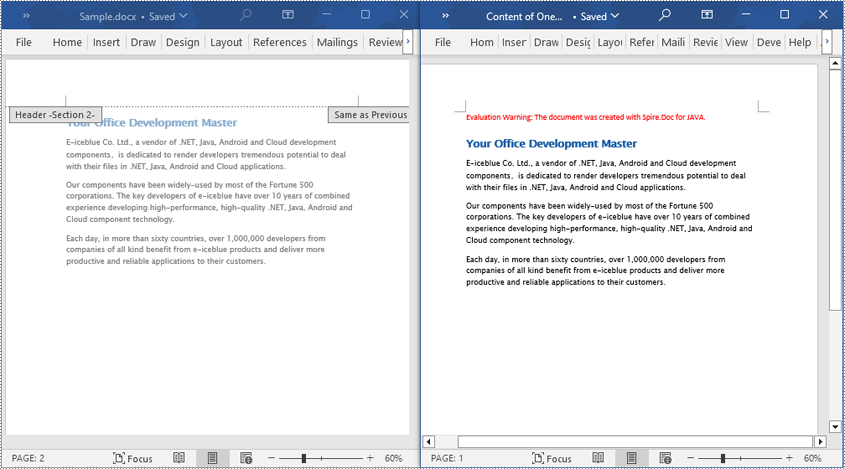
Using Document.Sections[index], you can access specific Section objects that contain the header, footer, and body content of a document. The following example demonstrates a simple method to copy all content from one section to another document. The detailed steps are as follows:
- Create a Document object.
- Load a Word document using the Document.loadFromFile() method.
- Use Document.getSections().get(1) to retrieve the second section of the document.
- Create another new Document object.
- Clone the default style of the original document to the new document using Document.cloneDefaultStyleTo(newdoc) method.
- Use Document.getSections().add(section.deepClone()) to clone the content of the second section of the original document to the new document.
- Save the resulting document using the Document.saveToFile() method.
- Java
import com.spire.doc.*;

public class ReadOneSection {
    public static void main(String[] args) {
        // Create a new document object
        Document document = new Document();

        // Load a Word document from a file
        document.loadFromFile("Sample.docx");

        // Get the second section of the document
        Section section = document.getSections().get(1);

        // Create a new document object
        Document newdoc = new Document();

        // Clone the default style to the new document
        document.cloneDefaultStyleTo(newdoc);

        // Clone the second section to the new document
        newdoc.getSections().add(section.deepClone());

        // Save the new document to a file
        newdoc.saveToFile("Content of One Section.docx", FileFormat.Docx);

        // Close and release the new document object
        newdoc.close();
        newdoc.dispose();

        // Close and release the original document object
        document.close();
        document.dispose();
    }
}
Read the Entire Content from a Word Document in Java
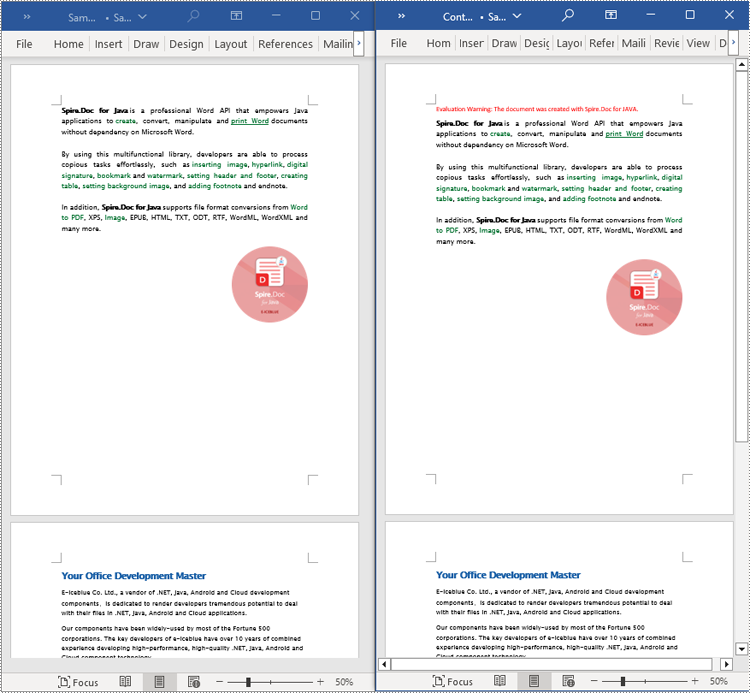
This example demonstrates how to iterate through each section of the original document to read the entire content of the document and clone each section into a new document. This method can help you quickly replicate both the structure and content of the entire document, preserving the format and layout of the original document in the new document. Such operations are very useful for maintaining the integrity and consistency of the document structure. The detailed steps are as follows:
- Create a Document object.
- Load a Word document using the Document.loadFromFile() method.
- Create another new Document object.
- Clone the default style of the original document to the new document using the Document.cloneDefaultStyleTo(newdoc) method.
- Iterate through each section of the original document using a for loop and clone it into the new document.
- Save the resulting document using the Document.saveToFile() method.
- Java
import com.spire.doc.*;

public class ReadOneDocument {
    public static void main(String[] args) {
        // Create a new document object
        Document document = new Document();

        // Load a Word document from a file
        document.loadFromFile("Sample.docx");

        // Create a new document object
        Document newdoc = new Document();

        // Clone the default style to the new document
        document.cloneDefaultStyleTo(newdoc);

        // Iterate through each section in the original document and clone it to the new document
        for (Section sourceSection : (Iterable<Section>) document.getSections()) {
            newdoc.getSections().add(sourceSection.deepClone());
        }
        // Save the new document to a file
        newdoc.saveToFile("Content of the entire document.docx", FileFormat.Docx);

        // Close and release the new document object
        newdoc.close();
        newdoc.dispose();

        // Close and release the original document object
        document.close();
        document.dispose();
    }
}
Apply for a Temporary License
If you'd like to remove the evaluation message from the generated documents, or to get rid of the function limitations, please request a 30-day trial license for yourself.
Python: Insert or Extract Images in Word Tables
Images are an effective tool for conveying complex information. By inserting images into tables, you can enhance data presentation with charts, graphs, diagrams, illustrations, and more. This not only enables readers to easily comprehend the information being presented but also adds visual appeal to your document. In certain cases, you may also come across situations where you need to extract images from tables for various purposes. For example, you might want to reuse an image in a presentation, website, or another document. Extracting images allows you to repurpose them, streamlining your content creation process and increasing efficiency. In this article, we will explore how to insert and extract images in Word tables in Python using Spire.Doc for Python.
Install Spire.Doc for Python
This scenario requires Spire.Doc for Python and plum-dispatch v1.7.4. They can be easily installed in your Windows through the following pip commands.
pip install Spire.Doc
If you are unsure how to install, please refer to this tutorial: How to Install Spire.Doc for Python on Windows
Insert Images into a Word Table in Python
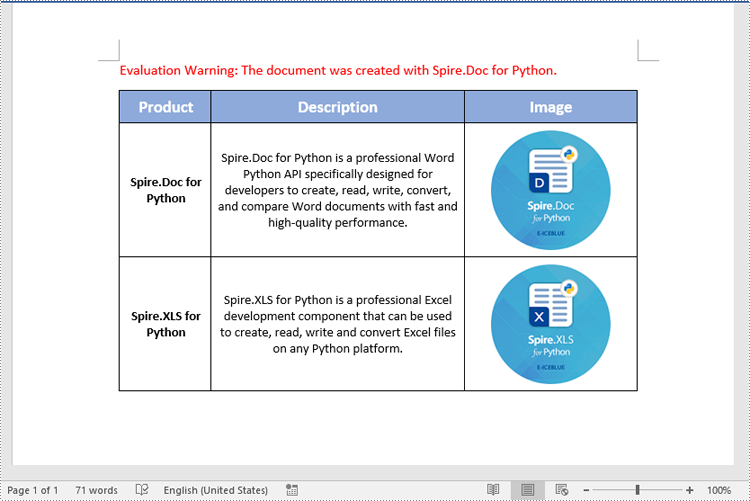
Spire.Doc for Python provides the TableCell.Paragraphs[index].AppendPicture() method to add an image to a specific table cell. The detailed steps are as follows.
- Create an object of the Document class.
- Load a Word document using the Document.LoadFromFile() method.
- Get a specific section in the document using the Document.Sections[index] property.
- Get a specific table in the section using the Section.Tables[index] property.
- Access a specific cell in the table using the Table.Row[index].Cells[index] property.
- Add an image to the cell using the TableCell.Paragraphs[index].AppendPicture() method and set the image width and height.
- Save the result document using the Document.SaveToFile() method.
- Python
from spire.doc import *
from spire.doc.common import *

# Create an object of the Document class
doc = Document()
# Load a Word document
doc.LoadFromFile("Table2.docx")

# Get the first section
section = doc.Sections.get_Item(0)

# Get the first table in the section
table = section.Tables.get_Item(0)

# Add an image to the 3rd cell of the second row in the table
cell = table.Rows[1].Cells[2]
picture = cell.Paragraphs[0].AppendPicture("doc.png")
# Set image width and height
picture.Width = 100
picture.Height = 100

# Add an image to the 3rd cell of the 3rd row in the table
cell = table.Rows[2].Cells[2]
picture = cell.Paragraphs[0].AppendPicture("xls.png")
# Set image width and height
picture.Width = 100
picture.Height = 100

# Save the result document
doc.SaveToFile("AddImagesToTable.docx", FileFormat.Docx2013)
doc.Close()
Extract Images from a Word Table in Python
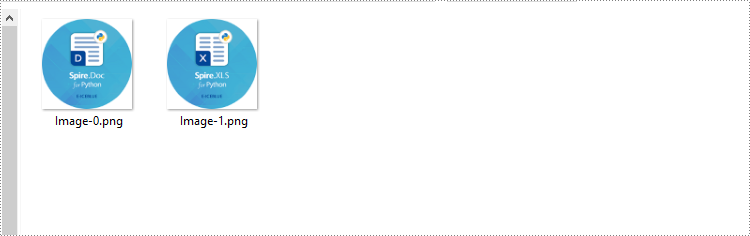
To extract images from a Word table, you need to iterate through all objects in the table and identify the ones of the DocPicture type. Once the DocPicture objects are found, you can access their image bytes using the DocPicture.ImageBytes property, and then save the image bytes to image files. The detailed steps are as follows.
- Create an object of the Document class.
- Load a Word document using the Document.LoadFromFile() method.
- Get a specific section in the document using the Document.Sections[index] property.
- Get a specific table in the section using the Section.Tables[index] property.
- Create a list to store the extracted image data.
- Iterate through all rows in the table.
- Iterate through all cells in each row.
- Iterate through all paragraphs in each cell.
- Iterate through all child objects in each paragraph.
- Check if the current child object is of DocPicture type.
- Get the image bytes of the DocPicture object using the DocPicture.ImageBytes property and append them to the list.
- Save the image bytes in the list to image files.
- Python
from spire.doc import *
from spire.doc.common import *

# Create an object of the Document class
doc = Document()
# Load a Word document
doc.LoadFromFile("AddImagesToTable.docx")

# Get the first section
section = doc.Sections.get_Item(0)

# Get the first table in the section
table = section.Tables.get_Item(0)

# Create a list to store image bytes
image_data = []

# Iterate through all rows in the table
for i in range(table.Rows.Count):
    row = table.Rows.get_Item(i)
    # Iterate through all cells in each row
    for j in range(row.Cells.Count):
        cell = row.Cells[j]
        # Iterate through all paragraphs in each cell
        for k in range(cell.Paragraphs.Count):
            paragraph = cell.Paragraphs[k]
            # Iterate through all child objects in each paragraph
            for o in range(paragraph.ChildObjects.Count):
                child_object = paragraph.ChildObjects[o]
                # Check if the current child object is of DocPicture type
                if isinstance(child_object, DocPicture):
                    picture = child_object
                    # Get the image bytes
                    bytes = picture.ImageBytes
                    # Append the image bytes to the list
                    image_data.append(bytes)

# Save the image bytes in the list to image files
for index, item in enumerate(image_data):
    image_Name = f"Images/Image-{index}.png"
    with open(image_Name, 'wb') as imageFile:
        imageFile.write(item)

doc.Close()
Apply for a Temporary License
If you'd like to remove the evaluation message from the generated documents, or to get rid of the function limitations, please request a 30-day trial license for yourself.
C# para ler arquivos Excel e exportar dados para DataTable e banco de dados
Índice
Instalar com Nuget
Install-Package Spire.XLS
Links Relacionados
Ler arquivos Excel em C# é um requisito comum para muitas aplicações, seja para análise de dados, relatórios ou integração com banco de dados. Embora as bibliotecas Interop da Microsoft possam ser usadas, elas têm limitações (como exigir que o Excel esteja instalado). Em vez disso, exploraremos uma abordagem mais eficiente usando o Spire.XLS, uma biblioteca .NET que permite ler e escrever arquivos Excel sem Interop. Este artigo aborda:
- Biblioteca C# .NET para Ler Excel Sem Interop
- Como Ler um Arquivo Excel em C#
- Ler Dados do Excel para um DataTable
- Ler Dados do Excel para um Banco de Dados
- Conclusão
- Perguntas Frequentes
Biblioteca C# .NET para Ler Excel Sem Interop
O Excel Interop da Microsoft exige que o Excel esteja instalado na máquina, tornando-o inadequado para aplicações do lado do servidor. Em vez disso, bibliotecas como o Spire.XLS oferecem uma solução leve e de alto desempenho, sem dependências do Excel.
Por que usar o Spire.XLS?
- Nenhuma Instalação do Excel Necessária – Funciona de forma independente.
- Suporta .NET Core & .NET Framework – Compatibilidade multiplataforma.
- Ler/Escrever Arquivos Excel – Suporta .xls, .xlsx e .xlsm.
- Importar para DataTable & Bancos de Dados – Integração perfeita com ADO.NET.
Instalação do Spire.XLS
Para começar, instale a biblioteca via Gerenciador de Pacotes NuGet:
Install-Package Spire.XLS
Alternativamente, você pode baixar o Spire.XLS for .NET do nosso site oficial e referenciar o arquivo DLL manualmente.
Como Ler um Arquivo Excel em C#
Esta seção demonstra como ler um arquivo Excel em C# usando a biblioteca Spire.XLS. O processo envolve carregar o arquivo, acessar planilhas e recuperar valores de células programaticamente. Isso é útil para automatizar a extração de dados, processar relatórios do Excel ou integrar dados de planilhas em aplicações.
Passo 1. Importar Namespace Necessário
Para utilizar a funcionalidade do Spire.XLS, você precisa importar seu namespace. Isso dá acesso a classes como Workbook e Worksheet, que são essenciais para operações com arquivos Excel.
- C#
using Spire.Xls;Passo 2. Carregar um Arquivo Excel
Para carregar um arquivo Excel, crie um objeto Workbook e chame o método LoadFromFile. Isso lê o arquivo na memória, permitindo manipulação posterior.
- C#
Workbook wb = new Workbook();
wb.LoadFromFile("input.xlsx");
Passo 3. Obter uma Planilha Específica
Arquivos Excel podem conter várias planilhas. Você pode acessar uma planilha específica indexando a coleção Worksheets (baseada em zero). A primeira planilha está no índice 0, a segunda no 1, e assim por diante.
- C#
Worksheet sheet = wb.Worksheets[0]; //Primeira planilhaPasso 4. Recuperar Valor de uma Célula Específica
Para recuperar o valor de uma célula, use a propriedade CellRange.Value. Especifique os índices de linha e coluna (começando em 1) para localizar a célula. Isso é útil para extrair dados estruturados como cabeçalhos ou registros individuais.
- C#
CellRange cell = sheet.Range[1, 1]; // Linha1, Coluna 1 (A1)
string value = cell.Value;
Abaixo está um exemplo completo de leitura de dados de uma planilha inteira e impressão no console:
- C#
using Spire.Xls;

namespace ReadExcelData
{
    class Program
    {
        static void Main(string[] args)
        {
            // Create a Workbook object
            Workbook wb = new Workbook();

            // Load an existing Excel file
            wb.LoadFromFile("C:\\Users\\Administrator\\Desktop\\Input.xlsx");

            // Get the first worksheet
            Worksheet sheet = wb.Worksheets[0];

            // Get the cell range containing data
            CellRange locatedRange = sheet.AllocatedRange;

            // Iterate through the rows
            for (int i = 0; i < locatedRange.Rows.Length; i++)
            {
                // Iterate through the columns
                for (int j = 0; j < locatedRange.Rows[i].ColumnCount; j++)
                {
                    // Get data of a specific cell
                    string cellValue = locatedRange[i + 1, j + 1].Value?.ToString() ?? "N/A";

                    // Align output with a width of 22
                    Console.Write($"{cellValue,-22}");
                }
                Console.WriteLine();
            }
        }
    }
}
Resultado:
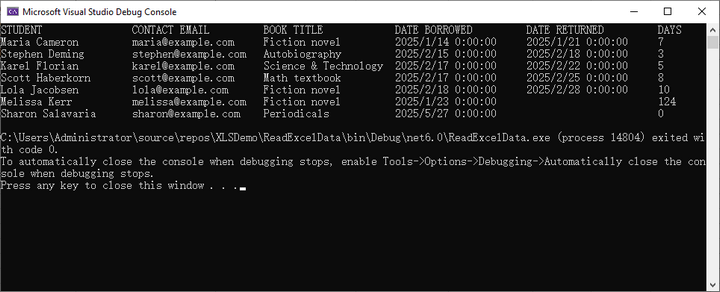
Ler Dados do Excel para um DataTable
Exportar dados do Excel para um DataTable permite uma integração perfeita com controles de UI como DataGridView ou processamento de dados de backend. O Spire.XLS simplifica este processo com seu método integrado ExportDataTable(), que converte automaticamente os dados da planilha em um DataTable estruturado, preservando os cabeçalhos das colunas e os tipos de dados.
Passo 1. Importar Namespace Necessário
Inclua o namespace Spire.XLS para acessar as classes essenciais.
- C#
using Spire.Xls;Passo 2. Criar um Formulário e Evento de Clique de Botão
Crie um formulário (por exemplo, Form1) e adicione um botão com um manipulador de eventos para ler o arquivo Excel.
- C#
public partial class Form1 : Form
{
    public Form1()
    {
        InitializeComponent();
    }

    private void button1_Click(object sender, EventArgs e)
    {
        // O código irá aqui
    }
}
Passo 3. Carregar o Workbook
Dentro do evento de clique do botão, crie um objeto Workbook e carregue o arquivo Excel.
- C#
Workbook wb = new Workbook();
wb.LoadFromFile("C:\\Users\\Administrator\\Desktop\\Input.xlsx");
Passo 4. Exportar Dados para DataTable
Acesse uma planilha específica por seu índice e exporte seus dados para um DataTable usando o método ExportDataTable.
- C#
DataTable dataTable = wb.Worksheets[0].ExportDataTable();Passo 5. Vincular Dados ao DataGridView
Supondo que você tenha um controle DataGridView em seu formulário, vincule o DataTable ao DataGridView para exibir os dados.
- C#
dataGridView1.DataSource = dataTable;O seguinte é o código completo para ler dados de um arquivo Excel em um DataTable e exibi-lo em um controle DataGridView do Windows Forms:
- C#
using Spire.Xls;
using System.Data;

namespace ReadExcelIntoDataTable
{
    public partial class Form1 : Form
    {
        public Form1()
        {
            InitializeComponent();
        }

        private void button1_Click(object sender, EventArgs e)
        {
            // Create a Workbook object
            Workbook wb = new Workbook();

            // Load an existing Excel file
            wb.LoadFromFile("C:\\Users\\Administrator\\Desktop\\Input.xlsx");

            // Get the first worksheet
            Worksheet sheet = wb.Worksheets[0];

            // Export data from worksheet into a DataTable
            DataTable dataTable = sheet.ExportDataTable();

            // Bind DataTable to DataGridView
            dataGridView1.DataSource = dataTable;

            // Dispose resources
            wb.Dispose();
        }
    }
}Resultado:
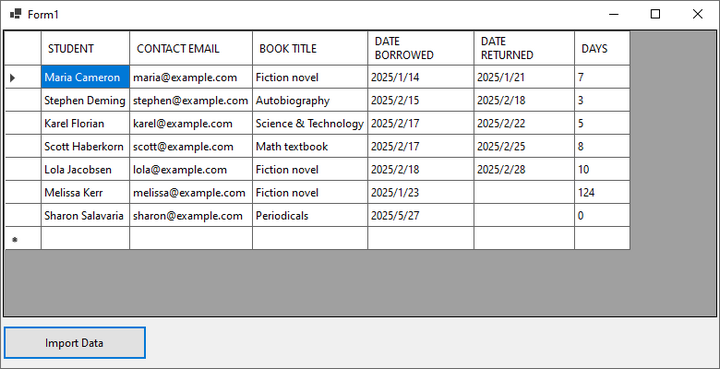
Ler Dados do Excel para um Banco de Dados
A integração de dados do Excel com um banco de dados pode otimizar o gerenciamento de dados. Abaixo, vamos percorrer o processo de leitura de um arquivo Excel e importação de seu conteúdo para um banco de dados MySQL. Este método é ideal para automatizar a migração de dados, relatórios ou sincronizar dados do Excel com um banco de dados estruturado.
Passo 1. Instalar a Biblioteca de Dados MySQL
Para interagir com bancos de dados MySQL em suas aplicações .NET, você precisará instalar a biblioteca MySql.Data. Este pacote NuGet fornece as classes e métodos necessários para conectar e manipular bancos de dados MySQL.
- C#
Install-Package MySql.DataPasso 2. Importar Namespaces Necessários
Antes de trabalhar com arquivos Excel e MySQL, você deve incluir os namespaces necessários. O Spire.XLS é usado para operações com Excel, enquanto o MySql.Data.MySqlClient permite a conectividade com o banco de dados MySQL.
- C#
using Spire.Xls;
using MySql.Data.MySqlClient;
Passo 3. Extrair Cabeçalhos e Dados do Excel
O trecho de código a seguir demonstra como extrair cabeçalhos e dados do arquivo Excel. Os cabeçalhos são limpos para evitar conflitos de nomenclatura de colunas do MySQL, enquanto os dados são armazenados em um formato estruturado para inserção posterior.
- C#
// Create a Workbook object
Workbook wb = new Workbook();

// Load an Excel document
wb.LoadFromFile("C:\\Users\\Administrator\\Desktop\\Input.xlsx");

// Get a specific sheet
Worksheet sheet = wb.Worksheets[0];

// Retrieve headers
List<string> headers = new List<string>();
for (int col = 1; col <= sheet.LastColumn; col++)
{
    string header = sheet.Range[1, col].Value?.ToString();
    // Removing spaces to avoid conflicts with MySQL column names
    string cleanHeader = header?.Replace(" ", "");
    headers.Add($"`{cleanHeader}`");
}

// Retrieve data
List<List<string>> data = new List<List<string>>();
for (int row = 2; row <= sheet.LastRow; row++) {
    List<string> record = new List<string>();
    for (int col = 1; col <= sheet.LastColumn; col++)
    {
        record.Add(sheet.Range[row, col].Value?.ToString() ?? string.Empty);
    }
    data.Add(record);
}
Passo 4. Conectar a um Banco de Dados MySQL
Uma conexão com o banco de dados MySQL é estabelecida usando uma string de conexão, que inclui detalhes do servidor, credenciais e o nome do banco de dados de destino. A instrução using garante a liberação adequada dos recursos.
- C#
string connectionString = "server=localhost;user=root;password=yourpassword;database=yourdatabase;";
using (MySqlConnection connection = new MySqlConnection(connectionString))
{
    connection.Open();
    // A conexão está estabelecida; execute as operações do banco de dados aqui
}
Passo 5. Criar Dinamicamente uma Tabela no MySQL
Este passo gera dinamicamente uma tabela MySQL com colunas que correspondem aos cabeçalhos do Excel. Por simplicidade, todas as colunas são definidas como VARCHAR(255), mas os tipos de dados podem ser ajustados com base nos requisitos.
- C#
// Create a table with dynamic columns based on headers
List<string> columns = new List<string>();
foreach (string header in headers)
{
    // Assuming all header values are VARCHAR for simplicity; adjust types as needed
    columns.Add($"{header} VARCHAR(255)");
}

// Create a table in database
string columnsSql = string.Join(", ", columns);
string createTableQuery = $ @"
    CREATE TABLE IF NOT EXISTS my_table (
        id INT AUTO_INCREMENT PRIMARY KEY,
        {columnsSql}
)";

// Execute the create table query
using (MySqlCommand createCommand = new MySqlCommand(createTableQuery, connection))
{
    createCommand.ExecuteNonQuery();
}
Passo 6. Preencher a Tabela com Dados
Os dados extraídos do Excel são inseridos na tabela MySQL usando consultas parametrizadas para prevenir injeção de SQL. Cada linha do arquivo Excel é mapeada para um registro de banco de dados correspondente.
- C#
// Prepare the SQL INSERT statement
string placeholders = string.Join(", ", new string[headers.Count].Select(h => "?"));
string insertQuery = $"INSERT INTO my_table ({string.Join(", ", headers.Select(h => h.Trim('`')))}) VALUES ({placeholders})";

// Insert data into the table
foreach (List<string> record in data)
{
    using (MySqlCommand insertCommand = new MySqlCommand(insertQuery, connection))
    {
        for (int i = 0; i < record.Count; i++)
        {
            insertCommand.Parameters.AddWithValue($" @2024\本地文件打包__20180302\Spire.Web\trunk\src\website\components\com_virtuemart\themes\default\templates\browse\includes\browse_searchparameter_form.tpl.php{i}", record[i]);
        }
        insertCommand.ExecuteNonQuery();
    }
}
Aqui está o código completo para importar dados de um arquivo Excel para uma tabela MySQL:
- C#
using Spire.Xls;
using MySql.Data.MySqlClient;

namespace ExcelToMySQL
{
    class Program
    {
        static void Main(string[] args)
        {
            // Create a Workbook object
            Workbook wb = new Workbook();

            // Load an Excel document
            wb.LoadFromFile("C:\\Users\\Administrator\\Desktop\\Input.xlsx");

            // Get a specific sheet
            Worksheet sheet = wb.Worksheets[0];

            // Retrieve headers
            List<string> headers = new List<string>();
            for (int col = 1; col <= sheet.LastColumn; col++)
            {
                string header = sheet.Range[1, col].Value?.ToString();
                // Removing spaces to avoid conflicts with MySQL column names
                string cleanHeader = header?.Replace(" ", "");
                headers.Add($"`{cleanHeader}`");
            }

            // Retrieve data
            List<List<string>> data = new List<List<string>>();
            for (int row = 2; row <= sheet.LastRow; row++)
            {
                List<string> record = new List<string>();
                for (int col = 1; col <= sheet.LastColumn; col++)
                {
                    record.Add(sheet.Range[row, col].Value?.ToString() ?? string.Empty);
                }
                data.Add(record);
            }

            // Establish a connection to the MySQL database
            string connectionString = "server=localhost;user=root;password=admin;database=excel_db;";
            using (MySqlConnection connection = new MySqlConnection(connectionString))
            {
                connection.Open();

                // Create a table with dynamic columns based on headers
                List<string> columns = new List<string>();
                foreach (string header in headers)
                {
                    // Assuming all header values are VARCHAR for simplicity; adjust types as needed
                    columns.Add($"{header} VARCHAR(255)");
                }

                // Create a table in database
                string columnsSql = string.Join(", ", columns);
                string createTableQuery = $ @"
                    CREATE TABLE IF NOT EXISTS my_table (
                        id INT AUTO_INCREMENT PRIMARY KEY,
                        {columnsSql}
                    )";

                // Execute the create table query
                using (MySqlCommand createCommand = new MySqlCommand(createTableQuery, connection))
                {
                    createCommand.ExecuteNonQuery();
                }

                // Prepare the SQL INSERT statement
                string placeholders = string.Join(", ", new string[headers.Count].Select(h => "?"));
                string insertQuery = $"INSERT INTO my_table ({string.Join(", ", headers.Select(h => h.Trim('`')))}) VALUES ({placeholders})";

                // Insert data into the table
                foreach (List<string> record in data)
                {
                    using (MySqlCommand insertCommand = new MySqlCommand(insertQuery, connection))
                    {
                        for (int i = 0; i < record.Count; i++)
                        {
                            insertCommand.Parameters.AddWithValue($" @2024\本地文件打包__20180302\Spire.Web\trunk\src\website\components\com_virtuemart\themes\default\templates\browse\includes\browse_searchparameter_form.tpl.php{i}", record[i]);
                        }
                        insertCommand.ExecuteNonQuery();
                    }
                }
            }

            Console.WriteLine("Dados exportados com sucesso!");
        }
    }
}Resultado:
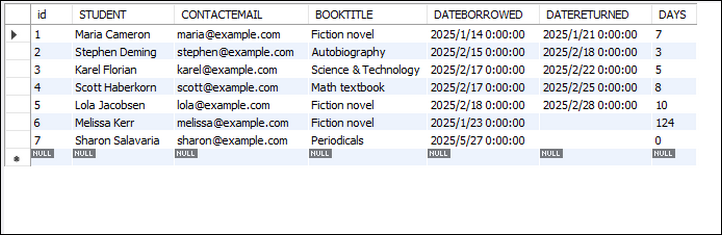
Conclusão
Ler arquivos Excel em C# nunca foi tão fácil, graças a bibliotecas como o Spire.XLS. Este guia o orientou no processo de carregar arquivos Excel, ler seu conteúdo e até mesmo importar os dados para um banco de dados MySQL. Com essas técnicas, você pode aprimorar significativamente as capacidades de manipulação de dados de suas aplicações.
Perguntas Frequentes
Q1: Posso ler arquivos Excel protegidos por senha?
R: Sim, o Spire.XLS suporta a leitura de arquivos Excel criptografados usando:
- C#
wb.OpenPassword = "psd";
wb.LoadFromFile("file.xlsx");
Q2: Como leio os resultados da fórmula em vez da própria fórmula?
R: Você tem duas opções para recuperar os resultados da fórmula:
Para células individuais:
Verifique se uma célula contém uma fórmula usando CellRange.HasFormula e obtenha o valor com CellRange.FormulaValue:
- C#
CellRange cell = sheet.Range[1, 1];
if (cell.HasFormula)
{
    string result = cell.FormulaValue.ToString();
}
Para exportação em massa para DataTable:
Use Worksheet.ExportDataTable() com computedFormulaValue: true para exportar valores calculados:
- C#
DataTable data = sheet.ExportDataTable(range, exportColumnNames: true, computedFormulaValue: true);Q3: Como posso ler dados do Excel para um DataTable?
R: Use o método Worksheet.ExportDataTable() fornecido pelo Spire.XLS.
Q4: Como posso ler um arquivo Excel linha por linha?
R: Consulte o seguinte código:
- C#
Workbook workbook = new Workbook();
workbook.LoadFromFile("input.xlsx");
Worksheet sheet = workbook.Worksheets[0];

for (int row = 1; row <= sheet.LastRow; row++)
{
    for (int col = 1; col <= sheet.LastColumn; col++)
    {
        string cellValue = sheet.Range[row, col].Value?.ToString() ?? string.Empty;
        Console.WriteLine(cellValue);
    }
}
Obtenha uma Licença Gratuita
Para experimentar plenamente as capacidades do Spire.XLS for .NET sem quaisquer limitações de avaliação, você pode solicitar uma licença de avaliação gratuita de 30 dias.
Veja Também
C# zum Lesen von Excel-Dateien und zum Exportieren von Daten in DataTable und Datenbank
Inhaltsverzeichnis
Mit Nuget installieren
Install-Package Spire.XLS
Verwandte Links
Das Lesen von Excel-Dateien in C# ist eine häufige Anforderung für viele Anwendungen, sei es für Datenanalyse, Berichterstattung oder Datenbankintegration. Während die Interop-Bibliotheken von Microsoft verwendet werden können, haben sie Einschränkungen (z. B. die Notwendigkeit, dass Excel installiert ist). Stattdessen werden wir einen effizienteren Ansatz mit Spire.XLS untersuchen, einer .NET-Bibliothek, die das Lesen und Schreiben von Excel-Dateien ohne Interop ermöglicht. Dieser Artikel behandelt:
- C# .NET-Bibliothek zum Lesen von Excel ohne Interop
- Wie man eine Excel-Datei in C# liest
- Excel-Daten in eine DataTable einlesen
- Excel-Daten in eine Datenbank einlesen
- Fazit
- FAQs
C# .NET-Bibliothek zum Lesen von Excel ohne Interop
Microsofts Excel Interop erfordert, dass Excel auf dem Computer installiert ist, was es für serverseitige Anwendungen ungeeignet macht. Stattdessen bieten Bibliotheken wie Spire.XLS eine leichtgewichtige, hochleistungsfähige Lösung ohne Abhängigkeiten von Excel.
Warum Spire.XLS verwenden?
- Keine Excel-Installation erforderlich – Funktioniert unabhängig.
- Unterstützt .NET Core & .NET Framework – Plattformübergreifende Kompatibilität.
- Excel-Dateien lesen/schreiben – Unterstützt .xls, .xlsx und .xlsm.
- Import in DataTable & Datenbanken – Nahtlose Integration mit ADO.NET.
Installation von Spire.XLS
Um zu beginnen, installieren Sie die Bibliothek über den NuGet Package Manager:
Install-Package Spire.XLS
Alternativ können Sie Spire.XLS für .NET von unserer offiziellen Website herunterladen und die DLL-Datei manuell referenzieren.
Wie man eine Excel-Datei in C# liest
Dieser Abschnitt zeigt, wie man eine Excel-Datei in C# mit der Spire.XLS-Bibliothek liest. Der Prozess umfasst das Laden der Datei, den Zugriff auf Arbeitsblätter und das programmgesteuerte Abrufen von Zellwerten. Dies ist nützlich für die Automatisierung der Datenextraktion, die Verarbeitung von Excel-Berichten oder die Integration von Tabellenkalkulationsdaten in Anwendungen.
Schritt 1. Notwendigen Namespace importieren
Um die Funktionalität von Spire.XLS zu nutzen, müssen Sie dessen Namespace importieren. Dies ermöglicht den Zugriff auf Klassen wie Workbook und Worksheet, die für Excel-Dateioperationen unerlässlich sind.
- C#
using Spire.Xls;Schritt 2. Eine Excel-Datei laden
Um eine Excel-Datei zu laden, erstellen Sie ein Workbook-Objekt und rufen Sie die Methode LoadFromFile auf. Dadurch wird die Datei in den Speicher gelesen, was eine weitere Bearbeitung ermöglicht.
- C#
Workbook wb = new Workbook();
wb.LoadFromFile("input.xlsx");
Schritt 3. Ein bestimmtes Arbeitsblatt abrufen
Excel-Dateien können mehrere Arbeitsblätter enthalten. Sie können auf ein bestimmtes Blatt zugreifen, indem Sie die Worksheets-Sammlung indizieren (nullbasiert). Das erste Blatt befindet sich am Index 0, das zweite am Index 1 und so weiter.
- C#
Worksheet sheet = wb.Worksheets[0]; //Erstes BlattSchritt 4. Wert einer bestimmten Zelle abrufen
Um den Wert einer Zelle abzurufen, verwenden Sie die Eigenschaft CellRange.Value. Geben Sie die Zeilen- und Spaltenindizes (beginnend bei 1) an, um die Zelle zu lokalisieren. Dies ist nützlich zum Extrahieren strukturierter Daten wie Kopfzeilen oder einzelner Datensätze.
- C#
CellRange cell = sheet.Range[1, 1]; // Zeile1, Spalte 1 (A1)
string value = cell.Value;
Unten finden Sie ein vollständiges Beispiel zum Lesen von Daten aus einem gesamten Arbeitsblatt und zum Ausgeben in der Konsole:
- C#
using Spire.Xls;

namespace ReadExcelData
{
    class Program
    {
        static void Main(string[] args)
        {
            // Erstellen Sie ein Workbook-Objekt
            Workbook wb = new Workbook();

            // Laden Sie eine vorhandene Excel-Datei
            wb.LoadFromFile("C:\\Users\\Administrator\\Desktop\\Input.xlsx");

            // Holen Sie sich das erste Arbeitsblatt
            Worksheet sheet = wb.Worksheets[0];

            // Holen Sie sich den Zellbereich, der Daten enthält
            CellRange locatedRange = sheet.AllocatedRange;

            // Iterieren Sie durch die Zeilen
            for (int i = 0; i < locatedRange.Rows.Length; i++)
            {
                // Iterieren Sie durch die Spalten
                for (int j = 0; j < locatedRange.Rows[i].ColumnCount; j++)
                {
                    // Holen Sie sich die Daten einer bestimmten Zelle
                    string cellValue = locatedRange[i + 1, j + 1].Value?.ToString() ?? "N/A";

                    // Richten Sie die Ausgabe mit einer Breite von 22 aus
                    Console.Write($"{cellValue,-22}");
                }
                Console.WriteLine();
            }
        }
    }
}
Ergebnis:
Excel-Daten in eine DataTable einlesen
Das Exportieren von Excel-Daten in eine DataTable ermöglicht eine nahtlose Integration mit UI-Steuerelementen wie DataGridView oder der Backend-Datenverarbeitung. Spire.XLS vereinfacht diesen Prozess mit seiner integrierten Methode ExportDataTable(), die Arbeitsblattdaten automatisch in eine strukturierte DataTable konvertiert und dabei Spaltenüberschriften und Datentypen beibehält.
Schritt 1. Notwendigen Namespace importieren
Fügen Sie den Spire.XLS-Namespace hinzu, um auf wesentliche Klassen zuzugreifen.
- C#
using Spire.Xls;Schritt 2. Ein Formular und ein Button-Klick-Ereignis erstellen
Erstellen Sie ein Formular (z. B. Form1) und fügen Sie eine Schaltfläche mit einem Ereignishandler zum Lesen der Excel-Datei hinzu.
- C#
public partial class Form1 : Form
{
    public Form1()
    {
        InitializeComponent();
    }

    private void button1_Click(object sender, EventArgs e)
    {
        // Der Code kommt hierher
    }
}
Schritt 3. Das Arbeitsbuch laden
Erstellen Sie innerhalb des Button-Klick-Ereignisses ein Workbook-Objekt und laden Sie die Excel-Datei.
- C#
Workbook wb = new Workbook();
wb.LoadFromFile("C:\\Users\\Administrator\\Desktop\\Input.xlsx");
Schritt 4. Daten in DataTable exportieren
Greifen Sie über seinen Index auf ein bestimmtes Arbeitsblatt zu und exportieren Sie seine Daten mit der Methode ExportDataTable in eine DataTable.
- C#
DataTable dataTable = wb.Worksheets[0].ExportDataTable();Schritt 5. Daten an DataGridView binden
Angenommen, Sie haben ein DataGridView-Steuerelement in Ihrem Formular, binden Sie die DataTable an das DataGridView, um die Daten anzuzeigen.
- C#
dataGridView1.DataSource = dataTable;Das Folgende ist der vollständige Code zum Lesen von Daten aus einer Excel-Datei in eine DataTable und zum Anzeigen in einem Windows Forms DataGridView-Steuerelement:
- C#
using Spire.Xls;
using System.Data;

namespace ReadExcelIntoDataTable
{
    public partial class Form1 : Form
    {
        public Form1()
        {
            InitializeComponent();
        }

        private void button1_Click(object sender, EventArgs e)
        {
            // Erstellen Sie ein Workbook-Objekt
            Workbook wb = new Workbook();

            // Laden Sie eine vorhandene Excel-Datei
            wb.LoadFromFile("C:\\Users\\Administrator\\Desktop\\Input.xlsx");

            // Holen Sie sich das erste Arbeitsblatt
            Worksheet sheet = wb.Worksheets[0];

            // Exportieren Sie Daten aus dem Arbeitsblatt in eine DataTable
            DataTable dataTable = sheet.ExportDataTable();

            // Binden Sie die DataTable an das DataGridView
            dataGridView1.DataSource = dataTable;

            // Geben Sie Ressourcen frei
            wb.Dispose();
        }
    }
}Ergebnis:
Excel-Daten in eine Datenbank einlesen
Die Integration von Excel-Daten in eine Datenbank kann die Datenverwaltung optimieren. Im Folgenden führen wir Sie durch den Prozess des Lesens einer Excel-Datei und des Imports ihres Inhalts in eine MySQL-Datenbank. Diese Methode ist ideal für die Automatisierung der Datenmigration, die Berichterstellung oder die Synchronisierung von Excel-Daten mit einer strukturierten Datenbank.
Schritt 1. MySQL-Datenbibliothek installieren
Um mit MySQL-Datenbanken in Ihren .NET-Anwendungen zu interagieren, müssen Sie die Bibliothek MySql.Data installieren. Dieses NuGet-Paket stellt die notwendigen Klassen und Methoden zur Verfügung, um eine Verbindung zu MySQL-Datenbanken herzustellen und diese zu bearbeiten.
- C#
Install-Package MySql.DataSchritt 2. Notwendige Namespaces importieren
Bevor Sie mit Excel-Dateien und MySQL arbeiten, müssen Sie die erforderlichen Namespaces einbinden. Spire.XLS wird für Excel-Operationen verwendet, während MySql.Data.MySqlClient die Konnektivität zu MySQL-Datenbanken ermöglicht.
- C#
using Spire.Xls;
using MySql.Data.MySqlClient;
Schritt 3. Kopfzeilen und Daten aus Excel extrahieren
Der folgende Codeausschnitt zeigt, wie Kopfzeilen und Daten aus der Excel-Datei extrahiert werden. Die Kopfzeilen werden bereinigt, um Konflikte bei der Benennung von MySQL-Spalten zu vermeiden, während die Daten in einem strukturierten Format für das spätere Einfügen gespeichert werden.
- C#
// Erstellen Sie ein Workbook-Objekt
Workbook wb = new Workbook();

// Laden Sie ein Excel-Dokument
wb.LoadFromFile("C:\\Users\\Administrator\\Desktop\\Input.xlsx");

// Holen Sie sich ein bestimmtes Blatt
Worksheet sheet = wb.Worksheets[0];

// Rufen Sie die Kopfzeilen ab
List<string> headers = new List<string>();
for (int col = 1; col <= sheet.LastColumn; col++)
{
    string header = sheet.Range[1, col].Value?.ToString();
    // Leerzeichen entfernen, um Konflikte mit MySQL-Spaltennamen zu vermeiden
    string cleanHeader = header?.Replace(" ", "");
    headers.Add($"`{cleanHeader}`");
}

// Rufen Sie die Daten ab
List<List<string>> data = new List<List<string>>();
for (int row = 2; row <= sheet.LastRow; row++) {
    List<string> record = new List<string>();
    for (int col = 1; col <= sheet.LastColumn; col++)
    {
        record.Add(sheet.Range[row, col].Value?.ToString() ?? string.Empty);
    }
    data.Add(record);
}
Schritt 4. Mit einer MySQL-Datenbank verbinden
Eine Verbindung zur MySQL-Datenbank wird über eine Verbindungszeichenfolge hergestellt, die Serverdetails, Anmeldeinformationen und den Namen der Zieldatenbank enthält. Die using-Anweisung stellt die ordnungsgemäße Freigabe von Ressourcen sicher.
- C#
string connectionString = "server=localhost;user=root;password=yourpassword;database=yourdatabase;";
using (MySqlConnection connection = new MySqlConnection(connectionString))
{
    connection.Open();
    // Die Verbindung ist hergestellt; führen Sie hier Datenbankoperationen durch
}
Schritt 5. Dynamisch eine Tabelle in MySQL erstellen
Dieser Schritt generiert dynamisch eine MySQL-Tabelle mit Spalten, die den Excel-Kopfzeilen entsprechen. Der Einfachheit halber werden alle Spalten als VARCHAR(255) festgelegt, aber die Datentypen können je nach Anforderungen angepasst werden.
- C#
// Erstellen Sie eine Tabelle mit dynamischen Spalten basierend auf den Kopfzeilen
List<string> columns = new List<string>();
foreach (string header in headers)
{
    // Annahme, dass alle Kopfzeilenwerte zur Vereinfachung VARCHAR sind; passen Sie die Typen nach Bedarf an
    columns.Add($"{header} VARCHAR(255)");
}

// Erstellen Sie eine Tabelle in der Datenbank
string columnsSql = string.Join(", ", columns);
string createTableQuery = $ @"
    CREATE TABLE IF NOT EXISTS my_table (
        id INT AUTO_INCREMENT PRIMARY KEY,
        {columnsSql}
)";

// Führen Sie die Abfrage zum Erstellen der Tabelle aus
using (MySqlCommand createCommand = new MySqlCommand(createTableQuery, connection))
{
    createCommand.ExecuteNonQuery();
}
Schritt 6. Die Tabelle mit Daten füllen
Die extrahierten Excel-Daten werden mithilfe parametrisierter Abfragen in die MySQL-Tabelle eingefügt, um SQL-Injection zu verhindern. Jede Zeile aus der Excel-Datei wird einem entsprechenden Datenbankdatensatz zugeordnet.
- C#
// Bereiten Sie die SQL-INSERT-Anweisung vor
string placeholders = string.Join(", ", new string[headers.Count].Select(h => "?"));
string insertQuery = $"INSERT INTO my_table ({string.Join(", ", headers.Select(h => h.Trim('`')))}) VALUES ({placeholders})";

// Fügen Sie Daten in die Tabelle ein
foreach (List<string> record in data)
{
    using (MySqlCommand insertCommand = new MySqlCommand(insertQuery, connection))
    {
        for (int i = 0; i < record.Count; i++)
        {
            insertCommand.Parameters.AddWithValue($" @2024\本地文件打包__20180302\Spire.Web\trunk\src\website\components\com_virtuemart\themes\default\templates\browse\includes\browse_searchparameter_form.tpl.php{i}", record[i]);
        }
        insertCommand.ExecuteNonQuery();
    }
}
Hier ist der vollständige Code zum Importieren von Daten aus einer Excel-Datei in eine MySQL-Tabelle:
- C#
using Spire.Xls;
using MySql.Data.MySqlClient;

namespace ExcelToMySQL
{
    class Program
    {
        static void Main(string[] args)
        {
            // Erstellen Sie ein Workbook-Objekt
            Workbook wb = new Workbook();

            // Laden Sie ein Excel-Dokument
            wb.LoadFromFile("C:\\Users\\Administrator\\Desktop\\Input.xlsx");

            // Holen Sie sich ein bestimmtes Blatt
            Worksheet sheet = wb.Worksheets[0];

            // Rufen Sie die Kopfzeilen ab
            List<string> headers = new List<string>();
            for (int col = 1; col <= sheet.LastColumn; col++)
            {
                string header = sheet.Range[1, col].Value?.ToString();
                // Leerzeichen entfernen, um Konflikte mit MySQL-Spaltennamen zu vermeiden
                string cleanHeader = header?.Replace(" ", "");
                headers.Add($"`{cleanHeader}`");
            }

            // Rufen Sie die Daten ab
            List<List<string>> data = new List<List<string>>();
            for (int row = 2; row <= sheet.LastRow; row++)
            {
                List<string> record = new List<string>();
                for (int col = 1; col <= sheet.LastColumn; col++)
                {
                    record.Add(sheet.Range[row, col].Value?.ToString() ?? string.Empty);
                }
                data.Add(record);
            }

            // Stellen Sie eine Verbindung zur MySQL-Datenbank her
            string connectionString = "server=localhost;user=root;password=admin;database=excel_db;";
            using (MySqlConnection connection = new MySqlConnection(connectionString))
            {
                connection.Open();

                // Erstellen Sie eine Tabelle mit dynamischen Spalten basierend auf den Kopfzeilen
                List<string> columns = new List<string>();
                foreach (string header in headers)
                {
                    // Annahme, dass alle Kopfzeilenwerte zur Vereinfachung VARCHAR sind; passen Sie die Typen nach Bedarf an
                    columns.Add($"{header} VARCHAR(255)");
                }

                // Erstellen Sie eine Tabelle in der Datenbank
                string columnsSql = string.Join(", ", columns);
                string createTableQuery = $ @"
                    CREATE TABLE IF NOT EXISTS my_table (
                        id INT AUTO_INCREMENT PRIMARY KEY,
                        {columnsSql}
                    )";

                // Führen Sie die Abfrage zum Erstellen der Tabelle aus
                using (MySqlCommand createCommand = new MySqlCommand(createTableQuery, connection))
                {
                    createCommand.ExecuteNonQuery();
                }

                // Bereiten Sie die SQL-INSERT-Anweisung vor
                string placeholders = string.Join(", ", new string[headers.Count].Select(h => "?"));
                string insertQuery = $"INSERT INTO my_table ({string.Join(", ", headers.Select(h => h.Trim('`')))}) VALUES ({placeholders})";

                // Fügen Sie Daten in die Tabelle ein
                foreach (List<string> record in data)
                {
                    using (MySqlCommand insertCommand = new MySqlCommand(insertQuery, connection))
                    {
                        for (int i = 0; i < record.Count; i++)
                        {
                            insertCommand.Parameters.AddWithValue($" @2024\本地文件打包__20180302\Spire.Web\trunk\src\website\components\com_virtuemart\themes\default\templates\browse\includes\browse_searchparameter_form.tpl.php{i}", record[i]);
                        }
                        insertCommand.ExecuteNonQuery();
                    }
                }
            }

            Console.WriteLine("Daten erfolgreich exportiert!");
        }
    }
}Ergebnis:
Fazit
Das Lesen von Excel-Dateien in C# war noch nie einfacher, dank Bibliotheken wie Spire.XLS. Dieser Leitfaden hat Sie durch den Prozess des Ladens von Excel-Dateien, des Lesens ihrer Inhalte und sogar des Imports der Daten in eine MySQL-Datenbank geführt. Mit diesen Techniken können Sie die Datenverarbeitungsfähigkeiten Ihrer Anwendungen erheblich verbessern.
FAQs
F1: Kann ich passwortgeschützte Excel-Dateien lesen?
A: Ja, Spire.XLS unterstützt das Lesen verschlüsselter Excel-Dateien mit:
- C#
wb.OpenPassword = "psd";
wb.LoadFromFile("file.xlsx");
F2: Wie lese ich Formelergebnisse anstelle der Formel selbst?
A: Sie haben zwei Möglichkeiten, Formelergebnisse abzurufen:
Für einzelne Zellen:
Prüfen Sie mit CellRange.HasFormula, ob eine Zelle eine Formel enthält, und rufen Sie den Wert mit CellRange.FormulaValue ab:
- C#
CellRange cell = sheet.Range[1, 1];
if (cell.HasFormula)
{
    string result = cell.FormulaValue.ToString();
}
Für den Massenexport in eine DataTable:
Verwenden Sie Worksheet.ExportDataTable() mit computedFormulaValue: true, um berechnete Werte zu exportieren:
- C#
DataTable data = sheet.ExportDataTable(range, exportColumnNames: true, computedFormulaValue: true);F3: Wie kann ich Excel-Daten in eine DataTable einlesen?
A: Verwenden Sie die von Spire.XLS bereitgestellte Methode Worksheet.ExportDataTable().
F4: Wie kann ich eine Excel-Datei zeilenweise lesen?
A: Beziehen Sie sich auf den folgenden Code:
- C#
Workbook workbook = new Workbook();
workbook.LoadFromFile("input.xlsx");
Worksheet sheet = workbook.Worksheets[0];

for (int row = 1; row <= sheet.LastRow; row++)
{
    for (int col = 1; col <= sheet.LastColumn; col++)
    {
        string cellValue = sheet.Range[row, col].Value?.ToString() ?? string.Empty;
        Console.WriteLine(cellValue);
    }
}
Holen Sie sich eine kostenlose Lizenz
Um die Funktionen von Spire.XLS für .NET ohne Evaluierungseinschränkungen vollständig zu erleben, können Sie eine kostenlose 30-Tage-Testlizenz anfordern.
Siehe auch
C# per leggere file Excel ed esportare dati in DataTable e database
Indice
Installa con Nuget
Install-Package Spire.XLS
Link Correlati
La lettura di file Excel in C# è un requisito comune per molte applicazioni, sia per l'analisi dei dati, la reportistica o l'integrazione di database. Sebbene sia possibile utilizzare le librerie Interop di Microsoft, esse presentano delle limitazioni (come la necessità che Excel sia installato). Esploreremo invece un approccio più efficiente utilizzando Spire.XLS, una libreria .NET che consente di leggere e scrivere file Excel senza Interop. Questo articolo tratta:
- Libreria C# .NET per Leggere Excel Senza Interop
- Come Leggere un File Excel in C#
- Leggere Dati Excel in una DataTable
- Leggere Dati Excel in un Database
- Conclusione
- Domande Frequenti
Libreria C# .NET per Leggere Excel Senza Interop
L'Interop di Excel di Microsoft richiede che Excel sia installato sulla macchina, rendendolo inadatto per le applicazioni lato server. Invece, librerie come Spire.XLS offrono una soluzione leggera e ad alte prestazioni senza dipendenze da Excel.
Perché usare Spire.XLS?
- Nessuna Installazione di Excel Richiesta – Funziona in modo indipendente.
- Supporta .NET Core e .NET Framework – Compatibilità multipiattaforma.
- Leggi/Scrivi File Excel – Supporta .xls, .xlsx e .xlsm.
- Importa in DataTable e Database – Integrazione perfetta con ADO.NET.
Installazione di Spire.XLS
Per iniziare, installa la libreria tramite il NuGet Package Manager:
Install-Package Spire.XLS
In alternativa, puoi scaricare Spire.XLS per .NET dal nostro sito ufficiale e fare riferimento manualmente al file DLL.
Come Leggere un File Excel in C#
Questa sezione dimostra come leggere un file Excel in C# utilizzando la libreria Spire.XLS. Il processo prevede il caricamento del file, l'accesso ai fogli di lavoro e il recupero programmatico dei valori delle celle. Ciò è utile per automatizzare l'estrazione dei dati, elaborare report di Excel o integrare i dati dei fogli di calcolo nelle applicazioni.
Passaggio 1. Importa lo Spazio dei Nomi Necessario
Per utilizzare la funzionalità di Spire.XLS, è necessario importare il suo spazio dei nomi. Ciò dà accesso a classi come Workbook e Worksheet, che sono essenziali per le operazioni sui file Excel.
- C#
using Spire.Xls;Passaggio 2. Carica un File Excel
Per caricare un file Excel, crea un oggetto Workbook e chiama il metodo LoadFromFile. Questo legge il file in memoria, consentendo ulteriori manipolazioni.
- C#
Workbook wb = new Workbook();
wb.LoadFromFile("input.xlsx");
Passaggio 3. Ottieni un Foglio di Lavoro Specifico
I file Excel possono contenere più fogli di lavoro. È possibile accedere a un foglio specifico indicizzando la raccolta Worksheets (in base zero). Il primo foglio si trova all'indice 0, il secondo all'1, e così via.
- C#
Worksheet sheet = wb.Worksheets[0]; //Primo foglioPassaggio 4. Recupera il Valore di una Cella Specifica
Per recuperare il valore di una cella, utilizzare la proprietà CellRange.Value. Specificare gli indici di riga e colonna (a partire da 1) per individuare la cella. Ciò è utile per estrarre dati strutturati come intestazioni o record individuali.
- C#
CellRange cell = sheet.Range[1, 1]; // Riga 1, Colonna 1 (A1)
string value = cell.Value;
Di seguito è riportato un esempio completo di lettura dei dati da un intero foglio di lavoro e della loro stampa sulla console:
- C#
using Spire.Xls;

namespace ReadExcelData
{
    class Program
    {
        static void Main(string[] args)
        {
            // Crea un oggetto Workbook
            Workbook wb = new Workbook();

            // Carica un file Excel esistente
            wb.LoadFromFile("C:\\Users\\Administrator\\Desktop\\Input.xlsx");

            // Ottieni il primo foglio di lavoro
            Worksheet sheet = wb.Worksheets[0];

            // Ottieni l'intervallo di celle contenente i dati
            CellRange locatedRange = sheet.AllocatedRange;

            // Itera attraverso le righe
            for (int i = 0; i < locatedRange.Rows.Length; i++)
            {
                // Itera attraverso le colonne
                for (int j = 0; j < locatedRange.Rows[i].ColumnCount; j++)
                {
                    // Ottieni i dati di una cella specifica
                    string cellValue = locatedRange[i + 1, j + 1].Value?.ToString() ?? "N/A";

                    // Allinea l'output con una larghezza di 22
                    Console.Write($"{cellValue,-22}");
                }
                Console.WriteLine();
            }
        }
    }
}
Risultato:
Leggi i Dati di Excel in una DataTable
L'esportazione dei dati di Excel in una DataTable consente un'integrazione perfetta con i controlli dell'interfaccia utente come DataGridView o l'elaborazione dei dati di backend. Spire.XLS semplifica questo processo con il suo metodo integrato ExportDataTable(), che converte automaticamente i dati del foglio di lavoro in una DataTable strutturata preservando le intestazioni delle colonne e i tipi di dati.
Passaggio 1. Importa lo Spazio dei Nomi Necessario
Includi lo spazio dei nomi Spire.XLS per accedere alle classi essenziali.
- C#
using Spire.Xls;Passaggio 2. Crea un Modulo e un Evento Click del Pulsante
Crea un modulo (ad es. Form1) e aggiungi un pulsante con un gestore di eventi per la lettura del file Excel.
- C#
public partial class Form1 : Form
{
    public Form1()
    {
        InitializeComponent();
    }

    private void button1_Click(object sender, EventArgs e)
    {
        // Il codice andrà qui
    }
}
Passaggio 3. Carica la Cartella di Lavoro
All'interno dell'evento click del pulsante, crea un oggetto Workbook e carica il file Excel.
- C#
Workbook wb = new Workbook();
wb.LoadFromFile("C:\\Users\\Administrator\\Desktop\\Input.xlsx");
Passaggio 4. Esporta i Dati in DataTable
Accedi a un foglio di lavoro specifico tramite il suo indice ed esporta i suoi dati in una DataTable utilizzando il metodo ExportDataTable.
- C#
DataTable dataTable = wb.Worksheets[0].ExportDataTable();Passaggio 5. Associa i Dati a DataGridView
Supponendo di avere un controllo DataGridView sul modulo, associa la DataTable al DataGridView per visualizzare i dati.
- C#
dataGridView1.DataSource = dataTable;Di seguito è riportato il codice completo per leggere i dati da un file Excel in una DataTable e visualizzarli in un controllo DataGridView di Windows Forms:
- C#
using Spire.Xls;
using System.Data;

namespace ReadExcelIntoDataTable
{
    public partial class Form1 : Form
    {
        public Form1()
        {
            InitializeComponent();
        }

        private void button1_Click(object sender, EventArgs e)
        {
            // Crea un oggetto Workbook
            Workbook wb = new Workbook();

            // Carica un file Excel esistente
            wb.LoadFromFile("C:\\Users\\Administrator\\Desktop\\Input.xlsx");

            // Ottieni il primo foglio di lavoro
            Worksheet sheet = wb.Worksheets[0];

            // Esporta i dati dal foglio di lavoro in una DataTable
            DataTable dataTable = sheet.ExportDataTable();

            // Associa la DataTable a DataGridView
            dataGridView1.DataSource = dataTable;

            // Rilascia le risorse
            wb.Dispose();
        }
    }
}Risultato:
Leggi i Dati di Excel in un Database
L'integrazione dei dati di Excel con un database può semplificare la gestione dei dati. Di seguito, illustreremo il processo di lettura di un file Excel e di importazione del suo contenuto in un database MySQL. Questo metodo è ideale per automatizzare la migrazione dei dati, la creazione di report o la sincronizzazione dei dati di Excel con un database strutturato.
Passaggio 1. Installa la Libreria Dati MySQL
Per interagire con i database MySQL nelle tue applicazioni .NET, dovrai installare la libreria MySql.Data. Questo pacchetto NuGet fornisce le classi e i metodi necessari per connettersi e manipolare i database MySQL.
- C#
Install-Package MySql.DataPassaggio 2. Importa gli Spazi dei Nomi Necessari
Prima di lavorare con file Excel e MySQL, è necessario includere gli spazi dei nomi richiesti. Spire.XLS viene utilizzato per le operazioni su Excel, mentre MySql.Data.MySqlClient abilita la connettività al database MySQL.
- C#
using Spire.Xls;
using MySql.Data.MySqlClient;
Passaggio 3. Estrai Intestazioni e Dati da Excel
Il seguente frammento di codice dimostra come estrarre intestazioni e dati dal file Excel. Le intestazioni vengono pulite per evitare conflitti di denominazione delle colonne MySQL, mentre i dati vengono archiviati in un formato strutturato per un inserimento successivo.
- C#
// Crea un oggetto Workbook
Workbook wb = new Workbook();

// Carica un documento Excel
wb.LoadFromFile("C:\\Users\\Administrator\\Desktop\\Input.xlsx");

// Ottieni un foglio specifico
Worksheet sheet = wb.Worksheets[0];

// Recupera intestazioni
List<string> headers = new List<string>();
for (int col = 1; col <= sheet.LastColumn; col++)
{
    string header = sheet.Range[1, col].Value?.ToString();
    // Rimozione degli spazi per evitare conflitti con i nomi delle colonne MySQL
    string cleanHeader = header?.Replace(" ", "");
    headers.Add($"`{cleanHeader}`");
}

// Recupera dati
List<List<string>> data = new List<List<string>>();
for (int row = 2; row <= sheet.LastRow; row++) {
    List<string> record = new List<string>();
    for (int col = 1; col <= sheet.LastColumn; col++)
    {
        record.Add(sheet.Range[row, col].Value?.ToString() ?? string.Empty);
    }
    data.Add(record);
}
Passaggio 4. Connettiti a un Database MySQL
Viene stabilita una connessione al database MySQL utilizzando una stringa di connessione, che include i dettagli del server, le credenziali e il nome del database di destinazione. L'istruzione using garantisce il corretto smaltimento delle risorse.
- C#
string connectionString = "server=localhost;user=root;password=yourpassword;database=yourdatabase;";
using (MySqlConnection connection = new MySqlConnection(connectionString))
{
    connection.Open();
    // La connessione è stabilita; eseguire qui le operazioni sul database
}
Passaggio 5. Crea Dinamicamente una Tabella in MySQL
Questo passaggio genera dinamicamente una tabella MySQL con colonne corrispondenti alle intestazioni di Excel. Per semplicità, tutte le colonne sono impostate come VARCHAR(255), ma i tipi di dati possono essere regolati in base ai requisiti.
- C#
// Crea una tabella con colonne dinamiche basate sulle intestazioni
List<string> columns = new List<string>();
foreach (string header in headers)
{
    // Supponendo che tutti i valori di intestazione siano VARCHAR per semplicità; regolare i tipi secondo necessità
    columns.Add($"{header} VARCHAR(255)");
}

// Crea una tabella nel database
string columnsSql = string.Join(", ", columns);
string createTableQuery = $ @"
    CREATE TABLE IF NOT EXISTS my_table (
        id INT AUTO_INCREMENT PRIMARY KEY,
        {columnsSql}
)";

// Esegui la query di creazione della tabella
using (MySqlCommand createCommand = new MySqlCommand(createTableQuery, connection))
{
    createCommand.ExecuteNonQuery();
}
Passaggio 6. Popola la Tabella con i Dati
I dati Excel estratti vengono inseriti nella tabella MySQL utilizzando query con parametri per prevenire l'iniezione di SQL. Ogni riga del file Excel viene mappata a un record di database corrispondente.
- C#
// Prepara l'istruzione SQL INSERT
string placeholders = string.Join(", ", new string[headers.Count].Select(h => "?"));
string insertQuery = $"INSERT INTO my_table ({string.Join(", ", headers.Select(h => h.Trim('`')))}) VALUES ({placeholders})";

// Inserisci i dati nella tabella
foreach (List<string> record in data)
{
    using (MySqlCommand insertCommand = new MySqlCommand(insertQuery, connection))
    {
        for (int i = 0; i < record.Count; i++)
        {
            insertCommand.Parameters.AddWithValue($" @2024\本地文件打包__20180302\Spire.Web\trunk\src\website\components\com_virtuemart\themes\default\templates\browse\includes\browse_searchparameter_form.tpl.php{i}", record[i]);
        }
        insertCommand.ExecuteNonQuery();
    }
}
Ecco il codice completo per importare i dati da un file Excel in una tabella MySQL:
- C#
using Spire.Xls;
using MySql.Data.MySqlClient;

namespace ExcelToMySQL
{
    class Program
    {
        static void Main(string[] args)
        {
            // Crea un oggetto Workbook
            Workbook wb = new Workbook();

            // Carica un documento Excel
            wb.LoadFromFile("C:\\Users\\Administrator\\Desktop\\Input.xlsx");

            // Ottieni un foglio specifico
            Worksheet sheet = wb.Worksheets[0];

            // Recupera intestazioni
            List<string> headers = new List<string>();
            for (int col = 1; col <= sheet.LastColumn; col++)
            {
                string header = sheet.Range[1, col].Value?.ToString();
                // Rimozione degli spazi per evitare conflitti con i nomi delle colonne MySQL
                string cleanHeader = header?.Replace(" ", "");
                headers.Add($"`{cleanHeader}`");
            }

            // Recupera dati
            List<List<string>> data = new List<List<string>>();
            for (int row = 2; row <= sheet.LastRow; row++)
            {
                List<string> record = new List<string>();
                for (int col = 1; col <= sheet.LastColumn; col++)
                {
                    record.Add(sheet.Range[row, col].Value?.ToString() ?? string.Empty);
                }
                data.Add(record);
            }

            // Stabilisci una connessione al database MySQL
            string connectionString = "server=localhost;user=root;password=admin;database=excel_db;";
            using (MySqlConnection connection = new MySqlConnection(connectionString))
            {
                connection.Open();

                // Crea una tabella con colonne dinamiche basate sulle intestazioni
                List<string> columns = new List<string>();
                foreach (string header in headers)
                {
                    // Supponendo che tutti i valori di intestazione siano VARCHAR per semplicità; regolare i tipi secondo necessità
                    columns.Add($"{header} VARCHAR(255)");
                }

                // Crea una tabella nel database
                string columnsSql = string.Join(", ", columns);
                string createTableQuery = $ @"
                    CREATE TABLE IF NOT EXISTS my_table (
                        id INT AUTO_INCREMENT PRIMARY KEY,
                        {columnsSql}
                    )";

                // Esegui la query di creazione della tabella
                using (MySqlCommand createCommand = new MySqlCommand(createTableQuery, connection))
                {
                    createCommand.ExecuteNonQuery();
                }

                // Prepara l'istruzione SQL INSERT
                string placeholders = string.Join(", ", new string[headers.Count].Select(h => "?"));
                string insertQuery = $"INSERT INTO my_table ({string.Join(", ", headers.Select(h => h.Trim('`')))}) VALUES ({placeholders})";

                // Inserisci i dati nella tabella
                foreach (List<string> record in data)
                {
                    using (MySqlCommand insertCommand = new MySqlCommand(insertQuery, connection))
                    {
                        for (int i = 0; i < record.Count; i++)
                        {
                            insertCommand.Parameters.AddWithValue($" @2024\本地文件打包__20180302\Spire.Web\trunk\src\website\components\com_virtuemart\themes\default\templates\browse\includes\browse_searchparameter_form.tpl.php{i}", record[i]);
                        }
                        insertCommand.ExecuteNonQuery();
                    }
                }
            }

            Console.WriteLine("Dati esportati con successo!");
        }
    }
}Risultato:
Conclusione
Leggere file Excel in C# non è mai stato così facile, grazie a librerie come Spire.XLS. Questa guida ti ha illustrato il processo di caricamento dei file Excel, la lettura del loro contenuto e persino l'importazione dei dati in un database MySQL. Con queste tecniche, puoi migliorare notevolmente le capacità di gestione dei dati delle tue applicazioni.
Domande Frequenti
D1: Posso leggere file Excel protetti da password?
R: Sì, Spire.XLS supporta la lettura di file Excel crittografati utilizzando:
- C#
wb.OpenPassword = "psd";
wb.LoadFromFile("file.xlsx");
D2: Come posso leggere i risultati delle formule invece della formula stessa?
R: Hai due opzioni per recuperare i risultati delle formule:
Per singole celle:
Verifica se una cella contiene una formula usando CellRange.HasFormula e ottieni il valore con CellRange.FormulaValue:
- C#
CellRange cell = sheet.Range[1, 1];
if (cell.HasFormula)
{
    string result = cell.FormulaValue.ToString();
}
Per l'esportazione di massa in DataTable:
Usa Worksheet.ExportDataTable() con computedFormulaValue: true per esportare i valori calcolati:
- C#
DataTable data = sheet.ExportDataTable(range, exportColumnNames: true, computedFormulaValue: true);D3: Come posso leggere i dati di Excel in una DataTable?
R: Usa il metodo Worksheet.ExportDataTable() fornito da Spire.XLS.
D4: Come posso leggere un file Excel riga per riga?
R: Fare riferimento al seguente codice:
- C#
Workbook workbook = new Workbook();
workbook.LoadFromFile("input.xlsx");
Worksheet sheet = workbook.Worksheets[0];

for (int row = 1; row <= sheet.LastRow; row++)
{
    for (int col = 1; col <= sheet.LastColumn; col++)
    {
        string cellValue = sheet.Range[row, col].Value?.ToString() ?? string.Empty;
        Console.WriteLine(cellValue);
    }
}
Ottieni una Licenza Gratuita
Per sperimentare appieno le funzionalità di Spire.XLS per .NET senza alcuna limitazione di valutazione, puoi richiedere una licenza di prova gratuita di 30 giorni.