Python: Set or Change Fonts in PowerPoint
In a PowerPoint document, the choice of fonts plays a significant role in enhancing the overall visual appeal and effectiveness of the presentation. Different fonts can be used to establish a visual hierarchy, allowing you to emphasize key points, headings, or subheadings in your presentation and guide the audience's attention. This article introduces how to set or change fonts in a PowerPoint document in Python using Spire.Presentation for Python.
- Set Fonts when Creating a New PowerPoint Document in Python
- Change Fonts in an Existing PowerPoint Document in Python
Install Spire.Presentation for Python
This scenario requires Spire.Presentation for Python and plum-dispatch v1.7.4. They can be easily installed in your Windows through the following pip commands.
pip install Spire.Presentation
If you are unsure how to install, please refer to this tutorial: How to Install Spire.Presentation for Python on Windows
Set Fonts when Creating a New PowerPoint Document in Python
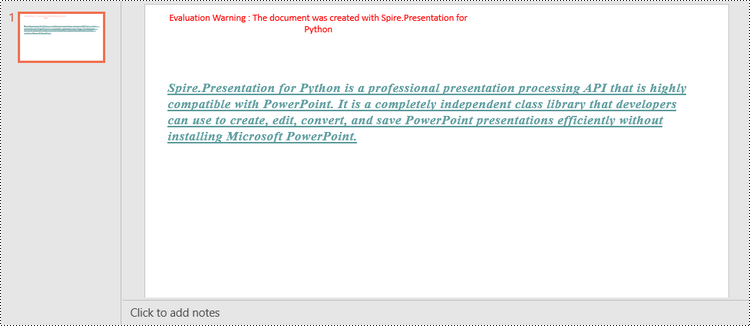
Spire.Presentation for Python offers the TextRange class to represent a range of text. A paragraph can consist of one or more text ranges. To apply font formatting to the characters in a text range, you can use the properties like LatinFont, IsBold, IsItalic, and FontHeight of the TextRange class. The following are the steps to set fonts when creating a new PowerPoint document in Python.
- Create a Presentation object.
- Get the first slide through Presentation.Slides[0] property.
- Add a shape to the slide using ISlide.Shapes.AppendShape() method.
- Add text to the shape using IAutoShape.AppendTextFrame() method.
- Get TextRange object through IAutoShape.TextFrame.TextRange property.
- Set the font information such as font name, font size, bold, italic, underline, and text color through the properties under the TextRange object.
- Save the presentation to a PPTX file using Presentation.SaveToFile() method.
- Python
from spire.presentation.common import *
import math
from spire.presentation import *

# Create a Presentation object
presentation = Presentation()

# Set slide size type
presentation.SlideSize.Type = SlideSizeType.Screen16x9

# Add a shape to the first slide
rec = RectangleF.FromLTRB (30, 100, 900, 250)
shape = presentation.Slides[0].Shapes.AppendShape(ShapeType.Rectangle, rec)

# Set line color and fill type of the shape
shape.ShapeStyle.LineColor.Color = Color.get_Transparent()
shape.Fill.FillType = FillFormatType.none

# Add text to the shape
shape.AppendTextFrame("Spire.Presentation for Python is a professional presentation processing API that \
is highly compatible with PowerPoint. It is a completely independent class library that developers can \
use to create, edit, convert, and save PowerPoint presentations efficiently without installing Microsoft PowerPoint.")

# Get text of the shape as a text range
textRange = shape.TextFrame.TextRange

# Set font name
textRange.LatinFont = TextFont("Times New Roman")

# Set font style (bold & italic)
textRange.IsBold = TriState.TTrue
textRange.IsItalic = TriState.TTrue

# Set underline type
textRange.TextUnderlineType = TextUnderlineType.Single

# Set font size
textRange.FontHeight = 22

# Set text color
textRange.Fill.FillType = FillFormatType.Solid
textRange.Fill.SolidColor.Color = Color.get_CadetBlue()

# Set alignment
textRange.Paragraph.Alignment = TextAlignmentType.Left

# Set line spacing
textRange.LineSpacing = 0.5

# Save to file
presentation.SaveToFile("output/SetFont.pptx", FileFormat.Pptx2019)
presentation.Dispose()
Change Fonts in an Existing PowerPoint Document in Python
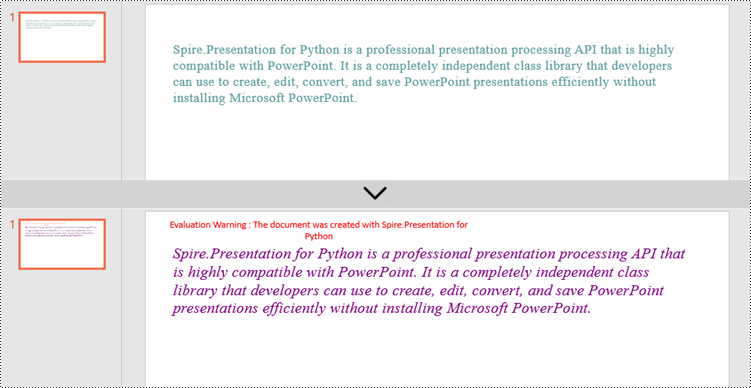
To change the font for a specific paragraph, we need to get the paragraph from the document. Then, iterate through the text ranges in the paragraph and reset the font information for each text range. Below are the steps to change the font of a paragraph in an existing PowerPoint document using Spire.Presentation for Python.
- Create a Presentation object.
- Get a specific slide through Presentation.Slides[index] property.
- Get a specific shape through ISlide.Shapes[index] property.
- Get a specific paragraph of the shape through IAutoShape.TextFrame.Paragraphs[index] property.
- Iterate through the text ranges in the paragraph.
- Set the font information such as font name, font size, bold, italic, underline, and text color of a specific text range through the properties under the TextRange object.
- Save the presentation to a PPTX file using Presentation.SaveToFile() method.
- Python
from spire.presentation.common import *
from spire.presentation import *

# Create a Presentation object
presentation = Presentation()

# Load a PowerPoint file
presentation.LoadFromFile("C:\\Users\\Administrator\\Desktop\\input.pptx")

# Get the first slide
slide = presentation.Slides[0]

"# Get the first shape on the slide
shape = (IAutoShape)(slide.Shapes[0])

# Get the first paragraph of the shape
paragraph = shape.TextFrame.Paragraphs[0]

# Get the first paragraph of the shape
paragraph = shape.TextFrame.Paragraphs[0]

# Create a font
newFont = TextFont("Times New Roman")

# Loop through the text ranges in the paragraph
for textRange in paragraph.TextRanges:

    # Apply font to a specific text range
    textRange.LatinFont = newFont

    # Set font to Italic
    textRange.Format.IsItalic = TriState.TTrue

    # Set font size
    textRange.FontHeight = 25

    # Set font color
    textRange.Fill.FillType = FillFormatType.Solid
    textRange.Fill.SolidColor.Color = Color.get_Purple()

# Save to file
presentation.SaveToFile("output/ChangeFont.pptx", FileFormat.Pptx2019)
presentation.Dispose()
Apply for a Temporary License
If you'd like to remove the evaluation message from the generated documents, or to get rid of the function limitations, please request a 30-day trial license for yourself.
Python: Add Hyperlinks to PDF
Hyperlinks in PDF are interactive elements that, when clicked, can jump to a specific location in the document, to an external website, or to other resources. By inserting hyperlinks in a PDF document, you can provide supplementary information and enhance the overall integrity of the document. This article will demonstrate how to add hyperlinks to PDF files in Python using Spire.PDF for Python.
Install Spire.PDF for Python
This scenario requires Spire.PDF for Python and plum-dispatch v1.7.4. They can be easily installed in your Windows through the following pip command.
pip install Spire.PDFIf you are unsure how to install, please refer to this tutorial: How to Install Spire.PDF for Python on Windows
Add Hyperlinks to a PDF Document in Python
With Spire.PDF for Python, you can add web links, email links and file links to a PDF document. The following are the detailed steps:
- Create a pdf document and add a page to it.
- Specify a URL address and draw it directly on the page using PdfPageBase.Canvas.DrawString() method.
- Create a PdfTextWebLink object.
- Set the link's display text, URL address, and the font and brush used to draw it using properties of PdfTextWebLink class.
- Draw the link on the page using PdfTextWebLink.DrawTextWebLink() method.
- Create a PdfFileLinkAnnotation object and with a specified file.
- Add the file link to the page annotations using PdfPageBase.AnnotationsWidget.Add(PdfFileLinkAnnotation) method.
- Draw hypertext of the file link using PdfPageBase.Canvas.DrawString() method.
- Save the result file using PdfDocument.SaveToFile() method.
- Python
from spire.pdf.common import *
from spire.pdf import *

# Create a PdfDocument instance
pdf = PdfDocument()

# Add a page
page = pdf.Pages.Add()

# Initialize x, y coordinates
y = 30.0
x = 10.0

# Create true type fonts
font = PdfTrueTypeFont("Arial", 14.0,PdfFontStyle.Regular,True)
font1 = PdfTrueTypeFont("Arial", 14.0, PdfFontStyle.Underline,True)

# Add a simply link
label = "Simple Text Link: "
format = PdfStringFormat()
format.MeasureTrailingSpaces = True
page.Canvas.DrawString(label, font, PdfBrushes.get_Orange(), 0.0, y, format)
x = font.MeasureString(label, format).Width
url = "http://www.e-iceblue.com"
page.Canvas.DrawString(url, font1, PdfBrushes.get_Blue(), x, y)
y = y + 28

# Add a hypertext link
label = "Hypertext Link: "
page.Canvas.DrawString(label, font, PdfBrushes.get_Orange(), 0.0, y, format)
x = font.MeasureString(label, format).Width
webLink = PdfTextWebLink()
webLink.Text = "Home Page"
webLink.Url = url
webLink.Font = font1
webLink.Brush = PdfBrushes.get_Blue()
webLink.DrawTextWebLink(page.Canvas, PointF(x, y))
y = y + 28

# Add an Email link
label = "Email Link:  "
page.Canvas.DrawString(label, font, PdfBrushes.get_Orange(), 0.0, y, format)
x = font.MeasureString(label, format).Width
link = PdfTextWebLink()
link.Text = "Contact Us"
link.Url = "mailto:support@e-iceblue.com"
link.Font = font1
link.Brush = PdfBrushes.get_Blue()
link.DrawTextWebLink(page.Canvas, PointF(x, y))
y = y + 28

# Add a file link
label = "Document Link: "
page.Canvas.DrawString(label, font, PdfBrushes.get_Orange(), 0.0, y, format)
x = font.MeasureString(label, format).Width
text = "Open File"
location = PointF(x, y)
size = font1.MeasureString(text)
linkBounds = RectangleF(location, size)
fileLink = PdfFileLinkAnnotation(linkBounds,"C:\\Users\\Administrator\\Desktop\\Report.xlsx")
fileLink.Border = PdfAnnotationBorder(0.0)
page.AnnotationsWidget.Add(fileLink)
page.Canvas.DrawString(text, font1, PdfBrushes.get_Blue(), x, y)

#Save the result pdf file
pdf.SaveToFile("AddLinkstoPDF.pdf")
pdf.Close()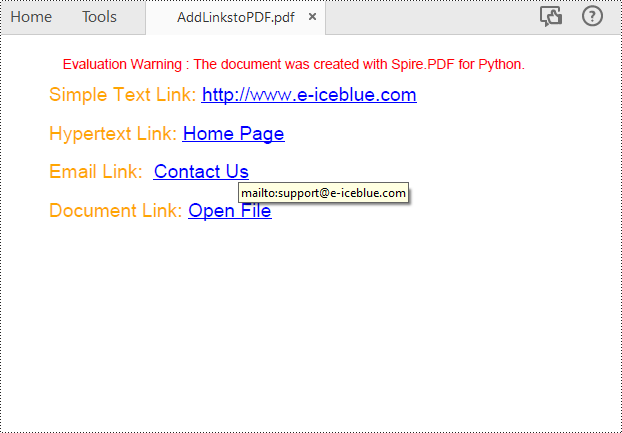
Insert Hyperlinks into Existing Text in PDF in Python
Adding a hyperlink to existing text in a PDF document requires locating the text first. Once the location has been obtained, an object of PdfUriAnnotation class with the link can be created and added to the position. The following are the detailed steps:
- Create a PdfDocument instance.
- Load a PDF file using PdfDocument.LoadFromFile() method.
- Get the first page using PdfDocument.Pages.get_Item() method.
- Create a PdfTextFinder object for the page and set the search parameter using finds.Options.Parameter.
- Find all occurrences of the specified text on the page using PdfTextFinder.Find() method.
- Loop through all occurrences of the found text and create a PdfUriAnnotation instance based on the bounds of each occurrence.
- Set the hyperlink URL, border, and border color using properties under PdfUriAnnotation class.
- Insert the hyperlink to the page annotations using PdfPageBase.AnnotationsWidget.Add(PdfUriAnnotation) method.
- Save the PDF file using PdfDocument.SaveToFile() method.
- Python
from spire.pdf.common import *
from spire.pdf import *

# Create a PdfDocument instance
pdf = PdfDocument()

# Load a PDF file
pdf.LoadFromFile("input.pdf")

# Get the first page
page = pdf.Pages.get_Item(0)

# Create a PdfTextFinder object for the current page
finds = PdfTextFinder(page)

# Set the search parameter to find exact matches
finds.Options.Parameter = TextFindParameter.IgnoreCase

# Find all occurrences of the specified text in the page
fragments  = finds.Find("big O notation")

# Iterate through the found text fragments and create hyperlink annotations for each occurrence
for fragment in fragments:
    # Get the bounds of the found text
    bounds = fragment.Bounds
    for bound in bounds:
        # Create a PdfUriAnnotation for the found text and set its properties
        uri = PdfUriAnnotation(bound)
        uri.Uri = "https://en.wikipedia.org/wiki/Big_O_notation"
        uri.Border = PdfAnnotationBorder(1.0)
        uri.Color = PdfRGBColor(Color.get_Blue())
        page.AnnotationsWidget.Add(uri)

#Save the result file
pdf.SaveToFile("SearchTextAndAddHyperlink1.pdf")
pdf.Close()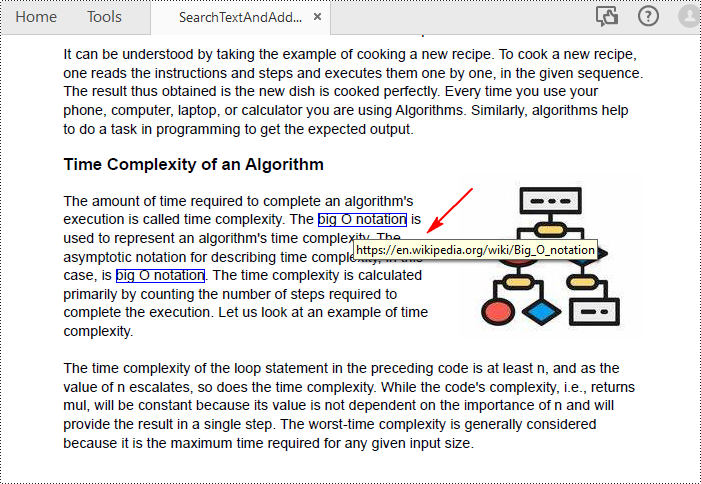
Apply for a Temporary License
If you'd like to remove the evaluation message from the generated documents, or to get rid of the function limitations, please request a 30-day trial license for yourself.
Python: Add, Hide, or Remove Layers in PDF
Layers in PDF are similar to layers in image editing software, where different elements of a document can be organized and managed separately. Each layer can contain different content, such as text, images, graphics, or annotations, and can be shown or hidden independently. PDF layers are often used to control the visibility and positioning of specific elements within a document, making it easier to manage complex layouts, create dynamic designs, or control the display of information. In this article, you will learn how to add, hide, remove layers in a PDF document in Python using Spire.PDF for Python.
- Add a Layer to PDF in Python
- Set Visibility of a Layer in PDF in Python
- Remove a Layer from PDF in Python
Install Spire.PDF for Python
This scenario requires Spire.PDF for Python and plum-dispatch v1.7.4. They can be easily installed in your Windows through the following pip commands.
pip install Spire.PDF
If you are unsure how to install, please refer to this tutorial: How to Install Spire.PDF for Python on Windows
Add a Layer to PDF in Python
A layer can be added to a PDF document using the Document.Layers.AddLayer() method. After the layer object is created, you can draw text, images, fields, or other elements on it to form its appearance. The detailed steps to add a layer to PDF using Spire.PDF for Java are as follows.
- Create a PdfDocument object.
- Load a PDF file using PdfDocument.LoadFromFile() method.
- Create a layer using Document.Layers.AddLayer() method.
- Get a specific page through PdfDocument.Pages[index] property.
- Create a canvas for the layer based on the page using PdfLayer.CreateGraphics() method.
- Draw text on the canvas using PdfCanvas.DrawString() method.
- Save the document to a different PDF file using PdfDocument.SaveToFile() method.
- Python
from spire.pdf.common import *
from spire.pdf import *

def AddLayerWatermark(doc):

    # Create a layer named "Watermark"
    layer = doc.Layers.AddLayer("Watermark")

    # Create a font
    font = PdfTrueTypeFont("Bodoni MT Black", 50.0, 1, True)

    # Specify watermark text
    watermarkText = "DO NOT COPY"

    # Get text size
    fontSize = font.MeasureString(watermarkText)

    # Get page count
    pageCount = doc.Pages.Count

    # Loop through the pages
    for i in range(0, pageCount):

        # Get a specific page
        page = doc.Pages.get_Item(i)

        # Create canvas for layer
        canvas = layer.CreateGraphics(page.Canvas)

        # Draw sting on the graphics
        canvas.DrawString(watermarkText, font, PdfBrushes.get_Gray(), (canvas.Size.Width - fontSize.Width)/2, (canvas.Size.Height - fontSize.Height)/2 )

# Create a PdfDocument instance
doc = PdfDocument()

# Load a PDF file
doc.LoadFromFile("C:\\Users\\Administrator\\Desktop\\input.pdf")

# Invoke AddLayerWatermark method to add a layer
AddLayerWatermark(doc)

# Save to file
doc.SaveToFile("output/AddLayer.pdf", FileFormat.PDF)
doc.Close()
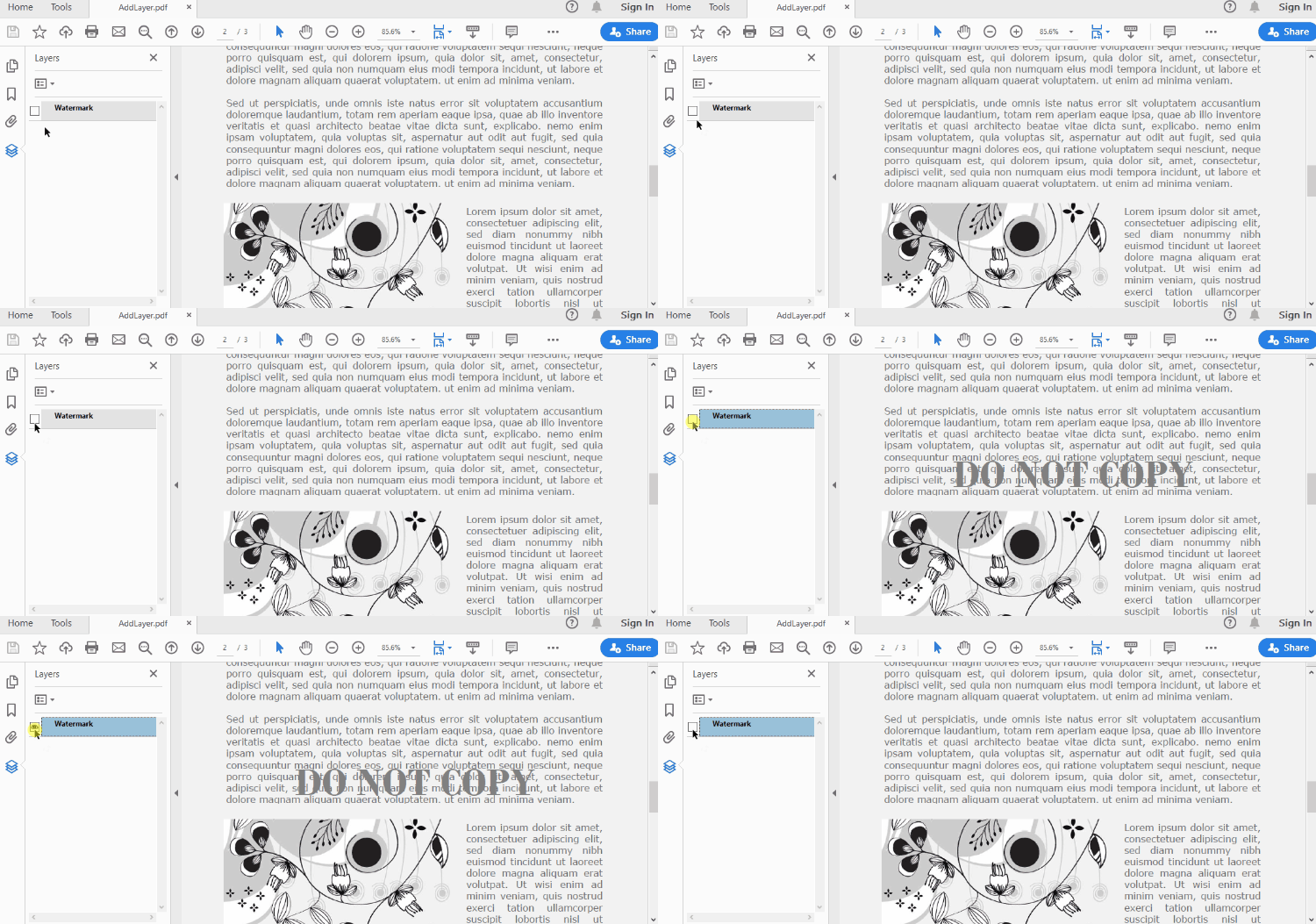
Set Visibility of a Layer in PDF in Python
To control the visibility of layers in a PDF document, you can use the PdfDocument.Layers[index].Visibility property. Set it to off to hide a layer, or set it to on to unhide a layer. The detailed steps are as follows.
- Create a PdfDocument object.
- Load a PDF file using PdfDocument.LoadFromFile() method.
- Set the visibility of a certain layer through Document.Layers[index].Visibility property.
- Save the document to a different PDF file using PdfDocument.SaveToFile() method.
- Python
from spire.pdf.common import *
from spire.pdf import *

# Create a PdfDocument instance
doc = PdfDocument()

# Load a PDF file
doc.LoadFromFile("C:\\Users\\Administrator\\Desktop\\Layer.pdf")

# Hide a layer by setting the visibility to off
doc.Layers.get_Item(0).Visibility = PdfVisibility.Off

# Save to file
doc.SaveToFile("output/HideLayer.pdf", FileFormat.PDF)
doc.Close()
Remove a Layer from PDF in Python
If a layer is no more wanted, you can remove it using the PdfDocument.Layers.RmoveLayer() method. The following are the detailed steps.
- Create a PdfDocument object.
- Load a PDF file using PdfDocument.LoadFromFile() method.
- Get a specific layer through PdfDocument.Layers[index] property.
- Remove the layer from the document using PdfDcument.Layers.RemoveLayer(PdfLayer.Name) method.
- Save the document to a different PDF file using PdfDocument.SaveToFile() method.
- Python
from spire.pdf.common import *
from spire.pdf import *

# Create a PdfDocument instance
doc = PdfDocument()

# Load a PDF file
doc.LoadFromFile("C:\\Users\\Administrator\\Desktop\\Layer.pdf")

# Delete the specific layer
doc.Layers.RemoveLayer(doc.Layers.get_Item(0).Name)

# Save to file
doc.SaveToFile("output/RemoveLayer.pdf", FileFormat.PDF)
doc.Close()
Apply for a Temporary License
If you'd like to remove the evaluation message from the generated documents, or to get rid of the function limitations, please request a 30-day trial license for yourself.
Python: Find and Highlight Text in PDF
Highlighting important text with vibrant colors is a commonly employed method for navigating and emphasizing content in PDF documents. Particularly in lengthy PDFs, emphasizing key information aids readers swiftly comprehending the document content, thereby enhancing reading efficiency. Utilizing Python programs enables document creators to effortlessly and expeditiously execute the highlighting process. This article will explain how to use Spire.PDF for Python to find and highlight text in PDF documents with Python programs.
- Find and Highlight Specific Text in PDF with Python
- Find and Highlight Text in a Specified PDF Page Area with Python
- Find and Highlight Text in PDF using Regular Expression with Python
Install Spire.PDF for Python
This scenario requires Spire.PDF for Python and plum-dispatch v1.7.4. They can be easily installed in your Windows through the following pip command.
pip install Spire.PDFIf you are unsure how to install, please refer to this tutorial: How to Install Spire.PDF for Python on Windows
Find and Highlight Specific Text in PDF with Python
Spire.PDF for Python enables developers to find all occurrences of specific text on a page with PdfTextFinder class and apply highlight color to an occurrence with HighLight() method. Below is an example of using Spire.PDF for Python to highlight all occurrence of specific text:
- Create an object of PdfDocument class and load a PDF document using PdfDocument.LoadFromFile() method.
- Loop through the pages in the document.
- Get a page using PdfDocument.Pages.get_Item() method.
- Create a PdfTextFinder object for the current page.
- Set the search parameter using finds.Options.Parameter.
- Find all occurrences of specific text on the page using PdfTextFinder.Find() method.
- Loop through the occurrences and apply a highlight color to each occurrence using HighLight() method.
- Save the document using PdfDocument.SaveToFile() method.
- Python
from spire.pdf.common import *
from spire.pdf import *

# Create an object of PdfDocument class and load a PDF document
pdf = PdfDocument()
pdf.LoadFromFile("Sample.pdf")

# Iterate through each page in the PDF
for i in range(pdf.Pages.Count):
    page = pdf.Pages.get_Item(i)

    # Create a PdfTextFinder object for the current page
    finds = PdfTextFinder(page)

    # Set the search parameter to find exact matches
    finds.Options.Parameter = TextFindParameter.IgnoreCase

    # Find all occurrences of specific text on the page
    result = finds.Find("cloud server")

    # Iterate through each instance of the word "science" found on the page
    for find in result:
        # Highlight the searched text
        find.HighLight(Color.get_Cyan())

# Save the modified document to a new file
pdf.SaveToFile("output/FindHighlight.pdf", FileFormat.PDF)
pdf.Close()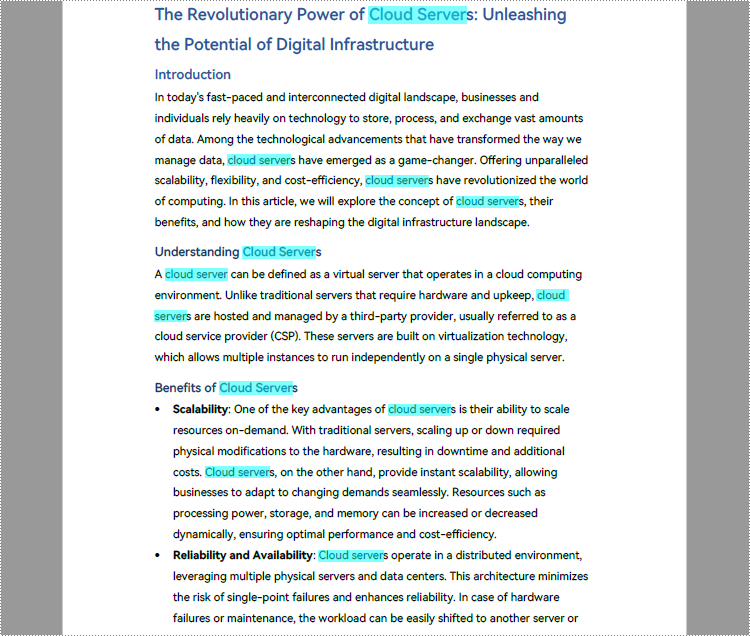
Find and Highlight Text in a Specified PDF Page Area with Python
In addition to finding and highlighting specified text on the entire PDF page, Spire.PDF for Python also supports finding and highlighting specified text in specified areas on the page by setting the finds.Options.Area property of PdfTextFinder class to a RectangleF instance. The detailed steps are as follows:
- Create an object of PdfDocument class and load a PDF document using PdfDocument.LoadFromFile() method.
- Get the first page of the document using PdfDocument.Pages.get_Item() method.
- Define a rectangular area using RectangleF.
- Create a PdfTextFinder object for the page and set the search parameter using finds.Options.Parameter.
- Set the search area to the defined rectangle using finds.Options.Area.
- Find all occurrences of specific text in the specified rectangular area using PdfTextFinder.Find() method.
- Loop through the occurrences and apply a highlight color to each occurrence using HighLight() method.
- Save the document using PdfDocument.SaveToFile() method.
- Python
from spire.pdf.common import *
from spire.pdf import *

# Create an objetc of PdfDocument and load a PDF document
pdf = PdfDocument()
pdf.LoadFromFile("Sample.pdf")

# Get a page
pdfPageBase = pdf.Pages.get_Item(0)

# Define a rectangular area
rctg = RectangleF(0.0, 0.0, pdfPageBase.ActualSize.Width, 300.0)

# Create a PdfTextFinder object for the page
finds = PdfTextFinder(pdfPageBase)
# Set the search parameter to find exact matches
finds.Options.Parameter = TextFindParameter.IgnoreCase
# Set the search area to the defined rectangle
finds.Options.Area = rctg

# Find all occurrences of specific text on the page
result = finds.Find("cloud server")
# Find text in the rectangle
for find in result:
        #Highlight searched text
        find.HighLight(Color.get_Green())

# Save the document
pdf.SaveToFile("output/FindHighlightArea.pdf")
pdf.Close()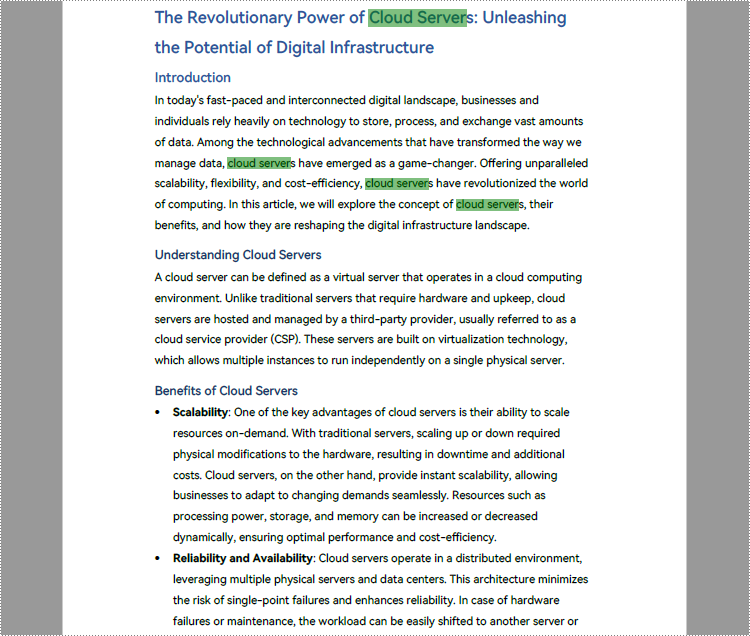
Find and Highlight Text in PDF using Regular Expression with Python
Sometimes the text that needs to be highlighted is not exactly the same words. In this case, the use of regular expressions allows more flexibility in text search. By setting finds.Options.Parameter to TextFindParameter.Regex, we can find text using regular expression with PdfTextFinder class. The detailed steps are as follows:
- Create an object of PdfDocument class and load a PDF document using PdfDocument.LoadFromFile() method.
- Specify the regular expression.
- Get a page using PdfDocument.Pages.get_Item() method.
- Create a PdfTextFinder object for the page and set the search parameter to TextFindParameter.Regex.
- Find matched text with the regular expression on the page using PdfTextFinder.Find() method.
- Loop through the matched text and apply Highlight color to the text using HighLight() method.
- Save the document using PdfDocument.SaveToFile() method.
- Python
from spire.pdf import *
from spire.pdf.common import*

# Create an object of PdfDocument class and load a PDF document
pdf = PdfDocument()
pdf.LoadFromFile("Sample.pdf")

# Specify the regular expression that matches two words after *
regex = "\\*(\\w+\\s+\\w+)"

# Get the second page
page = pdf.Pages.get_Item(1)

# Find matched text on the page using regular expression
finds = PdfTextFinder(page)
finds.Options.Parameter =TextFindParameter.Regex
result = finds.Find(regex)

# Highlight the matched text
for text in result:
    text.HighLight(Color.get_DeepPink())

# Save the document
pdf.SaveToFile("output/FindHighlightRegex.pdf")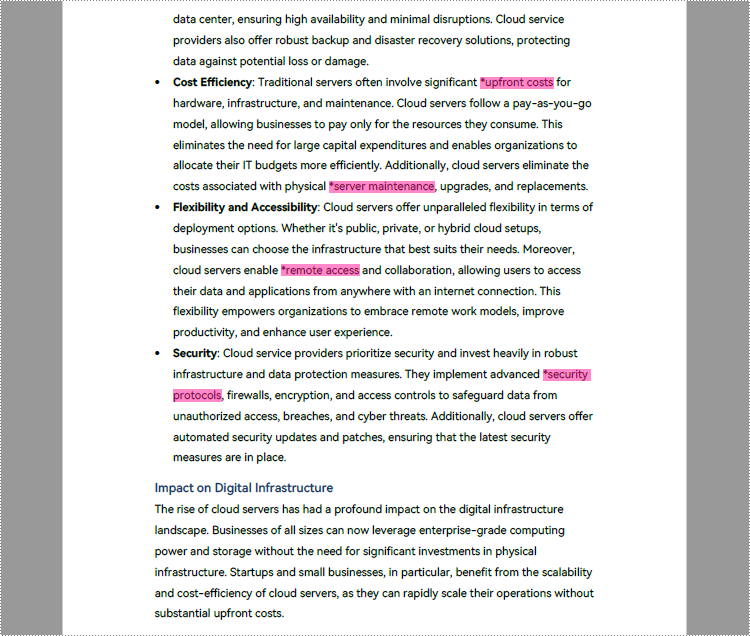
Apply for a Temporary License
If you'd like to remove the evaluation message from the generated documents, or to get rid of the function limitations, please request a 30-day trial license for yourself.
Python: Apply Conditional Formatting in Excel
Conditional formatting is a powerful feature in Microsoft Excel that allows users to apply formatting rules to cells based on specific conditions or criteria. It provides a quick and efficient way to visually highlight and analyze data, making it easier to identify trends, patterns, and outliers. With conditional formatting, users can customize the appearance of cells, such as font color, cell background, and borders, to draw attention to specific data points or results. In this article, you will learn how to programmatically apply conditional formatting in Excel in Python using Spire.XLS for Python.
- Alternate Row Colors in Excel Using Conditional Formatting in Python
- Highlight Top or Bottom Ranked Values in Excel in Python
- Highlight Values Below or Above Average in Excel in Python
- Highlight Values Between Two Numbers in Excel in Python
Install Spire.XLS for Python
This scenario requires Spire.XLS for Python and plum-dispatch v1.7.4. They can be easily installed in your Windows through the following pip command.
pip install Spire.XLS
If you are unsure how to install, please refer to this tutorial: How to Install Spire.XLS for Python on Windows
Alternate Row Colors in Excel Using Conditional Formatting in Python
Apply alternating row colors enhances the readability and visual appeal of a spreadsheet. By using different background colors for adjacent rows, it makes it easier to distinguish and follow individual rows of data. The following are the steps to alternate row colors in Excel using conditional formatting with Spire.XLS for Python.
- Create a Workbook object.
- Load an Excel file using Workbook.LoadFromFile() method.
- Get a specific worksheet from the workbook through Workbook.Worsheets[index] property.
- Add a conditional format to the worksheet using Worksheet.ConditionalFormats.Add() method and return an object of XlsConditionalFormats class.
- Specify the cell range where the conditional formatting will be applied using XlsConditionalFormats.AddRange() method.
- Add a condition using XlsConditionalFormats.AddCondition() method to change the color of even rows.
- Add another condition to change the color of odd rows.
- Save the workbook to an Excel file using Workbook.SaveToFile() method.
- Python
from spire.xls import *
from spire.xls.common import *

# Create a Workbook object
workbook = Workbook()

# Load a file from disk
workbook.LoadFromFile("C:/Users/Administrator/Desktop/input.xlsx")

# Get the first worksheet
sheet = workbook.Worksheets[0]

# Add a conditional format to the worksheet
conditionalFormat = sheet.ConditionalFormats.Add()

# Specify the range where the conditional format will be applied
conditionalFormat.AddRange(sheet.Range[2, 1, sheet.LastRow, sheet.LastColumn])

# Specify the first condition and format the cells that match the condition
condition1 = conditionalFormat.AddCondition()
condition1.FirstFormula = "=MOD(ROW(),2)=0"
condition1.FormatType = ConditionalFormatType.Formula
condition1.BackColor = Color.get_White()

# Specify the second condition and format the cells that match the condition
condition2 = conditionalFormat.AddCondition()
condition2.FirstFormula = "=MOD(ROW(),2)=1"
condition2.FormatType = ConditionalFormatType.Formula
condition2.BackColor = Color.get_LightGray()

# Save to file
workbook.SaveToFile("output/AlternateRowColors.xlsx", ExcelVersion.Version2016)
workbook.Dispose()

Highlight Top or Bottom Ranked Values in Excel
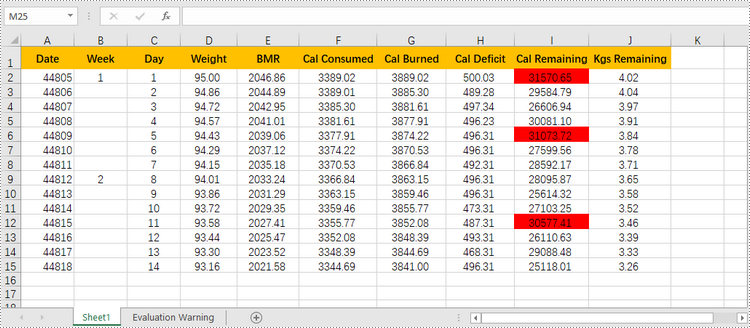
Highlighting top-ranked or bottom-ranked values in Excel can quickly identify the highest or the lowest values within a range or dataset, making it easier to analyze and interpret the data. The following are the steps to highlight top or bottom ranked values in Excel using conditional formatting with Spire.XLS for Python.
- Create a Workbook object.
- Load an Excel file using Workbook.LoadFromFile() method.
- Get a specific worksheet from the workbook through Workbook.Worsheets[index] property.
- Add a conditional format to the worksheet using Worksheet.ConditionalFormats.Add() method and return an object of XlsConditionalFormats class.
- Specify the cell range where the conditional formatting will be applied using XlsConditionalFormats.AddRange() method.
- Add a condition using XlsConditionalFormats.AddCondition() method to change the color of the cells that have top ranked or bottom ranked values.
- Save the workbook to an Excel file using Workbook.SaveToFile() method.
- Python
from spire.xls import *
from spire.xls.common import *

# Create a Workbook object
workbook = Workbook()

# Load a file from disk
workbook.LoadFromFile("C:/Users/Administrator/Desktop/input.xlsx")

# Get the first worksheet
sheet = workbook.Worksheets[0]

# Add a conditional format to the worksheet
conditionalFormat = sheet.ConditionalFormats.Add()

# Specify the range where the conditional format will be applied
conditionalFormat.AddRange(sheet.Range["I2:I15"])

# Add a condition to highlight the top 3 ranked values
condition1 = conditionalFormat.AddTopBottomCondition(TopBottomType.Top, 3)
condition1.BackColor = Color.get_Red()

# Add a condition to highlight the bottom 3 ranked values
# condition2 = conditionalFormat.AddTopBottomCondition(TopBottomType.Bottom, 3)
# condition2.BackColor = Color.get_Green()

# Save the workbook to an Excel file
workbook.SaveToFile("output/TopOrBottomValues.xlsx", ExcelVersion.Version2016)
Highlight Values Below or Above Average in Excel
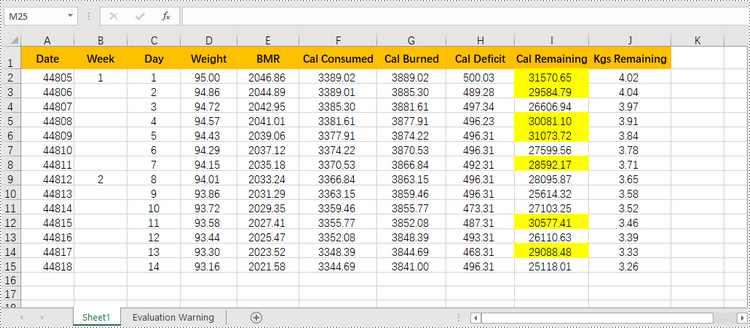
To quickly identify data points that are significantly higher or lower than the average, you can use conditional formatting as well. Here are the detailed steps.
- Create a Workbook object.
- Load an Excel file using Workbook.LoadFromFile() method.
- Get a specific worksheet from the workbook through Workbook.Worsheets[index] property.
- Add a conditional format to the worksheet using Worksheet.ConditionalFormats.Add() method and return an object of XlsConditionalFormats class.
- Specify the cell range where the conditional formatting will be applied using XlsConditionalFormats.AddRange() method.
- Add a condition using XlsConditionalFormats.AddCondition() method to change the color of the cells with values above or below the average.
- Save the workbook to an Excel file using Workbook.SaveToFile() method.
- Python
from spire.xls import *
from spire.xls.common import *

# Create a Workbook object
workbook = Workbook()

# Load a file from disk
workbook.LoadFromFile("C:/Users/Administrator/Desktop/input.xlsx")

# Get the first worksheet
sheet = workbook.Worksheets[0]

# Add a conditional format to the worksheet
conditionalFormat = sheet.ConditionalFormats.Add()

# Specify the range where the conditional format will be applied
conditionalFormat.AddRange(sheet.Range["I2:I15"])

# Add a condition to highlight the values above average
condition1 = conditionalFormat.AddAverageCondition(AverageType.Above)
condition1.BackColor = Color.get_Yellow()

# Add a condition to highlight the values below average
# condition2 = conditionalFormat.AddAverageCondition(AverageType.Below)
# condition2.BackColor = Color.get_DarkGray()

# Save the workbook to an Excel file
workbook.SaveToFile("output/AboveOrBelowAverage.xlsx", ExcelVersion.Version2016)
Highlight Values Between Two Numbers in Excel
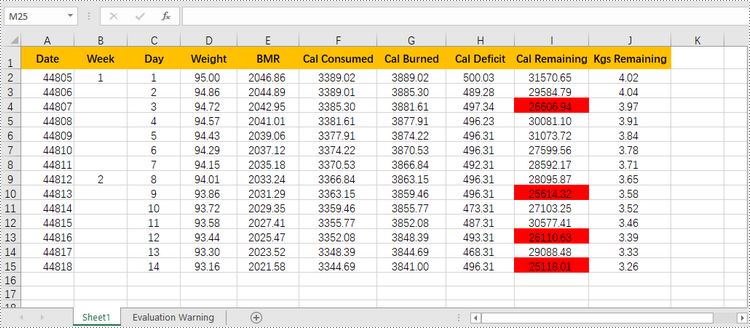
Highlighting values between a specific range helps you quickly identify and focus on the relevant data points that fall within the range. The following are the steps to highlight values between two numbers using conditional formatting with Spire.XLS for Python.
- Create a Workbook object.
- Load an Excel file using Workbook.LoadFromFile() method.
- Get a specific worksheet from the workbook through Workbook.Worsheets[index] property.
- Add a conditional format to the worksheet using Worksheet.ConditionalFormats.Add() method and return an object of XlsConditionalFormats class.
- Specify the cell range where the conditional formatting will be applied using XlsConditionalFormats.AddRange() method.
- Add a condition using XlsConditionalFormats.AddCondition() method to change the color of the cells with values between two specific numbers.
- Save the workbook to an Excel file using Workbook.SaveToFile() method.
- Python
from spire.xls import *
from spire.xls.common import *

# Create a Workbook object
workbook = Workbook()

# Load a file from disk
workbook.LoadFromFile("C:/Users/Administrator/Desktop/input.xlsx")

# Get the first worksheet
sheet = workbook.Worksheets[0]

# Add a conditional format to the worksheet
conditionalFormat = sheet.ConditionalFormats.Add()

# Specify the range where the conditional format will be applied
conditionalFormat.AddRange(sheet.Range["I2:I15"])

# Create a condition and format the cells that meet the condition
condition = conditionalFormat.AddCondition()
condition.FormatType = ConditionalFormatType.CellValue
condition.Operator = ComparisonOperatorType.Between
condition.FirstFormula = "25000"
condition.SecondFormula = "27000"
condition.BackColor = Color.get_Red()

# Save the workbook to an Excel file
workbook.SaveToFile("output/ValuesBetweenTwoNumbers.xlsx", ExcelVersion.Version2016)
Apply for a Temporary License
If you'd like to remove the evaluation message from the generated documents, or to get rid of the function limitations, please request a 30-day trial license for yourself.
Python: Insert or Remove Footnotes in Word
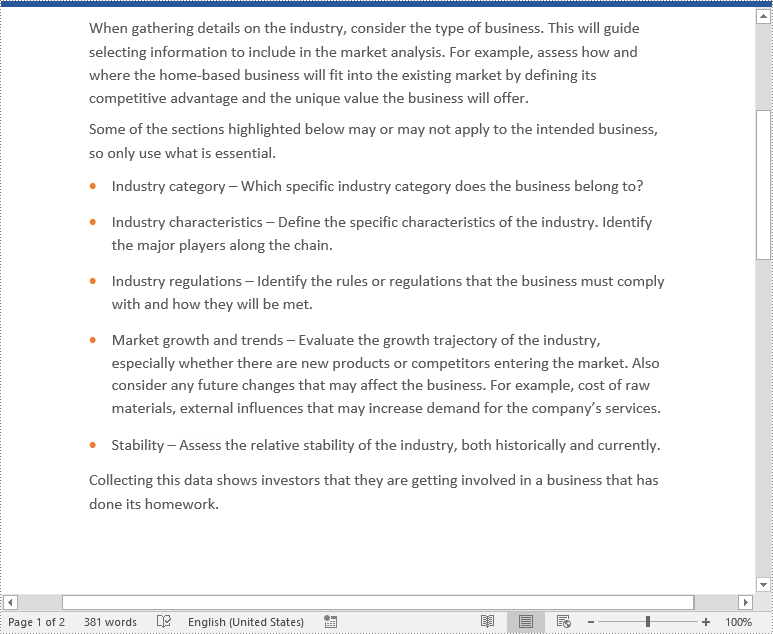
Footnotes are a valuable tool in Microsoft Word that allows you to enhance the content of your documents by providing additional information, references, or citations at the bottom of a page. For example, you can use footnotes to provide in-depth explanations of complex concepts, cite sources to support your arguments, or offer tangential information that might be interesting to your readers. Whether you're working on an academic paper, a book, or any document that requires citations or explanations, footnotes offer a convenient way to maintain a clean and organized layout while presenting supplementary details. In this article, we will explain how to insert or remove footnotes in a Word document in Python using Spire.Doc for Python.
- Insert a Footnote for a Specific Paragraph in Word in Python
- Insert a Footnote for a Specific Text in Word in Python
- Remove Footnotes in a Word Document in Python
Install Spire.Doc for Python
This scenario requires Spire.Doc for Python and plum-dispatch v1.7.4. They can be easily installed in your Windows through the following pip command.
pip install Spire.Doc
If you are unsure how to install, please refer to this tutorial: How to Install Spire.Doc for Python on Windows
Insert a Footnote for a Specific Paragraph in Word in Python
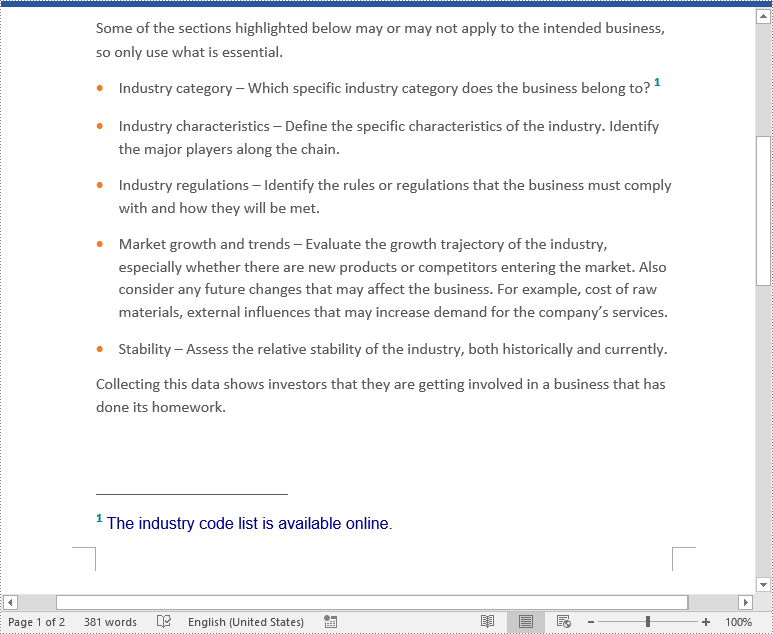
You can use the Paragraph.AppendFootnote(FootnoteType.Footnote) method provided by Spire.Doc for Python to easily add a footnote for a specific paragraph. The detailed steps are as follows.
- Create an object of the Document class.
- Load a Word document using Document.LoadFromFile() method.
- Get a specific section in the document using Document.Section[int] property and then get a specific paragraph of the section using Section.Paragraphs[int] property.
- Add a footnote at the end of the paragraph using Paragraph.AppendFootnote(FootnoteType.Footnote) method.
- Set the text content of the footnote, and then set the font and color for the footnote text and the footnote reference mark.
- Save the result document using Document.SaveToFile() method.
- Python
from spire.doc import *
from spire.doc.common import *

# Create a Document instance
document = Document()
# Load a sample Word document
document.LoadFromFile("Sample.docx")

# Get a specific section
section = document.Sections.get_Item(0)

# Get a specific paragraph
paragraph = section.Paragraphs.get_Item(3)

# Add a footnote at the end of the paragraph
footnote = paragraph.AppendFootnote(FootnoteType.Footnote)

# Set the text content of the footnote
text = footnote.TextBody.AddParagraph().AppendText("The industry code list is available online.")

# Set the text font and color
text.CharacterFormat.FontName = "Arial"
text.CharacterFormat.FontSize = 12
text.CharacterFormat.TextColor = Color.get_DarkBlue()

# Set the font and color of the footnote reference mark
footnote.MarkerCharacterFormat.FontName = "Calibri"
footnote.MarkerCharacterFormat.FontSize = 15
footnote.MarkerCharacterFormat.Bold = True
footnote.MarkerCharacterFormat.TextColor = Color.get_DarkCyan()

# Save the result document
document.SaveToFile("AddFootnoteForParagraph.docx", FileFormat.Docx2016)
document.Close()
Insert a Footnote for a Specific Text in Word in Python
To add a footnote for a specific text, you need to find the text in the document, get the location of the text in its owner paragraph, and then insert the footnote after the text. The detailed steps are as follows.
- Create an object of the Document class.
- Load a Word document using Document.LoadFromFile() method.
- Find a specific text using Document.FindString() method.
- Get the found text as a single text range using TextSelection.GetAsOneRange() method.
- Get the paragraph where the text range is located using TextRange.OwnerParagraph property.
- Get the index position of the text range in the paragraph using Paragraph.ChildObjects.IndexOf() method.
- Add a footnote to the paragraph using Paragraph.AppendFootnote(FootnoteType.Footnote) method, and then insert the footnote after the specific text using Paragraph.ChildObjects.Insert() method.
- Set the text content of the footnote, and then set the font and color for the footnote text and the footnote reference mark.
- Save the result document using Document.SaveToFile() method.
- Python
from spire.doc import *
from spire.doc.common import *

# Create a Document instance
document = Document()
# Load a sample Word document
document.LoadFromFile("Sample.docx")

# Find a specific text
selection = document.FindString("major players", False, True)

# Get the found text as a single text range
textRange = selection.GetAsOneRange()

# Get the paragraph where the text range is located
paragraph = textRange.OwnerParagraph

# Get the index position of the text range in the paragraph
index = paragraph.ChildObjects.IndexOf(textRange)

# Add a footnote to the paragraph
footnote = paragraph.AppendFootnote(FootnoteType.Footnote)

# Insert the footnote after the text range
paragraph.ChildObjects.Insert(index + 1, footnote)

# Set the text content of the footnote
text = footnote.TextBody.AddParagraph().AppendText("Including suppliers, competitors, and customers")

# Set the text font and color
text.CharacterFormat.FontName = "Arial"
text.CharacterFormat.FontSize = 12
text.CharacterFormat.TextColor = Color.get_DarkBlue()

# Set the font and color of the footnote reference mark
footnote.MarkerCharacterFormat.FontName = "Calibri"
footnote.MarkerCharacterFormat.FontSize = 15
footnote.MarkerCharacterFormat.Bold = True
footnote.MarkerCharacterFormat.TextColor = Color.get_DarkGreen()

# Save the result document
document.SaveToFile("AddFootnoteForText.docx", FileFormat.Docx2016)
document.Close()

Remove Footnotes in a Word Document in Python
When the footnotes of a Word document are no longer needed, you can remove them to make the document neater. The detailed steps are as follows.
- Create an object of the Document class.
- Load a Word document using Document.LoadFromFile() method.
- Get a specific section using Document.Sections[int] property.
- Loop through each paragraph in the section to find the footnotes.
- Remove the footnotes using Paragraph.ChildObjects.RemoveAt() method.
- Save the result document using Document.SaveToFile() method.
- Python
from spire.doc import *
from spire.doc.common import *

# Create a Document instance
document = Document()
# Load a sample Word document
document.LoadFromFile("AddFootnoteForParagraph.docx")

# Get the first section of the document
section = document.Sections[0]

# Loop through the paragraphs in the section
for y in range(section.Paragraphs.Count):
    para = section.Paragraphs.get_Item(y)
    index = -1
    i = 0
    cnt = para.ChildObjects.Count
    while i < cnt:
        pBase = para.ChildObjects[i] if isinstance(para.ChildObjects[i], ParagraphBase) else None
        if isinstance(pBase, Footnote):
            index = i
            break
        i += 1
    if index > -1:
        # Remove the footnotes from the paragraph
        para.ChildObjects.RemoveAt(index)

# Save the result document
document.SaveToFile("RemoveFootnotes.docx", FileFormat.Docx)
document.Close()
Apply for a Temporary License
If you'd like to remove the evaluation message from the generated documents, or to get rid of the function limitations, please request a 30-day trial license for yourself.
Python: Create Tables in a Word Document
A table is a powerful tool in a Word document that allows you to organize and present information in a structured manner. It consists of rows and columns, forming a grid-like structure. Tables are commonly used for various purposes, such as creating schedules, comparing data, or displaying data in a neat and organized format. In this article, you will learn how to programmatically create tables in a Word document in Python using Spire.Doc for Python.
- Create a Simple Table in Word in Python
- Create a Table from an HTML String in Python
- Merge and Split Cells in a Table in Python
- Fill a Table with Data in Word in Python
Install Spire.Doc for Python
This scenario requires Spire.Doc for Python and plum-dispatch v1.7.4. They can be easily installed in your Windows through the following pip command.
pip install Spire.Doc
If you are unsure how to install, please refer to this tutorial: How to Install Spire.Doc for Python on Windows
Prerequisite Knowledge
Spire.Doc for Python offers the Table class to represent a table in a Word document. You can create table objects either through the constructor or the Section.AddTable() method. After the table object is created, you can use the Table.AddRow() method to dynamically add rows to the table, or specify the number of rows and columns of the table, and then populate it with data in a single pass.
Also, Spire.Doc for Python supports creating tables from an HTML string. This method does not return an object of Table. Therefore, you cannot use the properties or methods under the Table class to deal with the table created from an HTML string. You need to set up the content and style of the table in the HTML string.
Create a Simple Table in Word in Python
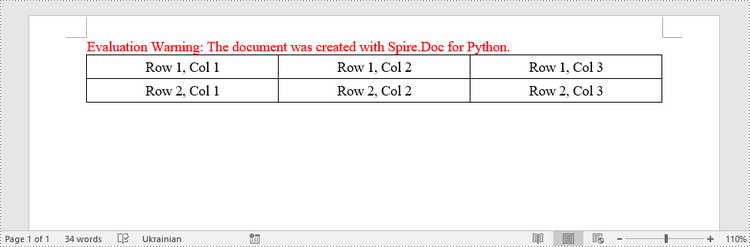
This example demonstrates how to create a simple plain table using the Table class and how to add rows one by one. Here are the main steps.
- Create a Document object.
- Add a section to it using Document.AddSection() method.
- Create a Table object.
- Add a row to it using Table.AddRow() method.
- Get a specific cell of the row through Row.Cells[index] property.
- Add text to the cell using TableCell.AddParagraph().AppendText() method.
- Add the table to the document using Section.AddTable() method.
- Save the document to a .docx file using Document.SaveToFile() method.
- Python
from spire.doc import *
from spire.doc.common import *

# Create a Document object
doc = Document()

# Add a section
section = doc.AddSection()

# Create a table
table = Table(doc, True)

# Set the width of table
table.PreferredWidth = PreferredWidth(WidthType.Percentage, int(100))

# Set the border of table
table.TableFormat.Borders.BorderType = BorderStyle.Single
table.TableFormat.Borders.Color = Color.get_Black()

# Add a row
row = table.AddRow(False, 3)
row.Height = 20.0

# Add data to the cells
cell = row.Cells[0]
cell.CellFormat.VerticalAlignment = VerticalAlignment.Middle
paragraph = cell.AddParagraph()
paragraph.Format.HorizontalAlignment = HorizontalAlignment.Center
paragraph.AppendText("Row 1, Col 1")
cell = row.Cells[1]
cell.CellFormat.VerticalAlignment = VerticalAlignment.Middle
paragraph = cell.AddParagraph()
paragraph.Format.HorizontalAlignment = HorizontalAlignment.Center
paragraph.AppendText("Row 1, Col 2")
cell = row.Cells[2]
cell.CellFormat.VerticalAlignment = VerticalAlignment.Middle
paragraph = cell.AddParagraph()
paragraph.Format.HorizontalAlignment = HorizontalAlignment.Center
paragraph.AppendText("Row 1, Col 3")

# Add the second row
row = table.AddRow(False, 3)
row.Height = 20.0
cell = row.Cells[0]
cell.CellFormat.VerticalAlignment = VerticalAlignment.Middle
paragraph = cell.AddParagraph()
paragraph.Format.HorizontalAlignment = HorizontalAlignment.Center
paragraph.AppendText("Row 2, Col 1")
cell = row.Cells[1]
cell.CellFormat.VerticalAlignment = VerticalAlignment.Middle
paragraph = cell.AddParagraph()
paragraph.Format.HorizontalAlignment = HorizontalAlignment.Center
paragraph.AppendText("Row 2, Col 2")
cell = row.Cells[2]
cell.CellFormat.VerticalAlignment = VerticalAlignment.Middle
paragraph = cell.AddParagraph()
paragraph.Format.HorizontalAlignment = HorizontalAlignment.Center
paragraph.AppendText("Row 2, Col 3")

# Add the table to the section
section.Tables.Add(table)

# Save the document
doc.SaveToFile("output/CreateTable.docx", FileFormat.Docx2013)
doc.Close()
Create a Table from an HTML String in Python
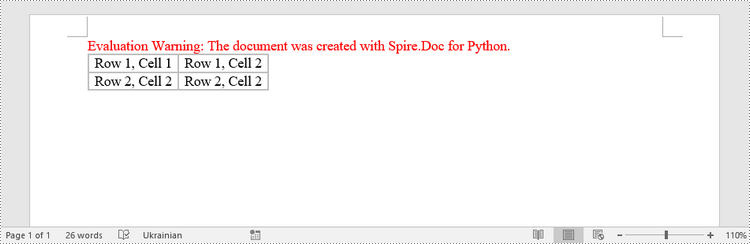
To create a table from an HTML string, use the Paragraph.AppendHTML() method. The following are the steps.
- Create a Document object.
- Add a section to it using Document.AddSection() method.
- Specify the HTML string for generating the table.
- Add a paragraph using Section.AddParagraph() method.
- Add the HTML table to the paragraph using Paragraph.AppendHTML() method.
- Save the document to a .docx file using Document.SaveToFile() method.
- Python
from spire.doc import *
from spire.doc.common import *

# Create a Document object
document = Document()

# Add a section
section = document.AddSection()

# Specify HTML string
HTML = "<table border='2px'>" + "<tr>" + "<td>Row 1, Cell 1</td>" + "<td>Row 1, Cell 2</td>" + \
    "</tr>" + "<tr>" + "<td>Row 2, Cell 2</td>" + \
    "<td>Row 2, Cell 2</td>" + "</tr>" + "</table>"

# Add a paragraph
paragraph = section.AddParagraph()

# Append HTML string to the paragraph
paragraph.AppendHTML(HTML)

# Save to Word document
document.SaveToFile("output/HtmlTable.docx", FileFormat.Docx2013)
document.Close()
Merge and Split Cells in a Table in Python
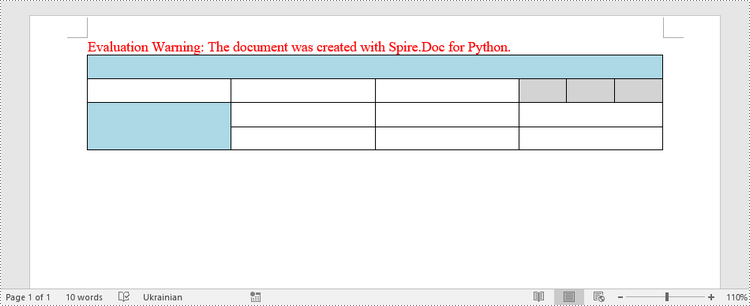
When working with tables, the ability to merge or split cells provides a powerful way to customize and format data. This example shows you how to combine adjacent cells into a single cell and how to divide a single cell into multiple smaller cells using Spire.Doc for Python.
- Create a Document object.
- Add a section using Document.AddSection() method.
- Add a table using Section.AddTable() method.
- Set the column number and row number of the table using Table.ResetCells() method.
- Horizontally merge cells using Table.ApplyHorizontalMerge() method.
- Vertically merge cells using Table.ApplyVerticalMerge() method.
- Split a cell into multiple smaller cells using TableCell.SplitCell() method.
- Save the document to a .docx file using Document.SaveToFile() method.
- Python
from spire.doc import *
from spire.doc.common import *

# Create a Document object
document = Document()

# Add a section
section = document.AddSection()

# Create a table
table = section.AddTable(True)

# Set the row number and column number of table
table.ResetCells(4, 4)

# Set the width of table
table.PreferredWidth = PreferredWidth(WidthType.Percentage, int(100))

# Set row height
for i in range(0, table.Rows.Count):
    table.Rows[i].Height = 20.0

# Horizontally merge cells
table.ApplyHorizontalMerge(0, 0, 3)

# Vertically merge cells
table.ApplyVerticalMerge(0, 2, 3)

# Get a cell
cell = table.Rows.get_Item(1).Cells.get_Item(3)

# Split the cell into 3 smaller cells
cell.SplitCell(3, 0)

# Fill specified cells with color
table.Rows[0].Cells[0].CellFormat.BackColor = Color.get_LightBlue()
table.Rows[2].Cells[0].CellFormat.BackColor = Color.get_LightBlue()
table.Rows[1].Cells[3].CellFormat.BackColor = Color.get_LightGray()
table.Rows[1].Cells[4].CellFormat.BackColor = Color.get_LightGray()
table.Rows[1].Cells[5].CellFormat.BackColor = Color.get_LightGray()

# Save to Word document
document.SaveToFile("output/MergeAndSplit.docx", FileFormat.Docx2013)
document.Close()
Fill a Table with Data in Word in Python
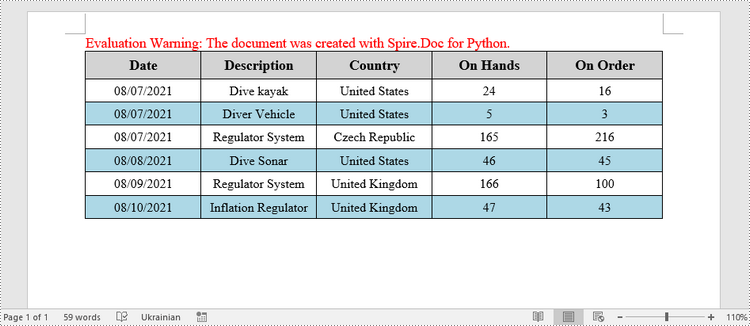
This example creates a 5x7 table, writes the data from lists into the cells, and applies different formatting to the header row and other rows. The following are the main steps.
- Create a Document object.
- Add a section using Document.AddSection() method.
- Add a table using Section.AddTable() method.
- Specify the data for filling the table in two lists.
- Reset the row number and column number of the table depending on the height and width of the data using Table.ResetCells() method.
- Write data into the corresponding cells using TableCell.AddParagraph().AppendText() method.
- Apply different colors to different rows through TableCell.CellFormat.BackColor property.
- Save the document to a .docx file using Document.SaveToFile() method.
- Python
import math
from spire.doc import *
from spire.doc.common import *

# Create a Document object
doc = Document()

# Add a section
section = doc.AddSection()

# Create a table
table = section.AddTable(True)

# Specify table data
header_data = ["Date", "Description", "Country", "On Hands", "On Order"]
row_data = [ ["08/07/2021","Dive kayak","United States","24","16"],
                ["08/07/2021","Diver Vehicle","United States","5","3"],
                ["08/07/2021","Regulator System","Czech Republic","165","216"],
                ["08/08/2021","Dive Sonar","United States","46","45"],
                ["08/09/2021","Regulator System","United Kingdom","166","100"],
                ["08/10/2021","Inflation Regulator","United Kingdom","47","43"]]

# Set the row number and column number of table
table.ResetCells(len(row_data) + 1, len(header_data))

# Set the width of table
table.PreferredWidth = PreferredWidth(WidthType.Percentage, int(100))

# Get header row
headerRow = table.Rows[0]
headerRow.IsHeader = True
headerRow.Height = 23
headerRow.RowFormat.BackColor = Color.get_LightGray()

# Fill the header row with data and set the text formatting
i = 0
while i < len(header_data):
    headerRow.Cells[i].CellFormat.VerticalAlignment = VerticalAlignment.Middle
    paragraph = headerRow.Cells[i].AddParagraph()
    paragraph.Format.HorizontalAlignment = HorizontalAlignment.Center
    txtRange = paragraph.AppendText(header_data[i])
    txtRange.CharacterFormat.Bold = True
    txtRange.CharacterFormat.FontSize = 12
    i += 1

# Fill the rest rows with data and set the text formatting
r = 0
while r < len(row_data):
    dataRow = table.Rows[r + 1]
    dataRow.Height = 20
    dataRow.HeightType = TableRowHeightType.Exactly
    c = 0
    while c < len(row_data[r]):
        dataRow.Cells[c].CellFormat.VerticalAlignment = VerticalAlignment.Middle
        paragraph = dataRow.Cells[c].AddParagraph()
        paragraph.Format.HorizontalAlignment = HorizontalAlignment.Center
        txtRange =  paragraph.AppendText(row_data[r][c])
        txtRange.CharacterFormat.FontSize = 11
        c += 1
    r += 1

# Alternate row color
for j in range(1, table.Rows.Count):
    if math.fmod(j, 2) == 0:
        row2 = table.Rows[j]
        for f in range(row2.Cells.Count):
            row2.Cells[f].CellFormat.BackColor = Color.get_LightBlue()

# Set the border of table
table.TableFormat.Borders.BorderType = BorderStyle.Single
table.TableFormat.Borders.LineWidth = 1.0
table.TableFormat.Borders.Color = Color.get_Black()

# Save the document
doc.SaveToFile("output/Table.docx", FileFormat.Docx2013)
Apply for a Temporary License
If you'd like to remove the evaluation message from the generated documents, or to get rid of the function limitations, please request a 30-day trial license for yourself.
Python: Add Stamps to a PDF Document
Stamps are a powerful tool in PDF documents that allow users to mark and annotate specific areas or sections of a PDF file. Often used for approval, review, or to indicate a specific status, stamps can greatly enhance collaboration and document management. In PDF, stamps can take various forms, such as a simple checkmark, a customized graphic, a date and time stamp, or even a signature. In this article, you will learn how to add image stamps and dynamic stamps to a PDF document in Python using Spire.PDF for Python.
Install Spire.PDF for Python
This scenario requires Spire.PDF for Python and plum-dispatch v1.7.4. They can be easily installed in your Windows through the following pip command.
pip install Spire.PDF
If you are unsure how to install, please refer to this tutorial: How to Install Spire.PDF for Python on Windows
Add an Image Stamp to PDF Documents in Python
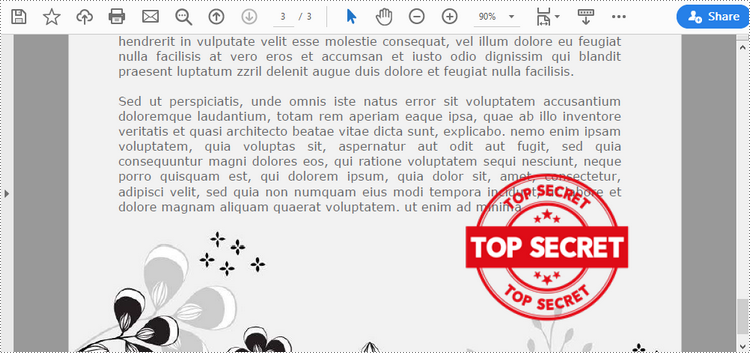
Spire.PDF for Python offers the PdfRubberStampAnnotation class to represent a rubber stamp in a PDF document. In order to create the appearance of a rubber stamp, the PdfTemplate class is used. The PdfTemplate is a piece of canvas on which you can draw whatever information you want, such as text, images, date, and time.
Image stamps can include logos, signatures, watermarks, or any other custom graphics that you want to overlay onto your PDFs. The main steps to add an image stamp to PDF using Spire.PDF for Python are as follows.
- Create a PdfDocument object.
- Load a PDF file using PdfDocument.LoadFromFile() method.
- Load an image that you want to stamp on PDF using PdfImage.FromFile() method.
- Create a PdfTemplate object with the dimensions of the image.
- Draw the image on the template using PdfTemplate.Graphics.DrawImage() method.
- Create a PdfRubberStampAnnotation object, and set the template as its appearance.
- Add the stamp to a specific PDF page using PdfPageBase.AnnotationsWidget.Add() method.
- Save the document to a different file using PdfDocument.SaveToFile() method.
- Python
from spire.pdf.common import *
from spire.pdf import *

# Create a PdfDocument object
doc = PdfDocument()

# Load a PDF document
doc.LoadFromFile("C:\\Users\\Administrator\\Desktop\\input.pdf")

# Get a specific page
page = doc.Pages.get_Item(2)

# Load an image file
image = PdfImage.FromFile("C:\\Users\\Administrator\\Desktop\\secret.png")

# Get the width and height of the image
width = (float)(image.Width)
height = (float)(image.Height)

# Create a PdfTemplate object based on the size of the image
template = PdfTemplate(width, height, True)

# Draw image on the template
template.Graphics.DrawImage(image, 0.0, 0.0, width, height)

# Create a rubber stamp annotation, specifying its location and position
rect = RectangleF((float) (page.ActualSize.Width - width - 50), (float) (page.ActualSize.Height - height - 40), width, height)
stamp = PdfRubberStampAnnotation(rect)

# Create a PdfAppearance object
pdfAppearance = PdfAppearance(stamp)

# Set the template as the normal state of the appearance
pdfAppearance.Normal = template

# Apply the appearance to the stamp
stamp.Appearance = pdfAppearance

# Add the stamp annotation to PDF
page.AnnotationsWidget.Add(stamp)

# Save the file
doc.SaveToFile("output/ImageStamp.pdf")
doc.Close()
Add a Dynamic Stamp to PDF in Python
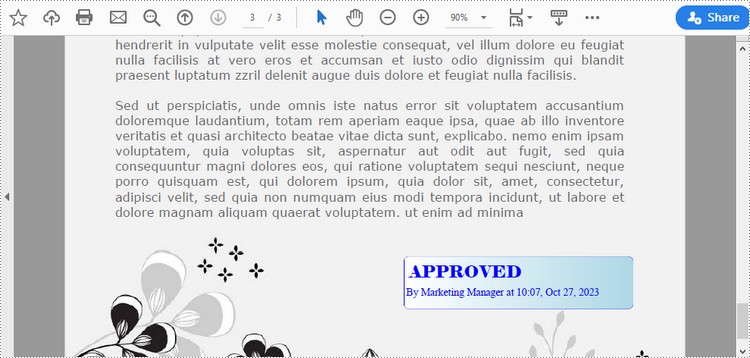
Unlike static stamps, dynamic stamps can contain variable information such as the date, time, or user input. The following are the steps to create a dynamic stamp in PDF using Spire.PDF for Python.
- Create a PdfDocument object.
- Load a PDF file using PdfDocument.LoadFromFile() method.
- Create a PdfTemplate object with desired size.
- Draw strings on the template using PdfTemplate.Graphics.DrawString() method.
- Create a PdfRubberStampAnnotation object, and set the template as its appearance.
- Add the stamp to a specific PDF page using PdfPageBase.AnnotationsWidget.Add() method.
- Save the document to a different file using PdfDocument.SaveToFile() method.
- Python
from spire.pdf.common import *
from spire.pdf import *

# Create a PdfDocument object
doc = PdfDocument()

# Load a PDF document
doc.LoadFromFile("C:\\Users\\Administrator\\Desktop\\input.pdf")

# Get a specific page
page = doc.Pages.get_Item(2)

# Create a PdfTemplate object
template = PdfTemplate(220.0, 50.0, True)

# Create two fonts
font1 = PdfTrueTypeFont("Elephant", 16.0, 0, True)
font2 = PdfTrueTypeFont("Times New Roman", 10.0, 0, True)

# Create a solid brush and a gradient brush
solidBrush = PdfSolidBrush(PdfRGBColor(Color.get_Blue()))
rectangle1 = RectangleF(PointF(0.0, 0.0), template.Size)
linearGradientBrush = PdfLinearGradientBrush(rectangle1, PdfRGBColor(Color.get_White()), PdfRGBColor(Color.get_LightBlue()), PdfLinearGradientMode.Horizontal)

# Create a pen
pen = PdfPen(solidBrush)

# Create a rounded rectangle path
CornerRadius = 10.0
path = PdfPath()
path.AddArc(template.GetBounds().X, template.GetBounds().Y, CornerRadius, CornerRadius, 180.0, 90.0)
path.AddArc(template.GetBounds().X + template.Width - CornerRadius, template.GetBounds().Y, CornerRadius, CornerRadius, 270.0, 90.0)
path.AddArc(template.GetBounds().X + template.Width - CornerRadius, template.GetBounds().Y + template.Height - CornerRadius, CornerRadius, CornerRadius, 0.0, 90.0)
path.AddArc(template.GetBounds().X, template.GetBounds().Y + template.Height - CornerRadius, CornerRadius, CornerRadius, 90.0, 90.0)
path.AddLine(template.GetBounds().X, template.GetBounds().Y + template.Height - CornerRadius, template.GetBounds().X, template.GetBounds().Y + CornerRadius / 2)

# Draw path on the template
template.Graphics.DrawPath(pen, path)
template.Graphics.DrawPath(linearGradientBrush, path)

# Draw text on the template
string1 = "APPROVED\n"
string2 = "By Marketing Manager at " + DateTime.get_Now().ToString("HH:mm, MMM dd, yyyy")
template.Graphics.DrawString(string1, font1, solidBrush, PointF(5.0, 5.0))
template.Graphics.DrawString(string2, font2, solidBrush, PointF(2.0, 28.0))

# Create a rubber stamp, specifying its size and location
rectangle2 = RectangleF((float) (page.ActualSize.Width - 220.0 - 50.0), (float) (page.ActualSize.Height - 50.0 - 100.0), 220.0, 50.0)
stamp = PdfRubberStampAnnotation(rectangle2)

# Create a PdfAppearance object and apply the template as its normal state
apprearance = PdfAppearance(stamp)
apprearance.Normal = template

# Apply the appearance to stamp
stamp.Appearance = apprearance

# Add the stamp annotation to annotation collection
page.AnnotationsWidget.Add(stamp)

# Save the file
doc.SaveToFile("output/DynamicStamp.pdf", FileFormat.PDF)
doc.Dispose()
Apply for a Temporary License
If you'd like to remove the evaluation message from the generated documents, or to get rid of the function limitations, please request a 30-day trial license for yourself.
Python: Create Various Types of Lists in a Word Document
Lists are a powerful organizational tool that can be used to present information in a structured and easy-to-follow manner. Whether you want to create numbered lists, bulleted lists, or even custom lists with specific formatting, Word provides flexible options to suit your needs. By utilizing different list styles, you can improve the readability and visual appeal of your documents, making it simpler for readers to grasp key points and navigate through the content. In this article, you will learn how to programmatically create various types of lists in a Word document in Python using Spire.Doc for Python.
- Create a Numbered List in Word in Python
- Create a Bulleted List in Word in Python
- Create a Multi-Level Numbered List in Word in Python
- Create a Multi-Level Mixed-Type List in Word in Python
Install Spire.Doc for Python
This scenario requires Spire.Doc for Python and plum-dispatch v1.7.4. They can be easily installed in your Windows through the following pip command.
pip install Spire.Doc
If you are unsure how to install, please refer to this tutorial: How to Install Spire.Doc for Python on Windows
Create a Numbered List in Word in Python
Spire.Doc for Python provides the ListStyle class, which enables you to establish either a numbered list style or a bulleted style. Subsequently, you can utilize the Paragraph.ListFormat.ApplyStyle() method to apply the defined list style to a paragraph. The steps to create a numbered list are as follows.
- Create a Document object.
- Add a section using Document.AddSection() method.
- Create an instance of ListStyle class, specifying the list type to Numbered.
- Get a specific level of the list through ListStyle.Levels[index] property, and set the numbering type through ListLevel.PatternType property.
- Add the list style to the document using Document.ListStyles.Add() method.
- Add several paragraphs to the document using Section.AddParagraph() method.
- Apply the list style to a specific paragraph using Paragraph.ListFormat.ApplyStyle() method.
- Specify the list level through Paragraph.ListFormat.ListLevelNumber property.
- Save the document to a Word file using Document.SaveToFile() method.
- Python
from spire.doc import *
from spire.doc.common import *

# Create a Document object
doc = Document()

# Add a section
section = doc.AddSection()

# Create a numbered list style
listStyle = doc.Styles.Add(ListType.Numbered,"numberedList")
Levels = listStyle.ListRef.Levels
Levels[0].PatternType = ListPatternType.Arabic
Levels[0].TextPosition = 20

# Add a paragraph
paragraph = section.AddParagraph()
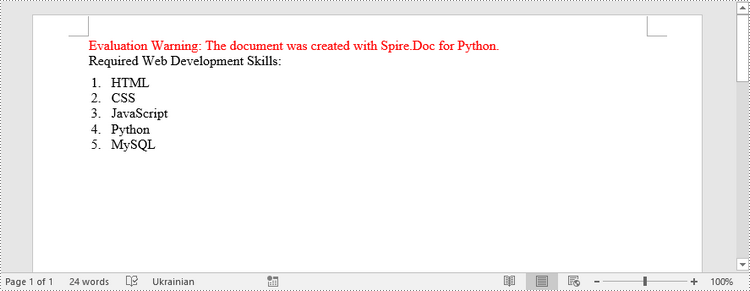
paragraph.AppendText("Required Web Development Skills:")
paragraph.Format.AfterSpacing = 5.0

# Add a paragraph and apply the numbered list style to it
paragraph = section.AddParagraph()
paragraph.AppendText("HTML")
paragraph.ListFormat.ApplyStyle("numberedList")
paragraph.ListFormat.ListLevelNumber = 0

# Add another four paragraphs and apply the numbered list style to them
paragraph = section.AddParagraph()
paragraph.AppendText("CSS")
paragraph.ListFormat.ApplyStyle("numberedList")
paragraph.ListFormat.ListLevelNumber = 0

paragraph = section.AddParagraph()
paragraph.AppendText("JavaScript")
paragraph.ListFormat.ApplyStyle("numberedList")
paragraph.ListFormat.ListLevelNumber = 0

paragraph = section.AddParagraph()
paragraph.AppendText("Python")
paragraph.ListFormat.ApplyStyle("numberedList")
paragraph.ListFormat.ListLevelNumber = 0

paragraph = section.AddParagraph()
paragraph.AppendText("MySQL")
paragraph.ListFormat.ApplyStyle("numberedList")
paragraph.ListFormat.ListLevelNumber = 0

# Save the document to file
doc.SaveToFile("output/NumberedList.docx", FileFormat.Docx)
Create a Bulleted List in Word in Python
Creating a bulleted list follows a similar process to creating a numbered list, with the main difference being that you need to specify the list type as "Bulleted" and assign a bullet symbol to it. The following are the detailed steps.
- Create a Document object.
- Add a section using Document.AddSection() method.
- Create an instance of ListStyle class, specifying the list type to Bulleted.
- Get a specific level of the list through ListStyle.Levels[index] property, and set the bullet symbol through ListLevel.BulletCharacter property.
- Add the list style to the document using Document.ListStyles.Add() method.
- Add several paragraphs to the document using Section.AddParagraph() method.
- Apply the list style to a specific paragraph using Paragraph.ListFormat.ApplyStyle() method.
- Specify the list level through Paragraph.ListFormat.ListLevelNumber property.
- Save the document to a Word file using Document.SaveToFile() method.
- Python
from spire.doc import *
from spire.doc.common import *

# Create a Document object
doc = Document()

# Add a section
section = doc.AddSection()

# Create a bulleted list style
listStyle = doc.Styles.Add(ListType.Bulleted,"bulletedList")
Levels = listStyle.ListRef.Levels
Levels[0].BulletCharacter = "\u00B7"
Levels[0].CharacterFormat.FontName = "Symbol"
Levels[0].TextPosition = 20

# Add a paragraph
paragraph = section.AddParagraph()
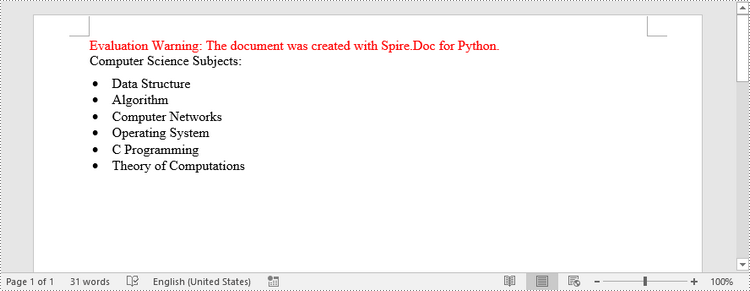
paragraph.AppendText("Computer Science Subjects:")
paragraph.Format.AfterSpacing = 5.0

# Add a paragraph and apply the bulleted list style to it
paragraph = section.AddParagraph()
paragraph.AppendText("Data Structure")
paragraph.ListFormat.ApplyStyle("bulletedList")
paragraph.ListFormat.ListLevelNumber = 0

# Add another five paragraphs and apply the bulleted list style to them
paragraph = section.AddParagraph()
paragraph.AppendText("Algorithm")
paragraph.ListFormat.ApplyStyle("bulletedList")
paragraph.ListFormat.ListLevelNumber = 0

paragraph = section.AddParagraph()
paragraph.AppendText("Computer Networks")
paragraph.ListFormat.ApplyStyle("bulletedList")
paragraph.ListFormat.ListLevelNumber = 0

paragraph = section.AddParagraph()
paragraph.AppendText("Operating System")
paragraph.ListFormat.ApplyStyle("bulletedList")
paragraph.ListFormat.ListLevelNumber = 0

paragraph = section.AddParagraph()
paragraph.AppendText("C Programming")
paragraph.ListFormat.ApplyStyle("bulletedList")
paragraph.ListFormat.ListLevelNumber = 0

paragraph = section.AddParagraph()
paragraph.AppendText("Theory of Computations")
paragraph.ListFormat.ApplyStyle("bulletedList")
paragraph.ListFormat.ListLevelNumber = 0

# Save the document to file
doc.SaveToFile("output/BulletedList.docx", FileFormat.Docx);
Create a Multi-Level Numbered List in Word in Python
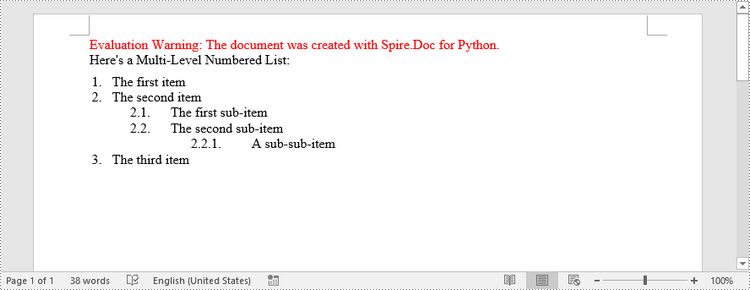
A multi-level list consists of at least two different levels. A certain level of a nested list can be accessed by the ListStyle.Levels[index] property, through which you can set the numbering type and prefix. The following are the steps to create a multi-level numbered list in Word.
- Create a Document object.
- Add a section using Document.AddSection() method.
- Create an instance of ListStyle class, specifying the list type to Numbered.
- Get a specific level of the list through ListStyle.Levels[index] property, and set the numbering type and prefix.
- Add the list style to the document using Document.ListStyles.Add() method.
- Add several paragraphs to the document using Section.AddParagraph() method.
- Apply the list style to a specific paragraph using Paragraph.ListFormat.ApplyStyle() method.
- Specify the list level through Paragraph.ListFormat.ListLevelNumber property.
- Save the document to a Word file using Document.SaveToFile() method.
- Python
from spire.doc import *
from spire.doc.common import *

# Create a Document object
doc = Document()

# Add a section
section = doc.AddSection()

# Create a numbered list style, specifying number prefix and pattern type of each level
listStyle = doc.Styles.Add(ListType.Numbered,"levelstyle")
Levels = listStyle.ListRef.Levels
Levels[0].PatternType = ListPatternType.Arabic
Levels[0].TextPosition = 20.0
Levels[1].NumberPrefix = "%1."
Levels[1].PatternType = ListPatternType.Arabic
Levels[2].NumberPrefix = "%1.%2."
Levels[2].PatternType = ListPatternType.Arabic

# Add a paragraph
paragraph = section.AddParagraph()
paragraph.AppendText("Here's a Multi-Level Numbered List:")
paragraph.Format.AfterSpacing = 5.0

# Add a paragraph and apply the numbered list style to it
paragraph = section.AddParagraph()
paragraph.AppendText("The first item")
paragraph.ListFormat.ApplyStyle("levelstyle")
paragraph.ListFormat.ListLevelNumber = 0

# Add another five paragraphs and apply the numbered list stype to them
paragraph = section.AddParagraph()
paragraph.AppendText("The second item")
paragraph.ListFormat.ApplyStyle("levelstyle")
paragraph.ListFormat.ListLevelNumber = 0

paragraph = section.AddParagraph()
paragraph.AppendText("The first sub-item")
paragraph.ListFormat.ApplyStyle("levelstyle")
paragraph.ListFormat.ListLevelNumber = 1

paragraph = section.AddParagraph()
paragraph.AppendText("The second sub-item")
paragraph.ListFormat.ContinueListNumbering()
paragraph.ListFormat.ApplyStyle("levelstyle")

paragraph = section.AddParagraph()
paragraph.AppendText("A sub-sub-item")
paragraph.ListFormat.ApplyStyle("levelstyle")
paragraph.ListFormat.ListLevelNumber = 2

paragraph = section.AddParagraph()
paragraph.AppendText("The third item")
paragraph.ListFormat.ApplyStyle("levelstyle")
paragraph.ListFormat.ListLevelNumber = 0

# Save the document to file
doc.SaveToFile("output/MultilevelNumberedList.docx", FileFormat.Docx)
Create a Multi-Level Mixed-Type List in Word in Python
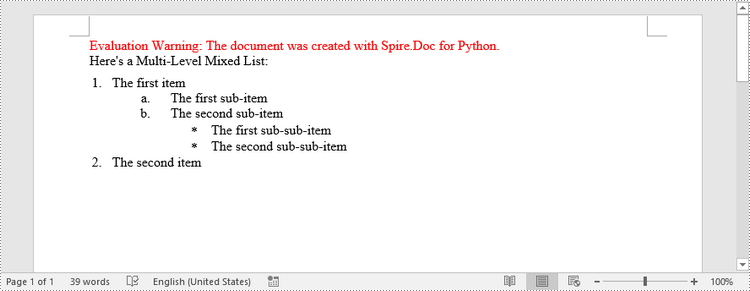
To combine number and symbol bullet points in a multi-level list, create separate list styles (numbered and bulleted) and apply them to different paragraphs. The detailed steps are as follows.
- Create a Document object.
- Add a section using Document.AddSection() method.
- Create a numbered list style and a bulleted list style.
- Add several paragraphs to the document using Section.AddParagraph() method.
- Apply different list style to different paragraphs using Paragraph.ListFormat.ApplyStyle() method.
- Save the document to a Word file using Document.SaveToFile() method.
- Python
from spire.doc import *
from spire.doc.common import *

# Create a Document object
doc = Document()

# Add a section
section = doc.AddSection()

# Create a numbered list style
numberList = doc.Styles.Add(ListType.Numbered, "numberedStyle")
Levels = numberList.ListRef.Levels
Levels[0].PatternType = ListPatternType.Arabic
Levels[0].TextPosition = 20
Levels[1].PatternType = ListPatternType.LowLetter

# Create a bulleted list style
bulletedListStyle = doc.Styles.Add(ListType.Bulleted, "bulletedStyle")
Levels = bulletedListStyle.ListRef.Levels
Levels[2].BulletCharacter = "\u002A"
Levels[2].CharacterFormat.FontName = "Symbol"

# Add a paragraph
paragraph = section.AddParagraph()
paragraph.AppendText("Here's a Multi-Level Mixed List:")
paragraph.Format.AfterSpacing = 5.0

# Add a paragraph and apply the numbered list style to it
paragraph = section.AddParagraph()
paragraph.AppendText("The first item")
paragraph.ListFormat.ApplyStyle("numberedStyle")
paragraph.ListFormat.ListLevelNumber = 0

# Add the other five paragraphs and apply different list stype to them
paragraph = section.AddParagraph()
paragraph.AppendText("The first sub-item")
paragraph.ListFormat.ApplyStyle("numberedStyle")
paragraph.ListFormat.ListLevelNumber = 1

paragraph = section.AddParagraph()
paragraph.AppendText("The second sub-item")
paragraph.ListFormat.ListLevelNumber = 1
paragraph.ListFormat.ApplyStyle("numberedStyle")

paragraph = section.AddParagraph()
paragraph.AppendText("The first sub-sub-item")
paragraph.ListFormat.ApplyStyle("bulletedStyle")
paragraph.ListFormat.ListLevelNumber = 2

paragraph = section.AddParagraph()
paragraph.AppendText("The second sub-sub-item")
paragraph.ListFormat.ApplyStyle("bulletedStyle")
paragraph.ListFormat.ListLevelNumber = 2

paragraph = section.AddParagraph()
paragraph.AppendText("The second item")
paragraph.ListFormat.ApplyStyle("numberedStyle")
paragraph.ListFormat.ListLevelNumber = 0

# Save the document to file
doc.SaveToFile("output/MultilevelMixedList.docx", FileFormat.Docx)
Apply for a Temporary License
If you'd like to remove the evaluation message from the generated documents, or to get rid of the function limitations, please request a 30-day trial license for yourself.
Python: Insert Page Break into Word Documents
A page break is a formatting element used in documents to indicate the end of one page and the beginning of a new page. It is typically represented by a horizontal line or other visual indicator that separates content into different pages. This feature is commonly used when creating lengthy documents such as reports, essays, or books to enhance the overall layout and readability. In this article, you will learn how to how to insert page break into Word documents in Python using Spire.Doc for Python.
Install Spire.Doc for Python
This scenario requires Spire.Doc for Python and plum-dispatch v1.7.4. They can be easily installed in your Windows through the following pip command.
pip install Spire.Doc
If you are unsure how to install, please refer to this tutorial: How to Install Spire.Doc for Python on Windows
Insert Page Break after a Specific Paragraph
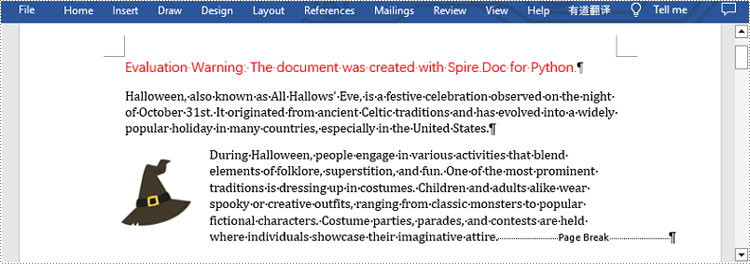
Spire.Doc for Python provides Paragraph.AppendBreak(BreakType.PageBreak) method to insert a page break after a specific paragraph. The following are detailed steps.
- Create an object of Document class.
- Load a sample file from disk using Document.LoadFromFile() method.
- Get the first section of this file by Document.Sections[sectionIndex] property.
- Get the second paragraph in the section by Section.Paragraphs[paragraphIndex] property.
- Insert a page break after this paragraph using Paragraph.AppendBreak(BreakType.PageBreak) method.
- Save the result file using Document.SaveToFile() method.
- Python
from spire.doc import *
from spire.doc.common import *

inputFile =  "sample.docx"
outputFile = "InsertPageBreak.docx"

#Create an object of Document class
document = Document()

#Load a sample file from disk
document.LoadFromFile(inputFile)

#Insert a page break after this paragraph
paragraph.AppendBreak(BreakType.PageBreak)

#Save the result file
document.SaveToFile(outputFile, FileFormat.Docx2013)
document.Close()
Insert Page Break after a Specific Text
What's more, you are also allowed to insert page break after a specific text by using Paragraph.ChildObjects.Insert() method provided by this library. The following are detailed steps.
- Create an object of Document class.
- Load a sample file from disk using Document.LoadFromFile() method.
- Find a specific text using Document.FindAllString() method.
- Loop through all searched text and access the text range of it by calling TextSelection.GetAsOneRange() method.
- Get the paragraph where the text range is located by ParagraphBase.OwnerParagraph property.
- Get the position index of the text range in the paragraph using Paragraph.ChildObjects.IndexOf() method.
- Create an object of Break class to create a page break.
- Insert page break after the searched text using Paragraph.ChildObjects.Insert() method.
- Save the result file using Document.SaveToFile() method.
- Python
from spire.doc import *
from spire.doc.common import *

inputFile = "sample.docx"
outputFile =  "InsertPageBreakAfterText.docx"

#Create an object of Document class
document = Document()

#Load a sample file from disk
document.LoadFromFile(inputFile)

#Find the specified text
selection = document.FindAllString("fun", True, True)

#Loop through all searched text
for ts in selection:

    #Get the text range of the searched text
    range = ts.GetAsOneRange()

    #Get the paragraph where the text range is located
    paragraph = range.OwnerParagraph

    #Get the position index of the text range in the paragraph
    index = paragraph.ChildObjects.IndexOf(range)

    #Create an object of Break class
    pageBreak = Break(document, BreakType.PageBreak)

    #Insert page break after the searched text
    paragraph.ChildObjects.Insert(index + 1, pageBreak)

#Save the result file
document.SaveToFile(outputFile, FileFormat.Docx2013)
document.Close()
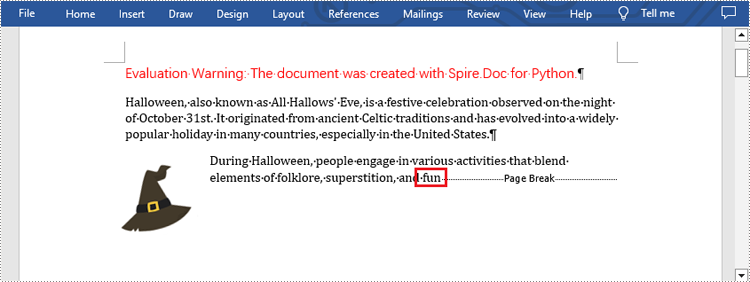
Apply for a Temporary License
If you'd like to remove the evaluation message from the generated documents, or to get rid of the function limitations, please request a 30-day trial license for yourself.