Conversión de XLS a XLSX: métodos manuales, en línea y por lotes
Tabla de Contenidos
Instalar con Maven
pip install Spire.Xls
Enlaces Relacionados
XLS es un formato de archivo de hoja de cálculo más antiguo desarrollado por Microsoft Excel, y todavía es utilizado por algunos usuarios hoy en día. Desde Excel 2007, Microsoft ha adoptado el formato más nuevo, XLSX. Debido a las diferencias entre estos formatos, abrir un archivo XLS en una versión más reciente de Excel a veces puede causar problemas de compatibilidad, afectando la edición y el procesamiento de datos. Como resultado, realizar una conversión de XLS a XLSX se ha convertido en una tarea común en la gestión de hojas de cálculo. Afortunadamente, este artículo presenta tres métodos simples y efectivos para ayudarlo a convertir archivos XLS a XLSX de manera rápida y fácil.
- Conversión de XLS a XLSX: Manualmente
- Convertir XLS a XLSX en línea
- Convertir XLS a XLSX por lotes automáticamente
- Preguntas frecuentes
Realizar la conversión de XLS a XLSX manualmente
La primera y más sencilla forma de convertir XLS a XLSX es la conversión manual, que funciona mejor cuando solo tiene una pequeña cantidad de archivos. Este método no requiere ningún software especial ni conocimientos de programación, lo que lo hace ideal para usuarios que necesitan una solución rápida. Hay dos enfoques comunes para la conversión manual:
- Cambiar la extensión del archivo
Ubique el archivo XLS que desea convertir, haga clic derecho sobre él y seleccione Cambiar nombre. Reemplace la extensión del archivo de .xls a .xlsx.
- Guardar como
Abra el archivo de origen en Excel, haga clic en la pestaña Archivo en el menú superior y luego seleccione Guardar como en el panel izquierdo. En el menú desplegable Guardar como tipo, elija XLSX y finalmente haga clic en Guardar.

Convertir XLS a XLSX en línea
Si encuentra que las operaciones manuales consumen demasiado tiempo, ya que requieren clics repetidos, puede usar un convertidor de XLS a XLSX en línea en su lugar. Un ejemplo es CloudConvert, una herramienta gratuita de conversión de archivos en línea. No solo convierte archivos de hoja de cálculo, sino que también admite documentos de texto, imágenes, audio y formatos de video. Usarlo es sencillo, solo siga estos pasos:
-
Navegue al sitio web y haga clic en el botón rojo Seleccionar archivo para elegir el archivo que desea convertir, o simplemente arrástrelo y suéltelo en el botón.
-
Una vez que el archivo se haya cargado, haga clic en el botón rojo de la derecha para iniciar la conversión.
-
Espere unos segundos. Cuando vea el estado Finalizado, haga clic en el botón verde Descargar para guardar el archivo XLSX convertido en su computadora.
Este método es ideal cuando solo necesita convertir unos pocos archivos XLS a XLSX rápidamente sin instalar ningún software.
Convertir por lotes XLS a XLSX de forma segura
Si necesita convertir cientos o incluso miles de archivos, los métodos de conversión manual o en línea ya no son prácticos. Del mismo modo, si la seguridad de los datos es una prioridad principal, la mejor opción es realizar conversiones por lotes localmente con código. Este enfoque garantiza que los datos de sus archivos permanezcan completamente seguros, ya que no depende de ningún servicio en línea.
Para este propósito, recomendamos usar Spire.XLS, una biblioteca de Excel de terceros profesional que se puede integrar en sistemas empresariales o flujos de trabajo automatizados, permitiendo conversiones de XLS a XLSX a gran escala.

El siguiente ejemplo demuestra cómo se puede lograr esto en Python:
from spire.xls import *
from spire.xls.common import *
import os

# Specify the input and output folders
inputFolder = "/input/XLS SAMPLES/"
outputFolder = "/output/TO XLSX/"

# Loop through all .xls files in the input folder
for file in os.listdir(inputFolder):
    if file.endswith(".xls"):
        # Build full file paths
        inputFile = os.path.join(inputFolder, file)
        outputFile = os.path.join(outputFolder, os.path.splitext(file)[0] + ".xlsx")

        # Create a Workbook object
        workbook = Workbook()
        # Load the XLS file
        workbook.LoadFromFile(inputFile)

        # Save as XLSX format
        workbook.SaveToFile(outputFile, ExcelVersion.Version2016)
        workbook.Dispose()

print("Batch conversion completed successfully!")
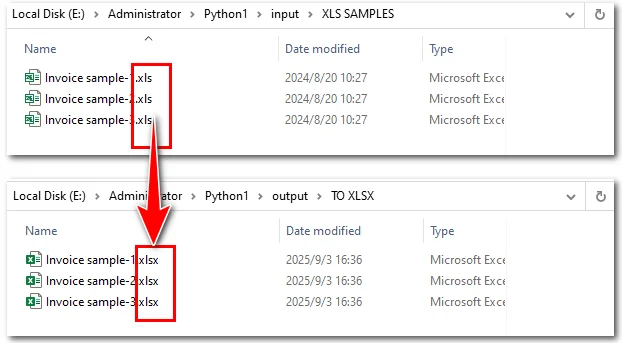
Aquí hay una vista previa que compara los archivos de origen con los convertidos:
Pasos explicados:
- Importar Spire.XLS y módulos de Python.
- Recorrer todos los archivos .xls en la carpeta de entrada.
- Cargar cada archivo en un objeto Workbook.
- Convertir XLS a XLSX guardándolo en formato .xlsx a través del método Workbook.saveToFile().
Si desea convertir un archivo XLSX de nuevo a XLS, también puede usar el método Workbook.saveToFile(). Spire.XLS también admite el uso de este método para convertir archivos de Excel a PDF, imágenes y más.
Preguntas frecuentes sobre la conversión de XLS a XLSX
- ¿Cómo guardo mi archivo de Excel como XLSX?
Puede guardar un archivo de Excel como XLSX usando la función Guardar como en Excel o usando herramientas de conversión en línea o programáticas, dependiendo de la cantidad de archivos y sus necesidades.
- ¿Cuándo cambió Excel de XLS a XLSX?
Microsoft introdujo el formato XLSX a partir de Excel 2007 para reemplazar el antiguo formato XLS. XLSX ofrece un mejor rendimiento, un tamaño de archivo reducido y una compatibilidad mejorada con las funciones modernas de Excel.
- ¿Es XLS lo mismo que XLSX?
No. XLS es el antiguo formato de archivo binario utilizado en Excel 97-2003, mientras que XLSX es el formato más nuevo basado en XML introducido en Excel 2007. Difieren en estructura, compatibilidad y características admitidas.
- ¿Pueden las herramientas en línea convertir XLS a XLSX?
Sí, muchas herramientas en línea le permiten convertir archivos XLS a XLSX. Son convenientes para un número reducido de archivos, pero pueden no ser adecuadas para grandes lotes o datos confidenciales.
- ¿Cuál es la mejor manera de convertir una gran cantidad de archivos XLS a XLSX de forma segura?
Para cientos o miles de archivos, o cuando la seguridad de los datos es importante, usar código con una biblioteca como Spire.XLS para la conversión por lotes en su máquina local es el método más eficiente y seguro.
La Conclusión
En resumen, la conversión de XLS a XLSX se puede manejar de diferentes maneras según sus necesidades. Para un puñado de archivos, Excel o las herramientas en línea pueden ser suficientes. Pero para archivos a gran escala o confidenciales, la automatización con código es la mejor opción. Al aprovechar Spire.XLS, puede integrar conversiones masivas directamente en su flujo de trabajo, garantizando tanto la velocidad como la seguridad. Ya sea que necesite actualizar archivos heredados, optimizar procesos internos o preparar datos para sistemas modernos, Spire.XLS ofrece una solución profesional y flexible.
TAMBIÉN LEA
Convertir Excel (XLSX/XLS) a CSV en Python
Python: Convertir Excel a PDF de forma fácil y rápida
Convertir CSV a Excel (XLSX) en Python – Individual y por lotes
XLS-zu-XLSX-Konvertierung: manuelle, Online- und Stapelmethoden
Inhaltsverzeichnis
Mit Maven installieren
pip install Spire.Xls
Verwandte Links
XLS ist ein älteres Tabellenkalkulationsdateiformat, das von Microsoft Excel entwickelt wurde und heute noch von einigen Benutzern verwendet wird. Seit Excel 2007 hat Microsoft das neuere XLSX-Format eingeführt. Aufgrund der Unterschiede zwischen diesen Formaten kann das Öffnen einer XLS-Datei in einer neueren Version von Excel manchmal zu Kompatibilitätsproblemen führen, die die Bearbeitung und Datenverarbeitung beeinträchtigen. Daher ist die Durchführung einer XLS-zu-XLSX-Konvertierung zu einer häufigen Aufgabe in der Tabellenkalkulationsverwaltung geworden. Glücklicherweise stellt dieser Artikel drei einfache und effektive Methoden vor, mit denen Sie XLS-Dateien schnell und einfach in XLSX konvertieren können.
- XLS-zu-XLSX-Konvertierung: Manuell
- XLS online in XLSX konvertieren
- XLS stapelweise automatisch in XLSX konvertieren
- FAQs
XLS-zu-XLSX-Konvertierung manuell durchführen
Die erste und einfachste Möglichkeit, XLS in XLSX zu konvertieren, ist die manuelle Konvertierung, die am besten funktioniert, wenn Sie nur eine geringe Anzahl von Dateien haben. Diese Methode erfordert keine spezielle Software oder Programmierkenntnisse und ist daher ideal für Benutzer, die eine schnelle Lösung benötigen. Es gibt zwei gängige Ansätze für die manuelle Konvertierung:
- Dateierweiterung ändern
Suchen Sie die XLS-Datei, die Sie konvertieren möchten, klicken Sie mit der rechten Maustaste darauf und wählen Sie Umbenennen. Ersetzen Sie die Dateierweiterung von .xls durch .xlsx.
- Speichern unter
Öffnen Sie die Quelldatei in Excel, klicken Sie im oberen Menü auf die Registerkarte Datei und wählen Sie dann im linken Bereich Speichern unter. Wählen Sie im Dropdown-Menü Dateityp XLSX aus und klicken Sie abschließend auf Speichern.
XLS online in XLSX konvertieren
Wenn Ihnen manuelle Operationen zu zeitaufwändig sind, da sie wiederholte Klicks erfordern, können Sie stattdessen einen Online-XLS-zu-XLSX-Konverter verwenden. Ein Beispiel ist CloudConvert, ein kostenloses Online-Tool zur Dateikonvertierung. Es konvertiert nicht nur Tabellenkalkulationsdateien, sondern unterstützt auch Textdokumente, Bilder, Audio- und Videoformate. Die Verwendung ist unkompliziert – folgen Sie einfach diesen Schritten:
-
Navigieren Sie zur Website und klicken Sie auf die rote Schaltfläche Datei auswählen, um die zu konvertierende Datei auszuwählen, oder ziehen Sie sie einfach per Drag & Drop auf die Schaltfläche.
-
Sobald die Datei hochgeladen ist, klicken Sie auf die rote Schaltfläche auf der rechten Seite, um die Konvertierung zu starten.
-
Warten Sie einige Sekunden. Wenn Sie den Status Fertig sehen, klicken Sie auf die grüne Schaltfläche Herunterladen, um die konvertierte XLSX-Datei auf Ihrem Computer zu speichern.
Diese Methode ist ideal, wenn Sie nur wenige XLS-Dateien schnell in XLSX konvertieren müssen, ohne Software zu installieren.
XLS sicher stapelweise in XLSX konvertieren
Wenn Sie Hunderte oder sogar Tausende von Dateien konvertieren müssen, sind manuelle oder Online-Konvertierungsmethoden nicht mehr praktikabel. Wenn die Datensicherheit oberste Priorität hat, ist die beste Option, Stapelkonvertierungen lokal mit Code durchzuführen. Dieser Ansatz stellt sicher, dass Ihre Dateidaten vollständig sicher bleiben, da er nicht auf einen Online-Dienst angewiesen ist.
Zu diesem Zweck empfehlen wir die Verwendung von Spire.XLS, einer professionellen Excel-Bibliothek von Drittanbietern, die in Unternehmenssysteme oder automatisierte Arbeitsabläufe integriert werden kann und groß angelegte XLS-zu-XLSX-Konvertierungen ermöglicht.
Das folgende Beispiel zeigt, wie dies in Python erreicht werden kann:
from spire.xls import *
from spire.xls.common import *
import os

# Specify the input and output folders
inputFolder = "/input/XLS SAMPLES/"
outputFolder = "/output/TO XLSX/"

# Loop through all .xls files in the input folder
for file in os.listdir(inputFolder):
    if file.endswith(".xls"):
        # Build full file paths
        inputFile = os.path.join(inputFolder, file)
        outputFile = os.path.join(outputFolder, os.path.splitext(file)[0] + ".xlsx")

        # Create a Workbook object
        workbook = Workbook()
        # Load the XLS file
        workbook.LoadFromFile(inputFile)

        # Save as XLSX format
        workbook.SaveToFile(outputFile, ExcelVersion.Version2016)
        workbook.Dispose()

print("Batch conversion completed successfully!")
Hier ist eine Vorschau, die die Quelldateien mit den konvertierten vergleicht:
Schritte erklärt:
- Importieren Sie Spire.XLS und Python-Module.
- Durchlaufen Sie alle .xls-Dateien im Eingabeordner.
- Laden Sie jede Datei in ein Workbook-Objekt.
- Konvertieren Sie XLS in XLSX, indem Sie es im .xlsx-Format über die Methode Workbook.saveToFile() speichern.
Wenn Sie eine XLSX-Datei zurück in XLS konvertieren möchten, können Sie auch die Methode Workbook.saveToFile() verwenden. Spire.XLS unterstützt auch die Verwendung dieser Methode, um Excel-Dateien in PDF, Bilder und mehr zu konvertieren.
FAQs zur XLS-zu-XLSX-Konvertierung
- Wie speichere ich meine Excel-Datei als XLSX?
Sie können eine Excel-Datei als XLSX speichern, indem Sie die Funktion Speichern unter in Excel verwenden oder Online- oder programmatische Konvertierungstools nutzen, je nach Anzahl der Dateien und Ihren Anforderungen.
- Wann hat Excel von XLS auf XLSX umgestellt?
Microsoft führte das XLSX-Format ab Excel 2007 ein, um das ältere XLS-Format zu ersetzen. XLSX bietet eine bessere Leistung, eine geringere Dateigröße und eine verbesserte Kompatibilität mit modernen Excel-Funktionen.
- Ist XLS dasselbe wie XLSX?
Nein. XLS ist das ältere binäre Dateiformat, das in Excel 97-2003 verwendet wurde, während XLSX das neuere XML-basierte Format ist, das in Excel 2007 eingeführt wurde. Sie unterscheiden sich in Struktur, Kompatibilität und unterstützten Funktionen.
- Können Online-Tools XLS in XLSX konvertieren?
Ja, viele Online-Tools ermöglichen die Konvertierung von XLS-Dateien in XLSX. Sie sind praktisch für eine kleine Anzahl von Dateien, eignen sich jedoch möglicherweise nicht für große Stapel oder sensible Daten.
- Was ist der beste Weg, eine große Anzahl von XLS-Dateien sicher in XLSX zu konvertieren?
Für Hunderte oder Tausende von Dateien oder wenn die Datensicherheit wichtig ist, ist die Verwendung von Code mit einer Bibliothek wie Spire.XLS für die Stapelkonvertierung auf Ihrem lokalen Computer die effizienteste und sicherste Methode.
Das Fazit
Zusammenfassend lässt sich sagen, dass die Konvertierung von XLS in XLSX je nach Ihren Anforderungen auf unterschiedliche Weise gehandhabt werden kann. Für eine Handvoll Dateien können Excel oder Online-Tools ausreichen. Aber für große oder sensible Dateien ist die Automatisierung mit Code die beste Wahl. Durch die Nutzung von Spire.XLS können Sie Massenkonvertierungen direkt in Ihren Arbeitsablauf integrieren und so sowohl Geschwindigkeit als auch Sicherheit gewährleisten. Ob Sie Legacy-Dateien aktualisieren, interne Prozesse optimieren oder Daten für moderne Systeme vorbereiten müssen, Spire.XLS bietet eine professionelle und flexible Lösung.
AUCH LESEN
Excel (XLSX/XLS) in CSV in Python konvertieren
Python: Excel einfach und schnell in PDF konvertieren
CSV in Excel (XLSX) in Python konvertieren – Einzeln & Stapelweise
Преобразование XLS в XLSX: ручные, онлайн и пакетные методы
Содержание
Установить с помощью Maven
pip install Spire.Xls
Похожие ссылки
XLS — это устаревший формат файлов электронных таблиц, разработанный Microsoft Excel, который до сих пор используется некоторыми пользователями. Начиная с Excel 2007, Microsoft перешла на новый формат XLSX. Из-за различий между этими форматами открытие файла XLS в более новой версии Excel иногда может вызывать проблемы совместимости, влияющие на редактирование и обработку данных. В результате выполнение преобразования XLS в XLSX стало обычной задачей в управлении электронными таблицами. К счастью, в этой статье представлены три простых и эффективных метода, которые помогут вам быстро и легко конвертировать файлы XLS в XLSX.
- Преобразование XLS в XLSX: вручную
- Конвертировать XLS в XLSX онлайн
- Пакетное преобразование XLS в XLSX автоматически
- Часто задаваемые вопросы
Выполните преобразование XLS в XLSX вручную
Первый и самый простой способ конвертировать XLS в XLSX — это ручное преобразование, которое лучше всего подходит, когда у вас небольшое количество файлов. Этот метод не требует специального программного обеспечения или знаний в области программирования, что делает его идеальным для пользователей, которым нужно быстрое решение. Существует два распространенных подхода к ручному преобразованию:
- Изменить расширение файла
Найдите файл XLS, который вы хотите преобразовать, щелкните по нему правой кнопкой мыши и выберите Переименовать. Замените расширение файла с .xls на .xlsx.
- Сохранить как
Откройте исходный файл в Excel, нажмите на вкладку Файл в верхнем меню, затем выберите Сохранить как на левой панели. В выпадающем списке Тип файла выберите XLSX и, наконец, нажмите Сохранить.
Конвертировать XLS в XLSX онлайн
Если ручные операции кажутся вам слишком трудоемкими, так как они требуют повторных кликов, вы можете воспользоваться онлайн-конвертером XLS в XLSX. Одним из примеров является CloudConvert, бесплатный онлайн-инструмент для конвертации файлов. Он не только конвертирует файлы электронных таблиц, но и поддерживает текстовые документы, изображения, аудио- и видеоформаты. Использовать его просто — следуйте этим шагам:
-
Перейдите на веб-сайт и нажмите красную кнопку Выбрать файл, чтобы выбрать файл, который вы хотите преобразовать, или просто перетащите его на кнопку.
-
После загрузки файла нажмите красную кнопку справа, чтобы начать преобразование.
-
Подождите несколько секунд. Когда вы увидите статус Завершено, нажмите зеленую кнопку Скачать, чтобы сохранить преобразованный файл XLSX на ваш компьютер.
Этот метод идеален, когда вам нужно быстро преобразовать несколько файлов XLS в XLSX без установки какого-либо программного обеспечения.
Безопасное пакетное преобразование XLS в XLSX
Если вам нужно преобразовать сотни или даже тысячи файлов, ручные или онлайн-методы преобразования уже непрактичны. Аналогично, если безопасность данных является главным приоритетом, лучшим вариантом будет выполнение пакетных преобразований локально с помощью кода. Этот подход гарантирует, что данные ваших файлов останутся в полной безопасности, так как он не зависит от какого-либо онлайн-сервиса.
Для этой цели мы рекомендуем использовать Spire.XLS, профессиональную стороннюю библиотеку Excel, которую можно интегрировать в корпоративные системы или автоматизированные рабочие процессы, что позволяет выполнять крупномасштабные преобразования XLS в XLSX.
Следующий пример демонстрирует, как это можно сделать на Python:
from spire.xls import *
from spire.xls.common import *
import os

# Specify the input and output folders
inputFolder = "/input/XLS SAMPLES/"
outputFolder = "/output/TO XLSX/"

# Loop through all .xls files in the input folder
for file in os.listdir(inputFolder):
    if file.endswith(".xls"):
        # Build full file paths
        inputFile = os.path.join(inputFolder, file)
        outputFile = os.path.join(outputFolder, os.path.splitext(file)[0] + ".xlsx")

        # Create a Workbook object
        workbook = Workbook()
        # Load the XLS file
        workbook.LoadFromFile(inputFile)

        # Save as XLSX format
        workbook.SaveToFile(outputFile, ExcelVersion.Version2016)
        workbook.Dispose()

print("Batch conversion completed successfully!")
Вот предварительный просмотр, сравнивающий исходные файлы с преобразованными:
Объяснение шагов:
- Импортируйте Spire.XLS и модули Python.
- Пройдитесь циклом по всем файлам .xls во входной папке.
- Загрузите каждый файл в объект Workbook.
- Преобразуйте XLS в XLSX, сохранив его в формате .xlsx с помощью метода Workbook.saveToFile().
Если вы хотите преобразовать файл XLSX обратно в XLS, вы также можете использовать метод Workbook.saveToFile(). Spire.XLS также поддерживает использование этого метода для преобразования файлов Excel в PDF, изображения и многое другое.
Часто задаваемые вопросы о преобразовании XLS в XLSX
- Как сохранить мой файл Excel в формате XLSX?
Вы можете сохранить файл Excel в формате XLSX, используя функцию Сохранить как в Excel или с помощью онлайн-инструментов или программных средств преобразования, в зависимости от количества файлов и ваших потребностей.
- Когда Excel перешел с XLS на XLSX?
Microsoft представила формат XLSX, начиная с Excel 2007, для замены старого формата XLS. XLSX предлагает лучшую производительность, уменьшенный размер файла и улучшенную совместимость с современными функциями Excel.
- XLS — это то же самое, что и XLSX?
Нет. XLS — это старый двоичный формат файлов, использовавшийся в Excel 97-2003, тогда как XLSX — это новый формат на основе XML, представленный в Excel 2007. Они различаются по структуре, совместимости и поддерживаемым функциям.
- Могут ли онлайн-инструменты конвертировать XLS в XLSX?
Да, многие онлайн-инструменты позволяют конвертировать файлы XLS в XLSX. Они удобны для небольшого количества файлов, но могут не подходить для больших партий или конфиденциальных данных.
- Какой лучший способ безопасно преобразовать большое количество файлов XLS в XLSX?
Для сотен или тысяч файлов, или когда важна безопасность данных, использование кода с библиотекой, такой как Spire.XLS для пакетного преобразования на вашем локальном компьютере, является наиболее эффективным и безопасным методом.
Заключение
В итоге, преобразование XLS в XLSX можно выполнить различными способами в зависимости от ваших потребностей. Для небольшого количества файлов может быть достаточно Excel или онлайн-инструментов. Но для крупномасштабных или конфиденциальных файлов лучшим выбором является автоматизация с помощью кода. Используя Spire.XLS, вы можете интегрировать массовые преобразования непосредственно в свой рабочий процесс, обеспечивая как скорость, так и безопасность. Независимо от того, нужно ли вам обновить устаревшие файлы, оптимизировать внутренние процессы или подготовить данные для современных систем, Spire.XLS предлагает профессиональное и гибкое решение.
ТАКЖЕ ЧИТАЙТЕ
Преобразование Excel (XLSX/XLS) в CSV на Python
Python: Преобразование Excel в PDF легко и быстро
Преобразование CSV в Excel (XLSX) на Python — одиночное и пакетное
How to Create PDF in ASP.NET Core: Step-by-Step Guide
Creating PDFs in ASP.NET applications is a common requirement, whether you're generating invoices, reports, forms, or exporting dynamic content. To streamline this process, you can utilize Spire.PDF for .NET, a professional and lightweight library that enables developers to easily create and manipulate PDF documents programmatically, without the need for complex APIs or third-party printer drivers.
In this tutorial, we’ll show you how to create PDF documents in an ASP.NET Core Web application using Spire.PDF for .NET, with examples of creating a PDF from scratch and converting HTML to PDF.
On this page:
- Why Use Spire.PDF for .NET?
- Step-by-Step: Generate PDF in ASP.NET Core Web App
- Create PDF from HTML in ASP.NET Core
- Best Practices for ASP.NET PDF Generation
- Conclusion
- FAQs
Why Use Spire.PDF for .NET?
There are many ways to create PDF in ASP.NET, but most involve trade-offs: some depend on printer drivers, others have limited layout control, and many require heavy third-party frameworks. Spire.PDF for .NET offers a more streamlined approach. It’s a dedicated .NET library that handles the majority of PDF creation and manipulation tasks on its own, without external tools.
Key advantages include:
- No Adobe dependency – Generate and manage PDFs without Acrobat installed.
- Full-featured PDF toolkit – Beyond creation, you can edit, merge, split, protect, or annotate PDFs.
- High-fidelity rendering – Preserve fonts, CSS, images, and layouts when exporting content.
- ASP.NET ready – Compatible with both ASP.NET Web Forms/MVC and ASP.NET Core projects.
- Flexible generation options – Create PDFs from scratch, images, or streams.
(Note: HTML-to-PDF conversion requires a lightweight external plugin such as Qt WebEngine.)
Step-by-Step: Generate PDF in ASP.NET Core Web App
Step 1. Create a New ASP.NET Core Web App
- Open Visual Studio .
- Select Create a new project .
- Choose ASP.NET Core Web App (Model-View-Controller) → Click Next .
- Enter a project name, e.g., PdfDemoApp.
- Select your target framework (e.g., . NET 6 , 7 , or 8 ).
- Click Create .
Step 2. Install Spire.PDF via NuGet
- Right-click on your project → Manage NuGet Packages .
- Search for Spire.PDF .
- Install the package Spire.PDF (latest stable version).
Or install using the Package Manager Console :
Install-Package Spire.PDF
Step 3. Add a Controller for PDF Generation
- Right-click on the Controllers folder → Add → Controller → MVC Controller – Empty .
- Name it: PdfController.cs.
- Replace the default code with this:
using Microsoft.AspNetCore.Mvc;
using Spire.Pdf;
using Spire.Pdf.Graphics;
using System.Drawing;

namespace PdfDemoApp.Controllers
{
    public class PdfController : Controller
    {
        public IActionResult CreatePdf()
        {
            // Create a new PDF document
            PdfDocument doc = new PdfDocument();
            PdfPageBase page = doc.Pages.Add(PdfPageSize.A4, new PdfMargins(40));

            // Draw text on the page
            PdfFont font = new PdfFont(PdfFontFamily.Helvetica, 25f);
            PdfSolidBrush brush = new PdfSolidBrush(Color.Black);
            page.Canvas.DrawString("Hello from ASP.NET Core!", font, brush, 10, 50);

            // Save to memory stream
            using (MemoryStream ms = new MemoryStream())
            {
                doc.SaveToStream(ms);
                doc.Close();
                ms.Position = 0;

                // Return PDF file
                return File(ms.ToArray(), "application/pdf", "Generated.pdf");
            }
        }
    }
}
Step 4: (Optional) Add a Button or Link in Your View
Open Views/Home/Index.cshtml (or whichever view is your homepage).
Add a button or link like this:
<div>
    <a asp-controller="Pdf" asp-action="CreatePdf" class="btn btn-primary">
        Create PDF from Scratch
    </a>
</div>
This uses ASP.NET Core tag helpers to generate the correct route (/Pdf/CreatePdf).
Step 5. Run and Test
- Press F5 to run your app.
- On the home page, click the "Create PDF from Scratch" button. This will call the CreatePdf method in PdfController and trigger a download of the generated PDF.
- If you didn’t add the button, you can still run the CreatePdf method directly by visiting this URL in your browser:
https://localhost:xxxx/Pdf/CreatePdf
(where xxxx is your local port number).
Output:

In addition to text, Spire.PDF supports adding a wide range of elements to PDF, such as images, shapes, tables, lists, hyperlinks, annotations, and watermarks. For more details and advanced usage, check the .NET PDF Tutorials.
Create PDF from HTML in ASP.NET Core
Spire.PDF allows you to convert HTML content directly into PDF files. This feature is particularly useful for generating invoices, reports, receipts, or exporting styled web pages with consistent formatting.
To render HTML as PDF, Spire.PDF relies on an external rendering engine. You can choose between Qt WebEngine or Google Chrome . In this guide, we’ll use Qt WebEngine .
Setup the Qt plugin:
-
Download the Qt WebEngine plugin for your operating system:
-
Extract the package to obtain the plugins directory, e.g.: C:\plugins-windows-x64\plugins
-
Register the plugin path inyour code:
HtmlConverter.PluginPath = @"C:\plugins-windows-x64\plugins";
Once the plugin is ready, you can follow the steps from the previous section and add the code snippet below to your controller to generate PDF output from HTML content.
using Microsoft.AspNetCore.Mvc;
using Spire.Additions.Qt;
using Spire.Pdf.Graphics;
using System.Drawing;

namespace PdfDemoApp.Controllers
{
    public class PdfController : Controller
    {
        [HttpGet]
        public IActionResult HtmlToPdf()
        {
            // Example HTML string
            string html = @"
                <html>
                  <head>
                    <style>
                      body { font-family: Arial, sans-serif; }
                      h1 { color: #2563eb; }
                    </style>
                  </head>
                  <body>
                    <h1>ASP.NET Core: Create PDF from HTML</h1>
                    <p>This PDF was generated using the Qt-based converter.</p>
                  </body>
                </html>";

            // Path to the Qt plugin folder
            // ⚠️ Ensure this folder exists on your server/deployment environment
            string pluginPath = @"C:\plugins-windows-x64\plugins";
            HtmlConverter.PluginPath = pluginPath;

            // Create a temp file path (on server side)
            string tempFile = Path.GetTempFileName();

            // Convert HTML string → PDF using Qt
            HtmlConverter.Convert(
                html,
                tempFile,
                enableJavaScript: true,
                timeout: 100000,                        // milliseconds
                pageSize: new SizeF(595, 842),          // A4 page size in points
                margins: new PdfMargins(40),            // 40pt margins
                LoadHtmlType.SourceCode                 // Load from HTML string
            );

            // Read the generated PDF into memory
            byte[] fileBytes = System.IO.File.ReadAllBytes(tempFile);

            // Clean up temp file
            System.IO.File.Delete(tempFile);

            // Return PDF to browser as download
            return File(fileBytes, "application/pdf", "HtmlToPdf.pdf");
        }
    }
}
Output:
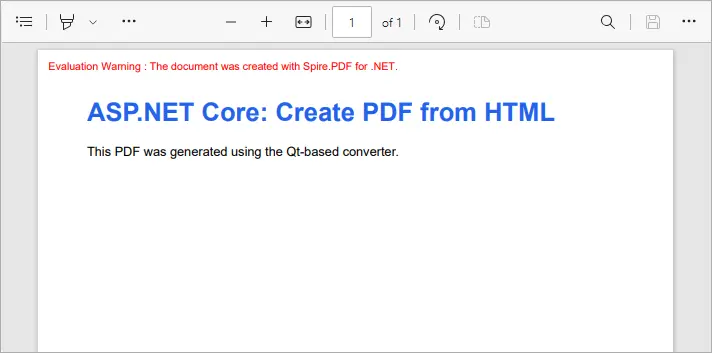
This example converts inline HTML into a properly formatted PDF. You can also load external HTML files or URLs - see our detailed guide on Convert HTML to PDF in C# for more information.
Best Practices for ASP.NET PDF Generation
- Use memory streams instead of disk storage for performance and scalability.
- Cache static PDFs (like terms & conditions or forms) to reduce server load.
- Use HTML-to-PDF for dynamic reports with CSS styling.
- Consider templates (like Word-to-PDF with Spire.Doc) when documents have complex layouts.
- Secure sensitive PDFs with password protection or access permissions.
Conclusion
With Spire.PDF for .NET, you can easily generate PDF in ASP.NET Core applications. Whether you’re creating PDFs from scratch or performing HTML-to-PDF conversion in C# , Spire.PDF provides a reliable, developer-friendly solution—no external dependencies required.
If you also need to generate PDFs from Word documents, that feature is available via Spire.Doc for .NET, another product in the Spire family. Together, they cover the full range of PDF document generation scenarios.
By integrating these tools, developers can streamline workflows, reduce reliance on Adobe or other third-party components, and ensure consistent, professional-quality output. This makes your ASP.NET PDF solutions more scalable, maintainable, and ready for enterprise use.
FAQs
Q1. Do I need Adobe Acrobat installed on the server?
No. Spire.PDF is a standalone library and works independently of Adobe Acrobat.
Q2. Can I generate PDFs from both raw content and HTML?
Yes. You can build documents programmatically (drawing text, shapes, tables) or convert HTML pages to PDF.
Q3. Can I convert Word documents to PDF with Spire.PDF?
No. Word-to-PDF is supported by Spire.Doc for .NET, not Spire.PDF. You can use them together if your project requires it.
Q4. How can I protect generated PDFs?
Spire.PDF supports setting passwords, permissions, and digital signatures for document security.
Q5. Does Spire.PDF support ASP.NET Framework?
Yes. It works with both ASP.NET Core and ASP.NET Framework.
Get a Free License
To fully experience the capabilities of Spire.PDF for .NET without any evaluation limitations, you can request a free 30-day trial license.
Convert HTML to Text in Python | Simple Plain Text Output
HTML (HyperText Markup Language) is a markup language used to create web pages, allowing developers to build rich and visually appealing layouts. However, HTML files often contain a large number of tags, which makes them difficult to read if you only need the main content. By using Python to convert HTML to text, this problem can be easily solved. Unlike raw HTML, the converted text file strips away all unnecessary markup, leaving only clean and readable content that is easier to store, analyze, or process further.
- Install HTML to Text Converter in Python
- Python Convert HTML File to Text
- Python Convert HTML String to Text
- The Conclusion
- FAQs
Install HTML to Text Converter in Python
To simplify the task, we recommend using Spire.Doc for Python. This Python Word library allows you to quickly remove HTML markup and extract clean plain text with ease. It not only works as an HTML-to-text converter, but also offers a wide range of features—covering almost everything you can do in Microsoft Word.
To install it, you can run the following pip command:
pip install spire.doc
Alternatively, you can download the Spire.Doc package and install it manually.
Python Convert HTML Files to Text in 3 Steps
After preparing the necessary tools, let's dive into today's main topic: how to convert HTML to plain text using Python. With the help of Spire.Doc, this task can be accomplished in just three simple steps: create a new document object, load the HTML file, and save it as a text file. It’s straightforward and efficient, even for beginners. Let’s take a closer look at how this process can be implemented in code!
Code Example – Converting an HTML File to a Text File:
from spire.doc import *
from spire.doc.common import *

# Open an html file
document = Document()
document.LoadFromFile("/input/htmlsample.html", FileFormat.Html, XHTMLValidationType.none)
# Save it as a Text document.
document.SaveToFile("/output/HtmlFileTotext.txt", FileFormat.Txt)

document.Close()
The following is a preview comparison between the source document (.html) and the output document (.txt):

Note that if the HTML file contains tables, the output text file will only retain the values within the tables and cannot preserve the original table formatting. If you want to keep certain styles while removing markup, it is recommended to convert HTML to a Word document . This way, you can retain headings, tables, and other formatting, making the content easier to edit and use.
How to Convert an HTML String to Text in Python
Sometimes, we don’t need the entire content of a web page and only want to extract specific parts. In such cases, you can convert an HTML string directly to text. This approach allows you to precisely control the information you need without further editing. Using Python to convert an HTML string to a text file is also straightforward. Here’s a detailed step-by-step guide:
Steps to convert an HTML string to a text document using Spire.Doc:
- Input the HTML string directly or read it from a local file.
- Create a Document object and add sections and paragraphs.
- Use Paragraph.AppendHTML() method to insert the HTML string into a paragraph.
- Save the document as a .txt file using Document.SaveToFile() method.
The following code demonstrates how to convert an HTML string to a text file using Python:
from spire.doc import *
from spire.doc.common import *

#Get html string.
#with open(inputFile) as fp:
    #HTML = fp.read()

# Load HTML from string
html = """<!DOCTYPE html>
<html lang="en">
<head>
  <meta charset="UTF-8">
  <title>HTML to Text Example</title>
  <style>
    body { font-family: Arial, sans-serif; margin: 20px; }
    header { background: #f4f4f4; padding: 10px; }
    nav a { margin: 0 10px; text-decoration: none; color: #333; }
    main { margin-top: 20px; }
  </style>
</head>
<body>
  <header>
    <h1>My Demo Page</h1>
    <nav>
      <a href="#">Home</a>
      <a href="#">About</a>
      <a href="#">Contact</a>
    </nav>
  </header>

  <main>
    <h2>Convert HTML to Text</h2>
    <p>This is a simple demo showing how HTML content can be displayed before converting it to plain text.</p>
  </main>
</body>
</html>
"""

# Create a new document
document = Document()
section = document.AddSection()
section.AddParagraph().AppendHTML(html)

# Save directly as TXT
document.SaveToFile("/output/HtmlStringTotext.txt", FileFormat.Txt)
document.Close()
Here's the preview of the converted .txt file: 
The Conclusion
In today’s tutorial, we focused on how to use Python to convert HTML to a text file. With the help of Spire.Doc, you can handle both HTML files and HTML strings in just a few lines of code, easily generating clean plain text files. If you’re interested in the other powerful features of the Python Word library, you can request a 30-day free trial license and explore its full capabilities for yourself.
FAQs about Converting HTML to Text in Python
Q1: How can I convert HTML to plain text using Python?
A: Use Spire.Doc to load an HTML file or string, insert it into a Document object with AppendHTML(), and save it as a .txt file.
Q2: Can I keep some formatting when converting HTML to text?
A: To retain styles like headings or tables, convert HTML to a Word document first, then export to text if needed.
Q3: Is it possible to convert only part of an HTML page to text?
A: Yes, extract the specific HTML segment as a string and convert it to text using Python for precise control.
Convert PPT or PPTX to Images with Python and Online Tools
Table of Contents
- Why You Should Convert PowerPoint Slides to Images
- Install PPT to Image Library for Python
- Convert PPT to PNG, JPG, BMP (Raster Images) in Python
- Convert PPT to SVG (Scalable Vector Graphics) in Python
- Export Shapes as Images in Python
- Convert PowerPoint to Images Online for Free(No Code)
- Conclusion
- FAQs
Install with pip
pip install spire.presentation.free
Related Links
PowerPoint is a popular format for creating and delivering presentations. However, it’s not always the best choice when you want to share slides on websites, mobile apps, or printed documents. Converting PowerPoint slides into standard image formats such as JPG, PNG, BMP, and SVG makes them easier to integrate, distribute, and archive.
This article provides a comprehensive guide on how to convert PowerPoint PPT or PPTX to images (JPG, PNG, BMP, SVG) using Python code and free online conversion tools.
Table of Contents
- Why You Should Convert PowerPoint Slides to Images
- Install PPT to Image Library for Python
- Convert PPT to PNG, JPG, BMP (Raster Images) in Python
- Convert PPT to SVG (Scalable Vector Graphics) in Python
- Export Shapes as Images in Python
- Convert PowerPoint to Images Online for Free(No Code)
- Conclusion
- FAQs
Why You Should Convert PowerPoint Slides to Images?
Converting slides to images provides several benefits for both technical and general use cases:
- Universal Compatibility: Images can be viewed on any device without PowerPoint installed.
- Easy Embedding: Ideal for websites, mobile apps, social media, and documentation.
- Content Protection: Prevents unauthorized editing by distributing non-editable content.
- Better for Printing: High-resolution image output improves print fidelity.
- Archiving & Backup: Storing slides as images ensures long-term accessibility.
Install PPT to Image Library for Python
To convert PowerPoint to image formats in Python, install Free Spire.Presentation for Python, a free and feature-rich presentation processing library that supports high-fidelity exports to both raster and vector image formats.
Installation
Before getting started, install the library using the following pip command:
pip install spire.presentation.free
Once installed, you can import it into your project and begin converting slides with just a few lines of code.
Convert PPT to PNG, JPG, BMP (Raster Images) in Python
Raster images like PNG, JPG, and BMP are composed of pixels, making them suitable for digital sharing and printing. Free Spire.Presentation offers two methods for exporting slides as raster images: preserving original size or specifying custom dimensions.
Save Slides as Images at Original Size
This example demonstrates how to convert each slide in a PowerPoint presentation to a PNG image while preserving the original dimensions.
- Python
from Free Spire.Presentation import *

# Load a PowerPoint presentation
ppt = Presentation()
ppt.LoadFromFile("Sample.pptx")

# Loop through each slide and export it as a PNG image at the original size
# You can change the image extension to .jpg or .bmp as needed
for i in range(ppt.Slides.Count):
    image = ppt.Slides[i].SaveAsImage()
    image.Save(f"RasterImages/ToImage_{i}.png")

ppt.Dispose()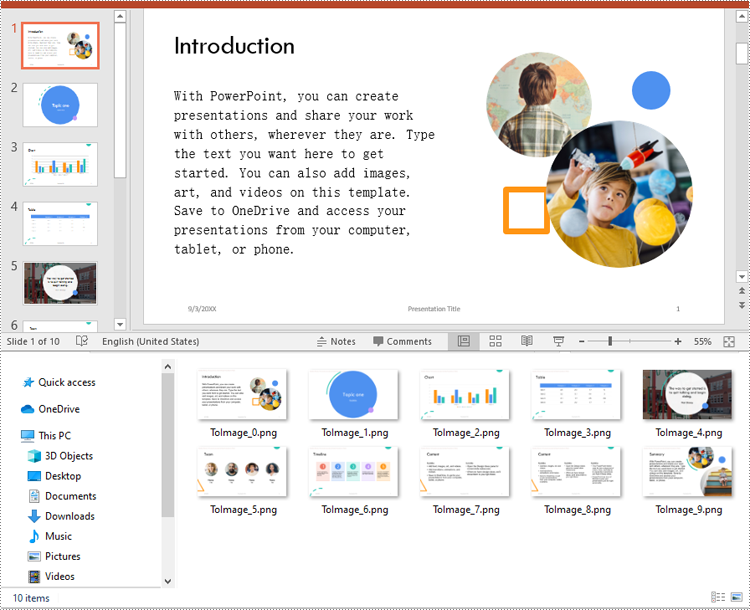
Customize the Output Image Size
In some use cases, such as generating thumbnail previews or preparing high-resolution exports for print, you may need to customize the width and height of the output image. Here is how to achieve this:
- Python
from Free Spire.Presentation import *

# Load a PowerPoint presentation
ppt = Presentation()
ppt.LoadFromFile("Sample.pptx")

# Loop through each slide and export it as a PNG image with a custom dimension 700 x 400
for i in range(ppt.Slides.Count):
    image = ppt.Slides[i].SaveAsImageByWH(700, 400)
    image.Save(f"RasterImages/ToImage_{i}.png")

ppt.Dispose()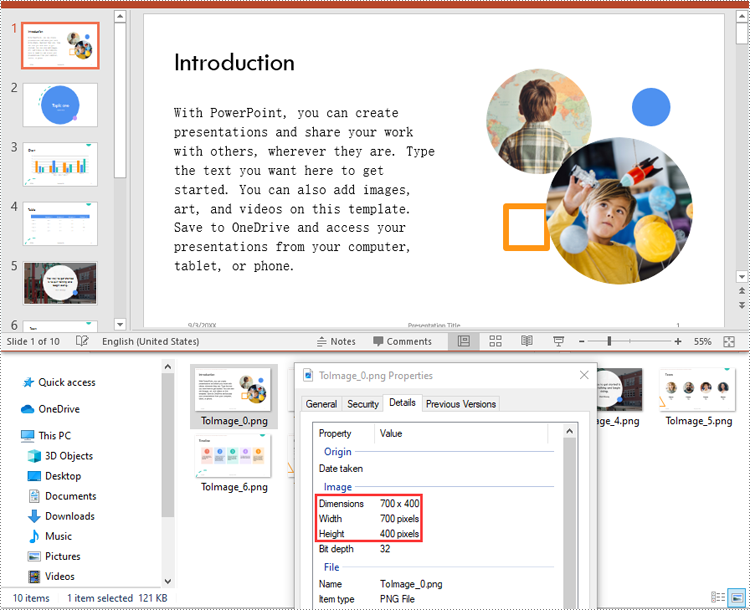
Convert PowerPoint to SVG (Scalable Vector Graphics) in Python
Unlike raster images, SVG (Scalable Vector Graphics) preserves infinite scalability and clarity, making it the ideal format for responsive designs, technical diagrams, and printing at any size.
Save Slides as SVG
The code below demonstrates how to convert each slide to a standalone SVG file. The output files will contain scalable vector representations of slide content, including text, shapes, images, and more.
- Python
from Free Spire.Presentation import *

# Load a PowerPoint presentation
ppt = Presentation()
ppt.LoadFromFile("Sample.pptx")

# Loop through each slide and export it as an SVG image
for i in range(ppt.Slides.Count):
    image = ppt.Slides[i].SaveToSVG()
    image.Save(f"VectorImages/ToSVG_{i}.svg")

ppt.Dispose()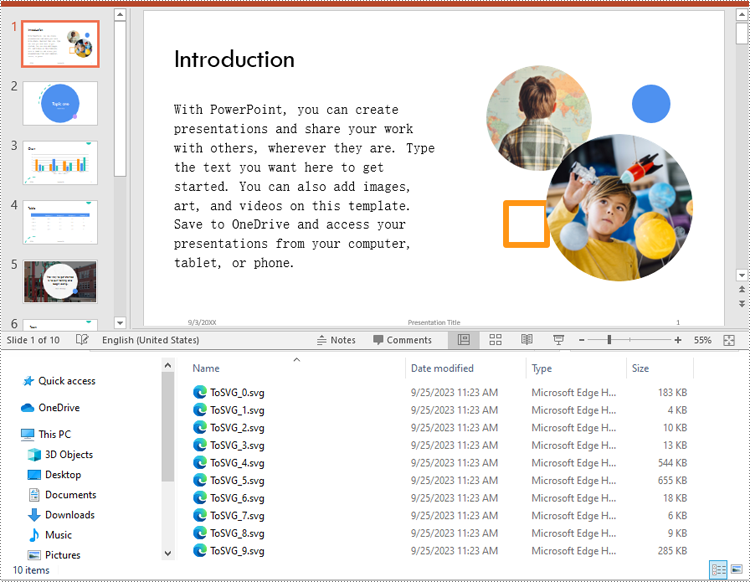
Include Speaker Notes in SVG Output
Some presentations include speaker notes that provide context or instructions during a talk. If these notes are relevant to your image export, you can configure the SVG output to include them by adding the following code before conversion:
- Python
# Enable the IsNoteRetained property to retain notes when converting the presentation to SVG files
ppt.IsNoteRetained = True
Export Shapes as Images in Python
You can also extract individual shapes from slides and save them as images. This is especially useful for exporting diagrams, logos, or annotated graphics separately.
- Python
from spire.presentation import *

# Load a PowerPoint presentation
ppt = Presentation()
ppt.LoadFromFile("Sample.pptx")

# Get the 3rd slide
slide = ppt.Slides[3]

# Loop through each shape on the slide and export it as an image
for i in range(slide.Shapes.Count):
    image = slide.Shapes.SaveAsImage(i, 96, 96)
    image.Save(f"Shapes/ShapeToImage{i}.png")

ppt.Dispose()
For detailed guidance on shapes to image conversion, please refer to our tutorial: Python: Save Shapes as Image Files in PowerPoint Presentations.
Convert PowerPoint to Images Online for Free (No Code)
For users who prefer not to install libraries or write code, online conversion tools offer a quick and convenient way to convert PowerPoint slides to image formats. One of the most reliable options is Cloudxdocs, a free web-based file conversion service that supports multiple output formats.
Use Cloudxdocs to Convert PPT or PPTX to Image
Cloudxdocs provides a user-friendly interface to convert a wide range of file formats, such as Word, Excel, PDF, and PowerPoint presentations, to various image formats in just a few steps. No account or software installation is required.
Key Benefits:
- Supports PPT and PPTX files
- Fast online conversion with downloadable results
- Works on any browser (Windows, macOS, Linux, mobile)
- No need to install Microsoft PowerPoint or Python
How to Use:

- Click "+" and upload your PowerPoint file to start the conversion.
- Once finished, download your converted image files.
Tip: Online tools are best for quick, one-time conversions. For batch processing, or custom sizing, use the Python code-based method.
Conclusion
Converting PowerPoint slides and shapes to image formats expands the versatility of your presentation content. Whether you’re developing a web application, preparing materials for print, or simply looking to share slides in a more accessible format, this article provides two effective approaches:
- Use Free Spire.Presentation for Python to programmatically export slides to JPG, PNG, BMP, or SVG formats with high-quality output and custom sizing options.
- Try Cloudxdocs, a free online converter, for quick and hassle-free conversions—no installation or coding required.
Both methods help you repurpose PowerPoint content beyond the confines of the original format—making it easier to integrate, distribute, and preserve across platforms.
FAQs
Q1: How do I convert a PPTX file to PNG using Python?
A1: You can use the Free Spire.Presentation library to load the PPTX file and export each slide to a PNG image using the SaveAsImage() method. It supports high-quality raster image output.
Q2: Can I convert PowerPoint slides to JPG and BMP formats in Python?
A2: Yes. You can easily save each slide as a JPG or BMP file by changing the image format when saving the output image.
Q3: Can I extract and save individual shapes from a slide as images?
A3: Absolutely. You can extract specific shapes and save them independently as PNG or other image formats. See our guide to exporting shapes for details.
Q4: Can I customize the size of the output image when converting a slide?
A4: Yes. The SaveAsImageByWH(width, height) method lets you define custom dimensions for the output image in pixels, useful for thumbnails or print layouts.
Q5: Does the conversion require Microsoft PowerPoint to be installed?
A5: No. Free Spire.Presentation is a standalone library and does not depend on Microsoft Office or PowerPoint to perform the conversion.
Q6: Is there a way to convert PowerPoint to images without coding?
A6: Yes. You can use Cloudxdocs, a free online tool that converts PPT or PPTX files to images directly in your browser—no software installation needed.
How to Read Barcodes from PDF in C# – Easy Methods with Code
Reading barcodes from PDF in C# is a common requirement in document processing workflows, especially when dealing with scanned forms or digital PDFs. In industries like logistics, finance, healthcare, and manufacturing, PDFs often contain barcodes—either embedded as images or rendered as vector graphics. Automating this process can reduce manual work and improve accuracy.
This guide shows how to read barcode from PDF with C# using two practical methods: extracting images embedded in PDF pages and scanning them, or rendering entire pages as images and detecting barcodes from the result. Both techniques support reliable recognition of 1D and 2D barcodes in different types of PDF documents.
Table of Contents
- Getting Started: Tools and Setup
- Step-by-Step: Read Barcodes from PDF in C#
- Which Method Should You Use?
- Real-World Use Cases
- FAQ
Getting Started: Tools and Setup
To extract or recognize barcodes from PDF documents using C#, make sure your environment is set up correctly.
Here’s what you need:
- Any C# project that supports NuGet package installation (such as .NET Framework, .NET Core, or .NET).
- The following libraries, Spire.Barcode for .NET for barcode recognition and Spire.PDF for .NET for PDF processing, can be installed via NuGet Package Manager:
Install-Package Spire.Barcode
Install-Package Spire.PDF
Step-by-Step: Read Barcodes from PDF in C#
There are two ways to extract barcode data from PDF files. Choose one based on how the barcode is stored in the document.
Method 1: Extract Embedded Images and Detect Barcodes
This method is suitable for scanned PDF documents, where each page often contains a raster image with one or more barcodes. The BarcodeScanner.ScanOne() method can read one barcode from one image.
Code Example: Extract and Scan
using Spire.Barcode;
using Spire.Pdf;
using Spire.Pdf.Utilities;
using System.Drawing;

namespace ReadPDFBarcodeByExtracting
{
    class Program
    {
        static void Main(string[] args)
        {
            // Load a PDF file
            PdfDocument pdf = new PdfDocument();
            pdf.LoadFromFile("Sample.pdf");

            // Get a page and the image information on the page
            PdfPageBase page = pdf.Pages[0];
            PdfImageHelper imageHelper = new PdfImageHelper();
            PdfImageInfo[] imagesInfo = imageHelper.GetImagesInfo(page);

            // Loop through the image information
            int index = 0;
            foreach (PdfImageInfo imageInfo in imagesInfo)
            {
                // Get the image as an Image object
                Image image = imageInfo.Image;
                // Scan the barcode and output the result
                string scanResult = BarcodeScanner.ScanOne((Bitmap)image);
                Console.WriteLine($"Scan result of image {index + 1}:\n" + scanResult + "\n");
                index++;
            }
        }
    }
}
The following image shows a scanned PDF page and the barcode recognition result using Method 1 (extracting embedded images):
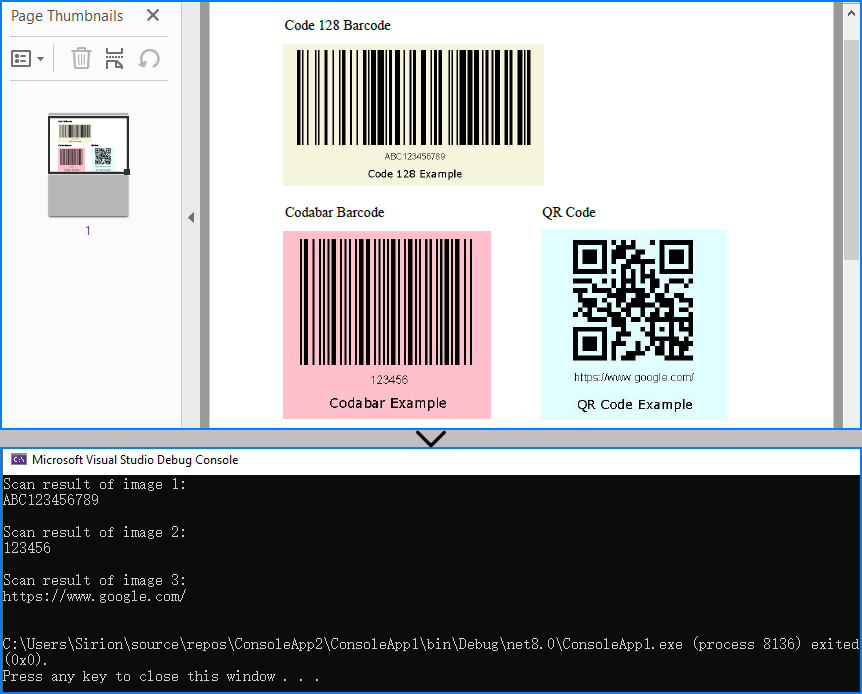
When to use: If the PDF is a scan or contains images with embedded barcodes.
You may also like: Generate Barcodes in C# (QR Code Example)
Method 2: Render Page as Image and Scan
When barcodes are drawn using vector elements (not embedded images), you can render each PDF page as a bitmap and perform barcode scanning on it. The BarcodeScanner.Scan() method can read multiple barcodes from one image.
Code Example: Render and Scan
using Spire.Barcode;
using Spire.Pdf;
using System.Drawing;

namespace ReadPDFBarcodeByExtracting
{
    class Program
    {
        static void Main(string[] args)
        {
            // Load a PDF file
            PdfDocument pdf = new PdfDocument();
            pdf.LoadFromFile("Sample.pdf");

            // Save each page as an image
            for (int i = 0; i < pdf.Pages.Count; i++)
            {
                Image image = pdf.SaveAsImage(i);
                // Read the barcodes on the image
                string[] scanResults = BarcodeScanner.Scan((Bitmap)image);
                // Output the results
                for (int j = 0; j < scanResults.Length; j++)
                {
                    Console.WriteLine($"Scan result of barcode {j + 1} on page {i + 1}:\n" + scanResults[j] + "\n");
                }
            }
        }
    }
}
Below is the result of applying Method 2 (rendering full PDF page) to detect vector barcodes on the page:
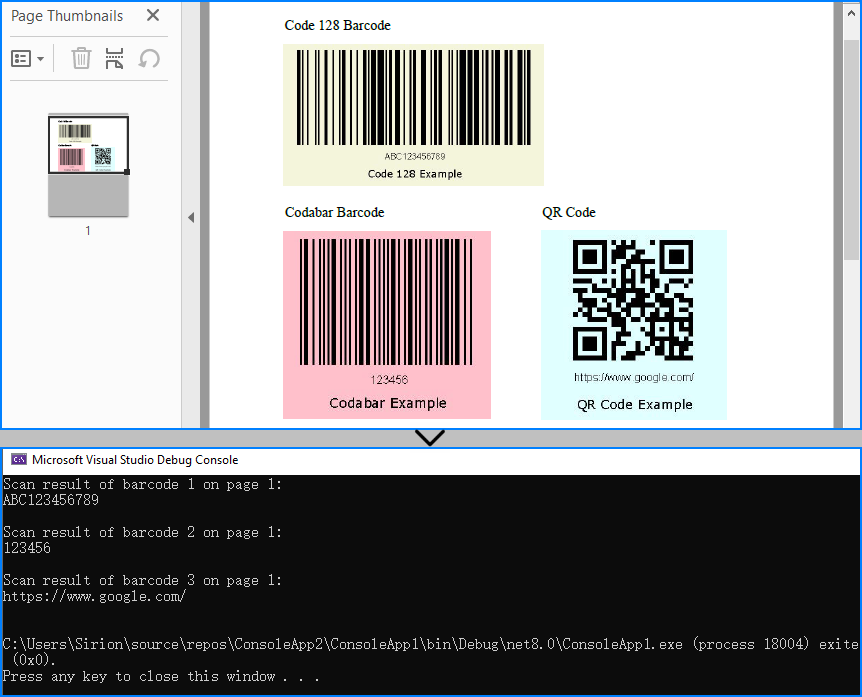
When to use: When barcodes are drawn on the page directly, not embedded as image elements.
Related article: Convert PDF Pages to Images in C#
Which Method Should You Use?
| Use Case | Recommended Method |
|---|---|
| Scanned pages or scanned barcodes | Extract embedded images |
| Digital PDFs with vector barcodes | Render full page as image |
| Hybrid or unknown structure | Try both methods optionally |
You can even combine both methods for maximum reliability when handling unpredictable document structures.
Real-World Use Cases
Here are some typical scenarios where barcode recognition from PDFs in C# proves useful:
-
Logistics automation Extract tracking numbers and shipping IDs from scanned labels, dispatch forms, or signed delivery receipts in bulk.
-
Invoice and billing systems Read barcode-based document IDs or payment references from digital or scanned invoices in batch processing tasks.
-
Healthcare document digitization Automatically scan patient barcodes from lab reports, prescriptions, or admission forms in PDF format.
-
Manufacturing and supply chain Recognize barcodes from packaging reports, quality control sheets, or equipment inspection PDFs.
-
Educational institutions Process barcoded student IDs on scanned test forms or attendance sheets submitted as PDFs.
Tip: In many of these use cases, PDFs come from scanners or online systems, which may embed barcodes as images or page content—both cases are supported with the two methods introduced above.
Conclusion
Reading barcodes from PDF files in C# can be achieved reliably using either image extraction or full-page rendering. Whether you need to extract a barcode from a scanned document or recognize one embedded in PDF content, both methods provide flexible solutions for barcode recognition in C#.
FAQ
Q: Does this work with multi-page PDFs?
Yes. You can loop through all pages in the PDF and scan each one individually.
Q: Can I extract multiple barcodes per page?
Yes. The BarcodeScanner.Scan() method can detect and return all barcodes found on each image.
Q: Can I improve recognition accuracy by increasing resolution?
Yes. When rendering a PDF page to an image, you can set a higher DPI using PdfDocument.SaveAsImage(pageIndex: int, PdfImageType.Bitmap: PdfImageType, dpiX: int, dpiY: int). For example, 300 DPI is ideal for small or low-quality barcodes.
Q: Can I read barcodes from PDF using C# for free?
Yes. You can use Free Spire.Barcode for .NET and Free Spire.PDF for .NET to read barcodes from PDF files in C#. However, the free editions have feature limitations, such as page count or supported barcode types. If you need full functionality without restrictions, you can request a free temporary license to evaluate the commercial editions.
Spire.PDF for Java 11.6.2 enhances the conversion form PDF to PDFA3B and PDFA1A
We are delighted to announce the release of Spire.PDF for Java 11.6.2. This version enhances the conversion from PDF to PDFA3B and PDFA1A as well as OFD to PDF. Besides, some known issues are fixed successfully in this version, such as the issue that the font was incorrect when replacing text. More details are listed below.
Here is a list of changes made in this release
| Category | ID | Description |
| Bug | SPIREPDF-7485 | Fixed the issue that spaces were lost after converting PDF to PDFA3B. |
| Bug | SPIREPDF-7497 | Fixed the issue that signatures were lost after converting PDF to PDFA1A. |
| Bug | SPIREPDF-7506 | Fixed the issue that the program threw NullPointerException after converting OFD to PDF. |
| Bug | SPIREPDF-7524 | Fixed the issue that fonts were incorrect after replacing text. |
| Bug | SPIREPDF-7530 | Fixed the issue that table layouts were incorrect after creating booklets using PdfBookletCreator. |
How to Read Excel Files in Java (XLS/XLSX) – Complete Guide
Reading Excel files using Java is a common requirement in enterprise applications, especially when dealing with reports, financial data, user records, or third-party integrations. Whether you're building a data import feature, performing spreadsheet analysis, or integrating Excel parsing into a web application, learning how to read Excel files in Java efficiently is essential.
In this tutorial, you’ll discover how to read .xls and .xlsx Excel files using Java. We’ll use practical Java code examples which also cover how to handle large files, read Excel files from InputStream, and extract specific content line by line.
Table of Contents
- 1. Set Up Your Java Project
- 2. How to Read XLSX and XLS Files in Java
- 3. Best Practices for Large Excel Files
- 4. Full Example: Java Program to Read Excel File
- 5. Summary
- 6. FAQ
1. Set Up Your Java Project
To read Excel files using Java, you need a library that supports spreadsheet file formats. Spire.XLS for Java offers support for both .xls (legacy) and .xlsx (modern XML-based) files and provides a high-level API that makes Excel file reading straightforward.
Add Spire.XLS to Your Project
If you're using Maven, add the following to your pom.xml:
<repositories>
    <repository>
        <id>com.e-iceblue</id>
        <name>e-iceblue</name>
        <url>https://repo.e-iceblue.com/nexus/content/groups/public/</url>
    </repository>
</repositories>
<dependencies>
    <dependency>
        <groupId>e-iceblue</groupId>
        <artifactId>spire.xls</artifactId>
        <version>16.7.3</version>
    </dependency>
</dependencies>
If you're not using Maven, you can manually download the JAR from the official Spire.XLS website and add it to your classpath.
For smaller Excel processing tasks, you can also choose Free Spire.XLS for Java.
2. How to Read XLSX and XLS Files in Java
Java programs can easily read Excel files by loading the workbook and iterating through worksheets, rows, and cells. The .xlsx format is commonly used in modern Excel, while .xls is its older binary counterpart. Fortunately, Spire.XLS supports both formats seamlessly with the same code.
Load and Read Excel File (XLSX or XLS)
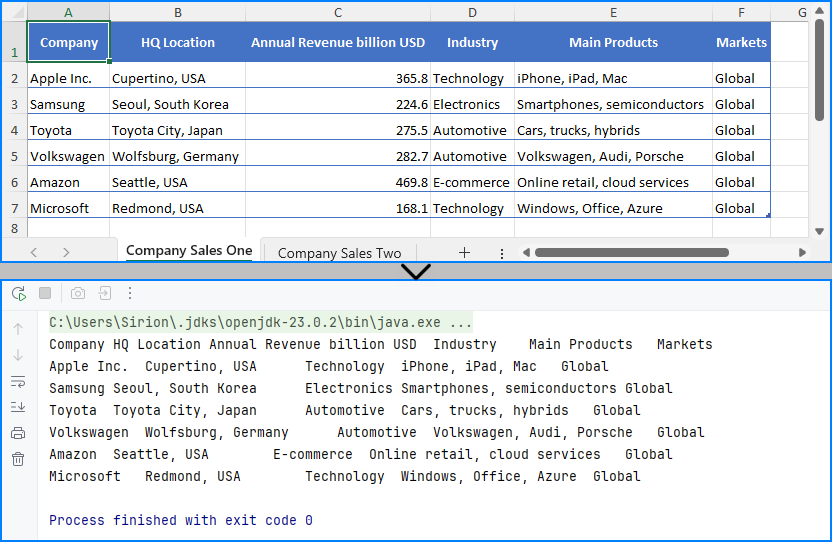
Here’s a basic example that loads an Excel file and prints its content:
import com.spire.xls.*;

public class ReadExcel {
    public static void main(String[] args) {
        // Create a workbook object and load the Excel file
        Workbook workbook = new Workbook();
        workbook.loadFromFile("data.xlsx"); // or "data.xls"

        // Get the first worksheet
        Worksheet sheet = workbook.getWorksheets().get(0);
        // Loop through each used row and column
        for (int i = 1; i <= sheet.getLastRow(); i++) {
            for (int j = 1; j <= sheet.getLastColumn(); j++) {
                // Get cell text of a cell range
                String cellText = sheet.getCellRange(i, j).getValue();
                System.out.print(cellText + "\t");
            }
            System.out.println();
        }
    }
}
You can replace the file path with an .xls file and the code remains unchanged. This makes it simple to read Excel files using Java regardless of format.
The Excel file being read and the output result shown in the console.
Read Excel File Line by Line with Row Objects
In scenarios like user input validation or applying business rules, processing each row as a data record is often more intuitive. In such cases, you can read the Excel file line by line using row objects via the getRows() method.
for (int i = 0; i < sheet.getRows().length; i++) {
    // Get a row
    CellRange row = sheet.getRows()[i];
    if (row != null && !row.isBlank()) {
        for (int j = 0; j < row.getColumns().length; j++) {
            String text = row.getColumns()[j].getText();
            System.out.print((text != null ? text : "") + "\t");
        }
        System.out.println();
    }
}
This technique works particularly well when reading Excel files in Java for batch operations or when you only need to process rows individually.
Read Excel File from InputStream
In web applications or cloud services, Excel files are often received as streams. Here’s how to read Excel files from an InputStream in Java:
import com.spire.xls.*;
import java.io.FileInputStream;
import java.io.FileNotFoundException;
import java.io.InputStream;

public class ReadExcel {
    public static void main(String[] args) throws FileNotFoundException {
        // Create a InputStream
        InputStream stream = new FileInputStream("data.xlsx");
        // Load the Excel file from the stream
        Workbook workbook = new Workbook();
        workbook.loadFromStream(stream);
        System.out.println("Load Excel file successfully.");
    }
}
This is useful when handling file uploads, email attachments, or reading Excel files stored in remote storage.
Read Excel Cell Values in Different Formats
Once you load an Excel file and get access to individual cells, Spire.XLS allows you to read the contents in various formats—formatted text, raw values, formulas, and more.
Here's a breakdown of what each method does:
CellRange cell = sheet.getRange().get(2, 1); // B2

// Formatted text (what user sees in Excel)
String text = cell.getText();

// Raw string value
String value = cell.getValue();

// Generic object (number, boolean, date, etc.)
Object rawValue = cell.getValue2();

// Formula (if exists)
String formula = cell.getFormula();

// Evaluated result of the formula
String result = cell.getEnvalutedValue();

// If it's a number cell
double number = cell.getNumberValue();

// If it's a date cell
java.util.Date date = cell.getDateTimeValue();

// If it's a boolean cell
boolean bool = cell.getBooleanValue();
Tip: Use getValue2() for flexible handling, as it returns the actual underlying object. Use getText() when you want to match Excel's visible content.
You May Also Like: How to Write Data into Excel Files in Java
3. Best Practices for Reading Large Excel Files in Java
When your Excel file contains tens of thousands of rows or multiple sheets, performance can become a concern. To ensure your Java application reads large Excel files efficiently:
- Load only required sheets
- Access only relevant columns or rows
- Avoid storing entire worksheets in memory
- Use row-by-row reading patterns
Here’s an efficient pattern for reading only non-empty rows:
for (int i = 1; i <= sheet.getRows().length; i++) {
    Row row = sheet.getRows()[i];
    if (row != null && !row.isBlank()) {
        // Process only rows with data
    }
}
Even though Spire.XLS handles memory efficiently, following these practices helps scale your Java Excel reading logic smoothly.
See also: Delete Blank Rows and Columns in Excel Using Java
4. Full Example: Java Program to Read Excel File
Here’s a full working Java example that reads an Excel file (users.xlsx) with extended columns such as name, email, age, department, and status. The code extracts only the original three columns (name, email, and age) and filters the output for users aged 30 or older.
import com.spire.xls.*;

public class ExcelReader {
    public static void main(String[] args) {
        Workbook workbook = new Workbook();
        workbook.loadFromFile("users.xlsx");

        Worksheet sheet = workbook.getWorksheets().get(0);
        System.out.println("Name\tEmail\tAge");

        for (int i = 2; i <= sheet.getLastRow(); i++) {
            String name = sheet.getCellRange(i, 1).getValue();
            String email = sheet.getCellRange(i, 2).getValue();
            String ageText = sheet.getCellRange(i, 3).getValue();

            int age = 0;
            try {
                age = Integer.parseInt(ageText);
            } catch (NumberFormatException e) {
                continue;  // Skip rows with invalid age data
            }

            if (age >= 30) {
                System.out.println(name + "\t" + email + "\t" + age);
            }
        }
    }
}
Result of Java program reading the Excel file and printing its contents. 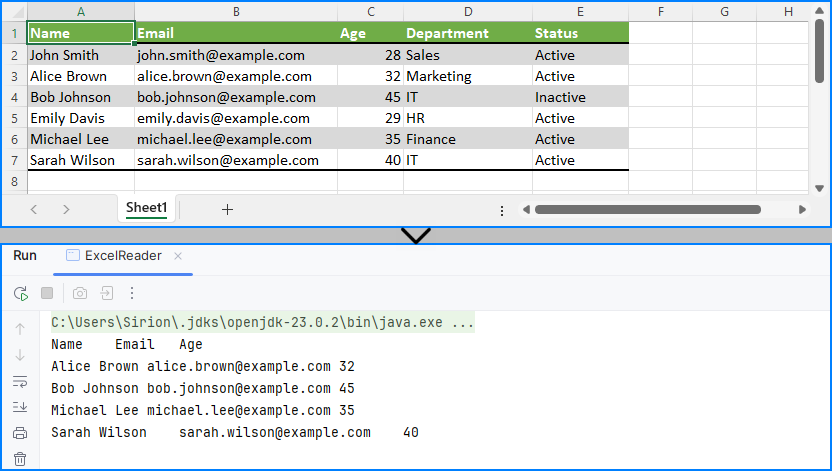
This code demonstrates how to read specific cells from an Excel file in Java and output meaningful tabular data, including applying filters on data such as age.
5. Summary
To summarize, this article showed you how to read Excel files in Java using Spire.XLS, including both .xls and .xlsx formats. You learned how to:
- Set up your Java project with Excel-reading capabilities
- Read Excel files using Java in row-by-row or stream-based fashion
- Handle legacy and modern Excel formats with the same API
- Apply best practices when working with large Excel files
Whether you're reading from an uploaded spreadsheet, a static report, or a stream-based file, the examples provided here will help you build robust Excel processing features in your Java applications.
If you want to unlock all limitations and experience the full power of Excel processing, you can apply for a free temporary license.
6. FAQ
Q1: How to read an Excel file dynamically in Java?
To read an Excel file dynamically in Java—especially when the number of rows or columns is unknown—you can use getLastRow() and getLastColumn() methods to determine the data range at runtime. This ensures that your program can adapt to various spreadsheet sizes without hardcoded limits.
Q2: How to extract data from Excel file in Java?
To extract data from Excel files in Java, load the workbook and iterate through the cells using nested loops. You can retrieve values with getCellRange(row, column).getValue(). Libraries like Spire.XLS simplify this process and support both .xls and .xlsx formats.
Q3: How to read a CSV Excel file in Java?
If your Excel data is saved as a CSV file, you can read it using Java’s BufferedReader or file streams. Alternatively, Spire.XLS supports CSV parsing directly—you can load a CSV file by specifying the separator, such as Workbook.loadFromFile("data.csv", ","). This lets you handle CSV files along with Excel formats using the same API.
Q4: How to read Excel file in Java using InputStream?
Reading Excel files from InputStream in Java is useful in server-side applications, such as handling file uploads. With Spire.XLS, simply call workbook.loadFromStream(inputStream) and process it as you would with any file-based Excel workbook.
Spire.PDF for Python 11.6.1 supports converting PDF to Markdown
We are pleased to announce the release of Spire.PDF for Python 11.6.1. This version introduces support for the Linux Aarch64 platform and adds the highly anticipated PDF to Markdown conversion feature. Additionally, several known issues have been resolved, including a critical bug encountered during OFD to PDF conversion. More details are listed below.
Here is a list of changes made in this release
| Category | ID | Description |
| New feature | SPIREPDF-6436 | Adds support for Linux Aarch64 platform. |
| New feature | SPIREPDF-7508 | Supports converting PDF to Markdown. |
| Bug | SPIREPDF-6746 | Fixes the issue where converting OFD to PDF throws an "Arg_NullReferenceException" error. |
| Bug | SPIREPDF-6999 | Fixes the issue that causes incorrect retrieval of signature fields in PDF documents. |
| Bug | SPIREPDF-7047 | Fixes the issue where extracting text from PDF results in incomplete content. |
| Bug | SPIREPDF-7052 | Fixes the issue where retrieving bold formatting in searched text throws an exception. |
| Bug | SPIREPDF-7103 | Fixes the issue where converting PDF to Linearized PDF throws an "AttributeError". |