Convert PDF to Excel Using JavaScript in React
In data-driven workflows, converting PDF documents with tables to Excel improves accessibility and usability. While PDFs preserve document integrity, their static nature makes data extraction challenging, often leading to error-prone manual work. By leveraging JavaScript in React, developers can automate the conversion process, seamlessly transferring structured data like financial reports into Excel worksheets for real-time analysis and collaboration. This article explores how to use Spire.PDF for JavaScript to efficiently convert PDFs to Excel files with JavaScript in React applications.
- Steps to Convert PDF to Excel Using JavaScript
- Simple PDF to Excel Conversion in JavaScript
- Convert PDF to Excel with XlsxLineLayoutOptions
- Convert PDF to Excel with XlsxTextLayoutOptions
Install Spire.PDF for JavaScript
To get started with converting PDF to Excel with JavaScript in a React application, you can either download Spire.PDF for JavaScript from our website or install it via npm with the following command:
npm i spire.office
The downloaded product package integrates Spire.Doc for JavaScript, Spire.XLS for JavaScript, Spire.PDF for JavaScript, and Spire.Presentation for JavaScript. To use Spire.PDF for JavaScript functionality, you need to copy the corresponding files (spire.pdf.js, Spire.Pdf.Wasm.zip, spire.common.js, Spire.Common.Wasm.zip, and the _framework folder) to the public folder of your project. Additionally, to ensure proper text rendering, font files can be added to a custom path of your choice. In the following example, the font addition path is: public\static\font.
For more details, refer to the documentation: How to Integrate Spire.PDF for JavaScript in a React Project
Steps to Convert PDF to Excel Using JavaScript
With the Spire.PDF for JavaScript WebAssembly module, PDF documents can be loaded from the Virtual File System (VFS) using the PdfDocument.LoadFromFile() method and converted into Excel workbooks using the PdfDocument.SaveToFile() method.
In addition to direct conversion, developers can customize the process by configuring conversion options through the XlsxLineLayoutOptions and XlsxTextLayoutOptions classes, along with the PdfDocument.ConvertOptions.SetPdfToXlsxOptions() method.
The following steps demonstrate how to convert a PDF document to an Excel file using Spire.PDF for JavaScript:
- Load the Spire.Pdf.Base.js file to initialize the WebAssembly module.
- Fetch the PDF file into the Virtual File System (VFS) using the window.spire.FetchFileToVFS() method.Create an instance of the PdfDocument class using the wasmModule.PdfDocument() method.
- Fetch the font files used in the PDF document to the “/Library/Fonts/” folder in the VFS using the wasmModule.FetchFileToVFS() method.
- Create an instance of the PdfDocument class using the wasmModule.PdfDocument() method.
- Load the PDF document from the VFS into the PdfDocument instance using the PdfDocument.LoadFromFile() method.
- (Optional) Customize the conversion options:
- Create an instance of the XlsxLineLayoutOptions or XlsxTextLayoutOptions class and specify the desired conversion settings.
- Apply the conversion options using the PdfDocument.ConvertOptions.SetPdfToXlsxOptions() method.
- Convert the PDF document to an Excel file using the PdfDocument.SaveToFile({ filename: string, wasmModule.FileFormat.XLSX }) method.
- Retrieve the converted file from the VFS for download or further use.
Simple PDF to Excel Conversion in JavaScript
Developers can directly load a PDF document from the VFS and convert it to an Excel file using the default conversion settings. These settings map one PDF page to one Excel worksheet, preserve rotated and overlapped text, allow cell splitting, and enable text wrapping.
Below is a code example demonstrating this process:
- JavaScript
import React, { useState, useEffect } from 'react';

function App() {
   // Store WASM module instance
   const [wasmModule, setWasmModule] = useState(null);

   // Load WASM module when component mounts
   useEffect(() => {
    const loadSpire = async () => {
      try {
        // Get public directory path
        const publicUrl = process.env.PUBLIC_URL || '';
        // Path to WASM JS glue code
        const moduleUrl = `${publicUrl}/spire.pdf.js`;

        // Dynamically import WASM module
        const spireModule = await import(
          /* webpackIgnore: true */
          moduleUrl
        );

        // Extract module exports
        let Module = spireModule.default || spireModule;

        // Handle WASM initialization
        if (typeof Module === 'function') {
          Module = await Module({
            // Callback when WASM runtime initialization is complete
            onRuntimeInitialized: () => {
              console.log('Spire WASM runtime initialized');
              // Set module state after initialization
              setWasmModule(Module);
            },
            // Handle WASM file paths
            locateFile: (path) => {
              if (path.endsWith('.wasm')) {
                return `${publicUrl}/${path}`;
              }
              return path;
            }
          });
        } else {
          // If not a function, set module directly
          setWasmModule(Module);
        }

        // Mount module to window object for global access
        window.Module = Module;
        window.wasmModule = Module;

        return Module;

      } catch (error) {
        console.error('Failed to load spire.pdf.js:', error);
        throw error;
      }
    };

    // Execute load function
    loadSpire();
  }, []);

  const ConvertPDFToExcel= async () => {
    // Get WASM module
    const wasmModule = window.wasmModule.spirepdf;

    if (wasmModule) {
      // Load font file to virtual file system (VFS)
      await window.spire.FetchFileToVFS("arial.ttf","/Library/Fonts/",`${process.env.PUBLIC_URL}static/font/`);

      // PDF file name to convert
      let inputFileName = "ChartSample.pdf";

      // Load PDF file to virtual file system (VFS)
      await window.spire.FetchFileToVFS(inputFileName, "", `${process.env.PUBLIC_URL}static/data/`);

      // Create PDF document object
      let doc = new wasmModule.PdfDocument();

      // Load PDF file
      doc.LoadFromFile(inputFileName);

      // Define the output file name
      const outputFileName = "ToXLSX_result.xlsx";

      // Save the document to the specified path
      doc.SaveToFile({fileName: outputFileName,fileFormat: wasmModule.FileFormat.XLSX});
      doc.Close();

      // Read the saved file and convert to a Blob object
      const modifiedFileArray = window.dotnetRuntime.Module.FS.readFile(outputFileName);
      const modifiedFile = new Blob([modifiedFileArray], { type: "application/vnd.openxmlformats-officedocument.spreadsheetml.sheet" });

      // Create a URL for the Blob
      const url = URL.createObjectURL(modifiedFile);

      // Create an anchor element to trigger the download
      const a = document.createElement('a');
      a.href = url;
      a.download = outputFileName ;
      document.body.appendChild(a);
      a.click();
      document.body.removeChild(a);
      URL.revokeObjectURL(url);
    }
  };

   return (
    <div style={{ textAlign: 'center', height: '300px' }}>
      <h1>Convert PDF to Excel in React</h1>
      <button onClick={ConvertPDFToExcel}>
        Convert
      </button>
    </div>
  );
}

export default App;

Convert PDF to Excel with XlsxLineLayoutOptions
Spire.PDF for JavaScript provides the XlsxLineLayoutOptions class for configuring line-based conversion settings when converting PDFs to Excel. By adjusting these options, developers can achieve different conversion results, such as merging all PDF pages into a single worksheet.
The table below outlines the available parameters in XlsxLineLayoutOptions:
| Parameter (bool) | Function |
| convertToMultipleSheet | Specifies whether to convert each page into a separate worksheet. |
| rotatedText | Specifies whether to retain rotated text. |
| splitCell | Specifies whether to split cells. |
| wrapText | Specifies whether to wrap text within cells. |
| overlapText | Specifies whether to retain overlapped text. |
Special attention should be given to the splitCell parameter, as it significantly impacts the way tables are converted. Setting it to false preserves table cell structures, making the output table cells more faithful to the original PDF. Conversely, setting it to true allows plain text to be split smoothly in cells, which may be useful for text-based layouts rather than structured tables.
Below is a code example demonstrating PDF-to-Excel conversion using XlsxLineLayoutOptions:
- JavaScript
import React, { useState, useEffect } from 'react';

function App() {
   const [wasmModule, setWasmModule] = useState(null);
   useEffect(() => {
    (async () => {
      try {
        const publicUrl = process.env.PUBLIC_URL || '';
        const spireModule = await import(/* webpackIgnore: true */ `${publicUrl}/spire.pdf.js`);
        const rawModule = spireModule.default || spireModule;
        window.wasmModule = typeof rawModule === 'function'
          ? await rawModule({ locateFile: p => p.endsWith('.wasm') ? `${publicUrl}/${p}` : p })
          : rawModule;
        setWasmModule(window.wasmModule);
      } catch (error) {
        console.error('Failed to load spire.pdf.js:', error);
      }
    })();
  }, []);

  const ConvertPDFToExcelXlsxLineLayoutOptions = async () => {
    // Get WASM module
    const wasmModule = window.wasmModule.spirepdf;

    if (wasmModule) {
      // Load font file to virtual file system (VFS)
      await window.spire.FetchFileToVFS("arial.ttf","/Library/Fonts/",`${process.env.PUBLIC_URL}static/font/`);

      // PDF file name to convert
      let inputFileName = "PdfToExcel.pdf";

      // Load PDF file to virtual file system (VFS)
      await window.spire.FetchFileToVFS(inputFileName, "", `${process.env.PUBLIC_URL}static/data/`);

      // Create PDF document object
      let doc = new wasmModule.PdfDocument();

      // Load PDF file
      doc.LoadFromFile(inputFileName);

      doc.ConvertOptions.SetPdfToXlsxOptions(
          new wasmModule.XlsxLineLayoutOptions({convertToMultipleSheet: false, rotatedText: true, splitCell: true}));

      // Define the output file name
      const outputFileName = "PdfToExcelOptions_out.xlsx";

      // Save the document to the specified path
      doc.SaveToFile({fileName: outputFileName,fileFormat: wasmModule.FileFormat.XLSX});
      doc.Close();

      // Read the generated JPG file
      const modifiedFileArray =window.dotnetRuntime.Module.FS.readFile(outputFileName);
      // Create a Blob object from the JPG file
      const modifiedFile = new Blob([modifiedFileArray], { type: "application/vnd.openxmlformats-officedocument.spreadsheetml.sheet" });
      // Create a URL for the Blob
      const url = URL.createObjectURL(modifiedFile);

      // Create an anchor element to trigger the download
      const a = document.createElement('a');
      a.href = url;
      a.download = outputFileName;
      document.body.appendChild(a);
      a.click();
      document.body.removeChild(a);
      URL.revokeObjectURL(url);

    }
  };

   return (
    <div style={{ textAlign: 'center', height: '300px' }}>
      <h1>Convert PDF to Excel with XlsxLineLayoutOptions Using JavaScript in React</h1>
        <button onClick={ConvertPDFToExcelXlsxLineLayoutOptions}>
          Convert and Download
        </button>
    </div>
  );
}

export default App;

Convert PDF to Excel Using XlsxTextLayoutOptions
Developers can also customize conversion settings using the XlsxTextLayoutOptions class, which focuses on text-based layout formatting. The table below lists its parameters:
| Parameter (bool) | Function |
| convertToMultipleSheet | Specifies whether to convert each page into a separate worksheet. |
| rotatedText | Specifies whether to retain rotated text. |
| overlapText | Specifies whether to retain overlapped text. |
Below is a code example demonstrating PDF-to-Excel conversion using XlsxTextLayoutOptions:
- JavaScript
import React, { useState, useEffect } from 'react';

function App() {
   const [wasmModule, setWasmModule] = useState(null);
   useEffect(() => {
    (async () => {
      try {
        const publicUrl = process.env.PUBLIC_URL || '';
        const spireModule = await import(/* webpackIgnore: true */ `${publicUrl}/spire.xls.js`);
        const rawModule = spireModule.default || spireModule;
        window.wasmModule = typeof rawModule === 'function'
          ? await rawModule({ locateFile: p => p.endsWith('.wasm') ? `${publicUrl}/${p}` : p })
          : rawModule;
        setWasmModule(window.wasmModule);
      } catch (error) {
        console.error('Failed to load spire.pdf.js:', error);
      }
    })();
  }, []);

  const ConvertPDFToExcelXlsxTextLayoutOptions = async () => {
    // Get WASM module
    const wasmModule = window.wasmModule.spirepdf;

    if (wasmModule) {
      // Load font file to virtual file system (VFS)
      await window.spire.FetchFileToVFS("arial.ttf","/Library/Fonts/",`${process.env.PUBLIC_URL}static/font/`);

      // PDF file name to convert
      let inputFileName = "PdfToExcel.pdf";

      // Load PDF file to virtual file system (VFS)
      await window.spire.FetchFileToVFS(inputFileName, "", `${process.env.PUBLIC_URL}static/data/`);

      // Create PDF document object
      let doc = new wasmModule.PdfDocument();

      // Load PDF file
      doc.LoadFromFile(inputFileName);

      // Create an instance of the XlsxTextLayoutOptions class and specify the conversion options
      const options =new wasmModule.XlsxTextLayoutOptions({ convertToMultipleSheet: false, rotatedText: true, overlapText: true});

      // Set the XlsxTextLayoutOptions instance as the conversion options
      doc.ConvertOptions.SetPdfToXlsxOptions(options);

      // Define the output file name
      const outputFileName = "PDFToExcelXlsxTextLayoutOptions.xlsx";

      // Save the document to the specified path
      doc.SaveToFile({fileName: outputFileName,fileFormat: wasmModule.FileFormat.XLSX});
      doc.Close();

      // Read the generated JPG file
      const modifiedFileArray =window.dotnetRuntime.Module.FS.readFile(outputFileName);
      // Create a Blob object from the JPG file
      const modifiedFile = new Blob([modifiedFileArray], { type: "application/vnd.openxmlformats-officedocument.spreadsheetml.sheet" });
      // Create a URL for the Blob
      const url = URL.createObjectURL(modifiedFile);

      // Create an anchor element to trigger the download
      const a = document.createElement('a');
      a.href = url;
      a.download = outputFileName;
      document.body.appendChild(a);
      a.click();
      document.body.removeChild(a);
      URL.revokeObjectURL(url);

    }
  };

   return (
      <div style={{ textAlign: 'center', height: '300px' }}>
        <h1>Convert PDF to Excel with XlsxTextLayoutOptions Using JavaScript in React</h1>
        <button onClick={ConvertPDFToExcelXlsxTextLayoutOptions}>
          Convert and Download
        </button>
      </div>
  );
}

export default App;

Get a Free License
To fully experience the capabilities of Spire.PDF for JavaScript without any evaluation limitations, you can request a free 30-day trial license.
Convert PDF to Images with JavaScript in React
Transforming PDF documents into image formats like JPG or PNG is a powerful way to enhance the accessibility and usability of your content. By converting PDF pages into images, you preserve the original layout and design, making it ideal for various applications, from online sharing to incorporation in websites and presentations.
In this article, you will learn how to convert PDF files to images in React using Spire.PDF for JavaScript. We will guide you through the process step-by-step, ensuring you can easily generate high-quality images from your PDF documents.
Install Spire.PDF for JavaScript
To get started with converting PDF to images with JavaScript in a React application, you can either download Spire.PDF for JavaScript from our website or install it via npm with the following command:
npm i spire.office
The downloaded product package integrates Spire.Doc for JavaScript, Spire.XLS for JavaScript, Spire.PDF for JavaScript, and Spire.Presentation for JavaScript. To use Spire.PDF for JavaScript functionality, you need to copy the corresponding files (spire.pdf.js, Spire.Pdf.Wasm.zip, spire.common.js, Spire.Common.Wasm.zip, and the _framework folder) to the public folder of your project. Additionally, to ensure proper text rendering, font files can be added to a custom path of your choice. In the following example, the font addition path is: public\static\font.
For more details, refer to the documentation: How to Integrate Spire.PDF for JavaScript in a React Project
Convert PDF to JPG in React
Spire.PDF for JavaScript provides the PdfDocument.SaveAsImage() method to convert a specific page of a PDF into image byte data, which can then be saved as a JPG file using the Save() method. To convert all pages into individual images, iterate through each page.
The following are the steps to convert PDF to JPG in React:
- Load the required font files and the input PDF file into the Virtual File System (VFS).
- Create a PdfDocument object with the wasmModule.PdfDocument() method.
- Load the PDF using the PdfDocument.LoadFromFile() method.
- Iterate through the document's pages:
- Convert each page into image byte data using the PdfDocument.SaveAsImage() method.
- Save the image as a JPG file using the Save() method.
- Trigger the download of the generated JPG file.
- JavaScript
import React, { useState, useEffect } from 'react';

function App() {
   const [wasmModule, setWasmModule] = useState(null);
   useEffect(() => {
    (async () => {
      try {
        const publicUrl = process.env.PUBLIC_URL || '';
        const spireModule = await import(/* webpackIgnore: true */ `${publicUrl}/spire.pdf.js`);
        const rawModule = spireModule.default || spireModule;
        window.wasmModule = typeof rawModule === 'function'
          ? await rawModule({ locateFile: p => p.endsWith('.wasm') ? `${publicUrl}/${p}` : p })
          : rawModule;
        setWasmModule(window.wasmModule);
      } catch (error) {
        console.error('Failed to load spire.pdf.js:', error);
      }
    })();
  }, []);

  const ConvertPdfToJpg = async () => {
    // Get WASM module
    const wasmModule = window.wasmModule.spirepdf;

    if (wasmModule) {
      // Load font file to virtual file system (VFS)
      await window.spire.FetchFileToVFS("arial.ttf","/Library/Fonts/",`${process.env.PUBLIC_URL}static/font/`);

      // PDF file name to convert
      let inputFileName = "ToImage.pdf";

      // Load PDF file to virtual file system (VFS)
      await window.spire.FetchFileToVFS(inputFileName, "", `${process.env.PUBLIC_URL}static/data/`);

      // Create PDF document object
      let doc = new wasmModule.PdfDocument();

      // Load PDF file
      doc.LoadFromFile(inputFileName);

      let outFileName ="";
        //Save to images
        for (let i=0;i<doc.Pages.Count;i++) {
              outFileName = `ToImage-img-${i}.jpeg`;
              let pdfstream = doc.SaveAsImage({pageIndex: i});
              pdfstream.Save(outFileName);

              // Read the generated JPG file
              const modifiedFileArray =window.dotnetRuntime.Module.FS.readFile(outFileName);
              // Create a Blob object from the JPG file
              const modifiedFile = new Blob([modifiedFileArray], { type:'image/jpeg' });
              // Create a URL for the Blob
              const url = URL.createObjectURL(modifiedFile);

              // Create an anchor element to trigger the download
              const a = document.createElement('a');
              a.href = url;
              a.download = outFileName;
              document.body.appendChild(a);
              a.click();
              document.body.removeChild(a);
              URL.revokeObjectURL(url);
          }
    }
  };

   return (
    <div style={{ textAlign: 'center', height: '300px' }}>
      <h1>Convert PDF to JPG in React</h1>
      <button onClick={ConvertPdfToJpg}>
        Convert
      </button>
    </div>
    );
    }

    export default App;
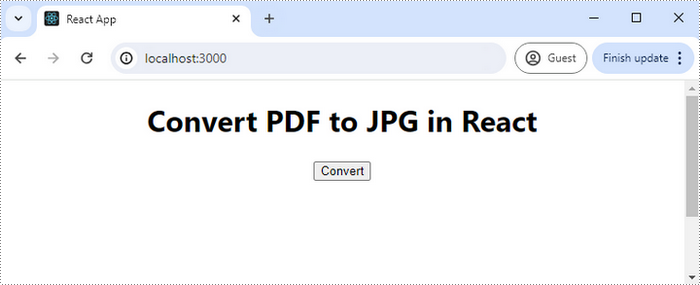
Run the code to launch the React app at localhost:3000. Click "Convert," and a "Save As" window will appear, prompting you to save the output file in your chosen folder.
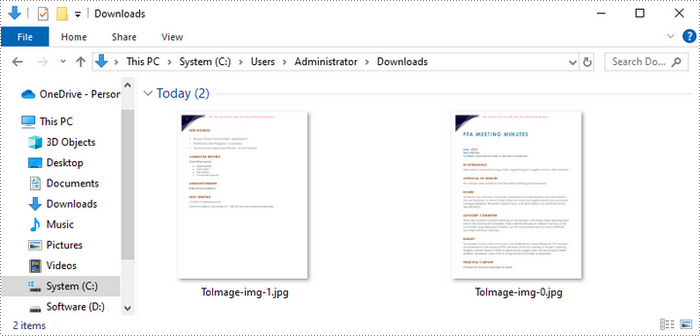
Here is a screenshot of the generated JPG files:
Convert PDF to PNG in React
To convert a PDF document into individual PNG files, iterate through its pages and use the PdfDocument.SaveAsImage() method to generate image byte data for each page. Then, save these byte data as PNG files.
The following are the steps to convert PDF to PNG in React:
- Load the required font files and the input PDF file into the Virtual File System (VFS).
- Create a PdfDocument object with the wasmModule.PdfDocument() method.
- Load the PDF using the PdfDocument.LoadFromFile() method.
- Iterate through the document's pages:
- Convert each page into image byte data using the PdfDocument.SaveAsImage() method.
- Save the image as a PNG file using the Save() method.
- Trigger the download of the generated PNG file.
- JavaScript
import React, { useState, useEffect } from 'react';

function App() {
   const [wasmModule, setWasmModule] = useState(null);
   useEffect(() => {
    (async () => {
      try {
        const publicUrl = process.env.PUBLIC_URL || '';
        const spireModule = await import(/* webpackIgnore: true */ `${publicUrl}/spire.pdf.js`);
        const rawModule = spireModule.default || spireModule;
        window.wasmModule = typeof rawModule === 'function'
          ? await rawModule({ locateFile: p => p.endsWith('.wasm') ? `${publicUrl}/${p}` : p })
          : rawModule;
        setWasmModule(window.wasmModule);
      } catch (error) {
        console.error('Failed to load spire.pdf.js:', error);
      }
    })();
  }, []);

  const ConvertPdfToPng = async () => {
    // Get WASM module
    const wasmModule = window.wasmModule.spirepdf;

    if (wasmModule) {
      // Load font file to virtual file system (VFS)
      await window.spire.FetchFileToVFS("arial.ttf", "/Library/Fonts/", `${process.env.PUBLIC_URL}/`);

      // PDF file name to convert
      let inputFileName = "ToImage.pdf";

      // Load PDF file to virtual file system (VFS)
      await window.spire.FetchFileToVFS(inputFileName, "", `${process.env.PUBLIC_URL}static/data/`);

      // Create PDF document object
      let doc = new wasmModule.PdfDocument();

      // Load PDF file
      doc.LoadFromFile(inputFileName);

      let outFileName ="";
        //Save to images
        for (let i=0;i<doc.Pages.Count;i++) {
              outFileName = "ToImage-img-${i}.png";
              let pdfstream = doc.SaveAsImage({pageIndex: i});
              pdfstream.Save(outFileName);

              // Read the generated JPG file
              const modifiedFileArray =window.dotnetRuntime.Module.FS.readFile(outFileName);
              // Create a Blob object from the JPG file
              const modifiedFile = new Blob([modifiedFileArray], { type:'image/png' });
              // Create a URL for the Blob
              const url = URL.createObjectURL(modifiedFile);

              // Create an anchor element to trigger the download
              const a = document.createElement('a');
              a.href = url;
              a.download = outFileName;
              document.body.appendChild(a);
              a.click();
              document.body.removeChild(a);
              URL.revokeObjectURL(url);
          }
    }
  };

   return (
    <div style={{ textAlign: 'center', height: '300px' }}>
      <h1>Convert PDF to PNG in React</h1>
      <button onClick={ConvertPdfToPng}>
        Convert
      </button>
    </div>
    );
    }

    export default App;

Convert PDF to SVG in React
To convert each page of a PDF document into individual SVG files, you can utilize the PdfDocument.SaveToFile() method. Here are the detailed steps:
- Load the required font files and the input PDF file into the Virtual File System (VFS).
- Create a PdfDocument object with the wasmModule.PdfDocument() method.
- Load the PDF using the PdfDocument.LoadFromFile() method.
- Iterate through the pages:
- Convert each page into an SVG file using the PdfDocument.SaveToFile() method.
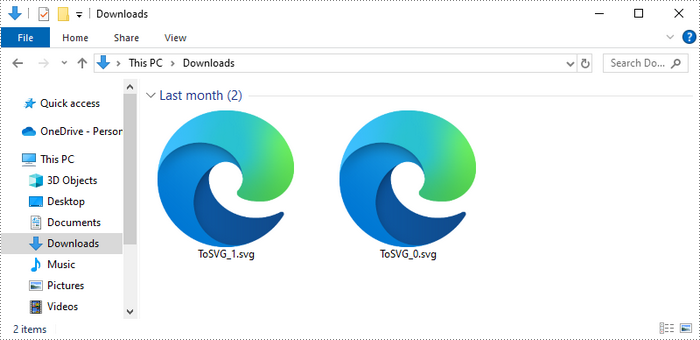
- Trigger the download of the generated SVG file.
- JavaScript
import React, { useState, useEffect } from 'react';

function App() {
   const [wasmModule, setWasmModule] = useState(null);
   useEffect(() => {
    (async () => {
      try {
        const publicUrl = process.env.PUBLIC_URL || '';
        const spireModule = await import(/* webpackIgnore: true */ `${publicUrl}/spire.pdf.js`);
        const rawModule = spireModule.default || spireModule;
        window.wasmModule = typeof rawModule === 'function'
          ? await rawModule({ locateFile: p => p.endsWith('.wasm') ? `${publicUrl}/${p}` : p })
          : rawModule;
        setWasmModule(window.wasmModule);
      } catch (error) {
        console.error('Failed to load spire.pdf.js:', error);
      }
    })();
  }, []);

  const ConvertPdfToSvg = async () => {
    // Get WASM module
    const wasmModule = window.wasmModule.spirepdf;

    if (wasmModule) {
      // Load font file to virtual file system (VFS)
      await window.spire.FetchFileToVFS("arial.ttf","/Library/Fonts/",`${process.env.PUBLIC_URL}static/font/`);

      // PDF file name to convert
      let inputFileName = "ToImage.pdf";

      // Load PDF file to virtual file system (VFS)
      await window.spire.FetchFileToVFS(inputFileName, "", `${process.env.PUBLIC_URL}static/data/`);

      // Create PDF document object
      let doc = new wasmModule.PdfDocument();

      // Load PDF file
      doc.LoadFromFile(inputFileName);

      let outFileName ="";
        //Save to images
        for (let i=0;i<doc.Pages.Count;i++) {
              outFileName = `ToImage-img-${i}.svg`;
              let pdfstream = doc.SaveAsImage({pageIndex: i});
              pdfstream.Save(outFileName);

              // Read the generated JPG file
              const modifiedFileArray =window.dotnetRuntime.Module.FS.readFile(outFileName);
              // Create a Blob object from the JPG file
              const modifiedFile = new Blob([modifiedFileArray], { type:"image/svg+xml" });
              // Create a URL for the Blob
              const url = URL.createObjectURL(modifiedFile);

              // Create an anchor element to trigger the download
              const a = document.createElement('a');
              a.href = url;
              a.download = outFileName;
              document.body.appendChild(a);
              a.click();
              document.body.removeChild(a);
              URL.revokeObjectURL(url);
          }
    }
  };

   return (
    <div style={{ textAlign: 'center', height: '300px' }}>
      <h1>Convert PDF to SVG in React</h1>
      <button onClick={ConvertPdfToSvg}>
        Convert
      </button>
    </div>
    );
    }

    export default App;
Get a Free License
To fully experience the capabilities of Spire.PDF for JavaScript without any evaluation limitations, you can request a free 30-day trial license.
Find and Highlight Text in Word with JavaScript in React
When reviewing a long document, the find and highlight feature allows users to quickly locate specific information. For example, if there are multiple people working on a research paper, the find and highlight feature can be used to flag important points or areas that need attention, making it easier for others to focus on those specific parts. This article will demonstrate how to find and highlight text in a Word document in React using Spire.Doc for JavaScript.
- Find and Highlight the First Instance of Specified Text in Word
- Find and Highlight All Instances of Specified Text in Word
Install the JavaScript Library
To get started with inserting images in Word in a React application, you can either download Spire.Doc for JavaScript from our website or install it via npm with the following command:
npm i spire.officeThe downloaded product package integrates Spire.Doc for JavaScript, Spire.XLS for JavaScript, Spire.PDF for JavaScript, and Spire.Presentation for JavaScript. To use the features of Spire.Doc for JavaScript, you need to copy the corresponding files (spire.doc.js, Spire.Doc.Wasm.zip, spire.common.js, Spire.Common.Wasm.zip, and the _framework folder) to the public folder of your project. To ensure proper text rendering, you can add relevant font files with a custom path. In the following example, the font is added to the path: public\static\font.
For more details, refer to the documentation: How to Integrate Spire.Doc for JavaScript in a React Project
Find and Highlight the First Instance of Specified Text in Word in JavaScript
The Document.FindString() method allows to find the first instance of a specified text and then you can set a highlight color for it through the TextRange.CharacterFormat.HighlightColor property. The following are the main steps:
- Create a new document using the new wasmModule.Document() method.
- Load a Word document using the Document.LoadFromFile() method.
- Find the first instance of a specific text using the Document.FindString() method.
- Get the instance as a single text range using the TextSelection.GetAsOneRange() method, and then highlight the text range with a background color using the TextRange.CharacterFormat.HighlightColor property.
- Save the result document using Document.SaveToFile() method.
- JavaScript
import React, { useState, useEffect } from 'react';

function App() {
  const [wasmModule, setWasmModule] = useState(null);
  // Load Spire.Doc
  useEffect(() => {
    (async () => {
      try {
        const publicUrl = process.env.PUBLIC_URL || '';
        const spireModule = await import(/* webpackIgnore: true */ `${publicUrl}/spire.doc.js`);
        const rawModule = spireModule.default || spireModule;
        window.wasmModule = typeof rawModule === 'function'
          ? await rawModule({ locateFile: p => p.endsWith('.wasm') ? `${publicUrl}/${p}` : p })
          : rawModule;
        setWasmModule(window.wasmModule);
      } catch (error) {
        console.error('Failed to load spire.doc.js WASM module:', error);
      }
    })();
  }, []);

  // Function to find and higlight a specified text in Word
  const FindHighlightFirst  = async () => {
    const wasmModule = window.wasmModule.spiredoc;

    if (wasmModule) {
      // Load the font files into the virtual file system (VFS)
      await window.spire.FetchFileToVFS('Arial.ttf', '/Library/Fonts/', `${process.env.PUBLIC_URL}/static/font/`);

      // Specify the input file name and the output file name
      const inputFileName = 'input.docx';
      const outputFileName = 'FindHighlightFirst.docx';

      // Fetch the input file and add it to the VFS
      await window.spire.FetchFileToVFS(inputFileName, '', `${process.env.PUBLIC_URL}/static/data/`);

      // Create an instance of the Document class
      const doc = new wasmModule.Document();

      // Load the Word document
      doc.LoadFromFile(inputFileName);

      // Find the first instance of a specific text
      let textSelection = doc.FindString('Spire.Doc for JavaScript', false, true);

      // Get the instance as a single text range
      let textRange = textSelection.GetAsOneRange();

      // Set highlight color
      textRange.CharacterFormat.HighlightColor = wasmModule.Color.get_Yellow();

      // Save the result document
      doc.SaveToFile({ fileName: outputFileName, fileFormat: wasmModule.FileFormat.Docx2013 });

      // Release resources
      doc.Dispose();

      // Read the generated Word file from VFS
      const modifiedFileArray = window.dotnetRuntime.Module.FS.readFile(outputFileName);

      // Create a Blob object from the Word file
      const modifiedFile = new Blob([modifiedFileArray], { type: "application/vnd.openxmlformats-officedocument.wordprocessingml.document" });

      // Create a URL for the Blob
      const url = URL.createObjectURL(modifiedFile);

      // Create an anchor element to trigger the download
      const a = document.createElement("a");
      a.href = url;
      a.download = outputFileName;
      document.body.appendChild(a);
      a.click();
      document.body.removeChild(a);
      URL.revokeObjectURL(url);
    }
  };

  return (
    <div style={{ textAlign: 'center', height: '300px' }}>
      <h1>Find and Highlight Specified Text in Word Using JavaScript in React</h1>
      <button onClick={FindHighlightFirst} disabled={!wasmModule}>
      Execute
      </button>
    </div>
 );
}

export default App;
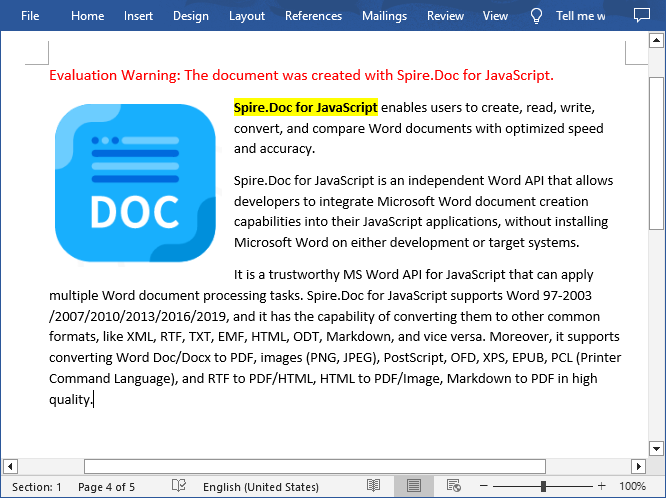
Run the code to launch the React app at localhost:3000. Once it's running, click on the "Execute" button to download the result file:
The result file:
Find and Highlight All Instances of Specified Text in Word in JavaScript
Spire.Doc for JavaScript also provides the Document.FindAllString() method to find all instances of a specified text in a Word document. Then you can iterate through these instances and highlight each one with a background color. The following are the main steps:
- Create a new document using the new wasmModule.Document() method.
- Load a Word document using the Document.LoadFromFile() method.
- Find all instances of a specific text in the document using the Document.FindAllString() method.
- Iterate through each found instance and get it as a single text range using the TextSelection.GetAsOneRange() method, then highlight each text range with a bright color using the TextRange.CharacterFormat.HighlightColor property.
- Save the result document using Document.SaveToFile() method.
- JavaScript
import React, { useState, useEffect } from 'react';

function App() {
  const [wasmModule, setWasmModule] = useState(null);
  // Load Spire.Doc
  useEffect(() => {
    (async () => {
      try {
        const publicUrl = process.env.PUBLIC_URL || '';
        const spireModule = await import(/* webpackIgnore: true */ `${publicUrl}/spire.doc.js`);
        const rawModule = spireModule.default || spireModule;
        window.wasmModule = typeof rawModule === 'function'
          ? await rawModule({ locateFile: p => p.endsWith('.wasm') ? `${publicUrl}/${p}` : p })
          : rawModule;
        setWasmModule(window.wasmModule);
      } catch (error) {
        console.error('Failed to load spire.doc.js WASM module:', error);
      }
    })();
  }, []);

  // Function to find and higlight a specified text in Word
  const FindAndHighlightAll   = async () => {
    const wasmModule = window.wasmModule.spiredoc;

    if (wasmModule) {
      // Load the font files into the virtual file system (VFS)
      await window.spire.FetchFileToVFS('Arial.ttf', '/Library/Fonts/', `${process.env.PUBLIC_URL}/static/font/`);

      // Specify the input file name and the output file name
      const inputFileName = 'input.docx';
      const outputFileName = 'FindAndHighlight.docx';

      // Fetch the input file and add it to the VFS
      await window.spire.FetchFileToVFS(inputFileName, '', `${process.env.PUBLIC_URL}/static/data/`);

      // Create an instance of the Document class
      const doc = new wasmModule.Document();

      // Load the Word document
      doc.LoadFromFile(inputFileName);

      // Find all occurrences of the specified text in the document
      let textSelections = doc.FindAllString('Spire.Doc for JavaScript', false, true);

      // Iterate through all found text selections
      for (let i = 0; i < textSelections.length; i++) {
        let selection = textSelections[i];

        // Set highlight color
        selection.GetAsOneRange().CharacterFormat.HighlightColor = wasmModule.Color.get_Yellow();
      }

      // Save the result document
      doc.SaveToFile({ fileName: outputFileName, fileFormat: wasmModule.FileFormat.Docx2013 });

      // Release resources
      doc.Dispose();

      // Read the generated Word file from VFS
      const modifiedFileArray = window.dotnetRuntime.Module.FS.readFile(outputFileName);

      // Create a Blob object from the Word file
      const modifiedFile = new Blob([modifiedFileArray], { type: "application/vnd.openxmlformats-officedocument.wordprocessingml.document" });

      // Create a URL for the Blob
      const url = URL.createObjectURL(modifiedFile);

      // Create an anchor element to trigger the download
      const a = document.createElement("a");
      a.href = url;
      a.download = outputFileName;
      document.body.appendChild(a);
      a.click();
      document.body.removeChild(a);
      URL.revokeObjectURL(url);
    }
  };

  return (
    <<div style={{ textAlign: 'center', height: '300px' }}>
      <<h1>Find and Highlight Specified Text in Word Using JavaScript in React<</h1>
      <<button onClick={FindAndHighlightAll} disabled={!wasmModule}>
      Execute
      <</button>
    </div>
 );
}

export default App;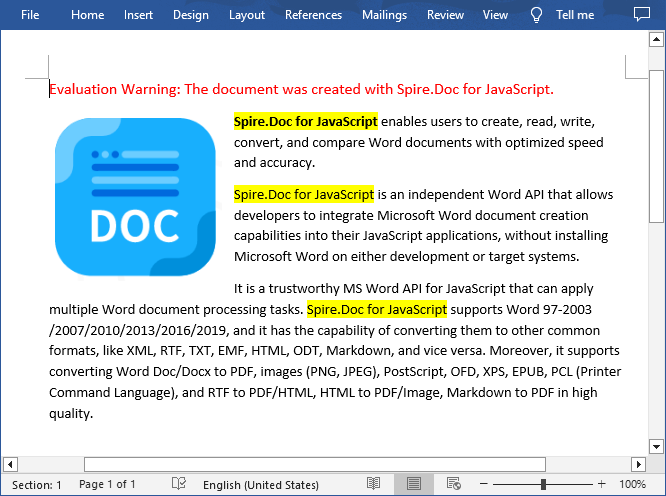
Get a Free License
To fully experience the capabilities of Spire.Doc for JavaScript without any evaluation limitations, you can request a free 30-day trial license.
Lock Cells, Rows, and Columns in Excel with JavaScript in React
When working with Excel, you may sometimes need to protect critical data while allowing users to edit other parts of the worksheet. This is especially important for scenarios where certain formulas, headers, or reference values must remain unchanged to ensure data integrity. By locking specific areas, you can prevent accidental modifications, maintain consistency, and control access to key information within the spreadsheet. In this article, you will learn how to lock cells, rows, and columns in Excel in React using JavaScript and the Spire.XLS for JavaScript library.
Install Spire.XLS for JavaScript
To get started with locking cells, rows, and columns in Excel files within a React application, you can either download Spire.XLS for JavaScript from our website or install it via npm with the following command:
npm i spire.office
The downloaded product package has been integrated Spire.Doc for JavaScript,Spire.XLS for JavaScript,Spire.PDF for JavaScript,Spire.Presentation for JavaScript. To use the functionality of Spire.XLS for JavaScript, you need to copy the corresponding files (spire.xls.js, Spire.Xls.Wasm.zip, spire.common.js, Spire.Common.Wasm.zip, and _framework) to the project's "public" folder. At the same time, in order to ensure text rendering, the related font files can be added with custom paths. In the following example, the font addition path is: public\static\font.
For more details, refer to the documentation: How to Integrate Spire.XLS for JavaScript in a React Project
Lock Cells in Excel
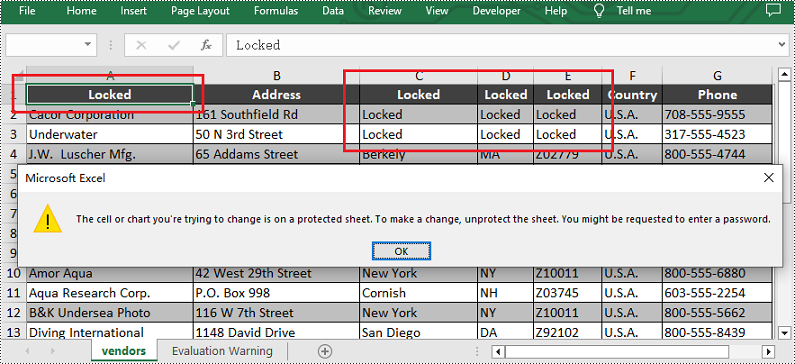
Spire.XLS for JavaScript offers the Worksheet.Range.get().Style.Locked property, allowing you to protect critical data cells while enabling edits to the rest of the worksheet. The detailed steps are as follows.
- Create a Workbook object using the new wasmModule.Workbook() method.
- Load a sample Excel file using the Workbook.LoadFromFile() method.
- Get the first worksheet using the Workbook.Worksheets.get() method.
- Unlock all cells in the used range of the worksheet by setting the Worksheet.Range.Style.Locked property to "false".
- Set text for specific cells using the Worksheet.Range.get().Text property and then lock them by setting the Worksheet.Range.get().Style.Locked property to "true".
- Protect the worksheet with a password using the Worksheet.Protect() method.
- Save the result file using the Workbook.SaveToFile() method.
- JavaScript
import React, { useState, useEffect } from 'react';
function App() {
  const [wasmModule, setWasmModule] = useState(null);
  // Load Spire.XLS
  useEffect(() => {
    (async () => {
      try {
        const publicUrl = process.env.PUBLIC_URL || '';
        const spireModule = await import(/* webpackIgnore: true */ `${publicUrl}/spire.xls.js`);
        const rawModule = spireModule.default || spireModule;
        window.wasmModule = typeof rawModule === 'function'
          ? await rawModule({ locateFile: p => p.endsWith('.wasm') ? `${publicUrl}/${p}` : p })
          : rawModule;
        setWasmModule(window.wasmModule);
      } catch (error) {
        console.error('Failed to load spire.xls.js WASM module:', error);
      }
    })();
  }, []);

  //  Function to lock specific cells in Excel
  const LockExcelCells = async () => {
    const wasmModule = window.wasmModule.spirexls;

    if (wasmModule) {
      // Load font into Virtual File System (VFS)
      await window.spire.FetchFileToVFS('Arial.ttf', '/Library/Fonts/', `${process.env.PUBLIC_URL}/static/font/`);


      // Load the Excel files into the virtual file system (VFS)
      let inputFileName = 'sample.xlsx';
      await window.spire.FetchFileToVFS(inputFileName, '', `${process.env.PUBLIC_URL}/static/data/`);


      // Create a new workbook
      let workbook = new wasmModule.Workbook();

      // Load the Excel file from the virtual file system
      workbook.LoadFromFile({ fileName: inputFileName });

      // Get the first worksheet
      let sheet = workbook.Worksheets.get(0);

      // Unlock all cells in the used range of the worksheet
      sheet.Range.Style.Locked = false;

      // Lock a specific cell in the worksheet
      sheet.Range.get("A1").Text = "Locked";
      sheet.Range.get("A1").Style.Locked = true;

      // Lock a specific cell range in the worksheet
      sheet.Range.get("C1:E3").Text = "Locked";
      sheet.Range.get("C1:E3").Style.Locked = true;

      // Protect the worksheet with a password
      sheet.Protect({ password: "123", options: wasmModule.SheetProtectionType.All });

      let outputFileName = "LockCells.xlsx";
      // Save the resulting file
      workbook.SaveToFile({ fileName: outputFileName, version: wasmModule.ExcelVersion.Version2013 });

      // Read the saved file and convert to Blob object
      const modifiedFileArray = window.dotnetRuntime.Module.FS.readFile(outputFileName);
      const modifiedFile = new Blob([modifiedFileArray], { type: 'application/vnd.openxmlformats-officedocument.spreadsheetml.sheet' });

      // Create a URL for the Blob and initiate download
      const url = URL.createObjectURL(modifiedFile);
      const a = document.createElement('a');
      a.href = url;
      a.download = outputFileName;
      document.body.appendChild(a);
      a.click();
      document.body.removeChild(a);
      URL.revokeObjectURL(url);

      // Clean up resources used by the workbook
      workbook.Dispose();
    }
  };

  return (
    <div style={{ textAlign: 'center', height: '300px' }}>
      <h1>Lock Specific Cells in Excel Using JavaScript in React</h1>
      <button onClick={LockExcelCells} disabled={!wasmModule}>
        Lock
      </button>
    </div>
  );
}

export default App;
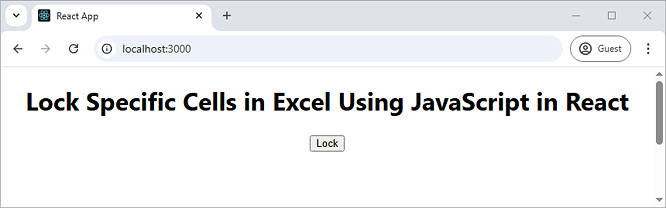
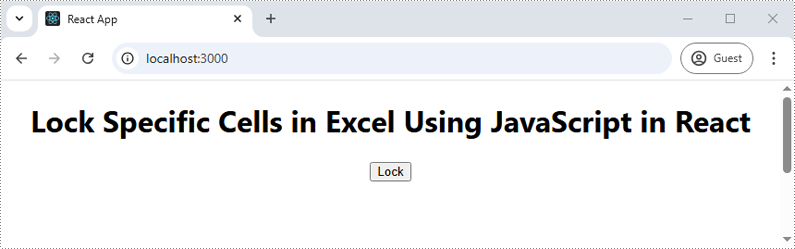
Run the code to launch the React app at localhost:3000. Once it's running, click on the "Lock" button to lock specific cells in the Excel file:
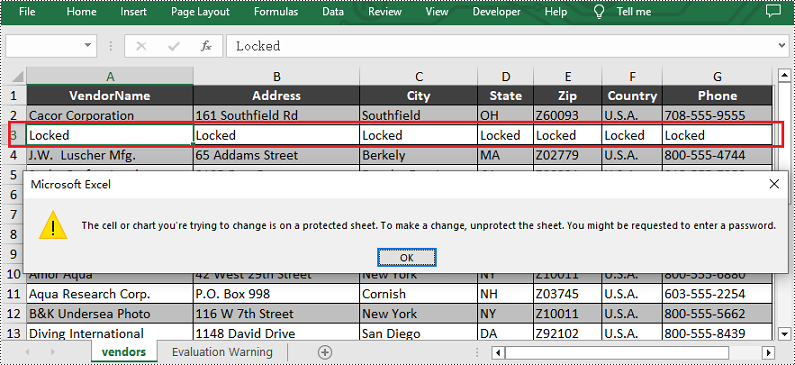
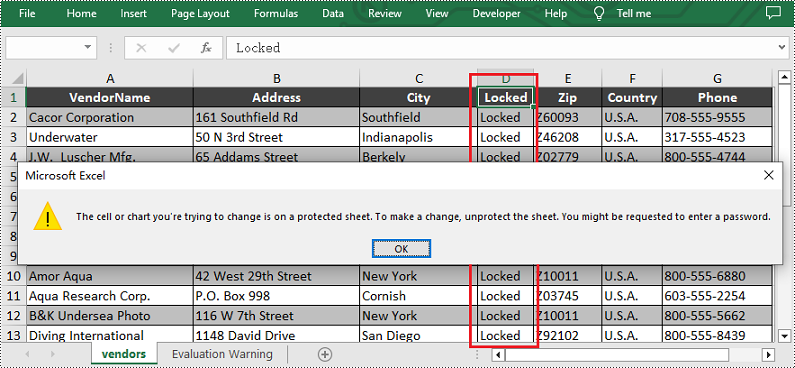
Upon opening the output Excel sheet and attempting to edit the protected cells, a dialog box will appear, notifying you that the cell you're trying to change is on a protected sheet:
Lock Rows in Excel
If you need to preserve row-based data, such as headers or summaries, you can lock entire rows using the Worksheet.Rows.get().Style.Locked property in Spire.XLS for JavaScript. The detailed steps are as follows.
- Create a Workbook object using the new wasmModule.Workbook() method.
- Load a sample Excel file using the Workbook.LoadFromFile() method.
- Get the first worksheet using the Workbook.Worksheets.get() method.
- Unlock all cells in the used range of the worksheet by setting the Worksheet.Range.Style.Locked property to "false".
- Set text for a specific row using the Worksheet.Rows.get().Text property and then lock it by setting the Worksheet.Rows.get().Style.Locked property to "true".
- Protect the worksheet with a password using the Worksheet.Protect() method.
- Save the result file using the Workbook.SaveToFile() method.
- JavaScript
import React, { useState, useEffect } from 'react';
function App() {
  const [wasmModule, setWasmModule] = useState(null);
  // Load Spire.XLS
  useEffect(() => {
    (async () => {
      try {
        const publicUrl = process.env.PUBLIC_URL || '';
        const spireModule = await import(/* webpackIgnore: true */ `${publicUrl}/spire.xls.js`);
        const rawModule = spireModule.default || spireModule;
        window.wasmModule = typeof rawModule === 'function'
          ? await rawModule({ locateFile: p => p.endsWith('.wasm') ? `${publicUrl}/${p}` : p })
          : rawModule;
        setWasmModule(window.wasmModule);
      } catch (error) {
        console.error('Failed to load spire.xls.js WASM module:', error);
      }
    })();
  }, []);

  // Function to lock specific rows in Excel
  const LockExcelRows = async () => {
    const wasmModule = window.wasmModule.spirexls;

    if (wasmModule) {
      // Load font into Virtual File System (VFS)
      await window.spire.FetchFileToVFS('Arial.ttf', '/Library/Fonts/', `${process.env.PUBLIC_URL}/static/font/`);


      // Load the Excel files into the virtual file system (VFS)
      let inputFileName = 'sample.xlsx';
      await window.spire.FetchFileToVFS(inputFileName, '', `${process.env.PUBLIC_URL}/static/data/`);


      // Create a new workbook
      let workbook = new wasmModule.Workbook();

      // Load the Excel file from the virtual file system
      workbook.LoadFromFile({ fileName: inputFileName });

      // Get the first worksheet
      let sheet = workbook.Worksheets.get(0);

      // Unlock all cells in the used range of the worksheet
      sheet.Range.Style.Locked = false;

      // Lock the third row in the worksheet
      sheet.Rows.get(2).Text = "Locked";
      sheet.Rows.get(2).Style.Locked = true;

      // Protect the worksheet with a password
      sheet.Protect({ password: "123", options: wasmModule.SheetProtectionType.All });

      let outputFileName = "LockRows.xlsx";
      // Save the resulting file
      workbook.SaveToFile({ fileName: outputFileName, version: wasmModule.ExcelVersion.Version2013 });

      // Read the saved file and convert to Blob object
      const modifiedFileArray = window.dotnetRuntime.Module.FS.readFile(outputFileName);
      const modifiedFile = new Blob([modifiedFileArray], { type: 'application/vnd.openxmlformats-officedocument.spreadsheetml.sheet' });

      // Create a URL for the Blob and initiate download
      const url = URL.createObjectURL(modifiedFile);
      const a = document.createElement('a');
      a.href = url;
      a.download = outputFileName;
      document.body.appendChild(a);
      a.click();
      document.body.removeChild(a);
      URL.revokeObjectURL(url);

      // Clean up resources used by the workbook
      workbook.Dispose();
    }
  };

  return (
    <div style={{ textAlign: 'center', height: '300px' }}>
      <h1>Lock Specific Rows in Excel Using JavaScript in React</h1>
      <button onClick={LockExcelRows} disabled={!wasmModule}>
        Lock
      </button>
    </div>
  );
}

export default App;
Lock Columns in Excel
To maintain the integrity of key vertical data, such as fixed identifiers or category labels, you can lock entire columns using the Worksheet.Columns.get().Style.Locked property in Spire.XLS for JavaScript. The detailed steps are as follows.
- Create a Workbook object using the new wasmModule.Workbook() method.
- Load a sample Excel file using the Workbook.LoadFromFile() method.
- Get the first worksheet using the Workbook.Worksheets.get() method.
- Unlock all cells in the used range of the worksheet by setting the Worksheet.Range.Style.Locked property to "false".
- Set text for a specific column using the Worksheet.Columns.get().Text property and then lock it by setting the Worksheet.Columns.get().Style.Locked property to "true".
- Protect the worksheet with a password using the Worksheet.Protect() method.
- Save the result file using the Workbook.SaveToFile() method.
- JavaScript
import React, { useState, useEffect } from 'react';
function App() {
  const [wasmModule, setWasmModule] = useState(null);
  // Load Spire.XLS
  useEffect(() => {
    (async () => {
      try {
        const publicUrl = process.env.PUBLIC_URL || '';
        const spireModule = await import(/* webpackIgnore: true */ `${publicUrl}/spire.xls.js`);
        const rawModule = spireModule.default || spireModule;
        window.wasmModule = typeof rawModule === 'function'
          ? await rawModule({ locateFile: p => p.endsWith('.wasm') ? `${publicUrl}/${p}` : p })
          : rawModule;
        setWasmModule(window.wasmModule);
      } catch (error) {
        console.error('Failed to load spire.xls.js WASM module:', error);
      }
    })();
  }, []);

  // Function to lock specific columns in Excel
  const LockExcelColumns = async () => {
    const wasmModule = window.wasmModule.spirexls;

    if (wasmModule) {
      // Load font into Virtual File System (VFS)
      await window.spire.FetchFileToVFS('Arial.ttf', '/Library/Fonts/', `${process.env.PUBLIC_URL}/static/font/`);


      // Load the Excel files into the virtual file system (VFS)
      let inputFileName = 'sample.xlsx';
      await window.spire.FetchFileToVFS(inputFileName, '', `${process.env.PUBLIC_URL}/static/data/`);


      // Create a new workbook
      let workbook = new wasmModule.Workbook();

      // Load the Excel file from the virtual file system
      workbook.LoadFromFile({ fileName: inputFileName });

      // Get the first worksheet
      let sheet = workbook.Worksheets.get(0);

      // Unlock all cells in the used range of the worksheet
      sheet.Range.Style.Locked = false;

      // Lock the fourth column in the worksheet
      sheet.Columns.get(3).Text = "Locked";
      sheet.Columns.get(3).Style.Locked = true;

      // Protect the worksheet with a password
      sheet.Protect({ password: "123", options: wasmModule.SheetProtectionType.All });

      let outputFileName = "LockColumns.xlsx";
      // Save the resulting file
      workbook.SaveToFile({ fileName: outputFileName, version: wasmModule.ExcelVersion.Version2013 });

      // Read the saved file and convert to Blob object
      const modifiedFileArray = window.dotnetRuntime.Module.FS.readFile(outputFileName);
      const modifiedFile = new Blob([modifiedFileArray], { type: 'application/vnd.openxmlformats-officedocument.spreadsheetml.sheet' });

      // Create a URL for the Blob and initiate download
      const url = URL.createObjectURL(modifiedFile);
      const a = document.createElement('a');
      a.href = url;
      a.download = outputFileName;
      document.body.appendChild(a);
      a.click();
      document.body.removeChild(a);
      URL.revokeObjectURL(url);

      // Clean up resources used by the workbook
      workbook.Dispose();
    }
  };

  return (
    <div style={{ textAlign: 'center', height: '300px' }}>
      <h1>Lock Specific Columns in Excel Using JavaScript in React</h1>
      <button onClick={LockExcelColumns} disabled={!wasmModule}>
        Lock
      </button>
    </div>
  );
}

export default App;
Get a Free License
To fully experience the capabilities of Spire.XLS for JavaScript without any evaluation limitations, you can request a free 30-day trial license.
Extract Text from PDF Documents with JavaScript in React
Extracting text from PDF documents directly within a React application using JavaScript provides a streamlined, self-contained solution for handling dynamic content. Given that PDFs remain a ubiquitous format for reports, forms, and data sharing, parsing their contents on the client side enables developers to build efficient applications without relying on external services. By integrating Spire.PDF for JavaScript into React, development teams gain full control over data processing, reduce latency by eliminating server-side dependencies, and deliver real-time user experiences—all while ensuring that sensitive information remains secure within the browser.
In this article, we explore how to use Spire.PDF for JavaScript to extract text from PDF documents in React applications, simplifying the integration of robust PDF content extraction features.
- General Steps for Extracting PDF Text Using JavaScript
- Extract PDF Text with Layout Preservation
- Extract PDF Text without Layout Preservation
- Extract PDF Text from Specific Page Areas
- Extract Highlighted Text from PDF
Install Spire.PDF for JavaScript
To get started with extracting text from PDF documents with JavaScript in a React application, you can either download Spire.PDF for JavaScript from our website or install it via npm with the following command:
npm i spire.office
The downloaded product package integrates Spire.Doc for JavaScript, Spire.XLS for JavaScript, Spire.PDF for JavaScript, and Spire.Presentation for JavaScript. To use Spire.PDF for JavaScript functionality, you need to copy the corresponding files (spire.pdf.js, Spire.Pdf.Wasm.zip, spire.common.js, Spire.Common.Wasm.zip, and the _framework folder) to the public folder of your project. Additionally, to ensure proper text rendering, font files can be added to a custom path of your choice. In the following example, the font addition path is: public\static\font.
For more details, refer to the documentation: How to Integrate Spire.PDF for JavaScript in a React Project
General Steps for Extracting PDF Text Using JavaScript
Spire.PDF for JavaScript provides a WebAssembly module that enables PDF document processing using simple JavaScript code in React applications. Developers can utilize the PdfTextExtractor class to handle text extraction tasks efficiently. The general steps for extracting text from PDF documents using Spire.PDF for JavaScript in React are as follows:
- Load the Spire.Pdf.Base.js file to initialize the WebAssembly module.
- Fetch the PDF files into the Virtual File System (VFS) using the window.spire.FetchFileToVFS() method.
- Create an instance of the PdfDocument class using the wasmModule.PdfDocument() method.
- Load the PDF document from the VFS into the PdfDocument instance using the PdfDocument.LoadFromFile() method.
- Create an instance of the PdfTextExtractOptions class using the wasmModule.PdfTextExtractOptions() method and configure the text extraction options.
- Retrieve a PDF page using the PdfDocument.Pages.get_Item() method or iterate through the document's pages.
- Create an instance of the PdfTextExtractor class with the page object using the wasmModule.PdfTextExtractor() method.
- Extract text from the page using the PdfTextExtractor.ExtractText() method.
- Download the extracted text or process it as needed.
The PdfTextExtractOptions class allows customization of extraction settings, supporting features such as simple extraction, extracting specific page areas, and retrieving hidden text. The following table outlines the properties of the PdfTextExtractOptions class and their functions:
| Property | Description |
| IsSimpleExtraction | Specifies whether to perform simple text extraction. |
| IsExtractAllText | Specifies whether to extract all text. |
| ExtractArea | Defines the extraction area. |
| IsShowHiddenText | Specifies whether to extract hidden text. |
Extract PDF Text with Layout Preservation
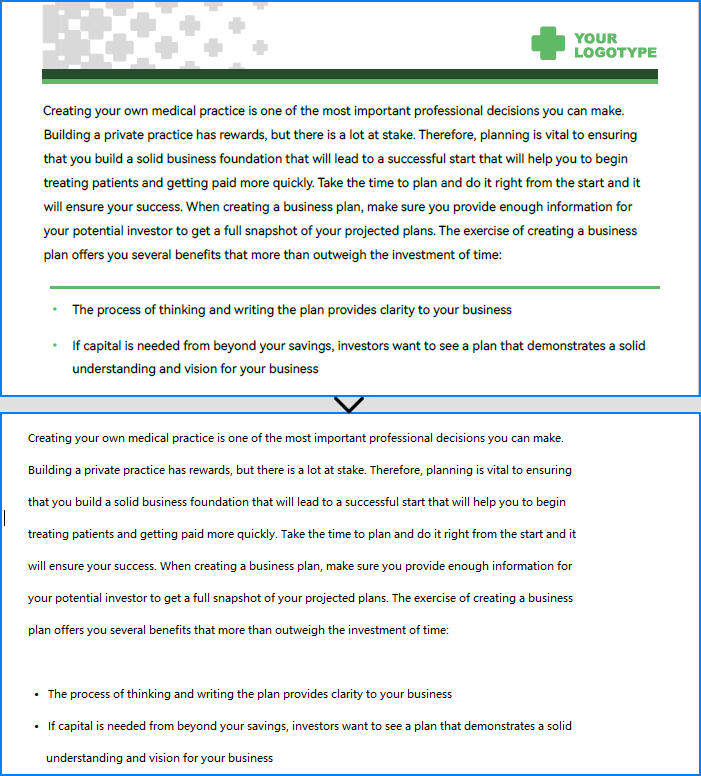
Using the PdfTextExtractor.ExtractText() method with default options enables text extraction while preserving the original text layout of the PDF pages. Below is a code example and the corresponding extraction result:
- JavaScript
import React, { useState, useEffect } from 'react';

function App() {
   const [wasmModule, setWasmModule] = useState(null);
   useEffect(() => {
    (async () => {
      try {
        const publicUrl = process.env.PUBLIC_URL || '';
        const spireModule = await import(/* webpackIgnore: true */ `${publicUrl}/spire.pdf.js`);
        const rawModule = spireModule.default || spireModule;
        window.wasmModule = typeof rawModule === 'function'
          ? await rawModule({ locateFile: p => p.endsWith('.wasm') ? `${publicUrl}/${p}` : p })
          : rawModule;
        setWasmModule(window.wasmModule);
      } catch (error) {
        console.error('Failed to load spire.pdf.js:', error);
      }
    })();
  }, []);

  const ExtractPDFText = async () => {
    const wasmModule = window.wasmModule.spirepdf;

    if (wasmModule) {
      // Load the input PDF file into the VFS
      const inputFileName = 'Sample.pdf';
      const outputFileName = 'PDFTextWithLayout.txt';
      await window.spire.FetchFileToVFS(inputFileName, "", `${process.env.PUBLIC_URL}static/data/`);
      let pdf = new wasmModule.PdfDocument();
      pdf.LoadFromFile(inputFileName);

      // Create a string object to store the extracted text
      let text = '';

      // Create an instance of the PdfTextExtractOptions class
      const extractOptions =new wasmModule.PdfTextExtractOptions();

      // Iterate through each page of the PDF document
      for (let i = 0; i < pdf.Pages.Count; i++) {
        // Get the current page
        const page = pdf.Pages.get_Item(i);
        // Create an instance of the PdfTextExtractor class
        const textExtractor =new wasmModule.PdfTextExtractor(page);
        // Extract the text from the current page and add it to the text string
        text += textExtractor.ExtractText(extractOptions);
      }

      // Create a Blob object from the text string and download it
      const blob = new Blob([text], { type: 'text/plain' });
      const url = URL.createObjectURL(blob);
      const a = document.createElement('a');
      a.href = url;
      a.download = `${outputFileName}`;
      document.body.appendChild(a);
      a.click();
      document.body.removeChild(a);
      URL.revokeObjectURL(url);

    }
  };

  return (
      <div style={{ textAlign: 'center', height: '300px' }}>
        <h1>Extract Text from PDF Using JavaScript in React</h1>
        <button onClick={ExtractPDFText}>
          Extract and Download
        </button>
      </div>
  );
}


export default App;
Extract PDF Text without Layout Preservation
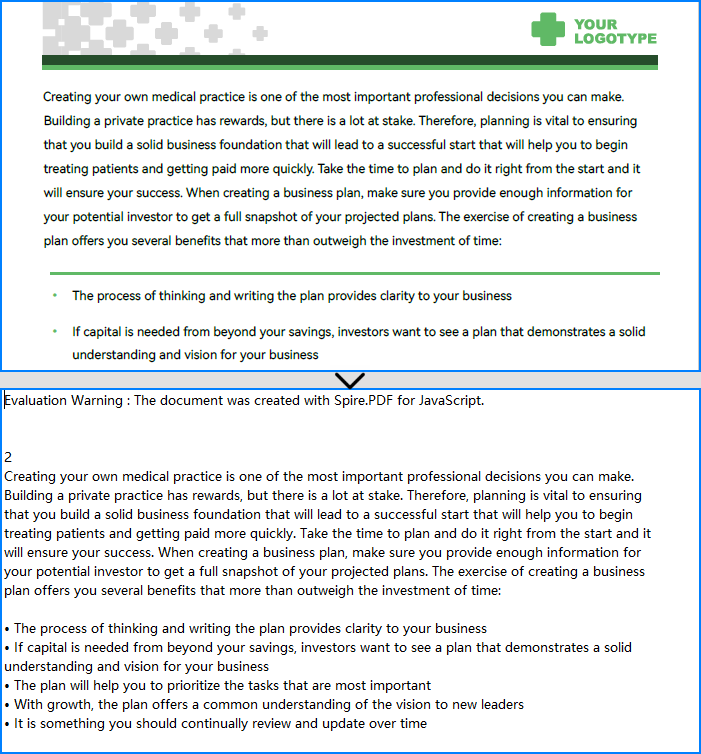
Setting the PdfTextExtractOptions.IsSimpleExtraction property to true enables a simple text extraction strategy, allowing text extraction from PDF pages without preserving the layout. In this approach, blank spaces are not retained. Instead, the program tracks the Y position of each text string and inserts line breaks whenever the Y position changes.
Below is a code example demonstrating text extraction without layout preservation using Spire.PDF for JavaScript, along with the extraction result:
- JavaScript
import React, { useState, useEffect } from 'react';

function App() {
   const [wasmModule, setWasmModule] = useState(null);
   useEffect(() => {
    (async () => {
      try {
        const publicUrl = process.env.PUBLIC_URL || '';
        const spireModule = await import(/* webpackIgnore: true */ `${publicUrl}/spire.pdf.js`);
        const rawModule = spireModule.default || spireModule;
        window.wasmModule = typeof rawModule === 'function'
          ? await rawModule({ locateFile: p => p.endsWith('.wasm') ? `${publicUrl}/${p}` : p })
          : rawModule;
        setWasmModule(window.wasmModule);
      } catch (error) {
        console.error('Failed to load spire.pdf.js:', error);
      }
    })();
  }, []);

  const ExtractPDFText = async () => {
    const wasmModule = window.wasmModule.spirepdf;

    if (wasmModule) {
      // Load the input PDF file into the VFS
      const inputFileName = 'Sample.pdf';
      const outputFileName = 'PDFTextWithoutLayout.txt';

      await window.spire.FetchFileToVFS(inputFileName, "", `${process.env.PUBLIC_URL}static/data/`);
      let pdf = new wasmModule.PdfDocument();
      pdf.LoadFromFile(inputFileName);

       // Create a string object to store the extracted text
      let text = '';

      // Create an instance of the PdfTextExtractOptions class
      const extractOptions =new wasmModule.PdfTextExtractOptions();

      // Enable simple text extraction to extract text without preserving layout
      extractOptions.IsSimpleExtraction = true;

      // Iterate through each page of the PDF document
      for (let i = 0; i < pdf.Pages.Count; i++) {
        // Get the current page
        const page = pdf.Pages.get_Item(i);
        // Create an instance of the PdfTextExtractor class
        const textExtractor =new wasmModule.PdfTextExtractor(page);
        // Extract the text from the current page and add it to the text string
        text += textExtractor.ExtractText(extractOptions);
      }

      // Create a Blob object from the text string and download it
      const blob = new Blob([text], { type: 'text/plain' });
      const url = URL.createObjectURL(blob);
      const a = document.createElement('a');
      a.href = url;
      a.download = `${outputFileName}`;
      document.body.appendChild(a);
      a.click();
      document.body.removeChild(a);
      URL.revokeObjectURL(url);
    }
  };

  return (
      <div style={{ textAlign: 'center', height: '300px' }}>
        <h1>Extract Text from PDF Without Layout Preservation Using JavaScript in React</h1>
        <button onClick={ExtractPDFText} disabled={!wasmModule}>
          Extract and Download
        </button>
      </div>
  );
}


export default App;
Extract PDF Text from Specific Page Areas
The PdfTextExtractOptions.ExtractArea property allows users to define a specific area using a RectangleF object to extract only the text within that area from a PDF page. This method helps exclude unwanted fixed content from the extraction process. The following code example and extraction result illustrate this functionality:
- JavaScript
import React, { useState, useEffect } from 'react';

function App() {
   const [wasmModule, setWasmModule] = useState(null);
   useEffect(() => {
    (async () => {
      try {
        const publicUrl = process.env.PUBLIC_URL || '';
        const spireModule = await import(/* webpackIgnore: true */ `${publicUrl}/spire.pdf.js`);
        const rawModule = spireModule.default || spireModule;
        window.wasmModule = typeof rawModule === 'function'
          ? await rawModule({ locateFile: p => p.endsWith('.wasm') ? `${publicUrl}/${p}` : p })
          : rawModule;
        setWasmModule(window.wasmModule);
      } catch (error) {
        console.error('Failed to load spire.pdf.js:', error);
      }
    })();
  }, []);

  const ExtractPDFText = async () => {
    const wasmModule = window.wasmModule.spirepdf;

    if (wasmModule) {
      // Load the input PDF file into the VFS
      const inputFileName = 'Sample.pdf';
      const outputFileName = 'PDFTextPageArea.txt';

      await window.spire.FetchFileToVFS(inputFileName, "", `${process.env.PUBLIC_URL}static/data/`);
      let pdf = new wasmModule.PdfDocument();
      pdf.LoadFromFile(inputFileName);

       // Create a string object to store the extracted text
      let text = '';

      // Get a page from the PDF document
      const page = pdf.Pages.get_Item(0);

      // Create an instance of the PdfTextExtractOptions class
      const extractOptions =new wasmModule.PdfTextExtractOptions();

      // Set the page area to extract text from using a RectangleF object
      extractOptions.ExtractArea =new wasmModule.RectangleF({ x: 0, y: 500, width: page.Size.Width, height: 200});

      // Create an instance of the PdfTextExtractor class
      const textExtractor =new wasmModule.PdfTextExtractor(page);

      // Extract the text from specified area of the page
      text = textExtractor.ExtractText(extractOptions);

      // Create a Blob object from the text string and download it
      const blob = new Blob([text], { type: 'text/plain' });
      const url = URL.createObjectURL(blob);
      const a = document.createElement('a');
      a.href = url;
      a.download = `${outputFileName}`;
      document.body.appendChild(a);
      a.click();
      document.body.removeChild(a);
      URL.revokeObjectURL(url);
    }
  };

  return (
      <div style={{ textAlign: 'center', height: '300px' }}>
        <h1>Extract Text from a PDF Page Area Using JavaScript in React</h1>
        <button onClick={ExtractPDFText} disabled={!wasmModule}>
          Extract and Download
        </button>
      </div>
  );
}


export default App;
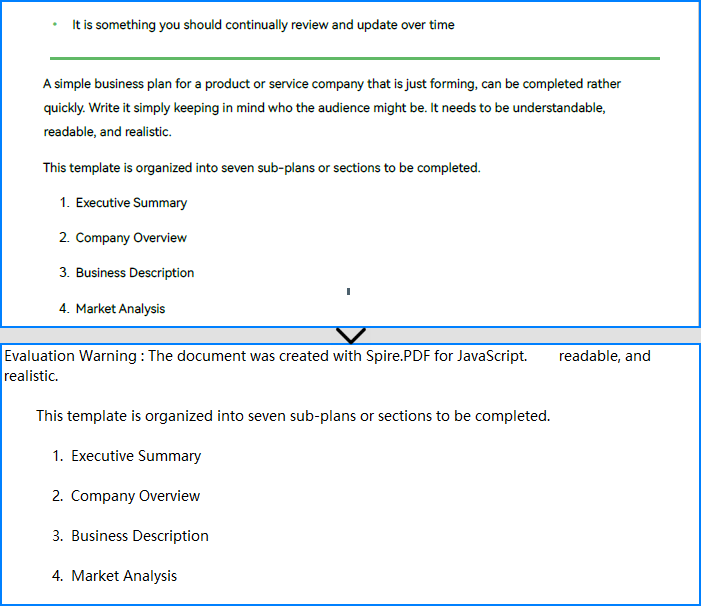
Extract Highlighted Text from PDF
Text highlighting in PDF documents is achieved using annotation features. With Spire.PDF for JavaScript, we can retrieve all annotations on a PDF page via the PdfPageBase.Annotations property. By checking whether each annotation is an instance of the PdfTextMarkupAnnotationWidget class, we can identify highlight annotations. Once identified, we can use the PdfTextExtractOptions.Bounds property to obtain the bounding rectangles of these annotations and set them as extraction areas, thereby extracting only the highlighted text.
The following code example demonstrates this process along with the extracted result:
- JavaScript
import React, { useState, useEffect } from 'react';

function App() {
   const [wasmModule, setWasmModule] = useState(null);
   useEffect(() => {
    (async () => {
      try {
        const publicUrl = process.env.PUBLIC_URL || '';
        const spireModule = await import(/* webpackIgnore: true */ `${publicUrl}/spire.pdf.js`);
        const rawModule = spireModule.default || spireModule;
        window.wasmModule = typeof rawModule === 'function'
          ? await rawModule({ locateFile: p => p.endsWith('.wasm') ? `${publicUrl}/${p}` : p })
          : rawModule;
        setWasmModule(window.wasmModule);
      } catch (error) {
        console.error('Failed to load spire.pdf.js:', error);
      }
    })();
  }, []);

  const ExtractPDFText = async () => {
    const wasmModule = window.wasmModule.spirepdf;

    if (wasmModule) {
      // Load the input PDF file into the VFS
      const inputFileName = 'Sample.pdf';
      const outputFileName = 'PDFTextHighlighted.txt';

      await window.spire.FetchFileToVFS(inputFileName, "", `${process.env.PUBLIC_URL}static/data/`);
      let pdf = new wasmModule.PdfDocument();
      pdf.LoadFromFile(inputFileName);

       // Create a string object to store the extracted text
      let text = '';

      // Iterate through each page of the PDF document
      for (let i = 0; i < pdf.Pages.Count; i++) {
        let page = pdf.Pages.get_Item(i);
        // Iterate through each annotation on the page
        for (let i = 0; i < page.Annotations.Count; i++) {
          // Get the current annotation
          const annotation = page.Annotations.get_Item(i)
          // Check if the annotation is an instance of PdfTextMarkupAnnotation
          if (annotation instanceof wasmModule.PdfTextMarkupAnnotationWidget) {
            // Get the bounds of the annotation
            const bounds = annotation.Bounds;
            // Create an instance of PdfTextExtractOptions
            const extractOptions =new wasmModule.PdfTextExtractOptions();
            // Set the bounds of the highlight annotation as the extraction area
            extractOptions.ExtractArea = bounds;
            //
            const textExtractor =new wasmModule.PdfTextExtractor(page)
            // Extract the highlighted text and append it to the text string
            text += textExtractor.ExtractText(extractOptions);
          }
        }
      }

      // Create a Blob object from the text string and download it
      const blob = new Blob([text], { type: 'text/plain' });
      const url = URL.createObjectURL(blob);
      const a = document.createElement('a');
      a.href = url;
      a.download = `${outputFileName}`;
      document.body.appendChild(a);
      a.click();
      document.body.removeChild(a);
      URL.revokeObjectURL(url);
    }
  };

  return (
      <div style={{ textAlign: 'center', height: '300px' }}>
        <h1>Extract Highlighted Text from PDF Using JavaScript in React</h1>
        <button onClick={ExtractPDFText} disabled={!wasmModule}>
          Extract and Download
        </button>
      </div>
  );
}


export default App;

Get a Free License
To fully experience the capabilities of Spire.PDF for JavaScript without any evaluation limitations, you can request a free 30-day trial license.
Add a Watermark to Word Documents with JavaScript in React
Incorporating a watermark to Word documents is a simple yet impactful way to protect your content and assert ownership. Whether you're marking a draft as confidential or branding a business document, watermarks can convey essential information without distracting from your text.
In this article, you will learn how to add and customize watermarks in Word documents in a React application using Spire.Doc for JavaScript.
Install Spire.Doc for JavaScript
To get started with adding watermarks to Word in a React application, you can either download Spire.Doc for JavaScript from our website or install it via npm with the following command:
npm i spire.officeThe downloaded product package integrates Spire.Doc for JavaScript, Spire.XLS for JavaScript, Spire.PDF for JavaScript, and Spire.Presentation for JavaScript. To use the features of Spire.Doc for JavaScript, you need to copy the corresponding files (spire.doc.js, Spire.Doc.Wasm.zip, spire.common.js, Spire.Common.Wasm.zip, and the _framework folder) to the public folder of your project. To ensure proper text rendering, you can add relevant font files with a custom path. In the following example, the font is added to the path: public\static\font.
For more details, refer to the documentation: How to Integrate Spire.Doc for JavaScript in a React Project
Add a Text Watermark to Word in React
Spire.Doc for JavaScript provides the TextWatermark class, enabling users to create customizable text watermarks with their preferred text and font effects. Once the TextWatermark object is created, it can be applied to the entire document using the Document.Watermark property.
The steps to add a text watermark to Word in React are as follows:
- Load the necessary font file and input Word document into the virtual file system (VFS).
- Create a Document object using the new wasmModule.Document() method.
- Load the Word file using the Document.LoadFromFile() method.
- Create a TextWatermark object using the new wasmModule.TextWatermark() method.
- Customize the watermark's text, font size, font name, and color using the properties under the TextWatermark object.
- Apply the text watermark to the document using the Document.Watermark property.
- Save the document and trigger a download.
- JavaScript
import React, { useState, useEffect } from 'react';

function App() {
  const [wasmModule, setWasmModule] = useState(null);
  // Load Spire.Doc
  useEffect(() => {
    (async () => {
      try {
        const publicUrl = process.env.PUBLIC_URL || '';
        const spireModule = await import(/* webpackIgnore: true */ `${publicUrl}/spire.doc.js`);
        const rawModule = spireModule.default || spireModule;
        window.wasmModule = typeof rawModule === 'function'
          ? await rawModule({ locateFile: p => p.endsWith('.wasm') ? `${publicUrl}/${p}` : p })
          : rawModule;
        setWasmModule(window.wasmModule);
      } catch (error) {
        console.error('Failed to load spire.doc.js WASM module:', error);
      }
    })();
  }, []);

  // Function add a text watermark
  const AddWatermark = async () => {
    const wasmModule = window.wasmModule.spiredoc;

    if (wasmModule) {
      // Load the font files into the virtual file system (VFS)
      await window.spire.FetchFileToVFS('Arial.ttf', '/Library/Fonts/', `${process.env.PUBLIC_URL}/static/font/`);

      // Specify the input file name and the output file name
      const outputFileName = "TextWatermark.docx";
      const inputFileName = 'input.docx';

      // Fetch the input file and add it to the VFS
      await window.spire.FetchFileToVFS(inputFileName, '', `${process.env.PUBLIC_URL}/static/data/`);

      // Create an instance of the Document class
      const doc = new wasmModule.Document();

      // Load the Word document
      doc.LoadFromFile(inputFileName);

      // Create a TextWatermark instance
      let txtWatermark =new wasmModule.TextWatermark();

      // Set the text for the watermark
      txtWatermark.Text = "Do Not Copy";

      // Set the font size and name for the text
      txtWatermark.FontSize = 58;
      txtWatermark.FontName = "Arial"

      // Set the color of the text
      txtWatermark.Color = wasmModule.Color.get_Blue();

      // Set the layout of the watermark to diagonal
      txtWatermark.Layout = wasmModule.WatermarkLayout.Diagonal;

      // Apply the text watermark to the document
      doc.Watermark = txtWatermark;

      // Save the document to the specified path
      doc.SaveToFile({ fileName: outputFileName, fileFormat: wasmModule.FileFormat.Docx2013 });

      // Read the generated file from VFS
      const fileArray = window.dotnetRuntime.Module.FS.readFile(outputFileName);

      // Create a Blob object from the file
      const blob = new Blob([fileArray], { type: "application/vnd.openxmlformats-officedocument.wordprocessingml.document" });

      // Create a URL for the Blob
      const url = URL.createObjectURL(blob);

      // Create an anchor element to trigger the download
      const a = document.createElement('a');
      a.href = url;
      a.download = outputFileName;
      document.body.appendChild(a);
      a.click();
      document.body.removeChild(a);
      URL.revokeObjectURL(url);

      // Clean up resources
      doc.Dispose();
    }
  };

  return (
    <div style={{ textAlign: 'center', height: '300px' }}>
      <h1>Add a Text Watermark to Word in React</h1>
      <button onClick={AddWatermark} disabled={!wasmModule}>
        Generate
      </button>
    </div>
  );
}

export default App;
Run the code to launch the React app at localhost:3000. Click "Convert", and a "Save As" window will appear, prompting you to save the output file in your chosen folder.
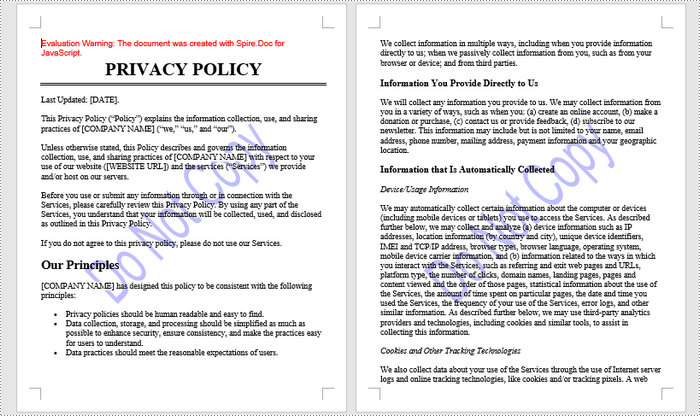
Here is a screenshot of the generated Word file that includes a text watermark:
Add an Image Watermark to Word in React
Spire.Doc for JavaScript provides the PictrueWatermark to help configure the image resource, scaling, washout effect for image watermarks in Word. Once a PictureWatermak object is created, you can apply it to an entire document using the Document.Watermark property.
Steps to add an image watermark to a Word document in React:
- Load the image file and input Word document into the virtual file system (VFS).
- Create a Document object using the new wasmModule.Document() method.
- Load the Word file using the Document.LoadFromFile() method.
- Create a PictureWatermark object using the new wasmModule.PictureWatermark() method.
- Set the image resource, scaling, and washout effect for the watermark using the methods and properties under the PictureWatermark object.
- Apply the image watermark to the document using the Document.Watermark property.
- Save the document and trigger a download.
- JavaScript
import React, { useState, useEffect } from 'react';

function App() {
  const [wasmModule, setWasmModule] = useState(null);
  // Load Spire.Doc
  useEffect(() => {
    (async () => {
      try {
        const publicUrl = process.env.PUBLIC_URL || '';
        const spireModule = await import(/* webpackIgnore: true */ `${publicUrl}/spire.doc.js`);
        const rawModule = spireModule.default || spireModule;
        window.wasmModule = typeof rawModule === 'function'
          ? await rawModule({ locateFile: p => p.endsWith('.wasm') ? `${publicUrl}/${p}` : p })
          : rawModule;
        setWasmModule(window.wasmModule);
      } catch (error) {
        console.error('Failed to load spire.doc.js WASM module:', error);
      }
    })();
  }, []);

  // Function add an image watermark
  const AddWatermark = async () => {
    const wasmModule = window.wasmModule.spiredoc;

    if (wasmModule) {
      // Load the font files into the virtual file system (VFS)
      await window.spire.FetchFileToVFS('Arial.ttf', '/Library/Fonts/', `${process.env.PUBLIC_URL}/static/font/`);

      // Specify the input file name and the output file name
      const outputFileName = 'ImageWatermark.docx';
      const inputFileName = 'input.docx';
      const imageFileName = 'logo.png';

      // Fetch the input file and add it to the VFS
      await window.spire.FetchFileToVFS(inputFileName, '', `${process.env.PUBLIC_URL}/static/data/`);
      await window.spire.FetchFileToVFS(imageFileName, '', `${process.env.PUBLIC_URL}/static/data/`);

      // Create an instance of the Document class
      const doc = new wasmModule.Document();

      // Load the Word document
      doc.LoadFromFile(inputFileName);

      // Create a new PictureWatermark instance
      const pictureWatermark = new wasmModule.PictureWatermark();

      // Set the picture
      pictureWatermark.SetPicture(imageFileName);

      // Set the scaling factor of the image
      pictureWatermark.Scaling = 150;

      // Disable washout effect
      pictureWatermark.IsWashout = false;

      // Apply the image watermark to the document
      doc.Watermark = pictureWatermark;

      // Save the document to the specified path
      doc.SaveToFile({ fileName: outputFileName, fileFormat: wasmModule.FileFormat.Docx2013 });

      // Read the generated file from VFS
      const fileArray = window.dotnetRuntime.Module.FS.readFile(outputFileName);

      // Create a Blob object from the file
      const blob = new Blob([fileArray], { type: "application/vnd.openxmlformats-officedocument.wordprocessingml.document" });

      // Create a URL for the Blob
      const url = URL.createObjectURL(blob);

      // Create an anchor element to trigger the download
      const a = document.createElement('a');
      a.href = url;
      a.download = outputFileName;
      document.body.appendChild(a);
      a.click();
      document.body.removeChild(a);
      URL.revokeObjectURL(url);

      // Clean up resources
      doc.Dispose();
    }
  };

  return (
    <div style={{ textAlign: 'center', height: '300px' }}>
      <h1>Add an Image Watermark to Word in React</h1>
      <button onClick={AddWatermark} disabled={!wasmModule}>
        Generate
      </button>
    </div>
  );
}

export default App;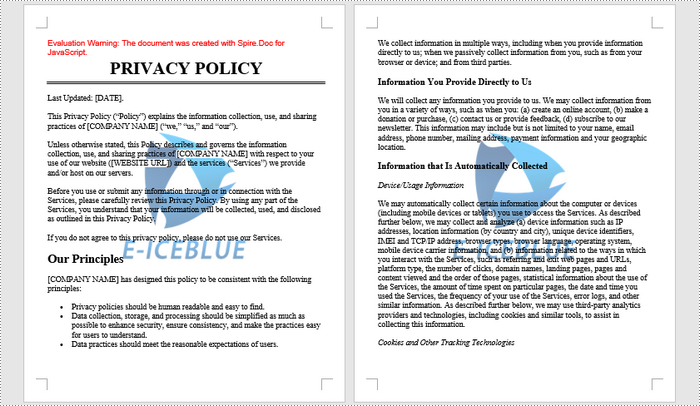
Get a Free License
To fully experience the capabilities of Spire.Doc for JavaScript without any evaluation limitations, you can request a free 30-day trial license.
Merge Excel Files into One with JavaScript in React
Merging Excel files is a common task that many people encounter when working with data. As projects expand or teams collaborate, you may find yourself with multiple spreadsheets that need to be combined into one cohesive document. This process not only helps in organizing information but also makes it easier to analyze and draw insights from your data. Whether you're dealing with financial records, project updates, or any other type of data, knowing how to merge Excel files effectively can save you time and effort. In this guide, we'll explain how to programmatically merge Excel files into one in React using Spire.XLS for JavaScript.
Install Spire.XLS for JavaScript
To get started with merging Excel files into one in a React application, you can either download Spire.XLS for JavaScript from our website or install it via npm with the following command:
npm i spire.office
The downloaded product package has been integrated Spire.Doc for JavaScript,Spire.XLS for JavaScript,Spire.PDF for JavaScript,Spire.Presentation for JavaScript. To use the functionality of Spire.XLS for JavaScript, you need to copy the corresponding files (spire.xls.js, Spire.Xls.Wasm.zip, spire.common.js, Spire.Common.Wasm.zip, and _framework) to the project's "public" folder. At the same time, in order to ensure text rendering, the related font files can be added with custom paths. In the following example, the font addition path is: public\static\font.
For more details, refer to the documentation: How to Integrate Spire.XLS for JavaScript in a React Project
Merge Multiple Excel Workbooks into One
Combining multiple Excel workbooks allows you to merge distinct files into a single workbook, which simplifies the management and analysis of diverse datasets for comprehensive reporting.
With Spire.XLS for JavaScript, developers can efficiently merge multiple workbooks by copying worksheets from the source workbooks into a newly created workbook using the XlsWorksheetsCollection.AddCopy() method. The key steps are as follows.
- Put the file paths of the workbooks to be merged into a list.
- Initialize a Workbook object to create a new workbook and clear its default worksheets.
- Initialize a temporary Workbook object.
- Loop through the list of file paths.
- Load each workbook specified by the file path in the list into the temporary Workbook object using Workbook.LoadFromFile() method.
- Loop through the worksheets in the temporary workbook, then copy each worksheet from the temporary workbook to the newly created workbook using XlsWorksheetsCollection.AddCopy() method.
- Save the resulting workbook using Workbook.SaveToFile() method.
- JavaScript
import React, { useState, useEffect } from 'react';
function App() {
  const [wasmModule, setWasmModule] = useState(null);
  // Load Spire.XLS
  useEffect(() => {
    (async () => {
      try {
        const publicUrl = process.env.PUBLIC_URL || '';
        const spireModule = await import(/* webpackIgnore: true */ `${publicUrl}/spire.xls.js`);
        const rawModule = spireModule.default || spireModule;
        window.wasmModule = typeof rawModule === 'function'
          ? await rawModule({ locateFile: p => p.endsWith('.wasm') ? `${publicUrl}/${p}` : p })
          : rawModule;
        setWasmModule(window.wasmModule);
      } catch (error) {
        console.error('Failed to load spire.xls.js WASM module:', error);
      }
    })();
  }, []);

  // Function to merge Excel workbooks into one
  const MergeExcelWorkbooks = async () => {
    const wasmModule = window.wasmModule.spirexls;

    if (wasmModule) {
      // Load font into Virtual File System (VFS)
      await window.spire.FetchFileToVFS('Arial.ttf', '/Library/Fonts/', `${process.env.PUBLIC_URL}/static/font/`);


      // Load the Excel files into the virtual file system (VFS)
      const files = [
        "File1.xlsx",
        "File2.xlsx",
        "File3.xlsx",
      ];
      for (const file of files) {
        await window.spire.FetchFileToVFS(file, '', `${process.env.PUBLIC_URL}/static/data/`);
      }

      // Create a new workbook
      let newbook = new wasmModule.Workbook();
      newbook.Version = wasmModule.ExcelVersion.Version2013;

      // Clear the default worksheets
      newbook.Worksheets.Clear();

      // Create a temp workbook
      let tempbook = new wasmModule.Workbook();

      for (const file of files) {

        // Load the current file
        tempbook.LoadFromFile(file.split("/").pop());

        for (let i = 0; i < tempbook.Worksheets.Count; i++) {
          let sheet = tempbook.Worksheets.get(i);

          // Copy every sheet in the current file to the new workbook
          wasmModule.XlsWorksheetsCollection.Convert(
            newbook.Worksheets
          ).AddCopy({
            sheet: sheet,
            flags: wasmModule.WorksheetCopyType.CopyAll,
          });
        }
      }

      let outputFileName = "MergeExcelWorkbooks.xlsx";
      // Save the resulting file
      newbook.SaveToFile({ fileName: outputFileName, version: wasmModule.ExcelVersion.Version2013 });

      // Read the saved file and convert to Blob object
      const modifiedFileArray = window.dotnetRuntime.Module.FS.readFile(outputFileName);
      const modifiedFile = new Blob([modifiedFileArray], { type: 'application/vnd.openxmlformats-officedocument.spreadsheetml.sheet' });

      // Create a URL for the Blob and initiate download
      const url = URL.createObjectURL(modifiedFile);
      const a = document.createElement('a');
      a.href = url;
      a.download = outputFileName;
      document.body.appendChild(a);
      a.click();
      document.body.removeChild(a);
      URL.revokeObjectURL(url);

      // Clean up resources used by the workbook
      newbook.Dispose();
    }
  };

  return (
    <div style={{ textAlign: 'center', height: '300px' }}>
      <h1>Merge Multiple Excel Workbooks into One Using JavaScript in React</h1>
      <button onClick={MergeExcelWorkbooks} disabled={!wasmModule}>
        Merge
      </button>
    </div>
  );
}

export default App;
Run the code to launch the React app at localhost:3000. Once it's running, click on the "Merge" button to merge multiple Excel workbooks into one:
The screenshot below showcases the input workbooks and the output workbook:
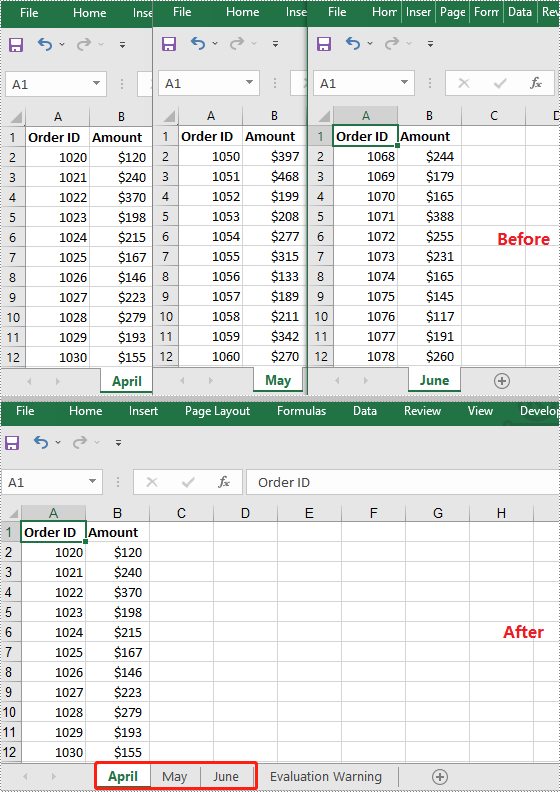
Merge Multiple Excel Worksheets into One
Consolidating multiple worksheets into a single sheet enhances clarity and provides a comprehensive overview of related information.
Using Spire.XLS for JavaScript, developers can merge multiple worksheets by copying the used data ranges in these worksheets into a single worksheet using the CellRange.Copy() method. The key steps are as follows.
- Initialize a Workbook object and load an Excel workbook using Workbook.LoadFromFile() method.
- Get the two worksheets to be merged using Workbook.Worksheets.get() method.
- Get the used data range of the second worksheet using Worksheet.AllocatedRange property.
- Specify the destination range in the first worksheet using Worksheet.Range.get() method.
- Copy the used data range from the second worksheet to the specified destination range in the first worksheet using CellRange.Copy() method.
- Remove the second worksheet from the workbook.
- Save the resulting workbook using Workbook.SaveToFile() method.
- JavaScript
import React, { useState, useEffect } from 'react';
function App() {
  const [wasmModule, setWasmModule] = useState(null);
  // Load Spire.XLS
  useEffect(() => {
    (async () => {
      try {
        const publicUrl = process.env.PUBLIC_URL || '';
        const spireModule = await import(/* webpackIgnore: true */ `${publicUrl}/spire.xls.js`);
        const rawModule = spireModule.default || spireModule;
        window.wasmModule = typeof rawModule === 'function'
          ? await rawModule({ locateFile: p => p.endsWith('.wasm') ? `${publicUrl}/${p}` : p })
          : rawModule;
        setWasmModule(window.wasmModule);
      } catch (error) {
        console.error('Failed to load spire.xls.js WASM module:', error);
      }
    })();
  }, []);

  // Function to merge worksheets in an Excel workbook into one
  const MergeWorksheets = async () => {
    const wasmModule = window.wasmModule.spirexls;

    if (wasmModule) {
      // Load font into Virtual File System (VFS)
      await window.spire.FetchFileToVFS('Arial.ttf', '/Library/Fonts/', `${process.env.PUBLIC_URL}/static/font/`);


      // Load the Excel files into the virtual file system (VFS)
      let inputFileName = 'sample.xlsx';
      await window.spire.FetchFileToVFS(inputFileName, '', `${process.env.PUBLIC_URL}/static/data/`);


      // Create a new workbook
      let workbook = new wasmModule.Workbook();

      // Load the Excel file from the virtual file system
      workbook.LoadFromFile(inputFileName);

      // Get the first worksheet
      let sheet1 = workbook.Worksheets.get(0);
      // Get the second worksheet
      let sheet2 = workbook.Worksheets.get(1);

      // Get the used range in the second worksheet
      let fromRange = sheet2.AllocatedRange;
      // Specify the destination range in the first worksheet
      let toRange = sheet1.Range.get({ row: sheet1.LastRow + 1, column: 1 });

      // Copy the used range from the second worksheet to the destination range in the first worksheet
      fromRange.Copy({ destRange: toRange });

      // Remove the second worksheet
      sheet2.Remove();

      // Define the output file name
      const outputFileName = "MergeWorksheets.xlsx";

      // Save the workbook to the specified path
      workbook.SaveToFile({ fileName: outputFileName, version: wasmModule.ExcelVersion.Version2010 });

      // Read the saved file and convert to Blob object
      const modifiedFileArray = window.dotnetRuntime.Module.FS.readFile(outputFileName);
      const modifiedFile = new Blob([modifiedFileArray], { type: 'application/vnd.openxmlformats-officedocument.spreadsheetml.sheet' });

      // Create a URL for the Blob and initiate download
      const url = URL.createObjectURL(modifiedFile);
      const a = document.createElement('a');
      a.href = url;
      a.download = outputFileName;
      document.body.appendChild(a);
      a.click();
      document.body.removeChild(a);
      URL.revokeObjectURL(url);

      // Clean up resources used by the workbook
      workbook.Dispose();
    }
  };

  return (
    <div style={{ textAlign: 'center', height: '300px' }}>
      <h1>Merge Multiple Excel Worksheets into One Using JavaScript in React</h1>
      <button onClick={MergeWorksheets} disabled={!wasmModule}>
        Merge
      </button>
    </div>
  );
}

export default App;
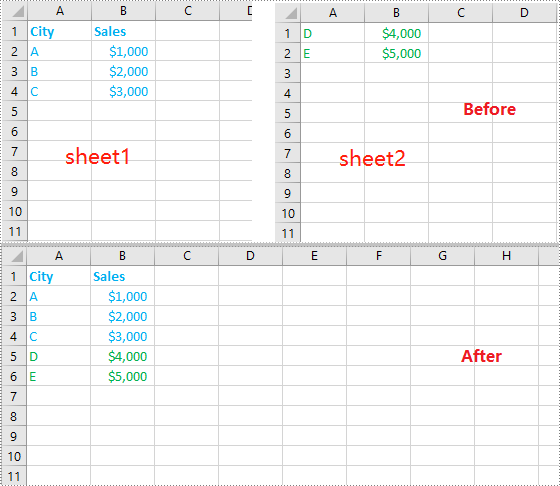
Get a Free License
To fully experience the capabilities of Spire.XLS for JavaScript without any evaluation limitations, you can request a free 30-day trial license.
Insert Images in Word with JavaScript in React
In MS word, images can quickly and easily convey complex information that may be difficult to explain in words alone. Whether you're creating a report, a presentation, a newsletter, or a simple document, adding images can make your content more engaging, informative, and visually appealing. In this article, you will learn how to add images to a Word document in React using Spire.Doc for JavaScript.
- Insert an Image in a Word Document in JavaScript
- Insert an Image at a Specified Location in Word in JavaScript
Install the JavaScript Library
To get started with inserting images in Word in a React application, you can either download Spire.Doc for JavaScript from our website or install it via npm with the following command:
npm i spire.officeThe downloaded product package integrates Spire.Doc for JavaScript, Spire.XLS for JavaScript, Spire.PDF for JavaScript, and Spire.Presentation for JavaScript. To use the features of Spire.Doc for JavaScript, you need to copy the corresponding files (spire.doc.js, Spire.Doc.Wasm.zip, spire.common.js, Spire.Common.Wasm.zip, and the _framework folder) to the public folder of your project. To ensure proper text rendering, you can add relevant font files with a custom path. In the following example, the font is added to the path: public\static\font.
For more details, refer to the documentation: How to Integrate Spire.Doc for JavaScript in a React Project
Insert an Image in a Word Document in JavaScript
The Paragraph.AppendPicture() method offered by Spire.Doc for JavaScript allows to insert an image into a Word document. The following are the main steps to insert an image in Word and set its size, text wrapping style using JavaScript.
- Create a new document using the new wasmModule.Document() method.
- Load a Word document using the Document.LoadFromFile() method.
- Get a specified section in the document using the Document.Sections.get_Item() method.
- Get a specified paragraph in the section using the Section.Paragraphs.get_Item() method.
- Add an image to the specified paragraph using the Paragraph.AppendPicture() method.
- Set width, height and text wrapping style for the image.
- Save the result document using Document.SaveToFile() method.
- JavaScript
import React, { useState, useEffect } from 'react';

function App() {
  const [wasmModule, setWasmModule] = useState(null);
  // Load Spire.Doc
  useEffect(() => {
    (async () => {
      try {
        const publicUrl = process.env.PUBLIC_URL || '';
        const spireModule = await import(/* webpackIgnore: true */ `${publicUrl}/spire.doc.js`);
        const rawModule = spireModule.default || spireModule;
        window.wasmModule = typeof rawModule === 'function'
          ? await rawModule({ locateFile: p => p.endsWith('.wasm') ? `${publicUrl}/${p}` : p })
          : rawModule;
        setWasmModule(window.wasmModule);
      } catch (error) {
        console.error('Failed to load spire.doc.js WASM module:', error);
      }
    })();
  }, []);

  // Function to insert an image in Word
  const InsertWordImage = async () => {
    const wasmModule = window.wasmModule.spiredoc;

    if (wasmModule) {
      // Load the font files into the virtual file system (VFS)
      await window.spire.FetchFileToVFS('Arial.ttf', '/Library/Fonts/', `${process.env.PUBLIC_URL}/static/font/`);

      // Specify the input file name and the output file name
      const inputFileName = 'input.docx';
      const outputFileName = "InsertImage.docx";
      const imageFile = "logo.png";

      // Fetch the input file and add it to the VFS
      await window.spire.FetchFileToVFS(inputFileName, '', `${process.env.PUBLIC_URL}/static/data/`);
      await window.spire.FetchFileToVFS(imageFile, '', `${process.env.PUBLIC_URL}/static/data/`);

      // Create an instance of the Document class
      const doc = new wasmModule.Document();

      // Load the Word document
      doc.LoadFromFile({ fileName: inputFileName });

      // Get the first section
      const section = doc.Sections.get_Item(0);

      // Get the first paragraph
      const paragraph = section.Paragraphs.get_Item(0);

      // Add the image to the first paragraph
      let picture = paragraph.AppendPicture({ imgFile: imageFile });

      // Set image width and height
      picture.Width = 100;
      picture.Height = 100;

      // Set text wrapping style for the image
      picture.TextWrappingStyle = wasmModule.TextWrappingStyle.Square;

      // Save the result document
      doc.SaveToFile({ fileName: outputFileName, fileFormat: wasmModule.FileFormat.Docx });

      // Release resources
      doc.Dispose();

      // Read the generated Word file from VFS
      const modifiedFileArray = window.dotnetRuntime.Module.FS.readFile(outputFileName);

      // Create a Blob object from the Word file
      const modifiedFile = new Blob([modifiedFileArray], { type: "application/vnd.openxmlformats-officedocument.wordprocessingml.document" });

      // Create a URL for the Blob
      const url = URL.createObjectURL(modifiedFile);

      // Create an anchor element to trigger the download
      const a = document.createElement("a");
      a.href = url;
      a.download = outputFileName;
      document.body.appendChild(a);
      a.click();
      document.body.removeChild(a);
      URL.revokeObjectURL(url);
    }
  };

  return (
    <div style={{ textAlign: 'center', height: '300px' }}>
      <h1>Insert an Image in a Word Document Using JavaScript in React</h1>
      <button onClick={InsertWordImage} disabled={!wasmModule}>
        Execute
      </button>
    </div>
  );
}

export default App;
Run the code to launch the React app at localhost:3000. Once it's running, click on the "Execute" button to download the result file:
The input file and the result file:
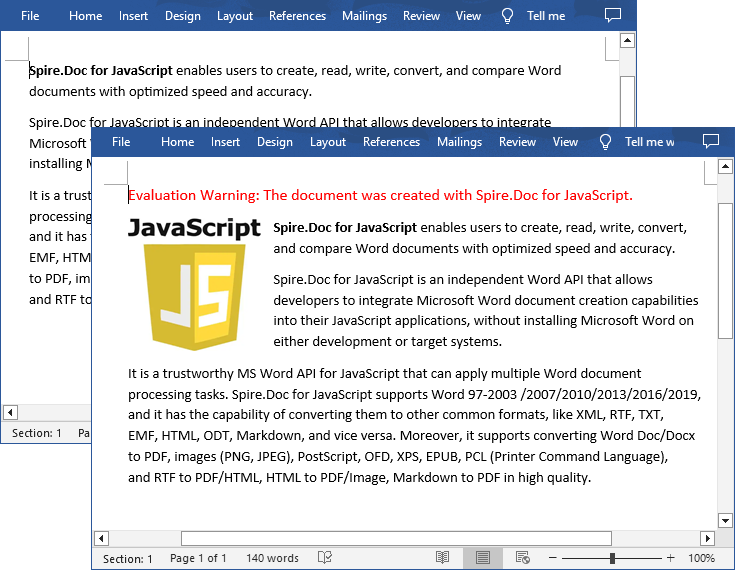
Insert an Image at a Specified Location in Word in JavaScript
You can also place the image at any specified location in the Word document through the DocPicture.HorizontalPosition and DocPicture.VerticalPosition properties. The following are the main steps:
- Create a new document using the new wasmModule.Document() method.
- Add a section to the document using the Document.AddSection() method.
- Add a paragraph to the section using the Section.AddParagraph() method.
- Add text to the paragraph and set paragraph style.
- Add an image to the paragraph using the Paragraph.AppendPicture() method.
- Set the horizontal position and vertical position for the image through the DocPicture.HorizontalPosition and DocPicture.VerticalPosition properties.
- Set width, height and text wrapping style for the image.
- Save the result document using Document.SaveToFile() method.
- JavaScript
import React, { useState, useEffect } from 'react';

function App() {
  const [wasmModule, setWasmModule] = useState(null);
  // Load Spire.Doc
  useEffect(() => {
    (async () => {
      try {
        const publicUrl = process.env.PUBLIC_URL || '';
        const spireModule = await import(/* webpackIgnore: true */ `${publicUrl}/spire.doc.js`);
        const rawModule = spireModule.default || spireModule;
        window.wasmModule = typeof rawModule === 'function'
          ? await rawModule({ locateFile: p => p.endsWith('.wasm') ? `${publicUrl}/${p}` : p })
          : rawModule;
        setWasmModule(window.wasmModule);
      } catch (error) {
        console.error('Failed to load spire.doc.js WASM module:', error);
      }
    })();
  }, []);

  // Function to insert an image at a specified location in Word
  const InsertImage = async () => {
    const wasmModule = window.wasmModule.spiredoc;

    if (wasmModule) {
      // Load the font files into the virtual file system (VFS)
      await window.spire.FetchFileToVFS('Arial.ttf', '/Library/Fonts/', `${process.env.PUBLIC_URL}/static/font/`);

      // Specify the input file name and the output file name
      const outputFileName = "WordImage.docx";
      const imageFile = "logo.png";

      // Fetch the input file and add it to the VFS
      await window.spire.FetchFileToVFS(imageFile, '', `${process.env.PUBLIC_URL}/static/data/`);

      // Create an instance of the Document class
      const doc = new wasmModule.Document();

      // Add a section in the document
      let section = doc.AddSection();

      // Add a paragraph to the section
      let paragraph = section.AddParagraph();

      // Add text to the paragraph and set paragraph style
      paragraph.AppendText("The sample demonstrates how to insert an image at a specified location in a Word document.");
      paragraph.ApplyStyle({ builtinStyle: wasmModule.BuiltinStyle.Heading2 });

      //Add an image to the paragraph
      let picture = paragraph.AppendPicture({ imgFile: imageFile });

      // Set image position
      picture.HorizontalPosition = 150.0;
      picture.VerticalPosition = 70.0;

      // Set image width and height
      picture.Width = 100;
      picture.Height = 100;

      // Set text wrapping style for the image
      picture.TextWrappingStyle = wasmModule.TextWrappingStyle.Through;

      // Save the result document
      doc.SaveToFile({ fileName: outputFileName, fileFormat: wasmModule.FileFormat.Docx });

      // Release resources
      doc.Dispose();

      // Read the generated Word file from VFS
      const modifiedFileArray = window.dotnetRuntime.Module.FS.readFile(outputFileName);

      // Create a Blob object from the Word file
      const modifiedFile = new Blob([modifiedFileArray], { type: "application/vnd.openxmlformats-officedocument.wordprocessingml.document" });

      // Create a URL for the Blob
      const url = URL.createObjectURL(modifiedFile);

      // Create an anchor element to trigger the download
      const a = document.createElement("a");
      a.href = url;
      a.download = outputFileName;
      document.body.appendChild(a);
      a.click();
      document.body.removeChild(a);
      URL.revokeObjectURL(url);
    }
  };

  return (
    <div style={{ textAlign: 'center', height: '300px' }}>
      <h1>Insert an Image at a Specified Location in Word Using JavaScript in React</h1>
      <<button onClick={InsertImage} disabled={!wasmModule}>
      Execute
      </button>
    </div>
 );
}

export default App;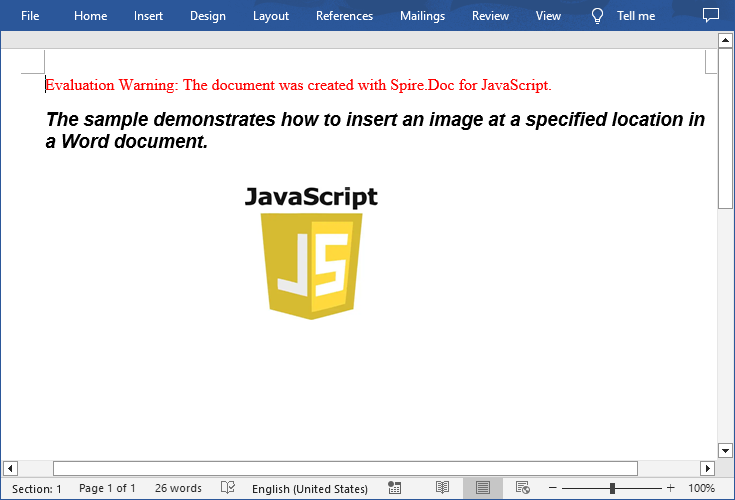
Get a Free License
To fully experience the capabilities of Spire.Doc for JavaScript without any evaluation limitations, you can request a free 30-day trial license.
Insert or Delete Images in Excel with JavaScript in React
Images in Excel can add a visual element to your data, making it more engaging and easier to understand. From adding company logos to embedding charts or diagrams, images can convey complex information more effectively than text alone. There are also times that you need to remove the images that are no longer relevant or cluttering your worksheet. This article will demonstrate how to insert or delete images in an Excel worksheet in React using Spire.XLS for JavaScript.
Install Spire.XLS for JavaScript
To get started with inserting or deleting picture in Excel in a React application, you can either download Spire.XLS for JavaScript from our website or install it via npm with the following command:
npm i spire.office
The downloaded product package has been integrated Spire.Doc for JavaScript,Spire.XLS for JavaScript,Spire.PDF for JavaScript,Spire.Presentation for JavaScript. To use the functionality of Spire.XLS for JavaScript, you need to copy the corresponding files (spire.xls.js, Spire.Xls.Wasm.zip, spire.common.js, Spire.Common.Wasm.zip, and _framework) to the project's "public" folder. At the same time, in order to ensure text rendering, the related font files can be added with custom paths. In the following example, the font addition path is: public\static\font.
For more details, refer to the documentation: How to Integrate Spire.XLS for JavaScript in a React Project
Insert Images in Excel in JavaScript
Spire.XLS for JavaScript provides the Worksheet.Pictures.Add() method to add a picture to a specified cell in an Excel worksheet. The following are the main steps.
- Create a Workbook object using the new wasmModule.Workbook() method.
- Get a specific worksheet using the Workbook.Worksheets.get() method.
- Insert a picture into a specific cell using the Worksheet.Pictures.Add() method and return an object of ExcelPicture.
- Set the width and height of the picture, as well as the distance between the picture and the cell border through the properties under the ExcelPicture object.
- Save the result file using the Workbook.SaveToFile() method.
- JavaScript
import React, { useState, useEffect } from 'react';
function App() {
  const [wasmModule, setWasmModule] = useState(null);
  // Load Spire.XLS
  useEffect(() => {
    (async () => {
      try {
        const publicUrl = process.env.PUBLIC_URL || '';
        const spireModule = await import(/* webpackIgnore: true */ `${publicUrl}/spire.xls.js`);
        const rawModule = spireModule.default || spireModule;
        window.wasmModule = typeof rawModule === 'function'
          ? await rawModule({ locateFile: p => p.endsWith('.wasm') ? `${publicUrl}/${p}` : p })
          : rawModule;
        setWasmModule(window.wasmModule);
      } catch (error) {
        console.error('Failed to load spire.xls.js WASM module:', error);
      }
    })();
  }, []);

  // Function to insert an image in Excel
  const InsertExcelImage = async () => {
    const wasmModule = window.wasmModule.spirexls;

    if (wasmModule) {
      // Load font into Virtual File System (VFS)
      await window.spire.FetchFileToVFS('Arial.ttf', '/Library/Fonts/', `${process.env.PUBLIC_URL}/static/font/`);


      // Load the image files into the virtual file system (VFS)
      let inputFileName = 'logo.png';
      await window.spire.FetchFileToVFS(inputFileName, '', `${process.env.PUBLIC_URL}/static/data/`);


      // Create a new workbook
      let workbook = new wasmModule.Workbook();

      // Get the first worksheet.
      let sheet = workbook.Worksheets.get(0);

      // Add a picture to the specific cell
      let picture = sheet.Pictures.Add({ topRow: 2, leftColumn: 3, fileName: inputFileName });

      // Set the picture width and height
      picture.Width = 150
      picture.Height = 150

      // Adjust the column width and row height to accommodate the picture
      sheet.SetRowHeight(2, 135);
      sheet.SetColumnWidth(3, 25);

      // Set the distance between cell border and picture
      picture.LeftColumnOffset = 90
      picture.TopRowOffset = 20

      // Save the modified workbook to the specified file
      const outputFileName = 'InsertExcelImage.xlsx';
      workbook.SaveToFile({ fileName: outputFileName, version: wasmModule.ExcelVersion.Version2016 });

      // Read the saved file and convert to Blob object
      const modifiedFileArray = window.dotnetRuntime.Module.FS.readFile(outputFileName);
      const modifiedFile = new Blob([modifiedFileArray], { type: 'application/vnd.openxmlformats-officedocument.spreadsheetml.sheet' });

      // Create a URL for the Blob and initiate download
      const url = URL.createObjectURL(modifiedFile);
      const a = document.createElement('a');
      a.href = url;
      a.download = outputFileName;
      document.body.appendChild(a);
      a.click();
      document.body.removeChild(a);
      URL.revokeObjectURL(url);

      // Clean up resources used by the workbook
      workbook.Dispose();
    }
  };

  return (
    <div style={{ textAlign: 'center', height: '300px' }}>
      <h1>Insert an Image to a Specified Cell in Excel Using JavaScript in React</h1>
      <button onClick={InsertExcelImage} disabled={!wasmModule}>
        Process
      </button>
    </div>
  );
}

export default App;
Run the code to launch the React app at localhost:3000. Once it's running, click the "Process" button to insert image in Excel:
Below is the result file:

Delete Images in Excel in JavaScript
To delete all pictures in an Excel worksheet, you need to iterate through each picture and then remove them through the Worksheet.Pictures.get().Remove() method. The following are the main steps.
- Create a Workbook object using the new wasmModule.Workbook() method.
- Load an Excel file using the Workbook.LoadFromFile() method.
- Get a specific worksheet using the Workbook.Worksheets.get() method.
- Iterate through all pictures in the worksheet and then remove them using the Worksheet.Pictures.get().Remove() method.
- Save the result file using the Workbook.SaveToFile() method.
- JavaScript
import React, { useState, useEffect } from 'react';
function App() {
  const [wasmModule, setWasmModule] = useState(null);
  // Load Spire.XLS
  useEffect(() => {
    (async () => {
      try {
        const publicUrl = process.env.PUBLIC_URL || '';
        const spireModule = await import(/* webpackIgnore: true */ `${publicUrl}/spire.xls.js`);
        const rawModule = spireModule.default || spireModule;
        window.wasmModule = typeof rawModule === 'function'
          ? await rawModule({ locateFile: p => p.endsWith('.wasm') ? `${publicUrl}/${p}` : p })
          : rawModule;
        setWasmModule(window.wasmModule);
      } catch (error) {
        console.error('Failed to load spire.xls.js WASM module:', error);
      }
    })();
  }, []);

  // Function to delete images from Excel
  const DeleteExcelImage = async () => {
    const wasmModule = window.wasmModule.spirexls;

    if (wasmModule) {
      // Load font into Virtual File System (VFS)
      await window.spire.FetchFileToVFS('Arial.ttf', '/Library/Fonts/', `${process.env.PUBLIC_URL}/static/font/`);


      // Load the excel files into the virtual file system (VFS)
      let inputFileName = 'InsertExcelImage.xlsx';
      await window.spire.FetchFileToVFS(inputFileName, '', `${process.env.PUBLIC_URL}/static/data/`);


      // Create a new workbook
      let workbook = new wasmModule.Workbook();

      // Load the Excel document
      workbook.LoadFromFile({ fileName: inputFileName });

      // Get the first worksheet
      let sheet = workbook.Worksheets.get(0);

      // Delete all images from the worksheet
      for (let i = sheet.Pictures.Count - 1; i >= 0; i--) {
        sheet.Pictures.get(i).Remove();
      }

      // Save the result file
      const outputFileName = 'DeleteImages.xlsx';
      workbook.SaveToFile({ fileName: outputFileName, version: wasmModule.ExcelVersion.Version2016 });

      // Read the saved file and convert to Blob object
      const modifiedFileArray = window.dotnetRuntime.Module.FS.readFile(outputFileName);
      const modifiedFile = new Blob([modifiedFileArray], { type: 'application/vnd.openxmlformats-officedocument.spreadsheetml.sheet' });

      // Create a URL for the Blob and initiate download
      const url = URL.createObjectURL(modifiedFile);
      const a = document.createElement('a');
      a.href = url;
      a.download = outputFileName;
      document.body.appendChild(a);
      a.click();
      document.body.removeChild(a);
      URL.revokeObjectURL(url);

      // Clean up resources used by the workbook
      workbook.Dispose();
    }
  };

  return (
    <div style={{ textAlign: 'center', height: '300px' }}>
      <h1>Delete Images from Excel Using JavaScript in React</h1>
      <button onClick={DeleteExcelImage} disabled={!wasmModule}>
        Process
      </button>
    </div>
  );
}

export default App;
Get a Free License
To fully experience the capabilities of Spire.XLS for JavaScript without any evaluation limitations, you can request a free 30-day trial license.
Add or Remove Text Boxes in Word with JavaScript in React
Adding or removing text boxes in Word is a valuable skill that enhances document layout and visual appeal. Text boxes provide a flexible way to highlight important information, create side notes, or organize content more effectively. They allow for creative formatting options, enabling you to draw attention to specific areas of your document.
In this article, you will learn how to add or move text boxes in a Word document in React using Spire.Doc for JavaScript.
Install Spire.Doc for JavaScript
To get started wtih manipulating text boxes in Word in a React applicaiton, you can either download Spire.Doc for JavaScript from our website or install it via npm with the following command:
npm i spire.officeThe downloaded product package integrates Spire.Doc for JavaScript, Spire.XLS for JavaScript, Spire.PDF for JavaScript, and Spire.Presentation for JavaScript. To use the features of Spire.Doc for JavaScript, you need to copy the corresponding files (spire.doc.js, Spire.Doc.Wasm.zip, spire.common.js, Spire.Common.Wasm.zip, and the _framework folder) to the public folder of your project. To ensure proper text rendering, you can add relevant font files with a custom path. In the following example, the font is added to the path: public\static\font.
For more details, refer to the documentation: How to Integrate Spire.Doc for JavaScript in a React Project
Add a Text Box to a Word Document in React
Spire.Doc for JavaScript offers the Paragraph.AppendTextBox() method to seamlessly insert a text box into a specified paragraph. Once inserted, you can customize the text box by adding content and applying formatting using properties like TextBox.Body and TextBox.Format.
The following are the steps to add a text box to a Word document in React:
- Load required font and input file into the virtual file system (VFS).
- Create a Document object using the new wasmModule.Document() method.
- Load the Word file using the Document.LoadFromFile() method.
- Access the first section and paragraph.
- Insert a text box to the paragraph using the Paragraph.AppendTextBox() method.
- Add a paragraph to the text box and append text to it through the TextBox.Body property.
- Customize the appearance of the text box through the TextBox.Format property.
- Save the document and trigger a download.
- JavaScript
import React, { useState, useEffect } from 'react';

function App() {
  const [wasmModule, setWasmModule] = useState(null);
  // Load Spire.Doc
  useEffect(() => {
    (async () => {
      try {
        const publicUrl = process.env.PUBLIC_URL || '';
        const spireModule = await import(/* webpackIgnore: true */ `${publicUrl}/spire.doc.js`);
        const rawModule = spireModule.default || spireModule;
        window.wasmModule = typeof rawModule === 'function'
          ? await rawModule({ locateFile: p => p.endsWith('.wasm') ? `${publicUrl}/${p}` : p })
          : rawModule;
        setWasmModule(window.wasmModule);
      } catch (error) {
        console.error('Failed to load spire.doc.js WASM module:', error);
      }
    })();
  }, []);

  // Function to add text box
  const AddTextBox = async () => {
    const wasmModule = window.wasmModule.spiredoc;

    if (wasmModule) {
      // Load the font files into the virtual file system (VFS)
      await window.spire.FetchFileToVFS('Arial.ttf', '/Library/Fonts/', `${process.env.PUBLIC_URL}/static/font/`);

      // Specify the input file name and the output file name
      const outputFileName = "Textbox.docx";
      const inputFileName = 'input.docx';

      // Fetch the input file and add it to the VFS
      await window.spire.FetchFileToVFS(inputFileName, '', `${process.env.PUBLIC_URL}/static/data/`);

      // Create an instance of the Document class
      const doc = new wasmModule.Document();

      // Load the Word document
      doc.LoadFromFile(inputFileName);

      // Get a specific section
      let section = doc.Sections.get_Item(0)

      // Get a specific paragraph
      let paragraph = section.Paragraphs.get_Item(0)

      // Insert a textbox and set its wrapping style
      let textBox = paragraph.AppendTextBox(150, 100);
      textBox.Format.TextWrappingStyle = wasmModule.TextWrappingStyle.Square;

      // Set the position of the textbox
      textBox.Format.HorizontalPosition = 0;
      textBox.Format.VerticalPosition = 50;

      // Set the line style and fill color
      textBox.Format.LineColor = wasmModule.Color.get_DarkBlue();
      textBox.Format.LineStyle = wasmModule.TextBoxLineStyle.Simple;
      textBox.Format.FillColor = wasmModule.Color.get_LightGray();

      // Add a paragraph to the textbox
      let para = textBox.Body.AddParagraph();
      let textRange = para.AppendText("This is a sample text box created by Spire.Doc for JavaScript.");

      // Format the text
      textRange.CharacterFormat.FontName = "Arial";
      textRange.CharacterFormat.FontSize = 15;
      textRange.CharacterFormat.TextColor = wasmModule.Color.get_Blue();

      // Set the horizontal alignment of the paragraph
      para.Format.HorizontalAlignment = wasmModule.HorizontalAlignment.Center;

      // Save the document to the specified path
      doc.SaveToFile({ fileName: outputFileName, fileFormat: wasmModule.FileFormat.Docx2013 });

      // Read the generated file from VFS
      const fileArray = window.dotnetRuntime.Module.FS.readFile(outputFileName);

      // Create a Blob object from the file
      const blob = new Blob([fileArray], { type: "application/vnd.openxmlformats-officedocument.wordprocessingml.document" });

      // Create a URL for the Blob
      const url = URL.createObjectURL(blob);

      // Create an anchor element to trigger the download
      const a = document.createElement('a');
      a.href = url;
      a.download = outputFileName;
      document.body.appendChild(a);
      a.click();
      document.body.removeChild(a);
      URL.revokeObjectURL(url);

      // Clean up resources
      doc.Dispose();
    }
  };

  return (
    <adiv style={{ textAlign: 'center', height: '300px' }}>
      <ah1>Add a text box to Word in React<a/h1>
      <abutton onClick={AddTextBox} disabled={!wasmModule}>
        Generate
      <a/button>
    <a/div>
  );
}

export default App;
Run the code to launch the React app at localhost:3000. Click "Generate", and a "Save As" window will appear, prompting you to save the output file in your chosen folder.

Here is a screenshot of the generated Word file that includes a text box:
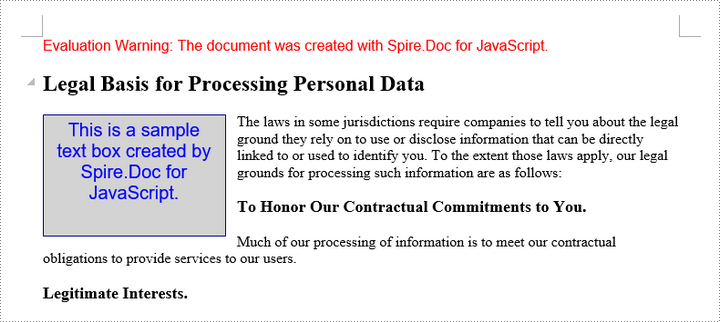
Remove a Text Box from a Word Document in React
Spire.Doc for JavaScript includes the Document.TextBoxes.RemoveAt() method, which allows you to delete a specific text box by its index. If you need to remove all text boxes from a Word document, you can use the Document.TextBoxes.Clear() method for a quick and efficient solution.
The following are the steps to remove a text box from a Word document in React:
- Load the input file into the virtual file system (VFS).
- Create a Document object using the new wasmModule.Document() method.
- Load the Word file using the Document.LoadFromFile() method.
- Remove a specific text box using the Document.TextBoxes.RemoveAt() method.
- Save the document and trigger a download.
- JavaScript
import React, { useState, useEffect } from 'react';

function App() {
  const [wasmModule, setWasmModule] = useState(null);
  // Load Spire.Doc
  useEffect(() => {
    (async () => {
      try {
        const publicUrl = process.env.PUBLIC_URL || '';
        const spireModule = await import(/* webpackIgnore: true */ `${publicUrl}/spire.doc.js`);
        const rawModule = spireModule.default || spireModule;
        window.wasmModule = typeof rawModule === 'function'
          ? await rawModule({ locateFile: p => p.endsWith('.wasm') ? `${publicUrl}/${p}` : p })
          : rawModule;
        setWasmModule(window.wasmModule);
      } catch (error) {
        console.error('Failed to load spire.doc.js WASM module:', error);
      }
    })();
  }, []);

  // Function to remove text box
  const RemoveTextBox = async () => {
    const wasmModule = window.wasmModule.spiredoc;

    if (wasmModule) {
      // Load the font files into the virtual file system (VFS)
      await window.spire.FetchFileToVFS('Arial.ttf', '/Library/Fonts/', `${process.env.PUBLIC_URL}/static/font/`);

      // Specify the input file name and the output file name
      const outputFileName = "RemoveTextBox.docx";
      const inputFileName = 'Textbox.docx';

      // Fetch the input file and add it to the VFS
      await window.spire.FetchFileToVFS(inputFileName, '', `${process.env.PUBLIC_URL}/static/data/`);

      // Create an instance of the Document class
      const doc = new wasmModule.Document();


      // Load the Word document
      doc.LoadFromFile(inputFileName);

      // Remove the text box at index 0
      doc.TextBoxes.RemoveAt(0);

      // Remove all text boxes
      // doc.TextBoxes.Clear();

      // Save the document to the specified path
      doc.SaveToFile({ fileName: outputFileName, fileFormat: wasmModule.FileFormat.Docx2013 });

      // Read the generated file from VFS
      const fileArray = window.dotnetRuntime.Module.FS.readFile(outputFileName);

      // Create a Blob object from the file
      const blob = new Blob([fileArray], { type: "application/vnd.openxmlformats-officedocument.wordprocessingml.document" });

      // Create a URL for the Blob
      const url = URL.createObjectURL(blob);

      // Create an anchor element to trigger the download
      const a = document.createElement('a');
      a.href = url;
      a.download = outputFileName;
      document.body.appendChild(a);
      a.click();
      document.body.removeChild(a);
      URL.revokeObjectURL(url);

      // Clean up resources
      doc.Dispose();
    }
  };

  return (
    <div style={{ textAlign: 'center', height: '300px' }}>
      <h1>Remove a text box from Word in React</h1>
      <button onClick={RemoveTextBox} disabled={!wasmModule}>
        Generate
      </button>
    </div>
  );
}

export default App;
Get a Free License
To fully experience the capabilities of Spire.Doc for JavaScript without any evaluation limitations, you can request a free 30-day trial license.