Spire.XLS 15.4.4 adds support for several formulas
We're pleased to announce the release of Spire.XLS 15.4.4. This version adds support for several new formulas, and also supports auto-fitting row height in merged cells spanning multiple columns in a single row. Besides, some issues that occurred when converting Excel to PDF and saving files have been successfully fixed. More details are shown below.
Here is a list of changes made in this release
| Category | ID | Description |
| New feature | SPIREXLS-5697 | Supports auto-fitting row height in merged cells spanning multiple columns in a single row.
Workbook workbook = new Workbook(); workbook.LoadFromFile(@"in.xlsx"); Worksheet sheet= workbook.Worksheets[0]; AutoFitterOptions options = new AutoFitterOptions(); options.AutoFitMergedCells = true; //the first parameter is the merged row sheet.AutoFitRow(9, 1, sheet.LastColumn, options); workbook.SaveToFile(@"out.xlsx", Spire.Xls.FileFormat.Version2016); workbook.Dispose(); |
| New feature | SPIREXLS-5746 SPIREXLS-5768 SPIREXLS-5769 SPIREXLS-5774 |
Supports the GAMMALN.PRECISE, LOGNORM.INV, LOGNORM.DIST, and GAUSS formulas.
sheet.Range["C2"].Formula = "=GAUSS(A1)"; sheet.Range["C3"].Formula = "=LOGNORM.DIST(A2, A3, A4, A5)"; sheet.Range["C4"].Formula = "=GAMMALN.PRECISE(1.5)"; sheet.Range["C5"].Formula = "=LOGNORM.INV(0.5, 0, 1)"; |
| Bug | SPIREXLS-5555 | Fixes the issue where data was incomplete when converting Excel to PDF with the SheetFitToPage=true property. |
| Bug | SPIREXLS-5724 | Fixes the inconsistency issue when converting Excel to PDF. |
| Bug | SPIREXLS-5725 | Fixes the issue where the text was displayed incorrectly when converting Excel to PDF. |
| Bug | SPIREXLS-5767 | Fixes the issue that the XML data for ColumnWidth did not comply with OpenXML standards. |
| Bug | SPIREXLS-5775 | Fixes the issue that it was where failed to update the associated sheets when modifying the row count in a sheet. |
| Bug | SPIREXLS-5777 | Fixes the issue where shapes were incorrect in the saved Excel file. |
| Bug | SPIREXLS-5778 | Fixed the issue that the IFERROR formula returned incorrect values. |
Spire.Office for Java 10.4.0 is released
We are excited to announce the release of Spire.Office for Java 10.4.0. In this version, Spire.Doc for Java enhances the conversions from Word to HTML/PDF; Spire.XLS for Java supports creating a slicer using table data; Spire.Presentation for Java enhances the conversion from PowerPoint to images; Spire.PDF for Java supports signing with "digitalsignatures.PdfCertificate" using byte[] certificate data. Besides, a lot of known issues are fixed successfully in this version. More details are listed below.
Here is a list of changes made in this release
Spire.Doc for Java
| New feature | SPIREDOC-11117 | Optimizes the time-consuming issue of Word to PDF conversion.
|
| Bug | SPIREDOC-11123 | Fixes the issue that the program threw the "AssertionError" exception when converting Word documents to HTML. |
| Bug | SPIREDOC-11139 | Fixes the issue that the program threw an exception when retrieving content of the saved documents. |
| Bug | SPIREDOC-11144 | Fixes the issue that the program threw the "NullPointerException" exception when converting Word documents to HTML. |
| Bug | SPIREDOC-11153 | Fixes the issue that the result was incorrect when obtaining OLE NativeDataBytes. |
| Bug | SPIREDOC-11162 | Fixes the issue that the layout was incorrect when converting Word to PDF. |
Spire.XLS for Java
| Category | ID | Description |
| New feature | - | Supports creating a slicer using table data.
Workbook wb = new Workbook();
//Get the first worksheet of workbook
Worksheet worksheet = wb.getWorksheets().get(0);
worksheet.getRange().get("A1").setValue("fruit");
worksheet.getRange().get("A2").setValue("grape");
worksheet.getRange().get("A3").setValue("blueberry");
worksheet.getRange().get("A4").setValue("kiwi");
worksheet.getRange().get("A5").setValue("cherry");
worksheet.getRange().get("A6").setValue("grape");
worksheet.getRange().get("A7").setValue("blueberry");
worksheet.getRange().get("A8").setValue("kiwi");
worksheet.getRange().get("A9").setValue("cherry");

worksheet.getRange().get("B1").setValue("year");
worksheet.getRange().get("B2").setValue2(2020);
worksheet.getRange().get("B3").setValue2(2020);
worksheet.getRange().get("B4").setValue2(2020);
worksheet.getRange().get("B5").setValue2(2020);
worksheet.getRange().get("B6").setValue2(2021);
worksheet.getRange().get("B7").setValue2(2021);
worksheet.getRange().get("B8").setValue2(2021);
worksheet.getRange().get("B9").setValue2(2021);

worksheet.getRange().get("C1").setValue("amount");
worksheet.getRange().get("C2").setValue2(50);
worksheet.getRange().get("C3").setValue2(60);
worksheet.getRange().get("C4").setValue2(70);
worksheet.getRange().get("C5").setValue2(80);
worksheet.getRange().get("C6").setValue2(90);
worksheet.getRange().get("C7").setValue2(100);
worksheet.getRange().get("C8").setValue2(110);
worksheet.getRange().get("C9").setValue2(120);

//Get slicer collection
XlsSlicerCollection slicers = worksheet.getSlicers();

//Create a super table with the data from the specific cell range.
IListObject table = worksheet.getListObjects().create("Super Table", worksheet.getRange().get("A1:C9"));

int count = 3;
int index = 0;
for (Object styletype : SlicerStyleType.values())
{
	SlicerStyleType type = (SlicerStyleType)styletype;
	count += 5;
	//Add a Slicer through pivot table data : here invoke Add(IListObject, string, int) api.
	String range = "E" + count;
	index = slicers.add(table, range.toString(), 0);

	//Style setting
	XlsSlicer xlsSlicer = slicers.get(index);
	xlsSlicer.setName("slicers_" + count);
	xlsSlicer.setStyleType(type);

}

//Save to file
wb.saveToFile(outputFile_xlsx, ExcelVersion.Version2013);
|
| New feature | - | Supports creating a slicer using pivot table data.
Workbook wb = new Workbook();
//Get the first worksheet of workbook
Worksheet worksheet = wb.getWorksheets().get(0);
worksheet.getRange().get("A1").setValue("fruit");
worksheet.getRange().get("A2").setValue("grape");
worksheet.getRange().get("A3").setValue("blueberry");
worksheet.getRange().get("A4").setValue("kiwi");
worksheet.getRange().get("A5").setValue("cherry");
worksheet.getRange().get("A6").setValue("grape");
worksheet.getRange().get("A7").setValue("blueberry");
worksheet.getRange().get("A8").setValue("kiwi");
worksheet.getRange().get("A9").setValue("cherry");

worksheet.getRange().get("B1").setValue("year");
worksheet.getRange().get("B2").setValue2(2020);
worksheet.getRange().get("B3").setValue2(2020);
worksheet.getRange().get("B4").setValue2(2020);
worksheet.getRange().get("B5").setValue2(2020);
worksheet.getRange().get("B6").setValue2(2021);
worksheet.getRange().get("B7").setValue2(2021);
worksheet.getRange().get("B8").setValue2(2021);
worksheet.getRange().get("B9").setValue2(2021);

worksheet.getRange().get("C1").setValue("amount");
worksheet.getRange().get("C2").setValue2(50);
worksheet.getRange().get("C3").setValue2(60);
worksheet.getRange().get("C4").setValue2(70);
worksheet.getRange().get("C5").setValue2(80);
worksheet.getRange().get("C6").setValue2(90);
worksheet.getRange().get("C7").setValue2(100);
worksheet.getRange().get("C8").setValue2(110);
worksheet.getRange().get("C9").setValue2(120);

// Get pivot table collection
PivotTablesCollection pivotTables = worksheet.getPivotTables();

//Add a PivotTable to the worksheet
CellRange dataRange = worksheet.getRange().get("A1:C9");
PivotCache cache = wb.getPivotCaches().add(dataRange);

//Cell to put the pivot table
PivotTable pt = worksheet.getPivotTables().add("TestPivotTable", worksheet.getRange().get("A12"), cache);

//Drag the fields to the row area.
IPivotField pf = pt.getPivotFields().get("fruit");
pf.setAxis(AxisTypes.Row);
IPivotField pf2 = pt.getPivotFields().get("year");
pf2.setAxis(AxisTypes.Column);

//Drag the field to the data area.
pt.getDataFields().add(pt.getPivotFields().get("amount"), "SUM of Count", SubtotalTypes.Sum);

//Set PivotTable style
pt.setBuiltInStyle(PivotBuiltInStyles.PivotStyleMedium10);


//Get slicer collection
XlsSlicerCollection slicers = worksheet.getSlicers();

//Add a Slicer through pivot table data: here invoke Add(IPivotTable, string, int) api.
int index = slicers.add(pt, "E12", 0);

XlsSlicer xlsSlicer = slicers.get(index);
xlsSlicer.setName("test_xlsSlicer");
xlsSlicer.setWidth(100);
xlsSlicer.setHeight(120);
xlsSlicer.setStyleType(SlicerStyleType.SlicerStyleLight2);
xlsSlicer.isPositionLocked(true);

//Get SlicerCache object of current slicer
XlsSlicerCache slicerCache = xlsSlicer.getSlicerCache();
slicerCache.setCrossFilterType(SlicerCacheCrossFilterType.ShowItemsWithNoData);

//Style setting
XlsSlicerCacheItemCollection slicerCacheItems = xlsSlicer.getSlicerCache().getSlicerCacheItems();
XlsSlicerCacheItem xlsSlicerCacheItem = slicerCacheItems.get(0);
xlsSlicerCacheItem.isSelected(false);

XlsSlicerCollection slicers_2 = worksheet.getSlicers();

IPivotField r1 = pt.getPivotFields().get("year");
int index_2 = slicers_2.add(pt, "I12", r1);

XlsSlicer xlsSlicer_2 = slicers.get(index_2);
xlsSlicer_2.setRowHeight(40);
xlsSlicer_2.setStyleType(SlicerStyleType.SlicerStyleLight3);
xlsSlicer_2.isPositionLocked(false);

//Get SlicerCache object of current slicer
XlsSlicerCache slicerCache_2 = xlsSlicer_2.getSlicerCache();
slicerCache_2.setCrossFilterType(SlicerCacheCrossFilterType.ShowItemsWithDataAtTop);

//Style setting
XlsSlicerCacheItemCollection slicerCacheItems_2 = xlsSlicer_2.getSlicerCache().getSlicerCacheItems();
XlsSlicerCacheItem xlsSlicerCacheItem_2 =  slicerCacheItems_2.get(1);
xlsSlicerCacheItem_2.isSelected(false);
pt.calculateData();

//Save to file
wb.saveToFile("out.xlsx", ExcelVersion.Version2013);
|
| New feature | - | Supports retrieving slicer information.
Workbook wb = new Workbook();
wb.loadFromFile(inputFile);

// Get slicer collection of first worksheet
Worksheet worksheet = wb.getWorksheets().get(0);

XlsSlicerCollection slicers = worksheet.getSlicers();
StringBuilder builder = new StringBuilder();
builder.append("slicers.Count:" + slicers.getCount()+"\r\n");

XlsSlicer xlsSlicer = slicers.get(1);

builder.append("xlsSlicer.Name:" + xlsSlicer.getName()+"\r\n");
builder.append("xlsSlicer.Caption:" + xlsSlicer.getCaption()+"\r\n");
builder.append("xlsSlicer.NumberOfColumns:" + xlsSlicer.getNumberOfColumns()+"\r\n");
builder.append("xlsSlicer.ColumnWidth:" + xlsSlicer.getColumnWidth()+"\r\n");
builder.append("xlsSlicer.RowHeight:" + xlsSlicer.getRowHeight()+"\r\n");
builder.append("xlsSlicer.ShowCaption:" + xlsSlicer.isShowCaption()+"\r\n");
builder.append("xlsSlicer.PositionLocked:" + xlsSlicer.isPositionLocked()+"\r\n");
builder.append("xlsSlicer.Width:" + xlsSlicer.getWidth()+"\r\n");
builder.append("xlsSlicer.Height:" + xlsSlicer.getHeight()+"\r\n");

//Get SlicerCache object of current slicer
XlsSlicerCache slicerCache = xlsSlicer.getSlicerCache();

builder.append("slicerCache.SourceName:" + slicerCache.getSourceName()+"\r\n");
builder.append("slicerCache.IsTabular:" + slicerCache.isTabular()+"\r\n");
builder.append("slicerCache.Name:" + slicerCache.getName()+"\r\n");

XlsSlicerCacheItemCollection slicerCacheItems = slicerCache.getSlicerCacheItems();
XlsSlicerCacheItem xlsSlicerCacheItem = slicerCacheItems.get(1);


builder.append("xlsSlicerCacheItem.Selected:" + xlsSlicerCacheItem.isSelected() +"\r\n");

FileWriter fw = new FileWriter(outputFile_T);
fw.write(builder.toString());
fw.flush();
fw.close();
wb.dispose();
|
| Bug | SPIREXLS-5569 | Fixes the issue that OLE objects failed to open correctly after converting Excel to XLSB format. |
| Bug | SPIREXLS-5673 | Fixes the issue that alignment was incorrect when converting Excel to PDF. |
| Bug | SPIREXLS-5752 | Optimizes the text rendering effect of grouped shapes when converting Excel to PDF. |
| Bug | SPIREXLS-5757 | Fixes the issue that some formula values were calculated incorrectly when converting Excel to images. |
Spire.Presentation for Java
| New feature | SPIREPPT-2668 | Fixes the issue where the content was incorrect when converting PowerPoint to images.
|
| Bug | SPIREPPT-2669 | Fixes the issue where the text shadow effect was lost when converting PowerPoint to images. |
| Bug | SPIREPPT-2672 | Fixes the issue where the text layout was incorrect when converting PowerPoint to images. |
| Bug | SPIREPPT-2693 | Fixes the issue where the layout was incorrect when opening merged PowerPoint documents in WPS. |
| Bug | SPIREPPT-2731 | Fixes the issue where the charts were incorrect when converting PowerPoint to PDF. |
| Bug | SPIREPPT-2732 | Fixes the issue where the program hung when running the packaged .jar file after setting setCustomFontsFolder while converting a PowerPoint to HTML. |
| Bug | SPIREPPT-2779 | Fixes the issue where the content auto-fit effect was incorrect in merged PowerPoint documents. |
Spire.PDF for Java
| Category | ID | Description |
| New feature | SPIREPDF-7460 | Supports using the byte[] certificate data when signing with "digitalsignatures. PdfCertificate".
PdfDocument pdf = new PdfDocument();
pdf.loadFromFile(inputFile);
FileInputStream instream = new FileInputStream(inputFile_pfx);
byte[] data = FileUtil.getStreamBytes(instream);
PdfCertificate x509 = new PdfCertificate(data, "e-iceblue");
PdfOrdinarySignatureMaker signatureMaker = new PdfOrdinarySignatureMaker(pdf, x509);
signatureMaker.makeSignature("signName");
pdf.saveToFile(outputFile, FileFormat.PDF);
pdf.dispose();
|
| Bug | SPIREPDF-7457 | Fixes the problem that the program threw “NullPointerException” when setting isFlatten(true). |
| Bug | SPIREPDF-7458 | Fixes the issue that some contents were incorrect after converting PDF to PDF/A. |
| Bug | SPIREPDF-7463 | Fixes the issue that the format and font were incorrect after converting PDF to PowerPoint. |
| Bug | SPIREPDF-7462 | Fixes the issue that the data extracted from tables was incorrect. |
Spire.PDF for Java 11.4.2 supports signing with "digitalsignatures.PdfCertificate" using byte[] certificate data
We are excited to announce the release of Spire.PDF for Java 11.4.2. This version supports using the byte[] certificate data when signing with "digitalsignatures. PdfCertificate". It also enhances the conversion from PDF to PDF/A and PowerPoint. Moreover, some known issues are fixed successfully in this version, such as the issue that the data extracted from tables was incorrect. More details are listed below.
Here is a list of changes made in this release
| Category | ID | Description |
| New feature | SPIREPDF-7460 | Supports using the byte[] certificate data when signing with "digitalsignatures. PdfCertificate".
PdfDocument pdf = new PdfDocument();
pdf.loadFromFile(inputFile);
FileInputStream instream = new FileInputStream(inputFile_pfx);
byte[] data = FileUtil.getStreamBytes(instream);
PdfCertificate x509 = new PdfCertificate(data, "e-iceblue");
PdfOrdinarySignatureMaker signatureMaker = new PdfOrdinarySignatureMaker(pdf, x509);
signatureMaker.makeSignature("signName");
pdf.saveToFile(outputFile, FileFormat.PDF);
pdf.dispose();
|
| Bug | SPIREPDF-7457 | Fixes the problem that the program threw “NullPointerException” when setting isFlatten(true). |
| Bug | SPIREPDF-7458 | Fixes the issue that some contents were incorrect after converting PDF to PDF/A. |
| Bug | SPIREPDF-7463 | Fixes the issue that the format and font were incorrect after converting PDF to PowerPoint. |
| Bug | SPIREPDF-7462 | Fixes the issue that the data extracted from tables was incorrect. |
Spire.Presentation 10.4.6 supports inserting formulas in table cells
We're glad to announce the release of Spire.Presentation 10.4.6. This version supports inserting formulas in table cells and reading CustomerData of Shape. In addition, some issues that occurred when converting PPTX to PDF/SVG and opening PowerPoint files have been successfully fixed. Check below for more details.
Here is a list of all changes made in this release.
| Category | ID | Description |
| New feature | SPIREPPT-2772 | Supports reading CustomerData of Shape.
Presentation ppt = new Presentation();
ppt.LoadFromFile(inputFile);
List dataList = ppt.Slides[0].Shapes[1].CustomerDataList;
Console.WriteLine(dataList.Count);
for(int i = 0; i < dataList.Count; i++)
{
   string name = dataList[i].Name;
   string content = dataList[i].XML;
    File.WriteAllText(outputFile + name, content);

}
|
| New feature | SPIREPPT-2782 | Supports inserting formulas in table cells.
//Create a PPT document
Presentation presentation = new Presentation();


Double[] widths = new double[] { 100, 100, 150, 100, 100 };
Double[] heights = new double[] { 15, 15, 15, 15, 15, 15, 15, 15, 15, 15, 15, 15, 15 };

//Add new table to PPT
ITable table = presentation.Slides[0].Shapes.AppendTable(presentation.SlideSize.Size.Width / 2 - 275, 90, widths, heights);

String[,] dataStr = new String[,]{
{"Name",    "Capital",  "Continent",    "Area", "Population"},
{"Venezuela",   "Caracas",  "South America",    "912047",   "19700000"},
{"Bolivia", "La Paz",   "South America",    "1098575",  "7300000"},
{"Brazil",  "Brasilia", "South America",    "8511196",  "150400000"},
{"Canada",  "Ottawa",   "North America",    "9976147",  "26500000"},
{"Chile",   "Santiago", "South America",    "756943",   "13200000"},
{"Colombia",    "Bagota",   "South America",    "1138907",  "33000000"},
{"Cuba",    "Havana",   "North America",    "114524",   "10600000"},
{"Ecuador", "Quito",    "South America",    "455502",   "10600000"},
{"Paraguay",    "Asuncion","South America", "406576",   "4660000"},
{"Peru",    "Lima", "South America",    "1285215",  "21600000"},
{"Jamaica", "Kingston", "North America",    "11424",    "2500000"},
{"Mexico",  "Mexico City",  "North America",    "1967180",  "88600000"}
};

//Add data to table
for (int i = 0; i < 13; i++)
    for (int j = 0; j < 5; j++)
    {
        //Fill the table with data
        table[j, i].TextFrame.Text = dataStr[i, j];

        //Set the Font
        table[j, i].TextFrame.Paragraphs[0].TextRanges[0].LatinFont = new TextFont("Arial Narrow");
    }

//Set the alignment of the first row to Center
for (int i = 0; i < 5; i++)
{
    table[i, 0].TextFrame.Paragraphs[0].Alignment = TextAlignmentType.Center;
}
string latexMathCode = @"x^{2}+\sqrt{x^{2}+1}=2";
table[2, 3].TextFrame.Paragraphs.AddParagraphFromLatexMathCode(latexMathCode);
//Set the style of table
table.StylePreset = TableStylePreset.LightStyle3Accent1;

//Save the document
presentation.SaveToFile("Output.pptx", FileFormat.Pptx2010);
|
| Bug | SPIREPPT-2421 | Fixes the issue where the text was garbled when converting PowerPoint to PDF. |
| Bug | SPIREPPT-2691 | Fixes the issue that the application threw a "System.NullReferenceException" error when adding a GroupShape to a new PowerPoint file. |
| Bug | SPIREPPT-2798 | Fixes the issue where the text was lost when converting PowerPoint to PDF. |
| Bug | SPIREPPT-2804 | Fixes the issue where opening a file saved using the Presentation.GetStream() method would cause an error. |
| Bug | SPIREPPT-2824 | Fixes the issue where the position of shapes changed after using the Ungroup() method. |
| Bug | SPIREPPT-2840 | Fixes the issue that the application threw a "NullReferenceException" error when converting PowerPoint to SVG. |
| Bug | SPIREPPT-2851 | Fixes the issue where the shapes were incorrect when converting PowerPoint to SVG. |
Detect and Remove Blank Pages from PDF Files in Python
PDF documents may occasionally include blank pages. These pages can affect the reading experience, increase the file size and lead to paper waste during printing. To improve the professionalism and usability of a PDF document, detecting and removing blank pages is an essential step.
This article shows how to accurately detect and remove blank pages—including those that appear empty but actually contain invisible elements—using Python, Spire.PDF for Python, and Pillow.
Install Required Libraries
This tutorial requires two Python libraries:
- Spire.PDF for Python: Used for loading PDFs and detecting/removing blank pages.
- Pillow: A library for image processing that helps detect visually blank pages, which may contain invisible content.
You can easily install both libraries using pip:
pip install Spire.PDF Pillow
Need help installing Spire.PDF? Refer to this guide:
How to Install Spire.PDF for Python on Windows
How to Effectively Detect and Remove Blank Pages from PDF Files in Python
Spire.PDF provides a method called PdfPageBase.IsBlank() to check if a page is completely empty. However, some pages may appear blank but actually contain hidden content like white text, watermarks, or background images. These cannot be reliably detected using the PdfPageBase.IsBlank() method alone.
To ensure accuracy, this tutorial adopts a two-step detection strategy:
- Use the PdfPageBase.IsBlank() method to identify and remove fully blank pages.
- Convert non-blank pages to images and analyze them using Pillow to determine if they are visually blank.
⚠️ Important:
If you don’t use a valid license during the PDF-to-image conversion, an evaluation watermark will appear on the image, potentially affecting the blank page detection.
Contact the E-iceblue sales team to request a temporary license for proper functionality.
Steps to Detect and Remove Blank Pages from PDF in Python
Follow these steps to implement blank page detection and removal in Python:
1. Define a custom is_blank_image() Method
This custom function uses Pillow to check whether the converted image of a PDF page is blank (i.e., if all pixels are white).
2. Load the PDF Document
Load the PDF using the PdfDocument.LoadFromFile() method.
3. Iterate Through Pages
Loop through each page to check if it’s blank using two methods:
- If the PdfPageBase.IsBlank() method returns True, remove the page directly.
- If not, convert the page to an image using the PdfDocument.SaveAsImage() method and analyze it with the custom is_blank_image() method.
4. Save the Result PDF
Finally, save the PDF with blank pages removed using the PdfDocument.SaveToFile() method.
Code Example
- Python
import io
from spire.pdf import PdfDocument
from PIL import Image

# Custom function: Check if the image is blank (whether all pixels are white)
def is_blank_image(image):
        # Convert to RGB mode and then get the pixels
        img = image.convert("RGB")
        # Get all pixel points and check if they are all white
        white_pixel = (255, 255, 255)
        return all(pixel == white_pixel for pixel in img.getdata())

# Load the PDF document
pdf = PdfDocument()
pdf.LoadFromFile("Sample1111.pdf")

# Iterate through each page in reverse order to avoid index issues when deleting
for i in range(pdf.Pages.Count - 1, -1, -1):
    page = pdf.Pages.get_Item(i)
    # Check if the current page is completely blank
    if page.IsBlank():
        # If it's completely blank, remove it directly from the document
        pdf.Pages.RemoveAt(i)
    else:
        # Convert the current page to an image
        with pdf.SaveAsImage(i) as image_data:
            image_bytes = image_data.ToArray()
            pil_image = Image.open(io.BytesIO(image_bytes))
            # Check if the image is blank
            if is_blank_image(pil_image):
                # If it's a blank image, remove the corresponding page from the document
                pdf.Pages.RemoveAt(i)

# Save the resulting PDF
pdf.SaveToFile("RemoveBlankPages.pdf")
pdf.Close()

Frequently Asked Questions (FAQs)
Q1: What is considered a blank page in a PDF file?
A: A blank page may be truly empty or contain hidden elements such as white text, watermarks, or transparent objects. This solution detects both types using a dual-check strategy.
Q2: Can I use this method without a Spire.PDF license?
A: Yes, you can run it without a license. However, during PDF-to-image conversion, an evaluation watermark will be added to the output images, which may affect the accuracy of blank page detection. It's best to request a free temporary license for testing.
Q3: What versions of Python are compatible with Spire.PDF?
A: Spire.PDF for Python supports Python 3.7 and above. Ensure that Pillow is also installed to perform image-based blank page detection.
Q4: Can I modify the script to only detect blank pages without deleting them?
A: Absolutely. Just remove or comment out the pdf.Pages.RemoveAt(i) line and use print() or logging to list detected blank pages for further review.
Conclusion
Removing unnecessary blank pages from PDF files is an important step in optimizing documents for readability, file size, and professional presentation. With the combined power of Spire.PDF for Python and Pillow, developers can precisely identify both completely blank pages and pages that appear empty but contain invisible content. Whether you're generating reports, cleaning scanned files, or preparing documents for print, this Python-based solution ensures clean and efficient PDFs.
Get a Free License
To fully experience the capabilities of Spire.PDF for Python without any evaluation limitations, you can request a free 30-day trial license.
Create Word Documents with JavaScript in React
Creating dynamic documents is essential for many applications. This guide will explore how to generate a Word document using Spire.Doc for JavaScript within a React environment. We will cover the essential features needed for effective document creation, including adding titles, headings, and paragraphs to structure your content effectively.
You'll also learn how to enhance your documents by incorporating images, creating lists for organized information, and adding tables to present data clearly. By the end of this tutorial, you'll be equipped with the skills to produce professional documents directly from your React applications.
- Add Titles, Headings, and Paragraphs to Word
- Add an Image to Word
- Add a List to Word
- Add a Table to Word
Install Spire.Doc for JavaScript
To get started with creating Word documents in a React application, you can either download Spire.Doc for JavaScript from our website or install it via npm with the following command:
npm i spire.officeThe downloaded product package integrates Spire.Doc for JavaScript, Spire.XLS for JavaScript, Spire.PDF for JavaScript, and Spire.Presentation for JavaScript. To use the features of Spire.Doc for JavaScript, you need to copy the corresponding files (spire.doc.js, Spire.Doc.Wasm.zip, spire.common.js, Spire.Common.Wasm.zip, and the _framework folder) to the public folder of your project. To ensure proper text rendering, you can add relevant font files with a custom path. In the following example, the font is added to the path: public\static\font.
For more details, refer to the documentation: How to Integrate Spire.Doc for JavaScript in a React Project
Add Titles, Headings, and Paragraphs to Word in React
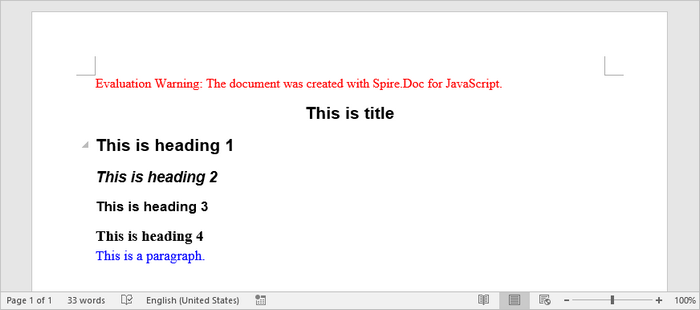
To add a title, headings, and paragraphs to a Word document, you primarily utilize the Document and Section classes provided by Spire.Doc for JavaScript. The AddParagraph() method creates new paragraphs, while AppendText() allows you to insert text into those paragraphs.
Paragraphs can be formatted using built-in styles (e.g., Title, Heading 1-4) for consistent structure, or customized with specific fonts, sizes, and colors through user-defined styles for tailored document design.
Steps for adding titles, headings, and parargraphs to a Word documents in React:
- Import the necessary font files into the virtual file system (VFS).
- Create a Document object using new wasmModule.Document().
- Include a new section in the document with Document.AddSection().
- Add paragraphs to the document using Section.AddParagraph().
- Use Paragraph.ApplyStyle() to apply built-in styles (Title, Heading1, Heading2, Heading3) to specific paragraphs.
- Define a custom paragraph style with new wasmModule.ParagraphStyle() and apply it to a designated paragraph.
- Save the document as a DOCX file and initiate the download.
- JavaScript
import React, { useState, useEffect } from 'react';

function App() {
  const [wasmModule, setWasmModule] = useState(null);
  // Load Spire.Doc
  useEffect(() => {
    (async () => {
      try {
        const publicUrl = process.env.PUBLIC_URL || '';
        const spireModule = await import(/* webpackIgnore: true */ `${publicUrl}/spire.doc.js`);
        const rawModule = spireModule.default || spireModule;
        window.wasmModule = typeof rawModule === 'function'
          ? await rawModule({ locateFile: p => p.endsWith('.wasm') ? `${publicUrl}/${p}` : p })
          : rawModule;
        setWasmModule(window.wasmModule);
      } catch (error) {
        console.error('Failed to load spire.doc.js WASM module:', error);
      }
    })();
  }, []);

  // Function to add text to word
  const AddText = async () => {
    const wasmModule = window.wasmModule.spiredoc;

    if (wasmModule) {
      // Load the font files into the virtual file system (VFS)
      await window.spire.FetchFileToVFS('times.ttf', '/Library/Fonts/', `${process.env.PUBLIC_URL}/static/font/`);
      await window.spire.FetchFileToVFS('timesbd.ttf', '/Library/Fonts/', `${process.env.PUBLIC_URL}/static/font/`);
      await window.spire.FetchFileToVFS('timesbi.ttf', '/Library/Fonts/', `${process.env.PUBLIC_URL}/static/font/`);
      await window.spire.FetchFileToVFS('timesi.ttf', '/Library/Fonts/', `${process.env.PUBLIC_URL}/static/font/`);

      // Create an instance of the Document class
      const doc = new wasmModule.Document();

      // Add a section
      let section = doc.AddSection();

      // Set page margins
      section.PageSetup.Margins.All = 60;

      // Add a title paragraph
      let title_para = section.AddParagraph();
      title_para.AppendText('This is title');
      title_para.ApplyStyle({ builtinStyle: wasmModule.BuiltinStyle.Title });

      // Add heading paragraphs
      let heading_one = section.AddParagraph();
      heading_one.AppendText('This is heading 1');
      heading_one.ApplyStyle({ builtinStyle: wasmModule.BuiltinStyle.Heading1 });

      let heading_two = section.AddParagraph();
      heading_two.AppendText('This is heading 2');
      heading_two.ApplyStyle({ builtinStyle: wasmModule.BuiltinStyle.Heading2 });

      let heading_three = section.AddParagraph();
      heading_three.AppendText('This is heading 3');
      heading_three.ApplyStyle({ builtinStyle: wasmModule.BuiltinStyle.Heading3 });

      let heading_four = section.AddParagraph();
      heading_four.AppendText('This is heading 4');
      heading_four.ApplyStyle({ builtinStyle: wasmModule.BuiltinStyle.Heading4 });

      // Add a normal paragraph
      let normal_para = section.AddParagraph();
      normal_para.AppendText('This is a paragraph.');

      // Create a paragraph style,specifying font name, font size, and text color
      let paragraph_style =new wasmModule.ParagraphStyle(doc);
      paragraph_style.Name = 'newStyle';
      paragraph_style.CharacterFormat.FontName = 'Times New Roman'
      paragraph_style.CharacterFormat.FontSize = 13;
      paragraph_style.CharacterFormat.TextColor = wasmModule.Color.get_Blue();

      // Add the style to the document
      doc.Styles.Add(paragraph_style);

      // Apply the style to the paragraph
      normal_para.ApplyStyle(paragraph_style.Name);

      // Save the document
      const outputFileName = 'output.docx';
      doc.SaveToFile({ fileName: outputFileName, fileFormat: wasmModule.FileFormat.Docx2013 });

      // Create a Blob for the downloaded file
      const modifiedFileArray =window.dotnetRuntime.Module.FS.readFile(outputFileName);
      const modifiedFile = new Blob([modifiedFileArray], { type: 'application/vnd.openxmlformats-officedocument.wordprocessingml.document' });
      const url = URL.createObjectURL(modifiedFile);

      // Trigger file download
      const a = document.createElement('a');
      a.href = url;
      a.download = outputFileName;
      document.body.appendChild(a);
      a.click();
      document.body.removeChild(a);
      URL.revokeObjectURL(url);

      // Clean up resources
      doc.Dispose();
    }
  };

  return (
    <div style={{ textAlign: 'center', height: '300px' }}>
      <h1>Add Text to a Word Document in React</h1>
      <button onClick={AddText} disabled={!wasmModule}>
        Generate
      </button>
    </div>
  );
}

export default App;
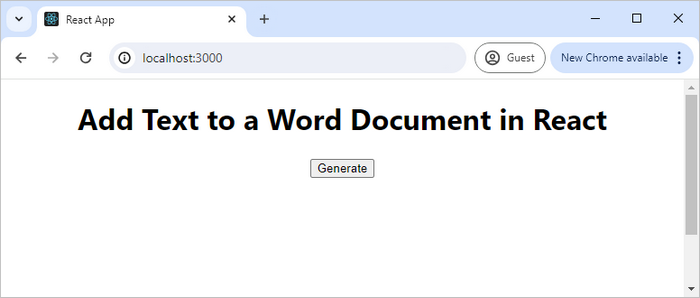
Run the code to launch the React app at localhost:3000. Click "Generate", and a "Save As" window will appear, prompting you to save the output file in your chosen folder.
Below is a screenshot of the generated Word file that includes a title, several headings, and a normal paragraph:
Add an Image to Word in React
Inserting images into a Word document involves using the AppendPicture() method, which allows you to add a picture to a specific paragraph. The process begins by loading the image file into the virtual file system (VFS), ensuring that the image is accessible for insertion.
Steps for adding an image to a Word doucment in React:
- Load an image file into the virtual file system (VFS).
- Create a Document object using new wasmModule.Document().
- Add a new section to the document with Document.AddSection().
- Insert a new paragraph in the section using Section.AddParagraph().
- Use the Paragraph.AppendPicture() method to add the loaded image to the paragraph.
- Save the document as a DOCX file and trigger the download.
- JavaScript
import React, { useState, useEffect } from 'react';

function App() {
  const [wasmModule, setWasmModule] = useState(null);
  // Load Spire.Doc
  useEffect(() => {
    (async () => {
      try {
        const publicUrl = process.env.PUBLIC_URL || '';
        const spireModule = await import(/* webpackIgnore: true */ `${publicUrl}/spire.doc.js`);
        const rawModule = spireModule.default || spireModule;
        window.wasmModule = typeof rawModule === 'function'
          ? await rawModule({ locateFile: p => p.endsWith('.wasm') ? `${publicUrl}/${p}` : p })
          : rawModule;
        setWasmModule(window.wasmModule);
      } catch (error) {
        console.error('Failed to load spire.doc.js WASM module:', error);
      }
    })();
  }, []);

  // Function to add image to word
  const AddImage = async () => {
    const wasmModule = window.wasmModule.spiredoc;

    if (wasmModule) {
      // Load the font files into the virtual file system (VFS)
      await window.spire.FetchFileToVFS('times.ttf', '/Library/Fonts/', `${process.env.PUBLIC_URL}/static/font/`);

      // Specify the input file name and the output file name
      const inputImageFile = 'logo.png';
      const outputFileName = 'output.docx';

      // Fetch the input file and add it to the VFS
      await window.spire.FetchFileToVFS(inputImageFile, '', `${process.env.PUBLIC_URL}/static/data/`);

      // Create an instance of the Document class
      const doc = new wasmModule.Document();

      // Add a section
      let section = doc.AddSection();

      // Set page margins
      section.PageSetup.Margins.All = 60;

      // Add a paragraph
      let image_para = section.AddParagraph();

      // Add an image to the paragraph
      image_para.AppendPicture({ imgFile: inputImageFile });

      // Save the document
      doc.SaveToFile({ fileName: outputFileName, fileFormat: wasmModule.FileFormat.Docx2013 });

      // Create a Blob for the downloaded file
      const modifiedFileArray = window.dotnetRuntime.Module.FS.readFile(outputFileName);
      const modifiedFile = new Blob([modifiedFileArray], { type: 'application/vnd.openxmlformats-officedocument.wordprocessingml.document' });
      const url = URL.createObjectURL(modifiedFile);

      // Trigger the download
      const a = document.createElement('a');
      a.href = url;
      a.download = outputFileName;
      document.body.appendChild(a);
      a.click();
      document.body.removeChild(a);
      URL.revokeObjectURL(url);

      // Clean up resources
      doc.Dispose();
    }
  };

  return (
    <div style={{ textAlign: 'center', height: '300px' }}>
      <h1>Add image to a Word Document in React</h1>
      <button onClick={AddImage} disabled={!wasmModule}>
        Generate
      </button>
    </div>
  );
}

export default App;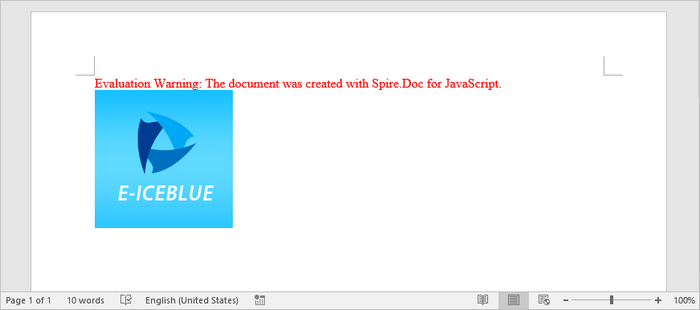
Add a List to Word in React
To create lists in your Word document, utilize the ListStyle class to define the appearance of your lists, such as bulleted or numbered formats. The ApplyStyle() method associates paragraphs with the defined list style, enabling consistent formatting across multiple items.
Steps for adding a list to a Word document in React:
- Load the required font files into the virtual file system (VFS).
- Create a Document object using new wasmModule.Document().
- Add a section to the document with Document.AddSection().
- Define a list style using doc.Styles.Add({ listType: wasmModule.ListType.Bulleted, name: "bulletedList" }).
- Insert several paragraphs in the section using Section.AddParagraph().
- Apply the defined list style to the paragraphs using Paragraph.ListFormat.ApplyStyle().
- Save the document as a DOCX file and trigger the download.
- JavaScript
import React, { useState, useEffect } from 'react';

function App() {
  const [wasmModule, setWasmModule] = useState(null);
  // Load Spire.Doc
  useEffect(() => {
    (async () => {
      try {
        const publicUrl = process.env.PUBLIC_URL || '';
        const spireModule = await import(/* webpackIgnore: true */ `${publicUrl}/spire.doc.js`);
        const rawModule = spireModule.default || spireModule;
        window.wasmModule = typeof rawModule === 'function'
          ? await rawModule({ locateFile: p => p.endsWith('.wasm') ? `${publicUrl}/${p}` : p })
          : rawModule;
        setWasmModule(window.wasmModule);
      } catch (error) {
        console.error('Failed to load spire.doc.js WASM module:', error);
      }
    })();
  }, []);

  // Function to add list to word
  const AddList = async () => {
    const wasmModule = window.wasmModule.spiredoc;

    if (wasmModule) {
      // Load the font files into the virtual file system (VFS)
      await window.spire.FetchFileToVFS('times.ttf', '/Library/Fonts/', `${process.env.PUBLIC_URL}/static/font/`);

      // Create an instance of the Document class
      const doc = new wasmModule.Document();

      // Add a section
      let section = doc.AddSection();

      // Set page margins
      section.PageSetup.Margins.All = 60;

      // Define a bullet list style
      let list_style = doc.Styles.Add({ listType: wasmModule.ListType.Bulleted, name: "bulletedList" });
      list_style.ListRef.Levels.get_Item(0).BulletCharacter = '\u00B7';
      list_style.ListRef.Levels.get_Item(0).CharacterFormat.FontName = 'Symbol';
      list_style.ListRef.Levels.get_Item(0).CharacterFormat.FontSize = 14;
      list_style.ListRef.Levels.get_Item(0).TextPosition = 20;


      // Add title paragraph
      let paragraph = section.AddParagraph();
      let text_range = paragraph.AppendText('Fruits:');
      paragraph.Format.AfterSpacing = 5;
      text_range.CharacterFormat.FontName = 'Times New Roman'
      text_range.CharacterFormat.FontSize = 14;

      // Add items to the bullet list
      const fruits = ['Apple', 'Banana', 'Watermelon', 'Mango'];
      fruits.forEach(fruit => {
        paragraph = section.AddParagraph();
        let text_range = paragraph.AppendText(fruit);
        paragraph.ListFormat.ApplyStyle(list_style.Name);
        paragraph.ListFormat.ListLevelNumber = 0;
        text_range.CharacterFormat.FontName = 'Times New Roman'
        text_range.CharacterFormat.FontSize = 14;
      });

      // Save the document
      const outputFileName = 'output.docx';
      doc.SaveToFile({ fileName: outputFileName, fileFormat: wasmModule.FileFormat.Docx2013 });

      // Create a Blob for the downloaded file
      const modifiedFileArray = window.dotnetRuntime.Module.FS.readFile(outputFileName);
      const modifiedFile = new Blob([modifiedFileArray], { type: 'application/vnd.openxmlformats-officedocument.wordprocessingml.document' });
      const url = URL.createObjectURL(modifiedFile);

      // Trigger file download
      const a = document.createElement('a');
      a.href = url;
      a.download = outputFileName;
      document.body.appendChild(a);
      a.click();
      document.body.removeChild(a);
      URL.revokeObjectURL(url);

      // Clean up resources
      doc.Dispose();
    }
  };

  return (
    <div style={{ textAlign: 'center', height: '300px' }}>
      <h1>Add Lists to a Word Document in React</h1>
      <button onClick={AddList} disabled={!wasmModule}>
        Generate
      </button>
    </div>
  );
}

export default App;
Add a Table to Word in React
To create tables, use the AddTable() method where you can specify the number of rows and columns with ResetCells(). Once the table is created, you can populate individual cells by using the AddParagraph() and AppendText() methods to insert text content. Additionally, the AutoFit() method can be employed to automatically adjust the table layout based on its contents, ensuring a clean and organized presentation of your data.
Steps for adding a table to a Word document in React:
- Load the required font files into the virtual file system (VFS).
- Create a Document object using new wasmModule.Document().
- Add a section to the document with Document.AddSection().
- Create a two-dimensional array to hold the table data, including headers and values.
- Use Section.AddTable() to create a table, specifying visibility options like borders.
- Call Table.ResetCells() to define the number of rows and columns in the table based on your data.
- Iterate through the data array, adding text to each cell using the TableCell.AddParagraph() and Paragraph.AppendText() methods.
- Use the Table.AutoFit() method to adjust the table size according to the content.
- Save the document as a DOCX file and trigger the download.
- JavaScript
import React, { useState, useEffect } from 'react';

function App() {
  const [wasmModule, setWasmModule] = useState(null);
  // Load Spire.Doc
  useEffect(() => {
    (async () => {
      try {
        const publicUrl = process.env.PUBLIC_URL || '';
        const spireModule = await import(/* webpackIgnore: true */ `${publicUrl}/spire.doc.js`);
        const rawModule = spireModule.default || spireModule;
        window.wasmModule = typeof rawModule === 'function'
          ? await rawModule({ locateFile: p => p.endsWith('.wasm') ? `${publicUrl}/${p}` : p })
          : rawModule;
        setWasmModule(window.wasmModule);
      } catch (error) {
        console.error('Failed to load spire.doc.js WASM module:', error);
      }
    })();
  }, []);

  // Function to add table to word
  const AddTable = async () => {
    const wasmModule = window.wasmModule.spiredoc;

    if (wasmModule) {
      // Load the font files into the virtual file system (VFS)
      await window.spire.FetchFileToVFS('times.ttf', '/Library/Fonts/', `${process.env.PUBLIC_URL}/static/font/`);

      // Create an instance of the Document class
      const doc = new wasmModule.Document();

      // Add a section
      let section = doc.AddSection();

      // Set page margins
      section.PageSetup.Margins.All = 60;

      // Define table data
      let data =
        [
          ['Product', 'Unit Price', 'Quantity', 'Sub Total'],
          ['A', '$29', '120', '$3,480'],
          ['B', '$35', '110', '$3,850'],
          ['C', '$68', '140', '$9,520'],
        ];

      // Add a table
      let table = section.AddTable({ showBorder: true });

      // Set row number and column number
      table.ResetCells(data.length, data[0].length);

      // Write data to cells
      for (let r = 0; r < data.length; r++) {
        let data_row = table.Rows.get_Item(r);
        data_row.Height = 20;
        data_row.HeightType = wasmModule.TableRowHeightType.Exactly;
        data_row.RowFormat.BackColor = wasmModule.Color.Empty();
        for (let c = 0; c < data[r].length; c++) {

          let cell = data_row.Cells.get_Item(c);
          cell.CellFormat.VerticalAlignment = wasmModule.VerticalAlignment.Middle;
          let text_range = cell.AddParagraph().AppendText(data[r][c]);
          text_range.CharacterFormat.FontName = 'Times New Roman'
          text_range.CharacterFormat.FontSize = 14;
        }
      }

      // Automatically fit the table to the cell content
      table.AutoFit(wasmModule.AutoFitBehaviorType.AutoFitToContents);

      // Save the document
      const outputFileName = 'output.docx';
      doc.SaveToFile({ fileName: outputFileName, fileFormat: wasmModule.FileFormat.Docx2013 });

      // Create a Blob for the downloaded file
      const modifiedFileArray = window.dotnetRuntime.Module.FS.readFile(outputFileName);
      const modifiedFile = new Blob([modifiedFileArray], { type: 'application/vnd.openxmlformats-officedocument.wordprocessingml.document' });
      const url = URL.createObjectURL(modifiedFile);

      // Trigger file download
      const a = document.createElement('a');
      a.href = url;
      a.download = outputFileName;
      document.body.appendChild(a);
      a.click();
      document.body.removeChild(a);
      URL.revokeObjectURL(url);

      // Clean up resources
      doc.Dispose();
    }
  };

  return (
    <div style={{ textAlign: 'center', height: '300px' }}>
      <h1>Add Tables to a Word Document in React</h1>
      <button onClick={AddTable} disabled={!wasmModule}>
        Generate
      </button>
    </div>
  );
}

export default App;
Get a Free License
To fully experience the capabilities of Spire.Doc for JavaScript without any evaluation limitations, you can request a free 30-day trial license.
Insert Rows and Columns in Excel with JavaScript in React
When dealing with Excel worksheets, there are times when the existing layout needs to be adjusted. Inserting rows and columns serves as an effective solution for such scenarios. It allows users to seamlessly expand their data, add new information, or re-structure the spreadsheet in a way that optimizes both data entry and analysis. This action not only makes room for more content, but also enhances the overall organization and readability of the data. In this article, you will learn how to insert rows and columns in Excel in React using Spire.XLS for JavaScript.
- Insert a Row and a Column in Excel in JavaScript
- Insert Multiple Rows and Columns in Excel in JavaScript
Install Spire.XLS for JavaScript
To get started with inserting or deleting picture in Excel in a React application, you can either download Spire.XLS for JavaScript from our website or install it via npm with the following command:
npm i spire.office
The downloaded product package has been integrated Spire.Doc for JavaScript,Spire.XLS for JavaScript,Spire.PDF for JavaScript,Spire.Presentation for JavaScript. To use the functionality of Spire.XLS for JavaScript, you need to copy the corresponding files (spire.xls.js, Spire.Xls.Wasm.zip, spire.common.js, Spire.Common.Wasm.zip, and _framework) to the project's "public" folder. At the same time, in order to ensure text rendering, the related font files can be added with custom paths. In the following example, the font addition path is: public\static\font.
For more details, refer to the documentation: How to Integrate Spire.XLS for JavaScript in a React Project
Insert a Row and a Column in Excel in JavaScript
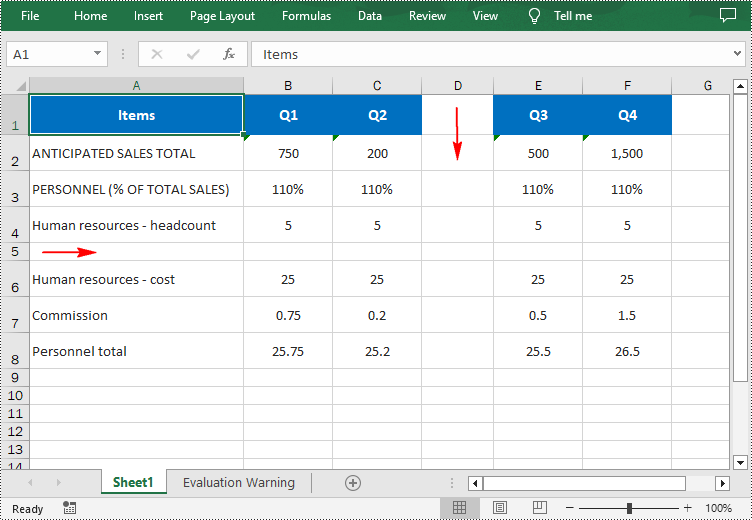
Using Spire.XLS for JavaScript, a blank row or a blank column can be inserted into an Excel worksheet via the Worksheet.InsertRow(rowIndex) or Worksheet.InsertColumn(columnIndex) method. The following are the main steps.
- Create a Workbook object using the new wasmModule.Workbook() method.
- Get a specific worksheet using the Workbook.Worksheets.get() method.
- Insert a row into the worksheet using the Worksheet.InsertRow(rowIndex) method.
- Insert a column into the worksheet using the Worksheet.InsertColumn(columnIndex) method.
- Save the result file using the Workbook.SaveToFile() method.
- JavaScript
import React, { useState, useEffect } from 'react';
function App() {
  const [wasmModule, setWasmModule] = useState(null);
  // Load Spire.XLS
  useEffect(() => {
    (async () => {
      try {
        const publicUrl = process.env.PUBLIC_URL || '';
        const spireModule = await import(/* webpackIgnore: true */ `${publicUrl}/spire.xls.js`);
        const rawModule = spireModule.default || spireModule;
        window.wasmModule = typeof rawModule === 'function'
          ? await rawModule({ locateFile: p => p.endsWith('.wasm') ? `${publicUrl}/${p}` : p })
          : rawModule;
        setWasmModule(window.wasmModule);
      } catch (error) {
        console.error('Failed to load spire.xls.js WASM module:', error);
      }
    })();
  }, []);

  //  Function to insert a row and a column
  const InsertRowColumn = async () => {
    const wasmModule = window.wasmModule.spirexls;

    if (wasmModule) {
      // Load font into Virtual File System (VFS)
      await window.spire.FetchFileToVFS('Arial.ttf', '/Library/Fonts/', `${process.env.PUBLIC_URL}/static/font/`);


      // Load the Excel files into the virtual file system (VFS)
      let inputFileName = 'merged.xlsx';
      await window.spire.FetchFileToVFS(inputFileName, '', `${process.env.PUBLIC_URL}/static/data/`);


      // Create a new workbook
      let workbook = new wasmModule.Workbook();


      // Load an Excel document
      workbook.LoadFromFile({ fileName: inputFileName });

      // Get the first worksheet
      let worksheet = workbook.Worksheets.get(0);

      // Insert a blank row as the 5th row in the worksheet
      worksheet.InsertRow(5);

      // Insert a blank column as the 4th column in the worksheet
      worksheet.InsertColumn(4);

      //Save result file
      const outputFileName = 'InsertRowAndColumn.xlsx';
      workbook.SaveToFile({ fileName: outputFileName, version: wasmModule.ExcelVersion.Version2016 });

      // Read the saved file and convert to Blob object
      const modifiedFileArray = window.dotnetRuntime.Module.FS.readFile(outputFileName);
      const modifiedFile = new Blob([modifiedFileArray], { type: 'application/vnd.openxmlformats-officedocument.spreadsheetml.sheet' });

      // Create a URL for the Blob and initiate download
      const url = URL.createObjectURL(modifiedFile);
      const a = document.createElement('a');
      a.href = url;
      a.download = outputFileName;
      document.body.appendChild(a);
      a.click();
      document.body.removeChild(a);
      URL.revokeObjectURL(url);

      // Clean up resources used by the workbook
      workbook.Dispose();
    }
  };

  return (
    <div style={{ textAlign: 'center', height: '300px' }}>
      <h1>Insert Row and Column in Excel Using JavaScript in React </h1>
      <button onClick={InsertRowColumn} disabled={!wasmModule}>
        Process
      </button>
    </div>
  );
}

export default App;
Run the code to launch the React app at localhost:3000. Once it's running, click the "Process" button to insert rows and columns in Excel:
Below is the result file:
Insert Multiple Rows and Columns in Excel in JavaScript
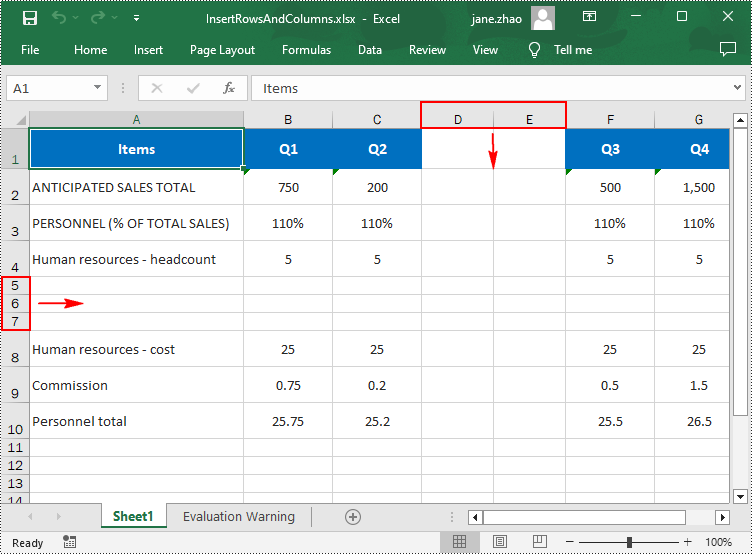
To insert multiple rows or columns, use the Worksheet.InsertRow(rowIndex: number, rowCount: number) or Worksheet.InsertColumn(columnIndex: number, columnCount: number) methods. The first parameter represents the index at which the new row/column will be inserted, and the second argument represents the number of rows/columns to be inserted. The following are the main steps.
- Create a Workbook object using the new wasmModule.Workbook() method.
- Load an Excel file using the Workbook.LoadFromFile() method.
- Get a specific worksheet using the Workbook.Worksheets.get() method.
- Insert multiple rows into the worksheet using the Worksheet.InsertRow(rowIndex: number, rowCount: number) method.
- Insert multiple columns into the worksheet using Worksheet.InsertColumn(columnIndex: number, columnCount: number) method.
- Save the result file using the Workbook.SaveToFile() method.
- JavaScript
import React, { useState, useEffect } from 'react';
function App() {
  const [wasmModule, setWasmModule] = useState(null);
  // Load Spire.XLS
  useEffect(() => {
    (async () => {
      try {
        const publicUrl = process.env.PUBLIC_URL || '';
        const spireModule = await import(/* webpackIgnore: true */ `${publicUrl}/spire.xls.js`);
        const rawModule = spireModule.default || spireModule;
        window.wasmModule = typeof rawModule === 'function'
          ? await rawModule({ locateFile: p => p.endsWith('.wasm') ? `${publicUrl}/${p}` : p })
          : rawModule;
        setWasmModule(window.wasmModule);
      } catch (error) {
        console.error('Failed to load spire.xls.js WASM module:', error);
      }
    })();
  }, []);

  // Function to insert multiple rows and columns
  const InsertRowsColumns = async () => {
    const wasmModule = window.wasmModule.spirexls;

    if (wasmModule) {
      // Load font into Virtual File System (VFS)
      await window.spire.FetchFileToVFS('Arial.ttf', '/Library/Fonts/', `${process.env.PUBLIC_URL}/static/font/`);


      // Load the Excel files into the virtual file system (VFS)
      let inputFileName = 'merged.xlsx';
      await window.spire.FetchFileToVFS(inputFileName, '', `${process.env.PUBLIC_URL}/static/data/`);


      // Create a new workbook
      let workbook = new wasmModule.Workbook();


      // Load an Excel document
      workbook.LoadFromFile({ fileName: inputFileName });

      // Get the first worksheet
      let worksheet = workbook.Worksheets.get(0);

      // Insert three blank rows into the worksheet
      worksheet.InsertRow({ rowIndex: 5, rowCount: 3 });

      // Insert two blank columns into the worksheet
      worksheet.InsertColumn({ columnIndex: 4, columnCount: 2 });

      //Save result file
      const outputFileName = 'InsertRowsAndColumns.xlsx';
      workbook.SaveToFile({ fileName: outputFileName, version: wasmModule.ExcelVersion.Version2016 });

      // Read the saved file and convert to Blob object
      const modifiedFileArray = window.dotnetRuntime.Module.FS.readFile(outputFileName);
      const modifiedFile = new Blob([modifiedFileArray], { type: 'application/vnd.openxmlformats-officedocument.spreadsheetml.sheet' });

      // Create a URL for the Blob and initiate download
      const url = URL.createObjectURL(modifiedFile);
      const a = document.createElement('a');
      a.href = url;
      a.download = outputFileName;
      document.body.appendChild(a);
      a.click();
      document.body.removeChild(a);
      URL.revokeObjectURL(url);

      // Clean up resources used by the workbook
      workbook.Dispose();
    }
  };

  return (
  <div style={{ textAlign: 'center', height: '300px' }}>
    <h1>Insert Rows and Columns in Excel Using JavaScript in React</h1>
    <button onClick={InsertRowsColumns} disabled={!wasmModule}>
      Process
    </button>
      </div>
  );
}

export default App;
Get a Free License
To fully experience the capabilities of Spire.XLS for JavaScript without any evaluation limitations, you can request a free 30-day trial license.
Add, Replace or Remove Images in PDF with JavaScript in React
PDFs are versatile documents that often contain images to enhance their visual appeal and convey information. The ability to manipulate these images - adding new ones, replacing existing ones, or removing unwanted ones - is a valuable skill. In this article, you will learn how to add, replace, or delete images in a PDF document in React using Spire.PDF for JavaScript .
- Add an Image to a PDF Document in JavaScript
- Replace an Image in a PDF Document in JavaScript
- Remove an Image from a PDF Document in JavaScript
Install Spire.PDF for JavaScript
To get started with manipulating images in PDF in a React application, you can either download Spire.PDF for JavaScript from our website or install it via npm with the following command:
npm i spire.office
The downloaded product package integrates Spire.Doc for JavaScript, Spire.XLS for JavaScript, Spire.PDF for JavaScript, and Spire.Presentation for JavaScript. To use Spire.PDF for JavaScript functionality, you need to copy the corresponding files (spire.pdf.js, Spire.Pdf.Wasm.zip, spire.common.js, Spire.Common.Wasm.zip, and the _framework folder) to the public folder of your project. Additionally, to ensure proper text rendering, font files can be added to a custom path of your choice. In the following example, the font addition path is: public\static\font.
For more details, refer to the documentation: How to Integrate Spire.PDF for JavaScript in a React Project
Add an Image to a PDF Document in JavaScript
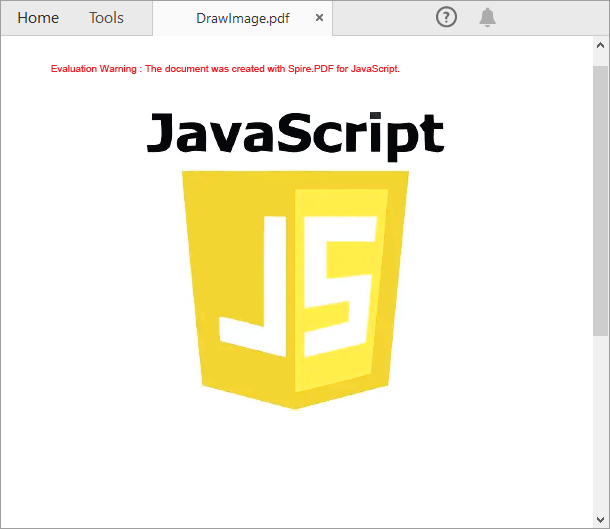
Spire.PDF for JavaScript provides the PdfPage.Canvas.DrawImage() method to add an image at a specified location on a PDF page. The main steps are as follows.
- Load the input image into the Virtual File System (VFS).
- Create a PdfDocument object with the wasmModule.PdfDocument() method.
- Add a page to the PDF document using the PdfDocument.Pages.Add() method.
- Load the image using the wasmModule.PdfImage.FromFile() method.
- Specify the size of the image.
- Draw the image at a specified location on the page using the PdfPageBase.Canvas.DrawImage() method.
- Save the PDF document using PdfDocument.SaveToFile() method.
- Trigger the download of the resulting document.
- JavaScript
import React, { useState, useEffect } from 'react';

function App() {
   const [wasmModule, setWasmModule] = useState(null);
   useEffect(() => {
    (async () => {
      try {
        const publicUrl = process.env.PUBLIC_URL || '';
        const spireModule = await import(/* webpackIgnore: true */ `${publicUrl}/spire.pdf.js`);
        const rawModule = spireModule.default || spireModule;
        window.wasmModule = typeof rawModule === 'function'
          ? await rawModule({ locateFile: p => p.endsWith('.wasm') ? `${publicUrl}/${p}` : p })
          : rawModule;
        setWasmModule(window.wasmModule);
      } catch (error) {
        console.error('Failed to load spire.pdf.js:', error);
      }
    })();
  }, []);

  const AddPdfImage = async () => {
    const wasmModule = window.wasmModule.spirepdf;

    if (wasmModule) {
      // Specify the input and output file paths
      const inputFileName =  "JS.png";
      const outputFileName = "DrawImage.pdf";

      await window.spire.FetchFileToVFS(inputFileName, "", `${process.env.PUBLIC_URL}static/data/`);
      // Create a pdf instance
      let pdf =new wasmModule.PdfDocument();

      // Add a page
      let page = pdf.Pages.Add();

      // Load the image
      let image = wasmModule.PdfImage.FromFile(inputFileName);

      // Calculate the scaled width and height of the image
      let width = image.Width * 0.6;
      let height = image.Height * 0.6;

      // Calculate the x-coordinate to center the image horizontally on the page
      let x = (page.Canvas.ClientSize.Width - width) / 2;

      // Draw the image at a specified location on the page
      page.Canvas.DrawImage({image:image, x:x, y: 60, width: width, height: height});

      // Save the result file
      pdf.SaveToFile({fileName: outputFileName});

      // Clean up resources
      pdf.Close();

      // Read the generated PDF file
      const modifiedFileArray = window.dotnetRuntime.Module.FS.readFile(outputFileName);

      // Create a Blob object from the PDF file
      const modifiedFile = new Blob([modifiedFileArray], { type: "application/pdf" });

      // Create a URL for the Blob
      const url = URL.createObjectURL(modifiedFile);

      // Create an anchor element to trigger the download
      const a = document.createElement('a');
      a.href = url;
      a.download = outputFileName;
      document.body.appendChild(a);
      a.click();
      document.body.removeChild(a);
      URL.revokeObjectURL(url);
    }
  };

  return (
    <div style={{ textAlign: 'center', height: '300px' }}>
      <h1>Add Images in PDF with JavaScript in React</h1>
      <button onClick={AddPdfImage}>
        Process
      </button>
    </div>
  );
}


export default App;
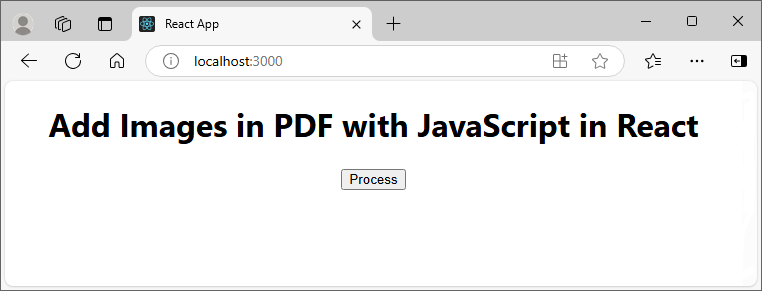
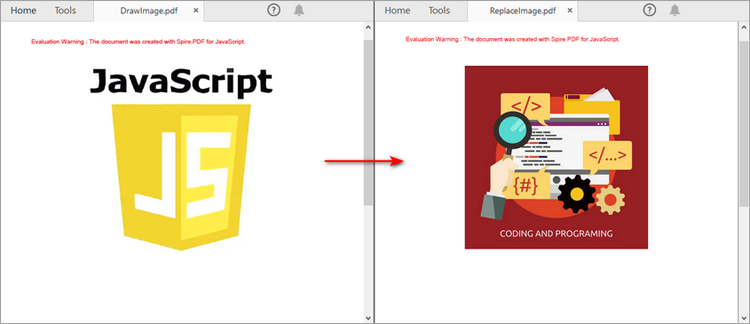
Run the code to launch the React app at localhost:3000. Once it's running, click the "Process" button to insert image in PDF:
Below is the result file:
Replace an Image in a PDF Document in JavaScript
To replace an image in PDF, you can load a new image and then replace the existing image with the new one through the PdfImageHelper.ReplaceImage() method. The main steps are as follows.
- Load the input file and image into the Virtual File System (VFS).
- Create a PdfDocument object with the wasmModule.PdfDocument() method.
- Load a PDF document using the PdfDocument.LoadFromFile() method.
- Get a specific page through the PdfDocument.Pages.get_Item() method.
- Load an image using PdfImage.FromFile() method.
- Create a PdfImageHelper object with the wasmModule.PdfImageHelper() method.
- Get the image information on the page using the PdfImageHelper.GetImagesInfo() method.
- Load the input image using the wasmModule.PdfImage.FromFile() method.
- Replace an existing image in the page with the new image using the PdfImageHelper.ReplaceImage() method.
- Save the PDF document using PdfDocument.SaveToFile() method.
- Trigger the download of the resulting document.
- JavaScript
import React, { useState, useEffect } from 'react';

function App() {
   const [wasmModule, setWasmModule] = useState(null);
   useEffect(() => {
    (async () => {
      try {
        const publicUrl = process.env.PUBLIC_URL || '';
        const spireModule = await import(/* webpackIgnore: true */ `${publicUrl}/spire.pdf.js`);
        const rawModule = spireModule.default || spireModule;
        window.wasmModule = typeof rawModule === 'function'
          ? await rawModule({ locateFile: p => p.endsWith('.wasm') ? `${publicUrl}/${p}` : p })
          : rawModule;
        setWasmModule(window.wasmModule);
      } catch (error) {
        console.error('Failed to load spire.pdf.js:', error);
      }
    })();
  }, []);

  const ReplacePdfImage = async () => {
    const wasmModule = window.wasmModule.spirepdf;

    if (wasmModule) {
      // Specify the input and output file paths
      let inputFileName  = ""ReplaceImage.pdf"";
      await window.spire.FetchFileToVFS(inputFileName , '',  `${process.env.PUBLIC_URL}static/data/`);

      const inputImageName = "ChartImage.png";
      await window.spire.FetchFileToVFS(inputImageName , '',  `${process.env.PUBLIC_URL}static/data/`);

      const outputFileName = "ReplaceImage_result.pdf";

      // Create a pdf instance
      let pdf =new wasmModule.PdfDocument();

      // Load the PDF file
      pdf.LoadFromFile({fileName: inputFileName});

      // Get the first page
      let page = pdf.Pages.get_Item(0);

      // Create a PdfImageHelper instance
      let helper =new wasmModule.PdfImageHelper();

      // Get the image information from the page
      let images = helper.GetImagesInfo(page);

      // Load a new image
      let newImage = wasmModule.PdfImage.FromFile(inputImageName);

      // Replace the first image on the page with the loaded image
      helper.ReplaceImage(images[0], newImage);

      // Save the result file
      pdf.SaveToFile({fileName: outputFileName});

      // Clean up resources
      pdf.Close();

      // Read the generated PDF file
      const modifiedFileArray = window.dotnetRuntime.Module.FS.readFile(outputFileName);

      // Create a Blob object from the PDF file
      const modifiedFile = new Blob([modifiedFileArray], { type: "application/pdf" });

      // Create a URL for the Blob
      const url = URL.createObjectURL(modifiedFile);

      // Create an anchor element to trigger the download
      const a = document.createElement('a');
      a.href = url;
      a.download = outputFileName;
      document.body.appendChild(a);
      a.click();
      document.body.removeChild(a);
      URL.revokeObjectURL(url);
    }
  };

  return (
    <div style={{ textAlign: 'center', height: '300px' }}>
      <h1>Replace an Image in PDF with JavaScript in React</h1>
      <button onClick={ReplacePdfImage}>
        Process
      </button>
    </div>
  );
}


export default App;
Remove an Image from a PDF Document in JavaScript
The PdfImageHelper class also provides the DeleteImage() method to remove a specific image from a PDF page. The main steps are as follows.
- Load the input file into the Virtual File System (VFS).
- Create a PdfDocument object with the wasmModule.PdfDocument() method.
- Load a PDF document using the PdfDocument.LoadFromFile() method.
- Get a specific page using the PdfDocument.Pages.get_Item() method.
- Create a PdfImageHelper object with the wasmModule.PdfImageHelper() method.
- Get the image information on the page using the PdfImageHelper.GetImagesInfo() method.
- Delete a specified image on the page using the PdfImageHelper.DeleteImage() method.
- Save the PDF document using PdfDocument.SaveToFile() method.
- Trigger the download of the resulting document.
- JavaScript
import React, { useState, useEffect } from 'react';

function App() {
   const [wasmModule, setWasmModule] = useState(null);
   useEffect(() => {
    (async () => {
      try {
        const publicUrl = process.env.PUBLIC_URL || '';
        const spireModule = await import(/* webpackIgnore: true */ `${publicUrl}/spire.pdf.js`);
        const rawModule = spireModule.default || spireModule;
        window.wasmModule = typeof rawModule === 'function'
          ? await rawModule({ locateFile: p => p.endsWith('.wasm') ? `${publicUrl}/${p}` : p })
          : rawModule;
        setWasmModule(window.wasmModule);
      } catch (error) {
        console.error('Failed to load spire.pdf.js:', error);
      }
    })();
  }, []);

  const DeletePdfImage = async () => {
    const wasmModule = window.wasmModule.spirepdf;

    if (wasmModule) {
      // Specify the input and output file paths
      let inputFileName  = "DrawImage.pdf";
      await window.spire.FetchFileToVFS(inputFileName , '',  `${process.env.PUBLIC_URL}static/data/`);

      const outputFileName = "DeleteImage.pdf";

      // Create a pdf instance
      let pdf =new wasmModule.PdfDocument();

      // Load the PDF file
      pdf.LoadFromFile({fileName: inputFileName});

      // Get the first page
      let page = pdf.Pages.get_Item(0);

      // Create a PdfImageHelper instance
      let helper =new wasmModule.PdfImageHelper();

      // Get the image information from the page
      let images = helper.GetImagesInfo(page);

      // Delete the first image on the page
      helper.DeleteImage({imageInfo: images[0]});

      // Save the result file
      pdf.SaveToFile({fileName: outputFileName});

      // Clean up resources
      pdf.Close();

      // Read the generated PDF file
      const modifiedFileArray = window.dotnetRuntime.Module.FS.readFile(outputFileName);

      // Create a Blob object from the PDF file
      const modifiedFile = new Blob([modifiedFileArray], { type: "application/pdf" });

      // Create a URL for the Blob
      const url = URL.createObjectURL(modifiedFile);

      // Create an anchor element to trigger the download
      const a = document.createElement('a');
      a.href = url;
      a.download = outputFileName;
      document.body.appendChild(a);
      a.click();
      document.body.removeChild(a);
      URL.revokeObjectURL(url);
    }
  };

   return (
    <div style={{ textAlign: 'center', height: '300px' }}>
      <h1>Remove an Image from PDF with JavaScript in React</h1>
      <button onClick={DeletePdfImage} disabled={!wasmModule}>
        Process
      </button>
    </div>
  );
}


export default App;
Get a Free License
To fully experience the capabilities of Spire.PDF for JavaScript without any evaluation limitations, you can request a free 30-day trial license.
Convert PDF to HTML with JavaScript in React
Converting PDF to HTML is important for improving accessibility and interactivity in web environments. While PDFs are widely used for their reliable layout and ease of sharing, they can be restrictive when it comes to online use. HTML provides greater flexibility, allowing content to be displayed more effectively on websites and mobile devices. By converting a PDF document into HTML, developers can enhance search engine visibility, enable easier editing, and create more user-friendly experiences. In this article, we will demonstrate how to convert PDF to HTML in React with JavaScript and the Spire.PDF for JavaScript library.
- Convert PDF to HTML in React
- Customize PDF to HTML Conversion Settings in React
- Convert PDF to HTML Stream in React
Install Spire.PDF for JavaScript
To get started with converting PDF to HTML with JavaScript in a React application, you can either download Spire.PDF for JavaScript from our website or install it via npm with the following command:
npm i spire.office
The downloaded product package integrates Spire.Doc for JavaScript, Spire.XLS for JavaScript, Spire.PDF for JavaScript, and Spire.Presentation for JavaScript. To use Spire.PDF for JavaScript functionality, you need to copy the corresponding files (spire.pdf.js, Spire.Pdf.Wasm.zip, spire.common.js, Spire.Common.Wasm.zip, and the _framework folder) to the public folder of your project. Additionally, to ensure proper text rendering, font files can be added to a custom path of your choice. In the following example, the font addition path is: public\static\font.
For more details, refer to the documentation: How to Integrate Spire.PDF for JavaScript in a React Project
Convert PDF to HTML in React
The PdfDocument.SaveToFile() method offered by Spire.PDF for JavaScript allows developers to effortlessly convert a PDF file into HTML format. The detailed steps are as follows.
- Load the required font file and the input PDF file into the Virtual File System (VFS).
- Create a PdfDocument object with the wasmModule.PdfDocument() method.
- Load the PDF file using the PdfDocument.LoadFromFile() method.
- Save the PDF file to HTML format using the PdfDocument.SaveToFile() method.
- JavaScript
import React, { useState, useEffect } from 'react';

function App() {
   const [wasmModule, setWasmModule] = useState(null);
   useEffect(() => {
    (async () => {
      try {
        const publicUrl = process.env.PUBLIC_URL || '';
        const spireModule = await import(/* webpackIgnore: true */ `${publicUrl}/spire.pdf.js`);
        const rawModule = spireModule.default || spireModule;
        window.wasmModule = typeof rawModule === 'function'
          ? await rawModule({ locateFile: p => p.endsWith('.wasm') ? `${publicUrl}/${p}` : p })
          : rawModule;
        setWasmModule(window.wasmModule);
      } catch (error) {
        console.error('Failed to load spire.pdf.js:', error);
      }
    })();
  }, []);

  const ConvertPdfToHTML= async () => {
    // Get WASM module
    const wasmModule = window.wasmModule.spirepdf;

    if (wasmModule) {
      // Load font file to virtual file system (VFS)
      await window.spire.FetchFileToVFS("arial.ttf","/Library/Fonts/",`${process.env.PUBLIC_URL}static/font/`);

      // PDF file name to convert
      let inputFileName = "ToHTML.pdf";

      // Load PDF file to virtual file system (VFS)
      await window.spire.FetchFileToVFS(inputFileName, "", `${process.env.PUBLIC_URL}static/data/`);

      // Create a PdfDocument object
      let doc =new wasmModule.PdfDocument();

      // Load the PDF file
      doc.LoadFromFile(inputFileName);

      // Define the output file name
      const outputFileName = 'PdfToHtml.html';

      // Save the document to an HTML file
      doc.SaveToFile({fileName: outputFileName, fileFormat: wasmModule.FileFormat.HTML});

      // Read the saved file and convert to a Blob object
      const modifiedFileArray = window.dotnetRuntime.Module.FS.readFile(outputFileName);
      const modifiedFile = new Blob([modifiedFileArray], { type: "text/html" });

      // Create a URL for the Blob
      const url = URL.createObjectURL(modifiedFile);

      // Create an anchor element to trigger the download
      const a = document.createElement('a');
      a.href = url;
      a.download = outputFileName ;
      document.body.appendChild(a);
      a.click();
      document.body.removeChild(a);
      URL.revokeObjectURL(url);
    }
  };

  return (
    <div style={{ textAlign: 'center', height: '300px' }}>
      <h1>Convert PDF to HTML in React Using JavaScript</h1>
      <button onClick={ConvertPdfToHTML} disabled={!wasmModule}>
        Convert
      </button>
    </div>
  );

}

export default App;
Run the code to launch the React app at localhost:3000. Once it's running, click on the "Convert" button to convert the PDF file to HTML format:
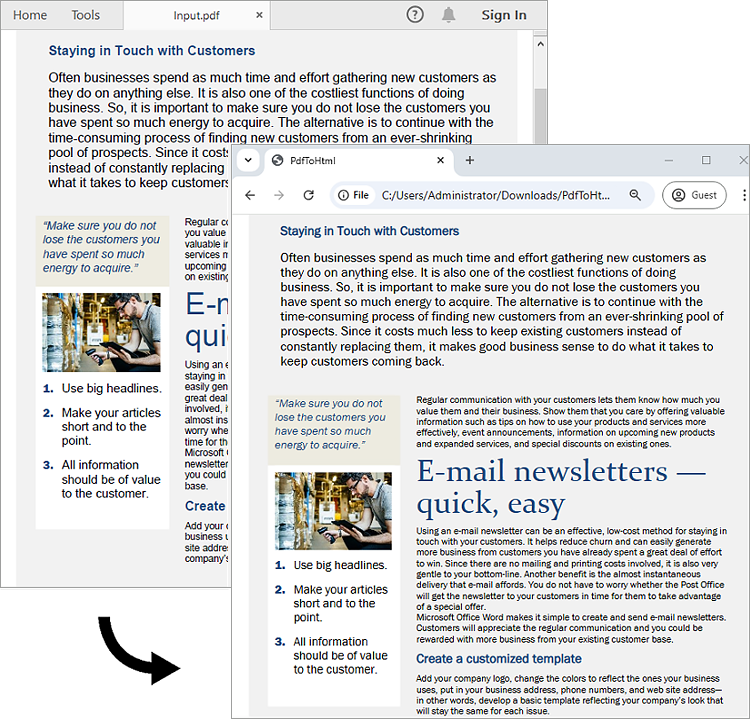
Here is the screenshot of the input PDF file and the converted HTML file:
Customize PDF to HTML Conversion Settings in React
Developers can use the PdfDocument.ConvertOptions.SetPdfToHtmlOptions() method to customize settings during the PDF to HTML conversion process. For instance, they can choose whether to embed SVG or images in the resulting HTML and set the maximum number of pages included in each HTML file. The detailed steps are as follows.
- Load the required font file and the input PDF file into the Virtual File System (VFS).
- Create a PdfDocument object with the wasmModule.PdfDocument() method.
- Load the PDF file using the PdfDocument.LoadFromFile() method.
- Customize the PDF to HTML conversion settings using the PdfDocument.ConvertOptions.SetPdfToHtmlOptions() method.
- Save the PDF document to HTML format using the PdfDocument.SaveToFile() method.
- JavaScript
import React, { useState, useEffect } from 'react';

function App() {
   const [wasmModule, setWasmModule] = useState(null);
   useEffect(() => {
    (async () => {
      try {
        const publicUrl = process.env.PUBLIC_URL || '';
        const spireModule = await import(/* webpackIgnore: true */ `${publicUrl}/spire.pdf.js`);
        const rawModule = spireModule.default || spireModule;
        window.wasmModule = typeof rawModule === 'function'
          ? await rawModule({ locateFile: p => p.endsWith('.wasm') ? `${publicUrl}/${p}` : p })
          : rawModule;
        setWasmModule(window.wasmModule);
      } catch (error) {
        console.error('Failed to load spire.pdf.js:', error);
      }
    })();
  }, []);


  const downloadFileFromVFS = (fileName) => {
    const fileArray = window.dotnetRuntime.Module.FS.readFile(fileName);
    const fileBlob = new Blob([fileArray], { type: 'text/html' });
    const url = URL.createObjectURL(fileBlob);
    const a = document.createElement('a');
    a.href = url;
    a.download = fileName;
    document.body.appendChild(a);
    a.click();
    document.body.removeChild(a);
    URL.revokeObjectURL(url);
  };

  const ConvertPdfToHTML = async () => {
    const wasmModule = window.wasmModule.spirepdf;

    if (wasmModule) {
      await window.spire.FetchFileToVFS("MSYH.TTC", "/Library/Fonts/", `${process.env.PUBLIC_URL}static/font/`);

      // Load the input PDF file into the VFS
      let inputFileName = "ToHTML.pdf";
      await window.spire.FetchFileToVFS(inputFileName, "", `${process.env.PUBLIC_URL}static/data/`);
      let doc = new wasmModule.PdfDocument();
      doc.LoadFromFile(inputFileName);

      const totalPages = doc.Pages.Count;

      // Customize the conversion settings
      doc.ConvertOptions.SetPdfToHtmlOptions({ useEmbeddedSvg: false, useEmbeddedImg: true, maxPageOneFile: 1 });

       // Save the document to an HTML file
      const outputFileName = 'PdfToHtmlOptions.html';
      doc.SaveToFile({ fileName: outputFileName, fileFormat: wasmModule.FileFormat.HTML });

      doc.Close();
      doc.Dispose();

      console.log(`totalPages: ${totalPages}`);

      for (let i = 1; i <= totalPages; i++) {
        const fileName = `PdfToHtmlOptions_${i}-${i}.html`;
        downloadFileFromVFS(fileName);
      }
    }
  };

  return (
    <div style={{ textAlign: 'center', height: '300px' }}>
      <h1>Convert PDF to HTML in React Using JavaScript</h1>
      <button onClick={ConvertPdfToHTML}>
        Convert
      </button>
    </div>
  );
}

export default App;
Convert PDF to HTML Stream in React
Spire.PDF for JavaScript also supports converting a PDF to an HTML stream using the PdfDocument.SaveToStream() method. The detailed steps are as follows.
- Load the required font file and the input PDF file into the Virtual File System (VFS).
- Create a PdfDocument object with the wasmModule.PdfDocument() method.
- Load the PDF file using the PdfDocument.LoadFromFile() method.
- Create a memory stream using the wasmModule.Stream() method.
- Save the PDF document as an HTML stream using the PdfDocument.SaveToStream() method.
- Write the content of the stream to an HTML file using the window.dotnetRuntime.Module.FS.readFile() method.
- JavaScript
import React, { useState, useEffect } from 'react';

function App() {
   const [wasmModule, setWasmModule] = useState(null);
   useEffect(() => {
    (async () => {
      try {
        const publicUrl = process.env.PUBLIC_URL || '';
        const spireModule = await import(/* webpackIgnore: true */ `${publicUrl}/spire.pdf.js`);
        const rawModule = spireModule.default || spireModule;
        window.wasmModule = typeof rawModule === 'function'
          ? await rawModule({ locateFile: p => p.endsWith('.wasm') ? `${publicUrl}/${p}` : p })
          : rawModule;
        setWasmModule(window.wasmModule);
      } catch (error) {
        console.error('Failed to load spire.pdf.js:', error);
      }
    })();
  }, []);

  const ConvertPdfToHTML = async () => {
    const wasmModule = window.wasmModule.spirepdf;

    if (wasmModule) {
      await window.spire.FetchFileToVFS("MSYH.TTC", "/Library/Fonts/", `${process.env.PUBLIC_URL}static/font/`);

      // Load the input PDF file into the VFS
      let inputFileName = "ToHTML.pdf";
      await window.spire.FetchFileToVFS(inputFileName, "", `${process.env.PUBLIC_URL}static/data/`);
      let doc = new wasmModule.PdfDocument();
      doc.LoadFromFile(inputFileName);

      // Define the output file name
      const outputFileName = 'PdfToHtmlStream.html';
      // Create a new memory stream
     let ms = new wasmModule.Stream();

     // Save the file as HTML stream
     doc.SaveToStream({stream: ms, fileformat: wasmModule.FileFormat.HTML});
     ms.Save(outputFileName);

     // Release resources
     ms.Close();
     doc.Close();

     // Read the saved HTML file and convert to a Blob object
     const modifiedFileArray = window.dotnetRuntime.Module.FS.readFile(outputFileName);
     const modifiedFile = new Blob([modifiedFileArray], { type: "text/html" });

     // Create a Blob URL and trigger download
     const url = URL.createObjectURL(modifiedFile);
     const a = document.createElement('a');
     a.href = url;
     a.download = outputFileName;
     document.body.appendChild(a);
     a.click();
     document.body.removeChild(a);
     URL.revokeObjectURL(url);
    }
  };

  return (
    <div style={{ textAlign: 'center', height: '300px' }}>
      <h1>Convert PDF to HTML in React Using JavaScript</h1>
      <button onClick={ConvertPdfToHTML}>
        Convert
      </button>
    </div>
  );
}

export default App;
Get a Free License
To fully experience the capabilities of Spire.PDF for JavaScript without any evaluation limitations, you can request a free 30-day trial license.
Convert PDF to Word with JavaScript in React
Converting PDF files to Word documents is essential for modern web applications focused on document management and editing. Using JavaScript and React, developers can easily integrate this functionality with libraries like Spire.PDF for JavaScript. This guide will walk you through implementing a PDF-to-Word conversion feature in a React application, showing how to load files, configure settings, and enable users to download their converted documents effortlessly.
Install Spire.PDF for JavaScript
To get started with converting PDF to Word with JavaScript in a React application, you can either download Spire.PDF for JavaScript from our website or install it via npm with the following command:
npm i spire.office
The downloaded product package integrates Spire.Doc for JavaScript, Spire.XLS for JavaScript, Spire.PDF for JavaScript, and Spire.Presentation for JavaScript. To use Spire.PDF for JavaScript functionality, you need to copy the corresponding files (spire.pdf.js, Spire.Pdf.Wasm.zip, spire.common.js, Spire.Common.Wasm.zip, and the _framework folder) to the public folder of your project. Additionally, to ensure proper text rendering, font files can be added to a custom path of your choice. In the following example, the font addition path is: public\static\font.
For more details, refer to the documentation: How to Integrate Spire.PDF for JavaScript in a React Project
Convert PDF to Word Using PdfToDocConverter Class
The PdfToDocConverter class from Spire.PDF for JavaScript facilitates the conversion of PDF files to Word documents. It includes the DocxOptions property, allowing developers to customize conversion settings, including document properties. The conversion is performed using the SaveToDocx() method.
Steps to convert PDF to Word using the PdfToDocConverter class in React:
- Load the necessary font files and input PDF file into the virtual file system (VFS).
- Instantiate a PdfToDocConverter object using the wasmModule.PdfToDocConverter() method, passing the PDF file path.
- Customize the generated Word file's properties using the DocxOptions property.
- Use the SaveToDocx() method to convert the PDF document.
- Trigger the download of the resulting Word file.
- JavaScript
import React, { useState, useEffect } from 'react';

function App() {
   const [wasmModule, setWasmModule] = useState(null);
   useEffect(() => {
    (async () => {
      try {
        const publicUrl = process.env.PUBLIC_URL || '';
        const spireModule = await import(/* webpackIgnore: true */ `${publicUrl}/spire.pdf.js`);
        const rawModule = spireModule.default || spireModule;
        window.wasmModule = typeof rawModule === 'function'
          ? await rawModule({ locateFile: p => p.endsWith('.wasm') ? `${publicUrl}/${p}` : p })
          : rawModule;
        setWasmModule(window.wasmModule);
      } catch (error) {
        console.error('Failed to load spire.pdf.js:', error);
      }
    })();
  }, []);

  const ConvertPdfToWord= async () => {
    // Get WASM module
    const wasmModule = window.wasmModule.spirepdf;

    if (wasmModule) {
      // Load font file to virtual file system (VFS)
      await window.spire.FetchFileToVFS("arial.ttf","/Library/Fonts/",`${process.env.PUBLIC_URL}static/font/`);

      // PDF file name to convert
      let inputFileName = "ToDocx.pdf";
      // Load PDF file to virtual file system (VFS)
      await window.spire.FetchFileToVFS(inputFileName, "", `${process.env.PUBLIC_URL}static/data/`);

      // Create a PdfToDocConverter object
      let converter =new wasmModule.PdfToDocConverter({filePath: inputFileName});

      // Set document properties of the generated Word file
      converter.DocxOptions.Subject = "Convert PDF to Word";
      converter.DocxOptions.Authors = "E-ICEBLUE"

      // Define the output file name
      const outputFileName = "ToWord.docx";

      // Convert PDF as a Docx file
      converter.SaveToDocx({fileName: outputFileName});

      // Read the saved file and convert to a Blob object
      const modifiedFileArray = window.dotnetRuntime.Module.FS.readFile(outputFileName);
      const modifiedFile = new Blob([modifiedFileArray], { type: "msword" });

      // Create a URL for the Blob
      const url = URL.createObjectURL(modifiedFile);

      // Create an anchor element to trigger the download
      const a = document.createElement('a');
      a.href = url;
      a.download = outputFileName ;
      document.body.appendChild(a);
      a.click();
      document.body.removeChild(a);
      URL.revokeObjectURL(url);
    }
  };

    return (
    <div style={{ textAlign: 'center', height: '300px' }}>
      <h1>Convert PDF to Word in React</h1>
      <button onClick={ConvertPdfToWord}>
        Convert
      </button>
    </div>
  );
}

export default App;
Run the code to launch the React app at localhost:3000. Click "Convert," and a "Save As" window will appear, prompting you to save the output file in your chosen folder.

Below is a screenshot showing the input PDF file and the output Word file:
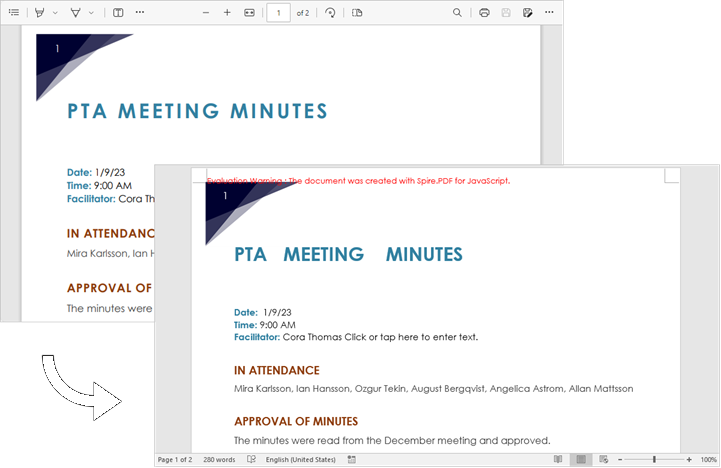
Convert PDF to Word Using PdfDocument Class
To convert PDF to Word, you can also use the PdfDocument class. This class allows developers to load an existing PDF document, make modifications, and save it as a Word file. This feature is particularly useful for users who need to edit or enhance their PDFs before conversion.
Steps to convert PDF to Word Using the PdfDocument class in React:
- Load the necessary font files and input PDF file into the virtual file system (VFS).
- Create a PdfDocument object using the wasmModule.PdfDocument() method
- Load the PDF document using the PdfDocument.LoadFromFile() method.
- Convert the PDF document to a Word file using the PdfDocument.SaveToFile() method.
- Trigger the download of the resulting Word file.
- JavaScript
import React, { useState, useEffect } from 'react';

function App() {
   const [wasmModule, setWasmModule] = useState(null);
   useEffect(() => {
    (async () => {
      try {
        const publicUrl = process.env.PUBLIC_URL || '';
        const spireModule = await import(/* webpackIgnore: true */ `${publicUrl}/spire.pdf.js`);
        const rawModule = spireModule.default || spireModule;
        window.wasmModule = typeof rawModule === 'function'
          ? await rawModule({ locateFile: p => p.endsWith('.wasm') ? `${publicUrl}/${p}` : p })
          : rawModule;
        setWasmModule(window.wasmModule);
      } catch (error) {
        console.error('Failed to load spire.pdf.js:', error);
      }
    })();
  }, []);

  const ConvertPdfToWord= async () => {
    // Get WASM module
    const wasmModule = window.wasmModule.spirepdf;

    if (wasmModule) {
      // Load font file to virtual file system (VFS)
      await window.spire.FetchFileToVFS("arial.ttf","/Library/Fonts/",`${process.env.PUBLIC_URL}static/font/`);

      // PDF file name to convert
      let inputFileName = "ToDocx.pdf";

      // Load PDF file to virtual file system (VFS)
      await window.spire.FetchFileToVFS(inputFileName, "", `${process.env.PUBLIC_URL}static/data/`);

      // Create a PdfDocument object
      let doc =new wasmModule.PdfDocument();

      // Load the PDF file
      doc.LoadFromFile(inputFileName);

      // Define the output file name
      const outputFileName = "ToWord.docx";

      // Convert PDF as a Docx file
      doc.SaveToFile({fileName: outputFileName,fileFormat: wasmModule.FileFormat.DOCX});

      // Read the saved file and convert to a Blob object
      const modifiedFileArray = window.dotnetRuntime.Module.FS.readFile(outputFileName);
      const modifiedFile = new Blob([modifiedFileArray], { type: "msword" });

      // Create a URL for the Blob
      const url = URL.createObjectURL(modifiedFile);

      // Create an anchor element to trigger the download
      const a = document.createElement('a');
      a.href = url;
      a.download = outputFileName ;
      document.body.appendChild(a);
      a.click();
      document.body.removeChild(a);
      URL.revokeObjectURL(url);
    }
  };

  return (
    <div style={{ textAlign: 'center', height: '300px' }}>
      <h1>Convert PDF to Word in React</h1>
      <button onClick={ConvertPdfToWord}>
        Convert
      </button>
    </div>
  );

}

export default App;
Get a Free License
To fully experience the capabilities of Spire.PDF for JavaScript without any evaluation limitations, you can request a free 30-day trial license.