Convertire Markdown in testo | 4 metodi gratuiti, online e automatizzati
Indice dei contenuti
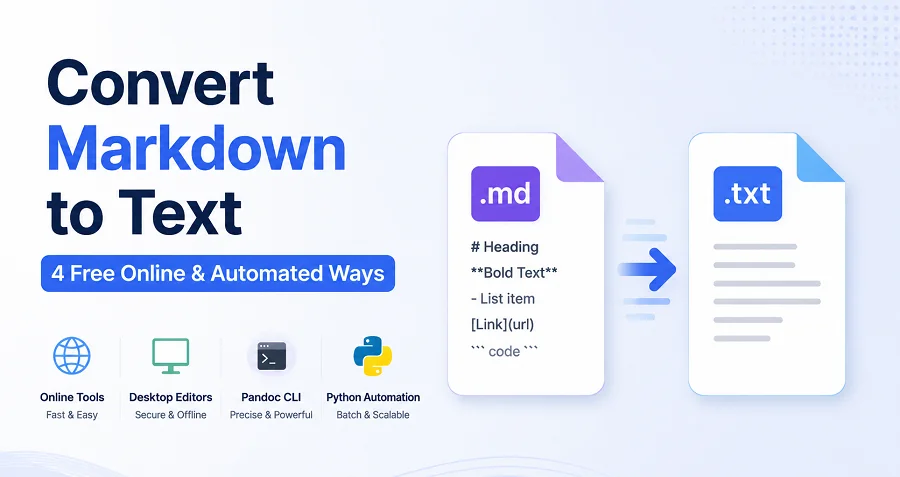
Markdown è lo standard d'oro per la stesura di documentazione tecnica e contenuti web. Tuttavia, ci sono molti scenari—come la preparazione di email in testo semplice, la generazione di report o l'integrazione di contenuti in sistemi legacy—che richiedono testo semplice. Convertire Markdown in testo garantisce che il tuo contenuto rimanga leggibile, accessibile e versatile su diverse piattaforme.
In questa guida, esploreremo 4 metodi semplici che scrittori e sviluppatori possono utilizzare per trasformare Markdown (.md) in testo semplice (.txt) pulito, senza perdere struttura o chiarezza.
Riepilogo Rapido: I Migliori Metodi da Markdown a Testo
Markdown può essere convertito in testo in diversi modi, a seconda del tuo livello di comfort tecnico, della complessità del documento e del volume dei file. Ecco una rapida panoramica dei 4 metodi principali:
| Metodo e Strumenti | Vantaggio Chiave | Ideale per |
|---|---|---|
| Strumenti online (MDToText, Picotoolkit) | Conversione istantanea nel browser, nessuna installazione richiesta | Conversione una tantum, non sensibile |
| Editor desktop (VS Code, Obsidian) | Funziona offline e ti dà più controllo sulla privacy | Modifica regolare e file riservati |
| Pandoc CLI | Preserva meglio la struttura per elenchi, collegamenti e Markdown complessi | Conversione accurata ed elaborazione batch |
| Script Python (Spire.Doc) | Programmabile e facile da integrare in flussi di lavoro automatizzati | Grandi set di file, pipeline AI e attività ricorrenti |
Fai clic su qualsiasi metodo sopra per passare direttamente alla sezione, o continua a leggere per la guida completa passo passo.
Metodo 1: Utilizzare Convertitori Online da Markdown a Testo
Quando hai solo bisogno di una conversione rapida e una tantum, scaricare software desktop pesanti è eccessivo. I convertitori online gratuiti da Markdown a testo offrono il flusso di lavoro più veloce basato sul browser per i creatori di contenuti. Puoi rimuovere la formattazione e ottenere testo semplice pronto per essere copiato in pochi secondi, senza alcuna installazione.
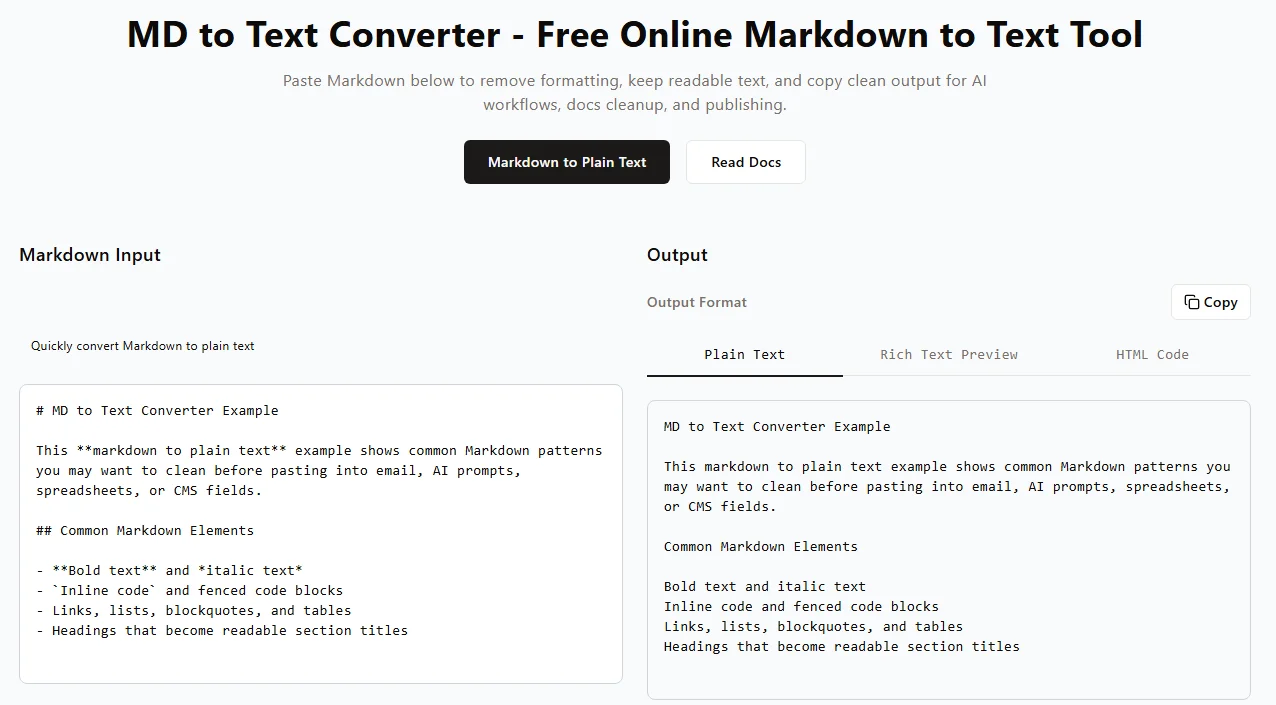
Come Convertire Markdown in Testo Online (Passo dopo Passo)
- Seleziona uno strumento – Apri un convertitore Markdown affidabile basato sul browser, come mdtotext.com o Picotoolkit MD to TXT Converter.
- Incolla il tuo contenuto – Copia il testo Markdown e incollalo direttamente nella casella di input dello strumento (o carica il tuo file .md).
- Rimuovi la formattazione – Lo strumento rimuove automaticamente simboli Markdown come
#,**e parentesi dei collegamenti in tempo reale. - Copia o scarica l'output – Rivedi il testo pulito e non formattato nel pannello di output, quindi copialo negli appunti o scarica il file.
⚠️ Considerazioni Importanti:
- Privacy e Sicurezza dei Dati – Evita di incollare dati aziendali sensibili, chiavi API o codice sorgente proprietario in convertitori online pubblici. Utilizza sempre metodi offline per file riservati.
- Limitazioni di Formattazione – Elementi avanzati come tabelle annidate, blockquote o elenchi di attività potrebbero non convertire perfettamente. Rileggi sempre l'output finale prima della pubblicazione.
✅ Pro: Istantaneo, nessuna configurazione, funziona su qualsiasi dispositivo.
❌ Contro: Non adatto a file di massa, richiede internet.
Metodo 2: Esporta Markdown in Testo tramite Editor Desktop
Se gestisci file Markdown riservati o preferisci lavorare offline, utilizzare un editor Markdown desktop è la scelta migliore. App popolari come VS Code e Obsidian ti consentono di convertire file Markdown localmente, dandoti il controllo completo sulla privacy dei tuoi dati.
Utilizzo di VS Code
- Apri il tuo file .md in VS Code trascinandolo e rilasciandolo o facendo clic su File → Apri.
- Premi Ctrl + Shift + V (Windows) o Cmd + Shift + V (Mac) per aprire il pannello Anteprima Markdown.
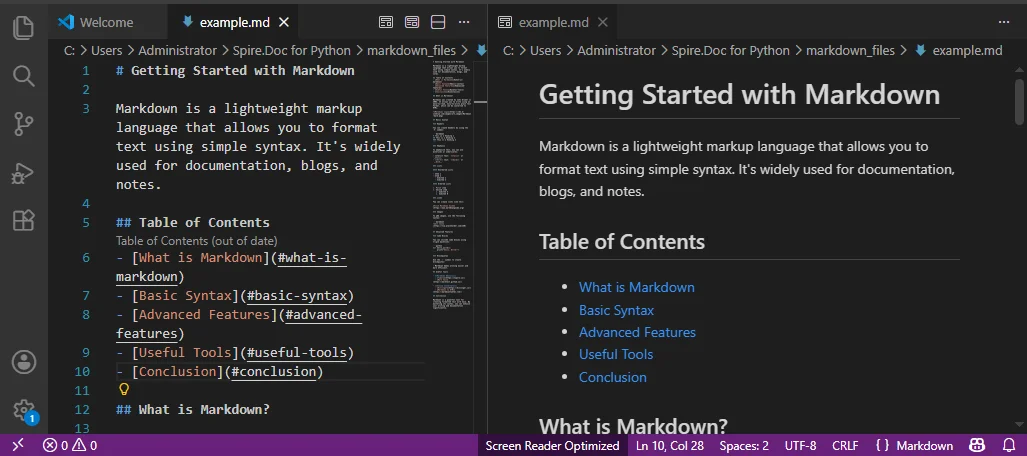
- Seleziona tutto il testo nella finestra di anteprima (Ctrl + A o Cmd + A) e copialo.
- Incolla il testo pulito in un nuovo file .txt.
Utilizzo di Obsidian
- Apri il tuo file Markdown in Obsidian.
- Passa alla Vista Lettura (modalità Anteprima).
- Seleziona tutto il testo, copialo e incollalo nel tuo editor di testo standard.
Suggerimenti Rapidi:
- Scorri in modalità Anteprima per verificare come appare il contenuto prima di esportare.
✅ Pro: Funziona offline, sicuro, supporta Markdown complesso.
❌ Contro: Copia-incolla manuale, non ideale per più file.
Metodo 3: Convertire Markdown in Testo Utilizzando Pandoc CLI
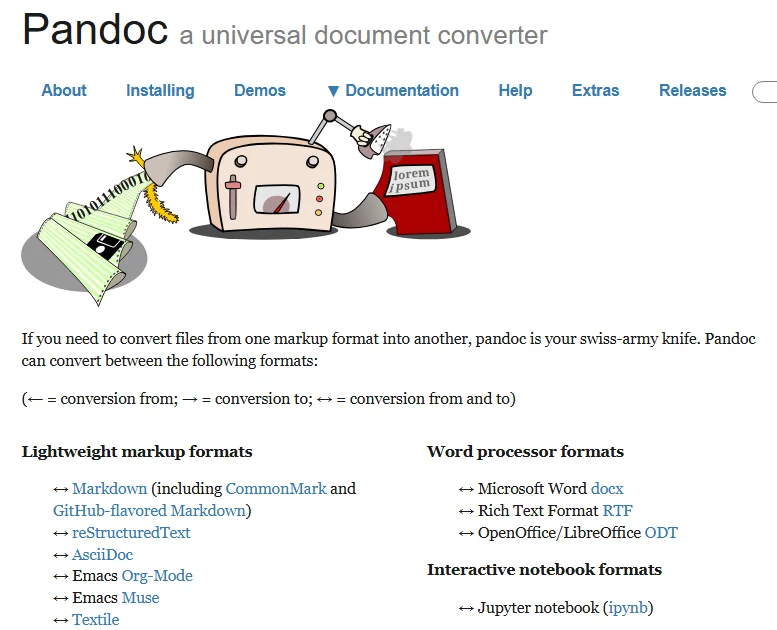
Per scrittori tecnici, sviluppatori e amministratori di sistema, Pandoc è la scelta migliore quando la precisione è fondamentale. Converte accuratamente elementi Markdown complessi—tabelle, elenchi, collegamenti—in testo semplice pulito. Supporta anche l'automazione e l'elaborazione batch.
1. Installa Pandoc
- Mac (tramite Homebrew):
brew install pandoc - Windows (tramite Winget):
winget install pandoc
Nota: Assicurati che Pandoc sia aggiunto al PATH del tuo sistema in modo che possa essere eseguito da qualsiasi terminale.
2. Converti un Singolo File Markdown in Testo
Naviga nella cartella contenente il tuo file Markdown, quindi esegui il seguente comando:
pandoc input.md -t plain -o output.txt
-t plain: Indica a Pandoc di produrre testo semplice pulito e leggibile.-o output.txt: Specifica il nome del file di testo semplice risultante.
3. Elaborazione Batch di File MD Multipli in TXT
Se hai bisogno di elaborare molti file contemporaneamente, usa questi loop di shell:
Mac/Linux:
for file in *.md; do
  pandoc "$file" -t plain -o "${file%.md}.txt"
done
Windows PowerShell:
Get-ChildItem *.md | ForEach-Object { pandoc $_.FullName -t plain -o "$($_.DirectoryName)\$($_.BaseName).txt" }
Suggerimenti:
- Testa prima con un singolo file prima di eseguire operazioni batch.
- Mantieni un backup dei tuoi file Markdown originali.
- Combina con script di shell o automazione per conversioni batch ricorrenti.
✅ Pro: Alta fedeltà, elaborazione batch, accurato per Markdown complesso.
❌ Contro: Richiede conoscenze CLI, la configurazione del PATH può essere complicata.
Metodo 4: Automatizzare la Conversione di File Markdown in Testo con Python
Per gli sviluppatori che integrano la conversione Markdown in flussi di lavoro o pipeline automatizzati, Python è ideale. Utilizzando librerie come Spire.Doc per Python, puoi analizzare Markdown programmaticamente, pulire il testo e inserirlo in pipeline personalizzate, modelli AI o script di elaborazione batch.
Mentre le librerie open-source di base possono rimuovere il testo, l'uso di Spire.Doc garantisce che elementi complessi come tabelle di parole annidate, allineamenti del testo e intestazioni siano gestiti correttamente senza scrivere complessi blocchi regex. Questo lo rende una soluzione robusta per il pre-processing dei dati a livello aziendale.
Passo 1: Installa i Pacchetti Richiesti
Apri il tuo terminale e installa la libreria Spire.Doc per Python:
pip install Spire.Doc
Passo 2: Automatizza la Conversione da Markdown a TXT con Python
Puoi utilizzare il seguente script per gestire file singoli o adattarlo facilmente in un ciclo per scansionare un'intera directory:
from spire.doc import *

# Crea un oggetto della classe Document
document = Document()

# Carica un file Markdown
document.LoadFromFile("input.md")

# Salva il file Markdown in un file .txt
document.SaveToFile("output.txt", FileFormat.Txt)

document.Close()
✅ Pro: Programmabile, supporta l'elaborazione batch, si integra con pipeline e flussi di lavoro AI.
❌ Contro: Richiede conoscenze di Python e dipendenze di terze parti.
Cerchi testo ricco? Se hai bisogno di preservare lo stile in un formato di documento professionale invece di rimuoverlo completamente, consulta la nostra guida su come convertire Markdown in Word e Markdown in PDF tramite Python.
Suggerimenti Professionali per una Migliore Conversione da Markdown a TXT
Quando si rimuove la sintassi Markdown, alcuni elementi strutturali richiedono un po' di attenzione strategica per garantire che il tuo testo semplice non perda il suo contesto.
- Collegamenti ipertestuali:
[Testo](URL)potrebbe diventare solo Testo quando si rimuove Markdown. Usa Pandoc-t plainper mantenere gli URL. - Tabelle: Tabelle complesse possono rompersi in testo semplice. Per dati tabellari, considera invece di esportare Markdown in Excel o CSV.
- Blocchi di codice: Il codice racchiuso tra tre backtick potrebbe fondersi con il testo. Rivedi manualmente o aggiungi indentazione/marcatori per preservare la leggibilità.
- Anteprima e Backup: Anteprima sempre l'output e mantieni un backup del tuo Markdown originale.
Conclusione: Quale Metodo Dovresti Scegliere?
Convertire Markdown in testo semplice è un flusso di lavoro fondamentale per sviluppatori, scrittori tecnici e ingegneri di dati AI. Il metodo migliore dipende interamente dal volume dei tuoi file, dalle esigenze di privacy dei dati e dai requisiti di automazione:
- Utilizza Strumenti Online per conversioni di testo veloci, una tantum e a basso rischio, dove la privacy non è una preoccupazione.
- Utilizza Editor Desktop per lavori offline, manuali e sicuri con dati sensibili.
- Utilizza Pandoc CLI quando l'accuratezza strutturale (come elenchi annidati) è più importante o per conversioni batch.
- Utilizza l'Automazione Python per una profonda integrazione nelle pipeline di prompt AI, nel pre-processing dei dati LLM o nei flussi di lavoro ricorrenti per sviluppatori.
Scegliendo l'approccio giusto per il tuo progetto, puoi rimuovere in modo efficiente la sintassi Markdown mantenendo il tuo testo semplice pulito, leggibile e pronto per qualsiasi piattaforma.
FAQ
D1: Come posso convertire più file Markdown in testo contemporaneamente?
R1: Il modo più efficiente è utilizzare Pandoc CLI con un loop di shell o scrivere uno script di automazione Python per elaborare in batch intere directory.
D2: I collegamenti e le immagini verranno mantenuti durante la conversione da Markdown a testo?
R2: Il testo di ancoraggio visibile e il testo alternativo rimarranno, ma i percorsi delle immagini grezzi e gli URL vengono solitamente rimossi. Usa Pandoc se vuoi mantenere gli URL scritti accanto al testo.
D3: È sicuro utilizzare convertitori online da Markdown a testo per file privati?
R3: No. I convertitori online pubblici elaborano i tuoi dati su server di terze parti. Per dati riservati, record finanziari o codice interno, attieniti sempre a metodi offline come VS Code, Pandoc o Python.
D4: Qual è il modo più semplice per convertire un singolo file Markdown in testo?
R4: Per un singolo file rapido e non sensibile, gli strumenti online come mdtotext.com sono i più semplici poiché non richiedono alcuna configurazione o installazione.
Vedi Anche
Convertir Markdown en texte | 4 méthodes gratuites, en ligne et automatisées
Table des matières
Markdown est la référence pour la rédaction de documents d'ingénierie et de contenu Web. Cependant, il existe de nombreux scénarios — tels que la préparation d'e-mails en texte brut, la génération de rapports ou l'intégration de contenu dans des systèmes existants — qui nécessitent du texte brut. La conversion de Markdown en texte garantit que votre contenu reste lisible, accessible et polyvalent sur toutes les plateformes.
Dans ce guide, nous explorerons 4 méthodes simples que les rédacteurs et les développeurs peuvent utiliser pour transformer Markdown (.md) en texte brut (.txt) propre, sans perdre de structure ni de clarté.
Résumé rapide : Meilleures méthodes de conversion de Markdown en texte
Markdown peut être converti en texte de plusieurs manières, en fonction de votre niveau de confort technique, de la complexité du document et du volume de fichiers. Voici un aperçu rapide des 4 meilleures méthodes :
| Méthode et outils | Avantage clé | Idéal pour |
|---|---|---|
| Outils en ligne (MDToText, Picotoolkit) | Conversion instantanée dans le navigateur, aucune installation requise | Conversion unique, non sensible |
| Éditeurs de bureau (VS Code, Obsidian) | Fonctionne hors ligne et vous donne plus de contrôle sur la confidentialité | Édition régulière et fichiers confidentiels |
| Pandoc CLI | Préserve mieux la structure pour les listes, les liens et le Markdown complexe | Conversion précise et traitement par lots |
| Scripts Python (Spire.Doc) | Programmable et facile à intégrer dans des flux de travail automatisés | Grands ensembles de fichiers, pipelines d'IA et tâches récurrentes |
Cliquez sur l'une des méthodes ci-dessus pour accéder directement à la section, ou continuez à lire pour le guide étape par étape complet.
Méthode 1 : Utiliser des convertisseurs Markdown en texte en ligne
Lorsque vous avez juste besoin d'une conversion rapide et unique, le téléchargement de logiciels de bureau lourds est excessif. Les convertisseurs gratuits de Markdown en texte en ligne offrent le flux de travail le plus rapide, basé sur le navigateur, pour les créateurs de contenu. Vous pouvez supprimer le formatage et obtenir du texte brut prêt à être copié en quelques secondes, sans aucune installation.
Comment convertir Markdown en texte en ligne (étape par étape)
- Sélectionnez un outil – Ouvrez un convertisseur Markdown fiable basé sur le navigateur, tel que mdtotext.com ou Picotoolkit MD to TXT Converter.
- Collez votre contenu – Copiez le texte Markdown et collez-le directement dans la zone de saisie de l'outil (ou téléchargez votre fichier .md).
- Supprimer le formatage – L'outil supprime automatiquement les symboles Markdown tels que
#,**et les crochets de lien en temps réel. - Copiez ou téléchargez la sortie – Examinez le texte nettoyé et non formaté dans le panneau de sortie, puis copiez-le dans votre presse-papiers ou téléchargez le fichier.
⚠️ Considérations importantes :
- Confidentialité et sécurité des données – Évitez de coller des données d'entreprise sensibles, des clés API ou du code source propriétaire dans des convertisseurs en ligne publics. Utilisez toujours des méthodes hors ligne pour les fichiers confidentiels.
- Limitations de formatage – Les éléments avancés tels que les tableaux imbriqués, les blocs de citation ou les listes de tâches peuvent ne pas être convertis parfaitement. Relisez toujours la sortie finale avant de publier.
✅ Avantages : Instantané, aucune configuration, fonctionne sur n'importe quel appareil.
❌ Inconvénients : Ne convient pas aux fichiers volumineux, nécessite Internet.
Méthode 2 : Exporter Markdown en texte via des éditeurs de bureau
Si vous traitez des fichiers Markdown confidentiels ou préférez travailler hors ligne, l'utilisation d'un éditeur Markdown de bureau est le meilleur choix. Des applications populaires comme VS Code et Obsidian vous permettent de convertir des fichiers Markdown localement, vous donnant un contrôle total sur la confidentialité de vos données.
Utilisation de VS Code
-
Ouvrez votre fichier .md dans VS Code en le faisant glisser et déposer ou en cliquant sur Fichier → Ouvrir.
-
Appuyez sur Ctrl + Maj + V (Windows) ou Cmd + Maj + V (Mac) pour ouvrir le volet de prévisualisation Markdown.
-
Sélectionnez tout le texte dans la fenêtre de prévisualisation (Ctrl + A ou Cmd + A) et copiez-le.
-
Collez le texte nettoyé dans un nouveau fichier .txt.
Utilisation d'Obsidian
- Ouvrez votre fichier Markdown dans Obsidian.
- Basculez en Vue Lecture (mode Aperçu).
- Sélectionnez tout le texte, copiez-le et collez-le dans votre éditeur de texte standard.
Conseils rapides :
- Faites défiler en mode Aperçu pour vérifier l'apparence du contenu avant l'exportation.
✅ Avantages : Fonctionne hors ligne, sécurisé, prend en charge le Markdown complexe.
❌ Inconvénients : Copier-coller manuel, pas idéal pour plusieurs fichiers.
Méthode 3 : Convertir Markdown en texte à l'aide de Pandoc CLI
Pour les rédacteurs techniques, les développeurs et les administrateurs système, Pandoc est le meilleur choix lorsque la précision est essentielle. Il convertit avec précision les éléments Markdown complexes — tableaux, listes, liens — en texte brut propre. Il prend également en charge l'automatisation et le traitement par lots.
1. Installer Pandoc
- Mac (via Homebrew) :
brew install pandoc - Windows (via Winget) :
winget install pandoc
Remarque : Assurez-vous que Pandoc est ajouté à la variable d'environnement PATH de votre système afin qu'il puisse être exécuté depuis n'importe quel terminal.
2. Convertir un seul fichier Markdown en texte
Accédez au dossier contenant votre fichier Markdown, puis exécutez la commande suivante :
pandoc input.md -t plain -o output.txt
-t plain: Indique à Pandoc de générer du texte brut propre et lisible.-o output.txt: Spécifie le nom du fichier texte brut résultant.
3. Convertir plusieurs fichiers MD en TXT par lots
Si vous devez traiter plusieurs fichiers à la fois, utilisez ces boucles shell :
Mac/Linux :
for file in *.md; do
  pandoc "$file" -t plain -o "${file%.md}.txt"
done
Windows PowerShell :
Get-ChildItem *.md | ForEach-Object { pandoc $_.FullName -t plain -o "$($_.DirectoryName)\$($_.BaseName).txt" }
Conseils :
- Testez d'abord avec un seul fichier avant d'exécuter des opérations par lots.
- Conservez des sauvegardes de vos fichiers Markdown d'origine.
- Combinez avec des scripts shell ou une automatisation pour des conversions groupées récurrentes.
✅ Avantages : Haute fidélité, traitement par lots, précis pour le Markdown complexe.
❌ Inconvénients : Nécessite des connaissances en CLI, la configuration du PATH peut être délicate.
Méthode 4 : Automatiser la conversion de fichiers Markdown en texte avec Python
Pour les développeurs qui intègrent la conversion Markdown dans des flux de travail ou des pipelines automatisés, Python est idéal. En utilisant des bibliothèques comme Spire.Doc pour Python, vous pouvez analyser le Markdown par programme, nettoyer le texte et l'intégrer dans des pipelines personnalisés, des modèles d'IA ou des scripts de traitement par lots.
Bien que les bibliothèques open-source de base puissent supprimer le texte, l'utilisation de Spire.Doc garantit que les éléments complexes tels que les tableaux de mots imbriqués, les alignements de texte et les en-têtes sont correctement gérés sans écrire de blocs regex complexes. Cela en fait une solution robuste pour le prétraitement de données au niveau de l'entreprise.
Étape 1 : Installer les packages requis
Ouvrez votre terminal et installez la bibliothèque Spire.Doc pour Python :
pip install Spire.Doc
Étape 2 : Automatiser la conversion de Markdown en TXT avec Python
Vous pouvez utiliser le script suivant pour traiter des fichiers uniques ou l'adapter facilement dans une boucle pour scanner un répertoire entier :
from spire.doc import *

# Crée un objet de la classe Document
document = Document()

# Charge un fichier Markdown
document.LoadFromFile("input.md")

# Enregistre le fichier Markdown dans un fichier .txt
document.SaveToFile("output.txt", FileFormat.Txt)

document.Close()
✅ Avantages : Programmable, prend en charge le traitement par lots, s'intègre aux pipelines et aux flux de travail d'IA.
❌ Inconvénients : Nécessite des connaissances en Python et des dépendances tierces.
Vous recherchez du texte enrichi ? Si vous avez besoin de préserver le style dans un format de document professionnel au lieu de le supprimer entièrement, consultez notre guide sur la conversion de Markdown en Word et de Markdown en PDF via Python.
Conseils professionnels pour une meilleure conversion de Markdown en TXT
Lors de la suppression de Markdown, certains éléments structurels nécessitent une surveillance stratégique pour garantir que votre texte brut ne perde pas son contexte.
- Hyperliens :
[Texte](URL)peut devenir simplement Texte lors de la suppression de Markdown. Utilisez Pandoc-t plainpour conserver les URL. - Tableaux : Les tableaux complexes peuvent être corrompus en texte brut. Pour les données tabulaires, envisagez plutôt d'exporter Markdown vers Excel ou CSV.
- Blocs de code : Le code entre triples apostrophes peut fusionner avec le texte. Vérifiez manuellement ou ajoutez une indentation/des marqueurs pour préserver la lisibilité.
- Aperçu et sauvegarde : Prévisualisez toujours la sortie et conservez une sauvegarde de votre Markdown d'origine.
Conclusion : Quelle méthode choisir ?
La conversion de Markdown en texte brut est un flux de travail essentiel pour les développeurs, les rédacteurs techniques et les ingénieurs de données IA. La meilleure méthode dépend entièrement de votre volume de fichiers, de vos besoins en matière de confidentialité des données et de vos exigences d'automatisation :
- Utilisez les outils en ligne pour des conversions de texte rapides, uniques et à faible risque où la confidentialité n'est pas une préoccupation.
- Utilisez les éditeurs de bureau pour un travail manuel, hors ligne et sécurisé avec des données sensibles.
- Utilisez Pandoc CLI lorsque la précision structurelle (comme les listes imbriquées) est la plus importante ou pour les conversions par lots.
- Utilisez l'automatisation Python pour une intégration approfondie dans les pipelines d'invites d'IA, le prétraitement de données LLM ou les flux de travail de développeurs récurrents.
En choisissant la bonne approche pour votre projet, vous pouvez supprimer efficacement la syntaxe Markdown tout en gardant votre texte brut propre, lisible et prêt pour n'importe quelle plateforme.
FAQ
Q1 : Comment puis-je convertir plusieurs fichiers Markdown en texte à la fois ?
R1 : Le moyen le plus efficace est d'utiliser Pandoc CLI avec une boucle shell ou d'écrire un script d'automatisation Python pour traiter par lots des répertoires entiers.
Q2 : Les liens et les images seront-ils conservés lors de la conversion de Markdown en texte ?
R2 : Le texte d'ancrage visible et le texte alternatif resteront, mais les chemins d'image bruts et les URL sont généralement supprimés. Utilisez Pandoc si vous souhaitez conserver les URL écrites à côté du texte.
Q3 : Est-il sûr d'utiliser des convertisseurs Markdown en texte en ligne pour des fichiers privés ?
R3 : Non. Les convertisseurs en ligne publics traitent vos données sur des serveurs tiers. Pour les données confidentielles, les dossiers financiers ou le code interne, utilisez toujours des méthodes hors ligne comme VS Code, Pandoc ou Python.
Q4 : Quelle est la façon la plus simple de convertir un seul fichier Markdown en texte ?
R4 : Pour un fichier unique rapide et non sensible, les outils en ligne comme mdtotext.com sont les plus simples car ils ne nécessitent aucune configuration ni installation.
Voir aussi
Convertir Markdown a texto | 4 métodos gratuitos, en línea y automatizados
Tabla de Contenidos
Markdown es el estándar de oro para redactar documentos de ingeniería y contenido web. Sin embargo, existen muchos escenarios —como la preparación de correos electrónicos en texto plano, la generación de informes o la integración de contenido en sistemas heredados— que requieren texto plano. Convertir Markdown a texto asegura que su contenido siga siendo legible, accesible y versátil en todas las plataformas.
En esta guía, exploraremos 4 métodos sencillos que los redactores y desarrolladores pueden utilizar para transformar Markdown (.md) en texto plano (.txt) limpio, sin perder estructura ni claridad.
Resumen Rápido: Los Mejores Métodos de Markdown a Texto
Markdown se puede convertir a texto de varias maneras, dependiendo de su nivel de comodidad técnica, la complejidad del documento y el volumen de archivos. Aquí hay un resumen rápido de los 4 métodos principales:
| Método y Herramientas | Ventaja Clave | Ideal Para |
|---|---|---|
| Herramientas en línea (MDToText, Picotoolkit) | Conversión instantánea en el navegador, sin necesidad de instalación | Conversión única, no sensible |
| Editores de escritorio (VS Code, Obsidian) | Funciona sin conexión y le da más control sobre la privacidad | Edición regular y archivos confidenciales |
| Pandoc CLI | Conserva mejor la estructura para listas, enlaces y Markdown complejo | Conversión precisa y procesamiento por lotes |
| Scripts de Python (Spire.Doc) | Programable y fácil de integrar en flujos de trabajo automatizados | Grandes conjuntos de archivos, pipelines de IA y tareas recurrentes |
Haga clic en cualquier método anterior para saltar directamente a la sección, o continúe leyendo para obtener la guía completa paso a paso.
Método 1: Usar Convertidores de Markdown a Texto en Línea
Cuando solo necesita una conversión rápida y única, descargar software de escritorio pesado es excesivo. Los convertidores gratuitos de Markdown a texto en línea ofrecen el flujo de trabajo más rápido basado en el navegador para los creadores de contenido. Puede eliminar el formato y obtener texto plano listo para copiar en segundos sin ninguna instalación.
Cómo Convertir Markdown a Texto en Línea (Paso a Paso)
- Seleccione una herramienta – Abra un convertidor de Markdown confiable basado en el navegador, como mdtotext.com o Picotoolkit MD to TXT Converter.
- Pegue su contenido – Copie el texto de Markdown y péguelo directamente en el cuadro de entrada de la herramienta (o cargue su archivo .md).
- Elimine el formato – La herramienta elimina automáticamente los símbolos de markdown como
#,**y los corchetes de enlace en tiempo real. - Copie o descargue la salida – Revise el texto limpio y sin formato en el panel de salida, luego cópielo en su portapapeles o descargue el archivo.
⚠️ Consideraciones Importantes:
- Privacidad y Seguridad de Datos – Evite pegar datos confidenciales de la empresa, claves de API o código fuente propietario en convertidores en línea públicos. Utilice siempre métodos sin conexión para archivos confidenciales.
- Limitaciones de Formato – Elementos avanzados como tablas anidadas, citas en bloque o listas de tareas pueden no convertirse perfectamente. Siempre revise la salida final antes de publicar.
✅ Pros: Instantáneo, sin configuración, funciona en cualquier dispositivo.
❌ Contras: No apto para archivos masivos, requiere internet.
Método 2: Exportar Markdown a Texto a través de Editores de Escritorio
Si maneja archivos Markdown confidenciales o prefiere trabajar sin conexión, usar un editor de Markdown de escritorio es la mejor opción. Aplicaciones populares como VS Code y Obsidian le permiten convertir archivos Markdown localmente, dándole control total sobre la privacidad de sus datos.
Usando VS Code
-
Abra su archivo .md en VS Code arrastrando y soltando o haciendo clic en Archivo → Abrir.
-
Presione Ctrl + Shift + V (Windows) o Cmd + Shift + V (Mac) para abrir el panel de vista previa de Markdown.
-
Seleccione todo el texto en la ventana de vista previa (Ctrl + A o Cmd + A) y cópielo.
-
Pegue el texto limpio en un nuevo archivo .txt.
Usando Obsidian
- Abra su archivo Markdown en Obsidian.
- Cambie a Vista de Lectura (modo de vista previa).
- Seleccione todo el texto, cópielo y péguelo en su editor de texto estándar.
Consejos Rápidos:
- Desplácese en el modo de vista previa para verificar cómo se ve el contenido antes de exportar.
✅ Pros: Funciona sin conexión, seguro, soporta Markdown complejo.
❌ Contras: Copia y pega manual, no ideal para múltiples archivos.
Método 3: Convertir Markdown a Texto Usando Pandoc CLI
Para redactores técnicos, desarrolladores y administradores de sistemas, Pandoc es la mejor opción cuando la precisión es crítica. Convierte con precisión elementos complejos de Markdown —tablas, listas, enlaces— en texto plano limpio. También soporta automatización y procesamiento por lotes.
1. Instalar Pandoc
- Mac (vía Homebrew):
brew install pandoc - Windows (vía Winget):
winget install pandoc
Nota: Asegúrese de que Pandoc esté agregado a la ruta del sistema para que pueda ejecutarse desde cualquier terminal.
2. Convertir un Solo Archivo Markdown a Texto
Navegue a la carpeta que contiene su archivo Markdown, luego ejecute el siguiente comando:
pandoc input.md -t plain -o output.txt
-t plain: Indica a Pandoc que genere texto plano limpio y legible.-o output.txt: Especifica el nombre del archivo de texto plano resultante.
3. Convertir por Lotes Múltiples Archivos MD a TXT
Si necesita procesar muchos archivos a la vez, use estos bucles de shell:
Mac/Linux:
for file in *.md; do
  pandoc "$file" -t plain -o "${file%.md}.txt"
done
Windows PowerShell:
Get-ChildItem *.md | ForEach-Object { pandoc $_.FullName -t plain -o "$($_.DirectoryName)\$($_.BaseName).txt" }
Consejos:
- Pruebe primero con un solo archivo antes de ejecutar operaciones por lotes.
- Mantenga copias de seguridad de sus archivos Markdown originales.
- Combine con scripts de shell o automatización para conversiones masivas recurrentes.
✅ Pros: Alta fidelidad, procesamiento por lotes, preciso para Markdown complejo.
❌ Contras: Requiere conocimiento de CLI, la configuración de PATH puede ser complicada.
Método 4: Automatizar la Conversión de Archivos Markdown a Texto con Python
Para desarrolladores que integran la conversión de Markdown en flujos de trabajo o pipelines automatizados, Python es ideal. Usando bibliotecas como Spire.Doc para Python, puede analizar Markdown programáticamente, limpiar texto y alimentarlo en pipelines personalizados, modelos de IA o scripts de procesamiento por lotes.
Si bien las bibliotecas básicas de código abierto pueden eliminar texto, usar Spire.Doc asegura que los elementos complejos como tablas de palabras anidadas, alineaciones de texto y encabezados se gestionen correctamente sin escribir bloques de expresiones regulares complejos. Esto lo convierte en una solución robusta para el preprocesamiento de datos a nivel empresarial.
Paso 1: Instalar Paquetes Requeridos
Abra su terminal e instale la biblioteca Spire.Doc para Python:
pip install Spire.Doc
Paso 2: Automatizar la Conversión de Markdown a TXT con Python
Puede usar el siguiente script para manejar archivos individuales o adaptarlo fácilmente a un bucle para escanear un directorio completo:
from spire.doc import *

# Crear un objeto de la clase Document
document = Document()

# Cargar un archivo Markdown
document.LoadFromFile("input.md")

# Guardar el archivo Markdown en un archivo .txt
document.SaveToFile("output.txt", FileFormat.Txt)

document.Close()
✅ Pros: Programable, soporta procesamiento por lotes, se integra con pipelines y flujos de trabajo de IA.
❌ Contras: Requiere conocimiento de Python y dependencias de terceros.
¿Busca texto enriquecido? Si necesita conservar el estilo en un formato de documento profesional en lugar de eliminarlo por completo, consulte nuestra guía sobre cómo convertir Markdown a Word y Markdown a PDF a través de Python.
Consejos Profesionales para una Mejor Conversión de Markdown a TXT
Al eliminar Markdown, algunos elementos estructurales requieren un poco de supervisión estratégica para garantizar que su texto plano no pierda su contexto.
- Hipervínculos:
[Texto](URL)puede convertirse solo en Texto al eliminar Markdown. Use Pandoc-t plainpara mantener las URL. - Tablas: Las tablas complejas pueden romperse en texto plano. Para datos tabulares, considere exportar Markdown a Excel o CSV en su lugar.
- Bloques de Código: El código con triple comilla invertida puede fusionarse con el texto. Revise manualmente o agregue sangría/marcadores para mantener la legibilidad.
- Vista Previa y Copia de Seguridad: Siempre previsualice la salida y mantenga una copia de seguridad de su Markdown original.
Conclusión: ¿Qué Método Debería Elegir?
Convertir Markdown a texto plano es un flujo de trabajo central para desarrolladores, redactores técnicos e ingenieros de datos de IA. El mejor método depende completamente de su volumen de archivos, sus necesidades de privacidad de datos y sus requisitos de automatización:
- Use Herramientas en Línea para conversiones de texto rápidas, únicas y de bajo riesgo donde la privacidad no es una preocupación.
- Use Editores de Escritorio para trabajos manuales y sin conexión seguros con datos confidenciales.
- Use Pandoc CLI cuando la precisión estructural (como listas anidadas) sea lo más importante o para conversiones masivas.
- Use Automatización con Python para una integración profunda en pipelines de prompts de IA, preprocesamiento de datos de LLM o flujos de trabajo recurrentes de desarrolladores.
Al elegir el enfoque correcto para su proyecto, puede eliminar eficientemente la sintaxis de Markdown manteniendo su texto plano limpio, legible y listo para cualquier plataforma.
Preguntas Frecuentes
P1: ¿Cómo puedo convertir varios archivos Markdown a texto a la vez?
R1: La forma más eficiente es usar Pandoc CLI con un bucle de shell o escribir un script de automatización de Python para procesar por lotes directorios completos.
P2: ¿Se conservarán los enlaces e imágenes al convertir Markdown a texto?
A2: El texto de anclaje visible y el texto alternativo permanecerán, pero las rutas de imagen y URL crudas generalmente se eliminan. Use Pandoc si desea mantener las URL escritas junto al texto.
P3: ¿Es seguro usar convertidores de Markdown a texto en línea para archivos privados?
R3: No. Los convertidores en línea públicos procesan sus datos en servidores de terceros. Para datos confidenciales, registros financieros o código interno, siempre recurra a métodos sin conexión como VS Code, Pandoc o Python.
P4: ¿Cuál es la forma más fácil de convertir un solo archivo Markdown a texto?
R4: Para un archivo único, rápido y no sensible, las herramientas en línea como mdtotext.com son las más fáciles, ya que no requieren configuración ni instalación.
Ver También
Markdown in Text konvertieren | 4 kostenlose, Online- und automatisierte Methoden
Inhaltsverzeichnis
Markdown ist der Goldstandard für die Erstellung von technischen Dokumenten und Webinhalten. Es gibt jedoch viele Szenarien – wie die Vorbereitung von reinen Text-E-Mails, die Generierung von Berichten oder die Integration von Inhalten in Altsysteme –, die reinen Text erfordern. Die Konvertierung von Markdown in Text stellt sicher, dass Ihre Inhalte plattformübergreifend lesbar, zugänglich und vielseitig bleiben.
In dieser Anleitung werden wir 4 einfache Methoden untersuchen, mit denen Autoren und Entwickler Markdown (.md) in sauberen, reinen Text (.txt) umwandeln können, ohne Struktur oder Klarheit zu verlieren.
Kurze Zusammenfassung: Die besten Methoden zur Konvertierung von Markdown in Text
Markdown kann auf verschiedene Weise in Text konvertiert werden, abhängig von Ihrem technischen Komfortniveau, der Komplexität des Dokuments und dem Dateivolumen. Hier ist eine kurze Übersicht über die Top 4 Methoden:
| Methode & Tools | Hauptvorteil | Am besten geeignet für |
|---|---|---|
| Online-Tools (MDToText, Picotoolkit) | Sofortige Browserkonvertierung, keine Installation erforderlich | Einmalige, nicht sensible Konvertierung |
| Desktop-Editoren (VS Code, Obsidian) | Funktioniert offline und gibt Ihnen mehr Kontrolle über die Privatsphäre | Regelmäßige Bearbeitung und vertrauliche Dateien |
| Pandoc CLI | Bewahrt die Struktur besser für Listen, Links und komplexes Markdown | Genaue Konvertierung und Stapelverarbeitung |
| Python-Skripte (Spire.Doc) | Programmierbar und einfach in automatisierte Workflows zu integrieren | Große Dateisätze, KI-Pipelines und wiederkehrende Aufgaben |
Klicken Sie auf eine der obigen Methoden, um direkt zum Abschnitt zu springen, oder lesen Sie weiter für die vollständige Schritt-für-Schritt-Anleitung.
Methode 1: Online-Markdown-zu-Text-Konverter verwenden
Wenn Sie nur eine schnelle, einmalige Konvertierung benötigen, ist das Herunterladen schwerer Desktop-Software übertrieben. Kostenlose Online-Markdown-zu-Text-Konverter bieten den schnellsten, browserbasierten Workflow für Content-Ersteller. Sie können Formatierungen entfernen und in Sekundenschnelle kopierfertigen, reinen Text erhalten, ohne Installation.
So konvertieren Sie Markdown online in Text (Schritt für Schritt)
- Wählen Sie ein Tool – Öffnen Sie einen vertrauenswürdigen, browserbasierten Markdown-Konverter, z. B. mdtotext.com oder Picotoolkit MD to TXT Converter.
- Fügen Sie Ihren Inhalt ein – Kopieren Sie den Markdown-Text und fügen Sie ihn direkt in das Eingabefeld des Tools ein (oder laden Sie Ihre .md-Datei hoch).
- Formatierung entfernen – Das Tool entfernt automatisch Markdown-Symbole wie
#,**und Klammern für Links in Echtzeit. - Ausgabe kopieren oder herunterladen – Überprüfen Sie den bereinigten, unformatierten Text im Ausgabefenster und kopieren Sie ihn dann in Ihre Zwischenablage oder laden Sie die Datei herunter.
⚠️ Wichtige Hinweise:
- Datenschutz und Sicherheit – Vermeiden Sie es, sensible Unternehmensdaten, API-Schlüssel oder proprietären Quellcode in öffentliche Online-Konverter einzufügen. Verwenden Sie für vertrauliche Dateien immer Offline-Methoden.
- Formatierungseinschränkungen – Erweiterte Elemente wie verschachtelte Tabellen, Blockzitate oder Aufgabenlisten werden möglicherweise nicht perfekt konvertiert. Korrekturlesen Sie die endgültige Ausgabe immer vor der Veröffentlichung.
✅ Vorteile: Sofort, keine Einrichtung, funktioniert auf jedem Gerät.
❌ Nachteile: Nicht für Massendateien geeignet, Internet erforderlich.
Methode 2: Markdown über Desktop-Editoren in Text exportieren
Wenn Sie vertrauliche Markdown-Dateien bearbeiten oder lieber offline arbeiten, ist die Verwendung eines Desktop-Markdown-Editors die beste Wahl. Beliebte Apps wie VS Code und Obsidian ermöglichen es Ihnen, Markdown-Dateien lokal zu konvertieren und geben Ihnen die vollständige Kontrolle über Ihre Daten. Privatsphäre.
Verwendung von VS Code
-
Öffnen Sie Ihre .md-Datei in VS Code, indem Sie sie ziehen und ablegen oder auf Datei → Öffnen klicken.
-
Drücken Sie Strg + Umschalt + V (Windows) oder Cmd + Umschalt + V (Mac), um das Fenster Markdown-Vorschau zu öffnen.
-
Wählen Sie den gesamten Text im Vorschaufenster aus (Strg + A oder Cmd + A) und kopieren Sie ihn.
-
Fügen Sie den bereinigten Text in eine neue .txt-Datei ein.
Verwendung von Obsidian
- Öffnen Sie Ihre Markdown-Datei in Obsidian.
- Wechseln Sie zur Leseansicht (Vorschau-Modus).
- Wählen Sie den gesamten Text aus, kopieren Sie ihn und fügen Sie ihn in Ihren Standard-Texteditor ein.
Schnelle Tipps:
- Scrollen Sie im Vorschau-Modus, um zu überprüfen, wie der Inhalt aussieht, bevor Sie ihn exportieren.
✅ Vorteile: Funktioniert offline, sicher, unterstützt komplexes Markdown.
❌ Nachteile: Manuelles Kopieren und Einfügen, nicht ideal für mehrere Dateien.
Methode 3: Markdown mit Pandoc CLI in Text konvertieren
Für technische Redakteure, Entwickler und Systemadministratoren ist Pandoc die beste Wahl, wenn Präzision entscheidend ist. Es konvertiert komplexe Markdown-Elemente – Tabellen, Listen, Links – präzise in sauberen, reinen Text. Es unterstützt auch Automatisierung und Stapelverarbeitung.
1. Pandoc installieren
- Mac (über Homebrew):
brew install pandoc - Windows (über Winget):
winget install pandoc
Hinweis: Stellen Sie sicher, dass Pandoc zu Ihrem System-PATH hinzugefügt wurde, damit es von jedem Terminal aus ausgeführt werden kann.
2. Eine einzelne Markdown-Datei in Text konvertieren
Navigieren Sie zu dem Ordner, der Ihre Markdown-Datei enthält, und führen Sie dann den folgenden Befehl aus:
pandoc input.md -t plain -o output.txt
-t plain: Weist Pandoc an, sauberen, lesbaren, reinen Text auszugeben.-o output.txt: Gibt den Namen der resultierenden reinen Textdatei an.
3. Mehrere MD-Dateien stapelweise in TXT konvertieren
Wenn Sie viele Dateien auf einmal verarbeiten müssen, verwenden Sie diese Shell-Schleifen:
Mac/Linux:
for file in *.md; do
  pandoc "$file" -t plain -o "${file%.md}.txt"
done
Windows PowerShell:
Get-ChildItem *.md | ForEach-Object { pandoc $_.FullName -t plain -o "$($_.DirectoryName)\$($_.BaseName).txt" }
Tipps:
- Testen Sie zuerst mit einer einzelnen Datei, bevor Sie Stapelverarbeitungen durchführen.
- Bewahren Sie Ihre ursprünglichen Markdown-Dateien als Sicherung auf.
- Kombinieren Sie mit Shell-Skripten oder Automatisierung für wiederkehrende Massenkonvertierungen.
✅ Vorteile: Hohe Wiedergabetreue, Stapelverarbeitung, genau für komplexes Markdown.
❌ Nachteile: Erfordert CLI-Kenntnisse, PATH-Einrichtung kann knifflig sein.
Methode 4: Automatisieren Sie die Konvertierung von Markdown-Dateien in Text mit Python
Für Entwickler, die die Markdown-Konvertierung in automatisierte Workflows oder Pipelines integrieren, ist Python ideal. Mit Bibliotheken wie Spire.Doc für Python können Sie Markdown programmatisch parsen, Text bereinigen und ihn in benutzerdefinierte Pipelines, KI-Modelle oder Stapelverarbeitungsskripte einspeisen.
Während einfache Open-Source-Bibliotheken Text entfernen können, stellt die Verwendung von Spire.Doc sicher, dass komplexe Elemente wie verschachtelte Worttabellen, Textausrichtungen und Kopfzeilen ordnungsgemäß verwaltet werden, ohne komplexe Regex-Blöcke schreiben zu müssen. Dies macht es zu einer robusten Lösung für die Datenvorverarbeitung auf Unternehmensebene.
Schritt 1: Erforderliche Pakete installieren
Öffnen Sie Ihr Terminal und installieren Sie die Spire.Doc für Python-Bibliothek:
pip install Spire.Doc
Schritt 2: Markdown-zu-TXT-Konvertierung mit Python automatisieren
Sie können das folgende Skript verwenden, um einzelne Dateien zu verarbeiten oder es einfach in eine Schleife zu integrieren, um ein ganzes Verzeichnis zu durchsuchen:
from spire.doc import *

# Erstellen Sie ein Objekt der Document-Klasse
document = Document()

# Laden Sie eine Markdown-Datei
document.LoadFromFile("input.md")

# Speichern Sie die Markdown-Datei als .txt-Datei
document.SaveToFile("output.txt", FileFormat.Txt)

document.Close()
✅ Vorteile: Programmierbar, unterstützt Stapelverarbeitung, integriert sich in Pipelines und KI-Workflows.
❌ Nachteile: Erfordert Python-Kenntnisse und Abhängigkeiten von Drittanbietern.
Reichen Text gesucht? Wenn Sie die Formatierung in einem professionellen Dokumentenformat beibehalten möchten, anstatt sie vollständig zu entfernen, lesen Sie unsere Anleitung zur Konvertierung von Markdown in Word und Markdown in PDF über Python.
Profi-Tipps für eine bessere Markdown-zu-TXT-Konvertierung
Beim Entfernen von Markdown erfordern einige Strukturelemente etwas strategische Überlegung, um sicherzustellen, dass Ihr reiner Text seinen Kontext nicht verliert.
- Hyperlinks:
[Text](URL)kann beim Entfernen von Markdown zu nur Text werden. Verwenden Sie Pandoc-t plain, um URLs beizubehalten. - Tabellen: Komplexe Tabellen können in reinem Text kaputtgehen. Für tabellarische Daten sollten Sie stattdessen erwägen, Markdown in Excel oder CSV zu exportieren.
- Codeblöcke: Code mit dreifachen Backticks kann mit Text verschmelzen. Überprüfen Sie manuell oder fügen Sie Einrückungen/Markierungen hinzu, um die Lesbarkeit zu erhalten.
- Vorschau und Sicherung: Vorschau der Ausgabe immer und behalten Sie eine Sicherung Ihres ursprünglichen Markdown.
Fazit: Welche Methode sollten Sie wählen?
Die Konvertierung von Markdown in reinen Text ist ein Kernworkflow für Entwickler, technische Redakteure und KI-Dateningenieure. Die beste Methode hängt vollständig von Ihrem Dateivolumen, Ihren Datenschutzanforderungen und Ihren Automatisierungsanforderungen ab:
- Verwenden Sie Online-Tools für schnelle, einmalige Konvertierungen mit geringem Risiko, bei denen der Datenschutz keine Rolle spielt.
- Verwenden Sie Desktop-Editoren für sichere, manuelle Offline-Arbeiten mit vertraulichen Daten.
- Verwenden Sie Pandoc CLI, wenn die strukturelle Genauigkeit (z. B. verschachtelte Listen) am wichtigsten ist oder für Massenkonvertierungen.
- Verwenden Sie Python-Automatisierung für die tiefe Integration in KI-Prompt-Pipelines, die Vorverarbeitung von LLM-Daten oder wiederkehrende Entwickler-Workflows.
Durch die Wahl des richtigen Ansatzes für Ihr Projekt können Sie Markdown-Syntax effizient entfernen und gleichzeitig Ihren reinen Text sauber, lesbar und für jede Plattform bereit halten.
FAQs
F1: Wie kann ich mehrere Markdown-Dateien auf einmal in Text konvertieren?
A1: Der effizienteste Weg ist die Verwendung von Pandoc CLI mit einer Shell-Schleife oder das Schreiben eines Python-Automatisierungsskripts zur Stapelverarbeitung ganzer Verzeichnisse.
F2: Werden Links und Bilder beim Konvertieren von Markdown in Text beibehalten?
A2: Der sichtbare Ankertext und der Alternativtext bleiben erhalten, aber die rohen Bildpfade und URLs werden normalerweise entfernt. Verwenden Sie Pandoc, wenn Sie die URLs neben dem Text aufgeschrieben haben möchten.
F3: Ist es sicher, Online-Markdown-zu-Text-Konverter für private Dateien zu verwenden?
A3: Nein. Öffentliche Online-Konverter verarbeiten Ihre Daten auf Servern von Drittanbietern. Für vertrauliche Daten, Finanzunterlagen oder internen Code sollten Sie immer bei Offline-Methoden wie VS Code, Pandoc oder Python bleiben.
F4: Was ist der einfachste Weg, eine einzelne Markdown-Datei in Text zu konvertieren?
A4: Für eine schnelle, nicht sensible Einzeldatei sind Online-Tools wie mdtotext.com am einfachsten, da sie keine Einrichtung oder Installation erfordern.
Siehe auch
Конвертировать Markdown в текст | 4 бесплатных, онлайн и автоматизированных метода
Оглавление
Markdown — это золотой стандарт для написания инженерной документации и веб-контента. Однако существует множество сценариев, таких как подготовка электронных писем в простом текстовом формате, создание отчетов или интеграция контента в устаревшие системы, которые требуют простого текста. Преобразование Markdown в текст гарантирует, что ваш контент останется читаемым, доступным и универсальным на разных платформах.
В этом руководстве мы рассмотрим 4 простых метода, которые авторы и разработчики могут использовать для преобразования Markdown (.md) в чистый, простой текст (.txt) без потери структуры или ясности.
Краткий обзор: лучшие методы преобразования Markdown в текст
Markdown можно преобразовать в текст несколькими способами, в зависимости от вашего уровня технической подготовки, сложности документа и объема файлов. Вот краткий обзор 4 лучших методов:
| Метод и инструменты | Ключевое преимущество | Лучше всего подходит для |
|---|---|---|
| Онлайн-инструменты (MDToText, Picotoolkit) | Мгновенное преобразование в браузере, установка не требуется | Одноразовое, неконфиденциальное преобразование |
| Настольные редакторы (VS Code, Obsidian) | Работает в автономном режиме и дает больше контроля над конфиденциальностью | Регулярное редактирование и конфиденциальные файлы |
| Pandoc CLI | Лучше сохраняет структуру для списков, ссылок и сложного Markdown | Точное преобразование и пакетная обработка |
| Скрипты Python (Spire.Doc) | Программируемый и легко интегрируется в автоматизированные рабочие процессы | Большие наборы файлов, конвейеры ИИ и повторяющиеся задачи |
Нажмите на любой метод выше, чтобы перейти непосредственно к разделу, или продолжайте читать полное пошаговое руководство.
Метод 1: Использование онлайн-конвертеров Markdown в текст
Когда вам нужно быстрое, одноразовое преобразование, загрузка тяжелого настольного программного обеспечения излишня. Бесплатные онлайн-конвертеры Markdown в текст предлагают самый быстрый рабочий процесс в браузере для создателей контента. Вы можете удалить форматирование и получить готовый к копированию простой текст за секунды без установки.
Как преобразовать Markdown в текст онлайн (пошаговое руководство)
- Выберите инструмент — Откройте надежный конвертер Markdown на основе браузера, такой как mdtotext.com или Picotoolkit MD to TXT Converter.
- Вставьте свой контент — Скопируйте текст Markdown и вставьте его непосредственно в поле ввода инструмента (или загрузите ваш .md файл).
- Удалите форматирование — Инструмент автоматически удаляет символы Markdown, такие как
#,**, и скобки ссылок в реальном времени. - Скопируйте или скачайте результат — Просмотрите очищенный, неформатированный текст в окне вывода, затем скопируйте его в буфер обмена или скачайте файл.
⚠️ Важные замечания:
- Конфиденциальность и безопасность данных — Избегайте вставки конфиденциальных корпоративных данных, ключей API или проприетарного исходного кода в общедоступные онлайн-конвертеры. Всегда используйте автономные методы для конфиденциальных файлов.
- Ограничения форматирования — Расширенные элементы, такие как вложенные таблицы, блочные цитаты или списки задач, могут преобразовываться не идеально. Всегда проверяйте окончательный результат перед публикацией.
✅ Преимущества: Мгновенно, без настройки, работает на любом устройстве.
❌ Недостатки: Не подходит для пакетных файлов, требуется интернет.
Метод 2: Экспорт Markdown в текст через настольные редакторы
Если вы работаете с конфиденциальными файлами Markdown или предпочитаете работать в автономном режиме, использование настольного редактора Markdown — лучший выбор. Популярные приложения, такие как VS Code и Obsidian, позволяют преобразовывать файлы Markdown локально, предоставляя вам полный контроль над конфиденциальностью ваших данных.
Использование VS Code
-
Откройте ваш .md файл в VS Code, перетащив его или нажав Файл → Открыть.
-
Нажмите Ctrl + Shift + V (Windows) или Cmd + Shift + V (Mac), чтобы открыть панель предварительного просмотра Markdown.
-
Выделите весь текст в окне предварительного просмотра (Ctrl + A или Cmd + A) и скопируйте его.
-
Вставьте очищенный текст в новый .txt файл.
Использование Obsidian
- Откройте ваш файл Markdown в Obsidian.
- Переключитесь в Режим чтения (режим предварительного просмотра).
- Выделите весь текст, скопируйте и вставьте его в ваш стандартный текстовый редактор.
Быстрые советы:
- Прокрутите в режиме предварительного просмотра, чтобы увидеть, как выглядит контент перед экспортом.
✅ Преимущества: Работает в автономном режиме, безопасно, поддерживает сложный Markdown.
❌ Недостатки: Ручное копирование и вставка, не подходит для нескольких файлов.
Метод 3: Преобразование Markdown в текст с помощью Pandoc CLI
Для технических писателей, разработчиков и системных администраторов Pandoc — лучший выбор, когда точность имеет решающее значение. Он точно преобразует сложные элементы Markdown — таблицы, списки, ссылки — в чистый простой текст. Он также поддерживает автоматизацию и пакетную обработку.
1. Установка Pandoc
- Mac (через Homebrew):
brew install pandoc - Windows (через Winget):
winget install pandoc
Примечание: Убедитесь, что Pandoc добавлен в системный PATH, чтобы его можно было запускать из любого терминала.
2. Преобразование одного файла Markdown в текст
Перейдите в папку, содержащую ваш файл Markdown, затем выполните следующую команду:
pandoc input.md -t plain -o output.txt
-t plain: Указывает Pandoc выводить чистый, читаемый простой текст.-o output.txt: Указывает имя результирующего файла простого текста.
3. Пакетное преобразование нескольких файлов MD в TXT
Если вам нужно обработать много файлов одновременно, используйте эти циклы оболочки:
Mac/Linux:
for file in *.md; do
  pandoc "$file" -t plain -o "${file%.md}.txt"
done
Windows PowerShell:
Get-ChildItem *.md | ForEach-Object { pandoc $_.FullName -t plain -o "$($_.DirectoryName)\$($_.BaseName).txt" }
Советы:
- Сначала протестируйте на одном файле, прежде чем выполнять пакетные операции.
- Сохраняйте резервные копии исходных файлов Markdown.
- Объединяйте с оболочечными скриптами или автоматизацией для повторяющихся пакетных преобразований.
✅ Преимущества: Высокая точность, пакетная обработка, точность для сложного Markdown.
❌ Недостатки: Требует знаний CLI, настройка PATH может быть сложной.
Метод 4: Автоматизация преобразования файлов Markdown в текст с помощью Python
Для разработчиков, интегрирующих преобразование Markdown в автоматизированные рабочие процессы или конвейеры, Python идеально подходит. Используя библиотеки, такие как Spire.Doc for Python, вы можете программно анализировать Markdown, очищать текст и подавать его в пользовательские конвейеры, модели ИИ или скрипты пакетной обработки.
Хотя базовые библиотеки с открытым исходным кодом могут удалять текст, использование Spire.Doc гарантирует, что сложные элементы, такие как вложенные таблицы слов, выравнивание текста и заголовки, будут правильно обрабатываться без написания сложных блоков регулярных выражений. Это делает его надежным решением для предварительной обработки данных корпоративного уровня.
Шаг 1: Установка необходимых пакетов
Откройте терминал и установите библиотеку Spire.Doc для Python:
pip install Spire.Doc
Шаг 2: Автоматизация преобразования Markdown в TXT с помощью Python
Вы можете использовать следующий скрипт для обработки отдельных файлов или легко адаптировать его в цикл для сканирования всего каталога:
from spire.doc import *

# Создать объект класса Document
document = Document()

# Загрузить файл Markdown
document.LoadFromFile("input.md")

# Сохранить файл Markdown в файл .txt
document.SaveToFile("output.txt", FileFormat.Txt)

document.Close()
✅ Преимущества: Программируемый, поддерживает пакетную обработку, интегрируется с конвейерами и рабочими процессами ИИ.
❌ Недостатки: Требует знаний Python и сторонних зависимостей.
Ищете расширенный текст? Если вам нужно сохранить стилизацию в профессиональном формате документа вместо полного ее удаления, ознакомьтесь с нашим руководством по преобразованию Markdown в Word и Markdown в PDF через Python.
Профессиональные советы для лучшего преобразования Markdown в TXT
При удалении Markdown некоторые структурные элементы требуют некоторого стратегического контроля, чтобы гарантировать, что ваш простой текст не потеряет свой контекст.
- Гиперссылки:
[Текст](URL)может стать просто Текстом при удалении Markdown. Используйте Pandoc-t plainдля сохранения URL-адресов. - Таблицы: Сложные таблицы могут "сломаться" в простом тексте. Для табличных данных рассмотрите возможность экспорта Markdown в Excel или CSV вместо этого.
- Блоки кода: Код, заключенный в тройные обратные кавычки, может сливаться с текстом. Проверяйте вручную или добавляйте отступы/маркеры для сохранения читаемости.
- Предварительный просмотр и резервное копирование: Всегда просматривайте результат и сохраняйте резервную копию исходного Markdown.
Заключение: какой метод выбрать?
Преобразование Markdown в простой текст — это основной рабочий процесс для разработчиков, технических писателей и инженеров данных ИИ. Лучший метод полностью зависит от объема ваших файлов, потребностей в конфиденциальности данных и требований к автоматизации:
- Используйте онлайн-инструменты для быстрого, одноразового преобразования текста с низким уровнем риска, когда конфиденциальность не является проблемой.
- Используйте настольные редакторы для безопасной, ручной, автономной работы с конфиденциальными данными.
- Используйте Pandoc CLI, когда структурная точность (например, вложенные списки) имеет наибольшее значение, или для пакетного преобразования.
- Используйте автоматизацию Python для глубокой интеграции в конвейеры подсказок ИИ, предварительной обработки данных LLM или повторяющихся рабочих процессов разработчиков.
Выбрав правильный подход для вашего проекта, вы сможете эффективно удалять синтаксис Markdown, сохраняя при этом ваш простой текст чистым, читаемым и готовым для любой платформы.
Часто задаваемые вопросы
В1: Как преобразовать несколько файлов Markdown в текст одновременно?
О1: Самый эффективный способ — использовать Pandoc CLI с циклом оболочки или написать скрипт автоматизации Python для пакетной обработки целых каталогов.
В2: Будут ли ссылки и изображения сохранены при преобразовании Markdown в текст?
О2: Отображаемый текст якоря и альтернативный текст останутся, но необработанные пути к изображениям и URL-адреса обычно удаляются. Используйте Pandoc, если вы хотите сохранить URL-адреса, написанные рядом с текстом.
В3: Безопасно ли использовать онлайн-конвертеры Markdown в текст для частных файлов?
О3: Нет. Общедоступные онлайн-конвертеры обрабатывают ваши данные на сторонних серверах. Для конфиденциальных данных, финансовых записей или внутреннего кода всегда придерживайтесь автономных методов, таких как VS Code, Pandoc или Python.
В4: Какой самый простой способ преобразовать один файл Markdown в текст?
О4: Для быстрого, неконфиденциального одиночного файла онлайн-инструменты, такие как mdtotext.com, являются самыми простыми, поскольку они не требуют настройки или установки.
См. также
Como adicionar marca d'água a um PDF: 4 formas eficazes
Sumário
- Quando usar marcas d'água em PDF?
- Método 1: Adicionar marca d'água a PDF usando Adobe Acrobat Pro
- Método 2: Adicionar marca d'água a PDF online
- Método 3: Adicionar marca d'água a PDF usando LibreOffice Draw
- Método 4: Adicionar marca d'água a PDF usando Spire.PDF para Python
- Comparação de todos os métodos
- Conclusão
- Perguntas frequentes sobre marca d'água em PDF
Marcas d'água em PDF são amplamente utilizadas para proteção de direitos autorais, branding, rastreamento de documentos e avisos de confidencialidade. Se você deseja adicionar um simples rótulo "CONFIDENCIAL" ou colocar o logotipo de uma empresa em cada página, a marca d'água ajuda a prevenir a distribuição não autorizada e deixa clara a propriedade do documento.
Neste guia, você aprenderá várias maneiras práticas de adicionar marcas d'água a documentos PDF — desde ferramentas profissionais de desktop até soluções online gratuitas e automação com Python.
Navegação Rápida:
- Método 1: Adicionar marca d'água a PDF usando Adobe Acrobat Pro
- Método 2: Adicionar marca d'água a PDF online
- Método 3: Adicionar marca d'água a PDF usando LibreOffice Draw
- Método 4: Adicionar marca d'água a PDF usando Spire.PDF para Python
Quando usar marcas d'água em PDF?
Marcas d'água em PDF são úteis sempre que você precisar identificar, proteger ou dar uma marca a um documento. Elas ajudam os leitores a entender imediatamente o status ou a propriedade do documento sem alterar o conteúdo original. Tanto empresas quanto usuários individuais usam marcas d'água comumente para fins de segurança, direitos autorais e gerenciamento de fluxo de trabalho.
Aqui estão algumas situações comuns em que marcas d'água em PDF são úteis:
- Proteger arquivos confidenciais
- Prevenir distribuição não autorizada
- Marcar versões rascunho
- Adicionar branding da empresa
- Identificar a propriedade do documento
Dependendo do seu fluxo de trabalho, você pode adicionar marcas d'água manualmente usando ferramentas de desktop ou automatizar o processo usando bibliotecas Python para processamento de PDF em larga escala.
Método 1: Adicionar marca d'água a PDF usando Adobe Acrobat Pro
Ideal para: Usuários profissionais que precisam de controle preciso e resultados de alta qualidade.
Quando se trata de editar PDFs, o Adobe Acrobat Pro ainda é considerado o padrão da indústria. Seu recurso de marca d'água é altamente estável e oferece aos usuários controle detalhado sobre como as marcas d'água aparecem nas páginas. Você pode adicionar marcas d'água de texto e imagem, ajustar a opacidade, girá-las diagonalmente e até aplicá-las apenas a intervalos de páginas específicos.
Para empresas que lidam com contratos, relatórios ou documentos confidenciais, o Acrobat oferece uma das maneiras mais confiáveis de adicionar marcas d'água a PDFs, preservando o layout e a formatação originais.
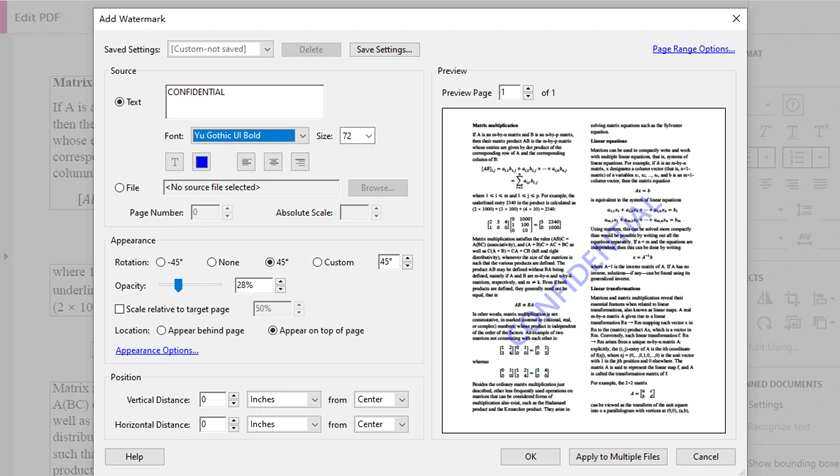
Passo a Passo: Adicionar marca d'água no Adobe Acrobat Pro
- Abra seu PDF no Adobe Acrobat Pro.
- Vá para Ferramentas → Editar PDF → Marca d'água → Adicionar.
- Escolha o tipo de marca d'água:
- Marca d'água de texto, ou
- Marca d'água de imagem (Arquivo)
- Dependendo da sua escolha:
- Se Texto: digite o texto, depois personalize a fonte, cor, opacidade, rotação
- Se Imagem: selecione a imagem, depois ajuste escala, opacidade, posição
- Visualize o resultado.
- Clique em OK e salve o documento.
Prós
- Resultados de qualidade profissional
- Excelente preservação da formatação
- Opções de personalização poderosas
Contras
- Requer assinatura paga
- Caro para usuários ocasionais
Método 2: Adicionar marca d'água a PDF online
Ideal para: Usuários que desejam uma solução rápida sem instalar software.
Se você só precisa adicionar marca d'água a um PDF ocasionalmente, as ferramentas online são geralmente a opção mais rápida. A maioria dos editores de PDF baseados na web permite que você carregue um arquivo, insira uma marca d'água de texto ou imagem e baixe o PDF atualizado em minutos. Todo o processo acontece no navegador, tornando-o conveniente para usuários em diferentes sistemas operacionais.
Ferramentas online são especialmente úteis para tarefas leves, como adicionar um rótulo "Rascunho", colocar o logotipo de uma empresa ou marcar documentos internos antes de compartilhá-los. No entanto, como os arquivos precisam ser carregados em servidores remotos, eles podem não ser ideais para PDFs confidenciais ou altamente sensíveis.
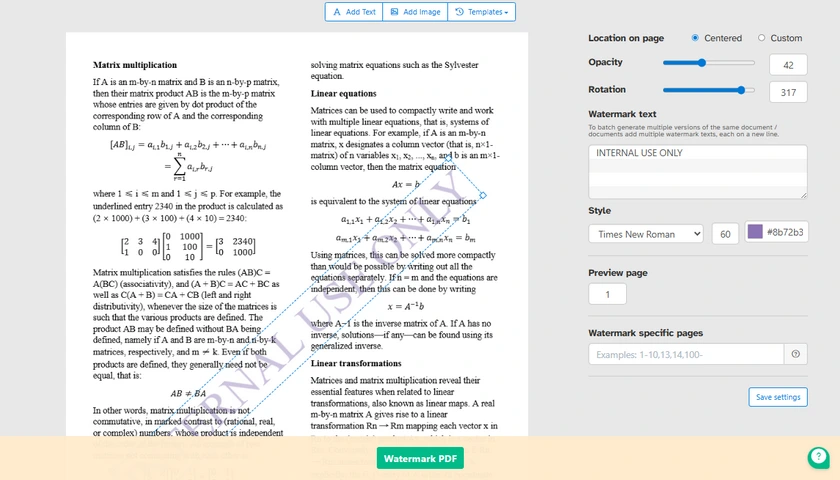
Passos Gerais para Adicionar Marca d'água a PDF Online
- Abra uma ferramenta online de marca d'água em PDF.
- Carregue seu arquivo PDF.
- Escolha o tipo de marca d'água:
- Marca d'água de texto, ou
- Marca d'água de imagem
- Dependendo da sua escolha:
- Se Texto: digite o texto da sua marca d'água
- Se Imagem: carregue seu logotipo ou arquivo de imagem
- Personalize as configurações da marca d'água:
- Tamanho
- Rotação
- Transparência
- Posição
- Visualize o resultado.
- Baixe o PDF processado.
Prós
- Muito fácil de usar
- Nenhuma instalação necessária
- Funciona em Windows, macOS, Linux e dispositivos móveis
Contras
- Preocupações com privacidade para arquivos sensíveis
- Limitações de tamanho de upload
- Conexão com a internet necessária
Método 3: Adicionar marca d'água a PDF usando LibreOffice Draw
Ideal para: Usuários que procuram uma solução de desktop totalmente gratuita.
Para usuários que preferem ferramentas offline, mas não querem pagar por editores de PDF premium, o LibreOffice Draw oferece uma alternativa prática. Embora não seja projetado especificamente para marca d'água em PDF, ele pode abrir arquivos PDF diretamente e permite que os usuários coloquem texto ou imagens sobre as páginas existentes.
Este método funciona particularmente bem para tarefas simples de marca d'água, especialmente ao lidar com documentos curtos. Como o LibreOffice Draw é totalmente gratuito e de código aberto, ele continua sendo uma escolha popular entre estudantes, freelancers e usuários de Linux que precisam de recursos de edição de PDF ocasionais.
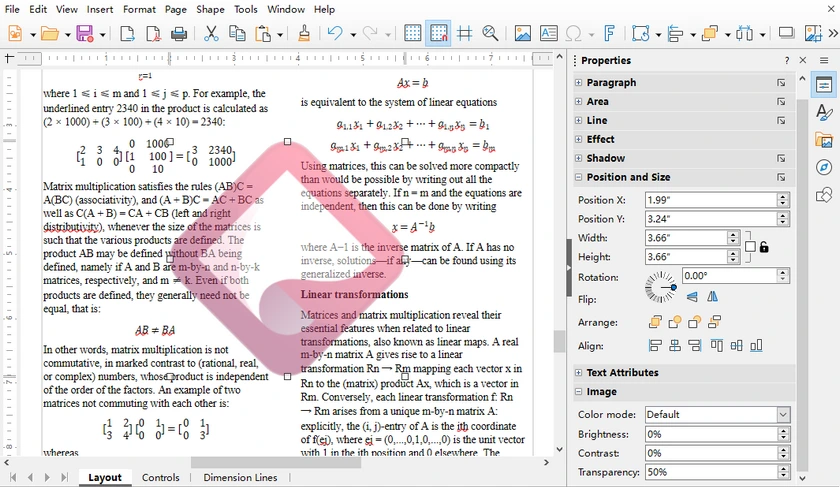
Passos para Adicionar Marca d'água a PDF usando LibreOffice
-
Inicie o LibreOffice Draw.
-
Vá para Arquivo → Abrir, selecione e abra seu arquivo PDF de destino.
-
Adicione sua marca d'água conforme apropriado:
- Para marca d'água de texto: Clique em Inserir → Caixa de Texto, arraste para desenhar uma caixa e digite o conteúdo da sua marca d'água.
- Para marca d'água de imagem: Clique em Inserir → Imagem para importar seu logotipo ou foto.
-
Ajuste a transparência e outras configurações:
- Transparência do Texto: Clique duas vezes para selecionar todo o texto, clique com o botão direito → Caractere, abra a guia Efeitos da Fonte, e arraste o controle deslizante para ajustar a transparência do texto.
- Transparência da Imagem: Clique uma vez para selecionar a imagem inserida, clique com o botão direito → Área, arraste diretamente o controle deslizante de transparência para tornar a imagem semitransparente.
- Personalize tamanho da fonte, cor, ângulo de rotação e posicionamento livremente.
-
Copie e cole a marca d'água editada para cobrir todas as páginas.
-
Quando terminar, navegue até Arquivo → Exportar como → Exportar como PDF para salvar seu arquivo PDF final.
Prós
- Totalmente gratuito
- Código aberto
- Nenhuma assinatura necessária
Contras
- Mais lento ao lidar com PDFs grandes
- Menos conveniente para processamento em lote
Método 4: Adicionar marca d'água a PDF usando Spire.PDF para Python
Ideal para: Desenvolvedores que precisam de marca d'água em PDF automatizada com preservação confiável da formatação.
Os métodos acima funcionam bem para edição manual, mas tornam-se ineficientes quando você precisa processar um grande número de arquivos PDF automaticamente. Em fluxos de trabalho de desenvolvimento, a marca d'água é frequentemente parte de um pipeline de automação maior — como gerar faturas, proteger relatórios internos ou dar marca a documentos exportados.
É aqui que o Spire.PDF para Python se torna útil. Ele permite que os desenvolvedores adicionem marcas d'água de texto e imagem programaticamente, mantendo a renderização precisa do PDF. Comparado com muitas bibliotecas de PDF leves, ele oferece melhor controle sobre a aparência da marca d'água, incluindo transparência, rotação, estilo de fonte e posicionamento.
Instalar Spire.PDF para Python
Instale a biblioteca usando pip:
pip install spire.pdf
Adicionar marca d'água de texto a PDF em Python
O exemplo a seguir adiciona uma marca d'água de texto semitransparente rotacionada a cada página em um documento PDF.
from spire.pdf import *
from spire.pdf.common import *
import math

# Crie um objeto da classe PdfDocument
doc = PdfDocument()

# Carregue um documento PDF do caminho especificado
doc.LoadFromFile("Input.pdf")

# Crie um objeto da classe PdfTrueTypeFont para a fonte da marca d'água
font = PdfTrueTypeFont("Times New Roman", 48.0, 0, True)

# Especifique o texto da marca d'água
text = "NÃO COPIE"

# Meça as dimensões do texto para garantir o posicionamento correto
text_width = font.MeasureString(text).Width
text_height = font.MeasureString(text).Height

# Itere por cada página do documento
for i in range(doc.Pages.Count):

    # Obtenha a página atual
    page = doc.Pages.get_Item(i)

    # Salve o estado atual da tela
    state = page.Canvas.Save()

    # Calcule as coordenadas centrais da página
    x = page.Canvas.Size.Width / 2
    y = page.Canvas.Size.Height / 2

    # Translade o sistema de coordenadas para o centro
    page.Canvas.TranslateTransform(x, y)

    # Rotacione a marca d'água
    page.Canvas.RotateTransform(-45.0)

    # Defina a transparência
    page.Canvas.SetTransparency(0.7)

    # Desenhe o texto da marca d'água
    page.Canvas.DrawString(
        text,
        font,
        PdfBrushes.get_Blue(),
        PointF(-text_width / 2, -text_height / 2)
    )

    # Restaure o estado da tela
    page.Canvas.Restore(state)

# Salve o PDF modificado
doc.SaveToFile("output/TextWatermark.pdf")

# Libere os recursos
doc.Dispose()
Opções de Personalização
Este exemplo demonstra várias configurações de marca d'água comumente usadas:
- Personalização da fonte
Altere a família da fonte, tamanho e estilo para corresponder ao design do seu documento.
- Ângulo de rotação
A marca d'água é rotacionada em -45° para criar uma aparência diagonal na página.
- Controle de transparência
O método SetTransparency() permite que a marca d'água permaneça visível sem bloquear o conteúdo do documento.
- Posicionamento centralizado
O código coloca automaticamente a marca d'água no centro de cada página.
Essas configurações podem ser facilmente ajustadas dependendo se você deseja uma marca d'água sutil de fundo ou um rótulo de segurança mais proeminente.
Adicionar marca d'água de imagem a PDF em Python
Além de marcas d'água de texto, você também pode colocar logotipos, carimbos ou imagens de branding em páginas PDF.
# Carregue a imagem da marca d'água do caminho especificado
image = PdfImage.FromFile("logo.png")

# Obtenha a largura e a altura da imagem carregada para posicionamento
imageWidth = float(image.Width)
imageHeight = float(image.Height)

# Itere por cada página do documento para aplicar a marca d'água
for i in range(doc.Pages.Count):

    # Obtenha a página atual
    page = doc.Pages.get_Item(i)

    # Defina a transparência da marca d'água para 50%
    page.Canvas.SetTransparency(0.5)

    # Obtenha as dimensões da página atual
    pageWidth = page.ActualSize.Width
    pageHeight = page.ActualSize.Height

    # Calcule as coordenadas x e y para centralizar a imagem na página
    x = (pageWidth - imageWidth) / 2
    y = (pageHeight - imageHeight) / 2

    # Desenhe a imagem na posição central calculada na página
    page.Canvas.DrawImage(image, x, y, imageWidth, imageHeight)
O que você pode personalizar?
Com marcas d'água de imagem, você pode personalizar facilmente:
- Nível de transparência
- Tamanho da marca d'água
- Posição na página
- Logotipo ou imagem de branding
- Posicionamento da marca d'água em várias páginas
Além de adicionar marcas d'água, o Spire.PDF para Python também oferece uma ampla gama de recursos de processamento de PDF. Você pode usá-lo para criar, editar, mesclar, dividir e converter documentos PDF programaticamente. Isso o torna uma solução versátil para construir fluxos de trabalho completos de automação de PDF em aplicativos Python.
Comparação de todos os métodos
| Método | Facilidade de Uso | Custo | Ideal para | Automação |
|---|---|---|---|---|
| Adobe Acrobat Pro | Fácil | Pago | Edição profissional | Não |
| Ferramentas Online | Muito Fácil | Grátis/Freemium | Tarefas rápidas | Não |
| LibreOffice Draw | Médio | Grátis | Edição gratuita em desktop | Não |
| Spire.PDF para Python | Médio | Grátis/Comercial | Desenvolvedores e automação | Sim |
Conclusão
Adicionar marcas d'água a PDFs pode variar de uma tarefa simples e única a um fluxo de trabalho de processamento de documentos totalmente automatizado. Ferramentas como Adobe Acrobat e editores online são adequadas para edição manual ocasional, enquanto o LibreOffice Draw oferece uma alternativa gratuita capaz para uso offline.
Para desenvolvedores e empresas que lidam com PDFs em escala, soluções programáticas oferecem muito mais flexibilidade. O Spire.PDF para Python permite adicionar marcas d'água de texto e imagem com controle preciso sobre transparência, rotação, fontes e posicionamento, tornando-o bem adequado para fluxos de trabalho automatizados de geração de PDF e proteção de documentos.
Perguntas frequentes sobre marca d'água em PDF
Posso adicionar uma marca d'água a um PDF gratuitamente?
Absolutamente. Você pode usar software de desktop gratuito, como o LibreOffice Draw, ou vários editores de PDF online gratuitos para inserir marcas d'água de texto e imagem sem necessidade de assinatura paga. Além disso, a edição gratuita do Spire.PDF também permite a inserção de marcas d'água em PDF, com um limite de até 10 páginas por documento.
Posso adicionar uma marca d'água de imagem em vez de texto?
Sim. A maioria das ferramentas de PDF suporta marcas d'água de texto e imagem, incluindo logotipos, carimbos e gráficos de marca.
Como adiciono uma marca d'água a todas as páginas de um PDF?
A maioria dos editores de PDF inclui uma opção para aplicar a marca d'água a todas as páginas automaticamente. Em Python, isso geralmente é feito iterando por todas as páginas.
Adicionar uma marca d'água reduzirá a qualidade do PDF?
Geralmente não. Marcas d'água de texto têm impacto mínimo, enquanto marcas d'água de imagem podem aumentar ligeiramente o tamanho do arquivo, dependendo da imagem usada.
Qual método é melhor para marca d'água em lote de PDFs?
Soluções programáticas são melhores para processamento em lote. Bibliotecas como Spire.PDF para Python podem automatizar a marca d'água em um grande número de arquivos PDF.
Veja também
PDF 워터마크 추가 방법: 4가지 효과적인 방법
PDF 워터마크는 저작권 보호, 브랜딩, 문서 추적 및 기밀 유지 공지에 널리 사용됩니다. 간단한 "기밀" 라벨을 추가하거나 모든 페이지에 회사 로고를 배치하려는 경우 워터마킹은 무단 배포를 방지하고 문서 소유권을 명확히 하는 데 도움이 됩니다.
이 가이드에서는 전문 데스크톱 도구부터 무료 온라인 솔루션 및 Python 자동화에 이르기까지 PDF 문서에 워터마크를 추가하는 몇 가지 실용적인 방법을 배웁니다.
빠른 탐색:
- 방법 1: Adobe Acrobat Pro를 사용하여 PDF에 워터마크 추가하기
- 방법 2: 온라인으로 PDF에 워터마크 추가하기
- 방법 3: LibreOffice Draw를 사용하여 PDF에 워터마크 추가하기
- 방법 4: Spire.PDF for Python을 사용하여 PDF에 워터마크 추가하기
PDF 워터마크는 언제 사용해야 할까요?
PDF 워터마크는 문서를 식별, 보호 또는 브랜딩해야 할 때 유용합니다. 원래 콘텐츠 자체를 변경하지 않고도 독자가 문서의 상태 또는 소유권을 즉시 이해하도록 돕습니다. 비즈니스 및 개인 사용자 모두 보안, 저작권 및 워크플로 관리를 위해 워터마크를 일반적으로 사용합니다.
PDF 워터마크가 유용한 몇 가지 일반적인 상황은 다음과 같습니다.
- 기밀 파일 보호
- 무단 배포 방지
- 초안 버전 표시
- 회사 브랜딩 추가
- 문서 소유권 식별
워크플로에 따라 데스크톱 도구를 사용하여 수동으로 워터마크를 추가하거나 Python 라이브러리를 사용하여 대규모 PDF 처리를 자동화할 수 있습니다.
방법 1: Adobe Acrobat Pro를 사용하여 PDF에 워터마크 추가하기
최적: 정확한 제어와 고품질 출력이 필요한 전문 사용자.
PDF 편집에 있어서 Adobe Acrobat Pro는 여전히 업계 표준으로 간주됩니다. 워터마킹 기능은 매우 안정적이며 사용자에게 페이지 전체에 워터마크가 표시되는 방식에 대한 세부적인 제어를 제공합니다. 텍스트 및 이미지 워터마크를 모두 추가하고, 불투명도를 조정하고, 대각선으로 회전하고, 특정 페이지 범위에만 적용할 수도 있습니다.
계약서, 보고서 또는 기밀 문서를 처리하는 비즈니스의 경우 Acrobat은 원본 레이아웃과 서식을 유지하면서 PDF에 워터마크를 추가하는 가장 안정적인 방법 중 하나를 제공합니다.
단계별: Adobe Acrobat Pro에서 워터마크 추가하기
- Adobe Acrobat Pro에서 PDF를 엽니다.
- 도구 → PDF 편집 → 워터마크 → 추가로 이동합니다.
- 워터마크 유형을 선택합니다.
- 텍스트 워터마크 또는
- 이미지 워터마크 (파일)
- 선택에 따라:
- 텍스트인 경우: 텍스트를 입력한 다음 글꼴, 색상, 불투명도, 회전을 사용자 지정합니다.
- 이미지인 경우: 이미지를 선택한 다음 크기, 불투명도, 위치를 조정합니다.
- 결과를 미리 봅니다.
- 확인을 클릭하고 문서를 저장합니다.
장점
- 전문적인 품질의 결과
- 뛰어난 서식 유지
- 강력한 사용자 지정 옵션
단점
- 유료 구독 필요
- 가끔 사용하는 사용자에게는 비쌈
방법 2: 온라인으로 PDF에 워터마크 추가하기
최적: 소프트웨어를 설치하지 않고 빠른 솔루션을 원하는 사용자.
PDF에 워터마크를 가끔 추가해야 하는 경우 온라인 도구가 가장 빠른 옵션인 경우가 많습니다. 대부분의 웹 기반 PDF 편집기를 사용하면 파일을 업로드하고, 텍스트 또는 이미지 워터마크를 삽입하고, 몇 분 안에 업데이트된 PDF를 다운로드할 수 있습니다. 전체 프로세스가 브라우저에서 이루어지므로 다양한 운영 체제의 사용자에게 편리합니다.
온라인 도구는 "초안" 라벨 추가, 회사 로고 배치 또는 공유 전에 내부 문서 표시와 같은 가벼운 작업에 특히 유용합니다. 그러나 파일을 원격 서버에 업로드해야 하므로 기밀 또는 매우 민감한 PDF에는 이상적이지 않을 수 있습니다.
온라인으로 PDF에 워터마크를 추가하는 일반적인 단계
- 온라인 PDF 워터마크 도구를 엽니다.
- PDF 파일을 업로드합니다.
- 워터마크 유형을 선택합니다.
- 텍스트 워터마크 또는
- 이미지 워터마크
- 선택에 따라:
- 텍스트인 경우: 워터마크 텍스트를 입력합니다.
- 이미지인 경우: 로고 또는 이미지 파일을 업로드합니다.
- 워터마크 설정을 사용자 지정합니다.
- 크기
- 회전
- 투명도
- 위치
- 결과를 미리 봅니다.
- 처리된 PDF를 다운로드합니다.
장점
- 사용하기 매우 쉬움
- 설치 불필요
- Windows, macOS, Linux 및 모바일 장치에서 작동
단점
- 민감한 파일에 대한 개인 정보 보호 문제
- 업로드 크기 제한
- 인터넷 연결 필요
방법 3: LibreOffice Draw를 사용하여 PDF에 워터마크 추가하기
최적: 완전히 무료인 데스크톱 솔루션을 찾는 사용자.
오프라인 도구를 선호하지만 프리미엄 PDF 편집기에 비용을 지불하고 싶지 않은 사용자의 경우 LibreOffice Draw는 실용적인 대안을 제공합니다. PDF 워터마킹을 위해 특별히 설계된 것은 아니지만 PDF 파일을 직접 열 수 있으며 사용자가 기존 페이지 위에 텍스트 또는 이미지를 배치할 수 있습니다.
이 방법은 특히 짧은 문서로 작업할 때 간단한 워터마킹 작업에 매우 효과적입니다. LibreOffice Draw는 완전히 무료이며 오픈 소스이므로 가끔 PDF 편집 기능이 필요한 학생, 프리랜서 및 Linux 사용자들 사이에서 인기 있는 선택입니다.
LibreOffice를 사용하여 PDF에 워터마크를 추가하는 단계
-
LibreOffice Draw를 실행합니다.
-
파일 → 열기로 이동한 다음 대상 PDF 파일을 선택하고 엽니다.
-
워터마크를 적절하게 추가합니다.
- 텍스트 워터마크의 경우: 삽입 → 텍스트 상자를 클릭하고 드래그하여 상자를 그린 다음 워터마크 내용을 입력합니다.
- 이미지 워터마크의 경우: 삽입 → 이미지를 클릭하여 로고 또는 사진을 가져옵니다.
-
투명도 및 기타 설정을 조정합니다.
- 텍스트 투명도: 두 번 클릭하여 모든 텍스트를 강조 표시하고 마우스 오른쪽 버튼을 클릭 → 문자를 선택한 다음 글꼴 효과 탭을 열고 슬라이더를 드래그하여 텍스트 투명도를 조정합니다.
- 이미지 투명도: 한 번 클릭하여 삽입된 이미지를 선택하고 마우스 오른쪽 버튼을 클릭 → 영역을 선택한 다음 투명도 슬라이더를 직접 드래그하여 이미지를 반투명하게 만듭니다.
- 글꼴 크기, 색상, 회전 각도 및 배치를 자유롭게 사용자 지정합니다.
-
편집된 워터마크를 복사하여 모든 페이지에 붙여넣습니다.
-
완료되면 파일 → 다른 이름으로 내보내기 → PDF로 내보내기로 이동하여 최종 PDF 파일을 저장합니다.
장점
- 완전히 무료
- 오픈 소스
- 구독 불필요
단점
- 대용량 PDF 처리 시 느림
- 일괄 처리에 덜 편리함
방법 4: Spire.PDF for Python을 사용하여 PDF에 워터마크 추가하기
최적: 안정적인 서식 유지를 통해 자동화된 PDF 워터마킹이 필요한 개발자.
위의 방법은 수동 편집에 적합하지만 대량의 PDF 파일을 자동으로 처리해야 할 때는 비효율적입니다. 개발 워크플로에서 워터마킹은 종종 더 큰 자동화 파이프라인의 일부입니다. 예를 들어 송장을 생성하거나, 내부 보고서를 보호하거나, 내보낸 문서를 브랜딩하는 경우입니다.
이때 Spire.PDF for Python이 유용합니다. 개발자가 텍스트 및 이미지 워터마크를 프로그래밍 방식으로 추가할 수 있도록 하여 정확한 PDF 렌더링을 유지합니다. 많은 경량 PDF 라이브러리에 비해 투명도, 회전, 글꼴 스타일 및 위치를 포함한 워터마크 모양에 대한 더 나은 제어를 제공합니다.
Spire.PDF for Python 설치
pip를 사용하여 라이브러리를 설치합니다.
pip install spire.pdf
Python에서 PDF에 텍스트 워터마크 추가하기
다음 예는 PDF 문서의 모든 페이지에 회전된 반투명 텍스트 워터마크를 추가합니다.
from spire.pdf import *
from spire.pdf.common import *
import math

# PdfDocument 클래스의 객체 생성
doc = PdfDocument()

# 지정된 경로에서 PDF 문서 로드
doc.LoadFromFile("Input.pdf")

# 워터마크 글꼴에 대한 PdfTrueTypeFont 클래스의 객체 생성
font = PdfTrueTypeFont("Times New Roman", 48.0, 0, True)

# 워터마크 텍스트 지정
text = "DO NOT COPY"

# 텍스트의 치수를 측정하여 올바른 위치 지정 보장
text_width = font.MeasureString(text).Width
text_height = font.MeasureString(text).Height

# 문서의 각 페이지를 반복
for i in range(doc.Pages.Count):

    # 현재 페이지 가져오기
    page = doc.Pages.get_Item(i)

    # 현재 캔버스 상태 저장
    state = page.Canvas.Save()

    # 페이지의 중앙 좌표 계산
    x = page.Canvas.Size.Width / 2
    y = page.Canvas.Size.Height / 2

    # 좌표계를 중앙으로 이동
    page.Canvas.TranslateTransform(x, y)

    # 워터마크 회전
    page.Canvas.RotateTransform(-45.0)

    # 투명도 설정
    page.Canvas.SetTransparency(0.7)

    # 워터마크 텍스트 그리기
    page.Canvas.DrawString(
        text,
        font,
        PdfBrushes.get_Blue(),
        PointF(-text_width / 2, -text_height / 2)
    )

    # 캔버스 상태 복원
    page.Canvas.Restore(state)

# 수정된 PDF 저장
doc.SaveToFile("output/TextWatermark.pdf")

# 리소스 해제
doc.Dispose()
사용자 지정 옵션
이 예는 일반적으로 사용되는 몇 가지 워터마크 설정을 보여줍니다.
- 글꼴 사용자 지정
문서 디자인에 맞게 글꼴 패밀리, 크기 및 스타일을 변경합니다.
- 회전 각도
워터마크는 -45°로 회전하여 페이지 전체에 대각선 모양을 만듭니다.
- 투명도 제어
SetTransparency() 메서드를 사용하면 워터마크가 문서 내용을 가리지 않고 보이도록 할 수 있습니다.
- 중앙 정렬
코드는 각 페이지의 중앙에 워터마크를 자동으로 배치합니다.
이러한 설정은 미묘한 배경 워터마크를 원하든 더 눈에 띄는 보안 라벨을 원하든 쉽게 조정할 수 있습니다.
Python에서 PDF에 이미지 워터마크 추가하기
텍스트 워터마크 외에도 로고, 스탬프 또는 브랜딩 이미지를 PDF 페이지에 배치할 수도 있습니다.
# 지정된 경로에서 워터마크 이미지 로드
image = PdfImage.FromFile("logo.png")

# 위치 지정을 위해 로드된 이미지의 너비와 높이 가져오기
imageWidth = float(image.Width)
imageHeight = float(image.Height)

# 문서의 각 페이지를 반복하여 워터마크 적용
for i in range(doc.Pages.Count):

    # 현재 페이지 가져오기
    page = doc.Pages.get_Item(i)

    # 워터마크의 투명도를 50%로 설정
    page.Canvas.SetTransparency(0.5)

    # 현재 페이지의 치수 가져오기
    pageWidth = page.ActualSize.Width
    pageHeight = page.ActualSize.Height

    # 페이지 중앙에 이미지를 배치하기 위한 x 및 y 좌표 계산
    x = (pageWidth - imageWidth) / 2
    y = (pageHeight - imageHeight) / 2

    # 페이지의 계산된 중앙 위치에 이미지 그리기
    page.Canvas.DrawImage(image, x, y, imageWidth, imageHeight)
무엇을 사용자 지정할 수 있나요?
이미지 워터마크를 사용하면 다음을 쉽게 사용자 지정할 수 있습니다.
- 투명도 수준
- 워터마크 크기
- 페이지상의 위치
- 로고 또는 브랜딩 이미지
- 여러 페이지에 걸친 워터마크 배치
워터마크 추가 외에도 Spire.PDF for Python은 광범위한 PDF 처리 기능을 제공합니다. 이를 사용하여 PDF 문서를 프로그래밍 방식으로 생성, 편집, 병합, 분할 및 변환할 수 있습니다. 이를 통해 Python 애플리케이션에서 완전한 PDF 자동화 워크플로를 구축할 수 있는 다목적 솔루션이 됩니다.
모든 방법 비교
| 방법 | 사용 편의성 | 비용 | 최적 | 자동화 |
|---|---|---|---|---|
| Adobe Acrobat Pro | 쉬움 | 유료 | 전문적인 편집 | 아니요 |
| 온라인 도구 | 매우 쉬움 | 무료/부분 유료 | 빠른 작업 | 아니요 |
| LibreOffice Draw | 보통 | 무료 | 무료 데스크톱 편집 | 아니요 |
| Spire.PDF for Python | 보통 | 무료/상업용 | 개발자 및 자동화 | 예 |
결론
PDF에 워터마크를 추가하는 것은 간단한 일회성 작업부터 완전 자동화된 문서 처리 워크플로까지 다양합니다. Adobe Acrobat 및 온라인 편집기와 같은 도구는 가끔 수동 편집에 적합하며, LibreOffice Draw는 오프라인 사용을 위한 유능한 무료 대안을 제공합니다.
대규모로 PDF를 처리하는 개발자 및 비즈니스의 경우 프로그래밍 방식 솔루션은 훨씬 더 큰 유연성을 제공합니다. Spire.PDF for Python을 사용하면 투명도, 회전, 글꼴 및 위치에 대한 정밀한 제어를 통해 텍스트 및 이미지 워터마크를 모두 추가할 수 있으므로 자동화된 PDF 생성 및 문서 보호 워크플로에 적합합니다.
PDF 워터마크에 대한 FAQ
PDF에 워터마크를 무료로 추가할 수 있나요?
물론입니다. LibreOffice Draw와 같은 무료 데스크톱 소프트웨어나 다양한 무료 온라인 PDF 편집기를 사용하여 유료 구독 없이 텍스트 및 이미지 워터마크를 삽입할 수 있습니다. 또한 Spire.PDF의 무료 버전을 사용하면 문서당 최대 10페이지까지 제한이 있지만 PDF 워터마크 삽입이 가능합니다.
텍스트 대신 이미지 워터마크를 추가할 수 있나요?
예. 대부분의 PDF 도구는 로고, 스탬프 및 브랜딩 그래픽을 포함한 텍스트 및 이미지 워터마크를 모두 지원합니다.
PDF의 모든 페이지에 워터마크를 추가하려면 어떻게 해야 하나요?
대부분의 PDF 편집기에는 워터마크를 모든 페이지에 자동으로 적용하는 옵션이 포함되어 있습니다. Python에서는 일반적으로 모든 페이지를 반복하여 수행합니다.
워터마크를 추가하면 PDF 품질이 저하되나요?
일반적으로 그렇지 않습니다. 텍스트 워터마크는 영향이 최소화되는 반면, 이미지 워터마크는 사용된 이미지에 따라 파일 크기가 약간 증가할 수 있습니다.
PDF 일괄 워터마킹에 가장 적합한 방법은 무엇인가요?
프로그래밍 방식 솔루션이 일괄 처리에 가장 적합합니다. Spire.PDF for Python과 같은 라이브러리는 대량의 PDF 파일에 대한 워터마킹을 자동화할 수 있습니다.
참고 자료
Come aggiungere una filigrana a un PDF: 4 metodi efficaci
Indice
- Quando usare le filigrane sui PDF?
- Metodo 1: Aggiungere una filigrana a un PDF con Adobe Acrobat Pro
- Metodo 2: Aggiungere una filigrana a un PDF online
- Metodo 3: Aggiungere una filigrana a un PDF con LibreOffice Draw
- Metodo 4: Aggiungere una filigrana a un PDF con Spire.PDF per Python
- Confronto di tutti i metodi
- Conclusione
- Domande frequenti sulle filigrane PDF
Le filigrane sui PDF sono ampiamente utilizzate per la protezione del copyright, il branding, il tracciamento dei documenti e le notifiche di riservatezza. Sia che tu voglia aggiungere una semplice etichetta "RISERVATO" o posizionare il logo di un'azienda su ogni pagina, la filigrana aiuta a prevenire la distribuzione non autorizzata e a chiarire la proprietà del documento.
In questa guida, imparerai diversi modi pratici per aggiungere filigrane ai documenti PDF, dagli strumenti desktop professionali alle soluzioni online gratuite e all'automazione con Python.
Navigazione rapida:
- Metodo 1: Aggiungere una filigrana a un PDF con Adobe Acrobat Pro
- Metodo 2: Aggiungere una filigrana a un PDF online
- Metodo 3: Aggiungere una filigrana a un PDF con LibreOffice Draw
- Metodo 4: Aggiungere una filigrana a un PDF con Spire.PDF per Python
Quando usare le filigrane sui PDF?
Le filigrane sui PDF sono utili ogni volta che è necessario identificare, proteggere o marchiare un documento. Aiutano i lettori a comprendere immediatamente lo stato o la proprietà del documento senza alterare il contenuto originale. Sia le aziende che gli utenti individuali utilizzano comunemente le filigrane per scopi di sicurezza, copyright e gestione del flusso di lavoro.
Ecco alcune situazioni comuni in cui le filigrane sui PDF sono utili:
- Proteggere file riservati
- Prevenire la distribuzione non autorizzata
- Segnare versioni provvisorie
- Aggiungere il branding aziendale
- Identificare la proprietà del documento
A seconda del tuo flusso di lavoro, puoi aggiungere filigrane manualmente utilizzando strumenti desktop o automatizzare il processo utilizzando librerie Python per l'elaborazione di PDF su larga scala.
Metodo 1: Aggiungere una filigrana a un PDF con Adobe Acrobat Pro
Ideale per: Utenti professionali che necessitano di controllo preciso e output di alta qualità.
Quando si tratta di modificare PDF, Adobe Acrobat Pro è ancora considerato lo standard del settore. La sua funzione di filigrana è altamente stabile e offre agli utenti un controllo dettagliato su come appaiono le filigrane nelle pagine. Puoi aggiungere filigrane di testo e immagine, regolare l'opacità, ruotarle diagonalmente e persino applicarle solo a intervalli di pagine specifici.
Per le aziende che gestiscono contratti, report o documenti riservati, Acrobat offre uno dei modi più affidabili per aggiungere filigrane ai PDF preservando il layout e la formattazione originali.
Passo dopo passo: Aggiungere una filigrana in Adobe Acrobat Pro
- Apri il tuo PDF in Adobe Acrobat Pro.
- Vai su Strumenti → Modifica PDF → Filigrana → Aggiungi.
- Scegli il tipo di filigrana:
- Filigrana di testo, o
- Filigrana immagine (File)
- A seconda della tua scelta:
- Se Testo: inserisci il testo, quindi personalizza font, colore, opacità, rotazione
- Se Immagine: seleziona l'immagine, quindi regola scala, opacità, posizione
- Anteprima del risultato.
- Fai clic su OK e salva il documento.
Pro
- Risultati di qualità professionale
- Eccellente conservazione della formattazione
- Potenti opzioni di personalizzazione
Contro
- Richiede un abbonamento a pagamento
- Costoso per utenti occasionali
Metodo 2: Aggiungere una filigrana a un PDF online
Ideale per: Utenti che desiderano una soluzione rapida senza installare software.
Se hai solo bisogno di aggiungere una filigrana a un PDF occasionalmente, gli strumenti online sono spesso l'opzione più veloce. La maggior parte degli editor PDF basati sul web ti consente di caricare un file, inserire una filigrana di testo o immagine e scaricare il PDF aggiornato in pochi minuti. L'intero processo avviene nel browser, rendendolo conveniente per gli utenti su diversi sistemi operativi.
Gli strumenti online sono particolarmente utili per attività leggere come l'aggiunta di un'etichetta "Bozza", il posizionamento di un logo aziendale o la marcatura di documenti interni prima della condivisione. Tuttavia, poiché i file devono essere caricati su server remoti, potrebbero non essere ideali per PDF riservati o altamente sensibili.
Passaggi generali per aggiungere una filigrana a un PDF online
- Apri uno strumento online per filigrane PDF.
- Carica il tuo file PDF.
- Scegli il tipo di filigrana:
- Filigrana di testo, o
- Filigrana immagine
- A seconda della tua scelta:
- Se Testo: inserisci il testo della filigrana
- Se Immagine: carica il tuo logo o file immagine
- Personalizza le impostazioni della filigrana:
- Dimensione
- Rotazione
- Trasparenza
- Posizione
- Anteprima del risultato.
- Scarica il PDF elaborato.
Pro
- Molto facile da usare
- Nessuna installazione richiesta
- Funziona su Windows, macOS, Linux e dispositivi mobili
Contro
- Preoccupazioni sulla privacy per file sensibili
- Limitazioni sulla dimensione del caricamento
- Connessione Internet richiesta
Metodo 3: Aggiungere una filigrana a un PDF con LibreOffice Draw
Ideale per: Utenti che cercano una soluzione desktop completamente gratuita.
Per gli utenti che preferiscono strumenti offline ma non vogliono pagare per editor PDF premium, LibreOffice Draw offre un'alternativa pratica. Sebbene non sia progettato specificamente per le filigrane PDF, può aprire direttamente i file PDF e consente agli utenti di posizionare testo o immagini sopra le pagine esistenti.
Questo metodo funziona particolarmente bene per semplici attività di filigranatura, specialmente quando si tratta di documenti brevi. Poiché LibreOffice Draw è completamente gratuito e open source, rimane una scelta popolare tra studenti, freelance e utenti Linux che necessitano di funzionalità occasionali di modifica PDF.
Passaggi per aggiungere una filigrana a un PDF con LibreOffice
-
Avvia LibreOffice Draw.
-
Vai su File → Apri, quindi seleziona e apri il tuo file PDF di destinazione.
-
Aggiungi la tua filigrana di conseguenza:
- Per la filigrana di testo: fai clic su Inserisci → Casella di testo, trascina per disegnare una casella e digita il contenuto della filigrana.
- Per la filigrana immagine: fai clic su Inserisci → Immagine per importare il tuo logo o immagine.
-
Regola la trasparenza e altre impostazioni:
- Trasparenza testo: fai doppio clic per evidenziare tutto il testo, fai clic destro → Carattere, apri la scheda Effetti carattere, quindi trascina il cursore per regolare la trasparenza del testo.
- Trasparenza immagine: fai clic singolo per selezionare l'immagine inserita, fai clic destro → Area, trascina direttamente il cursore di trasparenza per rendere l'immagine semitrasparente.
- Personalizza liberamente dimensione del carattere, colore, angolo di rotazione e posizionamento.
-
Copia e incolla la filigrana modificata per coprire tutte le pagine.
-
Al termine, vai su File → Esporta come → Esporta come PDF per salvare il tuo file PDF finale.
Pro
- Completamente gratuito
- Open-source
- Nessun abbonamento richiesto
Contro
- Più lento nella gestione di PDF di grandi dimensioni
- Meno conveniente per l'elaborazione batch
Metodo 4: Aggiungere una filigrana a un PDF con Spire.PDF per Python
Ideale per: Sviluppatori che necessitano di filigranatura PDF automatizzata con conservazione affidabile della formattazione.
I metodi sopra descritti funzionano bene per la modifica manuale, ma diventano inefficienti quando è necessario elaborare automaticamente un gran numero di file PDF. Nei flussi di lavoro di sviluppo, la filigranatura fa spesso parte di una pipeline di automazione più ampia, come la generazione di fatture, la protezione di report interni o il branding di documenti esportati.
È qui che Spire.PDF per Python diventa utile. Consente agli sviluppatori di aggiungere filigrane di testo e immagine programmaticamente mantenendo un rendering PDF accurato. Rispetto a molte librerie PDF leggere, offre un migliore controllo sull'aspetto della filigrana, inclusa trasparenza, rotazione, stile del carattere e posizionamento.
Installa Spire.PDF per Python
Installa la libreria usando pip:
pip install spire.pdf
Aggiungere una filigrana di testo a un PDF in Python
L'esempio seguente aggiunge una filigrana di testo semitrasparente e ruotata a ogni pagina di un documento PDF.
from spire.pdf import *
from spire.pdf.common import *
import math

# Crea un oggetto della classe PdfDocument
doc = PdfDocument()

# Carica un documento PDF dal percorso specificato
doc.LoadFromFile("Input.pdf")

# Crea un oggetto della classe PdfTrueTypeFont per il font della filigrana
font = PdfTrueTypeFont("Times New Roman", 48.0, 0, True)

# Specifica il testo della filigrana
text = "NON COPIARE"

# Misura le dimensioni del testo per garantire un posizionamento corretto
text_width = font.MeasureString(text).Width
text_height = font.MeasureString(text).Height

# Cicla attraverso ogni pagina del documento
for i in range(doc.Pages.Count):

    # Ottieni la pagina corrente
    page = doc.Pages.get_Item(i)

    # Salva lo stato corrente della tela
    state = page.Canvas.Save()

    # Calcola le coordinate centrali della pagina
    x = page.Canvas.Size.Width / 2
    y = page.Canvas.Size.Height / 2

    # Trasla il sistema di coordinate al centro
    page.Canvas.TranslateTransform(x, y)

    # Ruota la filigrana
    page.Canvas.RotateTransform(-45.0)

    # Imposta la trasparenza
    page.Canvas.SetTransparency(0.7)

    # Disegna il testo della filigrana
    page.Canvas.DrawString(
        text,
        font,
        PdfBrushes.get_Blue(),
        PointF(-text_width / 2, -text_height / 2)
    )

    # Ripristina lo stato della tela
    page.Canvas.Restore(state)

# Salva il PDF modificato
doc.SaveToFile("output/TextWatermark.pdf")

# Libera le risorse
doc.Dispose()
Opzioni di personalizzazione
Questo esempio dimostra diverse impostazioni di filigrana comunemente utilizzate:
- Personalizzazione del font
Cambia la famiglia del font, la dimensione e lo stile per adattarli al design del tuo documento.
- Angolo di rotazione
La filigrana è ruotata di -45° per creare un aspetto diagonale sulla pagina.
- Controllo della trasparenza
Il metodo SetTransparency() consente alla filigrana di rimanere visibile senza bloccare il contenuto del documento.
- Posizionamento centrato
Il codice posiziona automaticamente la filigrana al centro di ogni pagina.
Queste impostazioni possono essere facilmente regolate a seconda che tu desideri una filigrana di sfondo discreta o un'etichetta di sicurezza più evidente.
Aggiungere una filigrana immagine a un PDF in Python
Oltre alle filigrane di testo, puoi anche posizionare loghi, timbri o immagini di branding sulle pagine PDF.
# Carica l'immagine della filigrana dal percorso specificato
image = PdfImage.FromFile("logo.png")

# Ottieni larghezza e altezza dell'immagine caricata per il posizionamento
imageWidth = float(image.Width)
imageHeight = float(image.Height)

# Cicla attraverso ogni pagina del documento per applicare la filigrana
for i in range(doc.Pages.Count):

    # Ottieni la pagina corrente
    page = doc.Pages.get_Item(i)

    # Imposta la trasparenza della filigrana al 50%
    page.Canvas.SetTransparency(0.5)

    # Ottieni le dimensioni della pagina corrente
    pageWidth = page.ActualSize.Width
    pageHeight = page.ActualSize.Height

    # Calcola le coordinate x e y per centrare l'immagine sulla pagina
    x = (pageWidth - imageWidth) / 2
    y = (pageHeight - imageHeight) / 2

    # Disegna l'immagine nella posizione centrale calcolata sulla pagina
    page.Canvas.DrawImage(image, x, y, imageWidth, imageHeight)
Cosa puoi personalizzare?
Con le filigrane immagine, puoi facilmente personalizzare:
- Livello di trasparenza
- Dimensione della filigrana
- Posizione sulla pagina
- Logo o immagine di branding
- Posizionamento della filigrana su più pagine
Oltre ad aggiungere filigrane, Spire.PDF per Python offre anche una vasta gamma di funzionalità di elaborazione PDF. Puoi usarlo per creare, modificare, unire, dividere e convertire documenti PDF programmaticamente. Questo lo rende una soluzione versatile per la creazione di flussi di lavoro completi di automazione PDF nelle applicazioni Python.
Confronto di tutti i metodi
| Metodo | Facilità d'uso | Costo | Ideale per | Automazione |
|---|---|---|---|---|
| Adobe Acrobat Pro | Facile | A pagamento | Modifica professionale | No |
| Strumenti online | Molto facile | Gratuito/Freemium | Attività rapide | No |
| LibreOffice Draw | Medio | Gratuito | Modifica desktop gratuita | No |
| Spire.PDF per Python | Medio | Gratuito/Commerciale | Sviluppatori e automazione | Sì |
Conclusione
L'aggiunta di filigrane ai PDF può variare da un semplice compito una tantum a un flusso di lavoro di elaborazione documenti completamente automatizzato. Strumenti come Adobe Acrobat e gli editor online sono adatti per modifiche manuali occasionali, mentre LibreOffice Draw offre un'alternativa gratuita e capace per l'uso offline.
Per sviluppatori e aziende che gestiscono PDF su larga scala, le soluzioni programmatiche offrono molta più flessibilità. Spire.PDF per Python consente di aggiungere filigrane di testo e immagine con un controllo preciso su trasparenza, rotazione, font e posizionamento, rendendolo adatto per flussi di lavoro automatizzati di generazione PDF e protezione dei documenti.
Domande frequenti sulle filigrane PDF
Posso aggiungere una filigrana a un PDF gratuitamente?
Assolutamente. Puoi utilizzare software desktop gratuiti come LibreOffice Draw o vari editor PDF online gratuiti per inserire filigrane di testo e immagine senza alcun abbonamento a pagamento. Inoltre, l'edizione gratuita di Spire.PDF consente anche l'inserimento di filigrane PDF, con un limite di fino a 10 pagine per documento.
Posso aggiungere una filigrana immagine invece del testo?
Sì. La maggior parte degli strumenti PDF supporta sia filigrane di testo che immagine, inclusi loghi, timbri e grafiche di marca.
Come aggiungo una filigrana a tutte le pagine di un PDF?
La maggior parte degli editor PDF include un'opzione per applicare automaticamente la filigrana a ogni pagina. In Python, ciò viene solitamente fatto ciclando attraverso tutte le pagine.
L'aggiunta di una filigrana ridurrà la qualità del PDF?
Di solito no. Le filigrane di testo hanno un impatto minimo, mentre le filigrane immagine potrebbero aumentare leggermente la dimensione del file a seconda dell'immagine utilizzata.
Quale metodo è migliore per l'elaborazione batch di PDF con filigrane?
Le soluzioni programmatiche sono le migliori per l'elaborazione batch. Librerie come Spire.PDF per Python possono automatizzare la filigranatura su un gran numero di file PDF.
Vedi anche
Comment ajouter un filigrane à un PDF : 4 méthodes efficaces
Table des matières
- Quand utiliser des filigranes PDF ?
- Méthode 1 : Ajouter un filigrane à un PDF à l'aide d'Adobe Acrobat Pro
- Méthode 2 : Ajouter un filigrane à un PDF en ligne
- Méthode 3 : Ajouter un filigrane à un PDF à l'aide de LibreOffice Draw
- Méthode 4 : Ajouter un filigrane à un PDF à l'aide de Spire.PDF pour Python
- Comparaison de toutes les méthodes
- Conclusion
- FAQ sur les filigranes PDF
Les filigranes PDF sont largement utilisés pour la protection du droit d'auteur, l'image de marque, le suivi des documents et les avis de confidentialité. Que vous souhaitiez ajouter une simple étiquette « CONFIDENTIEL » ou placer un logo d'entreprise sur chaque page, le filigrane permet d'empêcher la distribution non autorisée et de clarifier la propriété du document.
Dans ce guide, vous apprendrez plusieurs façons pratiques d'ajouter des filigranes à des documents PDF, des outils de bureau professionnels aux solutions en ligne gratuites et à l'automatisation Python.
Navigation rapide :
- Méthode 1 : Ajouter un filigrane à un PDF à l'aide d'Adobe Acrobat Pro
- Méthode 2 : Ajouter un filigrane à un PDF en ligne
- Méthode 3 : Ajouter un filigrane à un PDF à l'aide de LibreOffice Draw
- Méthode 4 : Ajouter un filigrane à un PDF à l'aide de Spire.PDF pour Python
Quand utiliser des filigranes PDF ?
Les filigranes PDF sont utiles chaque fois que vous avez besoin d'identifier, de protéger ou de marquer un document. Ils aident les lecteurs à comprendre immédiatement le statut ou la propriété du document sans modifier le contenu original lui-même. Les entreprises et les utilisateurs individuels utilisent couramment les filigranes à des fins de sécurité, de droit d'auteur et de gestion des flux de travail.
Voici quelques situations courantes où les filigranes PDF sont utiles :
- Protéger les fichiers confidentiels
- Empêcher la distribution non autorisée
- Marquer les versions brouillons
- Ajouter l'image de marque de l'entreprise
- Identifier la propriété du document
Selon votre flux de travail, vous pouvez ajouter des filigranes manuellement à l'aide d'outils de bureau ou automatiser le processus à l'aide de bibliothèques Python pour le traitement de PDF à grande échelle.
Méthode 1 : Ajouter un filigrane à un PDF à l'aide d'Adobe Acrobat Pro
Idéal pour : Les utilisateurs professionnels qui ont besoin d'un contrôle précis et d'un rendu de haute qualité.
En matière d'édition de PDF, Adobe Acrobat Pro est toujours considéré comme la norme de l'industrie. Sa fonction de filigrane est très stable et offre aux utilisateurs un contrôle détaillé sur la façon dont les filigranes apparaissent sur les pages. Vous pouvez ajouter des filigranes textuels et d'image, ajuster l'opacité, les faire pivoter en diagonale, et même les appliquer uniquement à des plages de pages spécifiques.
Pour les entreprises qui traitent des contrats, des rapports ou des documents confidentiels, Acrobat offre l'un des moyens les plus fiables de filigraner des PDF tout en préservant la mise en page et le formatage d'origine.
Étapes : Ajouter un filigrane dans Adobe Acrobat Pro
- Ouvrez votre PDF dans Adobe Acrobat Pro.
- Accédez à Outils → Modifier le PDF → Filigrane → Ajouter.
- Choisissez votre type de filigrane :
- Filigrane texte, ou
- Filigrane image (Fichier)
- Selon votre choix :
- Si Texte : saisissez le texte, puis personnalisez la police, la couleur, l'opacité, la rotation
- Si Image : sélectionnez l'image, puis ajustez l'échelle, l'opacité, la position
- Prévisualisez le résultat.
- Cliquez sur OK et enregistrez le document.
Avantages
- Résultats de qualité professionnelle
- Excellente préservation du formatage
- Options de personnalisation puissantes
Inconvénients
- Nécessite un abonnement payant
- Cher pour les utilisateurs occasionnels
Méthode 2 : Ajouter un filigrane à un PDF en ligne
Idéal pour : Les utilisateurs qui souhaitent une solution rapide sans installer de logiciel.
Si vous n'avez besoin de filigraner un PDF qu'occasionnellement, les outils en ligne sont souvent l'option la plus rapide. La plupart des éditeurs de PDF basés sur le Web vous permettent de télécharger un fichier, d'insérer un filigrane textuel ou d'image, et de télécharger le PDF mis à jour en quelques minutes. L'ensemble du processus se déroule dans le navigateur, ce qui le rend pratique pour les utilisateurs de différents systèmes d'exploitation.
Les outils en ligne sont particulièrement utiles pour les tâches légères telles que l'ajout d'une étiquette « Brouillon », le placement d'un logo d'entreprise ou le marquage de documents internes avant de les partager. Cependant, comme les fichiers doivent être téléchargés sur des serveurs distants, ils peuvent ne pas être idéaux pour les PDF confidentiels ou très sensibles.
Étapes générales pour ajouter un filigrane à un PDF en ligne
- Ouvrez un outil de filigrane PDF en ligne.
- Téléchargez votre fichier PDF.
- Choisissez votre type de filigrane :
- Filigrane texte, ou
- Filigrane image
- Selon votre choix :
- Si Texte : saisissez votre texte de filigrane
- Si Image : téléchargez votre logo ou votre fichier image
- Personnalisez les paramètres du filigrane :
- Taille
- Rotation
- Transparence
- Position
- Prévisualisez le résultat.
- Téléchargez le PDF traité.
Avantages
- Très facile à utiliser
- Aucune installation requise
- Fonctionne sur Windows, macOS, Linux et appareils mobiles
Inconvénients
- Préoccupations concernant la confidentialité des fichiers sensibles
- Limitations de taille de téléchargement
- Connexion Internet requise
Méthode 3 : Ajouter un filigrane à un PDF à l'aide de LibreOffice Draw
Idéal pour : Les utilisateurs à la recherche d'une solution de bureau entièrement gratuite.
Pour les utilisateurs qui préfèrent les outils hors ligne mais ne veulent pas payer pour des éditeurs PDF premium, LibreOffice Draw offre une alternative pratique. Bien qu'il ne soit pas spécifiquement conçu pour le filigrane PDF, il peut ouvrir directement des fichiers PDF et permet aux utilisateurs de placer du texte ou des images sur les pages existantes.
Cette méthode fonctionne particulièrement bien pour les tâches de filigrane simples, en particulier lors du traitement de documents courts. Comme LibreOffice Draw est entièrement gratuit et open source, il reste un choix populaire parmi les étudiants, les indépendants et les utilisateurs Linux qui ont besoin de fonctionnalités d'édition PDF occasionnelles.
Étapes pour filigraner un PDF à l'aide de LibreOffice
-
Lancez LibreOffice Draw.
-
Accédez à Fichier → Ouvrir, puis sélectionnez et ouvrez votre fichier PDF cible.
-
Ajoutez votre filigrane en conséquence :
- Pour un filigrane texte : Cliquez sur Insérer → Zone de texte, faites glisser pour dessiner une boîte et tapez le contenu de votre filigrane.
- Pour un filigrane image : Cliquez sur Insérer → Image pour importer votre logo ou votre image.
-
Ajustez la transparence et d'autres paramètres :
- Transparence du texte : Double-cliquez pour sélectionner tout le texte, faites un clic droit → Caractère, ouvrez l'onglet Effets de police, puis faites glisser le curseur pour ajuster la transparence du texte.
- Transparence de l'image : Cliquez une fois pour sélectionner l'image insérée, faites un clic droit → Zone, faites glisser directement le curseur de transparence pour rendre l'image semi-transparente.
- Personnalisez la taille de la police, la couleur, l'angle de rotation et le placement librement.
-
Copiez et collez le filigrane édité pour couvrir toutes les pages.
-
Une fois terminé, accédez à Fichier → Exporter sous → Exporter au format PDF pour enregistrer votre fichier PDF final.
Avantages
- Entièrement gratuit
- Open source
- Aucun abonnement requis
Inconvénients
- Plus lent lors du traitement de gros PDF
- Moins pratique pour le traitement par lots
Méthode 4 : Ajouter un filigrane à un PDF à l'aide de Spire.PDF pour Python
Idéal pour : Les développeurs qui ont besoin d'un filigrane PDF automatisé avec une préservation fiable du formatage.
Les méthodes ci-dessus fonctionnent bien pour l'édition manuelle, mais elles deviennent inefficaces lorsque vous devez traiter un grand nombre de fichiers PDF automatiquement. Dans les flux de travail de développement, le filigrane fait souvent partie d'un pipeline d'automatisation plus large, tel que la génération de factures, la protection de rapports internes ou l'image de marque de documents exportés.
C'est là que Spire.PDF pour Python devient utile. Il permet aux développeurs d'ajouter des filigranes textuels et d'image par programmation tout en maintenant un rendu PDF précis. Comparé à de nombreuses bibliothèques PDF légères, il offre un meilleur contrôle sur l'apparence du filigrane, y compris la transparence, la rotation, le style de police et le positionnement.
Installer Spire.PDF pour Python
Installez la bibliothèque à l'aide de pip :
pip install spire.pdf
Ajouter un filigrane texte à un PDF en Python
L'exemple suivant ajoute un filigrane texte semi-transparent et rotatif à chaque page d'un document PDF.
from spire.pdf import *
from spire.pdf.common import *
import math

# Crée un objet de la classe PdfDocument
doc = PdfDocument()

# Charge un document PDF à partir du chemin spécifié
doc.LoadFromFile("Input.pdf")

# Crée un objet de la classe PdfTrueTypeFont pour la police du filigrane
font = PdfTrueTypeFont("Times New Roman", 48.0, 0, True)

# Spécifie le texte du filigrane
text = "NE PAS COPIER"

# Mesure les dimensions du texte pour assurer un positionnement correct
text_width = font.MeasureString(text).Width
text_height = font.MeasureString(text).Height

# Boucle à travers chaque page du document
for i in range(doc.Pages.Count):

    # Obtient la page actuelle
    page = doc.Pages.get_Item(i)

    # Sauvegarde l'état actuel du canevas
    state = page.Canvas.Save()

    # Calcule les coordonnées centrales de la page
    x = page.Canvas.Size.Width / 2
    y = page.Canvas.Size.Height / 2

    # Translate le système de coordonnées vers le centre
    page.Canvas.TranslateTransform(x, y)

    # Fait pivoter le filigrane
    page.Canvas.RotateTransform(-45.0)

    # Définit la transparence
    page.Canvas.SetTransparency(0.7)

    # Dessine le texte du filigrane
    page.Canvas.DrawString(
        text,
        font,
        PdfBrushes.get_Blue(),
        PointF(-text_width / 2, -text_height / 2)
    )

    # Restaure l'état du canevas
    page.Canvas.Restore(state)

# Sauvegarde le PDF modifié
doc.SaveToFile("output/TextWatermark.pdf")

# Libère les ressources
doc.Dispose()
Options de personnalisation
Cet exemple démontre plusieurs paramètres de filigrane couramment utilisés :
- Personnalisation de la police
Changez la famille de polices, la taille et le style pour correspondre à la conception de votre document.
- Angle de rotation
Le filigrane est pivoté de -45° pour créer une apparence diagonale sur la page.
- Contrôle de la transparence
La méthode SetTransparency() permet au filigrane de rester visible sans bloquer le contenu du document.
- Positionnement centré
Le code place automatiquement le filigrane au centre de chaque page.
Ces paramètres peuvent être facilement ajustés selon que vous souhaitez un filigrane de fond subtil ou une étiquette de sécurité plus proéminente.
Ajouter un filigrane image à un PDF en Python
En plus des filigranes texte, vous pouvez également placer des logos, des tampons ou des images de marque sur les pages PDF.
# Charge l'image du filigrane à partir du chemin spécifié
image = PdfImage.FromFile("logo.png")

# Obtient la largeur et la hauteur de l'image chargée pour le positionnement
imageWidth = float(image.Width)
imageHeight = float(image.Height)

# Boucle à travers chaque page du document pour appliquer le filigrane
for i in range(doc.Pages.Count):

    # Obtient la page actuelle
    page = doc.Pages.get_Item(i)

    # Définit la transparence du filigrane à 50 %
    page.Canvas.SetTransparency(0.5)

    # Obtient les dimensions de la page actuelle
    pageWidth = page.ActualSize.Width
    pageHeight = page.ActualSize.Height

    # Calcule les coordonnées x et y pour centrer l'image sur la page
    x = (pageWidth - imageWidth) / 2
    y = (pageHeight - imageHeight) / 2

    # Dessine l'image à la position centrale calculée sur la page
    page.Canvas.DrawImage(image, x, y, imageWidth, imageHeight)
Que pouvez-vous personnaliser ?
Avec les filigranes d'image, vous pouvez facilement personnaliser :
- Niveau de transparence
- Taille du filigrane
- Position sur la page
- Logo ou image de marque
- Placement du filigrane sur plusieurs pages
En plus d'ajouter des filigranes, Spire.PDF pour Python offre également une large gamme de fonctionnalités de traitement PDF. Vous pouvez l'utiliser pour créer, modifier, fusionner, diviser et convertir des documents PDF par programmation. Cela en fait une solution polyvalente pour créer des flux de travail d'automatisation PDF complets dans les applications Python.
Comparaison de toutes les méthodes
| Méthode | Facilité d'utilisation | Coût | Idéal pour | Automatisation |
|---|---|---|---|---|
| Adobe Acrobat Pro | Facile | Payant | Édition professionnelle | Non |
| Outils en ligne | Très facile | Gratuit/Freemium | Tâches rapides | Non |
| LibreOffice Draw | Moyen | Gratuit | Édition de bureau gratuite | Non |
| Spire.PDF pour Python | Moyen | Gratuit/Commercial | Développeurs et automatisation | Oui |
Conclusion
L'ajout de filigranes aux PDF peut aller d'une simple tâche unique à un flux de travail de traitement de documents entièrement automatisé. Des outils comme Adobe Acrobat et les éditeurs en ligne conviennent à l'édition manuelle occasionnelle, tandis que LibreOffice Draw offre une alternative gratuite et performante pour une utilisation hors ligne.
Pour les développeurs et les entreprises qui traitent des PDF à grande échelle, les solutions programmatiques offrent une bien plus grande flexibilité. Spire.PDF pour Python permet d'ajouter des filigranes texte et image avec un contrôle précis sur la transparence, la rotation, les polices et le positionnement, ce qui le rend bien adapté aux flux de travail automatisés de génération de PDF et de protection de documents.
FAQ sur les filigranes PDF
Puis-je ajouter un filigrane à un PDF gratuitement ?
Absolument. Vous pouvez utiliser des logiciels de bureau gratuits tels que LibreOffice Draw ou divers éditeurs PDF en ligne gratuits pour insérer des filigranes texte et image sans abonnement payant. De plus, l'édition gratuite de Spire.PDF permet également l'insertion de filigranes PDF, avec une limite de 10 pages par document.
Puis-je ajouter un filigrane image au lieu de texte ?
Oui. La plupart des outils PDF prennent en charge les filigranes texte et image, y compris les logos, les tampons et les graphiques de marque.
Comment ajouter un filigrane à toutes les pages d'un PDF ?
La plupart des éditeurs PDF incluent une option pour appliquer automatiquement le filigrane à chaque page. En Python, cela se fait généralement en parcourant toutes les pages.
L'ajout d'un filigrane réduira-t-il la qualité du PDF ?
Généralement non. Les filigranes texte ont un impact minimal, tandis que les filigranes image peuvent légèrement augmenter la taille du fichier en fonction de l'image utilisée.
Quelle méthode est la meilleure pour le filigrane de PDF par lots ?
Les solutions programmatiques sont les meilleures pour le traitement par lots. Des bibliothèques comme Spire.PDF pour Python peuvent automatiser le filigrane sur un grand nombre de fichiers PDF.
Voir aussi
Cómo añadir una marca de agua a un PDF: 4 formas eficaces
Tabla de Contenidos
- ¿Cuándo deberías usar marcas de agua en PDF?
- Método 1: Añadir marca de agua a PDF usando Adobe Acrobat Pro
- Método 2: Añadir marca de agua a PDF en línea
- Método 3: Añadir marca de agua a PDF usando LibreOffice Draw
- Método 4: Añadir marca de agua a PDF usando Spire.PDF para Python
- Comparación de todos los métodos
- Conclusión
- Preguntas frecuentes sobre marcas de agua en PDF
Las marcas de agua en PDF se utilizan ampliamente para la protección de derechos de autor, la marca, el seguimiento de documentos y los avisos de confidencialidad. Ya sea que desees añadir una simple etiqueta de "CONFIDENCIAL" o colocar el logotipo de una empresa en cada página, las marcas de agua ayudan a prevenir la distribución no autorizada y dejan clara la propiedad del documento.
En esta guía, aprenderás varias formas prácticas de añadir marcas de agua a documentos PDF, desde herramientas profesionales de escritorio hasta soluciones en línea gratuitas y automatización con Python.
Navegación rápida:
- Método 1: Añadir marca de agua a PDF usando Adobe Acrobat Pro
- Método 2: Añadir marca de agua a PDF en línea
- Método 3: Añadir marca de agua a PDF usando LibreOffice Draw
- Método 4: Añadir marca de agua a PDF usando Spire.PDF para Python
¿Cuándo deberías usar marcas de agua en PDF?
Las marcas de agua en PDF son útiles siempre que necesites identificar, proteger o marcar un documento. Ayudan a los lectores a comprender de inmediato el estado o la propiedad del documento sin cambiar el contenido original. Tanto las empresas como los usuarios individuales utilizan comúnmente marcas de agua para fines de seguridad, derechos de autor y gestión de flujos de trabajo.
Aquí tienes algunas situaciones comunes en las que las marcas de agua en PDF son útiles:
- Proteger archivos confidenciales
- Prevenir la distribución no autorizada
- Marcar versiones preliminares
- Añadir marca corporativa
- Identificar la propiedad del documento
Dependiendo de tu flujo de trabajo, puedes añadir marcas de agua manualmente utilizando herramientas de escritorio o automatizar el proceso utilizando bibliotecas de Python para el procesamiento de PDF a gran escala.
Método 1: Añadir marca de agua a PDF usando Adobe Acrobat Pro
Ideal para: Usuarios profesionales que necesitan un control preciso y resultados de alta calidad.
Cuando se trata de editar PDFs, Adobe Acrobat Pro sigue siendo considerado el estándar de la industria. Su función de marca de agua es muy estable y ofrece a los usuarios un control detallado sobre cómo aparecen las marcas de agua en las páginas. Puedes añadir marcas de agua de texto e imagen, ajustar la opacidad, rotarlas en diagonal e incluso aplicarlas solo a rangos de páginas específicos.
Para las empresas que manejan contratos, informes o documentos confidenciales, Acrobat ofrece una de las formas más fiables de añadir marcas de agua a los PDF, preservando al mismo tiempo el diseño y el formato originales.
Paso a paso: Añadir marca de agua en Adobe Acrobat Pro
- Abre tu PDF en Adobe Acrobat Pro.
- Ve a Herramientas → Editar PDF → Marca de agua → Añadir.
- Elige tu tipo de marca de agua:
- Marca de agua de texto, o
- Marca de agua de imagen (Archivo)
- Dependiendo de tu elección:
- Si es Texto: introduce el texto, luego personaliza la fuente, el color, la opacidad, la rotación
- Si es Imagen: selecciona la imagen, luego ajusta la escala, la opacidad, la posición
- Previsualiza el resultado.
- Haz clic en OK y guarda el documento.
Ventajas
- Resultados de calidad profesional
- Excelente preservación del formato
- Potentes opciones de personalización
Desventajas
- Requiere suscripción de pago
- Caro para usuarios ocasionales
Método 2: Añadir marca de agua a PDF en línea
Ideal para: Usuarios que desean una solución rápida sin instalar software.
Si solo necesitas añadir una marca de agua a un PDF ocasionalmente, las herramientas en línea suelen ser la opción más rápida. La mayoría de los editores de PDF basados en web te permiten subir un archivo, insertar una marca de agua de texto o imagen y descargar el PDF actualizado en cuestión de minutos. Todo el proceso se realiza en el navegador, lo que lo hace conveniente para usuarios de diferentes sistemas operativos.
Las herramientas en línea son especialmente útiles para tareas ligeras como añadir una etiqueta de "Borrador", colocar el logotipo de una empresa o marcar documentos internos antes de compartirlos. Sin embargo, dado que los archivos deben subirse a servidores remotos, pueden no ser ideales para PDF confidenciales o muy sensibles.
Pasos generales para añadir marca de agua a PDF en línea
- Abre una herramienta en línea para marcas de agua en PDF.
- Sube tu archivo PDF.
- Elige tu tipo de marca de agua:
- Marca de agua de texto, o
- Marca de agua de imagen
- Dependiendo de tu elección:
- Si es Texto: introduce tu texto de marca de agua
- Si es Imagen: sube tu logotipo o archivo de imagen
- Personaliza la configuración de la marca de agua:
- Tamaño
- Rotación
- Transparencia
- Posición
- Previsualiza el resultado.
- Descarga el PDF procesado.
Ventajas
- Muy fácil de usar
- No requiere instalación
- Funciona en Windows, macOS, Linux y dispositivos móviles
Desventajas
- Preocupaciones de privacidad para archivos sensibles
- Limitaciones de tamaño de carga
- Requiere conexión a Internet
Método 3: Añadir marca de agua a PDF usando LibreOffice Draw
Ideal para: Usuarios que buscan una solución de escritorio completamente gratuita.
Para los usuarios que prefieren herramientas sin conexión pero no quieren pagar por editores de PDF premium, LibreOffice Draw ofrece una alternativa práctica. Aunque no está diseñado específicamente para añadir marcas de agua a PDF, puede abrir archivos PDF directamente y permite a los usuarios colocar texto o imágenes sobre las páginas existentes.
Este método funciona especialmente bien para tareas sencillas de marca de agua, especialmente cuando se trata de documentos cortos. Dado que LibreOffice Draw es completamente gratuito y de código abierto, sigue siendo una opción popular entre estudiantes, autónomos y usuarios de Linux que necesitan funciones de edición de PDF ocasionales.
Pasos para añadir marca de agua a PDF usando LibreOffice
-
Inicia LibreOffice Draw.
-
Ve a Archivo → Abrir, luego selecciona y abre tu archivo PDF de destino.
-
Añade tu marca de agua según corresponda:
- Para marca de agua de texto: Haz clic en Insertar → Cuadro de texto, arrastra para dibujar un cuadro y escribe el contenido de tu marca de agua.
- Para marca de agua de imagen: Haz clic en Insertar → Imagen para importar tu logotipo o imagen.
-
Ajusta la transparencia y otras configuraciones:
- Transparencia del texto: Haz doble clic para resaltar todo el texto, haz clic derecho → Carácter, abre la pestaña Efectos de fuente, luego arrastra el control deslizante para ajustar la transparencia del texto.
- Transparencia de la imagen: Haz clic una vez para seleccionar la imagen insertada, haz clic derecho → Área, arrastra directamente el control deslizante de transparencia para hacer que la imagen sea semitransparente.
- Personaliza el tamaño de la fuente, el color, el ángulo de rotación y la colocación libremente.
-
Copia y pega la marca de agua editada para cubrir todas las páginas.
-
Cuando hayas terminado, navega a Archivo → Exportar como → Exportar como PDF para guardar tu archivo PDF final.
Ventajas
- Completamente gratuito
- Código abierto
- No requiere suscripción
Desventajas
- Más lento al manejar PDF grandes
- Menos conveniente para procesamiento por lotes
Método 4: Añadir marca de agua a PDF usando Spire.PDF para Python
Ideal para: Desarrolladores que necesitan marcas de agua automatizadas en PDF con preservación fiable del formato.
Los métodos anteriores funcionan bien para la edición manual, pero se vuelven ineficientes cuando necesitas procesar un gran número de archivos PDF automáticamente. En los flujos de trabajo de desarrollo, las marcas de agua a menudo forman parte de una canalización de automatización más grande, como la generación de facturas, la protección de informes internos o la marca de documentos exportados.
Aquí es donde Spire.PDF para Python resulta útil. Permite a los desarrolladores añadir marcas de agua de texto e imagen mediante programación manteniendo una representación precisa del PDF. En comparación con muchas bibliotecas de PDF ligeras, ofrece un mejor control sobre la apariencia de la marca de agua, incluida la transparencia, la rotación, el estilo de fuente y la posición.
Instalar Spire.PDF para Python
Instala la biblioteca usando pip:
pip install spire.pdf
Añadir marca de agua de texto a PDF en Python
El siguiente ejemplo añade una marca de agua de texto semitransparente y rotada a cada página de un documento PDF.
from spire.pdf import *
from spire.pdf.common import *
import math

# Crea un objeto de la clase PdfDocument
doc = PdfDocument()

# Carga un documento PDF desde la ruta especificada
doc.LoadFromFile("Input.pdf")

# Crea un objeto de la clase PdfTrueTypeFont para la fuente de la marca de agua
font = PdfTrueTypeFont("Times New Roman", 48.0, 0, True)

# Especifica el texto de la marca de agua
text = "NO COPIAR"

# Mide las dimensiones del texto para asegurar un posicionamiento adecuado
text_width = font.MeasureString(text).Width
text_height = font.MeasureString(text).Height

# Itera por cada página del documento
for i in range(doc.Pages.Count):

    # Obtiene la página actual
    page = doc.Pages.get_Item(i)

    # Guarda el estado actual del lienzo
    state = page.Canvas.Save()

    # Calcula las coordenadas centrales de la página
    x = page.Canvas.Size.Width / 2
    y = page.Canvas.Size.Height / 2

    # Transforma el sistema de coordenadas al centro
    page.Canvas.TranslateTransform(x, y)

    # Rota la marca de agua
    page.Canvas.RotateTransform(-45.0)

    # Establece la transparencia
    page.Canvas.SetTransparency(0.7)

    # Dibuja el texto de la marca de agua
    page.Canvas.DrawString(
        text,
        font,
        PdfBrushes.get_Blue(),
        PointF(-text_width / 2, -text_height / 2)
    )

    # Restaura el estado del lienzo
    page.Canvas.Restore(state)

# Guarda el PDF modificado
doc.SaveToFile("output/TextWatermark.pdf")

# Libera los recursos
doc.Dispose()
Opciones de personalización
Este ejemplo demuestra varias configuraciones de marca de agua comúnmente utilizadas:
- Personalización de la fuente
Cambia la familia de fuentes, el tamaño y el estilo para que coincidan con el diseño de tu documento.
- Ángulo de rotación
La marca de agua se rota -45° para crear una apariencia diagonal en la página.
- Control de transparencia
El método SetTransparency() permite que la marca de agua permanezca visible sin bloquear el contenido del documento.
- Posicionamiento centrado
El código coloca automáticamente la marca de agua en el centro de cada página.
Estas configuraciones se pueden ajustar fácilmente según si deseas una marca de agua sutil en segundo plano o una etiqueta de seguridad más prominente.
Añadir marca de agua de imagen a PDF en Python
Además de las marcas de agua de texto, también puedes colocar logotipos, sellos o imágenes de marca en las páginas PDF.
# Carga la imagen de marca de agua desde la ruta especificada
image = PdfImage.FromFile("logo.png")

# Obtiene el ancho y alto de la imagen cargada para el posicionamiento
imageWidth = float(image.Width)
imageHeight = float(image.Height)

# Itera por cada página del documento para aplicar la marca de agua
for i in range(doc.Pages.Count):

    # Obtiene la página actual
    page = doc.Pages.get_Item(i)

    # Establece la transparencia de la marca de agua al 50%
    page.Canvas.SetTransparency(0.5)

    # Obtiene las dimensiones de la página actual
    pageWidth = page.ActualSize.Width
    pageHeight = page.ActualSize.Height

    # Calcula las coordenadas x e y para centrar la imagen en la página
    x = (pageWidth - imageWidth) / 2
    y = (pageHeight - imageHeight) / 2

    # Dibuja la imagen en la posición central calculada en la página
    page.Canvas.DrawImage(image, x, y, imageWidth, imageHeight)
¿Qué puedes personalizar?
Con las marcas de agua de imagen, puedes personalizar fácilmente:
- Nivel de transparencia
- Tamaño de la marca de agua
- Posición en la página
- Logotipo o imagen de marca
- Colocación de la marca de agua en varias páginas
Además de añadir marcas de agua, Spire.PDF para Python también proporciona una amplia gama de capacidades de procesamiento de PDF. Puedes usarlo para crear, editar, fusionar, dividir y convertir documentos PDF mediante programación. Esto lo convierte en una solución versátil para construir flujos de trabajo completos de automatización de PDF en aplicaciones Python.
Comparación de todos los métodos
| Método | Facilidad de uso | Costo | Ideal para | Automatización |
|---|---|---|---|---|
| Adobe Acrobat Pro | Fácil | De pago | Edición profesional | No |
| Herramientas en línea | Muy fácil | Gratis/Freemium | Tareas rápidas | No |
| LibreOffice Draw | Medio | Gratis | Edición gratuita de escritorio | No |
| Spire.PDF para Python | Medio | Gratis/Comercial | Desarrolladores y automatización | Sí |
Conclusión
Añadir marcas de agua a los PDF puede variar desde una simple tarea única hasta un flujo de trabajo de procesamiento de documentos completamente automatizado. Herramientas como Adobe Acrobat y los editores en línea son adecuadas para la edición manual ocasional, mientras que LibreOffice Draw ofrece una alternativa gratuita capaz para uso sin conexión.
Para desarrolladores y empresas que manejan PDF a escala, las soluciones programáticas proporcionan mucha mayor flexibilidad. Spire.PDF para Python permite añadir marcas de agua de texto e imagen con un control preciso sobre la transparencia, la rotación, las fuentes y la posición, lo que lo hace muy adecuado para flujos de trabajo automatizados de generación de PDF y protección de documentos.
Preguntas frecuentes sobre marcas de agua en PDF
¿Puedo añadir una marca de agua a un PDF de forma gratuita?
Absolutamente. Puedes usar software de escritorio gratuito como LibreOffice Draw o varios editores de PDF en línea gratuitos para insertar marcas de agua de texto e imagen sin necesidad de una suscripción de pago. Además, la edición gratuita de Spire.PDF también permite la inserción de marcas de agua en PDF, con un límite de hasta 10 páginas por documento.
¿Puedo añadir una marca de agua de imagen en lugar de texto?
Sí. La mayoría de las herramientas de PDF admiten marcas de agua de texto e imagen, incluidos logotipos, sellos y gráficos de marca.
¿Cómo añado una marca de agua a todas las páginas de un PDF?
La mayoría de los editores de PDF incluyen una opción para aplicar la marca de agua a todas las páginas automáticamente. En Python, esto generalmente se hace iterando por todas las páginas.
¿Añadir una marca de agua reducirá la calidad del PDF?
Generalmente no. Las marcas de agua de texto tienen un impacto mínimo, mientras que las marcas de agua de imagen pueden aumentar ligeramente el tamaño del archivo dependiendo de la imagen utilizada.
¿Qué método es mejor para añadir marcas de agua a PDF por lotes?
Las soluciones programáticas son las mejores para el procesamiento por lotes. Bibliotecas como Spire.PDF para Python pueden automatizar la adición de marcas de agua a un gran número de archivos PDF.