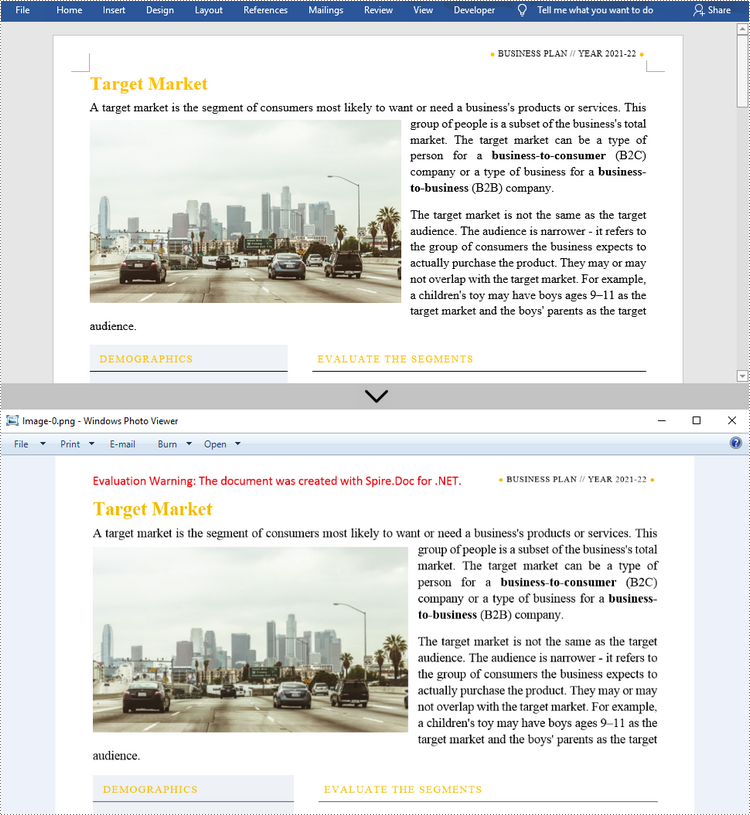
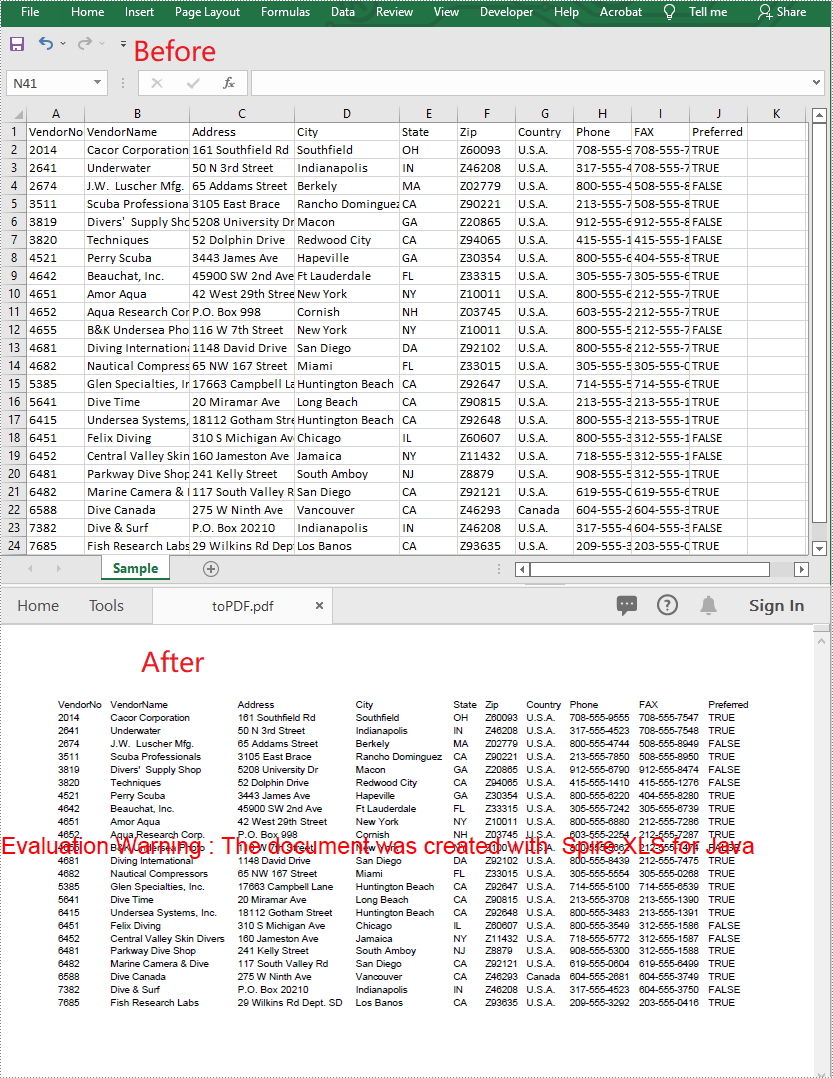
Stamps can guarantee the authenticity and validity of a document and also make the document look more professional. Since Microsoft Word doesn't provide a built-in stamp feature, you can add an image to your Word documents to mimic the stamp effect. This is useful when the document will be printed to paper or PDF. In this article, you will learn how to add a "stamp" to a Word document using Spire.Doc for Java.

Install Spire.Doc for Java

First of all, you're required to add the Spire.Doc.jar file as a dependency in your Java program. The JAR file can be downloaded from this link. If you use Maven, you can easily import the JAR file in your application by adding the following code to your project's pom.xml file.

<repositories>
    <repository>
        <id>com.e-iceblue</id>
        <name>e-iceblue</name>
        <url>https://repo.e-iceblue.com/nexus/content/groups/public/</url>
    </repository>
</repositories>
<dependencies>
    <dependency>
        <groupId>e-iceblue</groupId>
        <artifactId>spire.doc</artifactId>
        <version>14.6.0</version>
    </dependency>
</dependencies>

Add an Image Stamp to Word Document

Spire.Doc for Java allow developers to use the core classes and method listed in the below table to add and format an image to make it look like a stamp in the Word document.

Name Description
DocPicture Class Represents a picture in a Word document.
Paragraph.appendPicture() Method Appends an image to end of paragraph.
DocPicture.setHorizontalPosition() Method Sets absolute horizontal position of the picture.
DocPicture.setVerticalPosition() Method Sets absolute vertical position of the picture.
DocPicture.setWidth() Method Sets picture width.
DocPicture.setHeight Method Sets picture height.
DocPicture.setTextWrappingStyle() Method Sets text wrapping type of the picture.

The detailed steps are as follows:

  • Create a Document instance.
  • Load a Word document using Document.loadFromFile() method.
  • Get the specific paragraph using ParagraphCollection.get() method.
  • Add an image to the Word document using Paragraph.appendPicture() method.
  • Set position, size and wrapping style of the image using the methods offered by DocPicture class.
  • Save the document to another file using Document.saveToFile() method.
  • Java
import com.spire.doc.*;
import com.spire.doc.documents.Paragraph;
import com.spire.doc.documents.TextWrappingStyle;
import com.spire.doc.fields.DocPicture;

public class AddStamp {
    public static void main(String[] args) {
        //Create a Document instance
        Document doc = new Document();

        //Load a Word document
        doc.loadFromFile("test.docx");

        //Get the specific paragraph
        Section section = doc.getSections().get(0);
        Paragraph paragraph = section.getParagraphs().get(4);

        //Add an image 
        DocPicture picture = paragraph.appendPicture("cert.png");

        //Set the position of the image
        picture.setHorizontalPosition(240f);
        picture.setVerticalPosition(120f);

        //Set width and height of the image
        picture.setWidth(150);
        picture.setHeight(150);

        //Set wrapping style of the image to In_Front_Of_Text, so that it looks like a stamp
        picture.setTextWrappingStyle(TextWrappingStyle.In_Front_Of_Text);

        //Save the document to file
        doc.saveToFile("AddStamp.docx", FileFormat.Docx);
        doc.dispose();
    }
}

Java: Add an Image Stamp to a Word Document

Apply for a Temporary License

If you'd like to remove the evaluation message from the generated documents, or to get rid of the function limitations, please request a 30-day trial license for yourself.

Table is one of the most commonly used formatting elements in PDF. In some cases, you may need to extract data from PDF tables to perform further analysis. In this article, you will learn how to achieve this task programmatically in Java using Spire.PDF for Java.

Install Spire.PDF for Java

First of all, you're required to add the Spire.PDF.jar file as a dependency in your Java program. The JAR file can be downloaded from this link. If you use Maven, you can easily import the JAR file in your application by adding the following code to your project's pom.xml file.

<repositories>
    <repository>
        <id>com.e-iceblue</id>
        <name>e-iceblue</name>
        <url>https://repo.e-iceblue.com/nexus/content/groups/public/</url>
    </repository>
</repositories>
<dependencies>
    <dependency>
        <groupId>e-iceblue</groupId>
        <artifactId>spire.pdf</artifactId>
        <version>12.6.4</version>
    </dependency>
</dependencies>

Extract Table Data from PDF Document

Spire.PDF for Java uses the PdfTableExtractor.extractTable(int pageIndex) method to detect and extract tables from a desired PDF page.

The following are the steps to extract table data from a PDF file:

  • Load a sample PDF document using PdfDocument class.
  • Create a StringBuilder instance and a PdfTableExtractor instance.
  • Loop through the pages in the PDF, extract tables from each page into a PdfTable array using PdfTableExtractor.extractTable(int pageIndex) method.
  • Loop through the tables in the array.
  • Loop through the rows and columns in each table, after that extract data from each table cell using PdfTable.getText(int rowIndex, int columnIndex) method, then append the data to the StringBuilder instance using StringBuilder.append() method.
  • Write the extracted data to a txt document using Writer.write() method.
  • Java
import com.spire.pdf.PdfDocument;
import com.spire.pdf.utilities.PdfTable;
import com.spire.pdf.utilities.PdfTableExtractor;

import java.io.FileWriter;

public class ExtractTableData {
    public static void main(String []args) throws Exception {

        //Load a sample PDF document
        PdfDocument pdf = new PdfDocument("Sample.pdf");

        //Create a StringBuilder instance
        StringBuilder builder = new StringBuilder();
        //Create a PdfTableExtractor instance
        PdfTableExtractor extractor = new PdfTableExtractor(pdf);

        //Loop through the pages in the PDF
        for (int pageIndex = 0; pageIndex < pdf.getPages().getCount(); pageIndex++) {
            //Extract tables from the current page into a PdfTable array
            PdfTable[] tableLists = extractor.extractTable(pageIndex);
            
            //If any tables are found
            if (tableLists != null && tableLists.length > 0) {
                //Loop through the tables in the array
                for (PdfTable table : tableLists) {
                    //Loop through the rows in the current table
                    for (int i = 0; i < table.getRowCount(); i++) {
                        //Loop through the columns in the current table
                        for (int j = 0; j < table.getColumnCount(); j++) {
                            //Extract data from the current table cell and append to the StringBuilder 
                            String text = table.getText(i, j);
                            builder.append(text + " | ");
                        }
                        builder.append("\r\n");
                    }
                }
            }
        }

        //Write data into a .txt document
        FileWriter fw = new FileWriter("ExtractTable.txt");
        fw.write(builder.toString());
        fw.flush();
        fw.close();
    }
}

The input PDF:

Java: Extract Table Data from PDF Document

The output .txt document with extracted table data:

Java: Extract Table Data from PDF Document

Apply for a Temporary License

If you'd like to remove the evaluation message from the generated documents, or to get rid of the function limitations, please request a 30-day trial license for yourself.

Extract tables from PDF files in C#/.NET Extracting tables from PDF files is a common requirement in data processing, reporting, and automation tasks. PDFs are widely used for sharing structured data, but extracting tables programmatically can be challenging due to their complex layout. Fortunately, with the right tools, this process becomes straightforward. In this guide, we’ll explore how to extract tables from PDF in C# using the Spire.PDF for .NET library, and export the results to TXT and CSV formats for easy reuse.

Table of Contents:


Prerequisites for Reading PDF Tables in C#

Spire.PDF for .NET is a powerful library for processing PDF files in C# and VB.NET. It supports a wide range of PDF operations, including table extraction, text extraction, image extraction, and more.

The easiest way to add the Spire.PDF library is via NuGet Package Manager.​

1. Open Visual Studio and create a new C# project. (Here we create a Console App)

2. In Visual Studio, right-click your project > Manage NuGet Packages.

3. Search for “Spire.PDF” and install the latest version.


Understanding PDF Table Structure

Before coding, let’s clarify how PDFs store tables. Unlike Excel (which explicitly defines rows/columns), PDFs use:

  • Text Blocks: Individual text elements positioned with coordinates.
  • Borders/Lines: Visual cues (horizontal/vertical lines) that humans interpret as table edges.
  • Spacing: Consistent gaps between text blocks to indicate cells.

The Spire.PDF library infers table structure by analyzing these visual cues, matching text blocks to rows/columns based on proximity and alignment.


How to Extract Tables from PDF in C#

If you need a quick way to preview table data (e.g., debugging or verifying extraction), printing it to the console is a great starting point.

Key methods to extract data from a PDF table:

  • PdfDocument: Represents a PDF file.
  • LoadFromFile: Loads the PDF file for processing.
  • PdfTableExtractor: Analyzes the PDF to detect tables using visual cues (borders, spacing).
  • ExtractTable(pageIndex): Returns an array of PdfTable objects for the specified page.
  • GetRowCount()/GetColumnCount(): Retrieve the dimensions of each table.
  • GetText(rowIndex, columnIndex): Extracts text from the cell at the specified row and column.
using Spire.Pdf;
using Spire.Pdf.Utilities;

namespace ExtractPdfTable
{
    class Program
    {
        static void Main(string[] args)
        {
            // Create a PdfDocument object
            PdfDocument pdf = new PdfDocument();

            // Load a PDF file
            pdf.LoadFromFile("invoice.pdf");

            // Initialize an instance of PdfTableExtractor class
            PdfTableExtractor extractor = new PdfTableExtractor(pdf);


            // Loop through the pages 
            for (int pageIndex = 0; pageIndex < pdf.Pages.Count; pageIndex++)
            {
                // Extract tables from a specific page
                PdfTable[] tableList = extractor.ExtractTable(pageIndex);

                // Determine if the table list is null
                if (tableList != null && tableList.Length > 0)
                {
                    int tableNumber = 1;
                    // Loop through the table in the list
                    foreach (PdfTable table in tableList)
                    {
                        Console.WriteLine($"\nTable {tableNumber} on Page {pageIndex + 1}:");
                        Console.WriteLine("-----------------------------------");

                        // Get row number and column number of a certain table
                        int row = table.GetRowCount();
                        int column = table.GetColumnCount();

                        // Loop through rows and columns 
                        for (int i = 0; i < row; i++)
                        {
                            for (int j = 0; j < column; j++)
                            {
                                // Get text from the specific cell
                                string text = table.GetText(i, j);

                                // Print cell text to console with a separator
                                Console.Write($"{text}\t");
                            }
                            // New line after each row
                            Console.WriteLine();
                        }
                        tableNumber++;
                    }
                }
            }

            // Close the document
            pdf.Close();
        }
    }
}

When to Use This Method

  • Quick debugging or validation of extracted data.
  • Small datasets where you don’t need persistent storage.

Output: Retrieve PDF table data and output to the console

Extract data from a PDF table

Extract PDF Tables to a Text File in C#

For lightweight, human-readable storage, saving tables to a text file is ideal. This method uses StringBuilder to efficiently compile table data, preserving row breaks for readability.

Key features of extracting PDF tables and exporting to TXT:

  • Efficiency: StringBuilder minimizes memory overhead compared to string concatenation.
  • Persistent Storage: Saves data to a text file for later review or sharing.
  • Row Preservation: Uses \r\n to maintain row structure, making the text file easy to scan.
using Spire.Pdf;
using Spire.Pdf.Utilities;
using System.Text;

namespace ExtractTableToTxt
{
    class Program
    {
        static void Main(string[] args)
        {
            // Create a PdfDocument object
            PdfDocument pdf = new PdfDocument();

            // Load a PDF file
            pdf.LoadFromFile("invoice.pdf");

            // Create a StringBuilder object
            StringBuilder builder = new StringBuilder();

            // Initialize an instance of PdfTableExtractor class
            PdfTableExtractor extractor = new PdfTableExtractor(pdf);

            // Declare a PdfTable array 
            PdfTable[] tableList = null;

            // Loop through the pages 
            for (int pageIndex = 0; pageIndex < pdf.Pages.Count; pageIndex++)
            {
                // Extract tables from a specific page
                tableList = extractor.ExtractTable(pageIndex);

                // Determine if the table list is null
                if (tableList != null && tableList.Length > 0)
                {
                    // Loop through the table in the list
                    foreach (PdfTable table in tableList)
                    {
                        // Get row number and column number of a certain table
                        int row = table.GetRowCount();
                        int column = table.GetColumnCount();

                        // Loop through the rows and columns 
                        for (int i = 0; i < row; i++)
                        {
                            for (int j = 0; j < column; j++)
                            {
                                // Get text from the specific cell
                                string text = table.GetText(i, j);

                                // Add text to the string builder
                                builder.Append(text + " ");
                            }
                            builder.Append("\r\n");
                        }
                    }
                }
            }

            // Write to a .txt file
            File.WriteAllText("ExtractPDFTable.txt", builder.ToString());
        }
    }
}

When to Use This Method

  • Archiving table data in a lightweight, universally accessible format.
  • Sharing with teams that need to scan data without spreadsheet tools.
  • Using as input for basic scripts (e.g., PowerShell) to extract specific values.

Output: Extract PDF table data and save to a text file.

Extract table data from PDF to a TXT file

Pro Tip: For VB.NET demos, convert the above code using our C# ⇆ VB.NET Converter.

Export PDF Tables to CSV in C#

CSV (Comma-Separated Values) is the industry standard for tabular data, compatible with Excel, Google Sheets, and databases. This method formats the extracted tables into a valid CSV file by quoting cells and handling special characters.

Key features of extracting tables from PDF to CSV:

  • StreamWriter: Writes data incrementally to the CSV file, reducing memory usage for large PDFs.
  • Quoted Cells: Cells are wrapped in double quotes (" ") to avoid misinterpreting commas within text as column separators.
  • UTF-8 Encoding: Supports special characters in cell text.
  • Spreadsheet Ready: Directly opens in Excel, Google Sheets, or spreadsheet tools for analysis.
using Spire.Pdf;
using Spire.Pdf.Utilities;
using System.Text;

namespace ExtractTableToCsv
{
    class Program
    {
        static void Main(string[] args)
        {
            // Create a PdfDocument object
            PdfDocument pdf = new PdfDocument();

            // Load a PDF file
            pdf.LoadFromFile("invoice.pdf");

            // Create a StreamWriter object for efficient CSV writing
            using (StreamWriter csvWriter = new StreamWriter("PDFtable.csv", false, Encoding.UTF8))
            {
                // Create a PdfTableExtractor object
                PdfTableExtractor extractor = new PdfTableExtractor(pdf);

                // Loop through the pages 
                for (int pageIndex = 0; pageIndex < pdf.Pages.Count; pageIndex++)
                {
                    // Extract tables from a specific page
                    PdfTable[] tableList = extractor.ExtractTable(pageIndex);

                    // Determine if the table list is null
                    if (tableList != null && tableList.Length > 0)
                    {
                        // Loop through the table in the list
                        foreach (PdfTable table in tableList)
                        {
                            // Get row number and column number of a certain table
                            int row = table.GetRowCount();
                            int column = table.GetColumnCount();

                            // Loop through the rows
                            for (int i = 0; i < row; i++)
                            {
                                // Creates a list to store data 
                                List<string> rowData = new List<string>();
                                // Loop through the columns
                                for (int j = 0; j < column; j++)
                                {
                                    // Retrieve text from table cells
                                    string cellText = table.GetText(i, j).Replace("\"", "\"\"");
                                    // Add the cell text to the list and wrap in double quotes
                                    rowData.Add($"\"{cellText}\"");
                                }
                                // Join cells with commas and write to CSV
                                csvWriter.WriteLine(string.Join(",", rowData));
                            }
                        }
                    }
                }
            }
        }
    }
}

When to Use This Method

  • Data analysis (import into Excel for calculations).
  • Migrating PDF tables to databases (e.g., SQL Server, PostgreSQL, MySQL).
  • Collaborating with teams that rely on spreadsheets.

Output: Parse PDF table data and export to a CSV file.

Extract table data from PDF to a CSV file

Recommendation: Integrate with Spire.XLS for .NET to extract tables from PDF to Excel directly.


Conclusion

This guide has outlined three efficient methods for extracting tables from PDFs in C#. By leveraging the Spire.PDF for .NET library, you can automate the PDF table extraction process and export results to console, TXT, or CSV for further analysis. Whether you’re building a data pipeline, report generator, or business tool, these approaches streamline workflows, save time, and minimize human error.

Refer to the online documentation and obtain a free trial license here to explore more advanced PDF operations.


FAQs

Q1: Why use Spire.PDF for .NET to extract tables?

A: Spire.PDF provides a dedicated PdfTableExtractor class that detects tables based on visual cues (borders, spacing, and text alignment), simplifying the process of parsing structured data from PDFs.

Q2: Can Spire.PDF extract tables from scanned (image-based) PDFs?

A: No. The .NET PDF library works only with text-based PDFs (where text is selectable). For scanned PDFs, use Spire.OCR to extract text before parsing tables.

Q3: Can I extract tables from multiple PDFs at once?

A: Yes. To batch-process multiple PDFs, use Directory.GetFiles() to list all PDF files in a folder, then loop through each file and run the extraction logic. For example:

string[] pdfFiles = Directory.GetFiles(@"C:\Invoices\", "*.pdf");
foreach (string file in pdfFiles)
{
// Run extraction code for each file  
}

Q4: How can I improve performance when extracting tables from large PDFs?

A: For large PDFs (100+ pages), optimize performance by:

  • Processing pages in batches instead of loading the entire PDF at once.
  • Disposing of unused PdfTable or PdfDocument objects with the using statements to free memory.
  • Skipping pages with no tables early (using if (tableList == null || tableList.Length == 0)).
page 113