
Knowledgebase (2417)
Children categories
Margins are white areas around a PDF page. In cases where you need more white space to add additional information, you can increase the margins. In some other cases, you may also have to reduce the margins. This article demonstrates how to adjust the margins of an existing PDF document using Spire.PDF for Java.
Install Spire.PDF for Java
First of all, you're required to add the Spire.Pdf.jar file as a dependency in your Java program. The JAR file can be downloaded from this link. If you use Maven, you can easily import the JAR file in your application by adding the following code to your project's pom.xml file.
<repositories>
    <repository>
        <id>com.e-iceblue</id>
        <name>e-iceblue</name>
        <url>https://repo.e-iceblue.com/nexus/content/groups/public/</url>
    </repository>
</repositories>
<dependencies>
    <dependency>
        <groupId>e-iceblue</groupId>
        <artifactId>spire.pdf</artifactId>
        <version>12.9.0</version>
    </dependency>
</dependencies>
Increase Margins of an Existing PDF
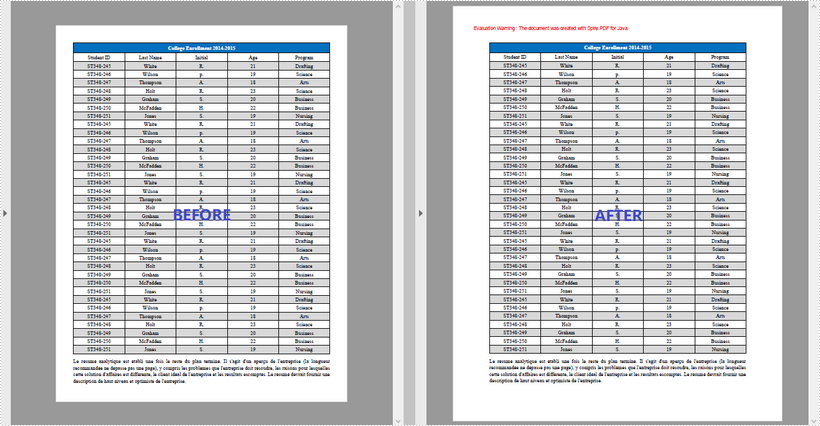
The way to enlarge the margin of a PDF document is to create a new PDF that has a larger page size and then draw the original pages on the larger pages at the proper location. The following are the main steps to increase margins of an existing PDF document using Spire.PDF for Java.
- Load the original PDF document while initialing the PdfDocument object.
- Create another PdfDocument object, which is used to create a new PDF document that has a larger page size.
- Set the increasing values of the margins.
- Set the page size of the new PDF document.
- Loop through the pages in the original document, and create a template based on a certain page using PdfPageBase.createTemplate() method.
- Add a page to the new PDF document using PdfDocument.getPages().add() method.
- Draw the template on the page from (0, 0) using PdfTemplate.draw() method.
- Save the new PDF document to file using PdfDocument.saveToFile() method.
- Java
import com.spire.pdf.FileFormat;
import com.spire.pdf.PdfDocument;
import com.spire.pdf.PdfPageBase;
import com.spire.pdf.graphics.PdfMargins;
import com.spire.pdf.graphics.PdfTemplate;

import java.awt.*;
import java.awt.geom.Dimension2D;
import java.awt.geom.Point2D;

public class IncreaseMargins {

    public static void main(String[] args) {

        //Load the original PDF document
        PdfDocument originalPdf = new PdfDocument("C:\\Users\\Administrator\\Desktop\\sample.pdf");

        //Get the first page
        PdfPageBase firstPage = originalPdf.getPages().get(0);

        //Create a new PdfDocument object
        PdfDocument newPdf = new PdfDocument();

        //Set increasing value of the margins
        PdfMargins margins = newPdf.getPageSettings().getMargins();
        margins.setTop(40);
        margins.setBottom(40);
        margins.setLeft(40);
        margins.setRight(40);

        //Set the size for the new PDF document
        Dimension2D dimension2D = new Dimension();
        dimension2D.setSize(firstPage.getSize().getWidth() + margins.getLeft() + margins.getRight(), firstPage.getSize().getHeight() + margins.getTop() + margins.getBottom());

        //Loop through the pages in the original document
        for (int i = 0; i < originalPdf.getPages().getCount(); i++) {

            //Create a template based on the source page
            PdfTemplate template = originalPdf.getPages().get(i).createTemplate();

            //Add a page to the new PDF
            PdfPageBase page = newPdf.getPages().add(dimension2D);

            //Draw template on the page
            template.draw(page.getCanvas(), new Point2D.Float(0, 0));
        }

        //Save the new document to file
        newPdf.saveToFile("output/IncreaseMargins.pdf", FileFormat.PDF);
    }
}
Decrease Margins of an Existing PDF
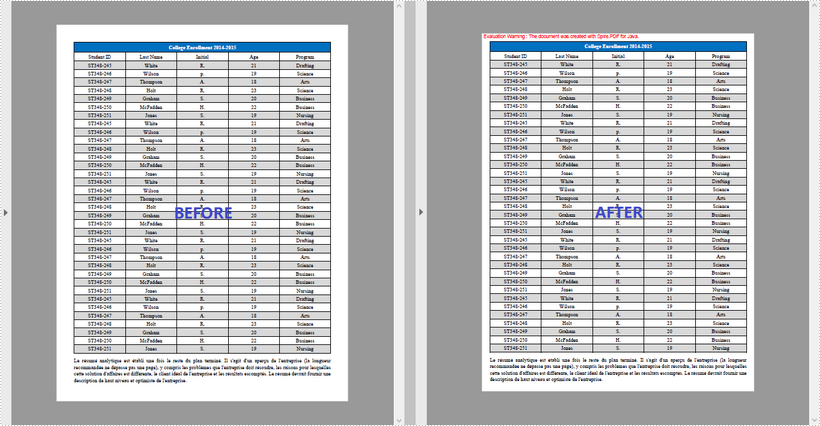
Likewise, the way to decrease the margins of a PDF is to create a new PDF that has a smaller page size and then draw the original pages on the smaller pages at a specified coordinate. The following are the main steps to decrease margins of an existing PDF document using Spire.PDF for Java.
- Load the original PDF document while initialing the PdfDocument object.
- Create another PdfDocument object, which is used to create a new PDF document that has a smaller page size.
- Set the decreasing values of the margins.
- Set the page size of the new PDF document.
- Loop through the pages in the original document, and create a template based on a certain page using PdfPageBase.createTemplate() method.
- Add a page to the new PDF document using PdfDocument.getPages().add() method.
- Draw the template on the page at the specified position using PdfTemplate.draw() method.
- Save the new PDF document to file using PdfDocument.saveToFile() method.
- Java
import com.spire.pdf.FileFormat;
import com.spire.pdf.PdfDocument;
import com.spire.pdf.PdfPageBase;
import com.spire.pdf.graphics.PdfMargins;
import com.spire.pdf.graphics.PdfTemplate;

import java.awt.*;
import java.awt.geom.Dimension2D;
import java.awt.geom.Point2D;

public class DecreaseMargins {
    public static void main(String[] args) {

        //Load the original PDF document
        PdfDocument originalPdf = new PdfDocument("C:\\Users\\Administrator\\Desktop\\sample.pdf");

        //Get the first page
        PdfPageBase firstPage = originalPdf.getPages().get(0);

        //Create a new PdfDocument object
        PdfDocument newPdf = new PdfDocument();

        //Set decreasing value
        double left = -20;
        double right = -20;
        double top = -20;
        double bottom = -20;

        //Set the page size of the new PDF document
        Dimension2D dimension2D = new Dimension();
        dimension2D.setSize(originalPdf.getPages().get(0).getSize().getWidth() + left + right, originalPdf.getPages().get(0).getSize().getHeight() + top + bottom);

        //Loop through the pages in the original document
        for (int i = 0; i < originalPdf.getPages().getCount(); i++) {

            //Create template based on the source page
            PdfTemplate template = originalPdf.getPages().get(i).createTemplate();

            //Add a page to the new PDF
            PdfPageBase page = newPdf.getPages().add(dimension2D, new PdfMargins(0));

            //Draw template on the page
            template.draw(page.getCanvas(), new Point2D.Float((float) left, (float) top));
        }

        //Save the new document to file
        newPdf.saveToFile("output/DecreaseMargins.pdf", FileFormat.PDF);
    }
}
Apply for a Temporary License
If you'd like to remove the evaluation message from the generated documents, or to get rid of the function limitations, please request a 30-day trial license for yourself.
The use of appropriate fonts is one of the key elements of making successful documents. For example, we typically use different fonts for headings and paragraphs in order to create distinction and achieve a visually pleasing effect. When you receive a PDF document where the fonts are properly used, you may wish to change them. In this article, you’ll learn how to replace the fonts being used in a PDF document using Spire.PDF for Java.
Install Spire.PDF for Java
First of all, you're required to add the Spire.Pdf.jar file as a dependency in your Java program. The JAR file can be downloaded from this link. If you use Maven, you can easily import the JAR file in your application by adding the following code to your project's pom.xml file.
<repositories>
    <repository>
        <id>com.e-iceblue</id>
        <name>e-iceblue</name>
        <url>https://repo.e-iceblue.com/nexus/content/groups/public/</url>
    </repository>
</repositories>
<dependencies>
    <dependency>
        <groupId>e-iceblue</groupId>
        <artifactId>spire.pdf</artifactId>
        <version>12.9.0</version>
    </dependency>
</dependencies>
Replace All Used Fonts in a Document
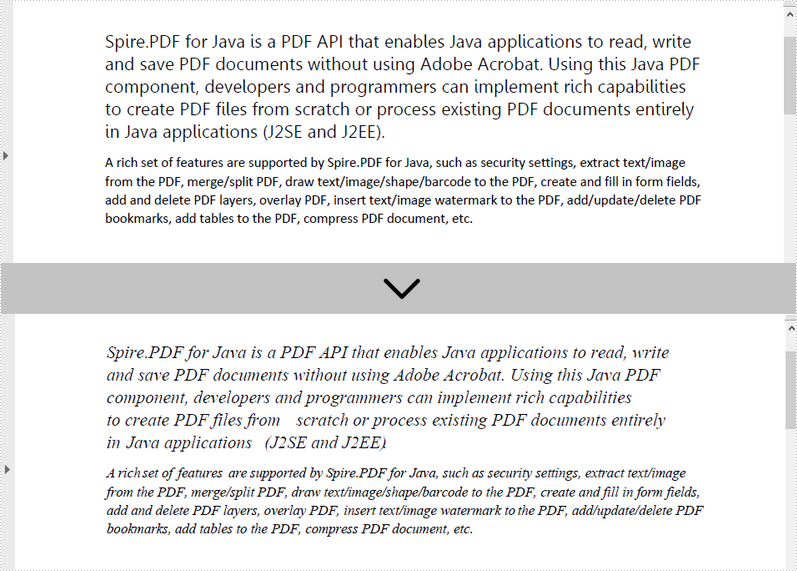
A PDF document may use multiple fonts, and each font may have a different font size. When replacing these fonts, make sure that the font size does not change. Otherwise, the generated content may overlap or become disordered. The following are the steps to replace all used fonts in a document using Spire.PDF for Java.
- Create a PdfDocument object.
- Load a sample PDF file using PdfDocument.loadFromFile() method.
- Get all used fonts in the document using PdfDocument.getUsedFonts() method.
- Loop through the used fonts. Get the size of a specific font using PdfUsedFont.getSize() method.
- Create a new font based on the size obtained, and replace the old font with the new font using PdfUsedFont.replace() method.
- Save the document to a different PDF file using PdfDocument.saveToFile() method.
- Java
import com.spire.pdf.PdfDocument;
import com.spire.pdf.graphics.PdfFont;
import com.spire.pdf.graphics.PdfFontFamily;
import com.spire.pdf.graphics.PdfFontStyle;
import com.spire.pdf.graphics.fonts.PdfUsedFont;

public class ReplaceAllFonts {

    public static void main(String[] args) throws Exception {

        //Create a PdfDocument object
        PdfDocument doc = new PdfDocument();

        //Load a sample PDF file
        doc.loadFromFile("C:\\Users\\Administrator\\Desktop\\Fonts.pdf");

        //Get all used fonts in the document
        PdfUsedFont[] fonts = doc.getUsedFonts();

        //Travers all used fonts
        for (PdfUsedFont font: fonts
             ) {

            //Get the font size
            float fontSize = font.getSize();

            //Create a new font
            PdfFont newfont = new PdfFont(PdfFontFamily.Times_Roman, fontSize, PdfFontStyle.Italic);

            //Replace the current font with the new font
            font.replace(newfont);

        }

        //Save the changes to a different PDF file
        doc.saveToFile("output/ReplaceAllFonts.pdf");
    }
}
Replace a Specific Font with a Different Font
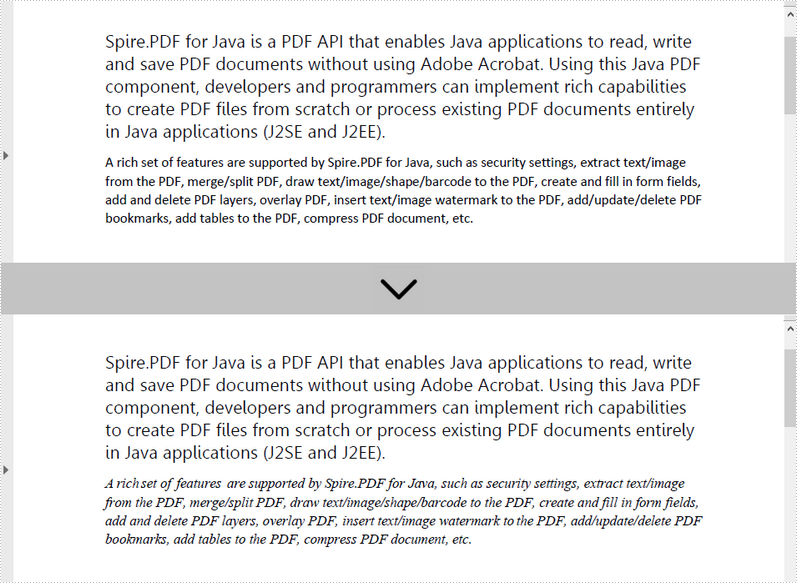
The PdfDocument.getUsedFonts() method returns a collection of the fonts used in a PDF document. To identify a specific font from the fonts collection, use the PdfUsedFont.getName() method. The following are the steps to replace a specific font with a different font.
- Create a PdfDocument object.
- Load a sample PDF file using PdfDocument.loadFromFile() method.
- Get all used fonts in the document using PdfDocument.getUsedFonts() method.
- Loop through the used fonts, determining if a certain font is "Calibri".
- Get the font "Calibri" and get its size using PdfUsedFont.getSize() method.
- Create a new font based on the size obtained, and replace the font "Calibri" with the new font using PdfUsedFont.replace() method.
- Save the document to a different PDF file using PdfDocument.saveToFile() method.
- Java
import com.spire.pdf.PdfDocument;
import com.spire.pdf.graphics.PdfFont;
import com.spire.pdf.graphics.PdfFontFamily;
import com.spire.pdf.graphics.PdfFontStyle;
import com.spire.pdf.graphics.fonts.PdfUsedFont;

public class ReplaceSpecificFontWithNewFont {

    public static void main(String[] args) throws Exception {

        //Create a PdfDocument object
        PdfDocument doc = new PdfDocument();

        //Load a sample PDF file
        doc.loadFromFile("C:\\Users\\Administrator\\Desktop\\Fonts.pdf");

        //Get all fonts used in the document
        PdfUsedFont[] fonts = doc.getUsedFonts();

        //Travers all used fonts
        for (PdfUsedFont font: fonts
        ) {

            //Determine if a font’s name is "Calibri"
            if(font.getName().equals("Calibri")){

                //Get the font size
                float fontSize = font.getSize();

                //Create a new font
                PdfFont newfont = new PdfFont(PdfFontFamily.Times_Roman, fontSize, PdfFontStyle.Italic);

                //Replace the font "Calibri" with the new font
                font.replace(newfont);
            }

        }

        //Save the changes to a different PDF file
        doc.saveToFile("output/ReplaceSpecificFont.pdf");
    }
}
Apply for a Temporary License
If you'd like to remove the evaluation message from the generated documents, or to get rid of the function limitations, please request a 30-day trial license for yourself.
Sometimes we need to hide some rows and columns in Excel worksheets so that the data appears completely on one screen. At other times, we need to show all the hidden rows and columns to view the data completely. In this article, you will learn how to hide and show rows or columns in Excel in Java applications from the following four parts.
- Hide Excel Rows and Columns
- Show Hidden Rows and Columns in Excel
- Hide Multiple Rows and Columns
- Show All Hidden Rows and Columns
Install Spire.XLS for Java
First of all, you're required to add the Spire.Xls.jar file as a dependency in your Java program. The JAR file can be downloaded from this link. If you use Maven, you can easily import the JAR file in your application by adding the following code to your project's pom.xml file.
<repositories>
    <repository>
        <id>com.e-iceblue</id>
        <name>e-iceblue</name>
        <url>https://repo.e-iceblue.com/nexus/content/groups/public/</url>
    </repository>
</repositories>
<dependencies>
    <dependency>
        <groupId>e-iceblue</groupId>
        <artifactId>spire.xls</artifactId>
        <version>16.8.4</version>
    </dependency>
</dependencies>
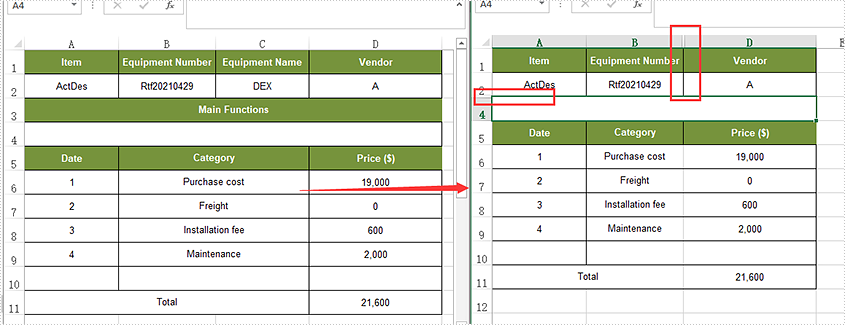
Hide Rows and Columns
The detailed steps are listed as below.
- Create a Workbook instance and load a sample Excel document using Workbook.loadFromFile() method.
- Get a specified worksheet using Workbook.getWorksheets().get() method.
- Hide a specific column using Worksheet.hideColumn(int columnIndex)method.
- Hide a specific row using Worksheet.hideRow(int rowIndex) method.
- Save the document to file using Workbook.saveToFile() method.
- Java
import com.spire.xls.ExcelVersion;
import com.spire.xls.Workbook;
import com.spire.xls.Worksheet;


public class HideRowsColumns {
    public static void main(String[] args) throws Exception {

        //Load the sample document
        Workbook wb = new Workbook();
        wb.loadFromFile("Sample.xlsx ");

        //Get the first worksheet
        Worksheet sheet = wb.getWorksheets().get(0);

        //Hide the third column
        sheet.hideColumn(3);

        //Hide the third row
        sheet.hideRow(3);

        //Save the document
        wb.saveToFile("HideRowsColumns.xlsx", ExcelVersion.Version2016);
    }
}
Show Hidden Rows and Columns
- Create a Workbook instance and load a sample Excel document using Workbook.loadFromFile() method.
- Get a specified worksheet using Workbook.getWorksheets().get() method.
- Show a hidden column using Worksheet.showColumn(int columnIndex)method.
- Show a hidden row using Worksheet.showRow(int rowIndex) method.
- Save the document to file using Workbook.saveToFile() method.
- Java
import com.spire.xls.ExcelVersion;
import com.spire.xls.Workbook;
import com.spire.xls.Worksheet;


public class ShowRowsColumns {
    public static void main(String[] args) throws Exception {

        //Load the sample document
        Workbook wb = new Workbook();
        wb.loadFromFile("HideRowsColumns.xlsx ");

        //Get the first worksheet
        Worksheet sheet = wb.getWorksheets().get(0);

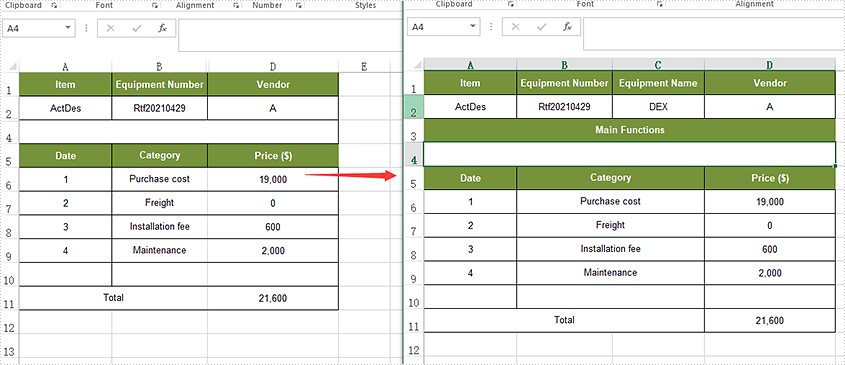
        //Unhide the third column
        sheet.showColumn(3);

        //Unhide the third row
        sheet.showRow(3);

        //Save the document
        wb.saveToFile("ShowRowsColumns.xlsx", ExcelVersion.Version2016);
    }
}
Hide Multiple Rows and Columns
- Create a Workbook instance and load a sample Excel document using Workbook.loadFromFile() method.
- Get a specified worksheet using Workbook.getWorksheets().get() method.
- Hide multiple columns using Worksheet.hideColumns(int columnIndex, int columnCount)method.
- Hide multiple rows using worksheet.hideRows(int rowIndex, int rowCount) method.
- Save the document to file using Workbook.saveToFile() method.
- Java
import com.spire.xls.ExcelVersion;
import com.spire.xls.Workbook;
import com.spire.xls.Worksheet;


public class HideMultiRowsColumns {
    public static void main(String[] args) throws Exception {

        //Load the sample document
        Workbook wb = new Workbook();
        wb.loadFromFile("Sample01.xlsx ");

        //Get the first worksheet
        Worksheet sheet = wb.getWorksheets().get(0);

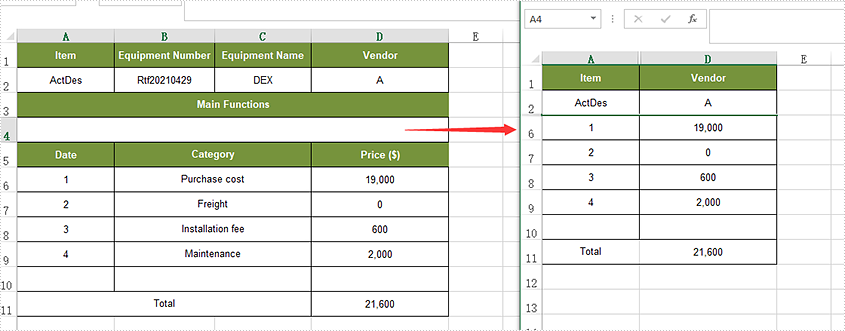
        //Hide multiple columns
        sheet.hideColumns(2,2);

        //Hide multiple rows
        sheet.hideRows(3,3);

        //Save the document
        wb.saveToFile("HideMultiRowsColumns.xlsx", ExcelVersion.Version2016);
    }
}
Show Multiple Rows and Columns
- Create a Workbook instance and load a sample Excel document using Workbook.loadFromFile() method.
- Get a specified worksheet using Workbook.getWorksheets().get() method.
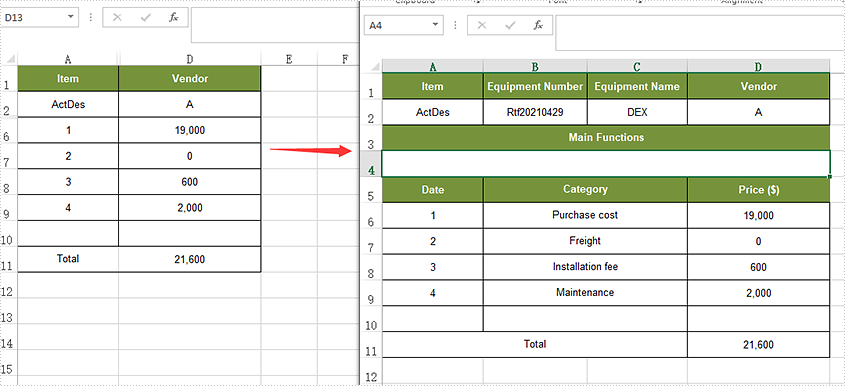
- Loop through the rows and find the hidden rows using Worksheet.getRowIsHide() method.
- Show all hidden rows using Worksheet.showRow(i) method.
- Save the document to file using Workbook.saveToFile() method.
- Java
import com.spire.xls.ExcelVersion;
import com.spire.xls.Workbook;
import com.spire.xls.Worksheet;


public class ShowMultiRowsColumns {
    public static void main(String[] args) throws Exception {

        //Load the sample document
        Workbook wb = new Workbook();
        wb.loadFromFile("HideMultiRowsColumns.xlsx");

        //Get the first worksheet
        Worksheet sheet = wb.getWorksheets().get(0);

        //Traverse all the rows
        for (int i = 1; i <= sheet.getLastRow(); i++) {

                //detect if the row is hidden
                if (sheet.getRowIsHide(i)) {

                    //Show the hidden rows
                    sheet.showRow(i);
                }
            }

        //Traverse the columns and show all the hidden columns
        for (int j = 1; j <= sheet.getLastColumn(); j++) {
            if (sheet.getColumnIsHide(j)) {
                sheet.showColumn(j);
            }

            //Save the document
            wb.saveToFile("ShowMultiRowsColumns.xlsx", ExcelVersion.Version2016);
        }
    }
}
Apply for a Temporary License
If you'd like to remove the evaluation message from the generated documents, or to get rid of the function limitations, please request a 30-day trial license for yourself.
