
Knowledgebase (2417)
Children categories
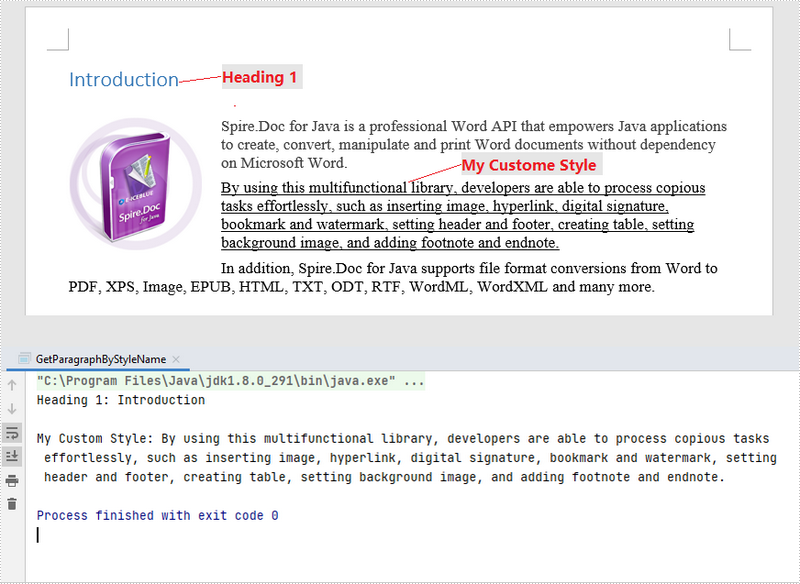
Every paragraph in a Word document uses a paragraph style, either intentionally or unintentionally. The paragraph style can be a built-in style, such as Heading 1 and Heading 2, or it can be a customized style. This article introduces how we can extract paragraphs that use a specific style by using Spire.Doc for Java.
The table below lists the style names in MS Word and their corresponding names in Spire.Doc. A very simple rule is that the style name returned by programming does not contain spaces.
| Style Name in MS Word | Style Name in Spire.Doc |
| Title | Title |
| Subtitle | Subtitle |
| Heading 1 | Heading1 |
| Heading 2 | Heading2 |
| Heading 3 | Heading3 |
| No Spacing | NoSpacing |
| Quote | Quote |
| Intense Quote | IntenseQuote |
| List Paragraph | ListParagraph |
| Normal | Normal |
| Custom Name | CustomName |
Install Spire.Doc for Java
First of all, you're required to add the Spire.Doc.jar file as a dependency in your Java program. The JAR file can be downloaded from this link. If you use Maven, you can easily import the JAR file in your application by adding the following code to your project's pom.xml file.
<repositories>
    <repository>
        <id>com.e-iceblue</id>
        <name>e-iceblue</name>
        <url>https://repo.e-iceblue.com/nexus/content/groups/public/</url>
    </repository>
</repositories>
<dependencies>
    <dependency>
        <groupId>e-iceblue</groupId>
        <artifactId>spire.doc</artifactId>
        <version>14.8.4</version>
    </dependency>
</dependencies>
Extract Paragraphs that Use a Specific Style
The style name of a specific paragraph can be obtained by Paragraph.getStyleName() method. If a paragraph’s style name is exactly what you want to query, you can get the paragraph content using Paragraph.getText() method. The following are the steps to extract paragraphs that use a specific style.
- Load a sample Word document while initializing the Document object.
- Loop through the sections in the document.
- Get a specific paragraph from a certain section using Section.getParagraphs().get() method.
- Get the paragraph's style name using Paragraph.getStyleName() method and determine if the style is "Heading 1".
- If yes, extract the text of the paragraph using Paragraph.getText() method.
- Java
import com.spire.doc.Document;
import com.spire.doc.documents.Paragraph;

public class GetParagraphByStyleName {
    public static void main(String[] args) {

        //Load a sample Word document while initializing the Document object
        Document doc = new Document("C:\\Users\\Administrator\\Desktop\\Styles.docx");

        //Declare a variable
        Paragraph paragraph;

        //Loop through the sections
        for (int i = 0; i < doc.getSections().getCount(); i++) {

            //Loop through the paragraphs of a specific section
            for (int j = 0; j < doc.getSections().get(i).getParagraphs().getCount(); j++) {

                //Get a specific paragraph
                paragraph = doc.getSections().get(i).getParagraphs().get(j);

                //Determine if the paragraph style is "Heading 1"
                if (paragraph.getStyleName().equals("Heading1")) {

                    //Get the text of the paragraph in "Heading 1"
                    System.out.println("Heading 1: " + paragraph.getText() + "\n");
                }

                //Determine if the paragraph style is "My Custom Style"
                if (paragraph.getStyleName().equals("MyCustomStyle")) {

                    //Get the text of the paragraph in "My Custom Style"
                    System.out.println("My Custom Style: " + paragraph.getText());
                }
            }
        }
    }
}
Apply for a Temporary License
If you'd like to remove the evaluation message from the generated documents, or to get rid of the function limitations, please request a 30-day trial license for yourself.
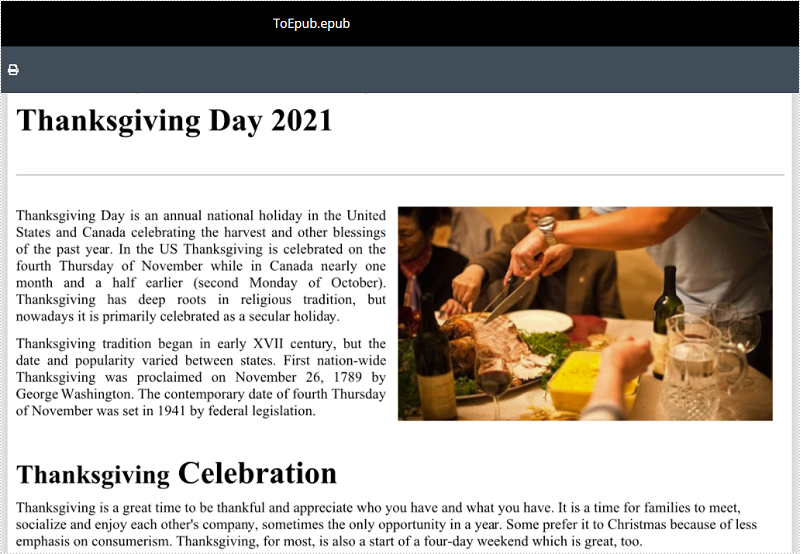
EPUB (short for electronic publication) is a popular file format for e-books. EPUB files can be read on numerous e-readers and most smartphones, tablets and computers. In some circumstances, you might need to convert your Word document to EPUB file format to make it readable on various devices. This article will show you how to achieve this task programmatically in Java using Spire.Doc for Java.
Install Spire.Doc for Java
First of all, you're required to add the Spire.Doc.jar file as a dependency in your Java program. The JAR file can be downloaded from this link. If you use Maven, you can easily import the JAR file in your application by adding the following code to your project's pom.xml file.
<repositories>
    <repository>
        <id>com.e-iceblue</id>
        <name>e-iceblue</name>
        <url>https://repo.e-iceblue.com/nexus/content/groups/public/</url>
    </repository>
</repositories>
<dependencies>
    <dependency>
        <groupId>e-iceblue</groupId>
        <artifactId>spire.doc</artifactId>
        <version>14.8.4</version>
    </dependency>
</dependencies>
Convert Word to EPUB
The following are the steps to convert a Word document to EPUB file format:
- Create a Document instance.
- Load a Word document using Document.loadFromFile() method.
- Save the Word document to EPUB using Document.saveToFile() method.
- Java
import com.spire.doc.Document;
import com.spire.doc.FileFormat;

public class ConvertWordToEpub {
    public static void main(String[] args){
        //Create a Document instance
        Document doc = new Document();
        //Load a Word document
        doc.loadFromFile("Sample.docx");

        //Save the Word document to EPUB format
        doc.saveToFile("ToEpub.epub", FileFormat.E_Pub);
    }
}
Convert Word to EPUB with a Cover Image
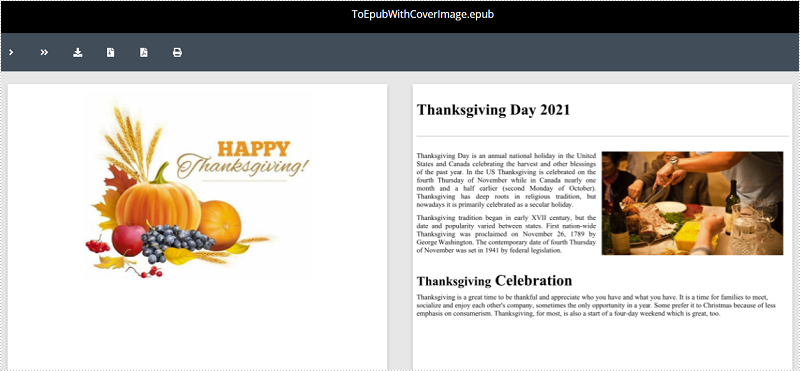
The following are the steps to convert a Word document to EPUB with a cover image:
- Create a Document instance.
- Load a Word document using Document.loadFromFile() method.
- Create a DocPicture instance.
- Load an image using DocPicture.loadImage() method.
- Save the Word document to EPUB with cover image using Document.saveToEpub(String, DocPicture) method.
- Java
import com.spire.doc.Document;
import com.spire.doc.fields.DocPicture;

public class ConvertWordToEpubWithCoverImage {
    public static void main(String[] args){
        //Create a Document instance
        Document doc = new Document();
        //Load a Word document
        doc.loadFromFile("Sample.docx");

        //Create a DocPicture instance
        DocPicture picture = new DocPicture(doc);
        //Load an image
        picture.loadImage("Cover.png");

        //Save the Word document to EPUB with cover image
        doc.saveToEpub("ToEpubWithCoverImage.epub", picture);
    }
}
Apply for a Temporary License
If you'd like to remove the evaluation message from the generated documents, or to get rid of the function limitations, please request a 30-day trial license for yourself.
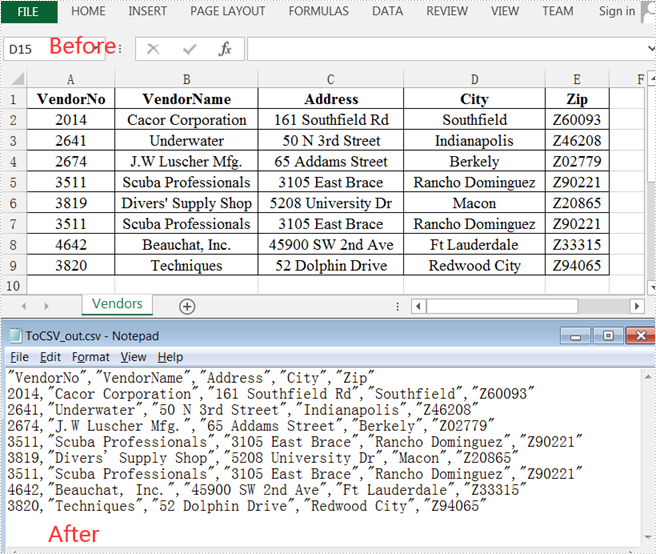
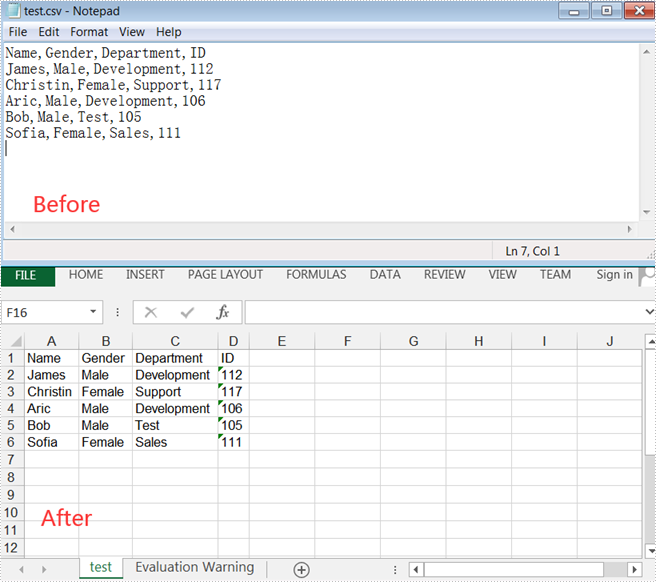
As its name suggests, a Comma Separated Values (CSV) file is a plain text file containing only numbers and letters, usually separated by commas. It can be used for exchanging data between applications. This article demonstrates how to convert Excel to CSV and convert CSV to Excel using Spire.XLS for Java.
Install Spire.XLS for Java
First of all, you're required to add the Spire.Xls.jar file as a dependency in your Java program. The JAR file can be downloaded from this link. If you use Maven, you can easily import the JAR file in your application by adding the following code to your project's pom.xml file.
<repositories>
    <repository>
        <id>com.e-iceblue</id>
        <name>e-iceblue</name>
        <url>https://repo.e-iceblue.com/nexus/content/groups/public/</url>
    </repository>
</repositories>
<dependencies>
    <dependency>
        <groupId>e-iceblue</groupId>
        <artifactId>spire.xls</artifactId>
        <version>16.8.4</version>
    </dependency>
</dependencies>
Convert Excel to CSV
Spire.XLS for Java supports converting Excel to CSV with only several lines of codes. To get started, follow these steps.
- Create a Workbook instance.
- Load a sample Excel document using Workbook.loadFromFile() method.
- Get a specific worksheet of the document using Workbook.getWorksheets().get() method.
- Save the worksheet to CSV using Worksheet.saveToFile() method.
- Java
import com.spire.xls.*;
import java.nio.charset.Charset;

public class ExcelToCSV {
    public static void main(String[] args) {

        //Create a workbook
        Workbook workbook = new Workbook();

        //Load a sample excel file
        workbook.loadFromFile("C:\\Users\\Test1\\Desktop\\sample.xlsx");

        //Calculate formulas if any
        workbook.calculateAllValue();

        //Get the first sheet
        Worksheet sheet = workbook.getWorksheets().get(0);

        //Save the document to CSV
        sheet.saveToFile("output/ToCSV_out.csv", ",", Charset.forName("UTF-8"));
    }
}
Convert CSV to Excel
The following are detailed steps to convert CSV to Excel.
- Create a Workbook instance and load a sample CSV file using Workbook.loadFromFile() method.
- Get a specific worksheet using Workbook.getWorksheets().get() method.
- Specify the cell range using Worksheet.getCellRange() method and ignore errors when setting numbers in the cells as text using CellRange.setIgnoreErrorOptions (java.util.EnumSet ignoreErrorOptions) method.
- Automatically adjust the height of rows and width of columns using methods provided by CellRange class.
- Save the document to an XLSX file using Workbook.saveToFile() method.
- Java
import com.spire.xls.*;
import java.util.EnumSet;

public class CSVToExcel {
    public static void main(String[] args) {
        //Create a workbook
        Workbook workbook = new Workbook();
        //Load a sample CSV file
        workbook.loadFromFile("C:\\Users\\Test1\\Desktop\\test.csv", ",", 1, 1);

        //Get the first worksheet
        Worksheet sheet = workbook.getWorksheets().get(0);

        //Specify the cell range and ignore errors when setting numbers in the cells as text
        sheet.getCellRange("A1:D6").setIgnoreErrorOptions(EnumSet.of(IgnoreErrorType.NumberAsText));

        //Automatically adjust the height of the rows and width of the columns
        sheet.getAllocatedRange().autoFitColumns();
        sheet.getAllocatedRange().autoFitRows();

        //Save the document to an XLSX file
        workbook.saveToFile("output/CSVToExcel_out.xlsx", ExcelVersion.Version2013);
    }
}
Apply for a Temporary License
If you'd like to remove the evaluation message from the generated documents, or to get rid of the function limitations, please request a 30-day trial license for yourself.
